Configuring S3 storage through the interface
Note
Available only in the Enterprise version.
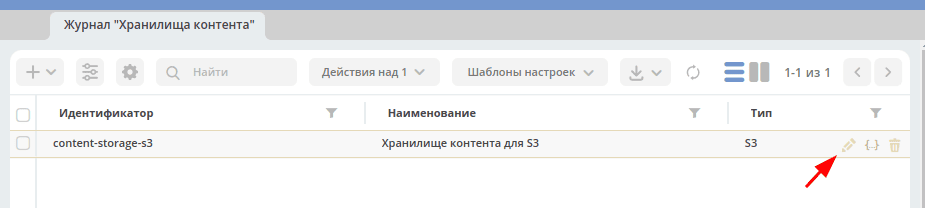
Open the Content Storages journal
Journal - v2/journals?journalId=ecos-content-storages&viewMode=table&ws=admin$workspace
Open content-storage-s3 for editing
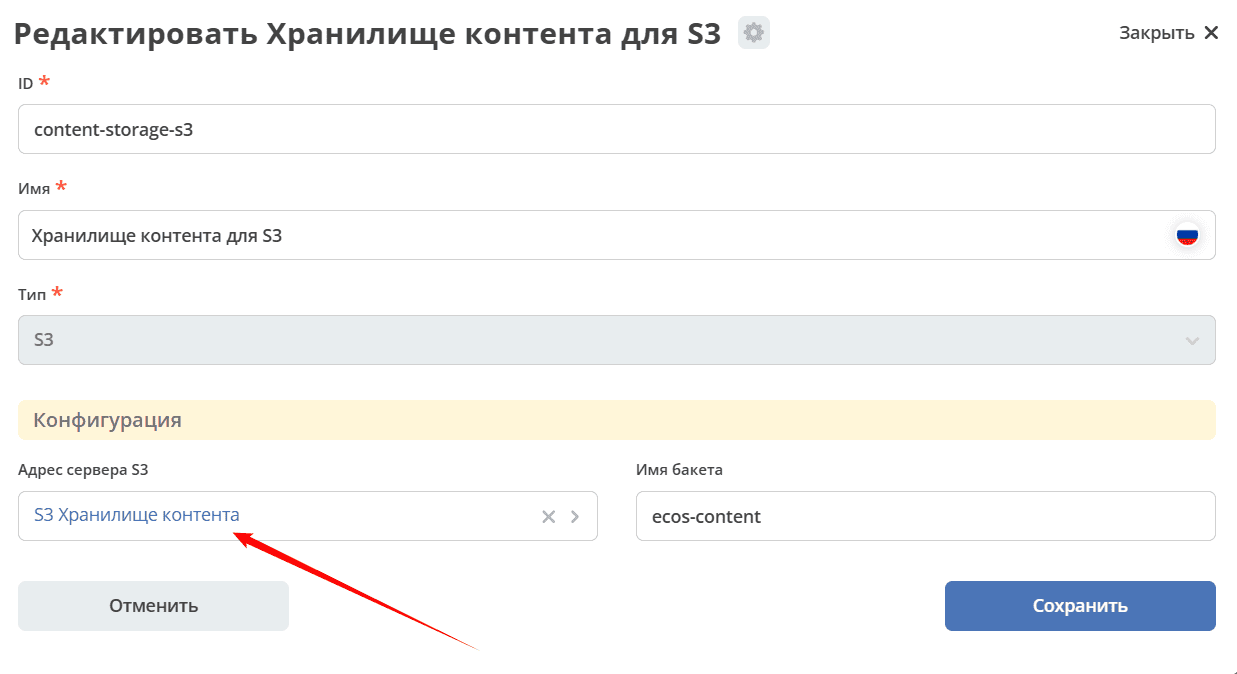
Open S3 Server Address → S3 Content Storage for editing
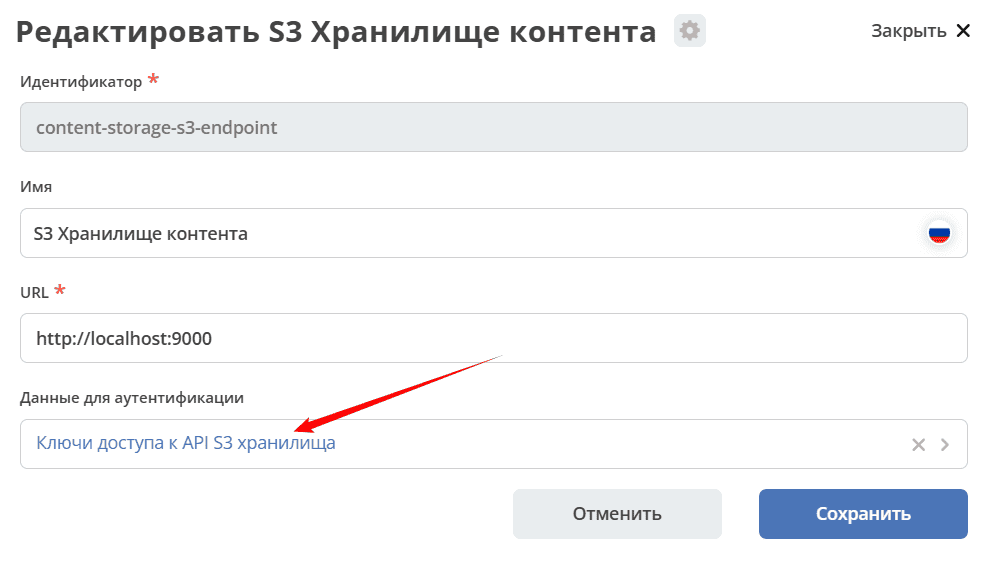
Open Authentication Data → S3 Storage API Access Keys for editing
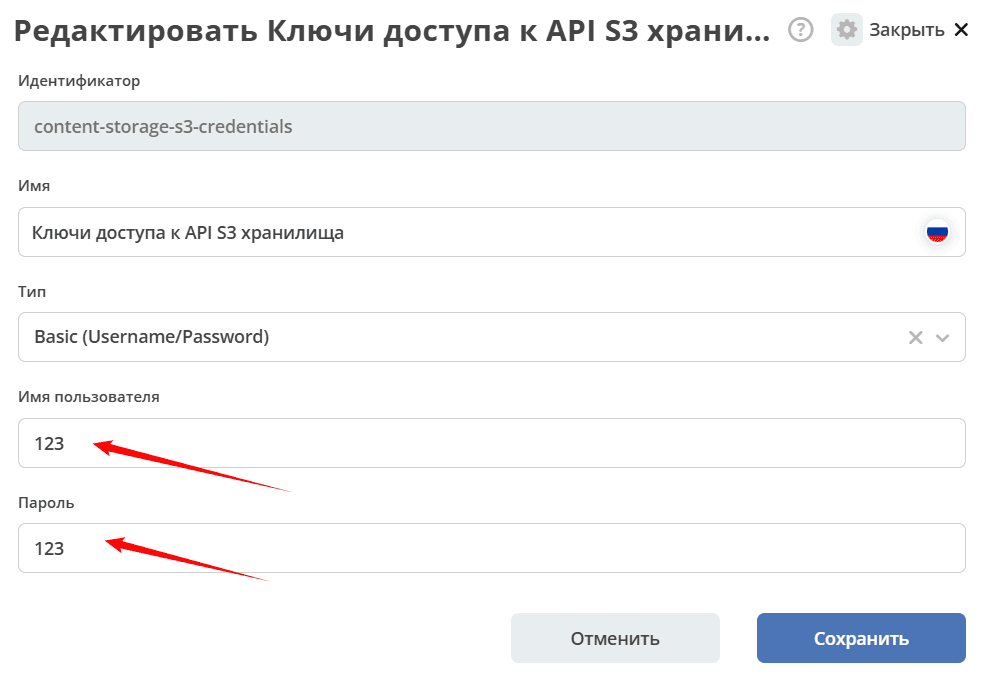
Enter Username (Access key) and Password (Secret key) for S3 access. Click Save
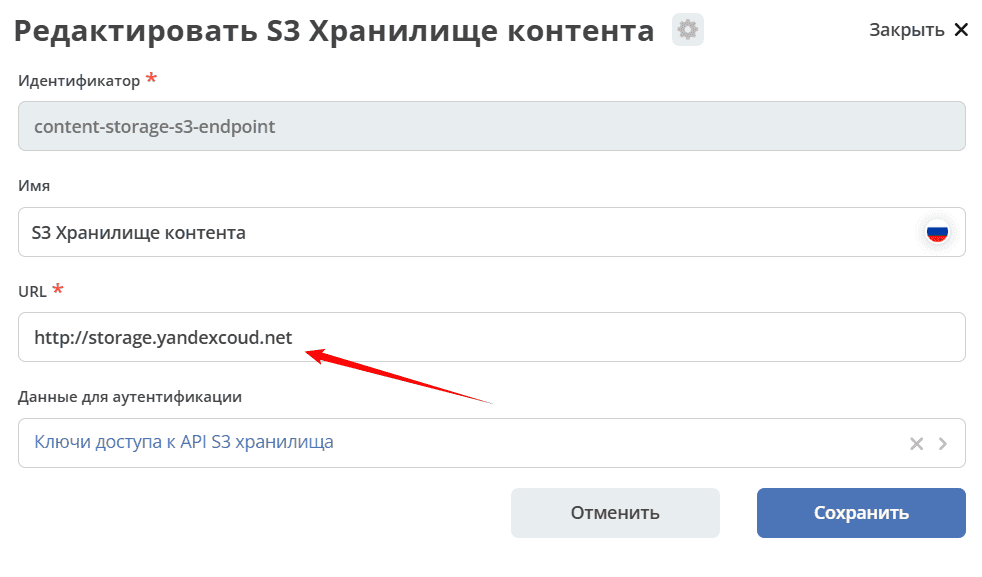
Enter URL for accessing the S3 server. Click Save
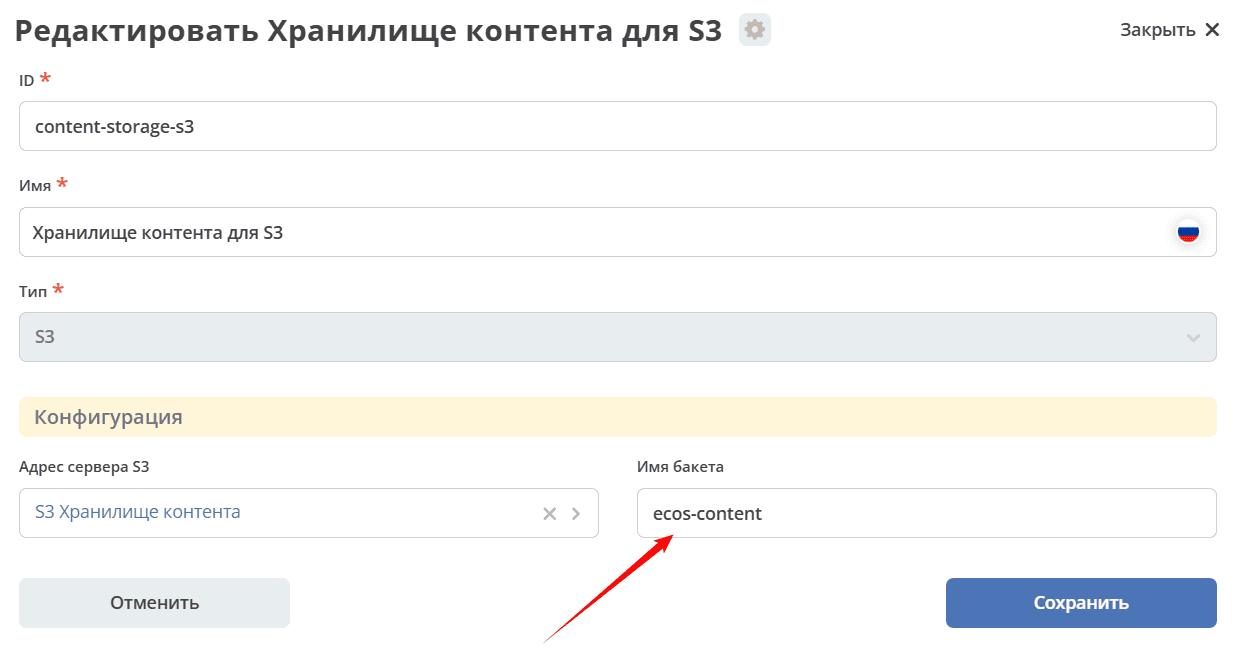
Enter bucket name. Click Save
Go to the ECOS Configuration journal and open the “default-content-storage” setting for editing
Direct link to the setting - v2/journals?journalId=ecos-configs&search=default-content-storage

Select Content Storage for S3 and save the setting.
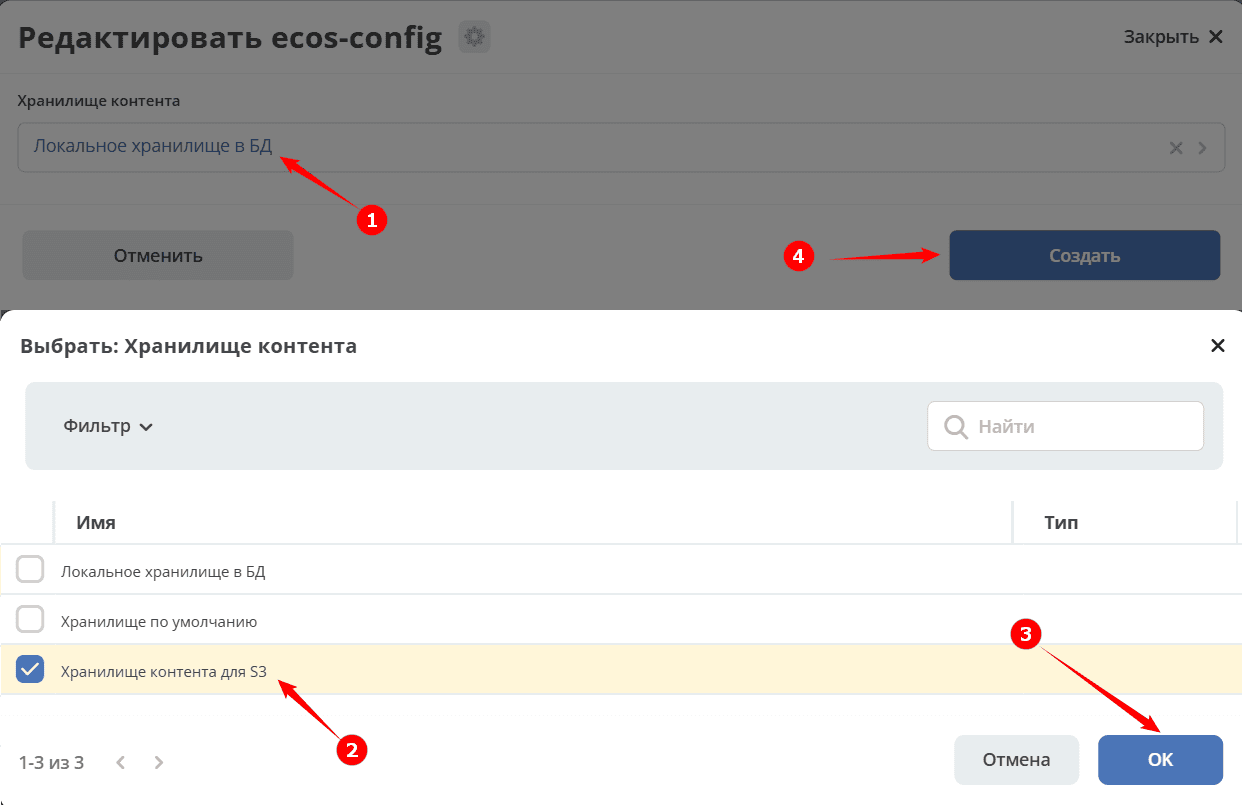
The configuration is now complete. Content for all new documents will go to the S3 bucket. No stand restart is required.
If problems occur and you need to disable S3 temporarily to investigate the causes, you can repeat step 9, but select Local storage in DB.