Access Groups
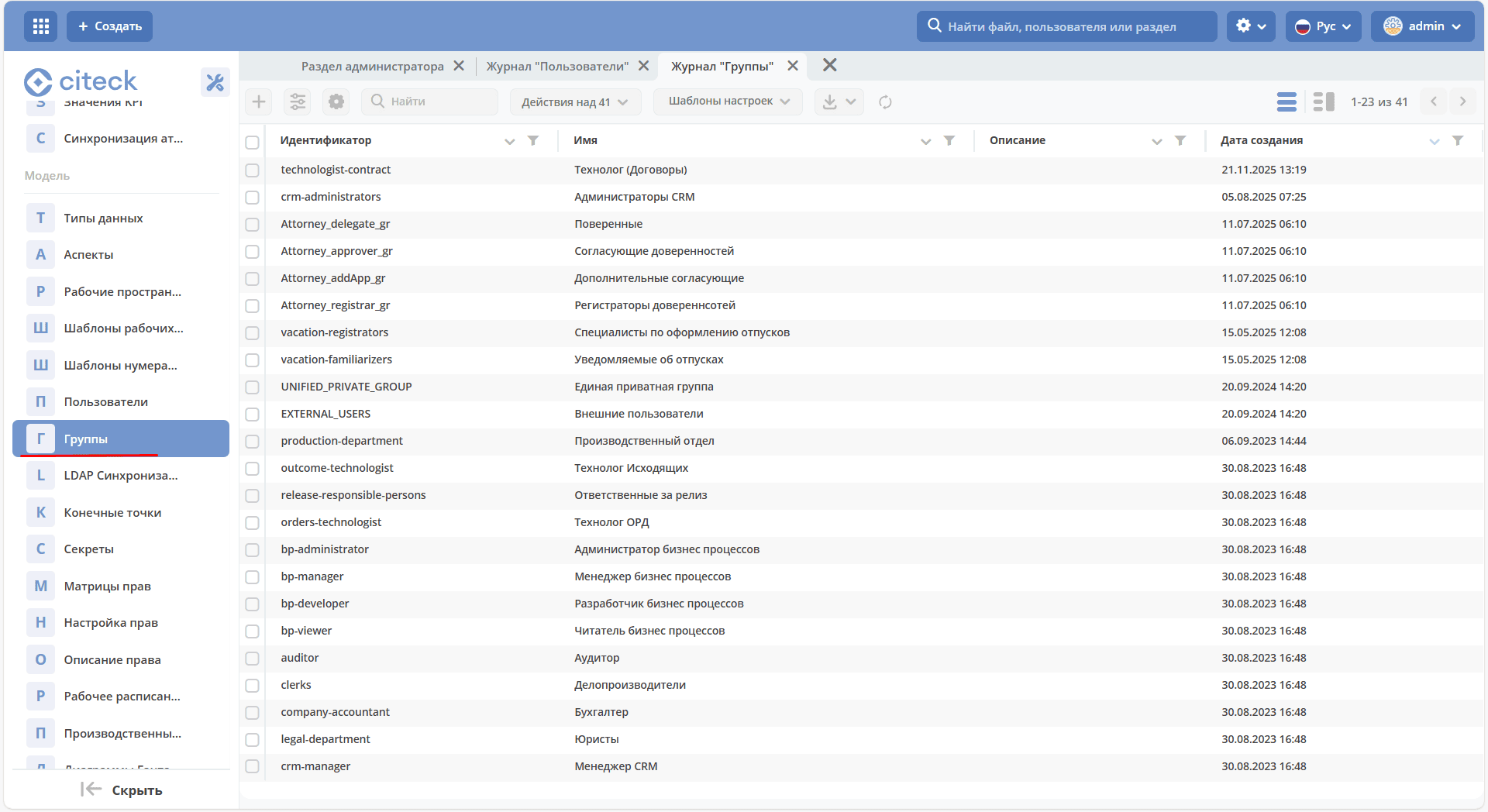
The following groups are included in the Citeck distribution:
Group Name |
Description |
|---|---|
ECOS_ADMINISTRATORS |
Users included in this group are system administrators. |
EVERYONE |
A group that includes all system users. Used to configure permissions for all system users. |
_orgstruct_home_ |
System group for organizational structure formation. |
USERS_PROFILE_ADMIN |
Users included in this group can edit profiles of other users except for system administrators’ profiles. |
AUTHORITY_GROUPS_MANAGERS |
Users included in this group can manage the content of groups specified in the MANAGED_AUTHORITY_GROUPS group. |
MANAGED_AUTHORITY_GROUPS |
Groups that will be available for editing by users of the AUTHORITY_GROUPS_MANAGERS group. |
|
Groups with predefined rights for business process description |
EXTERNAL_USERS |
Group for external users |
UNIFIED_PRIVATE_GROUP |
Citeck modules also have preconfigured groups. Group information is provided in the description of each module.
External Users
External users - users who are added to the system for proper functioning of system features (notifications, authorship display), but cannot log into the system.
Such users can interact with the system through email correspondence or via an external portal.
A special system group EXTERNAL_USERS has been created for external users. Anyone who is directly or indirectly included in this group is considered an external user.
Logic related to external users:
When a user is mentioned in a comment, email notifications are sent only to internal users (not external ones).
When sending an email with a document link, the external portal host can be configured, which external users already have permission to access.
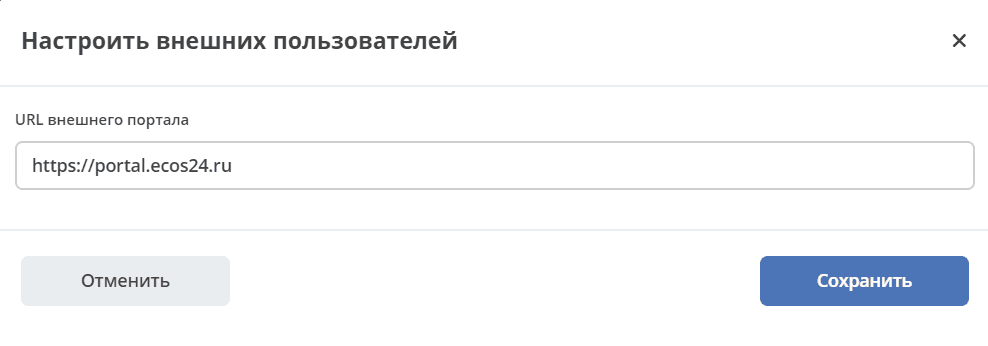
External Portal URL
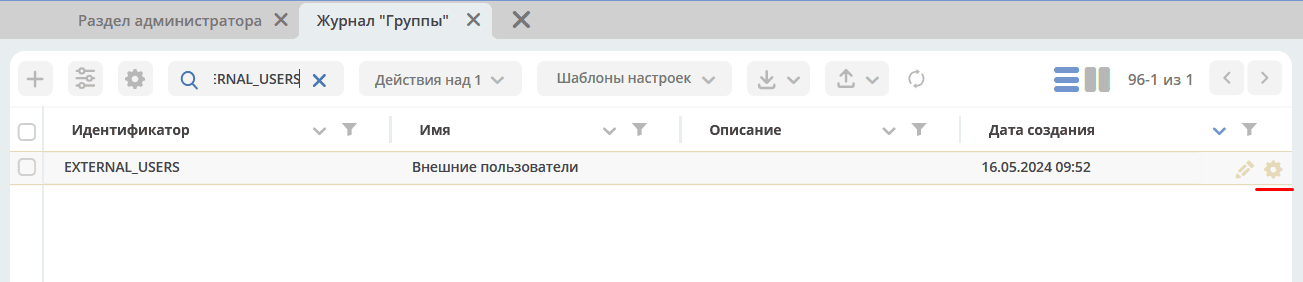
To configure the external portal URL for external users, go to the “Groups” journal (Administrator Section workspace - Model) and find the EXTERNAL_USERS group or a group that is included in it.
Click the gear icon action next to the group:
In the pop-up window, configure the external portal URL:
After this, emails to external users, in templates that use:
link.getRecordLink(docRef) и meta.getWebUrl()
will return the URL configured for the external users group.
If an email is sent to multiple recipients, some of whom are external users and some are not, the notification within ECOS is split into several actual notifications based on the number of unique URLs.
If the cc or bcc fields are filled in the notification, no splitting occurs and the external portal URL logic does not work.
External Portal URL Configuration Hierarchy
The following logic is used when calculating the external portal URL - a URL can be configured for any group within EXTERNAL_USERS at any nesting level, and the configuration that is deeper in the hierarchy takes priority.
For example, if a user belongs to groups EXTERNAL_USERS -> GROUP_0 and EXTERNAL_USERS -> GROUP_1 -> GROUP_2, and each group has an extPortalUrl setting, the setting for GROUP_2 will take priority.
Segregation of Users from Different Customers
The segregation functionality is implemented through a new group flag - Private Group (privateGroup) and a new group UNIFIED_PRIVATE_GROUP (Unified Private Group).
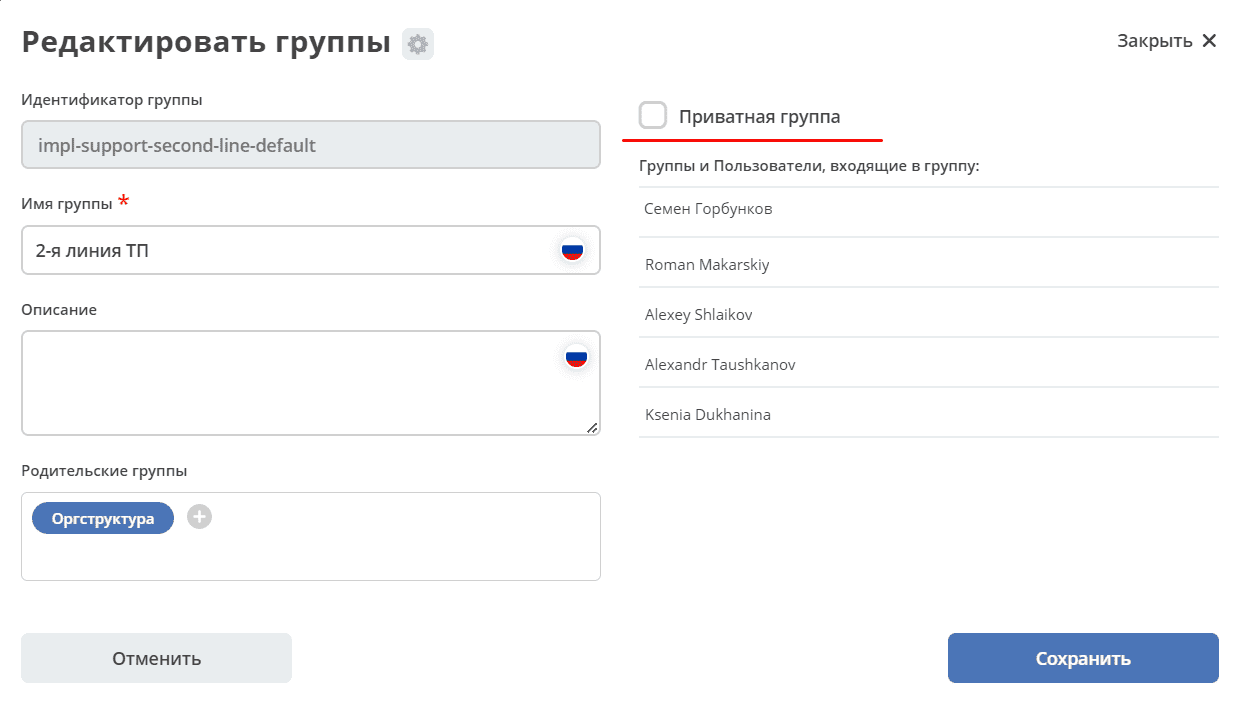
If this flag is set, then:
The administrator and the system see all users and all groups regardless of the flag.
Users from the UNIFIED_PRIVATE_GROUP see all users in the system, and all users from private groups see those who are added to UNIFIED_PRIVATE_GROUP.
Users who are not members of any private group see non-private groups and users who do not belong to any private group.
Users who belong to private groups only see users from those same groups and users from the UNIFIED_PRIVATE_GROUP.
For the «Service Desk» module, you can create a private group for each customer, and add support specialists to UNIFIED_PRIVATE_GROUP.