Creating a New Microservice
Microservices in Citeck are standalone applications based on Spring Boot that register in the system via Service Discovery and interact with other platform components through the Records API, Commands API, and the event bus (RabbitMQ).
You should create your own microservice when the following is required:
implementing isolated business logic with a separate deployment lifecycle;
connecting a third-party library or external system without affecting the core services;
scaling an individual component independently of the rest of the platform.
The article describes two ways to create a microservice: manually via an IDE and using the IntelliJ IDEA plugin.
Note
Spring Boot is used to create the microservice
The result of the instructions described below can be viewed here: Citeck/ecos-webapp-sample
Creating a Microservice in an Integrated Development Environment
To create a new Citeck microservice, you need to create a new maven spring-boot project and add one of the following pom files as a parent in pom.xml:
Artifact |
Description |
|---|---|
ru.citeck.ecos.webapp:ecos-webapp-spring-base-parent |
Base parent for spring-boot microservices where manual plugin configuration for building is required.
This project is the parent for all others in this table.
|
ru.citeck.ecos.webapp:ecos-webapp-spring-hibernate-parent |
Parent for spring-boot microservices where hibernate usage is expected.
No plugin configuration for building is required.
|
ru.citeck.ecos.webapp:ecos-webapp-spring-simple-parent |
Parent for stateless spring-boot microservices or microservices that work with the database via jdbc or ecos-data. |
Current version of parent pom files: 3.22.9 (Java version not lower than 25)
All parent pom files import spring-boot dependencies, common Citeck libraries, and additional libraries for testing (rabbitmq mock, zookeeper mock, etc.)
Example of a configured pom file:
<?xml version="1.0" encoding="UTF-8"?>
<project xmlns="http://maven.apache.org/POM/4.0.0" xmlns:xsi="http://www.w3.org/2001/XMLSchema-instance"
        xsi:schemaLocation="http://maven.apache.org/POM/4.0.0 http://maven.apache.org/maven-v4_0_0.xsd">
    <modelVersion>4.0.0</modelVersion>

    <groupId>ru.citeck.ecos.webapp.sample</groupId>
    <artifactId>minimal-sample</artifactId>
    <version>1.0.0-SNAPSHOT</version>

    <parent>
        <groupId>ru.citeck.ecos.webapp</groupId>
        <artifactId>ecos-webapp-spring-simple-parent</artifactId>
        <version>3.22.9</version>
    </parent>

    <repositories>
        <repository>
            <id>citeck-public</id>
            <url>https://nexus.citeck.ru/repository/maven-public</url>
        </repository>
    </repositories>

</project>
The next step is to create a main class to run the spring-boot application at the following path:
src/main/java/ru/citeck/ecos/webapp/sample/minimal/MinimalWebAppSample.java
ru/citeck/ecos/webapp/sample/minimal- java package for our application, which can be arbitrary;MinimalWebAppSample.java- file with the main class to run the application. Can be arbitrary. Both Kotlin and Java files are supported.
Main class content:
package ru.citeck.ecos.webapp.sample.minimal;

import org.springframework.boot.autoconfigure.SpringBootApplication;
import org.springframework.cloud.client.discovery.EnableDiscoveryClient;
import ru.citeck.ecos.webapp.lib.spring.EcosSpringApplication;

@SpringBootApplication
@EnableDiscoveryClient
public class MinimalWebAppSample {

    public static final String NAME = "minimal-webapp";

    public static void main(String[] args) {
        new EcosSpringApplication(MinimalWebAppSample.class).run(args);
    }
}
where
public static final String NAME = "minimal-webapp";- application name (app name). It must be unique among all other microservices. Many mechanisms are based on this name:Distributed hazelcast cache is formed between microservices with the same name;
Commands API works based on this name. When sending a command, we specify the application name and the message goes to the personal queue for this application;
Records API works based on this name. The application name is used in search and specified in sourceId before the “/” character (e.g., emodel/person). Entity references are formed taking into account the application name (e.g., emodel/person@someuser);
Service discovery mechanism works based on the application name.
EcosSpringApplication- our extension of the standard SpringApplication. For the microservice to work correctly, EcosSpringApplication must be used.
Create a settings file at the path (optional):
src/main/resources/config/application.yml
File content:
---
server:
  port: 8686 # указываем порт, на котором будет развернут микросервис
Application settings can be placed in this file.
Add a file for logging configuration:
src/main/resources/logback-spring.xml
with the following content:
<?xml version="1.0" encoding="UTF-8"?>
<!DOCTYPE configuration>
<configuration>
    <include resource="ecos/logback-base.xml" />
</configuration>
To run the microservice locally, use the command:
mvn spring-boot:run
Or standard IDE mechanisms for running spring-boot applications
The following steps are for testing the microservice
Create a file with logging settings for tests (optional):
src/test/resources/logback-test.xml
with content:
<?xml version="1.0" encoding="UTF-8"?>
<!DOCTYPE configuration>
<configuration>
    <include resource="ecos/logback-base.xml" />
</configuration>
Create a file with settings for autotests (optional):
src/main/resources/config/application-test.yml
This file can contain settings that will be used only during autotests.
Create a file for testing the microservice:
src/test/java/ru/citeck/ecos/webapp/sample/minimal/MinimalWebAppSampleTest.java
where
ru/citeck/ecos/webapp/sample/minimal- java package with tests. Can be any, but it is highly recommended to place tests in the same package or subpackages as the main class from step 2;MinimalWebAppSampleTest.java- name of the test file. Can be any.
File content:
package ru.citeck.ecos.webapp.sample.minimal;

import org.junit.jupiter.api.Test;
import org.junit.jupiter.api.extension.ExtendWith;
import org.springframework.boot.test.context.SpringBootTest;
import ru.citeck.ecos.webapp.lib.spring.test.extension.EcosSpringExtension;

import static org.assertj.core.api.AssertionsForClassTypes.assertThat;

@ExtendWith(EcosSpringExtension.class)
@SpringBootTest(classes = { MinimalWebAppSample.class })
public class MinimalWebAppSampleTest {

    @Test
    public void test() {
        assertThat(1 + 1).isEqualTo(2);
    }
}
where
EcosSpringExtension- Citeck extension for SpringExtension, which allows running a full spring-context with in-memory database in autotests (if connection settings are specified for it in application.yml);MinimalWebAppSample.class- class from step 2
To run autotests, you need to execute the following command:
mvn clean test
To build a docker image with the microservice, execute the following command:
mvn clean package jib:dockerBuild -Djib.docker.image.tag=1.0.0-snapshot
Note
When building inside a container, the following startup files must be present:
/entrypoint.sh
/app/jib-classpath-file
/app/jib-main-class-file
In the system modules list in ID:
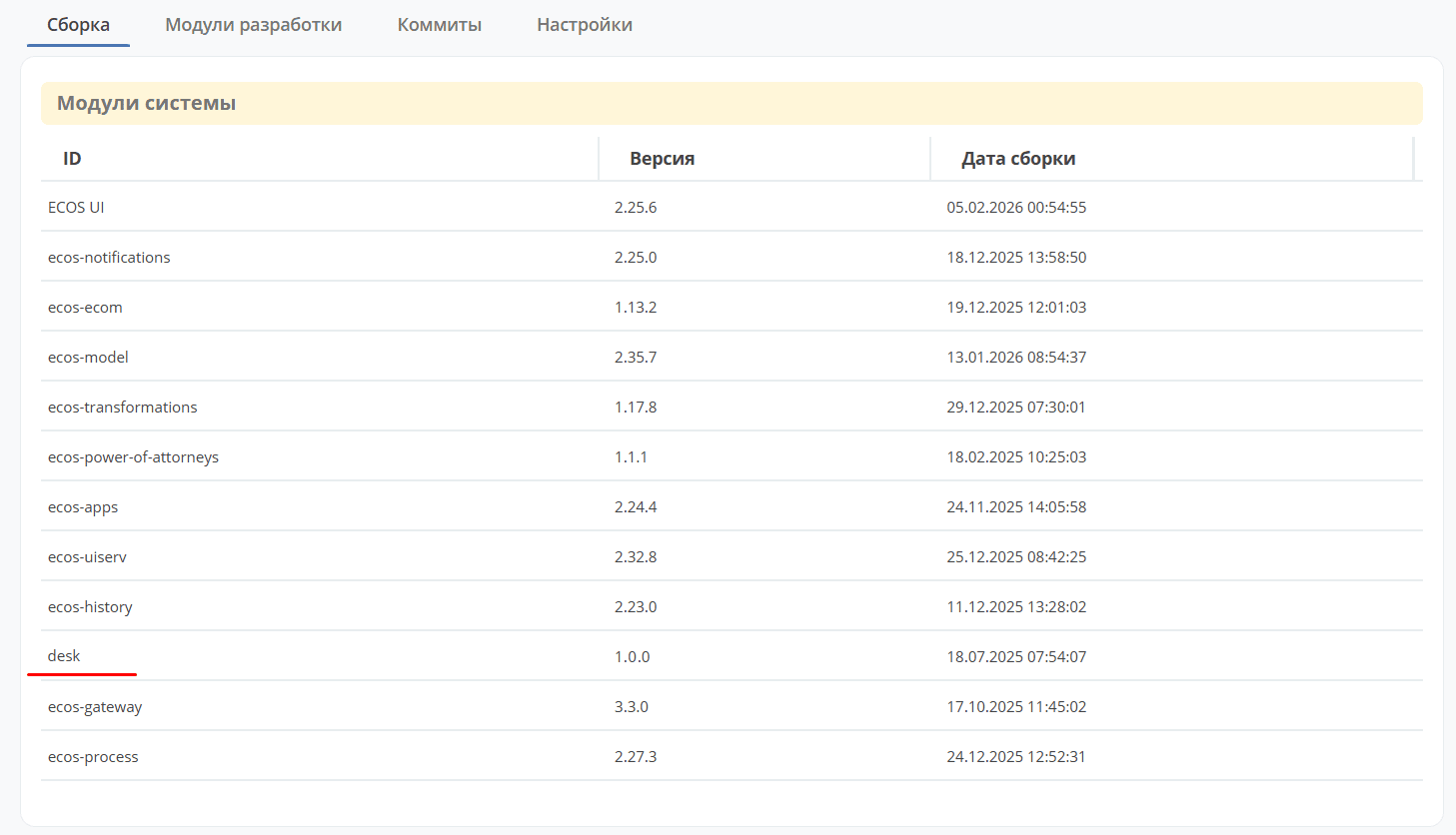
the repository name (repo property) is displayed, which is loaded from the file:
in the project
target/classes/ecos/build-info.jsonin the container
/app/resources/ecos/build-info.json
Creating a Microservice Using the IntelliJ IDEA Plugin
It’s faster and more convenient to create a microservice using the IntelliJ IDEA plugin, see how.