Developer Console
The developer console for administrators allows running JavaScript code directly in the browser with the results displayed inline.
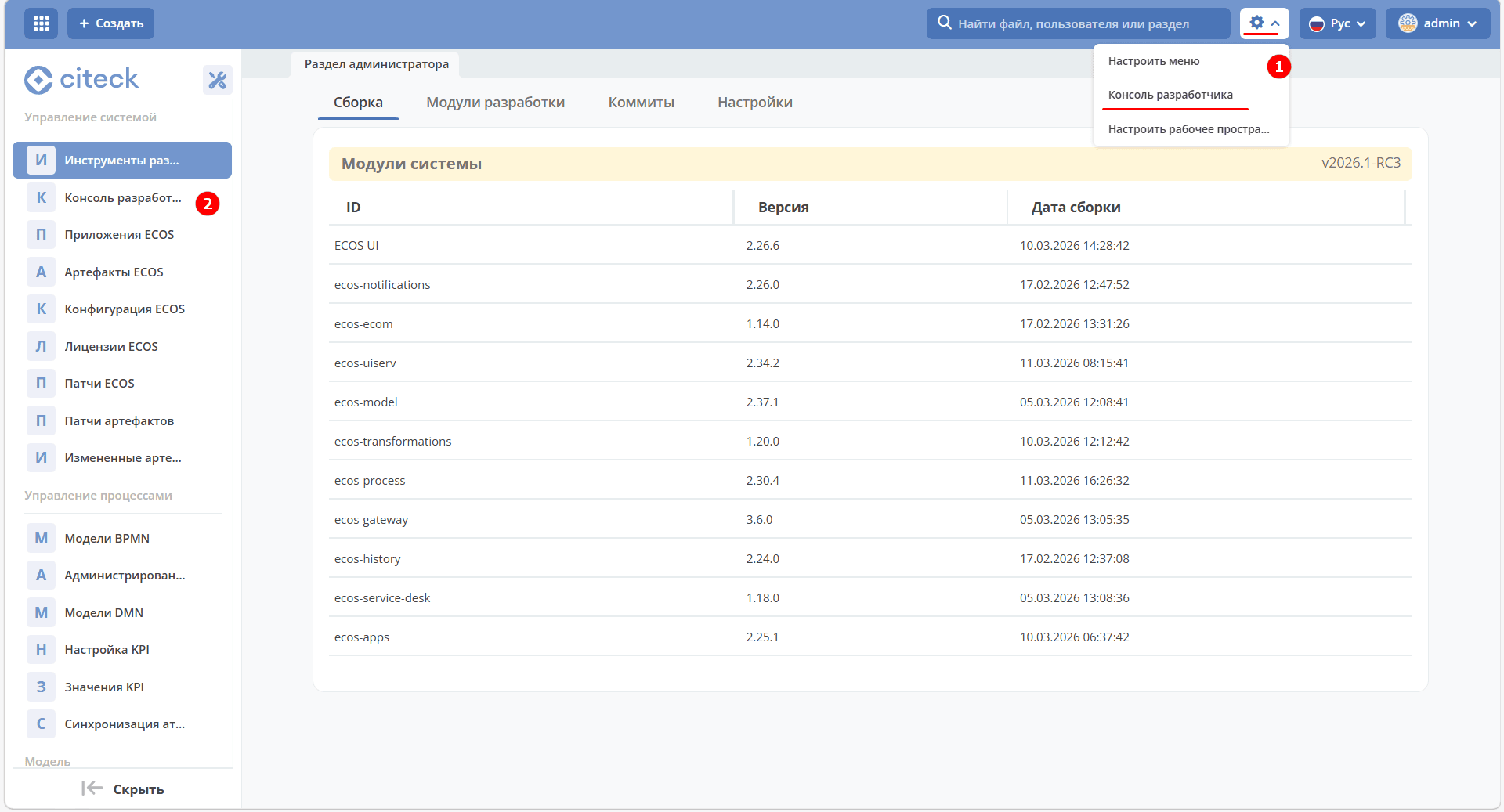
The console can be opened from the “Admin Section” workspace via the gear icon (1) in the top right corner, or through the corresponding menu item (2):
General view of the developer console panel:
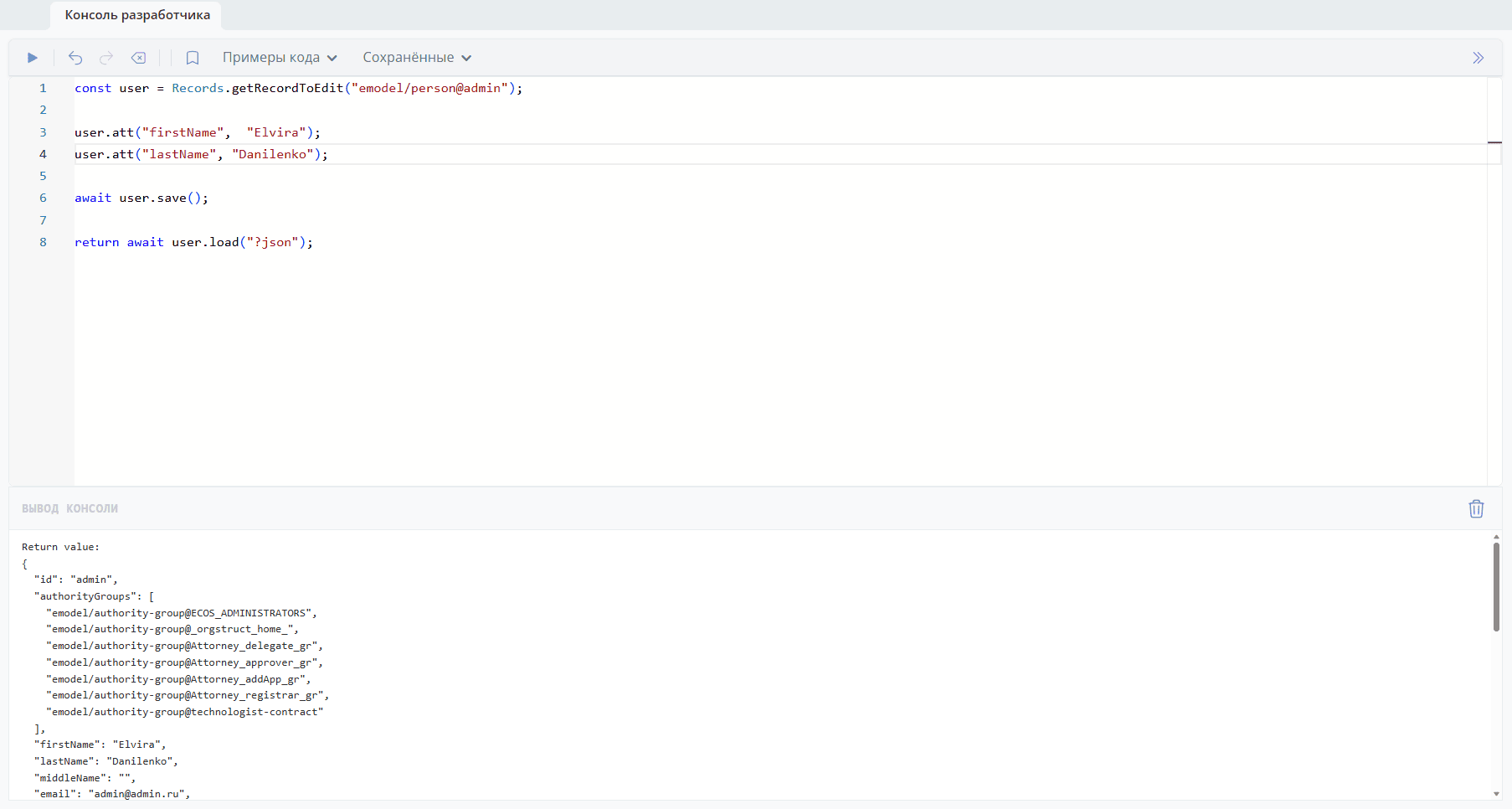
At the top is the toolbar with control buttons (Run, Undo, Redo, Clear, Save Code), dropdown menus “Code Examples” and “Saved”, and a panel layout toggle.
The main area is the code editor with line numbering and syntax highlighting.
At the bottom is the “Console Output” section.
Code can also be executed using the Shift + Enter keyboard shortcut.
Working with Snippets
A snippet is a ready-made code fragment that can be inserted with a single click, eliminating the need to write it from scratch.
A snippet can be saved by clicking the “Save Code” button and entering a snippet name. Saved snippets appear in the “Saved” dropdown menu and are available for quick insertion.
If the name entered during saving matches an existing active snippet, the code is updated. A modal dialog will display the hint “Existing snippet will be updated”.
When deleting a snippet from the “Saved” menu, a confirmation dialog will appear. Upon confirmation, the snippet will be deleted.
AI Assistant Button
Note
Available in the enterprise edition only.
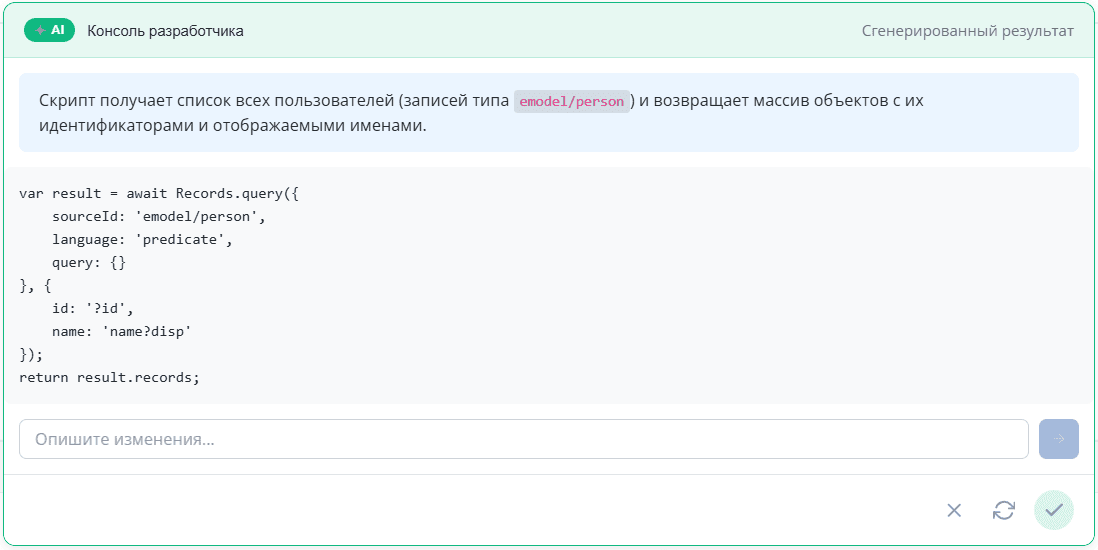
The developer console toolbar includes an AI assistant button — it allows using AI to generate and edit code directly in the console.

For example, you can ask the AI assistant to write code for retrieving a list of all users:

|
|
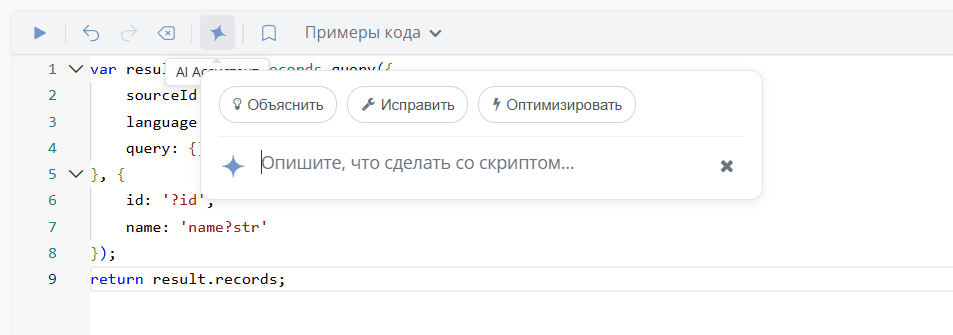
If the editor already contains code, prompts will appear when querying the AI assistant: