Data Sources
REST Data Source
A data source that operates via REST requests
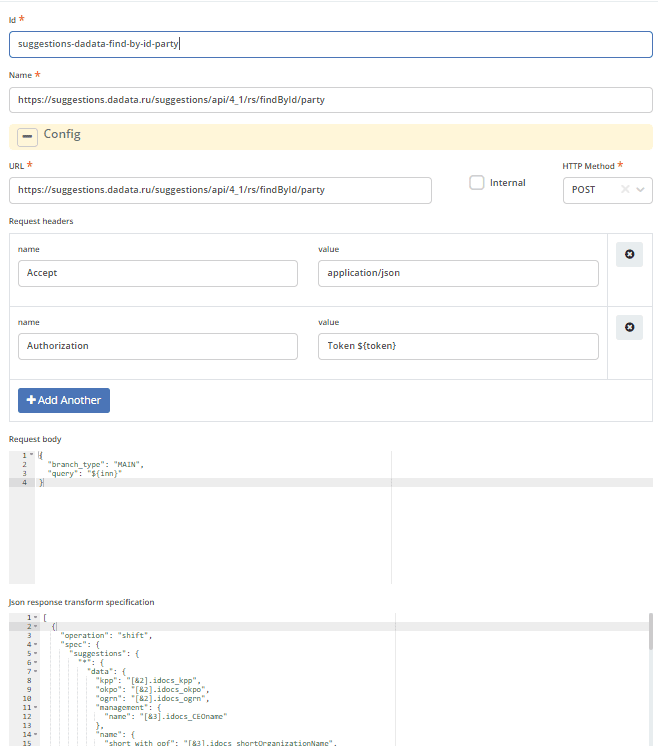
Id - data source identifier
Name - arbitrary name
URL - the address to which requests will be sent. Supports query variables in curly braces - {key}
Internal - the request will be sent only within the network of microservices registered in Eureka (headers and cookies are passed in such requests)
HTTP Method - you can select http methods like post, get, put, etc.
Request headers - request headers. Supports query variables in curly braces - ${key}
Request body - request body. Supports query variables in curly braces - ${key}
Json response transform specification - A specification that describes the response transformation. The specification format is Jolt
DB Data Source
Data source from a database.
SSL for database requests via ECOS db-data-source
1. General Configuration Information
Starting from version 2.8.0 of the integration microservice, it has become possible to specify the following parameters in the DataSource form config:
Can be used when configuring an external database in recsrc.
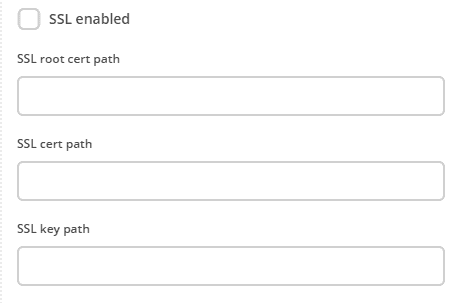
The general principle is that a HikariDataSource is created based on the config.
When these properties are specified, additional attributes will be included in our created HikariDataSource, which will force the used driver to use HTTPS instead of HTTP.
Currently available modes:
none - SSL flag is off, fields are NOT filled. We use the HTTP protocol (traffic is not secured).
require - SSL flag is on, other fields are NOT filled. We use HTTPS, traffic is secured by encryption, but we do not verify that the database is the one we trust. The database is also not sure it is connecting to our application.
verify-ca - SSL flag is on, SSL root cert path and SSL cert path are specified, SSLkey path is not specified. We use HTTPS, traffic is secured by encryption. We know the database is the one we want to connect to (upon successful handshake). The database is still not sure it is connecting to our application.
verify-full - SSL flag is on, other fields are filled. We use HTTPS, traffic is secured. We are confident in the database, and the database is confident in us.
For more details on configuration, you can look here: Configuring the Client and here: Connecting to the Database.
Database-side settings are described here: SSL Support
Important
IMPORTANT! Only the require and verify-ca options have been tested for Postgres DB.
2. Running the DB in Docker with HTTPS Communication Capability
For each system, the approach to injecting certificates into the container image will be different, because it is important for Postgres that the file has minimal permissions (640 or less from root, 600 or less when running in other cases).
I will explain how to work around this using Windows as an example.
In Windows, unfortunately, such a container in Docker can only be run by building it with the certificates included from the start.
Let’s generate keys and certificates:
openssl genrsa -out root.key 2048
openssl req -x509 -new -key root.key -days 10000 -out root.crt
openssl genrsa -out server.key 2048
openssl req -new -key server.key -out server.csr
openssl x509 -req -in server.csr -CA root.crt -CAkey root.key -CAcreateserial -out server.crt -days 5000
Add a Dockerfile to the directory with certificates:
FROM postgres:10.4-alpine

# On Windows root will own the files, and they will have permissions 755
COPY root.crt /var/lib/postgresql/root.crt
COPY server.crt /var/lib/postgresql/server.crt
COPY server.key /var/lib/postgresql/server.key

# update the privileges on the .key, no need to touch the .crt
RUN chmod 600 /var/lib/postgresql/server.key
RUN chown postgres:postgres /var/lib/postgresql/server.key
Build and run:
docker build -t mypg:01 .

docker run -e "POSTGRES_USER=test_user" -e "POSTGRES_PASSWORD=test_password" -p 5430:5432 -d --name postgres mypg:01 -c ssl=on -c ssl_cert_file=/var/lib/postgresql/server.crt -c ssl_key_file=/var/lib/postgresql/server.key
3. Connection Check
You can check clients and the indication of encryption usage on their side using an SQL script:
SELECT *
FROM pg_stat_ssl
JOIN pg_stat_activity
    ON pg_stat_ssl.pid = pg_stat_activity.pid;
[Deprecated] MQ Data Source
Note
For MQ integration, it is better to use Camel DSL
Data source for connecting to a message queue
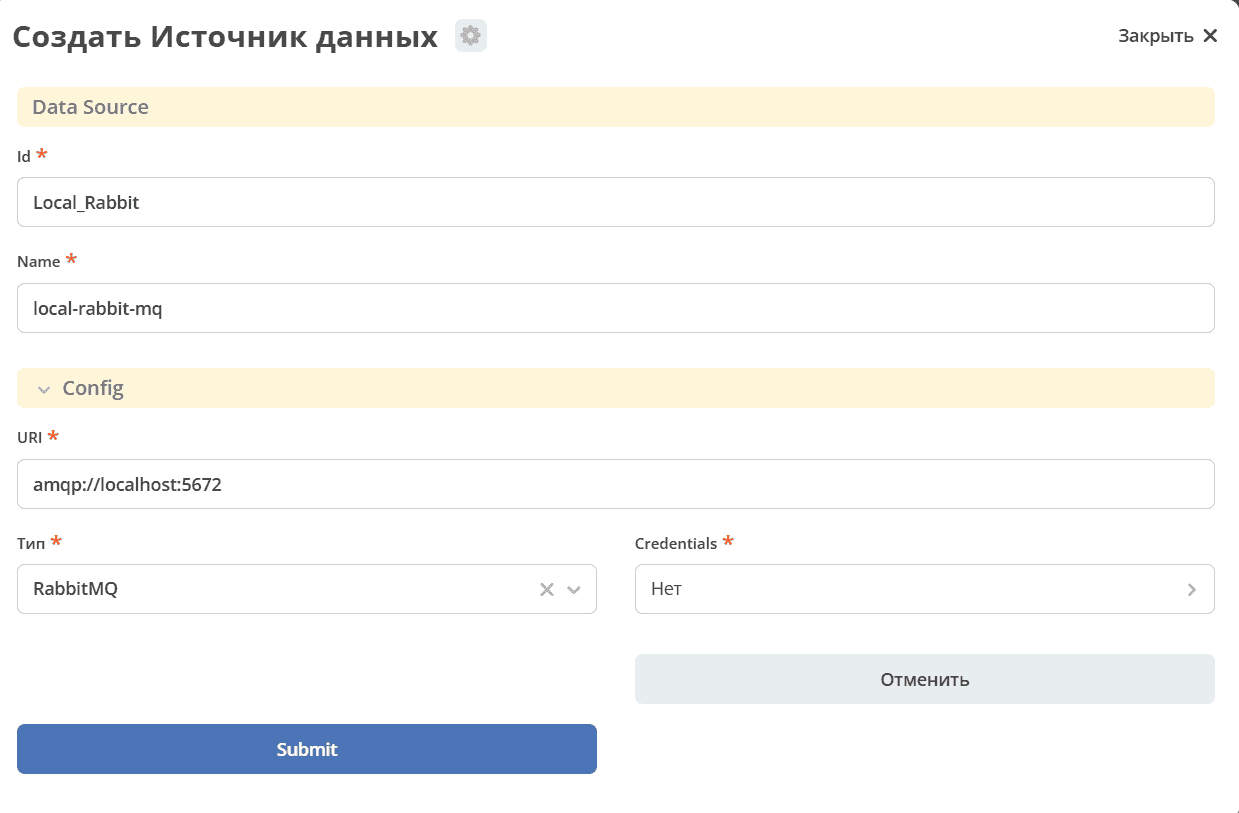
Id - data source identifier
Name - arbitrary data source name
URI - connection string for the queue
Type - queue type
Credentials - reference to credentials where the login/password for connecting to the queue is specified