Installing Citeck using Docker Compose
System Requirements
Installed Docker
Installed Docker Compose
16 GB RAM for proper Citeck launch
Installing and Running Citeck Community
Important
The kit comes with pre-filled demo data.
To disable this setting before deploying the stand, go to the folder \services\environments in the demo_data.env file, set WITH_DEMO_DATA to false.
We anonymously collect statistics using the Umami service. The service does not collect or store personal data, avoiding the need for cookies.
Install Docker and Docker Compose on your OS
Clone the repository:
git clone https://github.com/citeck/citeck-community.git
go to the folder with the cloned repository:
cd /полный/путь/до/папки
Start Citeck:
docker-compose up -d
Wait for the system to start (time depends on system performance).
Open a browser and navigate to:
http://localhost/Log in to the system:
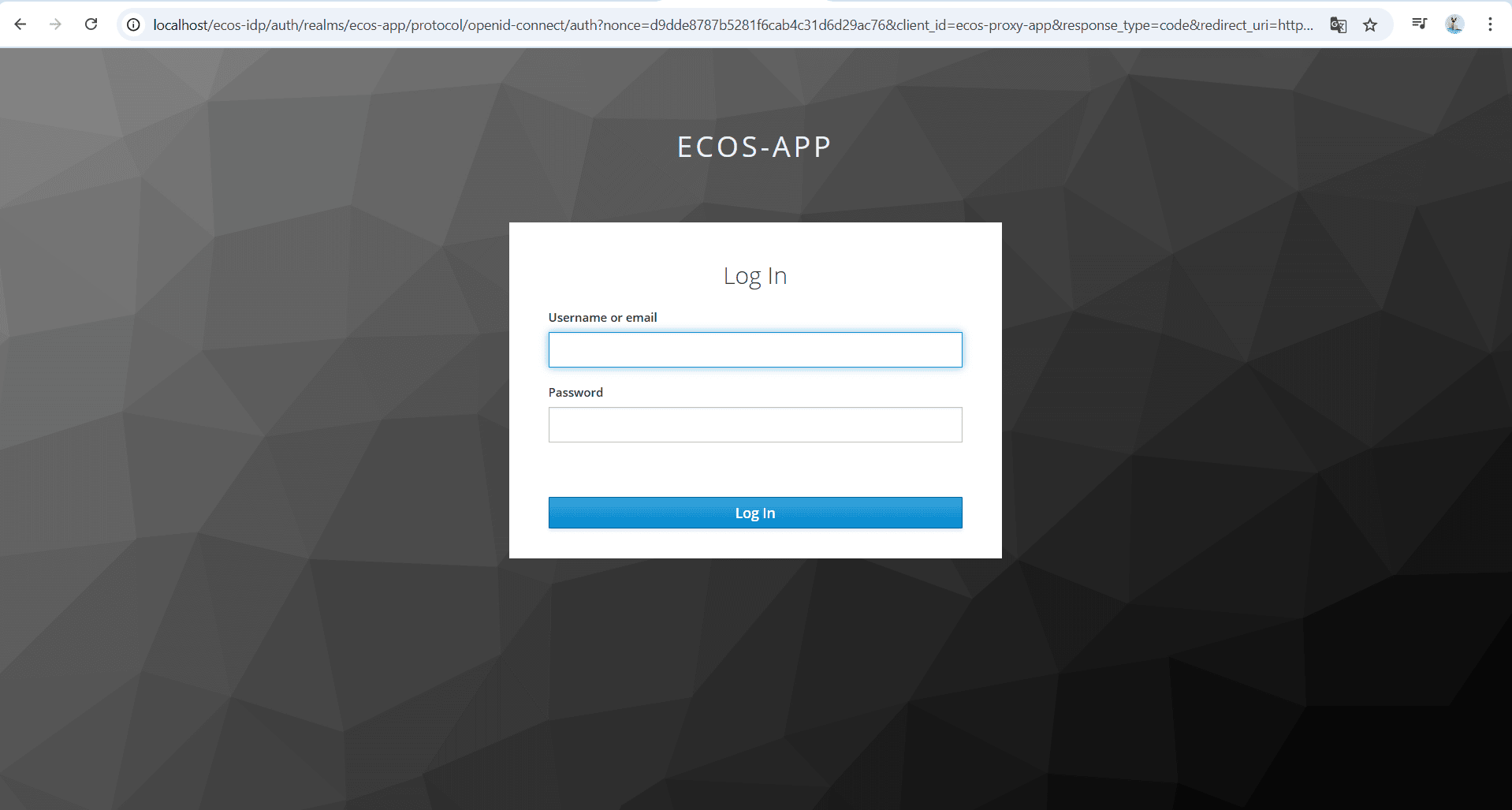
Username: admin
Password: admin
If you need to change the password, see the instructions
Note
During the first deployment without demo data, keycloak will ask to change the password.
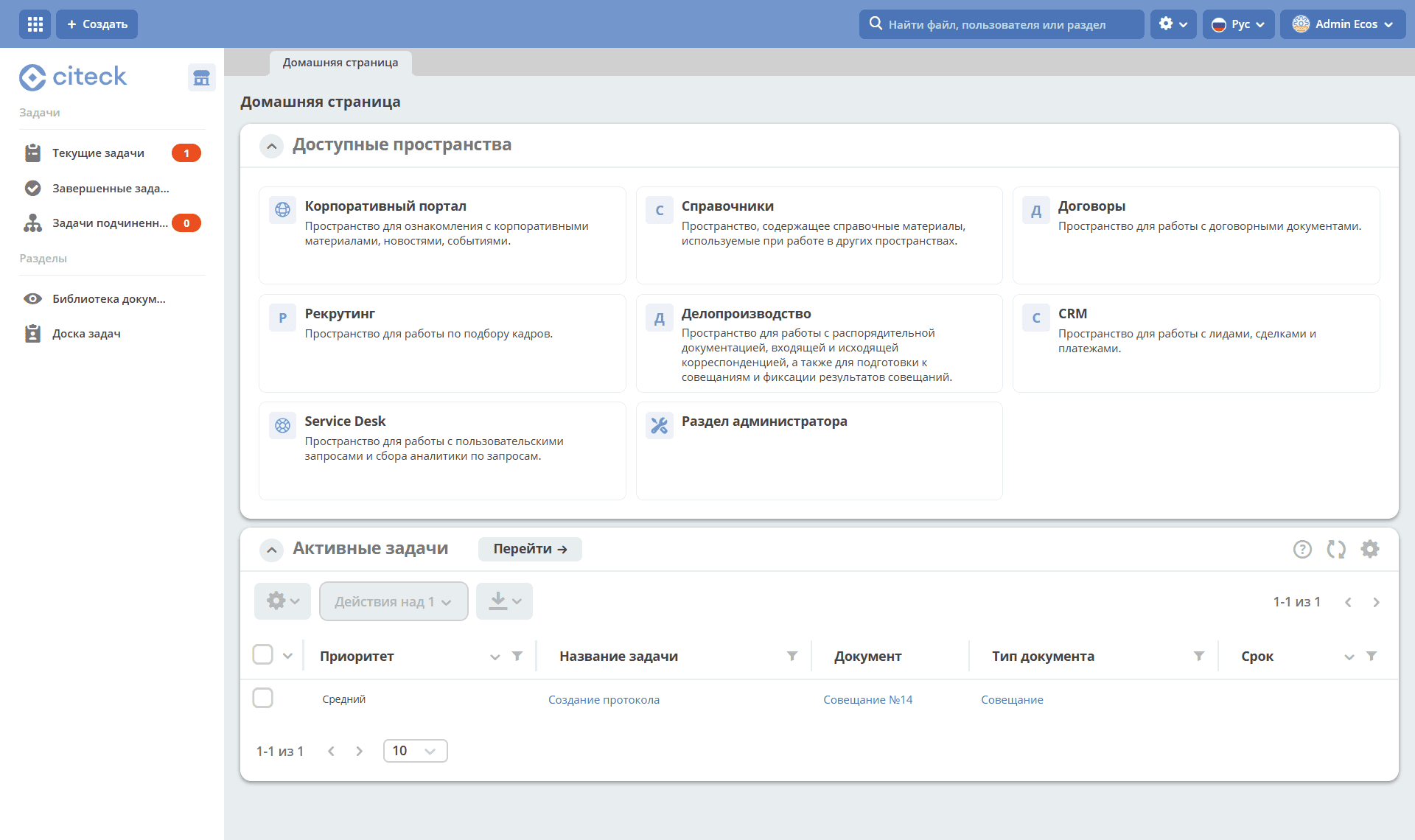
Then the personal workspace page will become available:
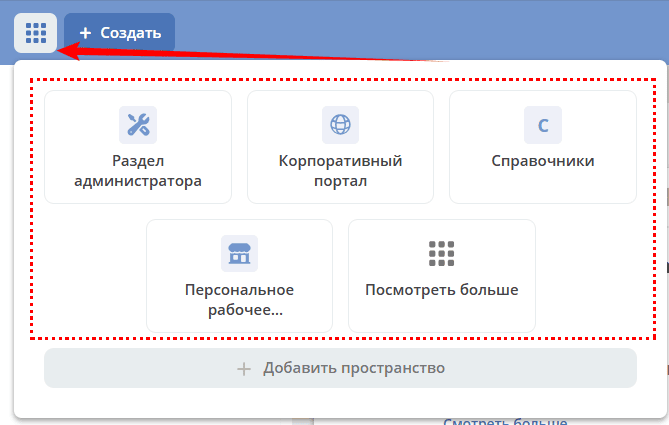
In the top left corner, a button is available to select available workspaces and create a new one:
Note
During the first launch within the first 5 minutes after successful installation and login, errors may occur, for example:
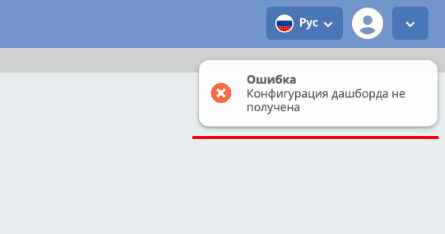
Citeck deployment and launch continues, you need to wait.
Updating to the latest release
Run the following commands in the terminal:
Stop Citeck:
docker-compose downGo to the
citeck-communityfolder:cd /полный/путь/до/папки/citeck-community
Get the current version of Citeck:
git pullDownload the latest image versions:
docker-compose pullStart Citeck:
docker-compose up -d
Environment preparation and Citeck installation
Installing Docker:
sudo apt-get update
sudo apt-get install ca-certificates curl
sudo install -m 0755 -d /etc/apt/keyrings
sudo curl -fsSL https://download.docker.com/linux/ubuntu/gpg -o /etc/apt/keyrings/docker.asc
sudo chmod a+r /etc/apt/keyrings/docker.asc

# Добавьте репозиторий в источники Apt:
echo \
  "deb [arch=$(dpkg --print-architecture) signed-by=/etc/apt/keyrings/docker.asc] https://download.docker.com/linux/ubuntu \
  $(. /etc/os-release && echo "$VERSION_CODENAME") stable" | \
  sudo tee /etc/apt/sources.list.d/docker.list > /dev/null
sudo apt-get update
Install the latest available version:
sudo apt-get install docker-ce docker-ce-cli containerd.io docker-buildx-plugin docker-compose-plugin
Or install a specific version:
apt-cache madison docker-ce | awk '{ print $3 }'
VERSION_STRING={Your Specific version}
sudo apt-get install docker-ce=$VERSION_STRING docker-ce-cli=$VERSION_STRING \
    containerd.io docker-buildx-plugin docker-compose-plugin
Configure Docker autostart:
sudo systemctl enable docker
Install Docker Compose:
curl -L "https://github.com/docker/compose/releases/latest/download/docker-compose-$(uname -s)-$(uname -m)" \
    -o /usr/local/bin/docker-compose
chmod +x /usr/local/bin/docker-compose
Verify the installation:
docker-compose --version
This completes the installation of Docker Engine and Docker-Compose.
Clone the repository and start Citeck:
wget https://github.com/Citeck/citeck-community/archive/refs/heads/master.zip
unzip master.zip
cd citeck-community-master
docker-compose pull
docker-compose up -d
Note
Execute from the citeck-community-master directory
If the local network may overlap with the Docker network, specify a predefined subnet in the /etc/docker/daemon.json file (parameter default-address-pools):
{
    "default-address-pools": [
        {"base": "172.19.0.0/16", "size": 24}
    ]
}
Installing Docker:
sudo apt-get update
sudo apt-get install ca-certificates curl
sudo install -m 0755 -d /etc/apt/keyrings
sudo curl -fsSL https://download.docker.com/linux/debian/gpg -o /etc/apt/keyrings/docker.asc
sudo chmod a+r /etc/apt/keyrings/docker.asc

# Добавьте репозиторий в источники Apt:
echo \
  "deb [arch=$(dpkg --print-architecture) signed-by=/etc/apt/keyrings/docker.asc] https://download.docker.com/linux/debian \
  $(. /etc/os-release && echo "$VERSION_CODENAME") stable" | \
  sudo tee /etc/apt/sources.list.d/docker.list > /dev/null
sudo apt-get update
Install the latest available version:
sudo apt-get install docker-ce docker-ce-cli containerd.io docker-buildx-plugin docker-compose-plugin
Or install a specific version:
apt-cache madison docker-ce | awk '{ print $3 }'
VERSION_STRING={Your Specific version}
sudo apt-get install docker-ce=$VERSION_STRING docker-ce-cli=$VERSION_STRING \
    containerd.io docker-buildx-plugin docker-compose-plugin
Configure Docker autostart:
sudo systemctl enable docker
Install Docker Compose:
wget https://github.com/docker/compose/releases/download/v2.29.1/docker-compose-Linux-x86_64
mv ./docker-compose-Linux-x86_64 /usr/local/bin/docker-compose
sudo chmod +x /usr/local/bin/docker-compose
Note
The version can be changed to a more current one by replacing v2.29.1
This completes the installation of Docker Engine and Docker-Compose.
Clone the repository and start Citeck:
wget https://github.com/Citeck/citeck-community/archive/refs/heads/master.zip
unzip master.zip
cd citeck-community-master
docker-compose pull
docker-compose up -d
Note
Execute from the citeck-community-master directory
If the local network may overlap with the Docker network, specify a predefined subnet in the /etc/docker/daemon.json file (parameter default-address-pools):
{
    "default-address-pools": [
        {"base": "172.19.0.0/16", "size": 24}
    ]
}
Note
The instructions were tested with Astra Linux Common Edition 2.12.46.
Installing Docker:
sudo apt update
sudo apt install apt-transport-https ca-certificates curl gnupg2 software-properties-common
curl -fsSL https://download.docker.com/linux/debian/gpg | sudo apt-key add -
sudo printf "deb [arch=amd64] https://download.docker.com/linux/debian stretch stable \n" \
    > /etc/apt/sources.list.d/docker.list
sudo apt-get update
sudo apt-get install docker-ce docker-ce-cli containerd.io
Configuring docker groups:
sudo groupadd docker
sudo usermod -aG docker $USER
sudo systemctl enable docker.service
sudo systemctl enable containerd.service
Install Docker Compose:
wget https://github.com/docker/compose/releases/download/1.27.4/docker-compose-Linux-x86_64
mv ./docker-compose-Linux-x86_64 /usr/local/bin/docker-compose
sudo chmod +x /usr/local/bin/docker-compose
Note
The version can be changed to a more current one by replacing 1.27.4
Clone the repository and start Citeck (run in terminal, Alt+T):
git clone https://github.com/Citeck/citeck-community.git && cd citeck-community
docker-compose pull
docker-compose up -d
Note
Run commands from the citeck-community directory.
If the local network may overlap with the Docker network, specify a predefined subnet in the /etc/docker/daemon.json file (parameter default-address-pools):
{
    "default-address-pools": [
        {"base": "172.19.0.0/16", "size": 24}
    ]
}
Note
The instructions were tested on RED OS 7.3| Linux Kernel 5.15.72
Update packages and disable SELINUX:
dnf update
echo 'SELINUX=disabled' > /etc/sysconfig/selinux
reboot
Installing Docker and Docker Compose:
sudo dnf install docker-ce docker-ce-cli docker-compose
systemctl enable docker
Clone the repository and start Citeck (run in terminal, Alt+T):
git clone https://github.com/Citeck/citeck-community.git && cd citeck-community
docker-compose pull
docker-compose up -d
Note
If you encounter the error unknown log opt ‘max-size’ for journald log driver, open /etc/docker/deamon.json and change “log-driver”: “journald” to “log-driver”: “json-file”
If the local network may overlap with the Docker network, specify a predefined subnet in the /etc/docker/daemon.json file (parameter default-address-pools):
{
    "default-address-pools": [
        {"base": "172.19.0.0/16", "size": 24}
    ]
}
Installing Docker:
sudo dnf update -y
sudo dnf install -y dnf-utils ca-certificates curl
sudo dnf config-manager --add-repo https://download.docker.com/linux/centos/docker-ce.repo
sudo dnf makecache
sudo dnf install -y docker-ce docker-ce-cli containerd.io docker-buildx-plugin docker-compose-plugin
Configure Docker autostart:
sudo systemctl start docker
sudo systemctl enable docker
To make the docker-compose command available directly (and not just docker compose):
sudo ln -s /usr/libexec/docker/cli-plugins/docker-compose /usr/bin/docker-compose
This completes the installation of Docker Engine and Docker-Compose.
Note
For Enterprise builds, log in to the registry: docker login <registry host>.
Registry URL and authentication data can be requested from the Citeck contact person.
Clone the repository and start Citeck:
wget https://github.com/Citeck/citeck-community/archive/refs/heads/master.zip
unzip master.zip
cd citeck-community-master
docker-compose pull
docker-compose up -d
Note
Execute from the citeck-community-master directory
If the local network may overlap with the Docker network, specify a predefined subnet in the /etc/docker/daemon.json file (parameter default-address-pools):
{
    "default-address-pools": [
        {"base": "172.19.0.0/16", "size": 24}
    ]
}
Switching to BASIC authentication instead of Keycloak
If you need a simple configuration method for system access bypassing Keycloak, you can configure BASIC Auth (not recommended for production environments).
Open the ecos-proxy-app.env file:
nano citeck-community-master/services/environments/ecos-proxy-app.envReplace the line:
ENABLE_OIDC_FULL_ACCESS=true
with:
ENABLE_OIDC_FULL_ACCESS=false
In the same file, add:
BASIC_AUTH_ACCESS=admin:admin,fet:fet
Note
admin:admin,fet:fet— the list of users with access to the system. Format:{{username_0}}:{{password_0}},{{username_1}}:{{password_1}}. After adding, the new user will be registered as a separate ecos-proxy-app entry; changes take effect after restart.in the citeck-community-master directory to stop the project
docker-compose downStart the project:
docker-compose up -d
Citeck login credentials:
Username: admin
Password: admin
Docker Services
By the link services are listed from Docker’s perspective and their settings.
Note
Some containers start once and then remain in exited status, for example:
citeck-community-master-ecos-meetings-ecos-apps-1
citeck-community-master-ecos-order-pass-ecos-apps-1
citeck-community-master-ecos-common-data-list-ecos-apps-1
citeck-community-master-ecos-assignments-ecos-apps-1
Possible Issues
Windows
Configuring WSL 2
Docker Desktop uses dynamic memory allocation in WSL 2, which significantly reduces resource consumption. WSL 2 improves file system sharing, load times, and provides access to new Docker Desktop features.
Enable the Virtual Machine Platform component in PowerShell:
dism.exe /online /enable-feature /featurename:VirtualMachinePlatform /all /norestart
Set WSL 2 as the default version:
wsl --set-default-version 2
Check the WSL version:
wsl --list --verbose
Detailed instructions: docs.microsoft.com — WSL 2 installation
When installing Docker, in the configuration window check Use WSL 2 instead of Hyper-V (recommended).
Detailed instructions: docs.docker.com — Docker Desktop WSL 2
Port 8080 is already in use
Citeck UI uses port 8080. If it is already in use by another program, the following error will appear:
«Error starting userland proxy: listen tcp 0.0.0.0:8080:bind: Only one usage of each socket address is normally permitted.»
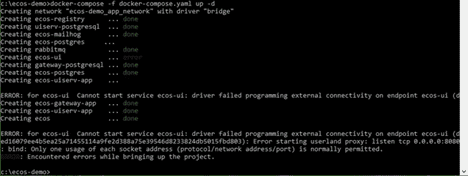
To find out which process is using the port, run:
netstat -ono
# или
netstat -ono | findstr 8080
If the command does not identify the culprit, use a third-party utility, for example CurrPorts.
Port is reserved by Windows
Some ports (for example, 50432, used by ecos-postgres) may be reserved by Windows. Check the reserved port ranges:
netsh int ipv4 show excludedportrange protocol=tcp

If the required port falls within a reserved range, the following error will appear:
«Cannot start service ecos-postgress: driver failed programming external connectivity on endpoint»
To fix this, run the following commands in an elevated command prompt:
Disable Hyper-V and restart the system:
dism.exe /Online /Disable-Feature:Microsoft-Hyper-V
Add the required port to exceptions:
netsh int ipv4 add excludedportrange protocol=tcp startport=50432 numberofports=1
Re-enable Hyper-V and restart the system:
dism.exe /Online /Enable-Feature:Microsoft-Hyper-V /All
After restarting, the port will be added to the exclusions and the error will not occur.
Configuring additional WSL parameters in Windows
MacOS
Not all containers are starting
If not all containers start when deploying the application in docker:
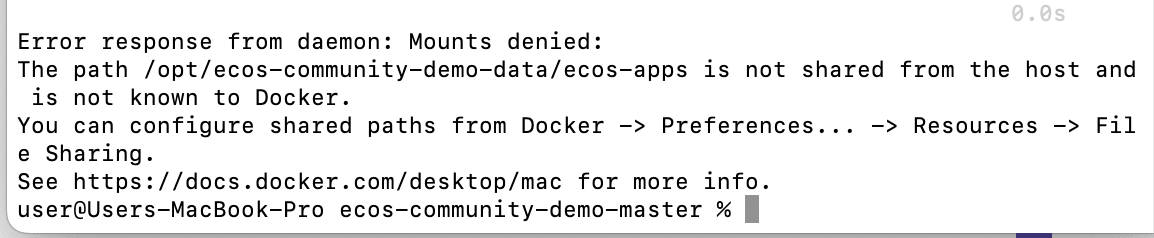
Add the /opt path in Docker settings:
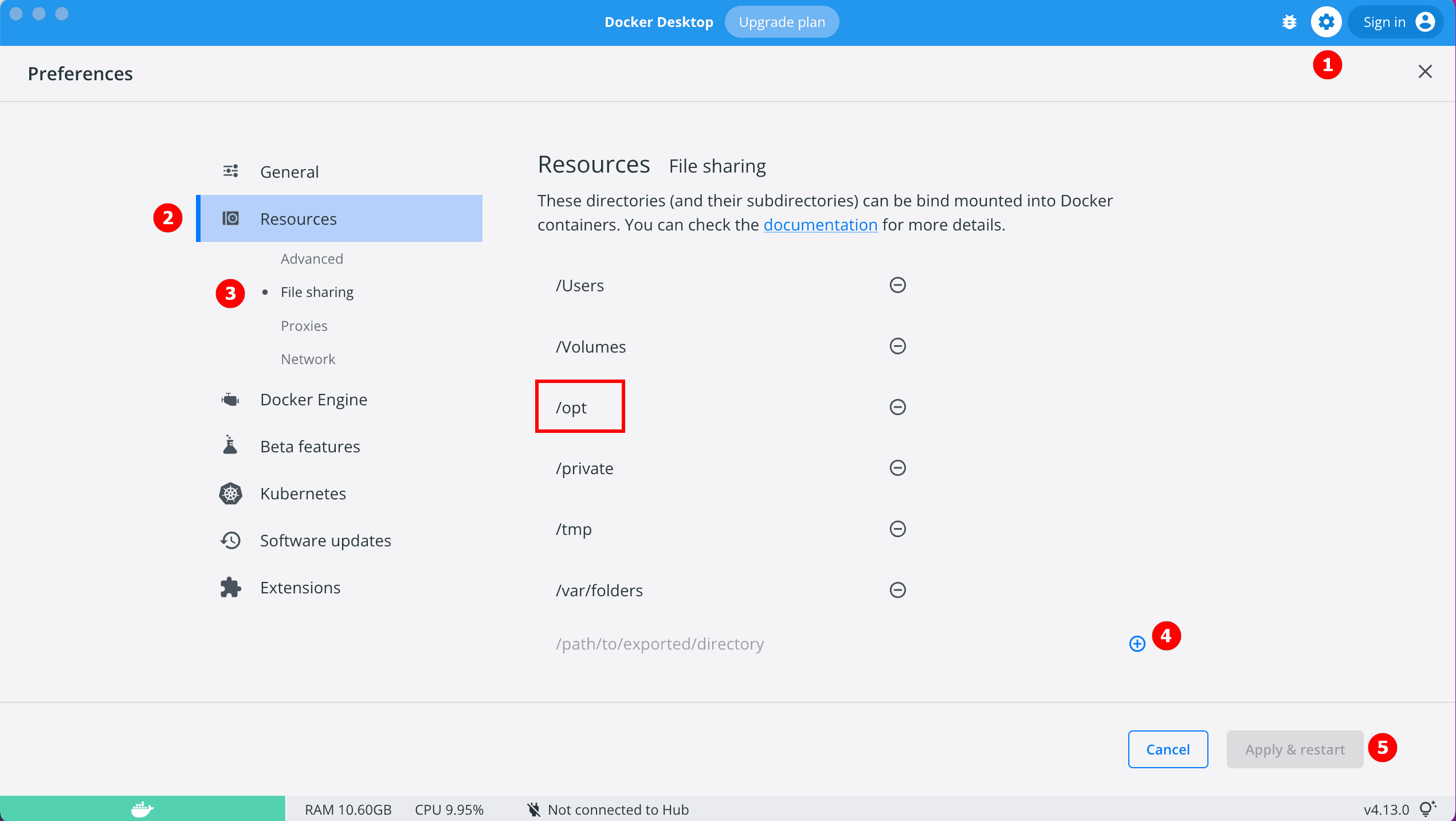
How to
Note
The Community and Enterprise versions of Citeck currently do not support subpath operation.
Adding an address from localhost to a custom domain
citeck-community/services/environments/ecos-identity-app.env
KEYCLOAK_FRONTEND_URL=http://localhost/ecos-idp/auth
with:
KEYCLOAK_FRONTEND_URL=http://mydomain.ru/ecos-idp/auth
citeck-community/services/environments/ecos-proxy-app.env
EIS_ID=citeck-community
REDIRECT_LOGOUT_URI=http://localhost
with:
EIS_ID=mydomain.ru
REDIRECT_LOGOUT_URI=http://mydomain.ru
citeck-community/services/configs/ecos-identity-app/realm-export.json
"redirectUris": [
    "http://localhost*"
]
with:
"redirectUris": [
    "http://mydomain.ru*"
]
Note
Steps 3 and 4 are only relevant when deploying on clean databases.
citeck-community/services/configs/ecos-identity-app/realm-export.yaml
"redirectUris": [
    "http://localhost*"
]
with:
"redirectUris": [
    "http://mydomain.ru*"
]
Add an entry to the hosts file:
127.0.0.1 mydomain.ru
Log in to the Keycloak admin panel.
Open the ecos-app realm.
Go to the Clients section.
Open ecos-proxy-app.
Change the value in the Valid Redirect URIs field from http://localhost to http://mydomain.ru
Save the changes.
Exclude address from Keycloak authorization
Temporarily, this can be done at the ecos-Proxy-app modification level.
Enter the container:
docker-compose exec ecos-proxy-app /bin/bash
Edit the configuration file:
/etc/nginx/conf.d/default.conf
Reload nginx:
nginx -s reload
On a permanent basis, this is only possible by building your own version of the ecos-proxy-app container or by submitting a Pull Request with the ability to pass unprotected URLs as a parameter.