Description of ecos-edi-ftps-lib
1. Library Purpose
The library is designed for exchanging EDI messages with counterparties via an FTP server.
General Operating Principle:
The counterparty places a message in a specific folder; when synchronization is active, the library periodically performs a recursive scan of folders on the server and finds new documents (details in section 4).
Sending messages to the counterparty works in reverse: the library places an EDI message into a special folder, and the counterparty will retrieve it at some point in the future (details in section 3).
2. Integration Setup
For setup, as with any EDI integration, it is necessary to create ecos-credentials, ecos-data-sources, edi-box, and ecos-sync entities.
2.1. Creating the ecos-credentials Entity
This is standard: create a record via the ecos-credentials journal, specifying the login and password for connecting to the FTP server.
2.2. Creating the ecos-data-sources Entity
You need to create the “FTP Data source” entity. The id and name fields are not important.

The important fields are host, port, and protocol, where:
host- The server path. In my case - localhost.
port- The port used to connect to the server. The standard is usually 21.
protocol- Currently, FTP or FTPS are supported.
2.3. Creating the edi-box Entity
Create the “FTP box” entity.
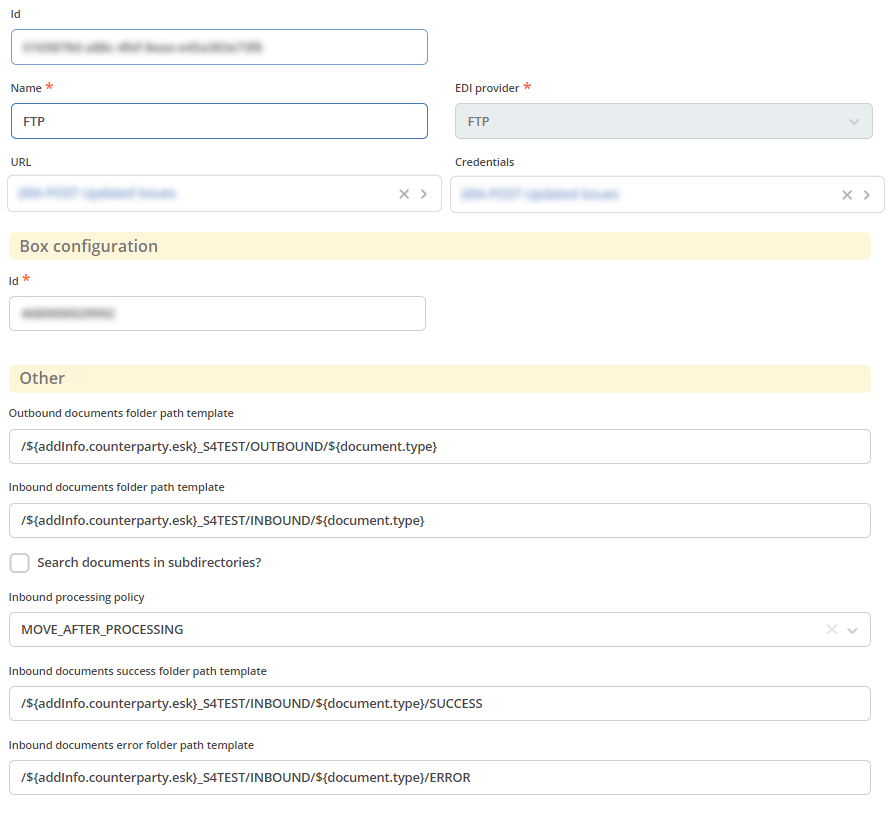
The main part of the configuration is here. There are 3 sections here. In the top section:
id- Specify any value (or leave it empty and it will be auto-generated upon creation).
name- Any human-readable name for this box.
URL- Specify the data source created in section 2.2.
Credentials- Specify the credentials created in section 2.1.
In the Box configuration section, fill in the identifier with the GLN number of the organization on whose behalf EDI messages are parsed.
The Other section:
Outbound documents folder path template- the path template used for outgoing messages. See section 3 for details.
Inbound documents folder path template- the path template used for incoming messages. See section 4 for details.
Search documents in subdirectories- a self-explanatory checkbox indicating that documents should be searched not only in the folder that fully matches the configuration above, but also in subdirectories.
Inbound processing policy- a choice of options for processing incoming messages. There are 2 options:MOVE_AFTER_PROCESSINGandDELETE_ON_SUCCESS. See section 4 for details.
Inbound documents success folder path template- (used only withMOVE_AFTER_PROCESSING) - the folder where successfully processed documents are placed.
Inbound documents error folder path template- (used only withMOVE_AFTER_PROCESSING) - the folder where documents that resulted in an error during processing are placed.
2.4. Creating the ecos-sync Entity
It is no different from other integrations; you can refer to the general article: Setting up event reception with the Kontur Diadoc box
Of course, specify the edi-box entity from section 2.3.
3. Operating Principles for Sending Messages
The entire library is based on specifying relative paths in the configuration. The substitution variables come from the EdiXmlRequest structure in the ecos-edi-commons library Integration description :ref:
This structure consists of the following fields:
private OurId ourId;
private CounterpartyId counterpartyId;
private EdiXml ediXml;
private ObjectData data;
where:
ourIdis mapped for substitution asourId.key_from_attributes(OurIdconsists of ObjectData. This means that if ObjectData contains 2 values with keyskey1andkey2, you can use the values by the following keys in the template:ourId.key1andourId.key2).
counterpartyIdis mapped for substitution ascounterpartyId.key_from_attributes(similar to ourId).
ediXmlis mapped to only 2 values:document.type, which can have values ORDERS, ORDRSP, DESADV, RECADV, etc., anddocument.lowerType, which can have values orders, ordrsp, desadv, recadv, etc.
data- is fully mapped as addInfo.key.
To populate data, you can extend the FtpCustomAddInfoProvider interface in a project and register it in the FtpCustomAddInfoProviderRegistry bean. This way, custom path-determination logic can be implemented in any project. Example templates:
/${addInfo.counterparty.esk}_S4TEST/OUTBOUND/${document.type}
This means that if the data structure contains the value 123456 under the key counterparty.esk and ediXml.ediDocumentType contains the value ORDERS, then this message will be sent to the following folder:
/123456_S4TEST/OUTBOUND/ORDERS/
You can avoid using templates entirely, in which case all documents will be placed in any folder.
For example, the template:
/${addInfo.path}
Implement FtpCustomAddInfoProvider to return the variable path. For example, if it equals some/path/type/kind/outbound, the path will be as follows:
/some/path/type/kind/outbound
Path templating uses the StringSubstitutor component from Apache’s commons-text library with minor modifications.
More details can be found in the library tests.
A message can be sent using the EdiService interface by passing EdiProviderType.FTP to it. Available methods:
generateEdiXml- is available, but currently has no implemented generators due to lack of necessity. The list of generators can be extended within theecos-edi-ftps-libbundle or others if such a need arises.
sendEdiXml- sends a message whose data is serialized inEdiXmlRequestto the FTP server.
The EdiService service is available from the integrations-app microservice.
4. Operating Principles for Receiving Messages
To receive messages, we go through 3 phases:
Search for messages.
Process messages.
Confirm that the message has been processed.
4.1. Traversal for Searching Messages
For searching documents, a recursive traversal of folders is used. The algorithm does not fetch all documents at once and send them for processing, but instead remembers the position of the last found document, sends it for processing, and later resumes the traversal from the same point. This is implemented as the FtpWalkIterator iterator.
The iterator is fed the parameters Inbound documents folder path template (hereafter - the inbound search template) and Search documents in subdirectories (the subdirectory search flag), which are described in section 2.3.
The inbound search template is split into levels by folders. For example, the template /${addInfo.counterparty.esk}_S4TEST/INBOUND/${document.type} is split into 4 parts:
/
/${addInfo.counterparty.esk}_S4TEST
/${addInfo.counterparty.esk}_S4TEST/INBOUND
/${addInfo.counterparty.esk}_S4TEST/INBOUND/${document.type}
After this, the parts are converted into correct regular expressions. That is, these parts will now have the following values:
/
/(?<addInfo.counterparty.esk>[\\w\\s-]+)_S4TEST
/(?<addInfo.counterparty.esk>[\\w\\s-]+)_S4TEST/INBOUND
/(?<addInfo.counterparty.esk>[\\w\\s-]+)_S4TEST/INBOUND/(?<document.type>ORDERS|ORDRSP|DESADV|RECADV)
Обратите внимание, замена происходит не просто на регулярки, а создаются группы для того чтоб потом вынуть эти значения для создания события Event (внутри на самом деле еще заменяются точки на A1B2C3 строки, но это опустим, чтобы не ухудшать читаемость). Так же, обратите внимание, document.type и document.lowerType преобразуются в конкретные значения enum, а остальные переменные - в регулярки из букв, цифр, пустых символов или символа “-”.
Если включен флаг поиска в поддиректориях - к последнему регулярному выражению добавляется “.*“. Таким образом становится возможным поиск по подпапкам.
It is also possible to specify a custom regular expression instead of the standard one. Example -
/${addInfo.counterparty.esk(\d+)}_S4TEST/INBOUND/${document.type}
Traversal algorithm:
The iterator internally maintains a queue. Files or folders that need to be examined in the future and checked for files matching the regular expressions are added to this queue.
Инициализируем итератор, загрузив в очередь файлы из папки “/” (из рута). Этот шаг выполняется только 1 раз.
We take the next element from the queue.
Определяем его уровень (по количеству символов “/“). Берем соответствующий этому уровню regexp (или последний, если уровень больше чем есть regexp’ов).
We check for a match against the regexp.
3.1. If it matches - we check whether it is a folder or a file. If it is a folder - we get the list of files from it and add them to the front of the queue for further processing, then go to step 1. If it is a file (for files, we check only against the last regular expression) - we send it for processing.
3.2. Does not match - we discard the element from the queue. Go to step 1.
4.2. Message Processing
This step consists of 2 parts:
Populating the Event (what an Event is in integration can be read here Integration operation description). As mentioned above, it is necessary to capture groups from the regexp. This is done to pass values under the same keys into the Event structure. That is, for the inbound search template
/${addInfo.counterparty.esk}_S4TEST/OUTBOUND/${document.type}- the values from the message path on the FTP server will be forwarded into the Event structure.Next, the created Event is sent to EdiStateService (Integration operation description) for further processing by the system using Camel routes.
4.3. Committing the Processed Message
After successful (or unsuccessful) processing of a message, it is necessary to record that the message has been processed. This is done through the selected policy passed via the Inbound processing policy configuration (see section 2.3).
4.3.1. MOVE_AFTER_PROCESSING Policy
On success - the file is moved to the folder specified in the Inbound documents success folder path template configuration (see section 2.3).
On failure - the file is moved to the folder specified in the Inbound documents error folder path template configuration (see section 2.3).
Note that both of these parameters are templates. In the templates, you can use variables that are part of the inbound search template (an example can be seen in the screenshot in section 2.3).
4.3.2. DELETE_ON_SUCCESS Policy
On a successfully processed event - the file is deleted from the FTP server.
On failure - nothing happens.