Interface description
On the launcher download page, you can view logs and export the system state in case of problems:

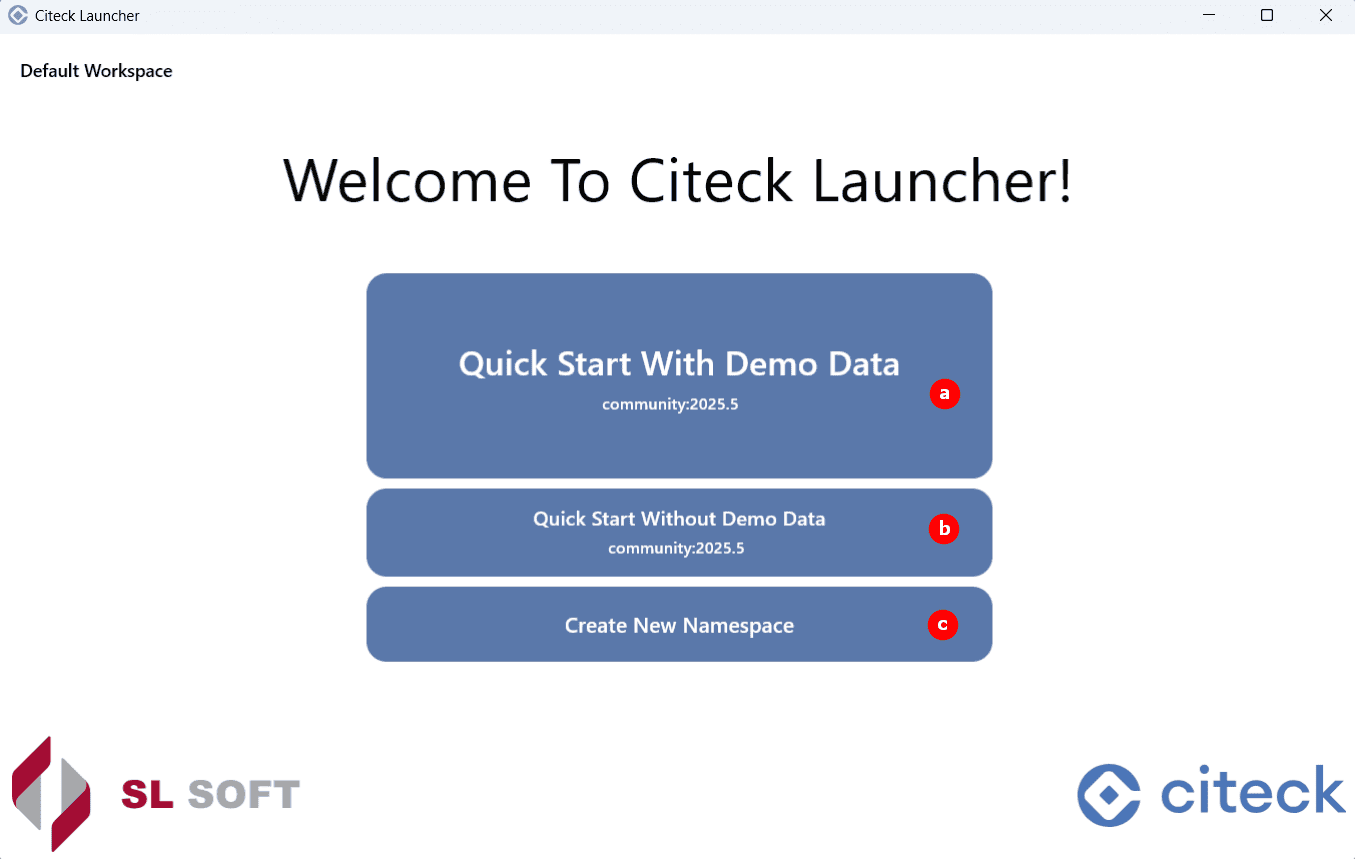
On first launch, available options include installing Citeck Community with demo data (a), without demo data (b), or creating another namespace for deploying Citeck (c):
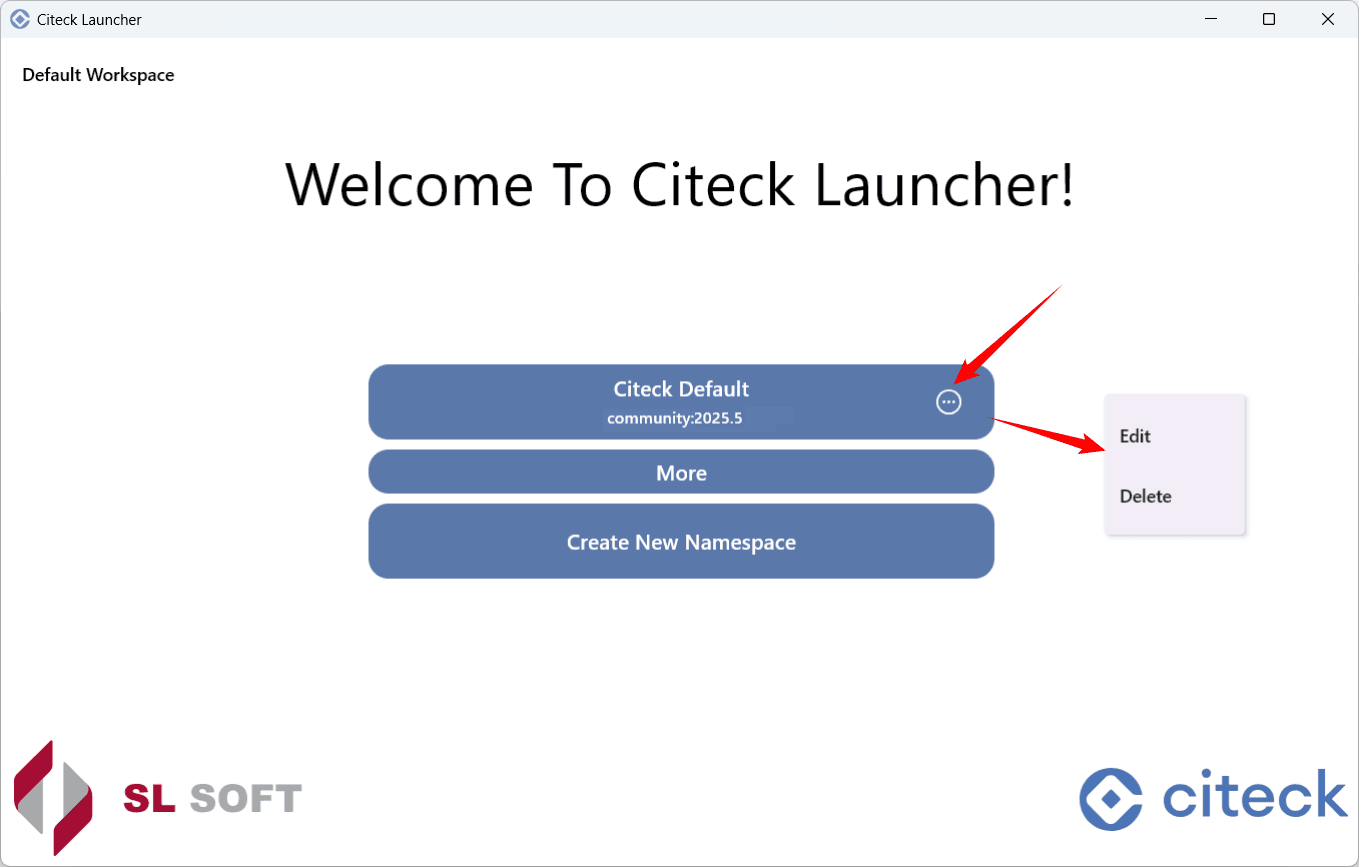
After a successful launch, a list of available namespaces will be displayed:

From the namespace list, you can edit and delete namespaces:
When selecting a namespace, current information about its microservices and applications is available, as well as actions:

Launched microservices and applications: core microservices, Citeck applications, third-party, status. Available actions:
1a – stop/start
1b – microservice log
1c – manual configuration of a microservice/application:
Left click — edit Docker application configuration

Right click — edit volume files:

A blue marker indicates that the application has manual configuration which is not managed by the launcher. To reset manual changes, open the editor and click “Reset”.
Update/ start all microservices and applications. Right-clicking provides the Force Update And Start action for forced updating of data from git repositories with workspace configuration and bundles (kits):

Stop all microservices and applications.
Current deployment status.
Common CPU/RAM usage
Open Citeck in browser (only for Running status).
Access to related services. They open in the browser in a separate tab.
Keycloak Admin – management interface for Keycloak, the identity and access management system. Available if Keycloak authentication type was selected during namespace setup. Login/ password: admin/ admin
Spring Boot Admin — interface for monitoring and administering Spring Boot applications: viewing status, metrics, logs, and managing applications.
PG Admin - interface for administering and managing PostgreSQL databases. Login/ password: admin@admin.com/ admin Database password: postgres
MailHog — a tool for testing and debugging email during development: it intercepts messages and displays them in a web interface without actually sending them.
RabbitMQ – interface of a message broker that enables asynchronous data exchange between components of distributed systems. Login/ password: admin/ admin
Citeck platform documentation:
Documentation — go to the resource containing the platform documentation.
AI Documentation Bot — go to the Telegram bot.
Navigate to the launcher directory (folder containing logs, configuration data, workspaces).
Open the launcher log.

Log data can be filtered by type (1), searched (2), and can be copied, cleared, or exported (3).
List of volumes in use. They can be cleared, take a data snapshot:

Working with secrets used in the launcher. First, you must set a master password:
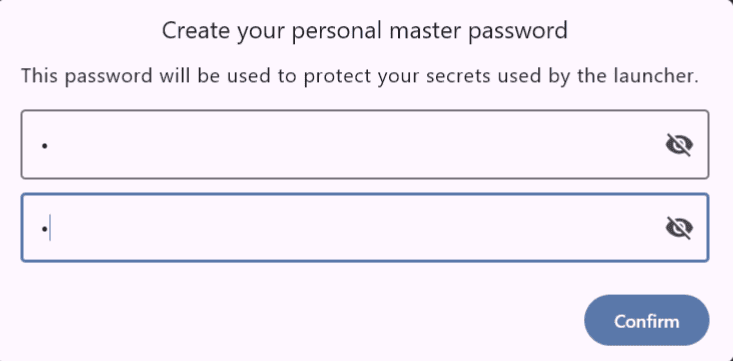
See details about working with secrets
Export system information (export system data, build information, thread dump).
Namespace settings. See details about namespace settings

Tray actions

Open
Dump system info
Open launcher dir
Exit