Data Types
Data Type — the central artifact of the Citeck model, describing the structure and behavior of objects in the system. It defines a set of attributes, roles, lifecycle statuses, and links the object to a form and a journal. All logic for working with documents and business objects — from creation to participation in business processes — is built on data types.
This section describes the creation and configuration of data types, managing their attributes, roles, statuses, creation variants, associations, and views.
General Overview
Data Type is the primary ECM artifact describing an object. A data type defines the metadata the object will contain, lifecycle statuses, and roles that can work with the object. The data type is linked to a form and a journal.
Data Types are artifacts of type model/type.
In Citeck, the following artifacts are created based on the data type:
Hierarchy of System Types and Their Inheritance Logic
Every data type must have a parent. The basic data types are:
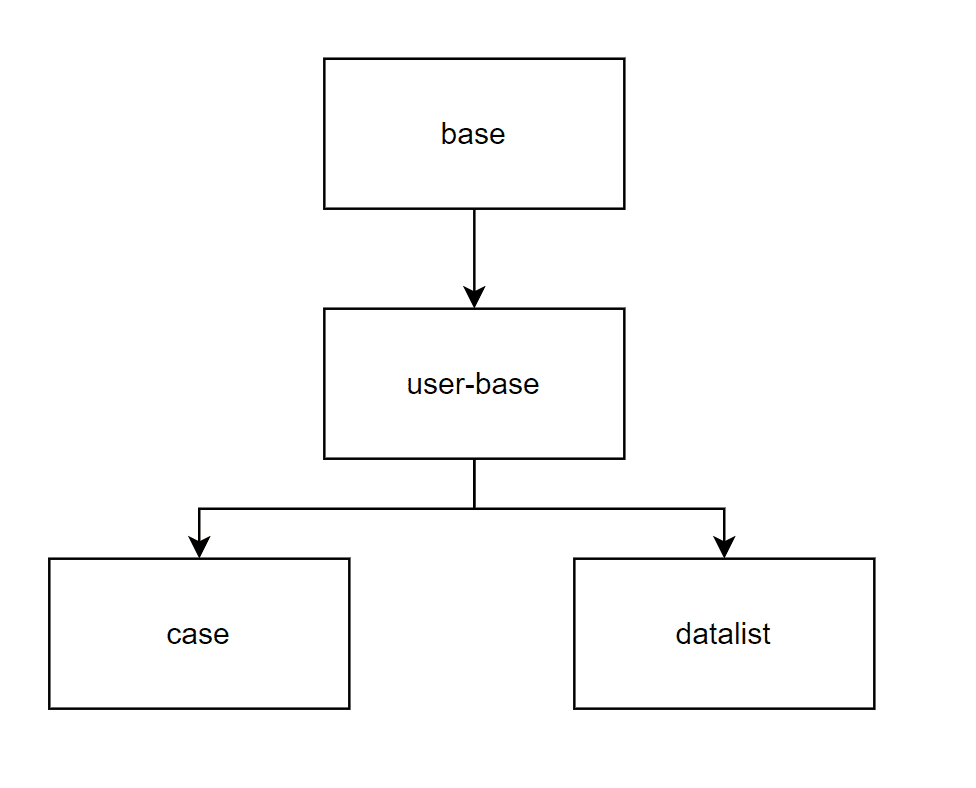
Case - a type for storing a record that changes over time through its connection to a business process (it is not static). An indicator that a type will be a case is the need to attach a process to it and specify general information, attributes, roles, statuses, and a permissions matrix during its creation.
Datalist - a type for storing sets of business data that will be used as static data for documents not directly involved in business processes. An indicator that a type will be a datalist is specifying only general information and a list of attributes during its creation.
A previously created data type can be used as the parent.
Parent attributes are included in the list of inheritable attributes (Attributes), and using the “Inherit” flag, you can inherit the form, actions, and numbering template.
Description of navigating to the section via the interface
A journal “Data Types” has been created for viewing existing types and editing them (Workspace “Admin Section” - Model):
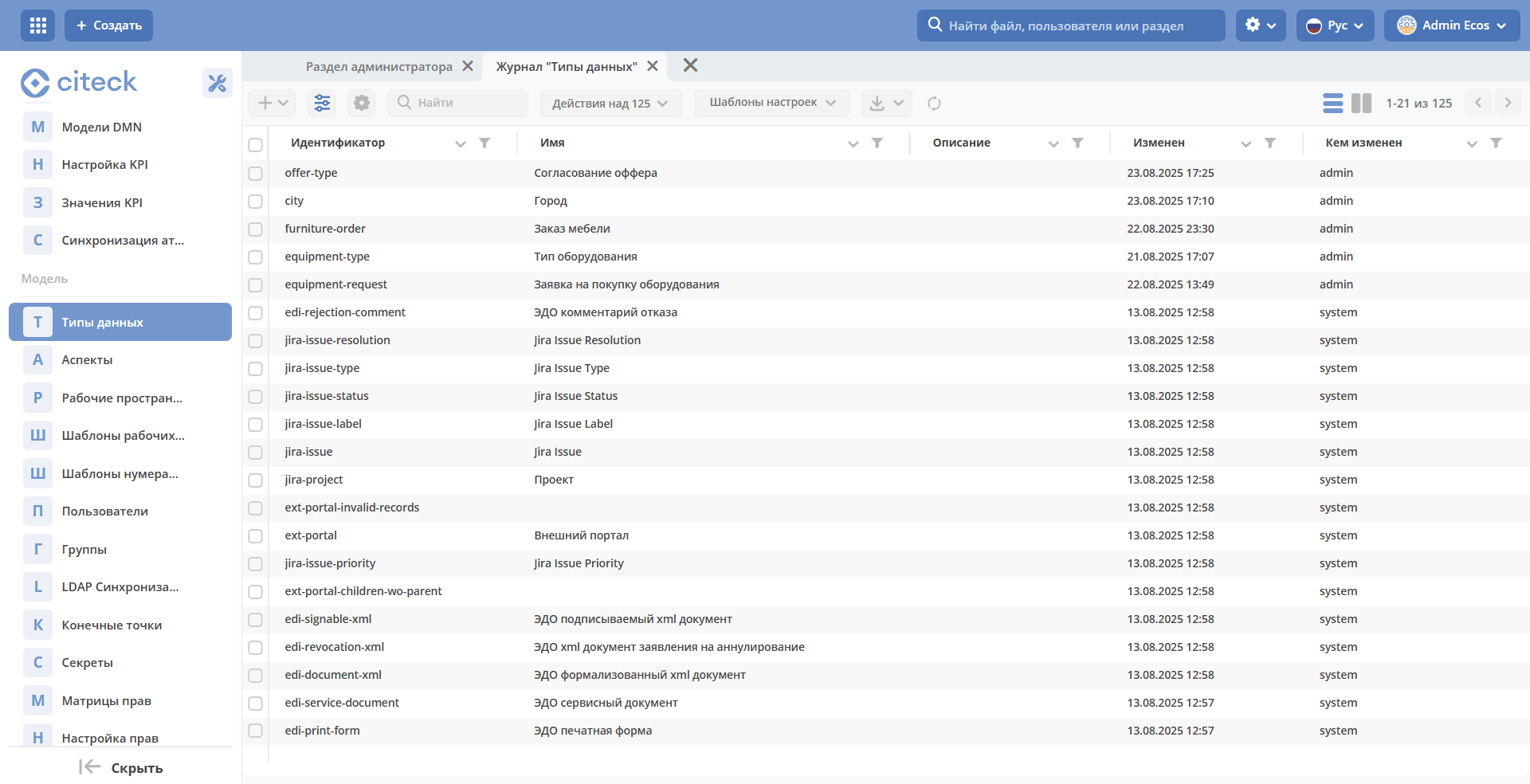
By default, system types are not displayed in the journal.
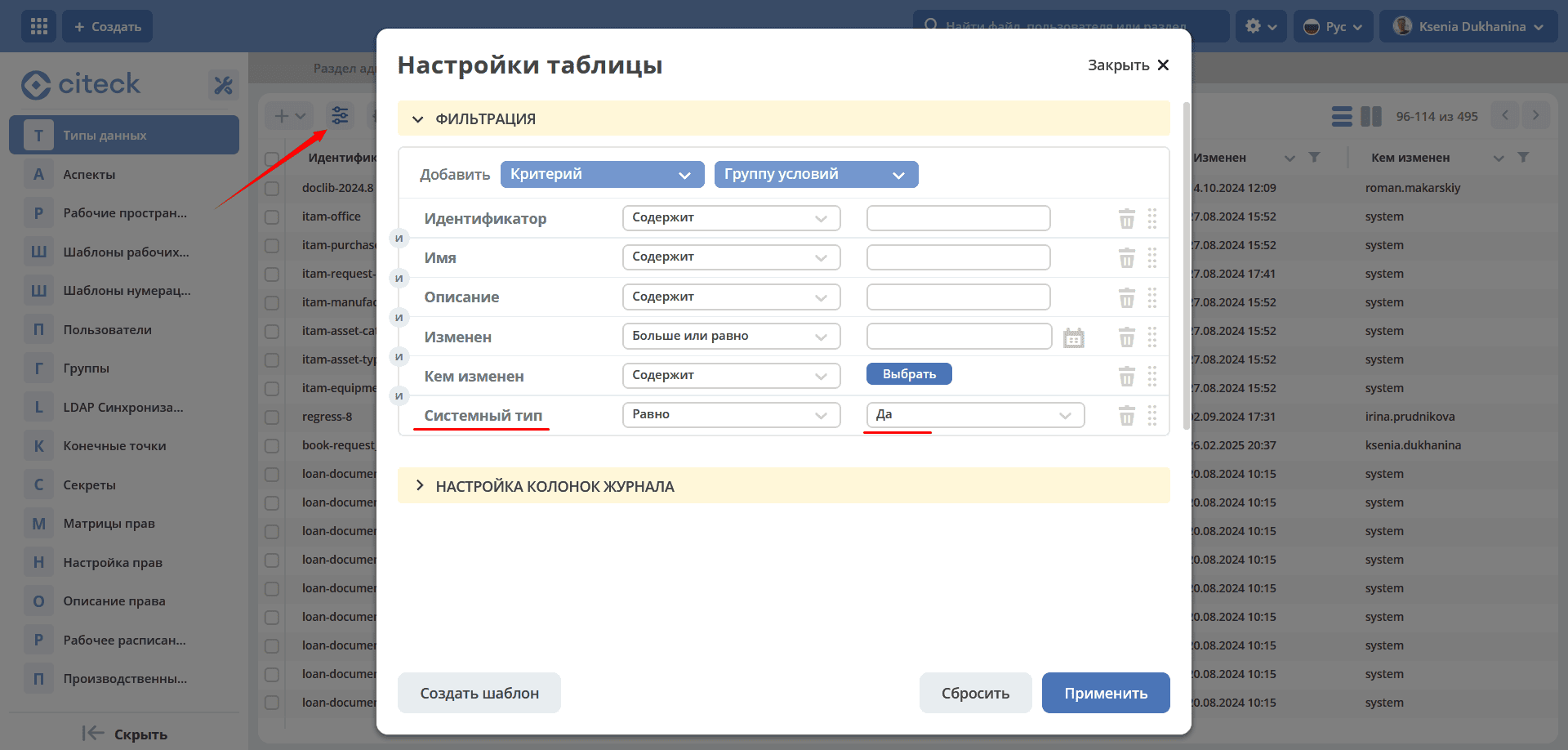
To display ONLY system types, go to the table settings, set System Type - Yes:
Ways to Obtain a Type Instance
A data type can be created or an already created one can be uploaded into the system.
Creation
To create a data type, click + - Create new type:
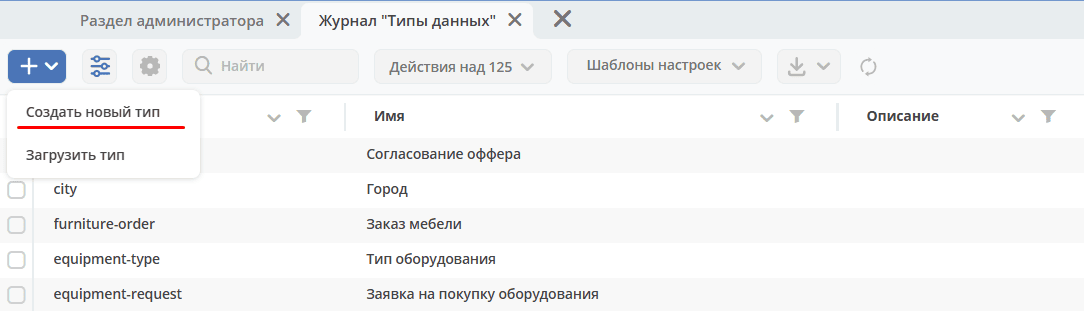
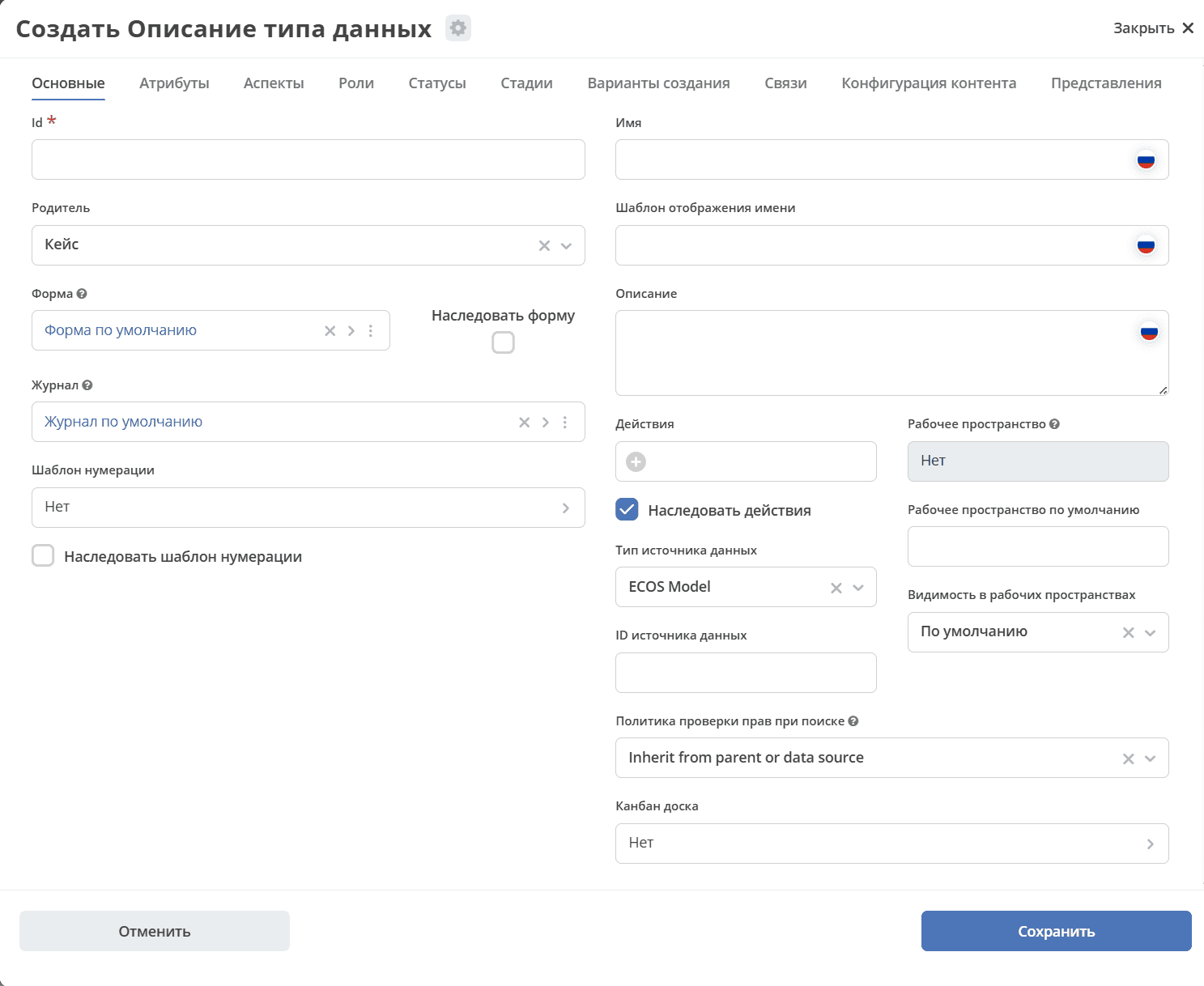
The data type creation form will open:
Upload
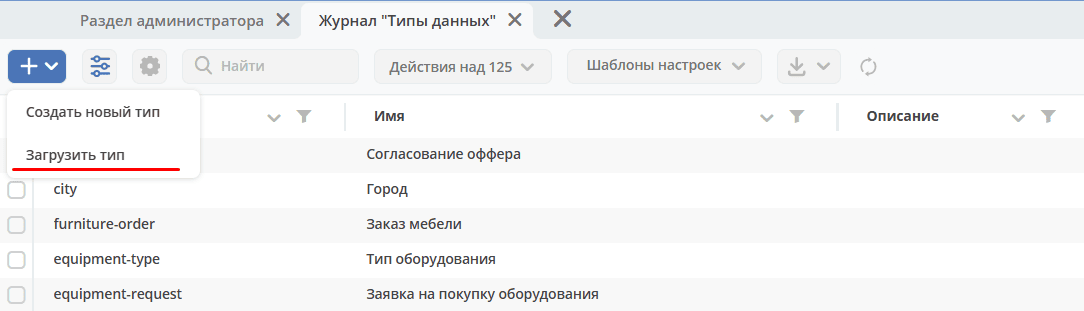
To upload a created data type, click + - Upload type:
File in .yaml format
Example of a type description
id: hr-offices-type
name:
  ru: Офисы
storageType: ECOS_MODEL
parentRef: emodel/type@data-list
formRef: uiserv/form@hr-offices-form
journalRef: uiserv/journal@hr-offices-journal
inheritActions: false
defaultCreateVariant: true
model:
  attributes:
    - id: officesCode
      name:
        ru: Код
    - id: officesCity
      name:
        ru: Город
    - id: officesAddress
      name:
        ru: Адрес
Available Actions for a Record
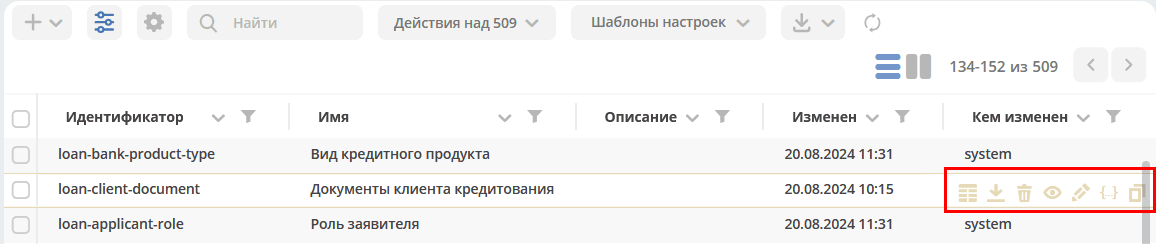
In the journal, the administrator has a standard set of actions available for each record:
download as a json file;
delete;
open card in a new tab;
open for editing;
edit json file;
copy.
Creating a New Type
The form for creating a new type consists of the following tabs:

Main – main characteristics of the data type.
Attributes – a characteristic defining the properties of an object.
Aspects – functionality for extending a data type without changing the type itself.
Roles – roles that participate in working with the object.
Statuses – statuses through which the object will move as the business process is executed.
Stages – stages of the document lifecycle.
Creation Variants – configuring support for selecting a creation variant after choosing the type
Associations – configured to display, add, and remove related objects in the “Associations” widget on the object card.
Content Configuration – settings for working with content.
Views – settings for the data display mode as a list.