Electronic Document Signing
Note
Available only in the Enterprise version.
Attention
The CryptoPro EDS Browser plug-in must be installed.
Browsers that do not require additional extension configuration after installing the plugin:
Citeck allows documents to be signed using a qualified electronic signature (QES), ensuring their legal validity. The EDS signing functionality can be added to any data type. For this purpose, a special setting in the “Properties” widget and dedicated actions are provided.
Widget “Properties - Electronic Signature”
The Electronic Signature setting has been added to the Properties widget. To use it on a card:
Add the “Properties” widget to the card dashboard.
In the widget settings:

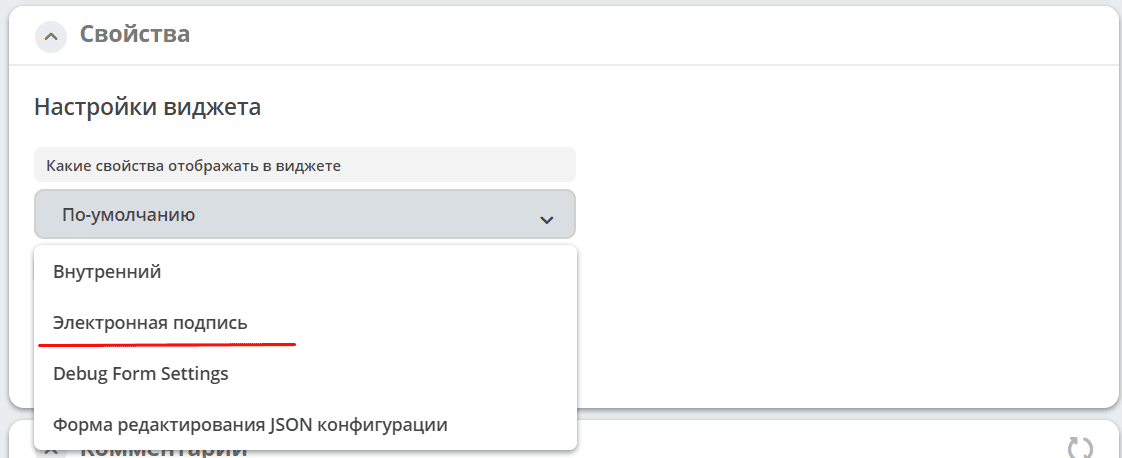
select Electronic Signature:
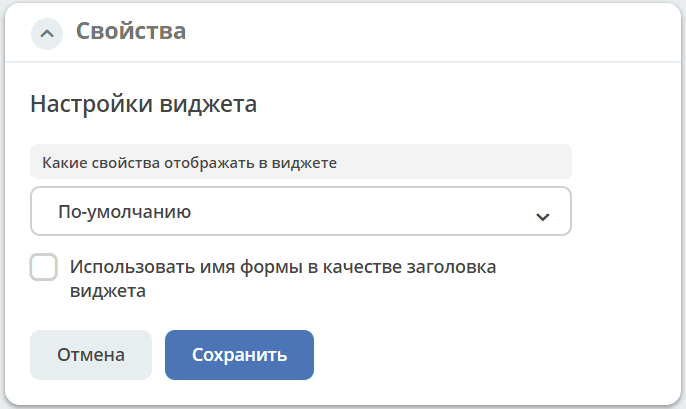
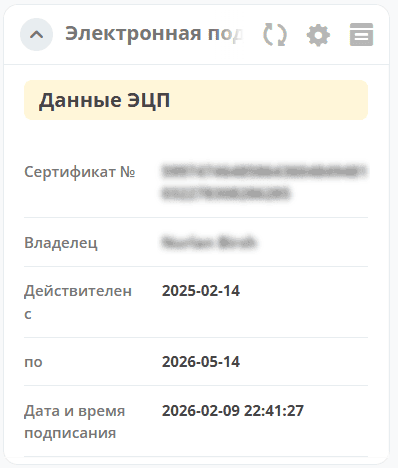
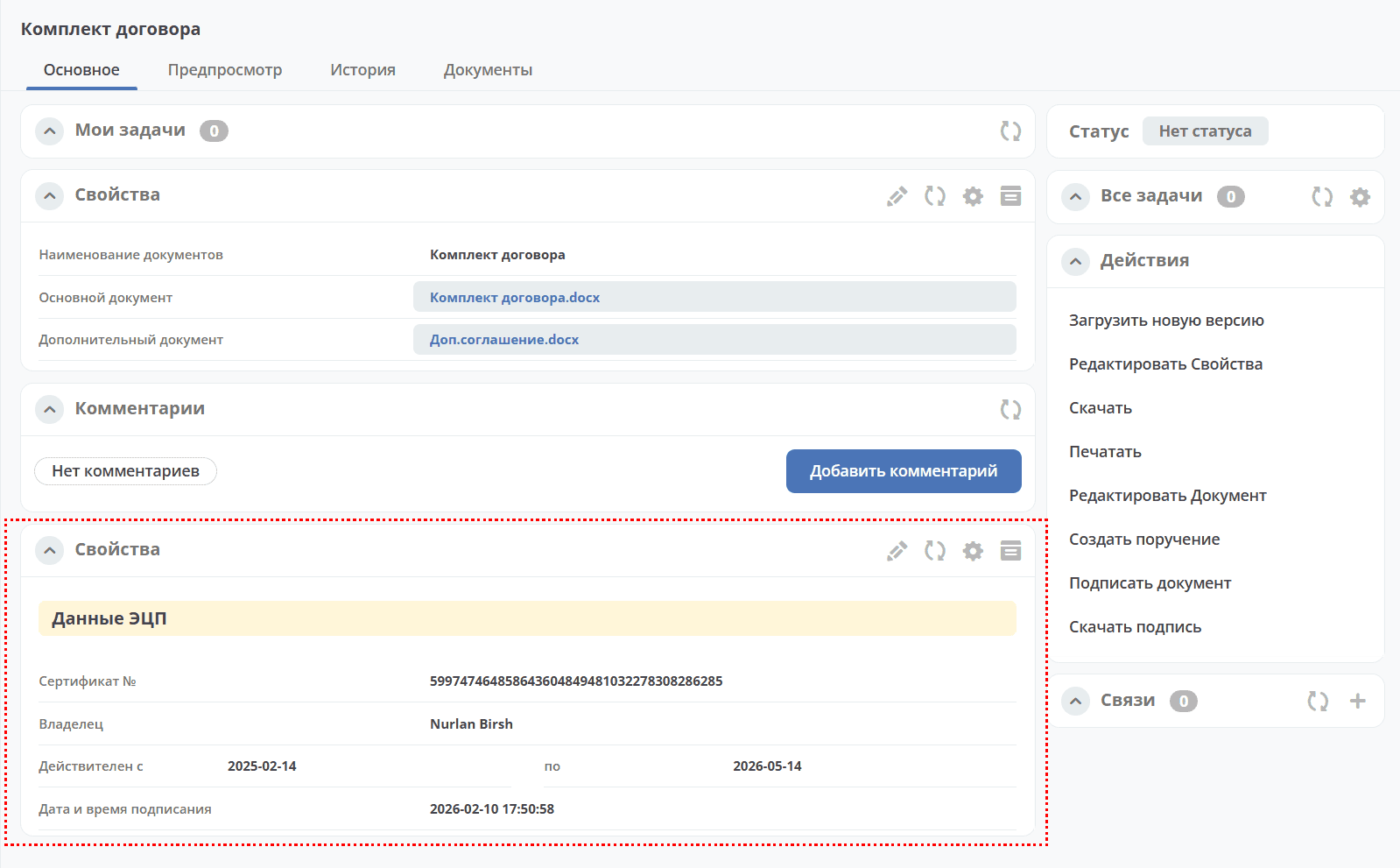
For EDS-signed documents, the card will display information about the EDS certificate and the signing time:
Actions
Available actions for signing content and downloading the signature:
Action Sign Document (Default Content) - sign-document-content-default
Available if the document has a content property and no attached signature.
Generates a signature based on the selected certificate and the content in the content attribute, and attaches it to the document being signed.
Action Sign Document - sign-document-content
Currently there is no condition to restrict the visibility of the action.
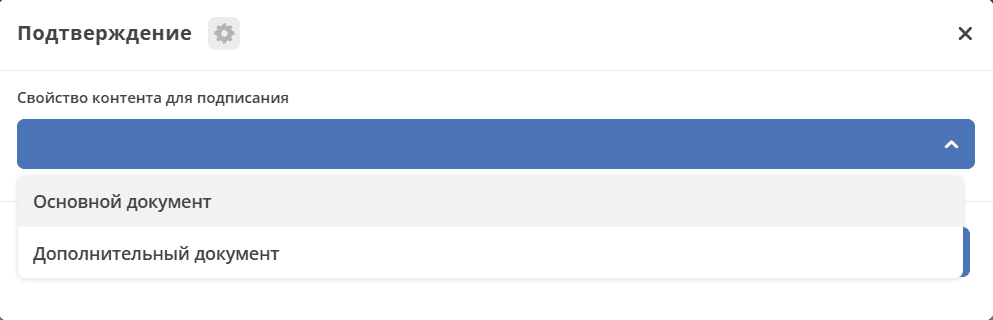
The action displays a form where you select the attribute containing the content to be signed, then choose a certificate. Only the selected content is signed. If the type has only one attribute of type content, the content attribute is selected automatically.
Action Download Signature - download-sign-content
Hidden by default; appears for a document if its content has been signed via Citeck using the Esign.sign electronic signature.
Ability to optionally verify a power of attorney uploaded to Citeck during signing
The edi-sign-with-attorney config has been added. Possible values: (true/false)
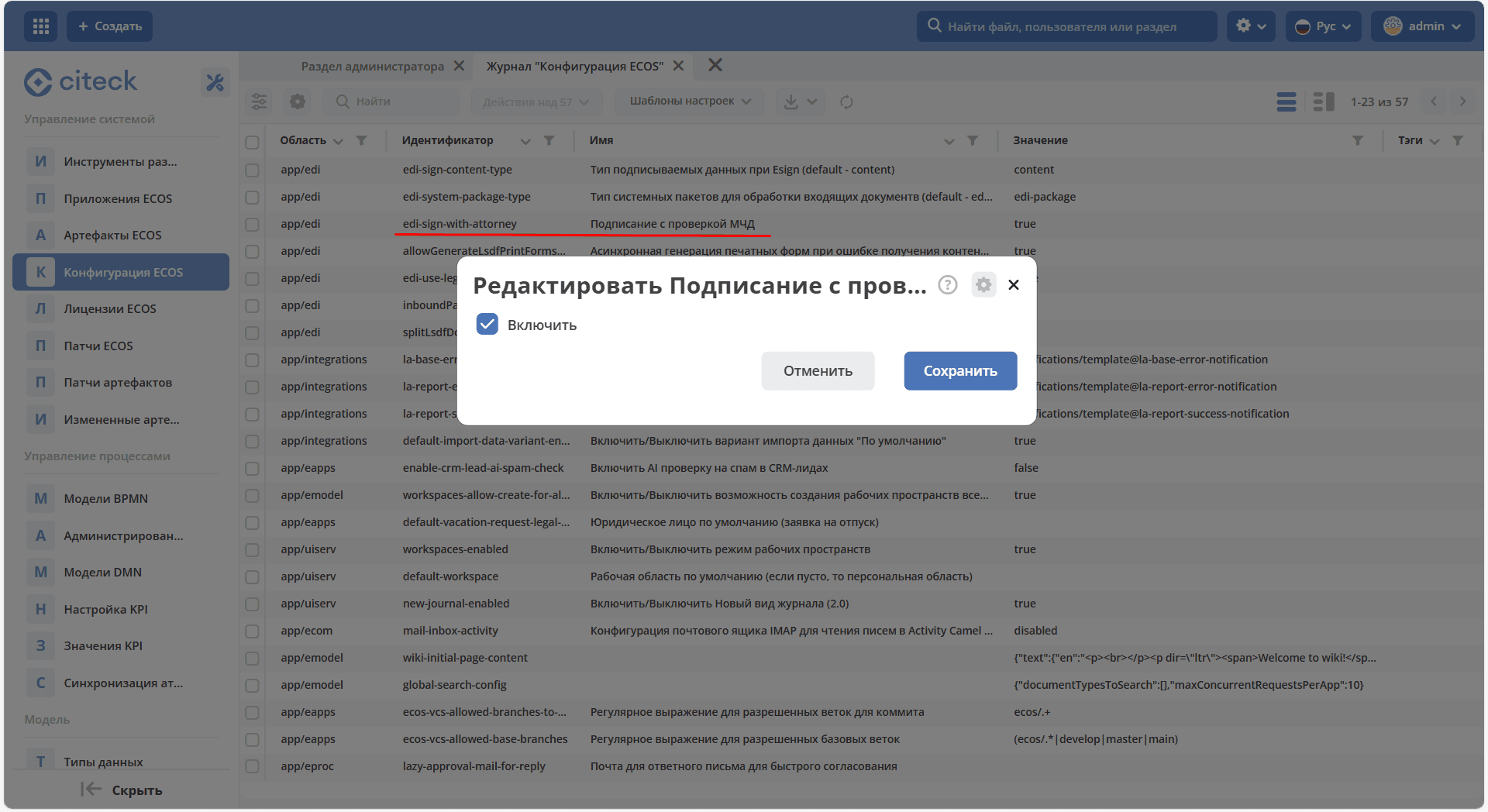
When enabled, adds machine-readable power of attorney (MR-POA) verification to the signing action.
MR-POA verification when clicking the signing button:
MR-POA is absent or dates are invalid — the standard signing form opens, signing is not blocked, and there is no MR-POA mark in the widget.
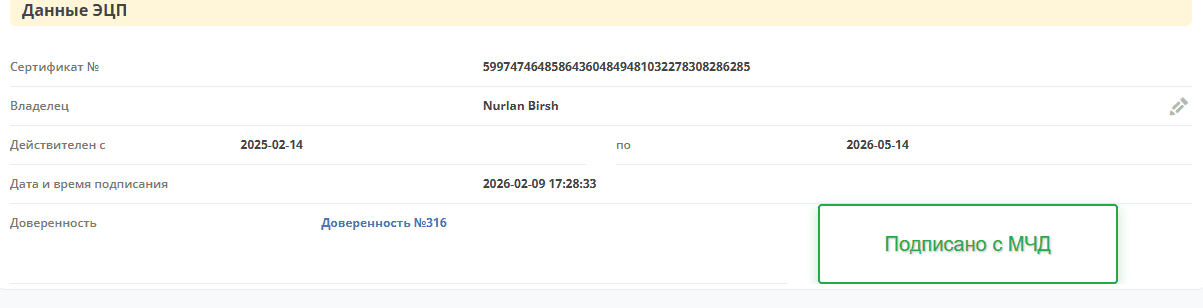
MR-POA is found and dates are valid — the standard signing form opens, the document is signed, and an MR-POA mark appears in the widget without additional power of attorney details:
Example of Using the “Sign Document” Action
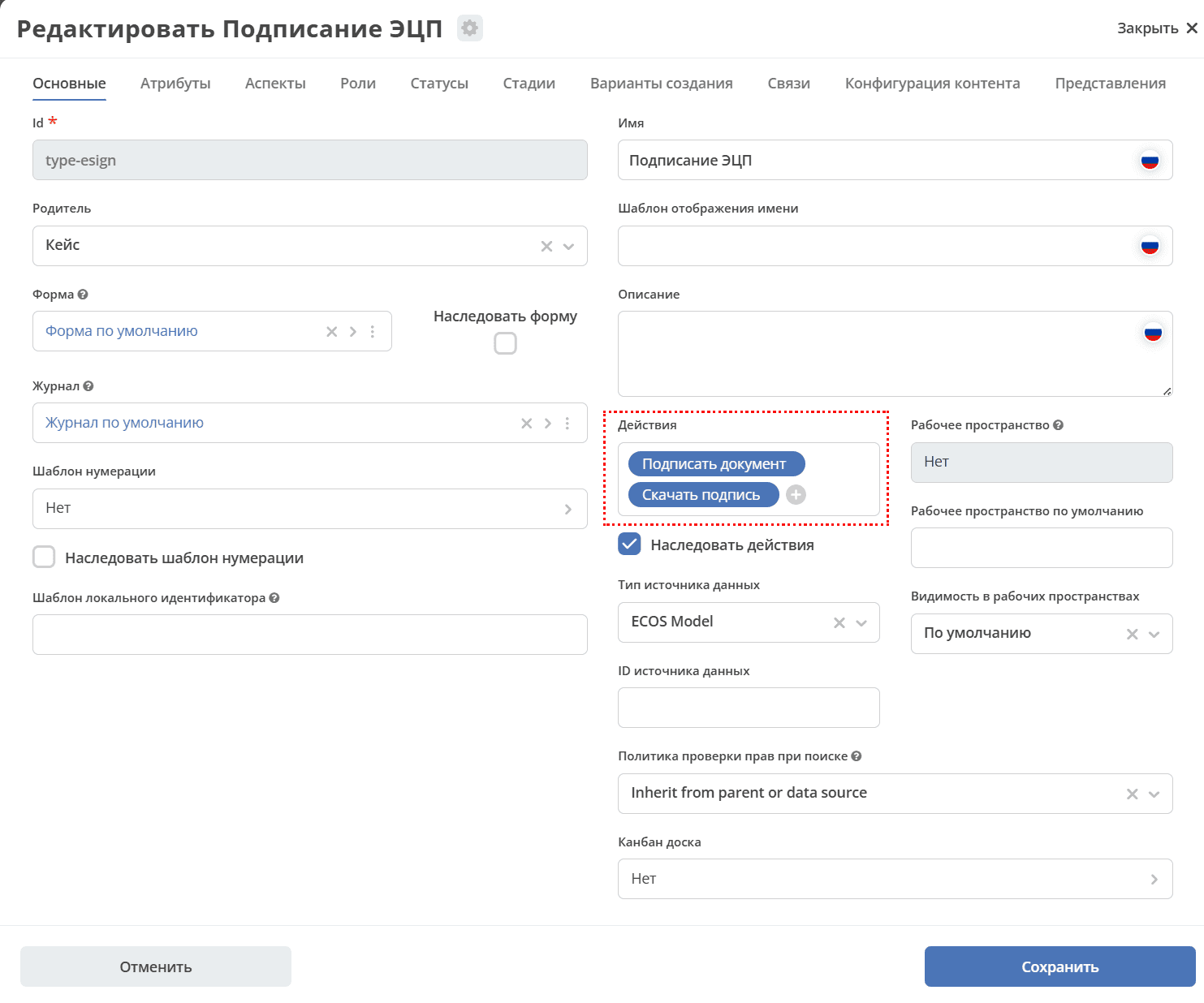
Create a data type and add the actions Sign Document and Download Signature to it:
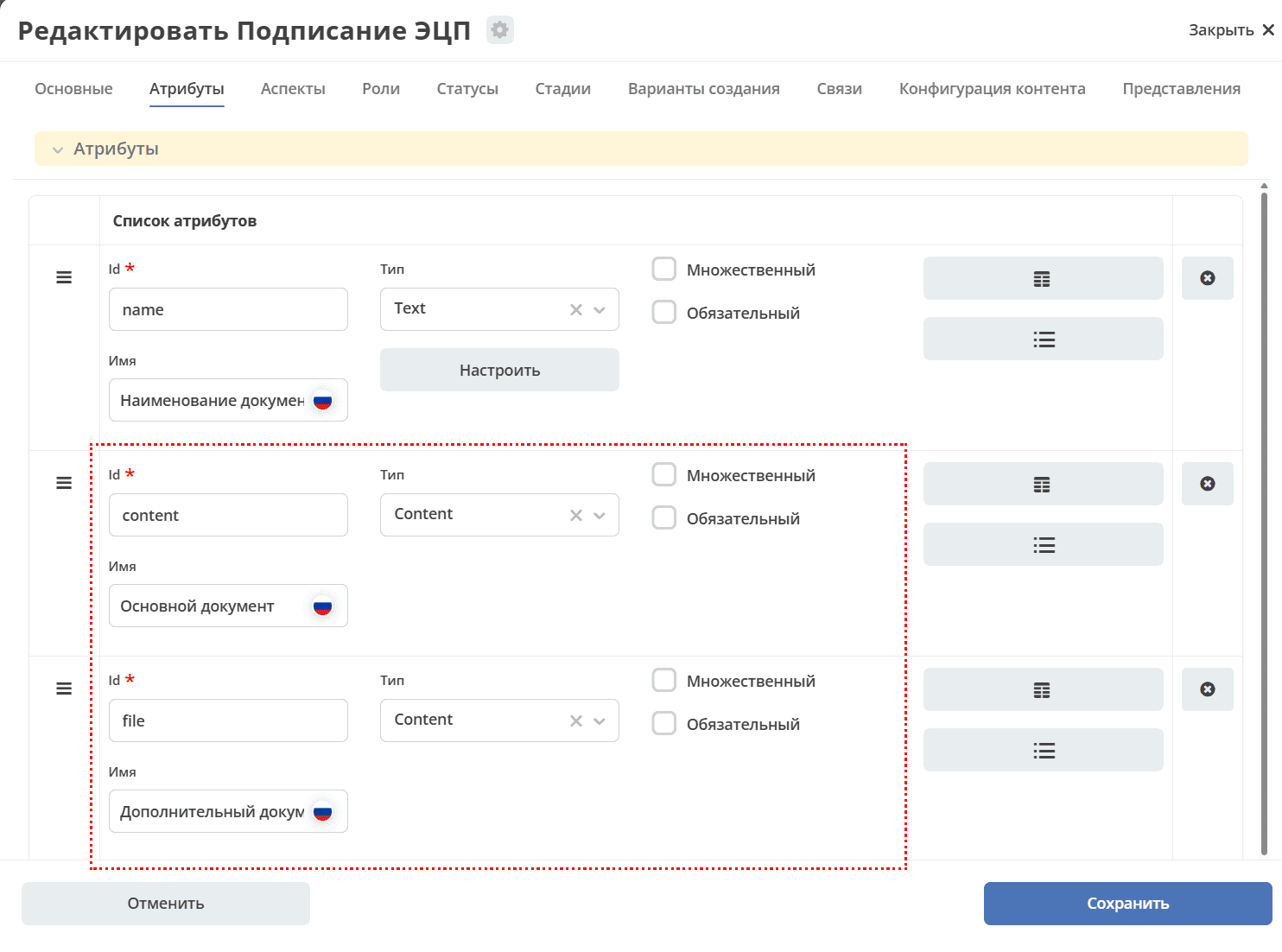
On the “Attributes” tab, specify two attributes of type content and save.
Add the journal to the workspace menu.
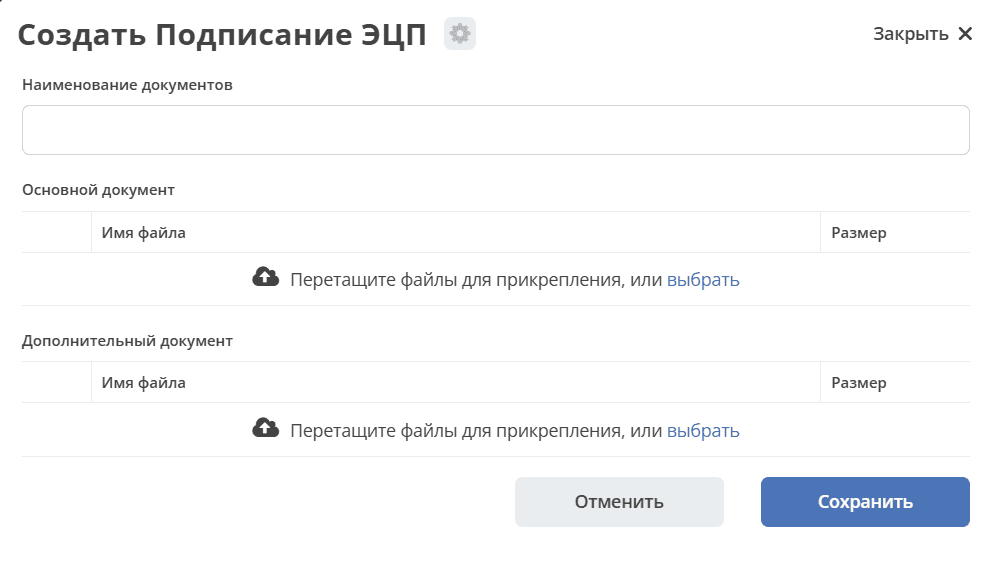
Create a card:
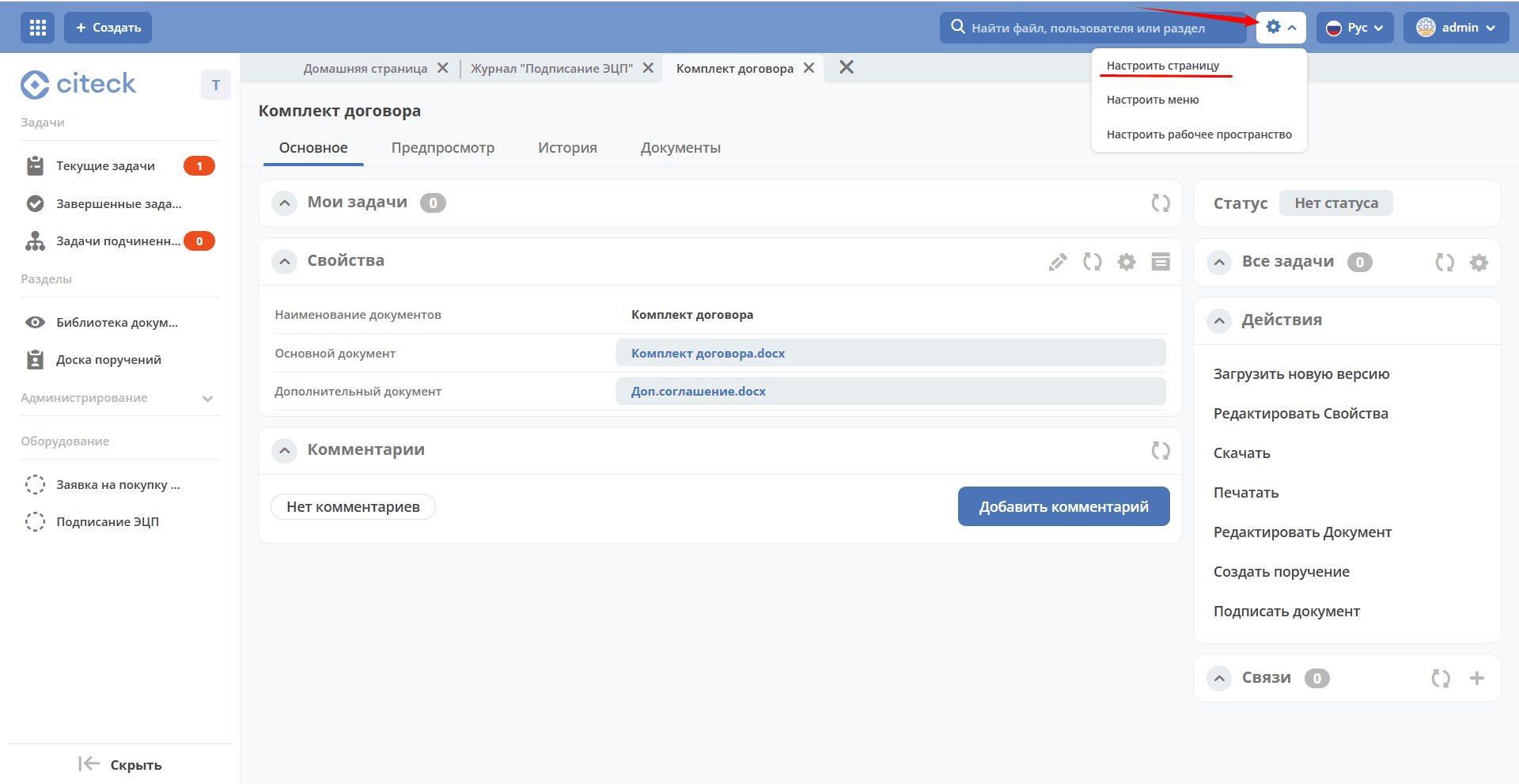
Then configure the card dashboard:
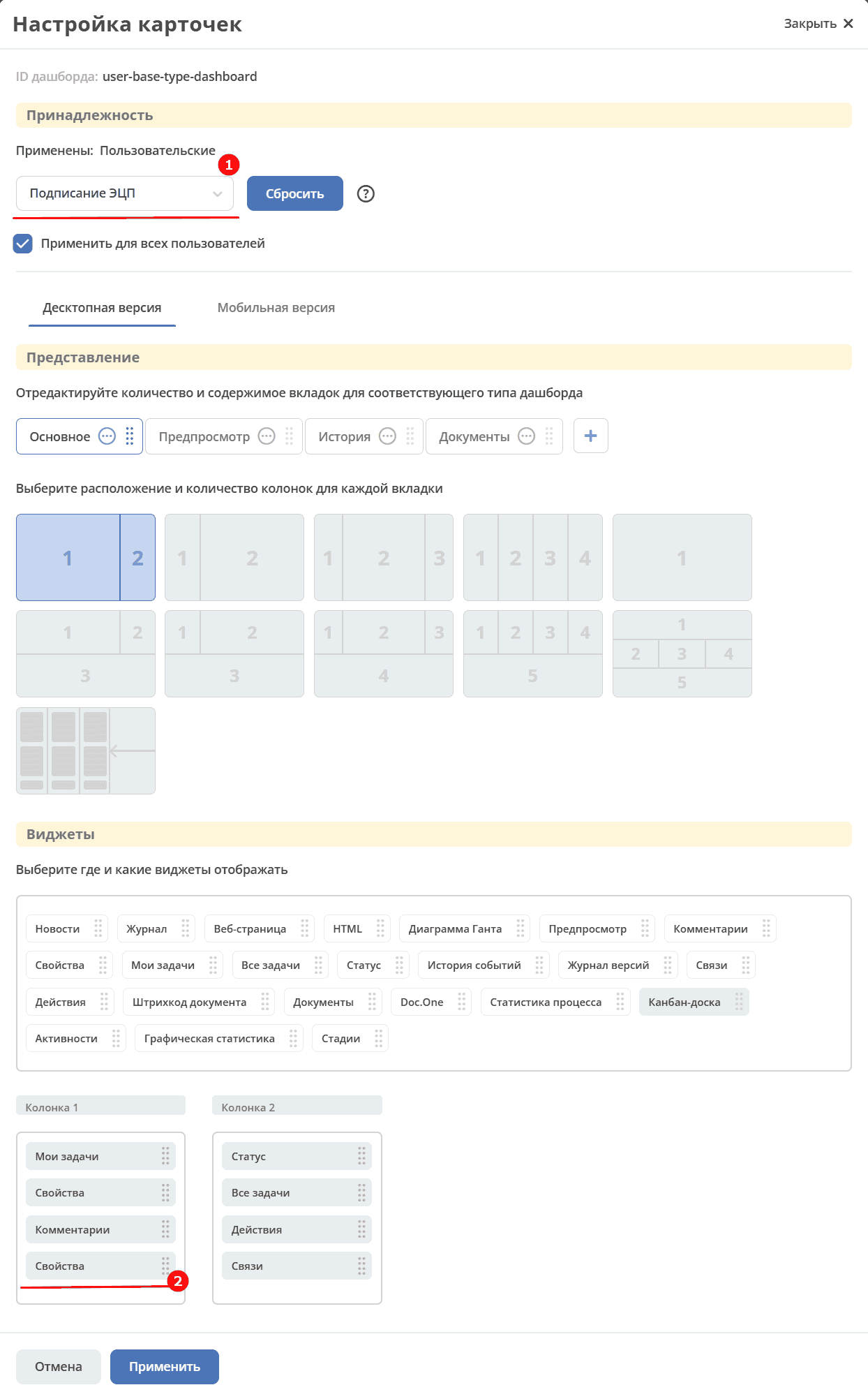
Add the “Properties” (2) widget and apply it to the created type (1):
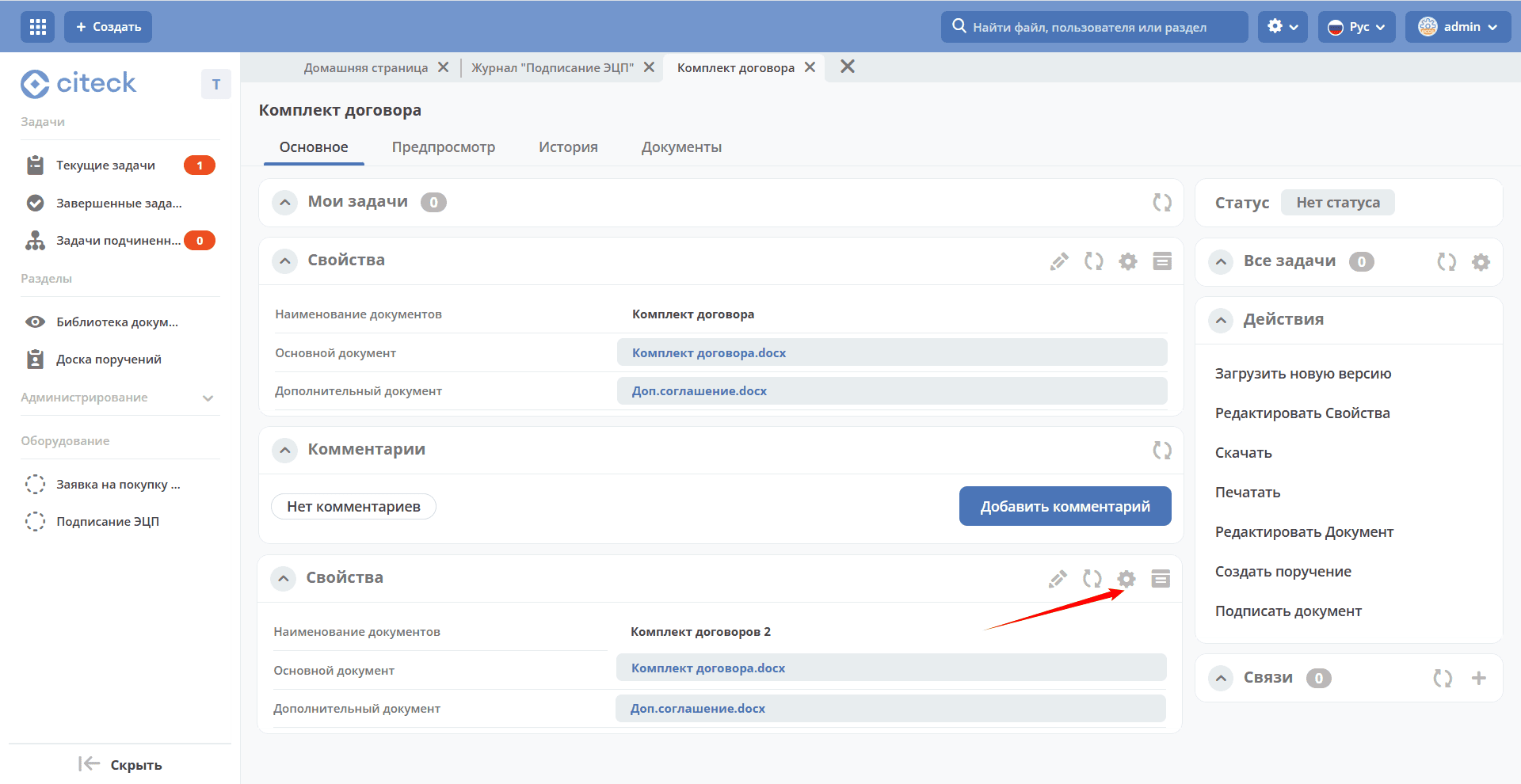
Go to the widget settings:
and select Electronic Signature:
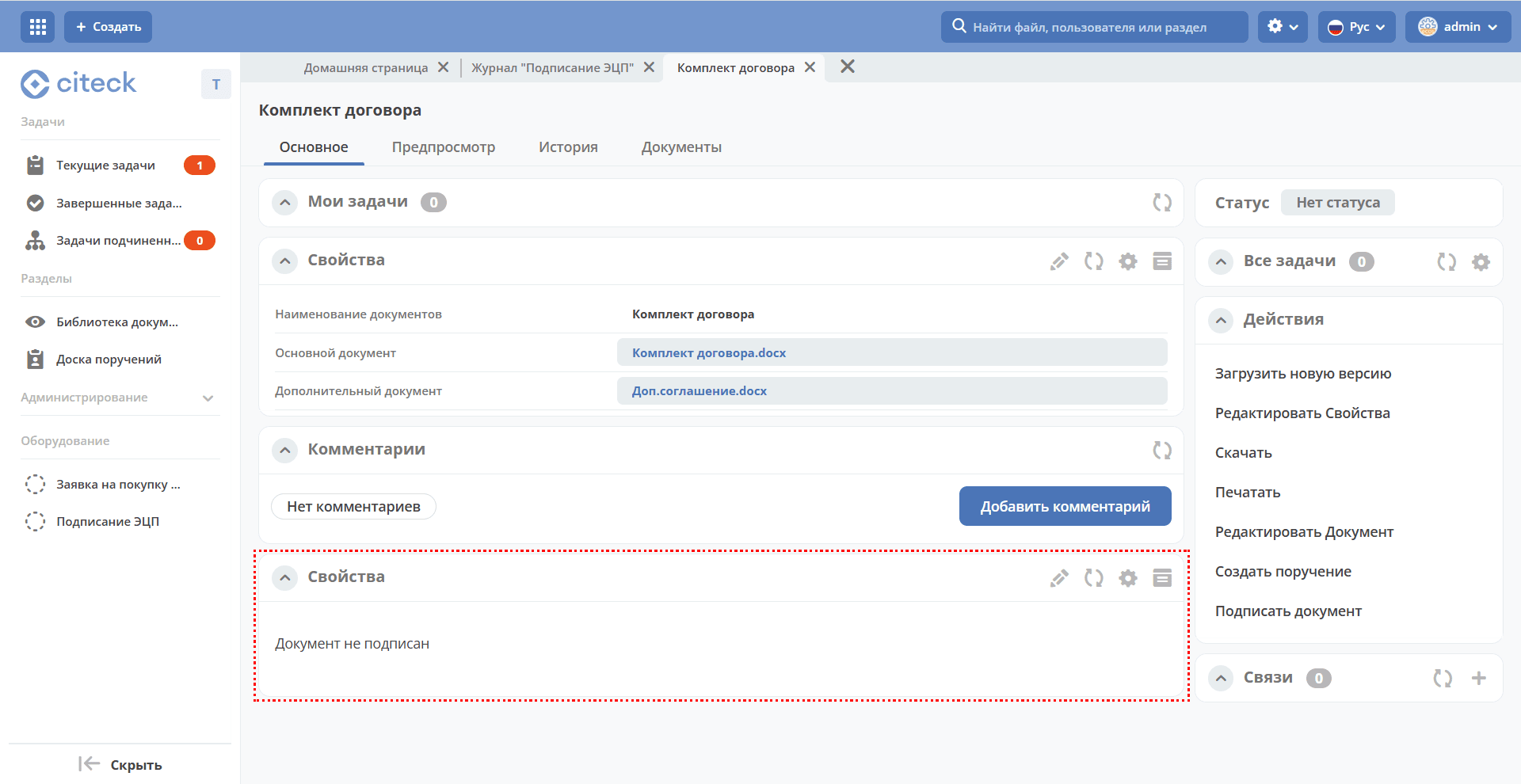
The widget added to the card:
Create a document. Select the Sign Document action and choose a file:
The card will display the EDS certificate data and the signing time:
The signature file can be downloaded using the Download Signature action.