Adding a Kanban Board
Note
This article continues working with the Equipment Purchase Request business process.
Tip
To create a Kanban board in the local workspace, go to Administration → Kanban Boards.
The Kanban board allows you to visualize request processing by status in a convenient format.
See also
For more details about the tool’s capabilities, see Kanban Board.
Creating a Configuration
Go to the administrator workspace: UI Configuration → Kanban Boards.
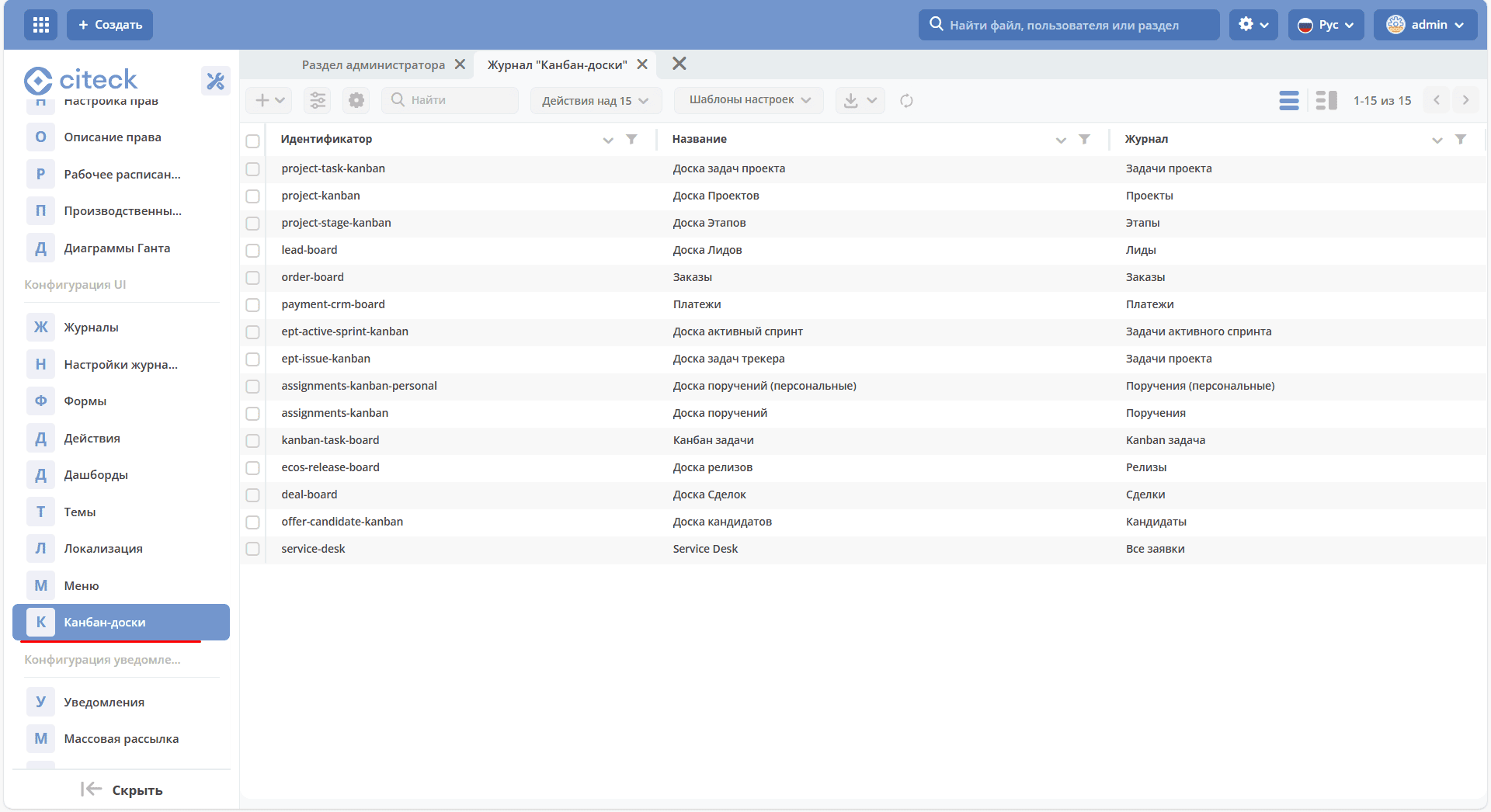
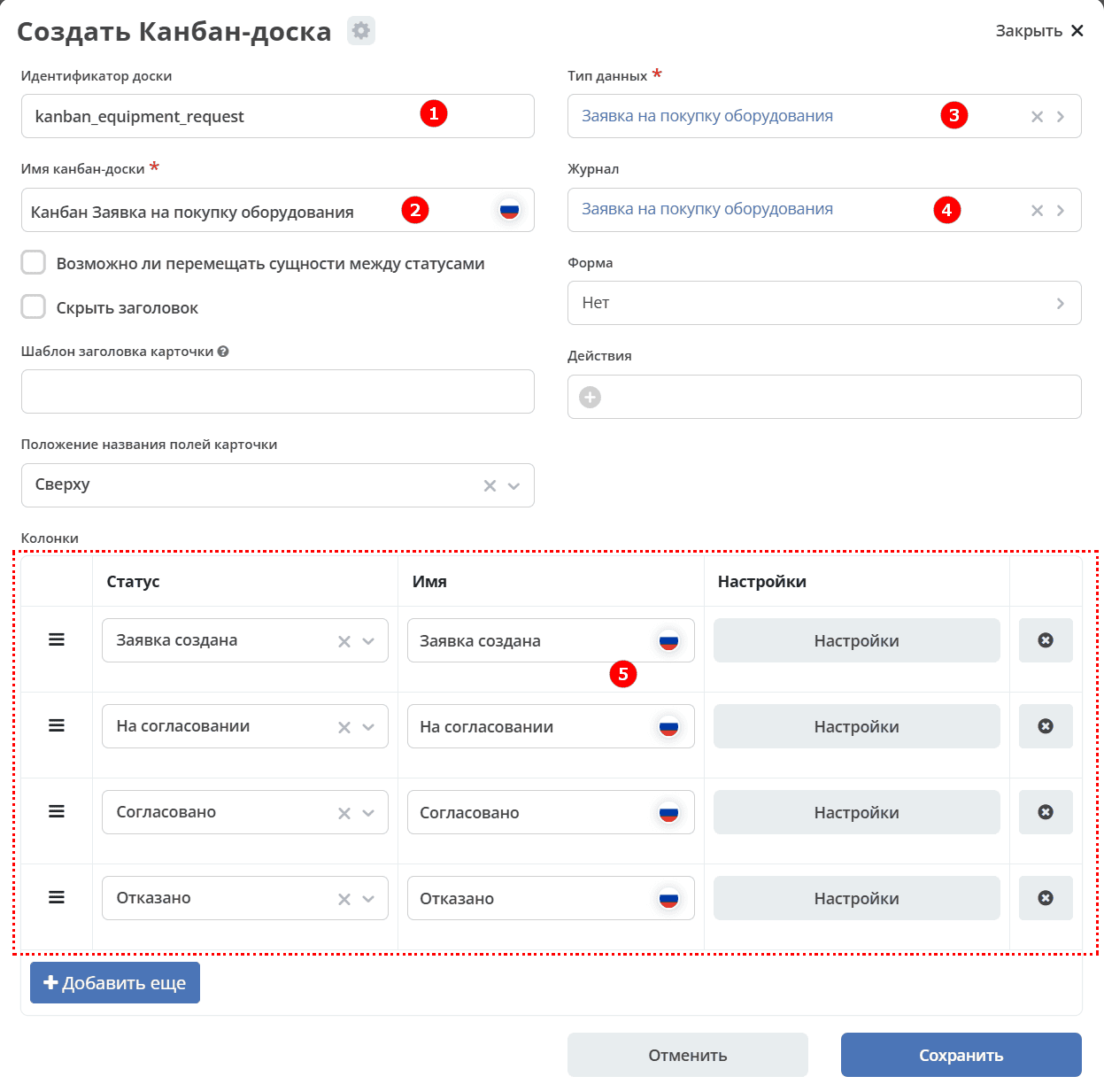
Click «+ Create Kanban Board Configuration» and fill in the fields:
No. |
Field |
Value |
|---|---|---|
1 |
Board ID |
|
2 |
Kanban Board Name |
Kanban — Equipment Purchase Request |
3 |
Data Type |
the previously created type «Equipment Purchase Request» |
4 |
Journal |
the previously created journal «Equipment Purchase Request» |
5 |
Columns |
statuses from the data type (those available for selection are displayed in the list automatically) |
Resulting configuration:
Viewing the Kanban Board
Go to the «Equipment Purchase Request» journal and switch to the Kanban board view:
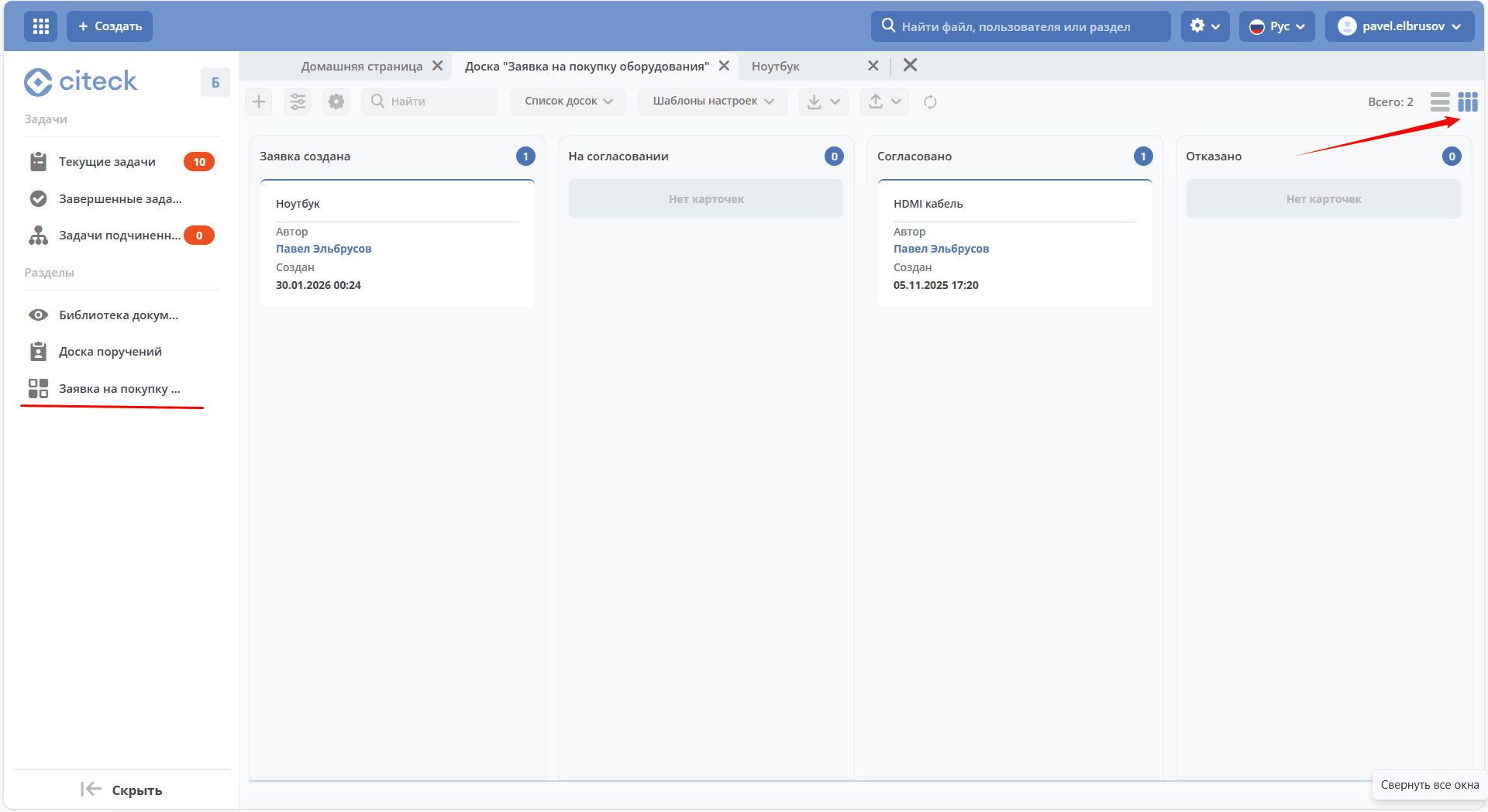
Request cards will be automatically distributed across columns according to their current status.