Kanban Board
Kanban board is an alternative journal view that displays data type records as cards distributed across columns according to statuses.
Use the Kanban board for visual tracking of business object movement: tasks, contracts, requests, deals, and other entities. Cards in columns are formed based on the active journal filter. Filters applied in the journal also apply to the Kanban board — and vice versa.
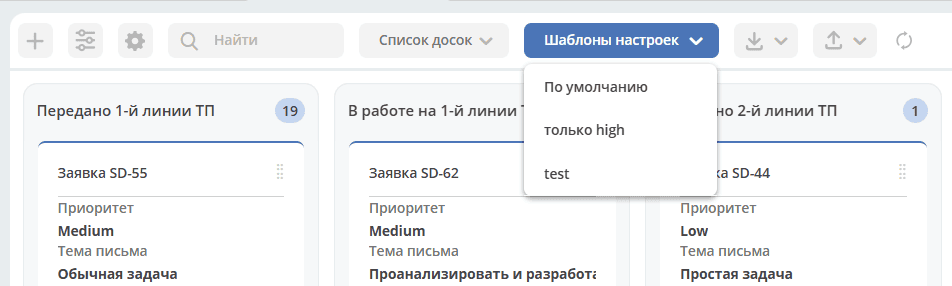
Multiple Kanban boards can be created for a single journal and switched between using Board List. Saved display configurations are available through Settings Templates. When opening a board, the default template is automatically applied.

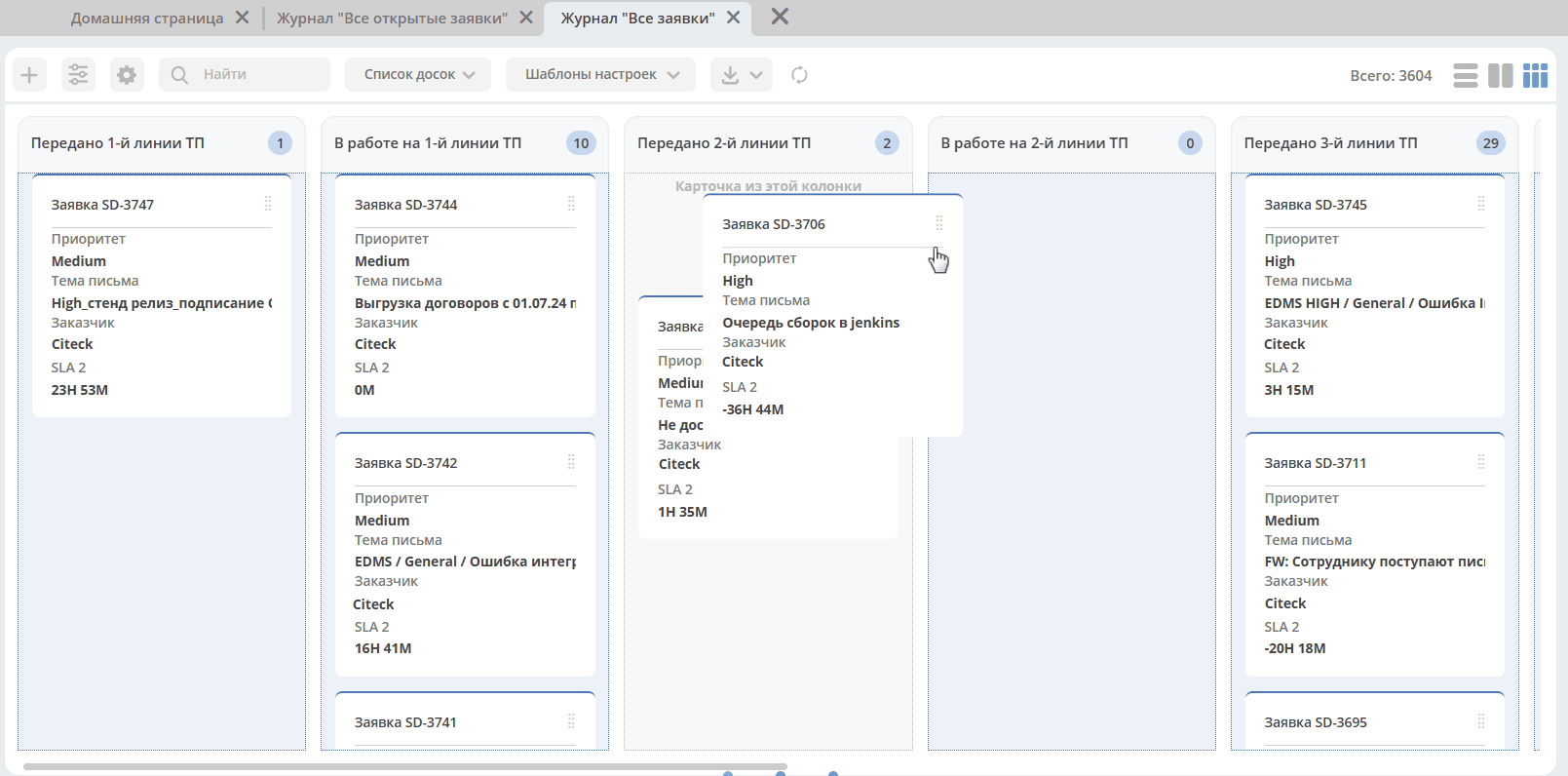
Cards can be moved from one column to another.
If moving according to the business process is not possible, an error is shown. For example:

Kanban Board Column Configuration
To configure item filtering, column order, and display, click:

The full list of statuses for the data type associated with the current journal is provided. Checkboxes can be used to select the statuses to display on the Kanban board.
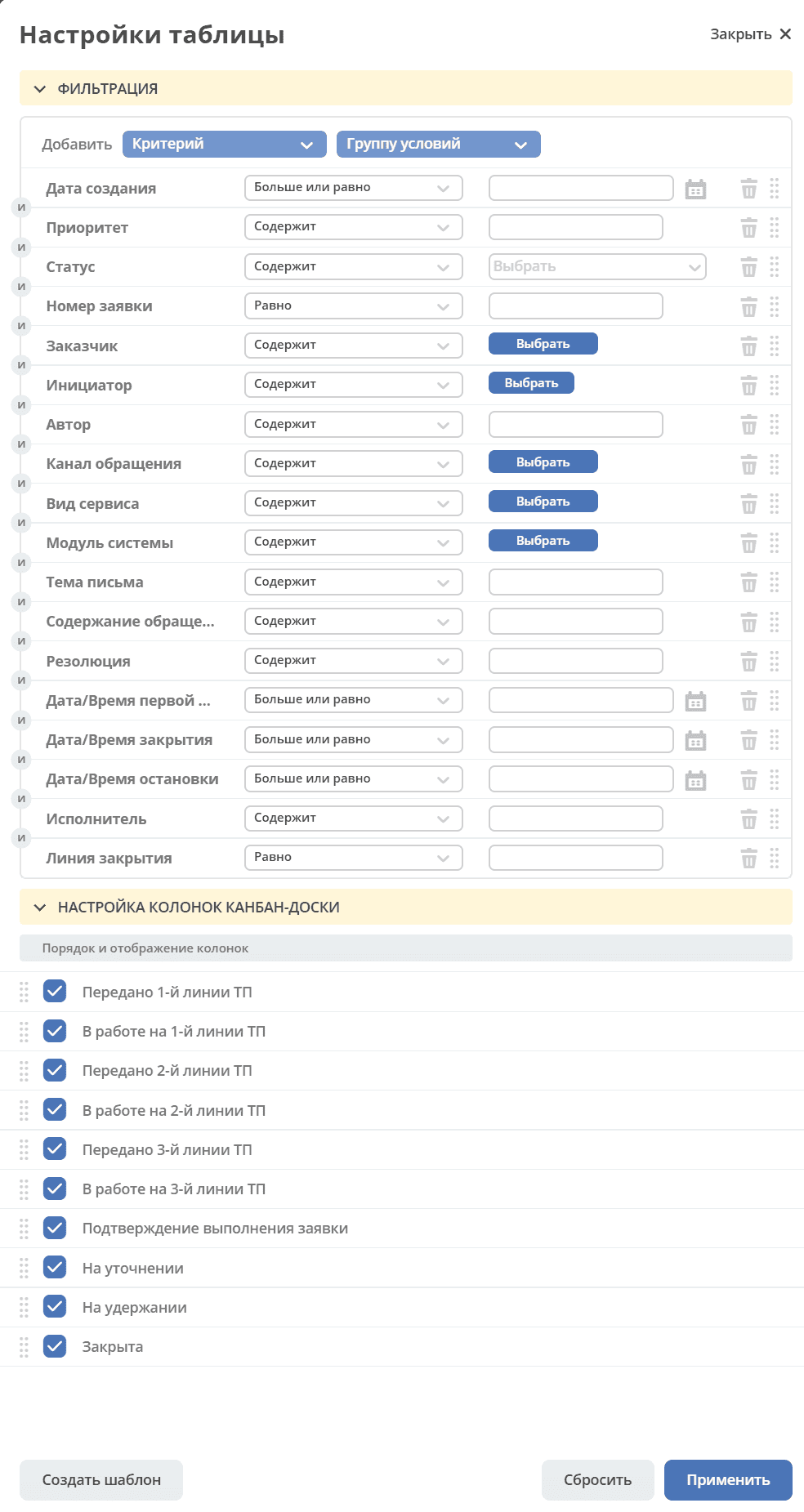
Click Apply — the Kanban board will display the statuses selected in the settings and the items in those statuses.
To reset the applied filter, use the button:
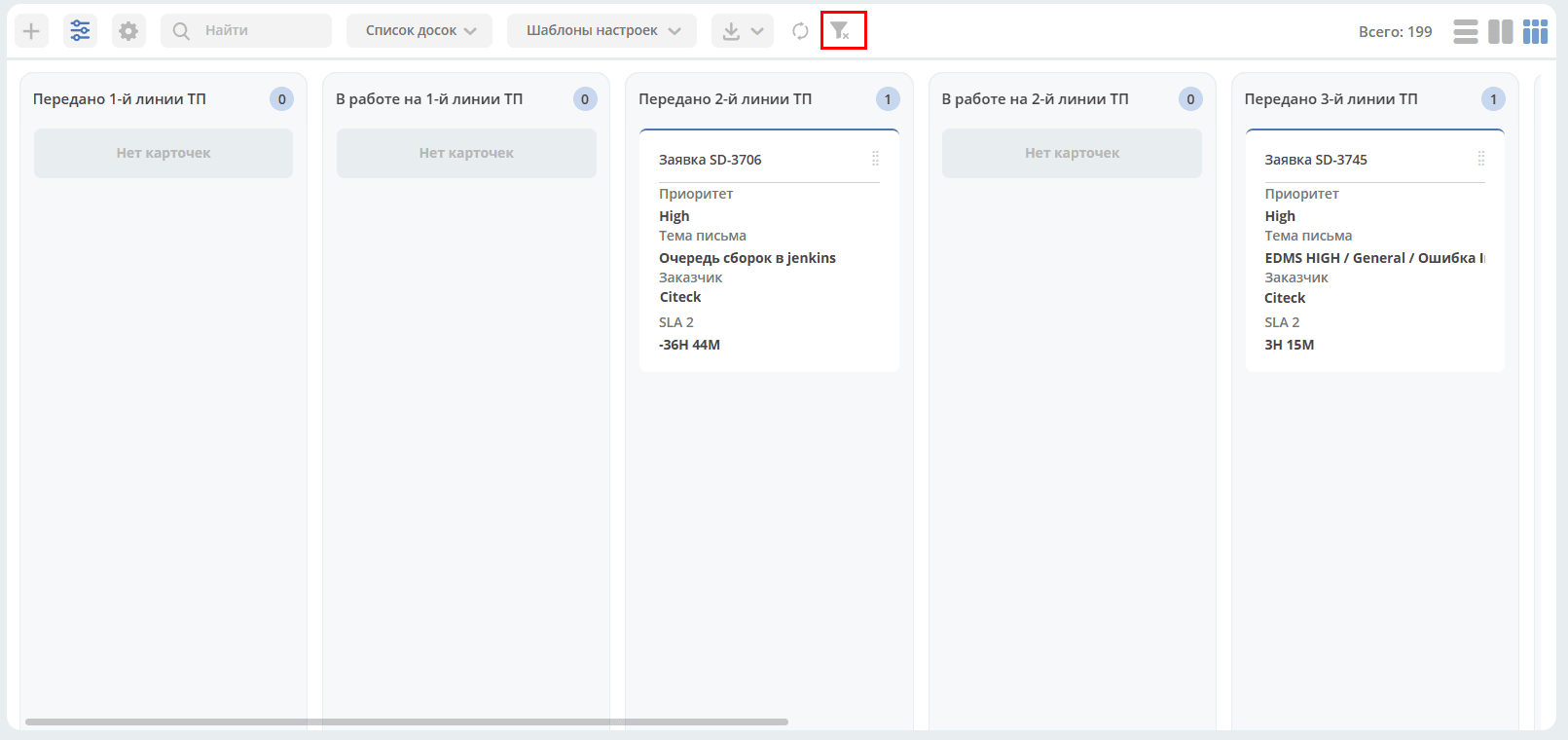
The selected settings can be saved as a template by clicking Create template:
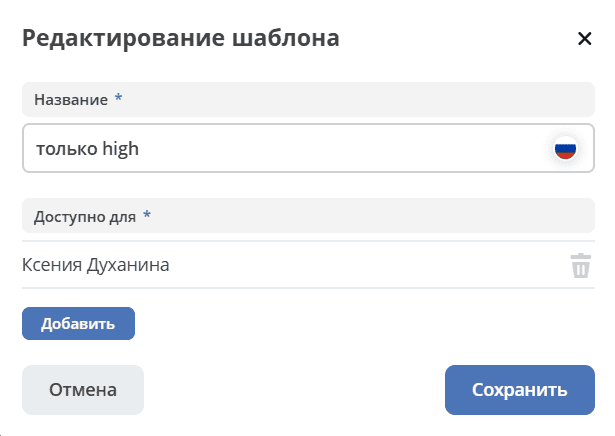
Specify the name, who it is available to (users, groups), and save.
Applying a Template
Saved templates are available by clicking Settings Templates:
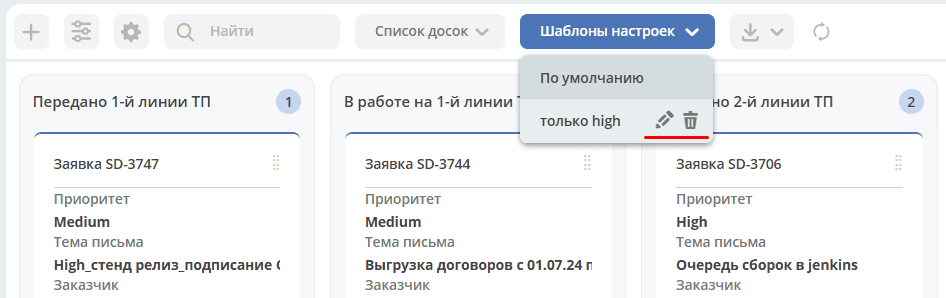
A template can be edited or deleted.
Card Grouping (swimlanes)
The Kanban board supports card grouping by record attributes — swimlanes mode. This allows visually splitting cards into horizontal lanes by the values of the selected field, simplifying navigation and task analysis.
Enabling Grouping
The Kanban board toolbar contains a «Grouping» dropdown. It lists the attributes that are marked as available for grouping in the journal.
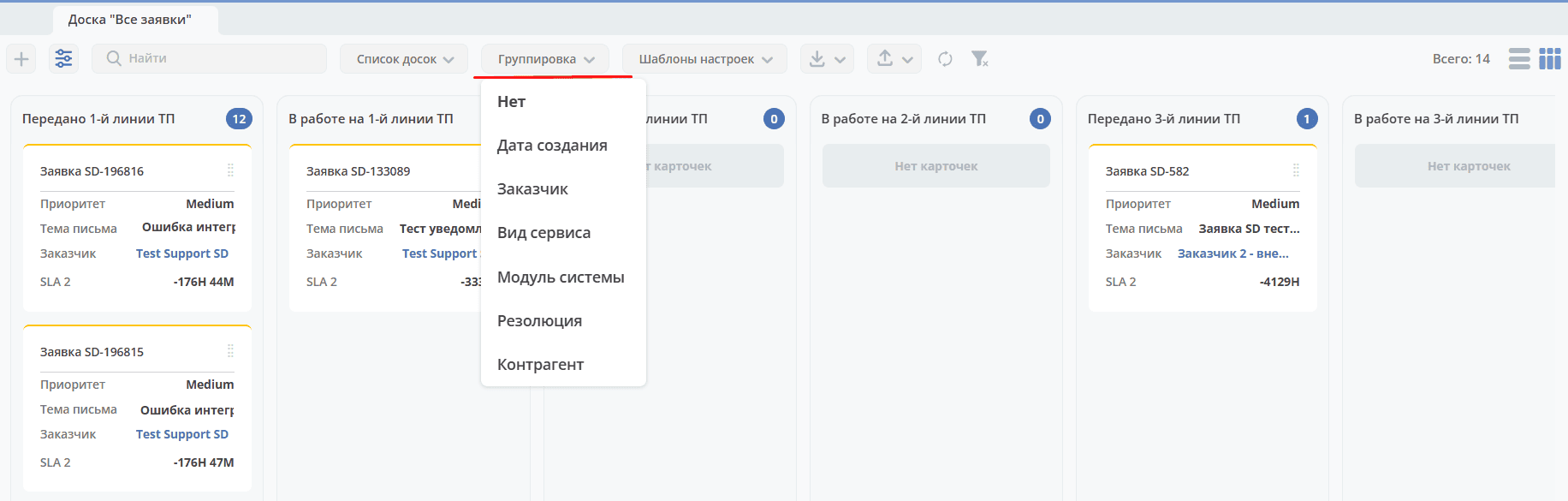
When no grouping is selected, the button shows the text «Grouping». After selecting an attribute, its name is displayed in the button.
Working with Swimlane Lanes
When a grouping attribute is selected, the board switches to swimlanes mode — cards are split into horizontal lanes by the values of the selected attribute.
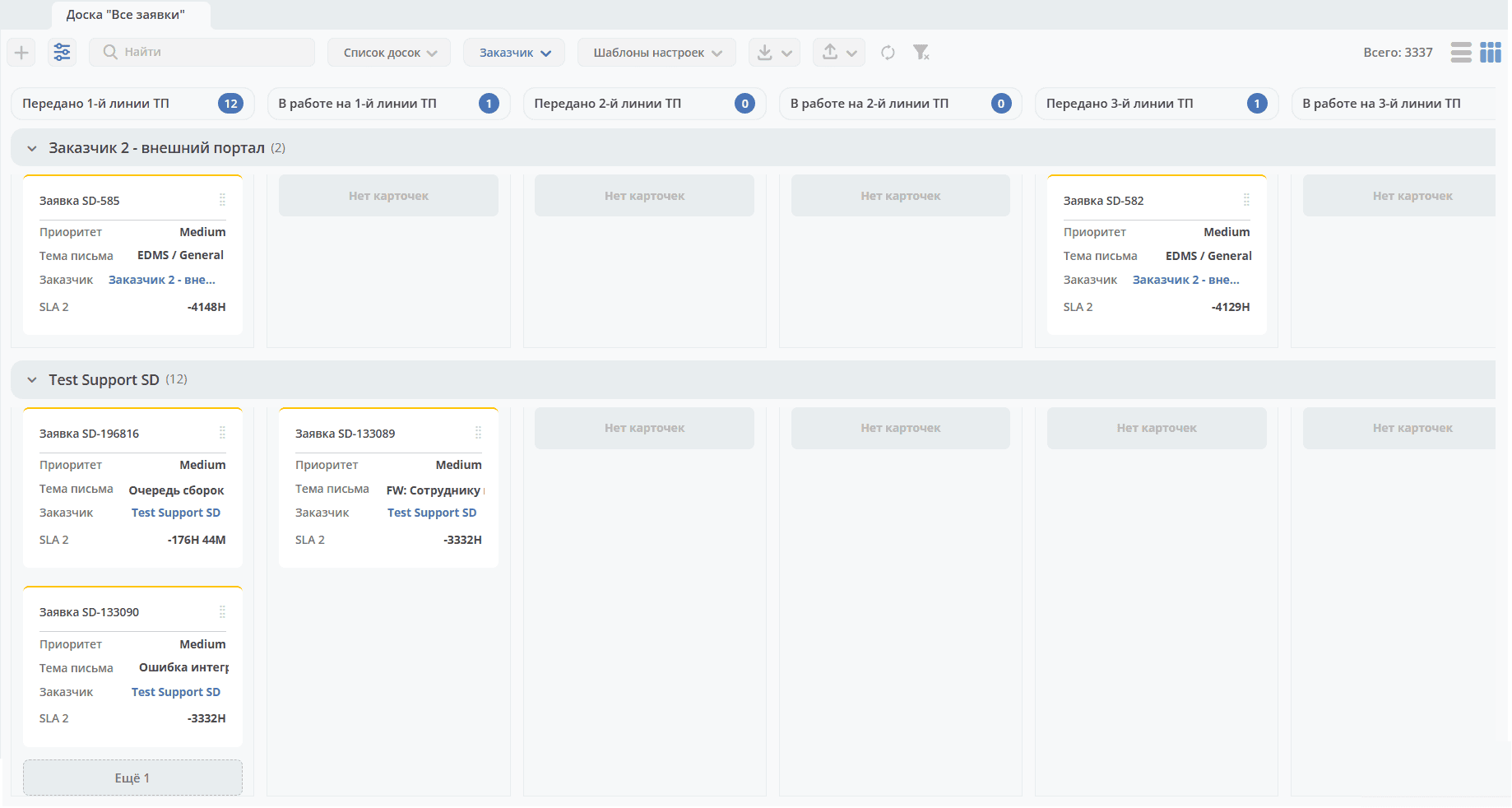
Each swimlane lane contains:
Header — the name of the grouping value and the total number of cards per column.
Collapse/expand button — allows hiding or showing the lane’s cards.
Colored badges — for journal attributes with configured formatting (ColoredFormatter), colored badges are displayed in headers.
«Show more» button — paginated loading of cards in swimlane cells.
Dragging cards within a lane works the same as in normal mode — a card can be moved from one column to another.
Kanban Board Configuration
The journal with «Kanban board» configurations (workspace «Administrator Section» → UI Configuration):

Actions
Available actions for the board:

View properties
Download
Delete
Edit properties
JSON editor
Copy
Creation form
+ → Create Kanban board configuration
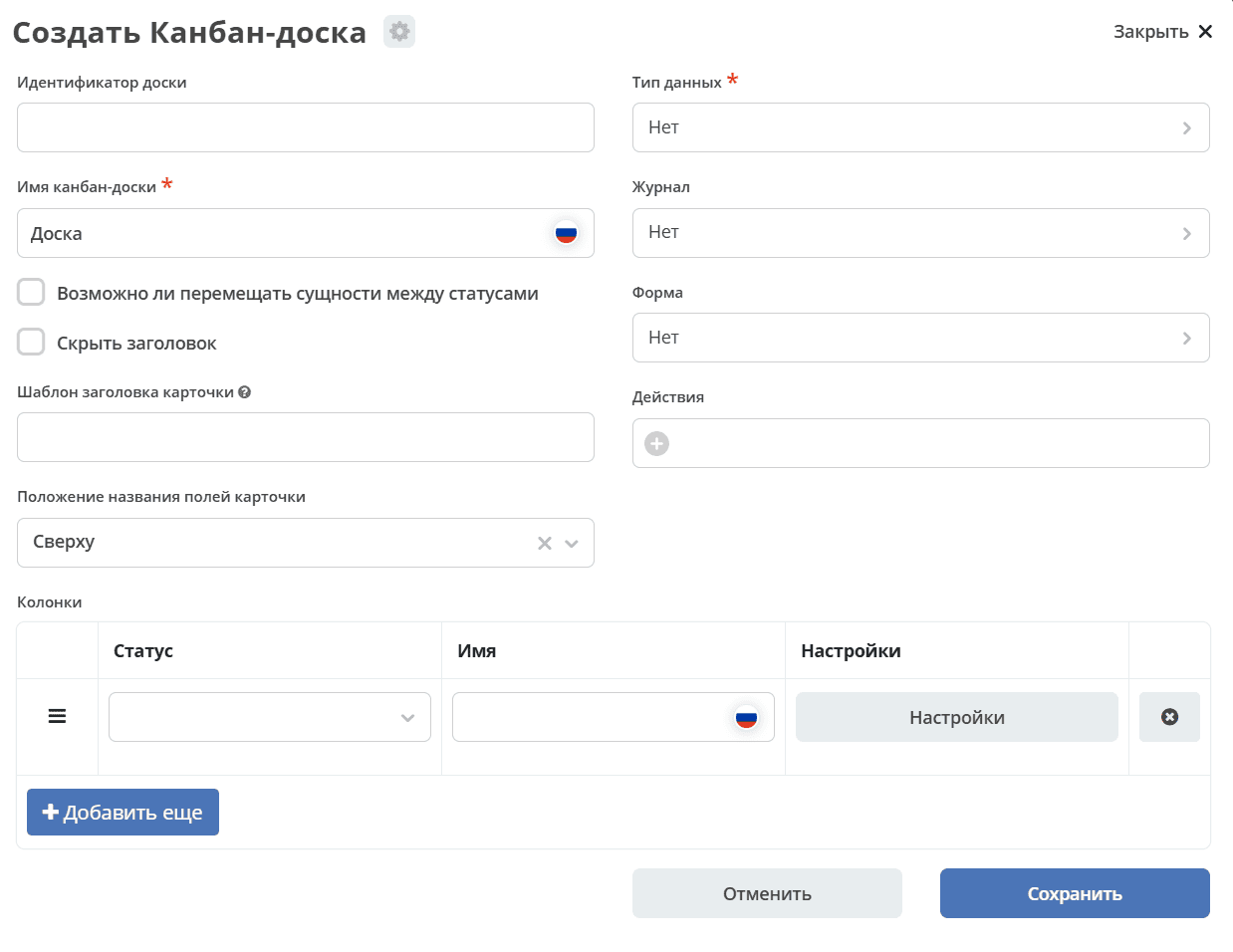
Field |
Description |
Number |
|---|---|---|
Board identifier |
Unique board identifier. For example,
test_board (snake case).If the identifier is not filled in, it will be generated automatically. For example,
c8393bfa-5291-464d-88b7-7ae822516e02. |
|
Kanban board name |
The display name of the board. Shown in the Kanban board list and as the page title.
Can be empty.
|
|
Allow moving entities between statuses |
Use drag-and-drop when moving between statuses.
Warning! Moving does not mean changing the business process.
|
7 |
Hide header |
Option to hide the Kanban card header.
|
5 |
Card header template |
A template setting
№ ${numberAtt} - ${?disp} that changes the card header in the Kanban board according to the template. |
5 |
Position of card field labels |
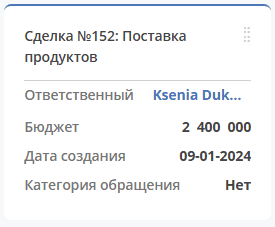
Option to choose the position of card field labels: left or top.
|
2 |
Data type |
The entity type to display on the board. Selected from the list of all existing types.
Only 1 value can be selected.
According to the type, the associated statuses can be selected in columns.
|
|
Journal |
Journal for the data type.
The journal for which the Kanban board view is being created.
Selected from the list of all existing journals. Only 1 value can be selected.
|
1 |
Form |
The card form for displaying the entity.
Selected from the list of all existing forms. Only 1 value can be selected.
If no form is selected, the Kanban board will display the entity by default with the following data:
Author; Creation date.
|
4 |
Actions |
Actions on the entity on the board. Selected from the list of all existing actions.
Multiple values can be selected.
|
|
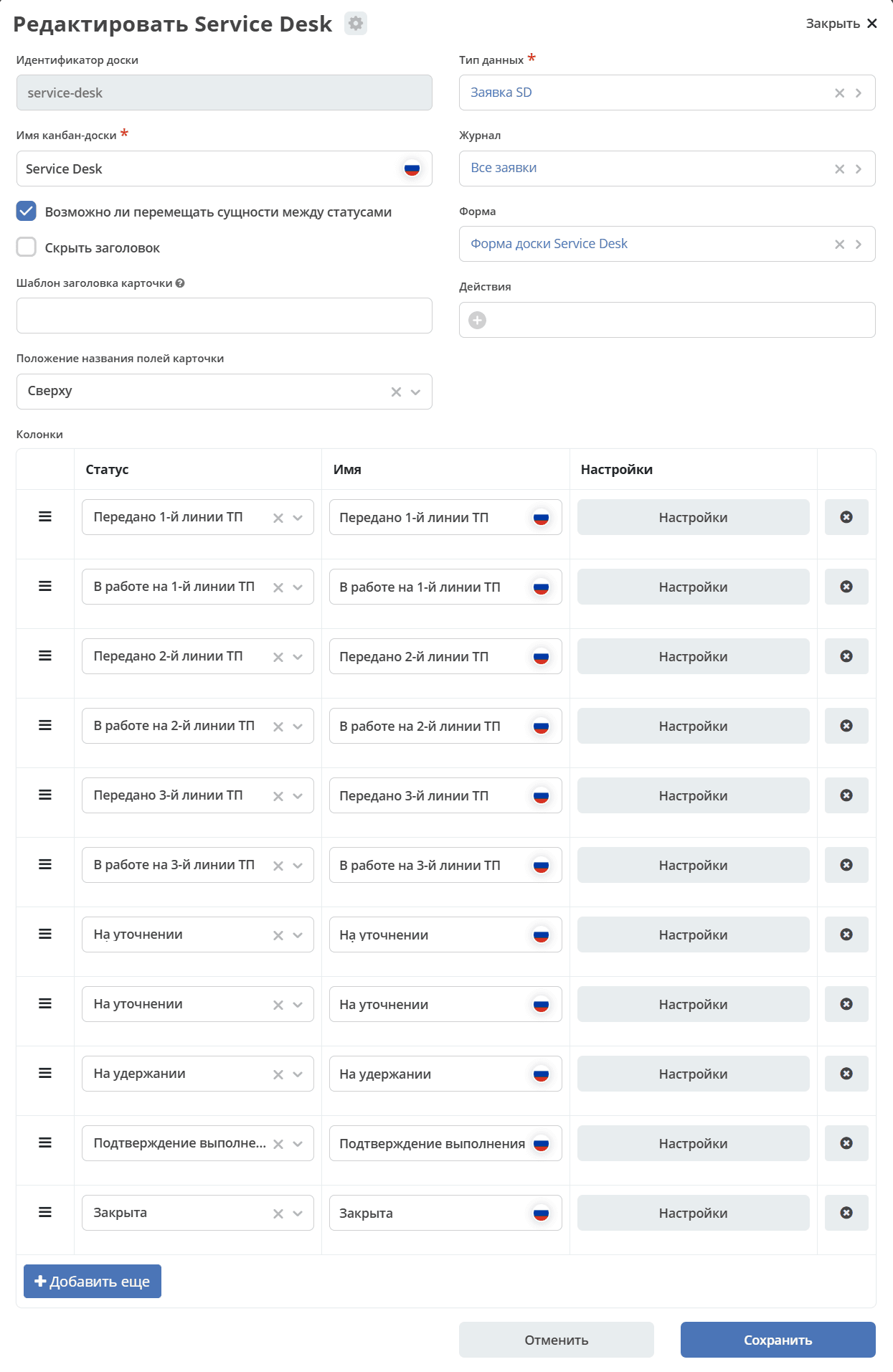
Columns |
Column configuration. |
3 |
Correspondence between configuration fields and the interface:
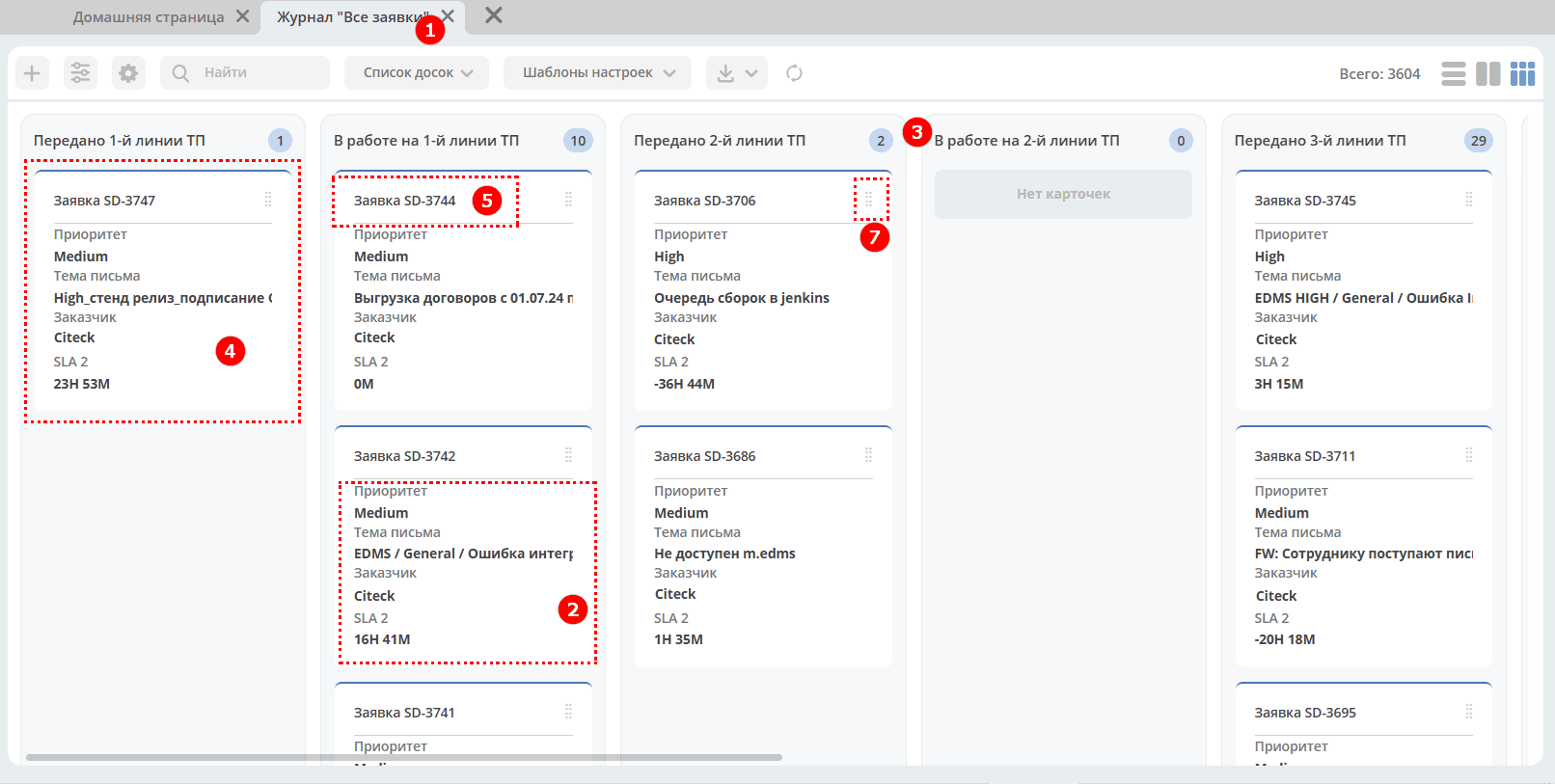
Possible positions of card field labels:
Top |
Left |
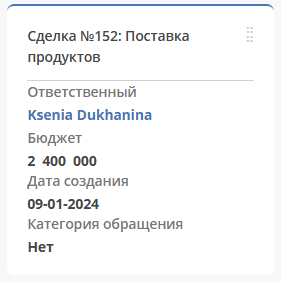
Column Settings
In the «Status» column, select a status from the dropdown list. The statuses in the dropdown correspond to the selected data type.
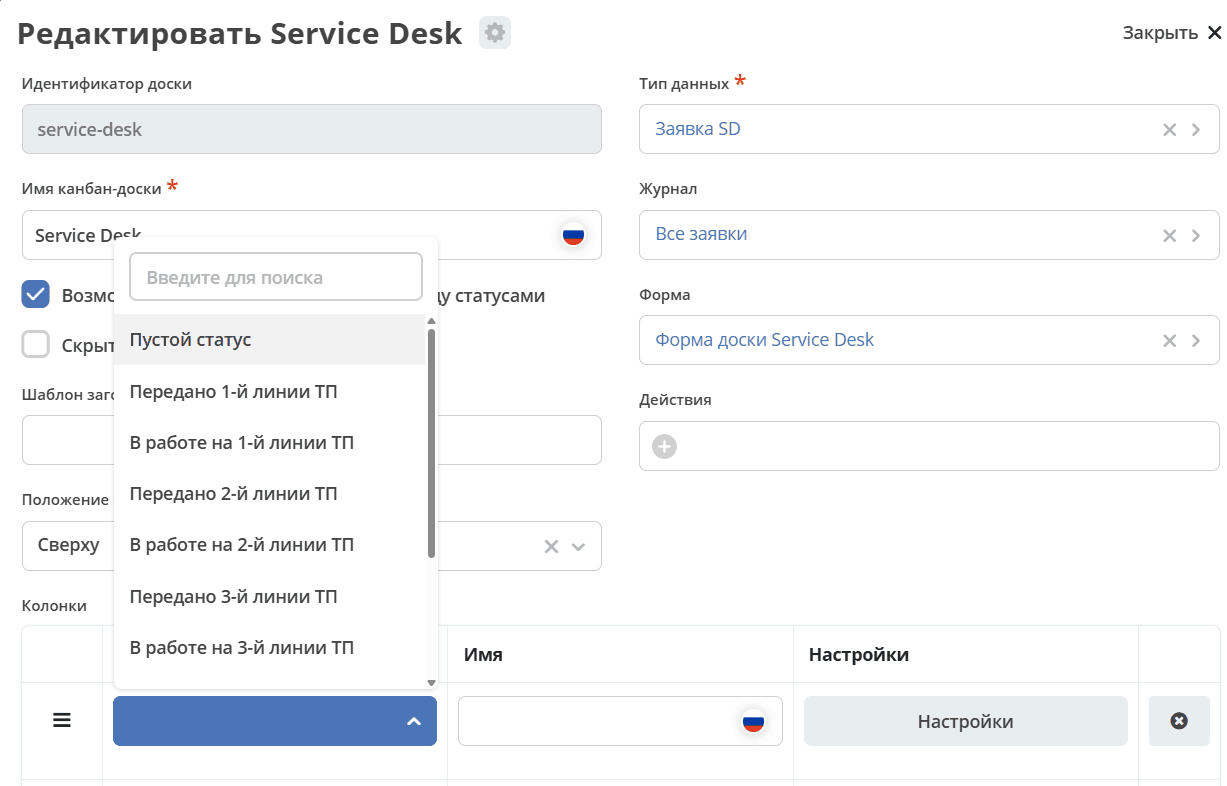
In the «Name» column, enter the name that will be displayed on the Kanban board. By default, the selected status is automatically set in the «Name» column as well; it can be changed as needed.

For each column, items older than the specified duration can be hidden:

Duration is specified in days:
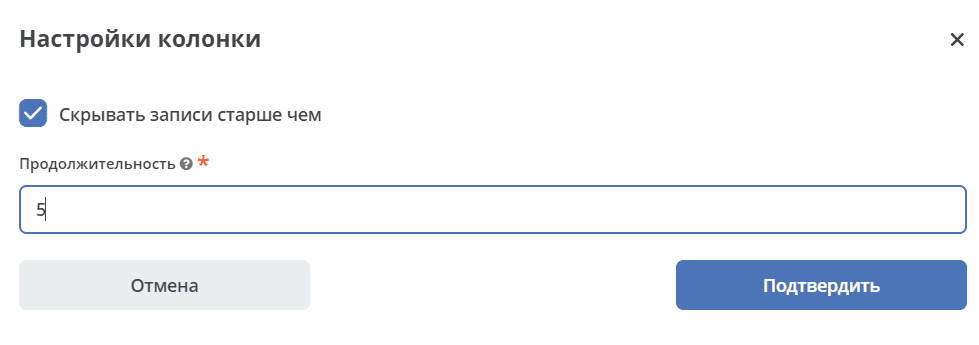
On the board, for columns with this setting enabled, items whose status transition date exceeds the specified duration will be hidden.
Total Sum per Column
The Kanban board can display the total sum per column, which is useful for contracts, deals, and other cases involving monetary amounts.
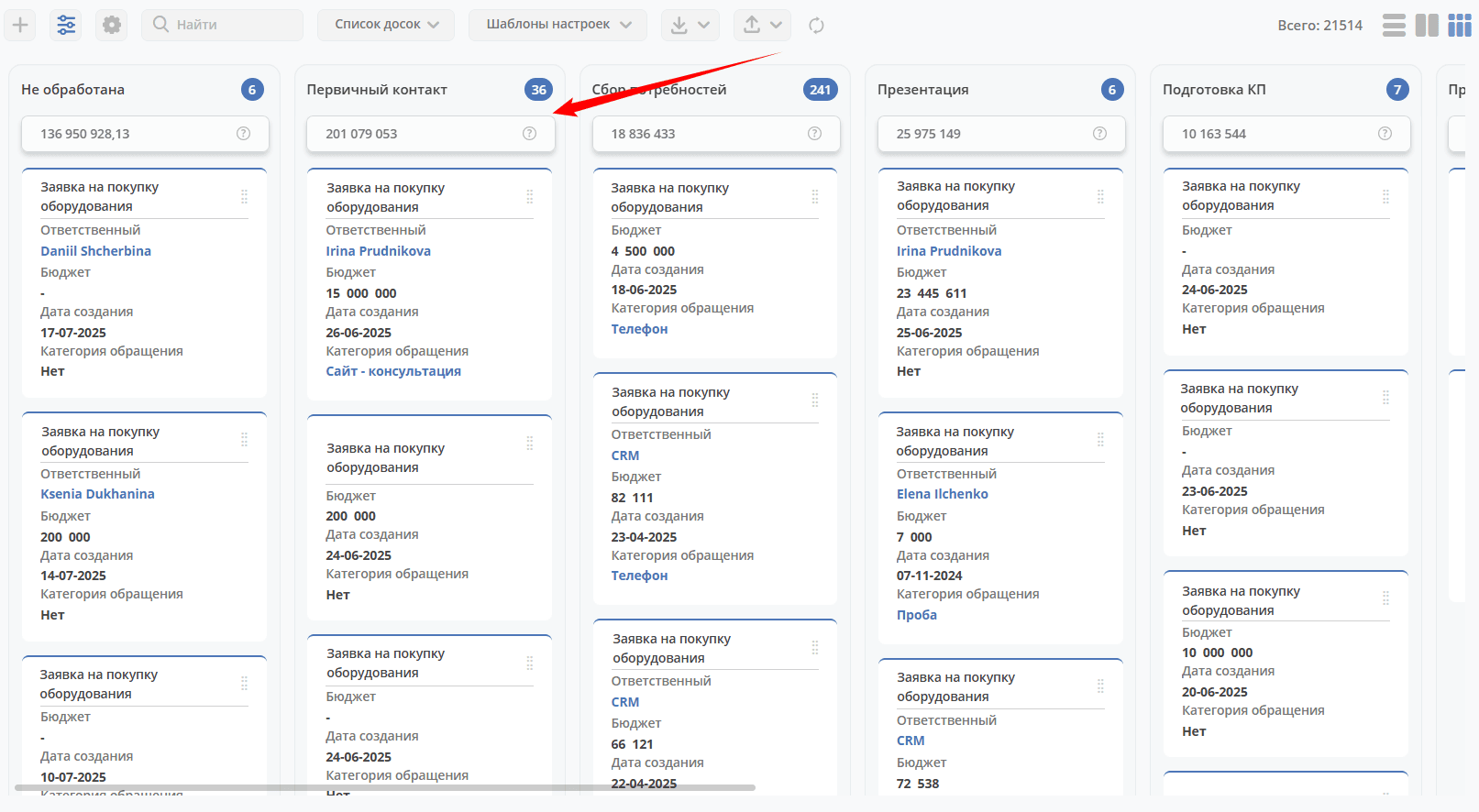
Each Kanban board column displays the total sum for all cards in that column. When a card is moved to another status, the total sum is recalculated in both columns: the previous status and the new status.
The parameter is set for each column and considers only the numeric attribute for summation.

Sums are individual for each workspace and are not shared across all workspaces of the same type.
If the amounts in cards are entered in different currencies, the total sum contains multiple entries with currency labels. The number of entries equals the number of currencies used in that column in that workspace.
Completed configuration
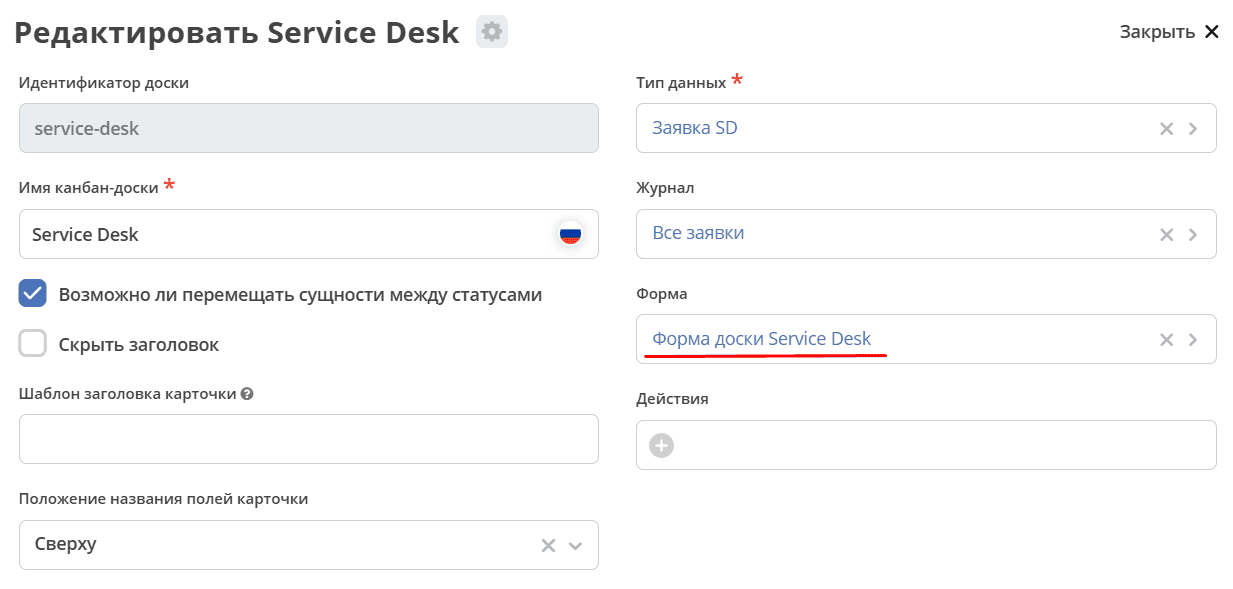
Editing Card Form Fields
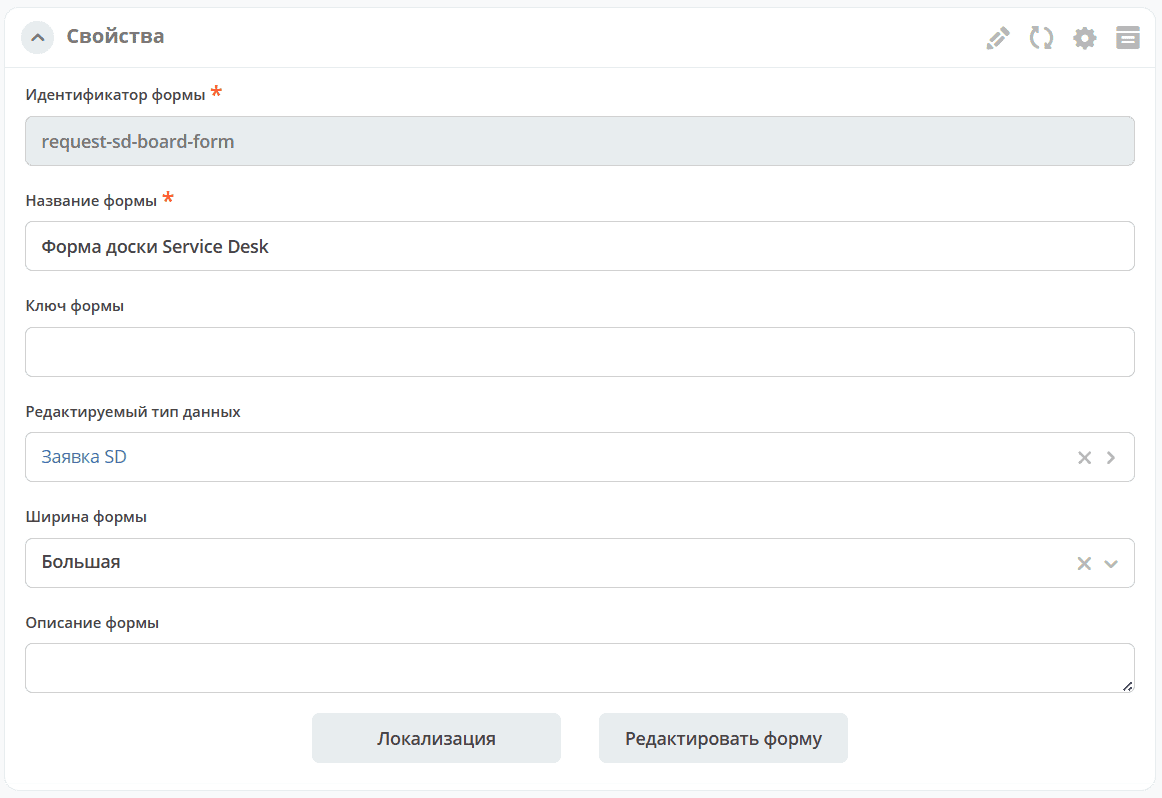
Click on the form:
Remove or add the required fields:

Relationship Between Kanban Board and Data Type
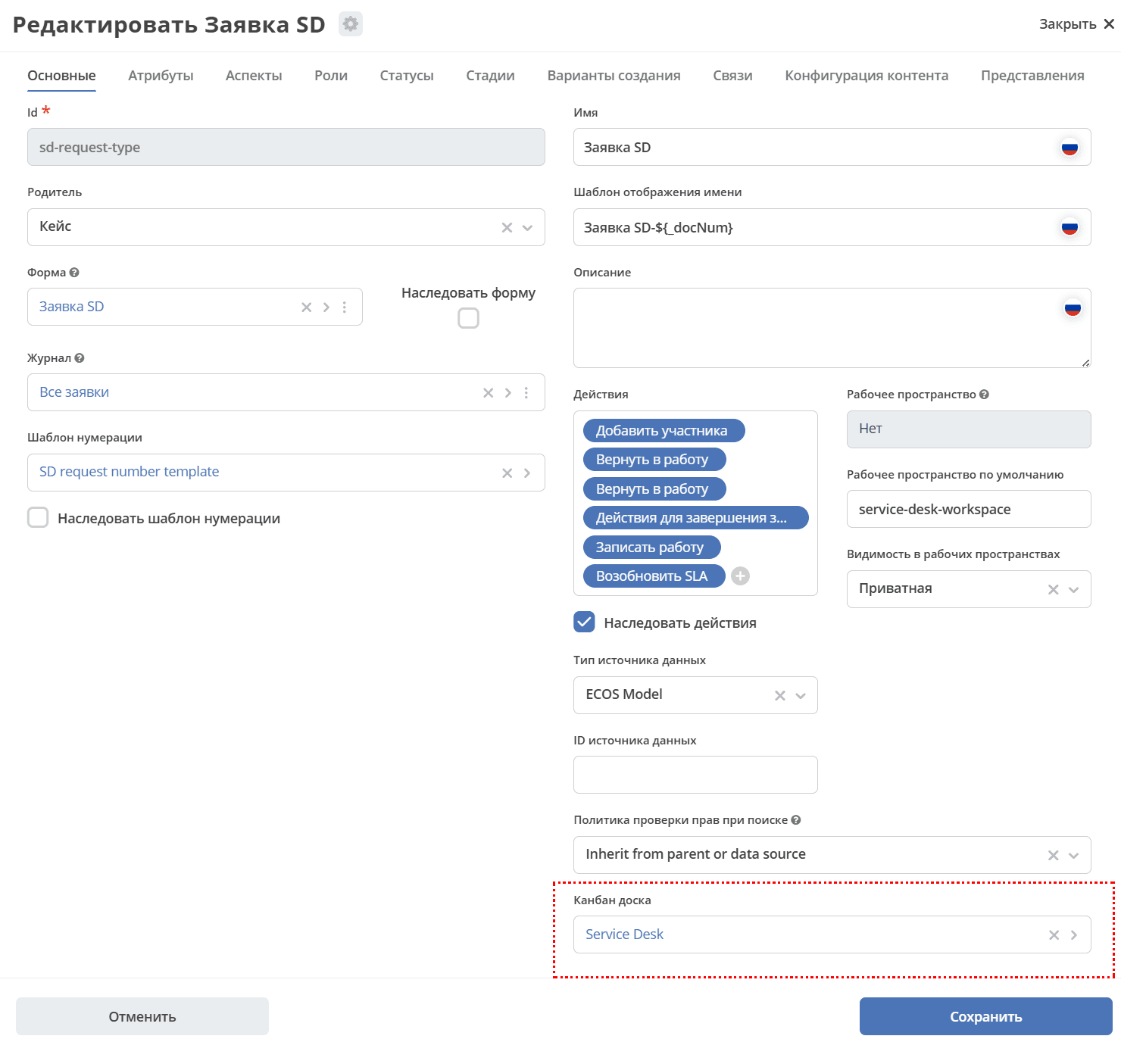
The created Kanban board can also be set in the data type: