Extending the Equipment Purchase Request Process: Adding BPMN Events
Note
This article continues working with the business process created in the Equipment Purchase Request. Including DMN in the Process section.
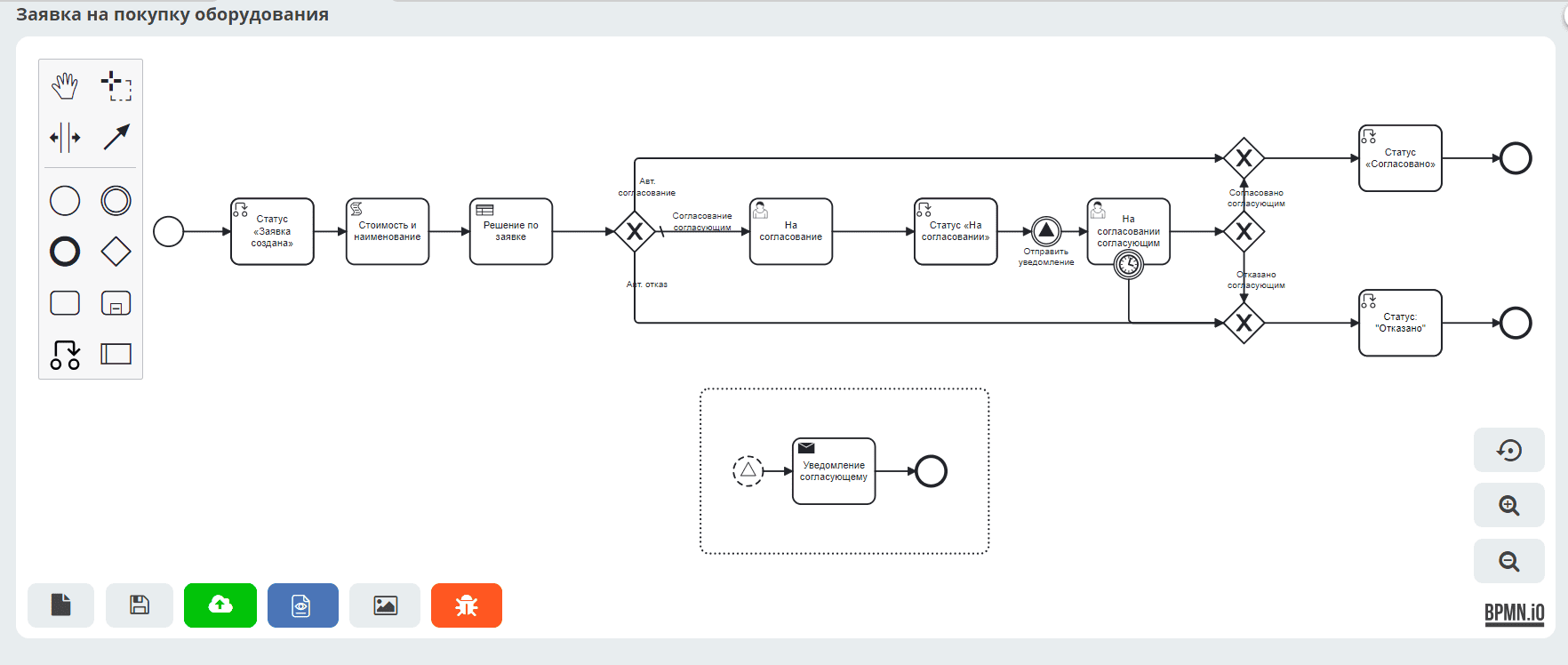
In this section, we will extend the business process by adding two types of BPMN events:
Signal — launches an event subprocess that sends a notification to the approver when the request receives the “Under Approval” status.
Timer — if the approver does not make a decision on the request within the specified time, it will automatically move to the “Rejected” status.
The final process diagram:
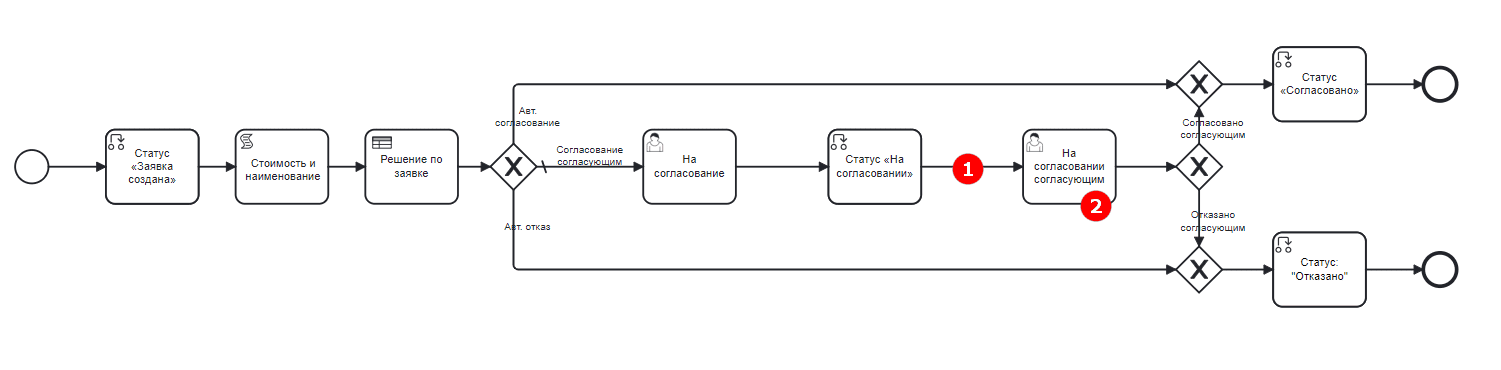
Signal
Between the Status “Under Approval” and User Task “Under Approval by Approver” components, add an intermediate “Signal” event:
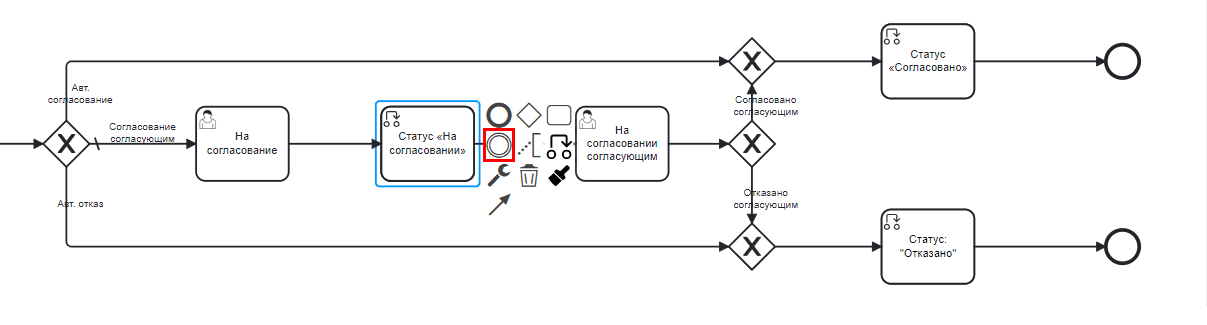
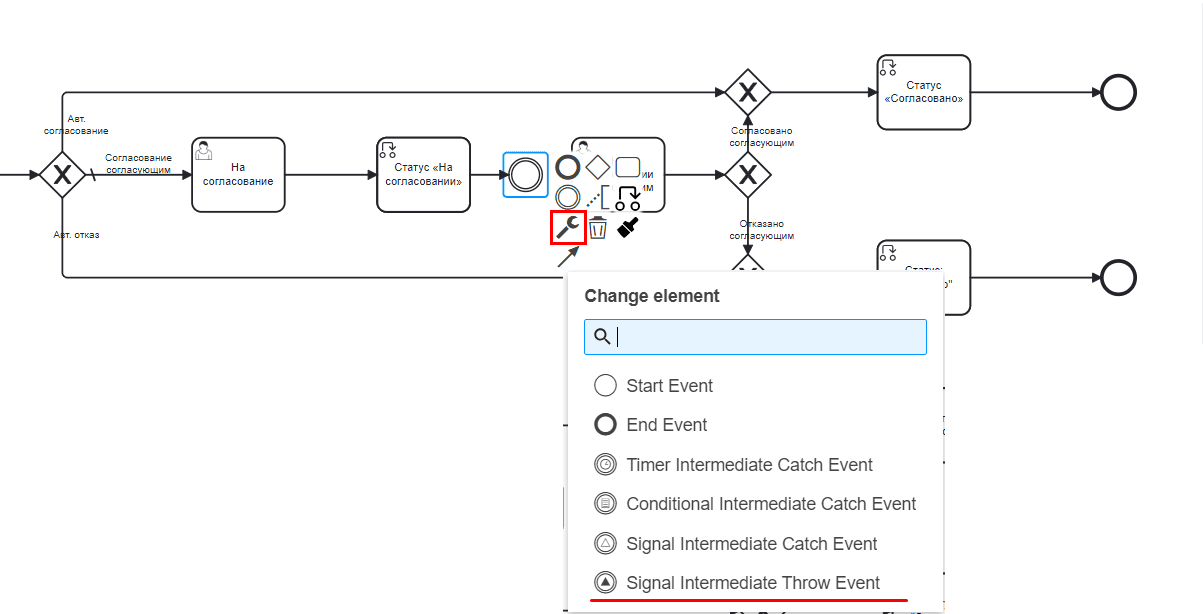
Select the event type Signal Intermediate Throw Event:
Specify the event properties:
Name — Send notification
Signal name — sendEmail
Event filter by document — Current document

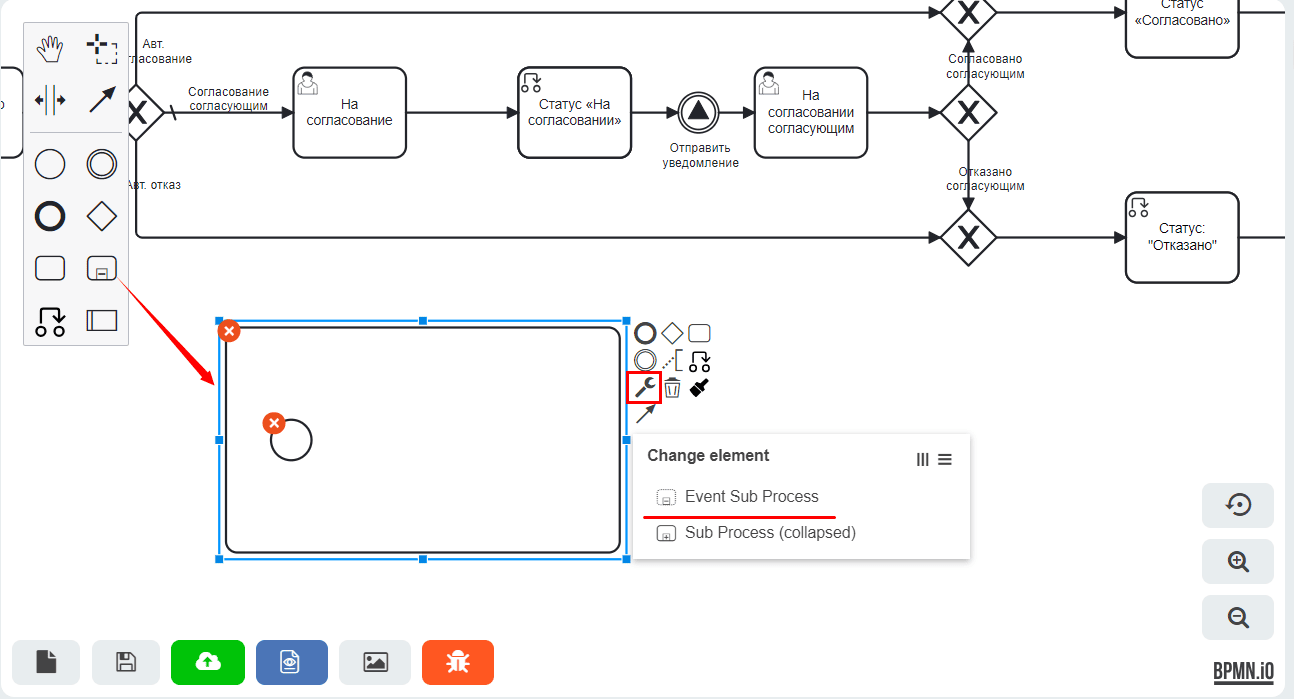
Add a “Signal” event subprocess — a subprocess triggered by an event. To do this, first create a standard subprocess, then change its type to Event Sub Process:
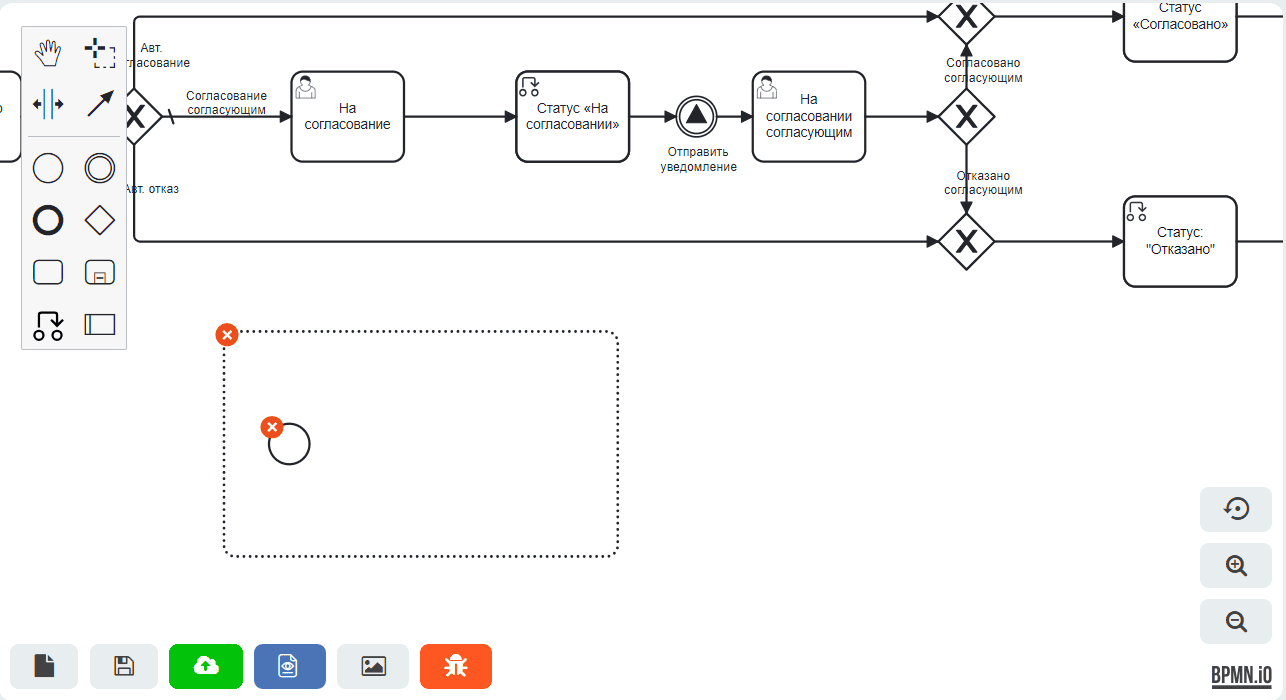
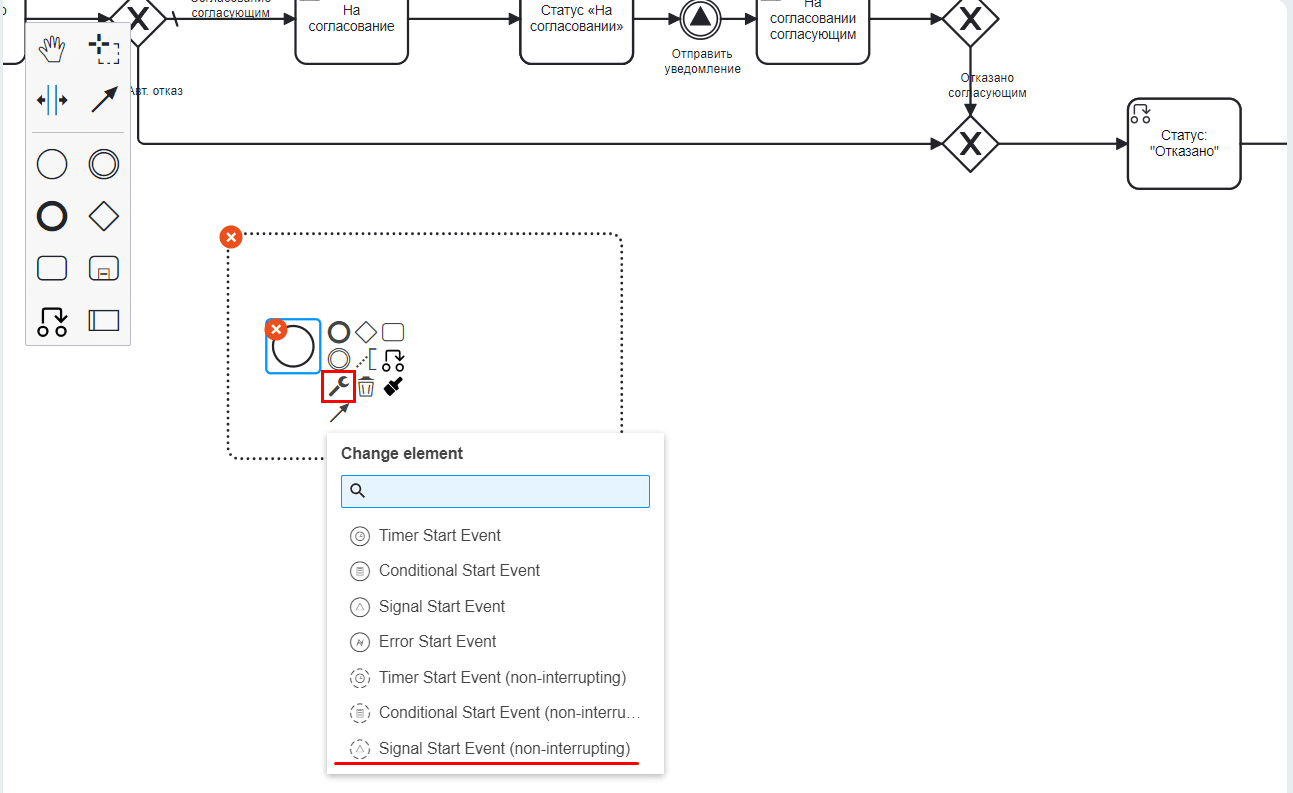
Inside the subprocess, replace Start Event with Signal Start Event (non-interrupting):
Specify the start event properties:
Manual configuration — enable (checkbox)
Signal name — sendEmail
Event filter by document — Current document
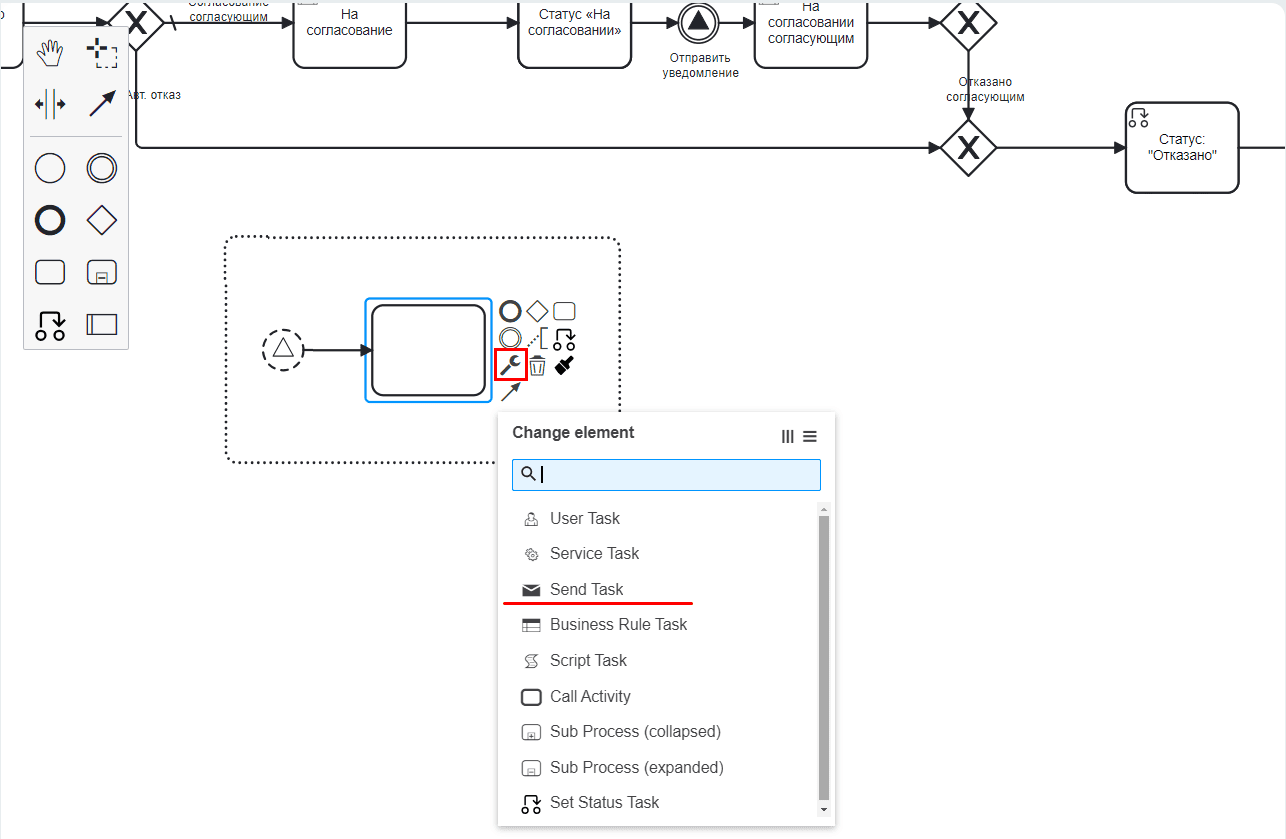
Add a Notification component to the start event:
Specify the notification properties:
Name — Notification to approver
Title — Approve the request
Message body — Please approve the equipment purchase request
To — Approver
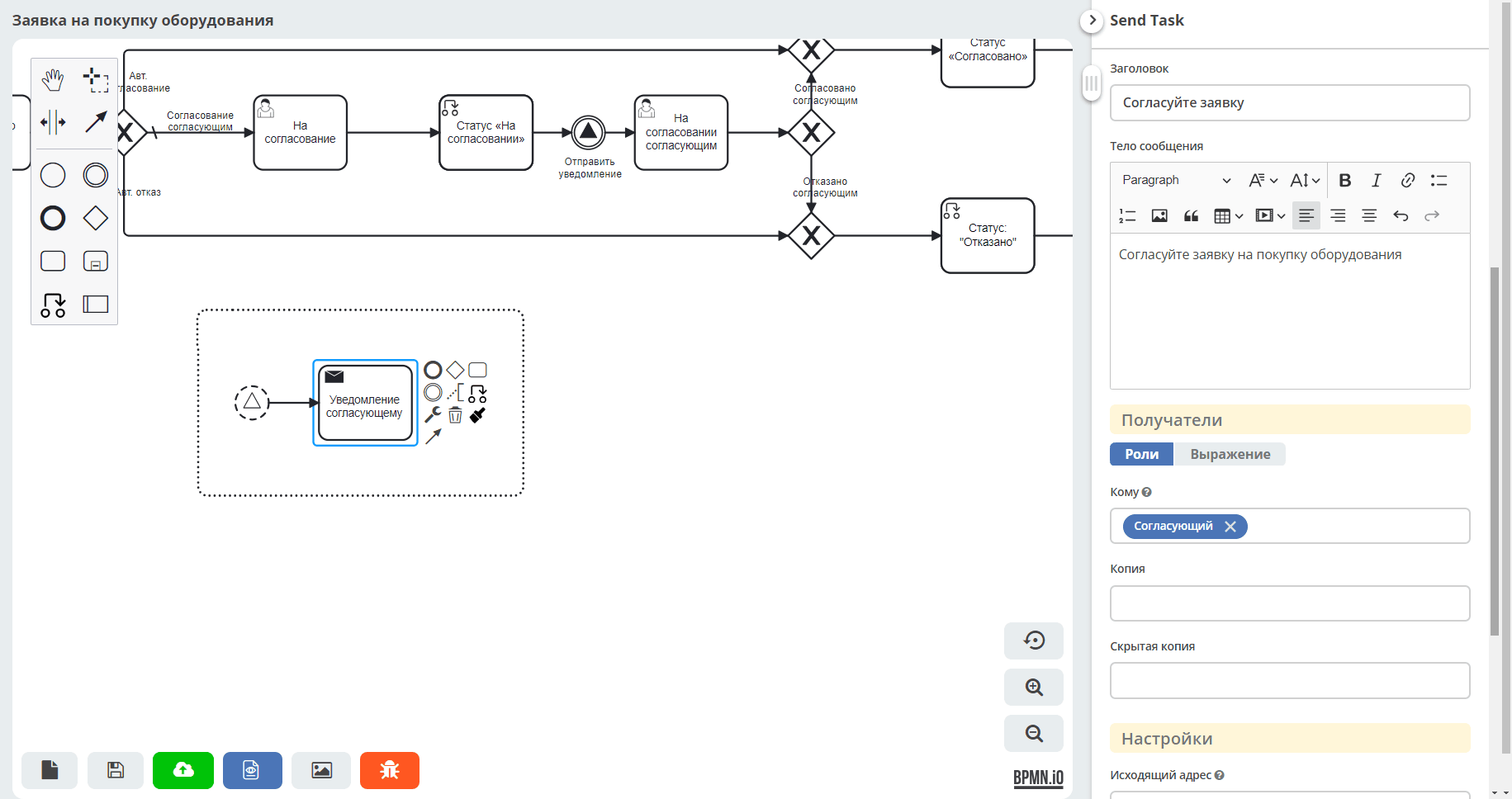
Add an End Event (1) component and publish the business process (2):

Testing the Signal
Create a request so that the process follows the branch with employee approval. Specify equipment not listed in the DMN table, or use the following data:
Equipment name — Laptop
Cost — 65000
Initiator — current user
Approver — any user with an email address specified in their profile
If Citeck is installed using the cross-platform launcher, go to Mailhog to view test emails:

Mailhog — a tool for testing email, allowing you to view emails without actually sending them to mail servers:
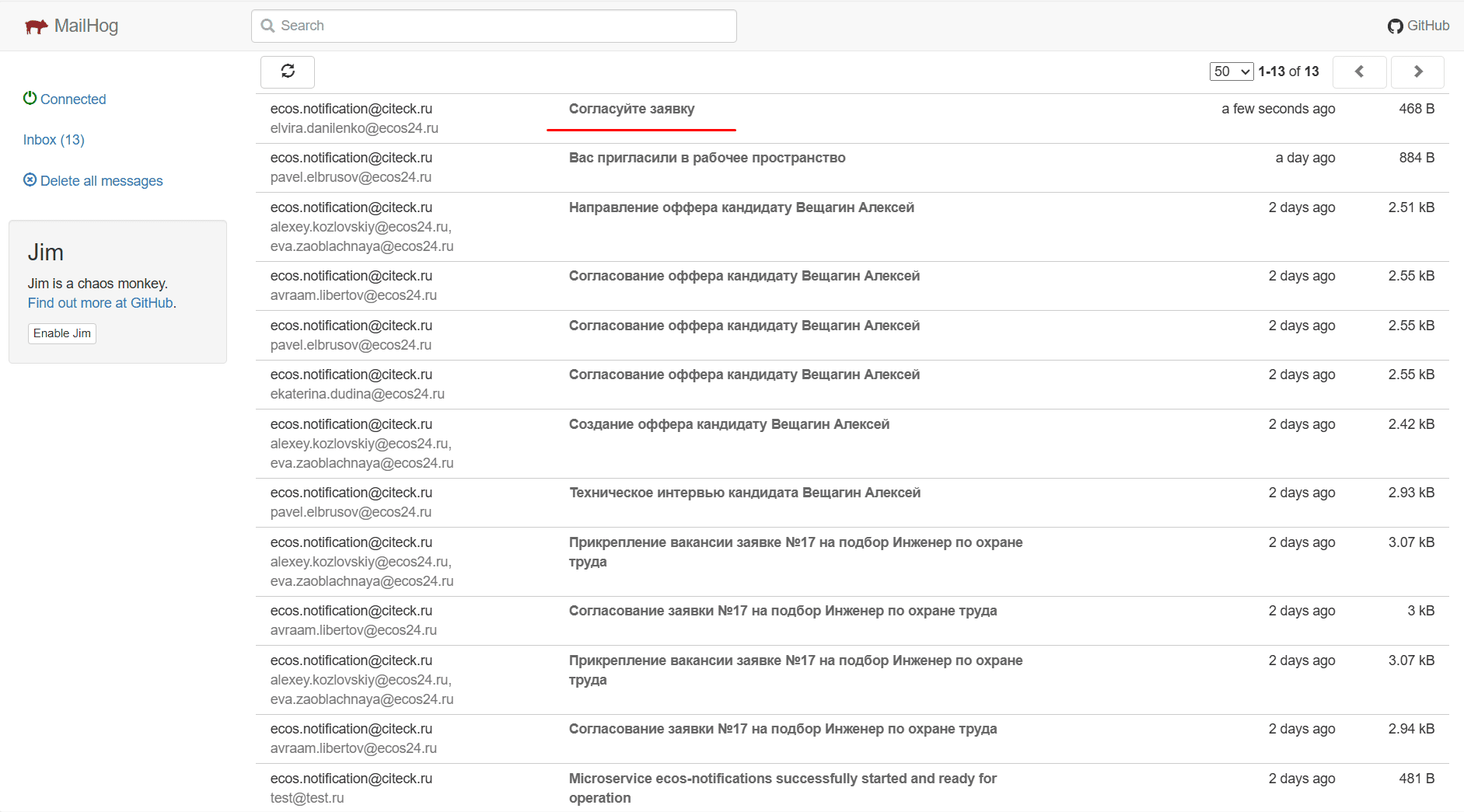
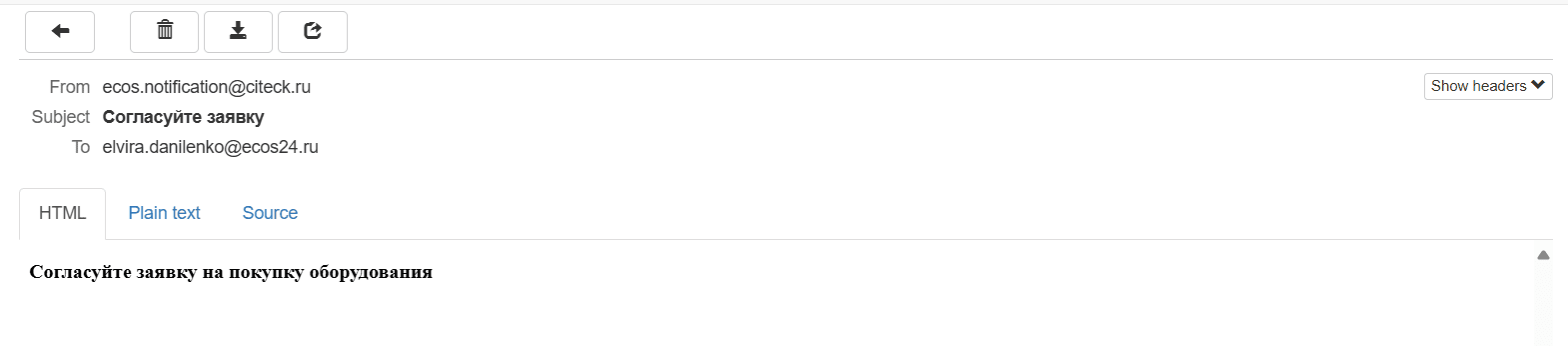
Open the email and verify that the notification was delivered:
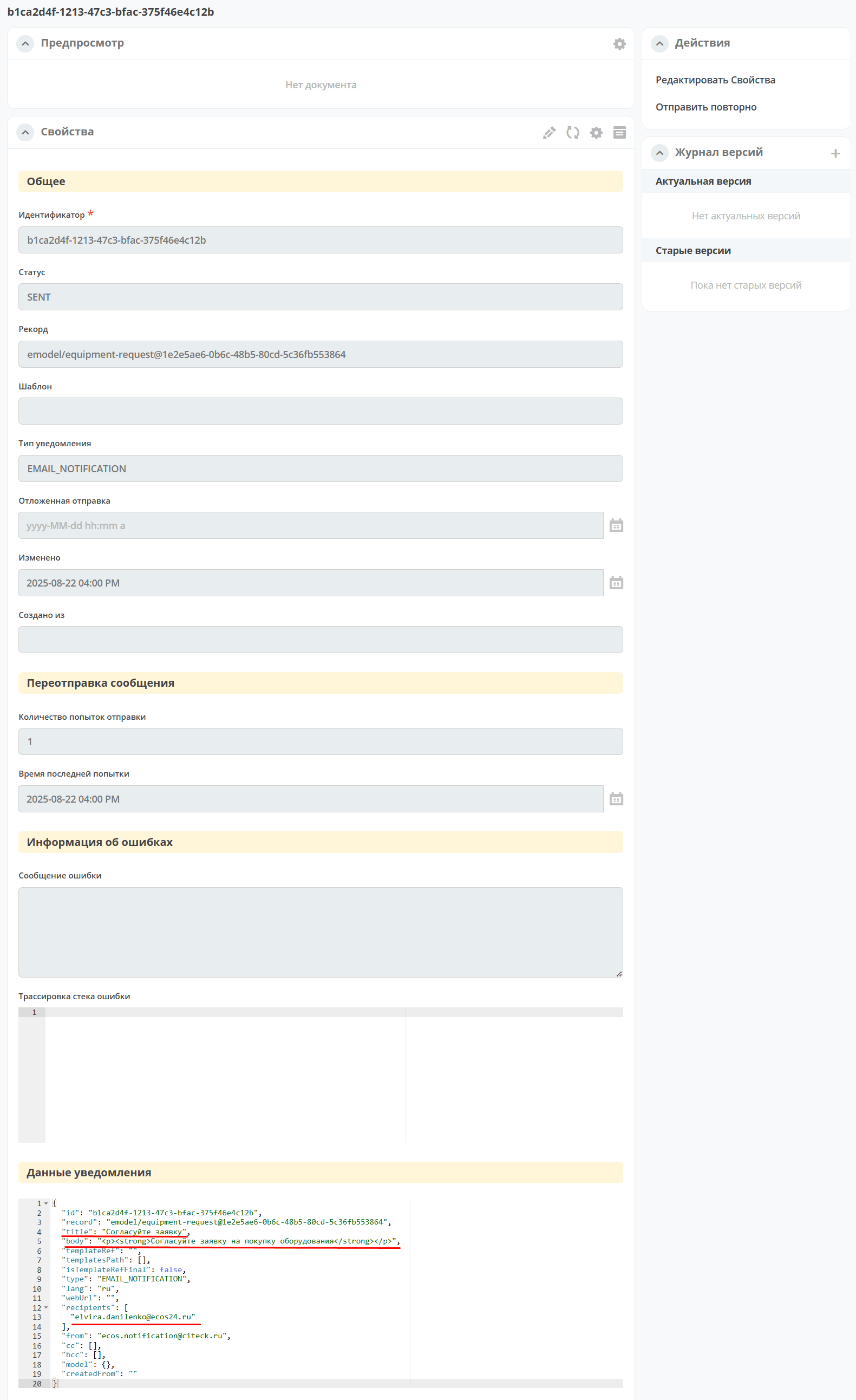
You can also check the notification in the administrator workspace: in the Notification Configuration section, open Notifications.
Note
If the process was created in a local workspace, navigate directly to the Notifications section of the current workspace.
Select the required notification from the list:
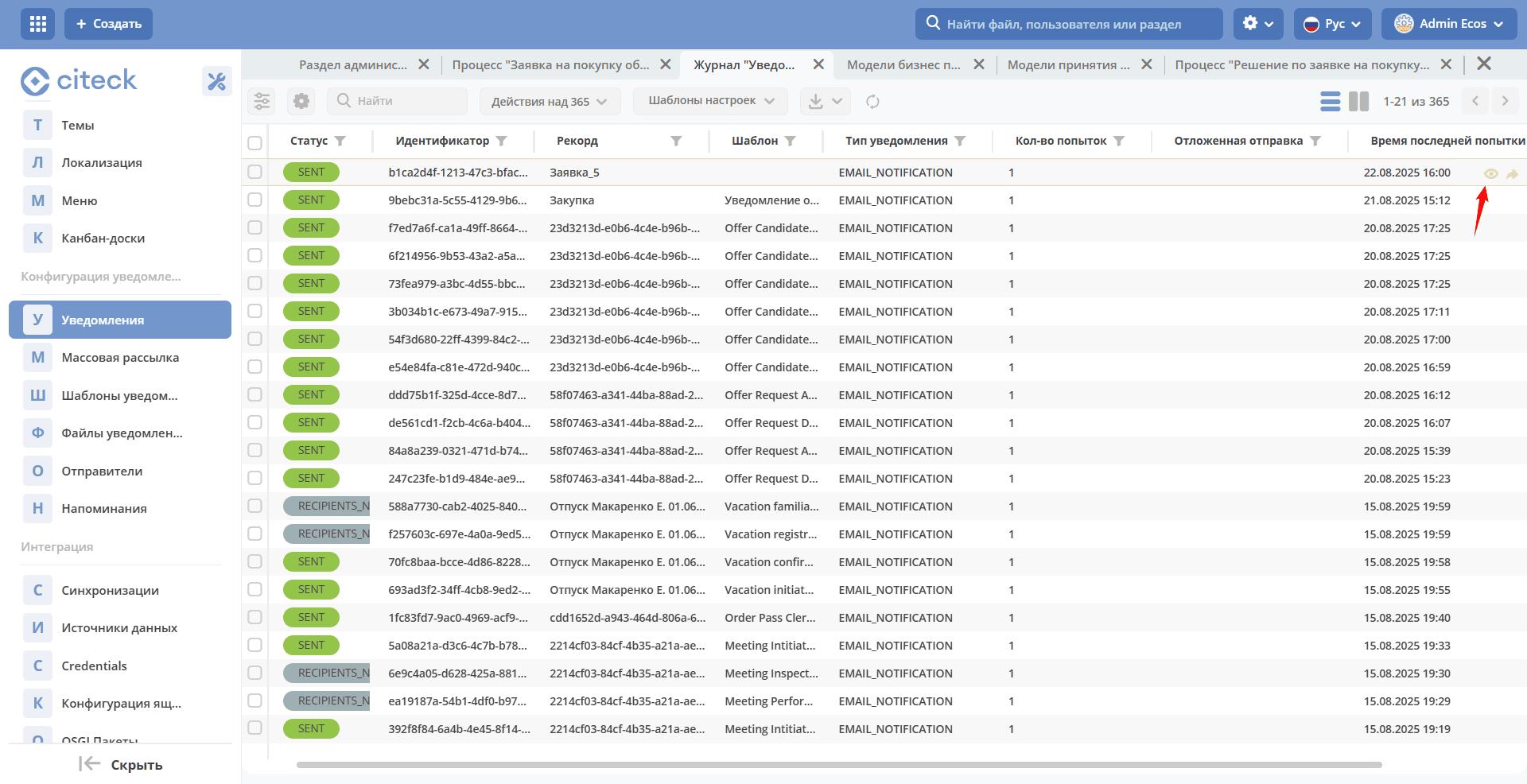
The notification form will open. It displays all the settings configured in the Send Task component:
Timer
Add a boundary “Timer” event to the User Task “Under Approval by Approver” component:

Drag the event onto the User Task “Under Approval by Approver” component:
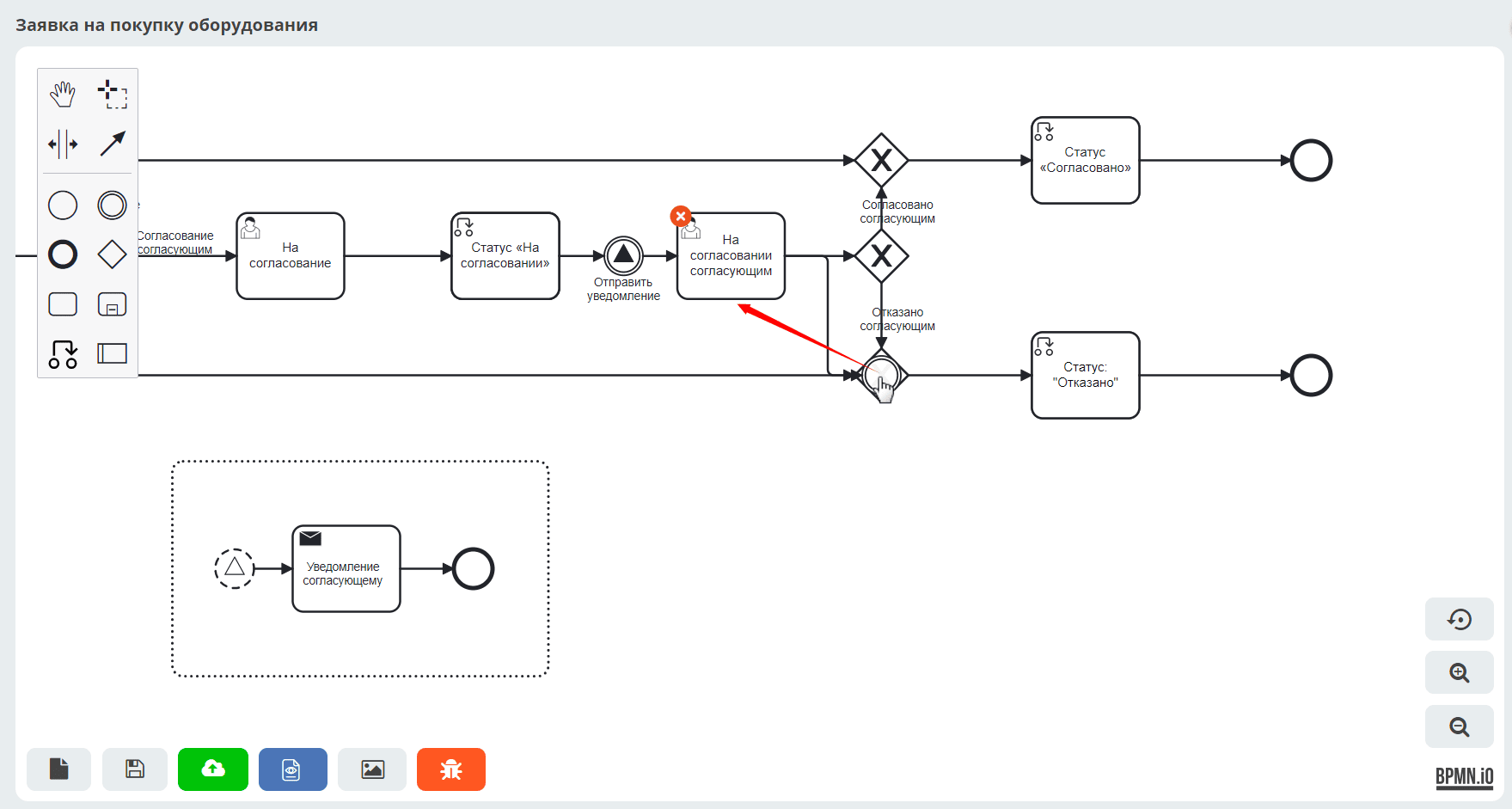
Select the event type Timer Boundary Event:

Specify the event properties:
Type — Duration
Value — PT1M in ISO 8601 format (
PT1M— 1 minute; see time formats for more details)

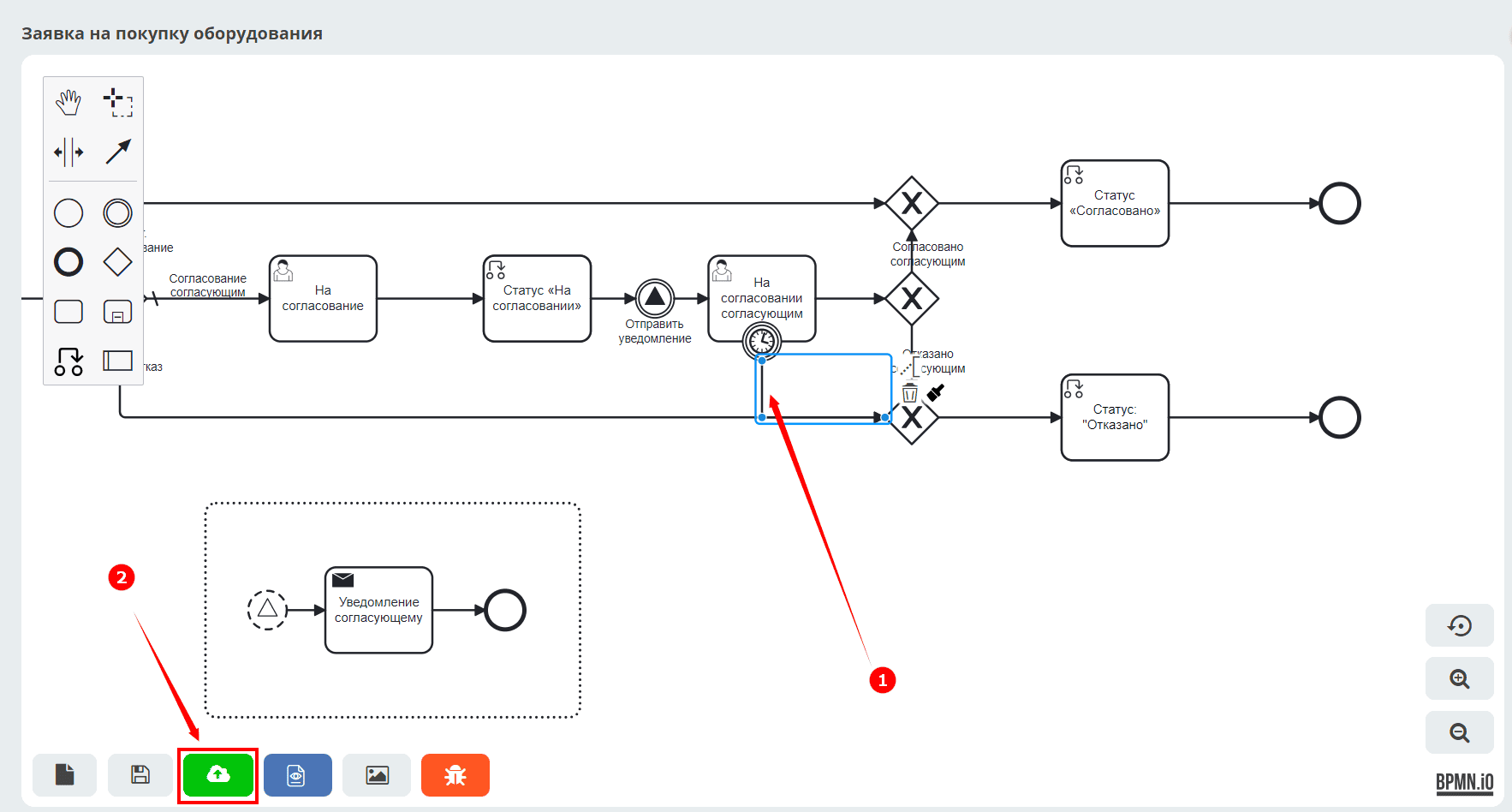
Route the flow from the timer to Gateway (1) and publish the business process (2):
Testing the Timer
Create a request so that the process follows the branch with employee approval. Specify equipment not listed in the DMN table, or use the following data:
Equipment name — Laptop
Cost — 65000
Initiator — current user
Approver — any user with an email address specified in their profile
When the process reaches the approval step, do not make a decision on the task — after 1 minute, the request will automatically move to the “Rejected” status.
The Final Process Diagram