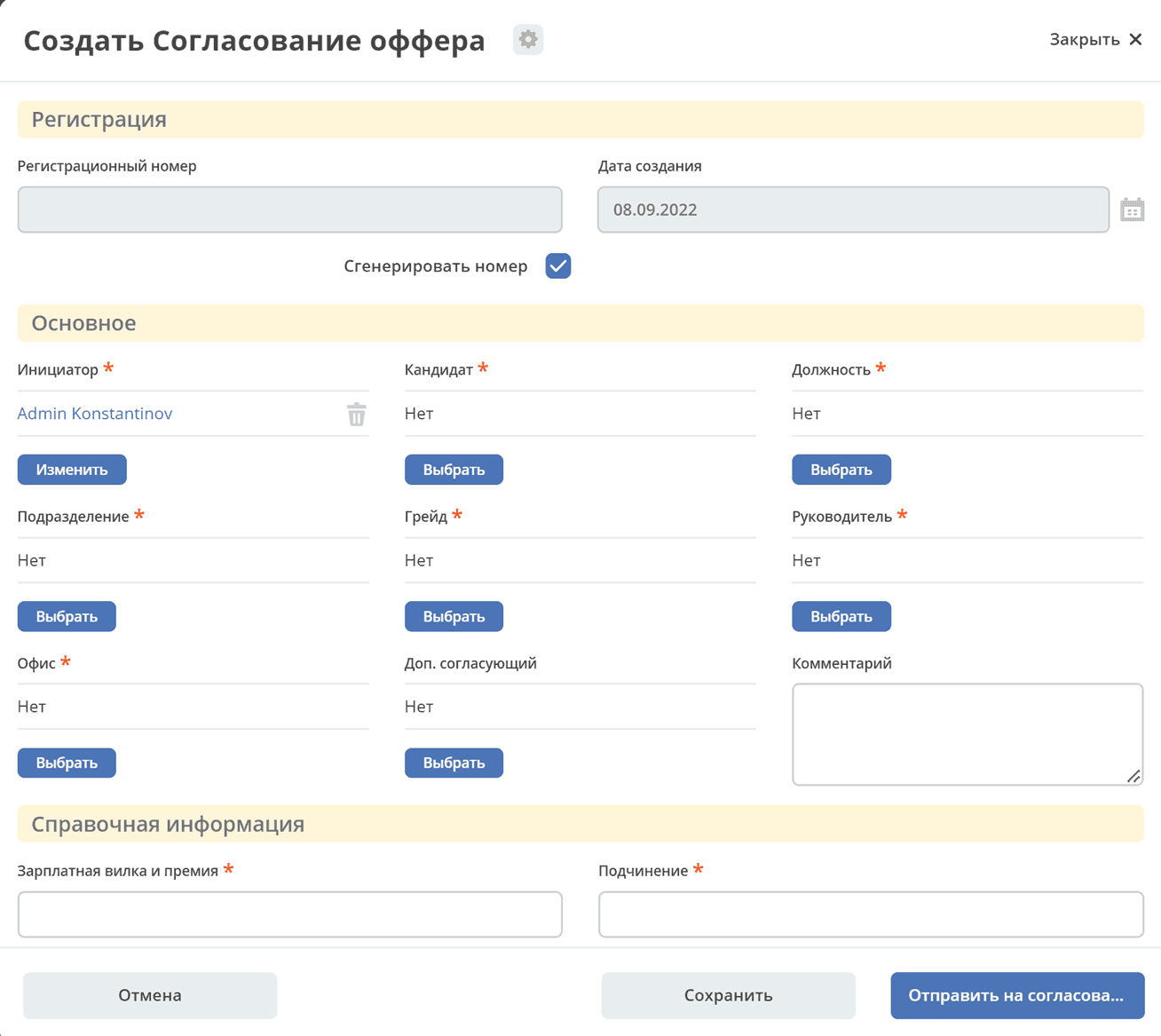
Offer Approval Process
Note
The procedure is described for users belonging to the ECOS Administrators group (ECOS_ADMINISTRATORS).
Creating an application involves creating and configuring individual artifacts such as data types, journals, forms, processes, etc.
This section provides recommendations and explanations for developing an application from scratch.
Artifacts are interconnected, so it is recommended to follow this order of creation:
form for the type (if required);
dashboard (if required);
process diagram;
process task forms.
When creating your own models, it is recommended to first draft a diagram of the relationships between the types being created, and then proceed to enter them into the system in order from simpler and independent types (dictionaries) to types that include previously created ones. This minimizes the need to interrupt the configuration of one type to configure another.
Subsequent sections will contain the step-by-step process of creating an application according to the recommendations above - first, reference types will be created:
City,
Office,
Position Type,
Grade,
Social Package,
Job Responsibilities,
Candidate.
Then — the main case type:
Offer Approval (the data type for which the main business logic of the application will be implemented)
The structure for creating each individual component will necessarily start with preparing the data type. When creating a data type, a form and a journal are automatically generated.
Data Types
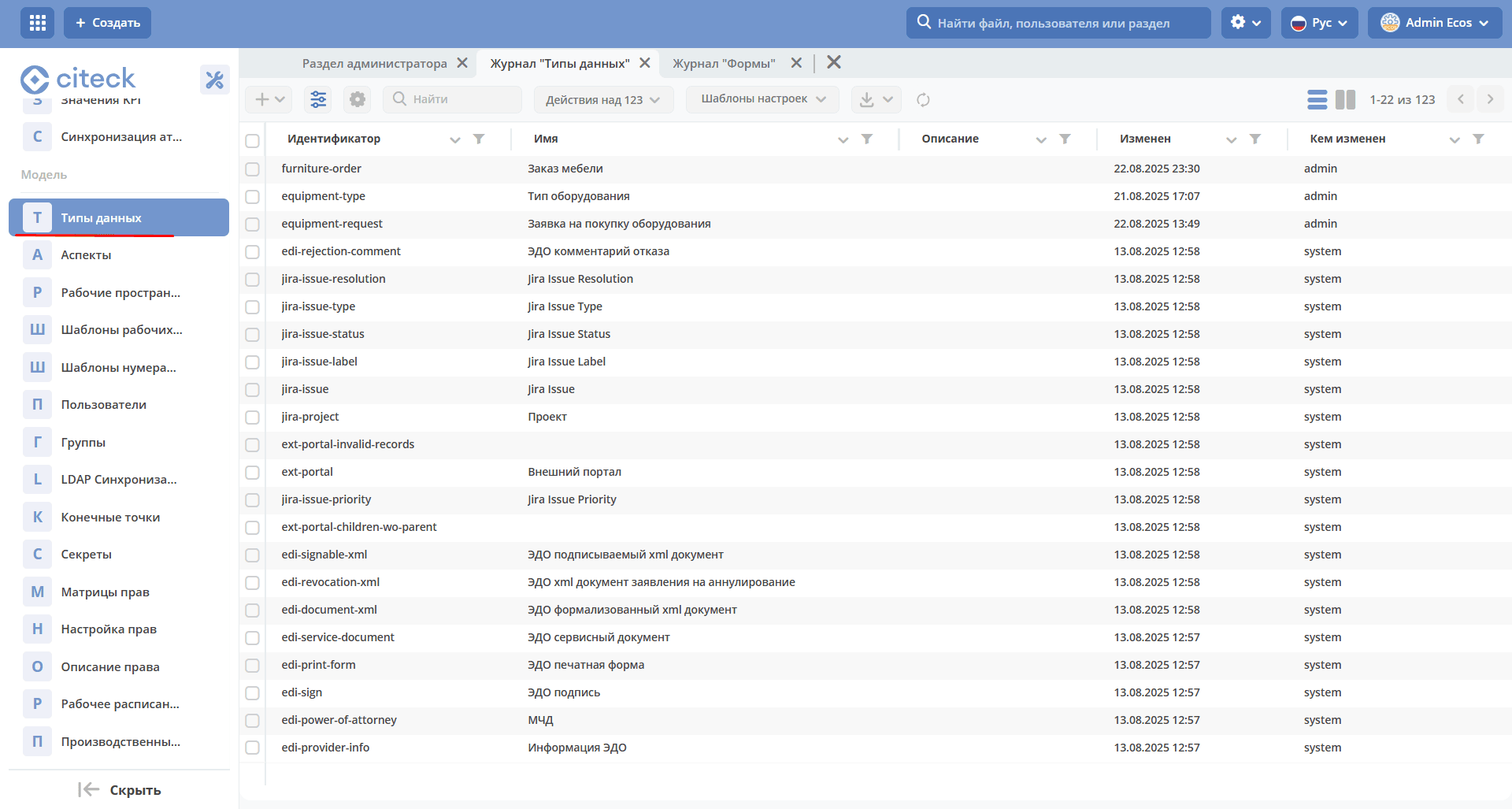
To view existing types and edit them, go to the Data Types journal (Administrator Workspace → Model → Data Types)
To create a data type, go to the administrator workspace:
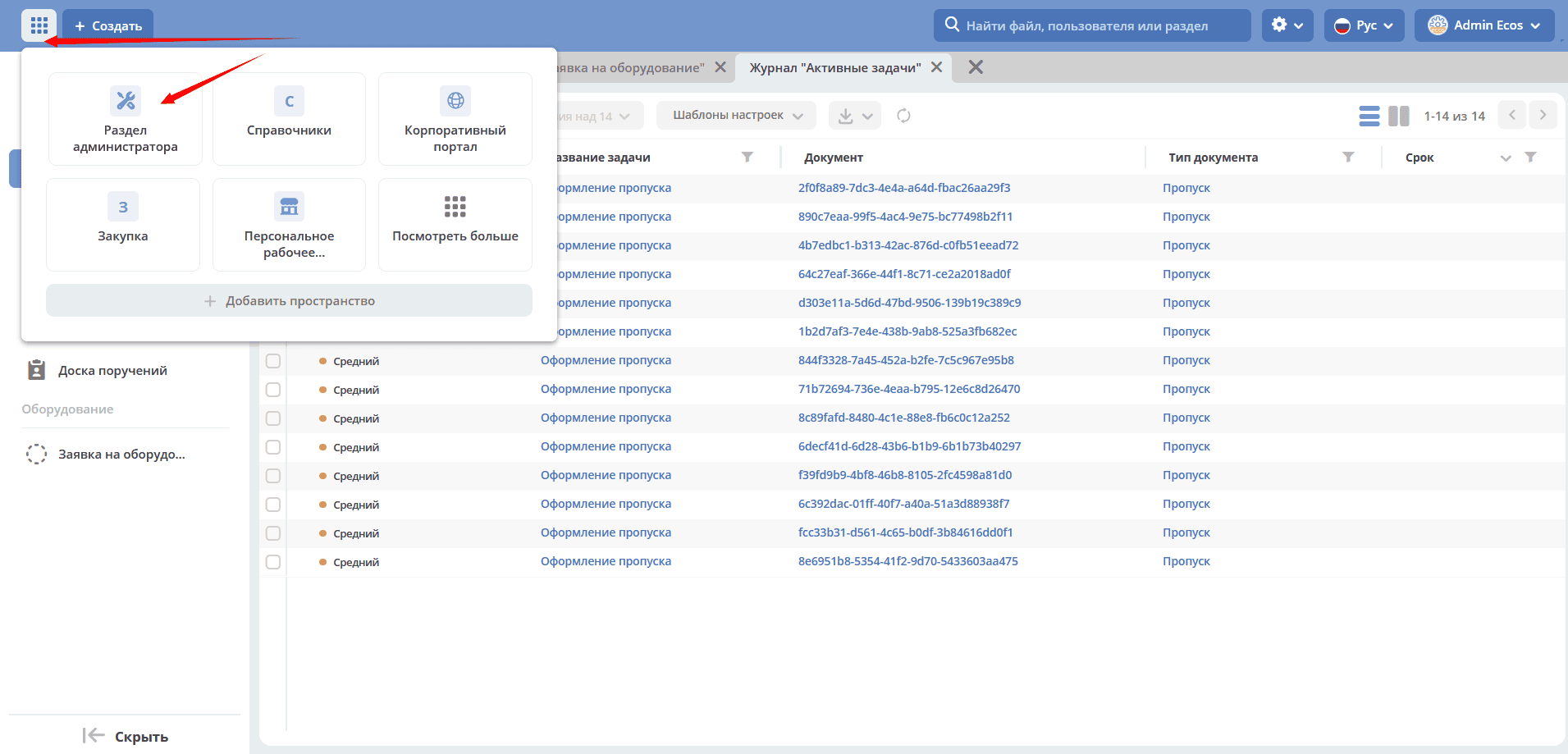
In the Model section, go to Data Types:
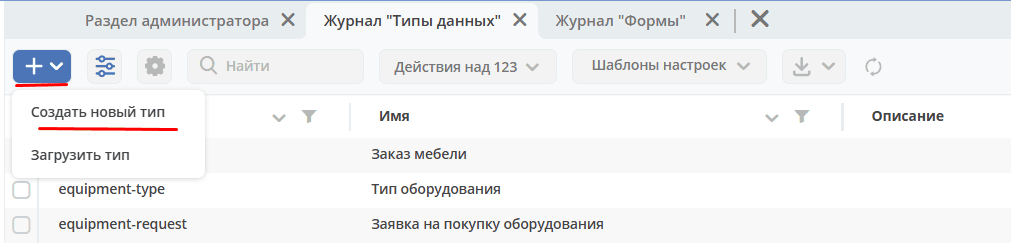
Click + → Create new type:
Dictionaries
Creating the “City” Dictionary
The City type is independent of other types. Contains information about cities.
It is a dictionary (about the differences between dictionaries and cases here)
To create the dictionary, you need to fill out the type creation form according to the following tables.
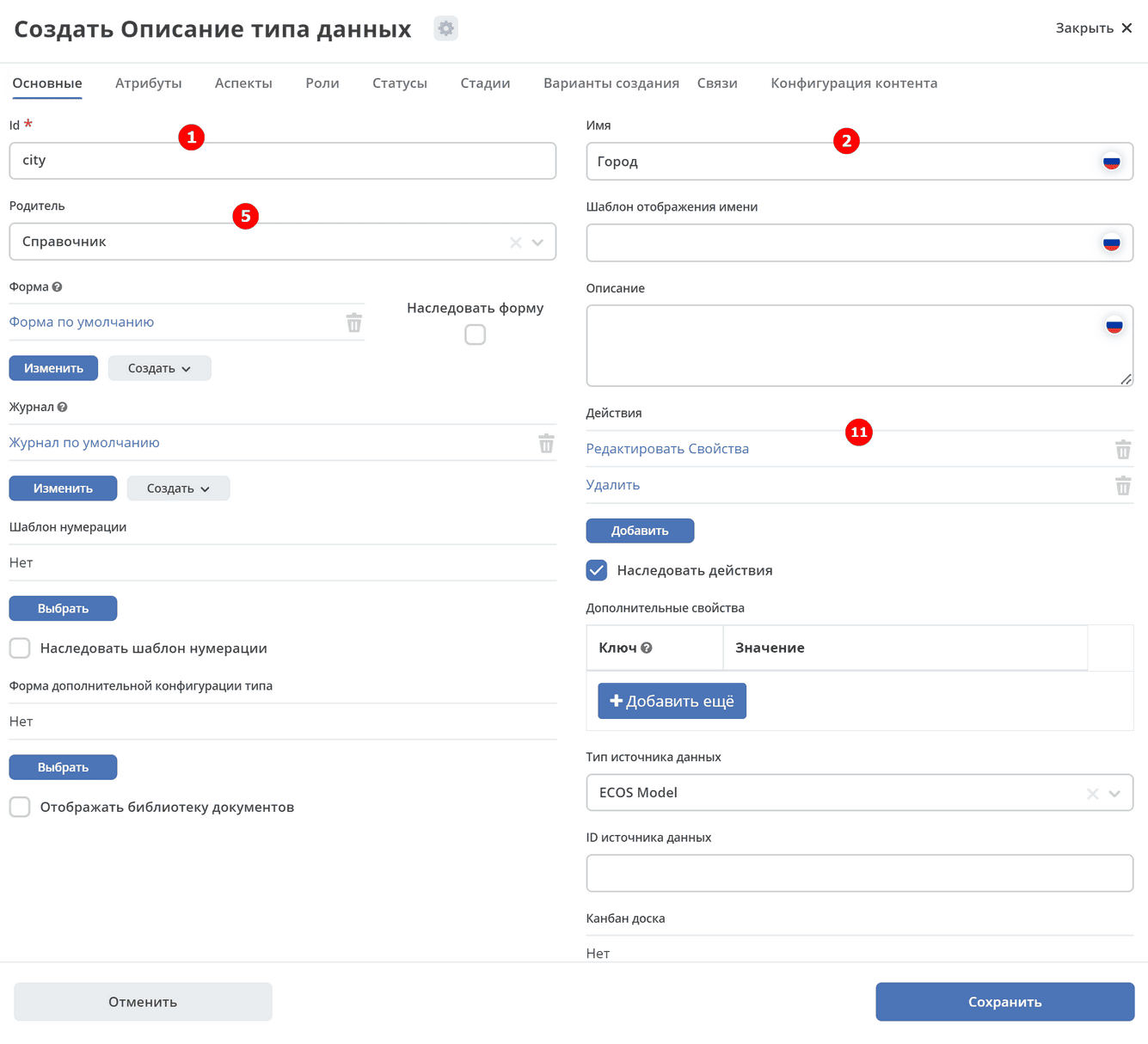
The marker number in the table corresponds to the field number marked on the figure provided here.
Filling table for the Main tab:
Marker Number |
Field Name |
Value |
|---|---|---|
1 |
id |
city |
2 |
Name |
City |
5 |
Parent |
Dictionary |
11 |
Actions |
Edit properties; Delete |
Attributes not specified in the table are not necessary when creating this type (fields can be left empty or with unchanged default values)
Below is an image of the final type configuration (for visual verification):
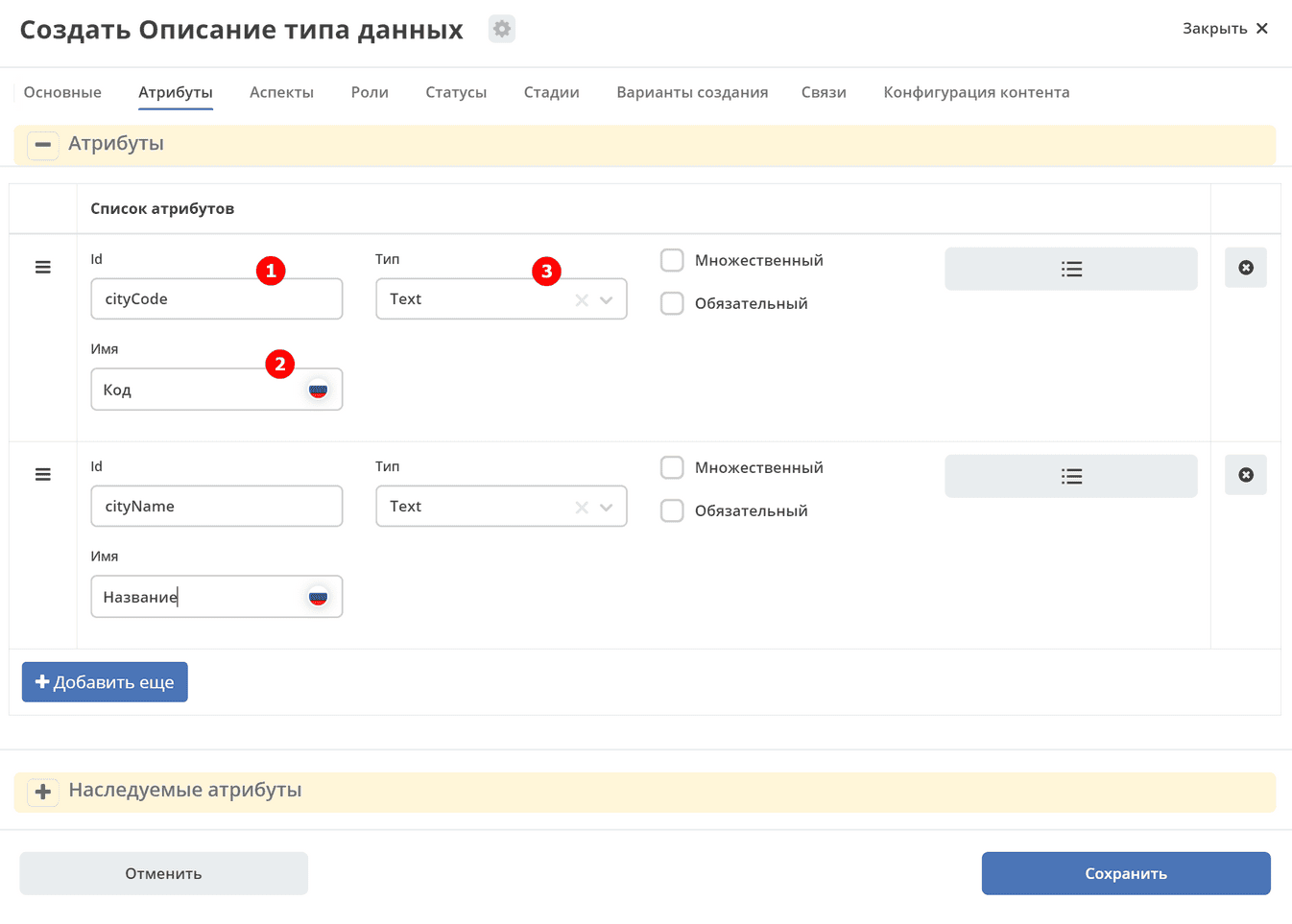
Filling table for the Attributes tab:
id (1) |
Name (2) |
Type (3) |
|---|---|---|
cityCode |
Code |
Text |
cityName |
Title |
Text |
Attributes not specified in the tables are not necessary when creating this type (fields can be left empty or with unchanged default values)
Below is an image of the final type configuration (for visual verification):
Creating the “Office” Dictionary
The Office type depends on the previously created City type (pay attention to setting the associative attribute). Contains information about offices. It is a dictionary.
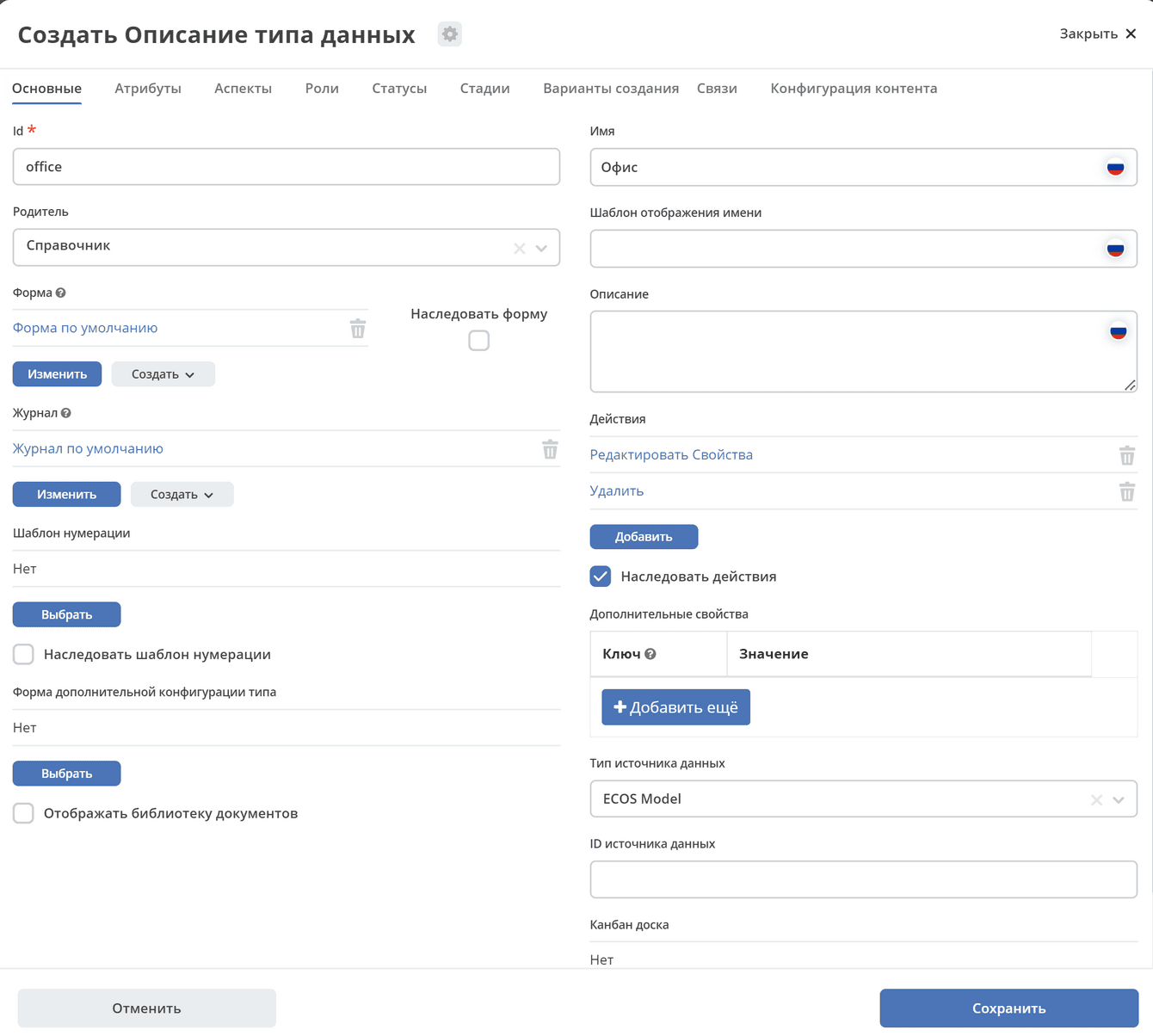
Filling table for the Main tab:
Marker Number |
Field Name |
Value |
|---|---|---|
1 |
id |
office |
2 |
Name |
Office |
5 |
Parent |
Dictionary |
11 |
Actions |
Edit properties; Delete |
Attributes not specified in the table are not necessary when creating this type (fields can be left empty or with unchanged default values).
Below is an image of the final type configuration (for visual verification):
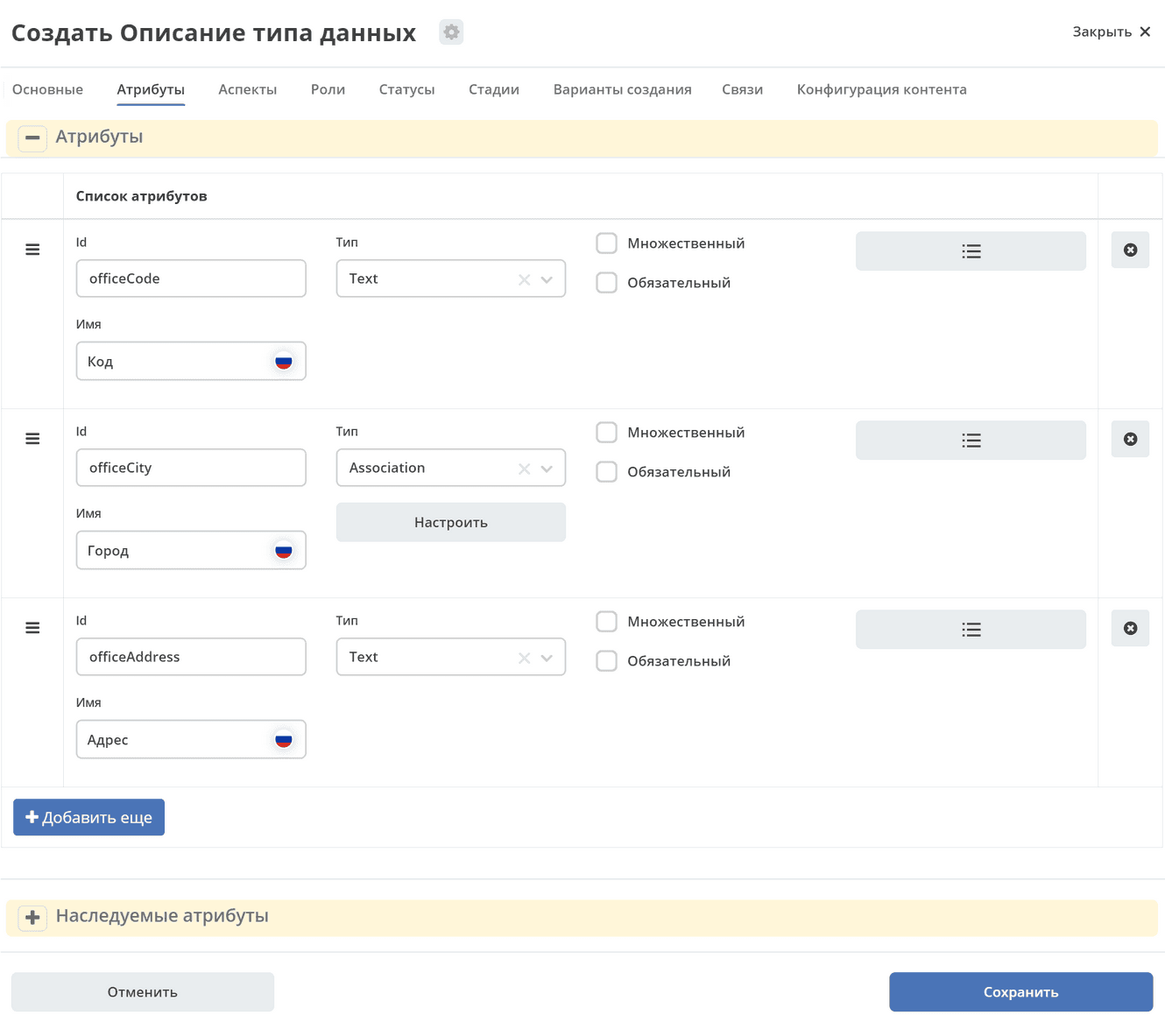
Filling table for the Attributes tab:
id (1) |
Name (2) |
Type (3) |
|---|---|---|
officeCode |
Code |
Text |
officeCity |
City |
Association Click ‘Configure’ button and select type ‘City’ |
officeAddress |
Address |
Text |
Below is an image of the final type configuration (for visual verification):
Creating the “Position Type” Dictionary
The Position type is independent of other types. Contains information about positions.
It is a dictionary
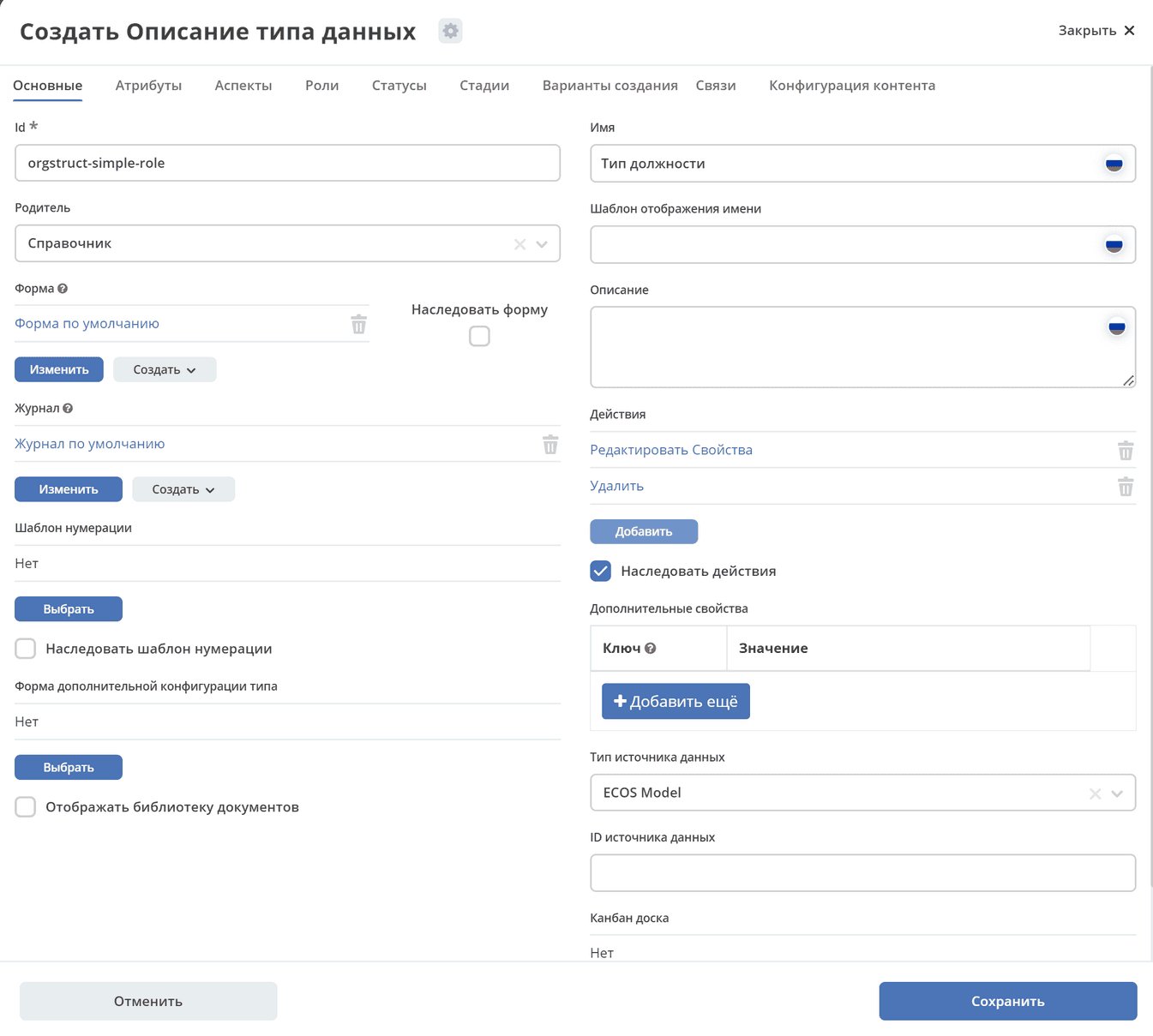
Filling table for the Main tab:
Marker Number |
Field Name |
Value |
|---|---|---|
1 |
id |
orgstruct-simple-role |
2 |
Name |
Position Type, |
5 |
Parent |
Dictionary |
11 |
Actions |
Edit properties; Delete |
Attributes not specified in the table are not necessary when creating this type (fields can be left empty or with unchanged default values)
Below is an image of the final type configuration (for visual verification):
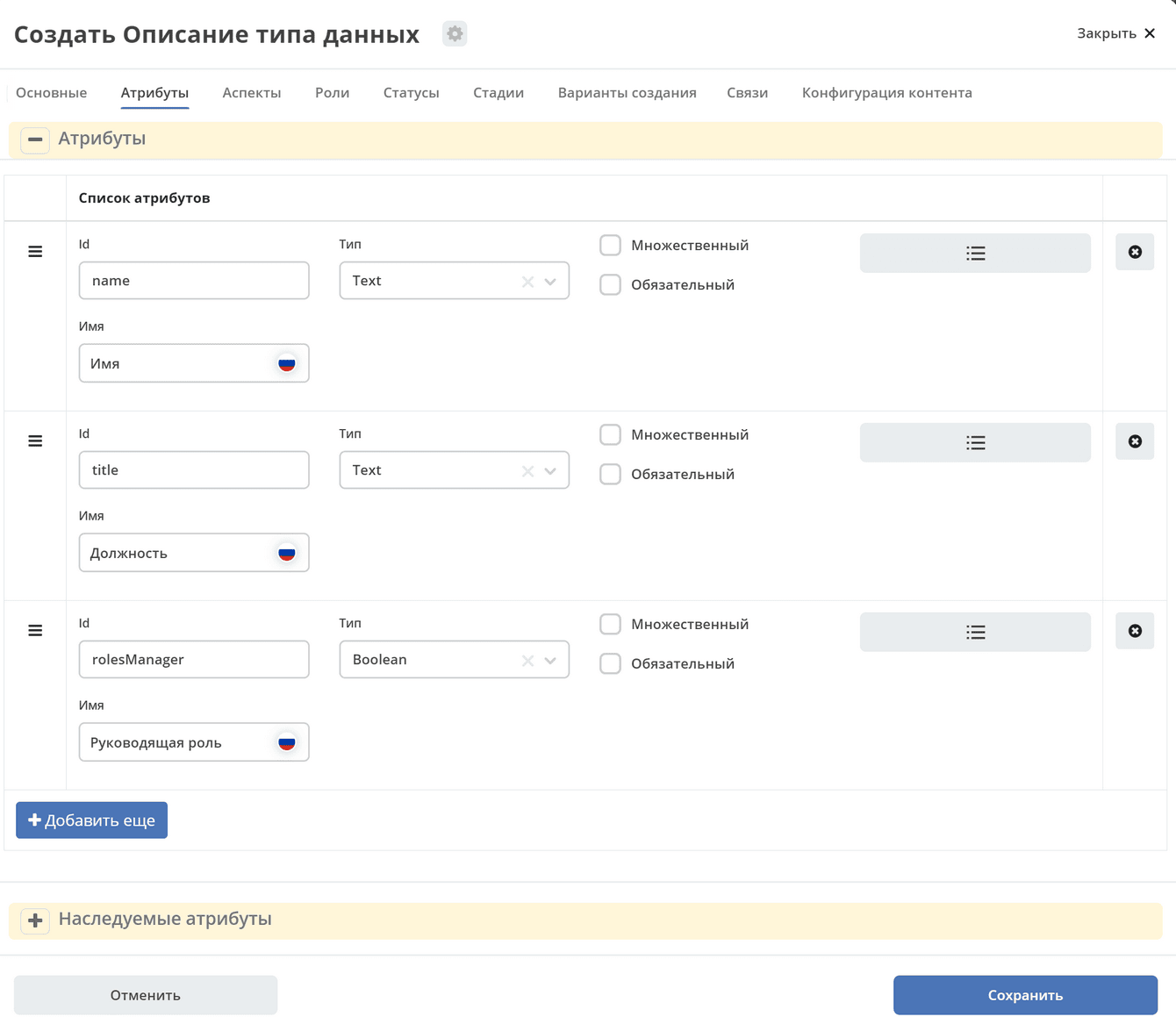
Filling table for the Attributes tab:
id (1) |
Name (2) |
Type (3) |
|---|---|---|
name |
Name |
Text |
title |
Position |
Text |
rolesManager |
Managerial Role |
Boolean |
Below is an image of the final type configuration (for visual verification):
Creating the “Grade” Dictionary
The Grade type depends on the previously created Position Type (pay attention to setting the associative attribute). Contains information about grades.
It is a dictionary.
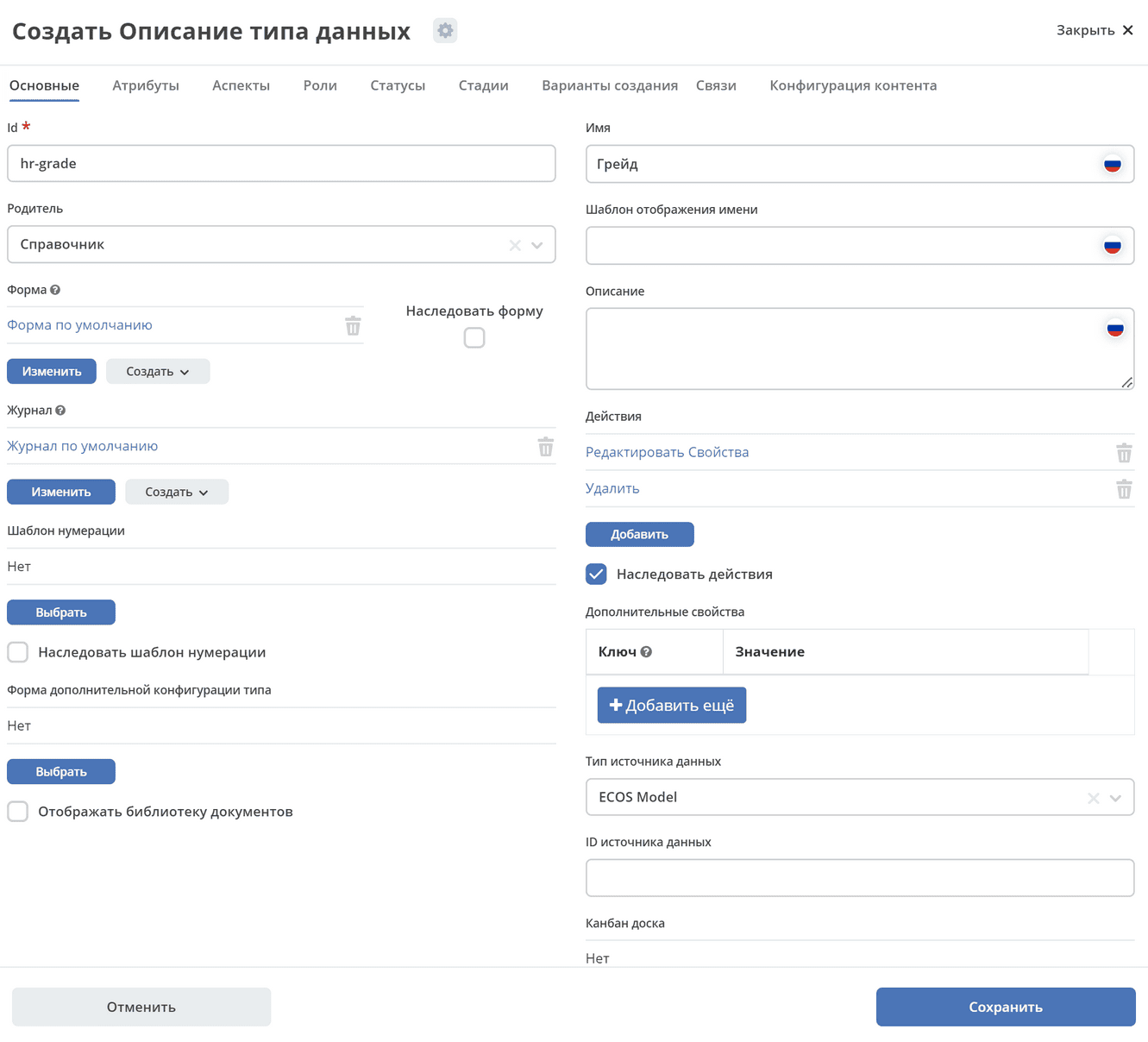
Filling table for the Main tab:
Marker Number |
Field Name |
Value |
|---|---|---|
1 |
id |
hr-grade |
2 |
Name |
Grade |
5 |
Parent |
Dictionary |
11 |
Actions |
Edit properties; Delete |
Attributes not specified in the table are not necessary when creating this type (fields can be left empty or with unchanged default values)
Below is an image of the final type configuration (for visual verification):
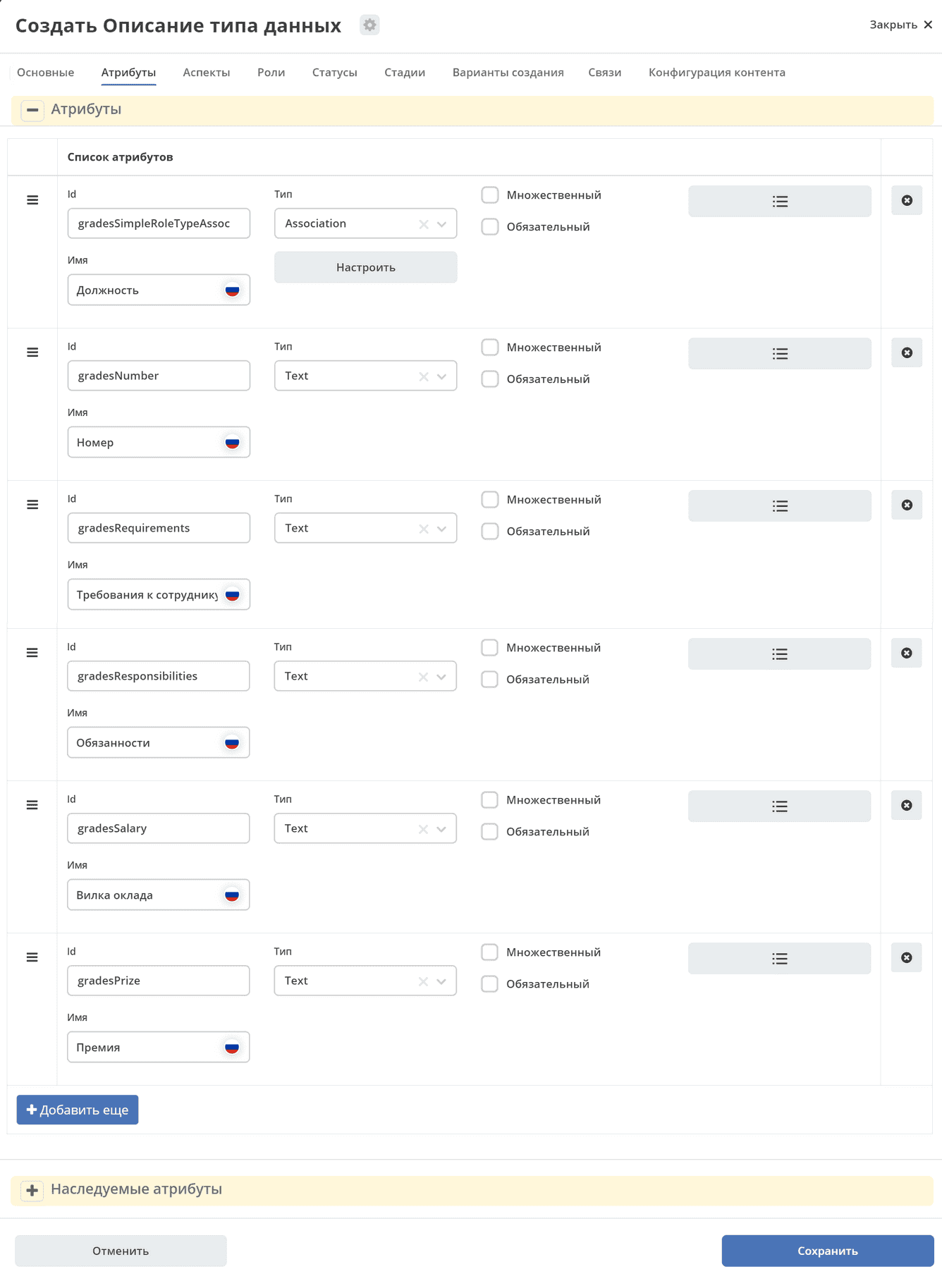
Filling table for the Attributes tab:
id (1) |
Name (2) |
Type (3) |
|---|---|---|
gradesSimpleRoleTypeAssoc |
Position |
Association Click ‘Configure’ button and select type ‘Position Type’ |
gradesNumber |
Number |
Text |
gradesRequirements |
Employee Requirements |
Text |
gradesResponsibilities |
Responsibilities |
Text |
gradesSalary |
Salary Range |
Text |
gradesPrize |
Bonus |
Text |
Below is an image of the final type configuration (for visual verification):
Creating the “Social Package” Dictionary
The Social Package type is independent of other types. Contains information about the social package. It is a dictionary.
Filling table for the Main tab:
Marker Number |
Field Name |
Value |
|---|---|---|
1 |
id |
social-package |
2 |
Name |
Social Package |
5 |
Parent |
Dictionary |
11 |
Actions |
Edit properties; Delete |
Attributes not specified in the table are not necessary when creating this type (fields can be left empty or with unchanged default values).
Below is an image of the final type configuration (for visual verification):
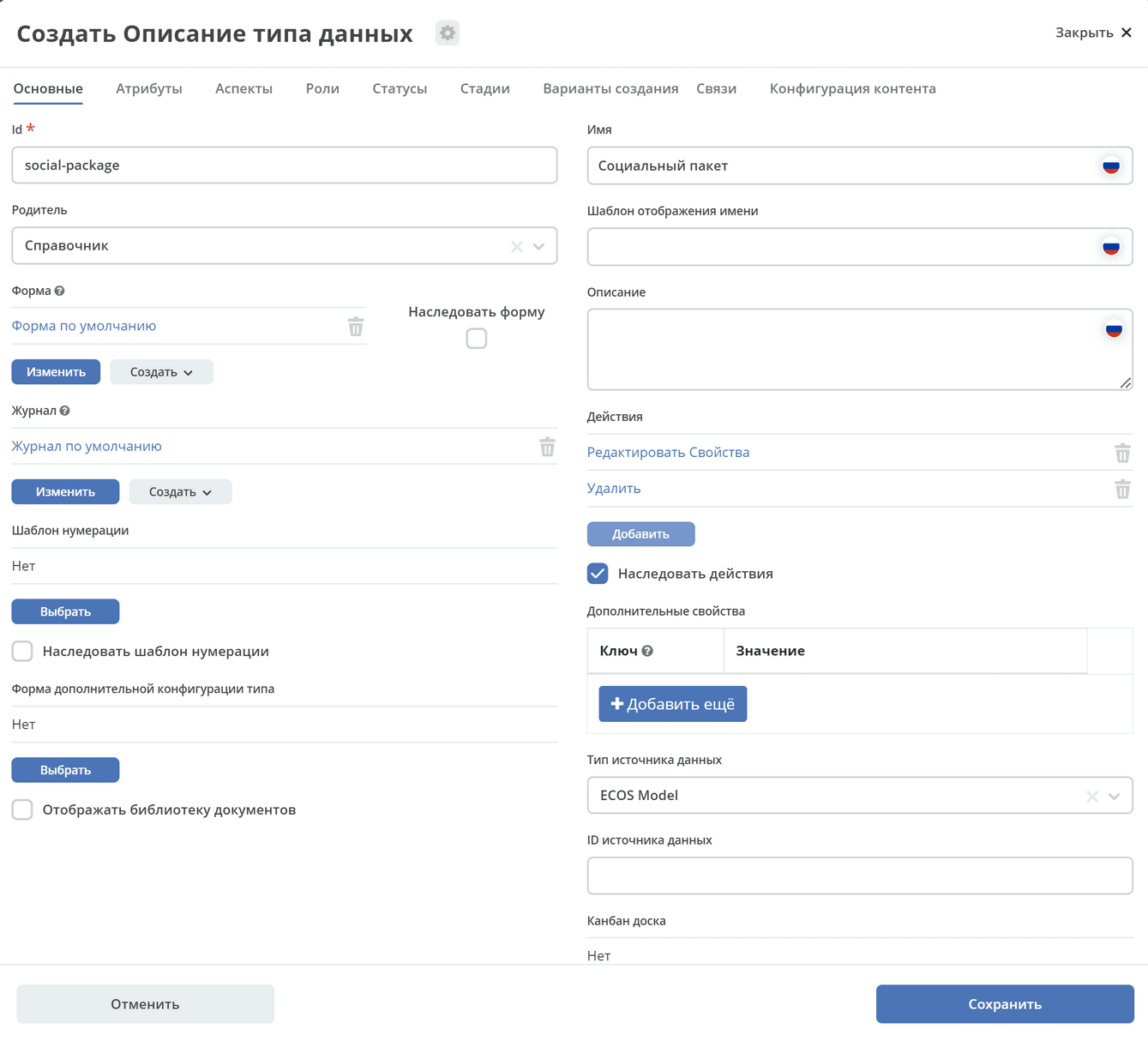
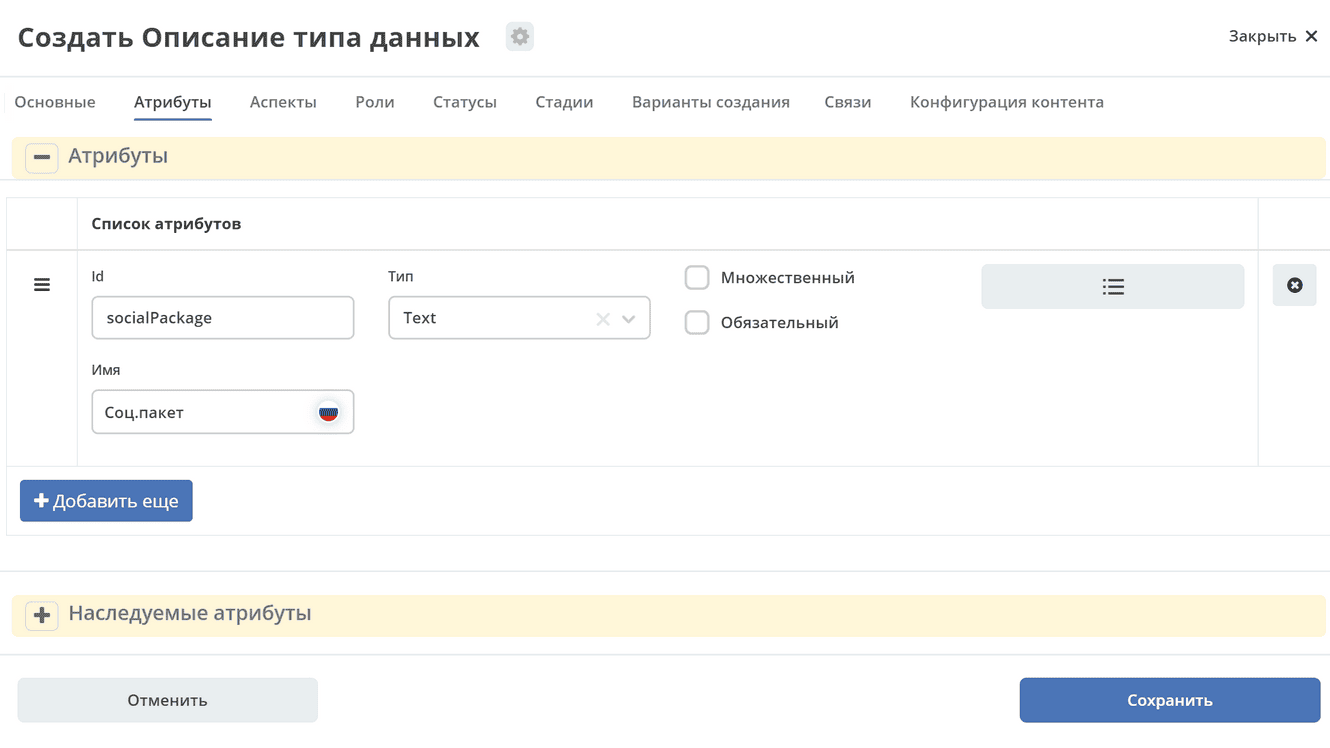
Filling table for the Attributes tab:
id (1) |
Name (2) |
Type (3) |
|---|---|---|
socialPackage |
Soc. Package |
Text |
Below is an image of the final type configuration (for visual verification):
Creating the “Job Responsibilities” Dictionary
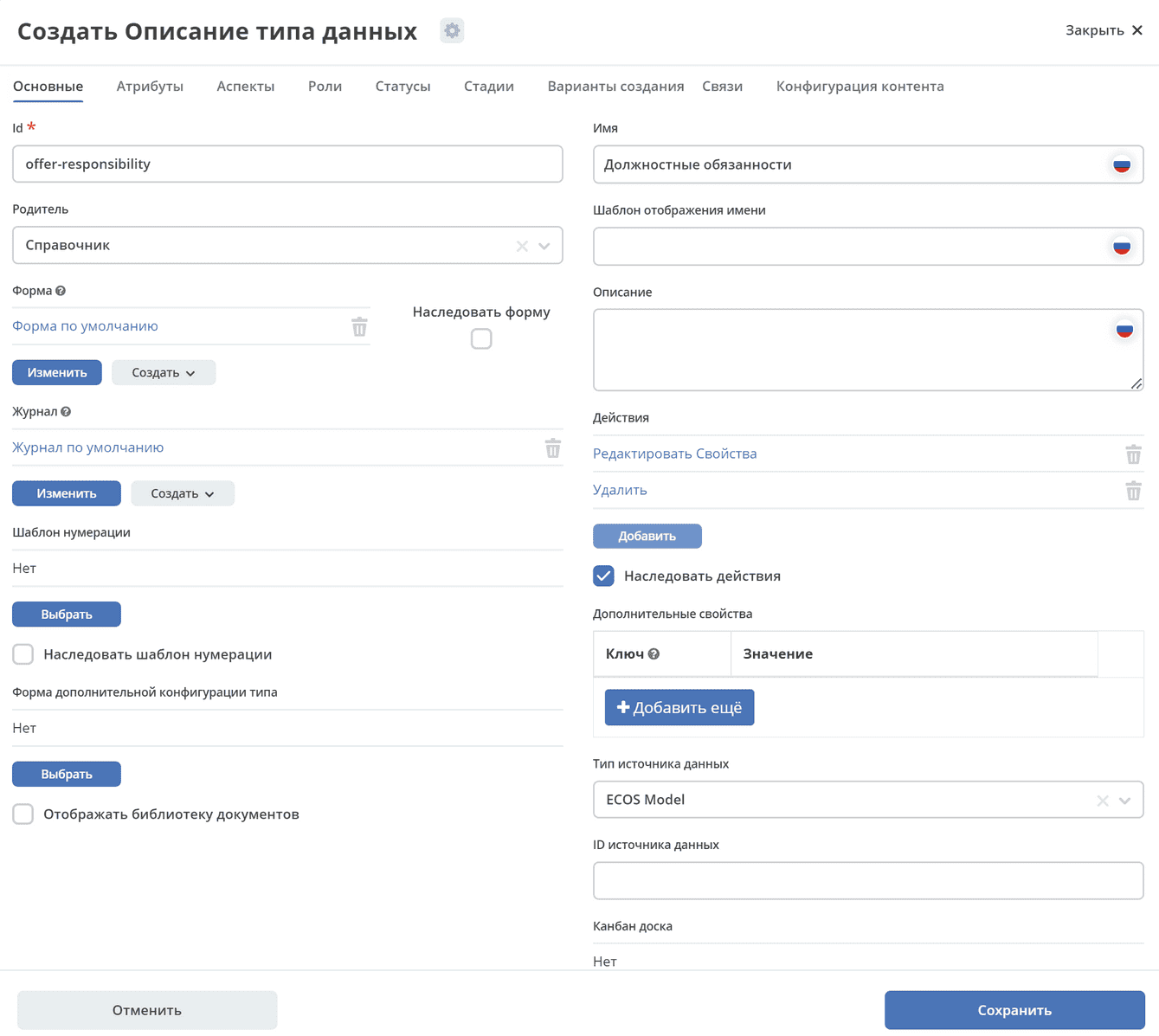
The Job Responsibilities type is independent of other types. Contains information about job responsibilities.
It is a dictionary.
Filling table for the Main tab:
Marker Number |
Field Name |
Value |
|---|---|---|
1 |
id |
offer-responsibility |
2 |
Name |
Job Responsibilities |
5 |
Parent |
Dictionary |
11 |
Actions |
Edit properties; Delete |
Attributes not specified in the table are not necessary when creating this type (fields can be left empty or with unchanged default values)
Below is an image of the final type configuration (for visual verification):
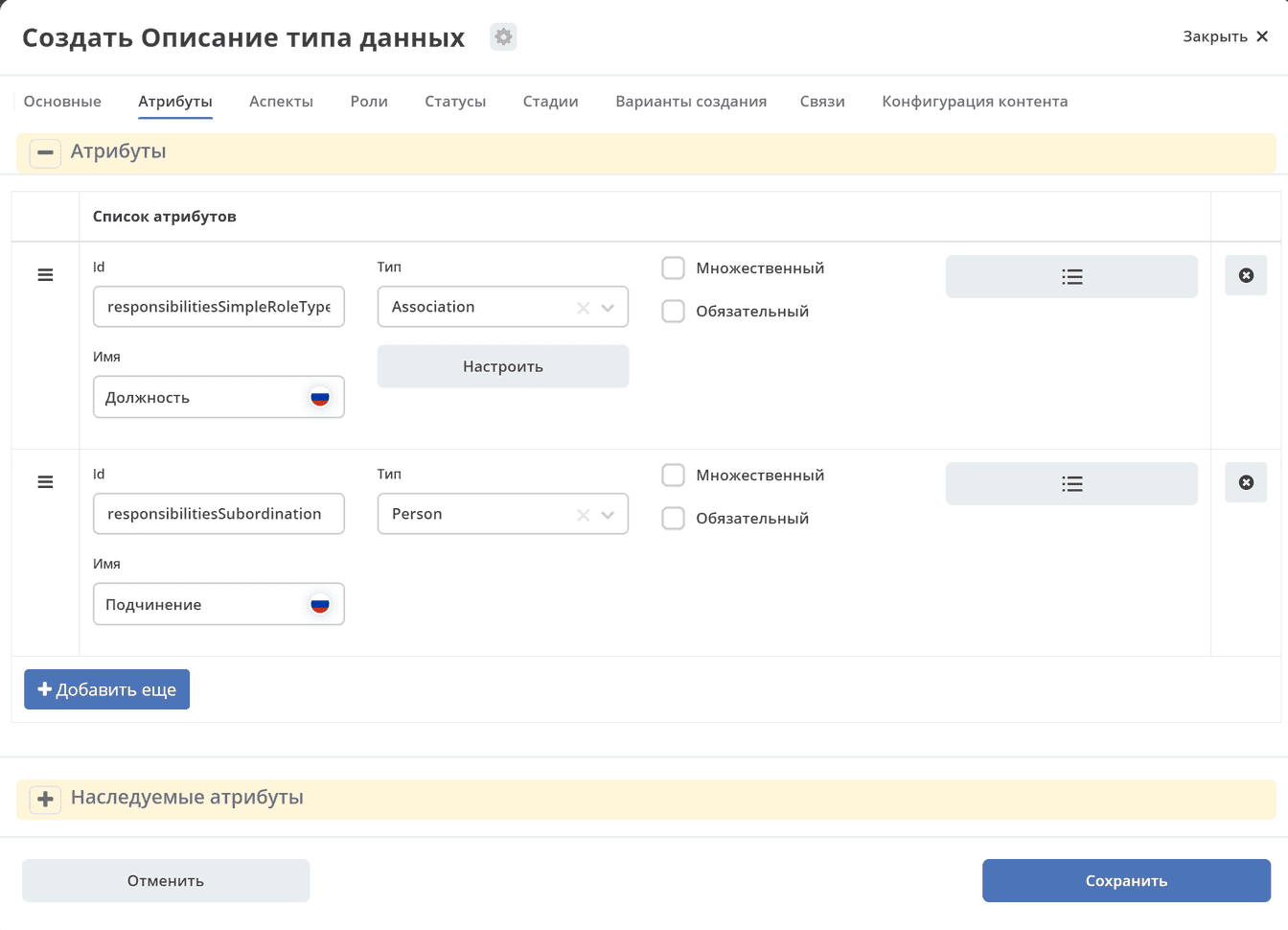
Filling table for the Attributes tab:
id (1) |
Name (2) |
Type (3) |
|---|---|---|
responsibilitiesSimpleRoleTypeAssoc |
Position |
Association Click ‘Configure’ button and select type ‘Position Type’ |
responsibilitiesSubordination |
Subordination |
Person (to select an employee from the org structure) |
Below is an image of the final type configuration (for visual verification):
Creating the “Candidate” Dictionary
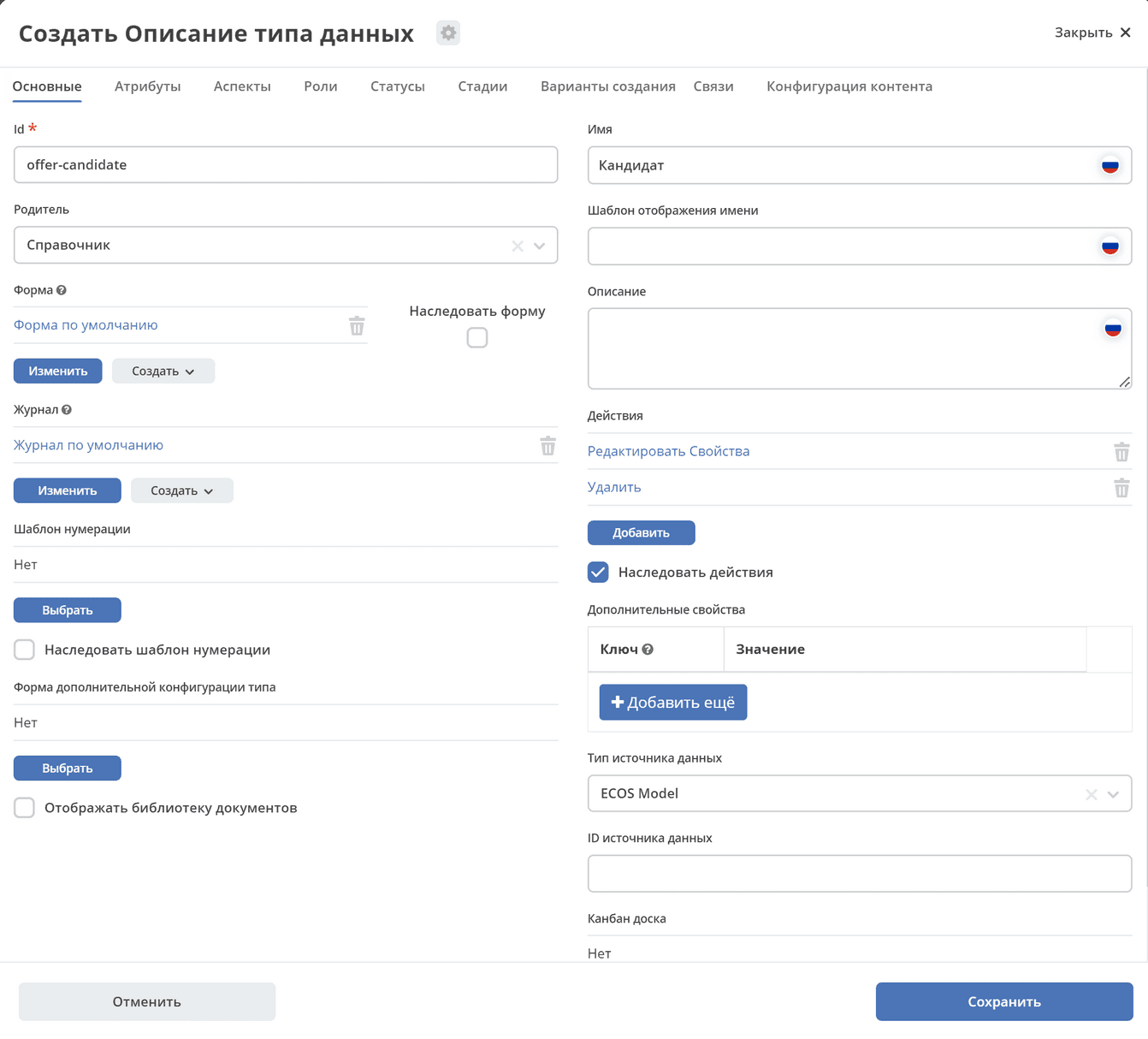
The Candidate type depends on the previously created City type (pay attention to setting the associative attribute). Contains information about candidates being considered for an offer.
It is a dictionary.
Filling table for the Main tab:
Marker Number |
Field Name |
Value |
|---|---|---|
1 |
id |
offer-candidate |
2 |
Name |
Candidate. |
5 |
Parent |
Dictionary |
11 |
Actions |
Edit properties; Delete |
Attributes not specified in the table are not necessary when creating this type (fields can be left empty or with unchanged default values).
Below is an image of the final type configuration (for visual verification):
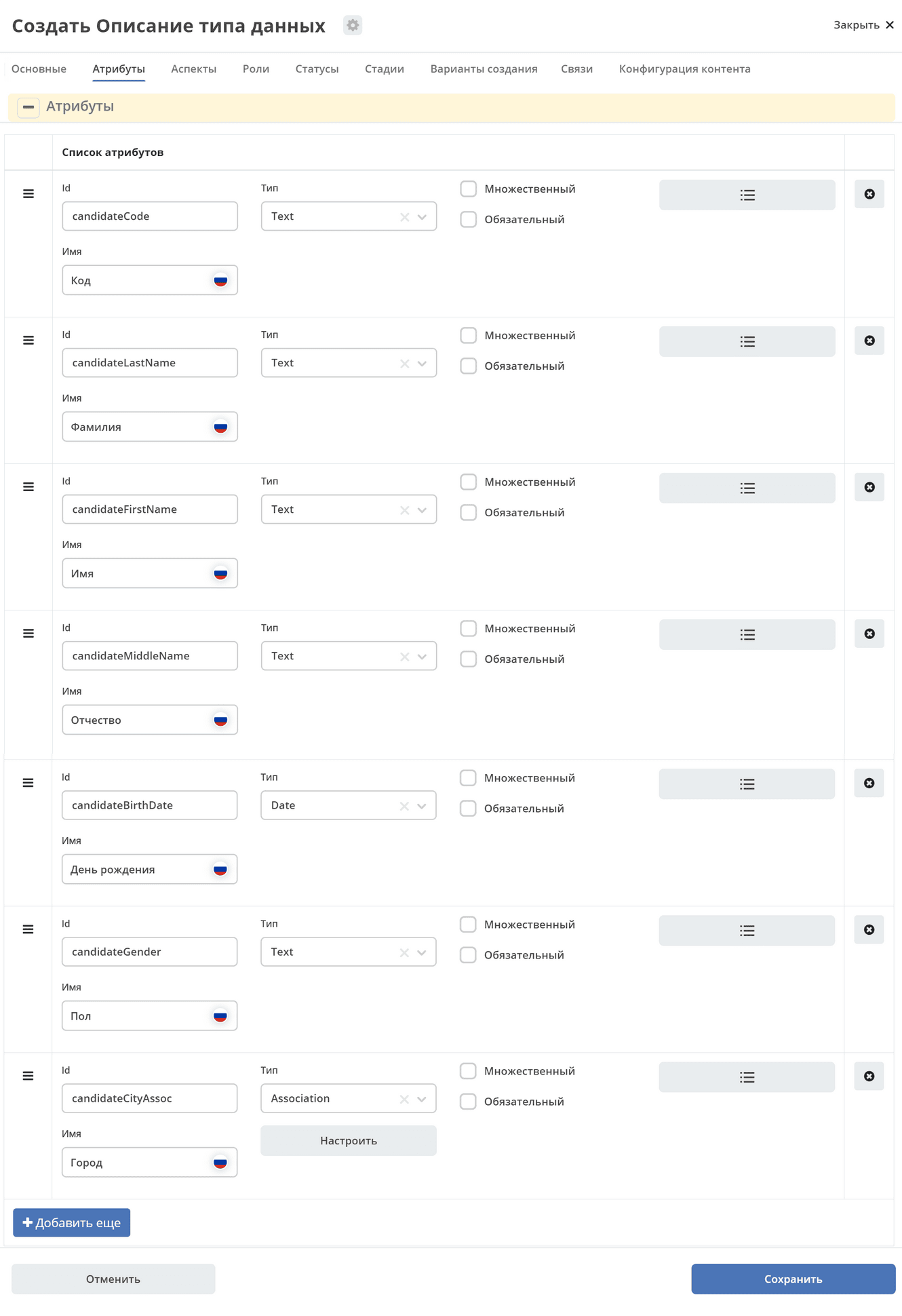
Filling table for the Attributes tab:
id (1) |
Name (2) |
Type (3) |
|---|---|---|
candidateCode |
Code |
Text |
candidateLastName |
Last Name |
Text |
candidateFirstName |
Name |
Text |
candidateMiddleName |
Middle Name |
Text |
candidateBirthDate |
Birth Date |
Date |
candidateGender |
Gender |
Text |
candidateCityAssoc |
City |
Association Click ‘Configure’ button and select type ‘City’ |
Below is an image of the final type configuration (for visual verification):
Case
Creating the “Offer Approval” Data Type
The Offer Approval type is a case type and depends on previously created dictionaries (about the differences between dictionaries and cases here)
Filling table for the Main tab:
Marker Number |
Field Name |
Value |
|---|---|---|
1 |
id |
offer |
2 |
Name |
Offer Approval |
3 |
Name Display Template |
Offer No. ${_docNum|fmt(“000000”)} number will be shown as 0000001 |
5 |
Parent |
Case |
8 |
Numbering Template |
Create hr-offer-number-template see below |
11 |
Actions |
Edit properties; Delete |
Attributes not specified in the table are not necessary when creating this type (fields can be left empty or with unchanged default values)
The marker number in the table corresponds to the field number marked on the figure provided here.
Below is an image of the final type configuration (for visual verification):
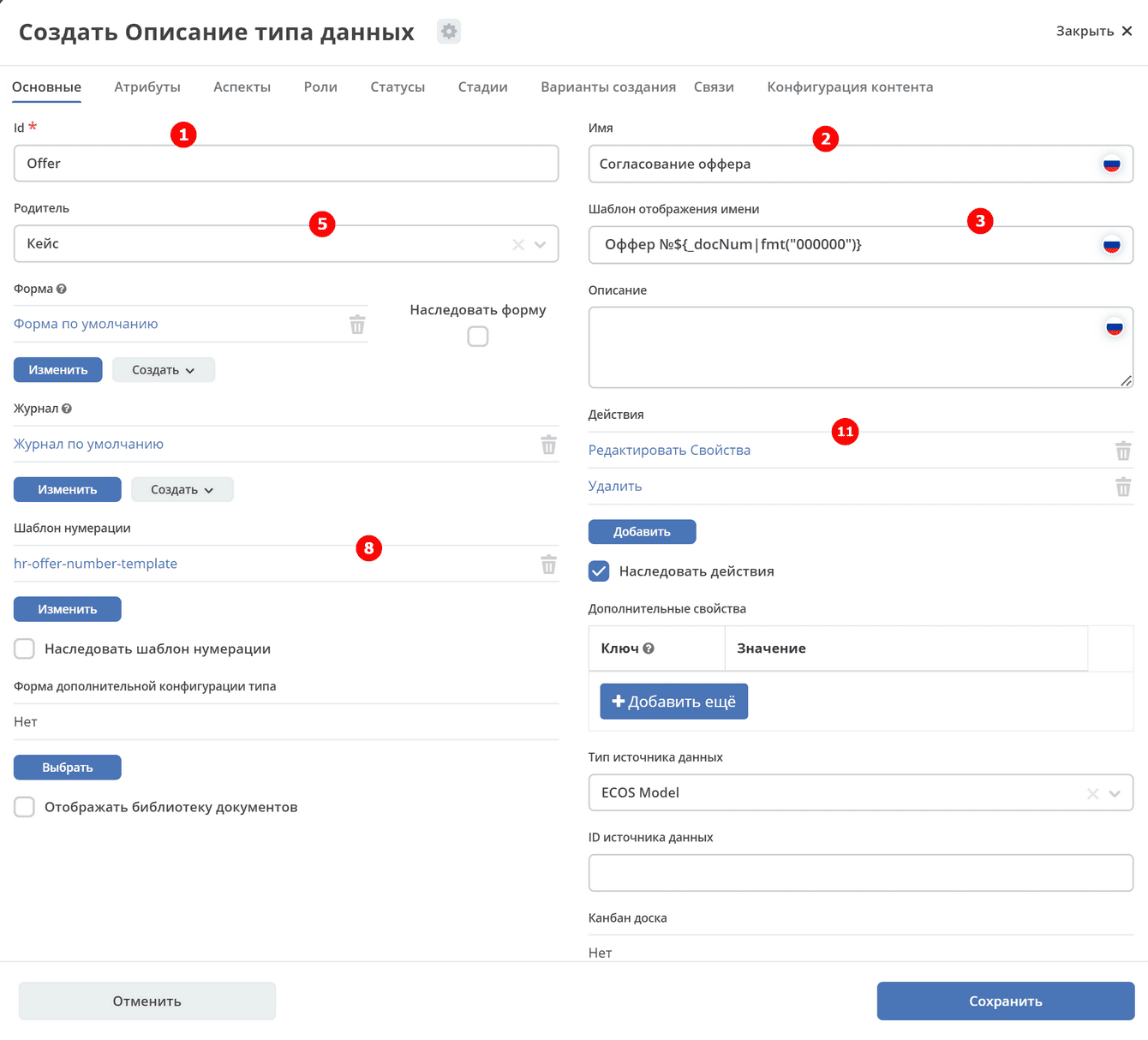
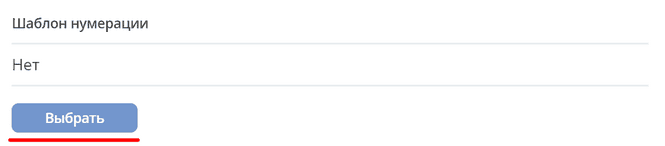
Explanation for items 3 and 8. The number can be assigned automatically. And the number can be reflected in the name display template. For this, it is necessary to set up and configure the Numbering Template.
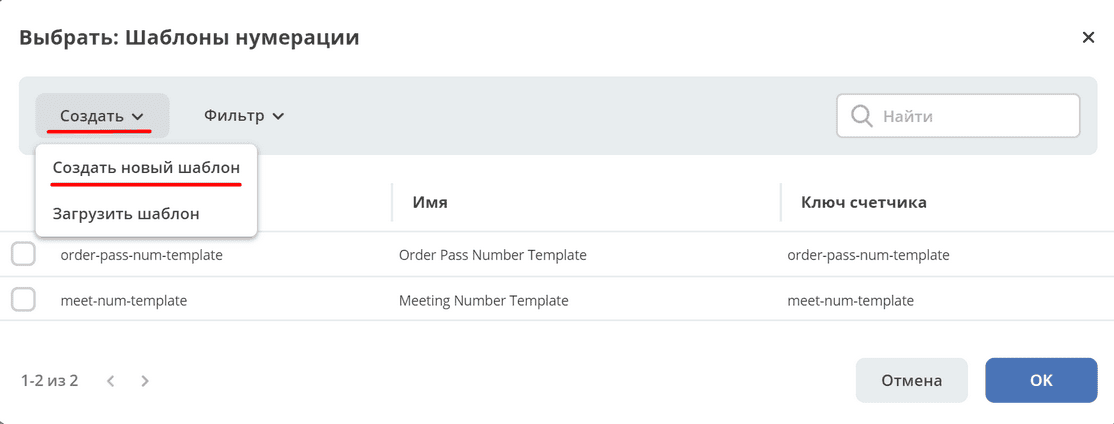
Click “Select”:
Then click Create → Create new template:
Fill out the opened form:
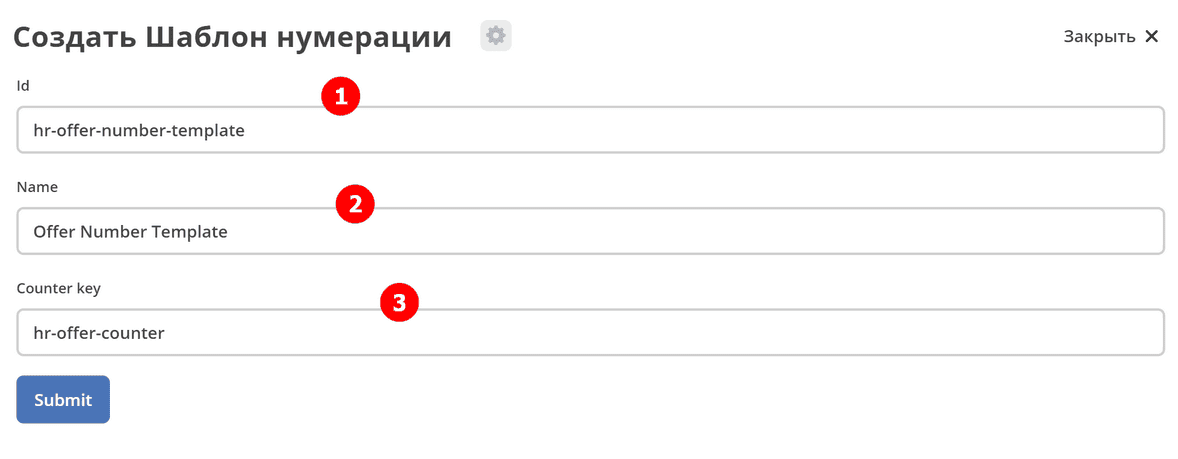
Marker Number |
Field Name |
Value |
|---|---|---|
1 |
id |
hr-offer-number-template |
2 |
Name |
Offer Number Template |
3 |
Counter key |
hr-offer-counter |
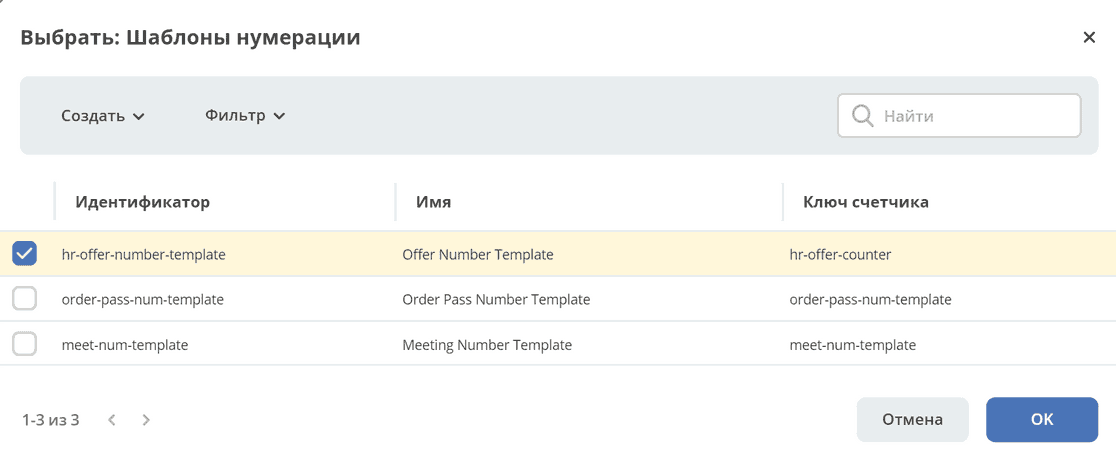
And select the created template:
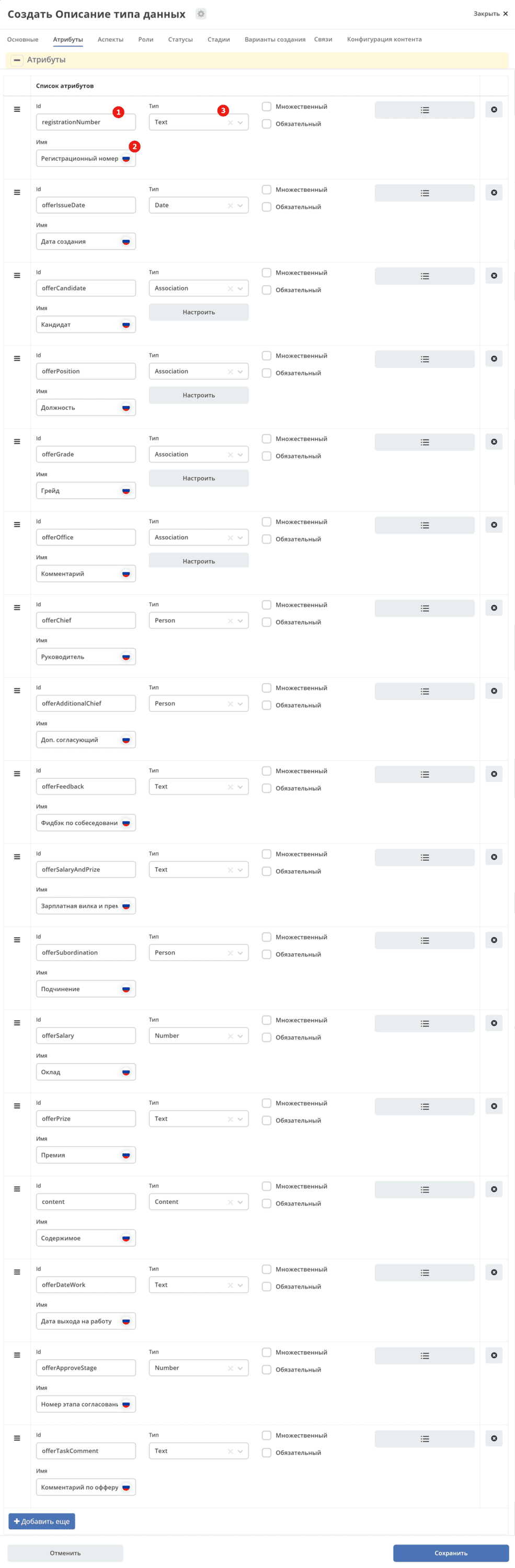
Filling table for the Attributes tab:
id (1) |
Name (2) |
Type (3) |
|---|---|---|
registrationNumber |
Registration Number |
Text |
offerIssueDate |
Creation Date |
Date |
initiator |
Initiator |
Person |
offerCandidate |
Candidate. |
Association Click ‘Configure’ button and select type ‘Candidate’ |
offerPosition |
Position |
Association Click ‘Configure’ button and select type ‘Position Type’ |
offerSubdivision |
Subdivision |
Group |
offerGrade |
Grade |
Association Click ‘Configure’ button and select type ‘Grade’: |
offerOffice |
Office |
Association Click ‘Configure’ button and select type ‘Office’: |
offerComment |
Comment |
Text |
offerChief |
Manager |
Person |
offerAdditionalChief |
Additional Approver |
Person |
offerFeedback |
Interview Feedback |
Text |
offerSalaryAndPrize |
Salary Range and Bonus |
Text |
offerSubordination |
Subordination |
Person |
offerSalary |
Salary |
Number |
offerPrize |
Bonus |
Text |
offerSchedule |
Work Schedule |
Text |
content |
Content |
Content |
offerDateWork |
Work Start Date |
Date |
offerApproveStage |
Approval Stage Number |
Number |
offerTaskComment |
Offer Comment |
Text |
Below is an image of the final type configuration (for visual verification):
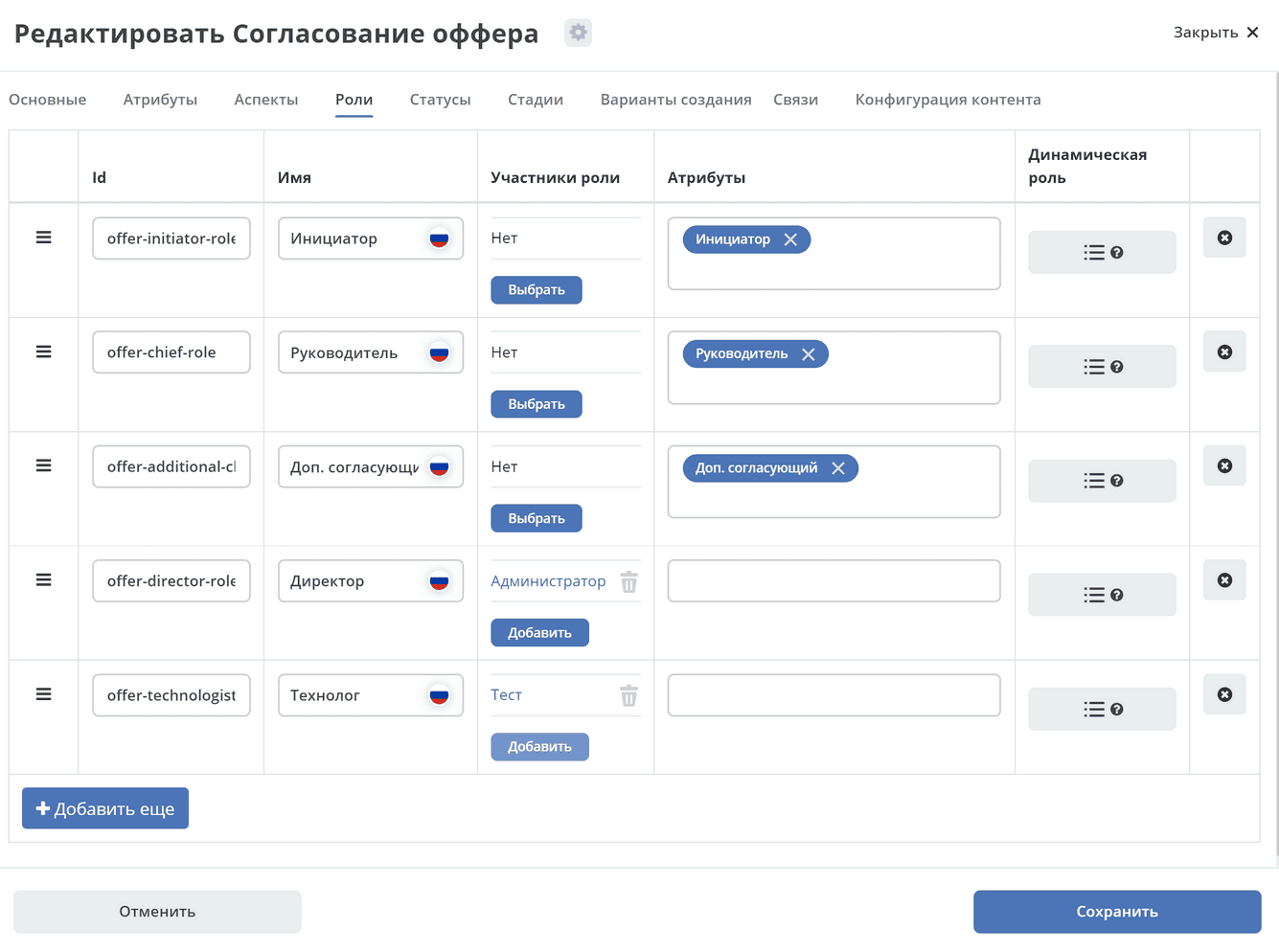
Filling table for the Roles tab:
id (1) |
Logic Name (2) |
Role Participants (3) |
Attributes (4) |
|---|---|---|---|
offer-initiator-role |
Initiator |
No |
Initiator |
offer-chief-role |
Manager |
No |
Manager |
offer-additional-chief-role |
Additional Approver |
No |
Additional Approver |
offer-director-role |
Director |
By clicking the ‘Select’ button for an employee from the org structure |
|
offer-technologist-role |
Technologist |
By clicking the ‘Select’ button for an employee from the org structure |
Below is an image of the final type configuration (for visual verification):
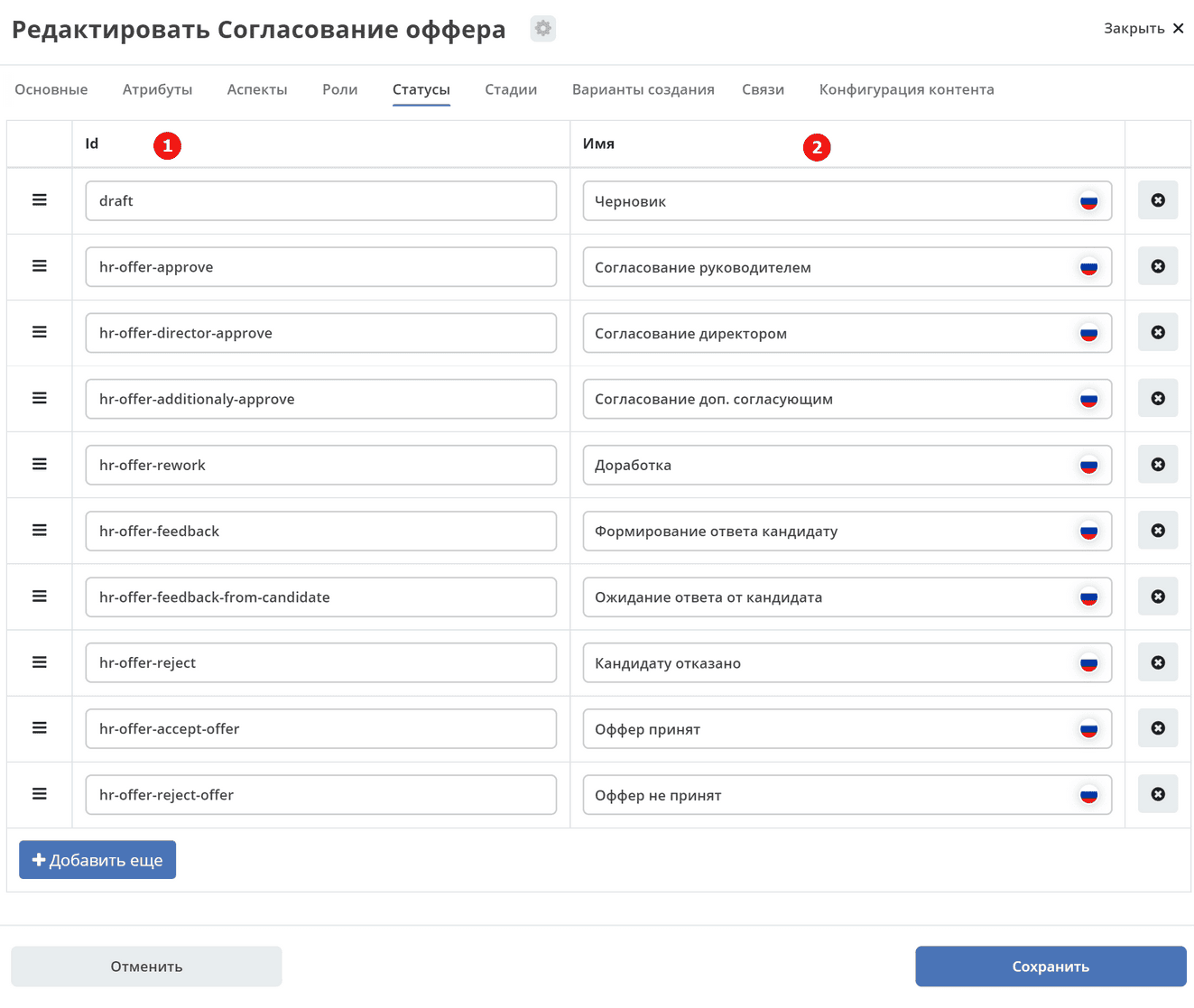
Filling table for the Statuses tab:
id (1) |
Logic Name (2) |
|---|---|
draft |
Draft |
hr-offer-approve |
Manager Approval |
hr-offer-director-approve |
Director Approval |
hr-offer-additionaly-approve |
Additional Approver Approval |
hr-offer-rework |
Rework |
hr-offer-feedback |
Forming Response to Candidate |
hr-offer-feedback-from-candidate |
Awaiting Response from Candidate |
hr-offer-reject |
Candidate Rejected |
hr-offer-accept-offer |
Offer Accepted |
hr-offer-reject-offer |
Offer Not Accepted |
Below is an image of the final type configuration (for visual verification):
When creating a data type, an automatically generated form and journal are created by default.
Forms
When creating a data type, a linked automatically generated form is created by default.
A Forms journal has been created to view existing forms and edit them (Administrator Workspace - UI Configuration - Forms):
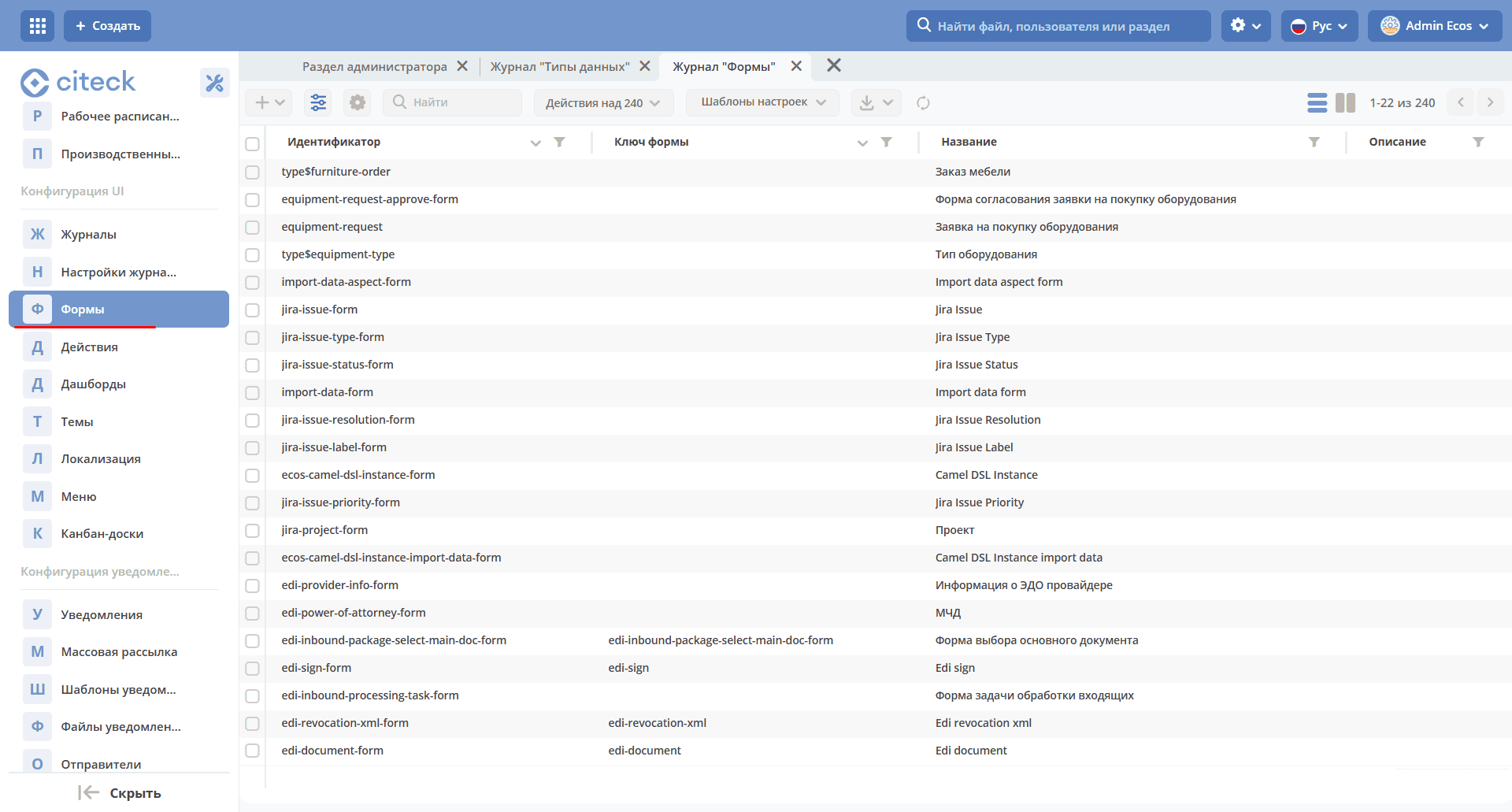
Automatically generated forms are used in journals as forms for creating a new element.
Detailed information about:
For the dictionaries “City”, “Office”, “Position Type”, “Grade”, “Social Package”, “Job Responsibilities”, we will leave the automatically generated forms.
Below we will look at how to modify the forms “Candidates” and “Offers”. Copy the form from the data type card:
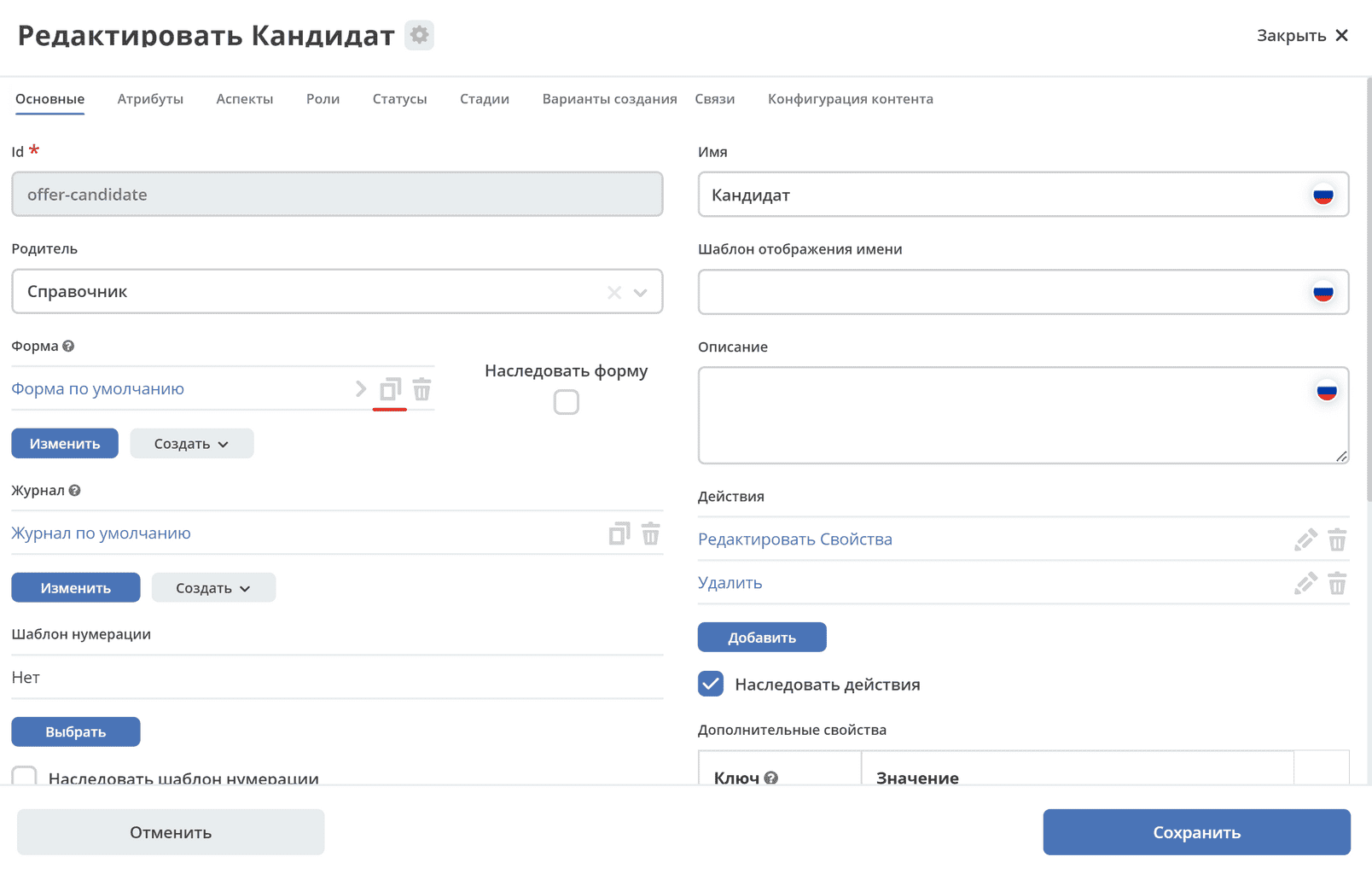
Rename the form identifier:
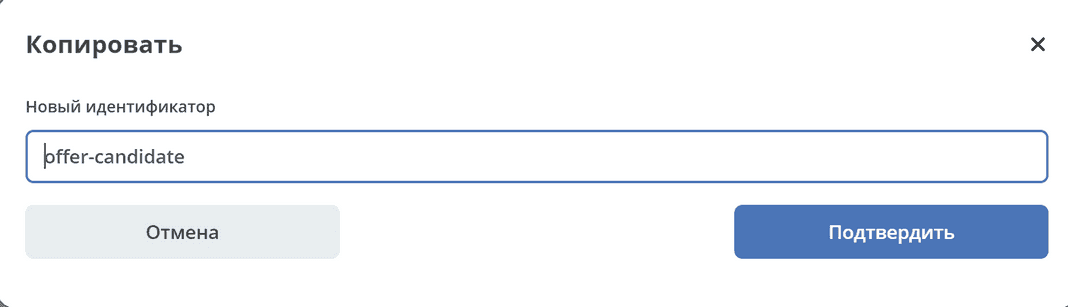
This form is set in the data type and actions, including editing, become available:
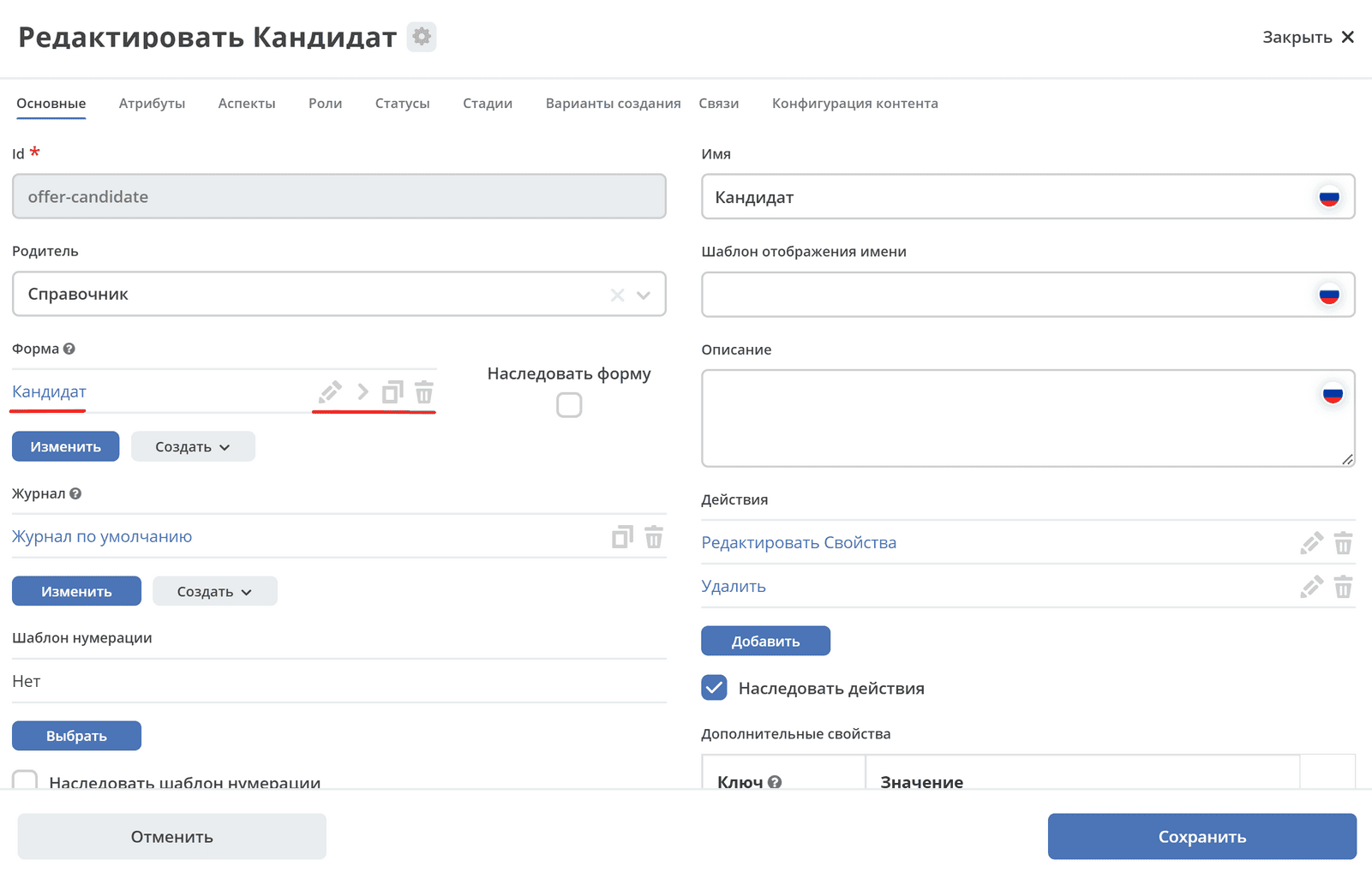
Click “Edit”:
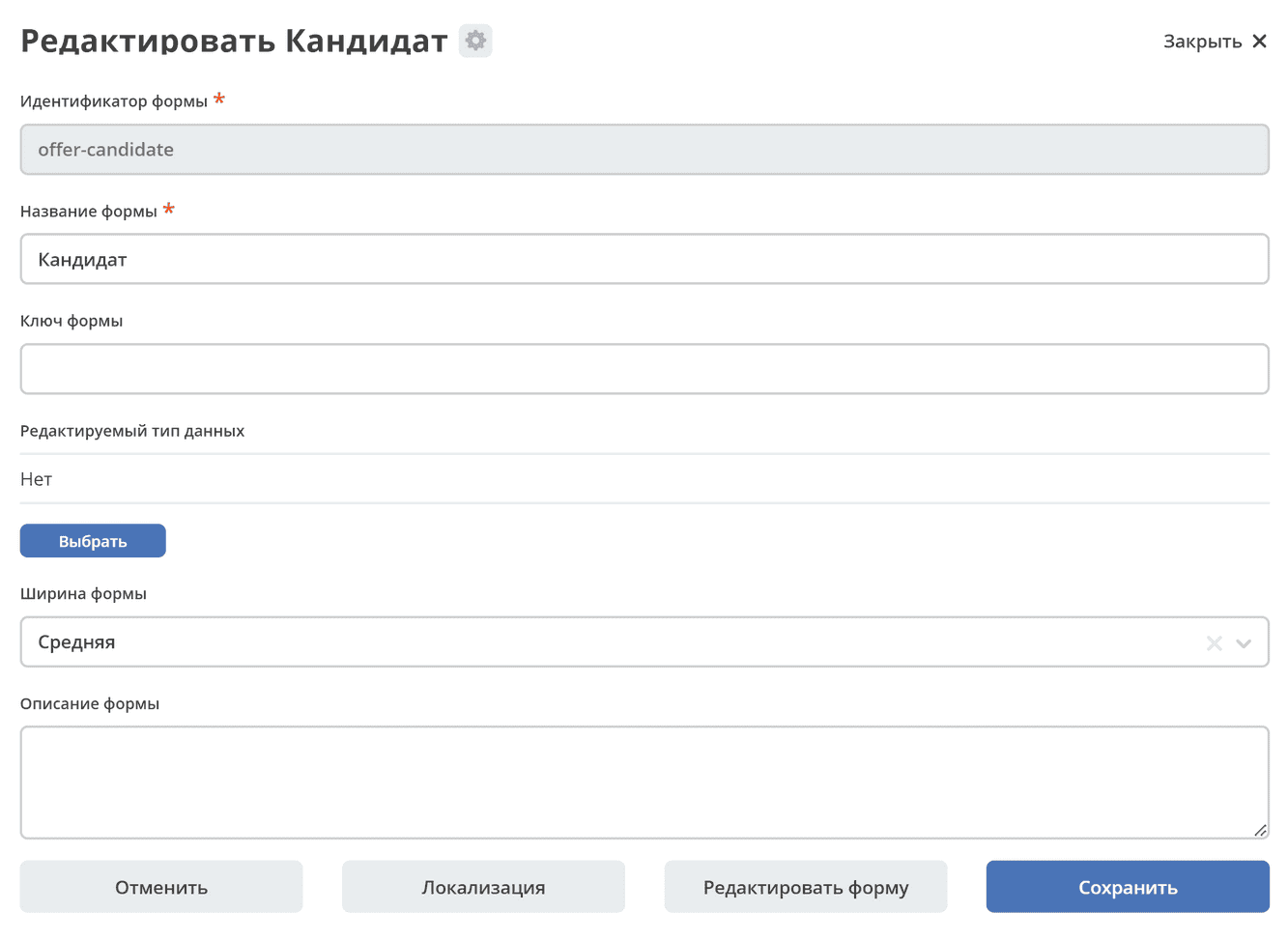
And then click “Edit Form”.
Form “Candidates”
Form example:
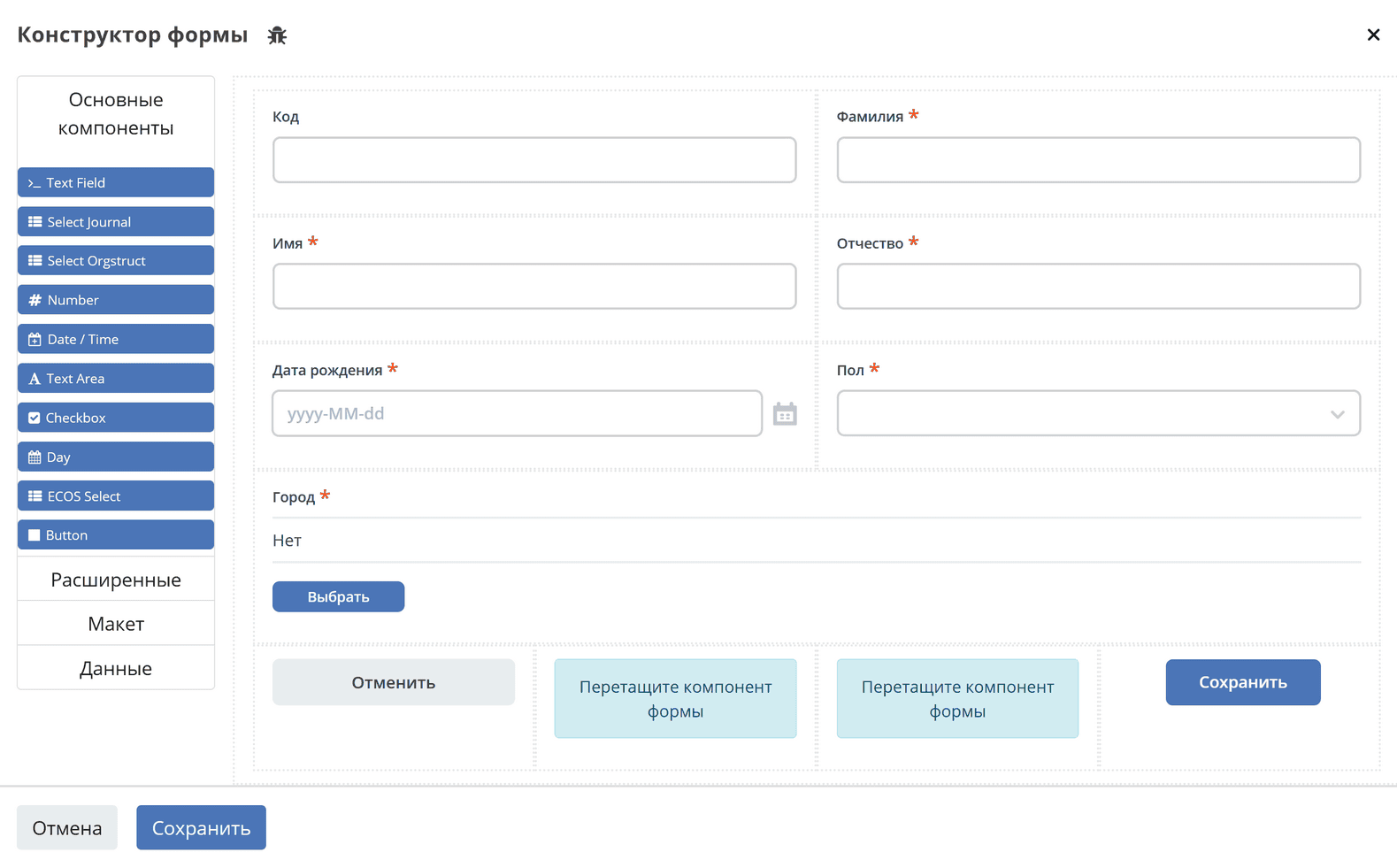
Form components:
Field Name |
Property Name |
Component Name |
|---|---|---|
Form Columns |
||
Code |
candidatesCode |
|
Last Name |
candidatesLastName |
Text Field Component |
First Name |
candidatesFirstName |
Text Field Component |
Middle Name |
candidatesMiddleName |
Text Field Component |
Birth Date |
candidatesBirthDate |
|
Gender |
candidatesGender |
|
City |
candidatesCityAssoc |
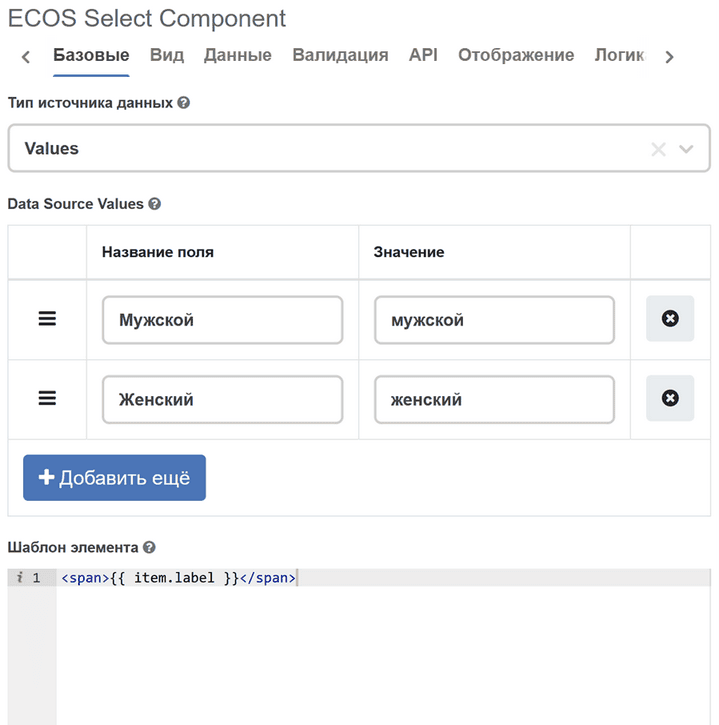
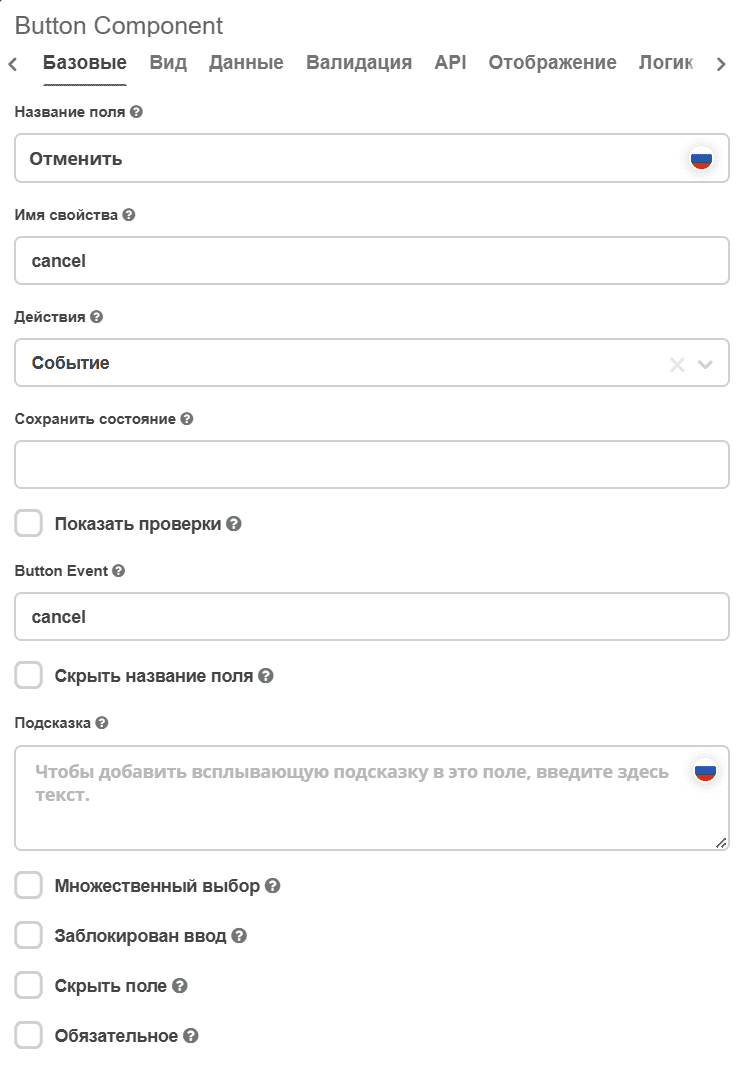
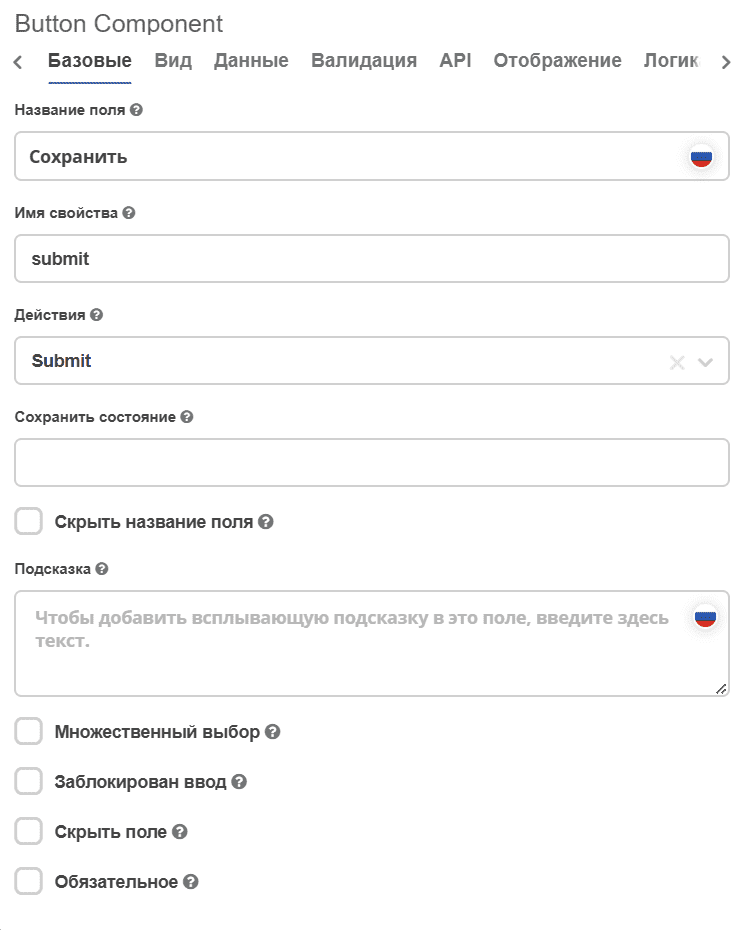
Buttons for forms created above:
Cancel |
|
Save |
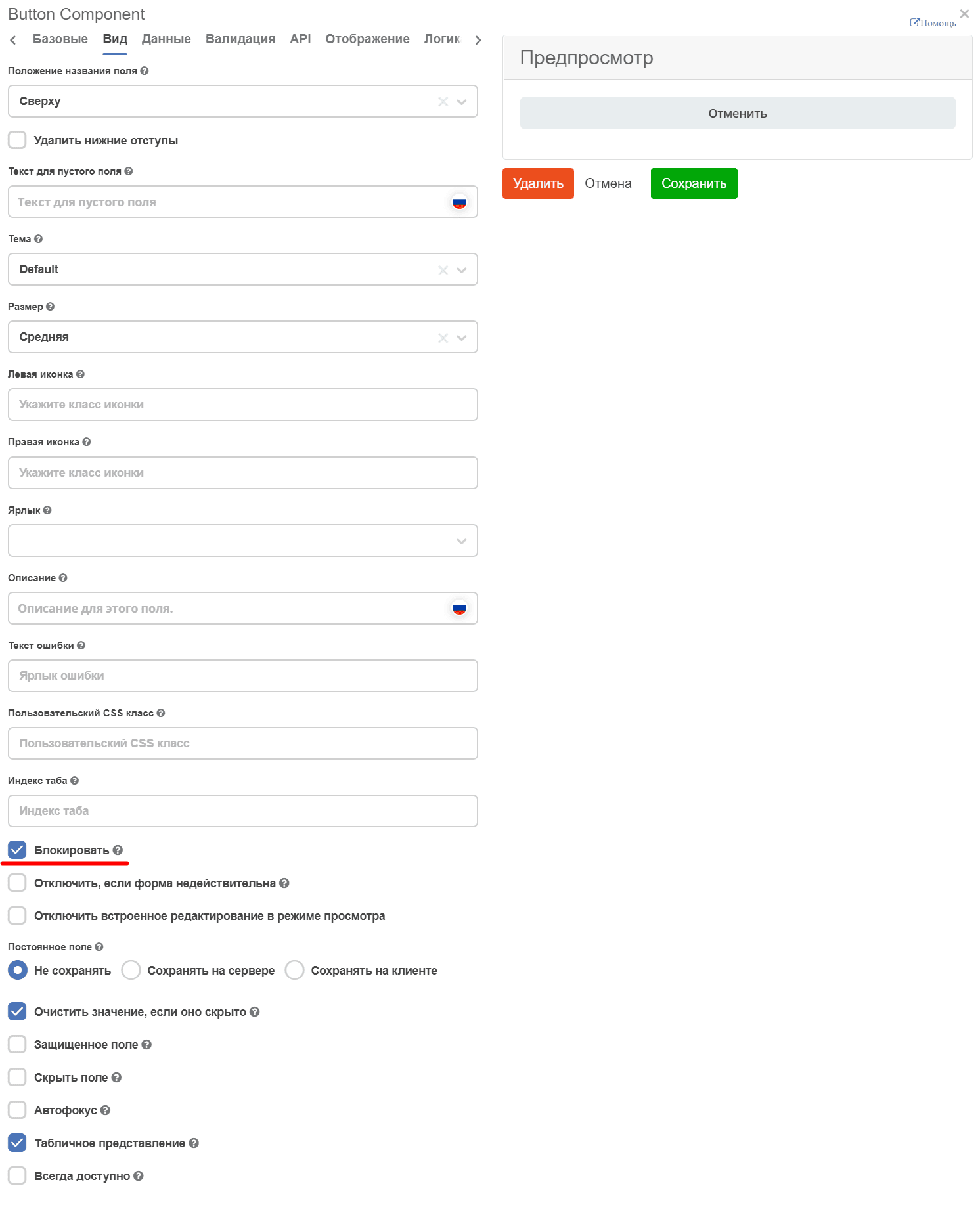
To display the button across the full width of the cell, you need to check the “Block” checkbox on the “View” tab:
Form “Offer Approval”
Form example:
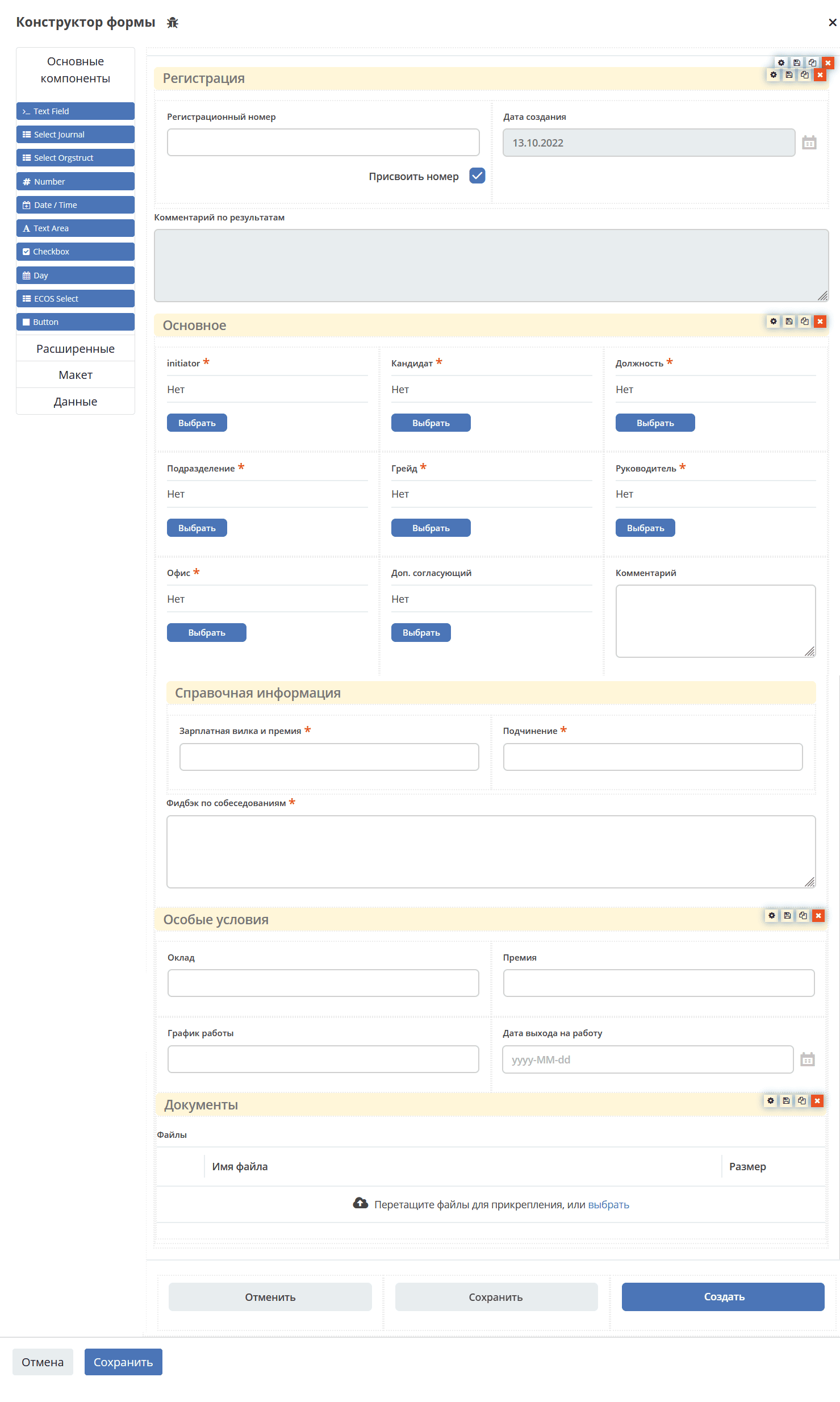
Form components:
Field Name |
Property Name |
Component Name |
|---|---|---|
Header |
||
Form Columns |
||
Registration Number |
registrationNumber |
|
Assign Number |
generateNumber |
Checkbox Component |
Creation Date |
_created (for automatic entry of document creation date) |
|
Results Comment |
offerTaskComment |
|
Initiator |
initiator |
|
Candidate |
offerCandidate |
|
Position |
offerPosition |
Select Journal Component |
Subdivision |
offerSubdivision |
|
Grade |
offerGrade |
Select Journal Component |
Manager |
offerChief |
Select Orgstruct Component |
Office |
offerOffice |
Select Journal Component |
Additional Approver |
offerAdditionalChief |
Select Orgstruct Component |
Comment |
offerComment |
Text Area Component |
Salary Range and Bonus |
offerSalaryForkAndPrize |
Text Field Component |
Subordination |
offerSubordinationAtr |
Text Field Component |
Interview Feedback |
offerFeedback |
Text Area Component |
Salary |
offerSalary |
|
Bonus |
offerPrize |
Text Field Component |
Work Schedule |
offerSchedule |
Text Field Component |
Work Start Date |
offerDateWork |
Date / Time Component |
Files |
_content (will be pre-filled on the form) |
Cancel |
|
Save (as draft) |
|
Create |
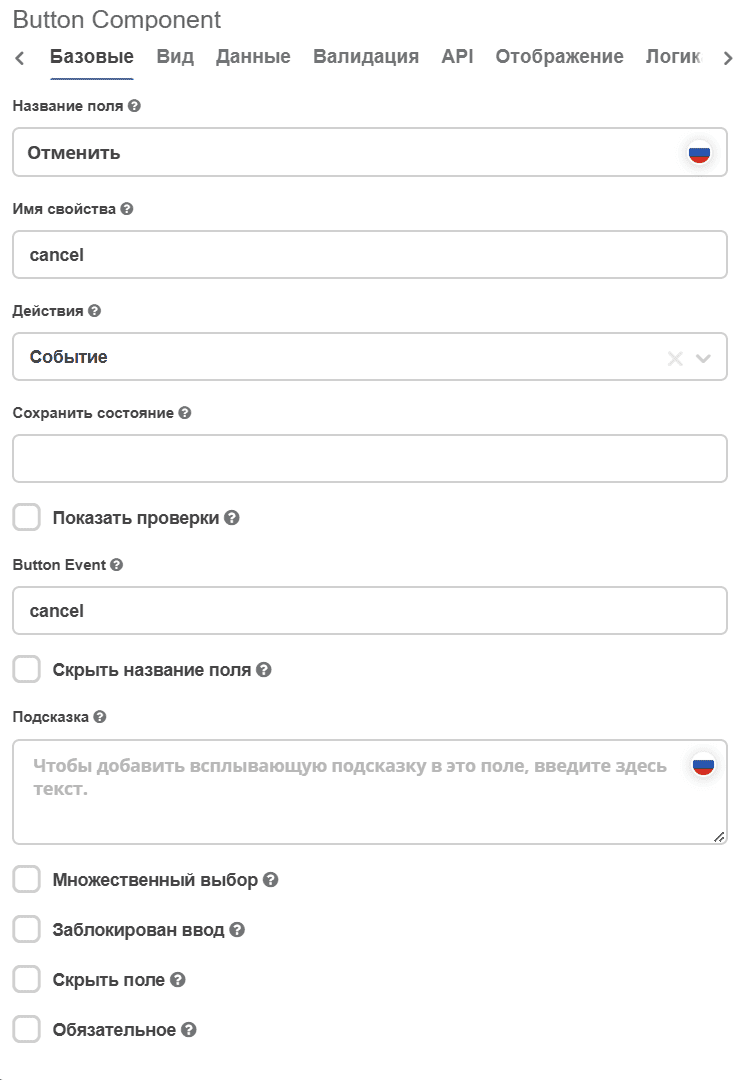
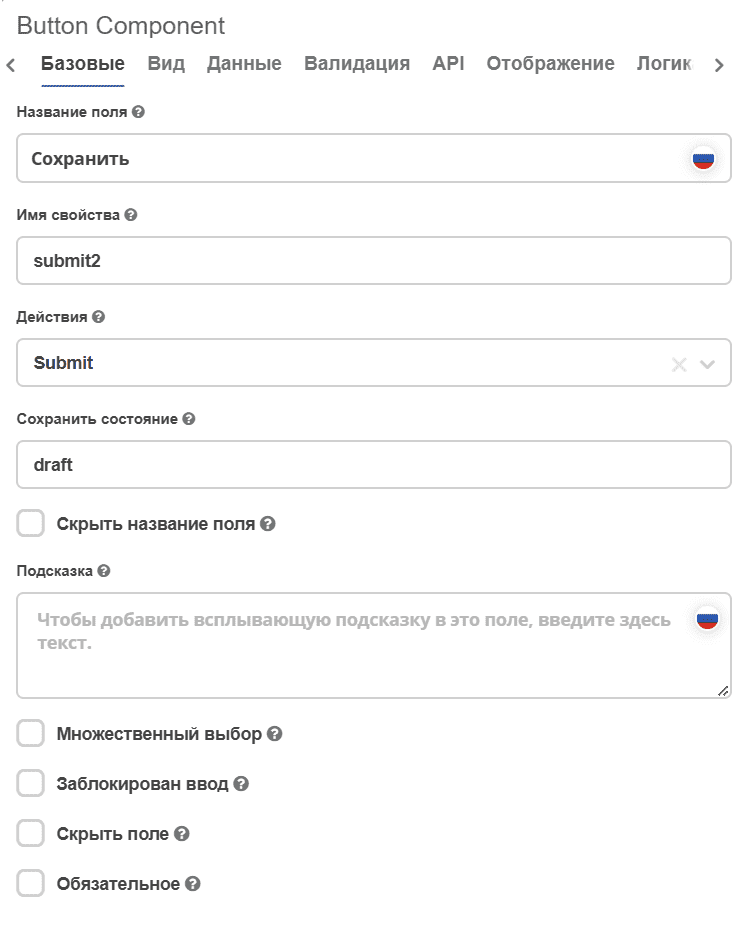
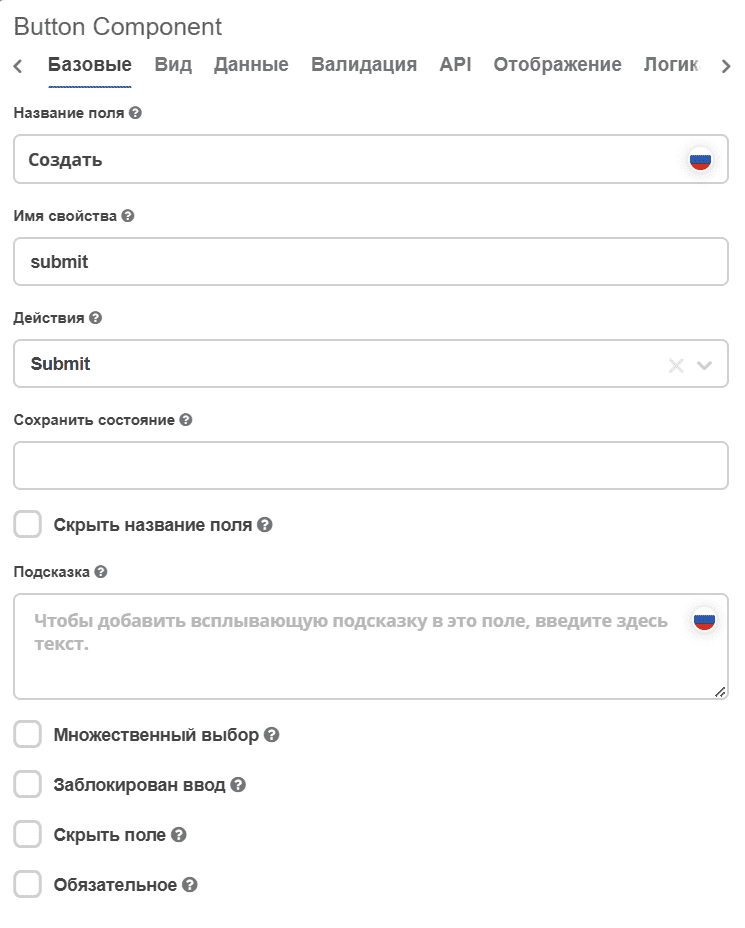
Journals
When creating a data type, a linked automatically generated journal is created by default. Such a journal gets an identifier of the form type$idtype.
Automatically created journals are available in the Journals section (Administrator Workspace - UI Configuration - Journals):
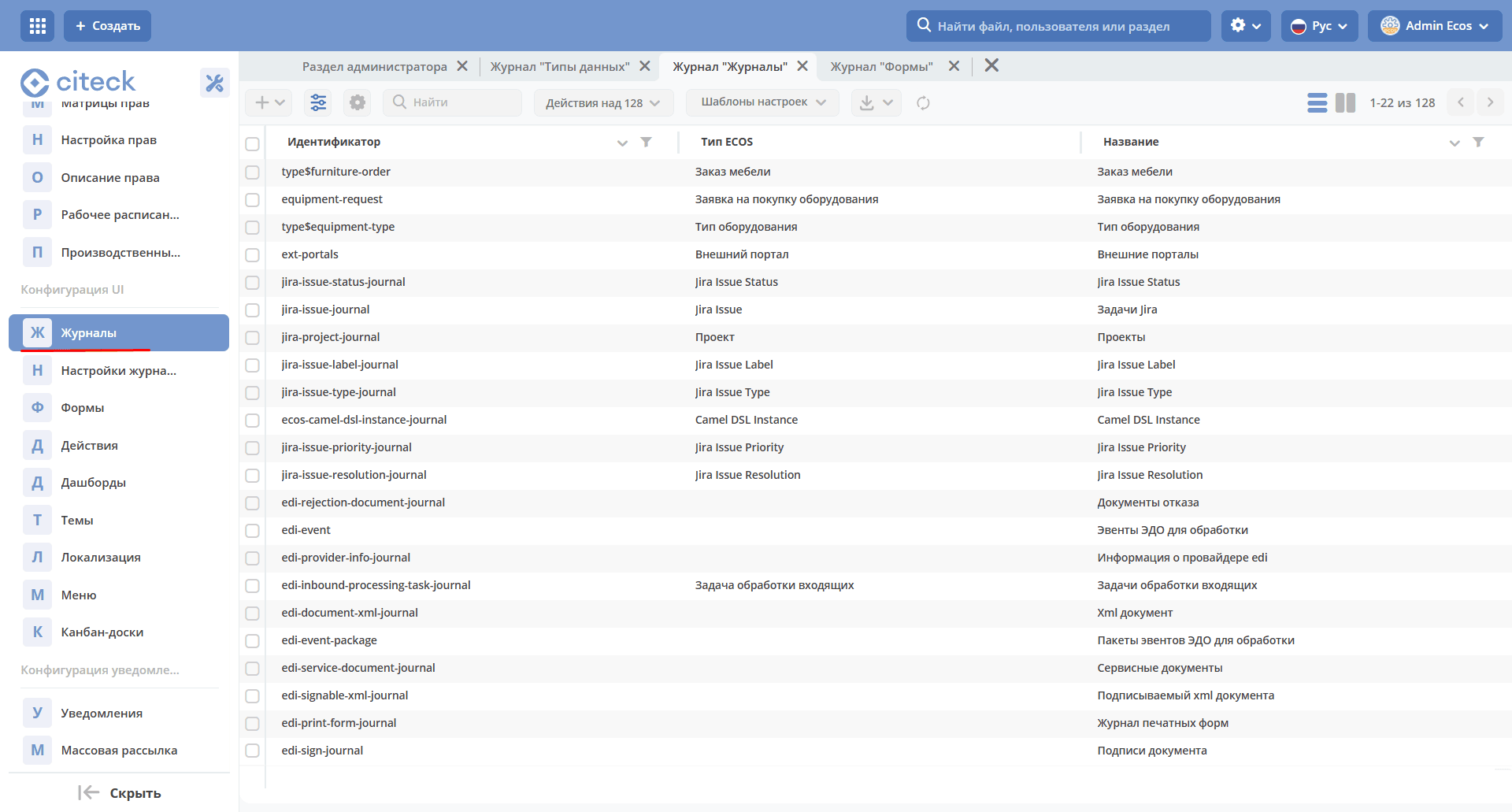
An auto-created journal can be fully used in the system – and be added to the menu.
Adding created journals to the menu
Go to the created workspace:
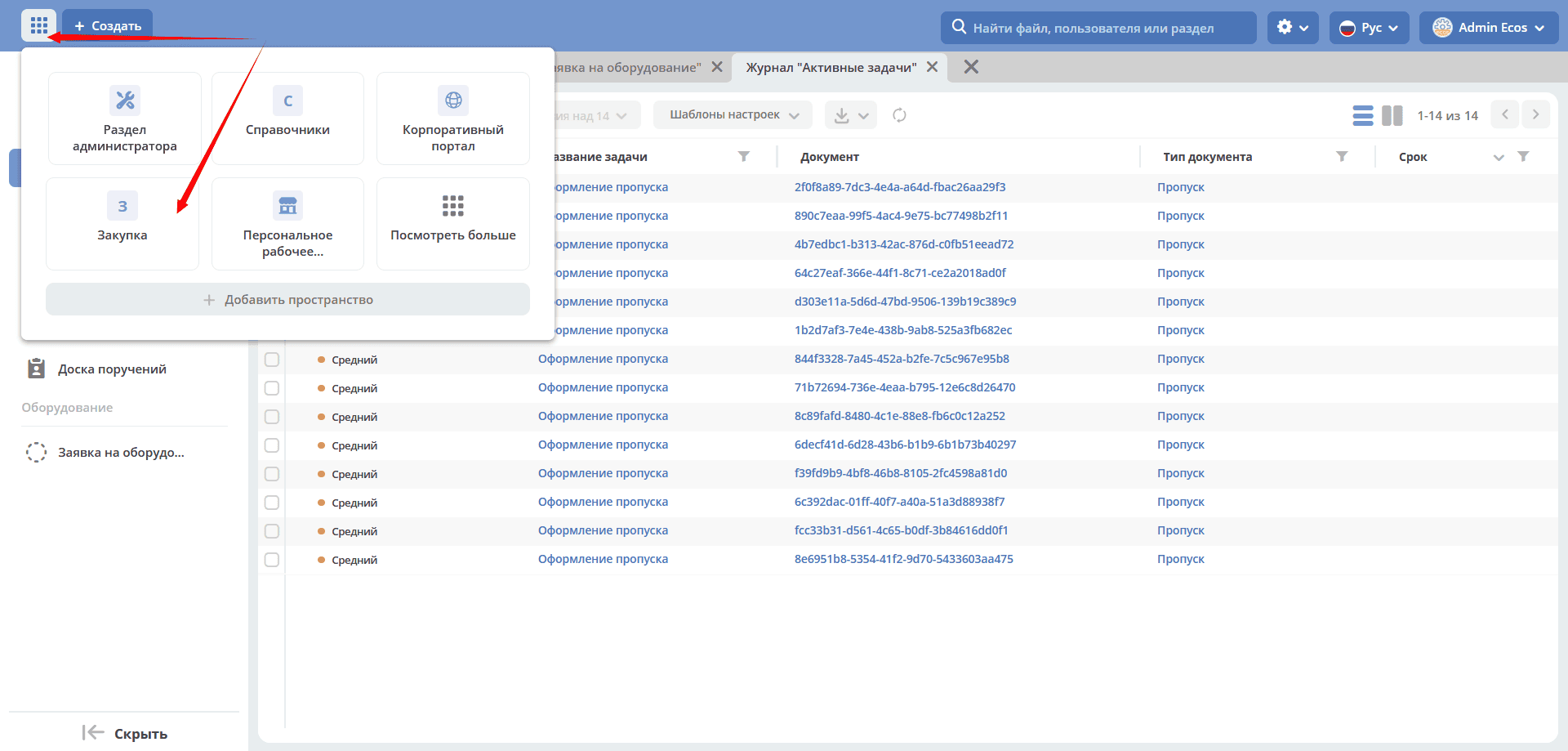
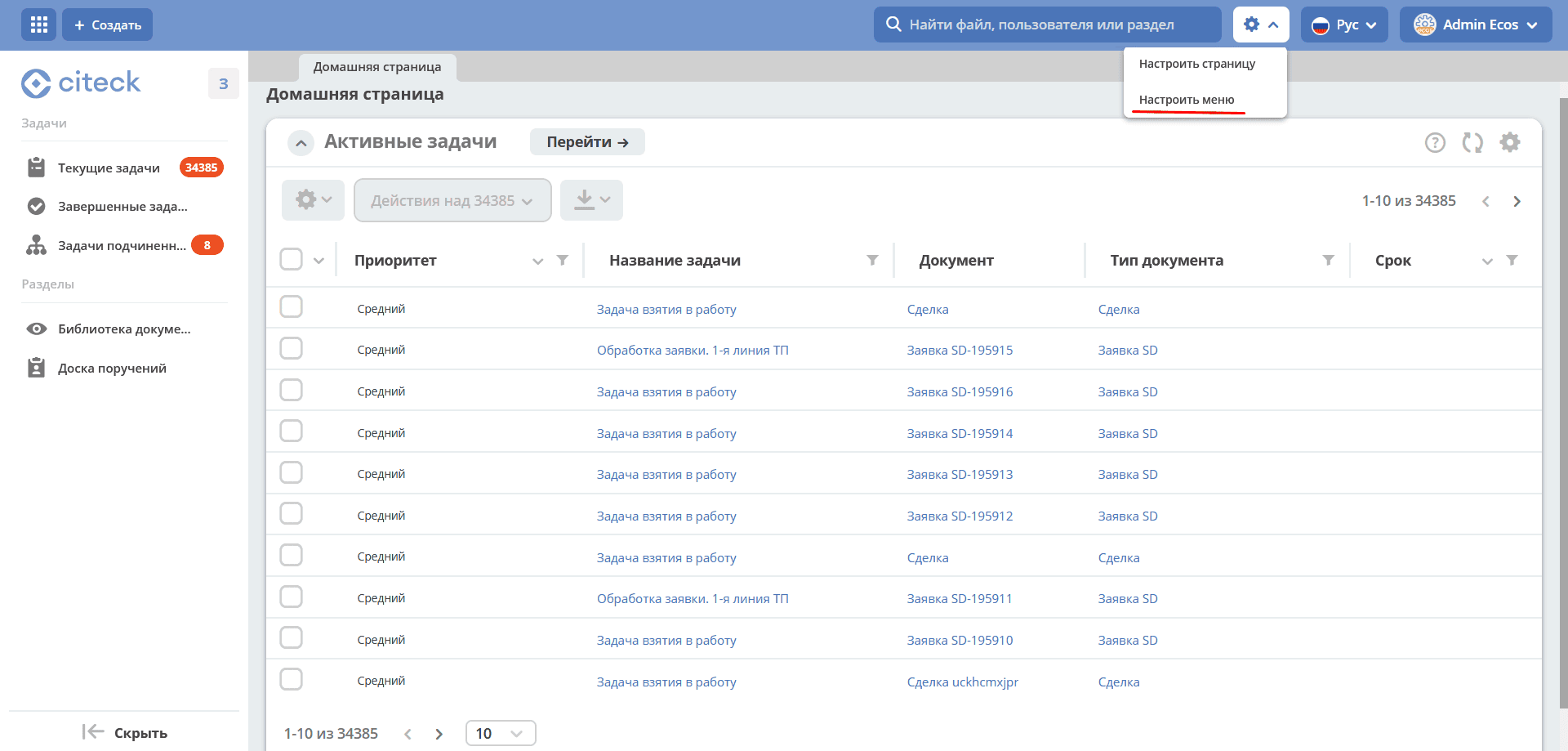
Go to the menu settings by clicking the gear icon in the top right corner, then select “Configure Menu”:
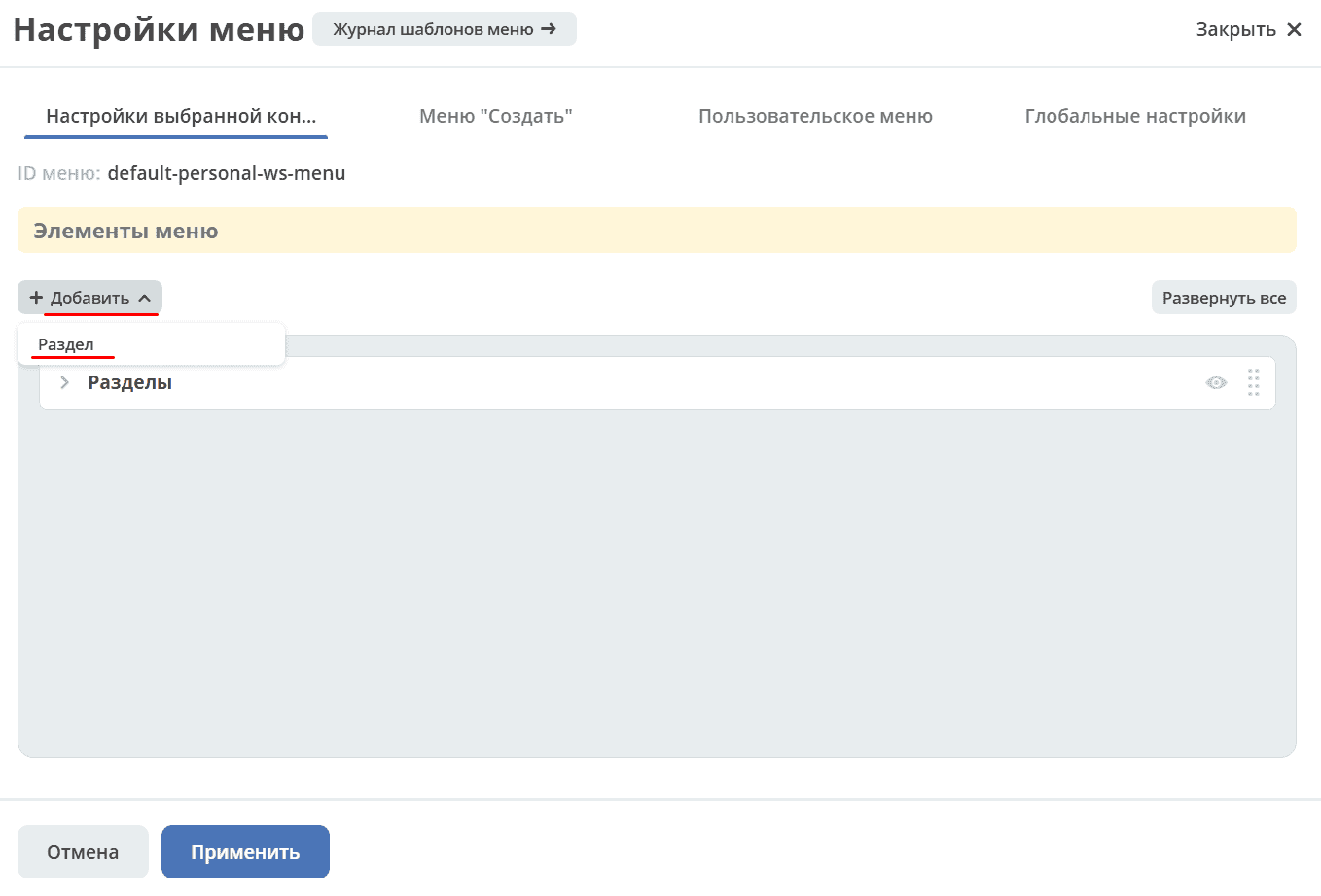
Go to the “Selected Configuration Settings” tab, click “+ Add”, select “Section”:
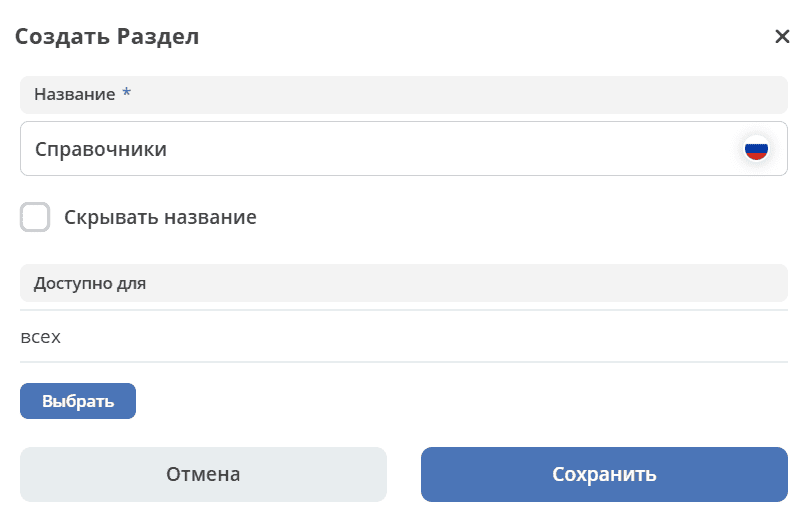
In the “Name” field, enter the section name. For example, Dictionaries. Click “Save”.
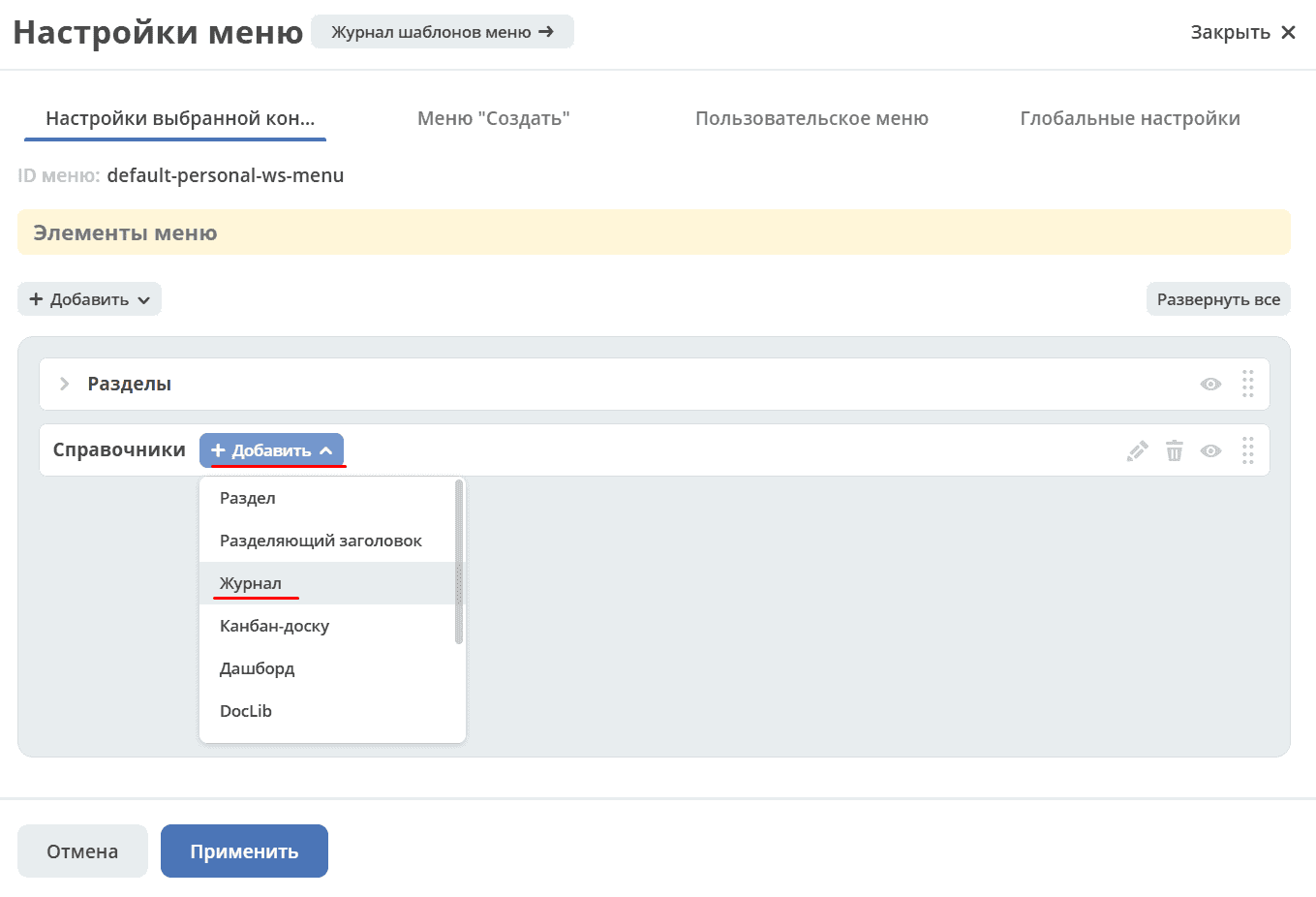
Hover the cursor over the added section, click “+ Add”, select “Journal”:
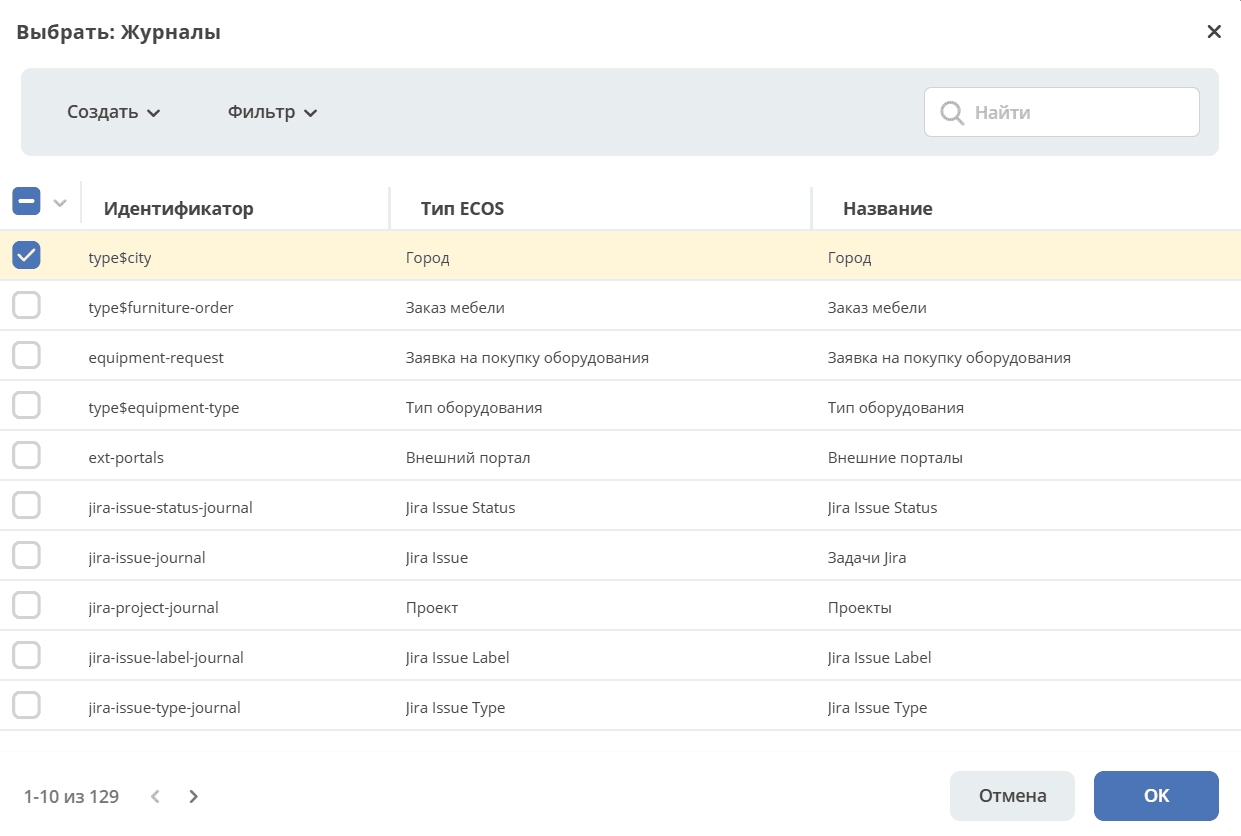
Select the journal “type$city” and click OK:
To save the menu, click Apply:
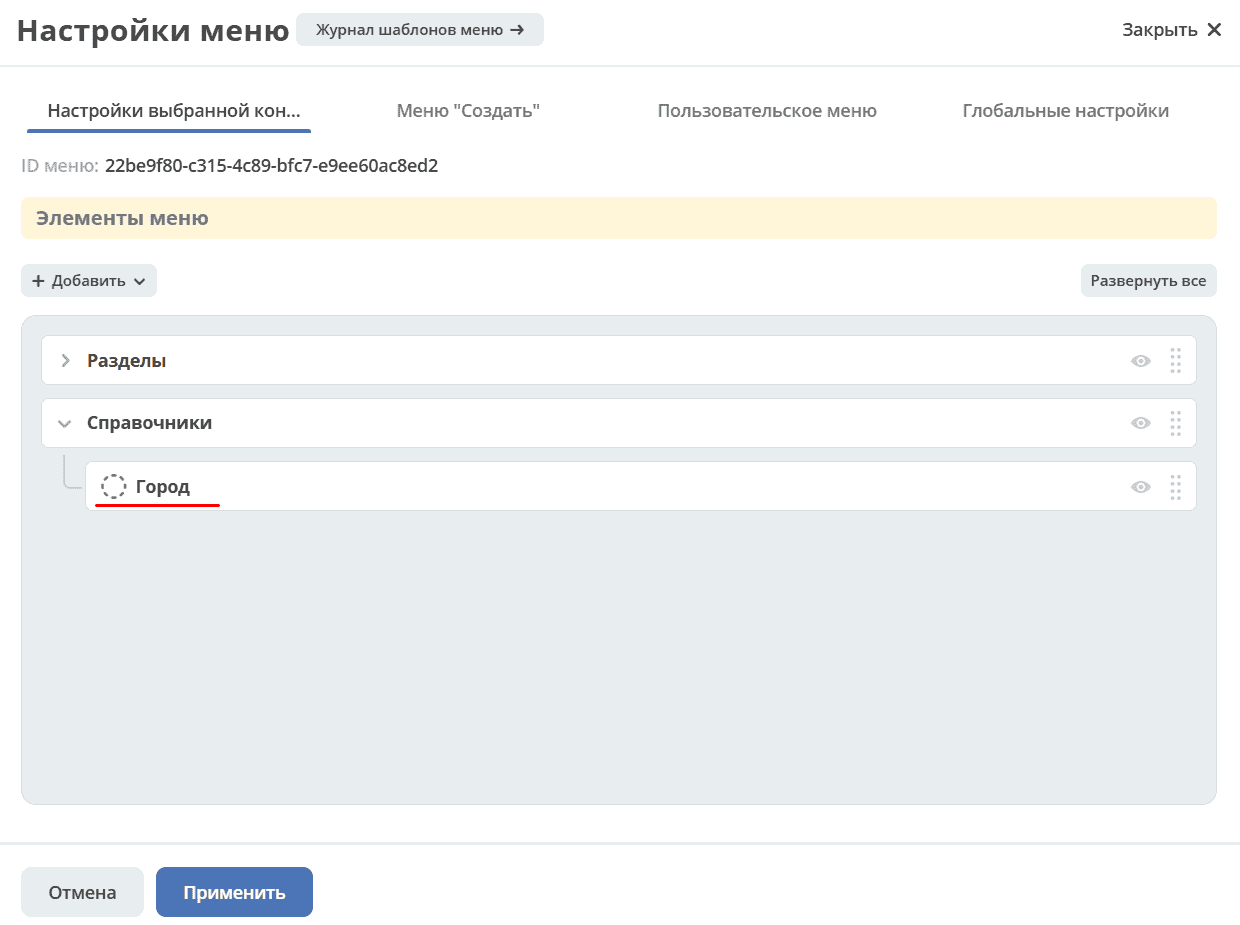
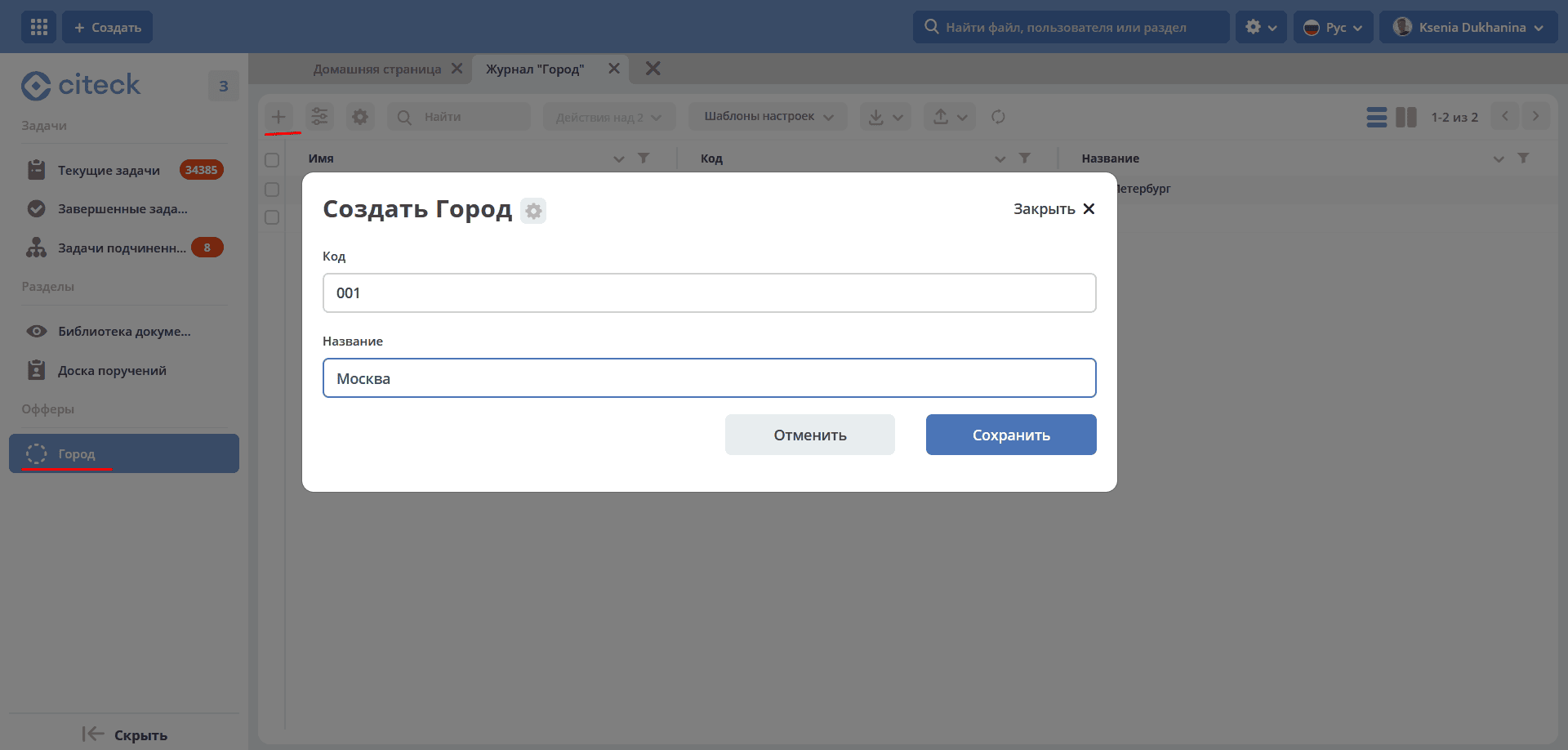
A new journal “City” has appeared in the left menu, where clicking + opens the form for creating a new element:
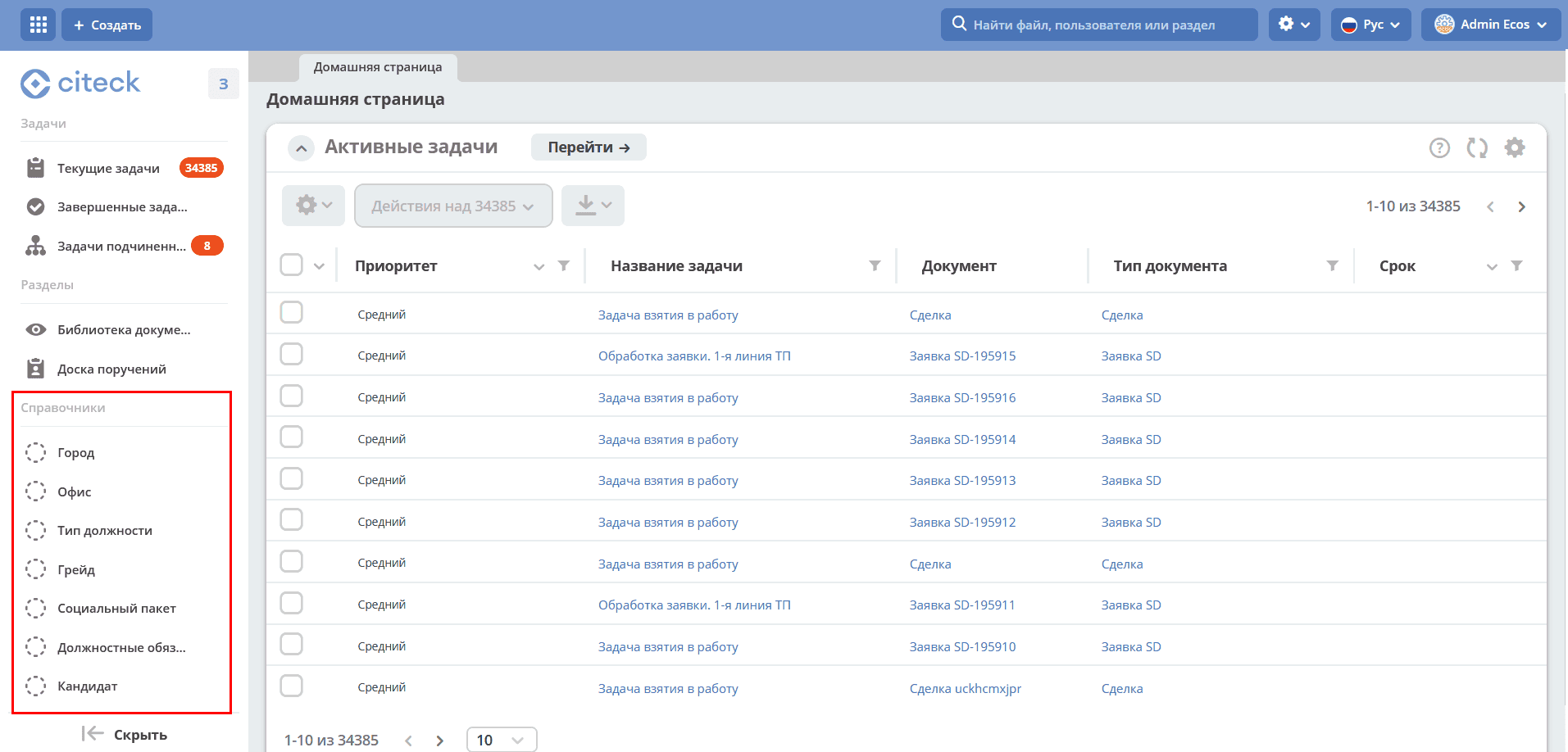
Similarly, add the dictionaries Office, Position Type, Grade, Social Package, Job Responsibilities, Candidate to the menu:
Creating a Business Process
Using the previously created data types and forms, we configure the offer approval business process:
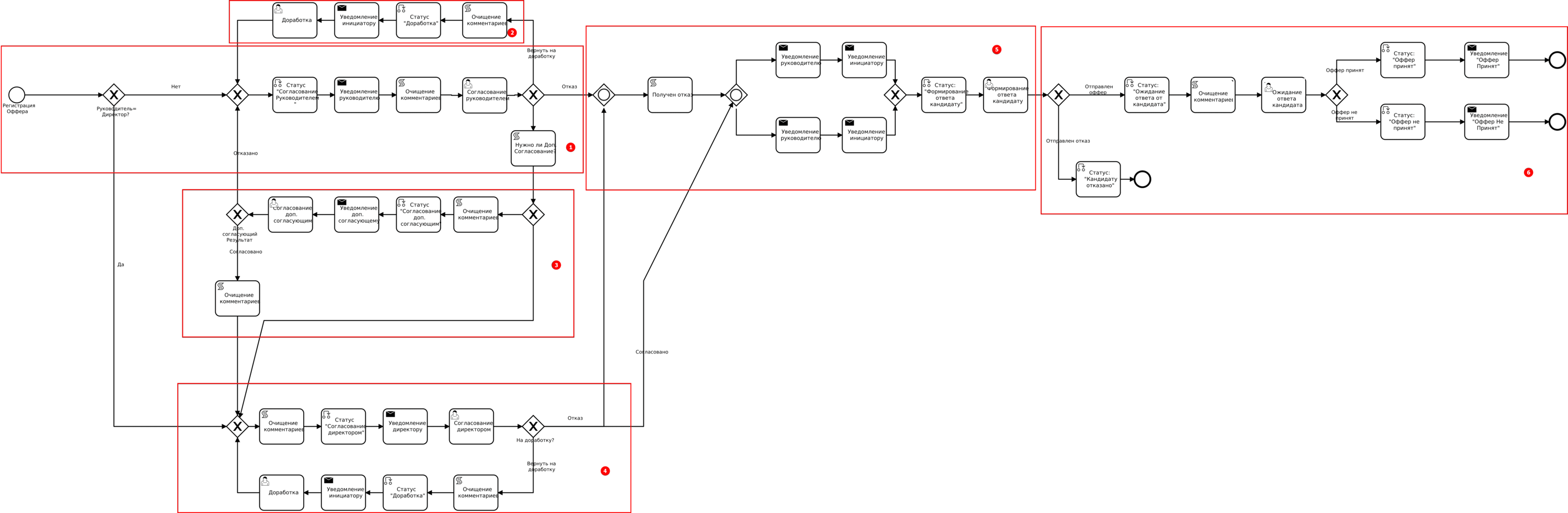
For clarity of description, we will break the process into 6 parts. And we will consider each part in detail.
Using Part 1 as an example, we will consider the detailed creation of elements; for parts 2-5, images of the final element configuration will be provided.
To create a process, go to the administrator workspace.
In the Process Management section, go to BPMN Models:
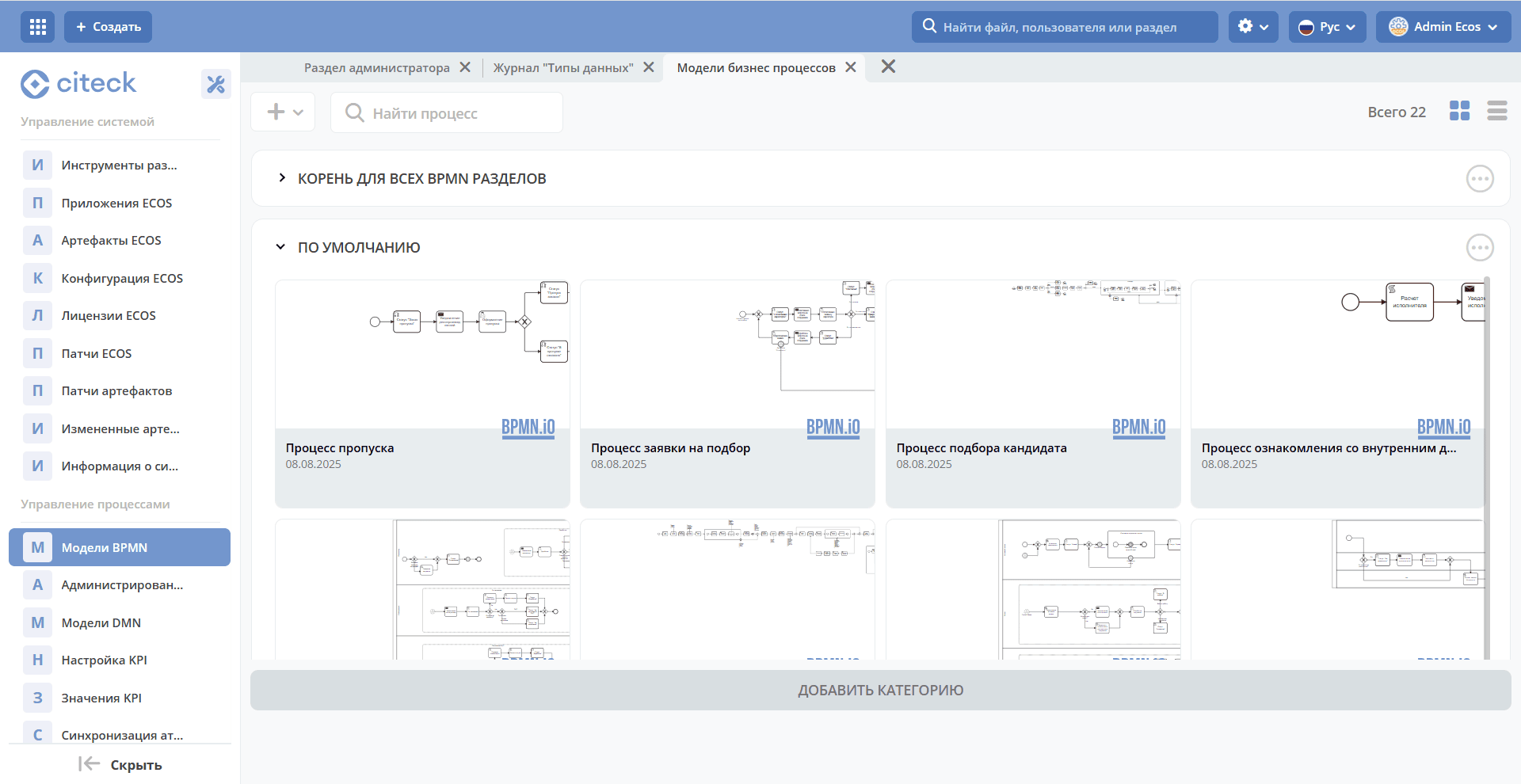
To create a process, click “+ → Create BPMN Model”:
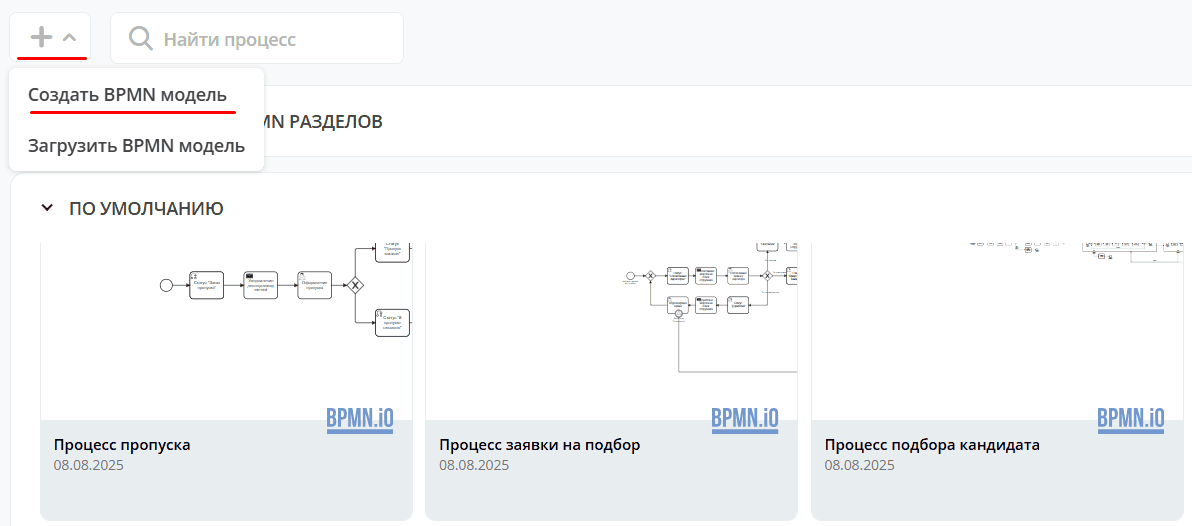
You can read in detail about:
Filling out the form for creating the business process “Offer Approval”:
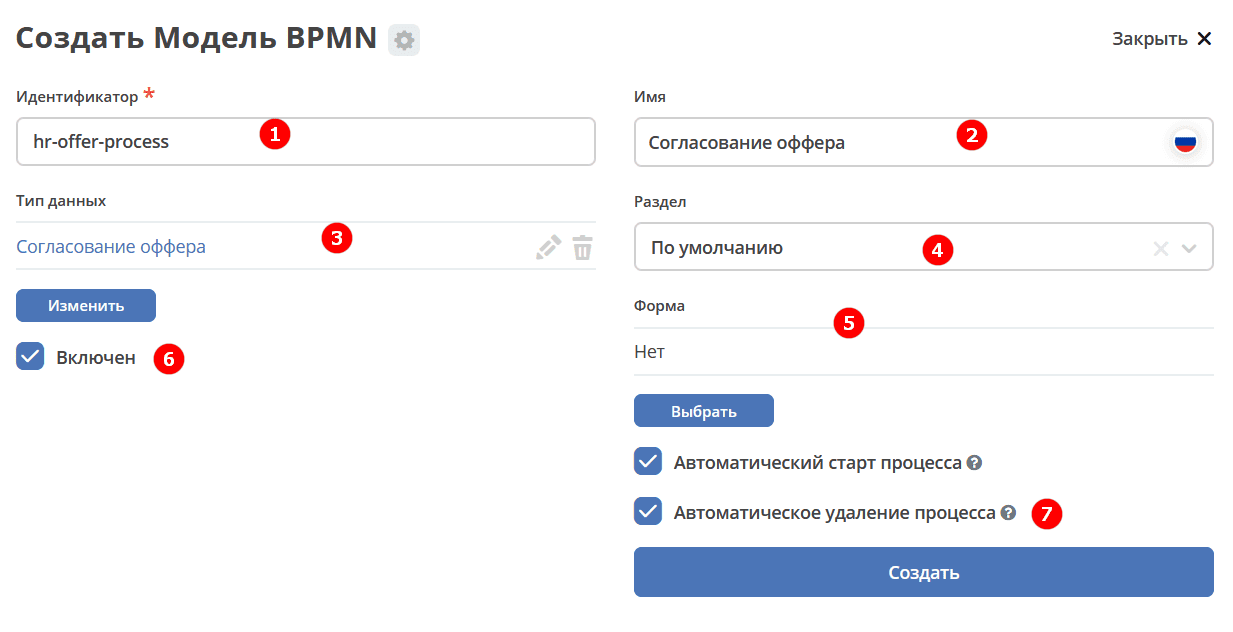
where
Marker Number |
Field Name |
Value |
|---|---|---|
1 |
Identifier |
hr-offer-process |
2 |
First Name |
Offer Approval |
3 |
Ecos Type |
select the previously created data type “Offer Approval (hr-offer-type)” |
4 |
Section |
do not fill, saving will occur automatically in the “Default” section. |
5 |
Form |
do not specify |
6 |
Enabled |
flag is set |
7 |
Automatic Process Start |
flag is set |
Elements used in the process
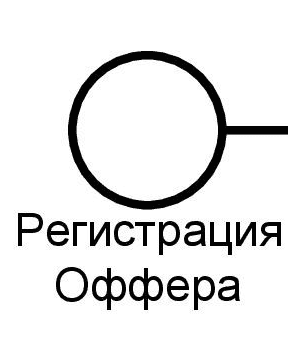
|
Start Event |
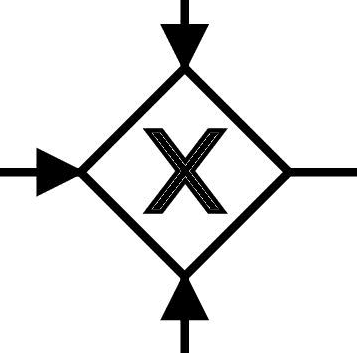
|
Gateway and sequence flow |
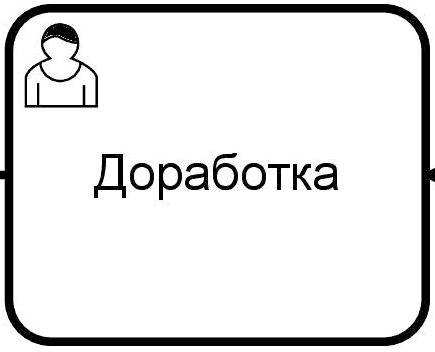
|
|
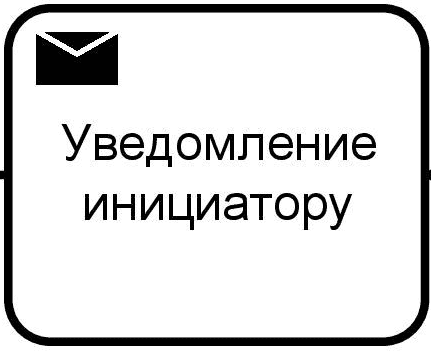
|
|
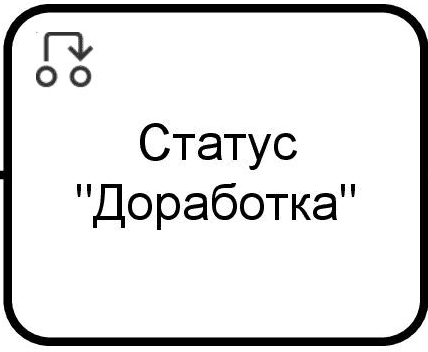
|
|
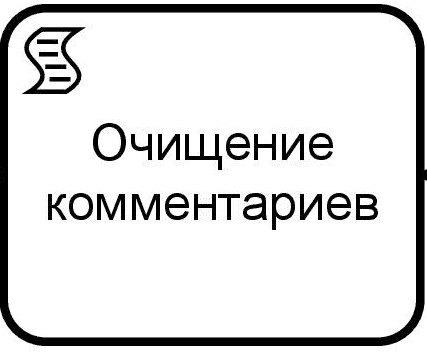
|
|

|
End Event |
Creating elements for Part (1) of the business process diagram
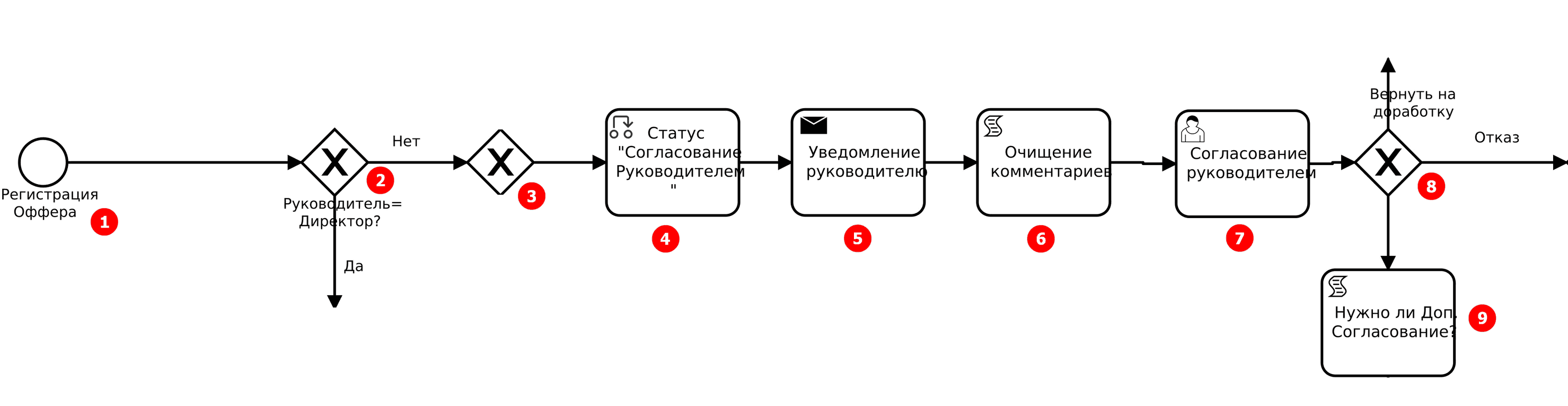
Part (1) of the business process diagram:
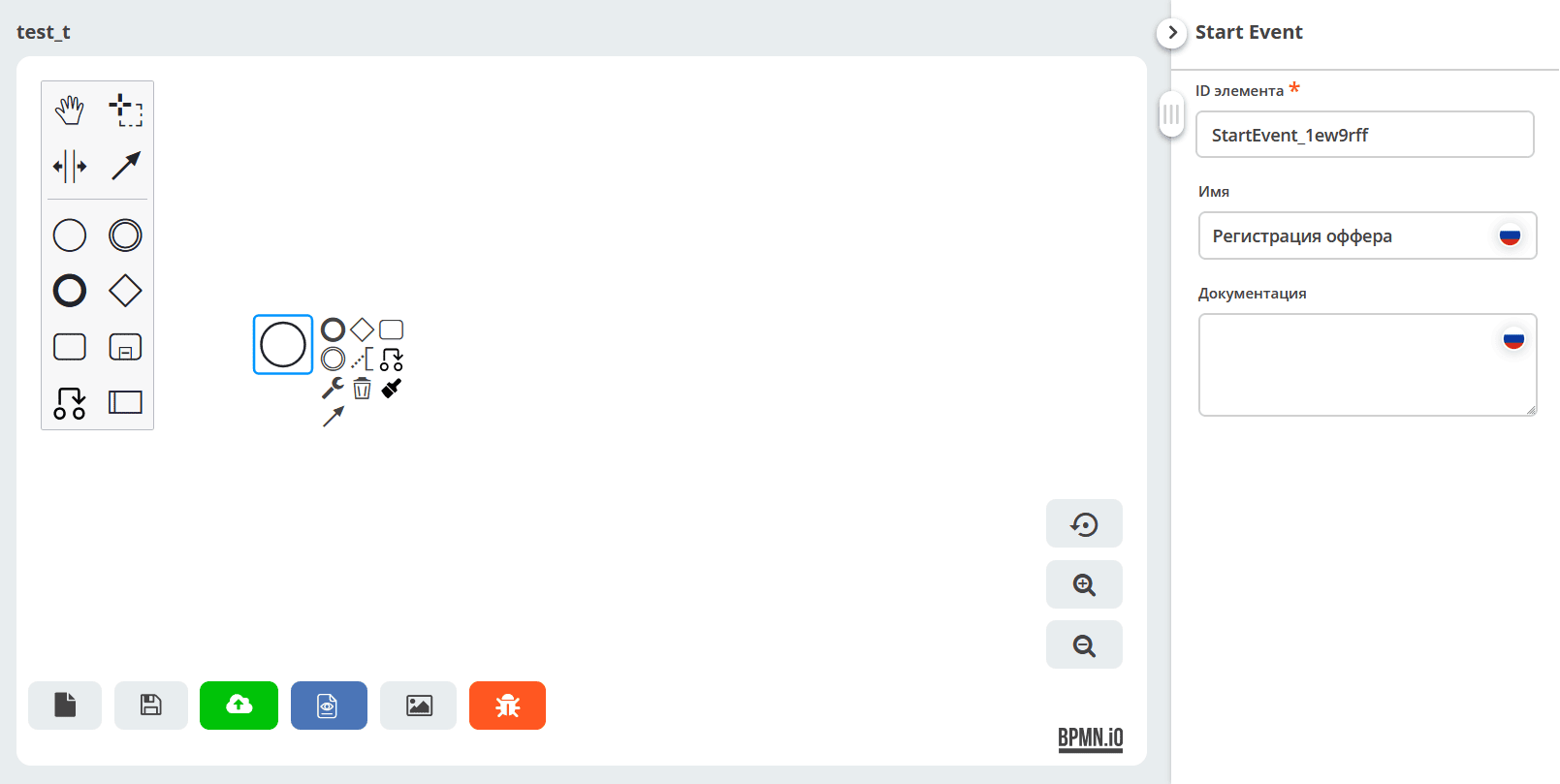
Start Event
The start event (1) on the diagram is set by default by the element:
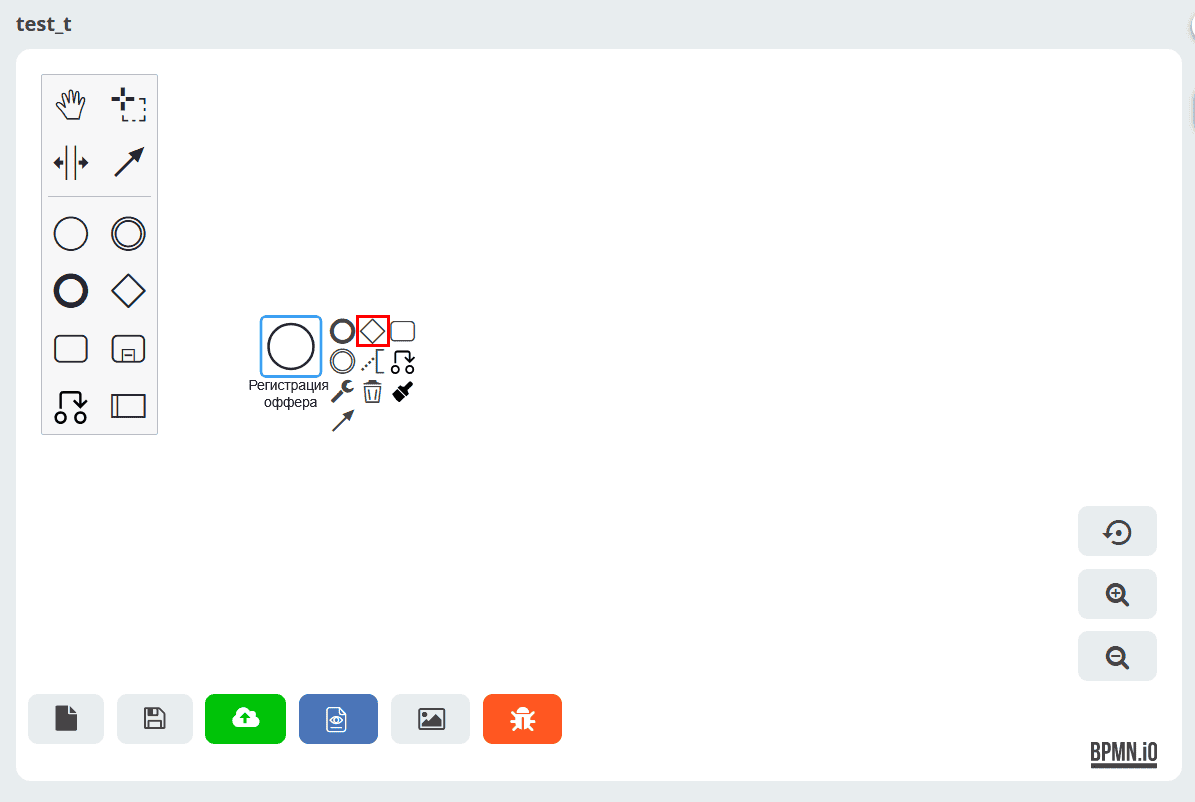
Element ID The system assigns automatically for all created elements.
Gateway and Data Flow
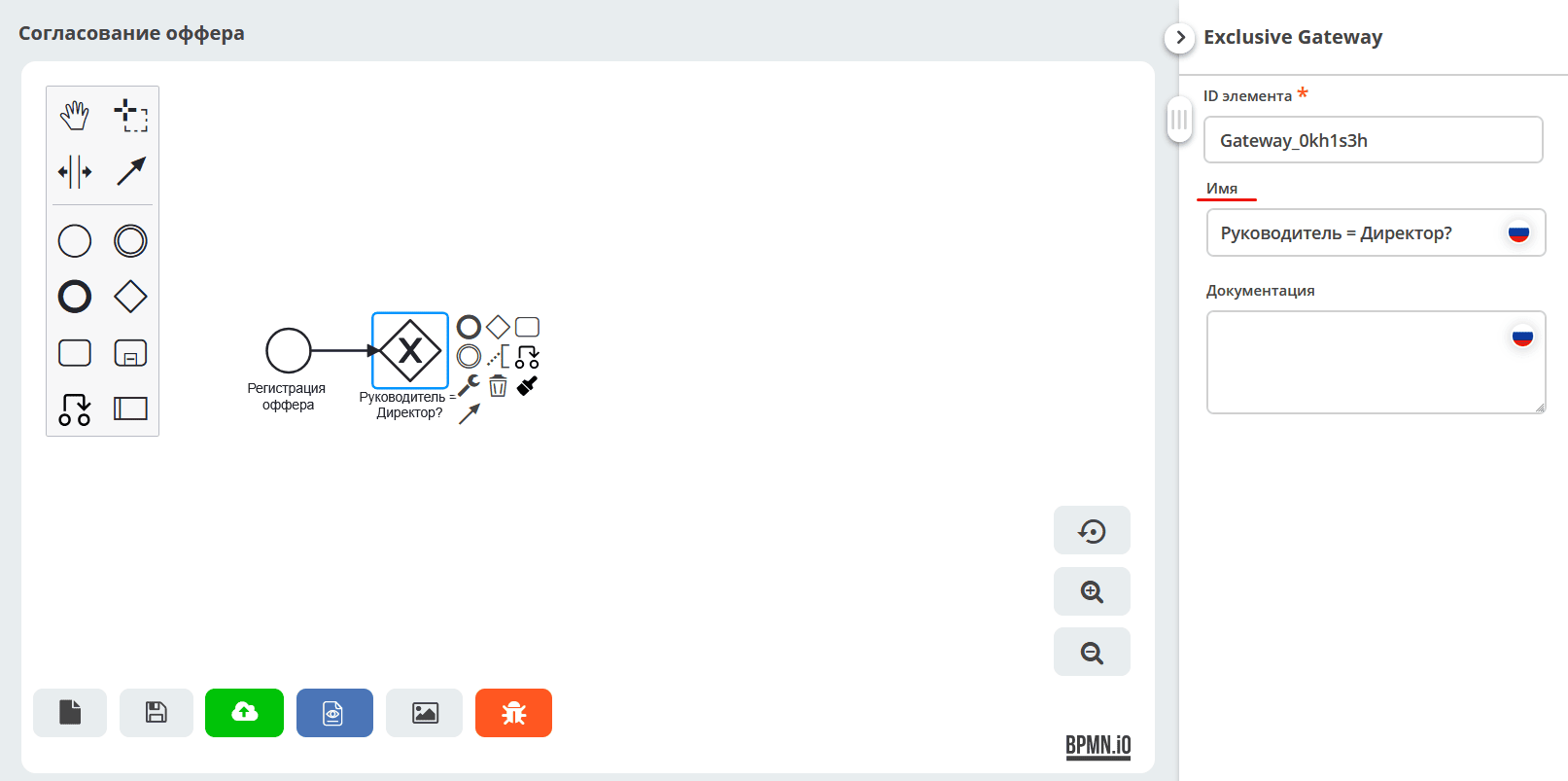
For the gateway (2) on the diagram, specify the Name Manager = Director?:
The control flow is used to connect BPMN flow elements (events, activities, gateways).
The control flow (arrow) shows the process execution path.
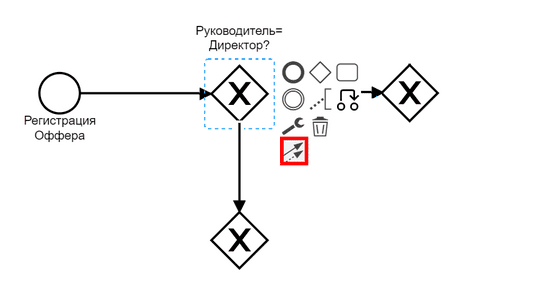
Next, draw the arrow to the required element. For the flow, you can specify the condition type.
For the gateway created above:
Flow “No”:
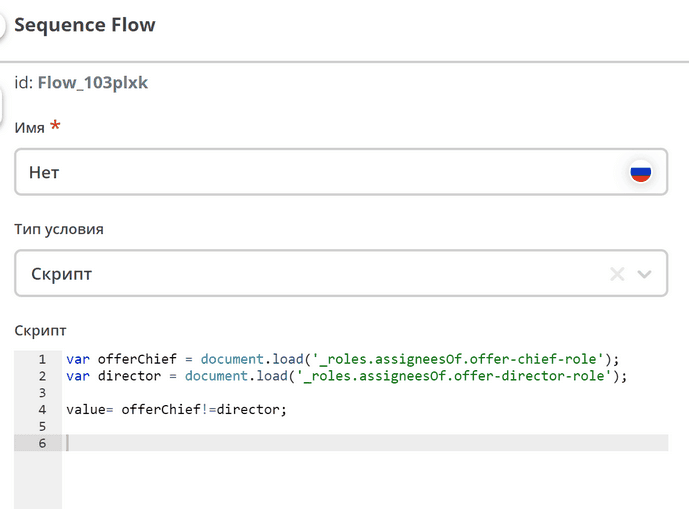
Script text:
var offerChief = document.load('_roles.assigneesOf.offer-chief-role');
var director = document.load('_roles.assigneesOf.offer-director-role');

value= offerChief!=director;
Flow “Yes”:
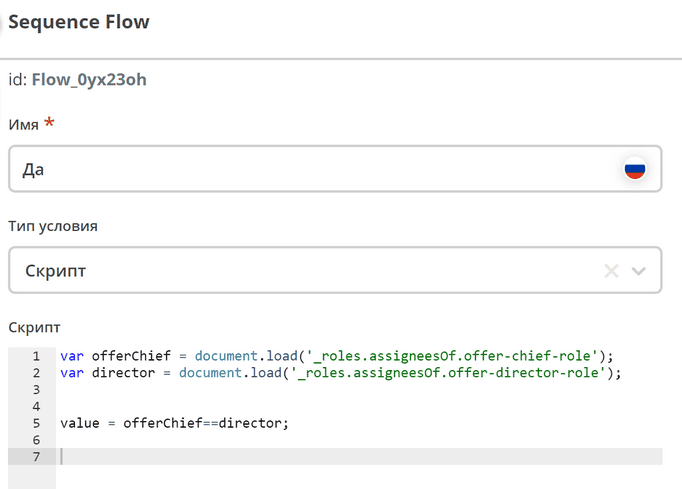
Script text:
var offerChief = document.load('_roles.assigneesOf.offer-chief-role');
var director = document.load('_roles.assigneesOf.offer-director-role');


value = offerChief==director;
For the next gateway 3 on the diagram:
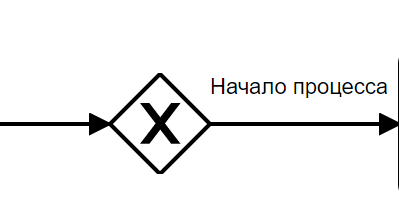
|
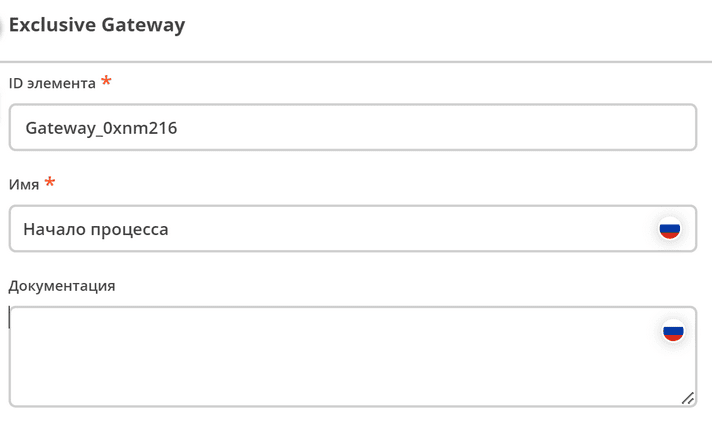
|
Flow “Start Process” |
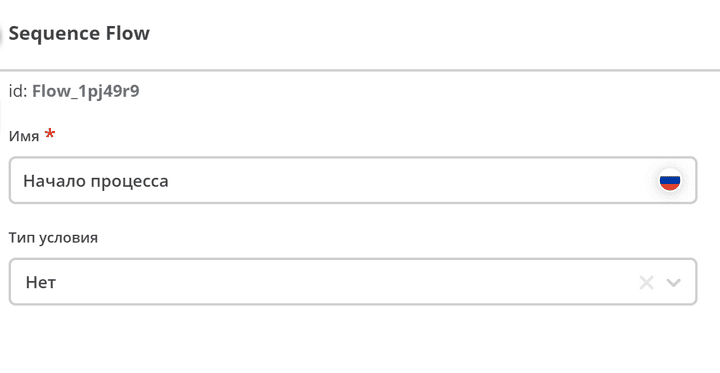
|
Status Change
4 on the diagram
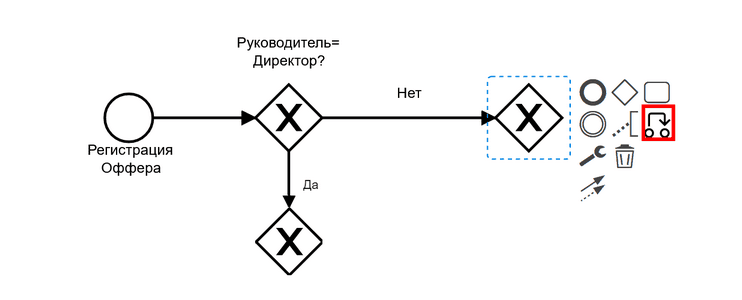
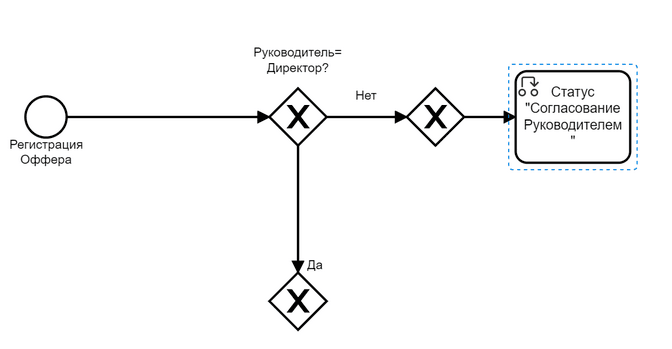
Specify Name |
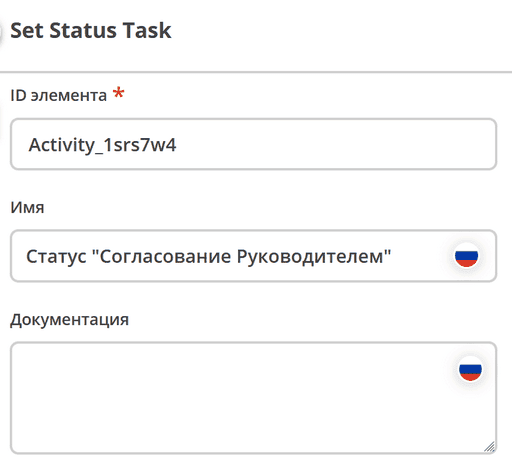
|
Select status |
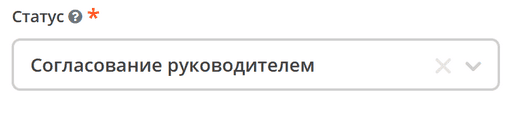
|
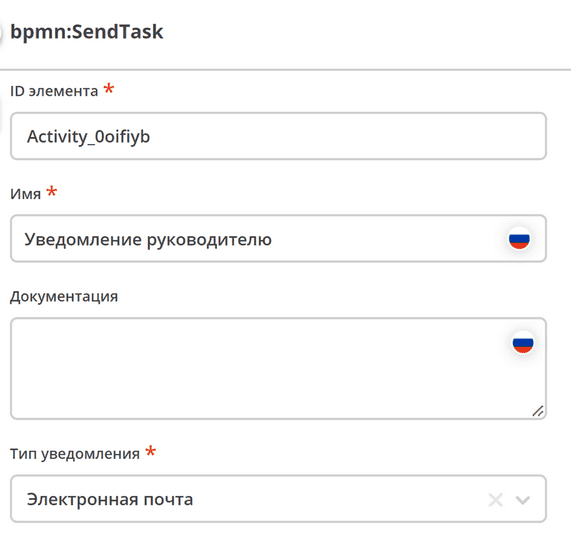
Notification
5 on the diagram
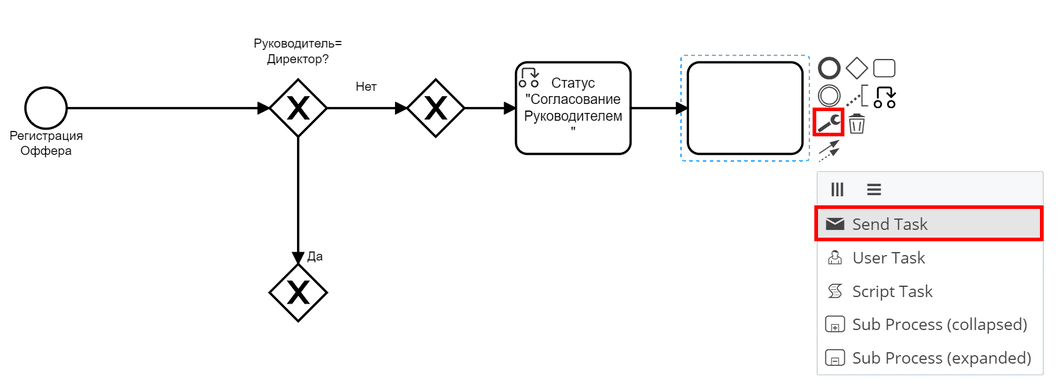
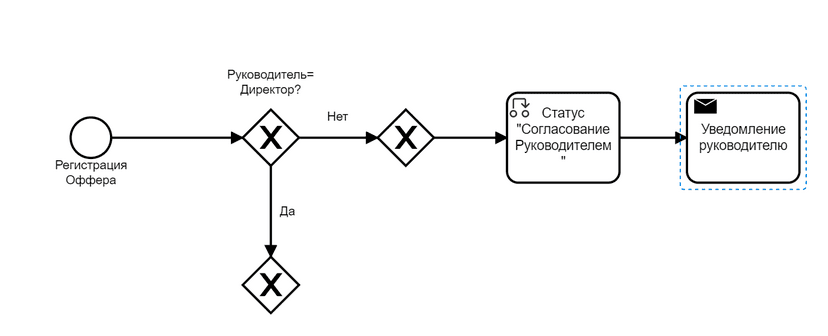
Specify Name,
select Notification Type
|
|
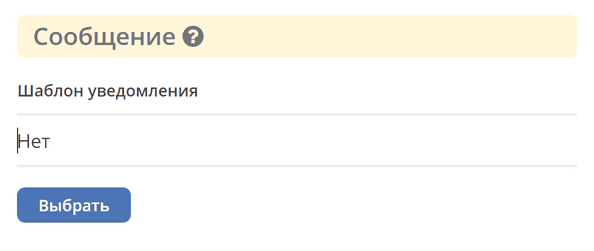
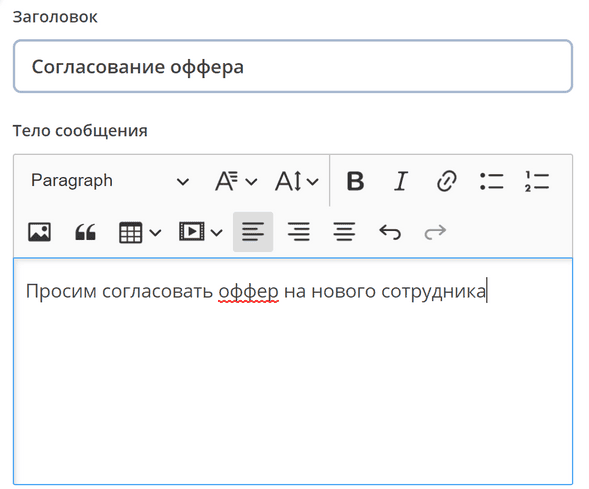
Select a template,
or specify Subject and message body
|
|
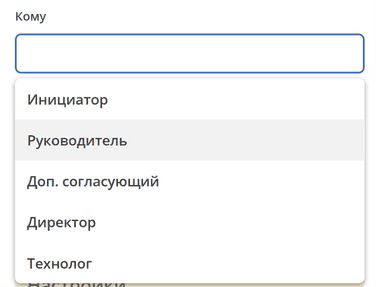
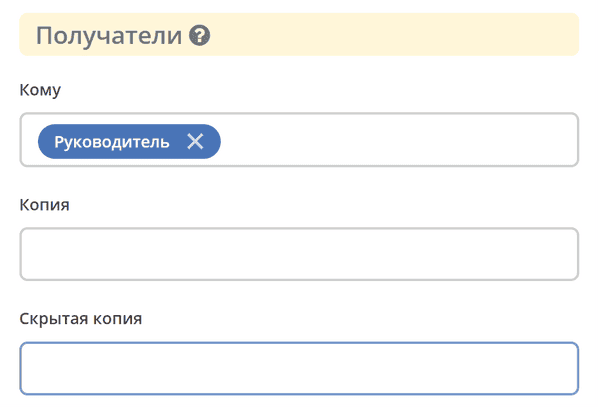
Recipients are selected from the list of roles filled in the data type |
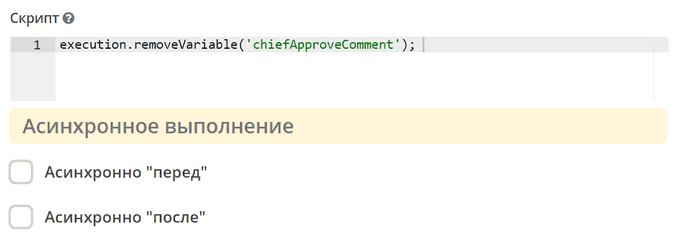
Script Task
6 on the diagram
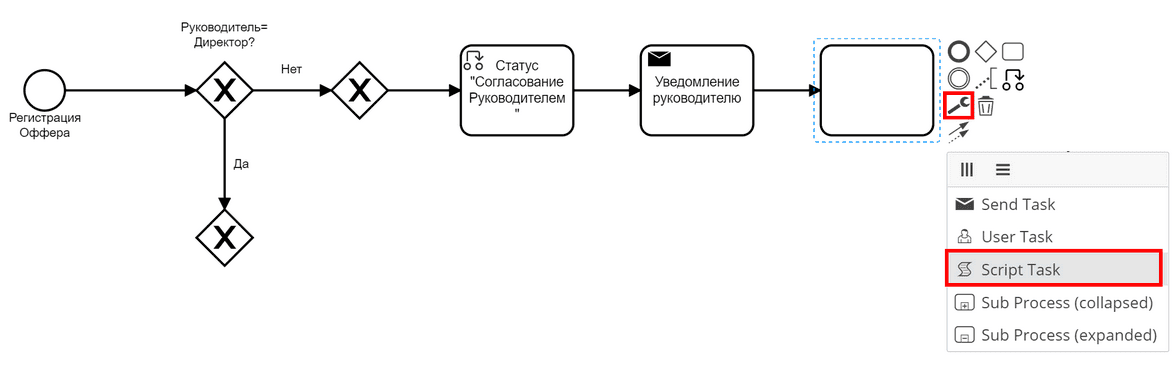
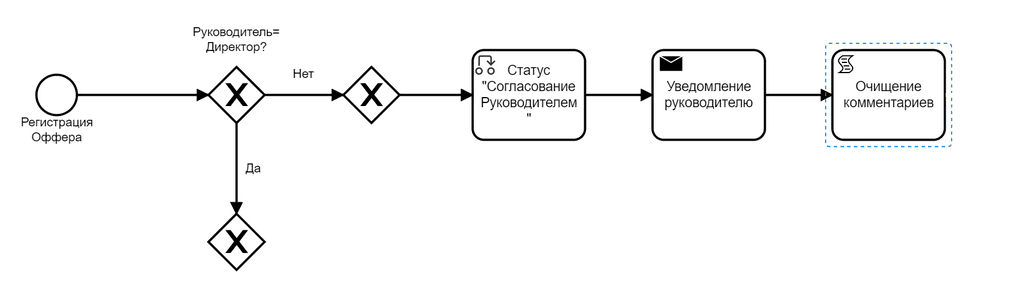
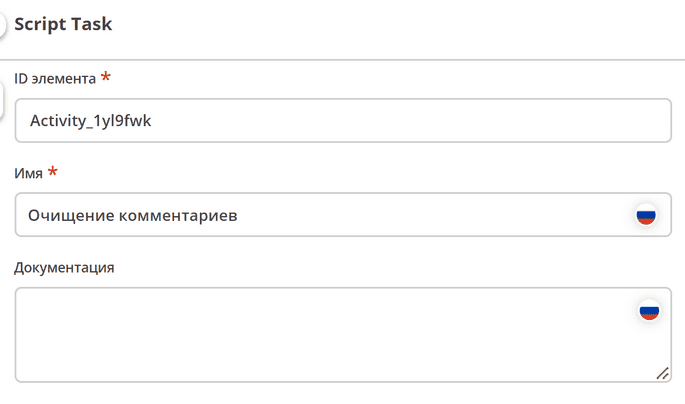
Specify Name |
|
Specify script |
Script text:
|
User Task
7 on the diagram
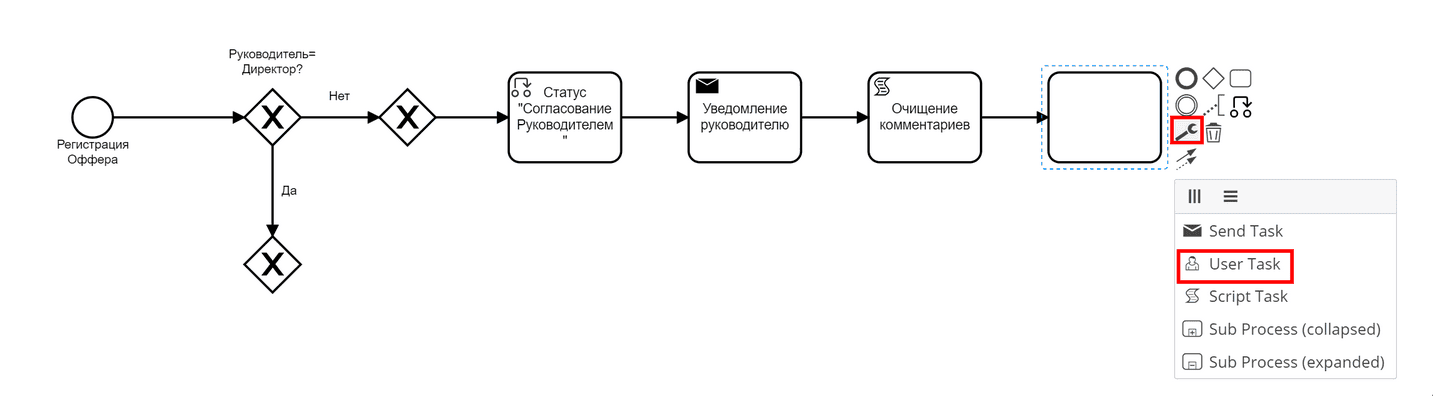
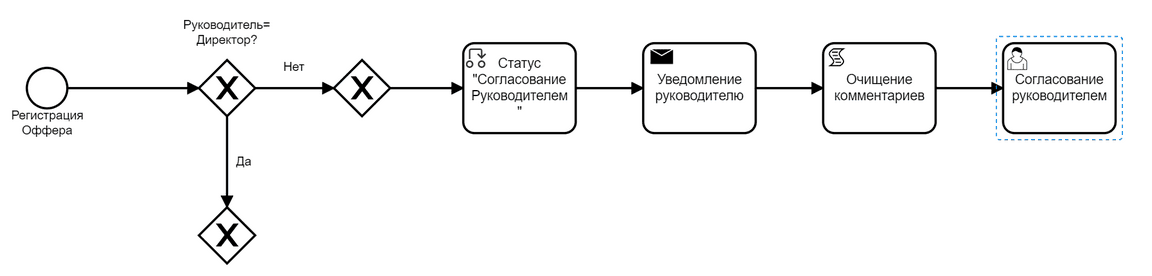
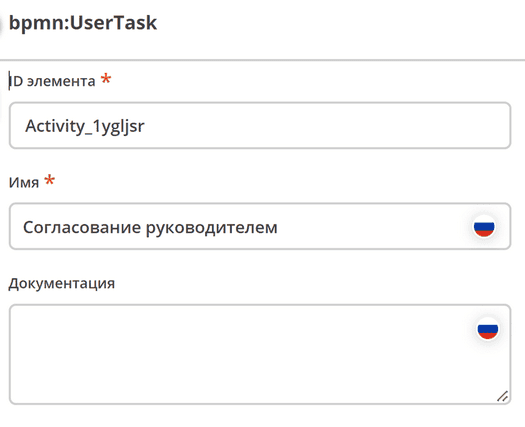
Specify Name |
|
Specify Recipients – task performers, selected from the list of roles filled in the data type |

|
Task Form defines what will be displayed when the task is assigned to a user.
If some tasks can be the same, then the same form can be used, but if they differ, then the forms are different accordingly.
You can create a form in advance and select it from the list or create it directly from the selection list (see below)
|
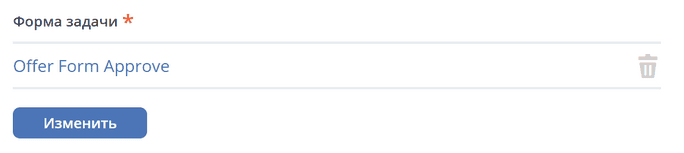
|
Set the task priority, specify the task outcome – identifier and name.
Here and below — outgoing options for the control flow are available for selection if task outcomes are added in the user task.
See below (8) in the table.
|
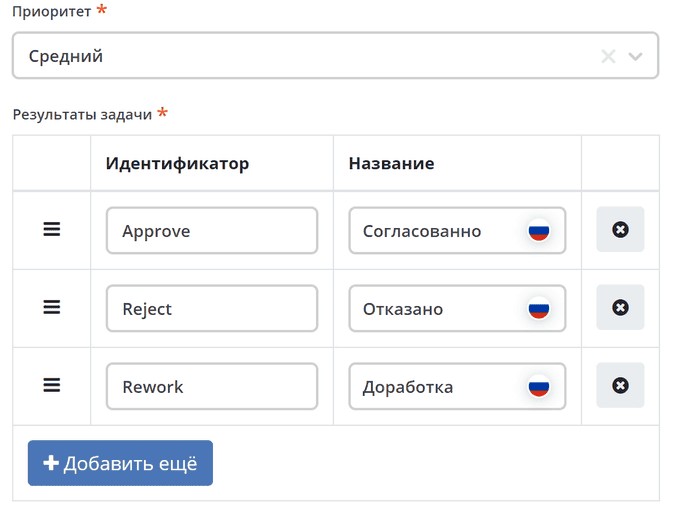
|
Creating a form:
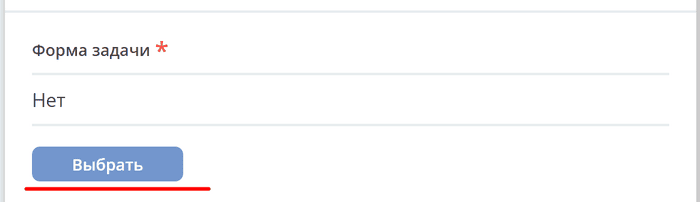
Click “Select”:
Then “Create - Create Form”:
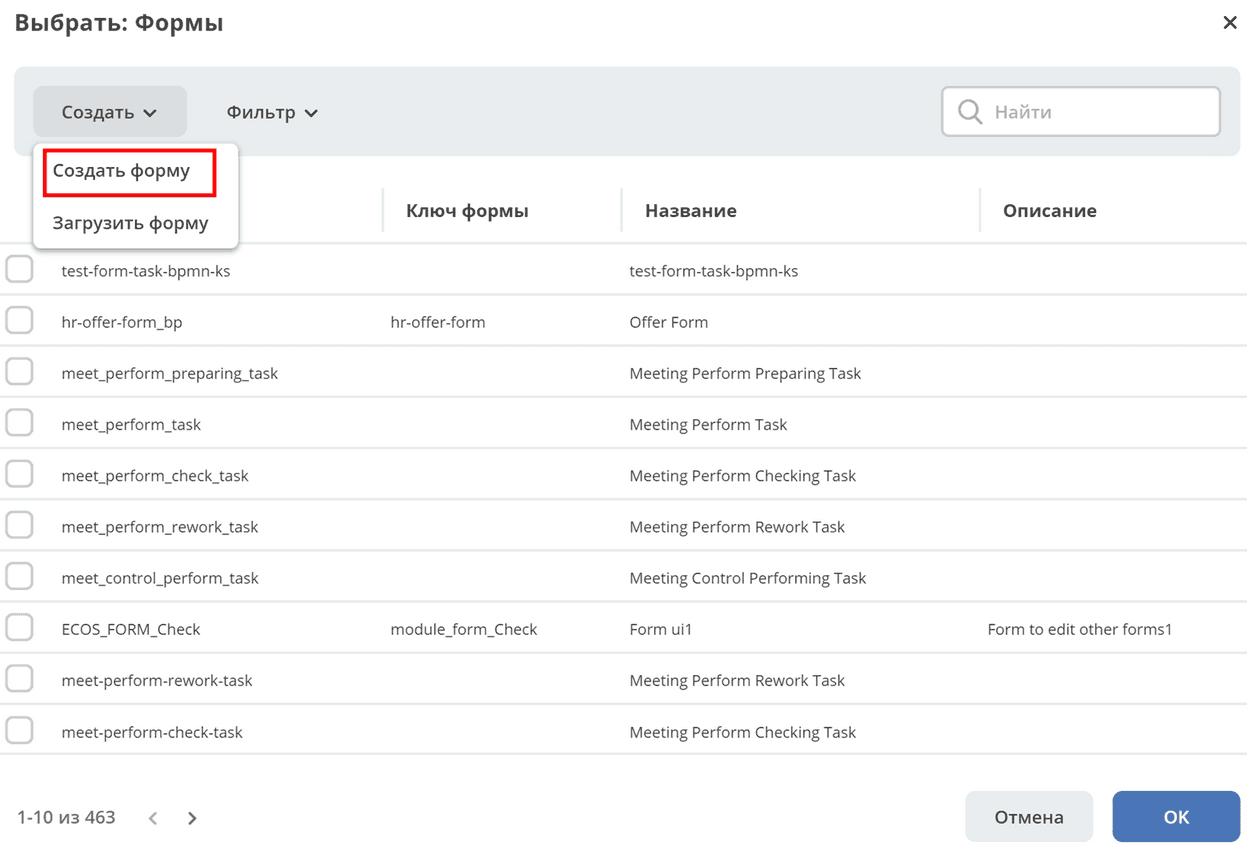
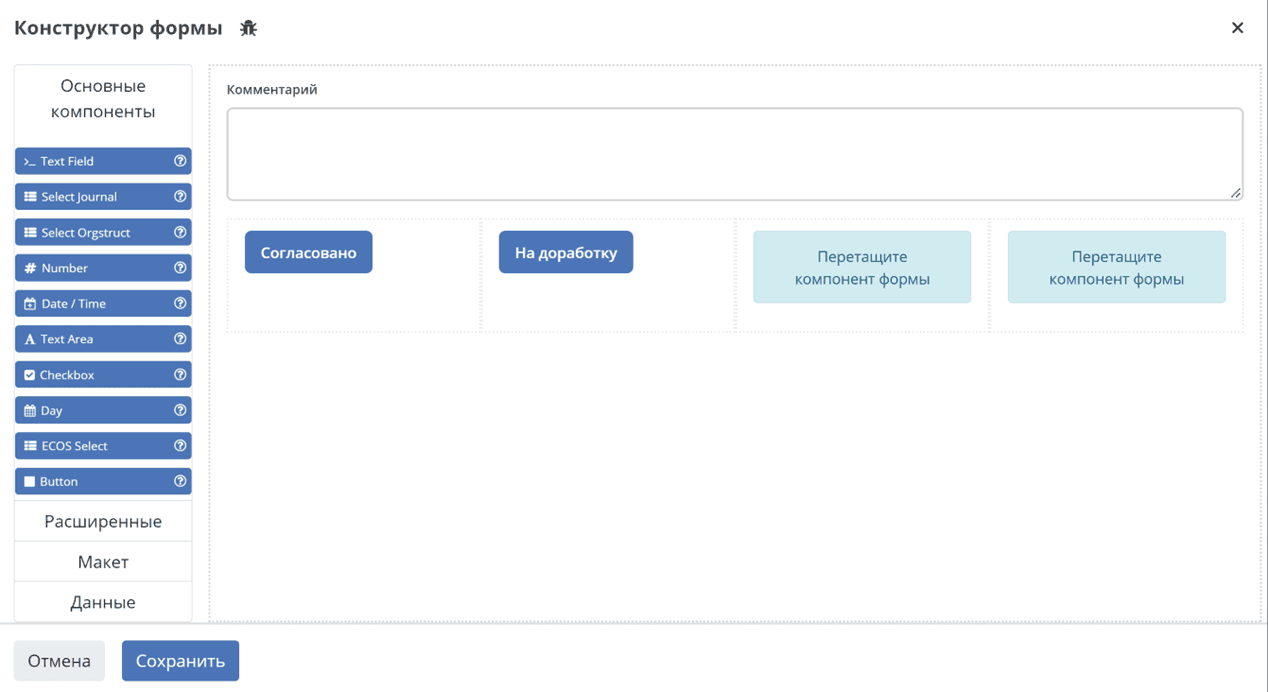
Field Name |
Value |
|---|---|
Form ID |
offer-form-approve |
Form Name |
Offer Form Approve |
Editable Data Type |
No |
Below is an image of the final configuration (for visual verification):
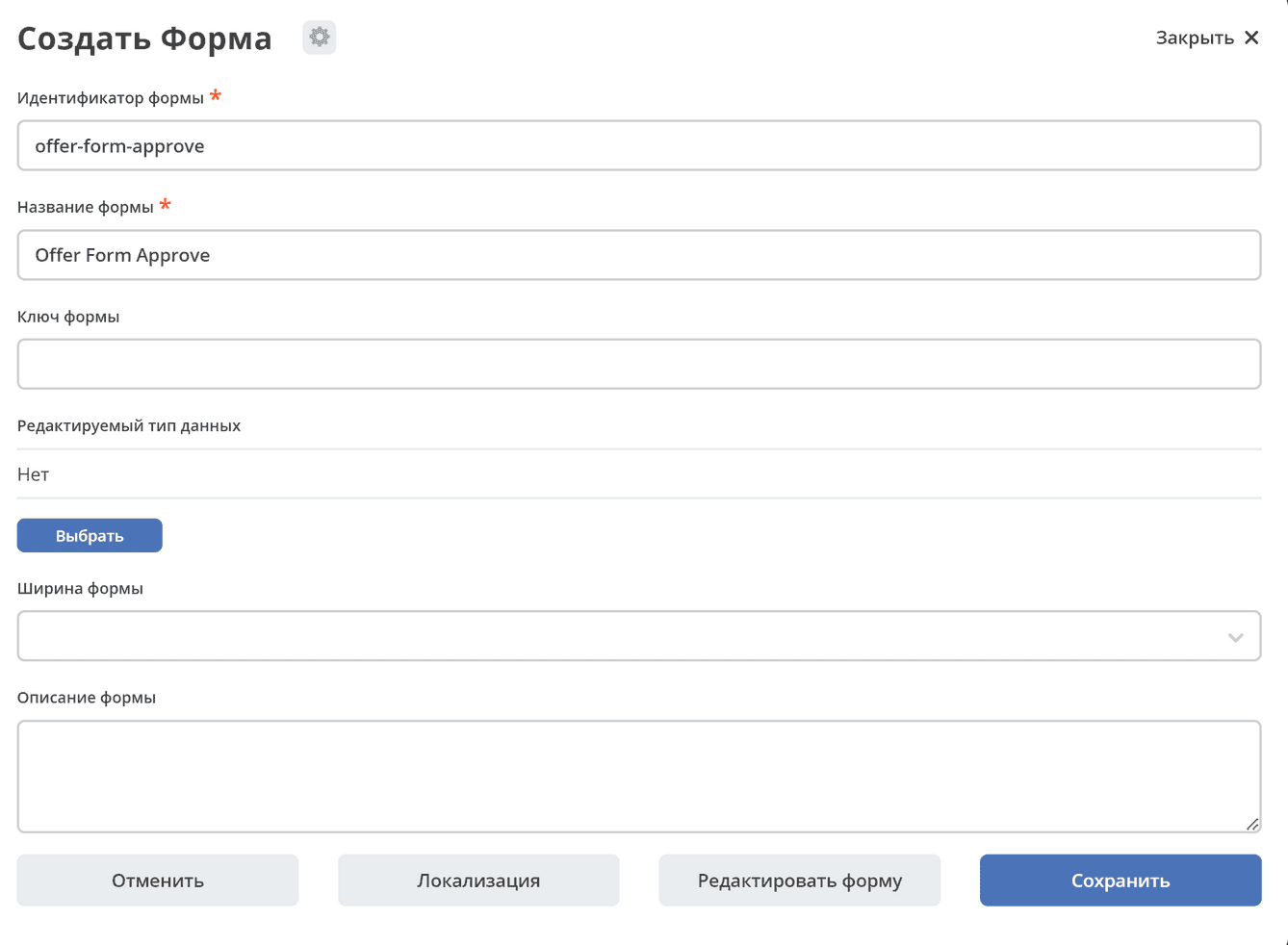
Form example:
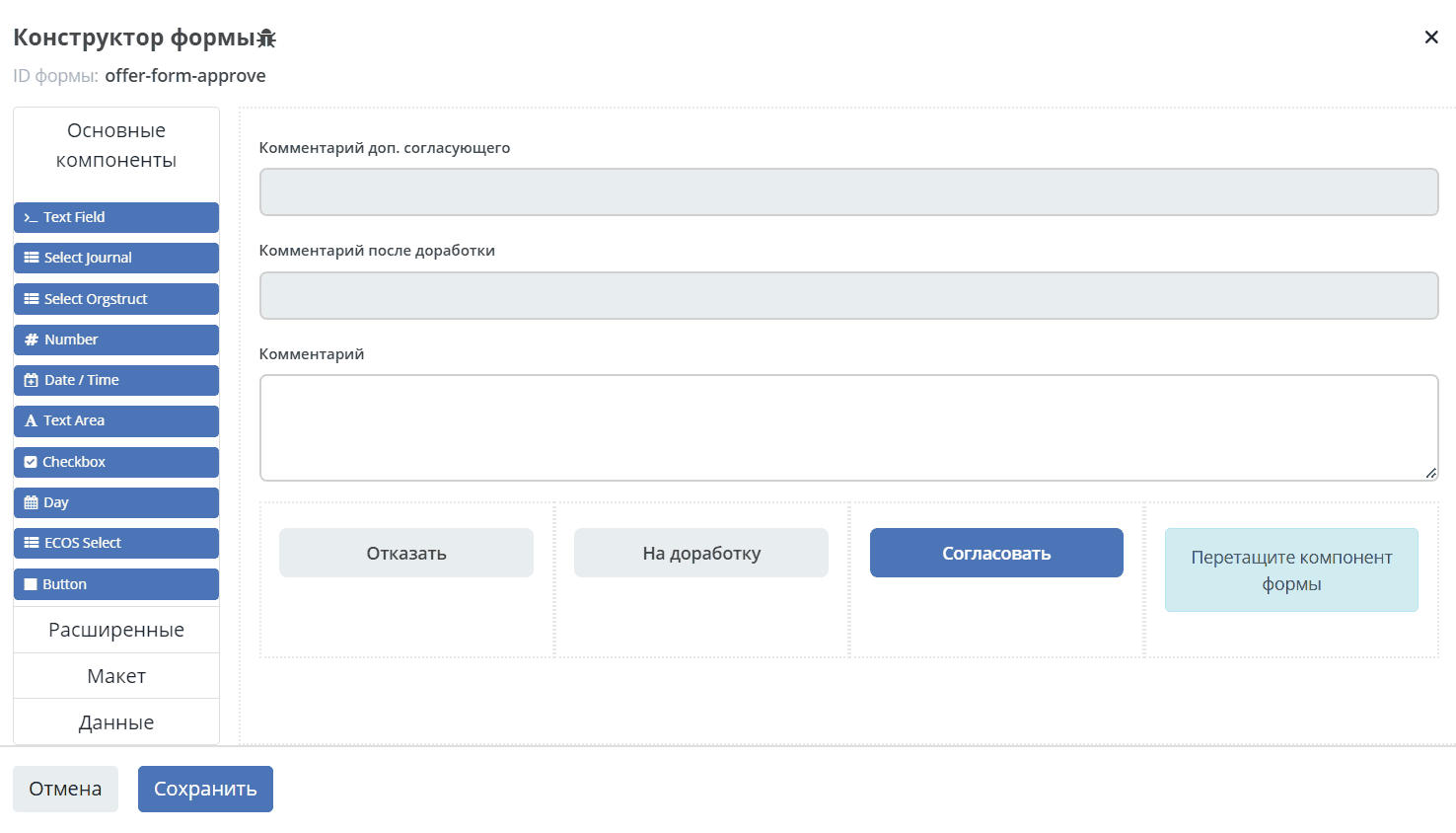
Form components:
Field Name |
Property Name |
Component Name |
|---|---|---|
Form Columns |
Columns Component |
|
Additional Approver Comment |
addApproveComment |
Text Area Component |
Comment after Rework |
reworkComment |
Text Area Component |
Comment |
chiefApproveComment |
Text Area Component |
For the fields Additional Approver Comment, Comment after Rework, check the “Input Blocked” checkbox.
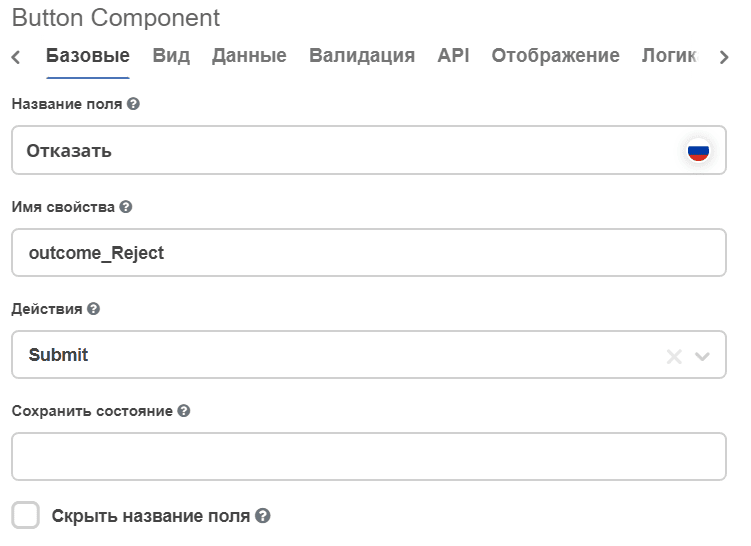
Form buttons:
Reject |
|
Send for Rework |
|
Approve |
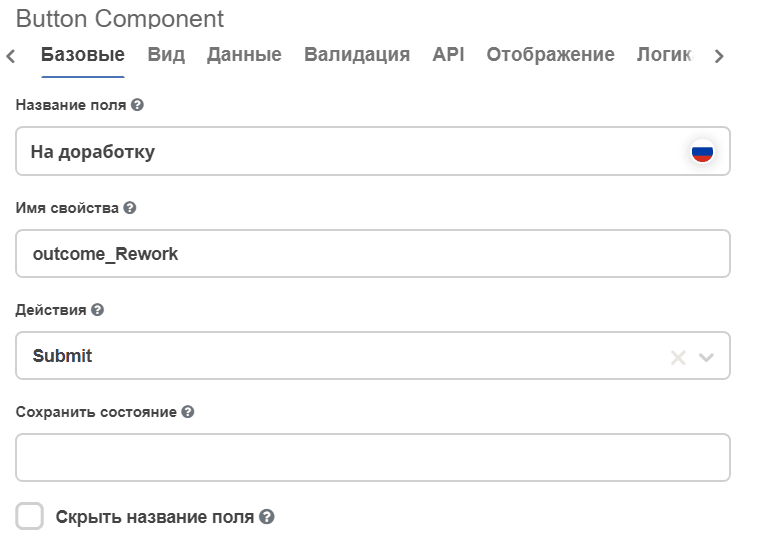
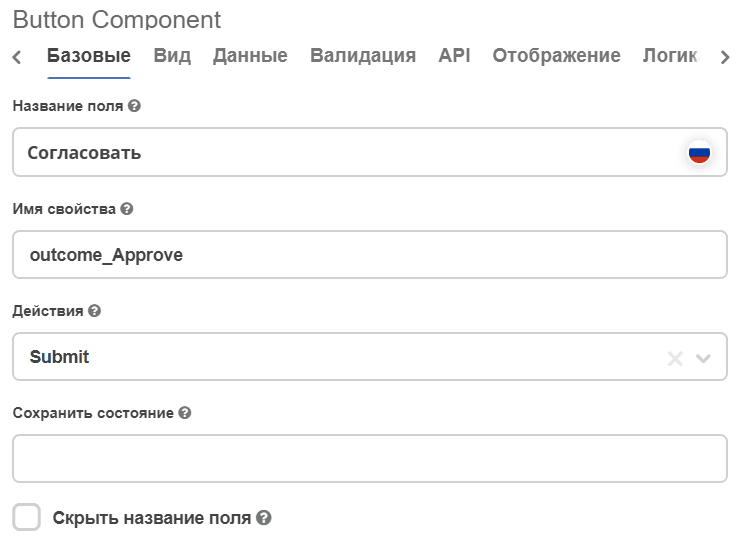
For subsequent elements:
8 |
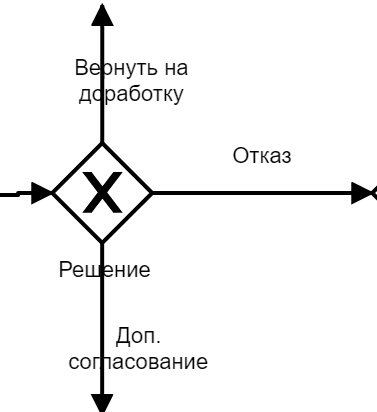
|
Here and below — outgoing options for the control flow are available for selection if task outcomes are added in the user task. See the description of element (7) above.
|
Flow “Return for Rework” |
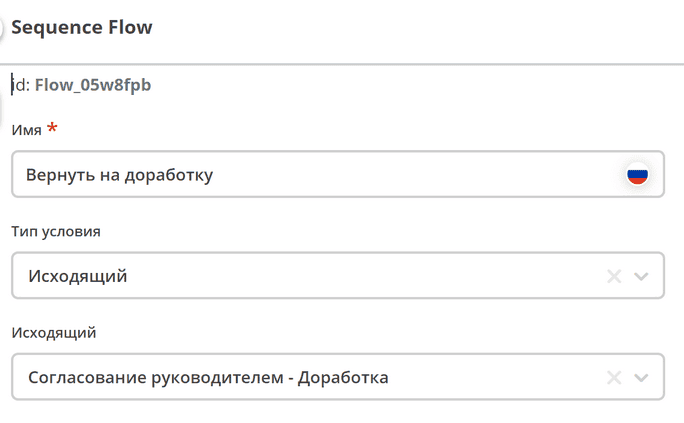
|
|
Flow “Rejection” |
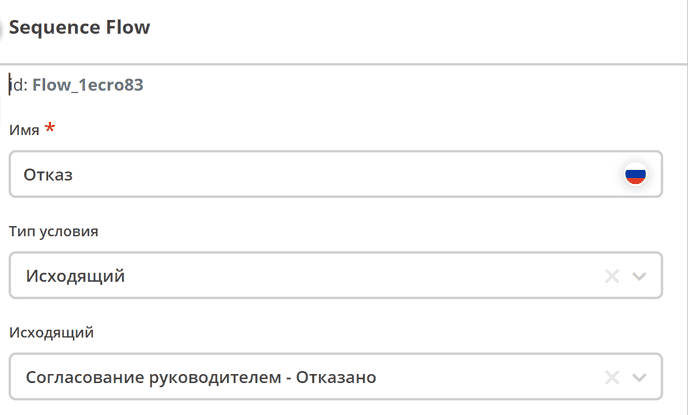
|
|
Flow “Additional Approval” |
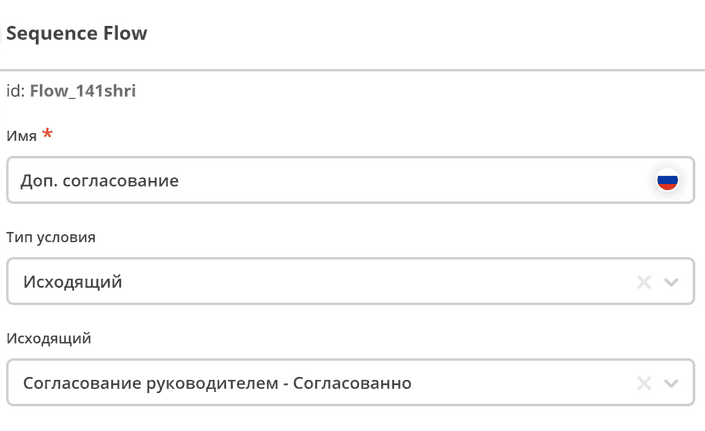
|
|
9 |
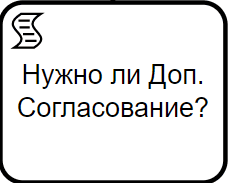
|
Script text:
|
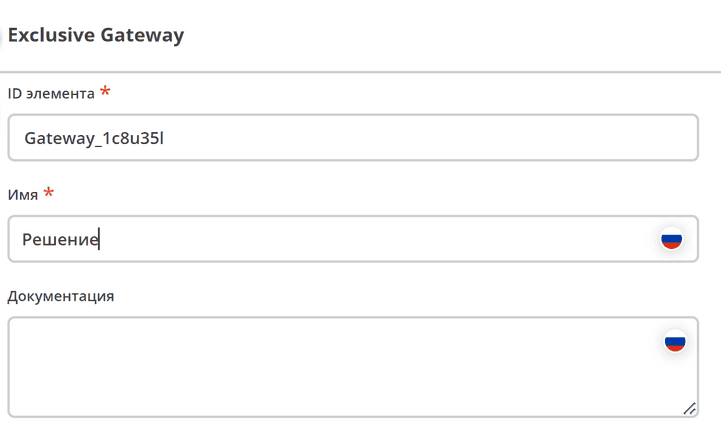
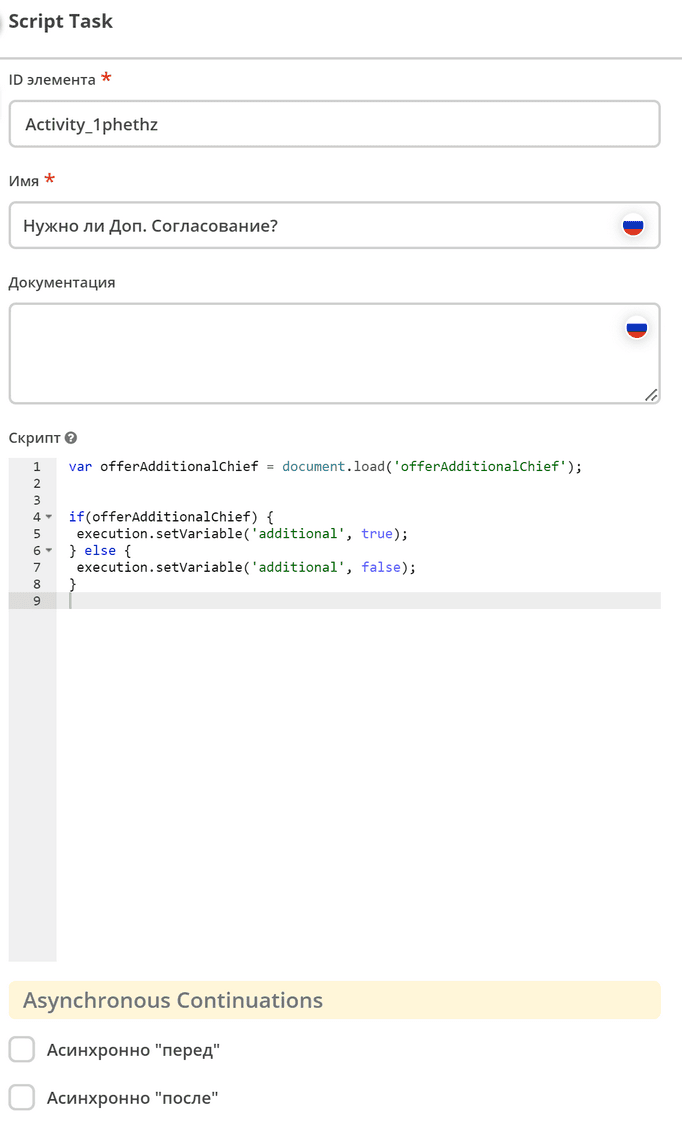
Creating elements for Part (2) of the business process diagram

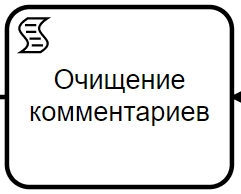
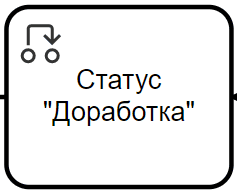
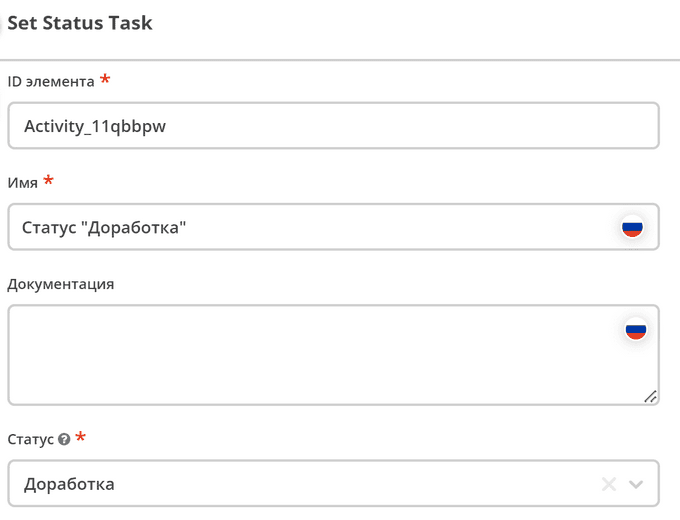
And a table showing the final settings of the business process components (for visual verification):
1 |
|
Script text:
|
2 |
|
|
3 |
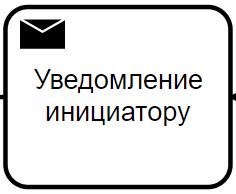
|
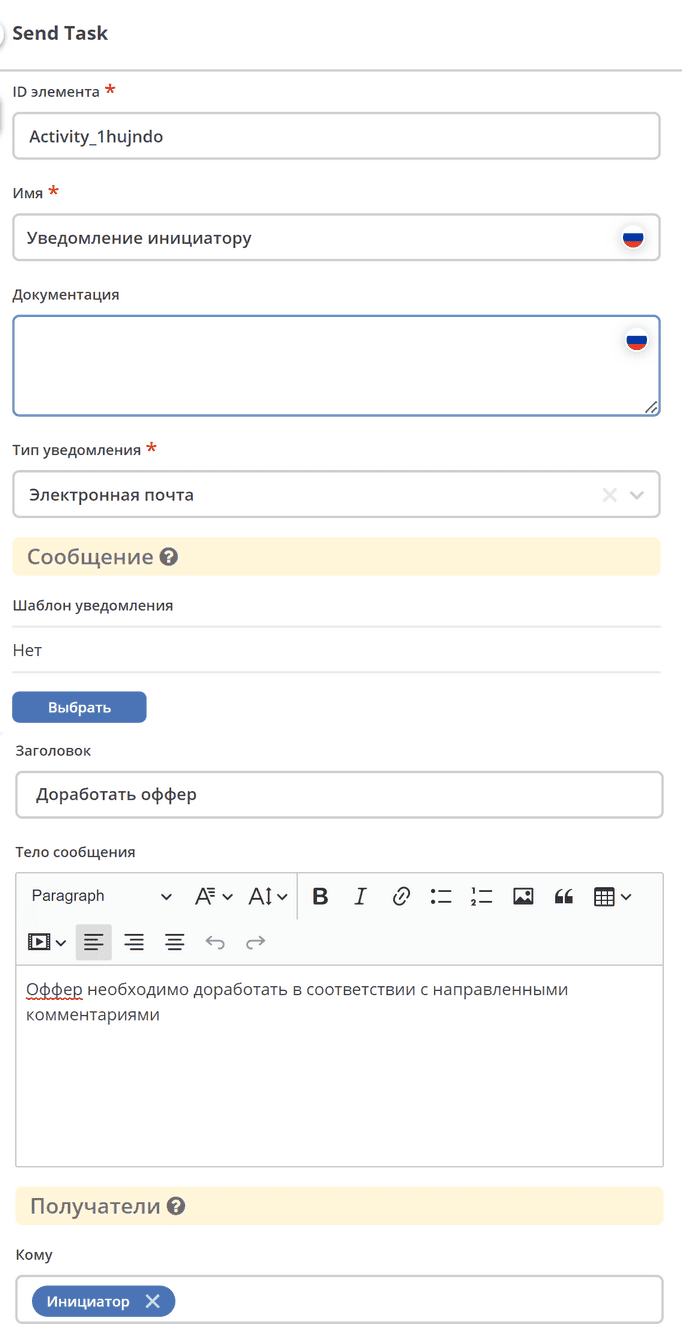
|
4 |
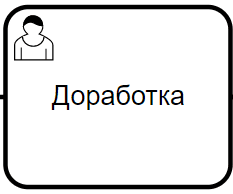
|
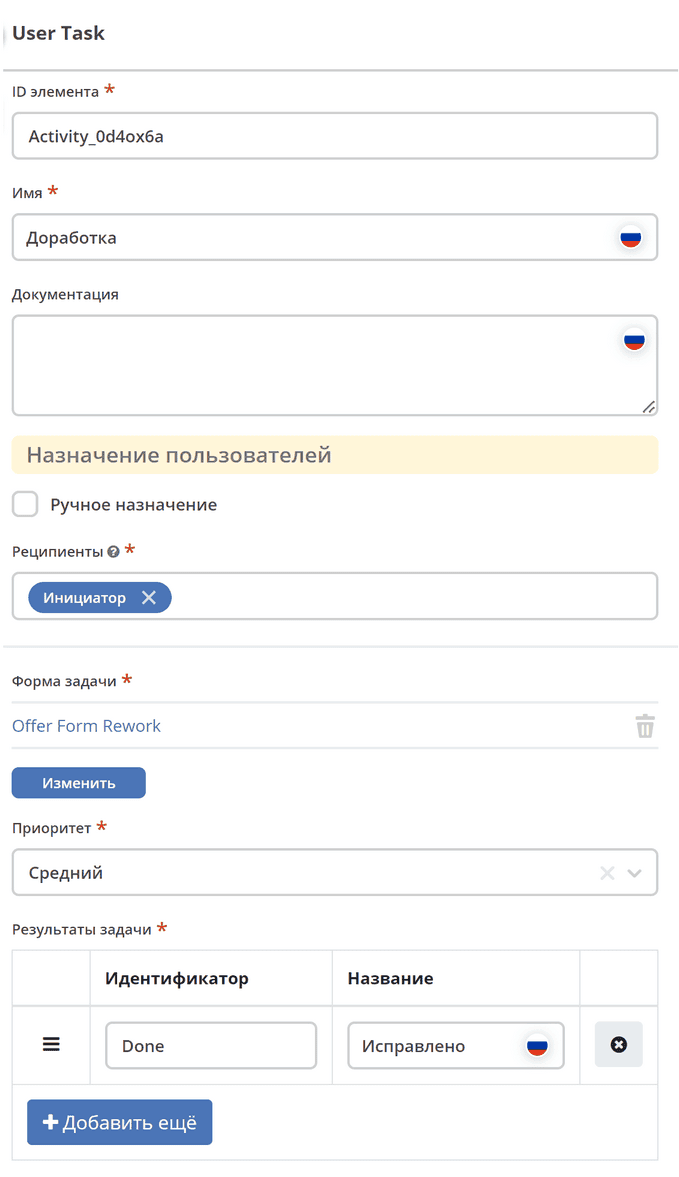
For all similar tasks, select the previously created task form in “Task Form”.
|
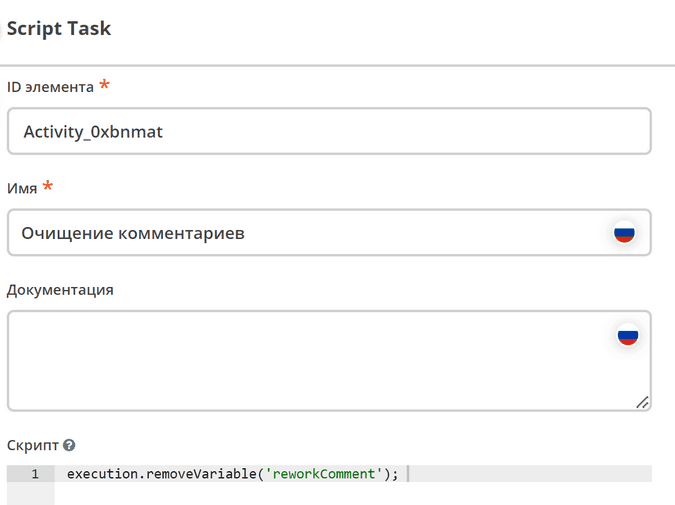
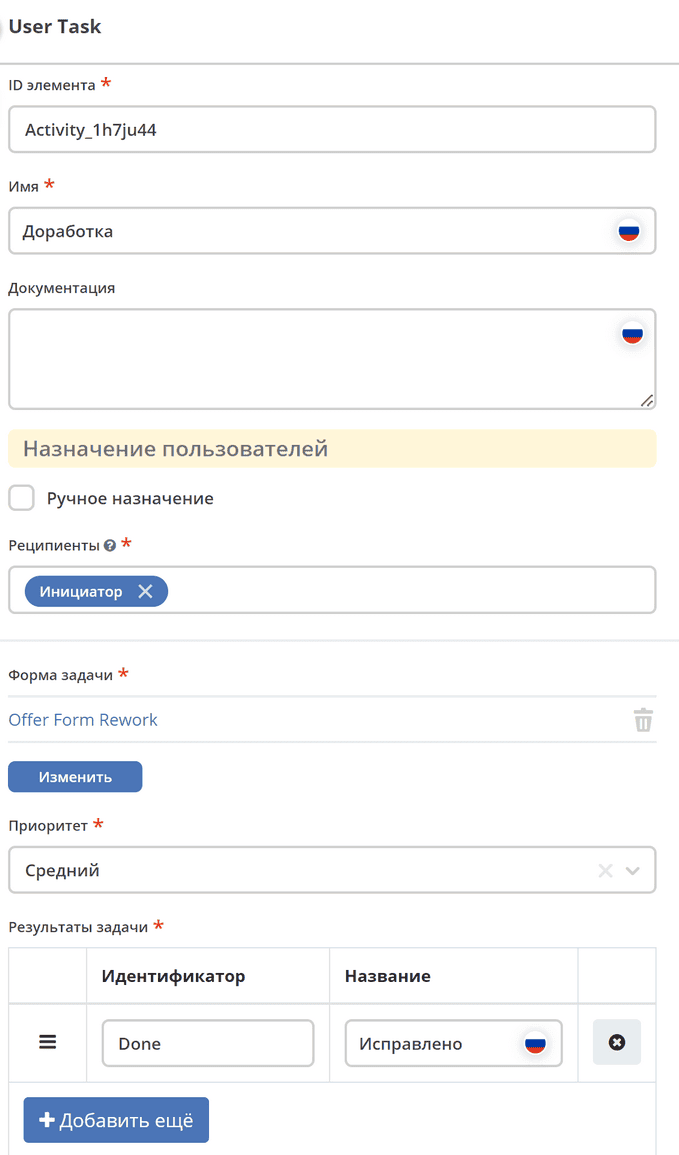
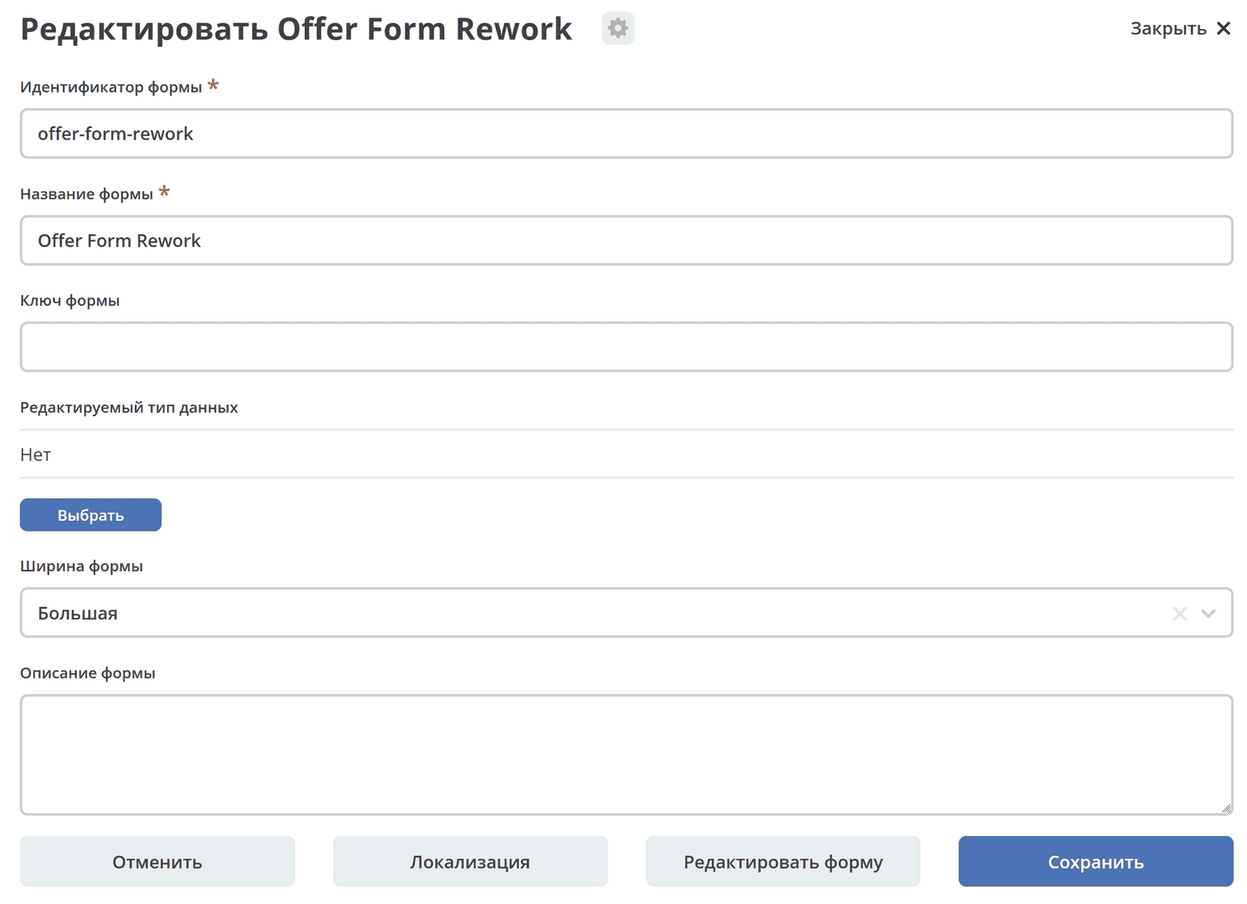
Information for the form Rework (Offer Form Rework):
Field Name |
Value |
|---|---|
Form ID |
offer-form-rework |
Form Name |
Offer Form Rework |
Editable Data Type |
No |
Below is an image of the final configuration (for visual verification):
Form example:
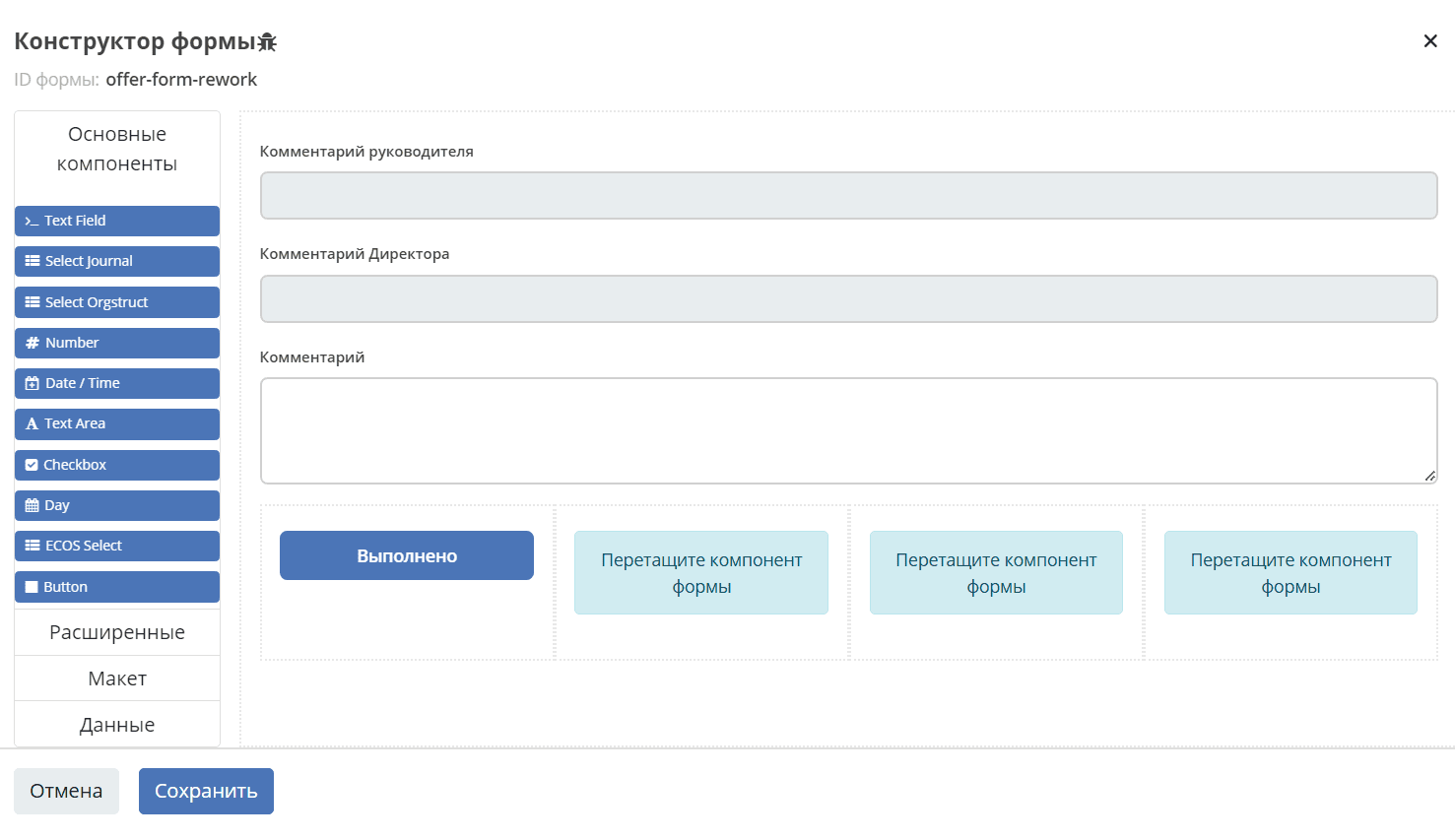
Form components:
Field Name |
Property Name |
Component Name |
|---|---|---|
Form Columns |
Columns Component |
|
Manager Comment |
chiefApproveComment |
Text Area Component |
Director Comment |
dirApproveComment |
Text Area Component |
Comment |
reworkComment |
Text Area Component |
For the fields Manager Comment, Director Comment, check the “Input Blocked” checkbox.
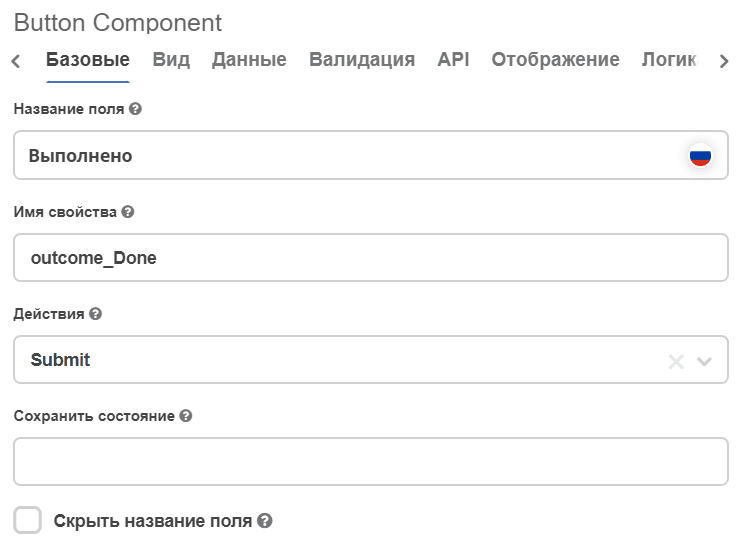
Button Complete:
Creating elements for Part (3) of the business process diagram
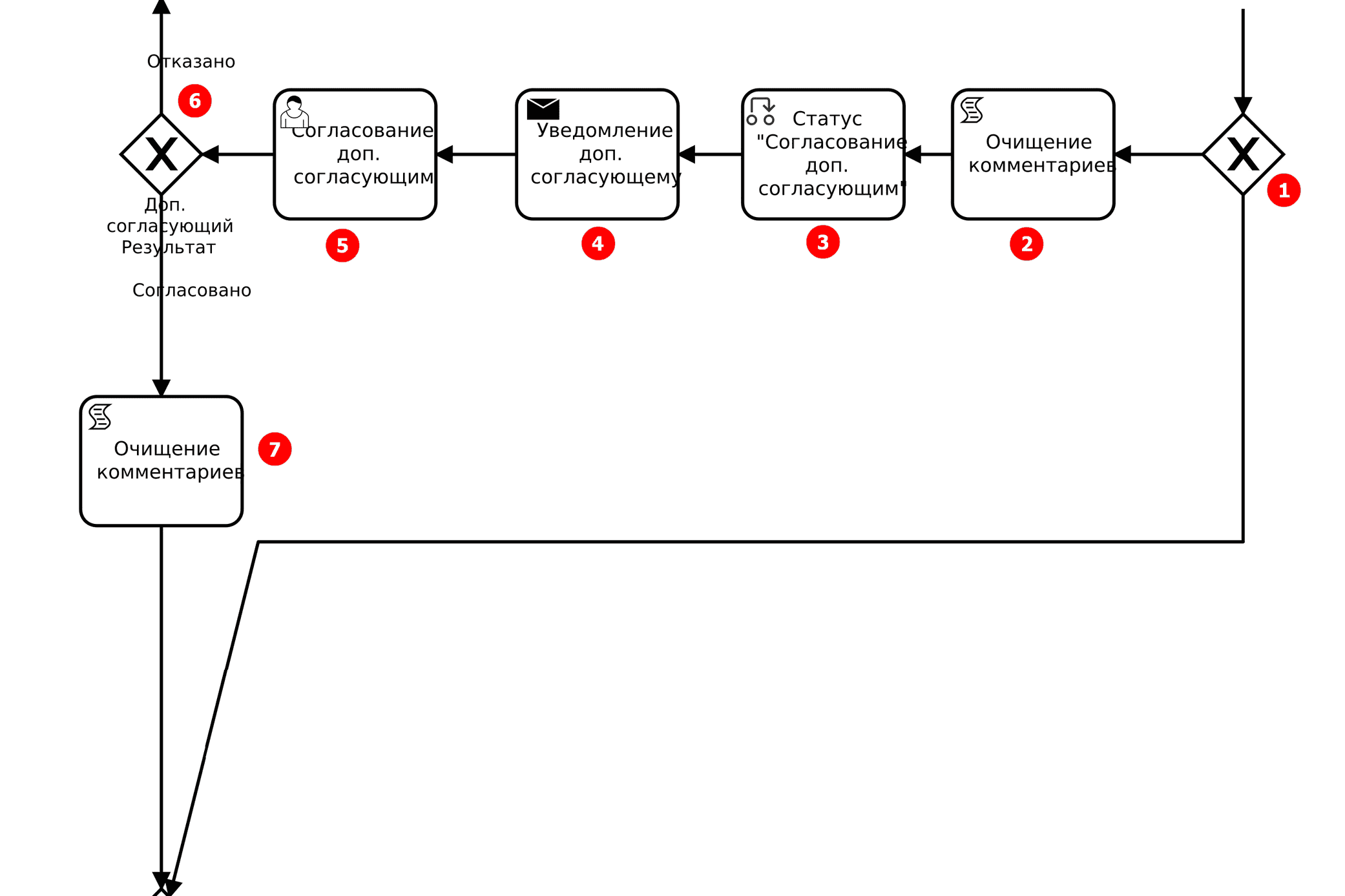
And a table showing the final settings of the business process components (for visual verification):
1 |
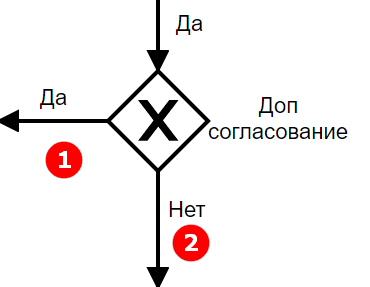
|
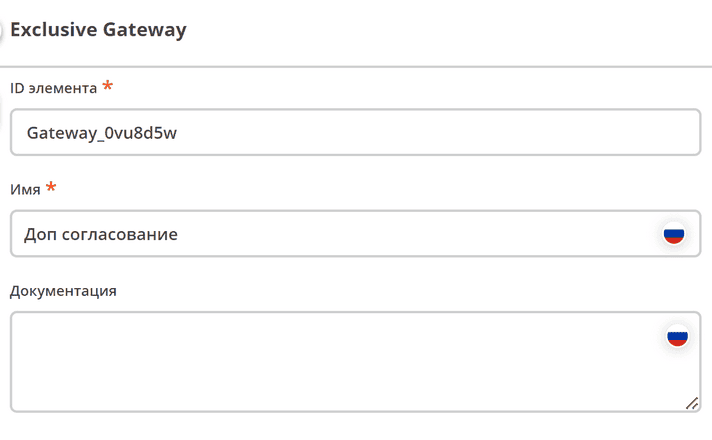
|
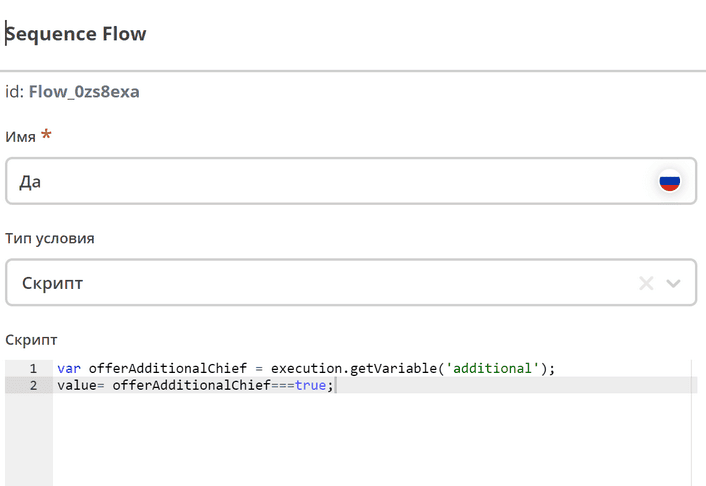
Flow “Yes” |
Script text:
|
|
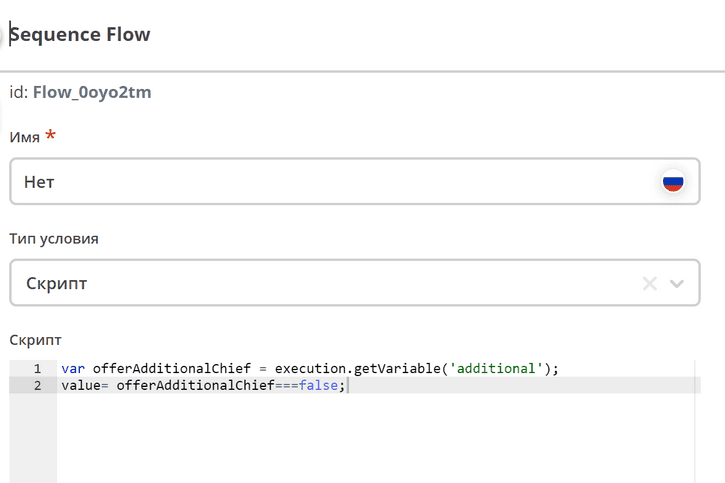
Flow “No” |
Script text:
|
|
2 |
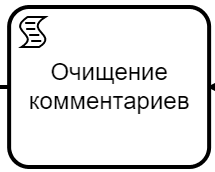
|
Script text:
|
3 |
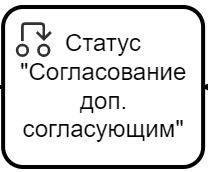
|
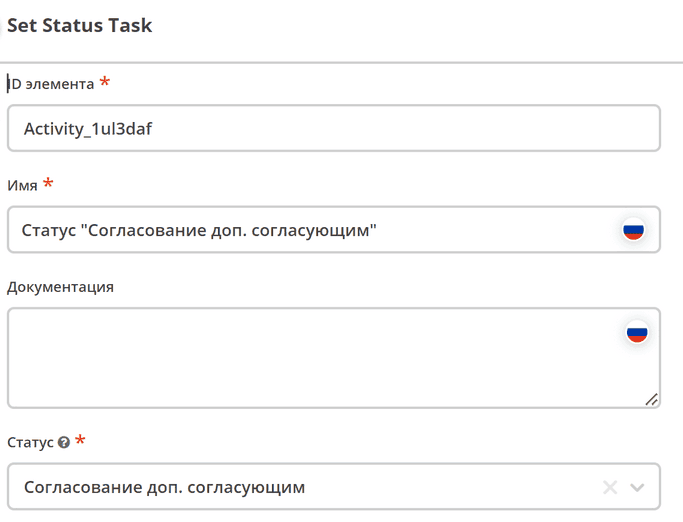
|
4 |
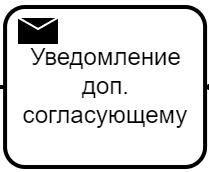
|
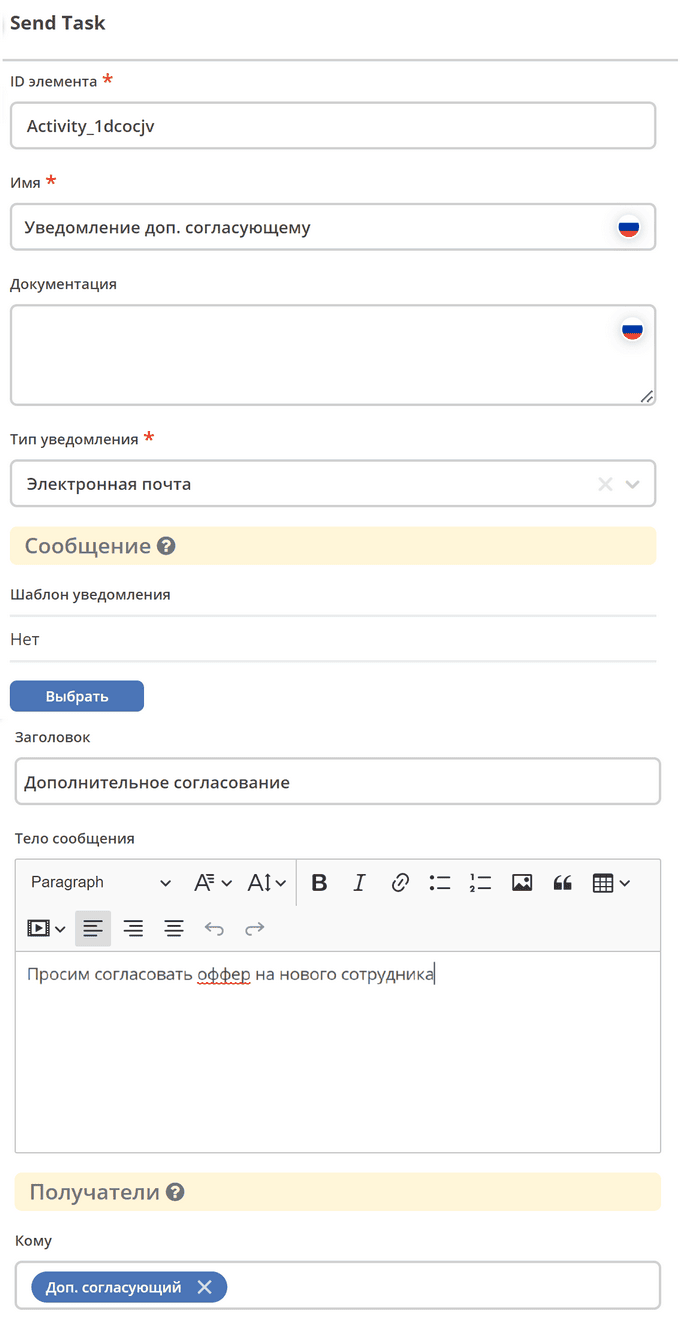
|
5 |
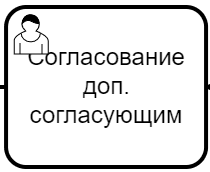
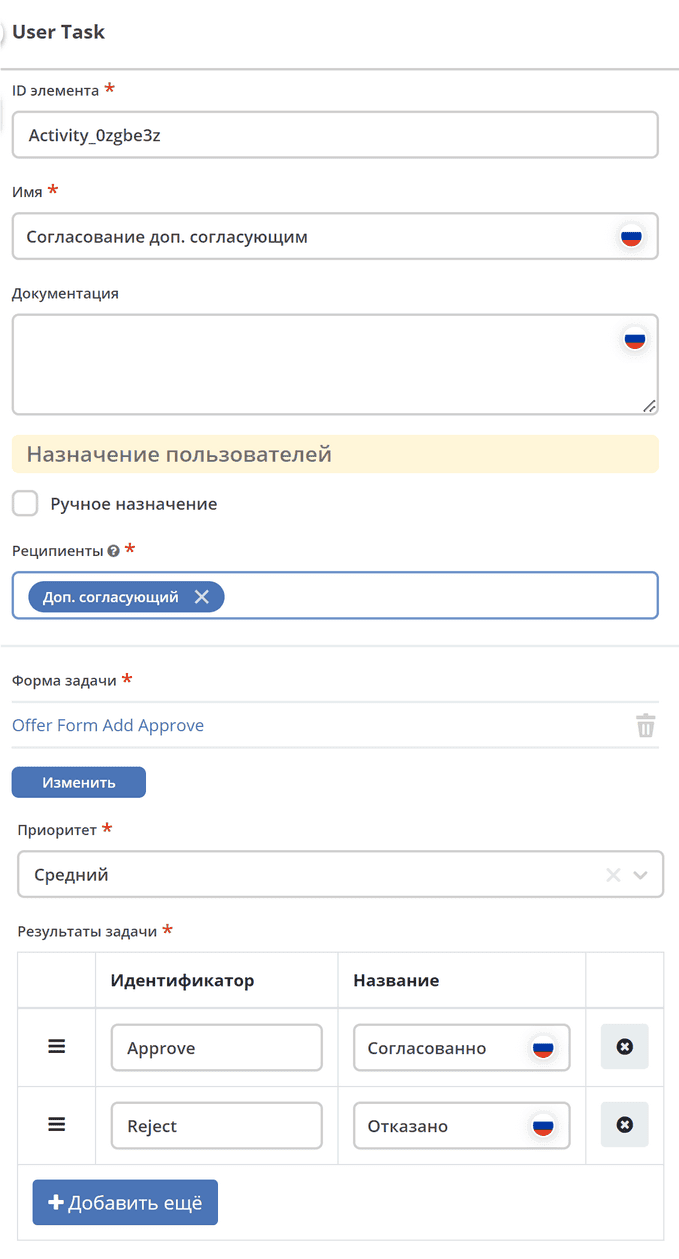
|
|
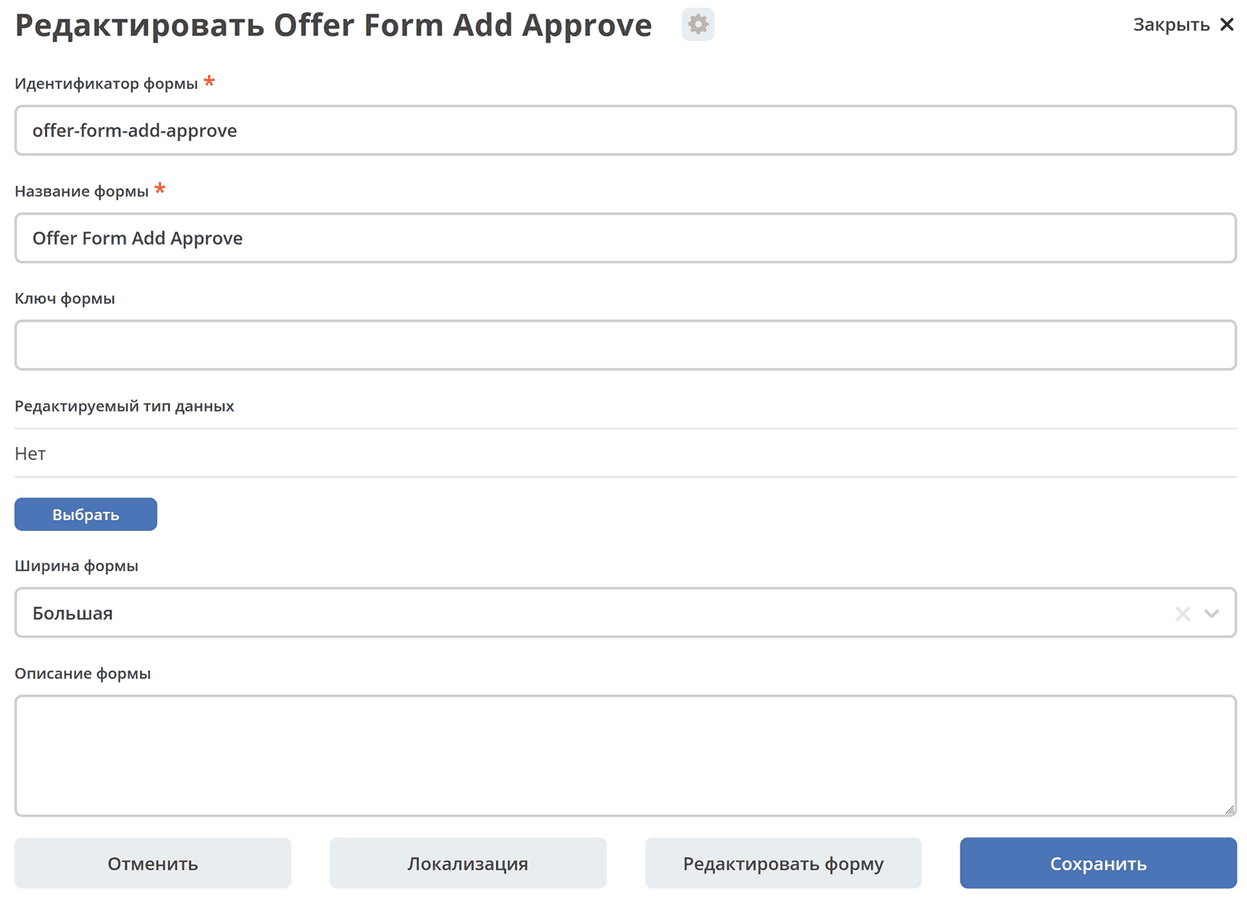
Information for the form Approval by Additional Approvers (Offer Form Add Approve):
Field Name |
Value |
|---|---|
Form ID |
offer-form-add-approve |
Form Name |
Offer Form Add Approve |
Editable Data Type |
No |
Below is an image of the final configuration (for visual verification):
Form example:
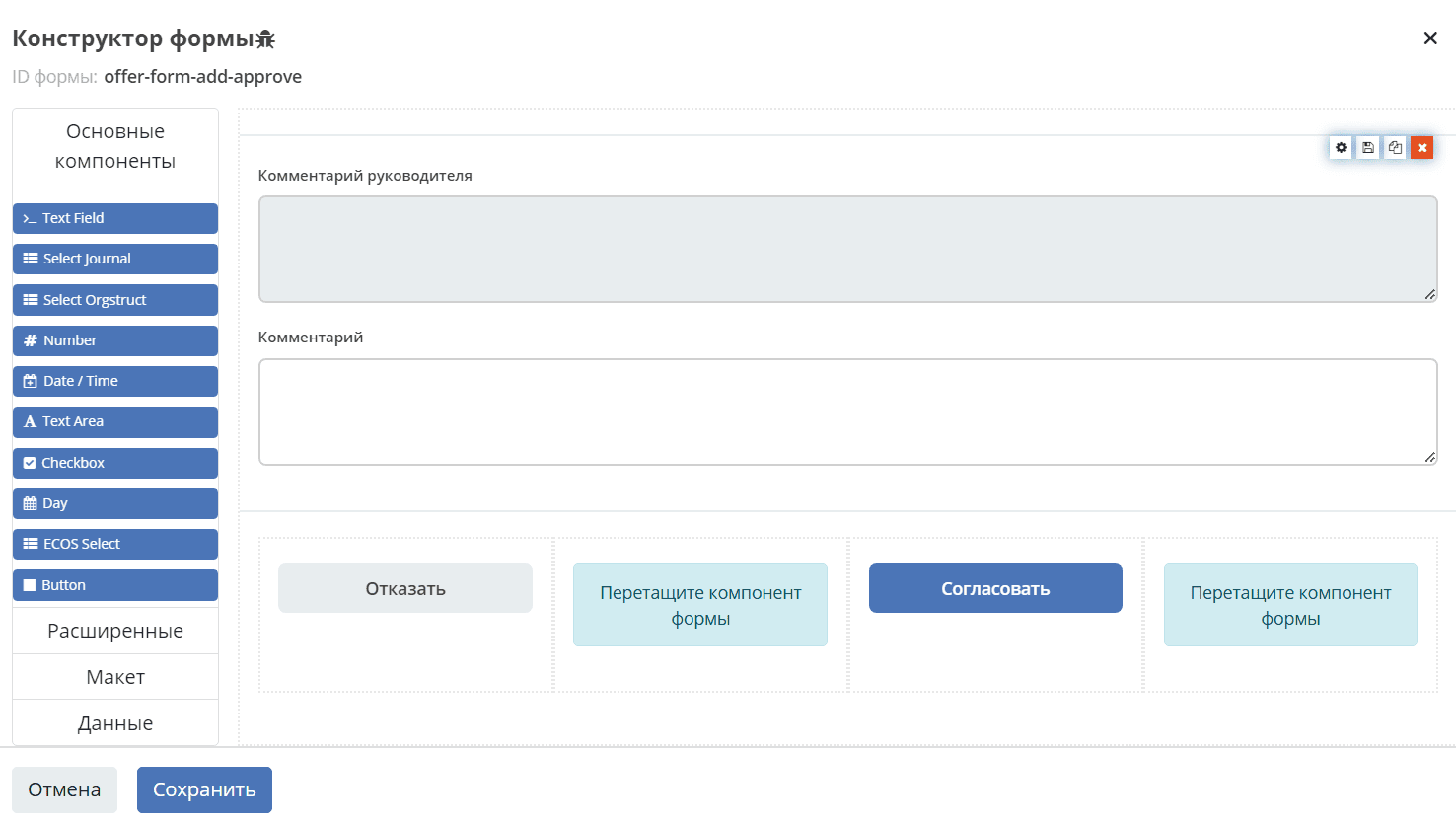
Form components:
Field Name |
Property Name |
Component Name |
|---|---|---|
Form Columns |
Columns Component |
|
Manager Comment |
chiefApproveComment |
Text Area Component |
Comment |
addApproveComment |
Text Area Component |
For the fields Manager Comment, Director Comment, check the “Input Blocked” checkbox.
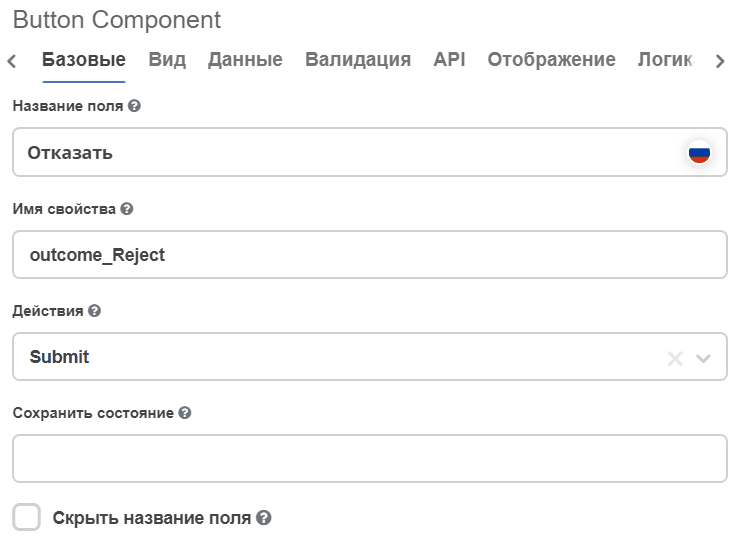
Form buttons:
Reject |
|
Approve |
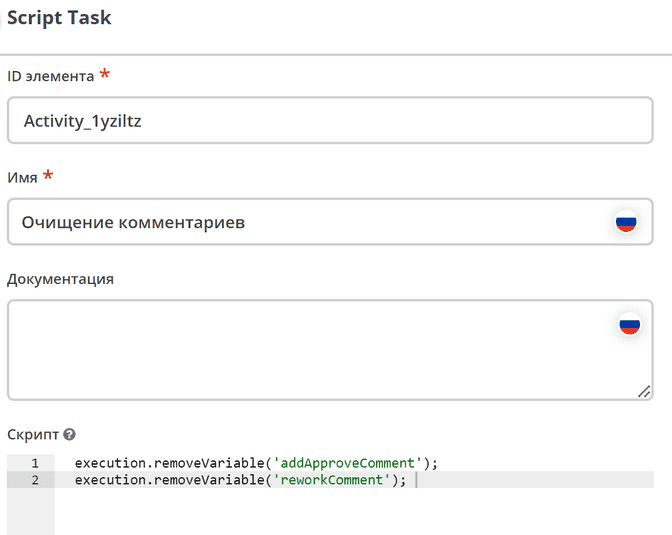
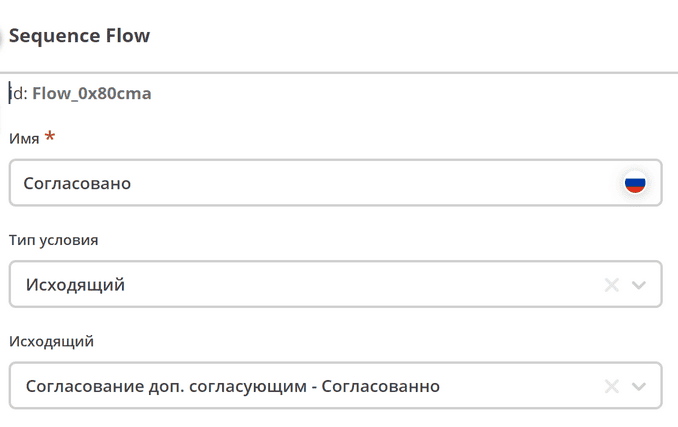
6 |
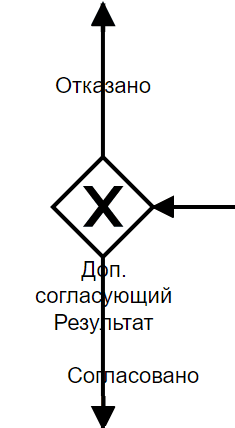
|
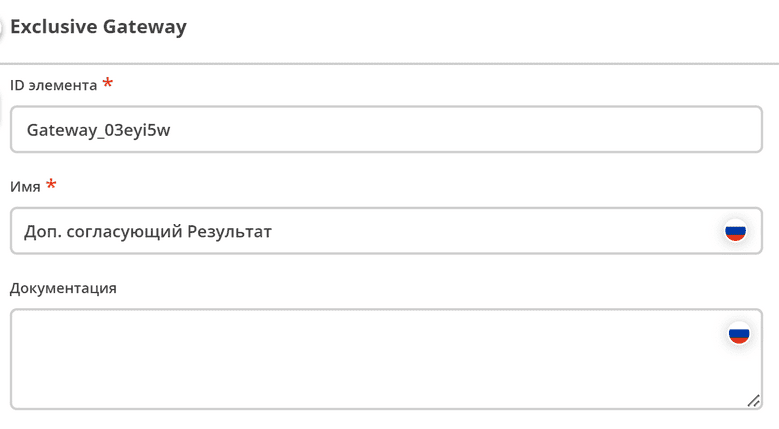
|
Flow “Rejected” |
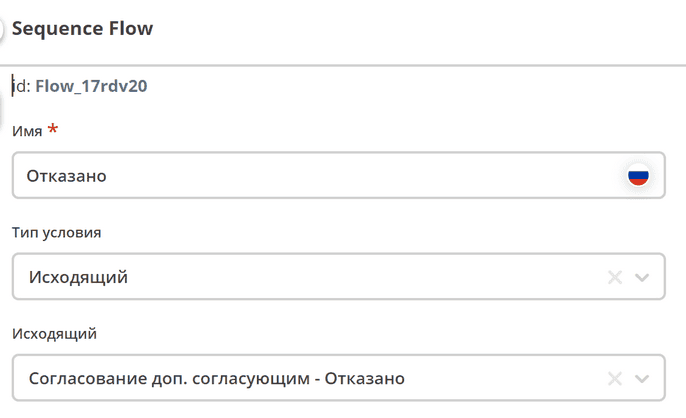
|
|
Flow “Approved” |
|
|
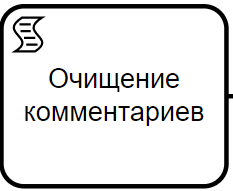
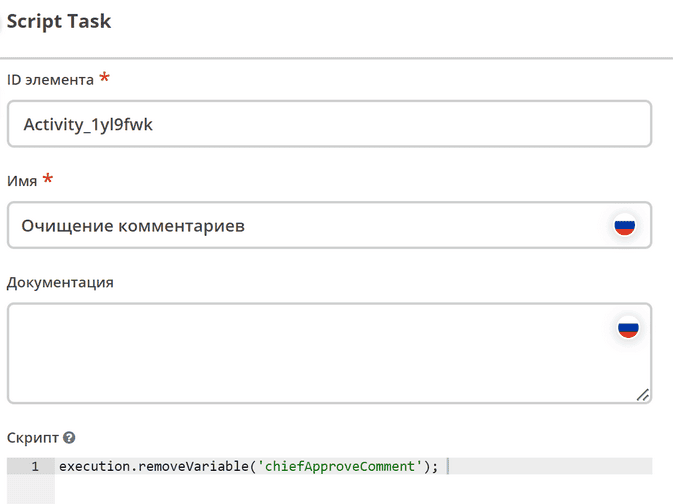
7 |
|
Script text:
|
Creating elements for Part (4) of the business process diagram
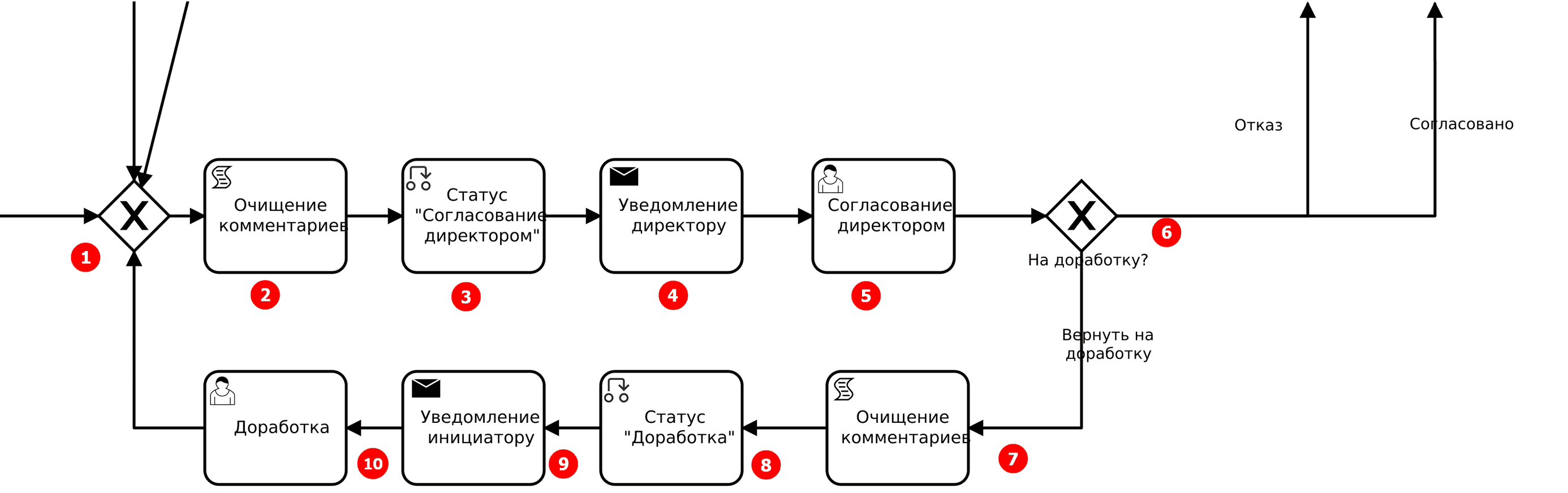
And a table showing the final settings of the business process components (for visual verification):
1 |
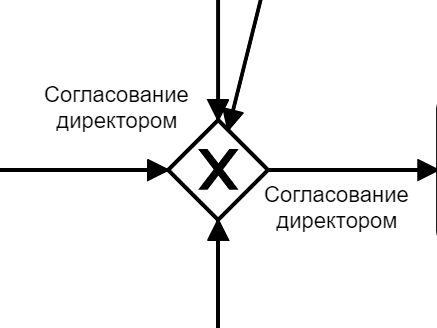
|
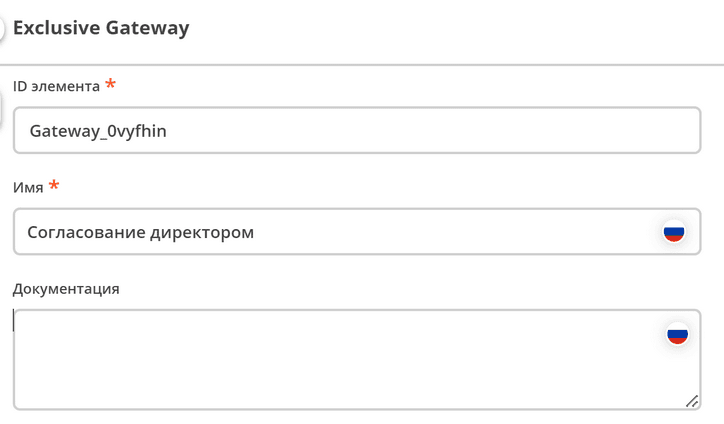
|
Flow “Director Approval” |
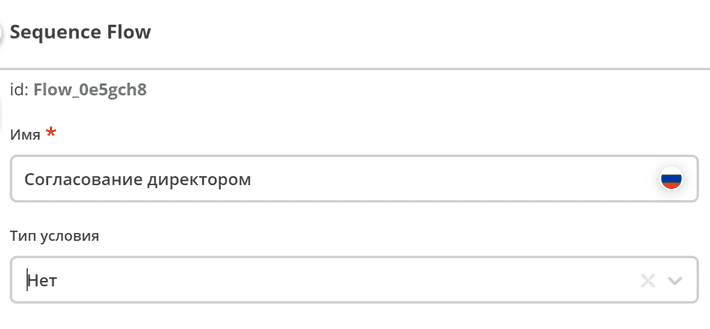
|
|
2 |
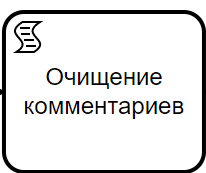
|
Script text:
|
3 |
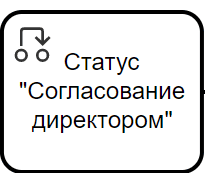
|
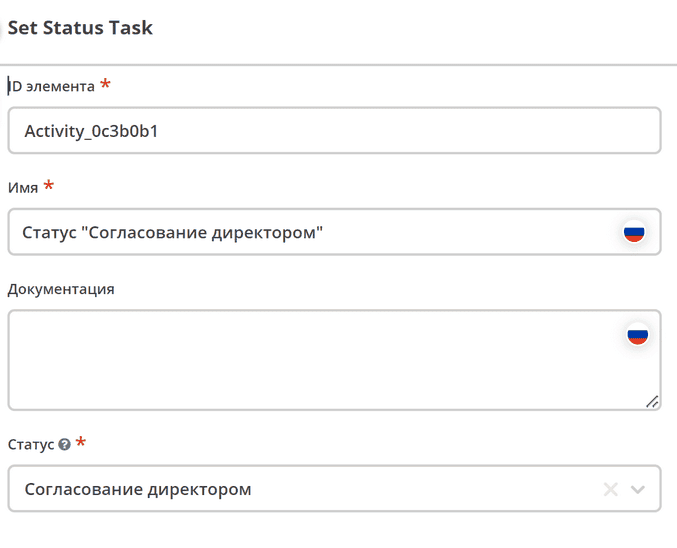
|
4 |
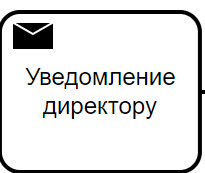
|
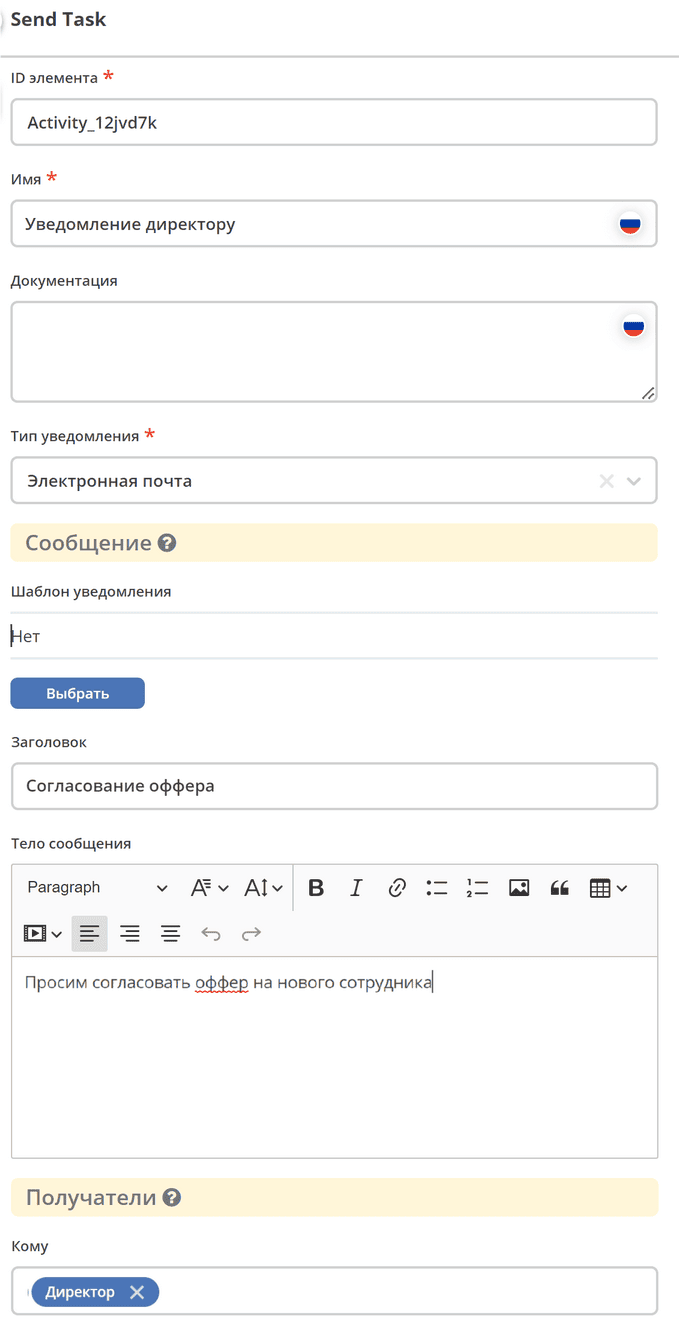
|
5 |
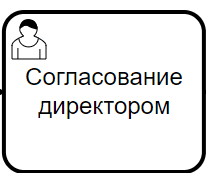
|
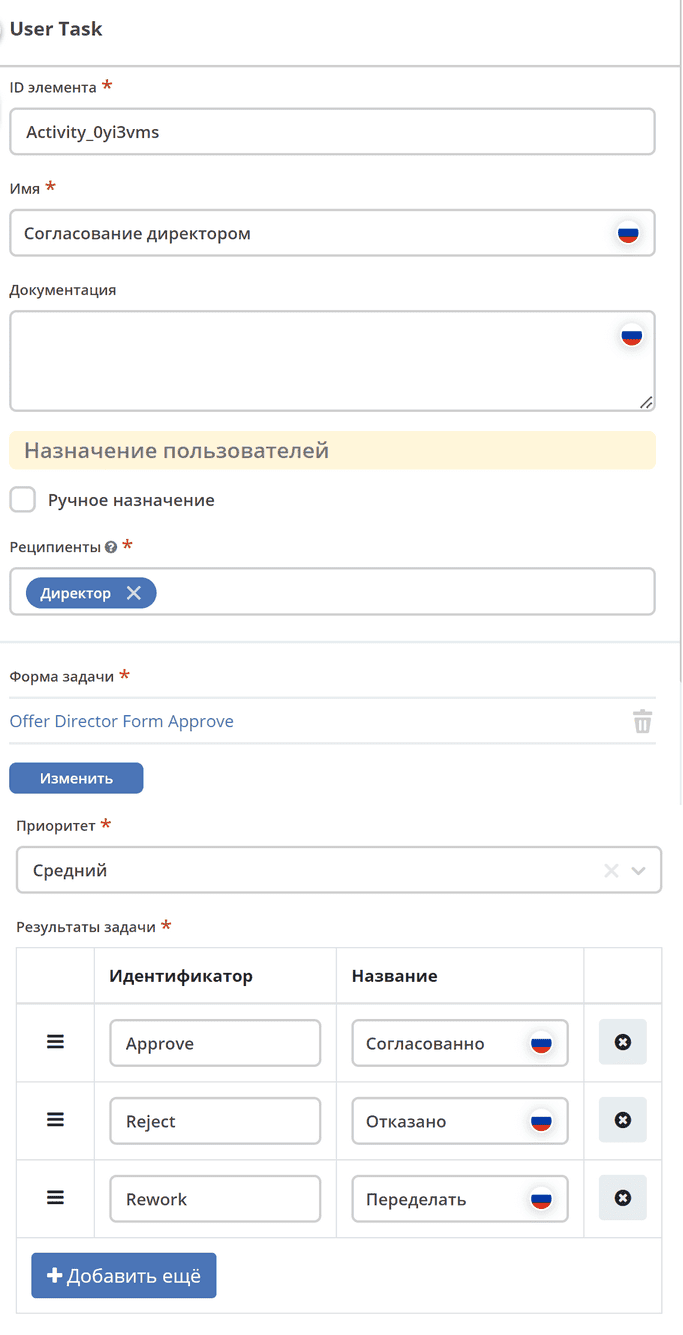
|
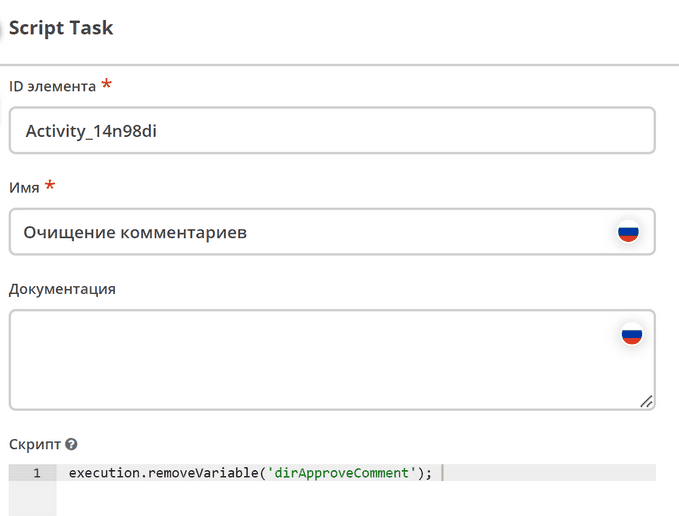
Information for the form Director Approval (Offer Director Form Approve):
Field Name |
Value |
|---|---|
Form ID |
offer-director-form-approve |
Form Name |
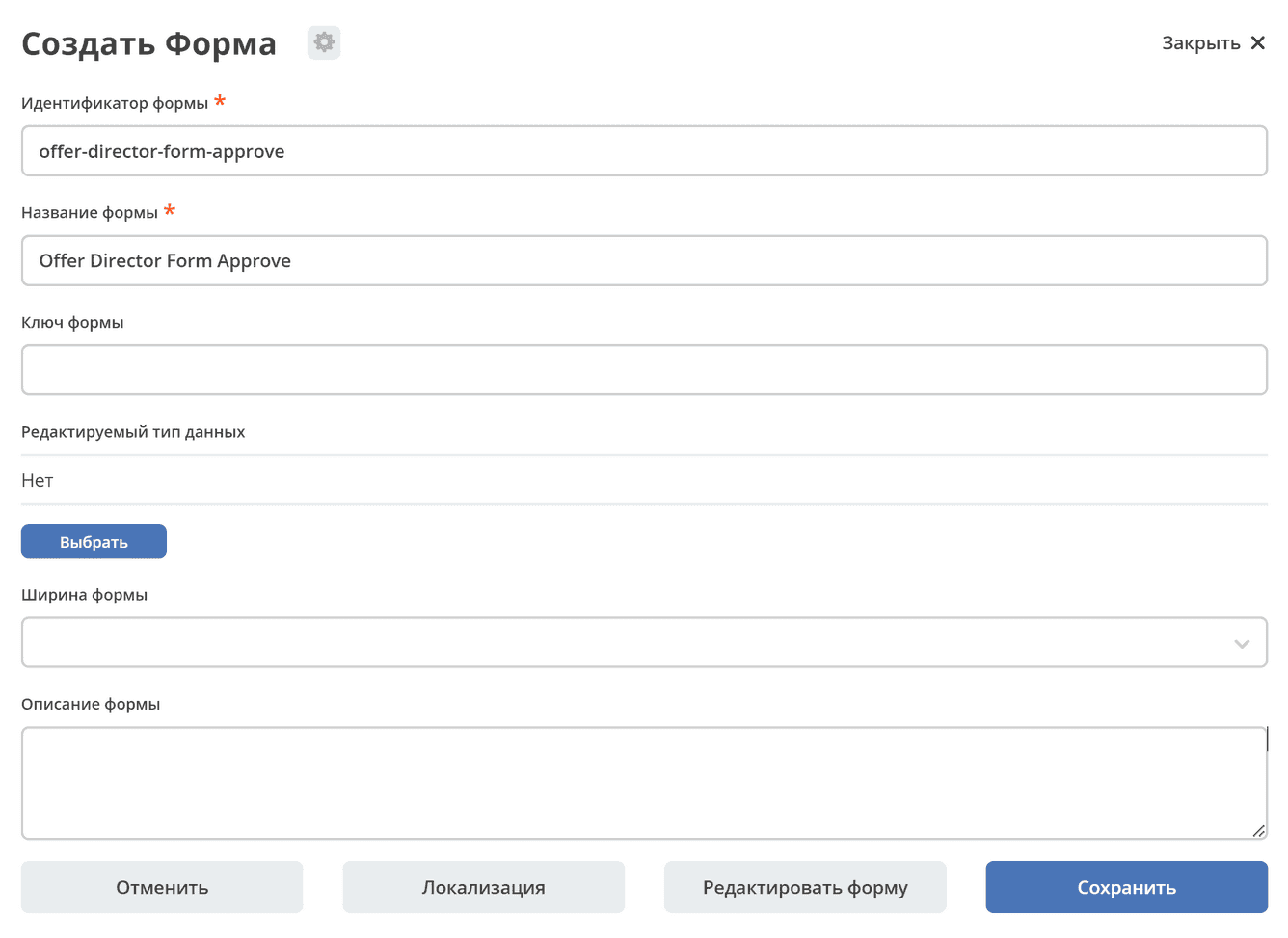
Offer Director Form Approve |
Editable Data Type |
No |
Below is an image of the final configuration (for visual verification):
Form example:
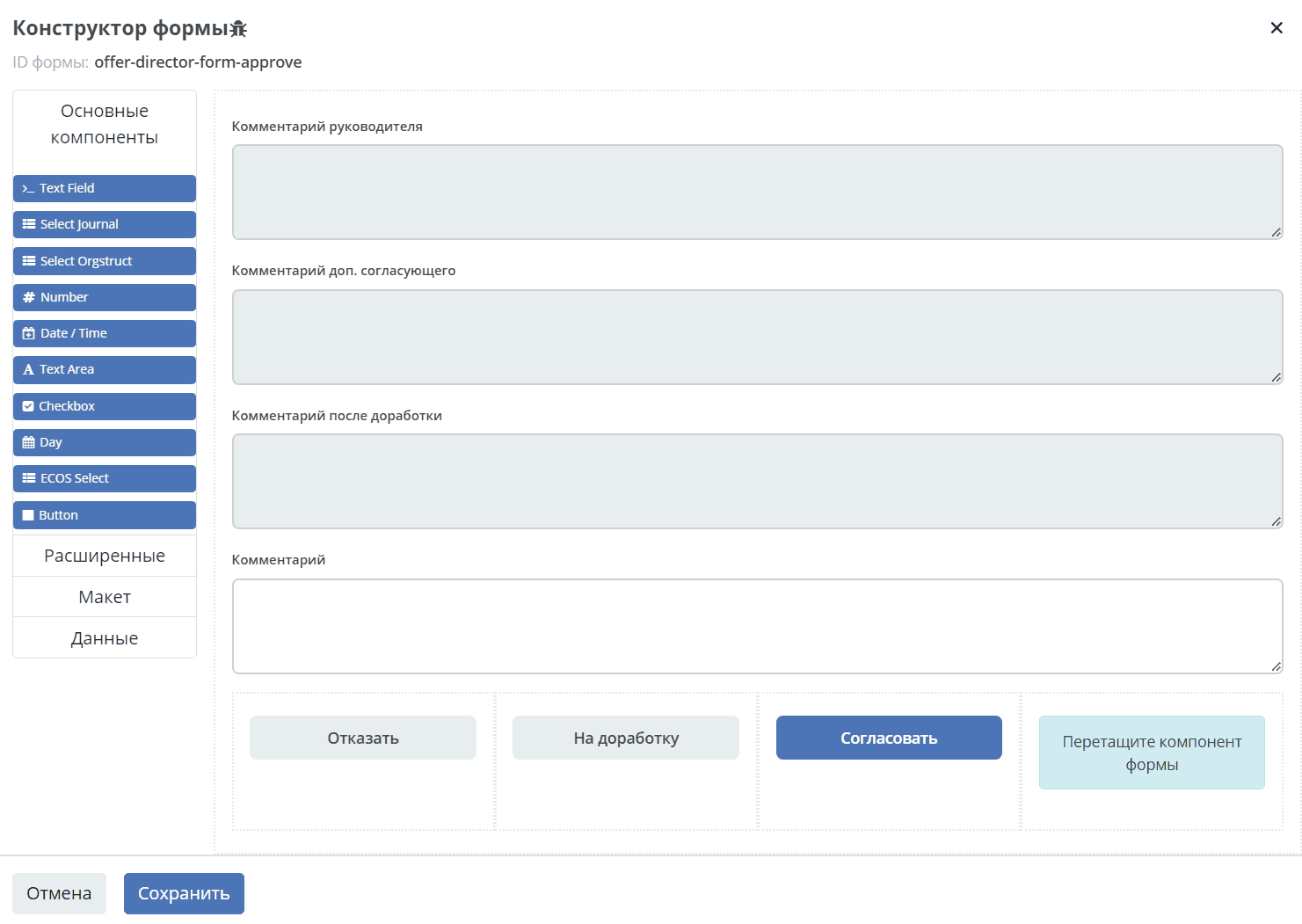
Form components:
Field Name |
Property Name |
Component Name |
|---|---|---|
Form Columns |
Columns Component |
|
Manager Comment |
chiefApproveComment |
Text Area Component |
Additional Approver Comment |
addApproveComment |
Text Area Component |
Comment after Rework |
reworkComment |
Text Area Component |
Comment |
addApproveComment |
Text Area Component |
For the fields Manager Comment, Additional Approver Comment, Comment after Rework, check the “Input Blocked” checkbox.
Form buttons:
Reject |
|
Send for Rework |
|
Approve |
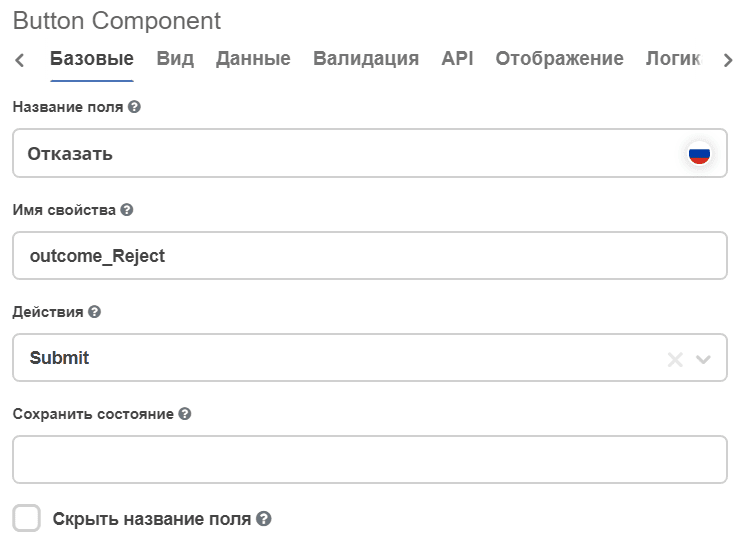
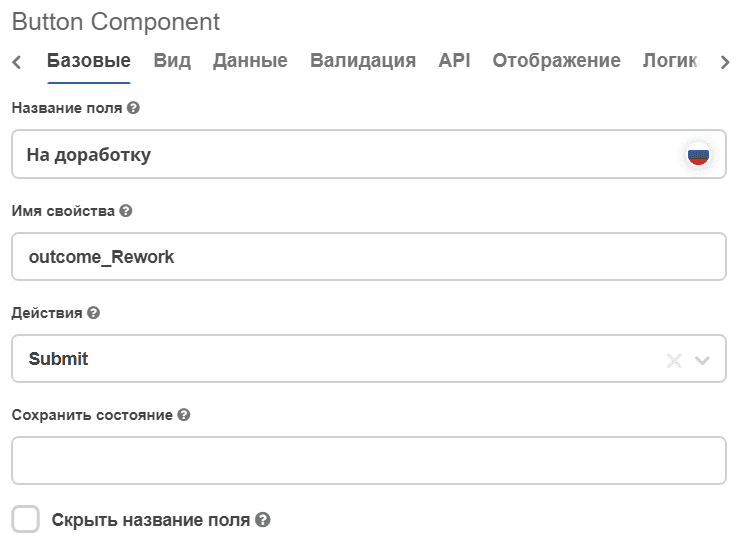
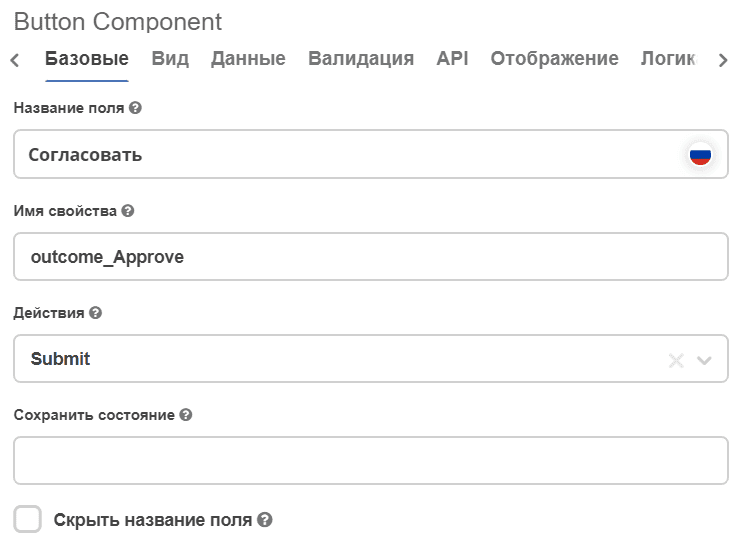
6 |
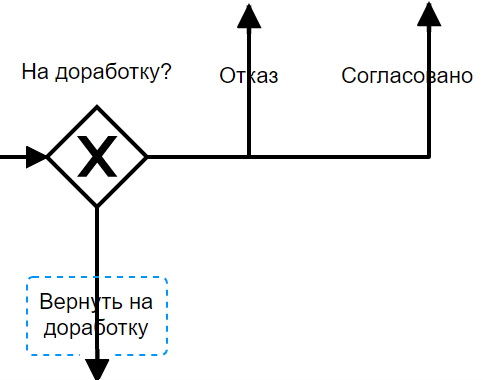
|
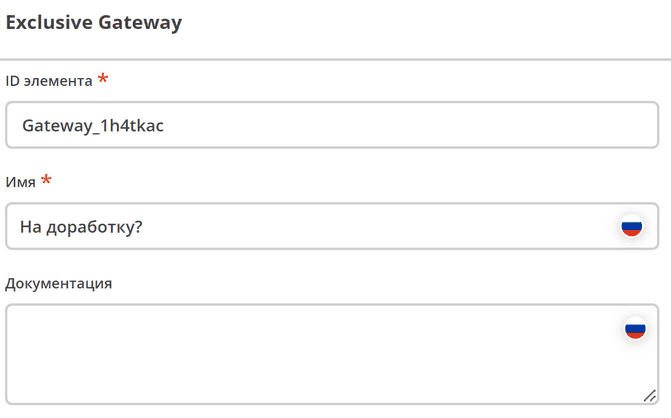
|
Flow “Return for Rework” |
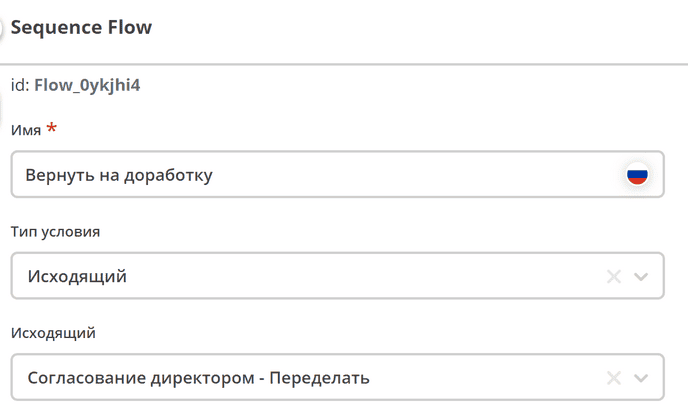
|
|
Flow “Rejection” |
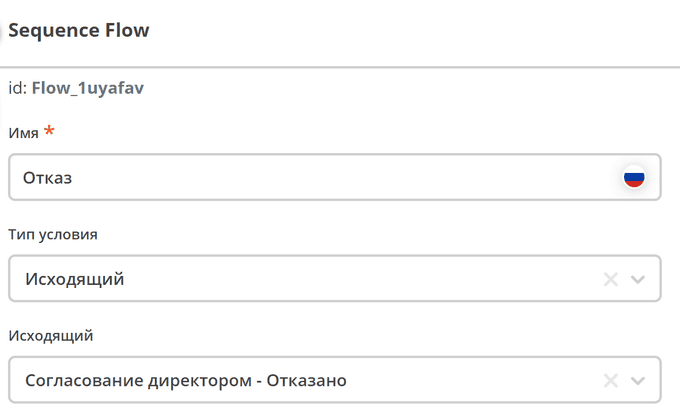
|
|
Flow “Approved” |
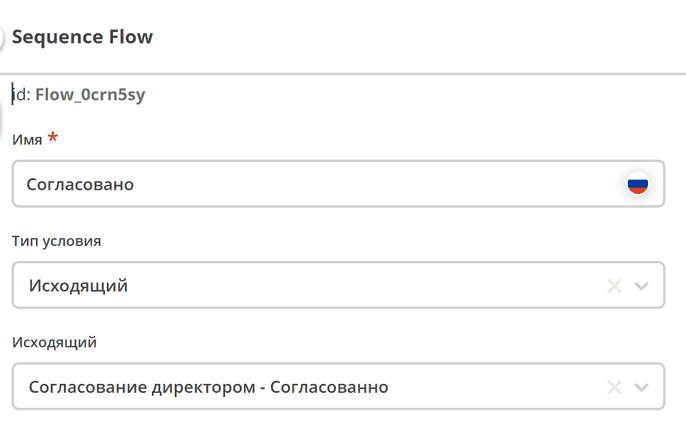
|
|
7 |
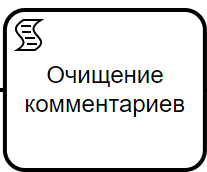
|
Script text:
|
8 |
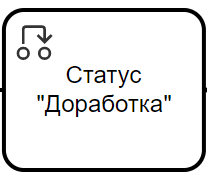
|
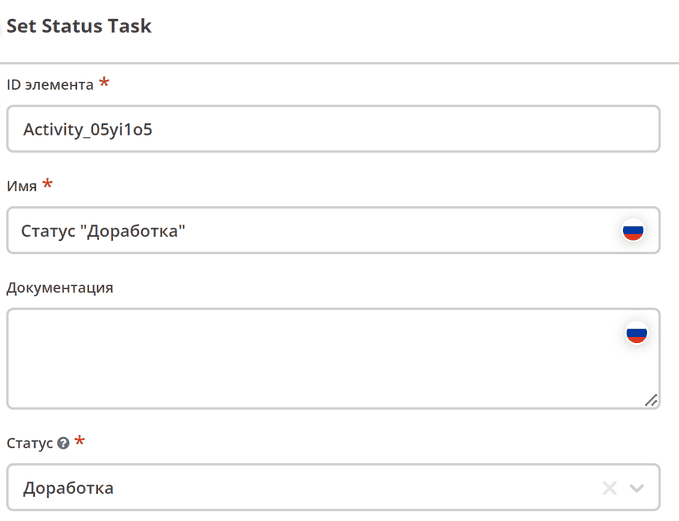
|
9 |
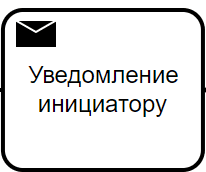
|
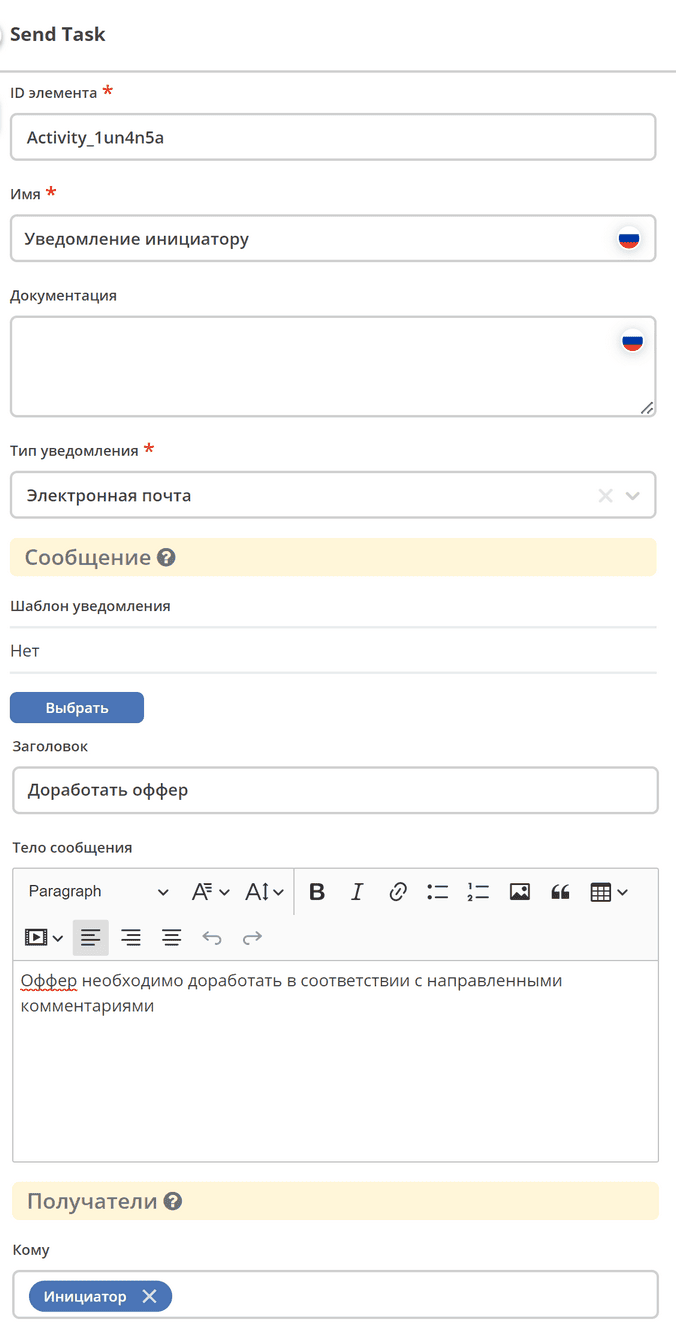
|
10 |
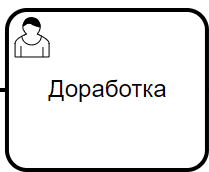
|
For all similar tasks, select the previously created task form in “Task Form”. |
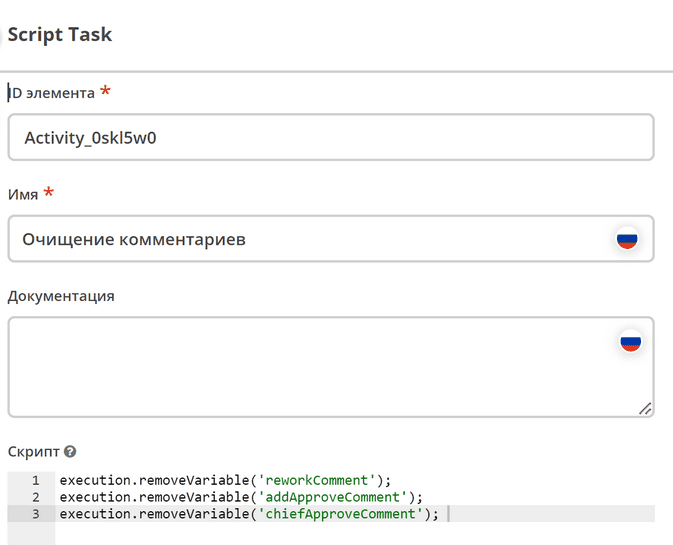
Creating elements for Part (5) of the business process diagram
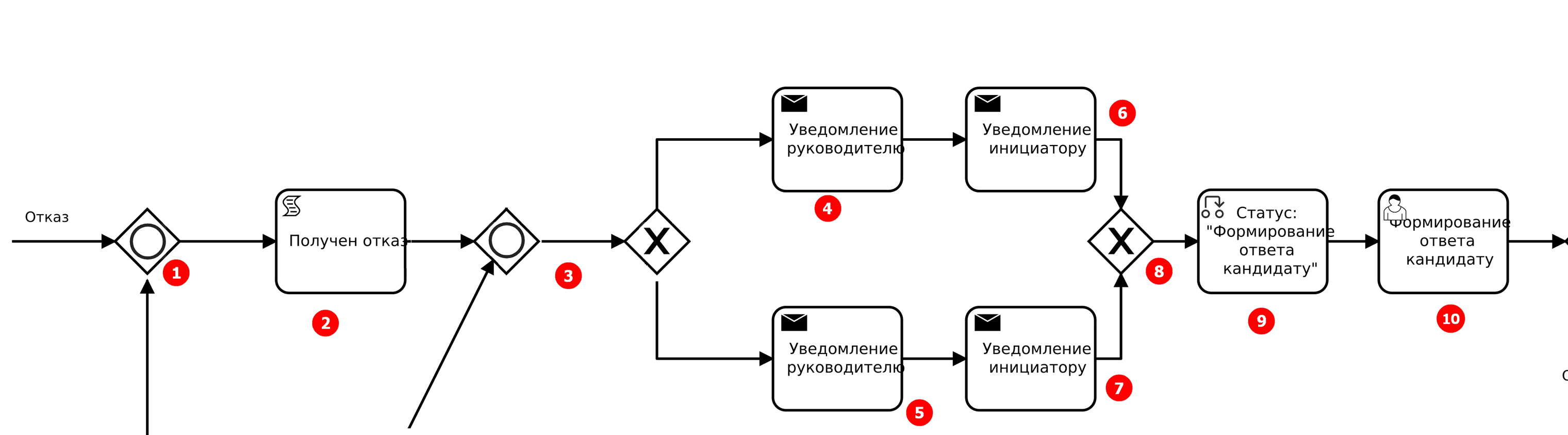
And a table showing the final settings of the business process components (for visual verification):
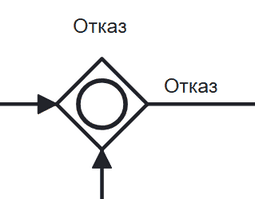
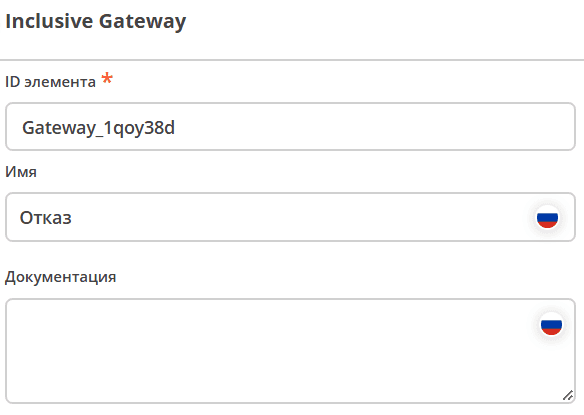
1 |
|
|
Flow “Rejection” |
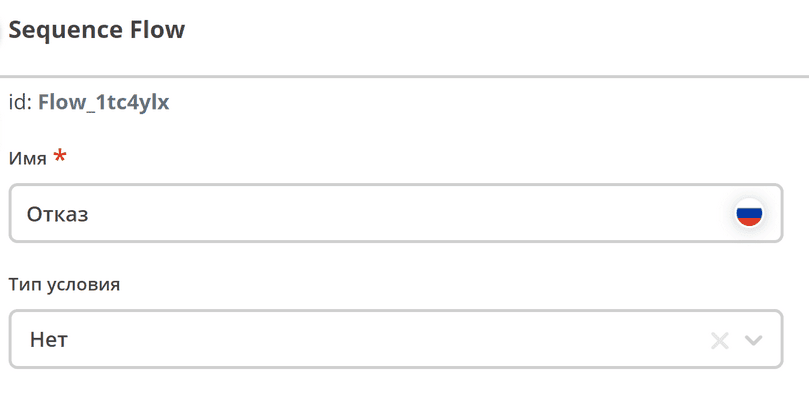
|
|
2 |
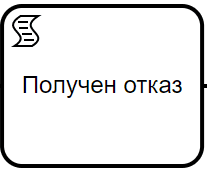
|
Script text:
|
3 |
|
|
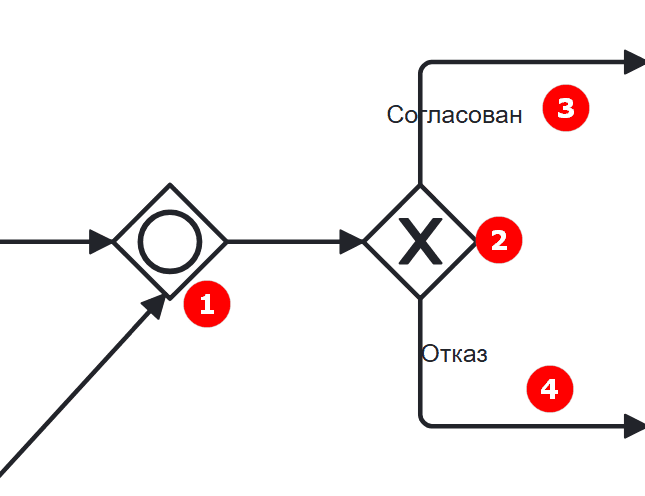
Gateway 1 |
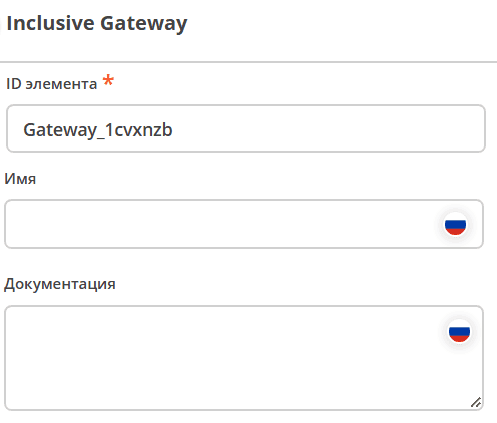
|
|
Gateway 2 |
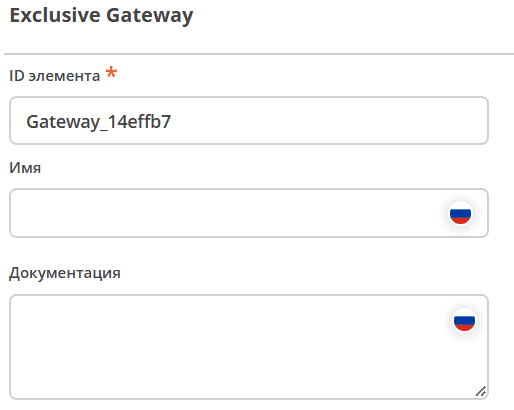
|
|
Flow “Approved” |
Script text:
|
|
Flow “Rejection” |
Script text:
|
|
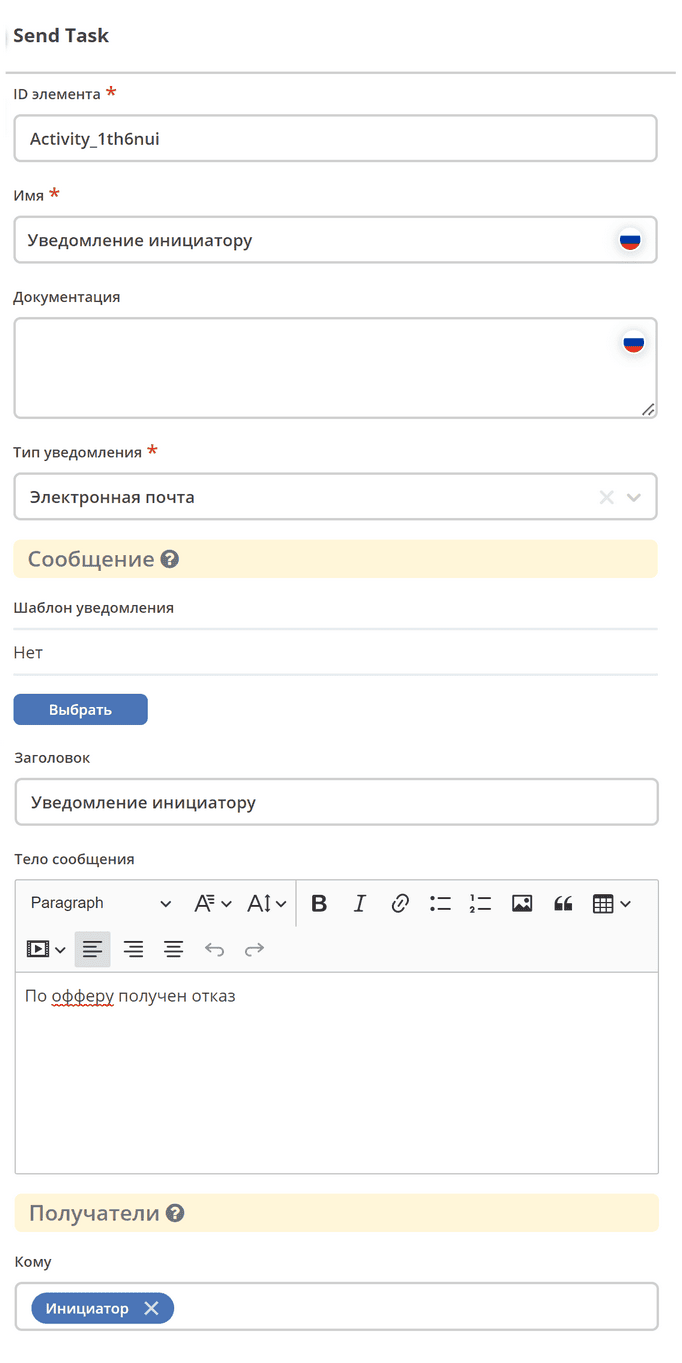
4, 5 |
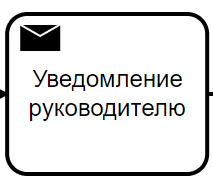
|
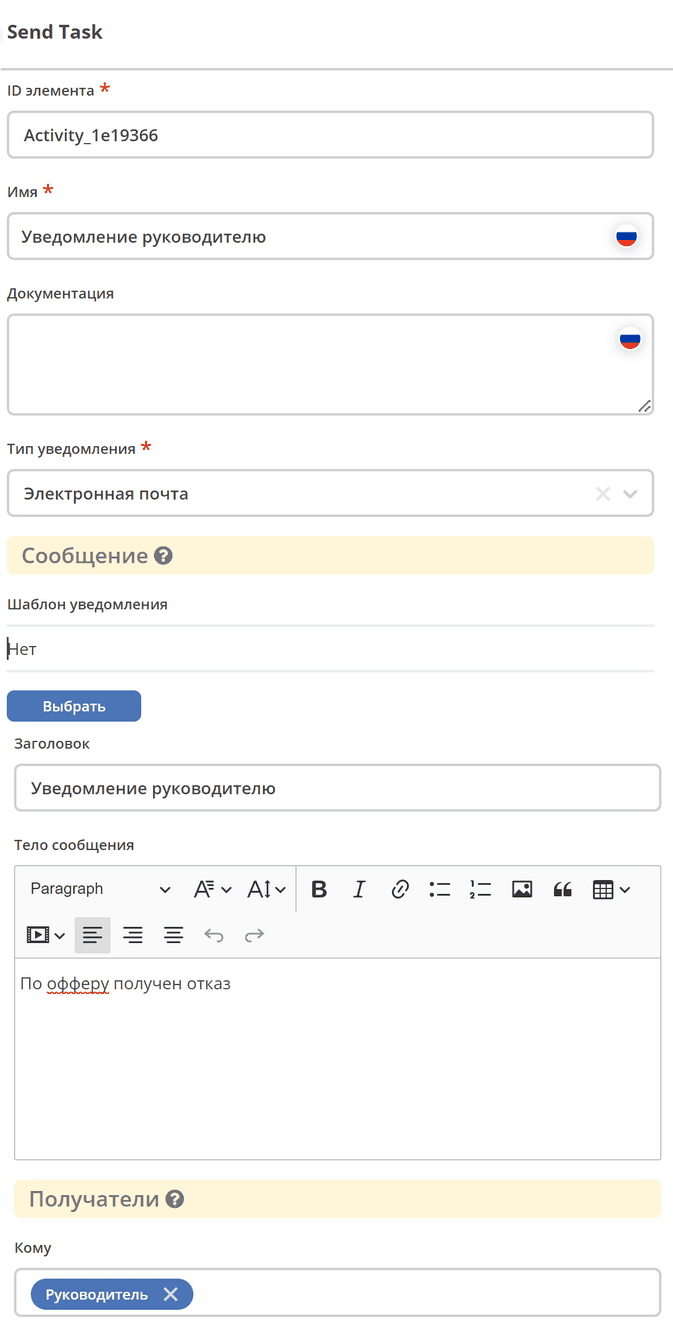
|
6, 7 |
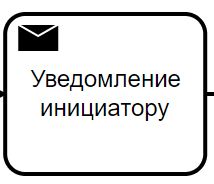
|
|
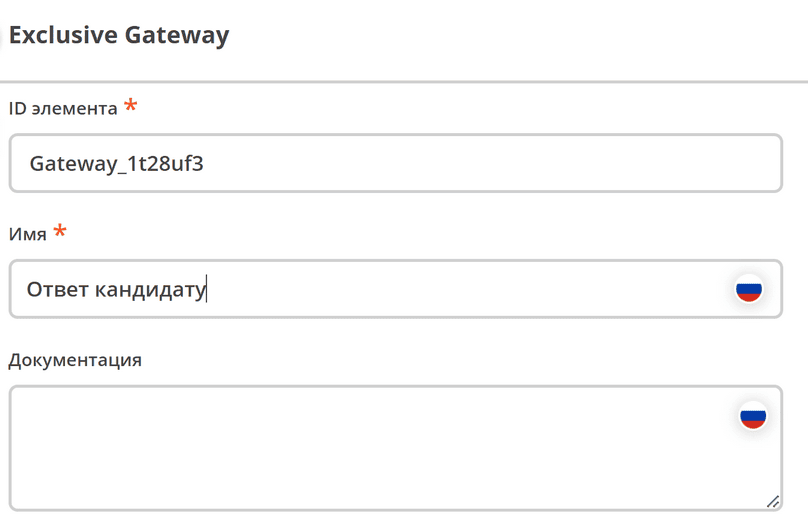
8 |
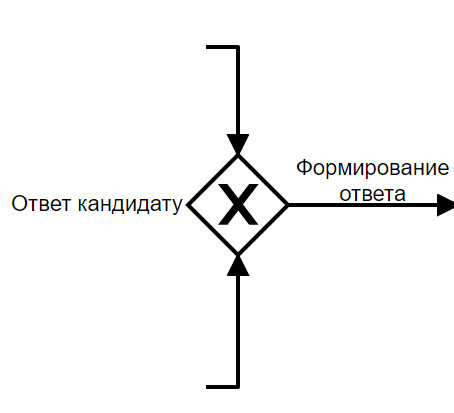
|
|
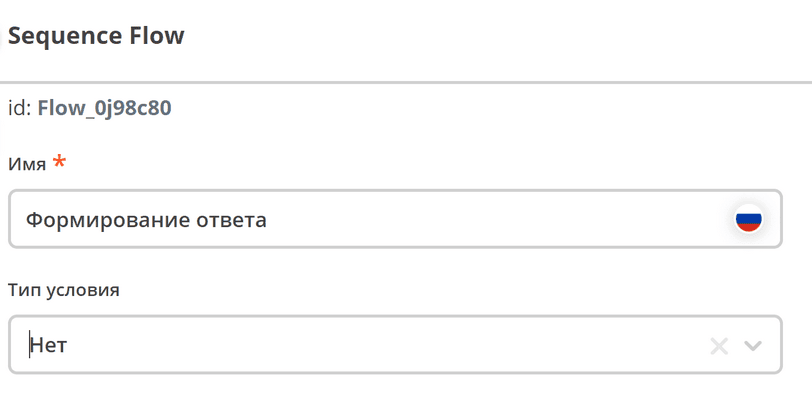
Flow “Forming Response” |
|
|
9 |
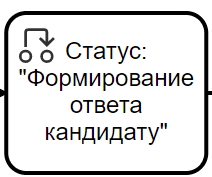
|
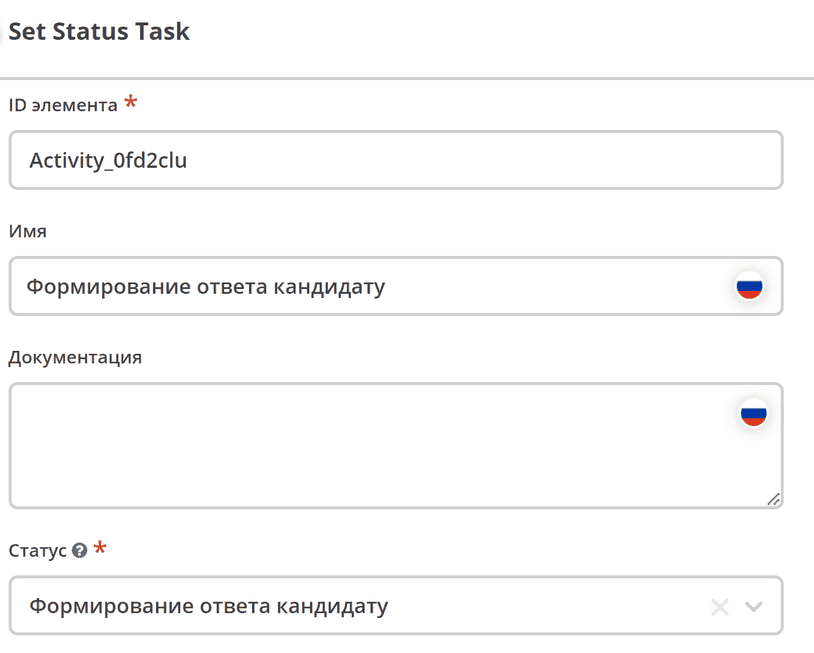
|
10 |
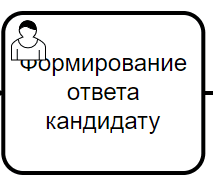
|
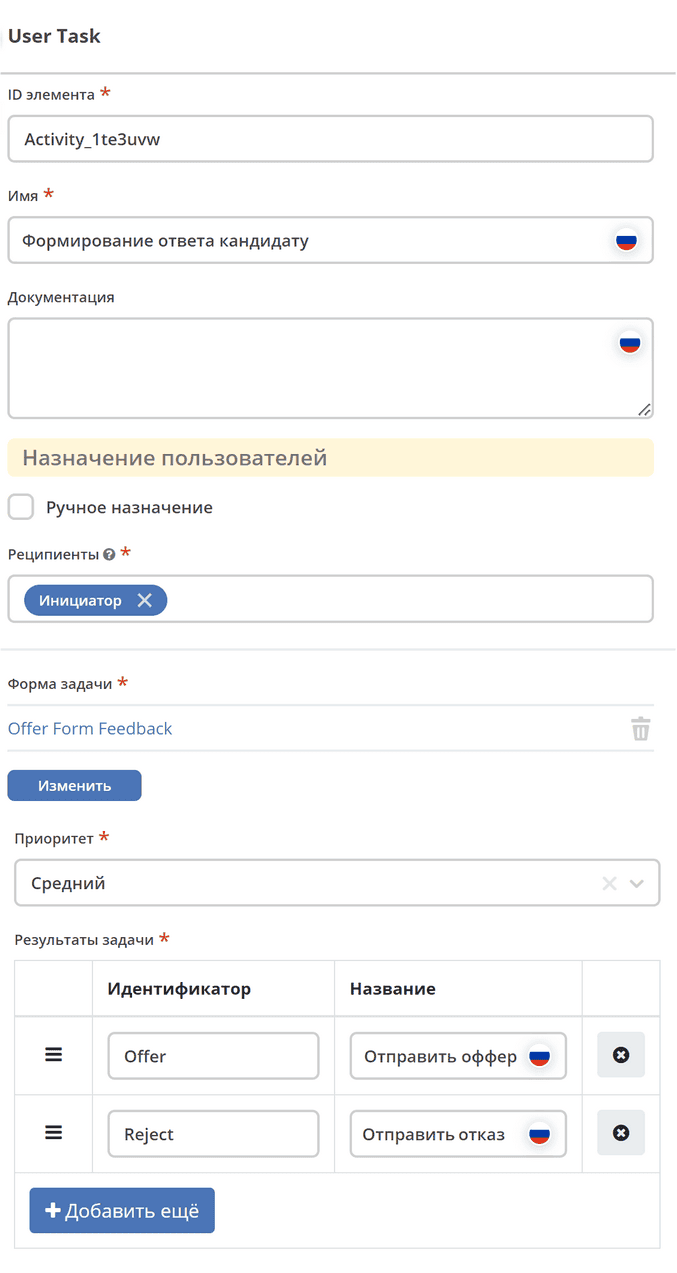
|
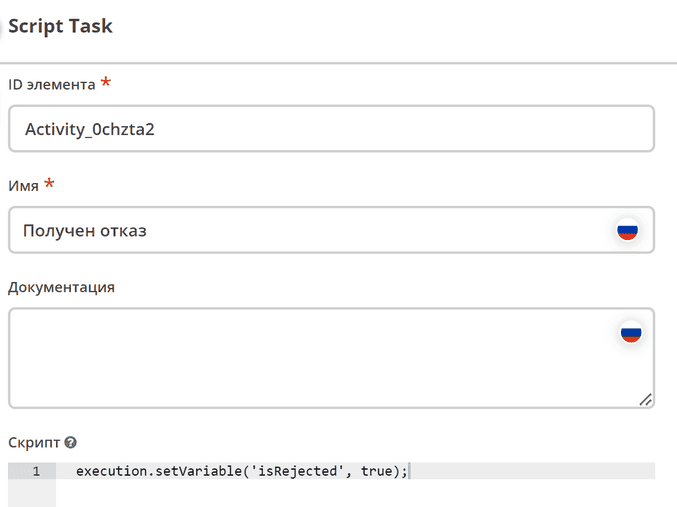
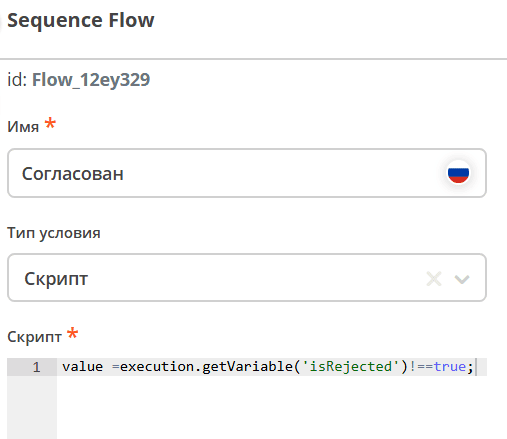
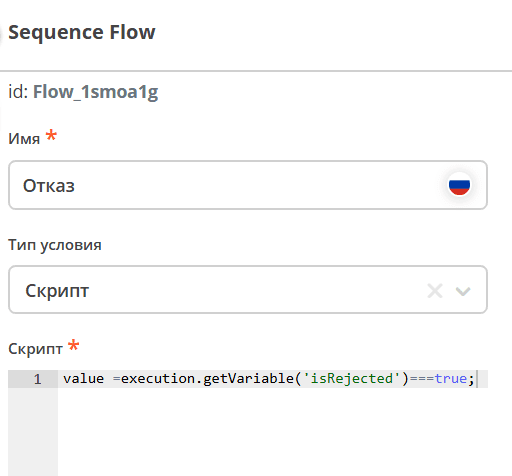
Information for the form Forming Response to Candidate (Offer Form Feedback):
Field Name |
Value |
|---|---|
Form ID |
offer-form-feedback |
Form Name |
Offer Form Feedback |
Editable Data Type |
no |
Below is an image of the final configuration (for visual verification):
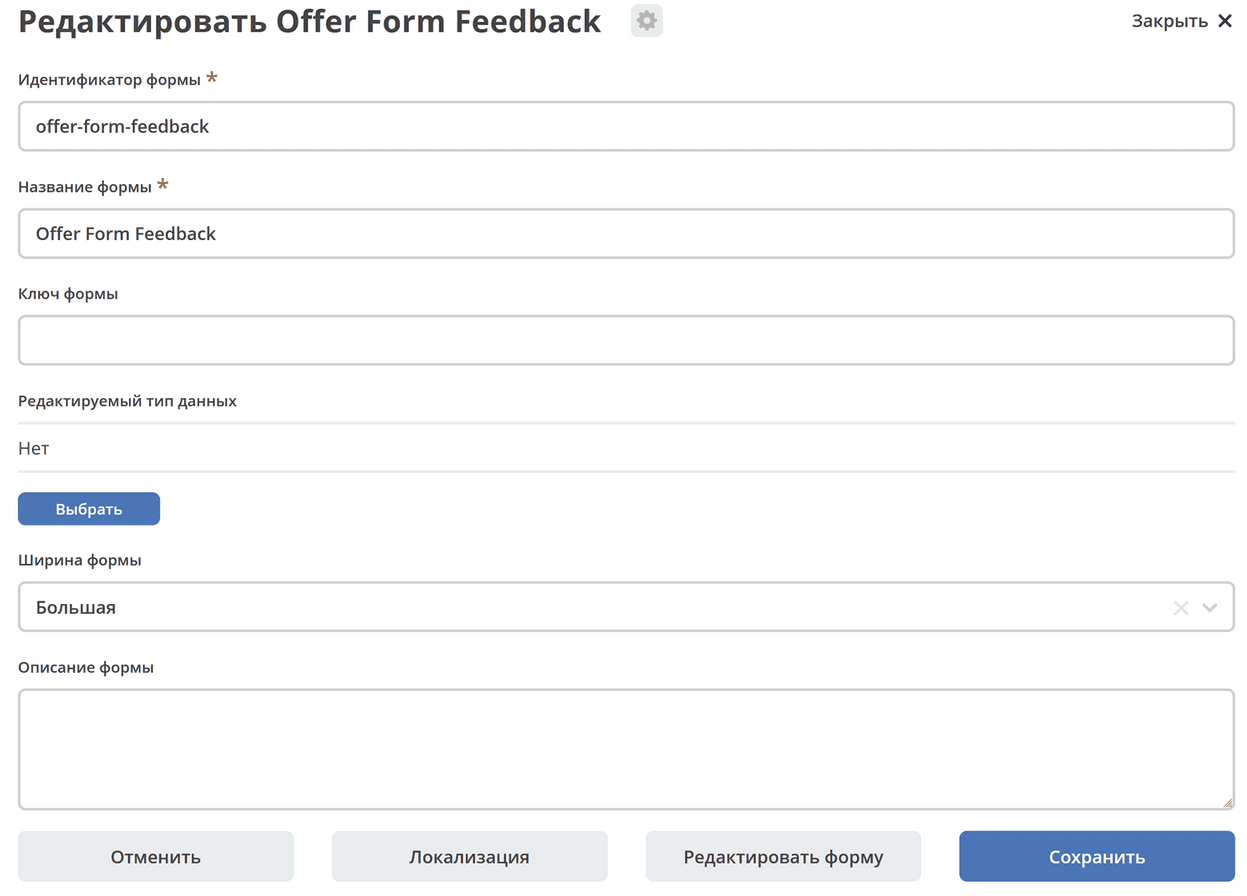
Form example:
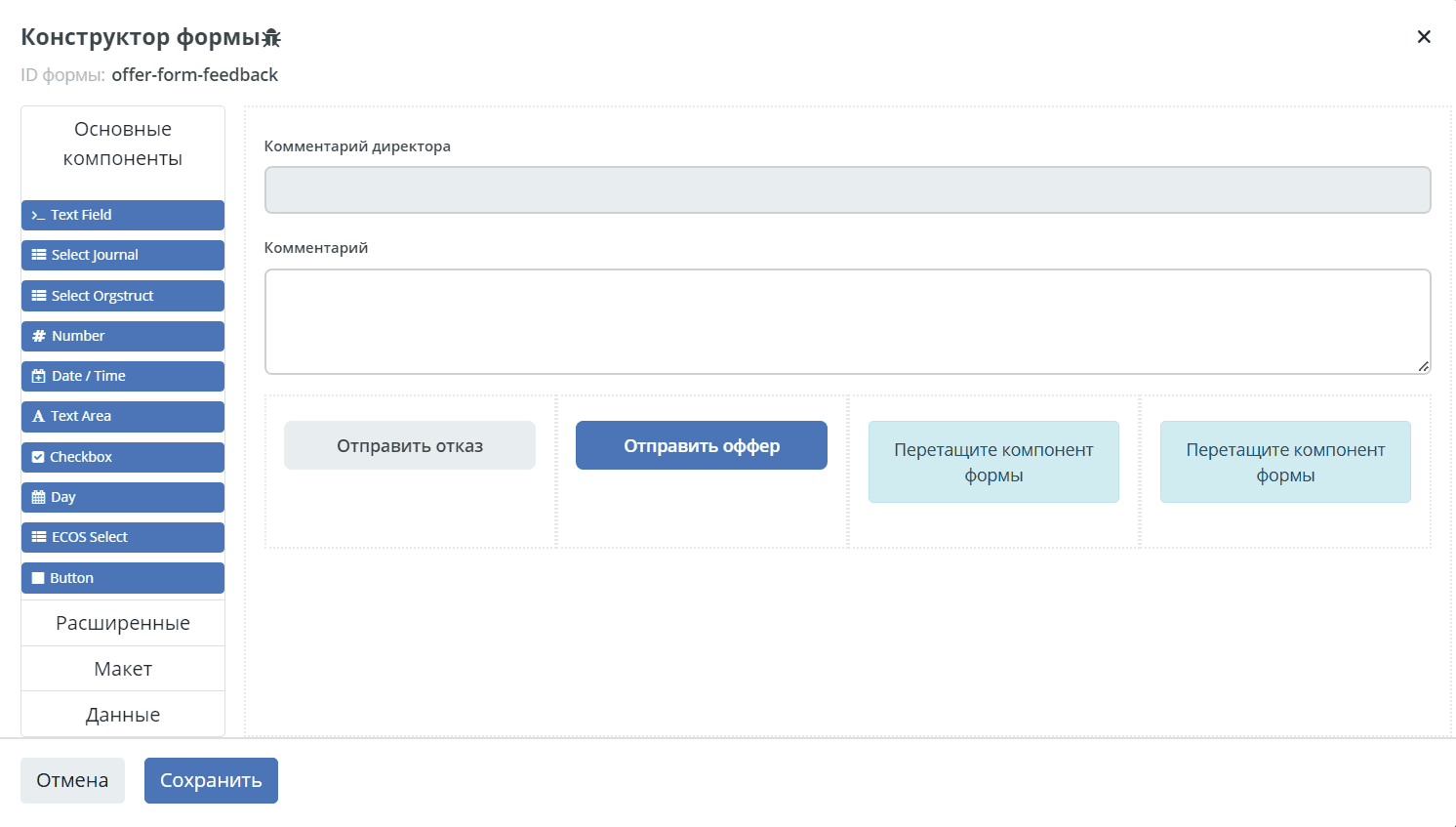
Form components:
Field Name |
Property Name |
Component Name |
|---|---|---|
Form Columns |
Columns Component |
|
Director Comment |
dirApproveComment |
Text Area Component |
Comment |
offerTaskComment |
Text Area Component |
For the field Director Comment, check the “Input Blocked” checkbox.
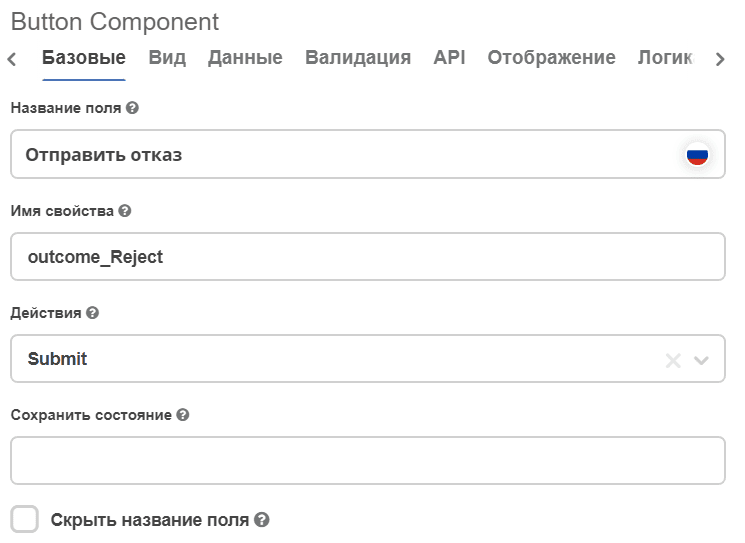
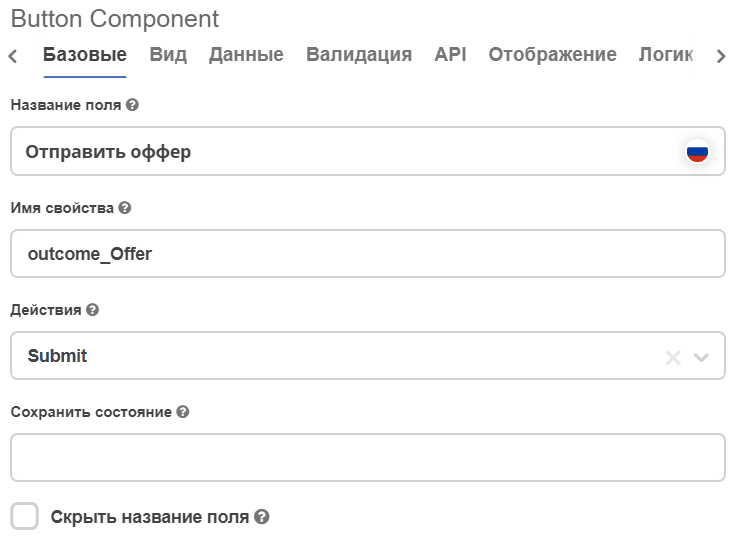
Form buttons:
Send Rejection |
|
Send Offer |
Creating elements for Part (6) of the business process diagram
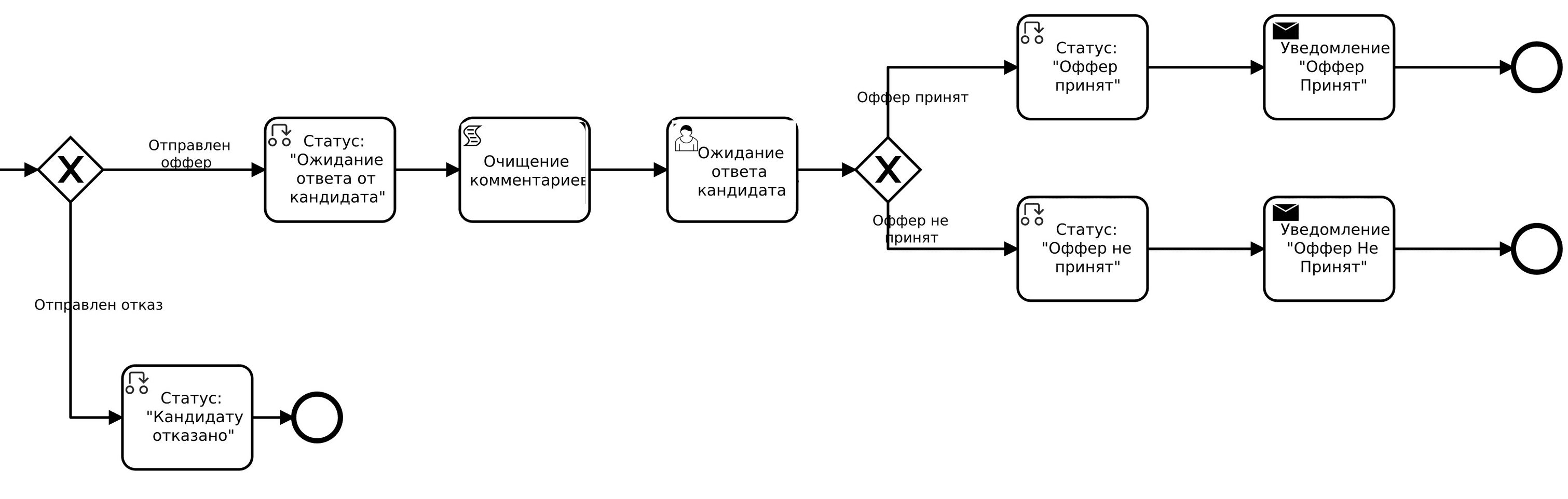
And a table showing the final settings of the business process components (for visual verification):
1 |
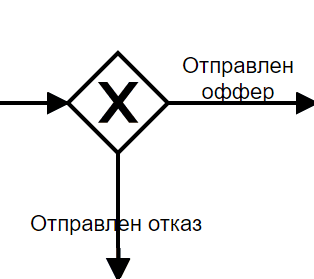
|
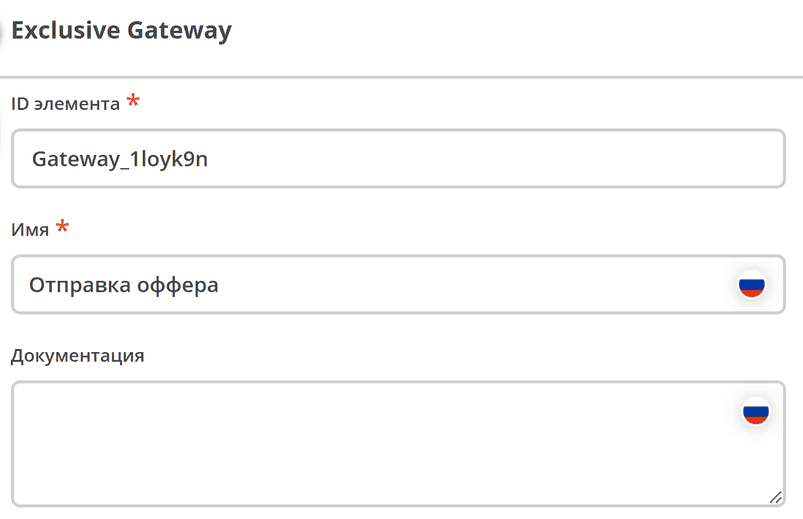
|
Flow “Offer Sent” |
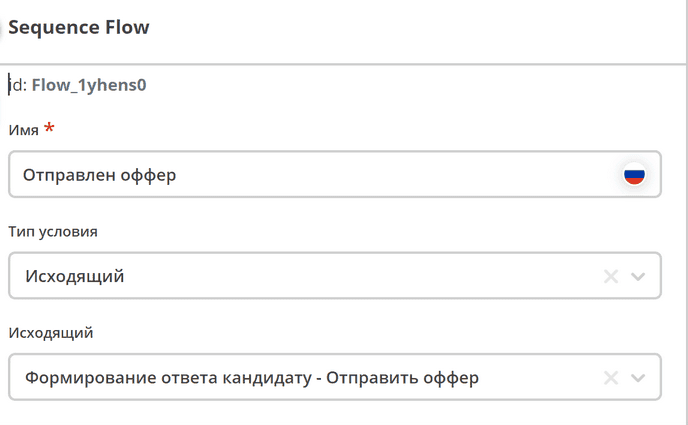
|
|
Flow “Rejection Sent” |
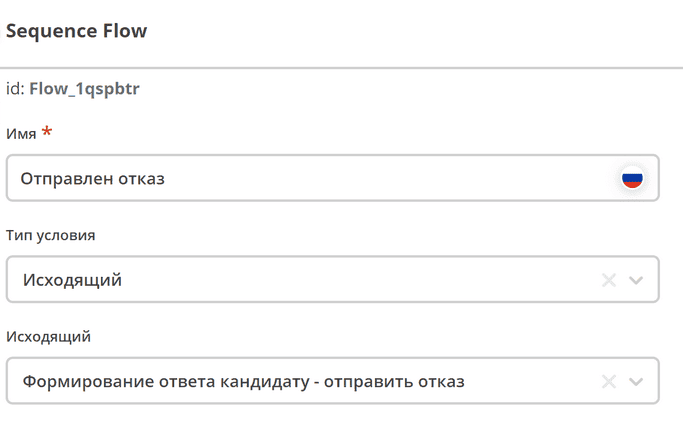
|
|
2 |
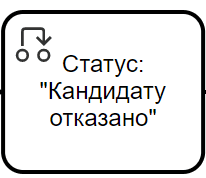
|
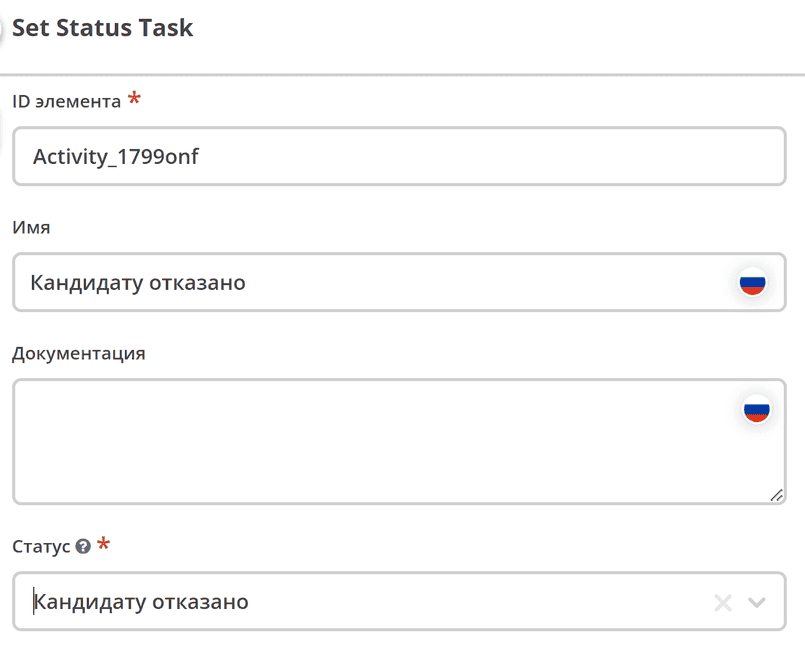
|
3 |
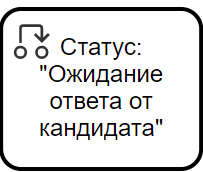
|
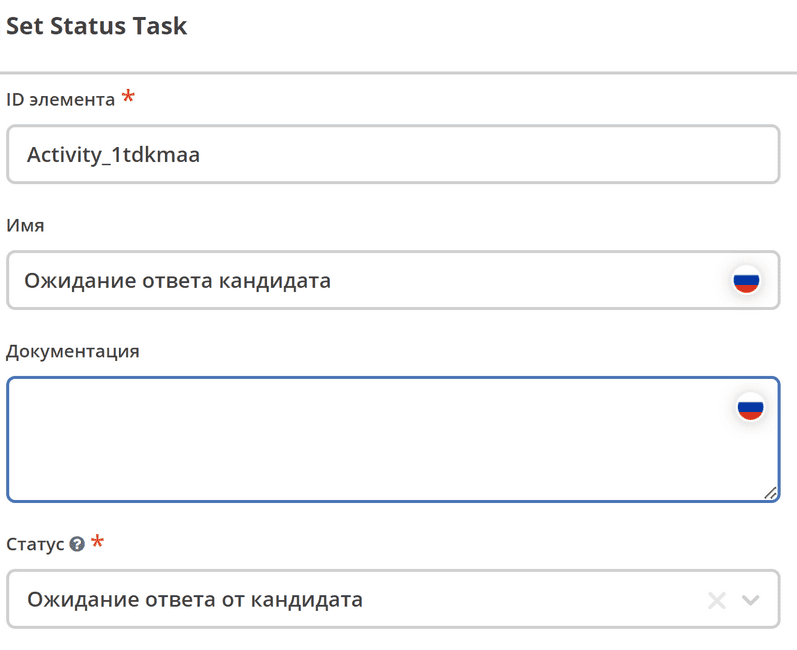
|
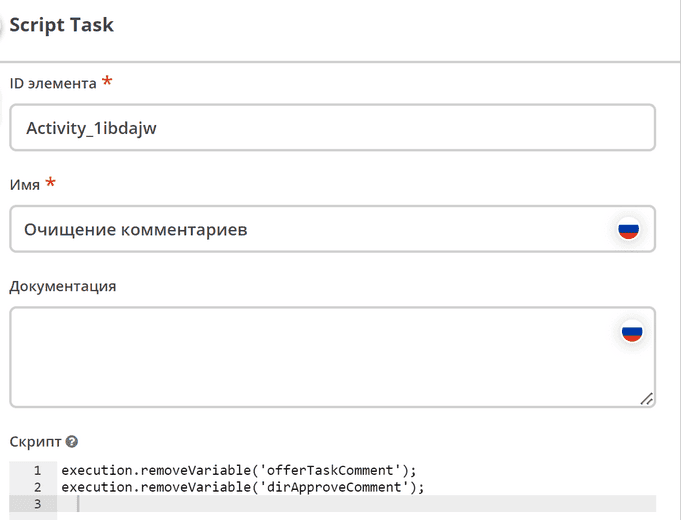
4 |
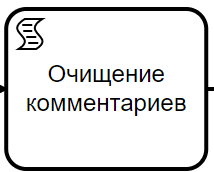
|
Script text:
|
5 |
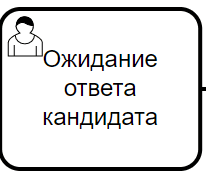
|
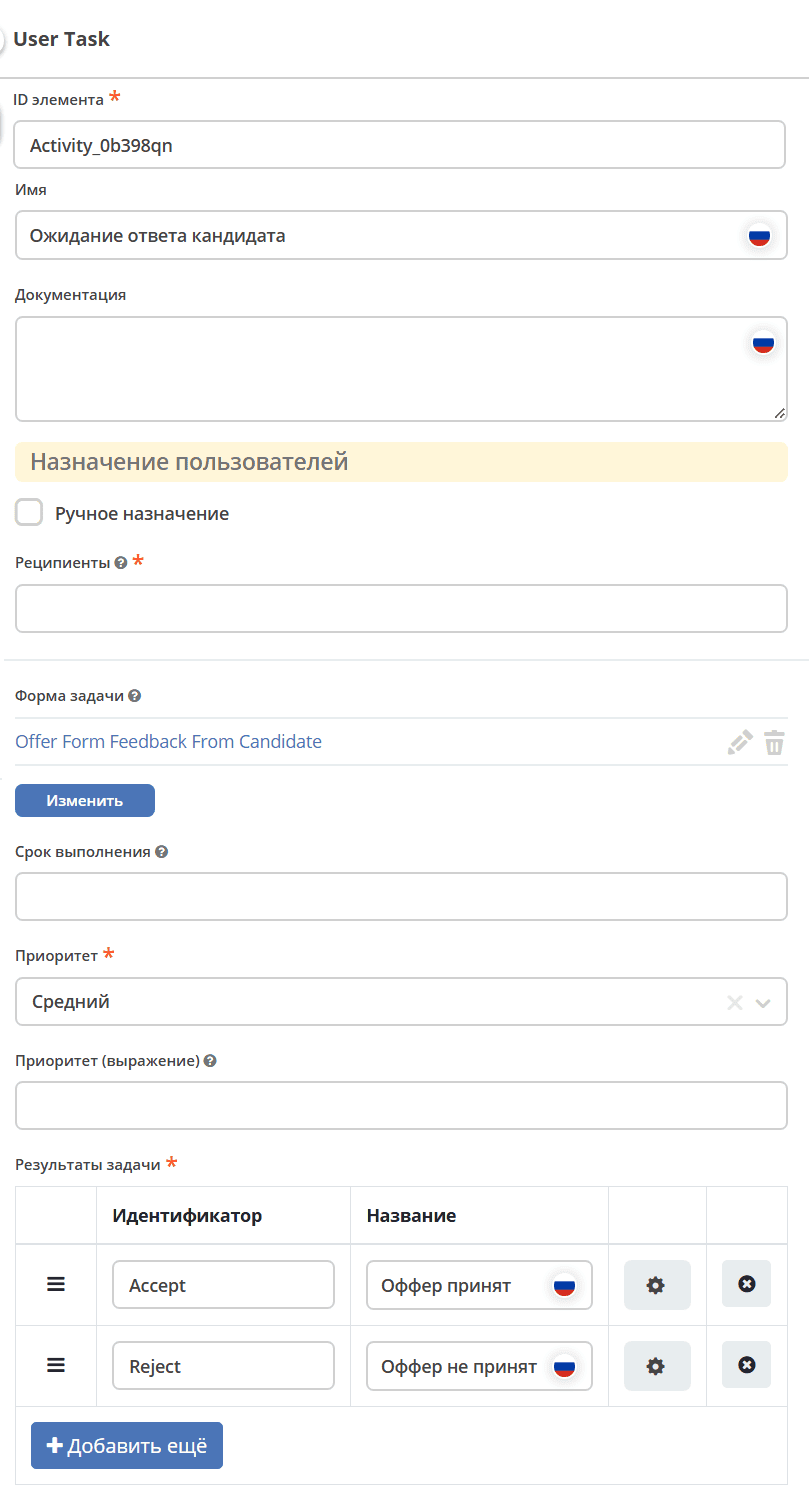
|
Information for the form Waiting for Candidate Response (Offer Form Feedback From Candidate):
Field Name |
Value |
|---|---|
Form ID |
offer-form-feedback-from-candidate |
Form Name |
Offer Form Feedback From Candidate |
Editable Data Type |
no |
Below is an image of the final configuration (for visual verification):
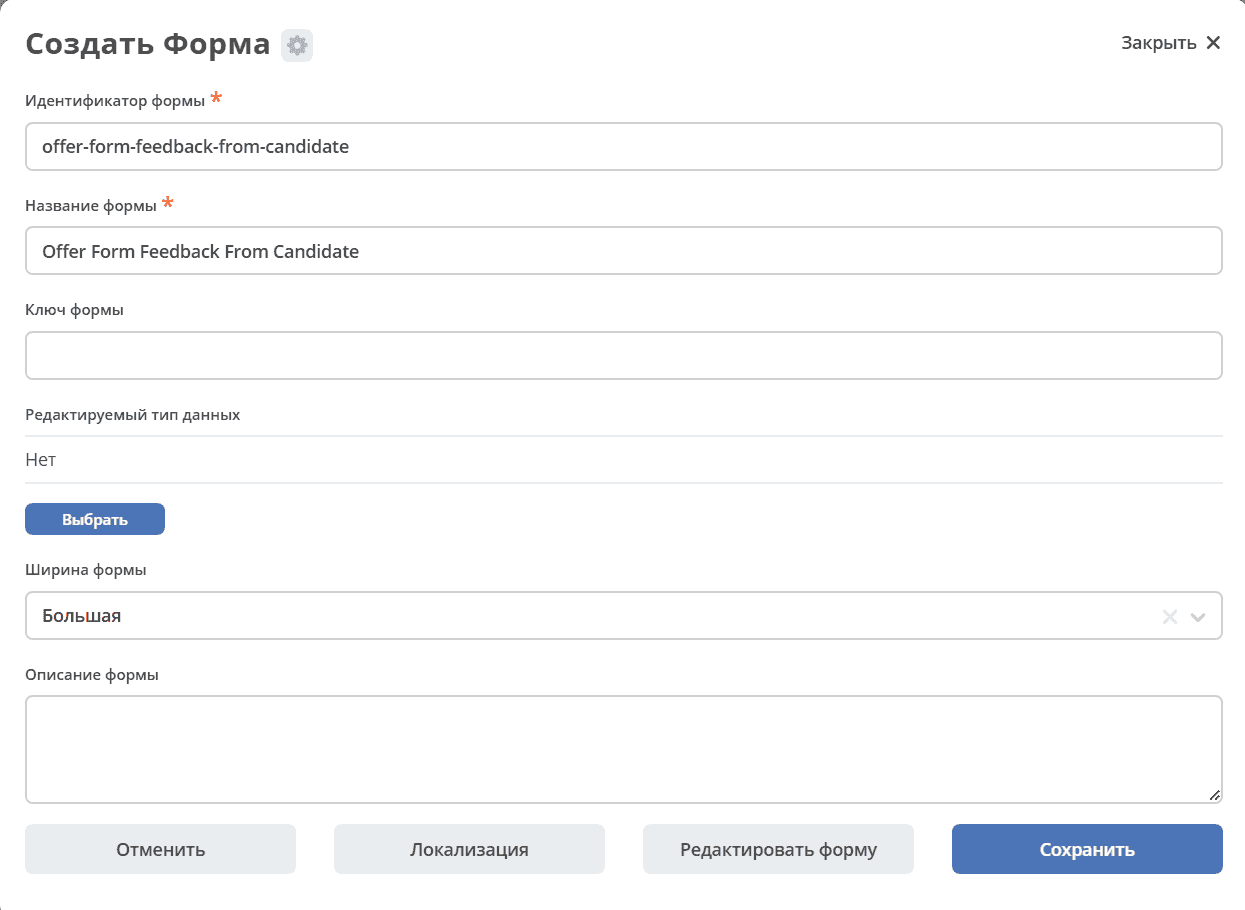
Form example:
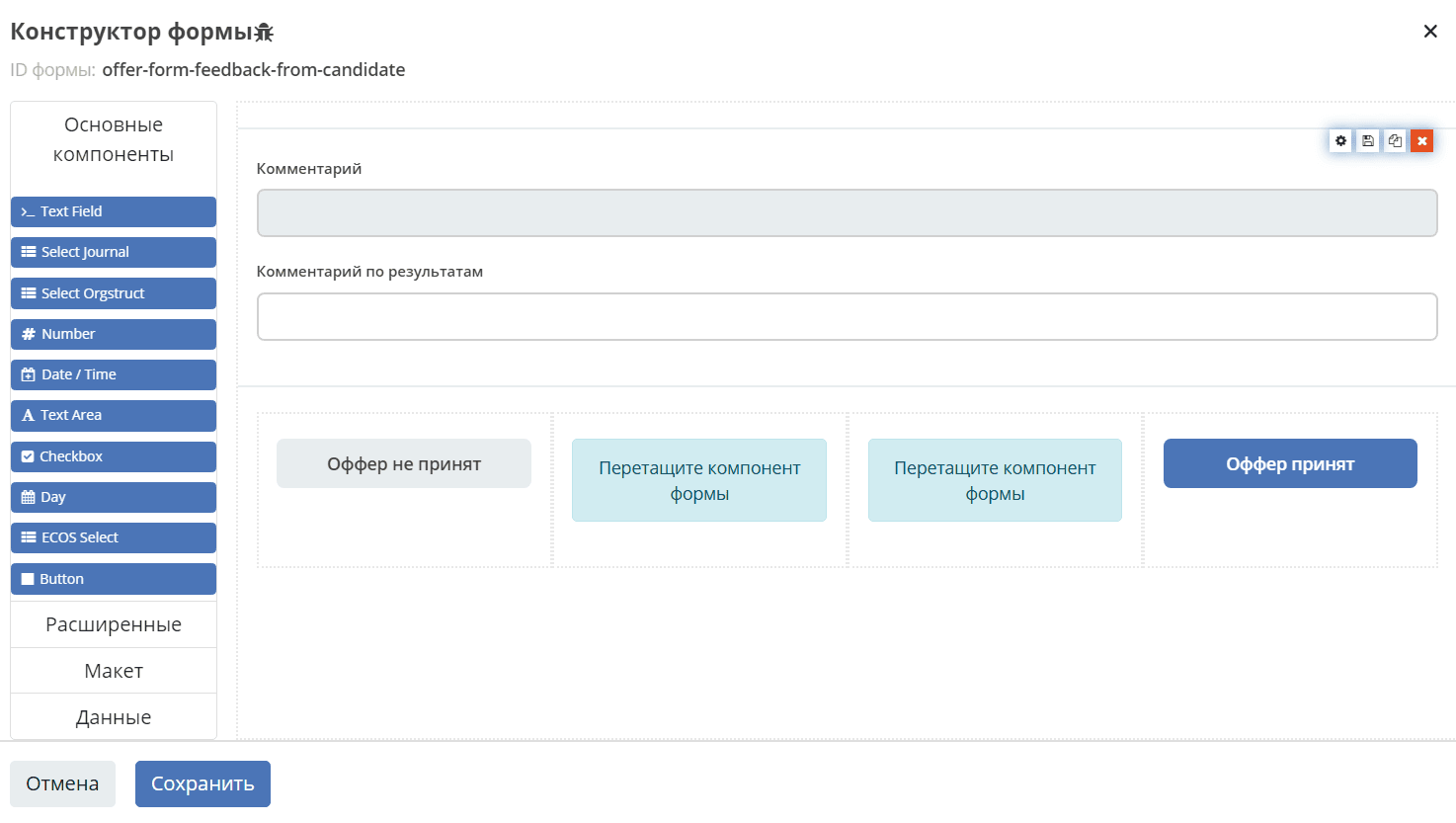
Form components:
Field Name |
Property Name |
Component Name |
|---|---|---|
Form Columns |
Columns Component |
|
Comment |
offerTaskComment |
Text Area Component |
Result Comment |
_ECM_offerTaskComment |
Text Area Component |
For the field Comment, check the “Input Blocked” checkbox.
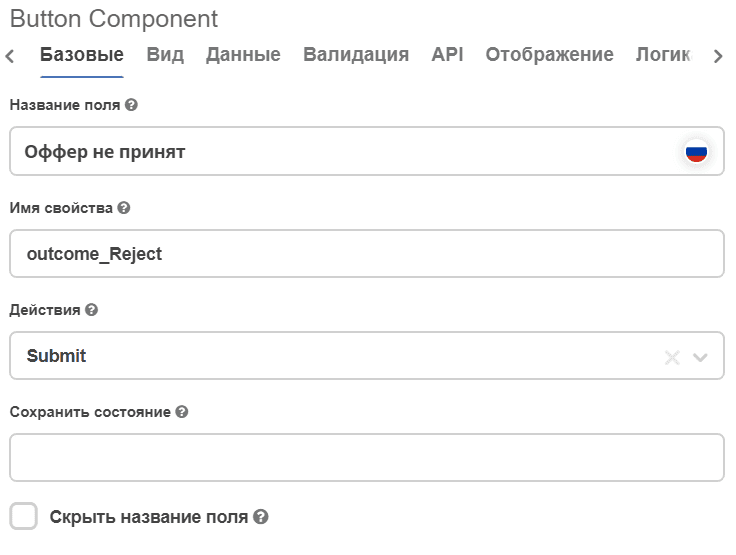
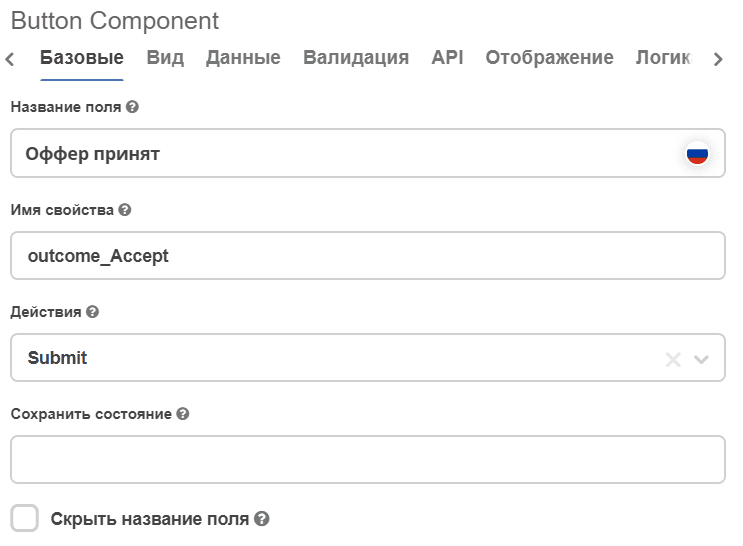
Form buttons:
Offer Not Accepted |
|
Offer Accepted |
6 |
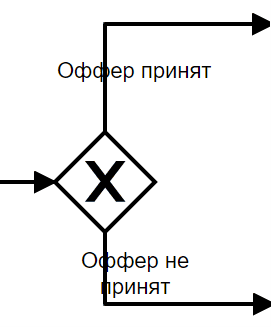
|
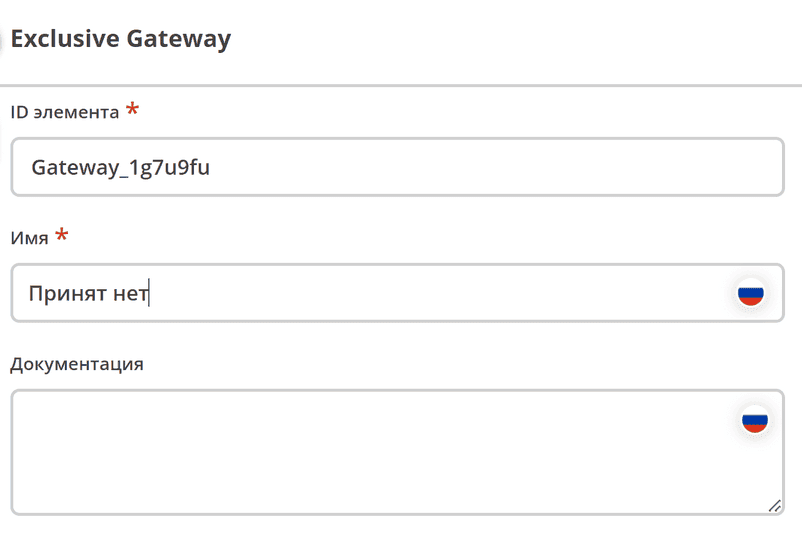
|
Flow “Offer Accepted” |
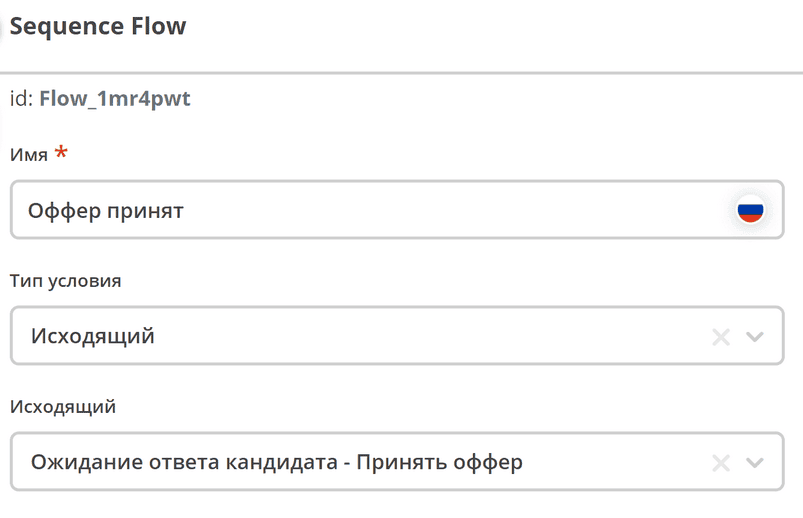
|
|
Flow “Offer Not Accepted” |
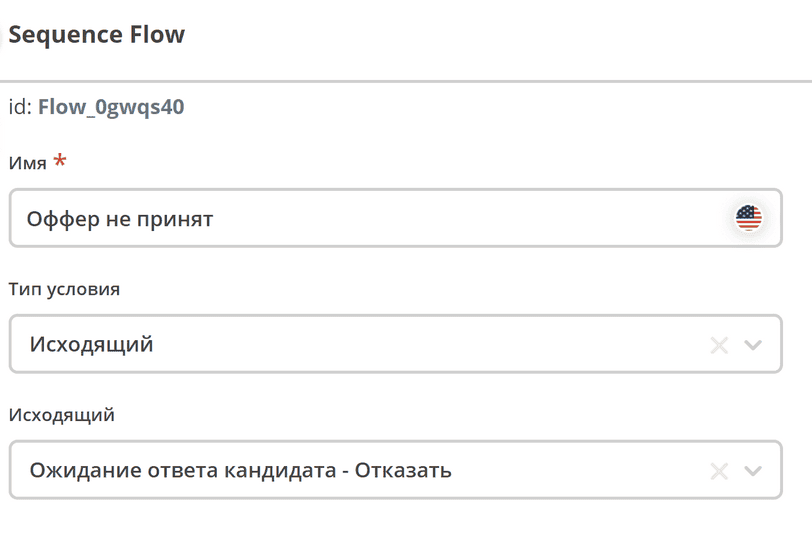
|
|
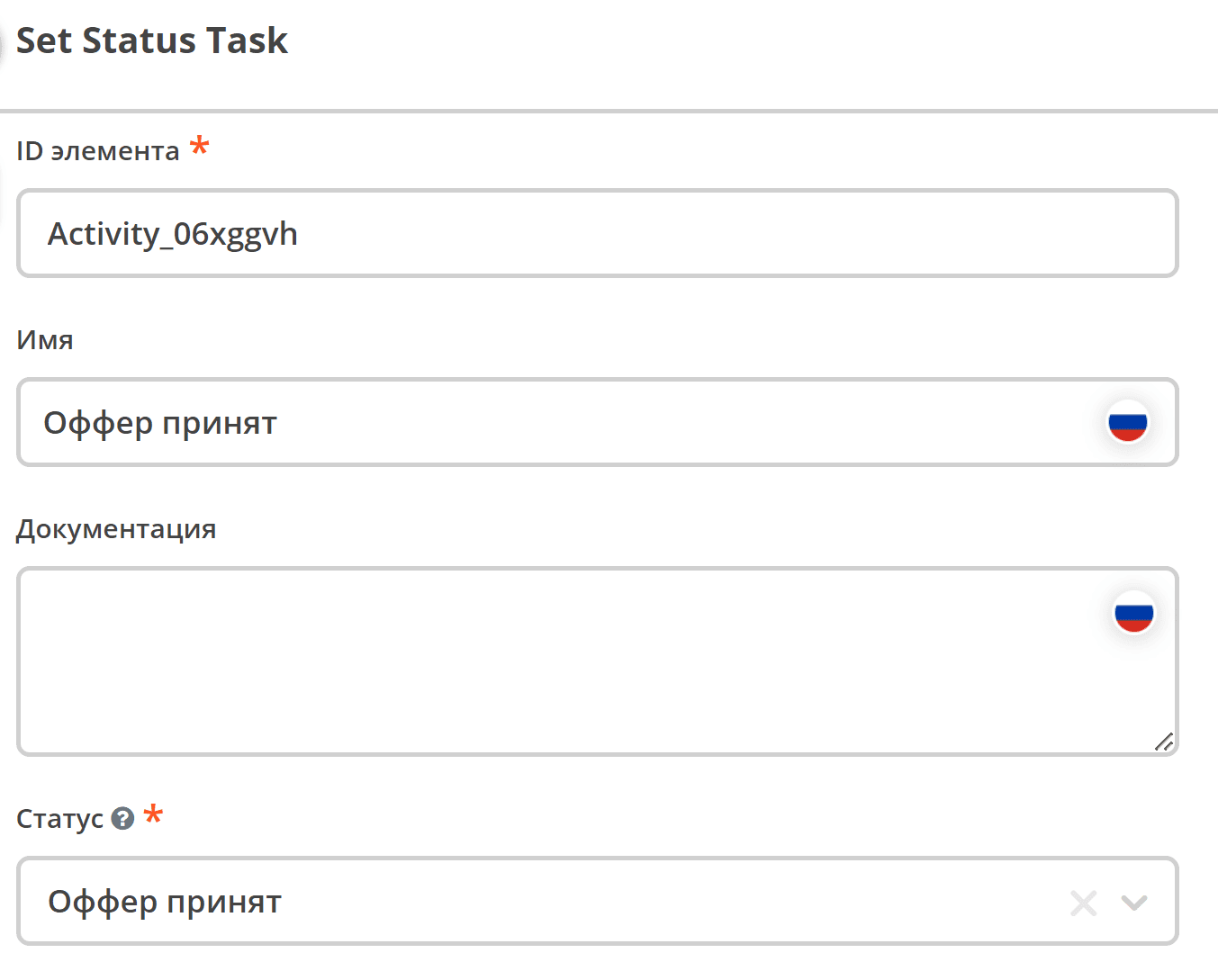
7 |
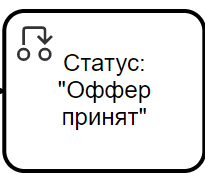
|
|
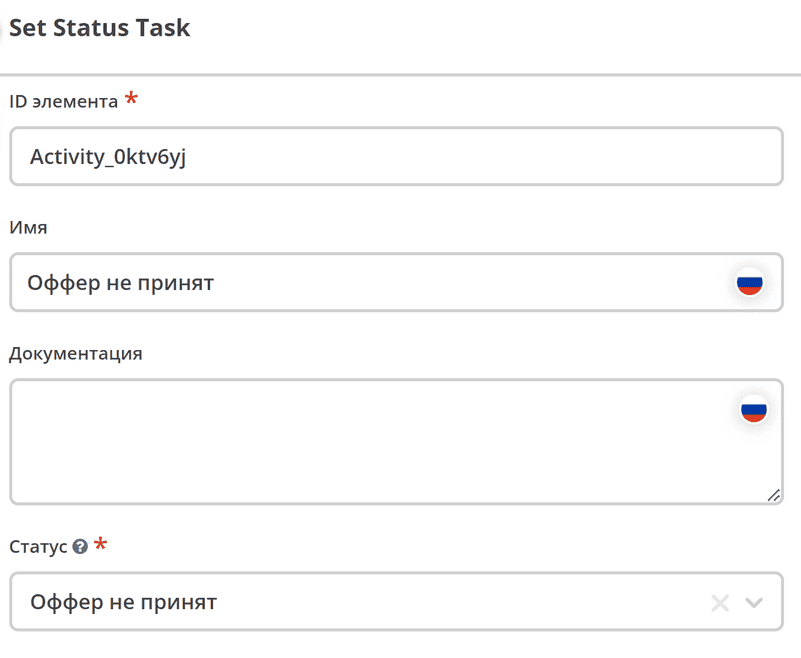
8 |
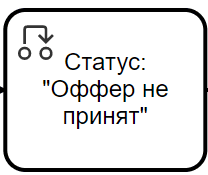
|
|
9 |
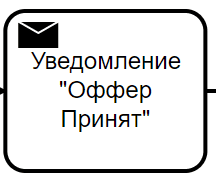
|
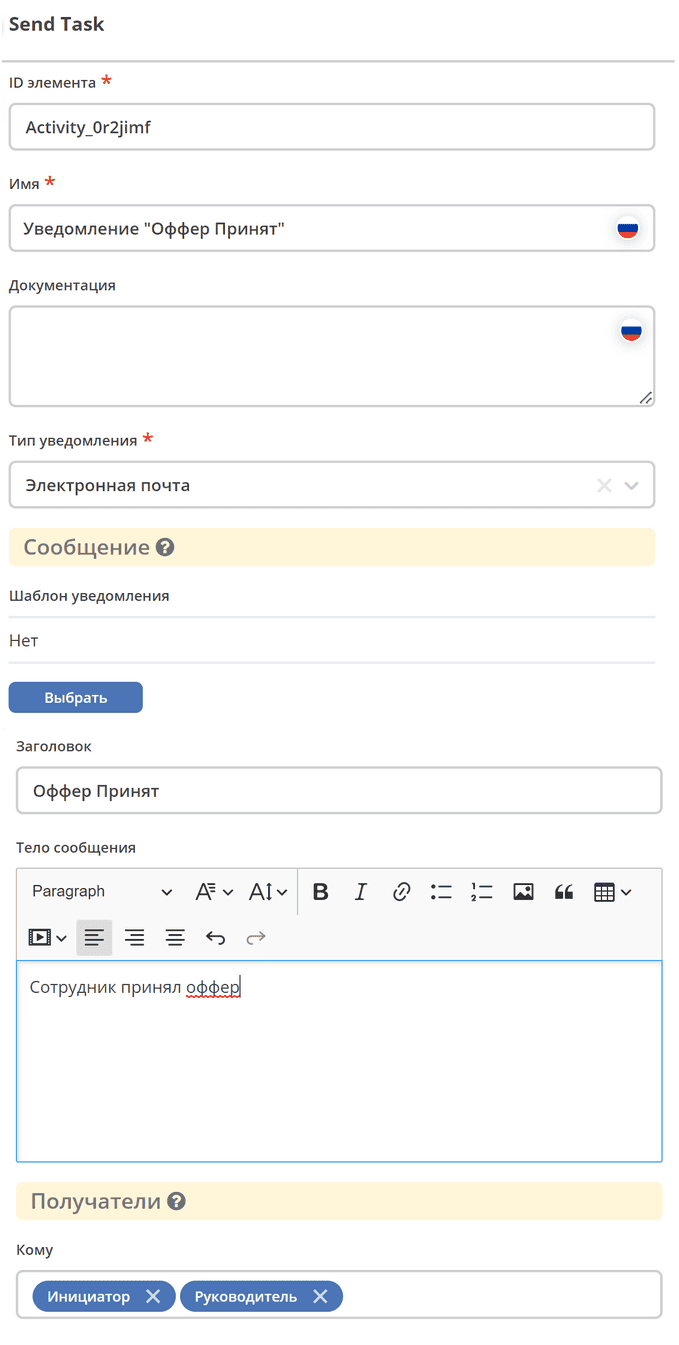
|
10 |
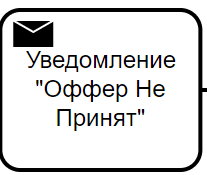
|
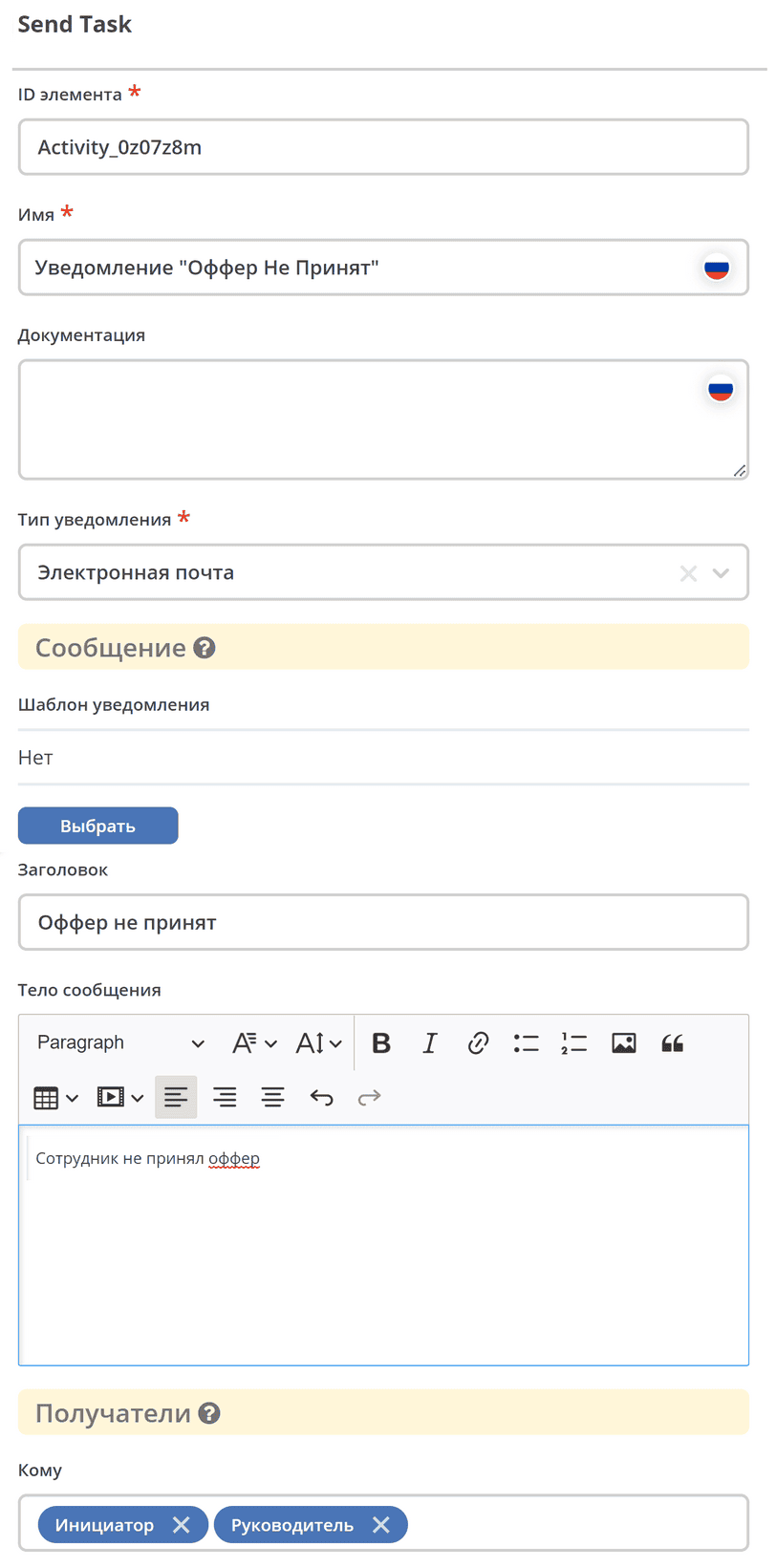
|
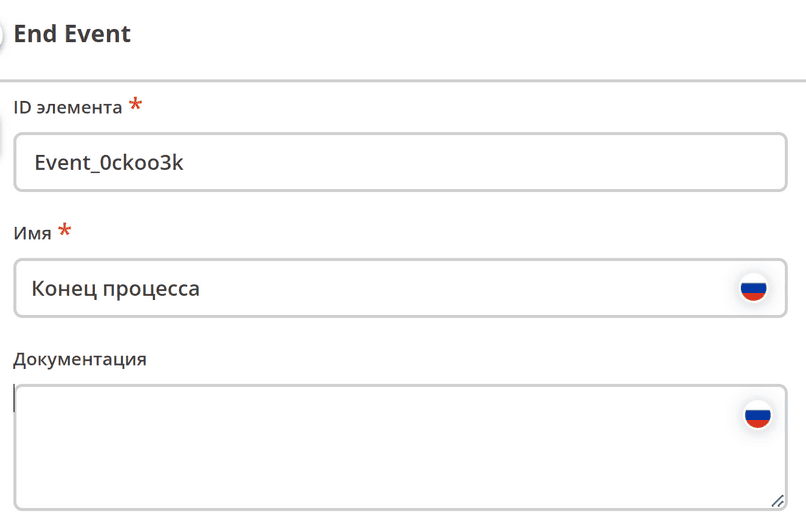
11, 12, 13 |

|
|
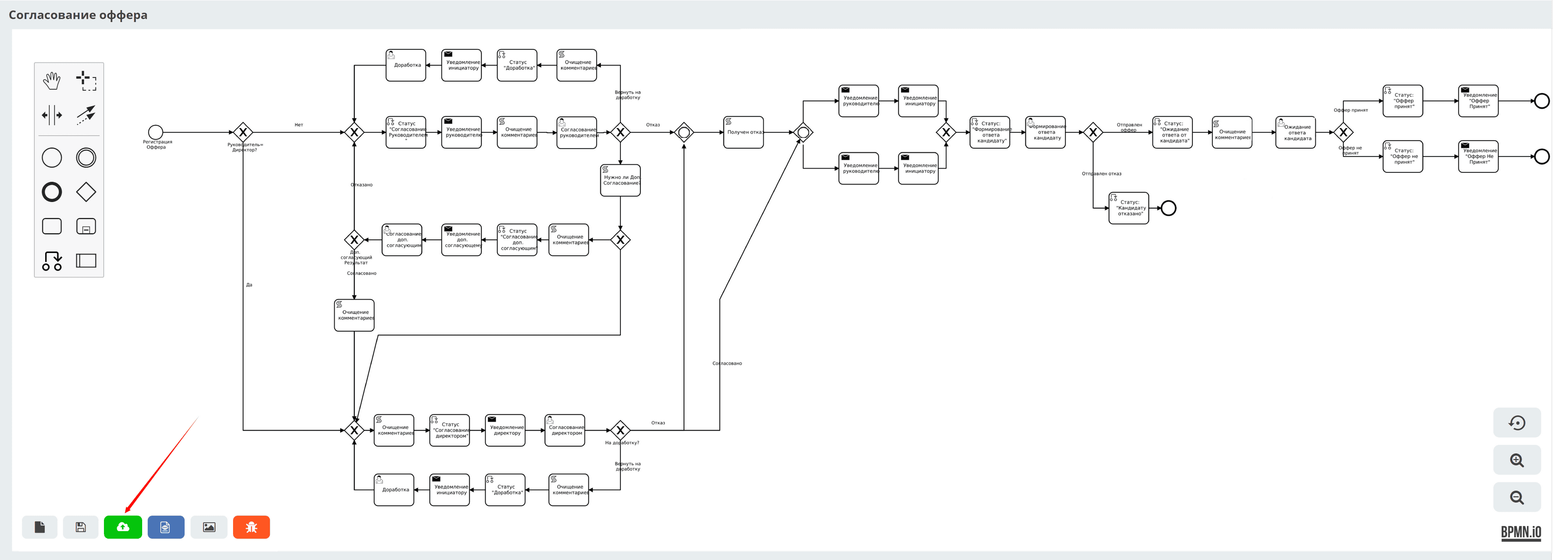
Saving and Publishing
Save and publish the created process:
Viewing the journal and creating an item in it
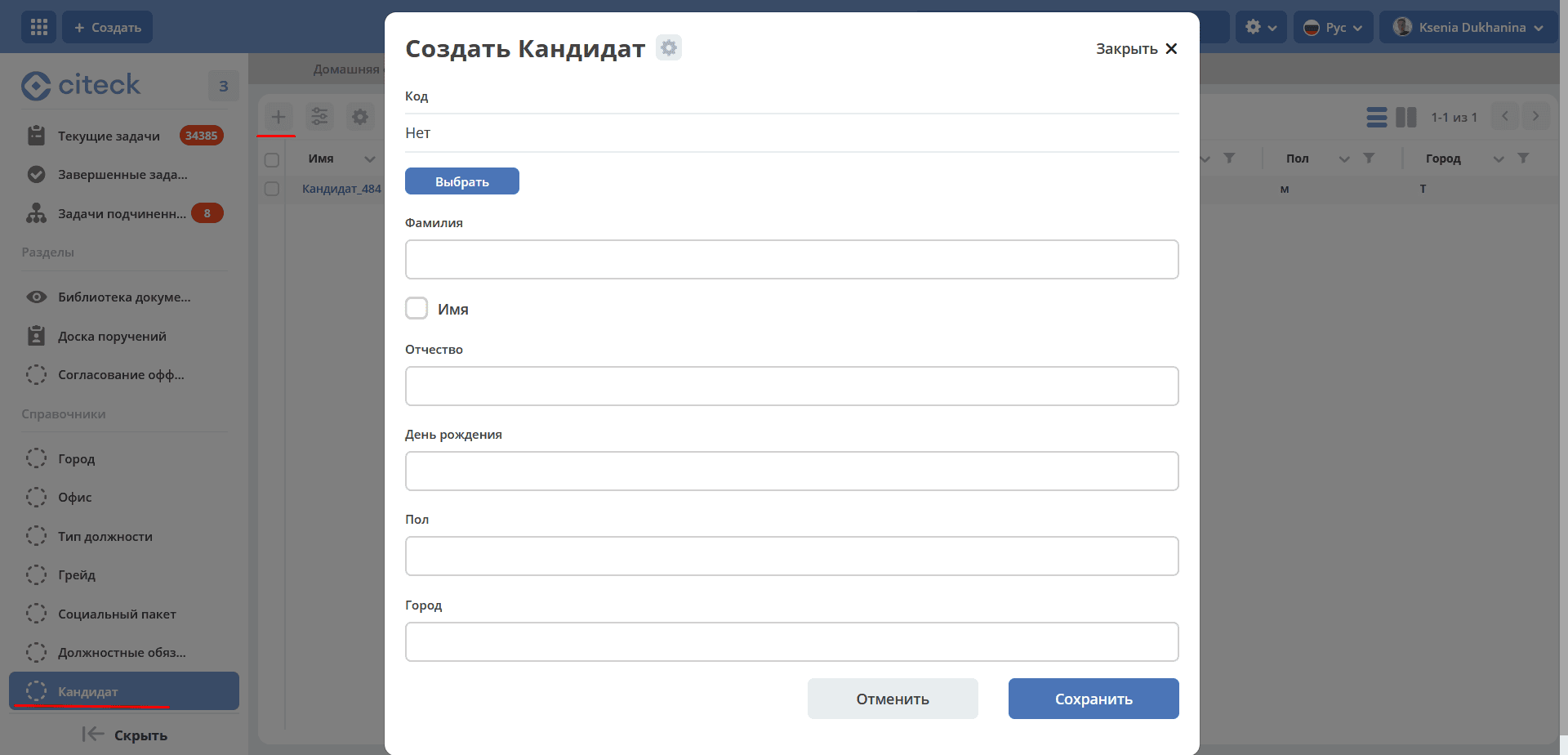
In the main menu, select the required journal.
In the journal, click +, a form for filling out will open:
Adding the created process to the “Create” menu
Go to the created workspace.
Go to the menu settings by clicking the gear icon in the top right corner, then select “Configure Menu”:
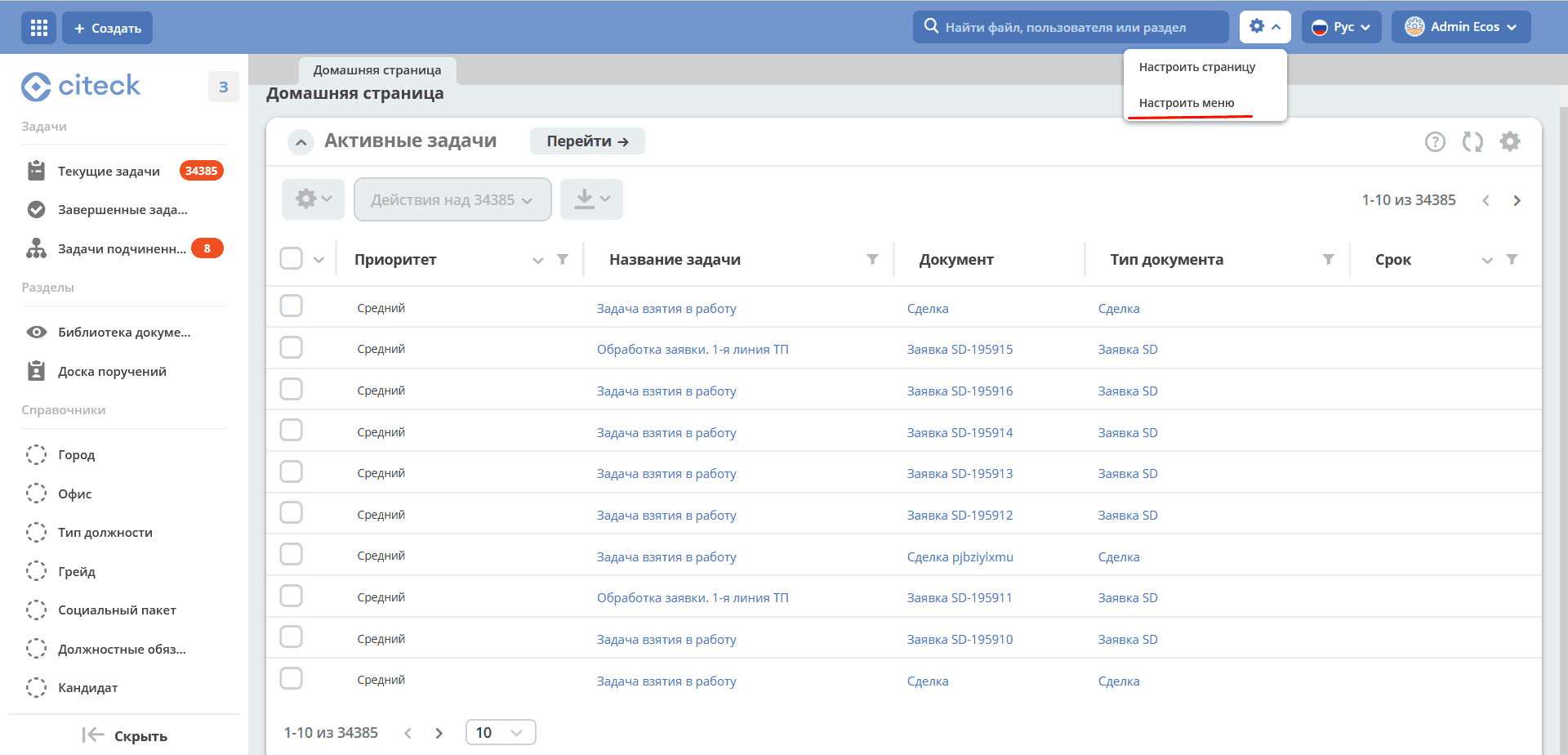
Go to the “Create” Menu tab, select the menu item where the process will be located. Hover over the added section, click “+ Add”, select “Add Case Creation Link”:
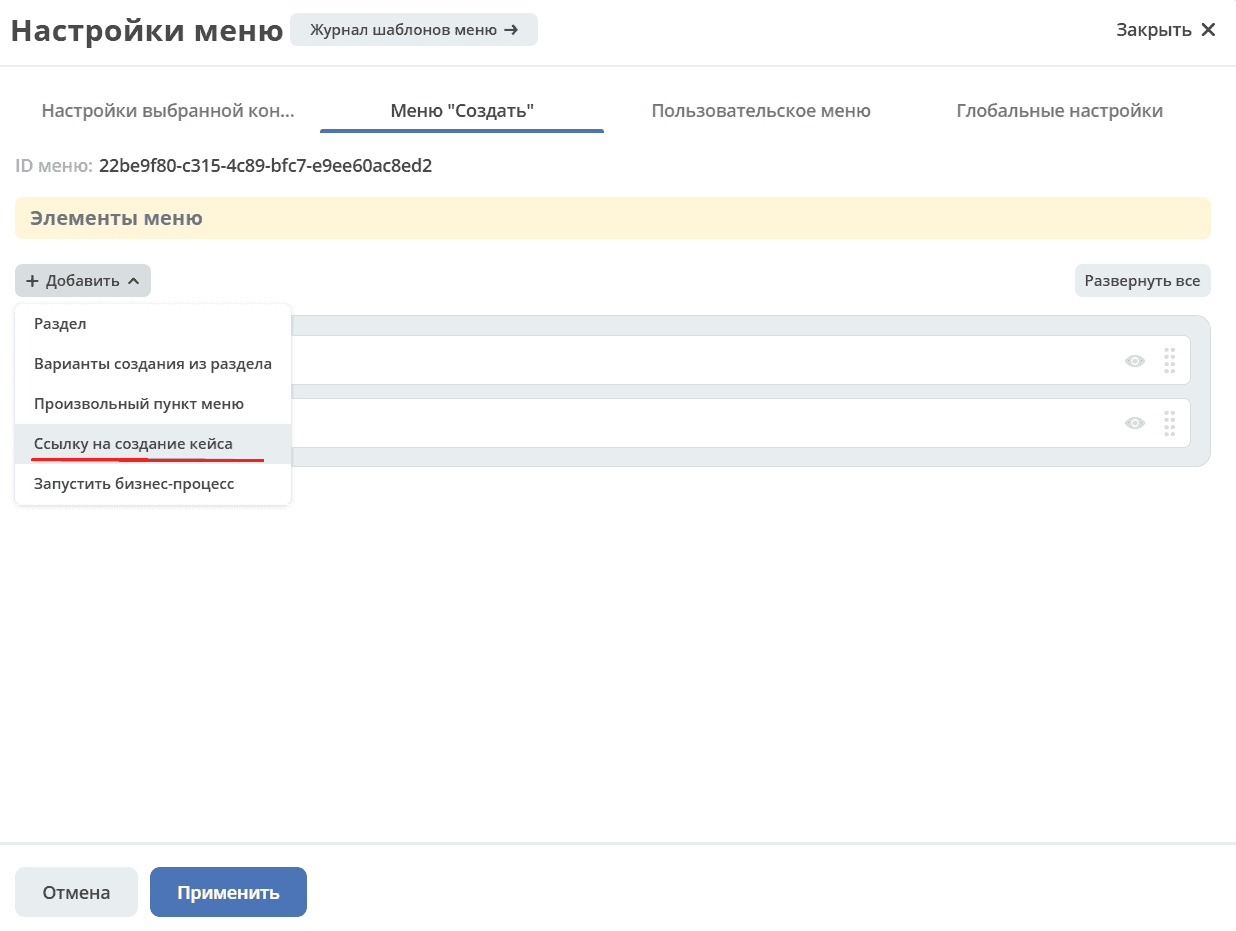
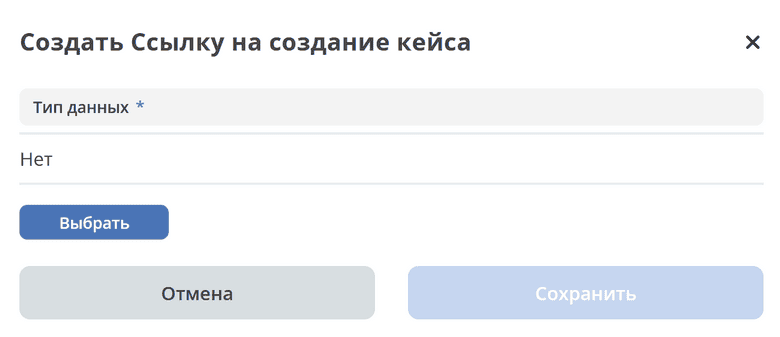
Select the data type:
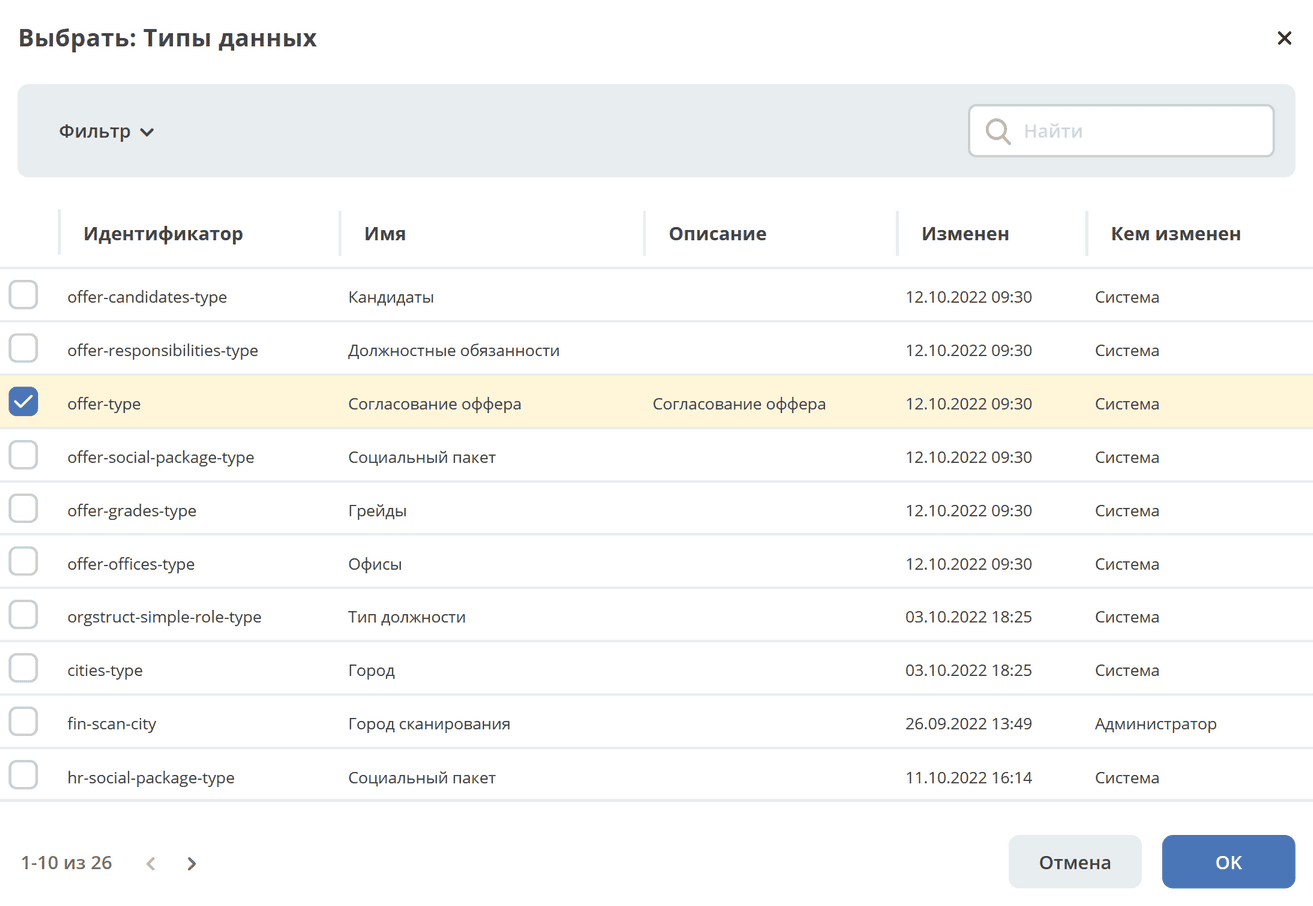
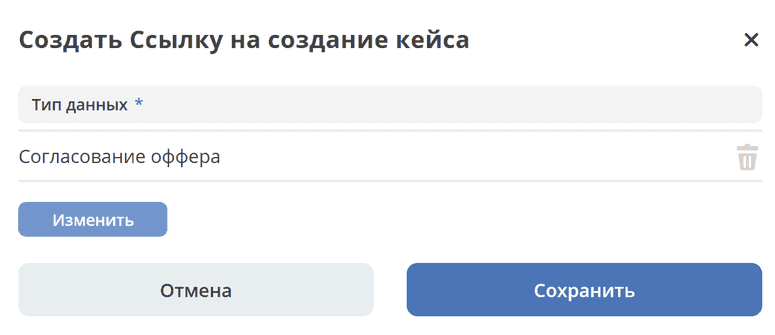
Name will be specified by default from the data type and can be changed. Click “Save”
To save the menu, click Apply
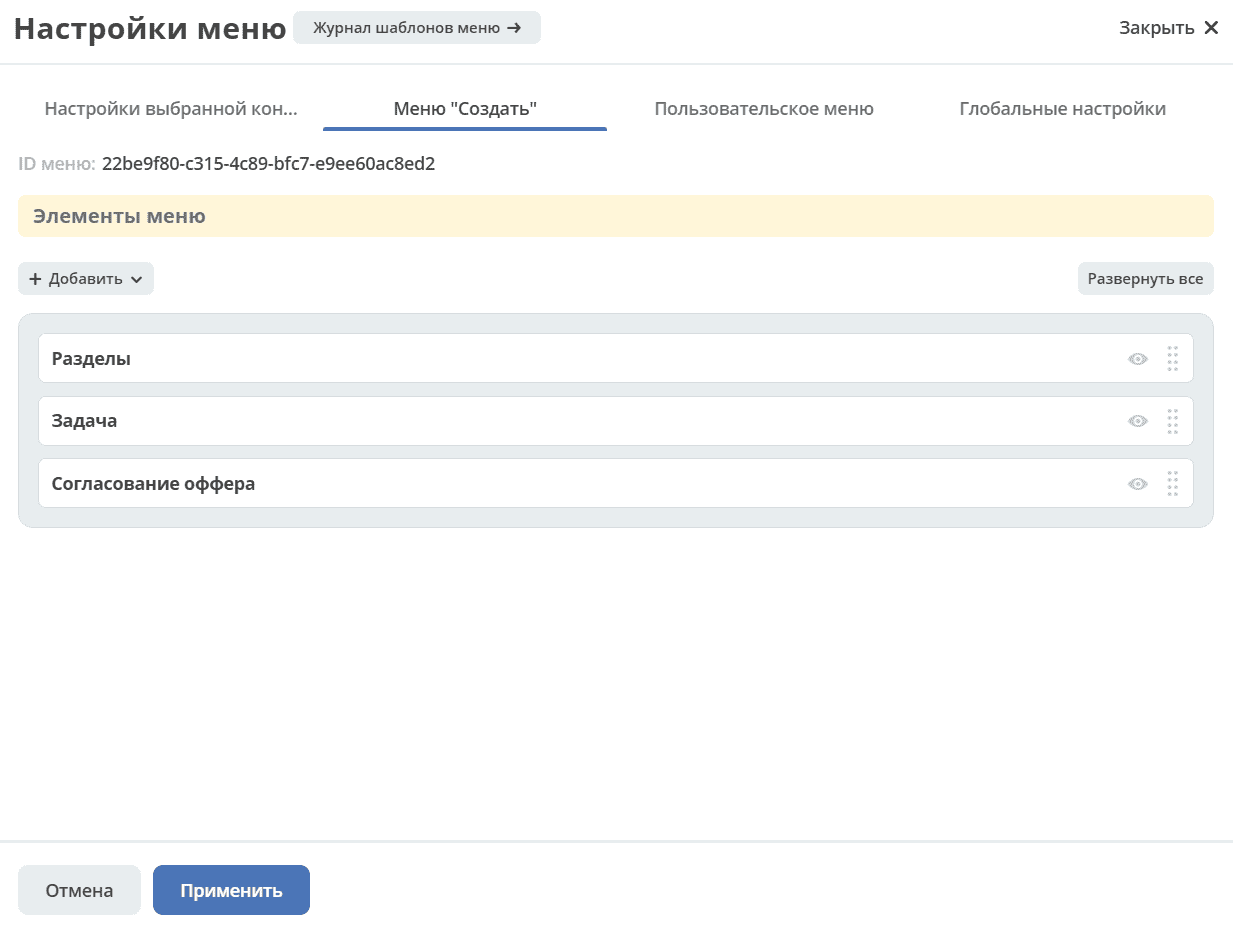
Added menu item:
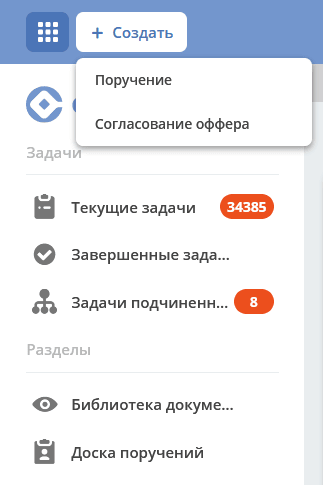
Starting a Case
In the “Create” menu, select “Offer Approval”, a form for filling out will open: