Equipment Procurement Request Process
Note
The procedure is described for users belonging to the ECOS Administrators group (ECOS_ADMINISTRATORS).
A workspace manager can also create a data type and business process for use within the workspace. See details
This article introduces users to the basics of ECOS using the example of creating a business process “Equipment Procurement Request”.
Equipment Request – a request necessary for procuring equipment for employees’ operational activities. For example, an employee needs a special cable to connect a monitor to their computer, which is currently out of stock.
Typically, an employee approaches their manager with a request to purchase the necessary equipment for them. After successful approval by the manager and in accordance with internal rules and regulations, the procurement takes place. The approver can also deny the purchase.
Next, we will step-by-step implement the described scenario using Citeck tools.
For equipment procurement, we will need the following information:
Initiator – the employee who needs the equipment;
Approver – the employee responsible for approving the equipment to be purchased;
Name – the name of the equipment to be purchased;
Cost – the cost of the equipment.
Before creating the business process itself, it is necessary to create a number of artifacts in the following order:
Data Type
Data Type - the main source of metadata for working with an object.
To create a data type, go to the administrator workspace:
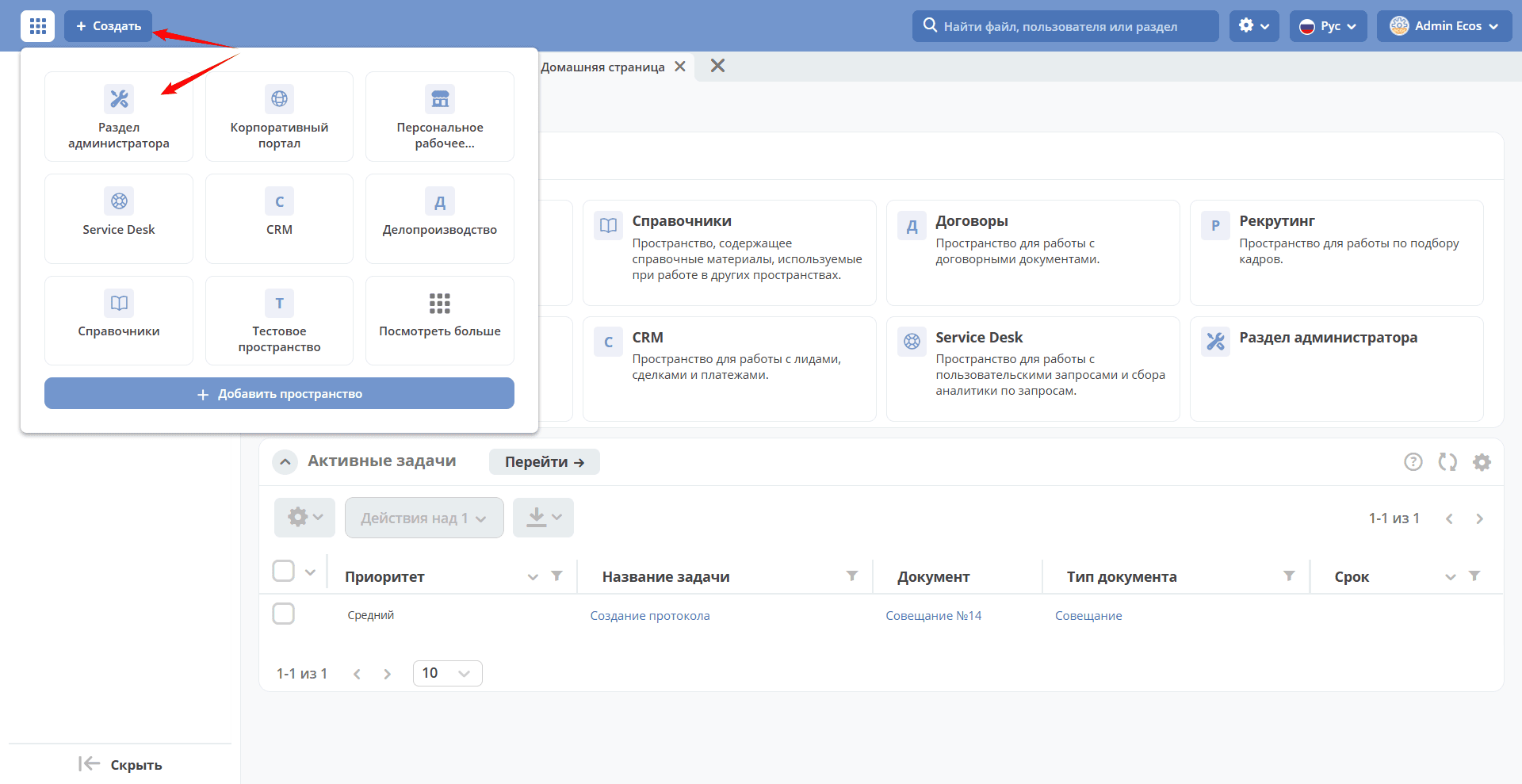
in the Model section, go to Data Types:

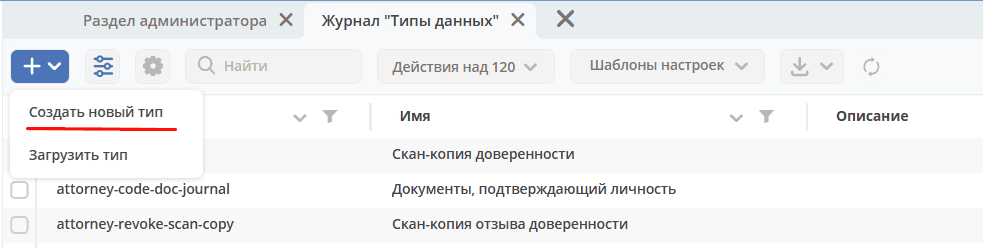
click + - Create new type:
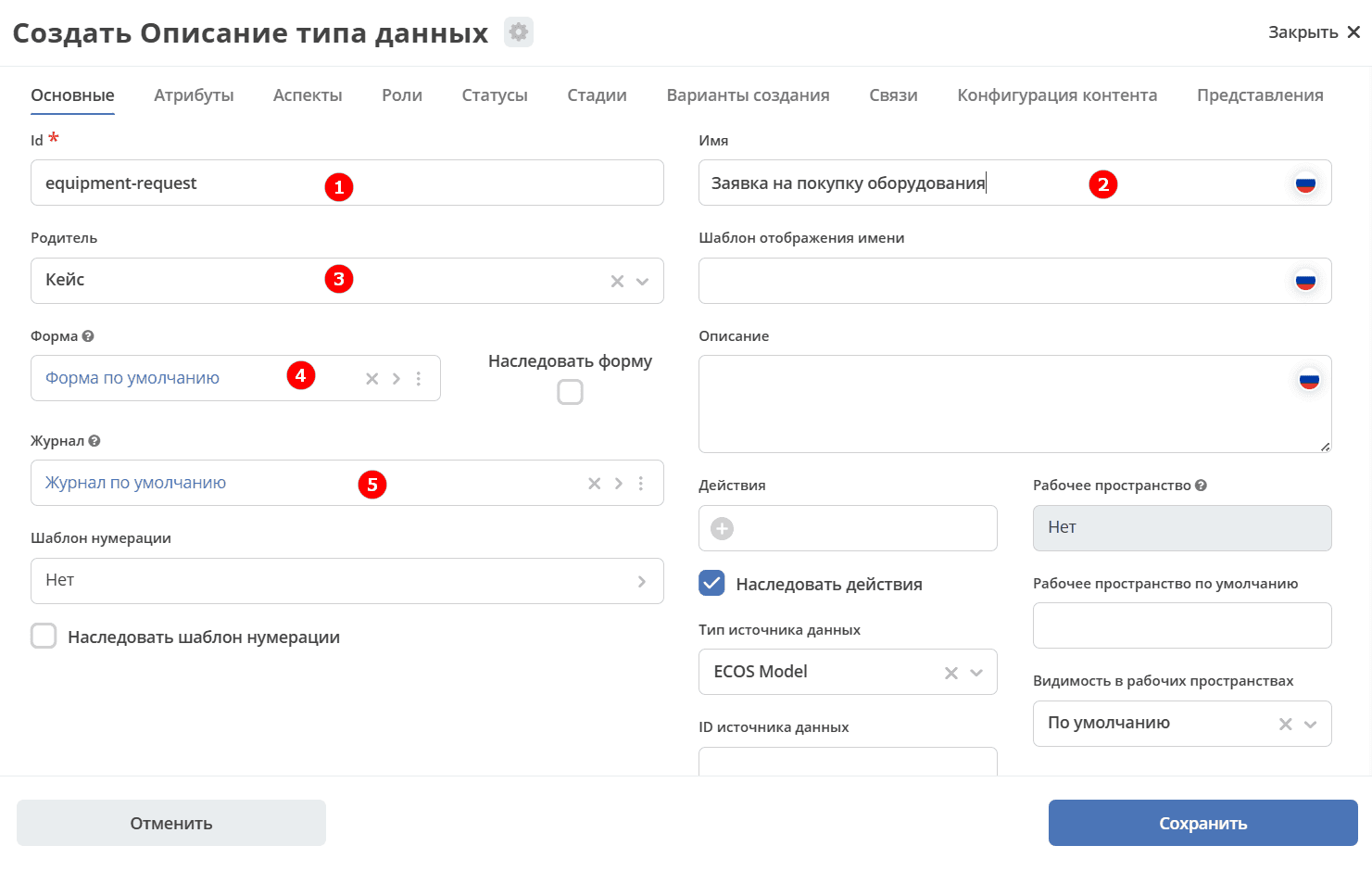
General
The tab contains the main data for the data type (object):
1 |
id |
equipment-request |
2 |
Name |
Equipment Purchase Request |
3 |
Parent |
Case |
4 |
Form |
Leave as default (the system will automatically generate a form based on the attributes we specify later, but automatically generated forms cannot be edited) |
5 |
Journal |
Leave as default (the system will automatically generate a journal based on the attributes we specify later, but automatically generated journals cannot be edited) |
Final tab configuration:
Attributes
The tab contains information about the properties that will be used to interact with the object.
To create a request, we will need the following information:
what needs to be bought,
how much it costs,
who is requesting it
who approves the purchase.
And, accordingly, we will need the following attributes (object properties):
Id (1) |
Name (2) |
Type (3) |
|---|---|---|
name |
Equipment Name |
Text |
price |
Cost |
Number |
requester |
Initiator |
Person |
approver |
Approver |
Person |
Final tab configuration:

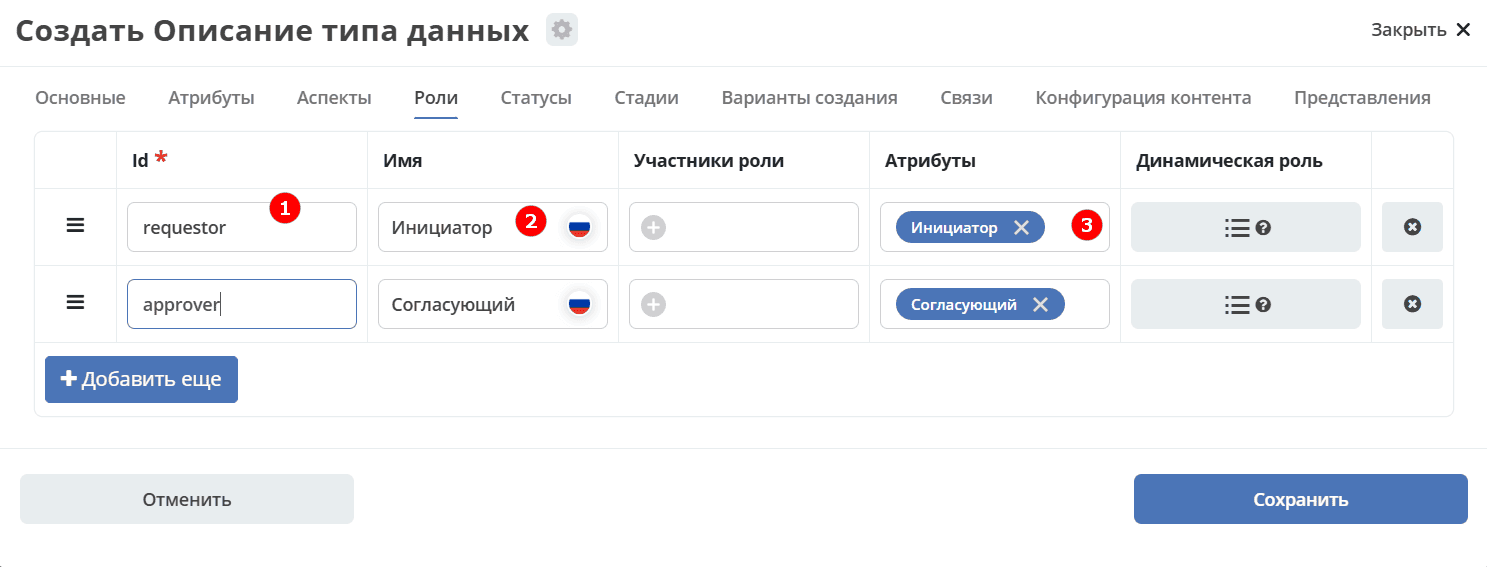
Roles
The tab describes the roles that participate in working with the object, in our case, participate in working with the request.
Looking at the attributes, it’s easy to guess that we will need two roles at the first stage: Initiator and Approver.
Note
Attribute is selected from the previously specified attributes. Clicking on the field drops down a list of the attributes specified on the “Attributes” tab.
Id (1) |
Name (2) |
Attribute (3) |
|---|---|---|
requestor |
Initiator |
Initiator |
approver |
Approver |
Approver |
Final tab configuration:
Statuses
The tab describes the statuses through which the object (our request) will move through the business process.
Let’s consider the simplest and most successful process variant.
The Initiator creates a request (status “Request Created”), then sends it for approval to the Approver (status “Under Approval”), after which the Approver approves the request (status “Approved”).
Id (1) |
Name (2) |
|---|---|
request-created |
Request Created |
approving |
Under Approval |
approved |
Approved |
rejected |
Rejected |
Final tab configuration:
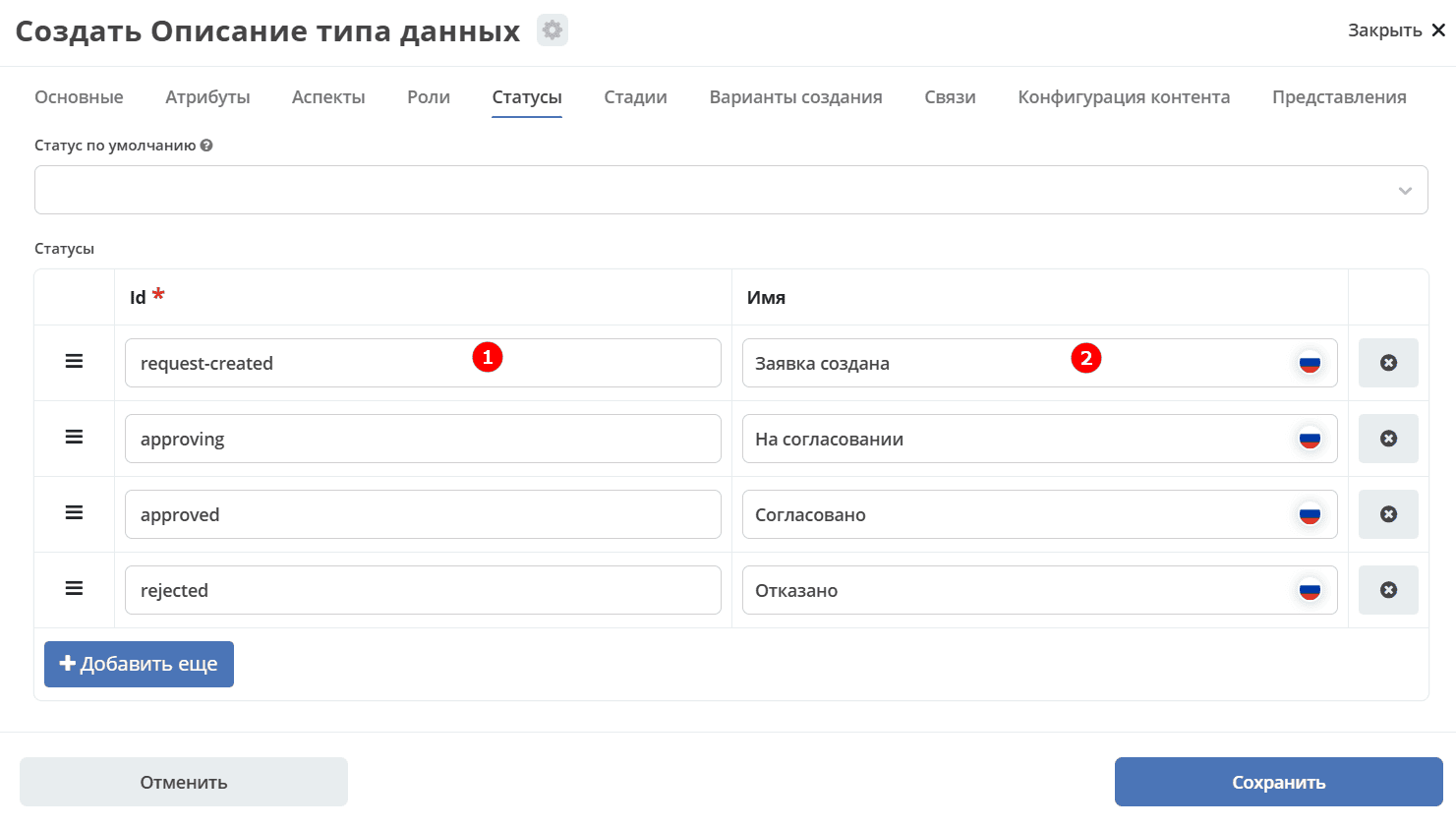
Click «Save». This completes the creation of the basic data type variant for the request.
Interim Summary
specified basic information about the data type: id, data type name,
the form and journal were automatically generated by the system based on the entered data;
described the request properties that we will interact with further;
added roles that will participate in working with the request;
defined the statuses through which the request will move.
Journal and Form
Go to the created workspace:
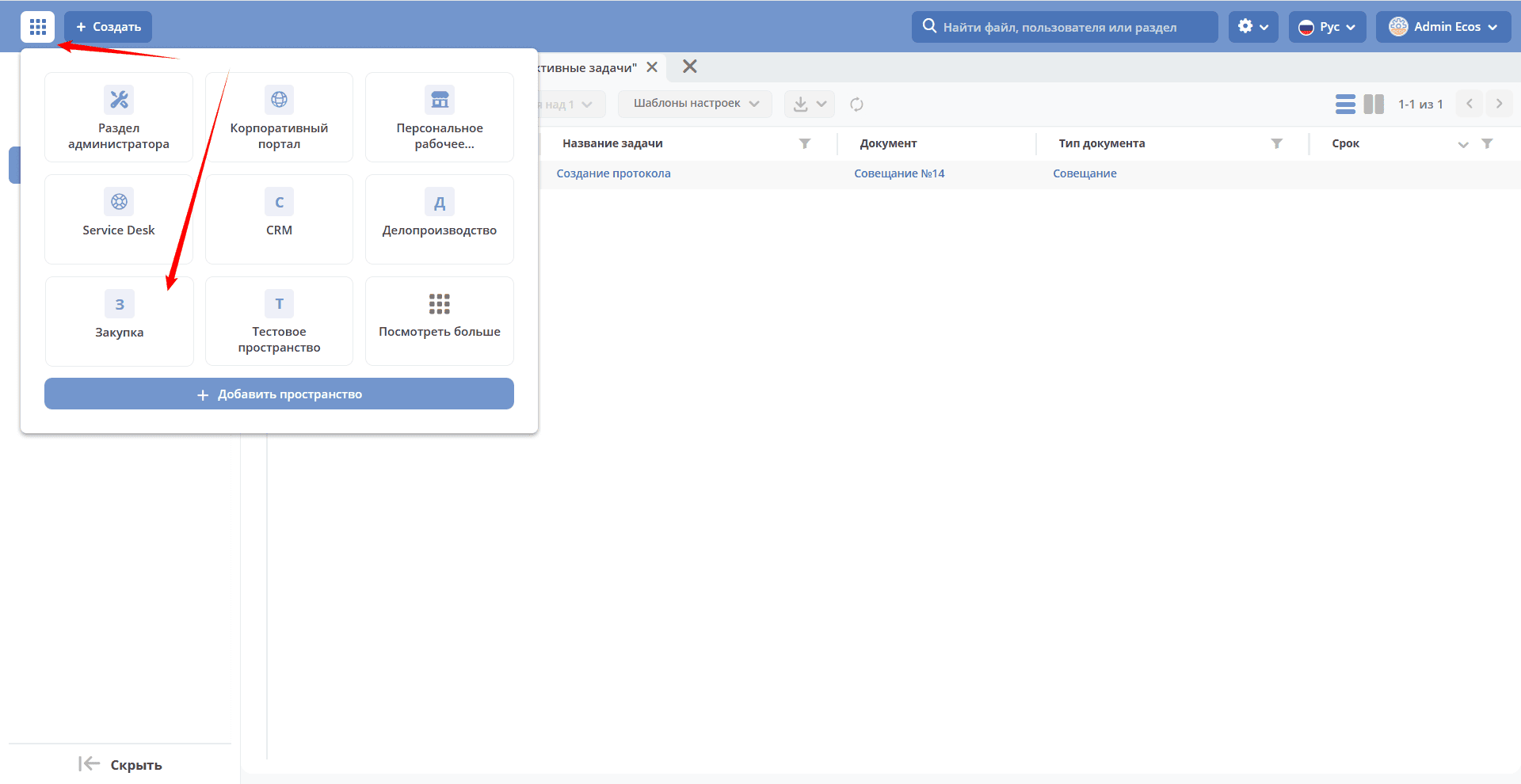
To view the journal, it must be added to the left menu:
Go to the menu settings by clicking the gear icon in the top right, then select “Configure Menu”:

Go to the “Selected Configuration Settings” tab, click “+ Add”, select “Section”:

In the “Name” field, enter the section name. For example, “Equipment”. Click “Save”.
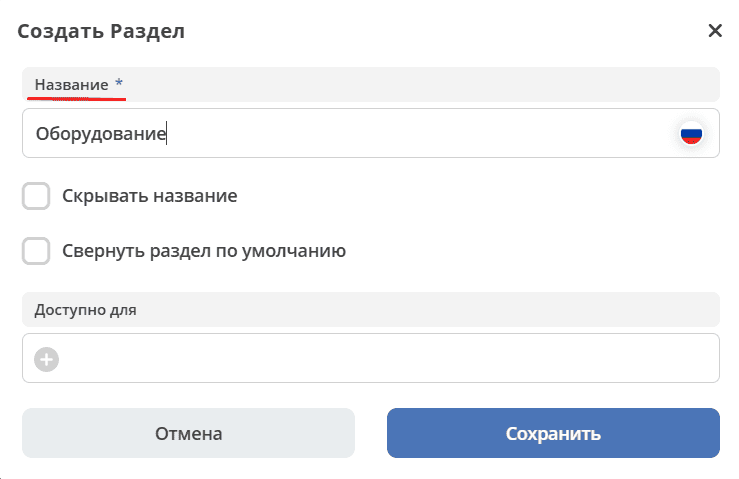
Hover the cursor over the added section, click “+ Add”, select “Journal”:
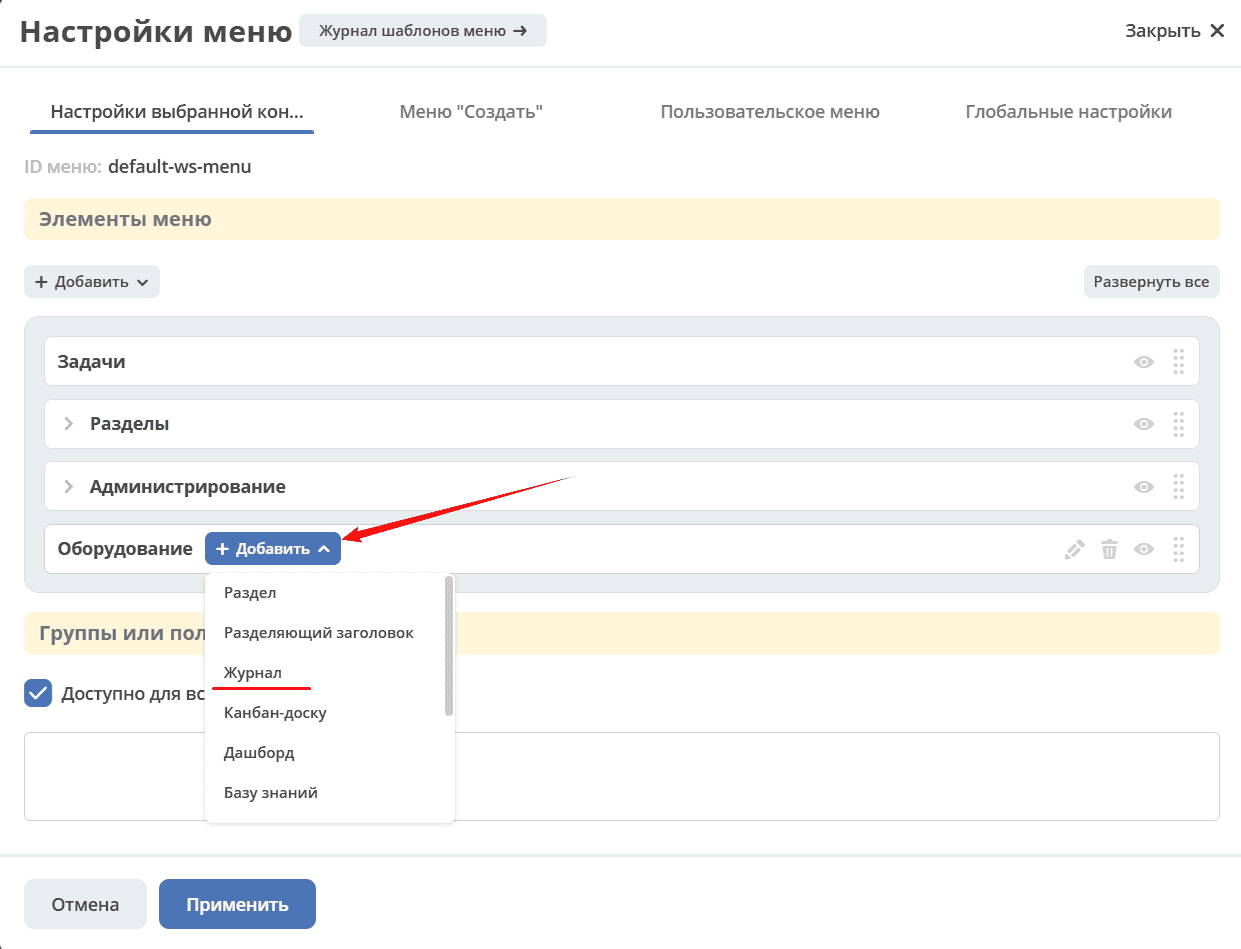
Select the journal “type$equipment-request” and click OK:
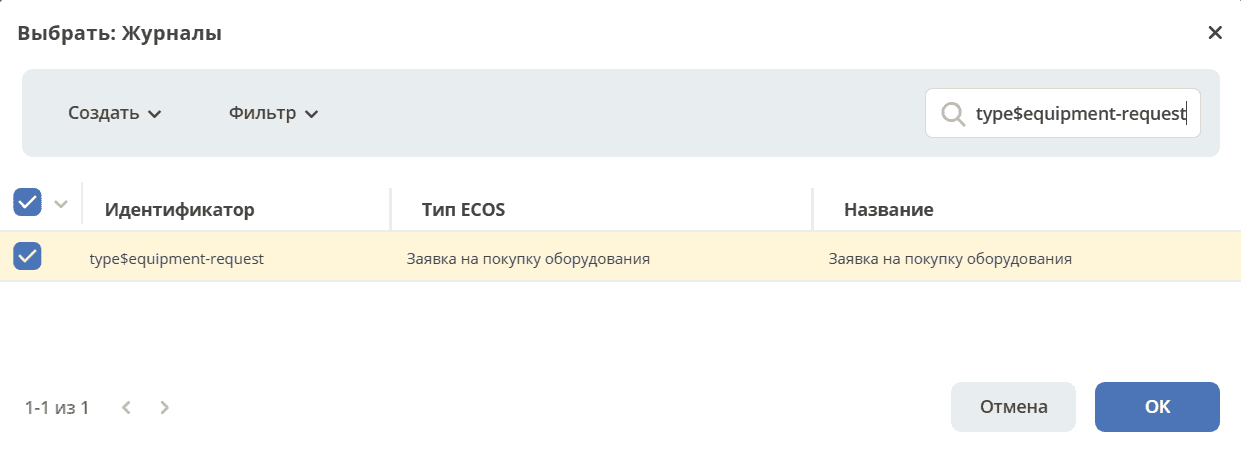
Click “Apply”.
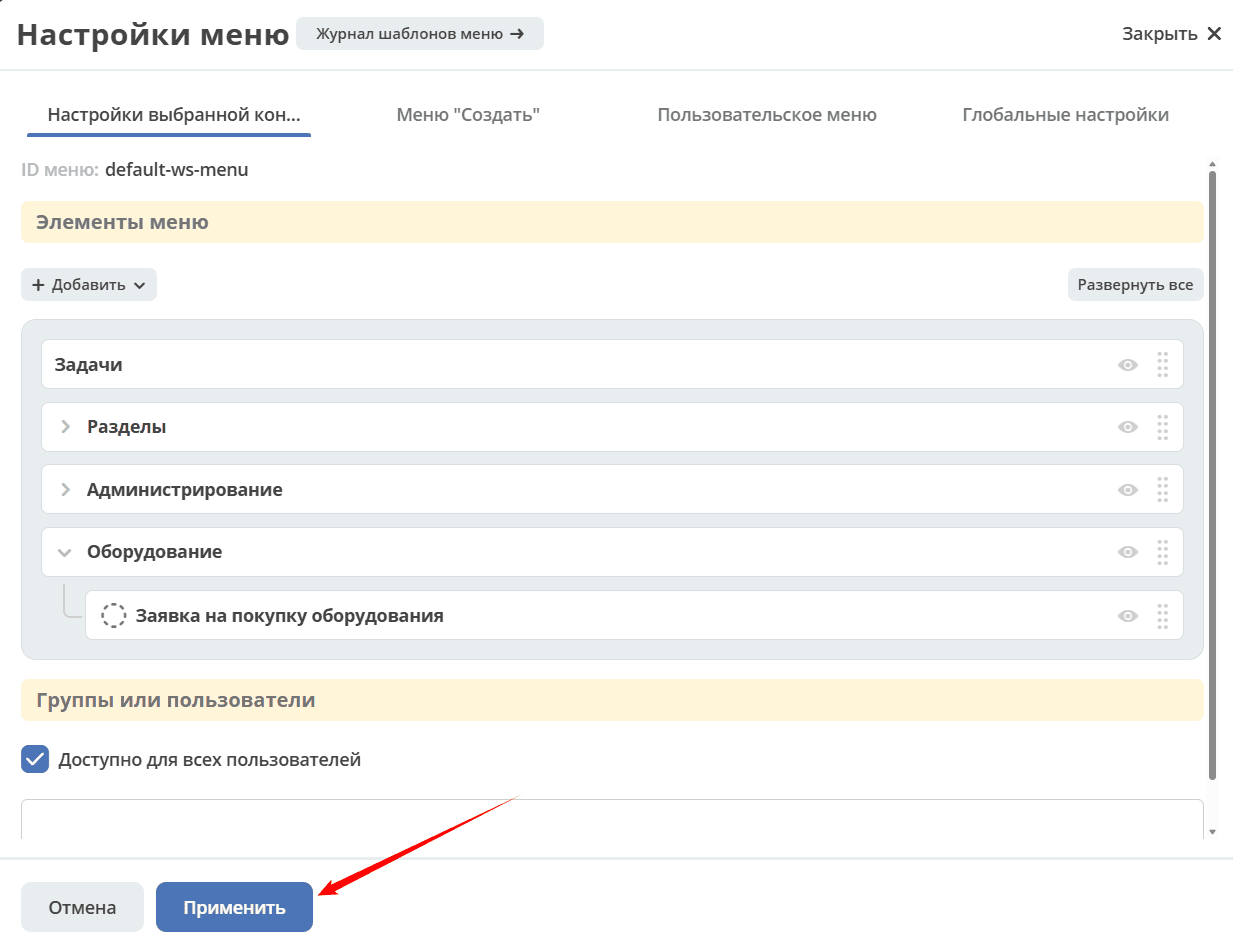
A new journal “Equipment Purchase Request” has appeared in the left menu:
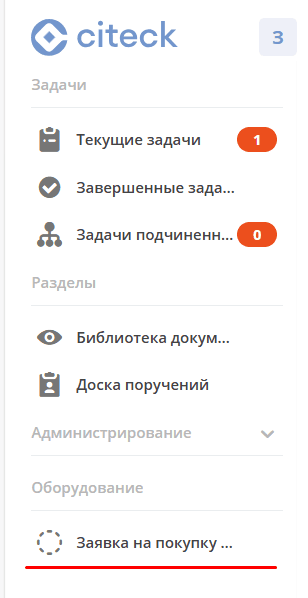
Selecting it will open a new tab with an automatically generated journal. The journal shows columns that directly relate to the attributes previously specified in the data type:

The automatically generated form is available via the + button:
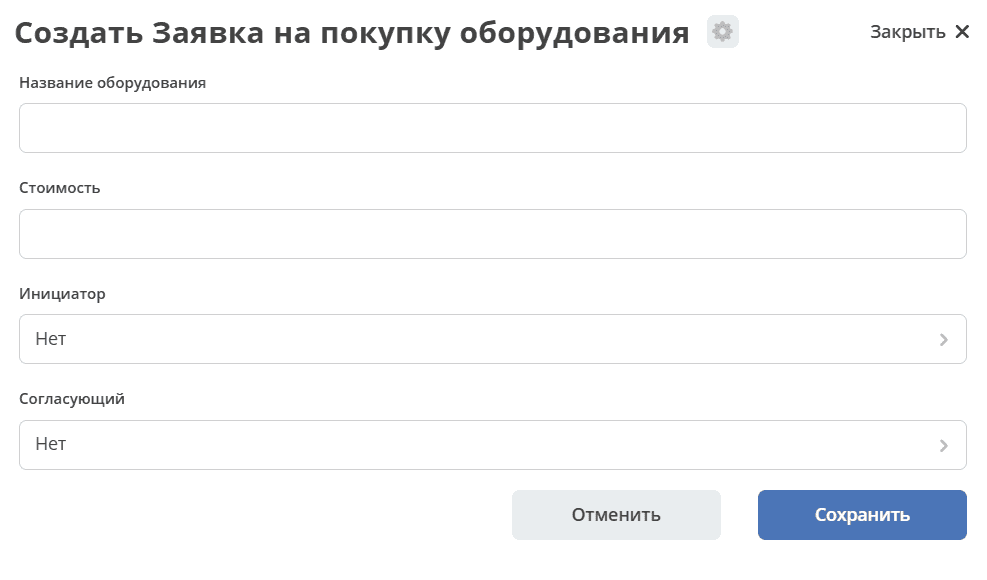
Creating a request in the journal is not yet possible because a process description for the object’s lifecycle has not been defined yet.
Business Process
To create a process, go to the administrator workspace.
In the Process Management section, go to BPMN Models:
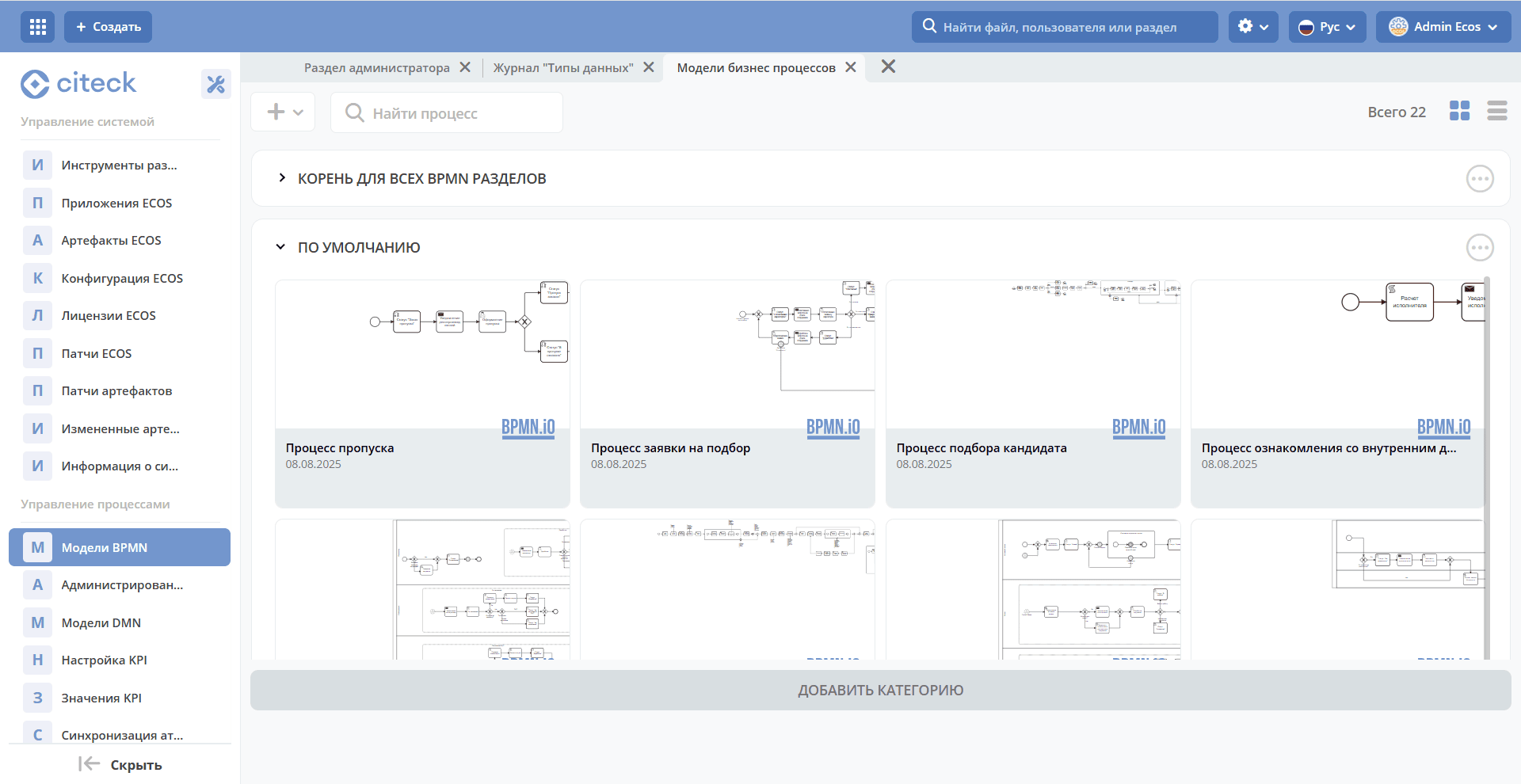
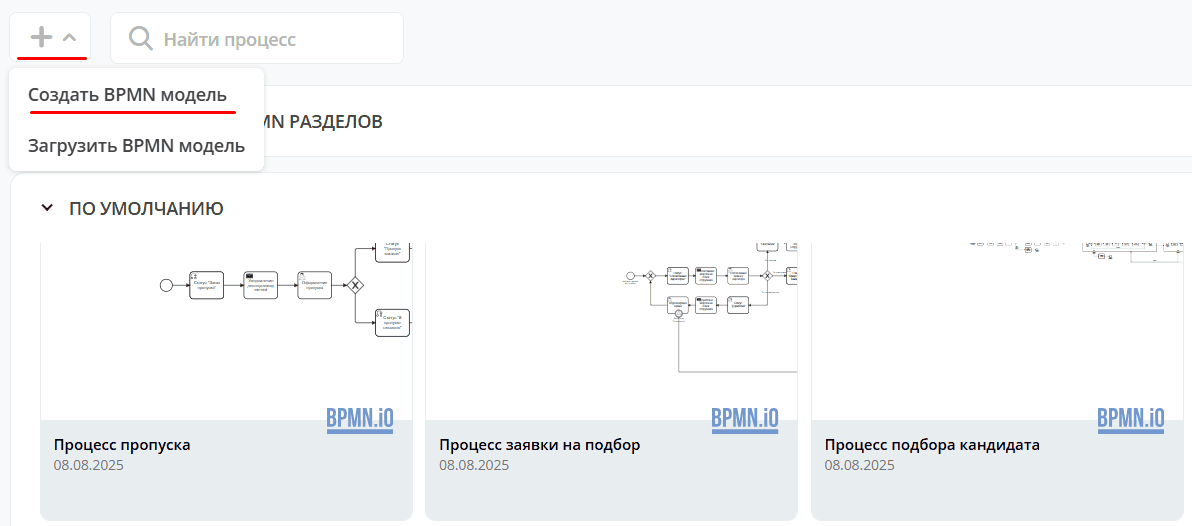
To create a process, click “+ - Create BPMN Model”:
In the opened modal window, fill in the fields:
1 |
Identifier |
equipment-request |
2 |
Name |
Equipment Purchase Request |
3 |
Data Type |
equipment-request |
4 |
Enabled |
True. Indicates process activity. |
5 |
Automatic process start |
True, so that the process starts automatically. Details about process start |
6 |
Automatic process deletion |
When an object of the specified type is deleted, the process will be deleted automatically. Enabled by default. |
Final business process configuration:
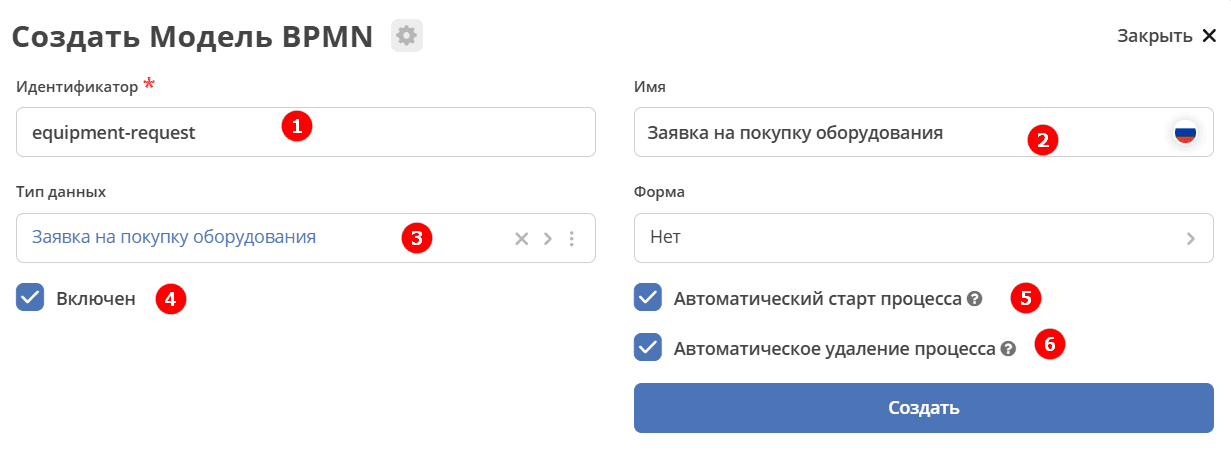
Note
Be sure to check the boxes Enabled (4) and Automatic process start (5)
Click “Create”.
Next, it is necessary to describe the process schema in the business process editor.
To go to the editor, expand the “Default” section, hover the cursor over the created process and click:

The business process designer will open:

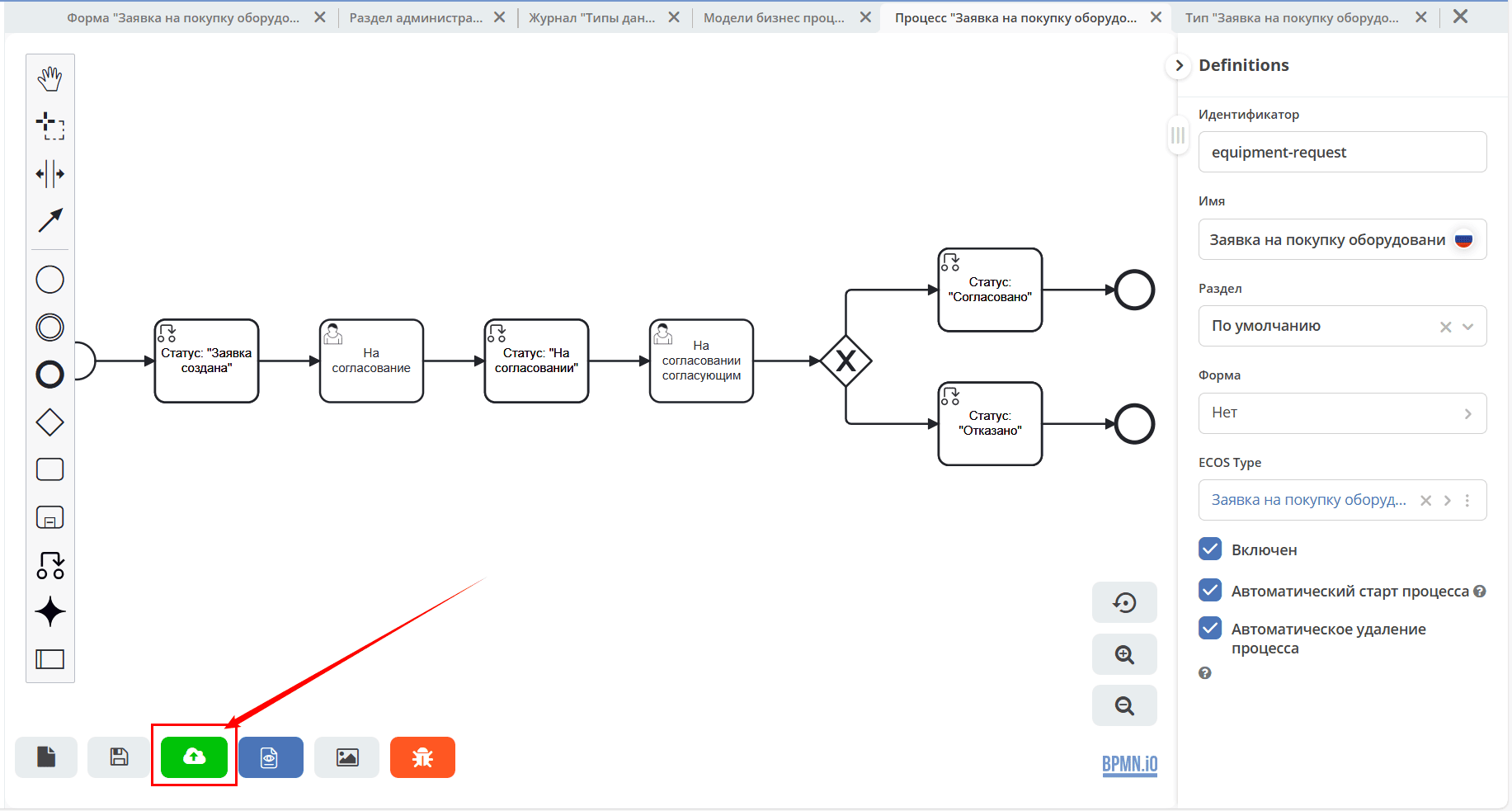
We will describe the request processing process as follows:
Create Request -> Send for Approval -> Approve/Reject Request
A component responsible for the start of the process (Start event) is automatically added to the schema.
The Start Event component listens to the system and waits for a request to create a new object with the data type we need to arrive.
Select the Start Event component - a context menu is located next to the component, which can be used to add new elements to the process, connections between elements, or edit the current element.
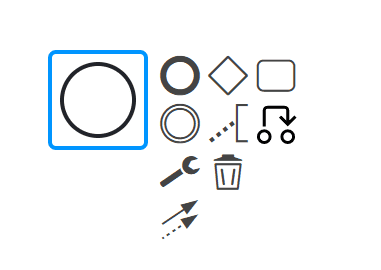
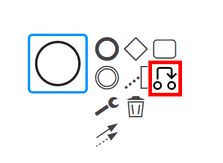
Immediately after creating the request, it should receive the status “Request Created” - click on the Set status element in the context menu:
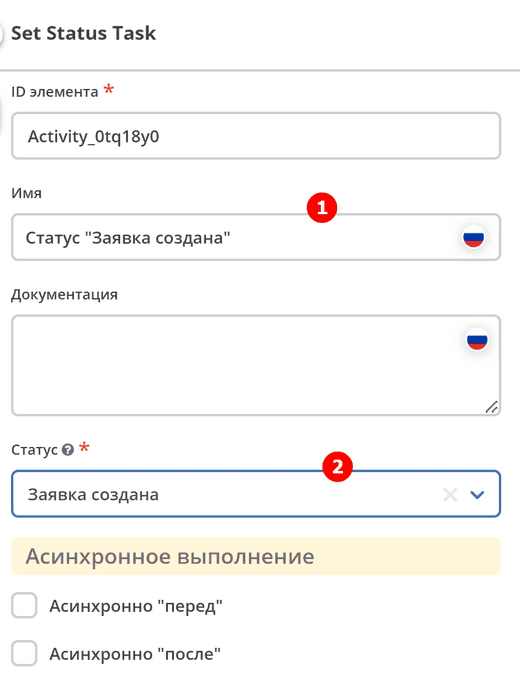
To the right of the schema area, settings for the added component appear, where you need to specify the name (1) and status (2) that will be assigned to the object at this stage.
Name - Status “Request Created”,
Status - Request Created.
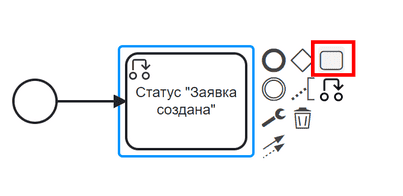
Once the request is created, its contents must be reviewed and then sent for approval. To do this, create a user task — click the «Task» element in the context menu:
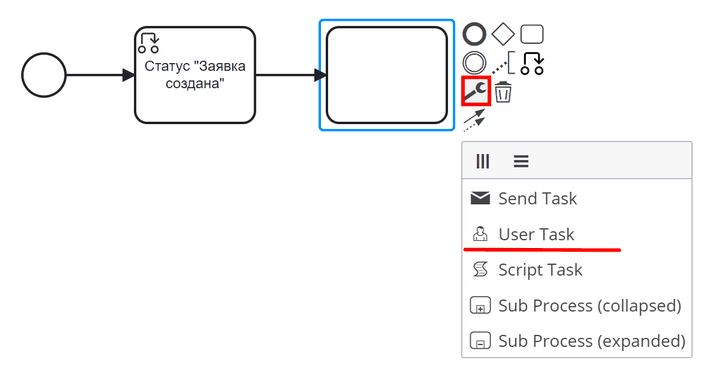
But this component is not suitable, and it is necessary to change its type from “Task” to User task. To do this, click on the wrench and select the “User task” option:
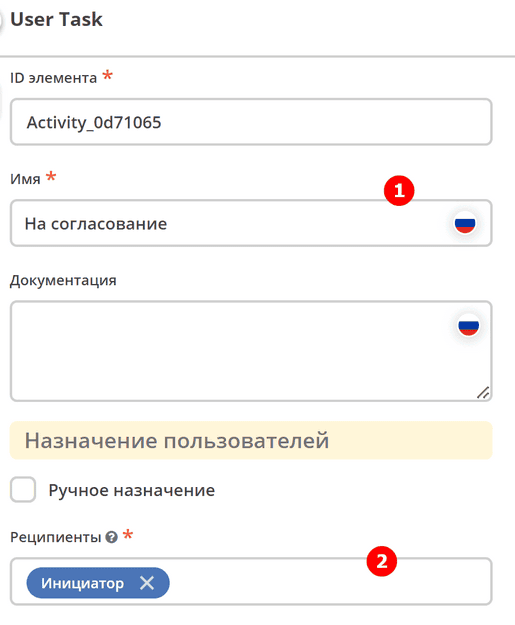
Configure the user task:
Name - For Approval,
Recipient - Initiator
Note
A simple form for the task can be created automatically - only the buttons configured in the Task Outcome will be displayed.
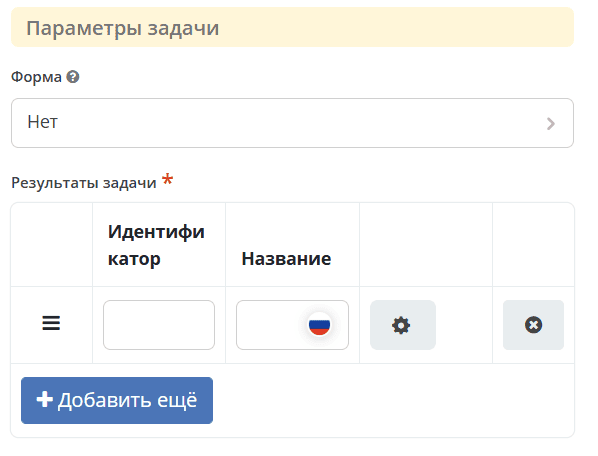
Priority is filled by default as Medium.
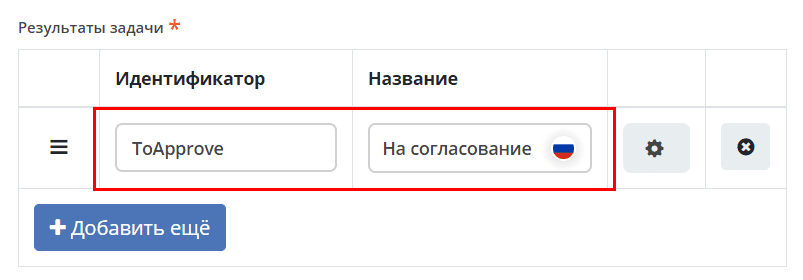
Fill in the “Task Outcomes” list with the following values:
Identifier – ToApprove
Name – For Approval
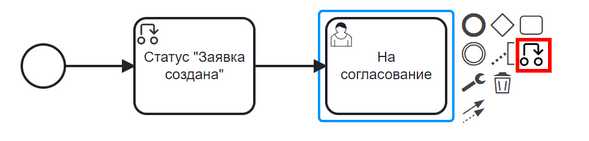
The task is created and after sending for approval, it is necessary to change the task status to “Under Approval”. To do this, repeat the actions of the first status change (step 2):
Click on the Set Status icon in the context menu
Name - Status “Under Approval”.
Status - Under Approval.
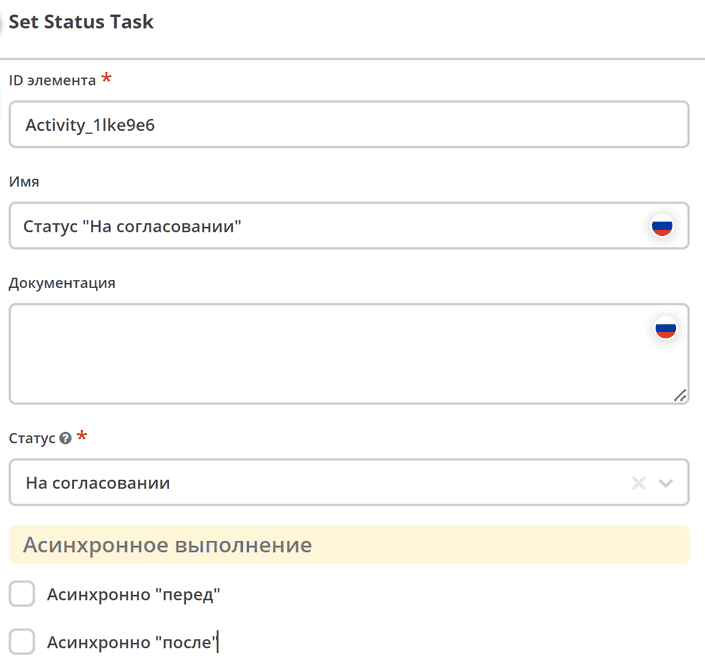
Next, it is necessary to create a similar task, but this time for the approver:
Add a Task component using the context menu
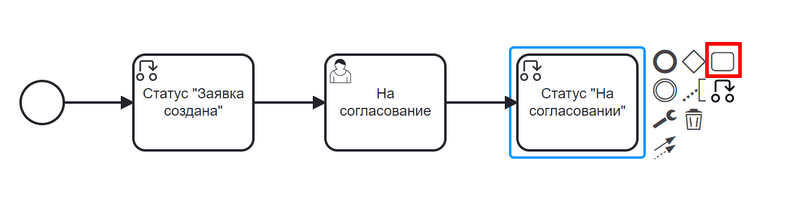
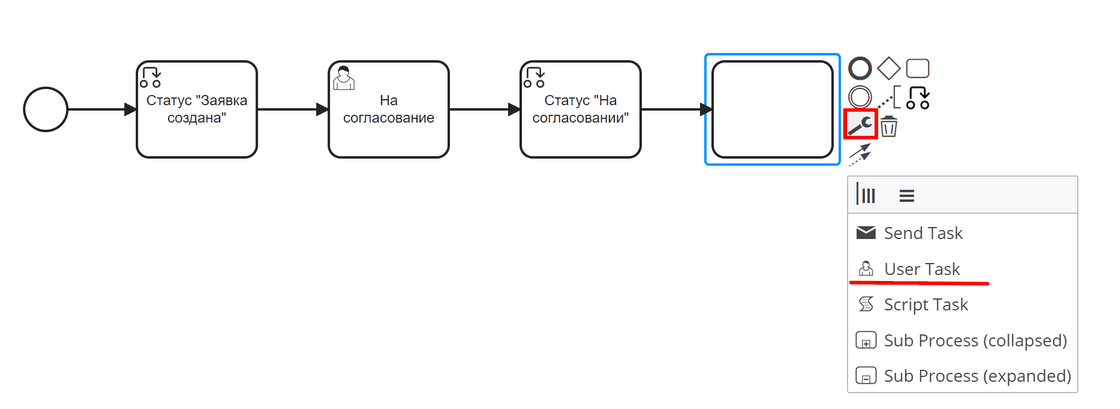
Change the component type from Task to User Task:
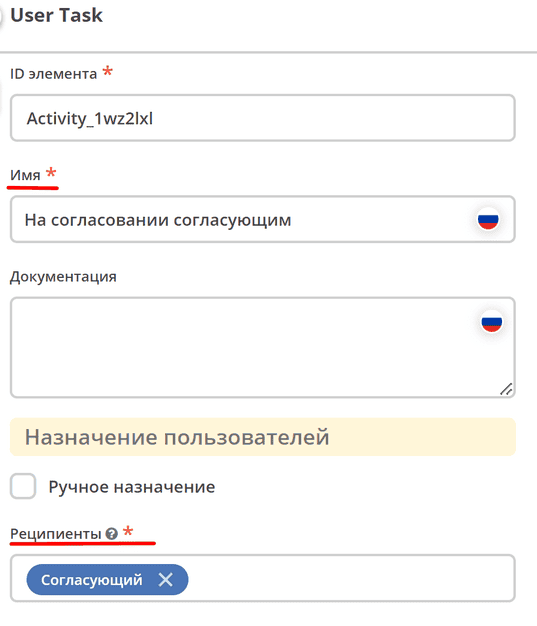
Name - Under approval by approver,
Recipients - Approver.
Priority is filled by default as Medium.
Fill in the “Task Outcomes” list with the following values:
Identifier – Approve, Name – Approve
Identifier – Reject, Name – Reject
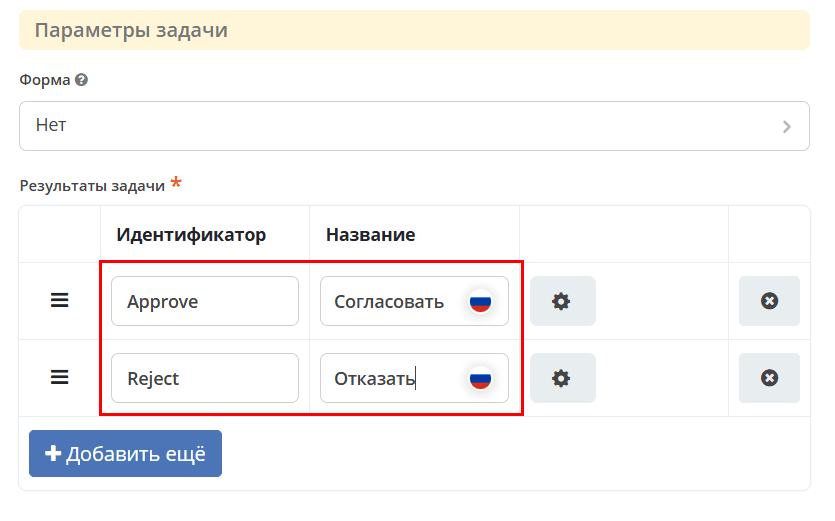
Note
A form for the task can be created manually, and then it will be created by the system, displaying the task verdicts filled in the Task Outcome field.
We will create a custom form to get acquainted with the form designer.
Forms for tasks usually consist of comments and buttons that indicate the task execution result.
In this case, a comment is not needed; at this stage, buttons responsible for the outcome of the task “Under approval” are sufficient.
To do this, perform the following steps:
On the settings panel of the User Task component, under the “Task Form” field, click the “Select” button:
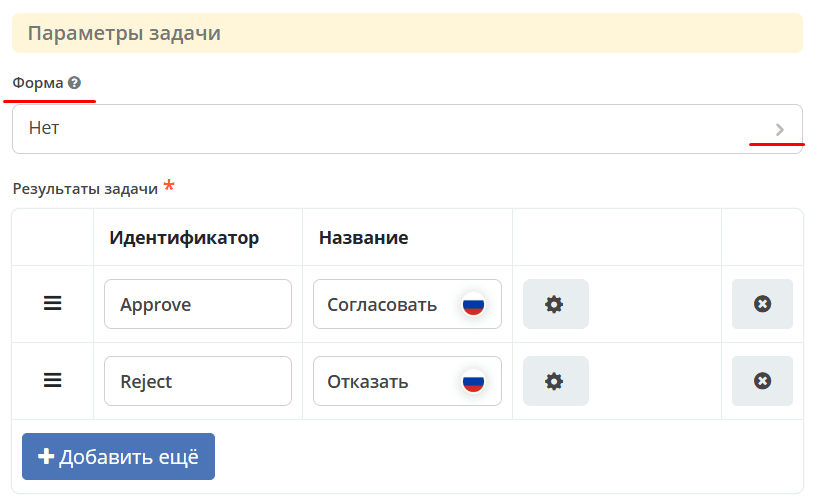
In the top part, click “Create”, select the “Create form” option:

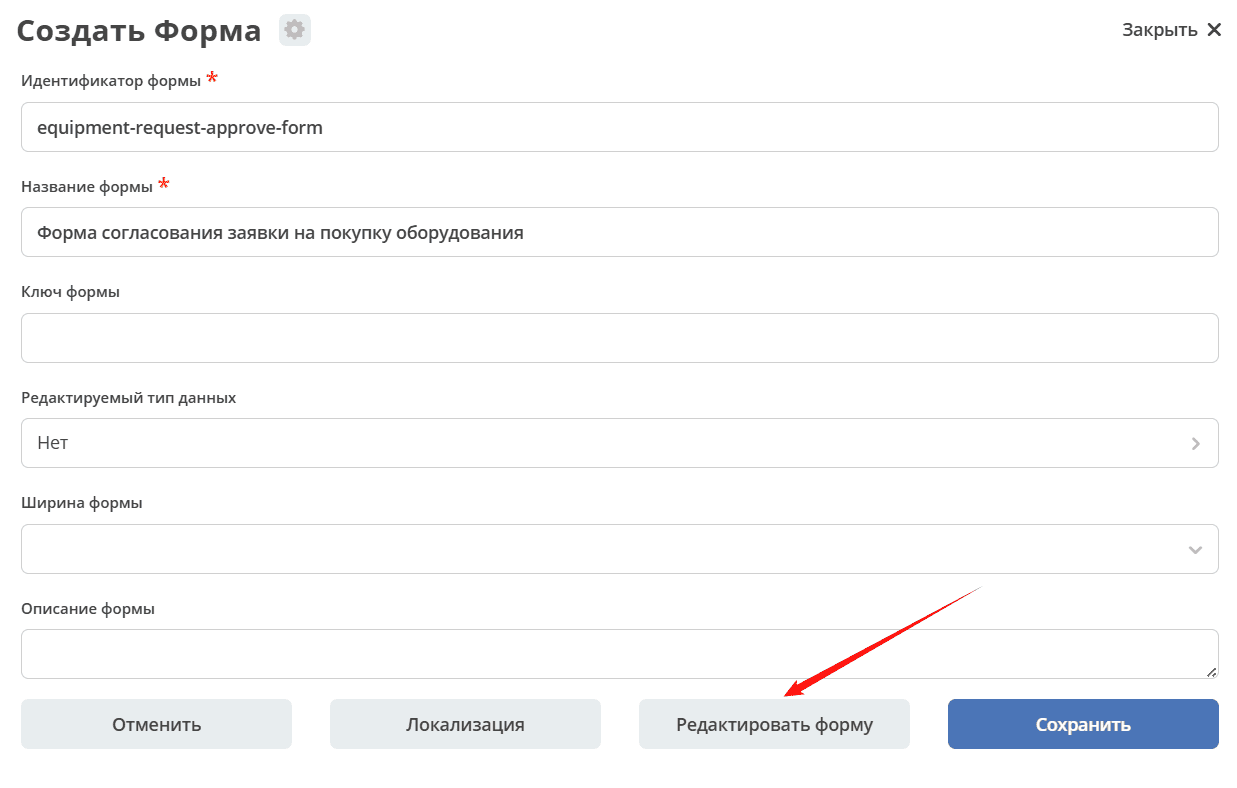
Fill in the fields with the following data:
Form identifier - “equipment-request-approve-form”
Form name – “Equipment purchase request approval form”
Click the “Edit form” button:
Delete the text component named “Title”, and the buttons:

Go to “Advanced”, drag the Task Outcome component onto the form:
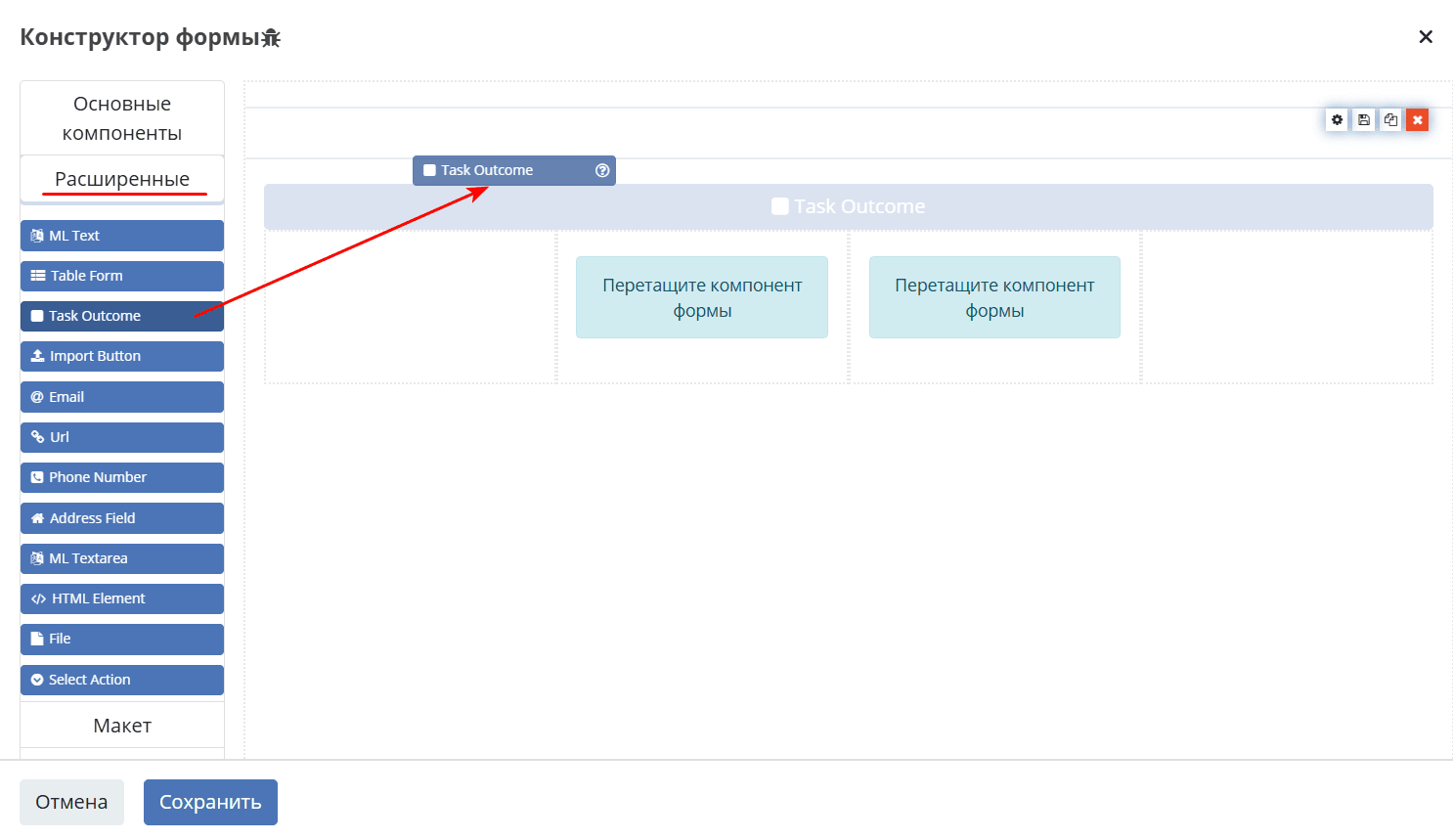
In the “Property name” field, enter outcome and click the “Save” button:
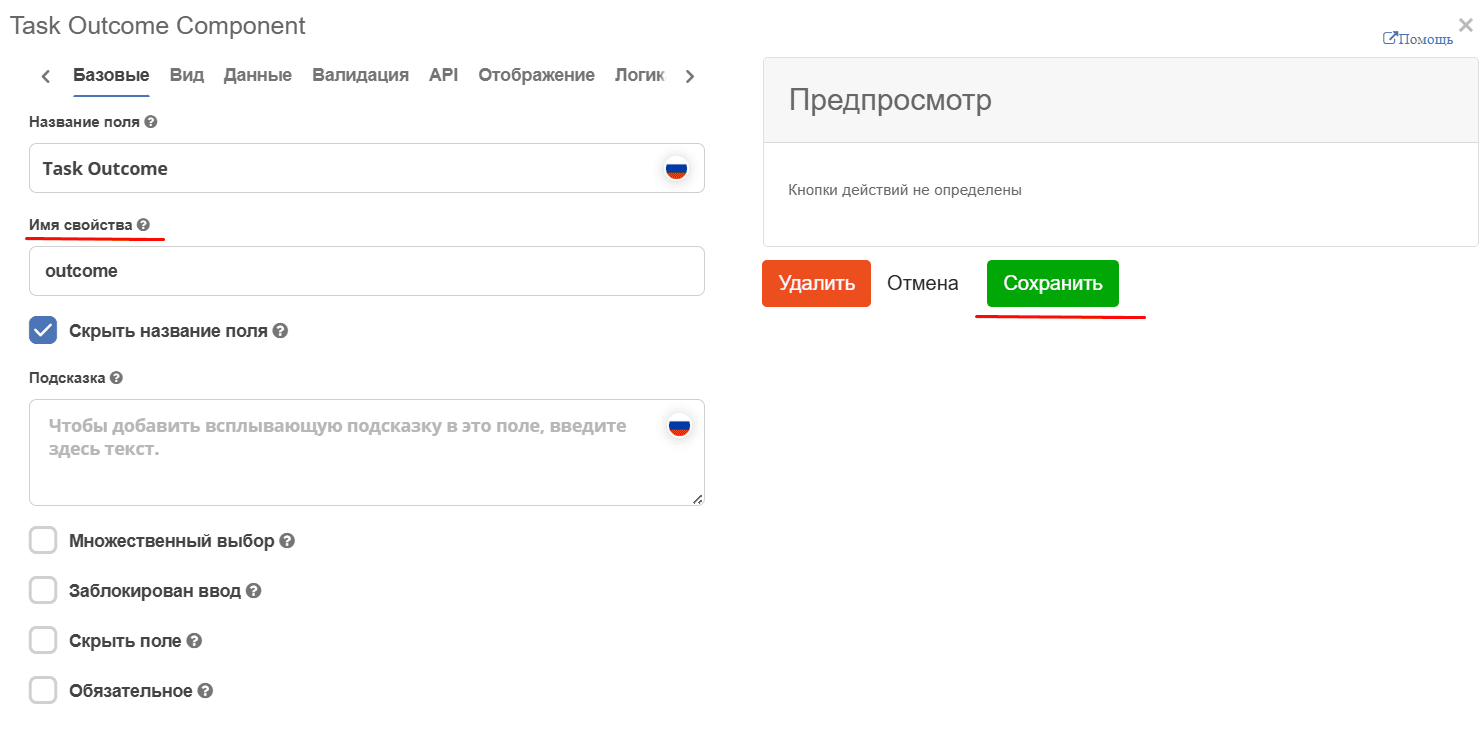
The Task Outcome component will automatically generate verdict buttons based on the Task Outcomes settings.
And click “Save”.
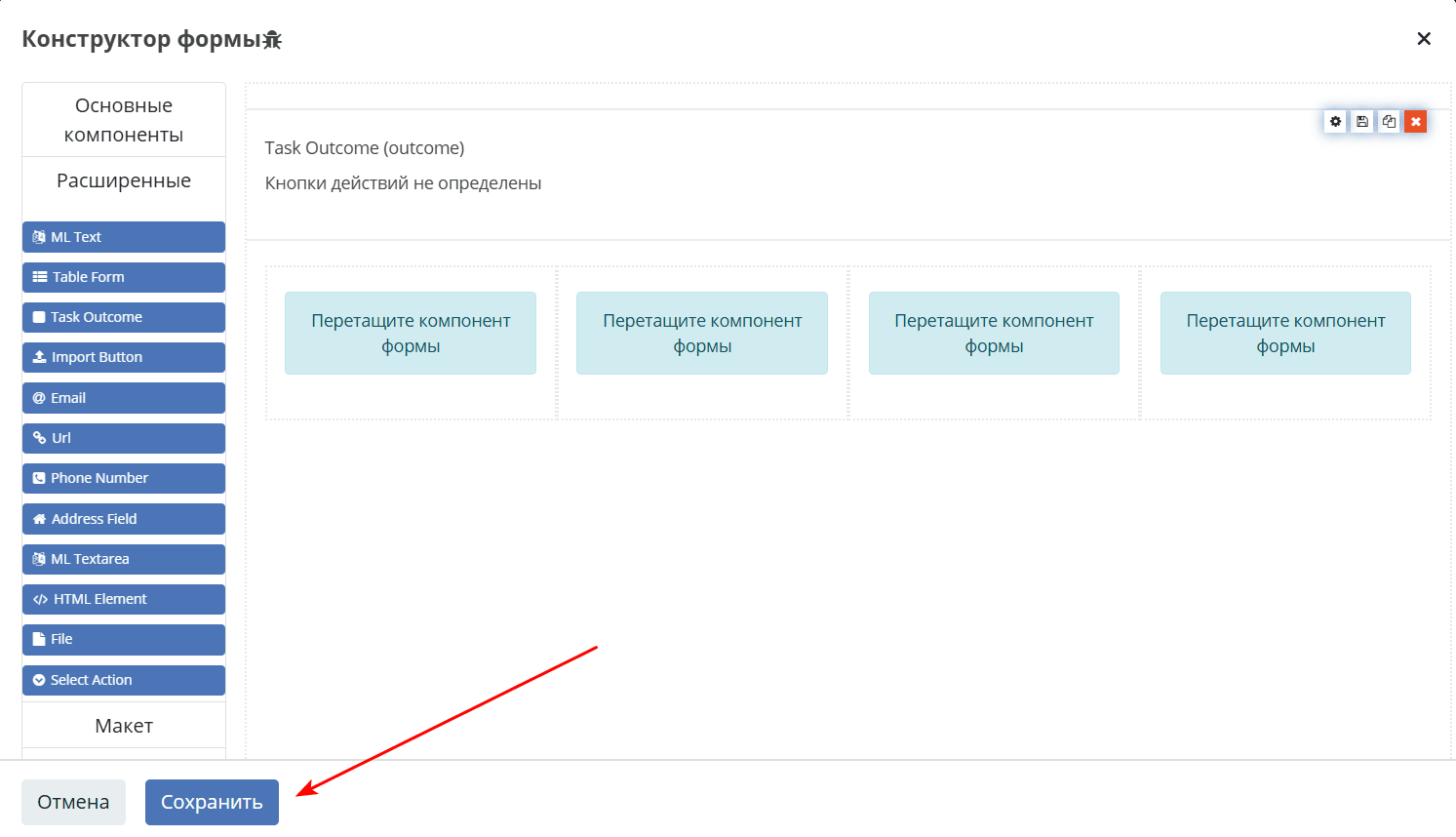
Select the created form.
After approval by the Approver, the task should be completed, but the process has two outcomes – purchase approved or purchase rejected, so we will place a gateway component next - Gateway
The Gateway component is responsible for branching routes and merging flows. To add it, click the corresponding icon in the context menu or on the left panel (but in this case, you will have to manually set the connection directions):

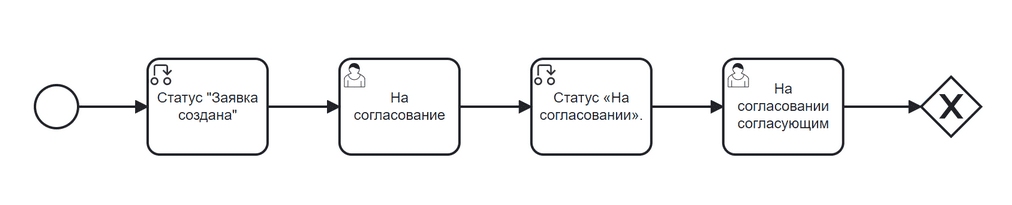
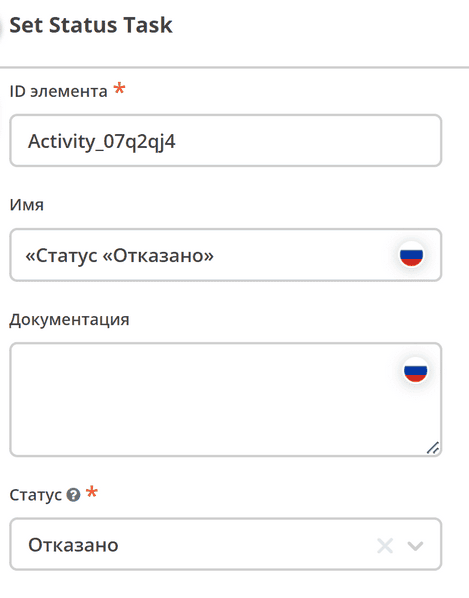
After the Gateway, it is necessary to place 2 status change components for “Approved”/ “Rejected”. To do this, repeat the actions of the first status change (step 2):
On the Gateway component, click the Set Status icon in the context menu:

Name - Status “Approved”.
Status - Approved.
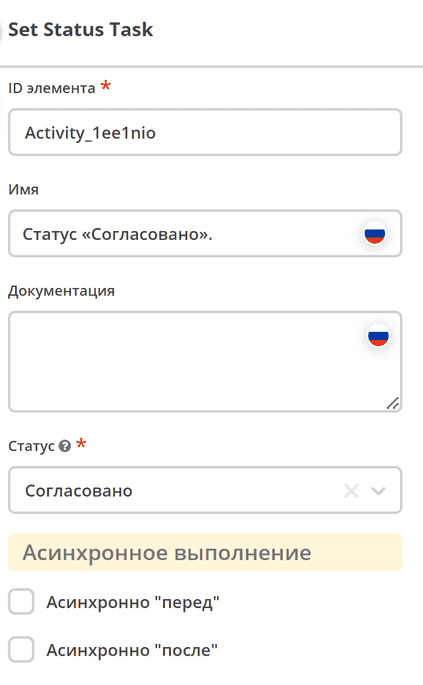
On the Gateway component, click the Set Status icon in the context menu:
Name - Status “Rejected”.
Status - Rejected.
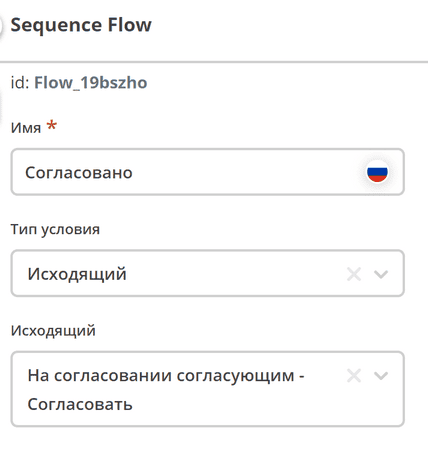
Since there can potentially be multiple flows from the Gateway, the system can determine which flow to follow using outcome options (outcomes are configured using buttons on the form and arrows coming out of the Gateway component).
To configure, select the “arrow” (a separate Sequence Flow component, which is responsible not only for visualizing the direction).
For the “Approved” flow:

Specify the name Approved.
In the “Condition Type” field, select the Outgoing option.
In the appeared “Outgoing” field, select the option Under approval by approver - Approve. The options are automatically generated from two parts: the first is the task name (Name field), the second is the name of the task outcomes.
For the “Rejected” flow:
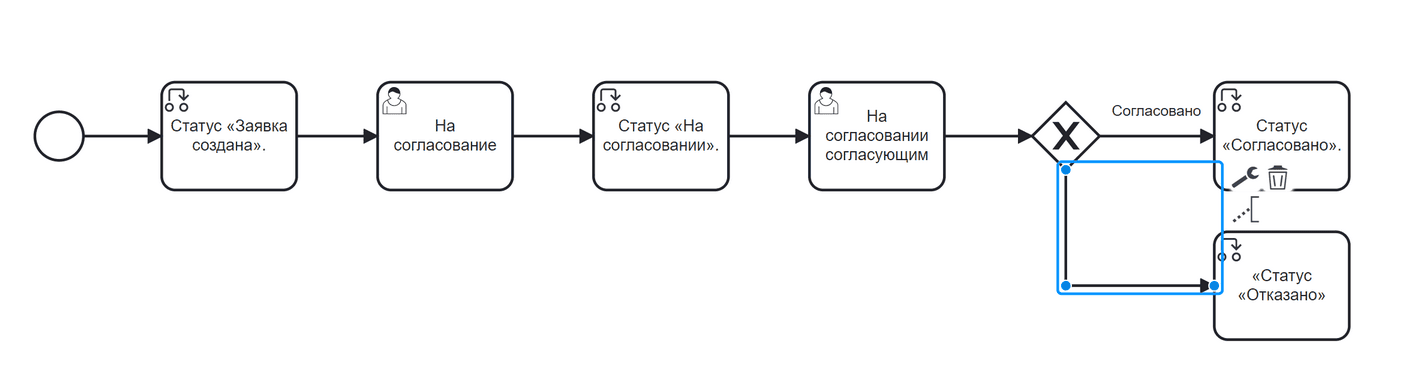
Specify the name Rejected.
In the “Condition Type” field, select the Outgoing option.
In the appeared “Outgoing” field, select the option Under approval by approver - Reject.
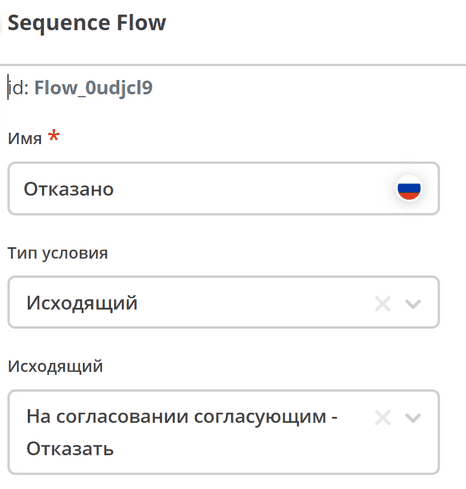
Next, it is necessary to add a component that will indicate that the process is finished. To do this, in the context menu of the “Status «Approved»” and “Status «Rejected»” components, click the End event component icon.

Add an End Event for the second Gateway output.
Now the process can be saved and published by clicking:
Decision-making on the request can be simplified - create a decision table and embed it in the process. See details
Process Launch
After the Data Type, Journal, Form, and Business Process have been created, you can check how the process works. Create new users as described in the instructions or use the ones already created in the delivery package.
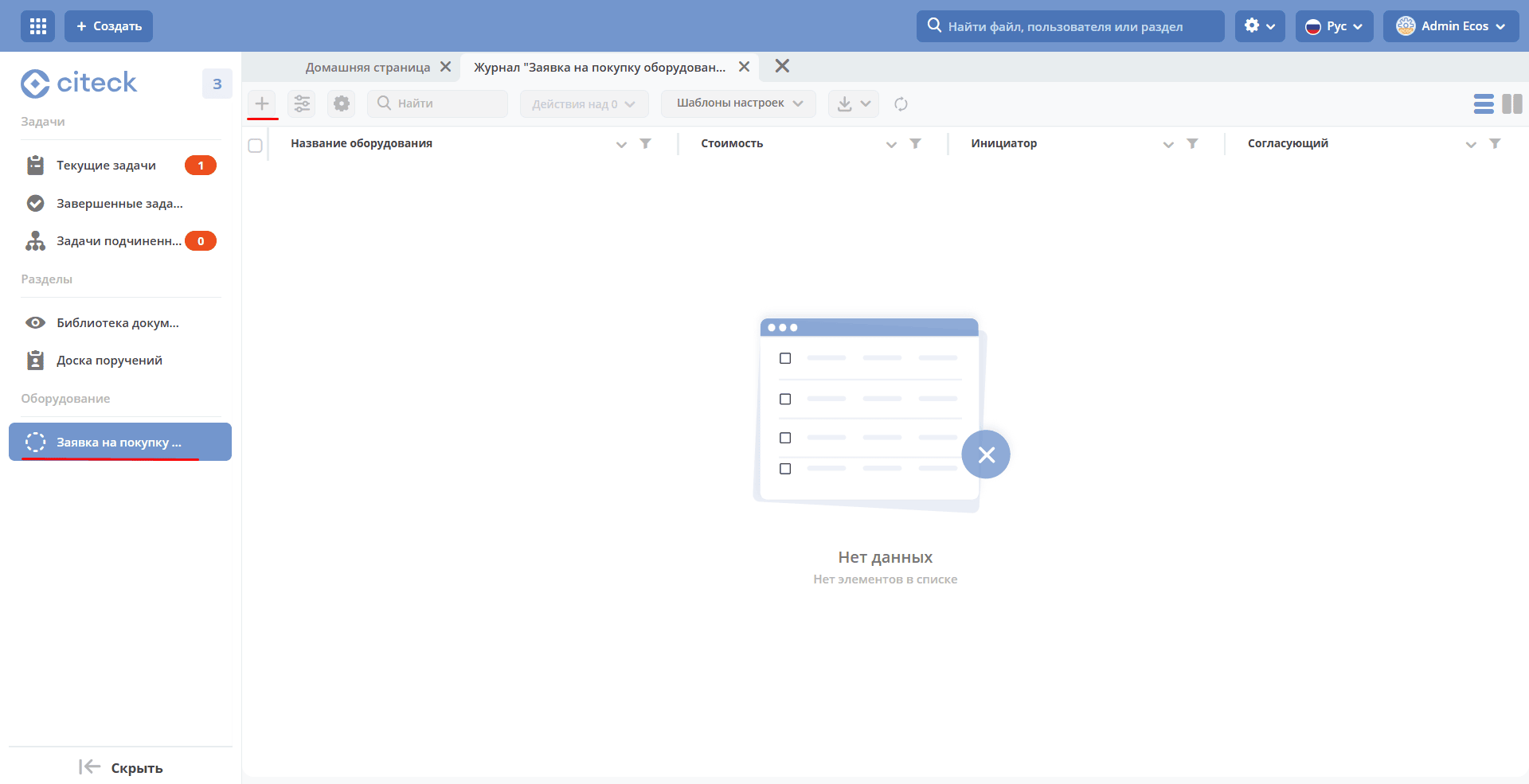
Log in as the Performer. In the left menu, select “Equipment purchase request”. A journal will open with no entries. To create a new object (equipment purchase request), click on “+”:
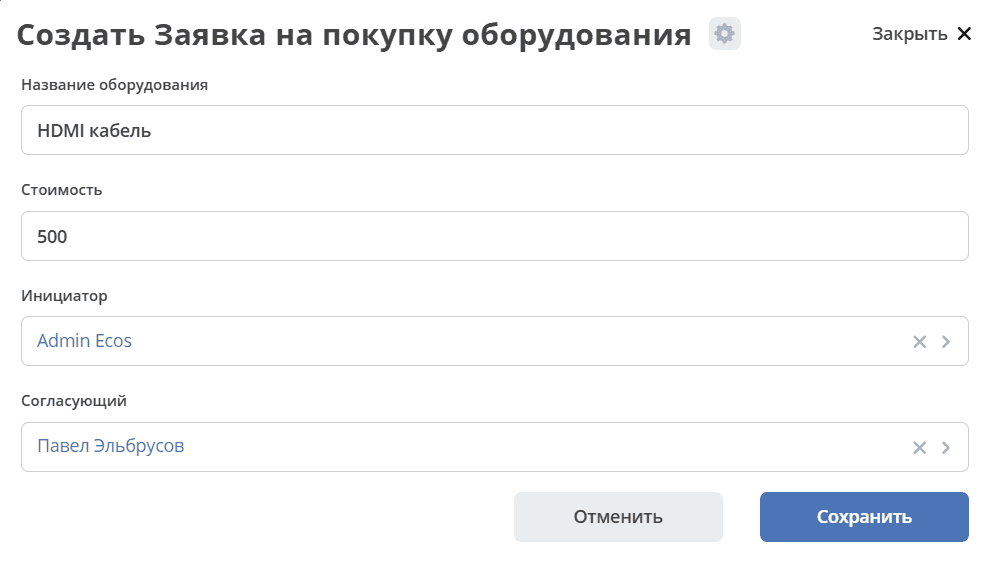
Fill in the fields with the appropriate data. For example:
Equipment name – HDMI cable
Cost - 500
Initiator – select an employee from the organizational structure
Approver – select an employee from the organizational structure
And click “Save”.
The request will move to the status “Request Created” and its card will open.
In the “My Tasks” widget, click the “Send for approval” button.

After completing the task, the request will move to the status “Under approval” and a task - Approval - will be assigned to the Approver.
In the personal workspace, in the left menu, go to Current Tasks, open the task by clicking:

In the “My Tasks” widget, click the “Approve” button.
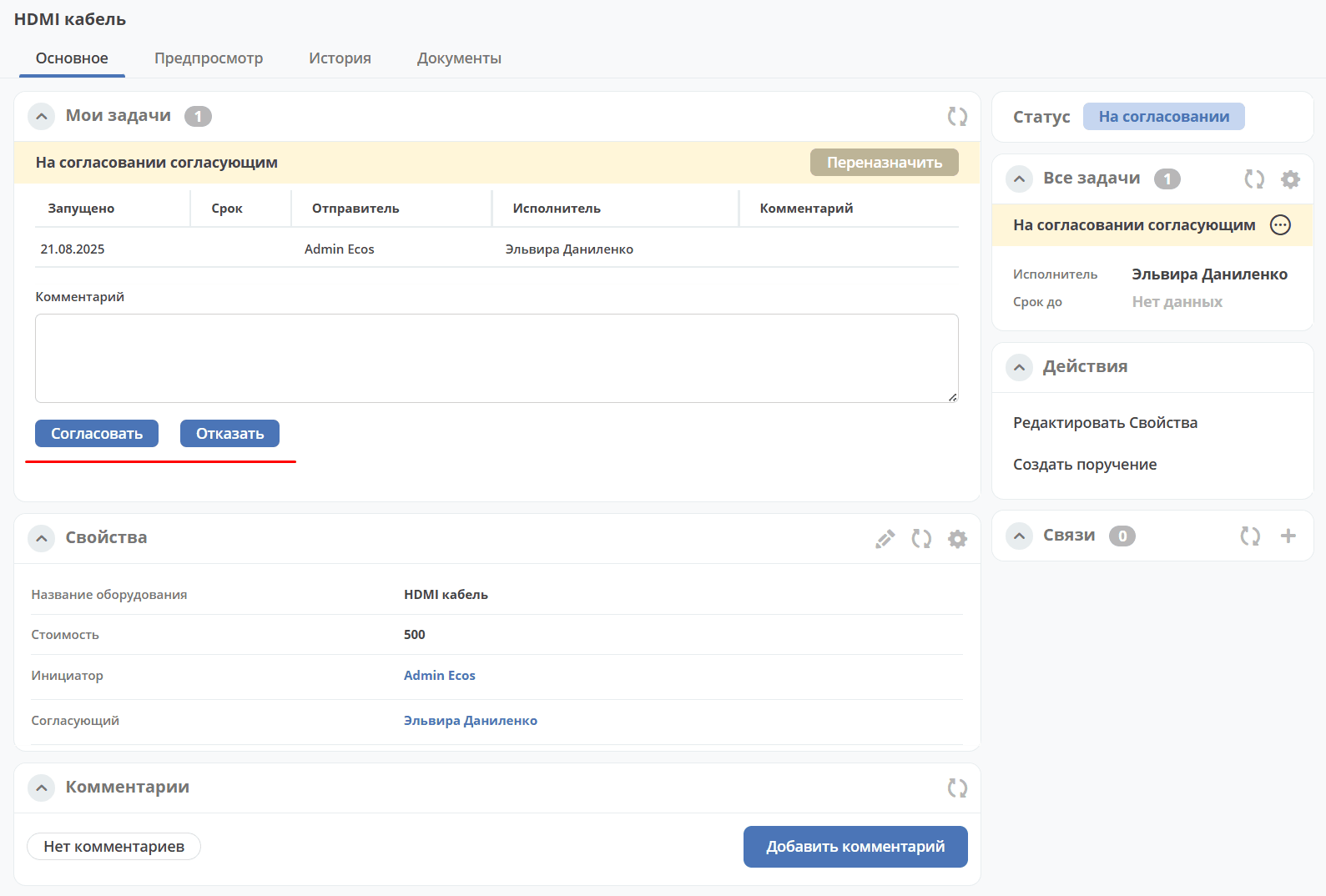
After completing the task, the request will move to the status “Approved”.
Congratulations — the first request has completed the full cycle of the business process you created!