Widget “Properties”
Key properties
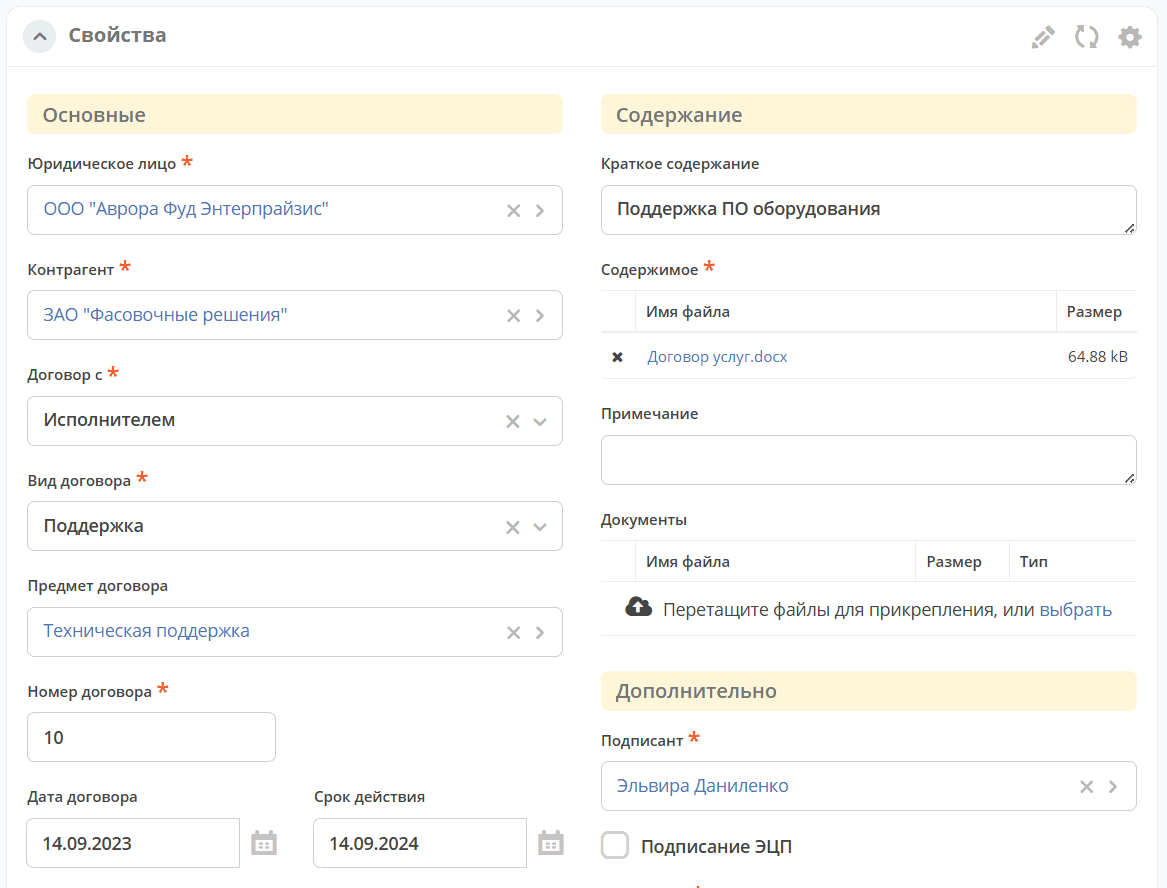
A widget for displaying form card attributes and their values. It provides inline editing of attribute values or editing in “form” mode (taking into account the case status and the permissions of the user viewing the case).
The selection list contains forms from the forms journal.
Configuration
The selection list contains forms from the forms journal.
|
|
Configured view
|
For the Case-details dashboard type, 2 modes are available (see settings below).
- просмотр с возможностью inline редактирования значений атрибутов:
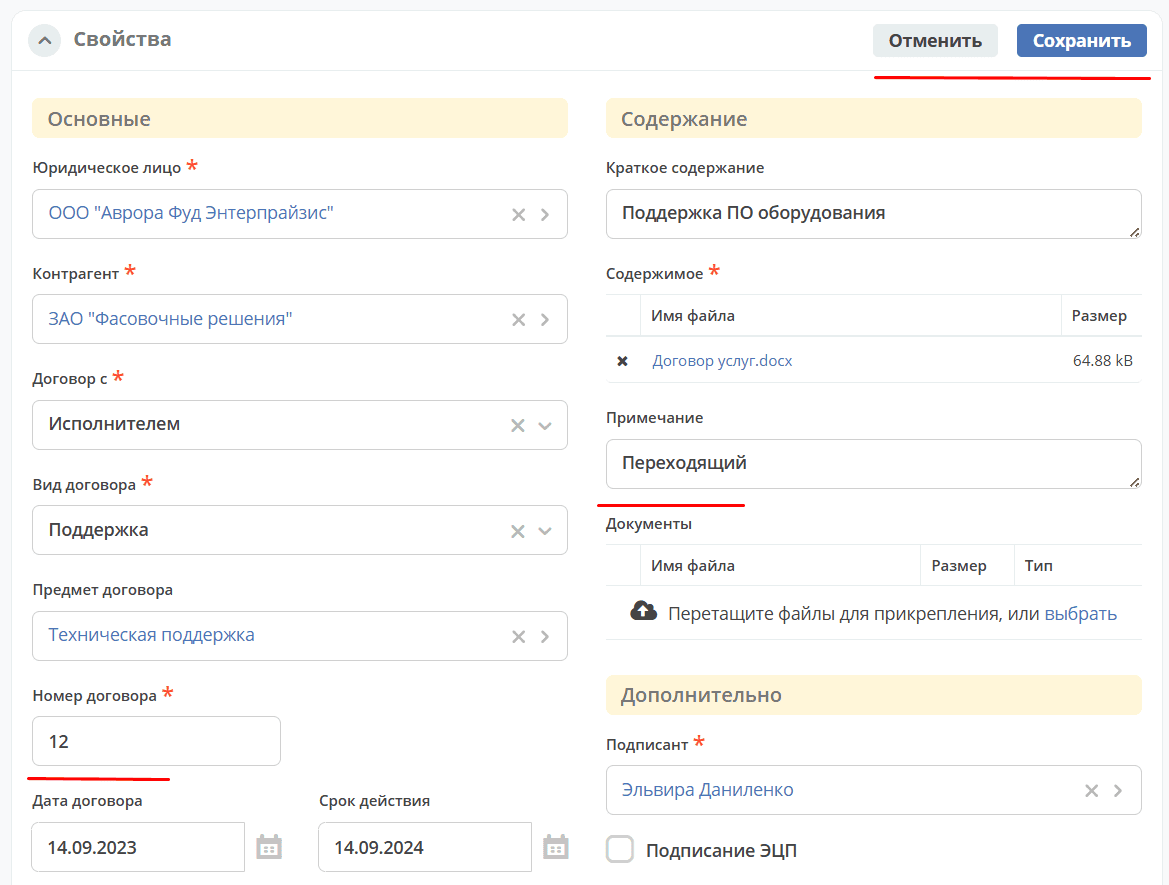
- редактирование в режиме “формы”:
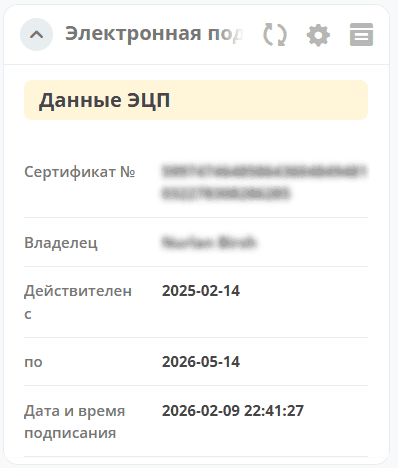
When the Electronic signature property is selected, the digital certificate details and signing time are displayed:
|
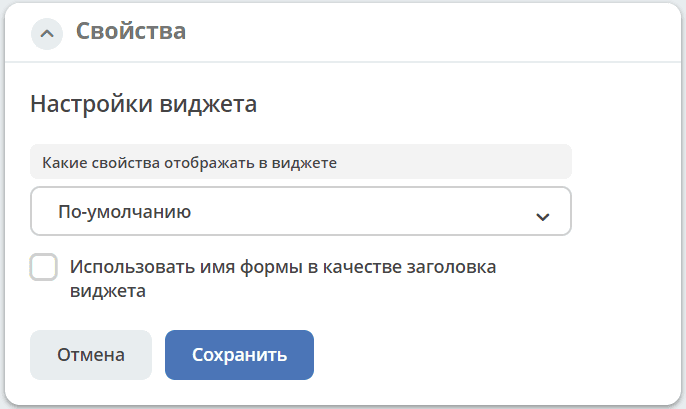
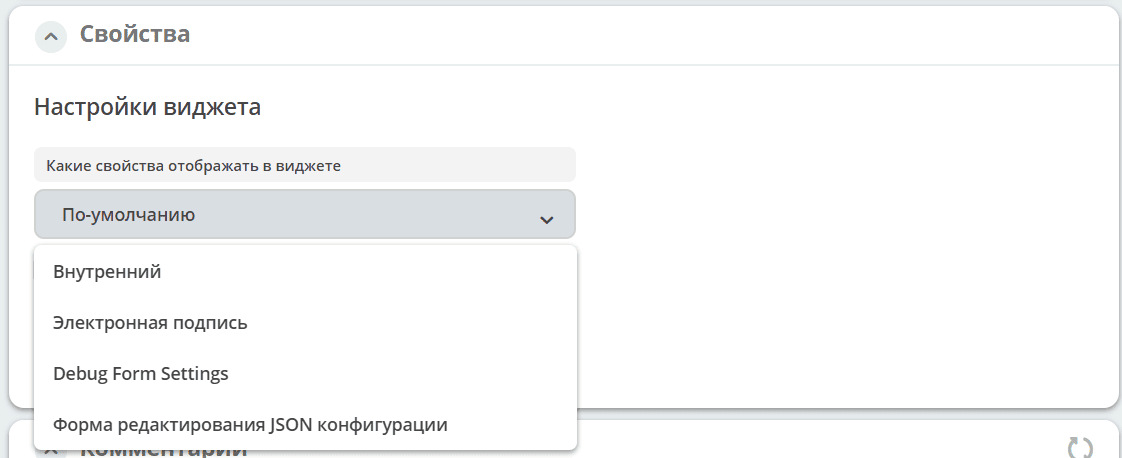
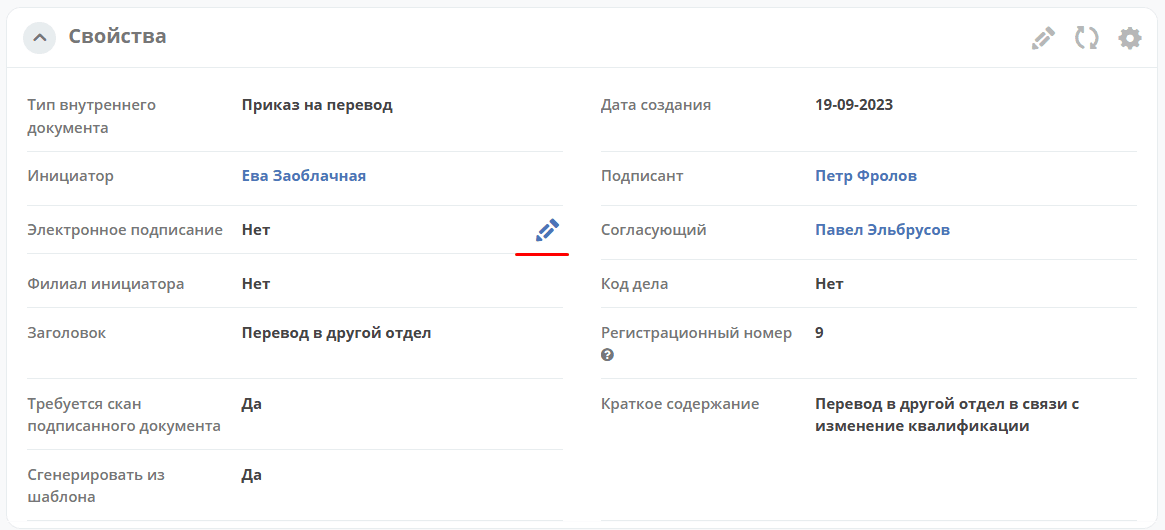
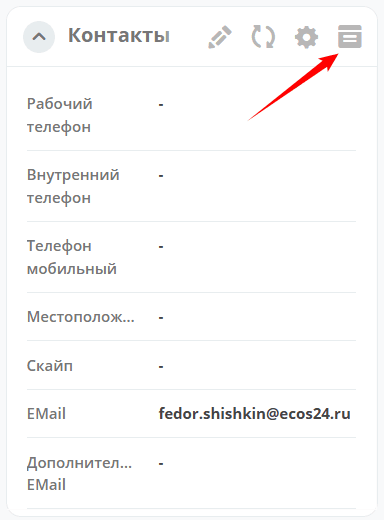
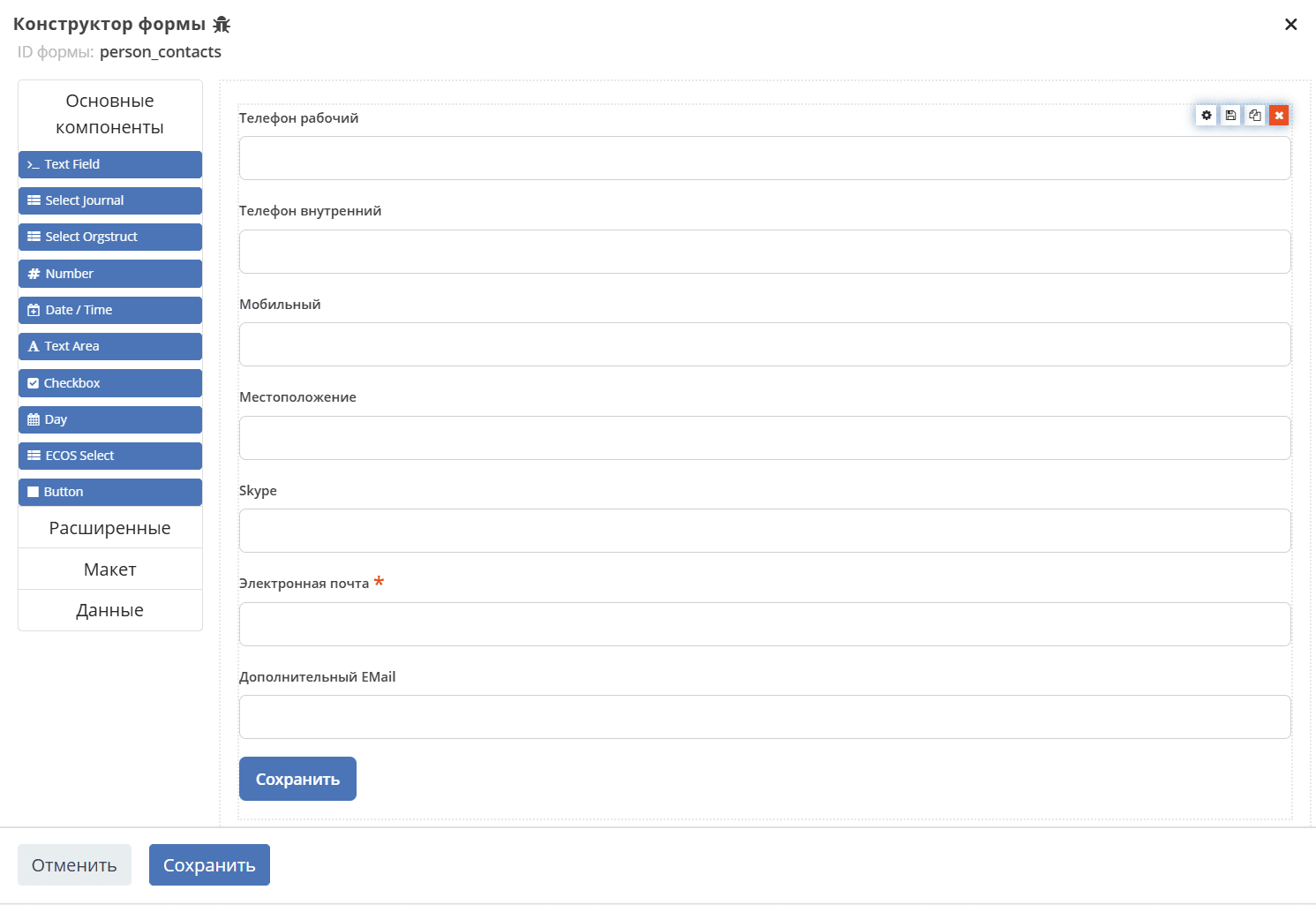
The widget also provides access to the form builder for additional field configuration. See the detailed article Forms.
Configuring the widget editing mode for the Case-details dashboard type
For the Case-details dashboard type, you can configure the view mode with inline attribute editing or editing in “form” mode. The view mode is set by default.
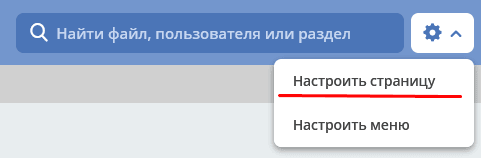
To change the mode, click the gear icon → “Configure page” in the card:
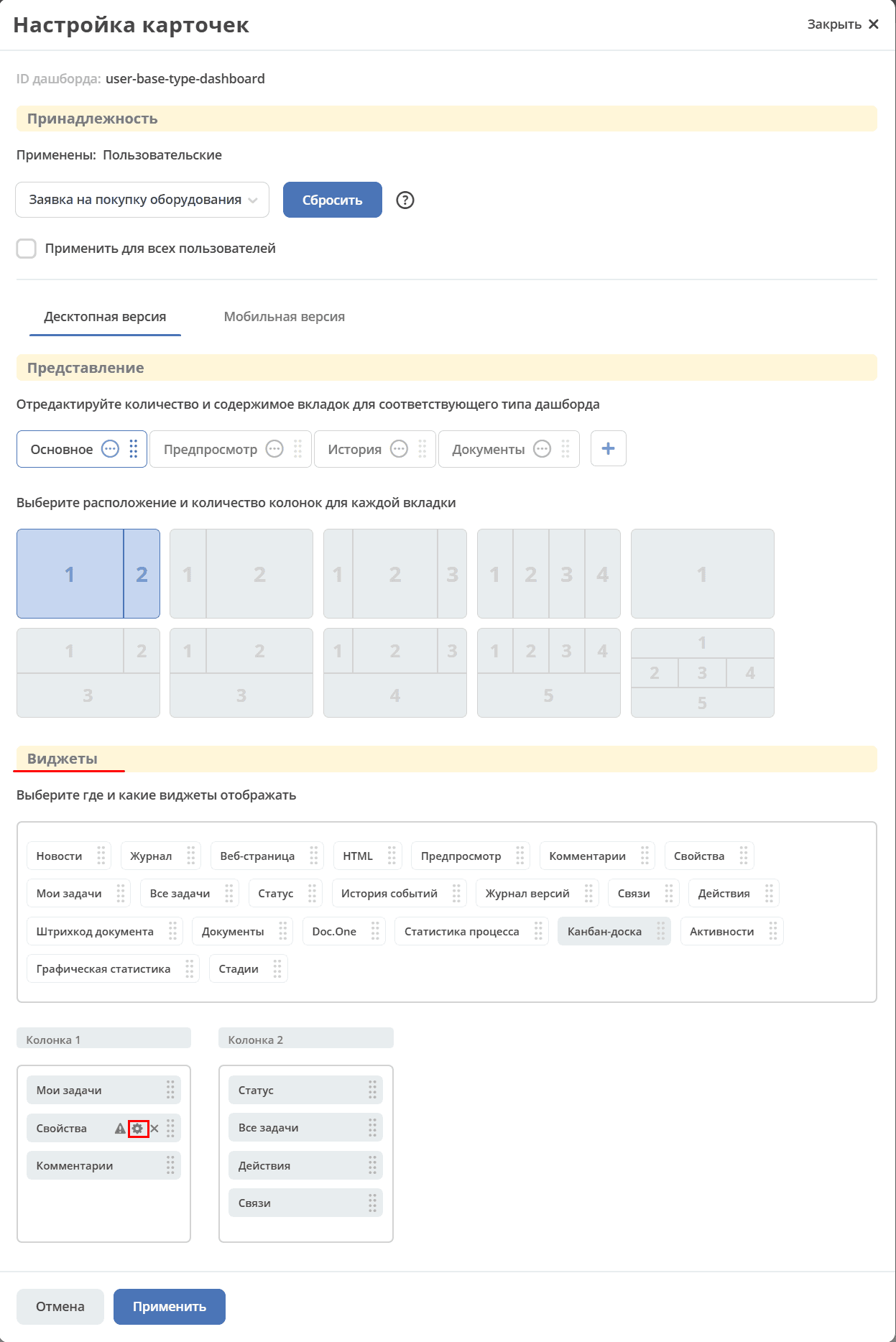
In the card settings, go to the “Widgets” section and click on the “Properties” widget:
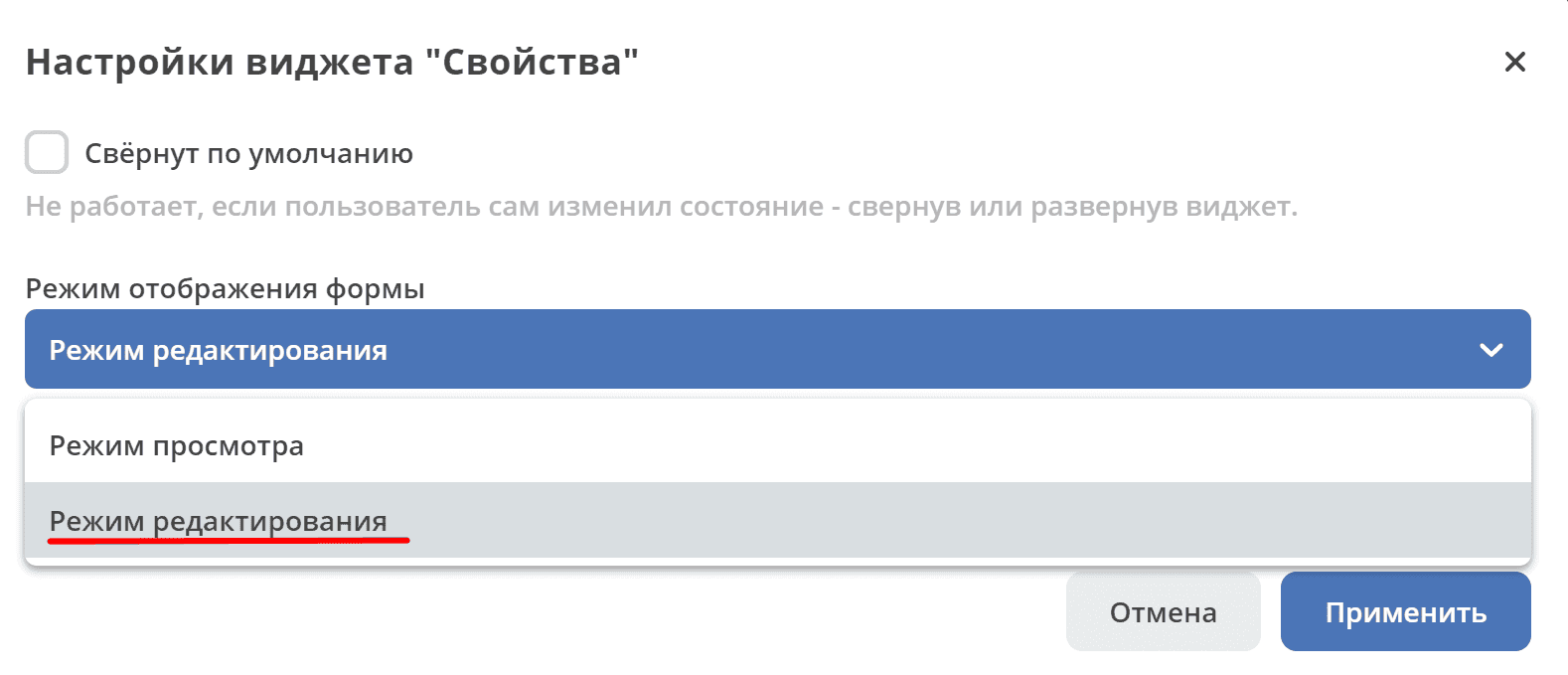
In the settings, select “Edit mode” and click “Apply”:
In the card settings, click “Apply”.
Edit mode specifics
When the dashboard page is opened, the widget shows document properties in edit mode, similar to opening a document in an edit modal window:
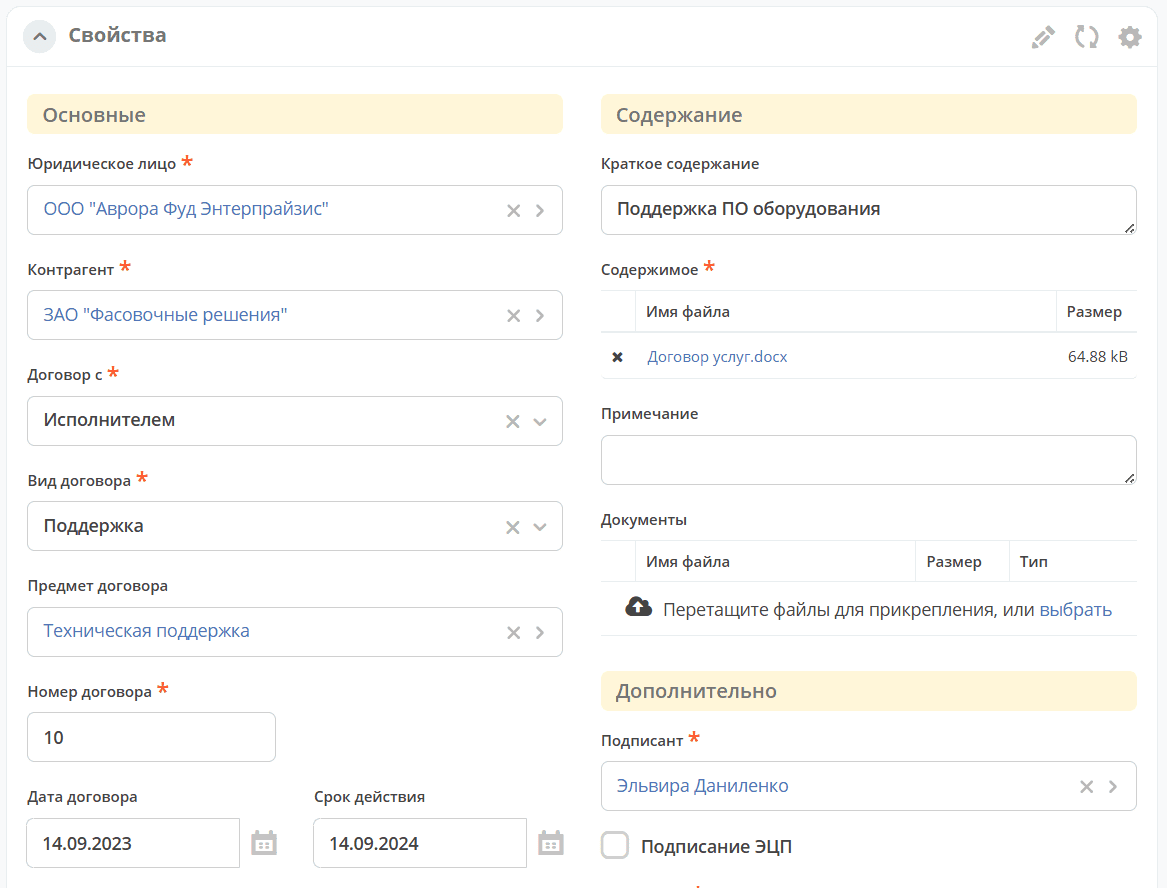
When the user makes changes, the “Cancel” and “Save” buttons become available in the widget header.
If there are no changes, the buttons are not shown in the widget header.
If fields fail validation during editing, the “Save” button becomes disabled: