Organizational Structure
This section describes working with the organizational structure in Citeck: viewing the hierarchy of departments and employees, creating groups and users, editing profiles, and configuring the Org Structure component used in forms and business processes.
Org Structure Page
The system provides functionality for building the company’s organizational structure.
Organizational Structure is a system of hierarchically ordered organizational units (positions, departments, divisions). It is used for assigning task performers in business processes, configuring access rights, managing tasks, and delegating authority.
Note
The org structure is available in the workspace Datalists and on the corporate portal.
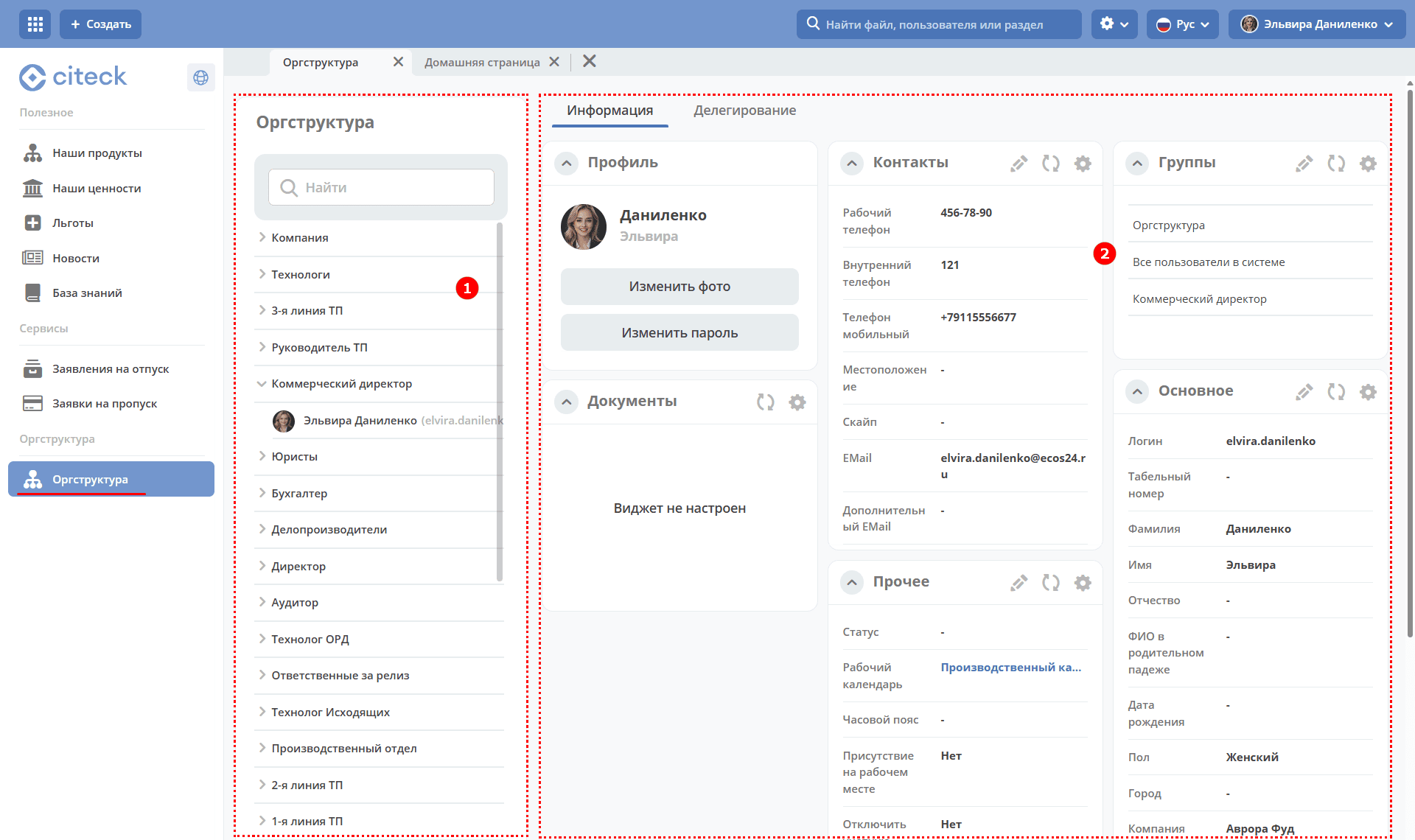
The org structure form is divided into two parts and contains:
a hierarchical tree of the structure with search capability (1),
a dashboard with information about the selected department or user (2): group composition, member list, contact details.
Creating a Group
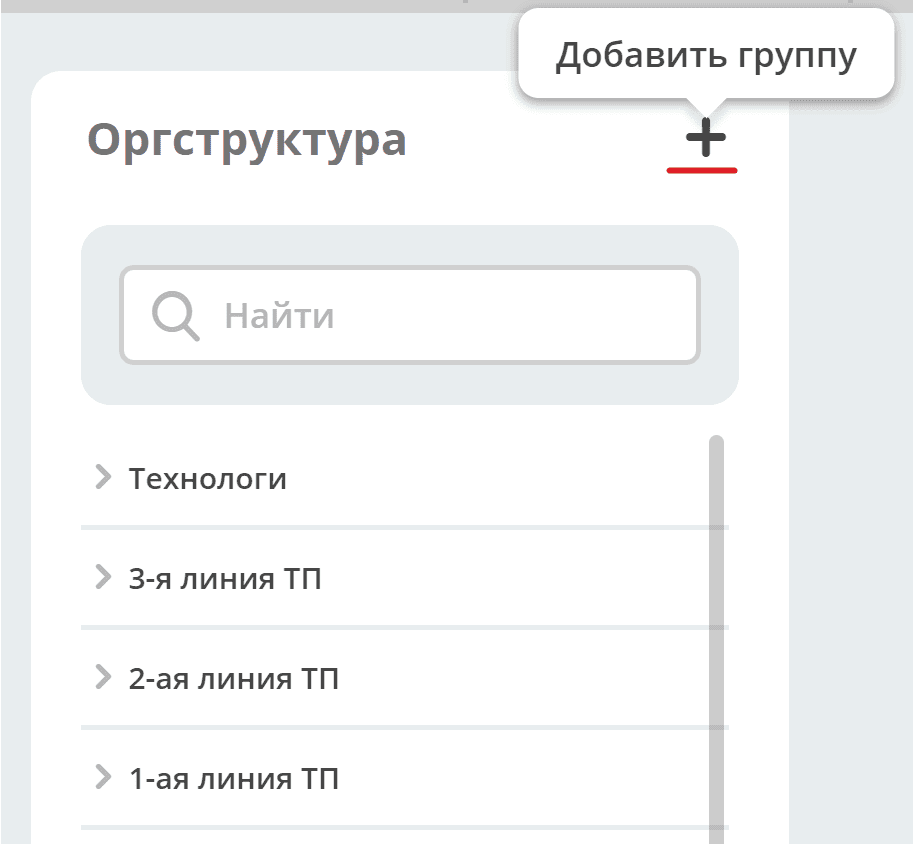
To create a group in the org structure list, click:
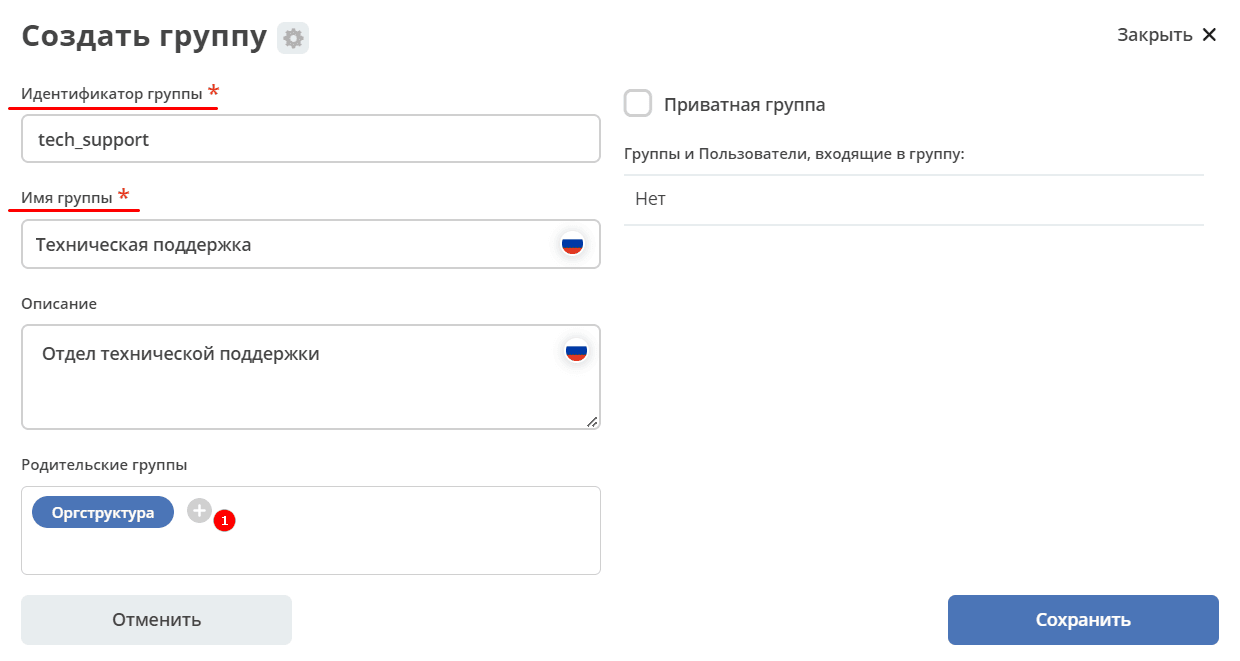
The Org Structure group is added by default. Enter data in the required fields and click Save.
See details about private groups
Using button (1) you can select a parent group from the org structure (which the created group will be part of).
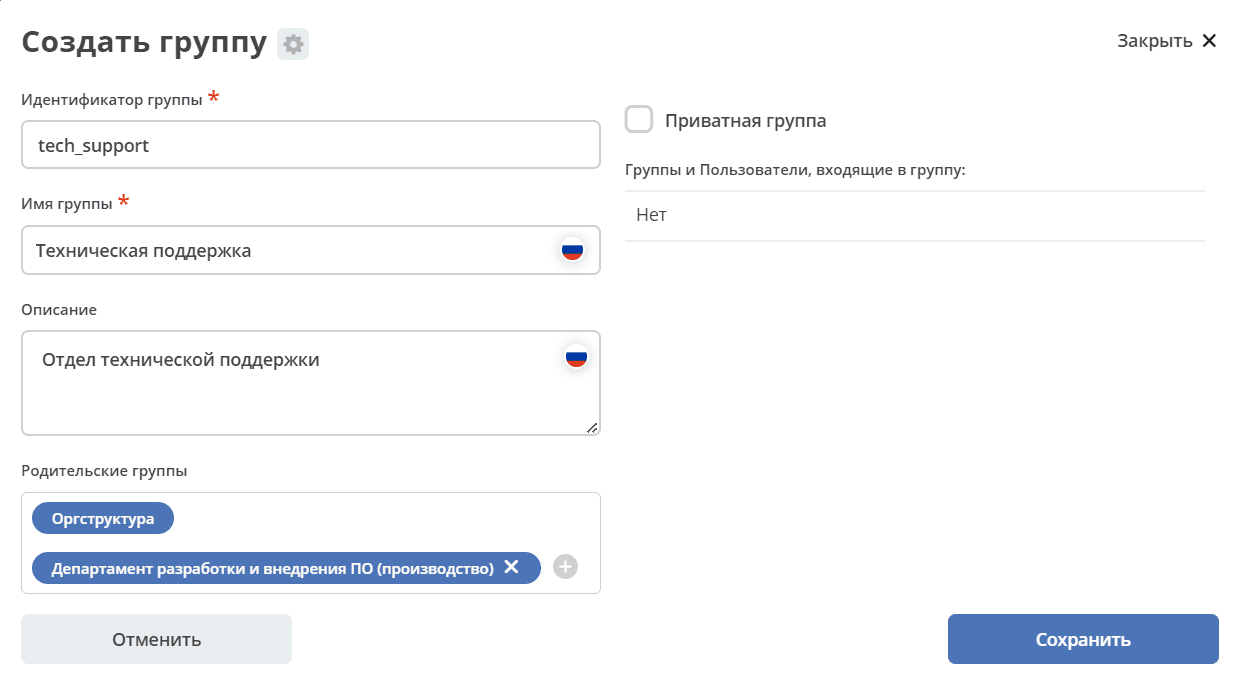
Creating a Subgroup, Adding a User to a Group
Management buttons are available for the group, which appear when hovering over the element.
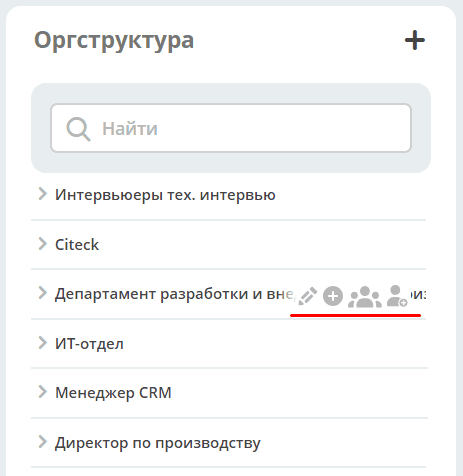

|
Edit
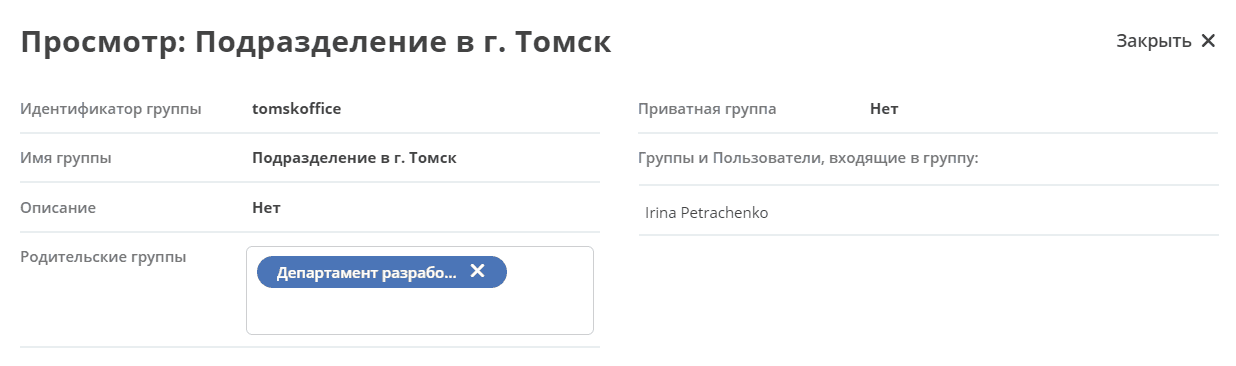
The form displays all groups and users belonging to the group, information about parent groups.
You can edit the Group Name, Description, delete (1), add parent groups (2).
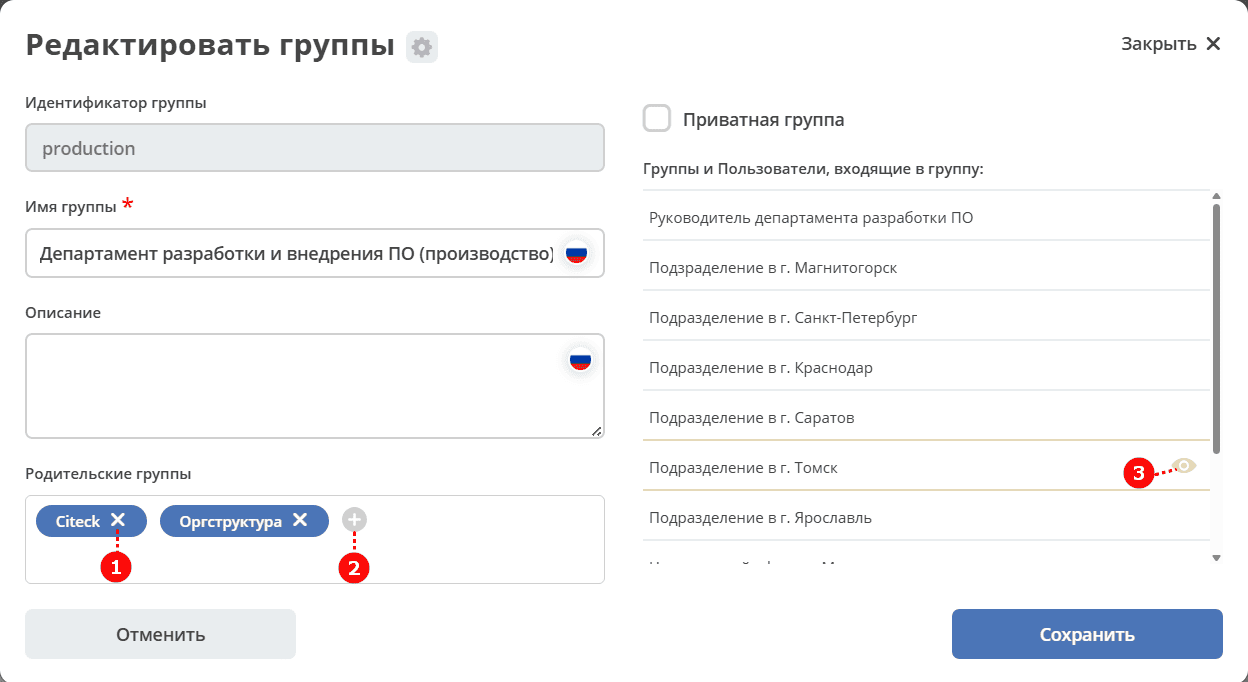
Clicking on a group/user (3) allows viewing information:
|

|
Add Subgroup
Select an existing group/groups from the org structure. Click Ok.
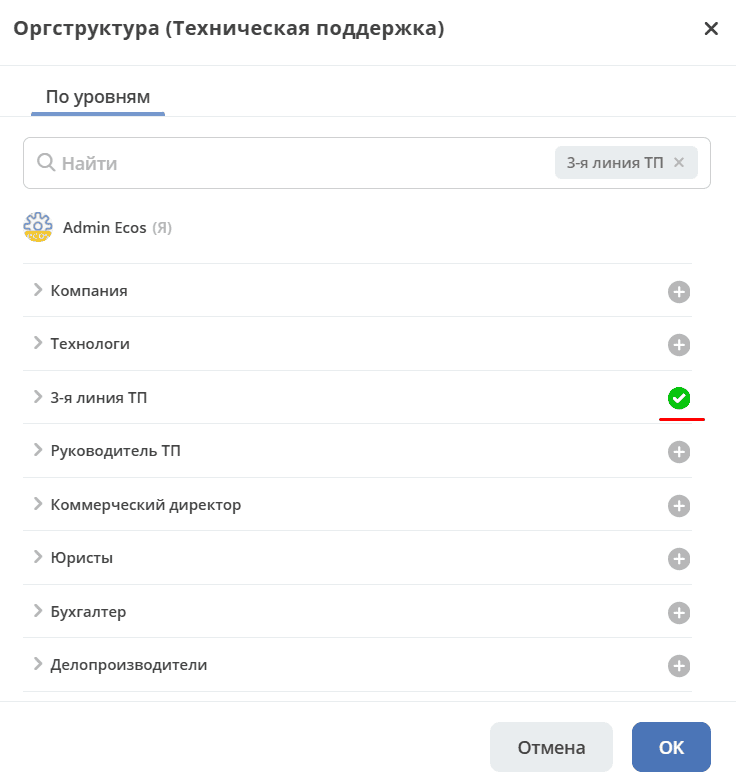
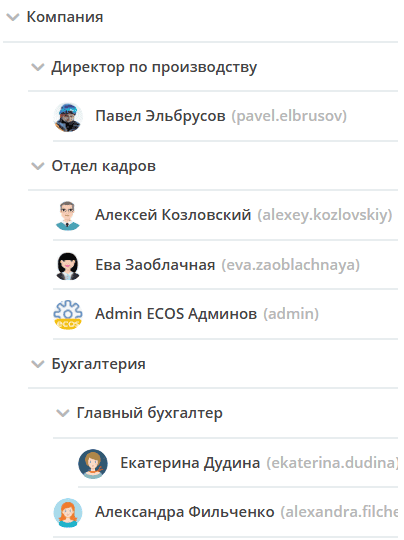
Example of subgroup hierarchy and users within them:
|

|
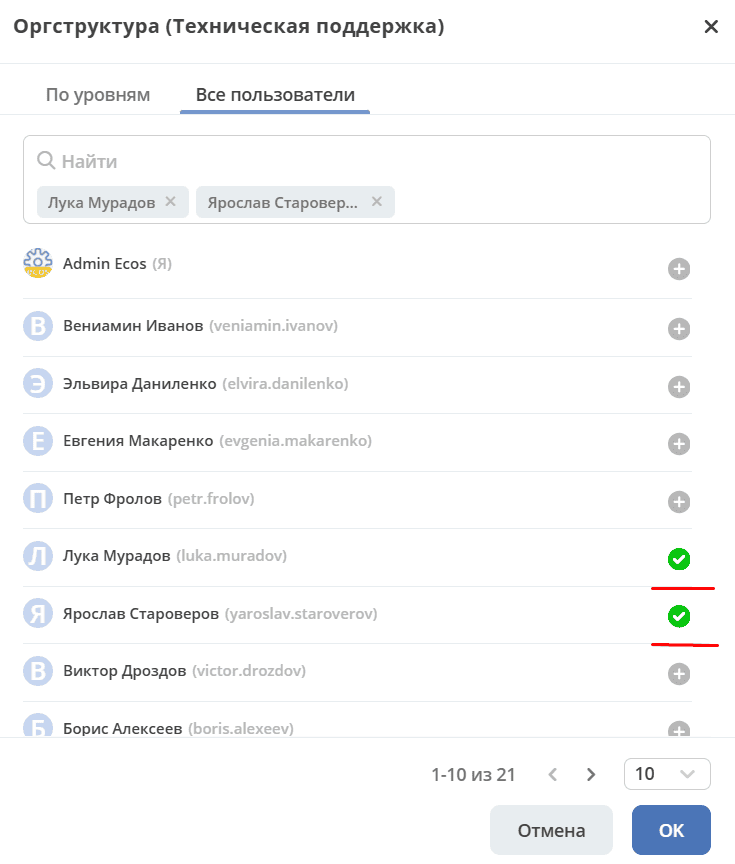
Add User to Group
Select existing users from the org structure. Click Ok.
|

|
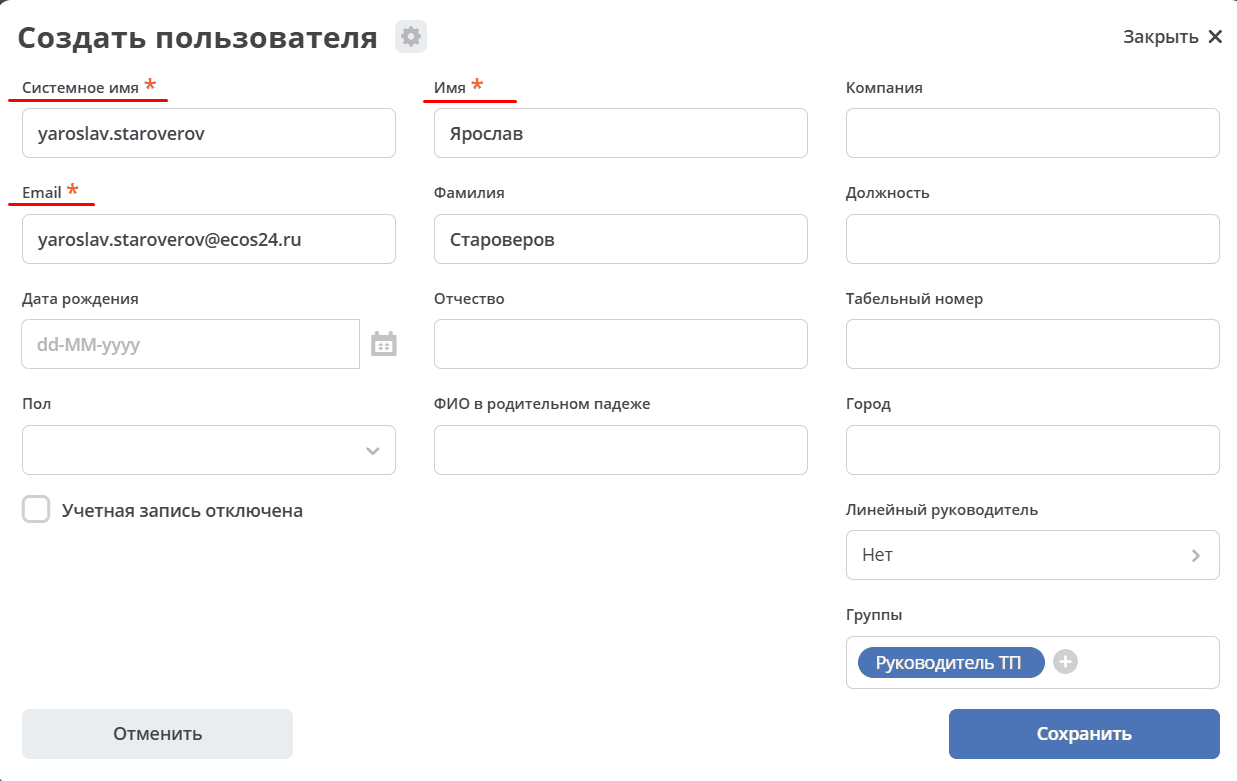
Create User
The group will be pre-filled.
Enter the data and save. Required fields are marked with an asterisk.
For the user’s tasks to be available for supervision by a manager, fill in the Line Manager field.
|
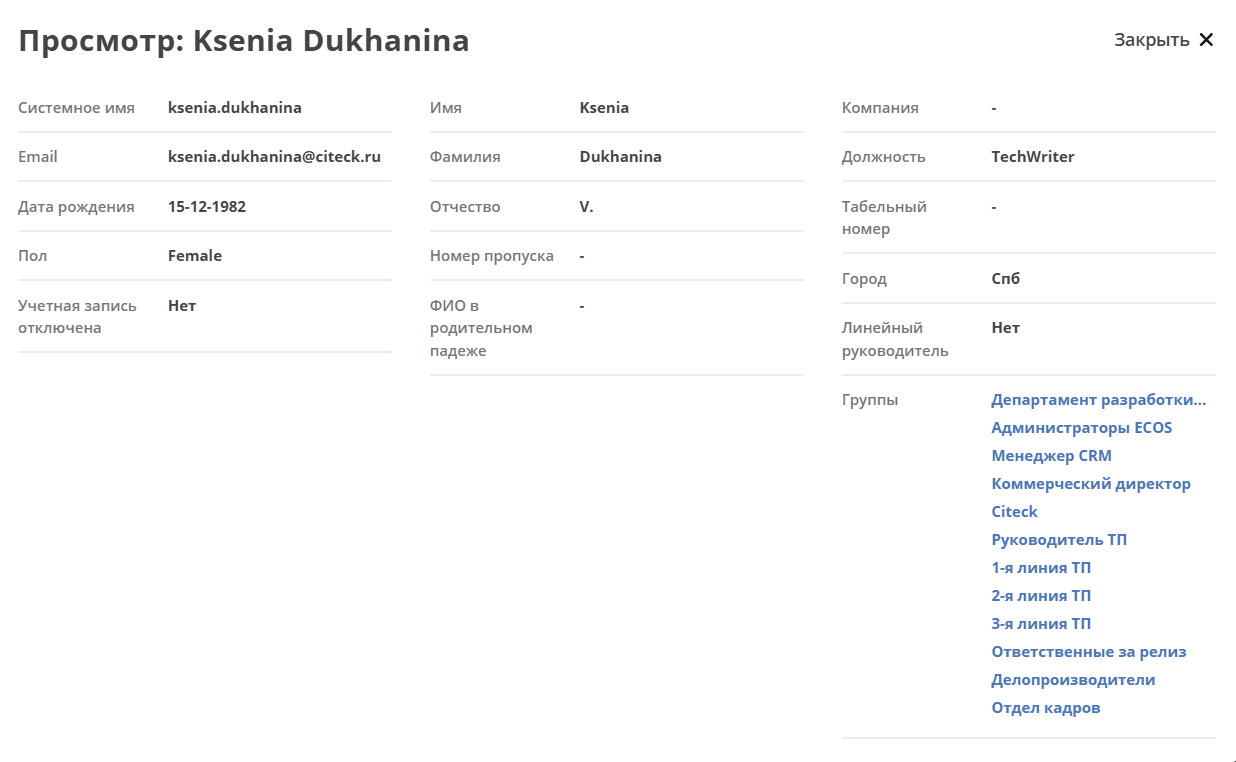
Viewing and Editing User Profile, Removing User from Group
Management buttons are available for the user, which appear when hovering over the element.
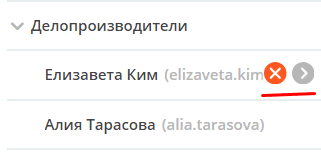

|
Remove User from Group
The action needs to be confirmed:
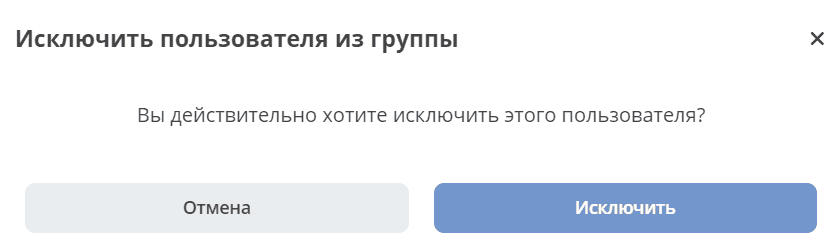
|

|
Open User Profile
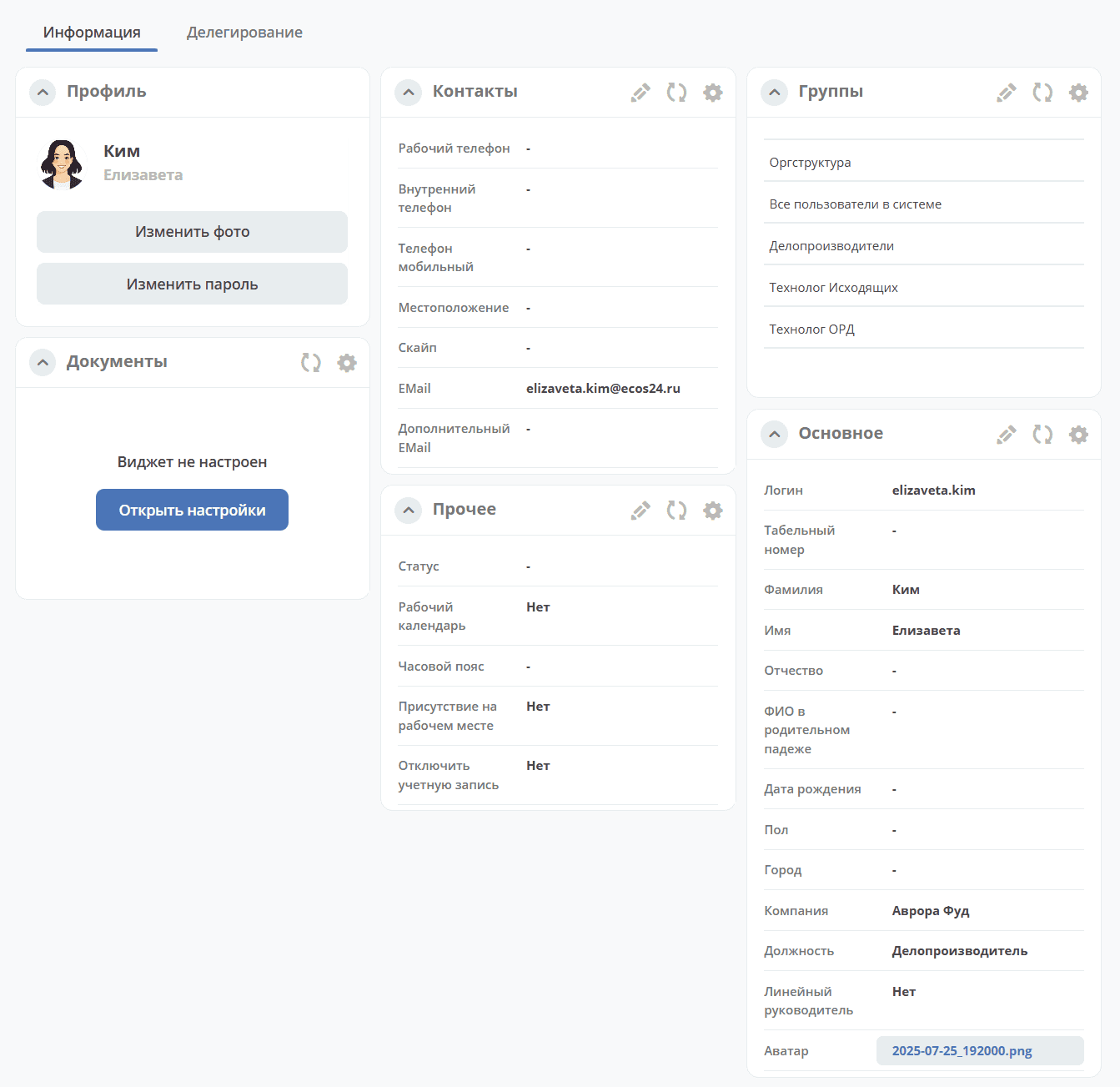
Widgets on the dashboard can be configured - rearranged, hidden if not needed. See details on dashboard configuration
Note A user can only edit their own profile, an administrator can edit any user’s profile. To edit widget information, click:
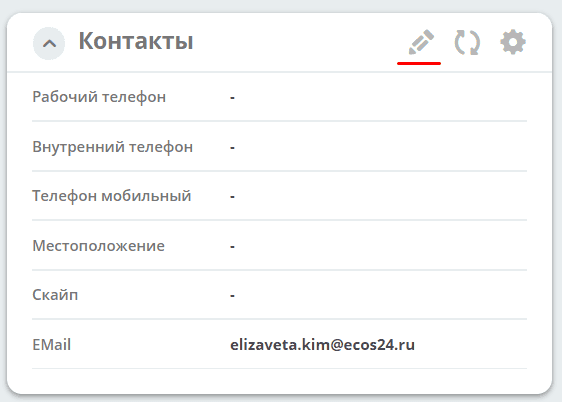
Or edit directly in the line:
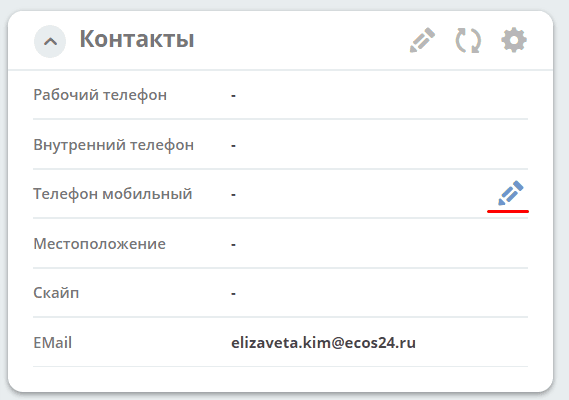
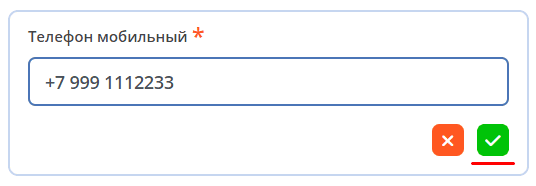
|
Org Structure Component
The component is used for selecting employees and groups in document forms, business processes, etc.
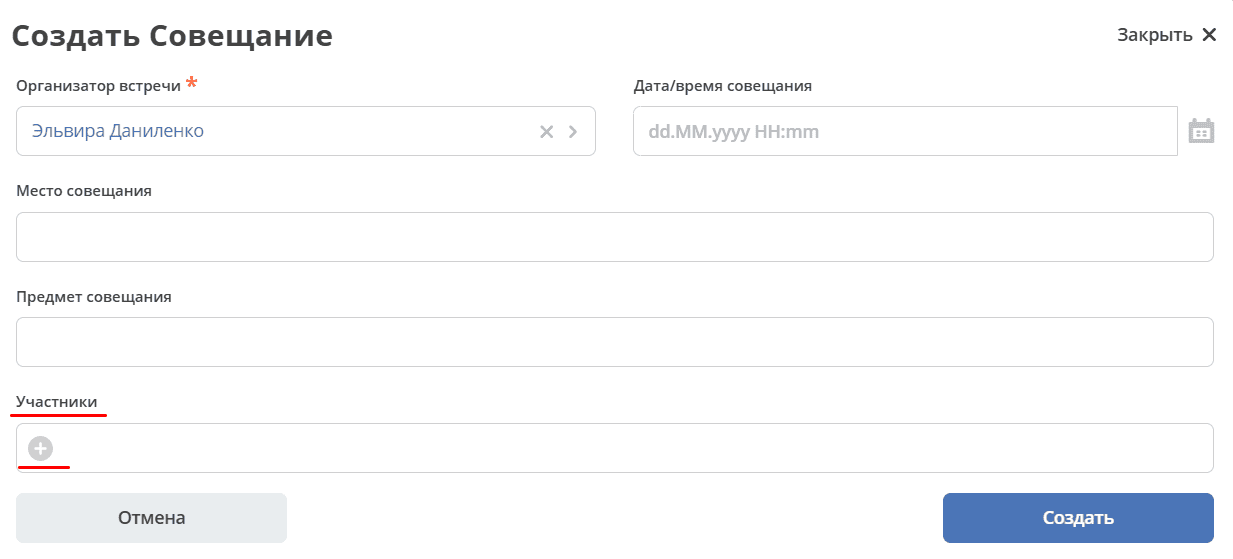
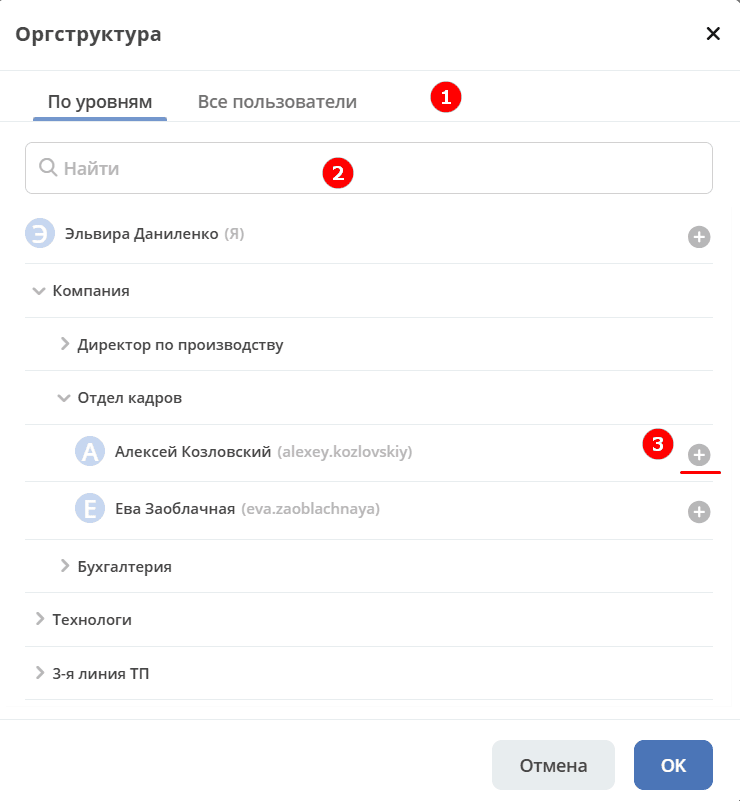
By default, Org Structure is presented as tabs (1), where By levels is open by default. Use the search bar if needed (2) and select an employee by clicking on (3):
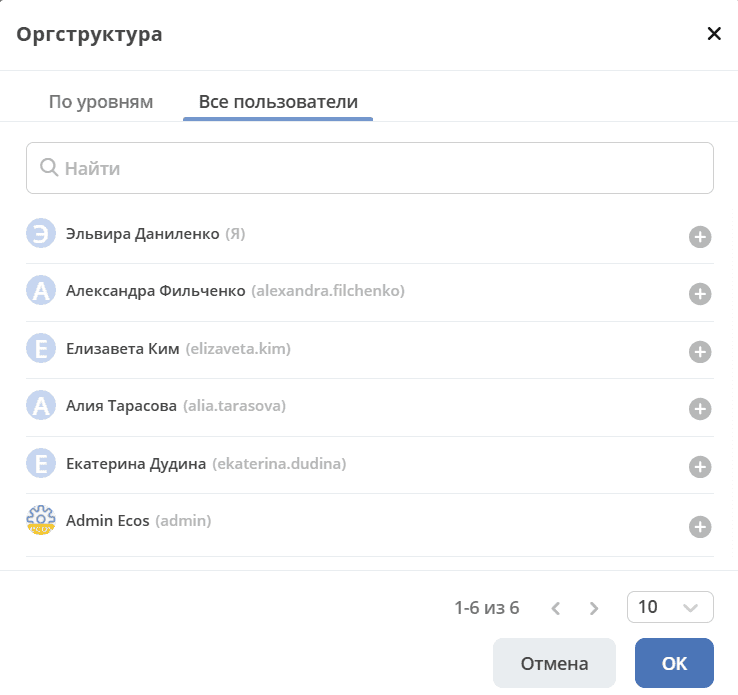
All users - workspace participants:
Inactive users are marked with a lighter shade of gray.
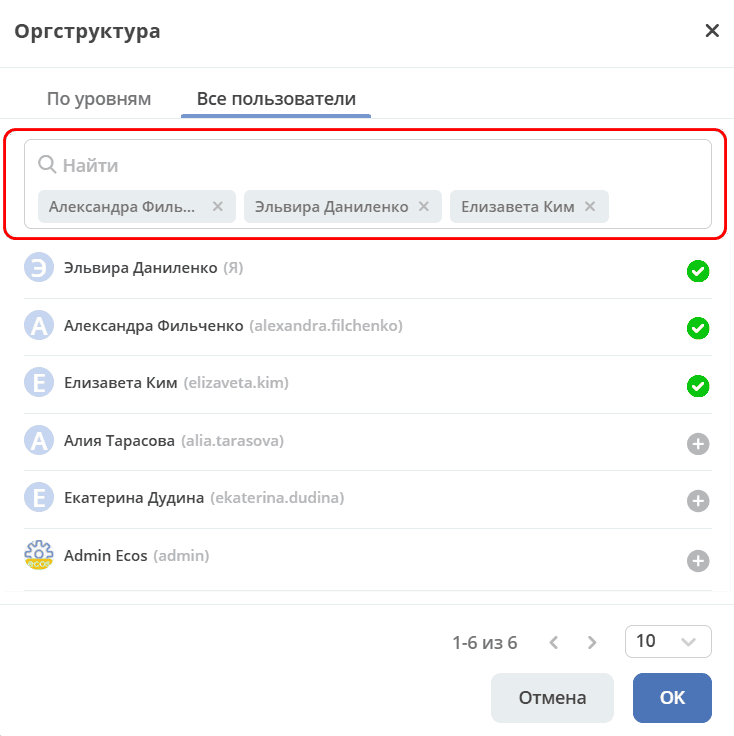
Already selected are marked:
Org Structure Component Configuration
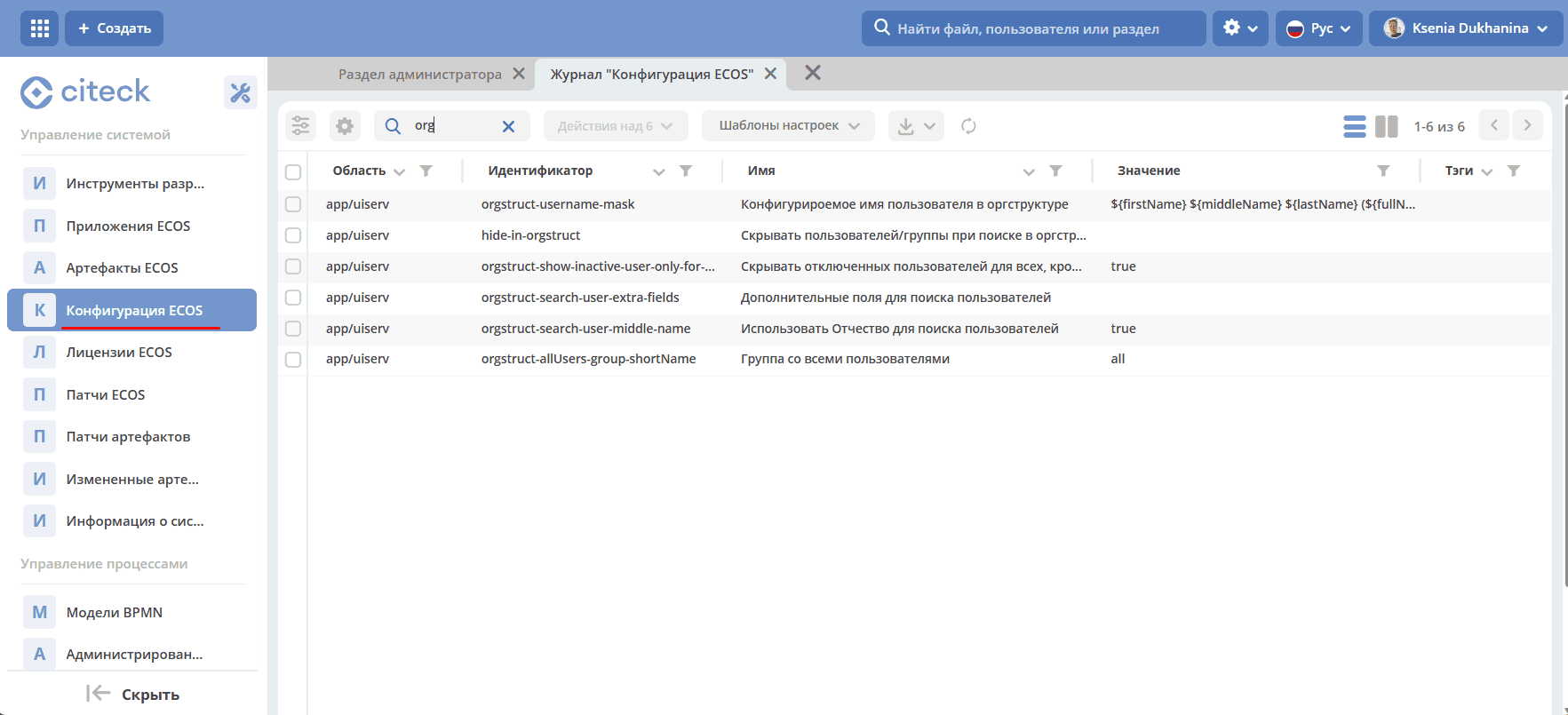
Go to the «ECOS Configuration» journal.
The journal is available at: v2/admin?journalId=ecos-” “configs&type=JOURNAL
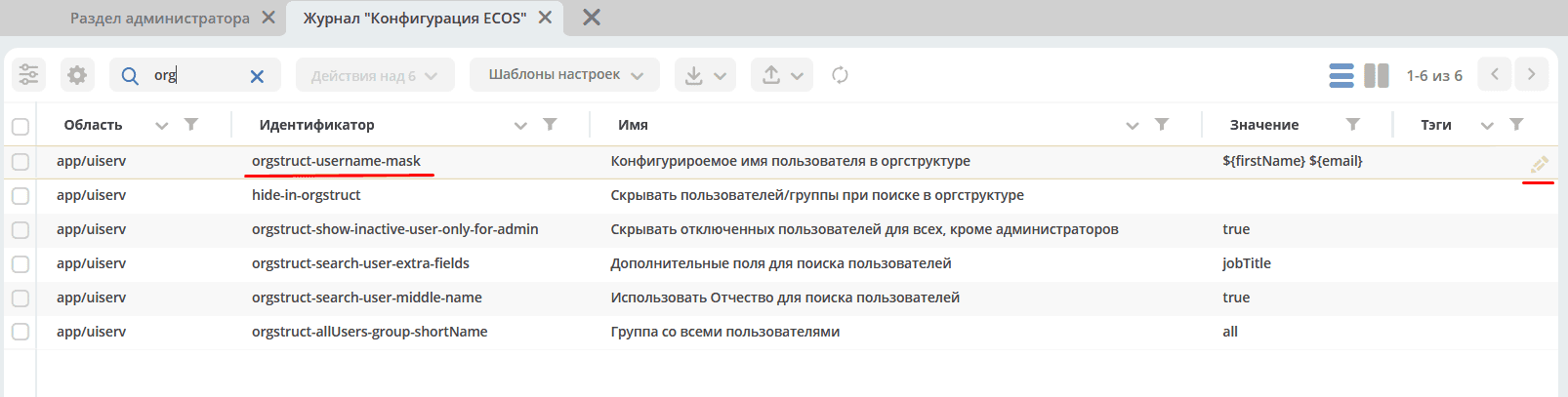
In the search bar, enter org - a list of possible settings will open:
Identifier |
Description |
|---|---|
|
User Name Display Mask in the Org Structure Component |
|
List of user/group logins hidden in search results |
|
Hide Disabled Users for Everyone Except Administrators |
|
Additional Fields for User Search |
|
Enable User Search by Middle Name |
Changing the User Data Output Mask
Note
Changing the mask affects the display of users throughout the entire Org Structure component — in all forms and business processes of the system. Make changes carefully and coordinate with the team before applying.
The mask for displaying user information can be changed. Open the identifier orgstruct-username-mask in edit mode:
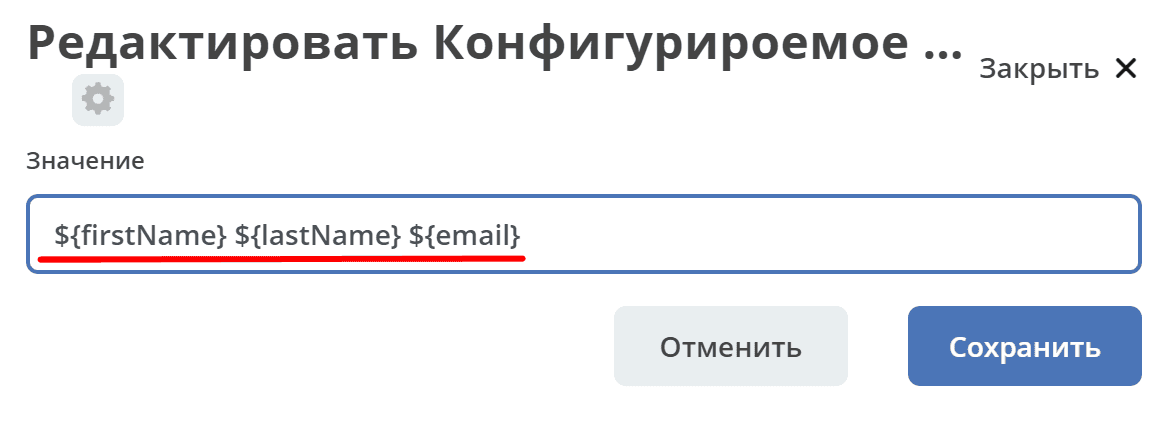
Specify a mask, for example, ${firstName} ${lastName} ${email} and save:
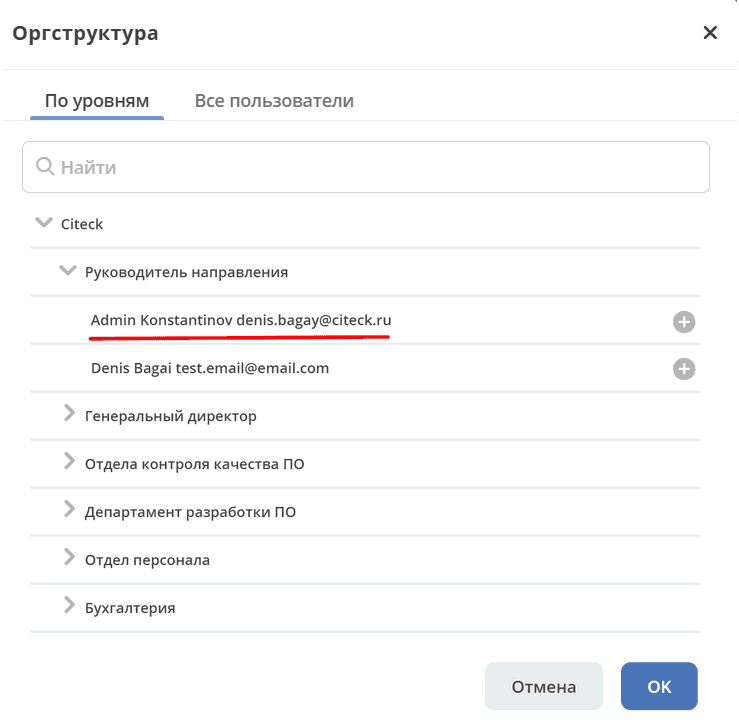
Modified user data output in the Org Structure component:
Added the ability to use HTML code in the configuration of the user display mask in the org structure component.
Example using HTML code. Mask:
${firstName} ${lastName} <span style=”color: #7396cd;font-” “size:bold;”><a “ “href=”https://localhost/v2/orgstructure?recordRef=emodel/person@${fullName}”” “ ><b>(${fullName})</b></a></span>
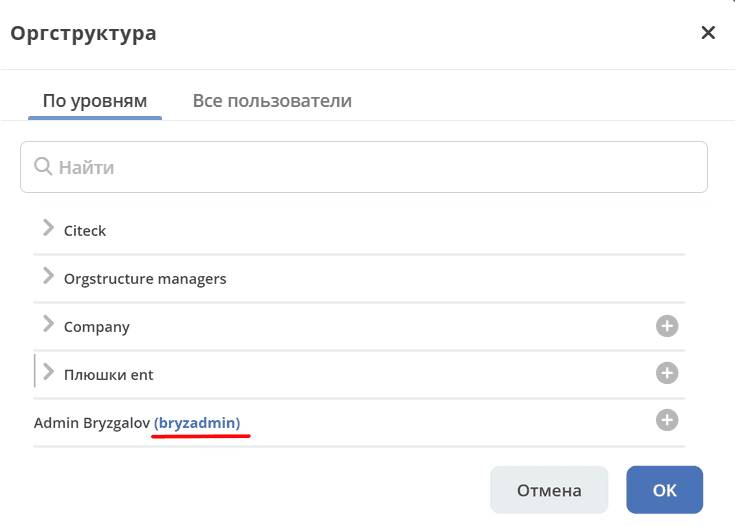
Clicking the link opens the user profile page in a separate tab.
Frequently Used Attributes for the Mask:
Attribute |
Description |
|---|---|
|
First Name |
|
Last Name |
|
Middle Name |
|
System Name (Login) |
|
Where to Find Attributes for the Mask
Go to Data Types, in the settings enable display of system types. Open the Person type, go to attributes:
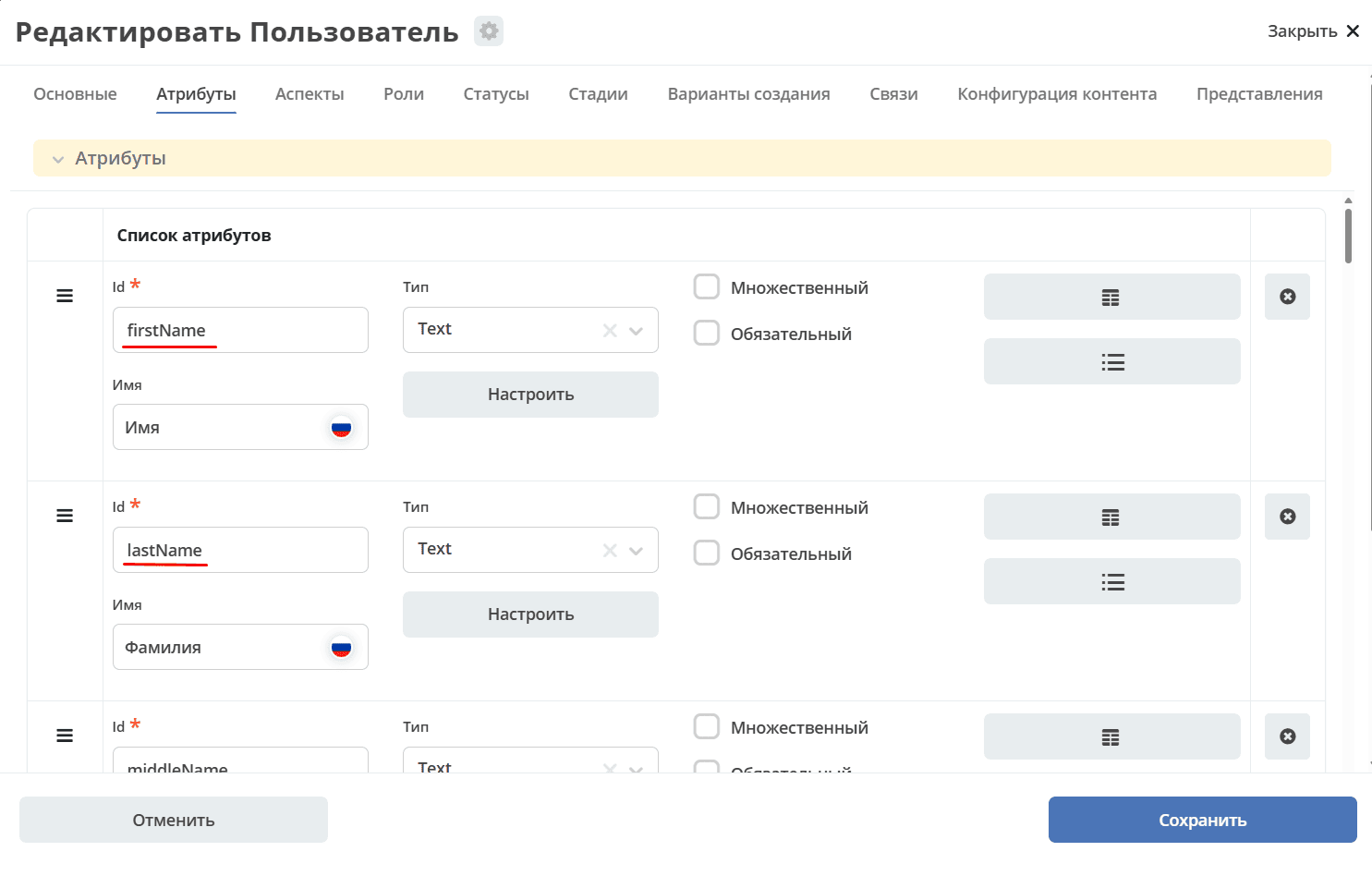
The value in the Id field is an attribute.
Hide Users/Groups When Searching in the Org Structure
Certain users or groups can be hidden in the search results within the org structure.
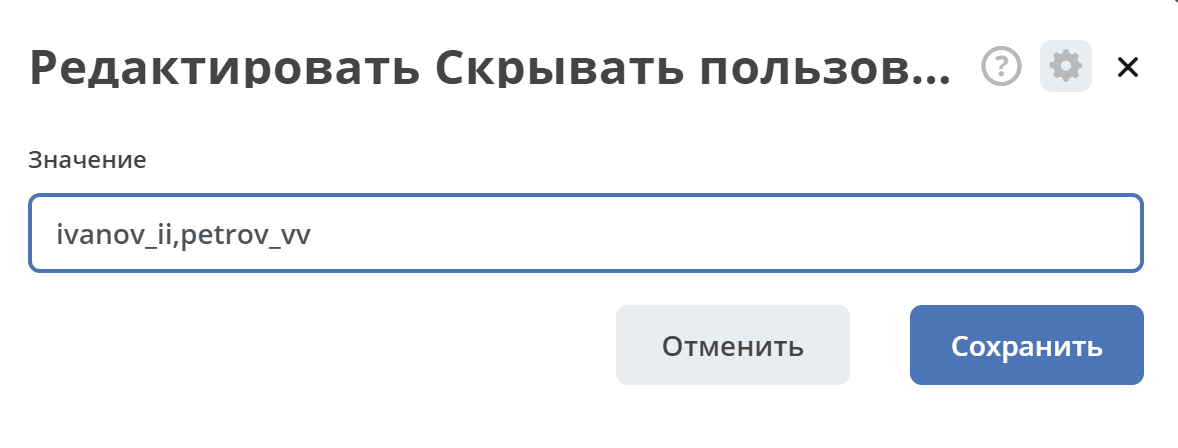
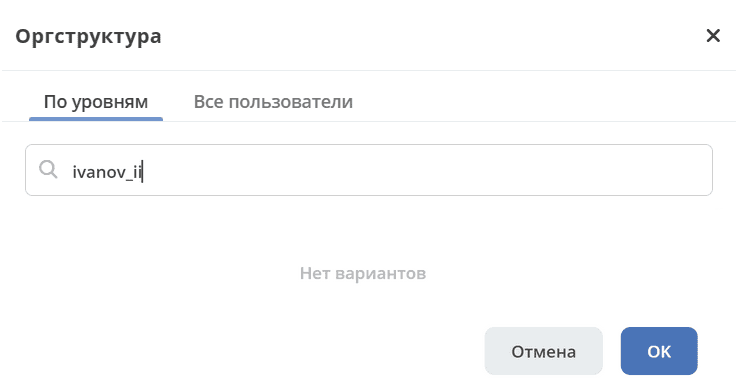
Open the identifier hide-in-orgstruct in edit mode. Specify user logins, for example, ivanov_ii,petrov_vv and save:
Searching for a user in the Org Structure component:
Hide Disabled Users for Everyone Except Administrators
In the org structure, disabled users can be hidden for everyone except administrators.
Open the identifier orgstruct-show-inactive-user-only-for-admin in edit mode:
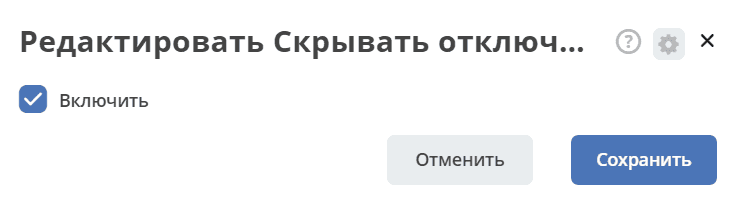
Check the «Enable» checkbox.
Additional Fields for User Search
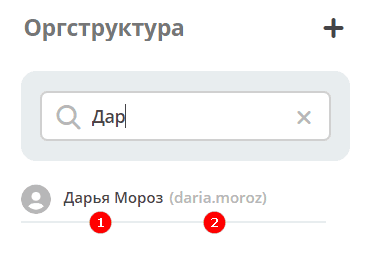
By default, search occurs if the following is specified in the search bar:
1 word - in the fields display name in org structure (1), system name (2);
2 words - in the fields First Name, Last Name;
3 words - in the fields First Name, Last Name, Middle Name;
more than 3 words, similar to searching by 1 word.
To add additional fields for search, open the identifier orgstruct-search-user-extra-fields in edit mode:
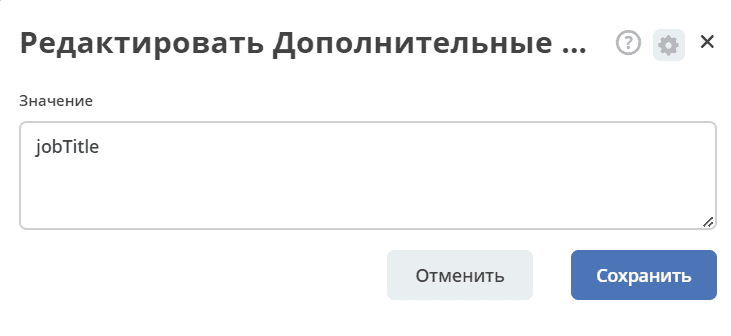
Specify the name of the attribute to search by.
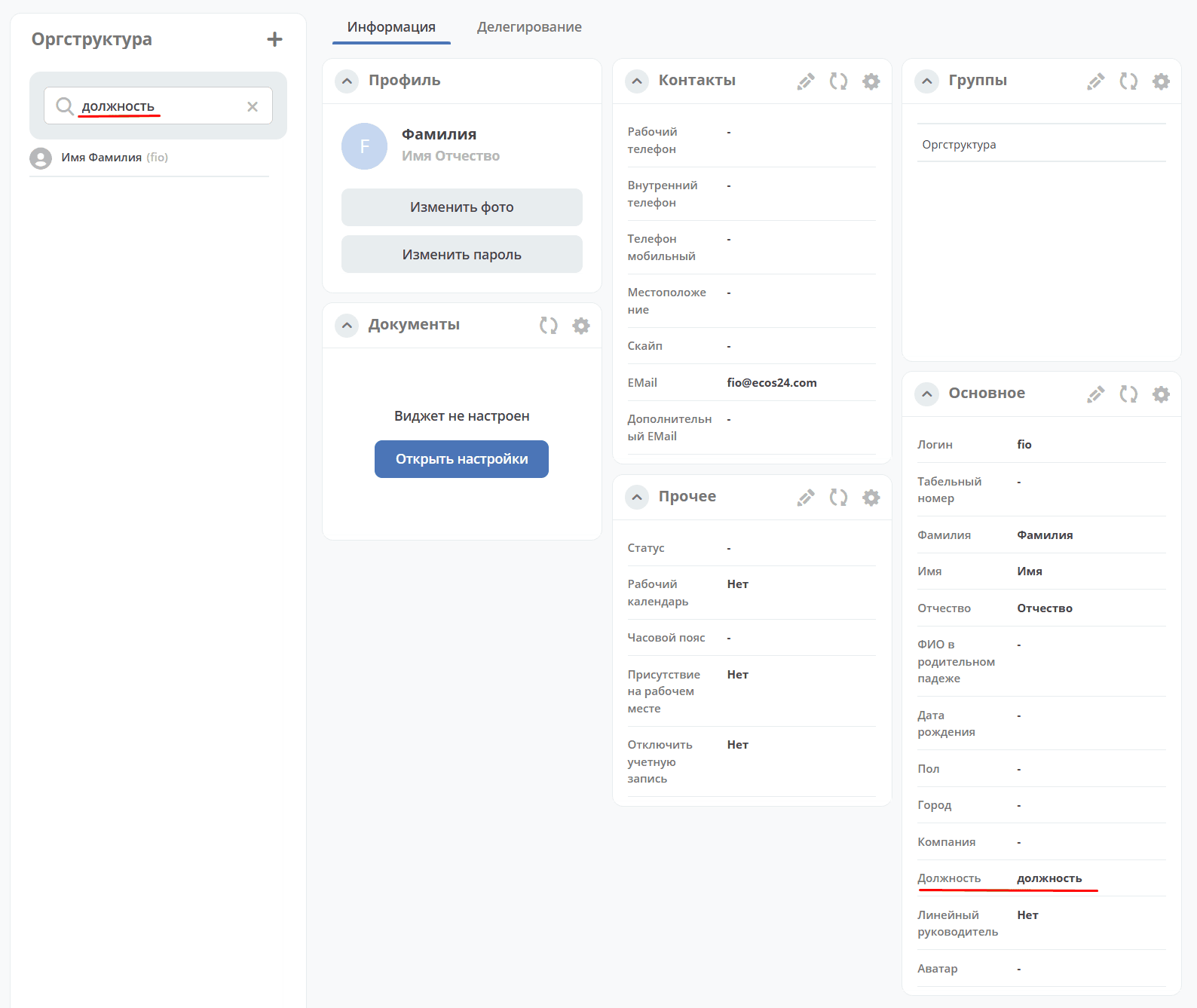
Search by the field added in the setting:
Use Middle Name for User Search
To search for users in the org structure by middle name, open the identifier orgstruct-search-user-middle-name in edit mode:
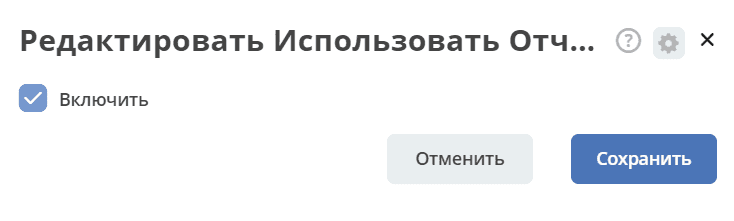
Check the «Enable» checkbox.
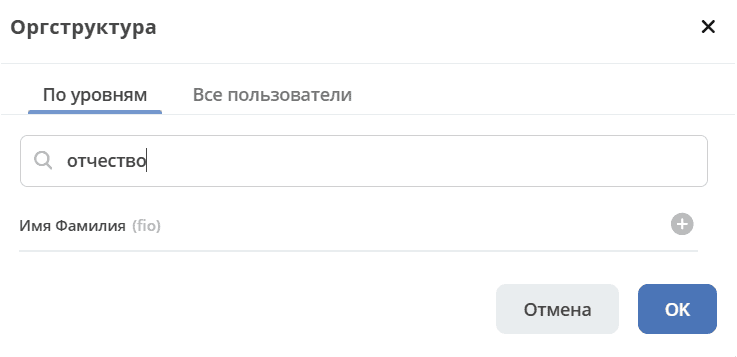
Search by middle name - in the org structure itself:
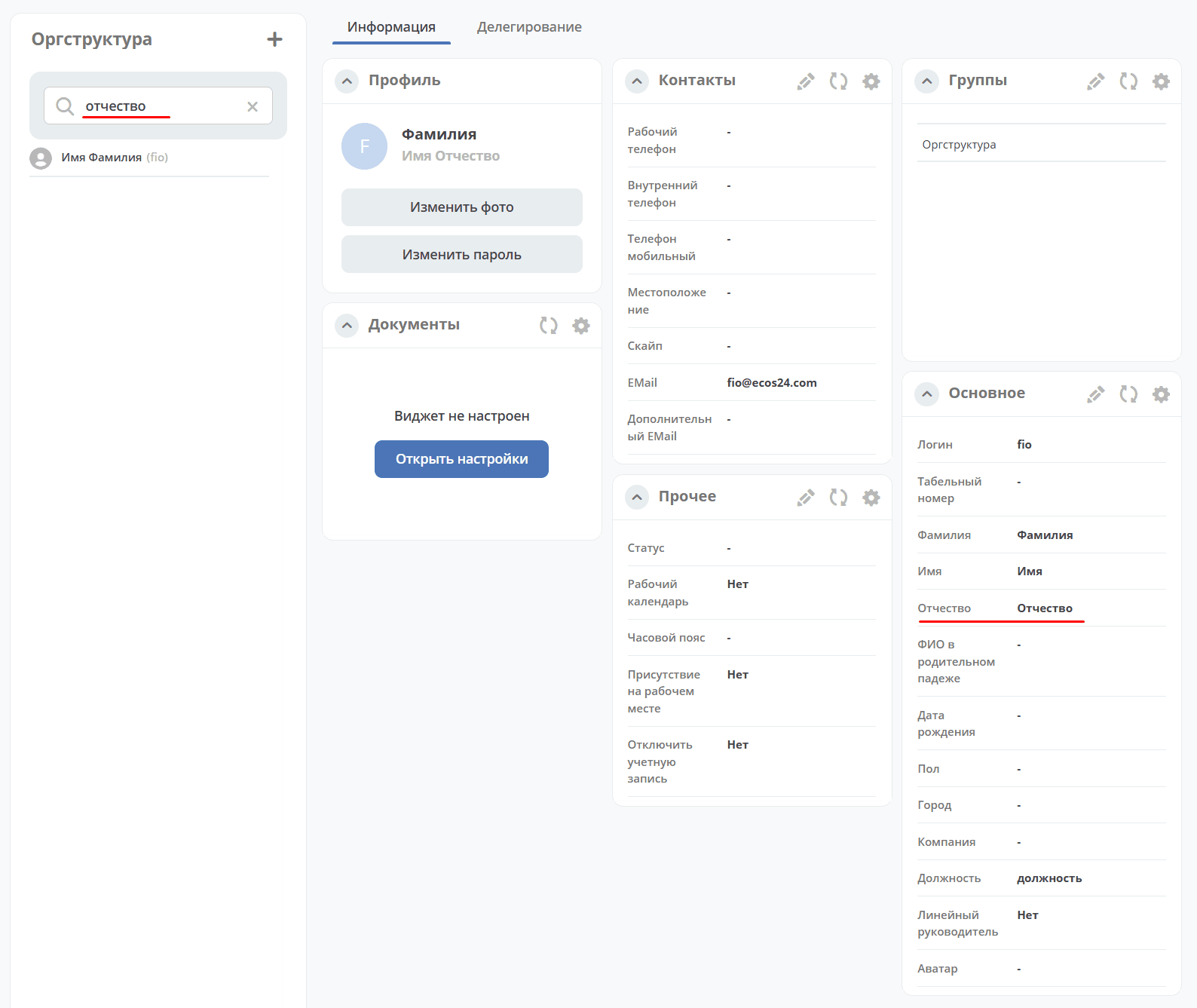
and in the Org Structure component: