Interface Theme Configuration
An interface theme is a set of logos, favicon, and CSS styles for visually customizing Citeck to match an organization’s corporate identity. The theme is a zip archive that is uploaded via the interface or API and applied to the entire application.
This article describes the format and structure of the theme archive, the process of uploading and applying it, the API for working with styles and images, the caching mechanism, and CSS customization examples.
Main data source: uiserv/theme
Viewing existing themes, their editing, applying, and uploading new ones is done in the Themes journal (Workspace “Admin Section” - UI Configuration).
The journal is available at: v2/admin?journalId=ecos-theme&type=JOURNAL
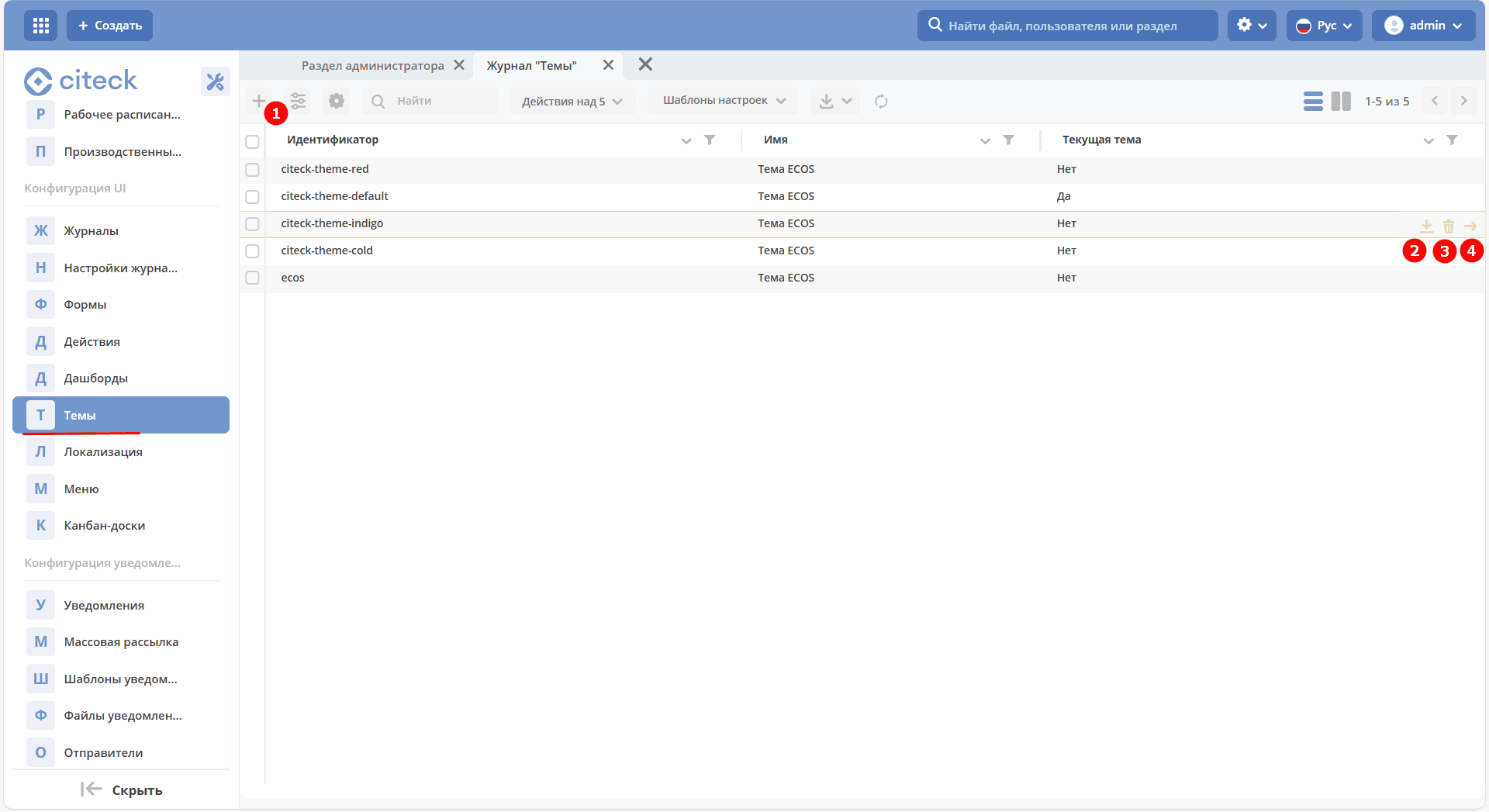
Available operations with themes: uploading a new theme (1), downloading (2), deleting existing (3), applying a theme (4).
The Apply theme action is available for inactive themes; for the current theme, the action is not displayed.
Currently, theme configuration is not provided through the interface - only through downloading, modifying, and uploading back. When uploading a theme through the interface, a zip archive is uploaded to uiserv.
Archive structure:
root:
  theme:
  image:
    apple-touch-icon.png
    apple-touch-icon-precomposed.png
    favicon.ico
    login-logo.png
    logo.png
    menu-left-logo-large.png
    menu-left-logo-small.png
  meta.json
  main.css
where:
root - archive root
theme - theme identifier
image - arbitrary folder for images. The connection between the actual file and its identifier is made in meta.json
meta.json - theme metadata
main.css - main styles file
General view of meta.json:
{
  "name": {
    "ru": "Тема ECOS",
    "en": "ECOS theme"
  },
  "parentRef": null,
  "images": {
    "favicon": "/image/favicon.ico",
    "logo": "/image/logo.svg",
    "login-logo": "/image/login-logo.svg",
    "menu-left-logo-large": "/image/menu-left-logo-large.svg",
    "menu-left-logo-small": "/image/menu-left-logo-small.svg",
    "apple-touch-icon": "/image/apple-touch-icon.png",
    "apple-touch-icon-precomposed": "/image/apple-touch-icon-precomposed.png"
  }
}
name - theme name. Reference information;
images - links to images:
favicon - site icon. Only ICO format is supported
logo - theme logo. Will be used when selecting a theme
login-logo - logo on the login page
menu-left-logo-large - logo in the left expanded menu
menu-left-logo-small - logo in the left collapsed menu
apple-touch-icon - logo used by iOS for bookmarks and “add to home screen” sites
apple-touch-icon-precomposed - logo used in early iOS versions for bookmarks and “add to home screen” sites
Supported logo formats: jpeg, ico, png (svg added in upcoming release). Logo size is not limited.
In addition to logos, styles can be changed in the main.css file. Through this file, almost any part of the UI can be modified, but generally it is assumed that the author of changes is well-versed in working with browser styles.
Currently, the server does not process styles in any way. I.e., it is advisable to load minified styles directly in the archive.
In addition to main.css, there can be other styles, and they can be accessed via API. In the future, if the main.css file is missing, the server will generate it from all css files in the theme.
active-theme Configuration
To store the current theme, a configuration in uiserv active-theme is used
To get the current theme:
await Records.get('uiserv/config@active-theme').load('value');
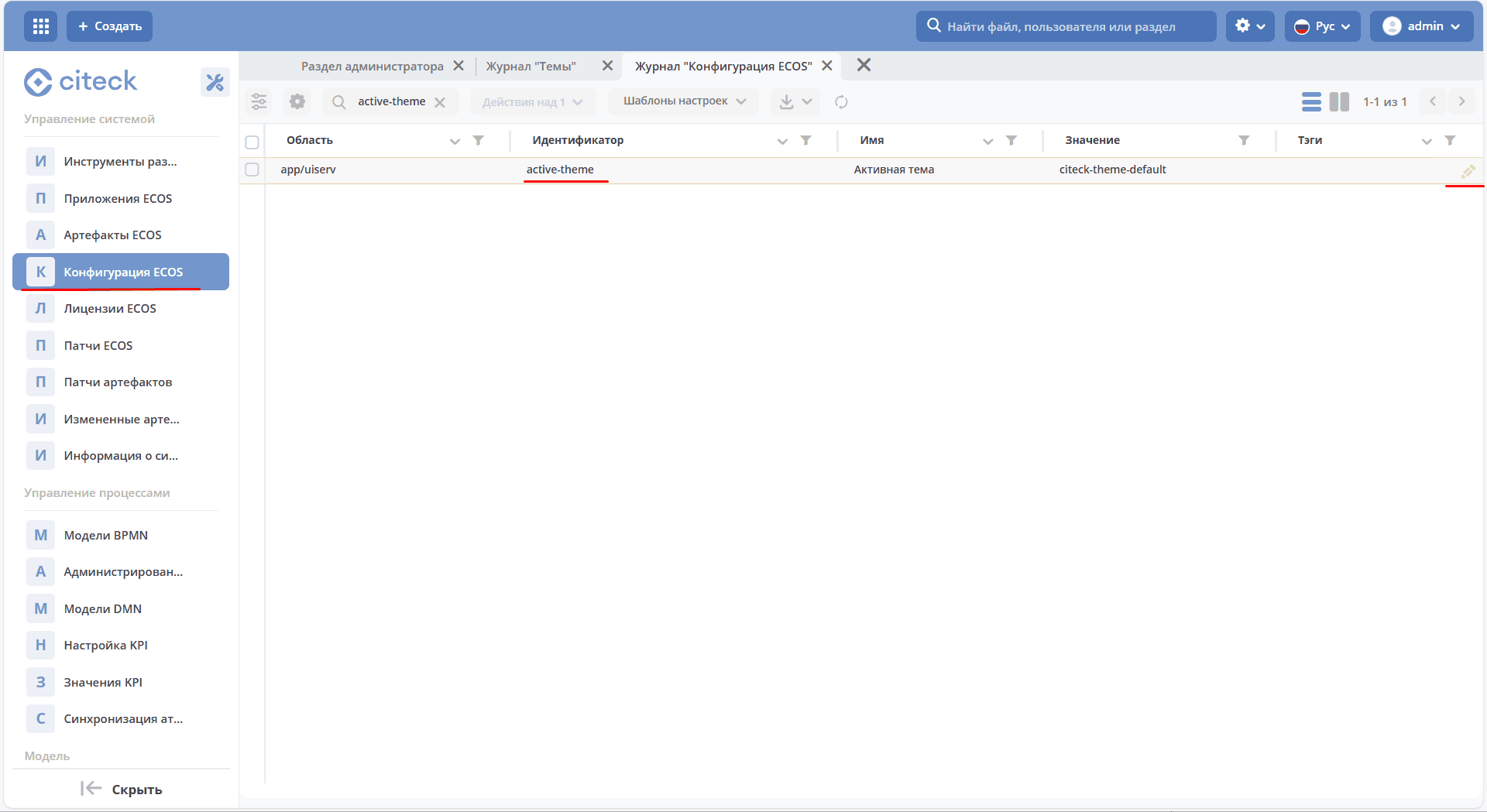
Information about the active theme is available in the ECOS Configuration journal (v2/admin?journalId=ecos-configs&type=JOURNAL) in active-theme:
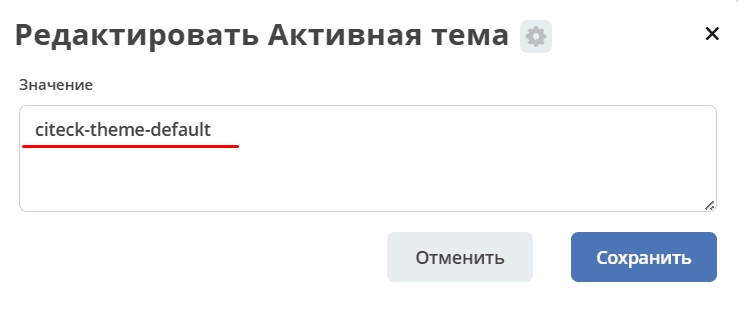
To change the theme, specify its new value in the setting and save:
API
Getting the main styles file for a theme:
/gateway/uiserv/api/theme/{themeId}/style/main.css
The .css extension can be omitted. Instead of main.css, there can be other styles present in the theme (only the filename without the path is considered). Getting images:
/gateway/uiserv/api/theme/{themeId}/image/logo
Instead of logo, there should be the image identifier from the theme’s meta.json (images) Instead of {themeId}, there can be:
Actual theme identifier
Constant “active”, with which the theme identifier is loaded from the active-theme config
Cache
All requests for styles and images return caching headers with a lifetime of ~4 hours.
To avoid cache issues (themes can change “on the fly”), a cache key needs to be added to requests, which is loaded via the following API:
await Records.get('uiserv/meta@').load('attributes.theme-cache-key');
Styles
You can add custom CSS to the active theme. To do this:
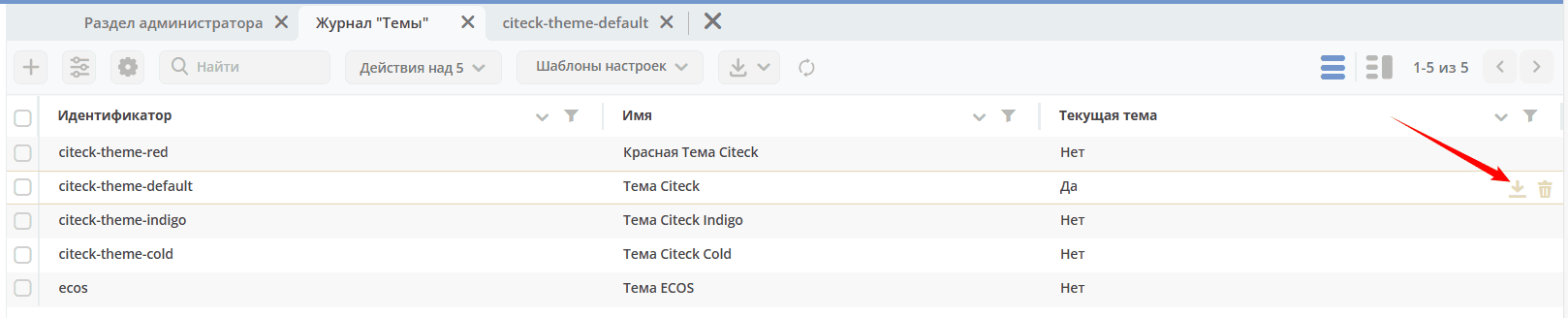
Download the artifact of the finished theme:
Unpack the archive:
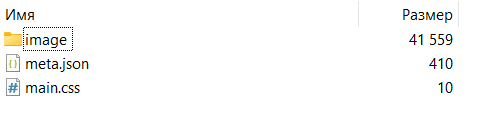
Open main.css
.body {
}
Make your changes.
Pack into an archive (with the same structure as when it was downloaded) and upload to the instance:
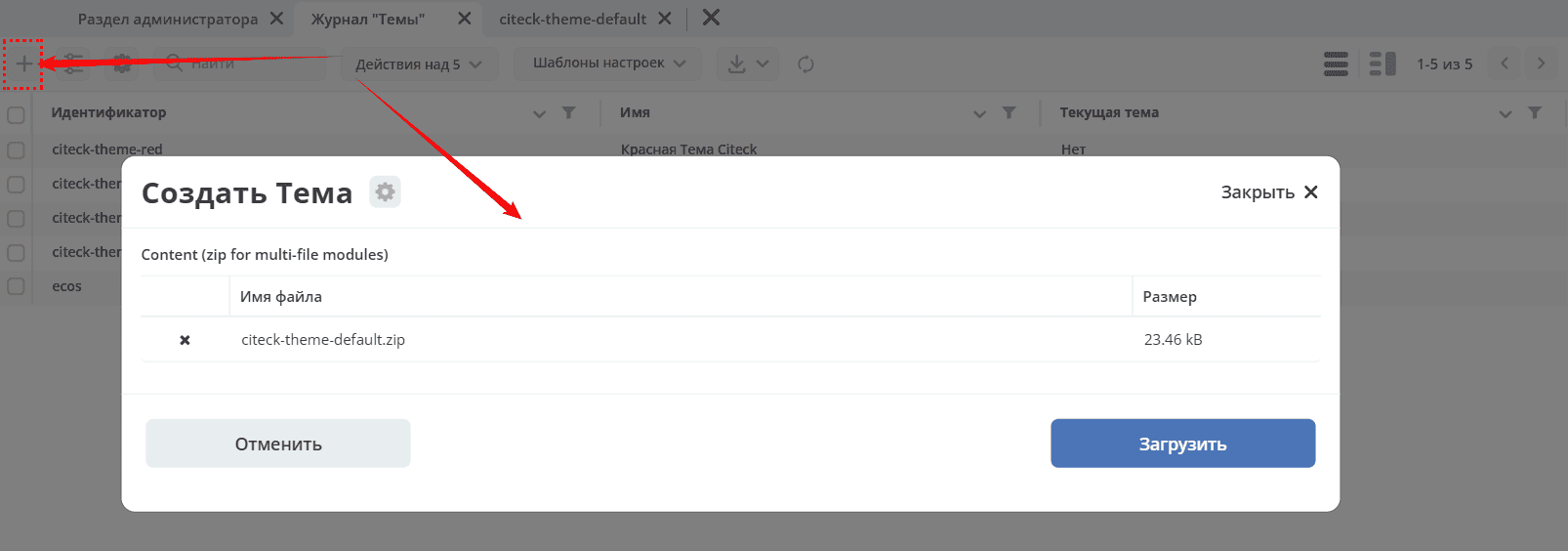
Refresh the page.
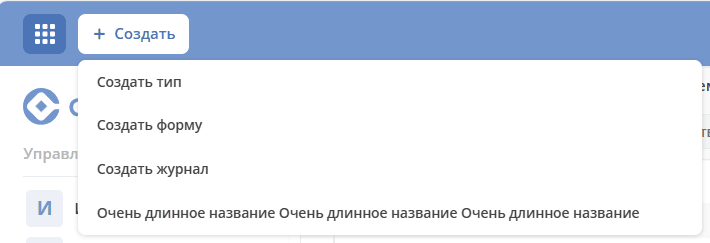
Configuring the Create button dropdown width
For example, to configure the dropdown width of the Create button:
.body {
}

.ecos-dropdown__menu_new, .ecos-dropdown__menu_new ul {
    max-width: unset !important;
}
Result: navigate to the Create button — the dropdown width will adjust to fit the text length:
Changing the color scheme of the theme
:root {
  --main-bg-color: #fafafa; /*основной фон страницы*/
  --header-bg-color: #002F6C; /*основной фон хедера страницы*/
  --header-component-color: #1e4272dd; /*цвет элементов хедера*/

  --primary-color: #002F6C; /*основной цвет темы*/
  --dark-primary-color: #002350; /*производная от основного цвета*/
  --light-primary-color: #D8E5F8; /*производная от основного цвета*/
}

body {
}

.ecos-sidebar {
  background: #f8fafc; /*фон боковой панели*/
}

.ecos-journal_new .ecos-grid__row_new:not(.ecos-grid__tr_selected):nth-child(odd) {
  background-color: #d8e5f86b !important;  /*чередование строк в таблице*/
}
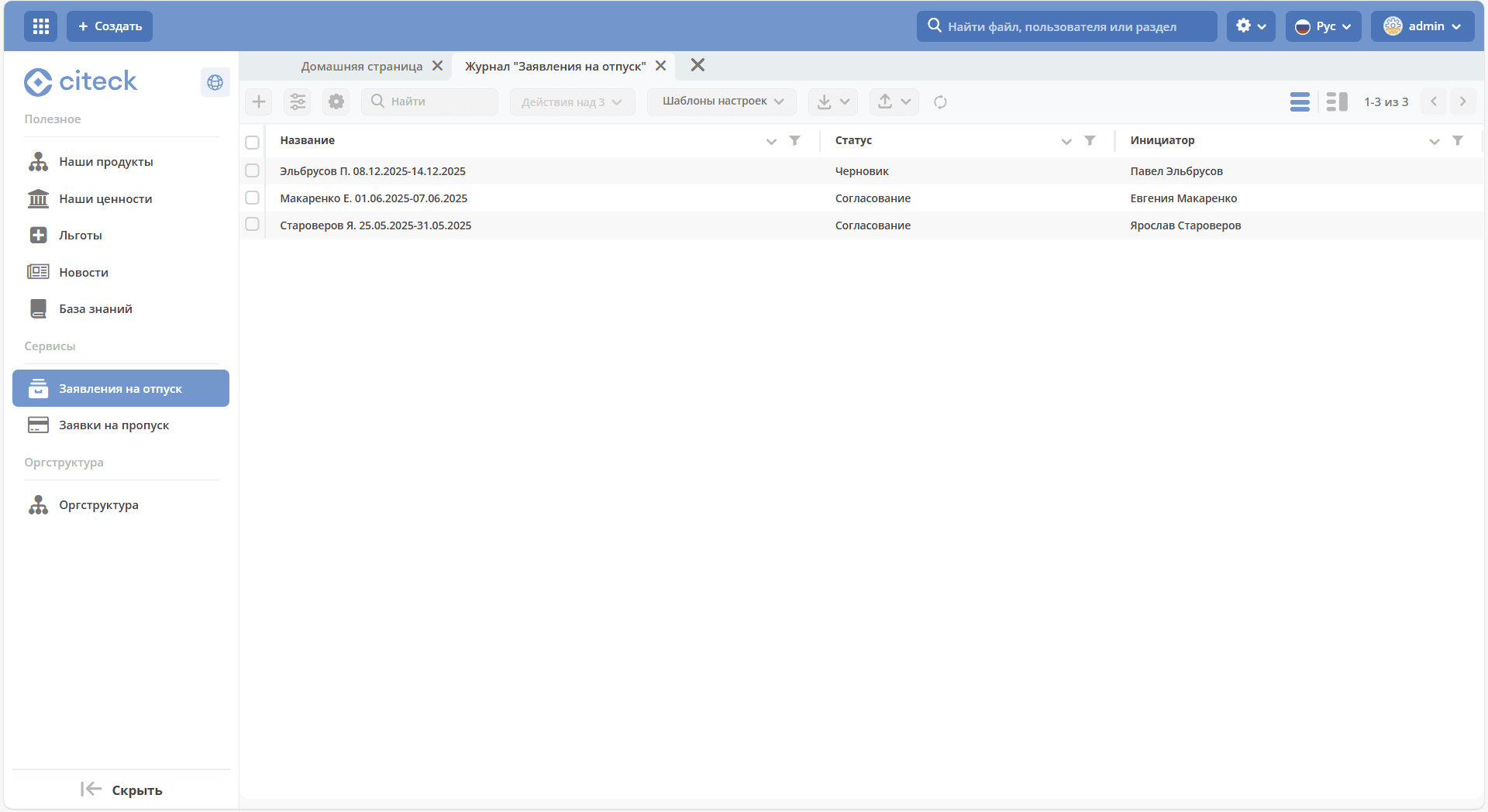
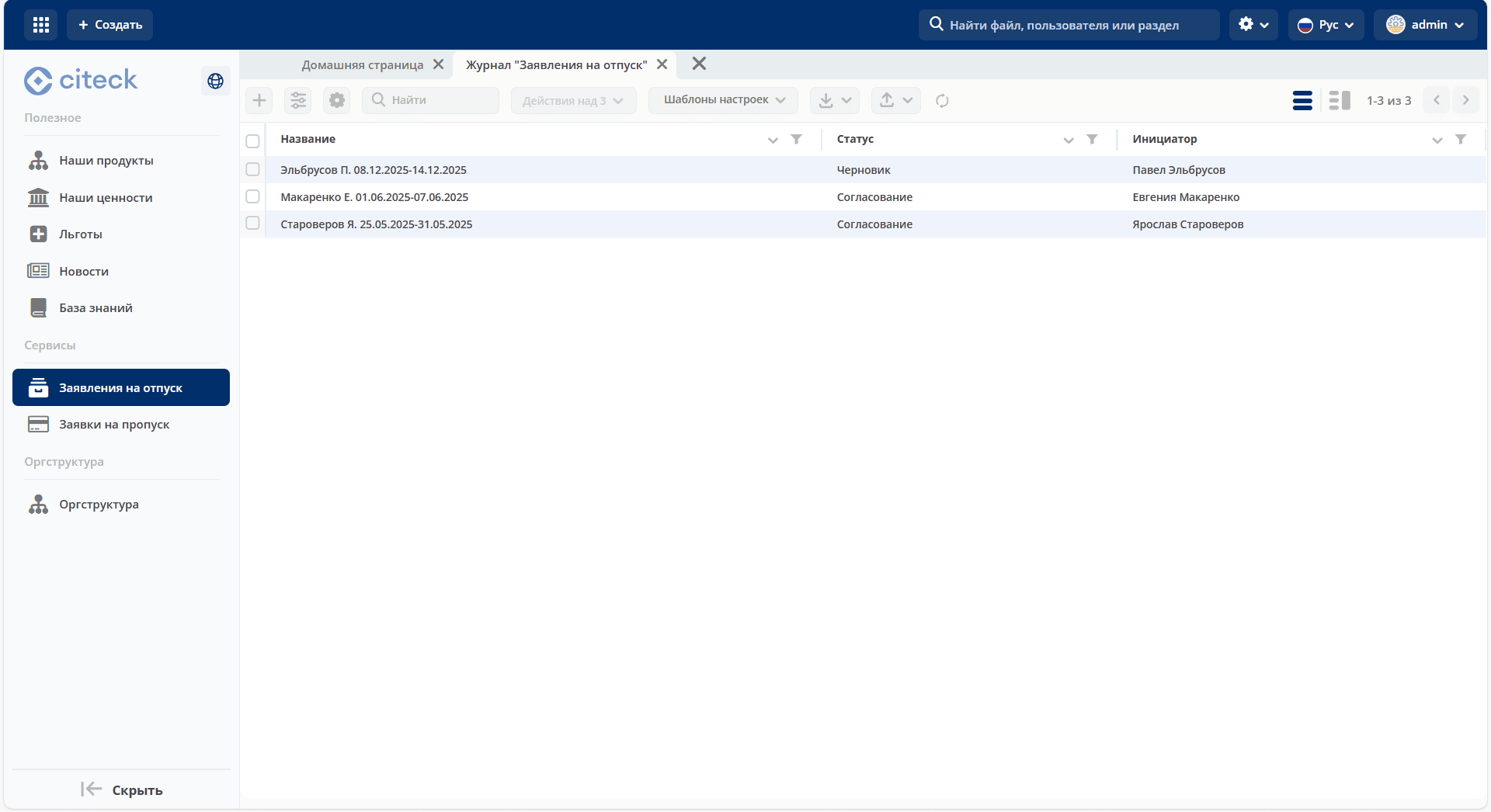
Result:
Base theme: |
|
Updated theme: |
|