Decision
A Decision is a model element that takes input data and, by applying business rules (defined as a table or expression), produces one or more output results.
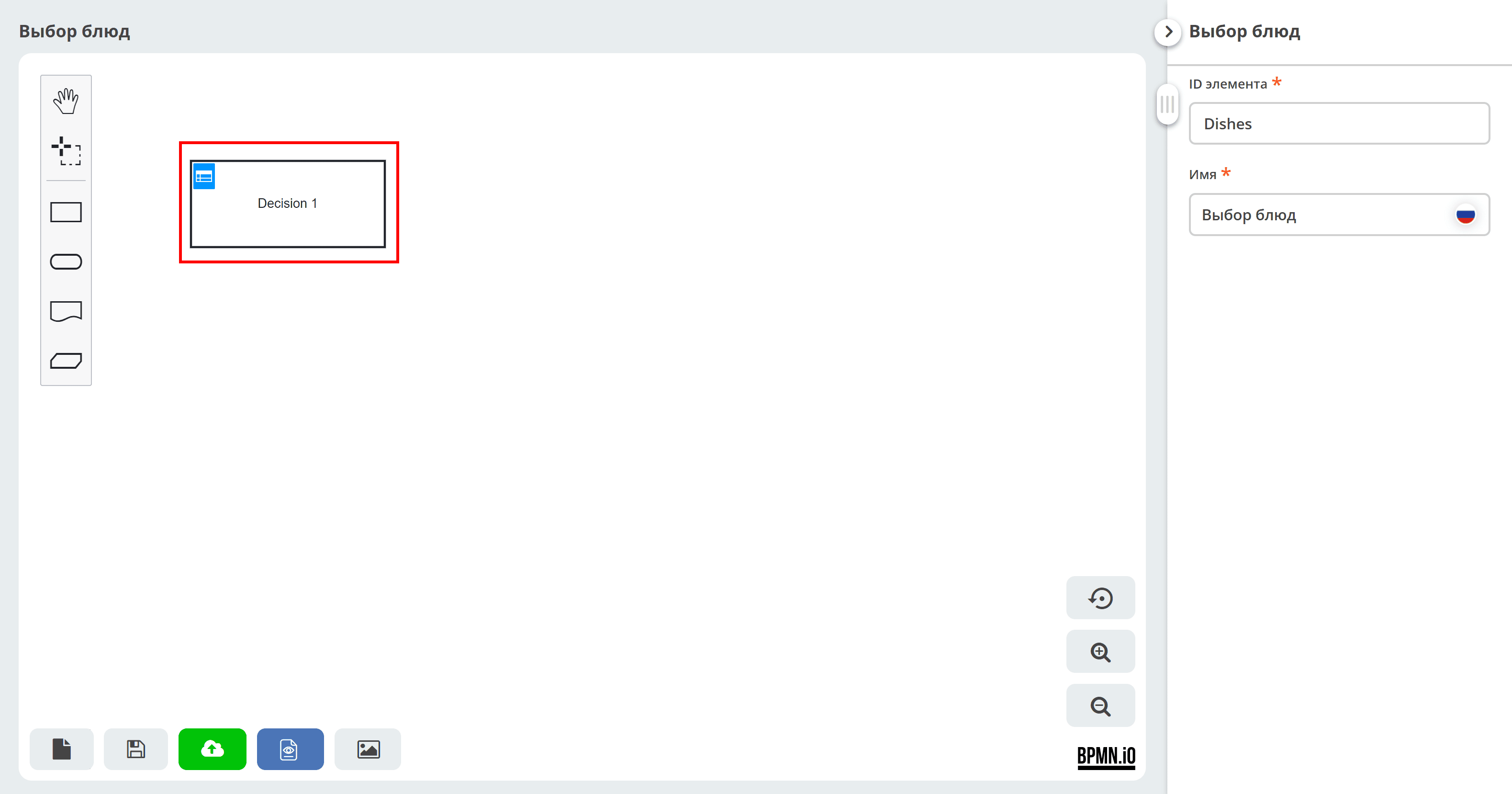
When creating a new model, a decision element is added by default:
Clicking on the decision makes the element properties available on the right side:
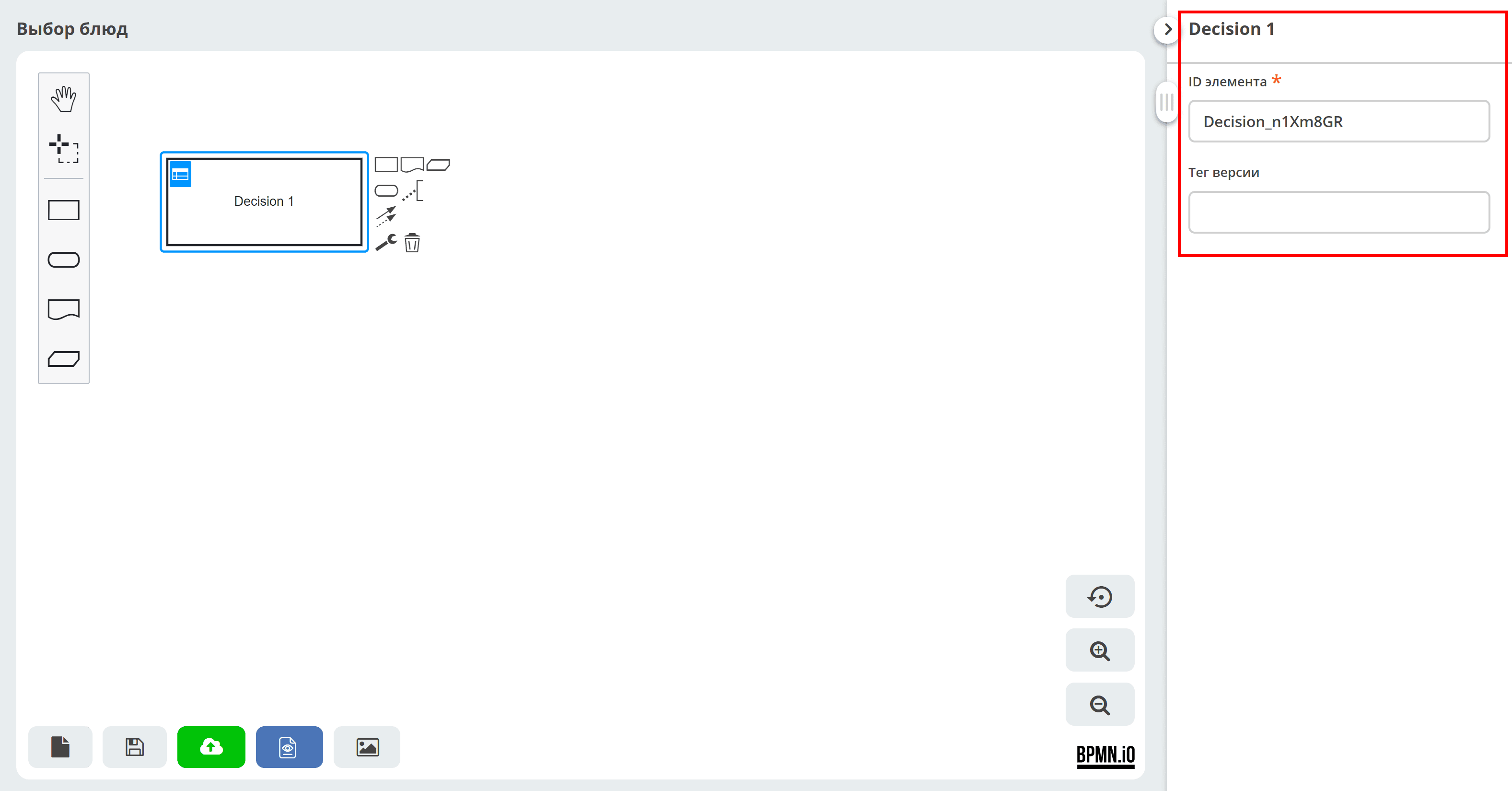
An element can be renamed by double-clicking it or via the properties panel.
To enter data into the table, click:
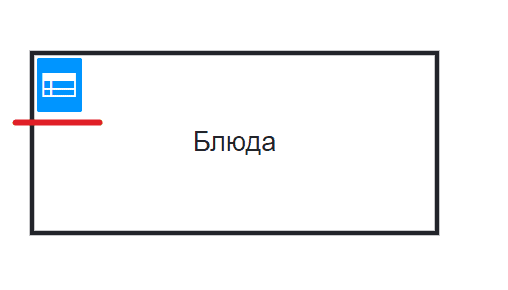
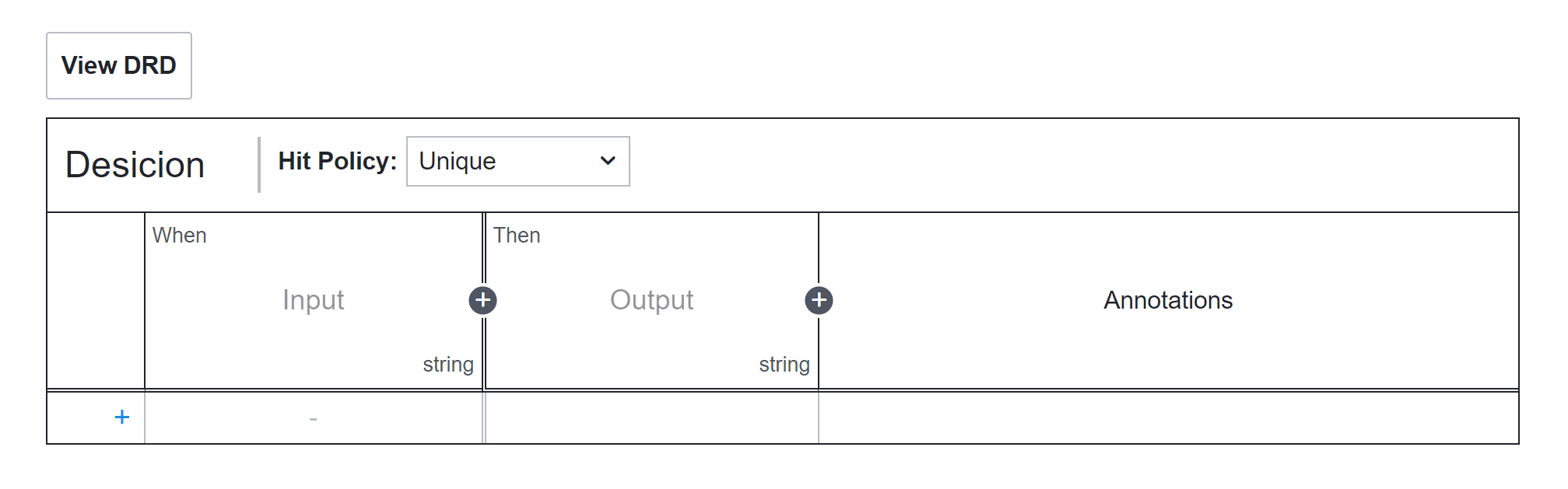
A table will open for filling in:
Right-clicking on a table header cell opens a menu:
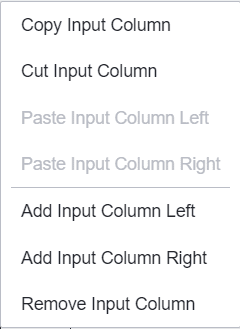
Using the menu, you can add, copy/paste, or delete cells.
Clicking View DRD returns you to the decision model.
Next, let’s look at the elements of the decision table.
Description of decision table elements
A decision table represents decision logic that can be displayed in tabular form. The logic consists of inputs, outputs, and rules.
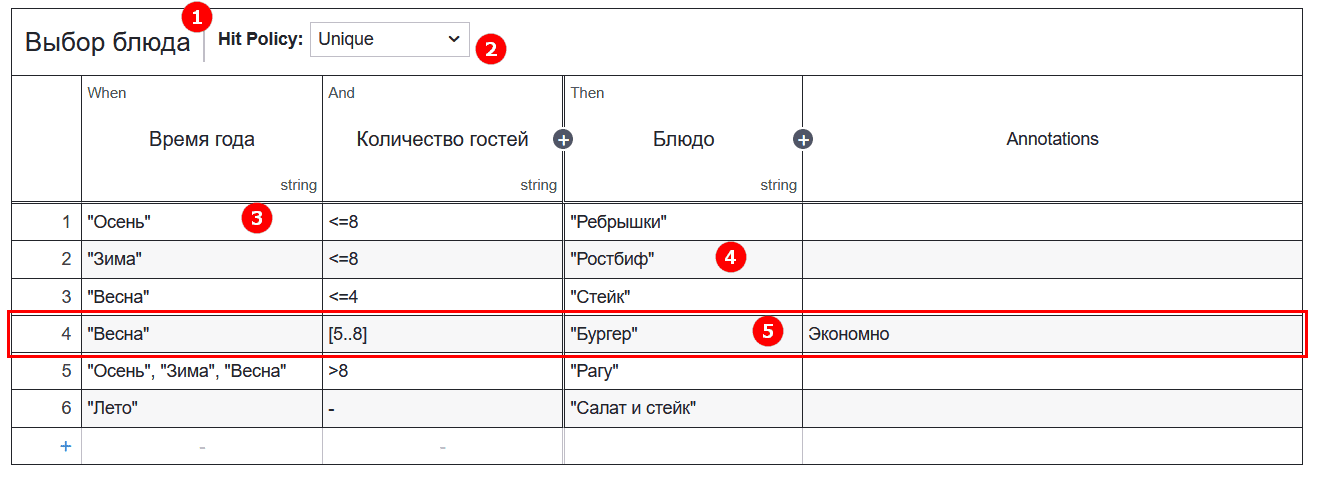
Decision table name
Hit policy
Input
Output
Rule
Right-clicking on a decision row opens a menu:
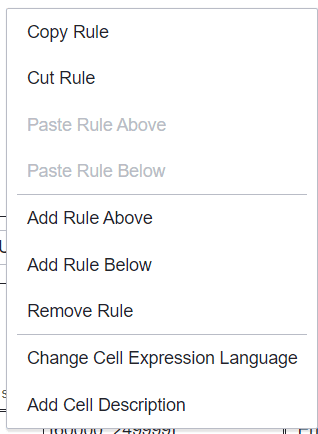
Using the menu, you can add, copy/paste, or delete decision rows, and change the expression language.
Hit policy
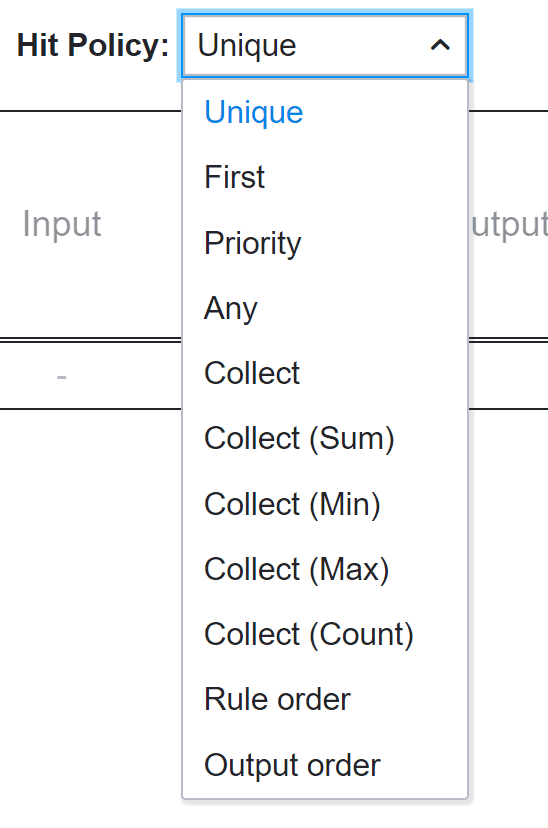
A decision table has a hit policy that specifies what the results of evaluating the decision table consist of.
The hit policy defines how many decision table rules can be satisfied and which of the satisfied rules are included in the decision table result.
The Unique, Any, and First hit policies will always return no more than one satisfied rule.
The Rule Order and Collect hit policies can return multiple satisfied rules.
Policy |
Description |
|---|---|
Unique |
Only one rule can be satisfied, or no rule at all. The decision table result contains the output entries of the satisfied rule.
If more than one rule is satisfied, the unique hit policy is violated.
This is the default hit policy.
|
First |
Multiple rules can be satisfied. The decision table result contains only the output of the first satisfied rule.
|
Priority |
The output data of the rules have priority.
Rules may overlap, but only the match with the highest output priority is considered. Not yet implemented.
Not yet implemented.
|
Any |
Multiple rules can be satisfied. However, all satisfied rules must generate the same result.
The decision table result contains only the output of one of the satisfied rules.
If multiple rules are satisfied that generate different outputs, the hit policy is violated.
|
Collect |
Multiple rules can be satisfied. The decision table result contains the outputs of all satisfied rules in arbitrary order as a list.
Additionally, for the Collect hit policy, an aggregator can be specified.
If an aggregator is specified, the decision table result will contain only one output entry. The aggregator will generate the output entry from all satisfied rules.
The following operators are available for the Collect hit policy.
|
Rule order |
Multiple rules can be satisfied.
The decision table result contains the outputs of all satisfied rules in the order in which the rules appear in the decision table.
|
Output order |
The result of all matched rules is a list of outputs ordered by their (descending) output priority.
|
Operators for the Collect hit policy:
SUM |
The SUM aggregator sums all output values of the satisfied rules. |
MIN |
The MIN aggregator can be used to return the smallest output value of all satisfied rules. |
MAX |
The MAX aggregator can be used to return the largest output value of all satisfied rules. |
COUNT |
The COUNT aggregator can be used to return the number of satisfied rules. |
Input
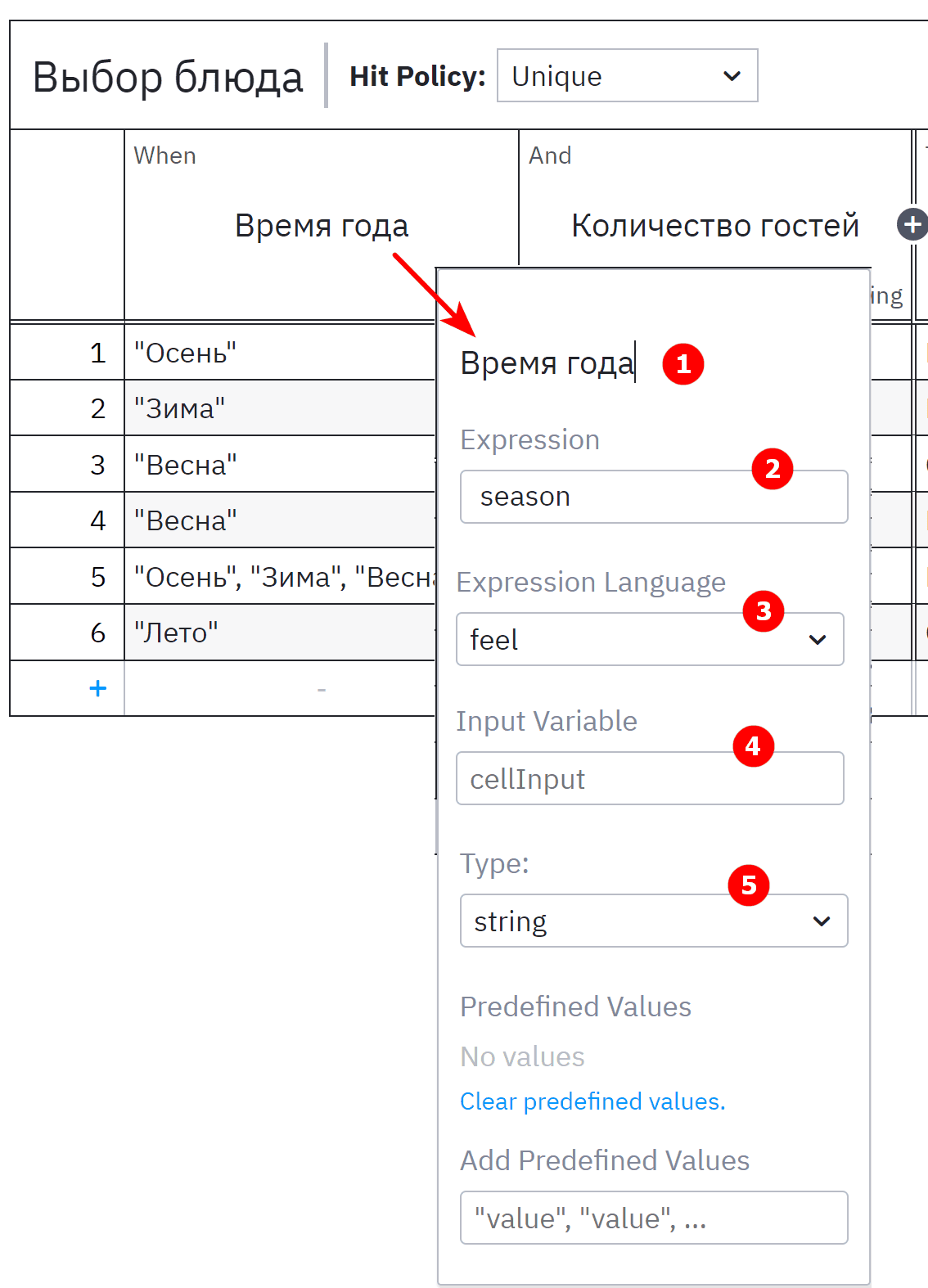
A decision table can have one or more input elements. An input element defines the identifier, label, expression, and input type of the decision table.
You can edit the input by double-clicking the header of the corresponding column in the decision table.
1 |
Input element name |
A short description. Note that the name is optional but recommended, as it helps to understand the essence of the decision. |
2 |
Expression |
The input expression specifies how the value of the input clause is generated.
This expression will be evaluated by the DMN engine. Typically, it is just a reference to a variable that is available at evaluation time.
|
3 |
Expression language |
The language of the input expression. Supported expression languages:
|
4 |
Input variable |
The name of the input variable. When the input expression is evaluated, the returned value is stored in the variable.
The variable can be used in the input entry expression.
|
5 |
Type |
The type of the input clause. After the input expression is evaluated by the DMN engine, it converts the result to the specified type.
Supported types:
|
Note
When working with the string type, data must be enclosed in quotation marks.
Output
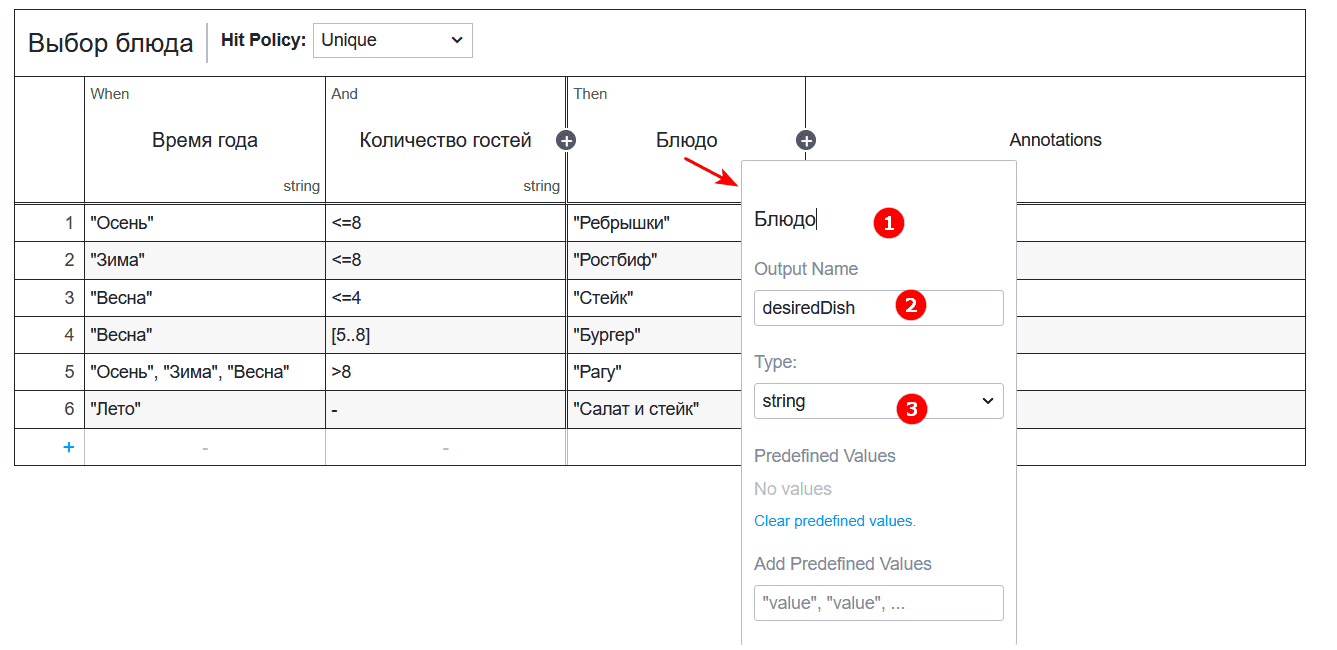
A decision table can have one or more output elements.
An output element defines the identifier, label, name, and output type of the decision table.
1 |
Output element name |
A short description. Note that the name is optional but recommended, as it helps to understand the essence of the decision. |
2 |
Output name |
The output name is used to reference the output value in the decision table result.
If the decision table has more than one output, all outputs must have unique names.
|
3 |
Type |
After the output entry is evaluated by the DMN engine, it converts the result to the specified type.
Supported types:
|
Note
When working with the string type, data must be enclosed in quotation marks.
Rule
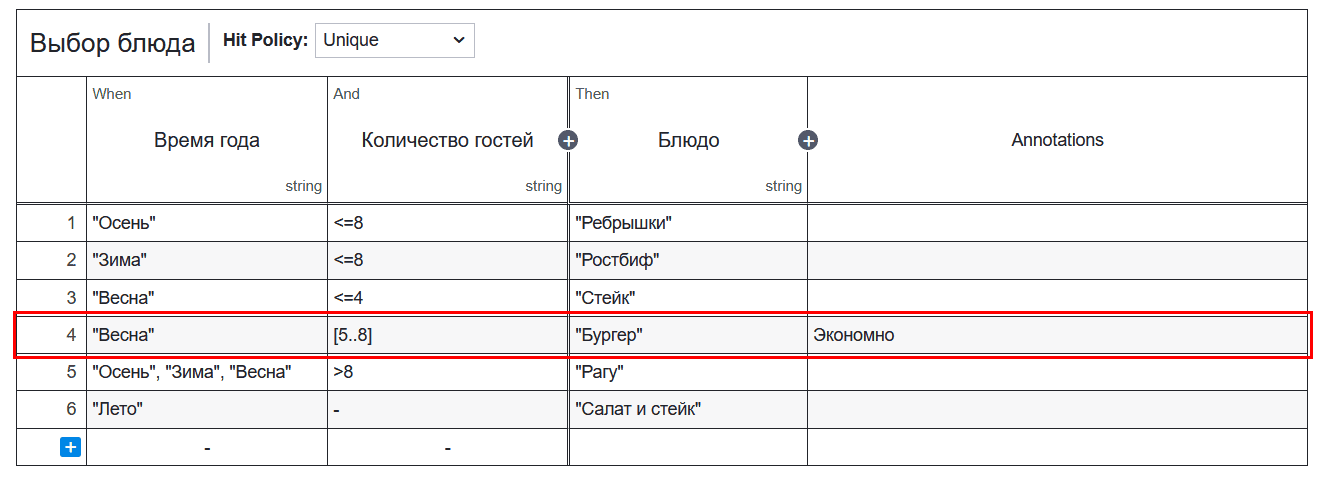
A decision table can have one or more rules. Each rule contains input and output elements.
Input elements are the conditions, and output elements are the conclusions of the rule. If each input element (condition) is satisfied, the rule is executed and the decision result contains the output elements (conclusions) of that rule.

1. Input element
If an input element is not relevant to the rule, the expression is empty.
If FEEL is used as the expression language, an empty input element is represented as -. Otherwise, the expression is empty.
If a global expression language is not set, the default expression language is used instead. The default expression language for input entries is FEEL.
2. Output element
A rule can have one or more output elements, which are the outputs of the rule.
If an output element is empty, the output data is ignored and is not part of the decision table result.
If a global expression language is not set, the default expression language is used instead. The default expression language for output entries is JUEL.
3. Description:
A rule can have a description containing additional information.
Decision types
The following are available in the decision properties:
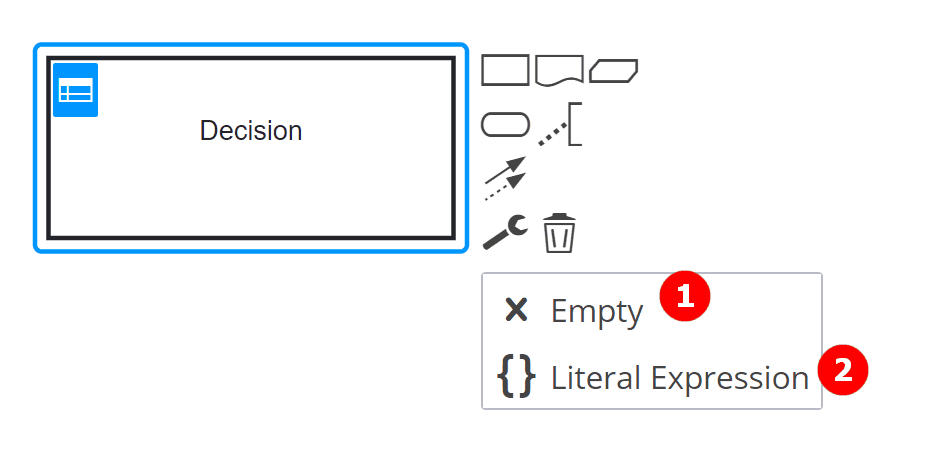
Clicking Empty (1) removes the decision table from the element.
To add a table, select:
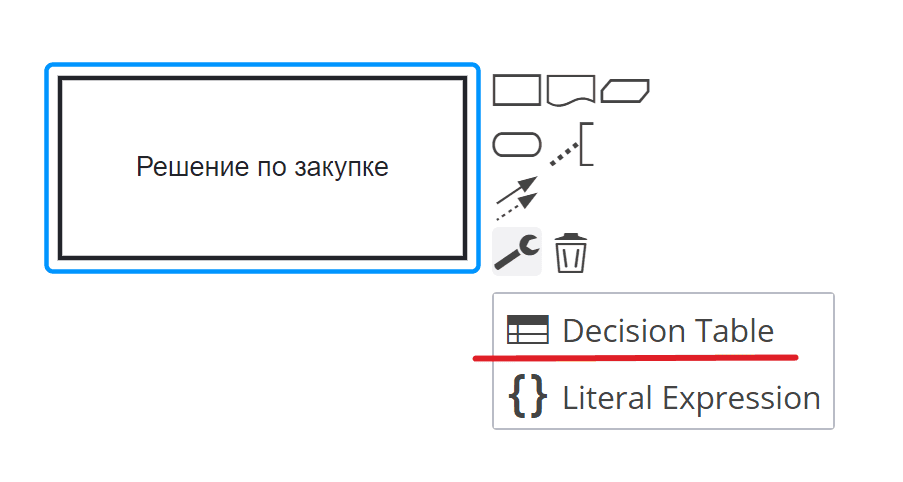
Clicking Literal Expression (2) allows you to enter a literal expression.
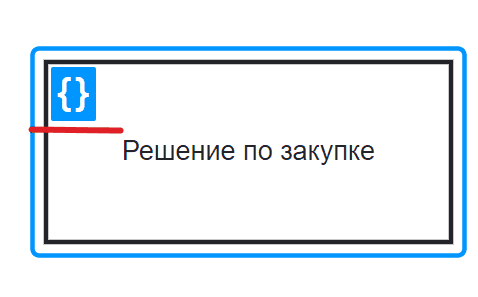
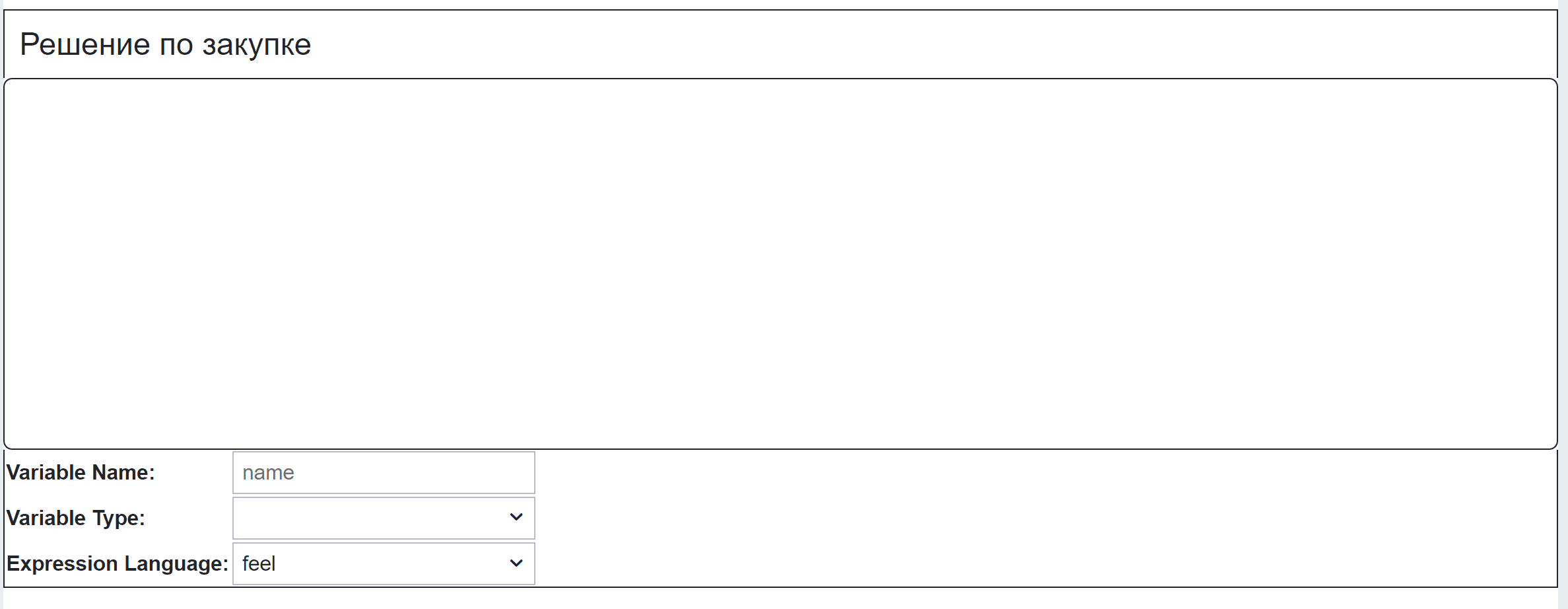
A decision literal expression represents decision logic that can be expressed in DMN 1.3 as an expression. It consists of a literal expression and a variable.
The literal expression specifies how the decision value is generated. This expression will be evaluated by the DMN engine. It can be used to perform complex calculations, call a bean component that provides decision-making logic, or combine the output values of decisions.
A decision literal expression must have a variable that defines the name and type of the decision result.
Example of creating a decision table
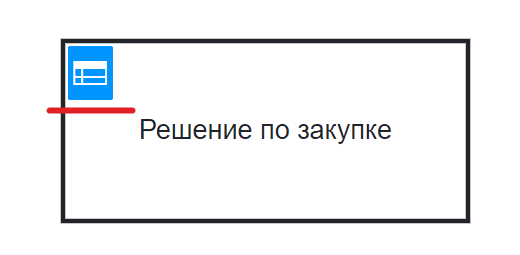
Double-click the field and set the decision name to “Purchase Decision”. Then go to the decision table by clicking the table icon at the top of the decision.
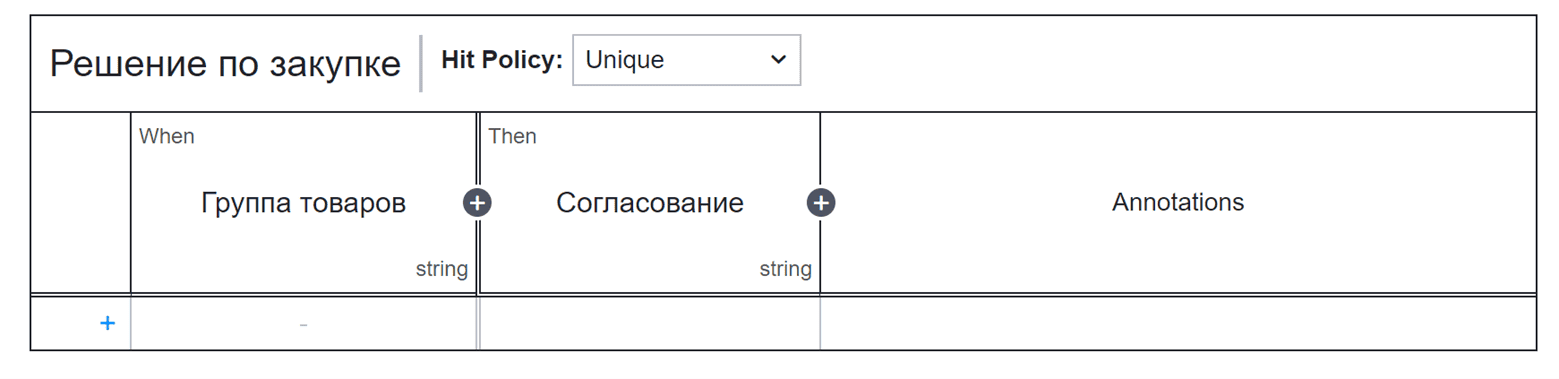
To set the name of the input element, double-click the field under “When” and enter “Product Group” (1) in the topmost field.
To set the name of the output element, double-click the field under “Then” and enter “Approval” (2) in the topmost field.
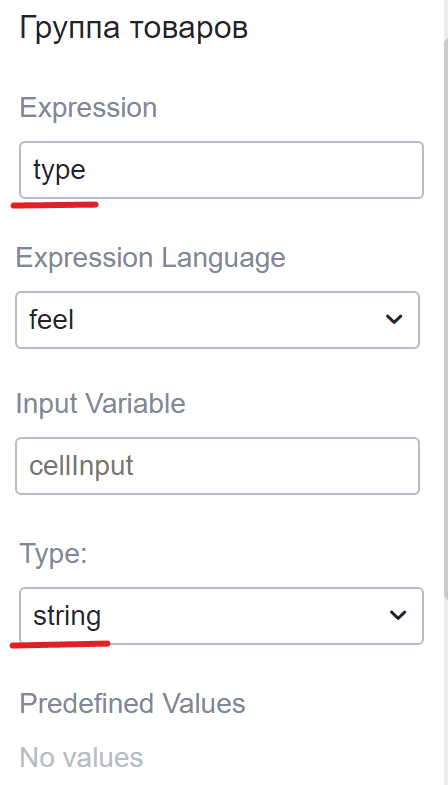
Assuming that the input value for “Product Group” is represented by a variable named “type”, the input expression should be “type” with the type string.
Double-click the “Product Group” field. In the modal menu that appears, set “type” as the expression, select the string type, and close it.
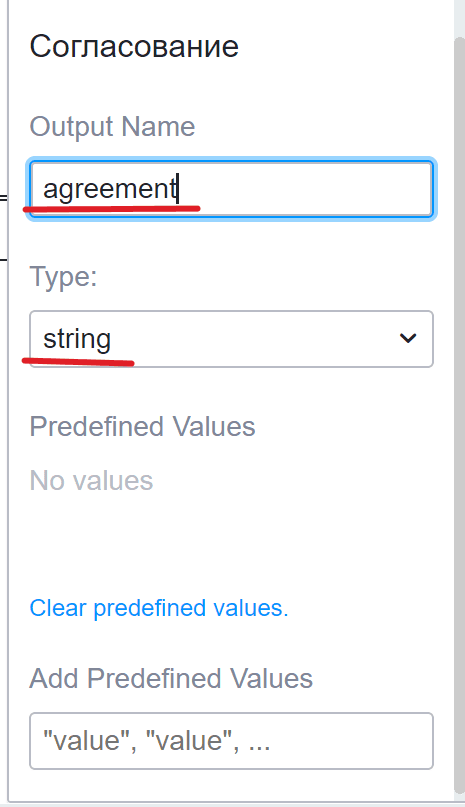
Then double-click the “Approval” field and set “agreement” as the output element name and the type to string.
Next, add the first rule specifying that for “Stationery” — “Allow”.
Click the “+” button at the bottom of the table or simply click anywhere in the last row.
In the added row, enter “Stationery” in the input column and “Allow” in the output column.
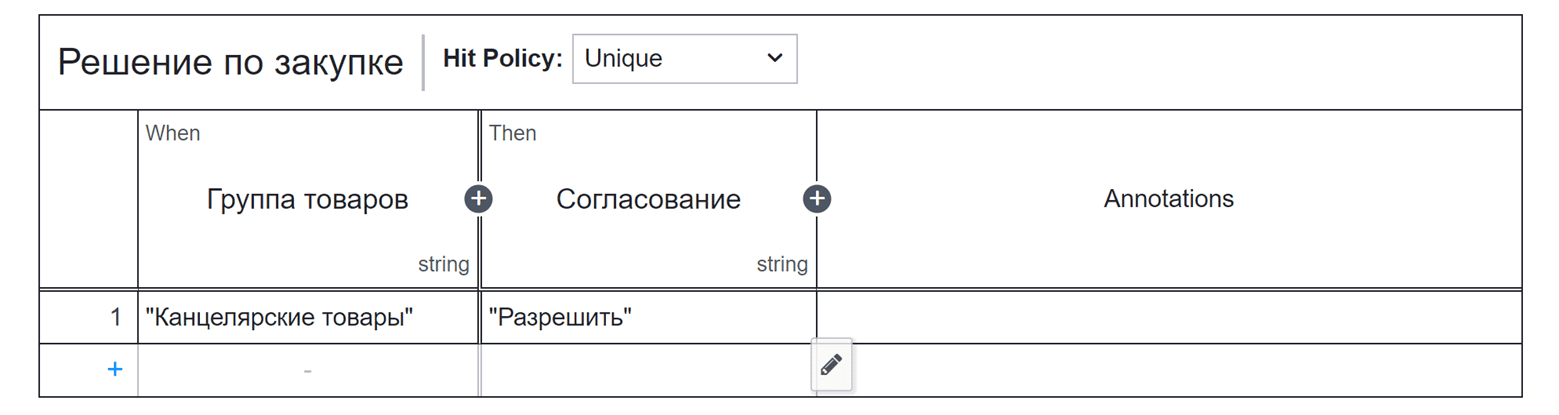
“Stationery” is the condition (i.e., the input element) of the rule. This is an expression in FEEL that is applied and then checks whether the input value (i.e., the “type” variable) equals “Stationery”.
“Allow” is the output (i.e., the output element) of the rule. This is a simple JUEL expression that returns the string “Stationery”.
Then add a second input element “Cost” with the input expression “cost” and the type integer. Fill in the table with additional rules for the remaining Product Groups.
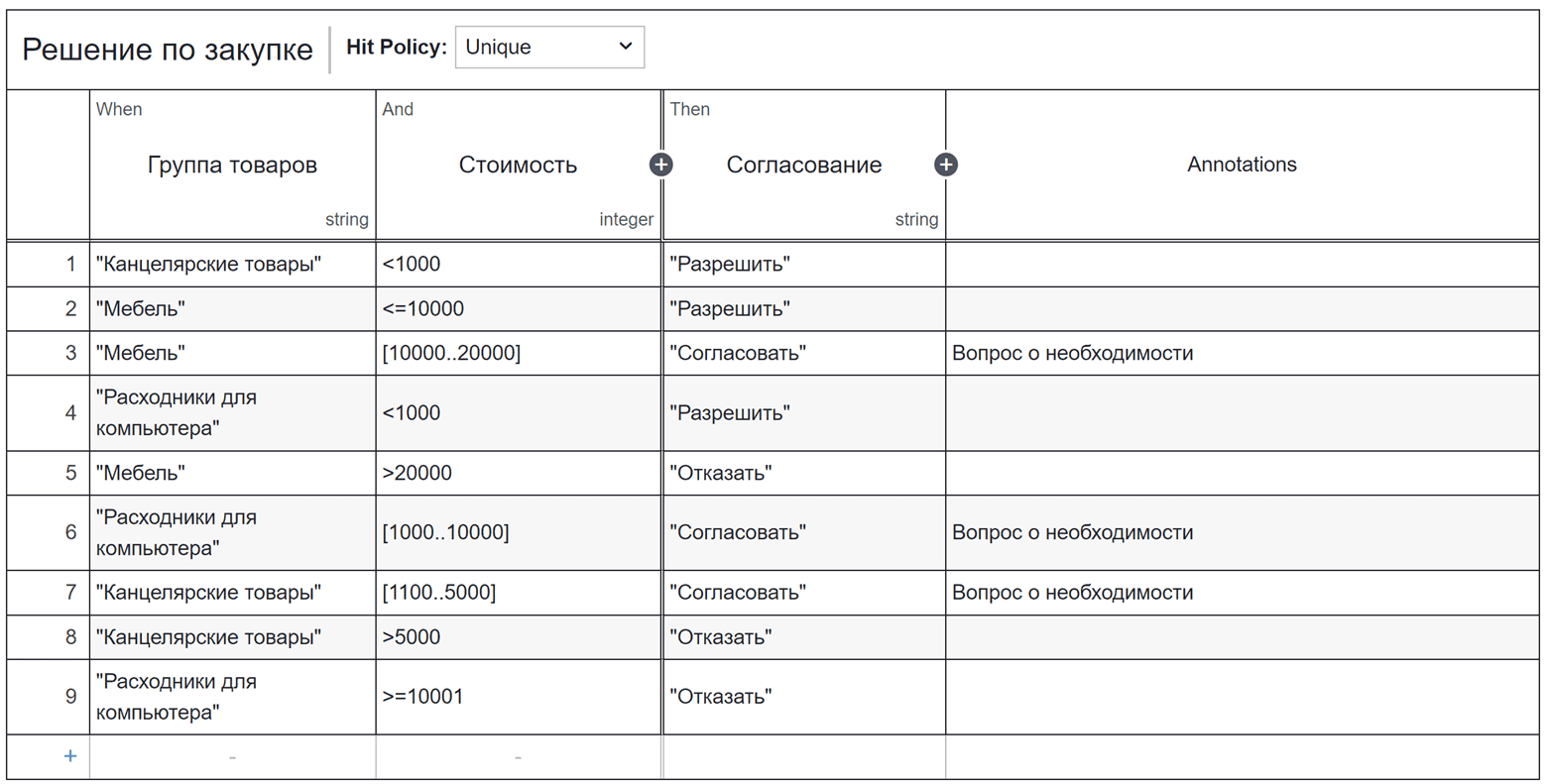
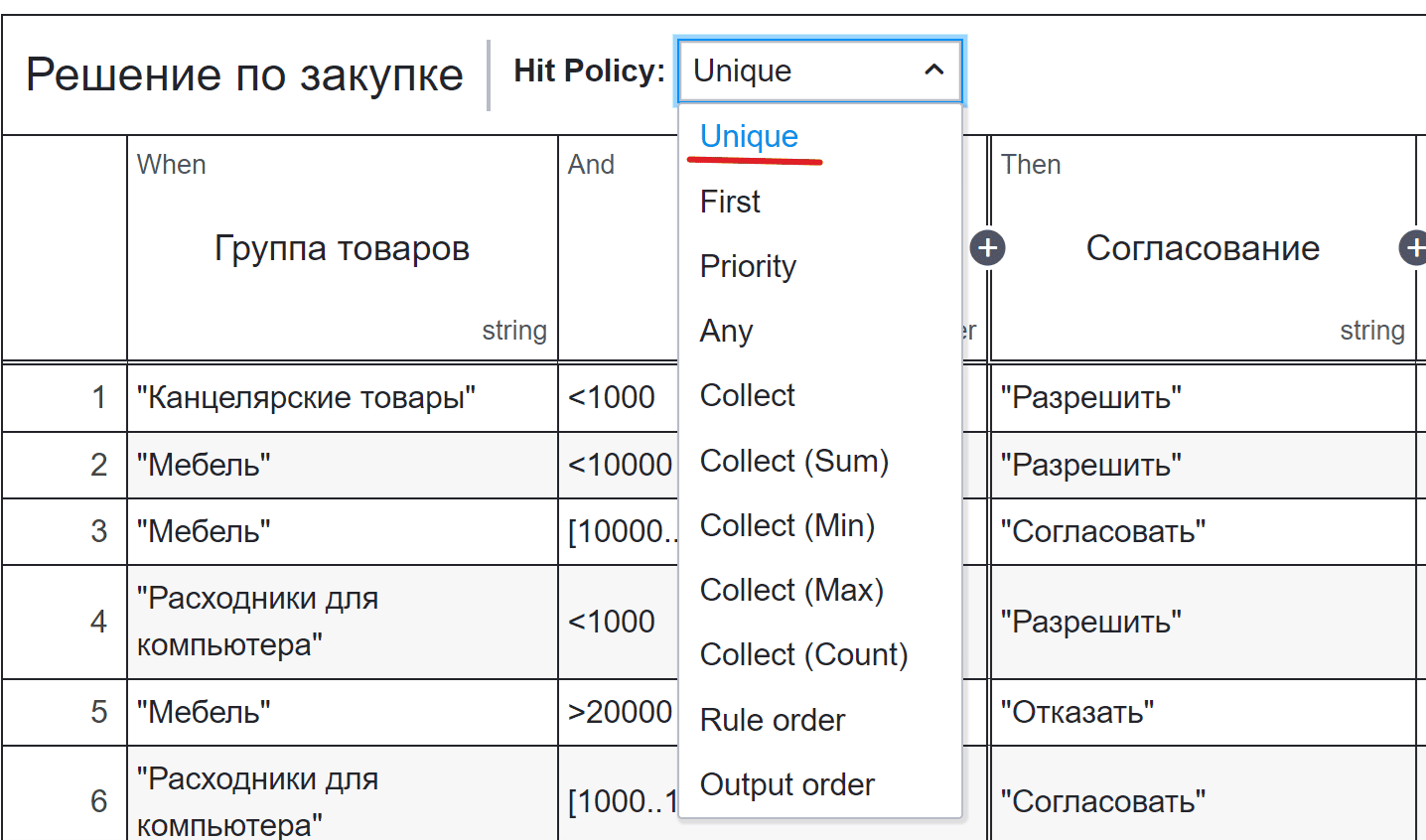
Set the hit policy to “Unique”, which indicates that only one rule can match. Ensure that the decision table contains only one rule that can match the input data.
Click the “Hit policy” dropdown and select the “Unique” policy.
DMN implementation for a dynamic role
A dynamic role is assigned in the data type on the Roles tab and defines flexible logic for calculating the composition of users for the role.
The input data for DMN evaluation is a populated Model based on a record. A record is an entity with a set of attributes and a record identifier (RecordRef), see details about the Records API.
The model can use system attributes.
The calculated record data will be available in the DMN context by the model key.
The model is populated in the DMN Description:
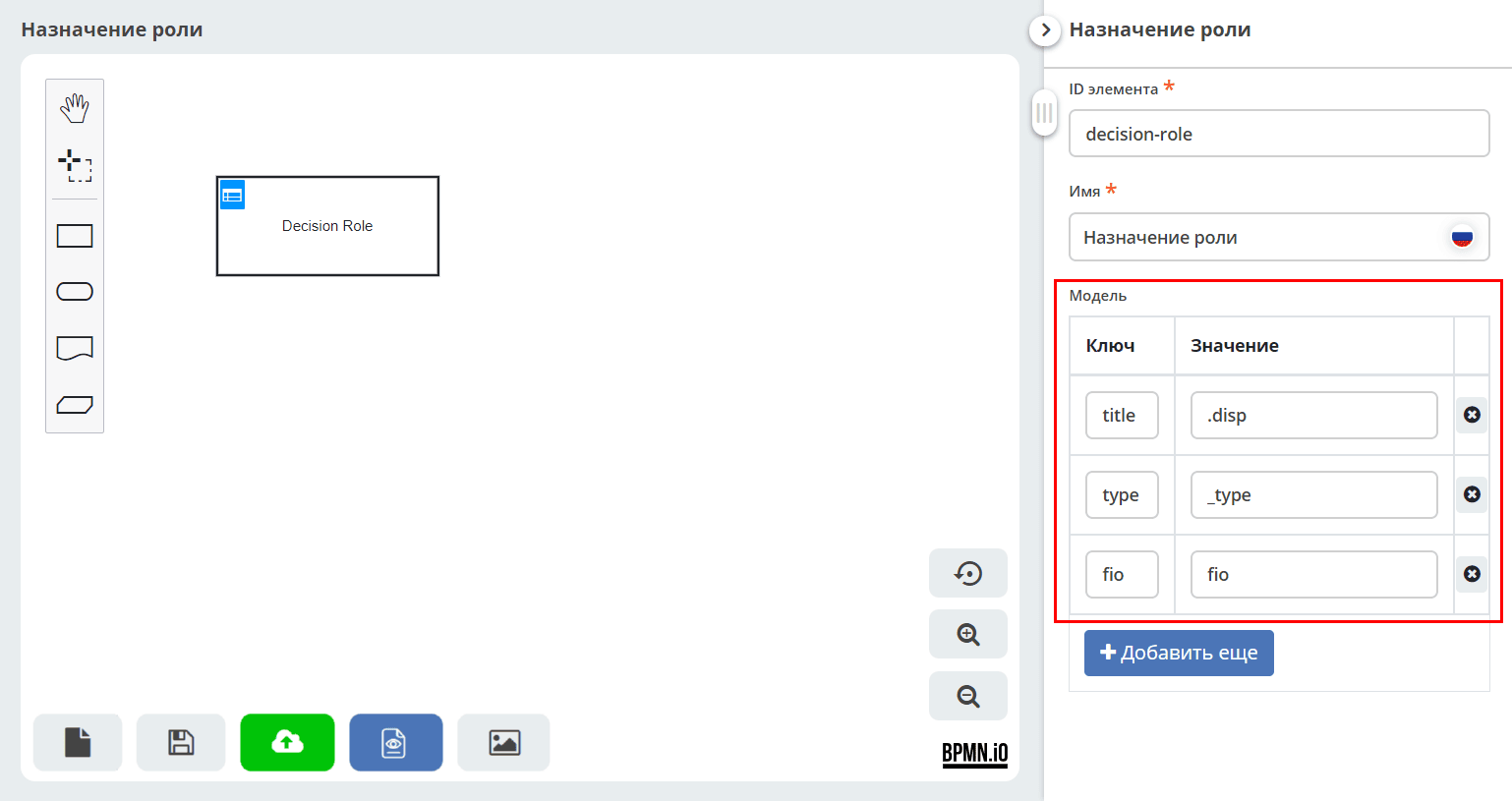
The DMN decision must return a String with the names of the recipients. If multiple recipients need to be listed in one DMN row, they can be separated by commas:
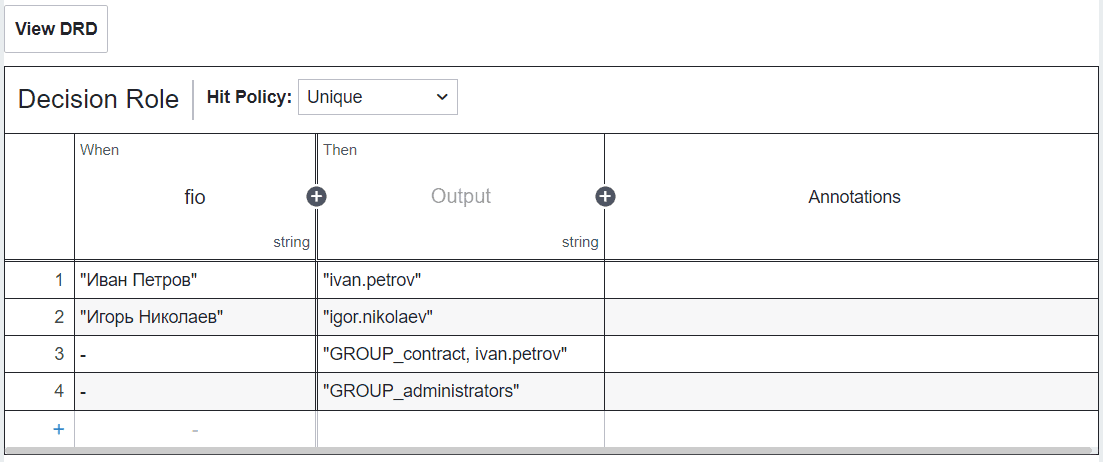
Hit policy is specified at your discretion, depending on the desired result.
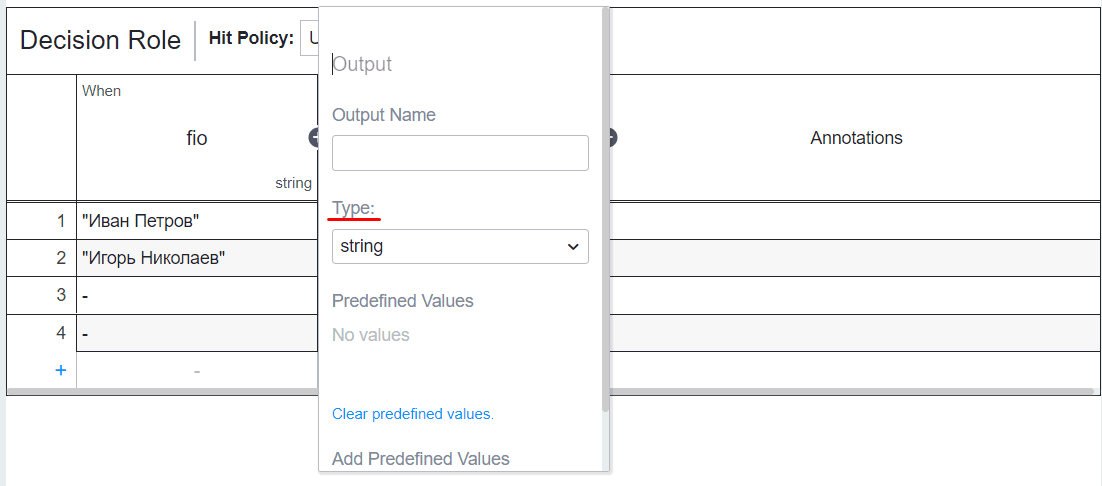
The final Output variable name does not matter and can be left empty. The main thing is to specify the String type.
The latest published version of the DMN is always used for evaluation.