Notifications
Note
Notification display was added in version 2.7.0 of the ecos-notifications microservice
General Information
The ecos-notifications microservice is the single notification dispatch point in the Citeck platform.
All notifications (email and other types) must be sent exclusively through it. Do not send notifications directly from microservice code or process scripts.
The primary use case is sending email notifications from BPMN processes via the Send Task element. Bulk mailings and lazy approval are also supported.
Notifications are sent based on notification templates. Routing and blocking of delivery are configured via senders.
SMTP resilience: if the mail server is temporarily unavailable, notifications are saved to the database with a status of WAIT_FOR_DISPATCH or ERROR and are sent automatically once the connection is restored.
1. “Notification” Entity
1.1 Form, Fields
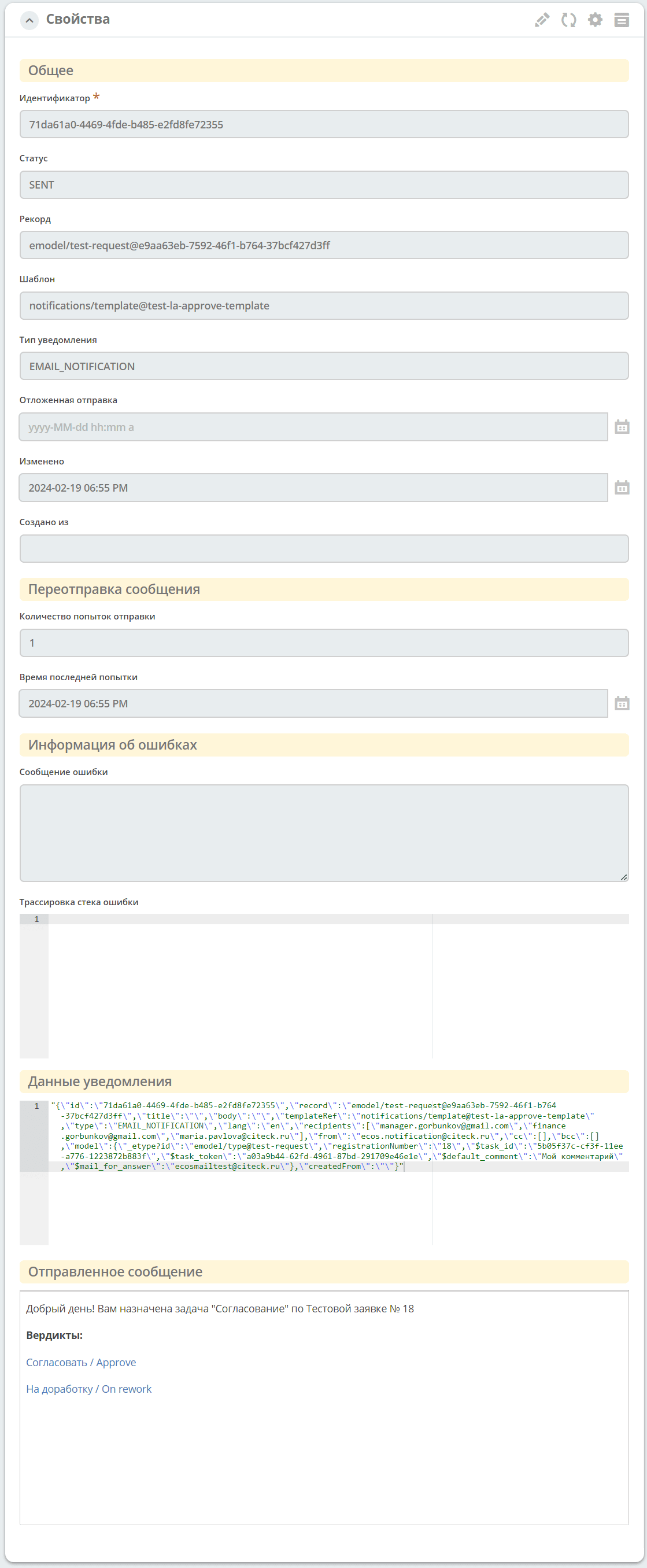
- Identifier:
Unique notification id.
- Status:
Current notification status. See 1.2 Statuses.
- Record:
The base record of the notification — the document whose attributes were used to calculate the template model.
- Template:
The notification template used when sending.
- Notification Type:
The delivery type. Currently only
EMAIL_NOTIFICATIONis supported.- Delayed Sending:
The scheduled send time. If set, the notification is not sent immediately.
- Modified:
The time of the last modification of the notification record.
- Created From:
The notification source — a reference to the object (e.g. a bulk mailing) from which the notification was created. Empty for notifications from BPMN processes.
- Number of sending attempts:
Send attempt counter. Incremented on each failed attempt.
- Time of last attempt:
Timestamp of the last send attempt.
- Error Message:
Error message that occurred during the last send attempt.
- Error Stack Trace:
Full error stack trace — used for diagnosing technical issues.
- Notification Data:
Full JSON representation of the notification — all payload data (recipients, subject, body, attachments, etc.). Useful for debugging: allows you to verify that the template model was calculated correctly.
- Sent Message:
The final message exactly as it was sent to the recipient (after template substitution and model evaluation).
1.2 Statuses
- WAIT_FOR_DISPATCH:
The notification has been created and is waiting to be sent. This is the initial status for all notifications.
- SENT:
Message successfully sent.
- ERROR:
An error occurred while sending the message, attempts will be made to resend the message.
- EXPIRED:
All send attempts have been exhausted or the message TTL (time-to-live) has expired. No further attempts will be made.
- BLOCKED:
Delivery was blocked by one of the senders. No further attempts will be made.
Typical notification lifecycle:
WAIT_FOR_DISPATCH → SENT                  (успешная отправка)
WAIT_FOR_DISPATCH → ERROR → ... → SENT   (успешная отправка после повтора)
WAIT_FOR_DISPATCH → ERROR → ... → EXPIRED (все попытки исчерпаны)
WAIT_FOR_DISPATCH → BLOCKED               (заблокировано отправителем)
2. Notifications Journal
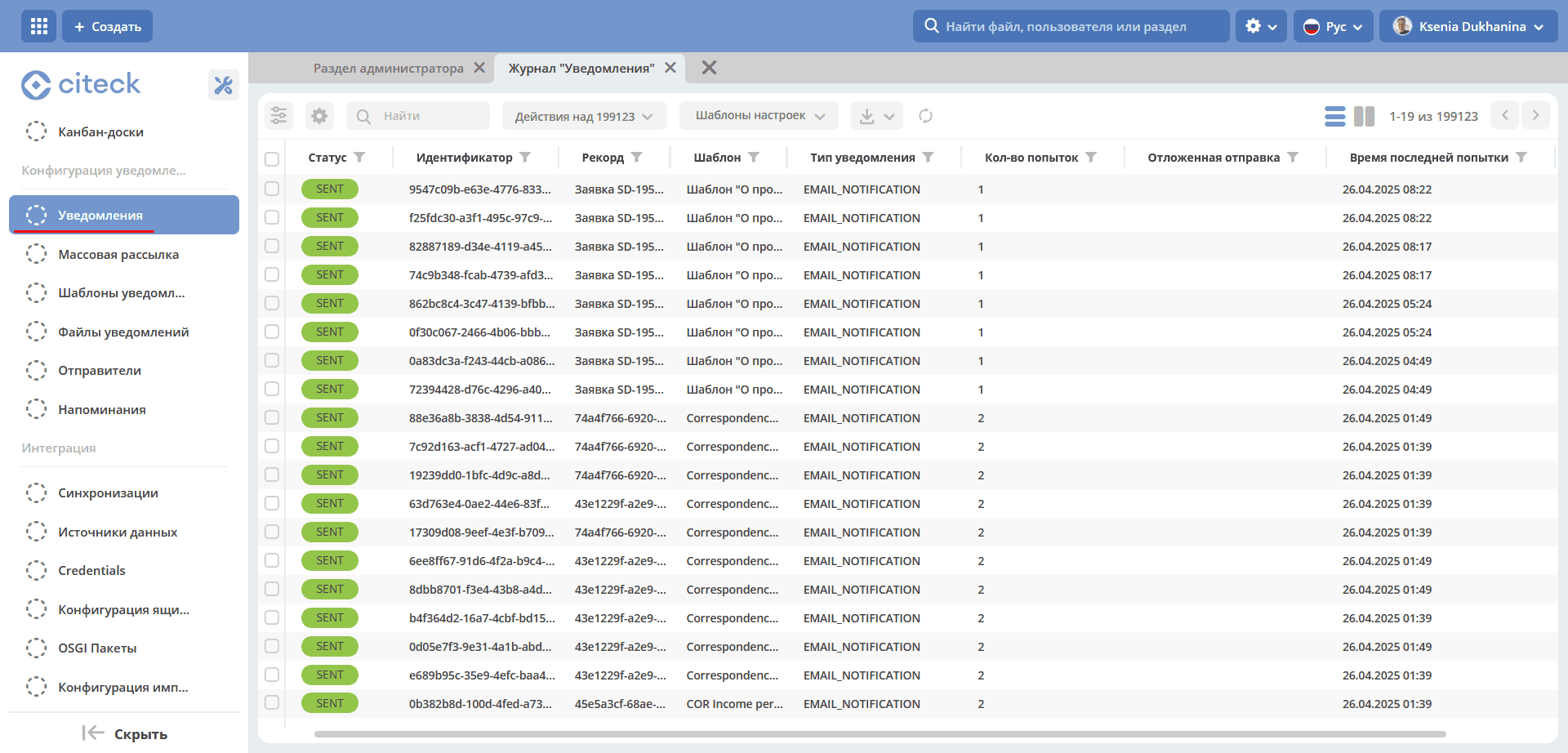
The Notifications journal is located in Admin Section → Notification Configuration:
This journal displays information about all notifications sent from the ecos-notifications microservice.
Currently, only simple text field filtering using OR is supported.
3. Diagnosing delivery issues
If a notification is not reaching the recipient, use the notifications journal for diagnostics.
Procedure:
Find the notification in the journal — by recipient, template, or send time.
Check the notification Status:
ERROR/EXPIRED— check the Error Message and Error Stack Trace fields. Common causes: SMTP unavailability, invalid recipient address, template rendering error.BLOCKED— the notification was blocked by sender settings. Check the configuration of active senders and the blocking conditions.WAIT_FOR_DISPATCH— the notification has not been processed yet. There may be an SMTP availability issue or a large queue.
Open the Notification Data field — verify that the recipients, subject, and body were calculated correctly.
Open the Sent Message field — review the final appearance of the email.
Note
If a notification reaches EXPIRED status, it will not be resent automatically. To resend, use a bulk mailing or restart the process.