Selecting a Workspace
In the upper left corner, a button is available for selecting accessible workspaces and creating a new one:
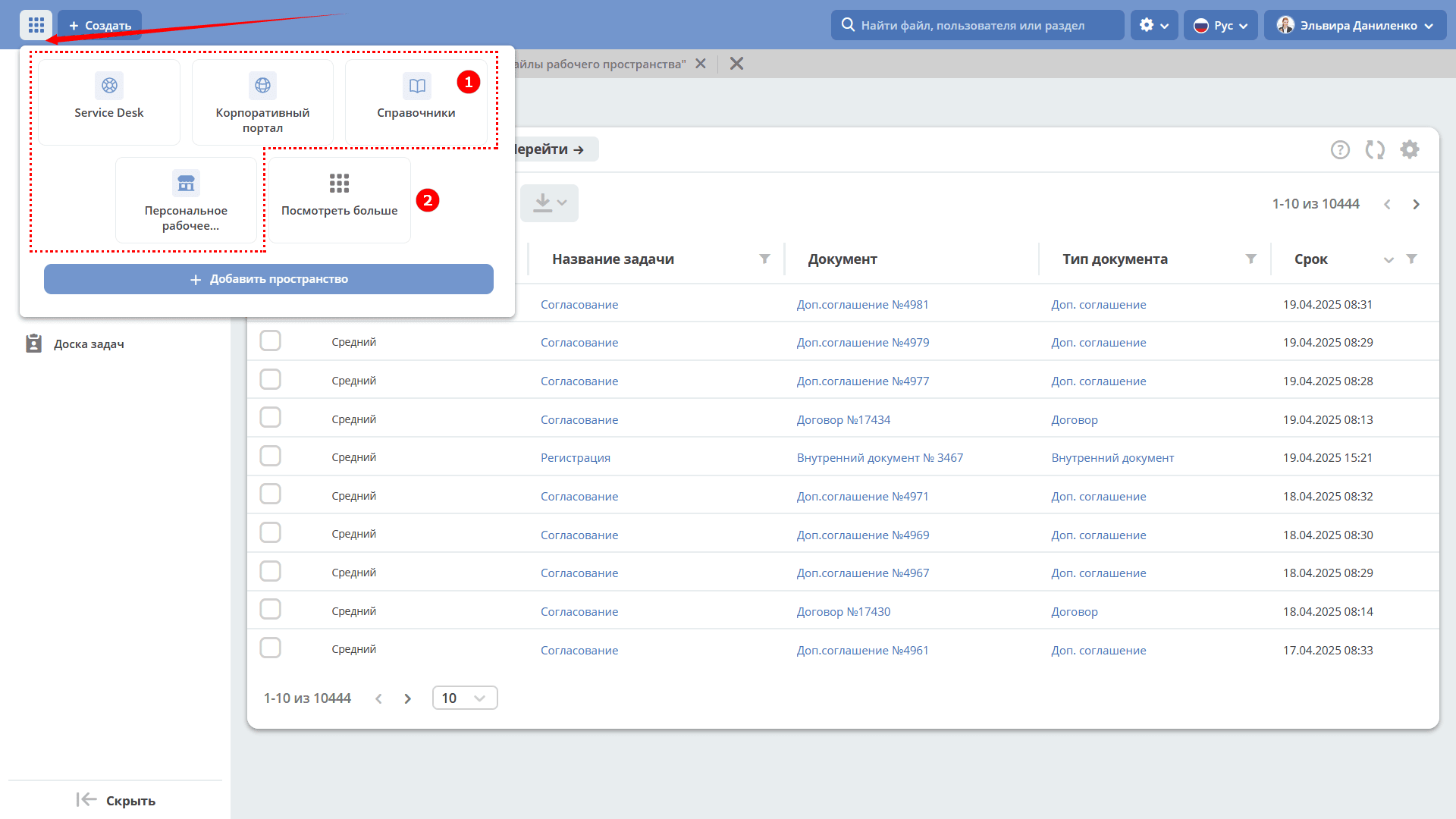
The dropdown list shows the most frequently used spaces (1). Other spaces you have access to and public ones you can join are available by clicking See more (2) — the general workspaces menu will open:
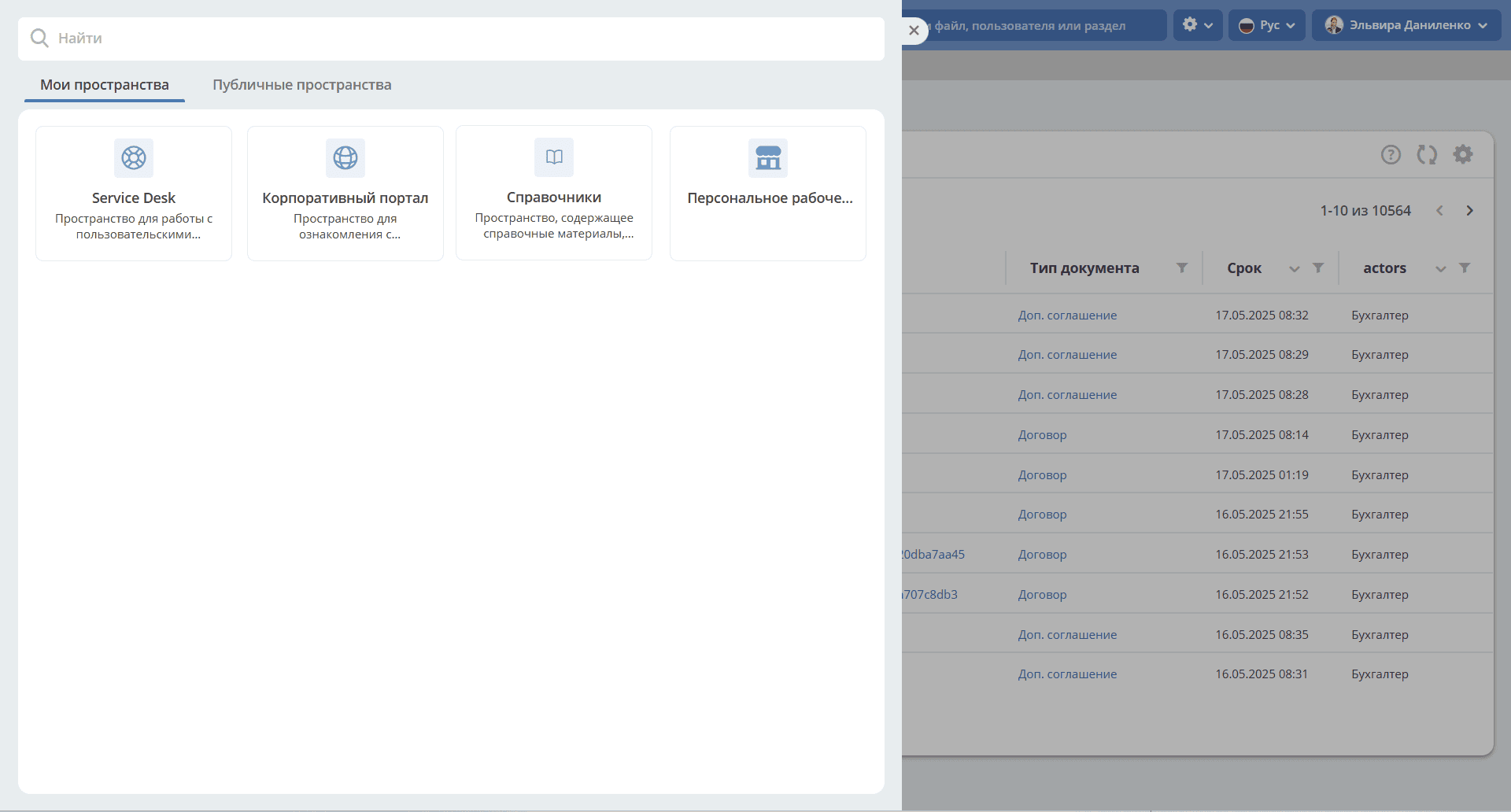
My Spaces — spaces you are a member of:
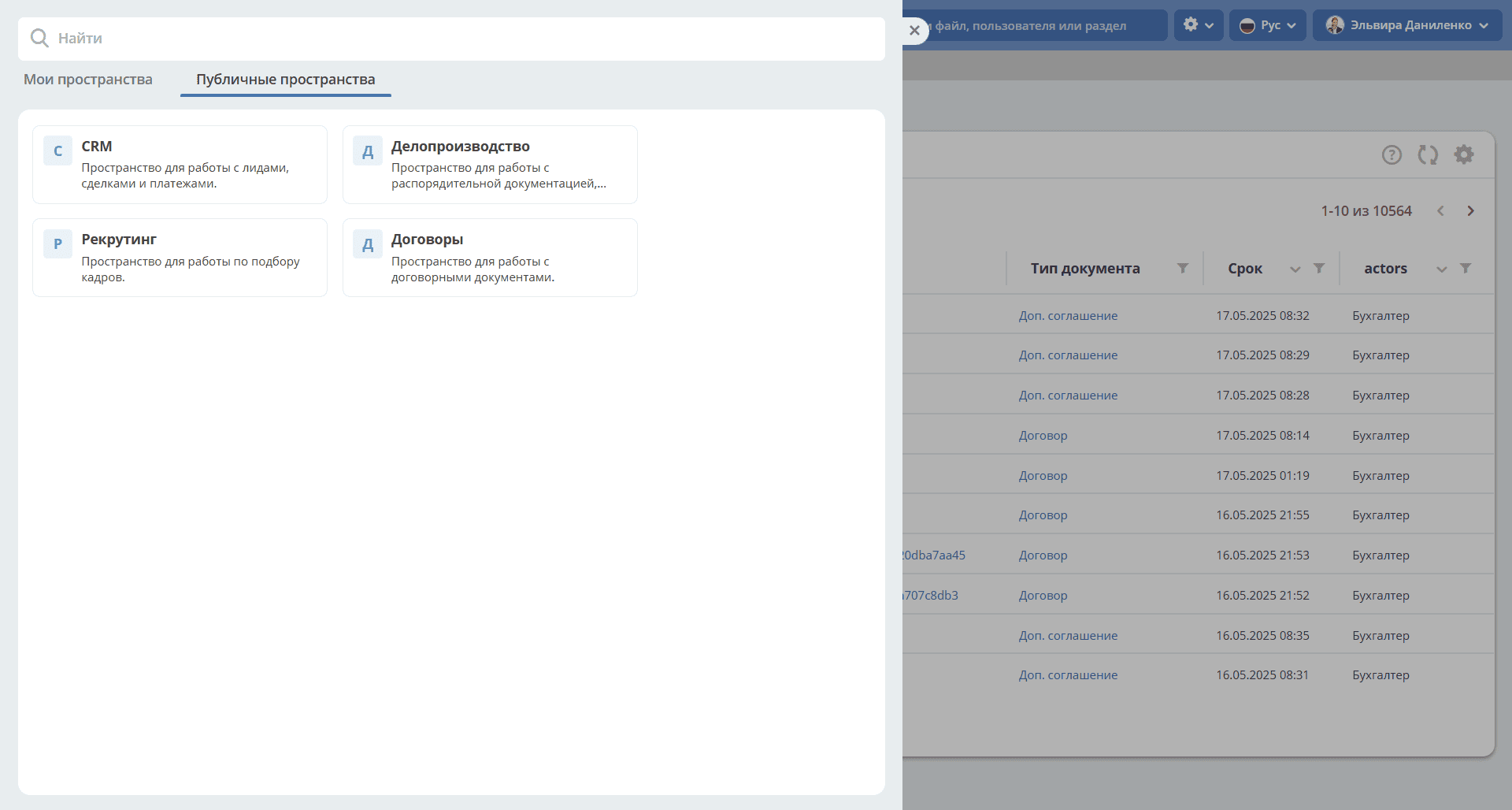
Public Spaces — open spaces that you can join:
When reopening the general workspaces menu, the My Spaces tab will be opened.
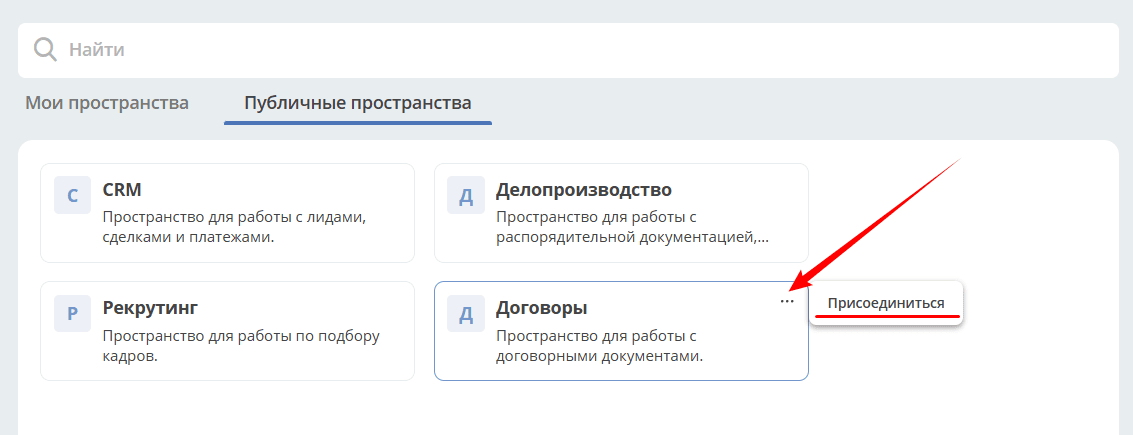
To join a space, click:
Confirm the selection:
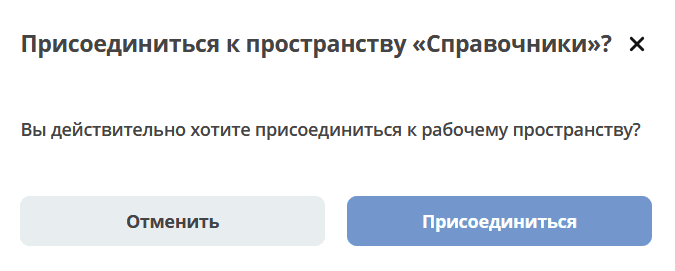
After confirmation, the home page of the selected workspace will open.
General view of the workspace:
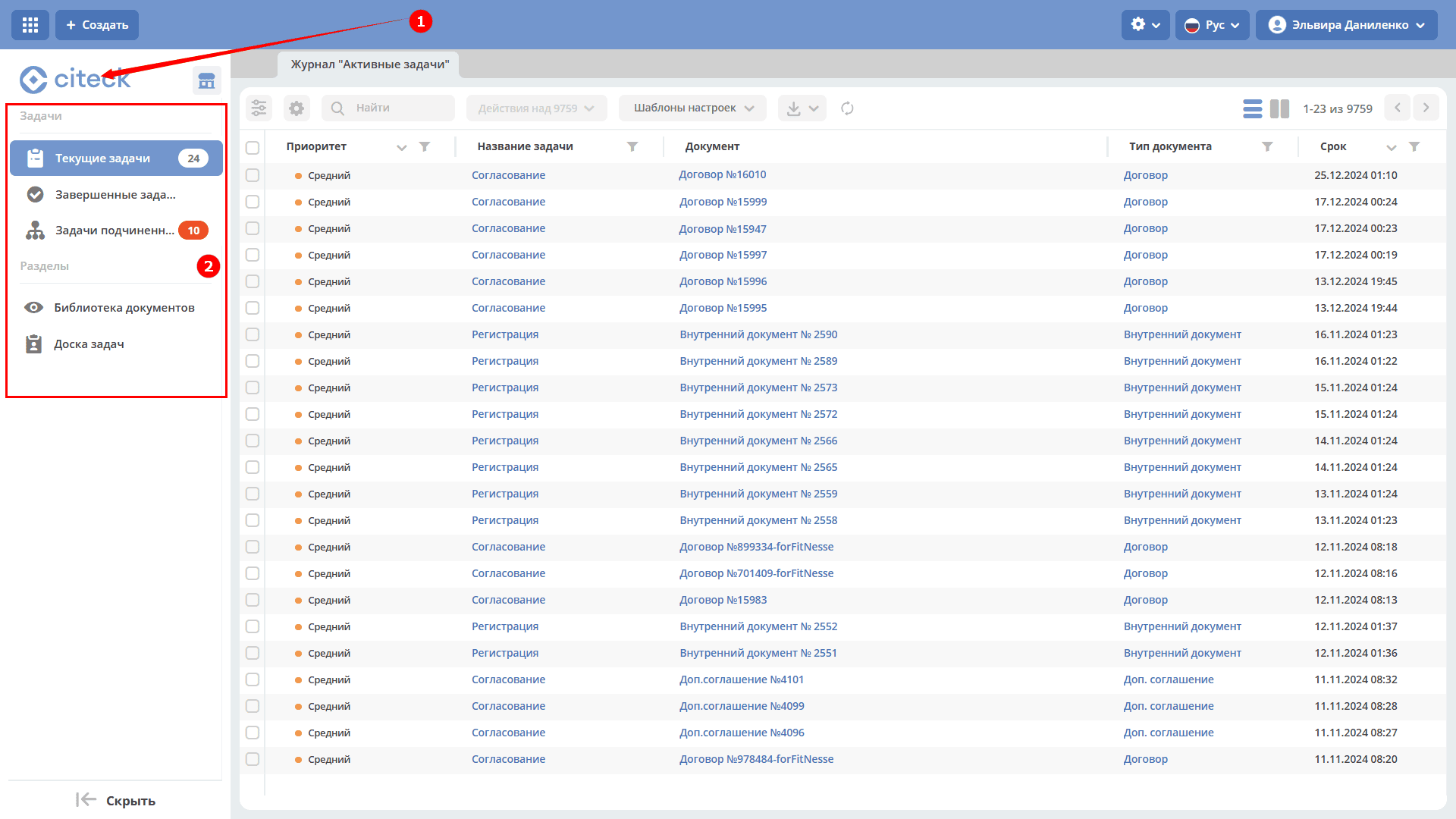
1 — Go to the workspace home page. See home page settings.
2 — Workspace sections (left navigation menu).
Available actions with workspaces
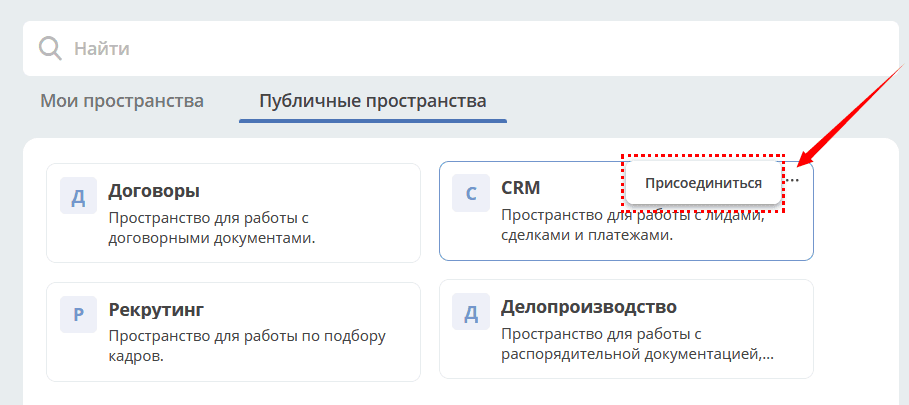
The user is not a member of a public space — the Join action is available.
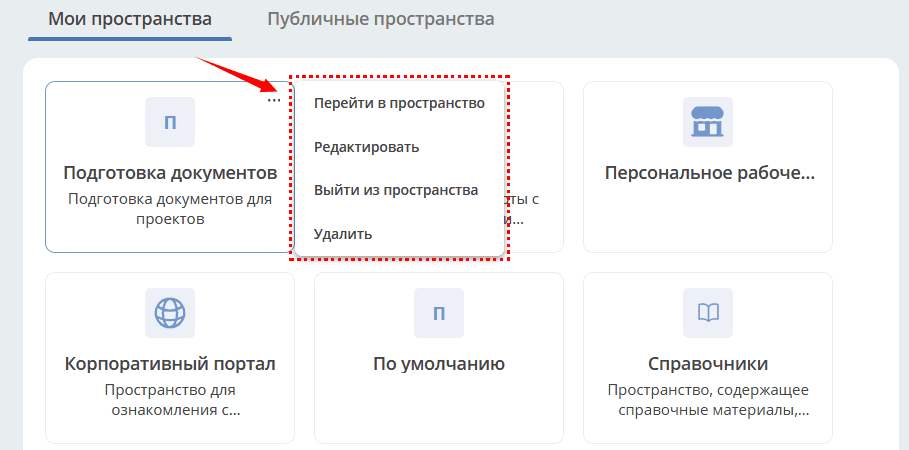
The user is a member of a public or private space — the Go to Space and Leave Space actions are available.
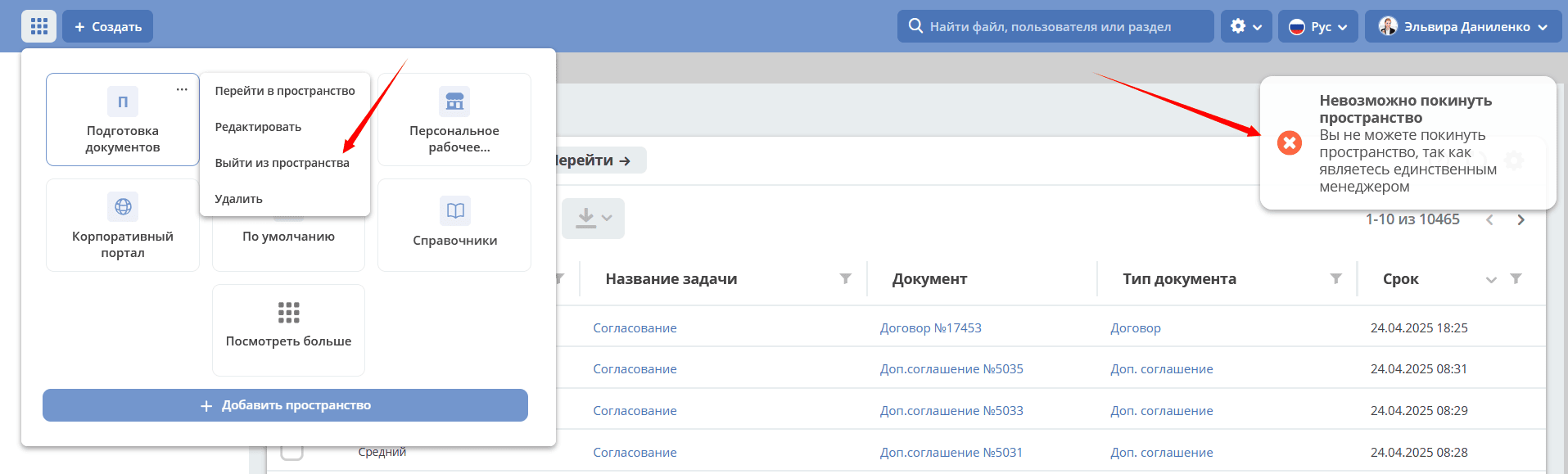
If the current user is the sole manager of a public or private space, when attempting to leave, the following message is displayed:
“You cannot leave the space because you are the sole manager”:
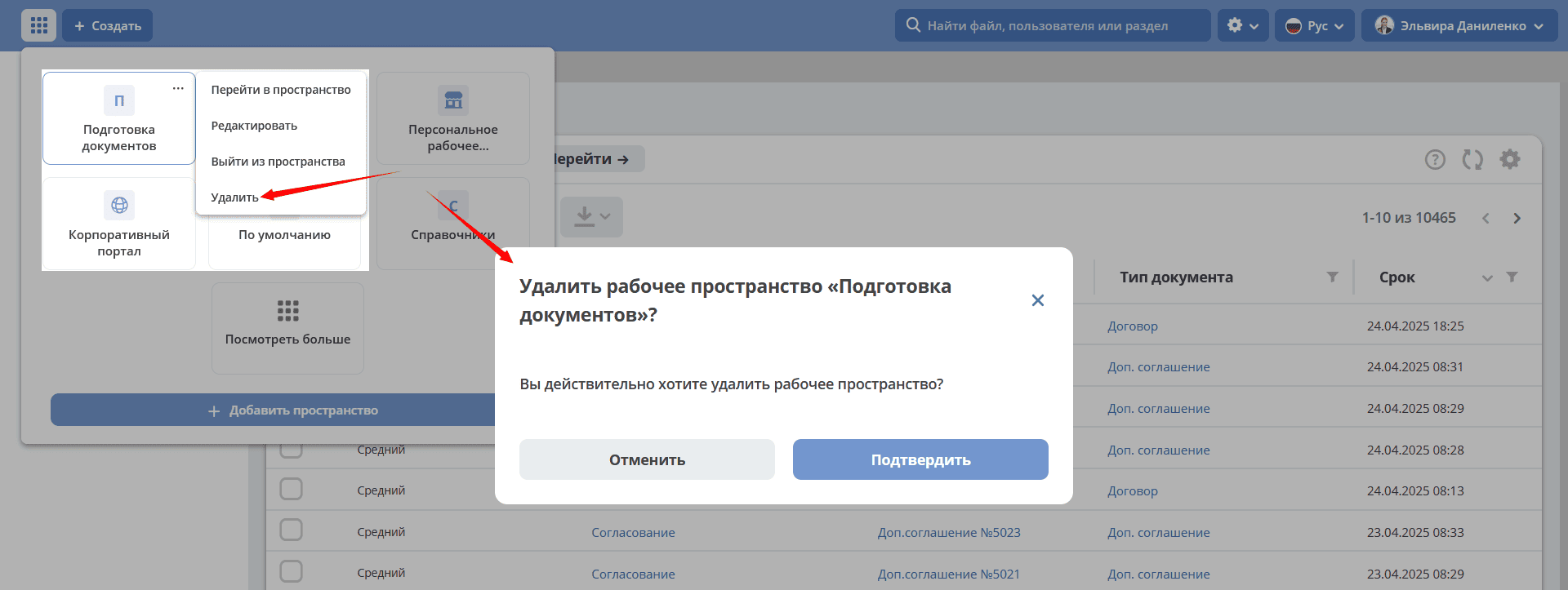
Users with the Manager role can delete public or private spaces:
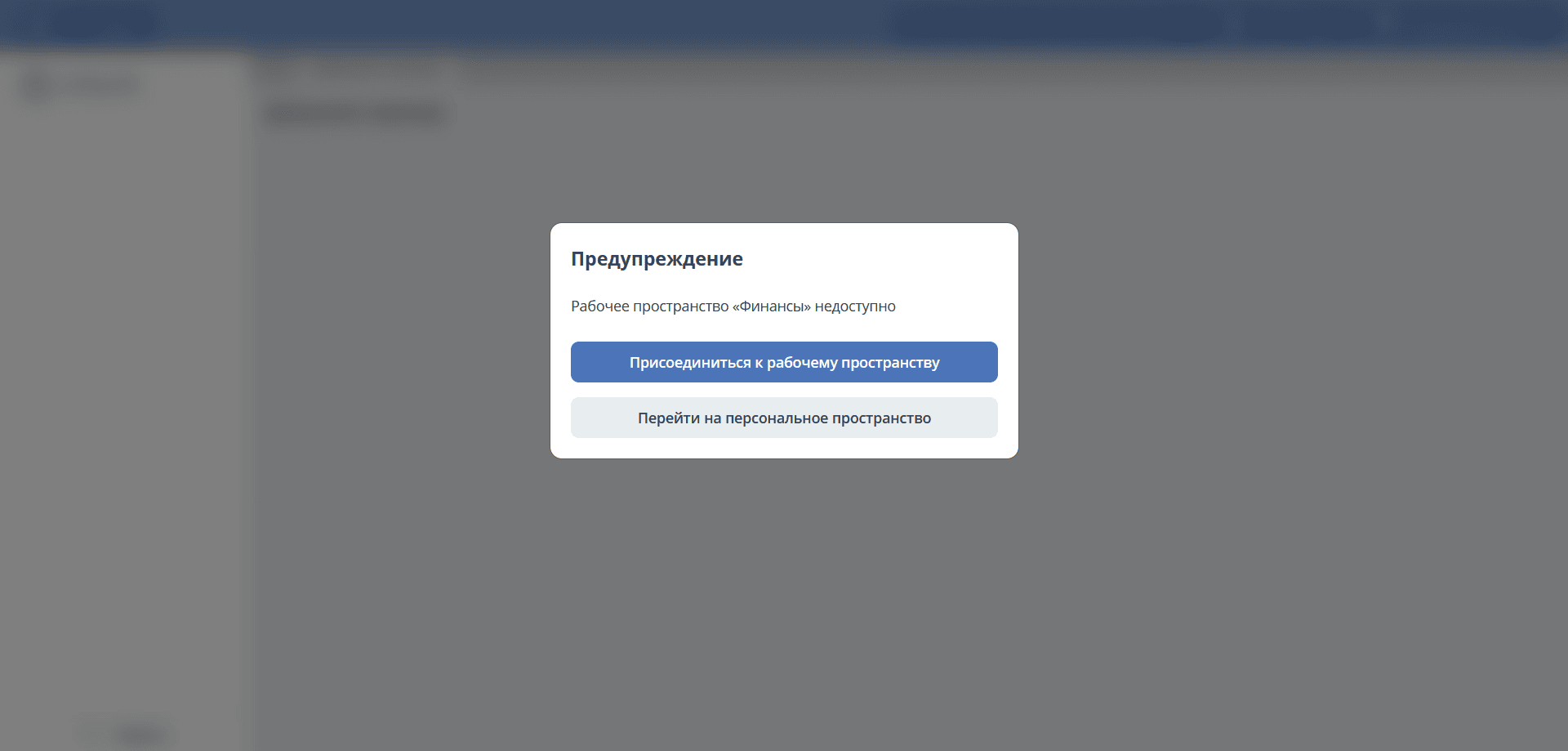
If a user navigates to a space via a direct link without being a member, they are prompted to join the workspace or return to their personal space.
Selecting users in a workspace
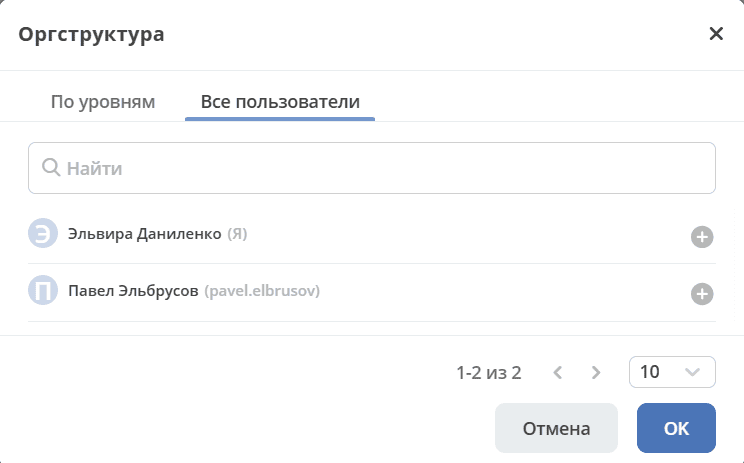
When selecting employees in document forms and business processes within the workspace, all members of the current workspace are displayed in the “All Users” tab:
Notifications
Users receive email notifications if they have been added to or removed from a workspace.