Workspace Settings
Home Page Configuration
When opening a workspace, a dashboard opens depending on its type:
default workspace - user-dashboard;
personal workspace - personal-ws-dashboard-default;
non-personal workspace - ws-dashboard-default.
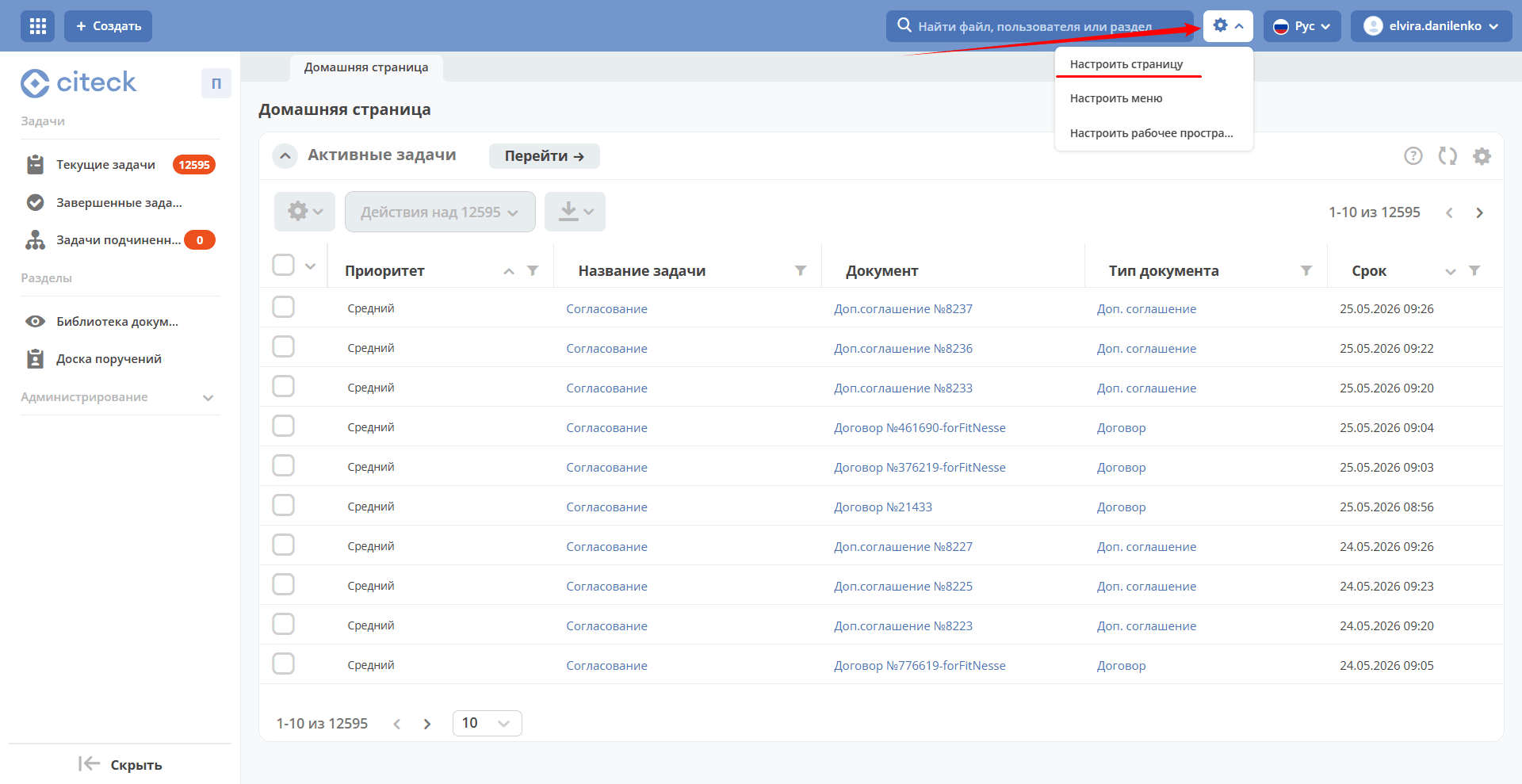
To configure a workspace dashboard, select a workspace: personal or one where you are a manager. Go to settings and select “Configure Page”:
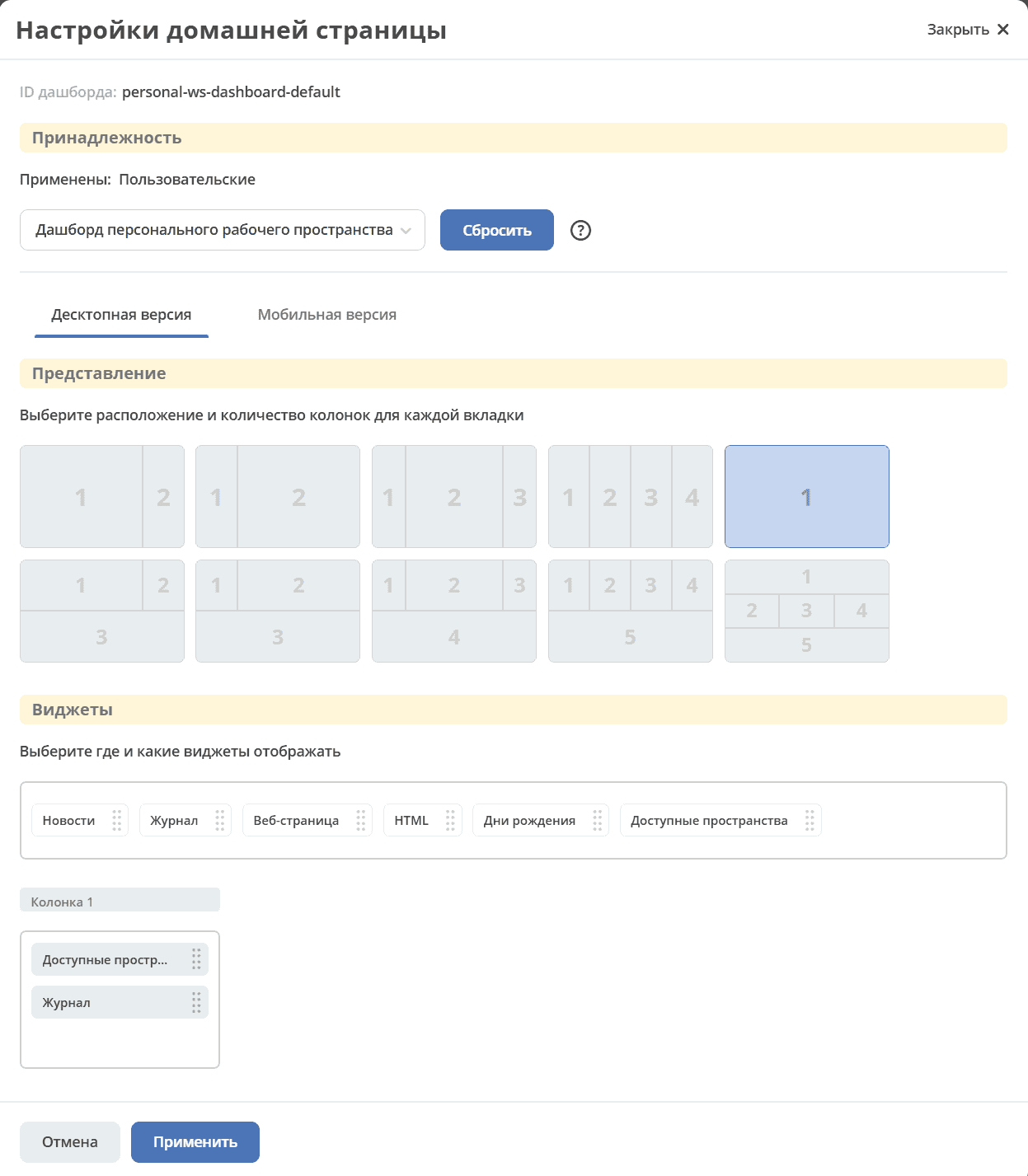
The home page settings page will open, where you can change the layout scheme and the set of displayed widgets.
In the “Columns” block, you can select the number and arrangement of columns on the home page. To choose, click on the desired layout.
In the “Widgets” block, you can drag the necessary widgets into the home page columns.
To save changes, click “Apply” at the bottom of the page.
Menu Configuration
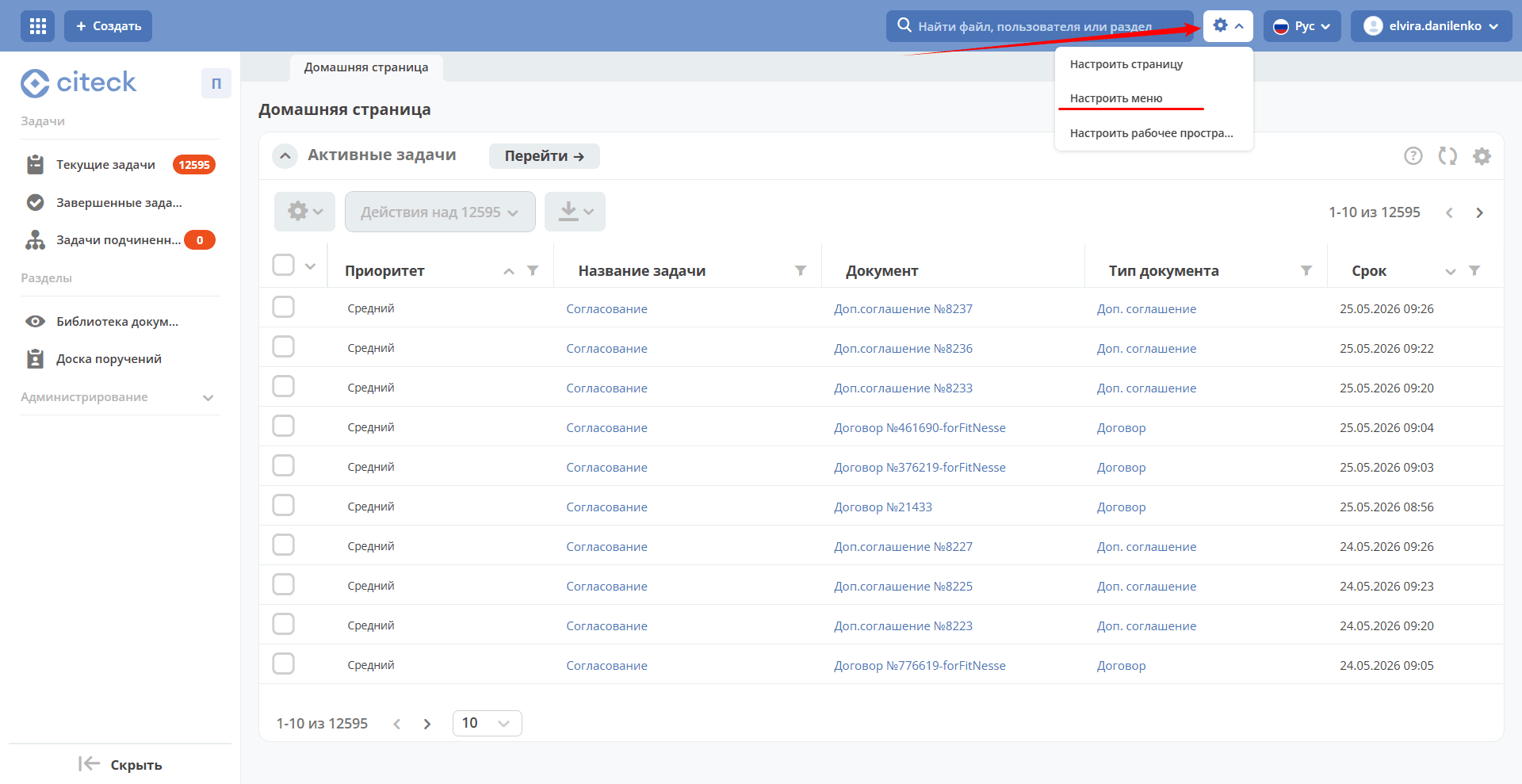
Both adding a section (1) and adding elements to a section (2) are available:
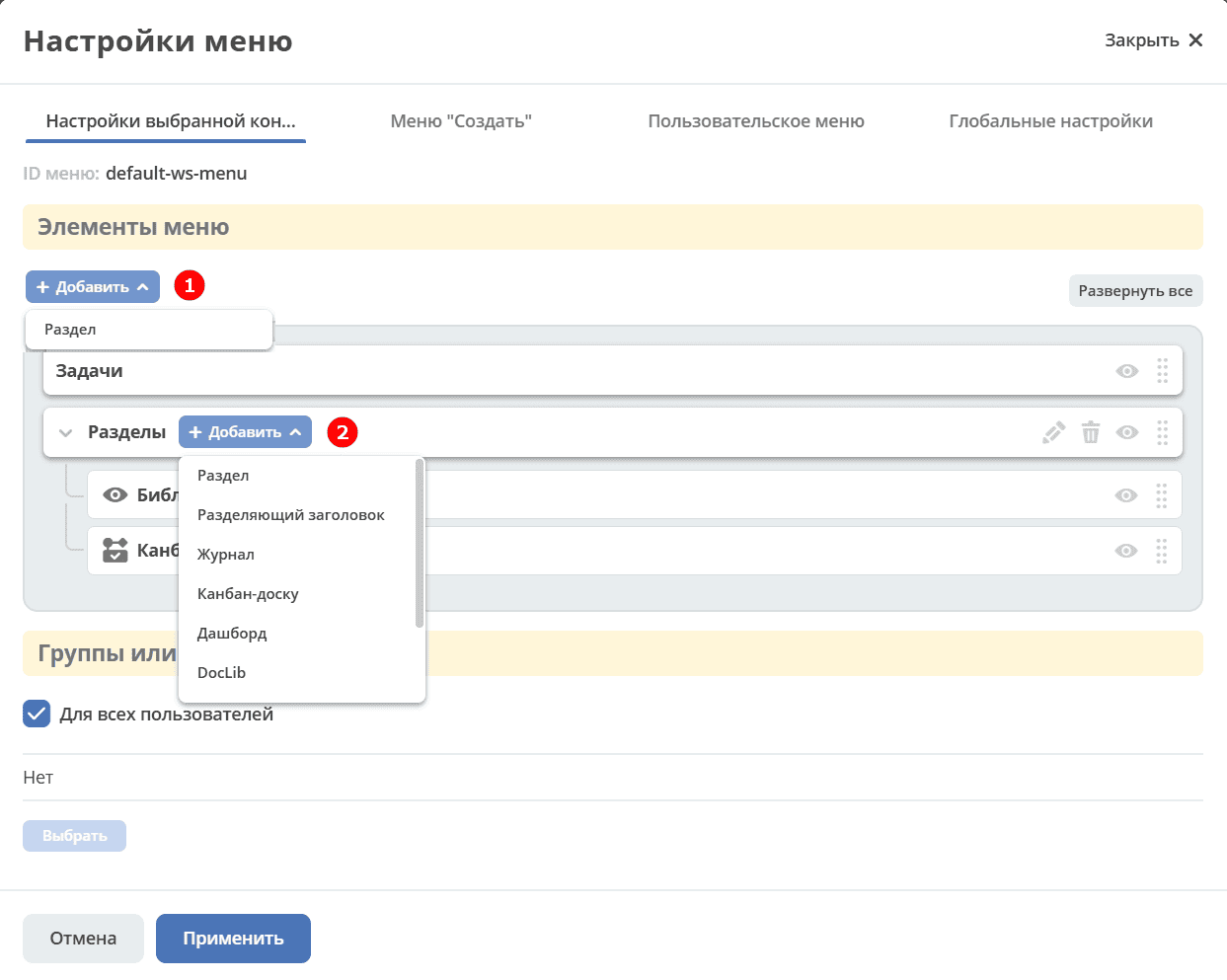
See details about each addable element.
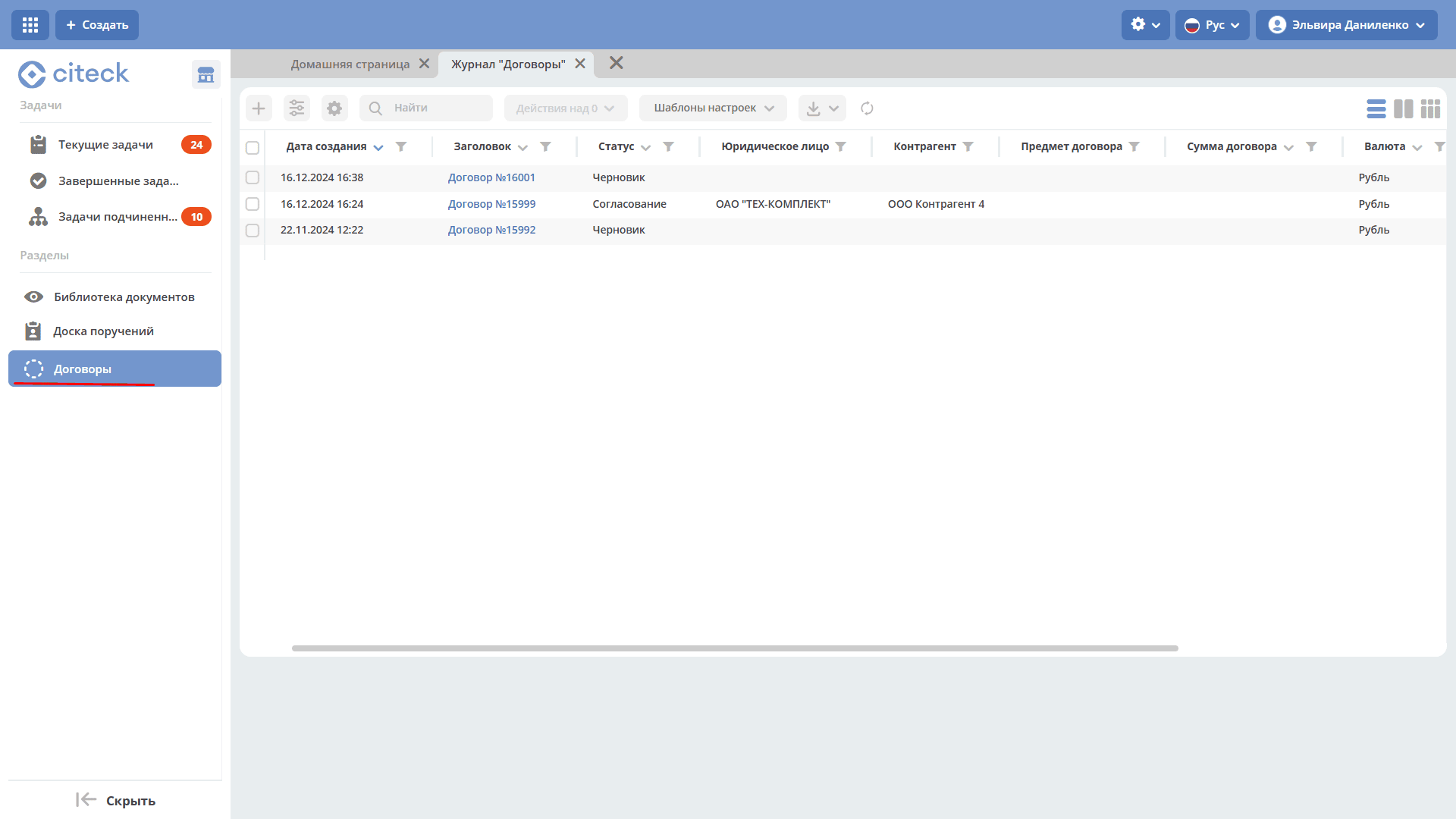
For example, let’s add the “Contracts” journal to the menu:
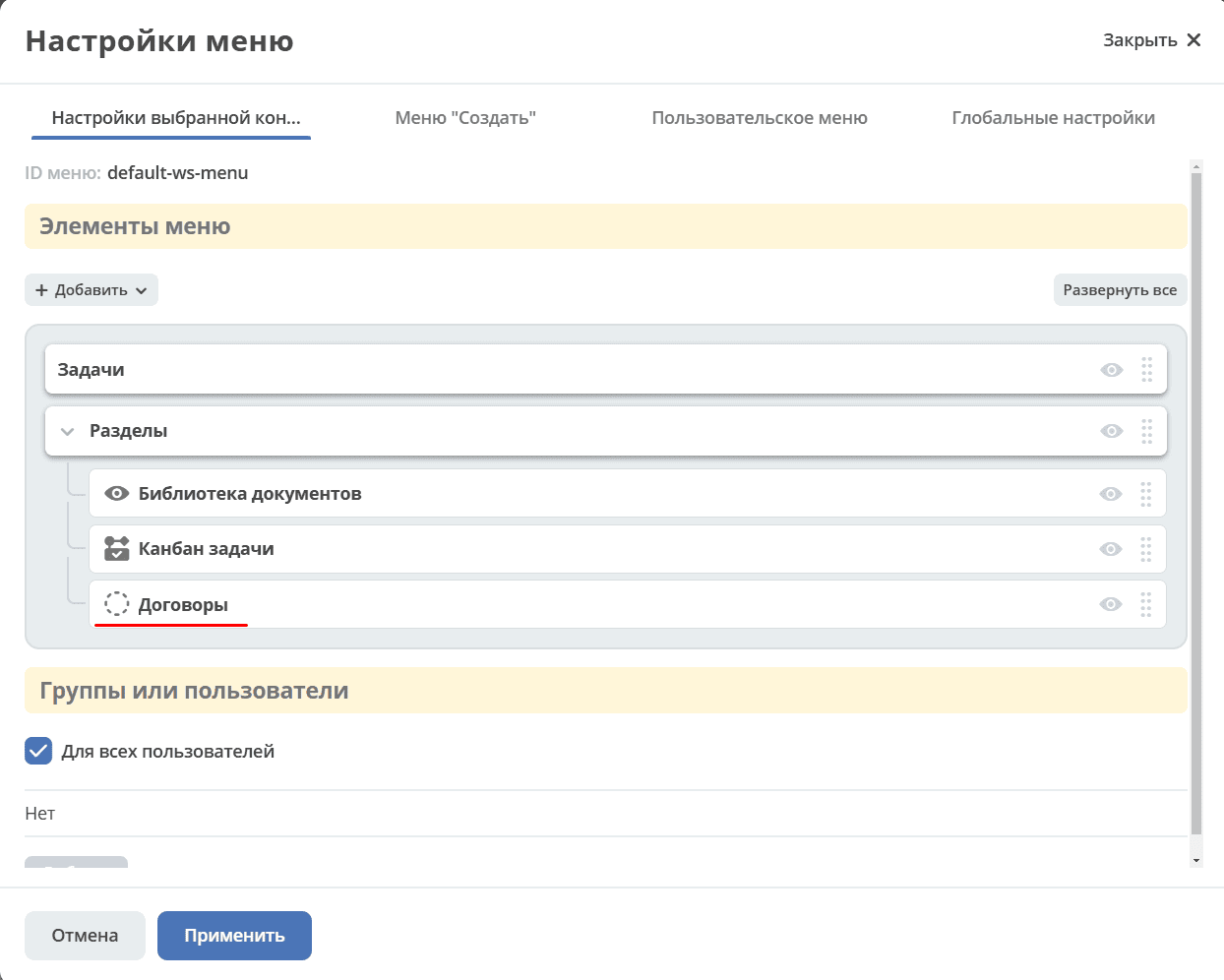
The updated menu will become available to all users of the workspace.