Basic Operations
This section describes the basic operations with business processes in ECOS: viewing the process list, managing sections and categories, creating, editing, saving and publishing processes, as well as process start methods.
Process List
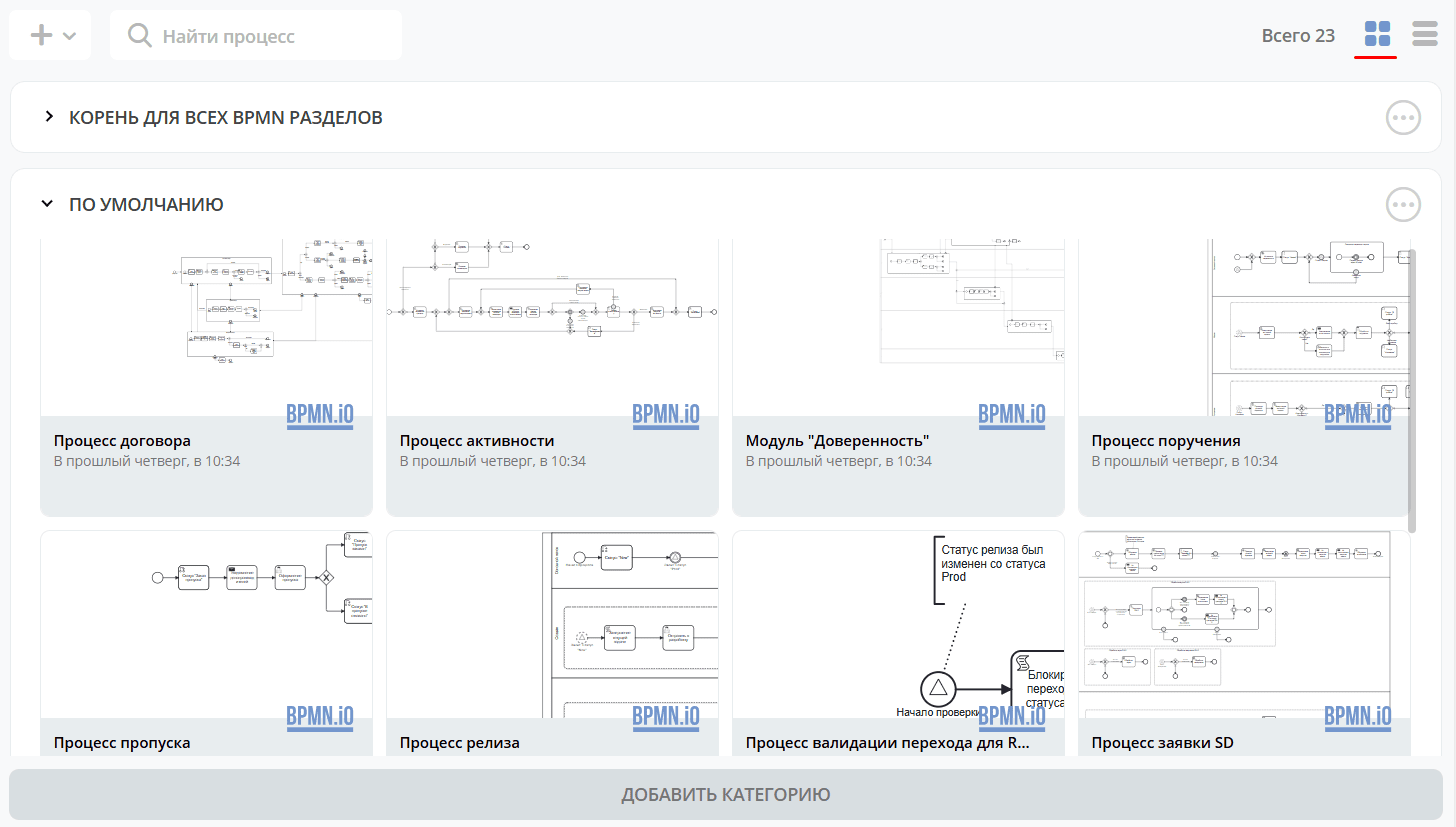
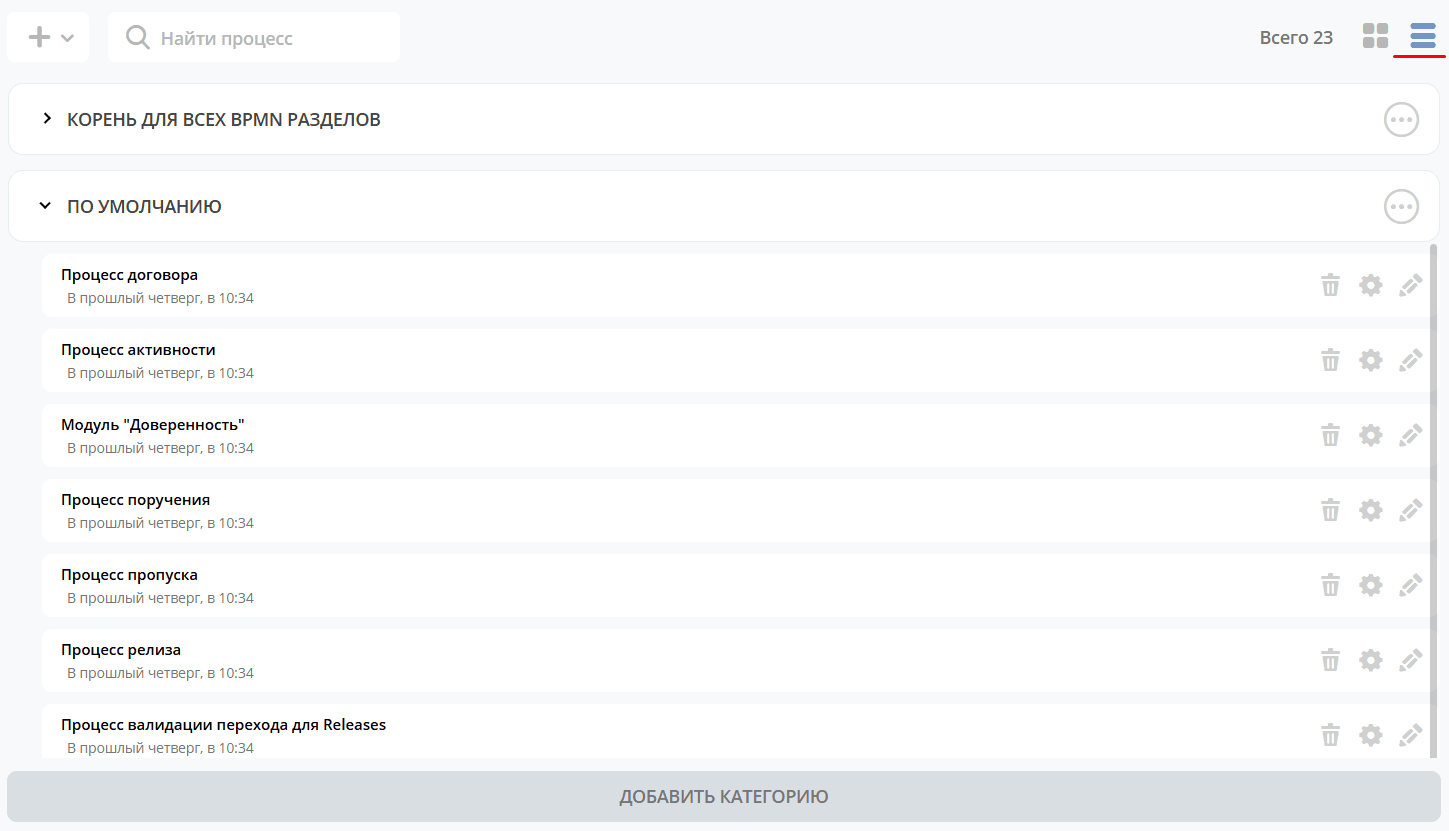
Processes are grouped by sections and can be displayed as tiles|list:
Tile view: |
|
|---|---|
List view: |
|
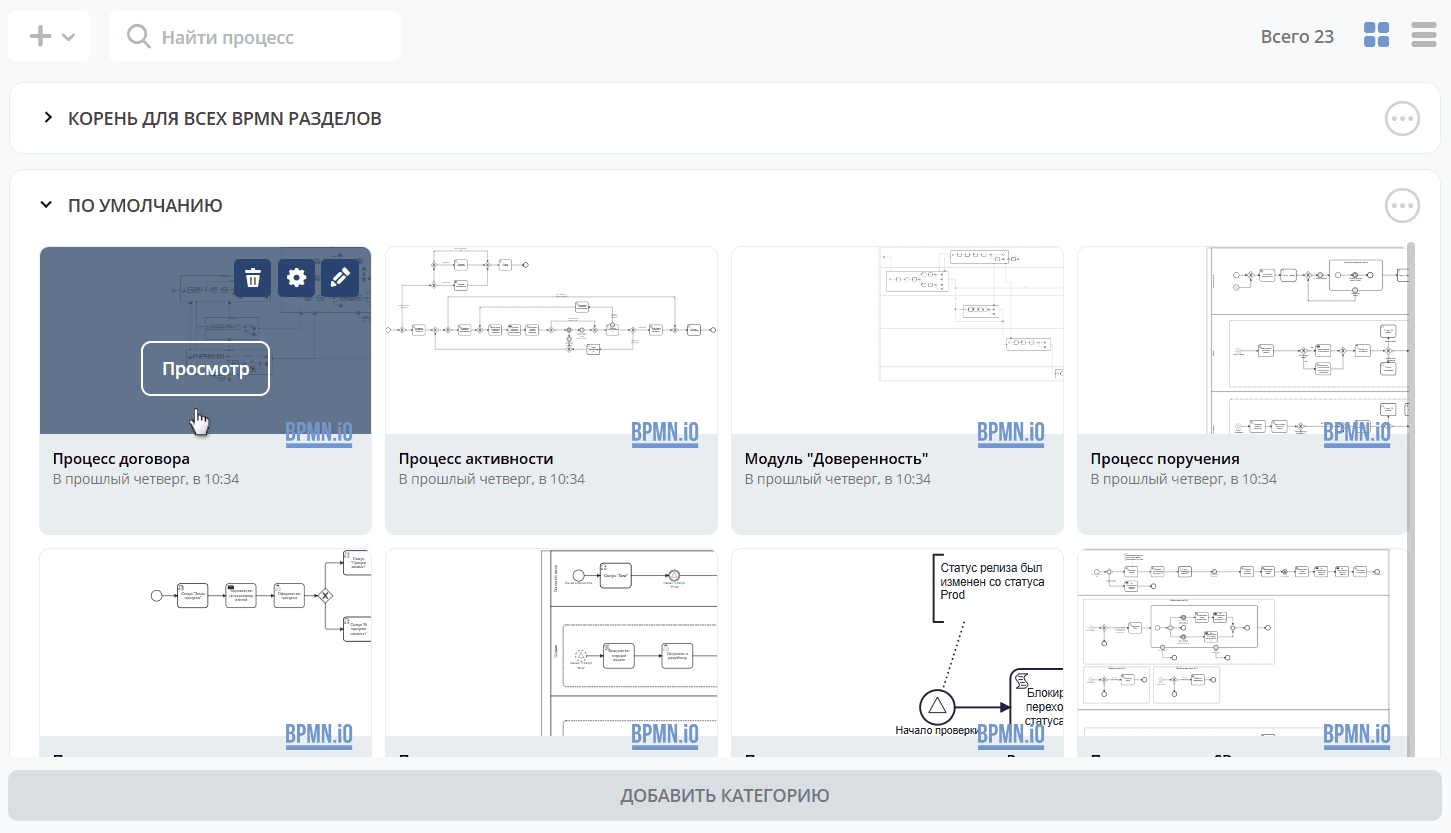
To view/edit a process, hover the mouse cursor over the tile:
Section Actions
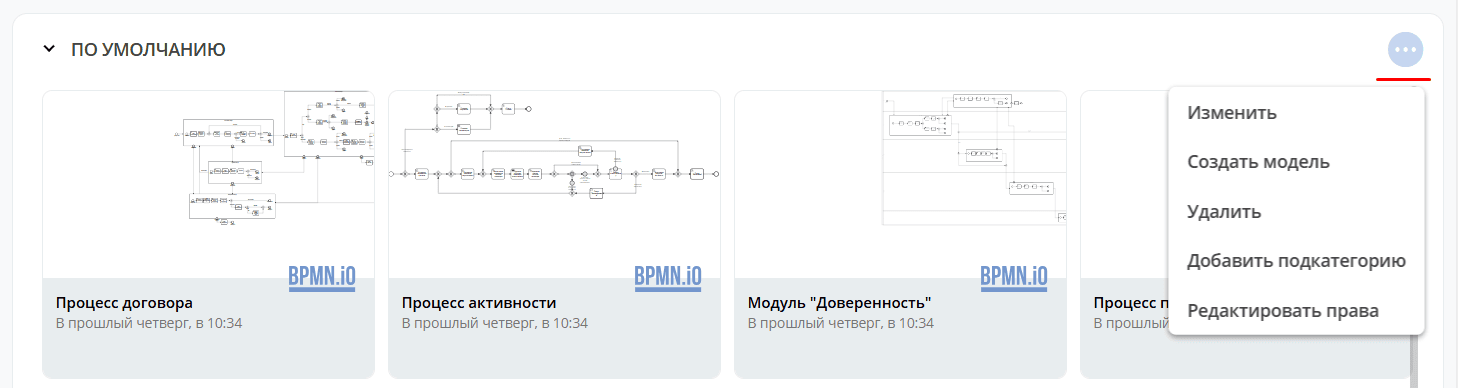
The following actions are available for sections:
Action |
Description |
|---|---|
Edit |
Rename category: |
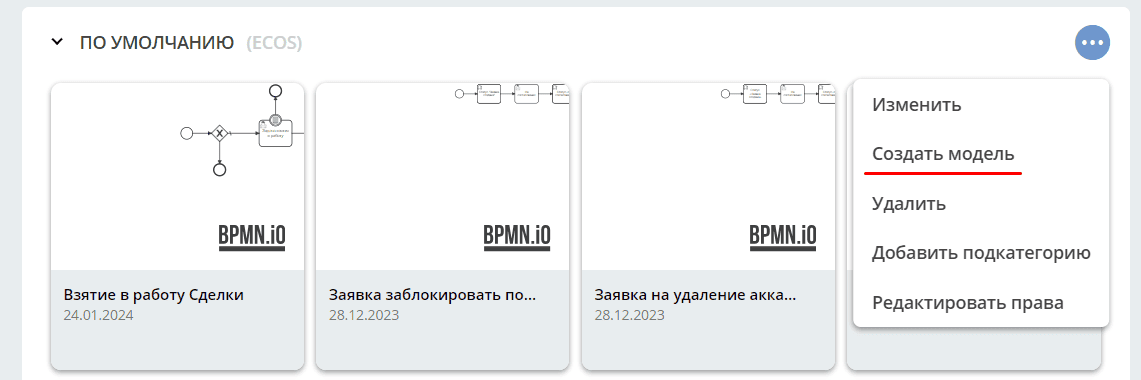
Create Model |
|
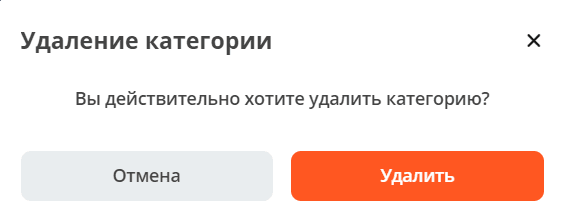
Delete |
Delete category |
Add Subcategory |
Creating a subcategory within a category with a code (if necessary) and a name: |
Edit Permissions |


Business Process Card
The following options are available for a created process:
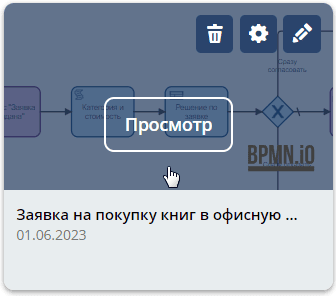
View - process card with widgets:
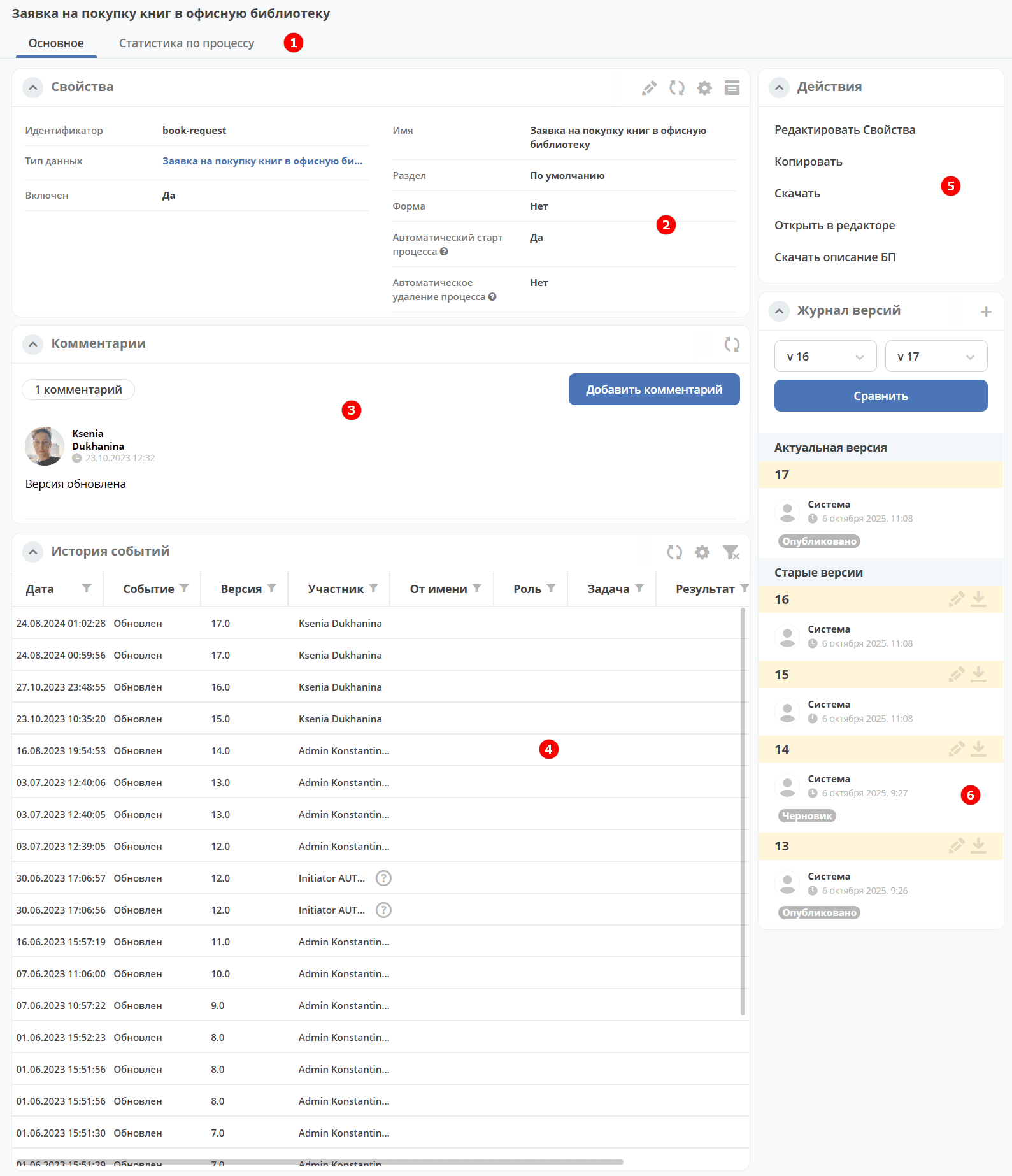
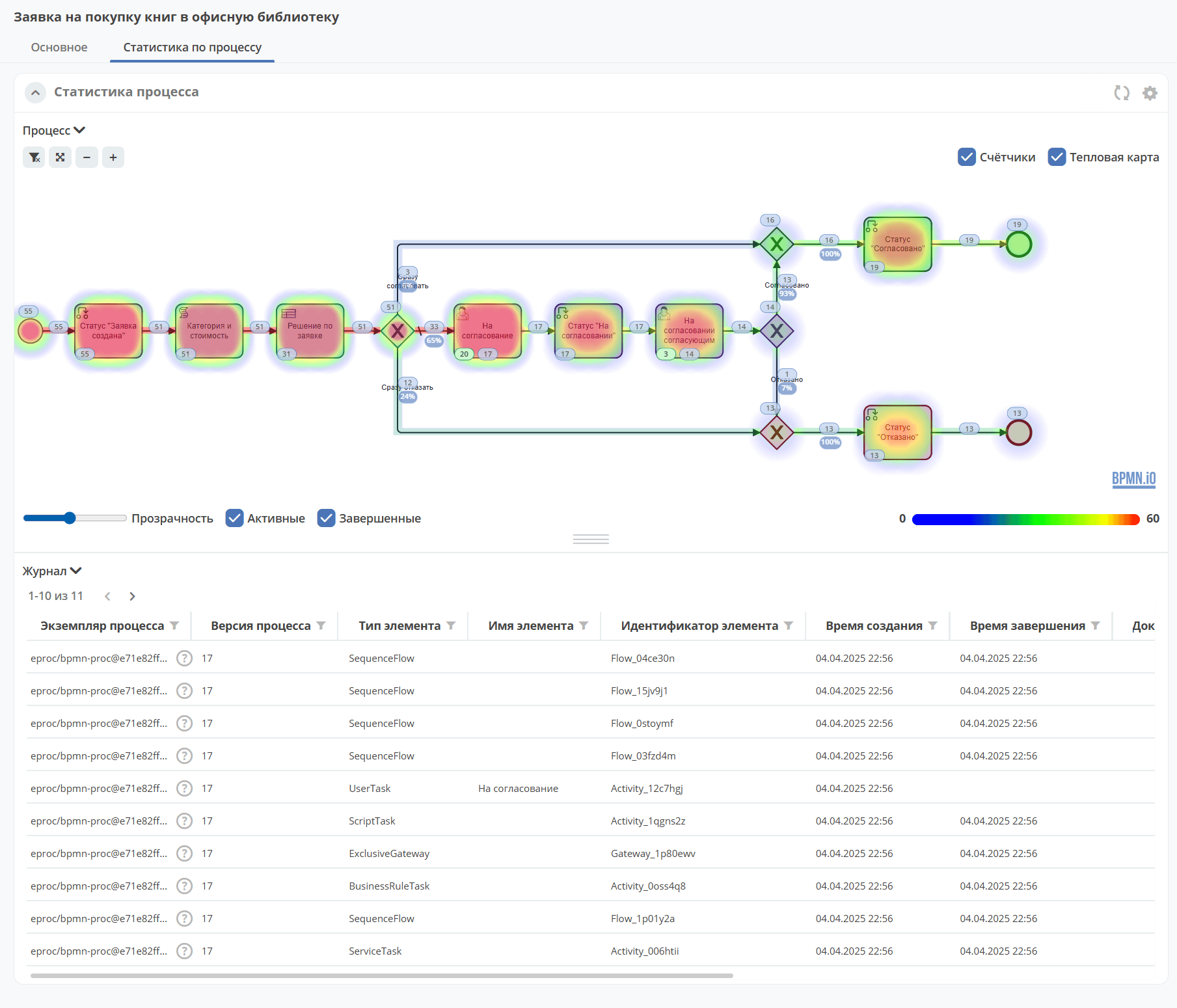
1. The Process Statistics widget visualizes business process statistics with a heatmap display:
2. The “Properties” widget with process information.
3. The Comments widget
4. The Event History widget for displaying business process events.
5. The “Actions” widget, which includes:
Copy - copies this business process. In the opened form, enter a new Identifier and click “Confirm”
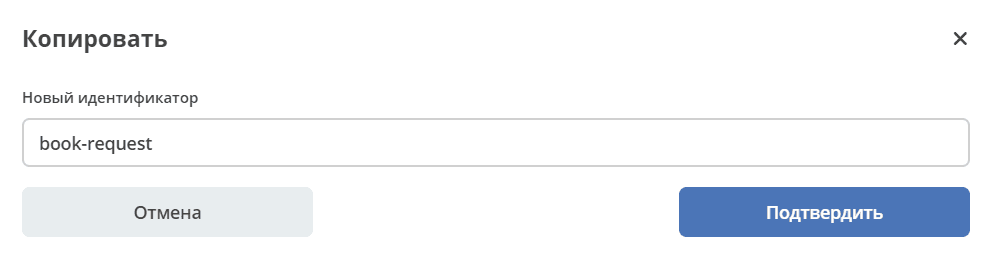
The business process will be copied as new with all settings.
Download - download the process in xml format;
Download BP Description - exports the business process model to Excel. For more details, see below :

6. The Version Journal widget contains the current and previous versions of the business process.
Delete
Edit Process Card:
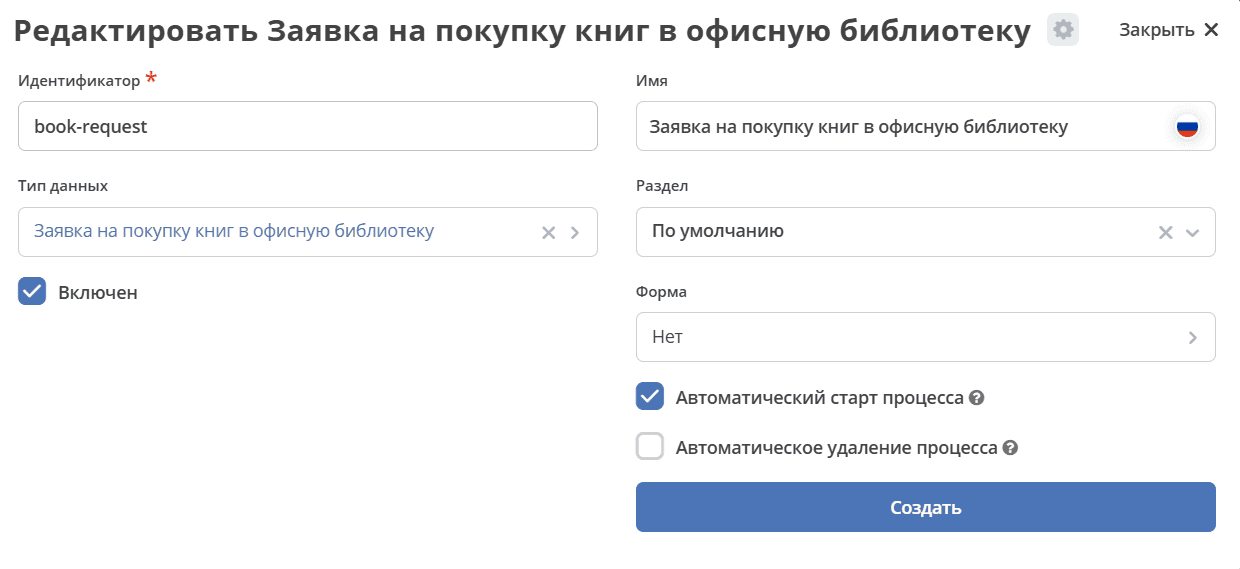
Edit Business Process:
The business process designer will open
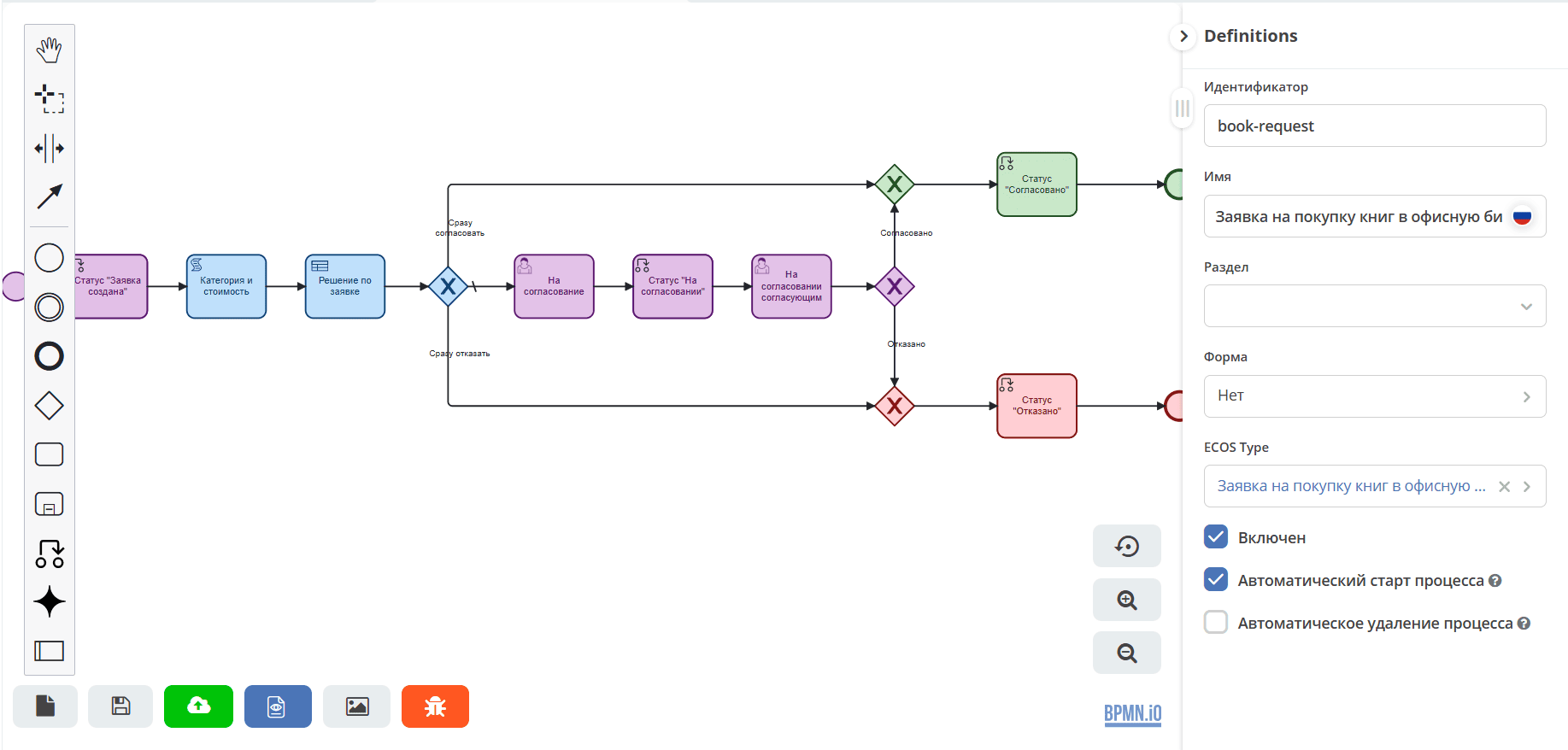
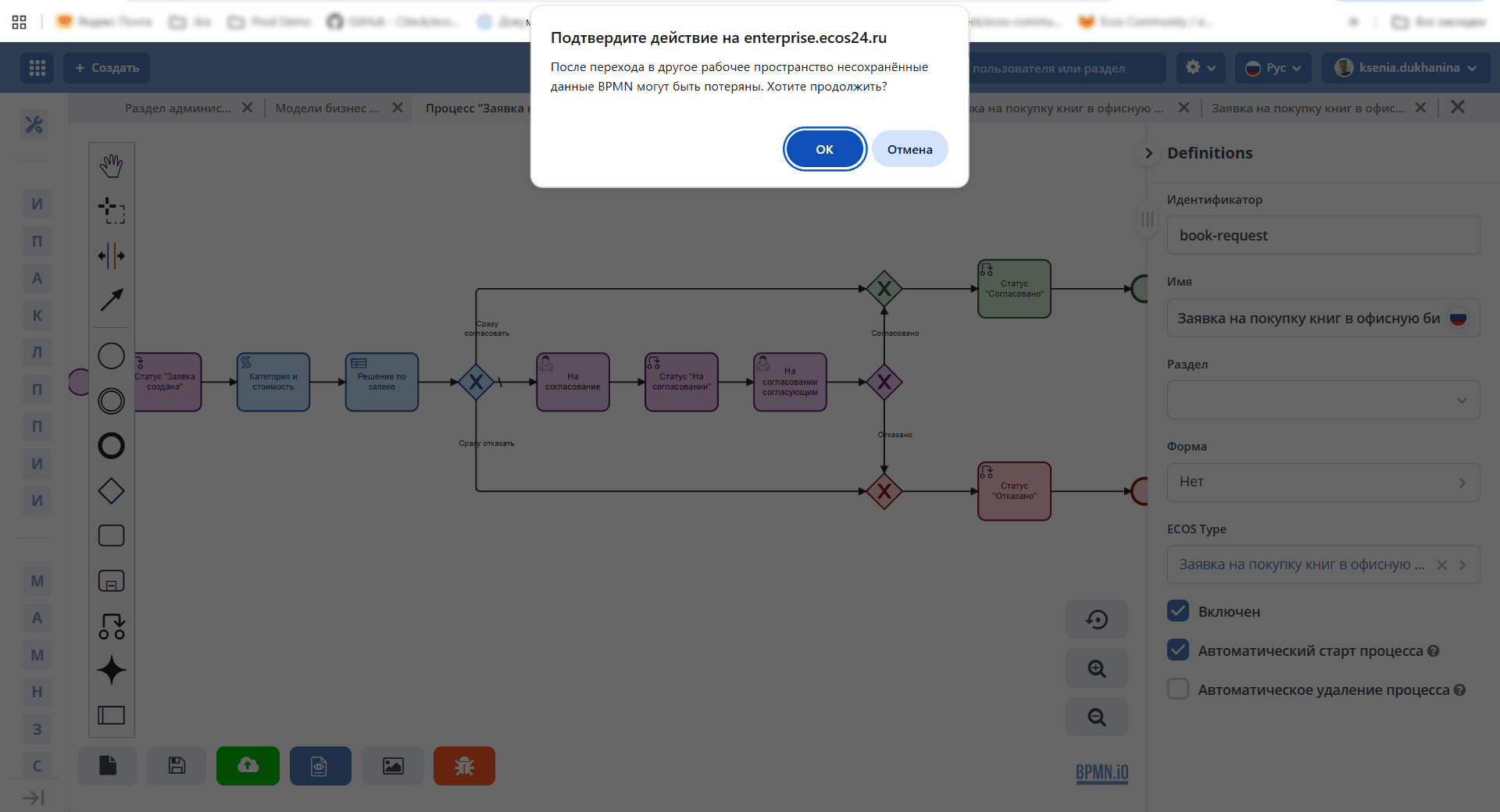
If when editing a business process you switch to another workspace, you need to confirm the action:
Creating a Business Process
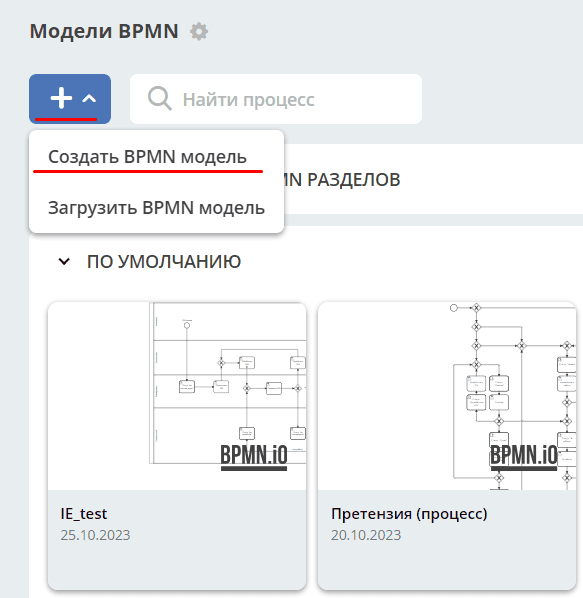
To create a new business process, navigate to the “BPMN Models” log (Administrator Section workspace - Process Management):
Or in the section, select the action:
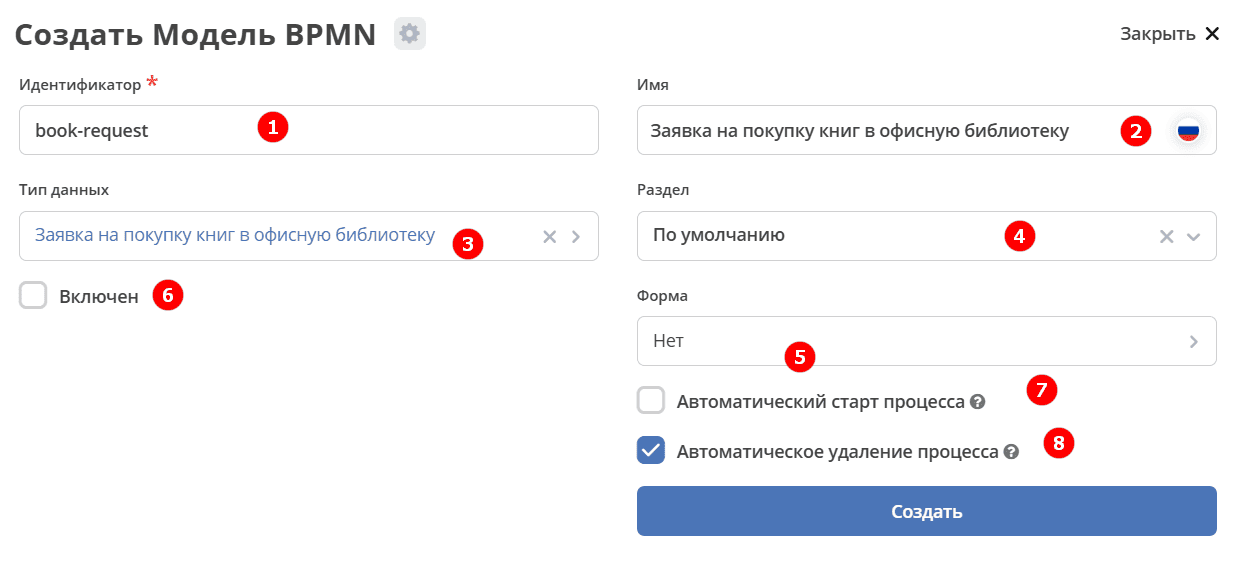
The process card creation form will open:
No. |
Name |
Description |
|---|---|---|
1 |
Identifier |
unique identifier |
2 |
Name |
name of the business process being created |
3 |
ECOS Type |
data type. When bound to a data type, the process can be started automatically if checkbox (7) is checked. In the editor form, roles, statuses, etc. will be pulled based on the data type. |
4 |
Section |
name of the section where the process will be saved. If not filled, saving occurs in the “Default” section. |
5 |
Form |
specify for starting the process via a form. |
6 |
Enabled |
enable the process |
7 |
Automatic Process Start |
when creating an object of the specified type, the process will start automatically. |
8 |
Automatic Process Deletion |
when deleting an object of the specified type, the process will be deleted automatically. Enabled by default. |
Saving and Publishing the Process
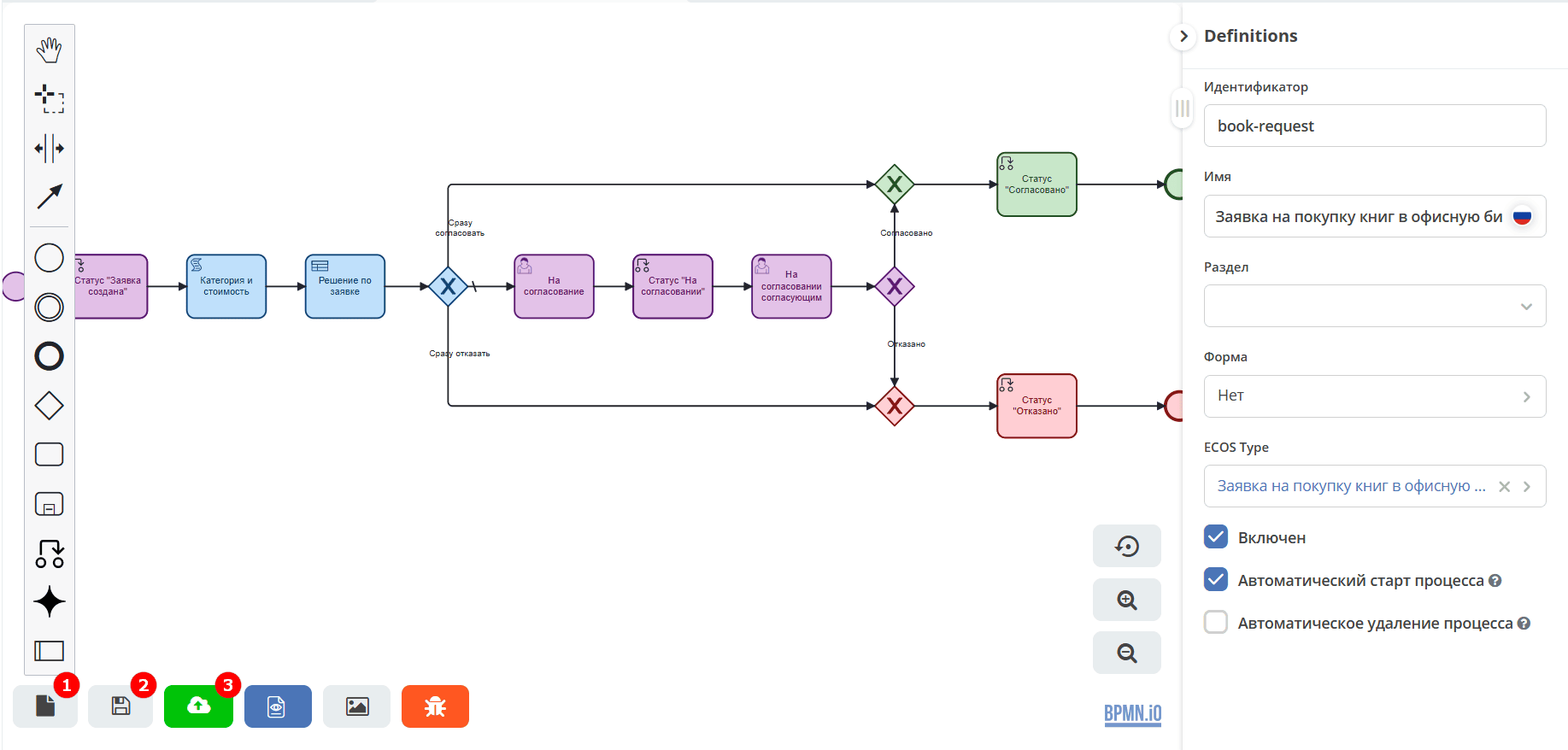
The process can be:
1 |
Save as Draft |
Without validation (checking for logical errors) and conversion to Citeck format. |
2 |
Save |
With validation (checking for logical errors) and conversion to Citeck format. |
3 |
Save and Publish |
With validation (checking for logical errors), conversion to Citeck format, and publication to make the process executable. |
Note
If you have edited a process, it must be published again to apply the changes and make them available to users. This way you create a new version of the process.
The Event History widget displays information about business process creation, update, and publication events, indicating the author, time, comment, etc.
In the Version Journal widget, for a process version that has been published, the tag “Published” will be shown; for a process saved as a draft - “Draft”.
Business Process Start Methods
There are two ways to start a business process:
1. Automatic BP Start When Creating a Document
Performed automatically if the required “ECOS Type” is specified in the BP description and the “Automatic Process Start” flag is set to true.
2. Manual BP Start via Form
In the BP description, in the “Form” field, you can specify the process start form, then manual start is performed via “Menu” -> “Create” (+).
Automatic start and manual launch methods can be used together or separately, depending on business requirements.
Regardless of how the business process is started, for it to be launchable, it must be “enabled”.
Process start when clicking the “Submit” button on the document creation/editing form
If the record is saved in the Draft state, that is, via a submit button with the draft state,
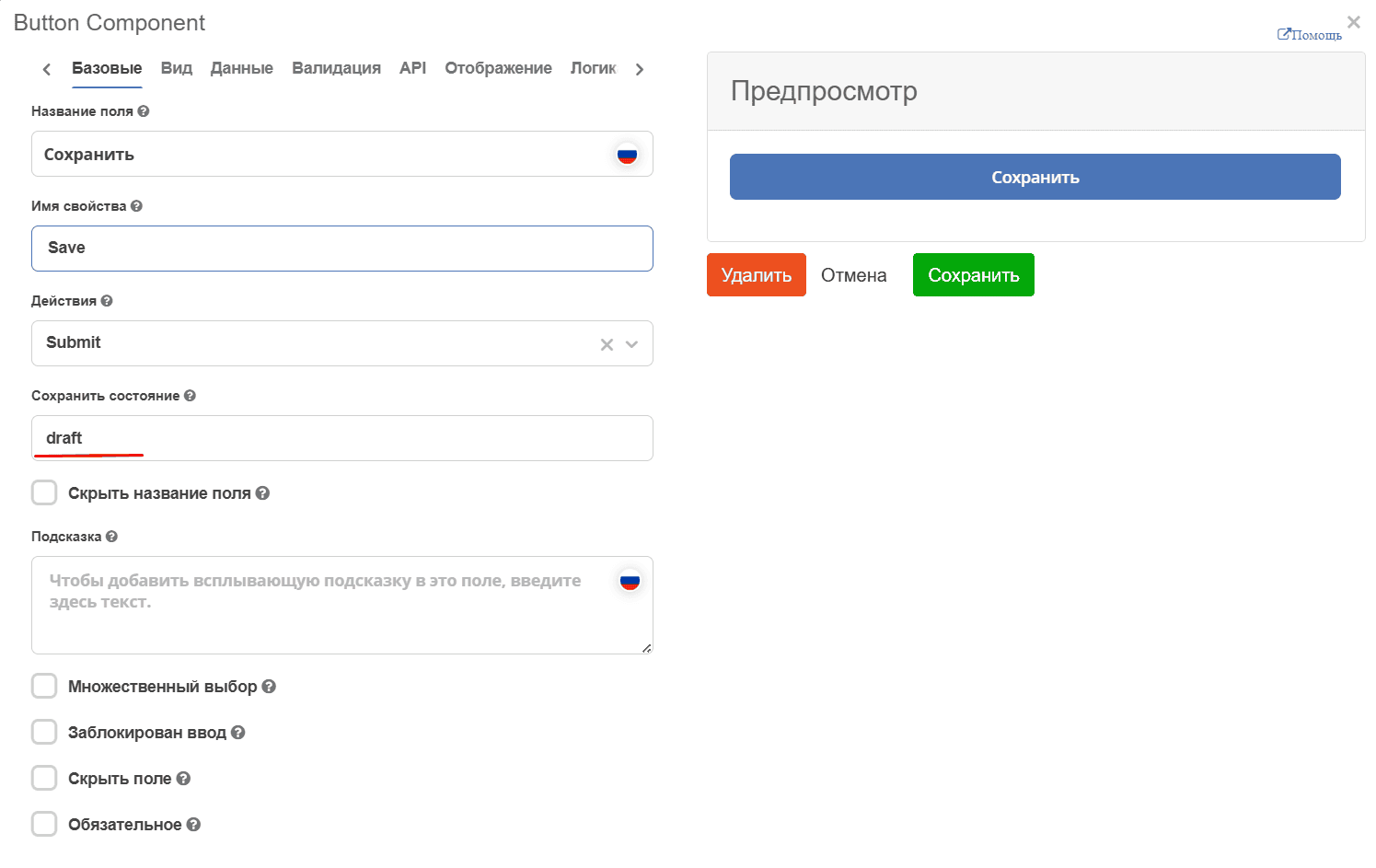
then automatic process start is not performed. Automatic start will occur upon submit without the draft state.
Starting Business Process for Child Types
Let’s consider an example.
For example, we have type A, which has a child type A_1
If for type A a BP is configured as enabled + auto-start, and for type A_1 there is no BP, then when creating an object of type A_1, the BP configured for type A will start.
If for type A a BP is configured as enabled + auto-start, and for type A_1 a BP is configured as disabled, then when creating an object of type A_1, the BP configured for type A will start.
If for type A a BP is configured as enabled + auto-start, and for type A_1 a BP is configured as enabled + auto-start disabled, then when creating an object of type A_1, no BP will be started.
If for type A a BP is configured as enabled + auto-start, and for type A_1 a BP is configured as enabled + auto-start enabled, then when creating an object of type A_1, the BP configured for type A_1 will start.
Exporting BP as an Excel Table
Required microservice versions: ecos-process = 2.16.0 and ecos-transformation = 1.8.0
Every BPMN template can be downloaded as an xlsx file. For this, there is a template in the system with id = ecos-bpmn-def-template. It contains 2 template xlsx files for the following locales: ru and en.
Also, for each BP, there is a download action Download BP Description, when activated, an xlsx file will be downloaded based on the BP saved in the system, which will record all elements from the BP and the connections between them.
This is achieved through the bpmn-report parameter, which we can request from each BP using the Records API.
Records.get('eproc/bpmn-def@meet-process').load('bpmn-report[]?json');
This request will return a list of objects generated based on the elements in the BP.
A more detailed description of the objects filling the list can be found in ecos-process:
ru.citeck.ecos.process.domain.bpmnreport.model.ReportElement
Menu Configuration
To add a process to the “Create” menu:
Go to menu settings by clicking the gear icon, then the “Configure Menu” button at the top right.
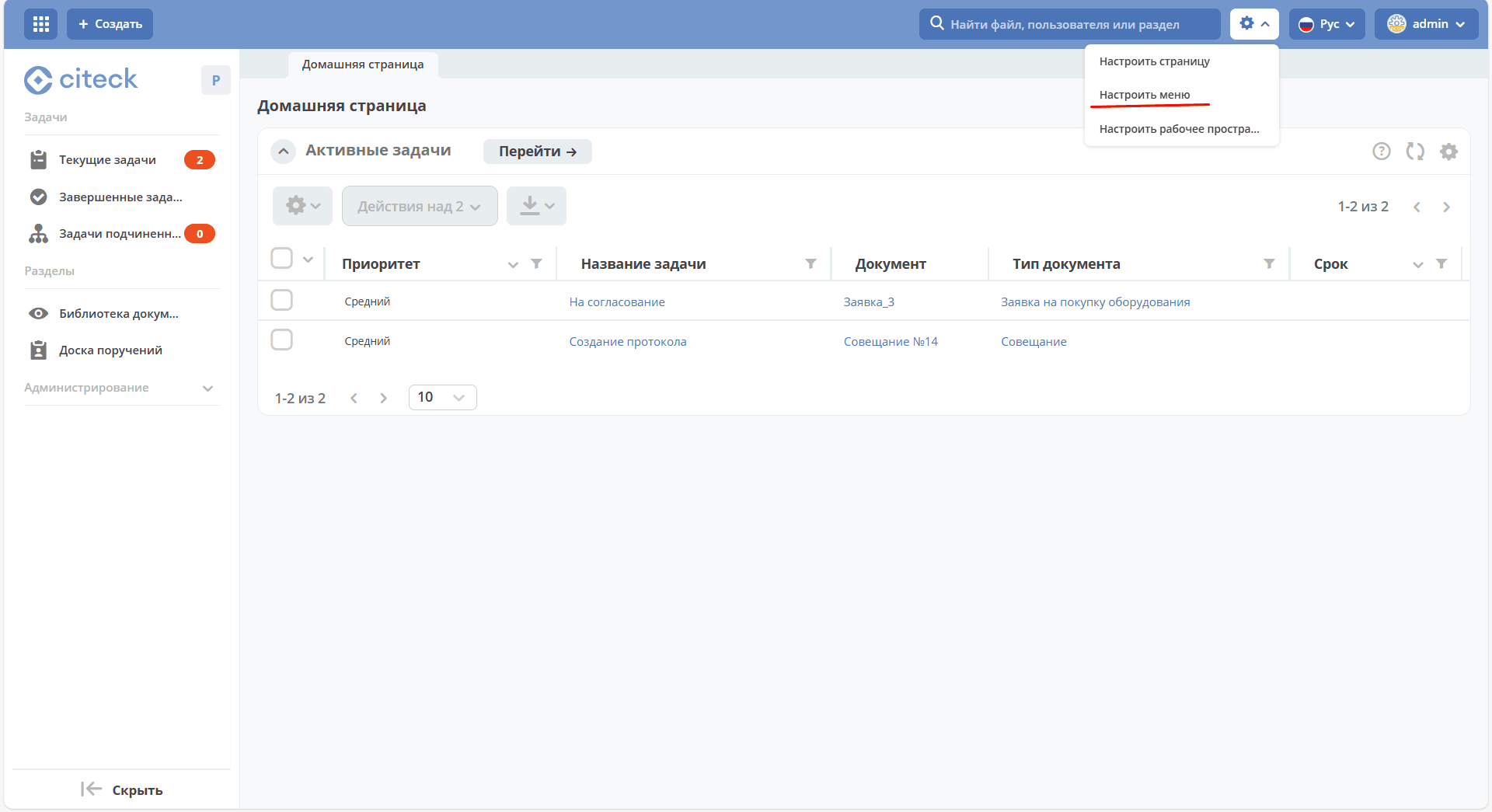
Select the menu item where the process will be located. Hover over the item and click the “Add” button:
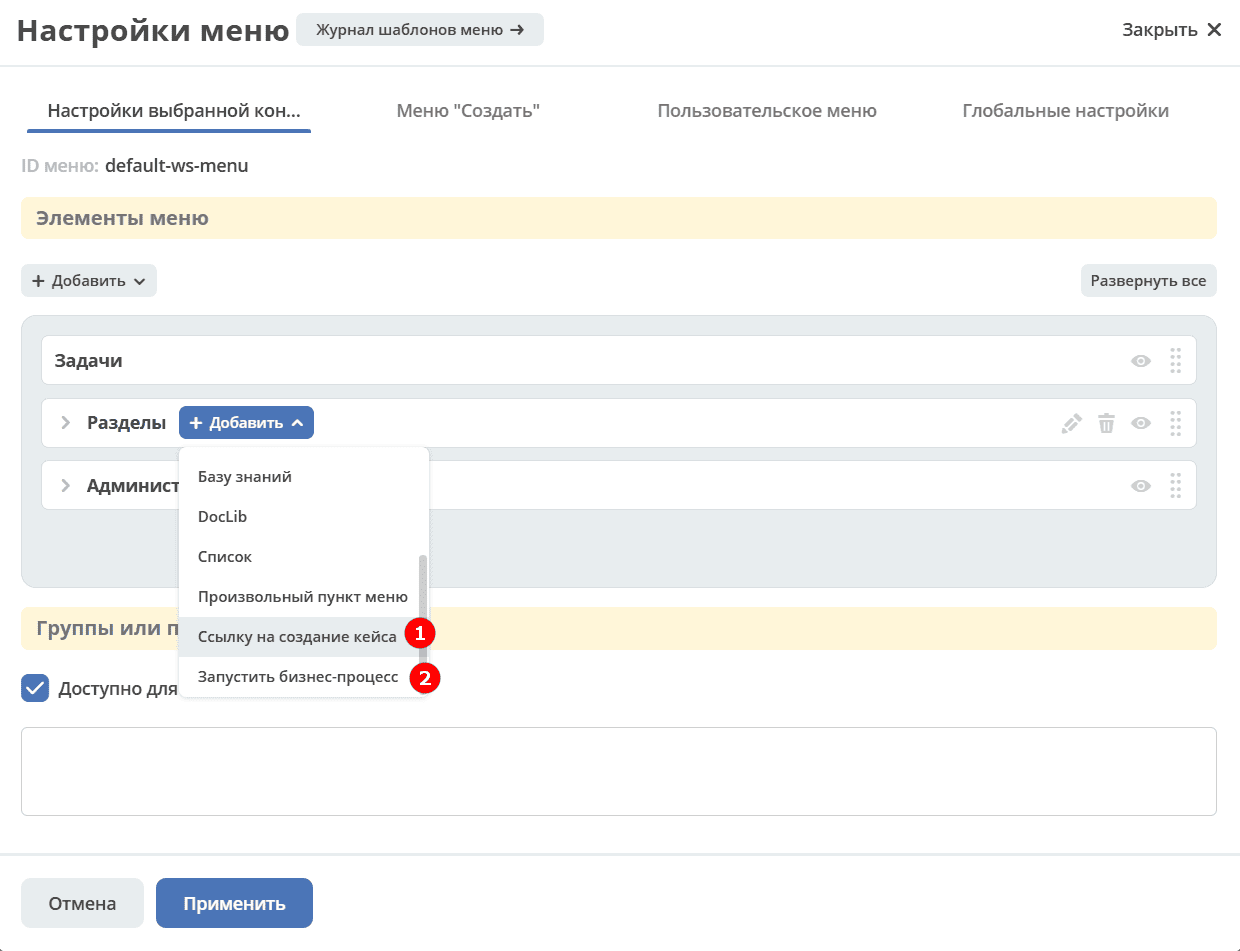
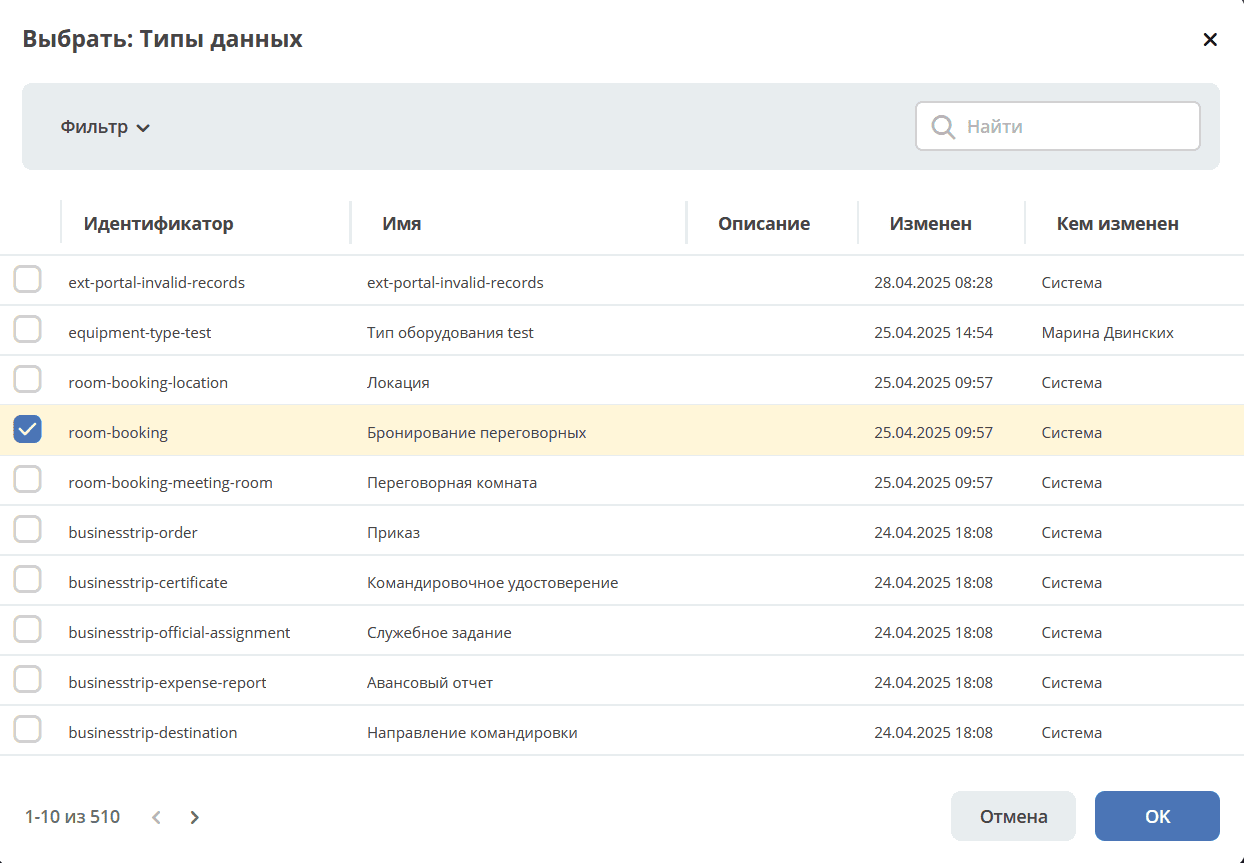
for method 1 described above, select “Add a link to create a case”, select the required data type from the list, click “OK”:
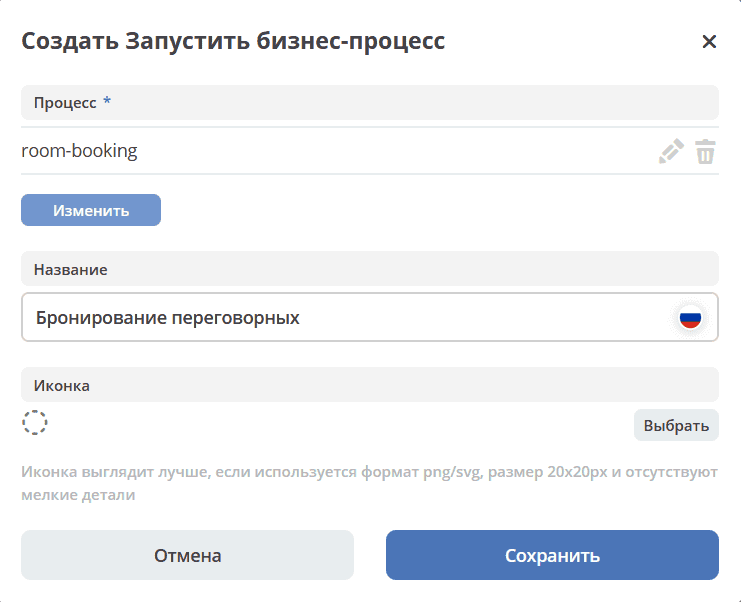
for method 2 described above, select “Start business process”, select the required process from the list, click “OK”.
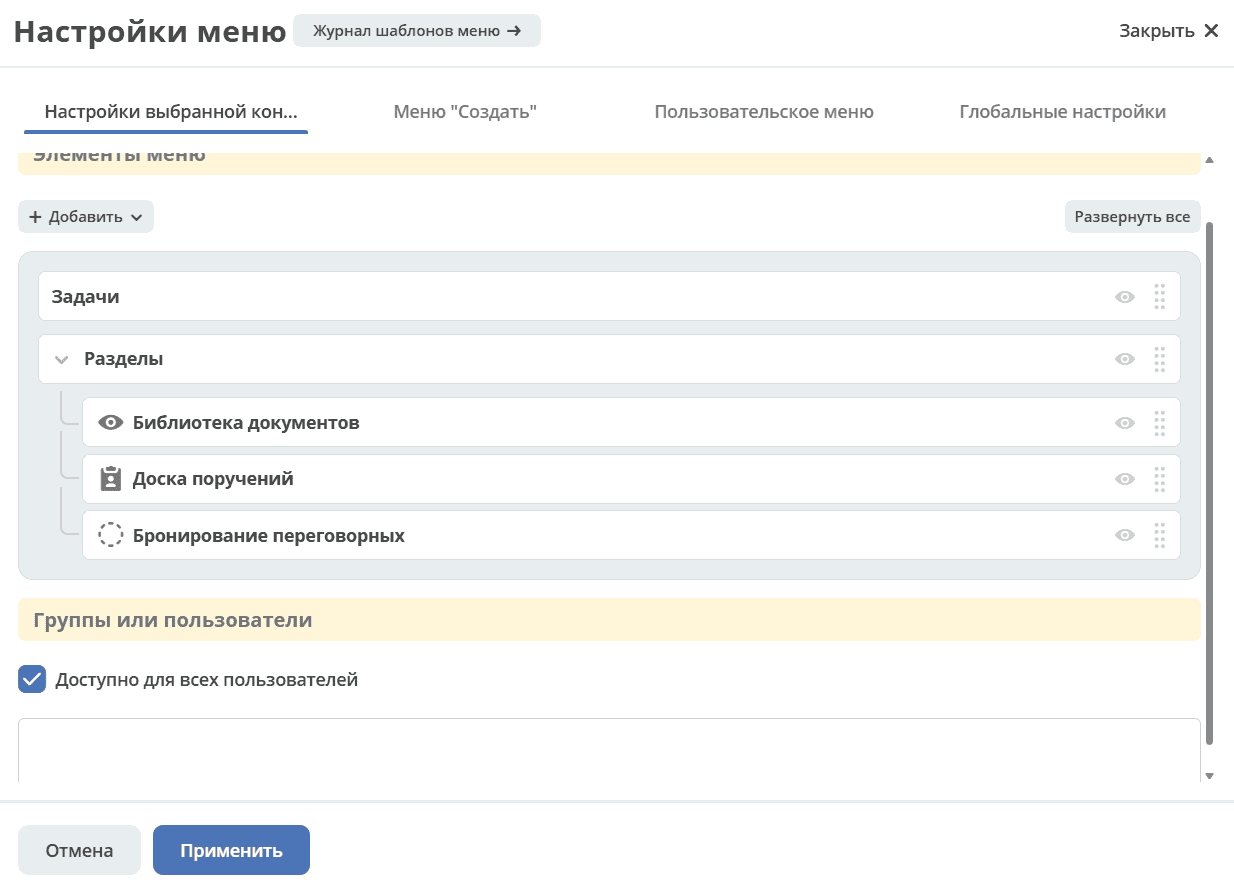
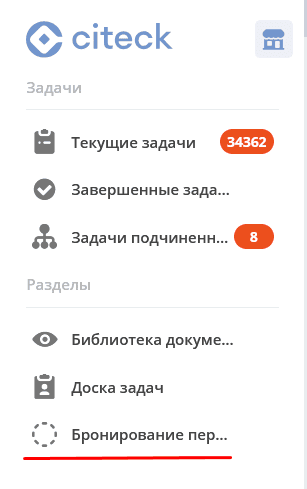
Added menu item:
BP launch form: