Journal Settings with Examples
This page contains practical examples of journal configuration: using expressions in column attributes, setting up predicates for filtering, configuring association-based search, and displaying sums for numeric columns.
Expressions as Attributes
Note
Expressions must be supported by the data source. The frontend passes the configured attributes to the data source “as is” and expects the server to understand how to work with them.
When configuring a journal column, you can go to advanced settings and specify a complex expression in the “Attribute” field, which can later be used for grouping, sorting, searching, and display.
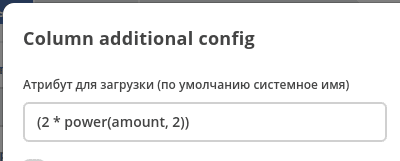
The expression must be enclosed in parentheses. Exception — if the expression consists of a single function, parentheses are not required.
For more details about syntax and available functions, see ecos-data.
Filtering journal records by current user
To display only records related to the current user in the journal (e.g., where they are the initiator, responsible party, author, etc.), go to the Advanced settings tab in the journal settings and specify in the Predicate:
{"t":"eq", "att": "initiator", "val": "${$user?id}"}
where:
initiator — the attribute (association) used for filtering. Replace it with the required attribute, e.g.:
author,responsible,assignee, etc.$user — a context attribute containing the current user’s data. The expression
${$user?id}returns the current user’s identifier.
Tip
This approach is universal — simply replace the attribute name in att with any user association to filter records by the required field.
Parameter «Search Attribute»
The «Search Attribute» parameter has been added to the journal column configuration — an attribute that needs to be obtained from the records in the subquery. By default, identifiers of found entities are taken from the subquery, but you can take some attribute from these entities if needed.
In any journal with filters enabled, select a column with text search, set a filter.
When applying a filter, the UI builds and sends a request with the URL: http://host/gateway/api/records/query?
In the request body — the query predicate set by the column filter:
"query": {
  ...
  {
    "att": "someAttName",
    "t": "eq",
    "val": "1000"
  }
  ...
}
When building this query, the att value in the predicate is replaced with the value of the searchAttribute parameter from the journal column configuration.
This type of search is planned to be used for computed attributes. They will display in the journal what is configured in computed att, but the search should be performed on the attribute specified in the column configuration.
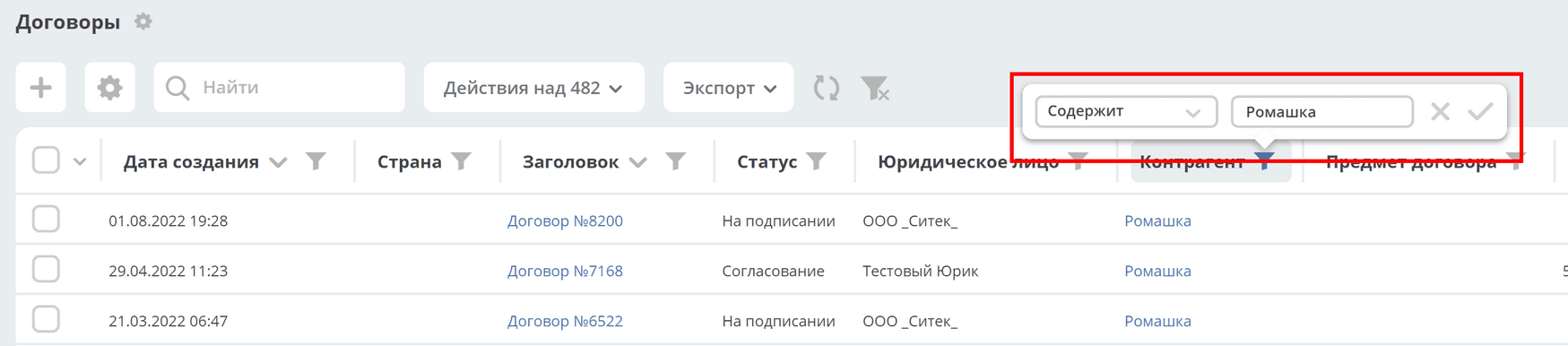
Text filter in the «assoc» column. innerQuery Settings
Settings have been expanded — added the ability to use RecordsQuery. For example, on computed fields, which allows forming arbitrary queries to different data sources.
To address the issue — when the user selects arbitrary predicates (Contains, Equals, Starts with, …) when configuring a filter — another tag has been added to the query: $PREDICATE_TYPE — for replacement on the client side.
Added attribute — innerQueryAttribute — for display configuration capability:
searchConfig: {
  delimiters: [],
  searchByText: {
    {
      "innerQuery": {
        "sourceId": "",
        "page": {
          "maxItems": 25
        },
        "query": {
          "t": "and",
          "val": [
            {
              "att": "TYPE",
              "val": "currency",
              "t": "eq"
            },
            {
              "att": "currencyCode",
              "val": "$TEXT",
              "t": "$PREDICATE_TYPE"
            }
          ]
        }
      },
      "innerQueryAttribute": ""
    }
  }
}
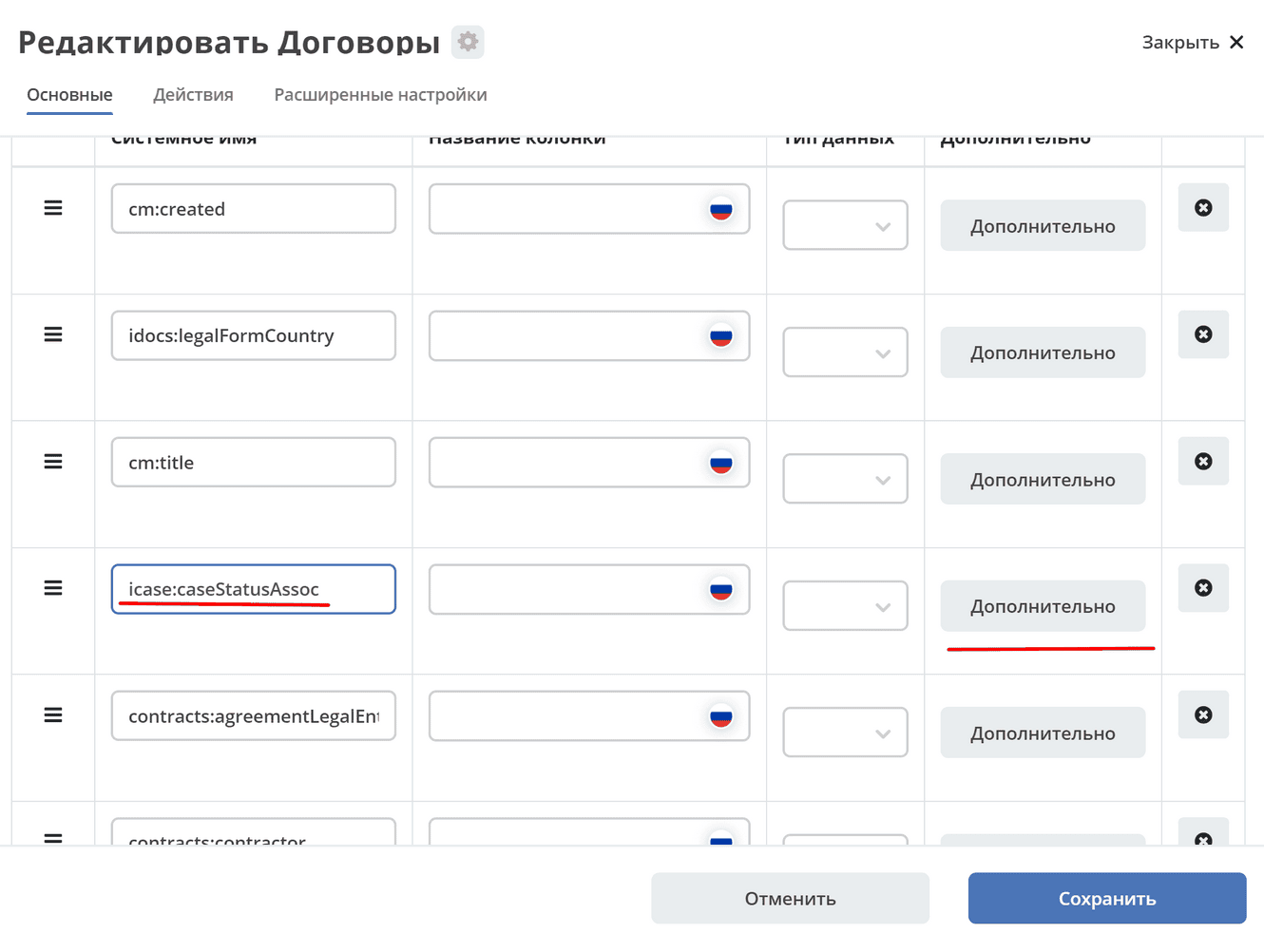
Let’s consider an example. Let’s configure search only for the «Status» column.
Go to additional column settings:
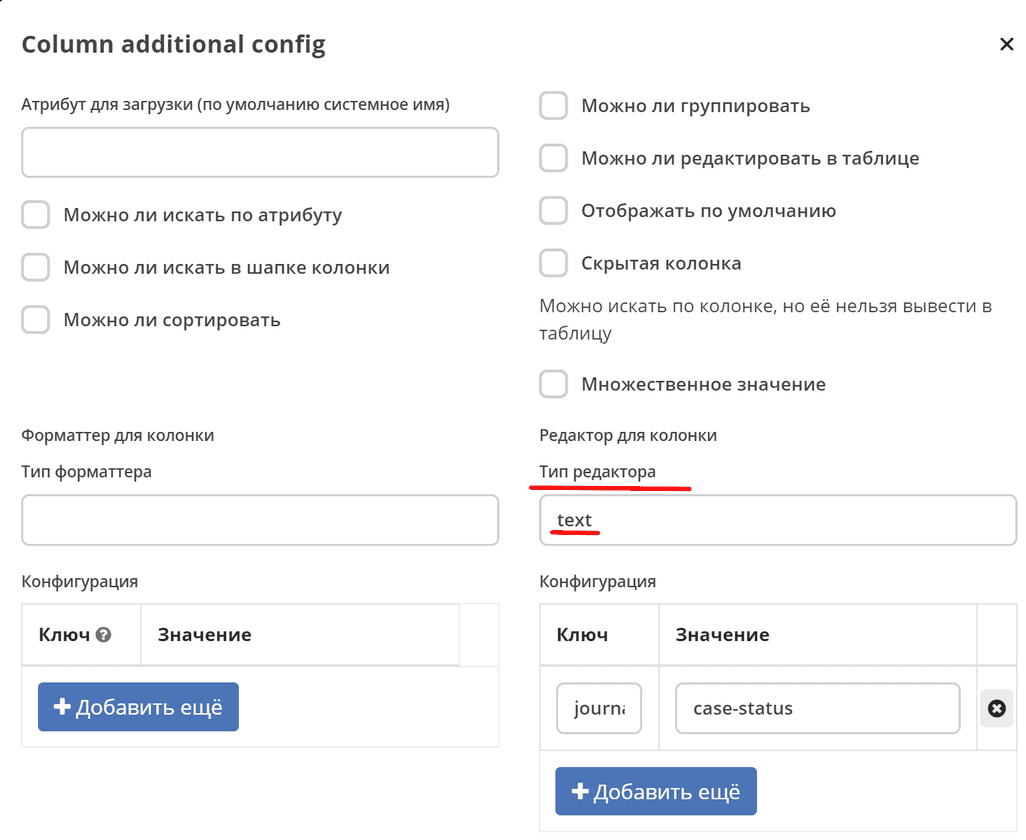
Set editor type to text:
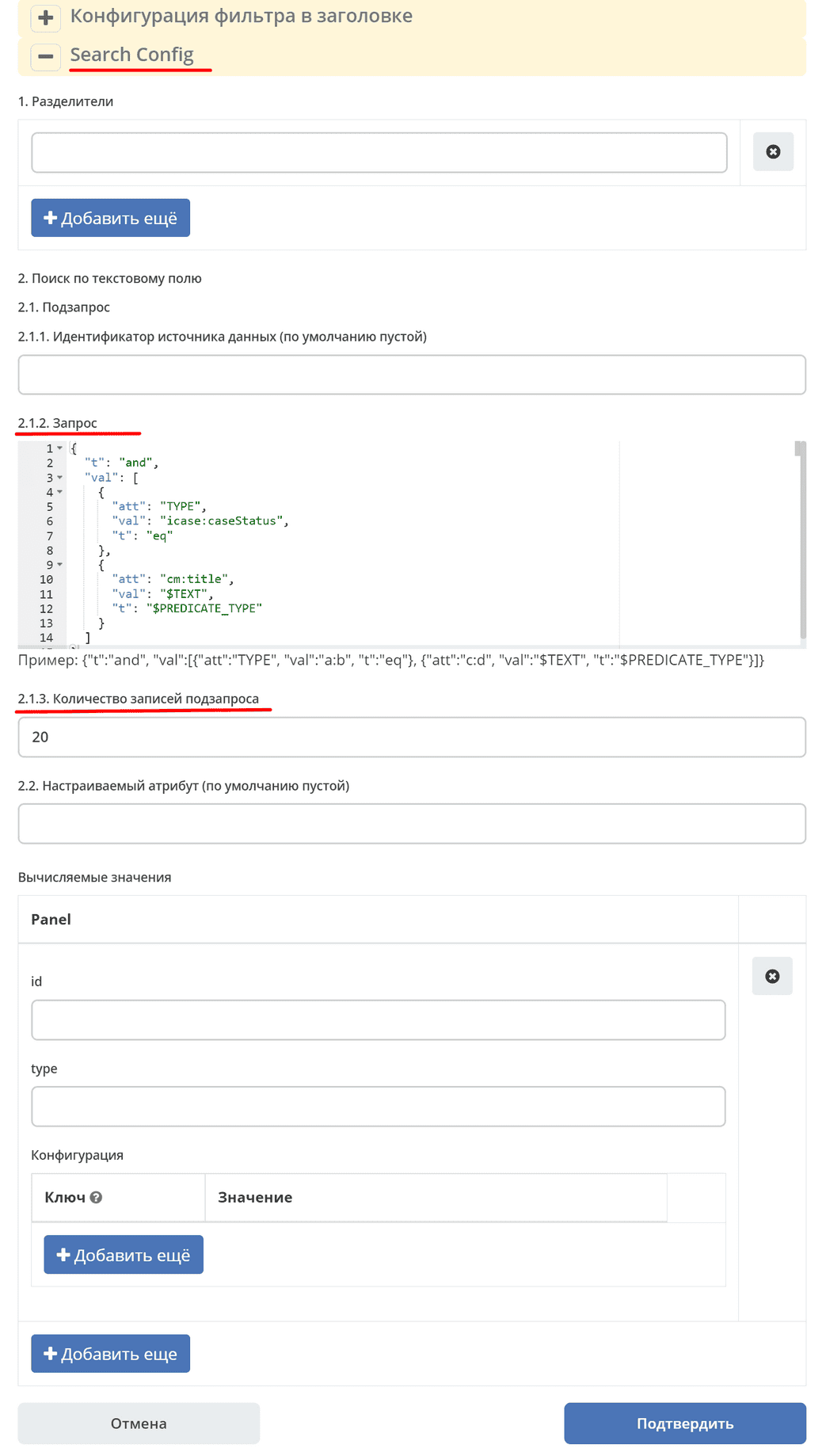
In the Search Config section, in the query field, enter:
Tip
The query should be specified as precisely as possible, indicating the type of the requested node.
{
  "t": "and",
  "val": [
    {
      "att": "TYPE",
      "val": "icase:caseStatus",
      "t": "eq"
    },
    {
      "att": "title",
      "val": "$TEXT",
      "t": "$PREDICATE_TYPE"
    }
  ]
}
Specify the required Subquery Record Count:
Subquery Record Count — the maximum number of records the server will return for this query. These nodes will then be used as a filter to form the main query — to display the required records in the journal itself.
But the response will also include the total number of records found by the server, and if this number is greater than the specified subquery record count, the interface will show a message about the need to set a more precise filter.
Save.
Search is performed only for the «Status» column:
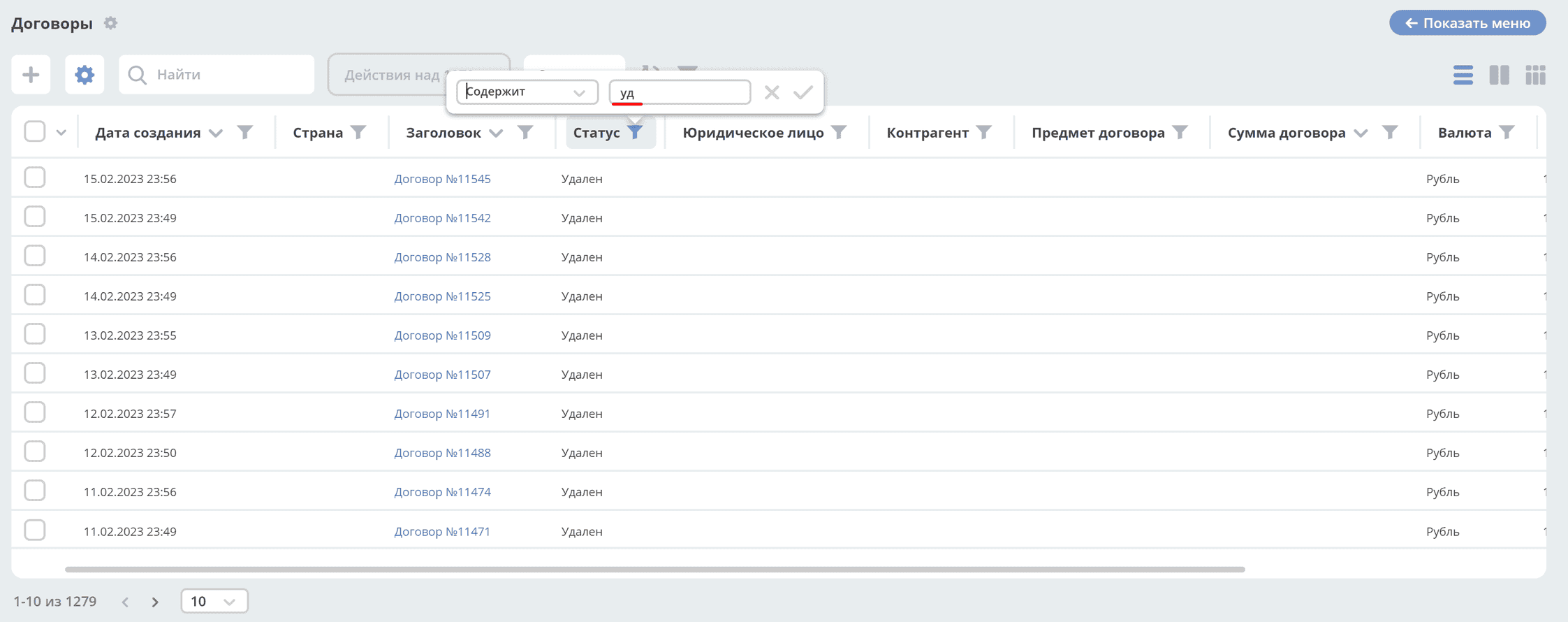
Column Filtering Settings
The headerFilterEditor setting has been added for columns in the journal.
In the data type settings, you can change the filter from Select Journal to a text field:
Select Journal filter:
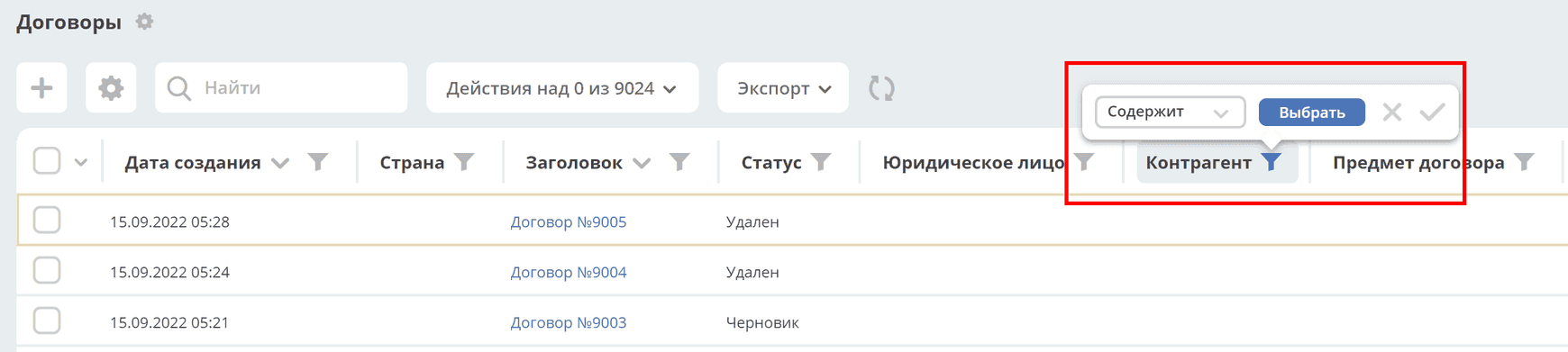
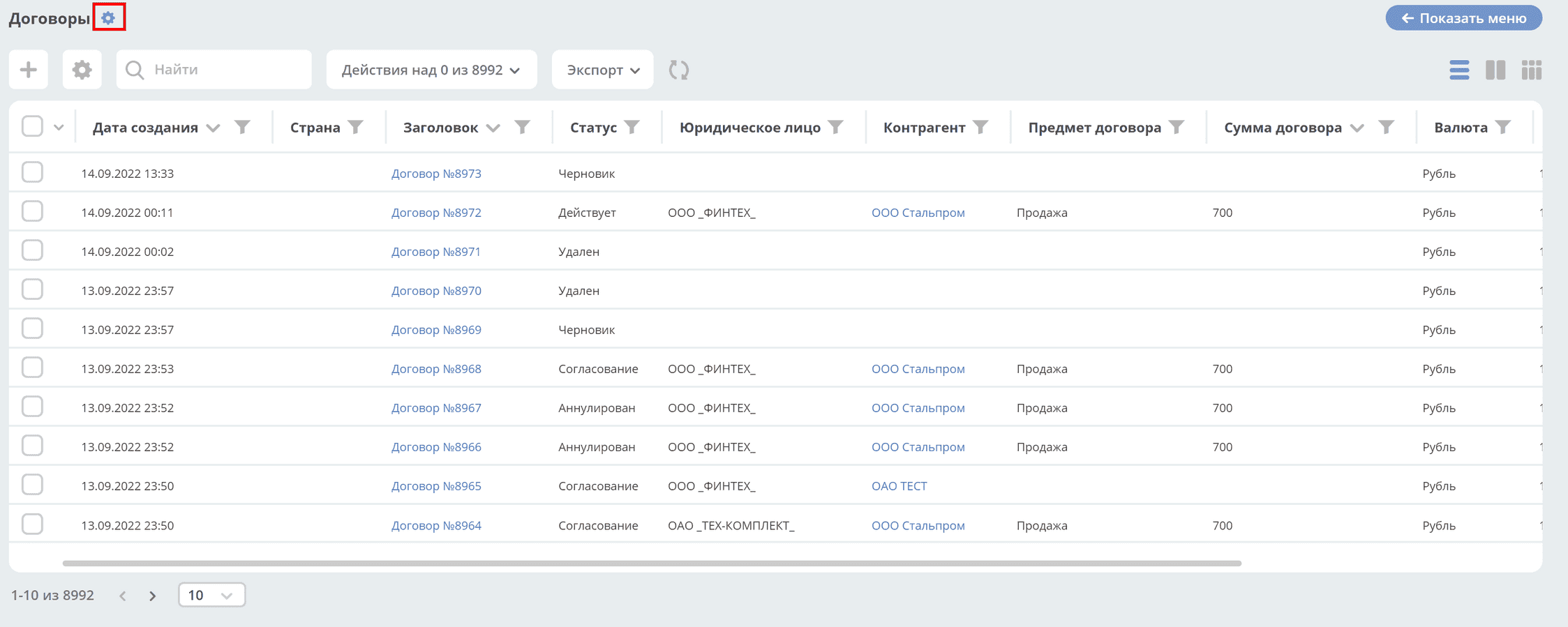
To make changes, in the journal, click next to the name:
For the required column, click «Advanced»:
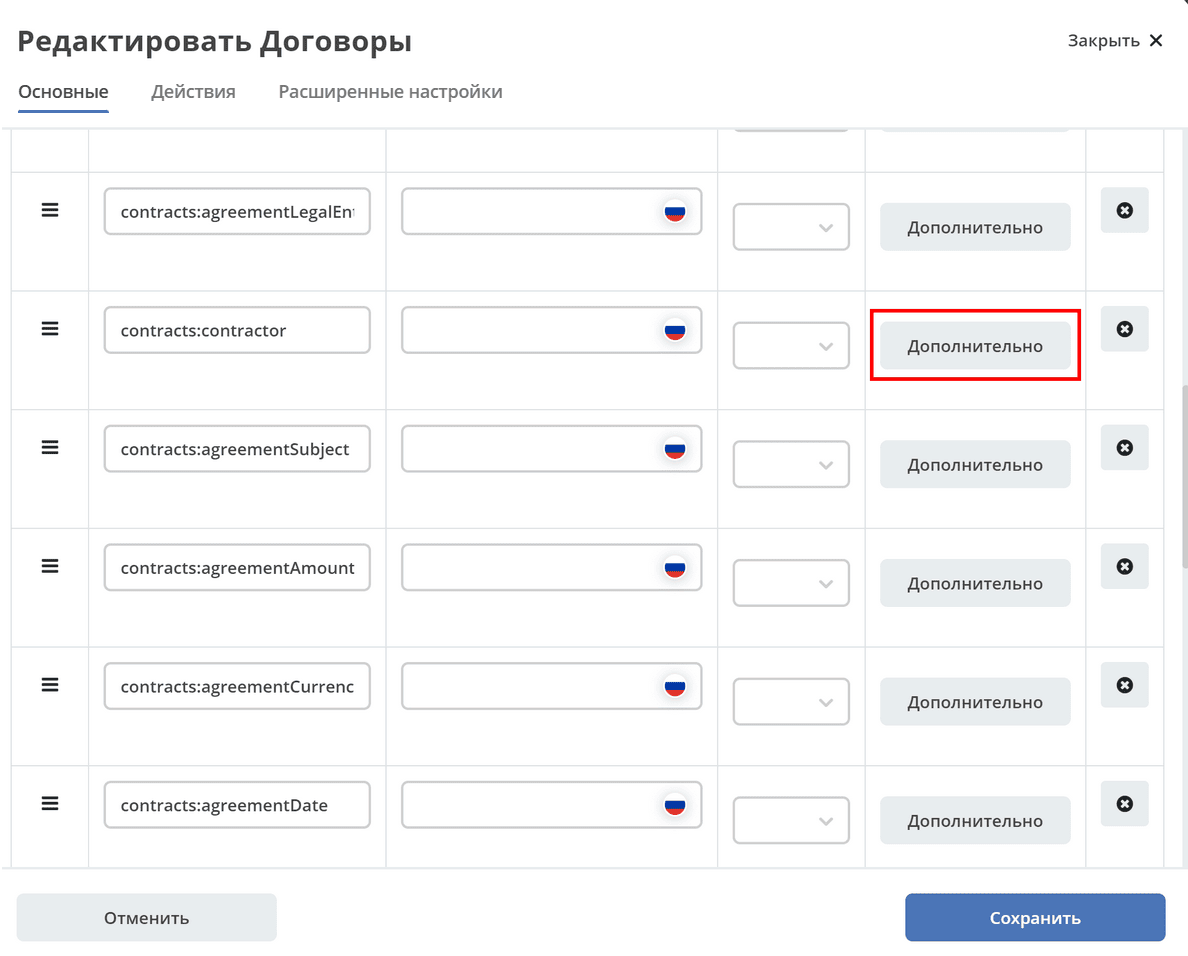
Specify settings as below:
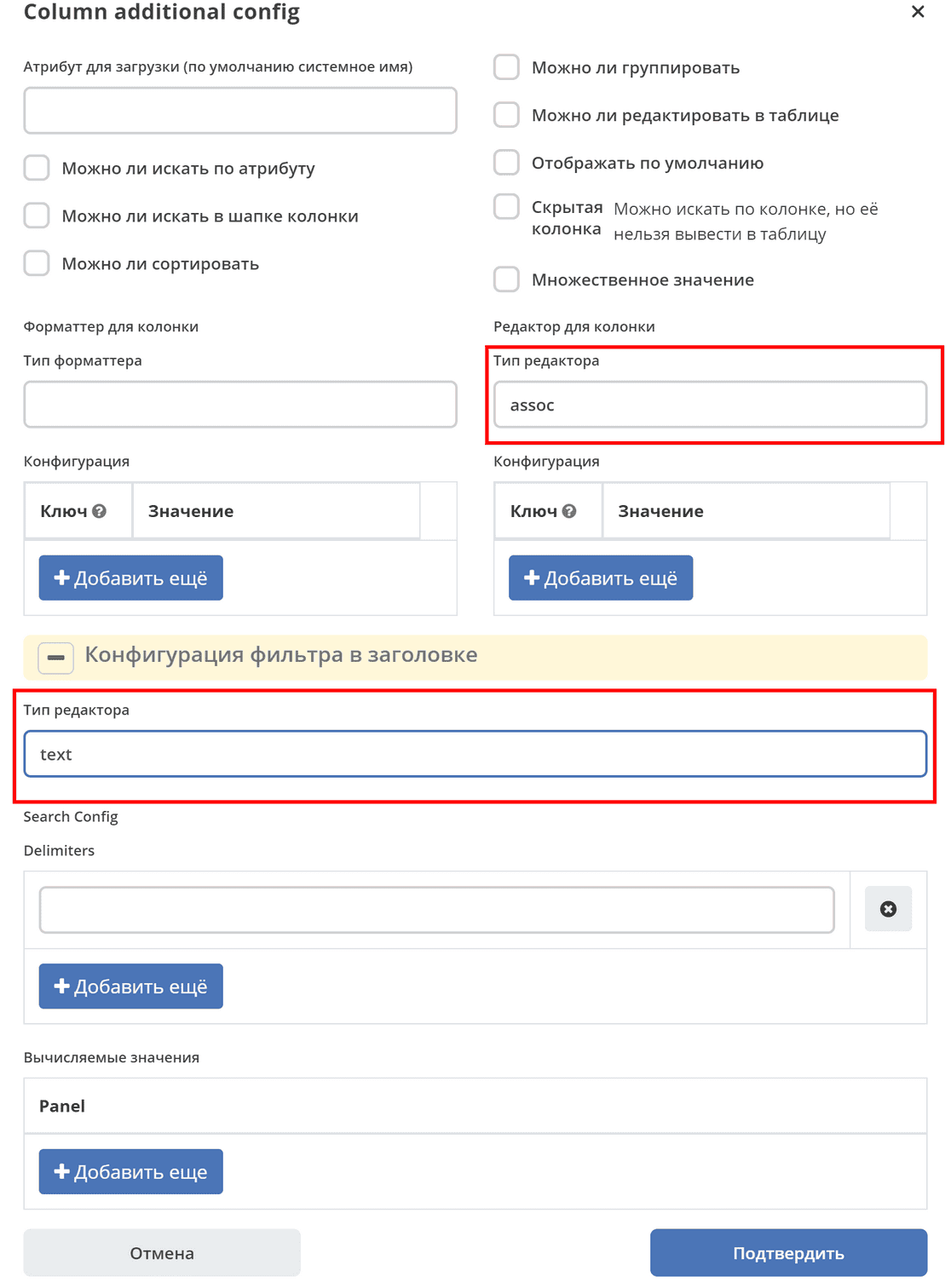
Select Journal filter changed to text:
Column Sum Display Settings
Added support for grouping by all records in the journal using predicate:
await Records.query({sourceId: 'emodel/ecos-contract', query: {}, language: 'predicate', groupBy: ['*']}, 'sum(amount)');
await Records.queryOne({sourceId: 'emodel/ecos-contract', query: {}, language: 'predicate', groupBy: ['*']}, 'sum(amount)?num');
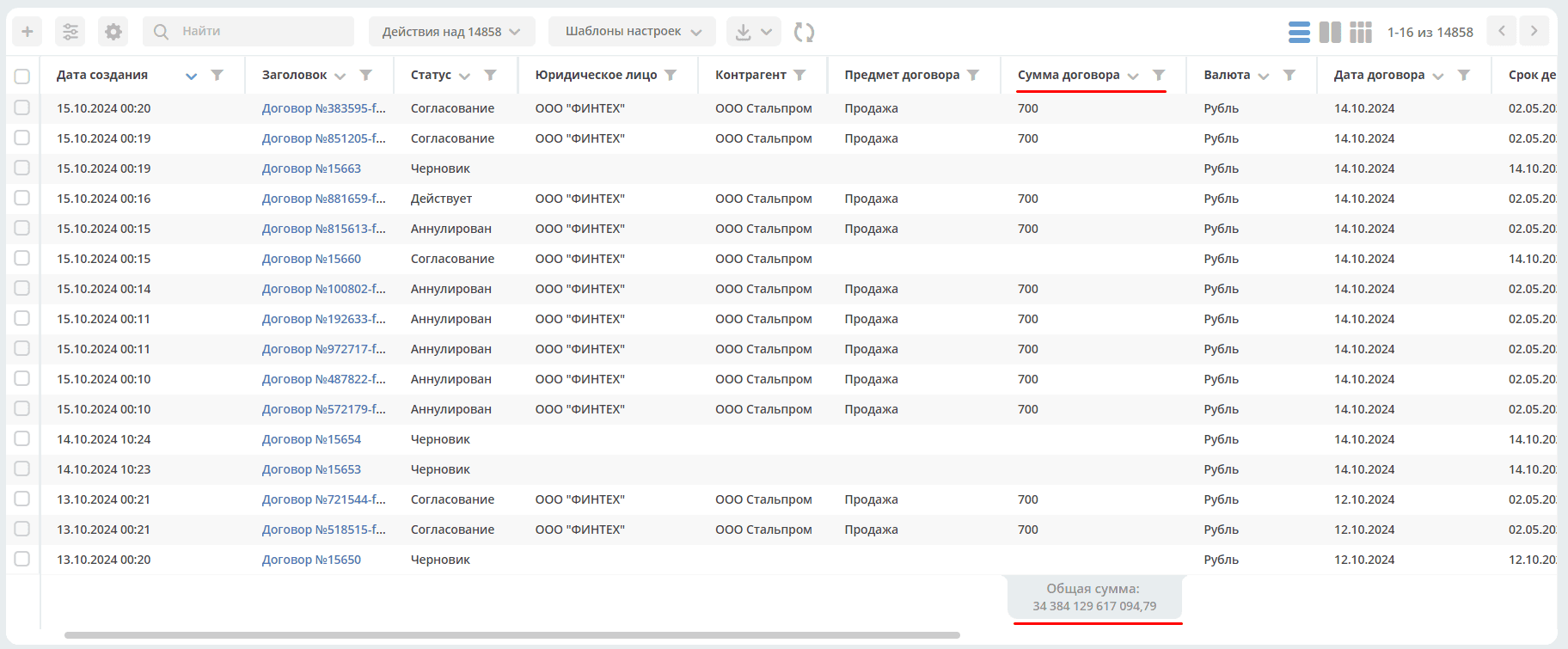
Enabling or disabling sum display for each column is done separately for each attribute. The attribute type must be Number.
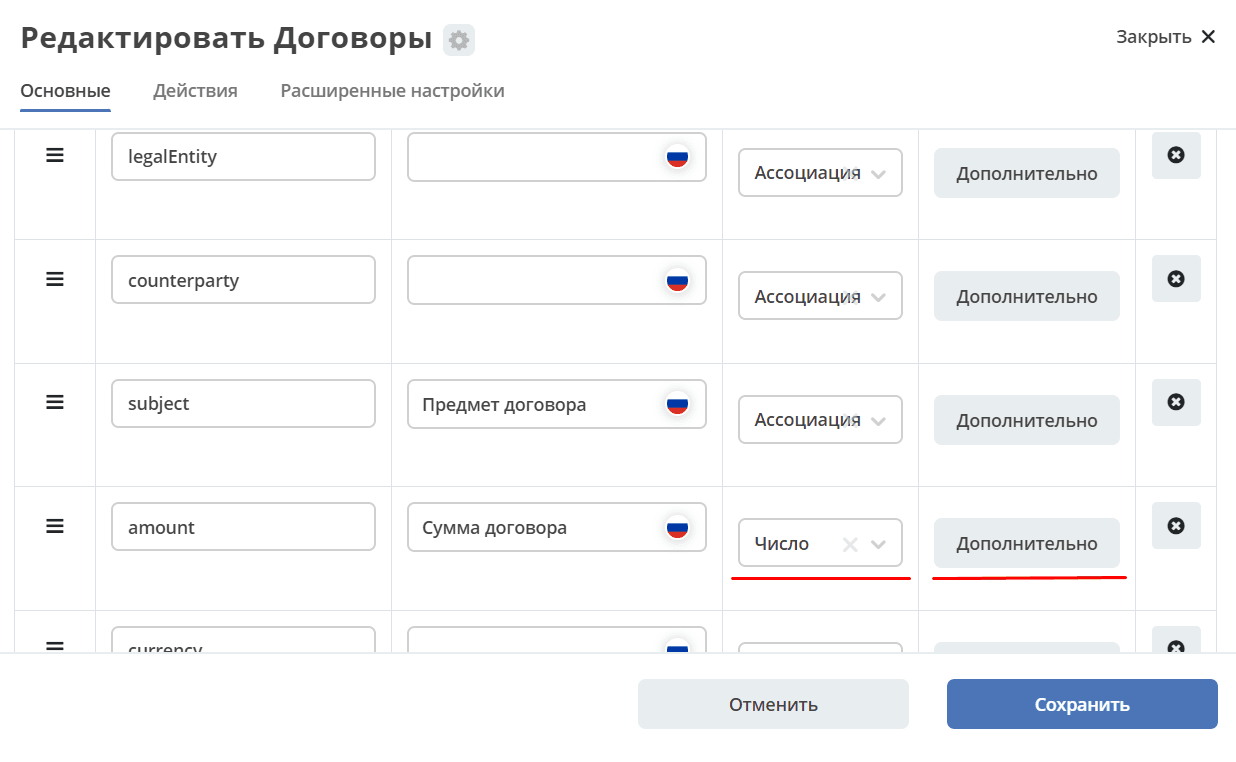
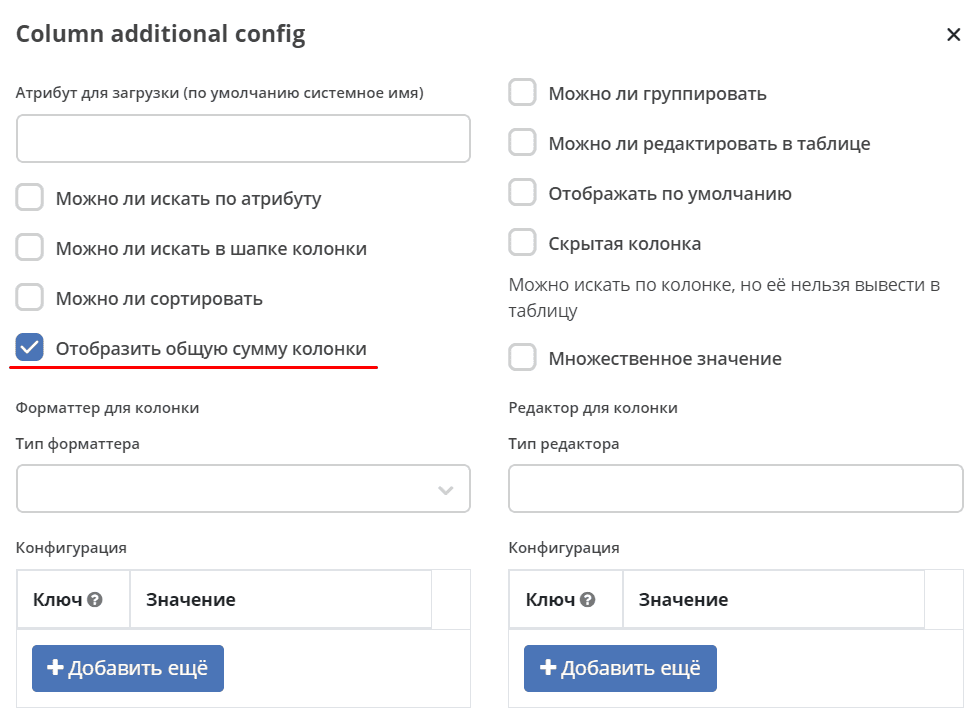
The total sum only considers formatters NumberFormatter and DurationFormatter.
The total sum of column values will be displayed at the bottom of the column:
Displaying records filtered by a list value when using a standard or custom association attribute
If the attribute is configured for loading via dot notation, filtering, sorting, and grouping will work, but by the nested attribute type rather than the association.
If association-based search is needed but the column should display the entity name, there are two approaches:
For such scenarios, a Display Name Template is usually configured in the reference entity type, outputting the value of the required attribute. For example:
${short}. The advantage of this approach is that references to these entities will be human-readable throughout the system and displayed consistently.If the entity name should be one thing in most places but different in a journal column specifically, this can be solved using formatters. Example:
{
  "id": "legalEntity",
  "type": "ASSOC",
  "formatter": {
    "type": "script",
    "config": {
      "vars": {
        "customVar": "${legalEntity.inn}"
      },
      "fn": "return vars.customVar;"
    }
  }
}
where:
legalEntity — association;
inn — nested attribute.
In this case, the search will work by association, and the column will display the value from the specified attribute.
Journal column sorting
Sort behavior on click
Clicking a journal column header applies sorting. The sort direction on the first click is determined automatically based on the column attribute’s data type.
This improves usability: numeric and date fields are generally more useful in descending order (newest/largest first), while text fields are better in alphabetical order.
Default sort direction table
Attribute type |
First click |
Example |
|---|---|---|
|
Descending ( |
Newest records at the top |
|
Descending ( |
Largest values at the top |
Other types ( |
Ascending ( |
Alphabetical order A → Z |
Subsequent clicks on the same column toggle the direction. Sorting by a different column resets the previous sort and applies the default direction for the new type.
Sort icon in the header
The sort icon in the column header is displayed correctly:
Active sort — the icon is highlighted and shows the direction (↑ or ↓).
No sort — the icon is not highlighted (grey/hidden).
This allows you to immediately identify which column the journal is sorted by and in which direction.
Default sort in journal configuration
In addition to interactive sorting, an initial sort can be set in the journal configuration using the sortBy field. In this case, the journal will open already sorted, regardless of the attribute type:
sortBy:
  - attribute: createdDate
    ascending: false
Note
The ascending field in sortBy takes priority over the automatic direction by data type — the automatic direction is only applied on the first user click on a column header.
For more details on the JournalSortByDef configuration model, see Journal Configuration.