User Description
The journal supports several data display modes adapted for different tasks. The mode switcher is located on the right side of the journal toolbar:
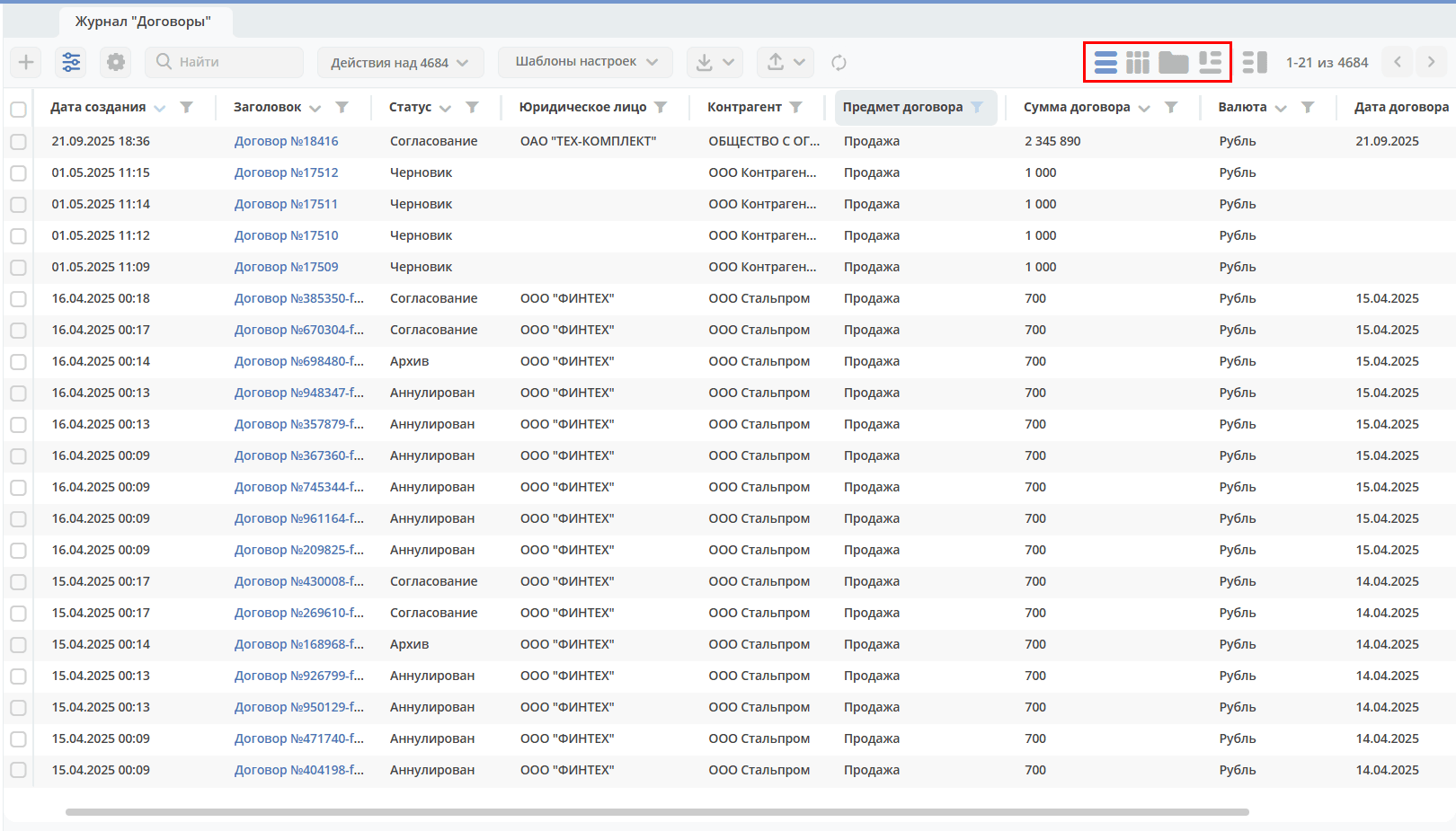
Available view options:


The selection is saved in the URL; on reload, the last selected view is restored.
«Table» View
The list of documents is presented in tabular form:
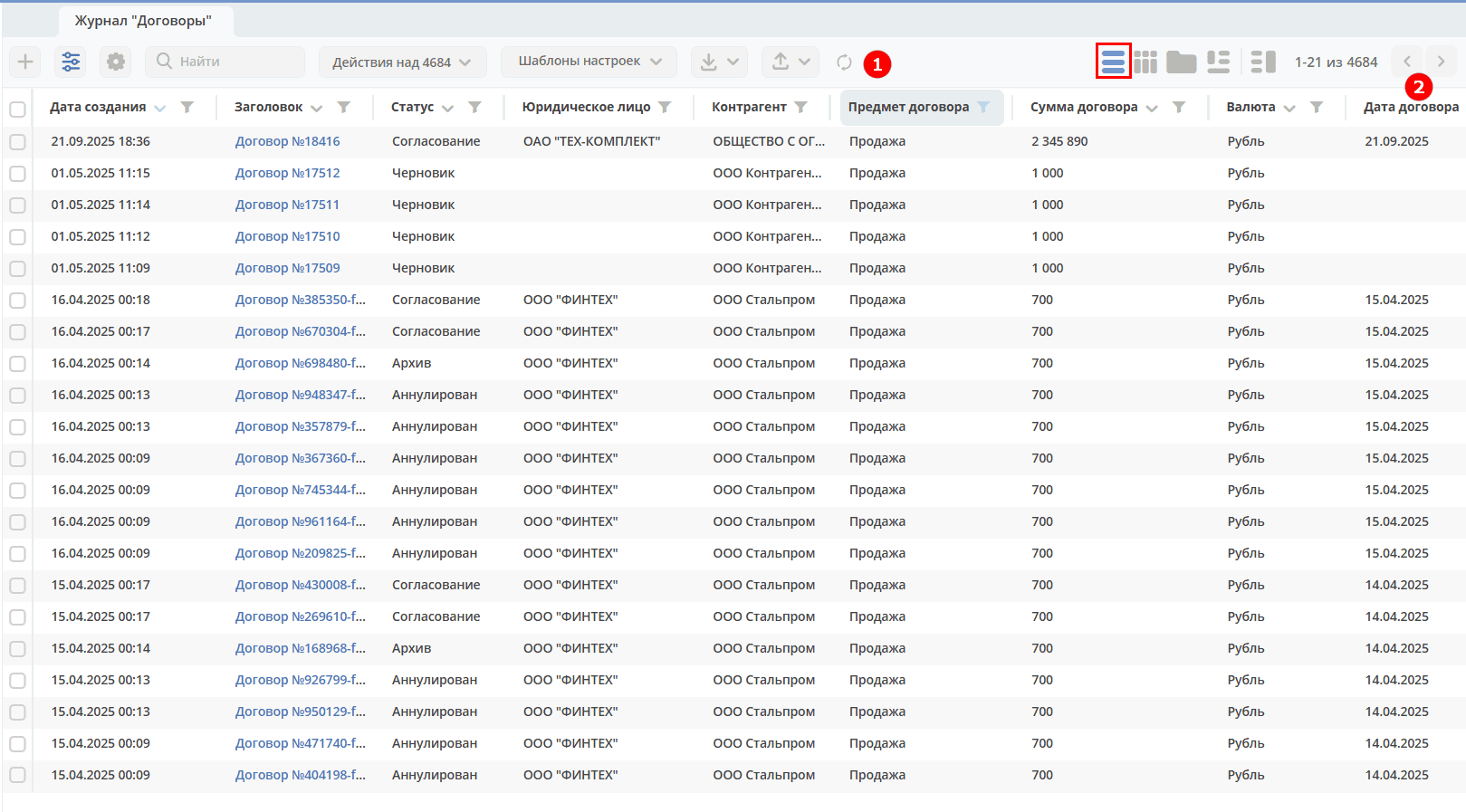
The toolbar (1) is located at the top:

Create a new item.
Open journal settings. Highlighted if a filter and/or sorting is applied to the journal data.
Navigate to edit the journal form. Available only for the administrator.
Quick search through the journal.
Number of selected items and available group actions.
Saved journal settings templates.
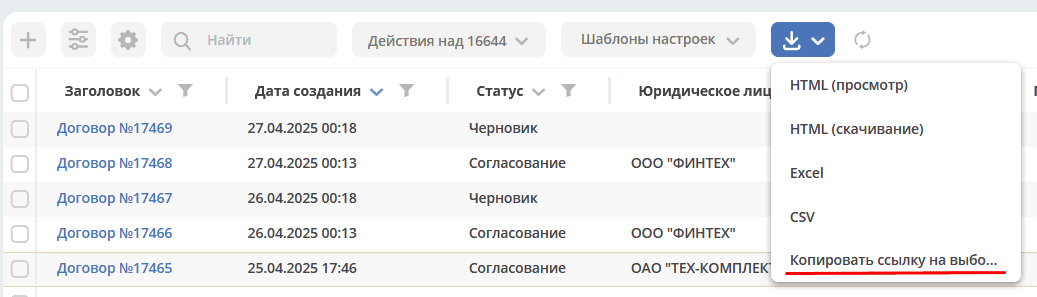
Export journal content to the specified formats: HTML (view), HTML (download), Excel, CSV, Copy link to selection.
Data import from a file (Excel) using a template.
Refresh data in the journal.
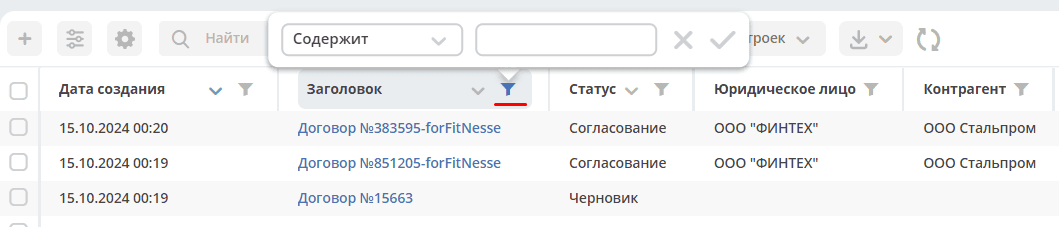
For a column, you can use sorting and/or filtering (see below for details).
When hovering over a journal record, action icons for the document are displayed:

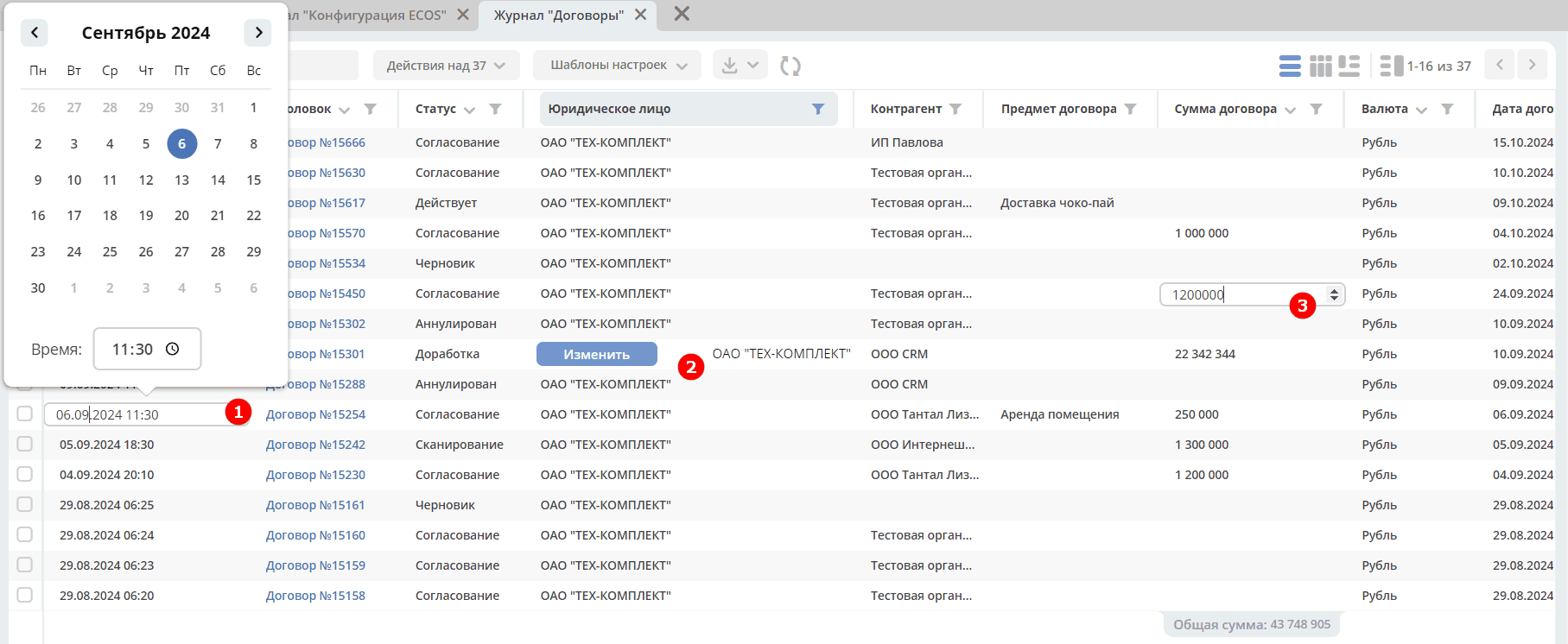
In-line editing is available in the row. The editing option depends on the data type:
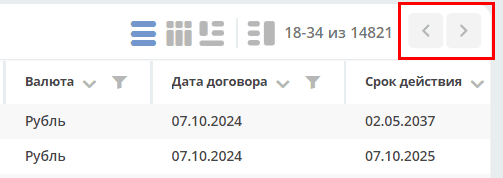
Pagination is available in the right corner of the journal:
When selecting «Copy link to selection», you can copy and send a link to the filtered list:
Journal Settings
Details about journal settings: filtering, grouping, and data aggregation.
Templates
Details about templates: saving, editing.
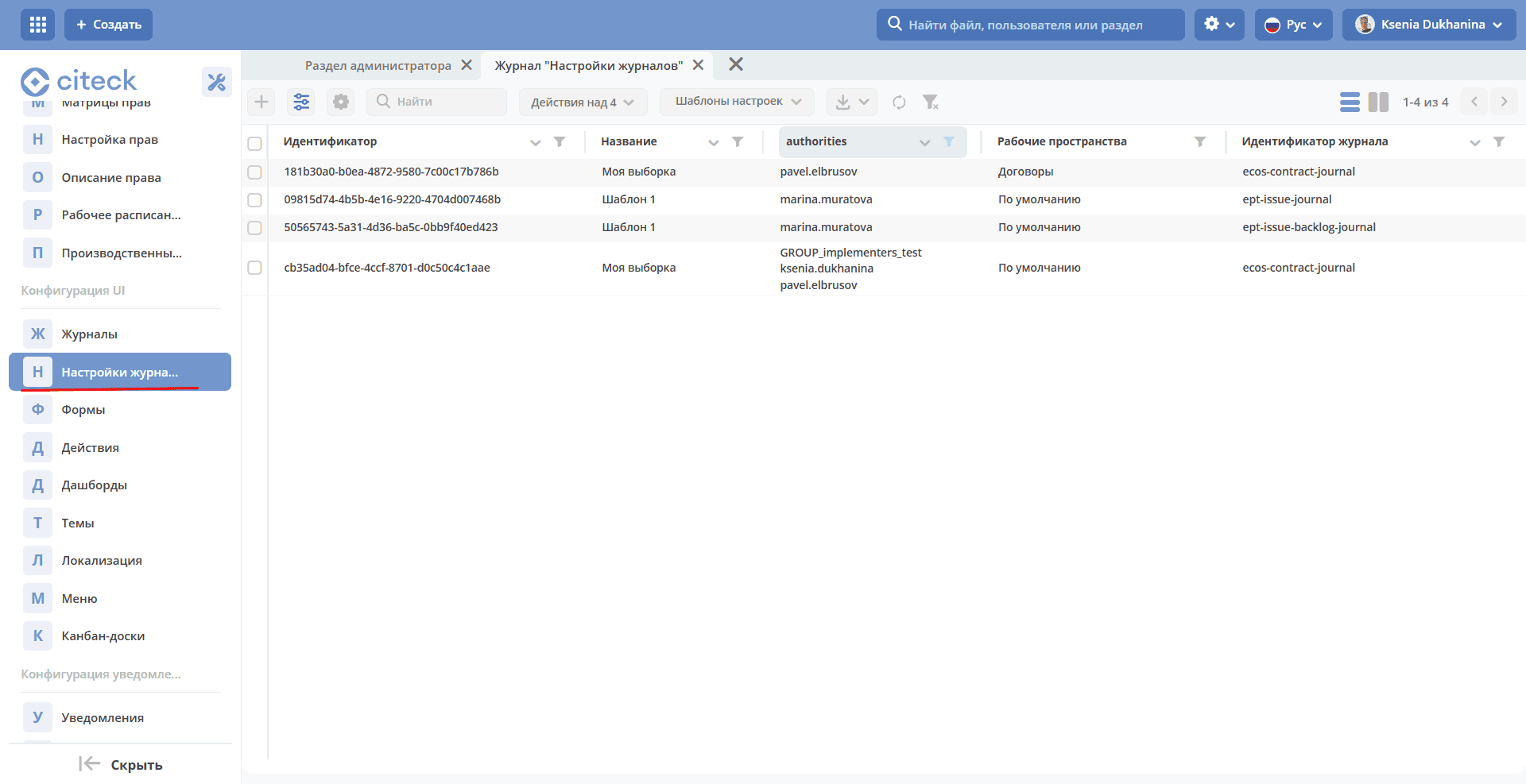
Templates created by users are saved in the «Journal Settings» journal (Administrator Section workspace — UI Configuration):
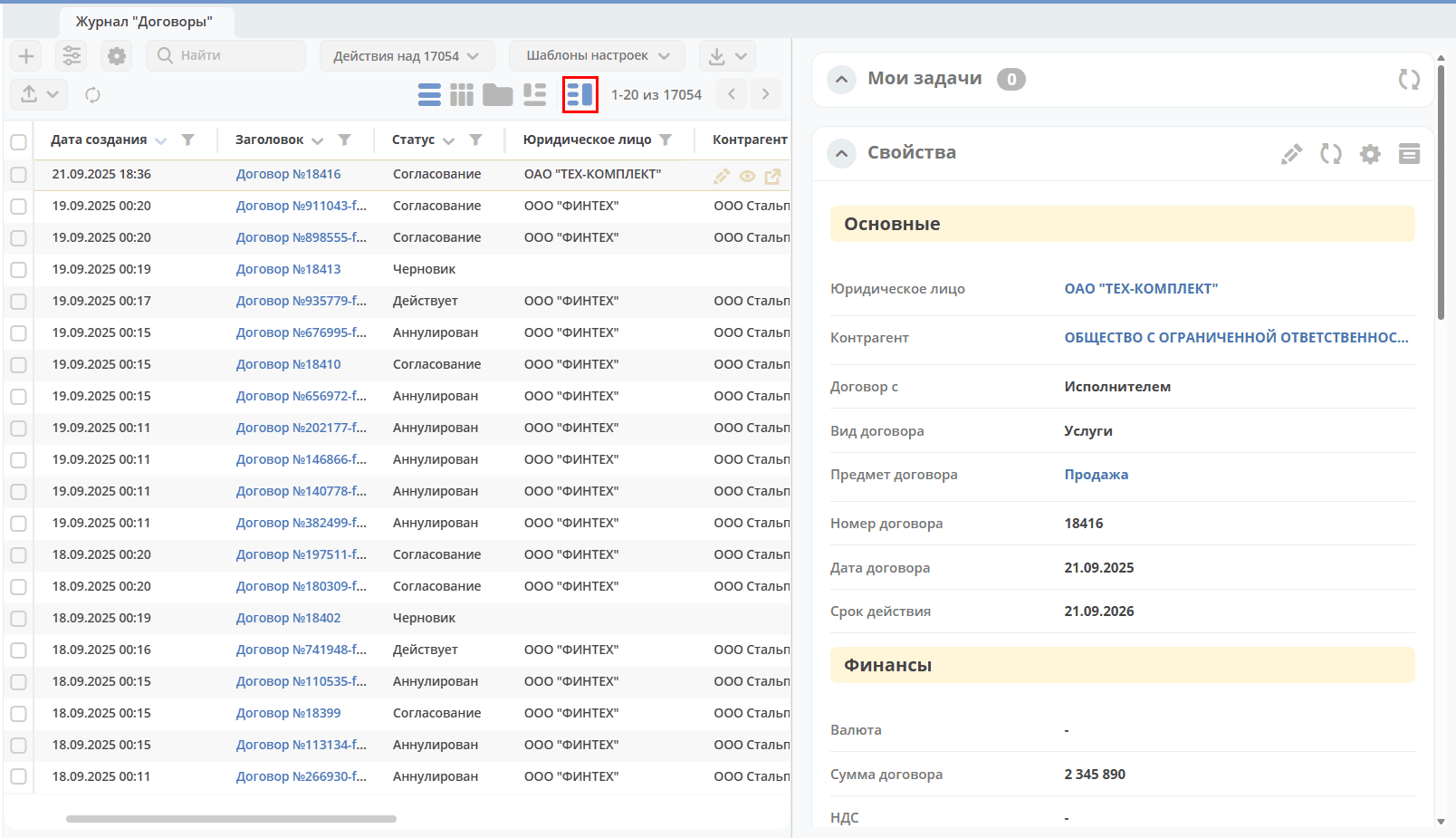
Card Data Preview
The left part shows a list of documents in tabular form; clicking on a journal record opens a preview window in the right part, consisting of widgets:
«List» View
The left part may contain an image, with the publication title and detailed description to the right.
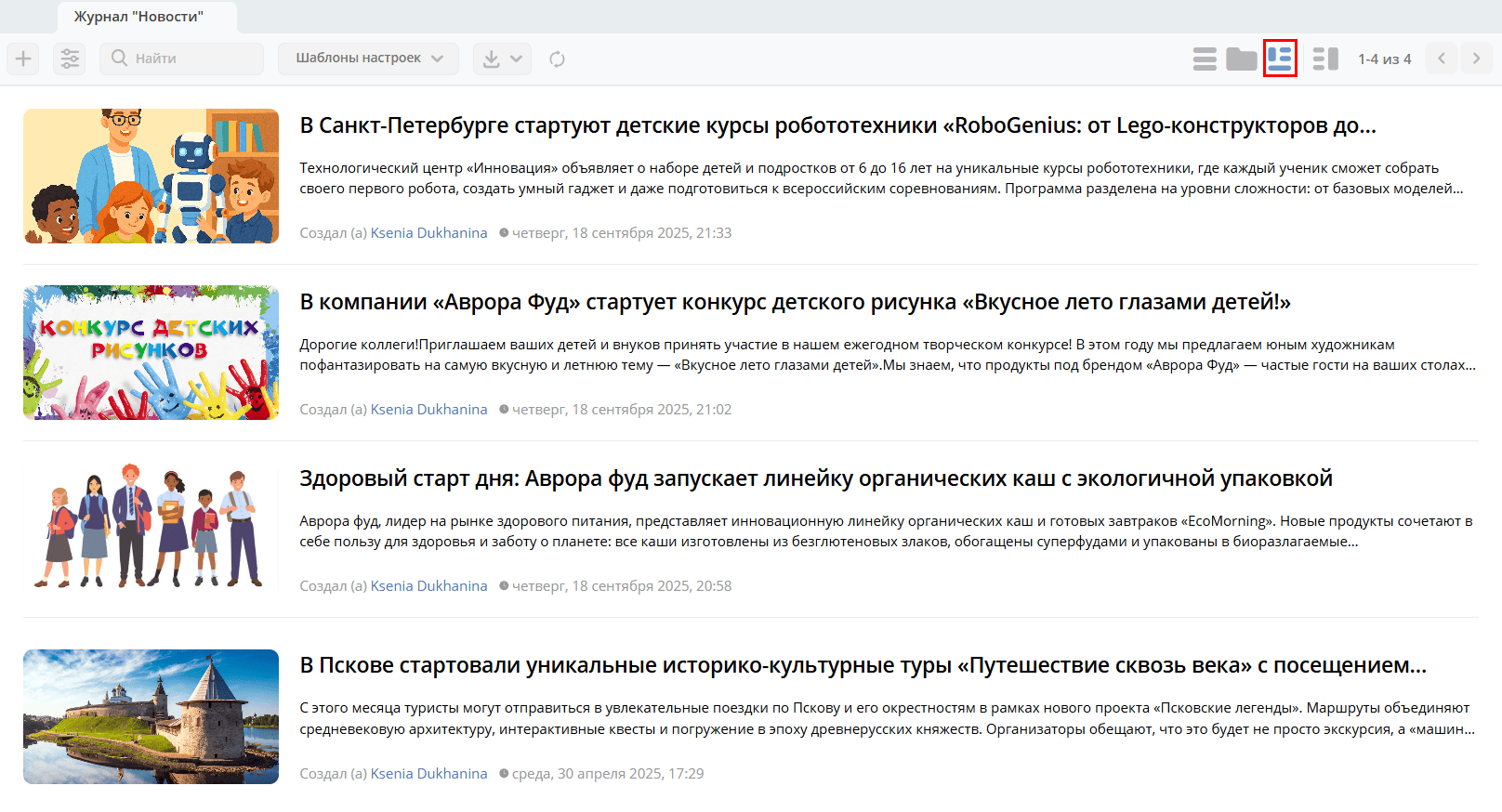
Clicking on the image or title opens the card. See details on publications.
«Hierarchy» View
In «Hierarchy» mode, data is organized as a tree with the ability to nest items within each other.
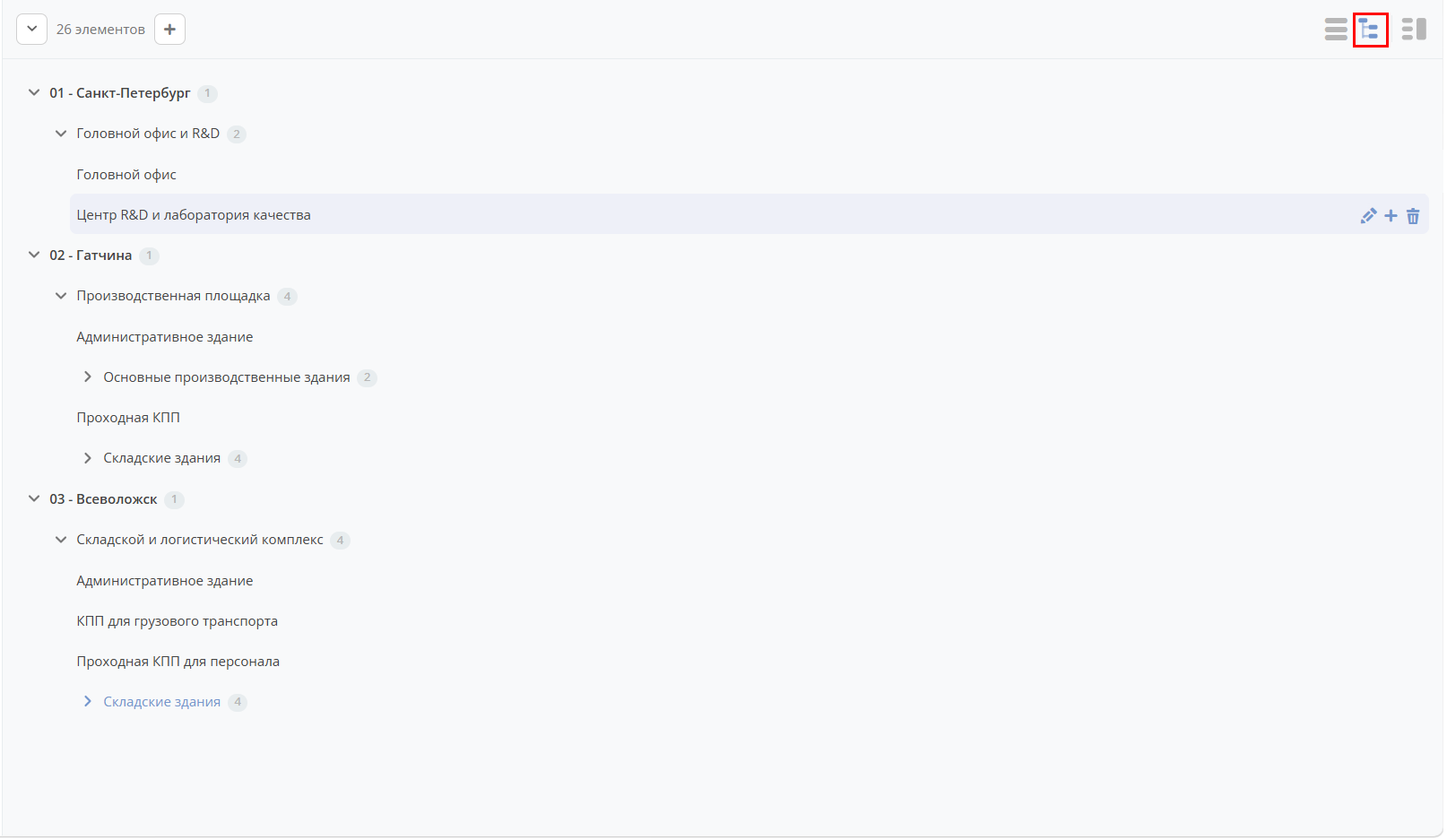
See details on hierarchy.
To add the «Hierarchy» view to a data type and form, see example.