Process Information
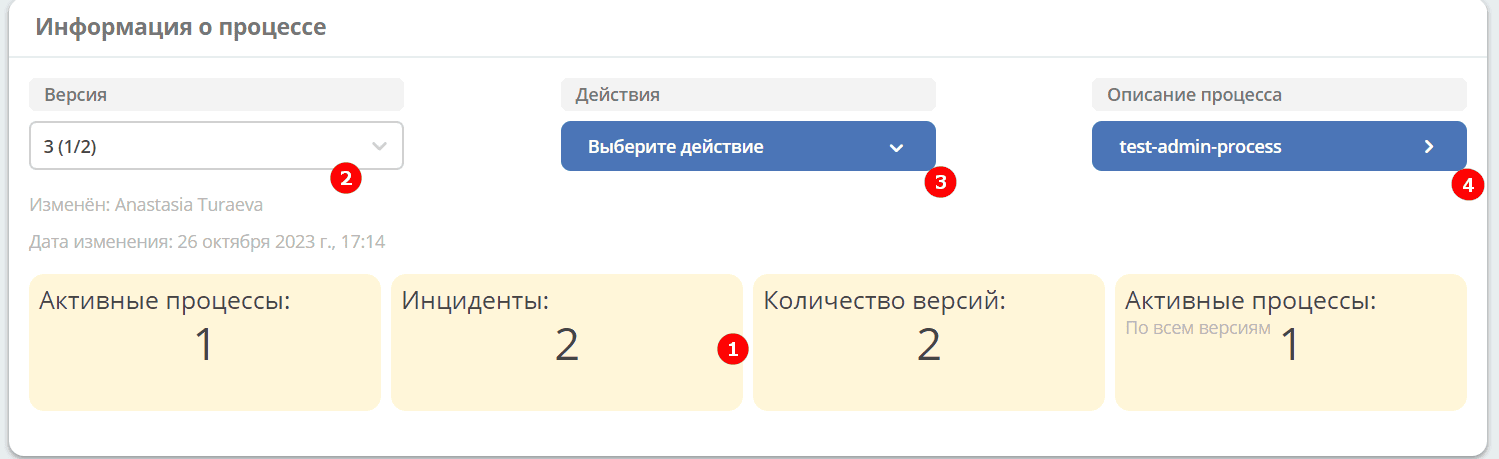
General information about the process is presented (1):
number of running processes for the current version;
number of incidents for the current version;
total number of published versions;
number of running processes across all versions.
Selection of the process version (2) from the published ones is available:
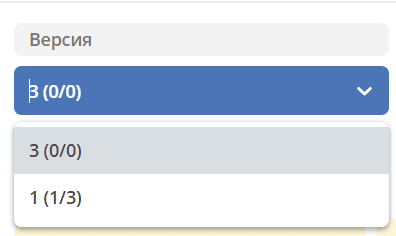
The number of active process instances/incidents is indicated in parentheses. Detailed information will open for the selected process version.
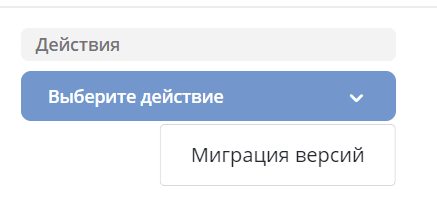
Process Actions (3):
Navigation to the process card with detailed information is available (4):
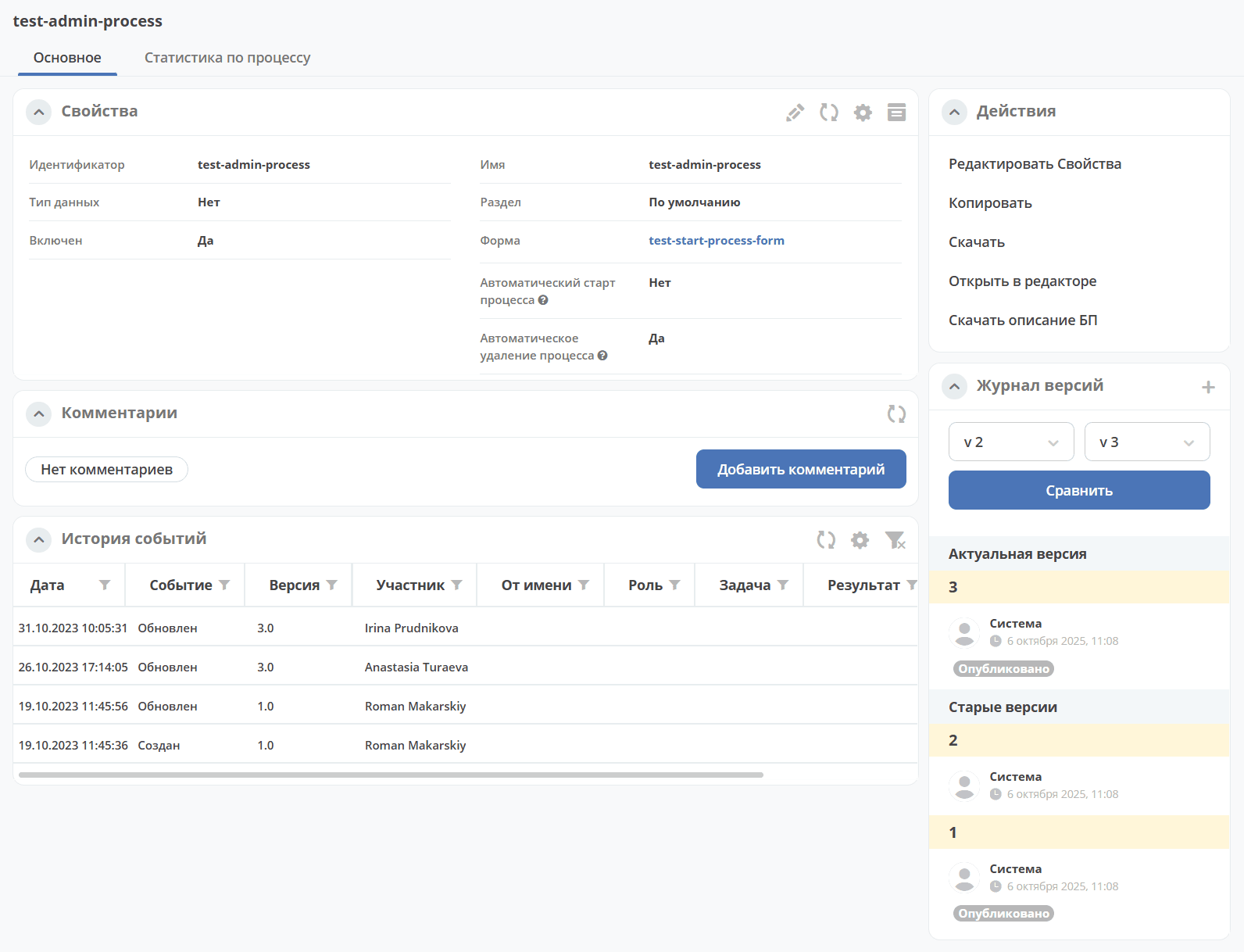
Actions
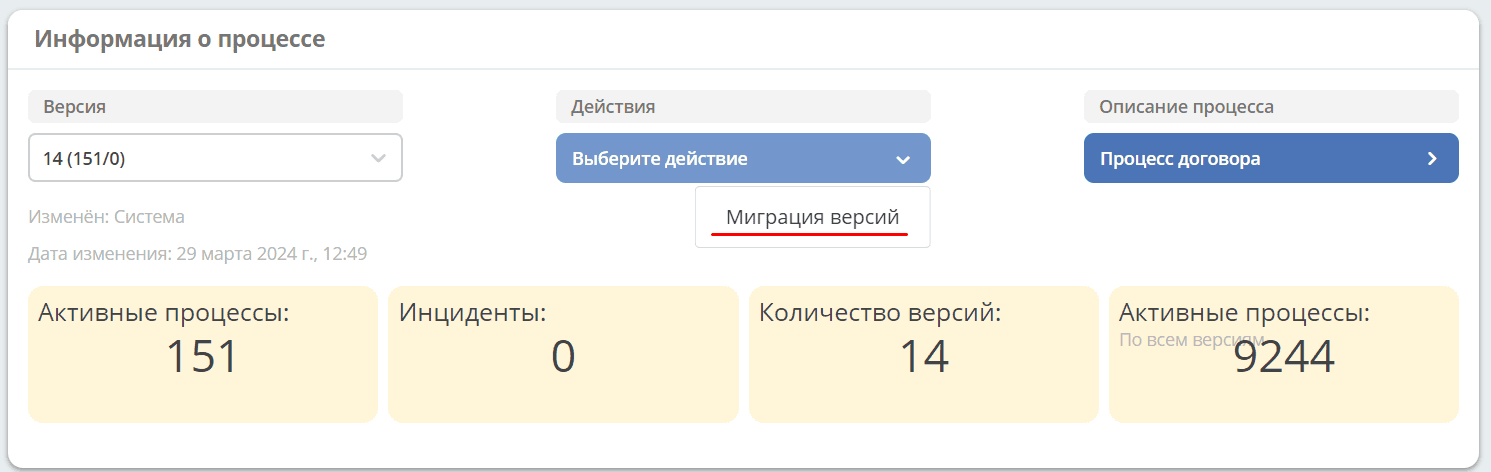
Version Migration
You can migrate running process instances from the current version to another version using the Version Migration action.
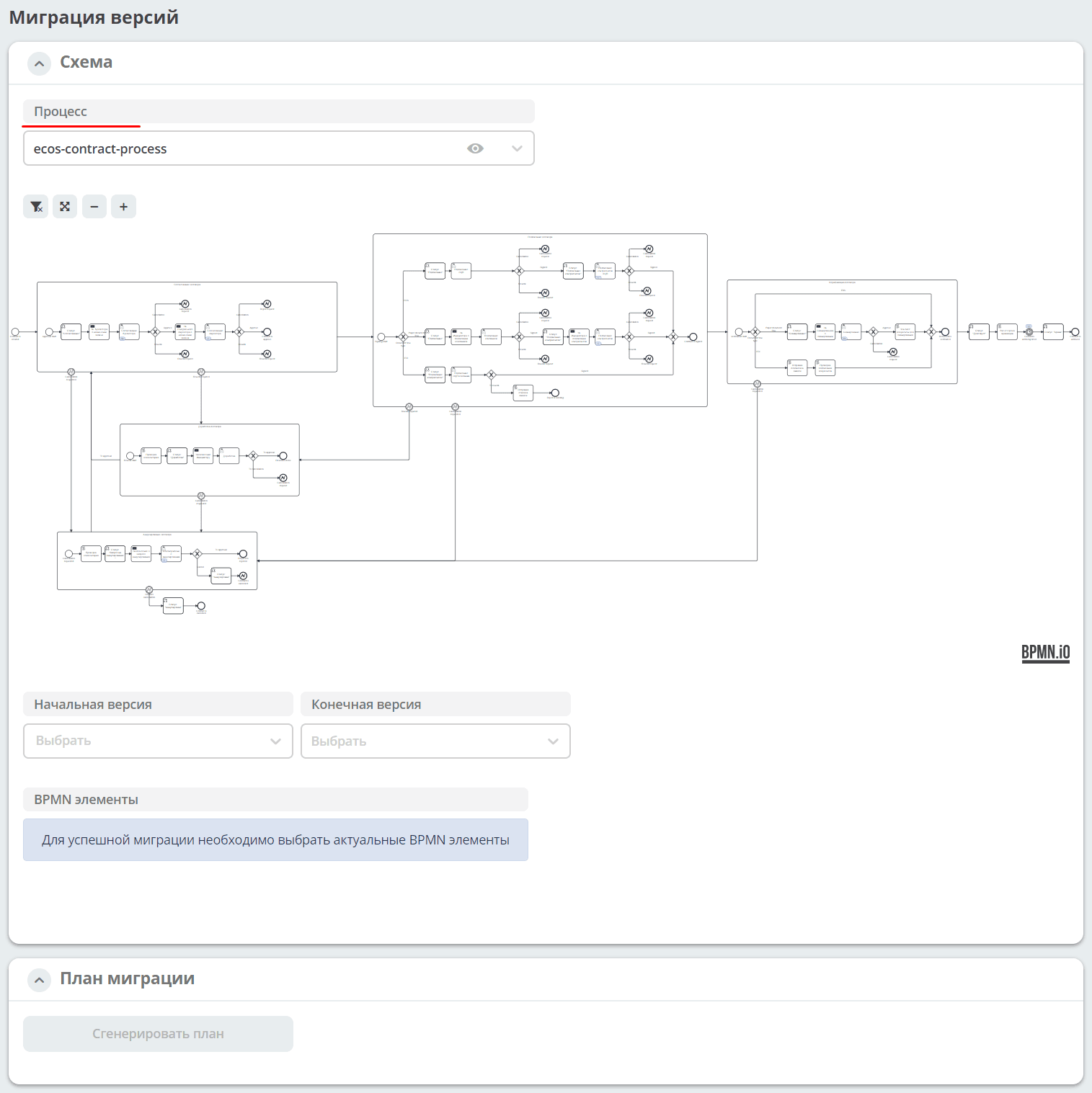
Clicking the action opens a separate process migration screen. The process from which the action was selected is indicated.
Upon clicking:

|
the process card with detailed information opens. |
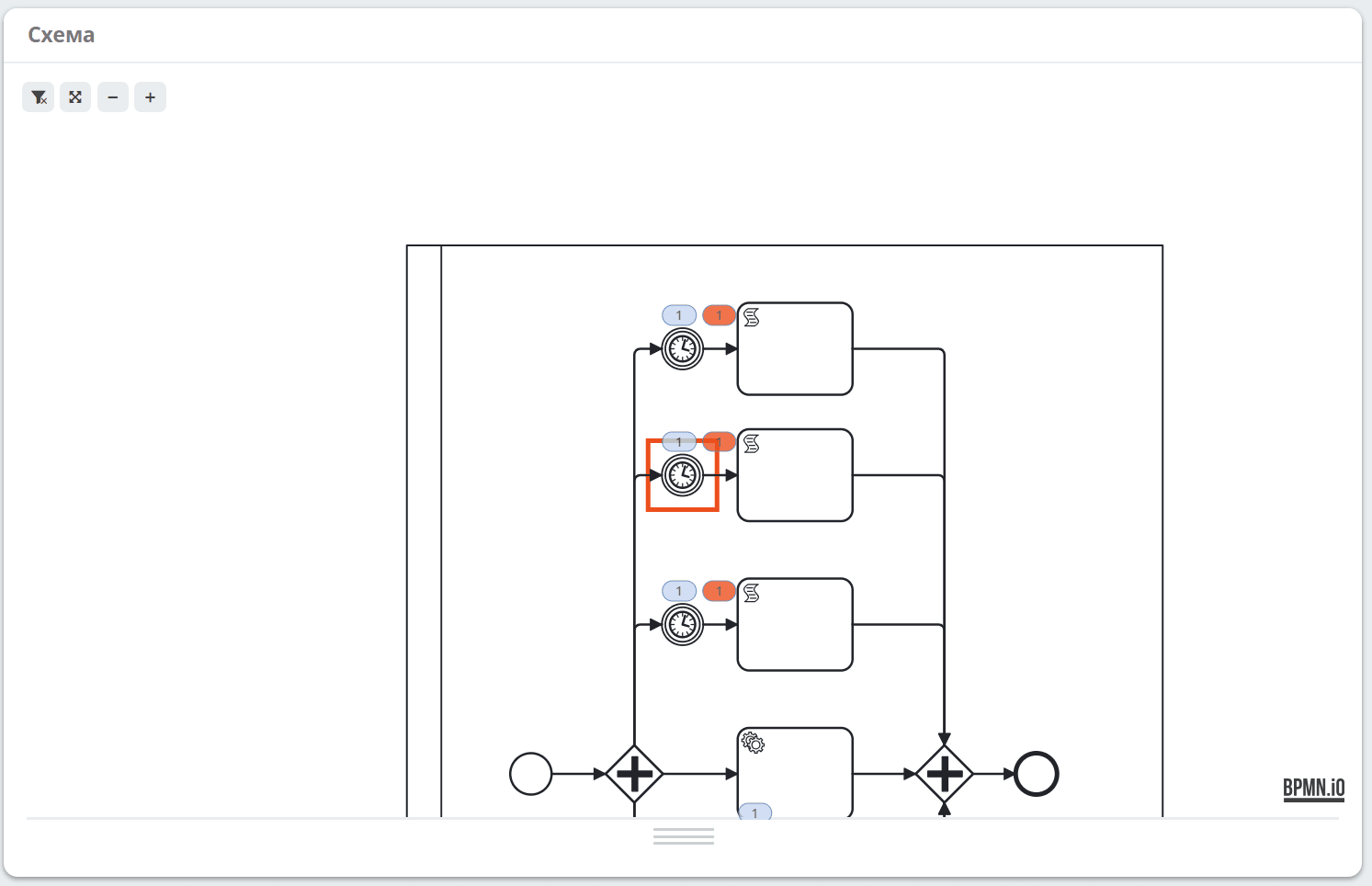
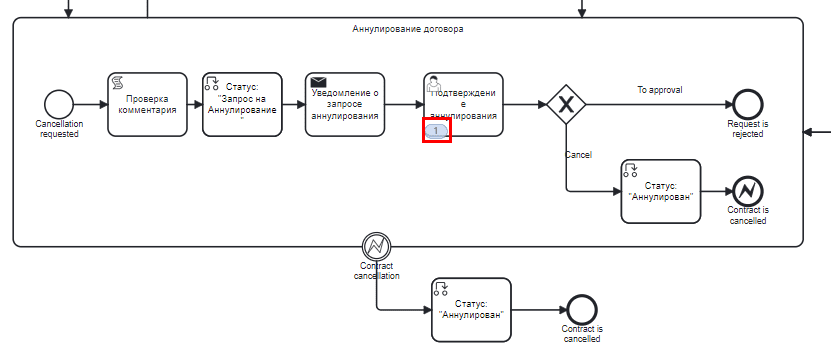
The diagram of the source process version shows counters for running process instances and incidents:
Select the initial (source) process version from the list and the final (target) process version. Select process elements by clicking on them in the diagram.
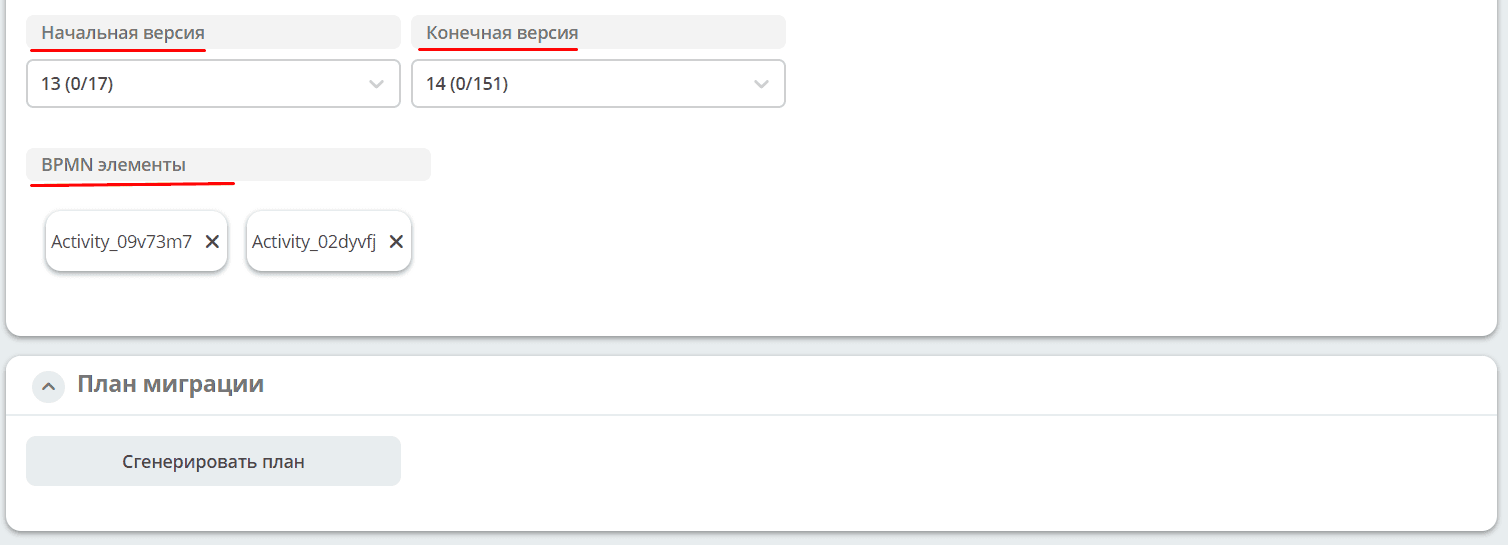
Click ‘Generate Plan’. The plan will be generated in the JSON editor; only the processInstanceQuery section is available for editing:
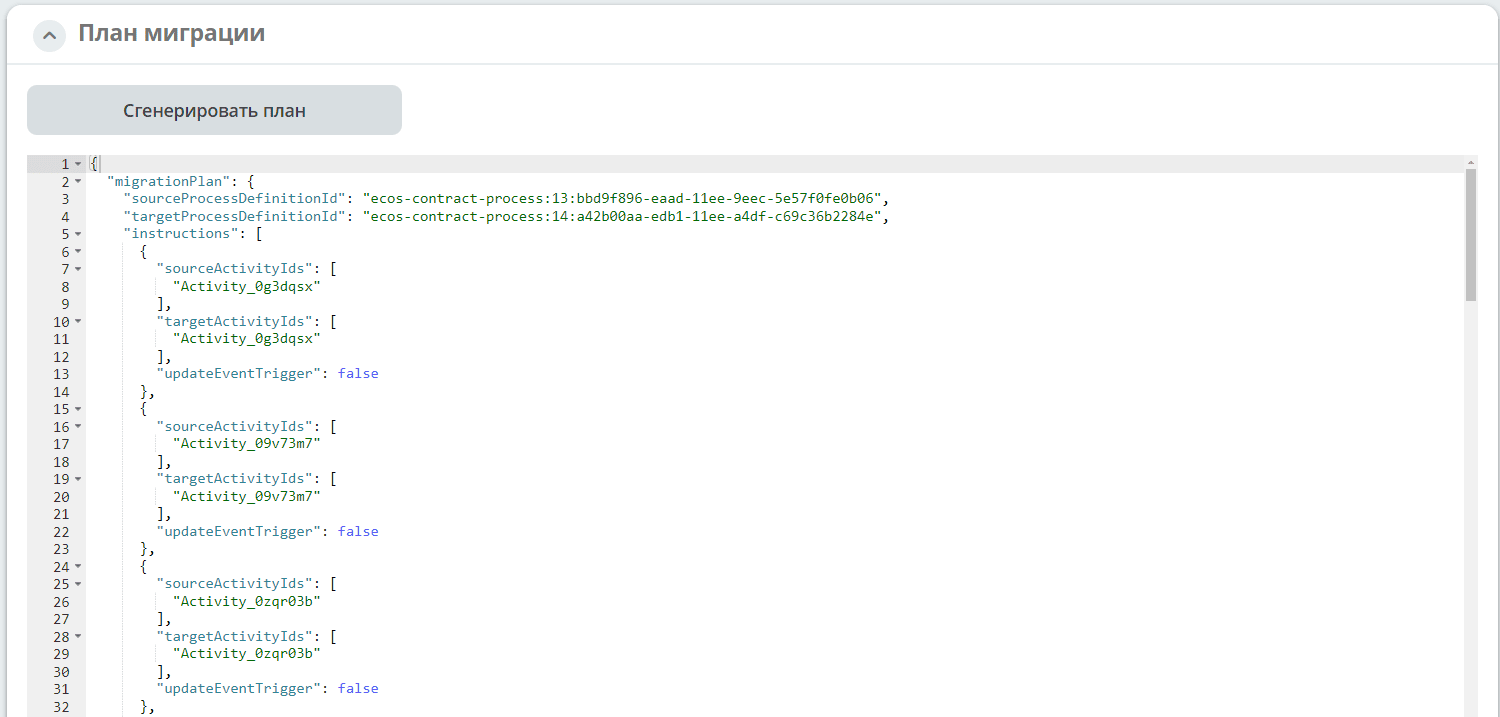
…
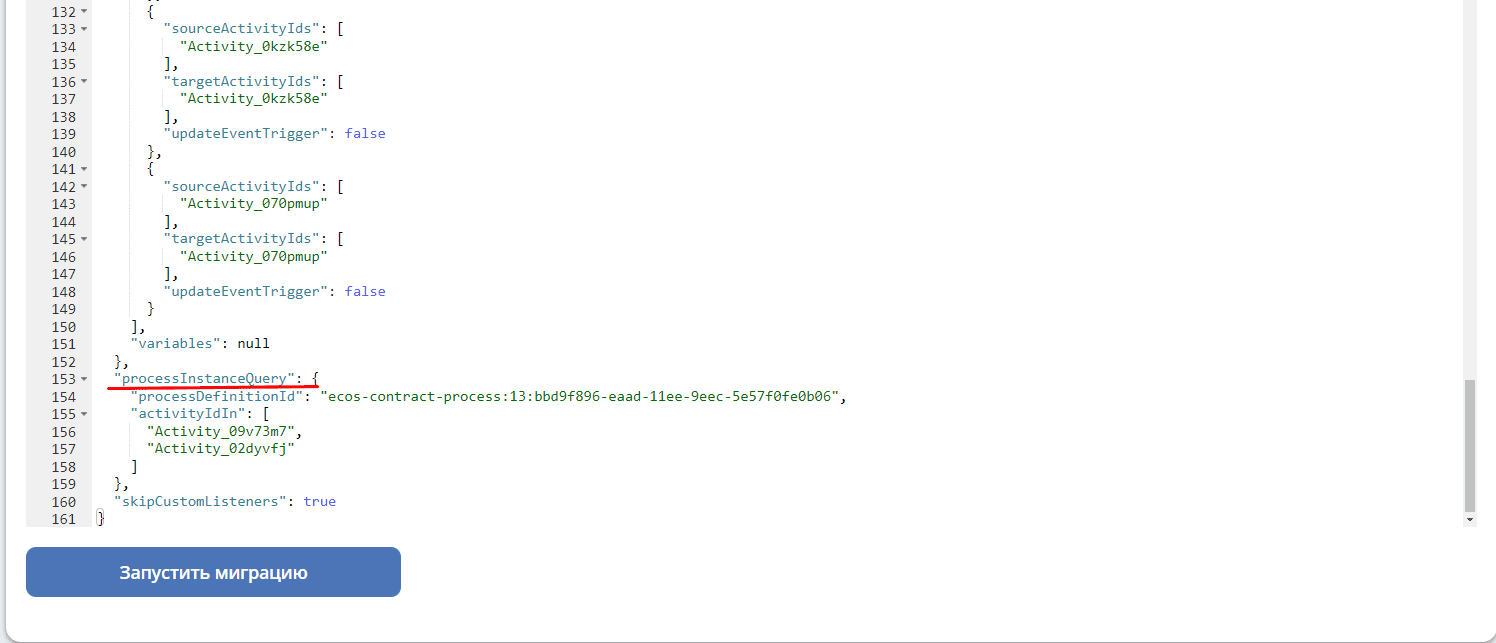
Click ‘Start Migration’. Confirm the action:

The migration will run in the background. If the migration fails to start, an error will be shown.
Diagram
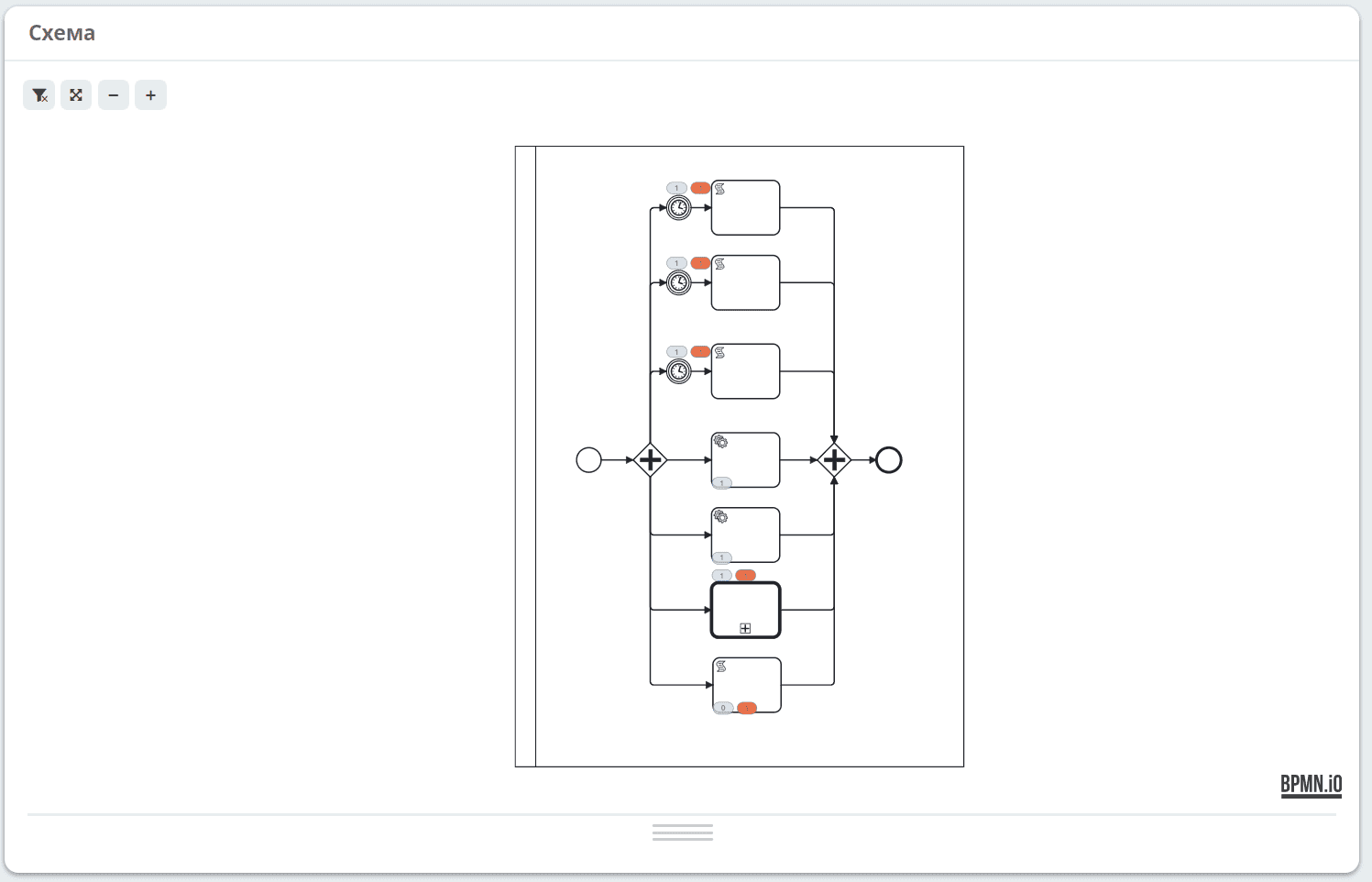
Process diagram showing:

|
number of running process instances. |

|
number of incidents. |
Journal
Process Instances
The first tab shows a list of running process instances for the selected process version:
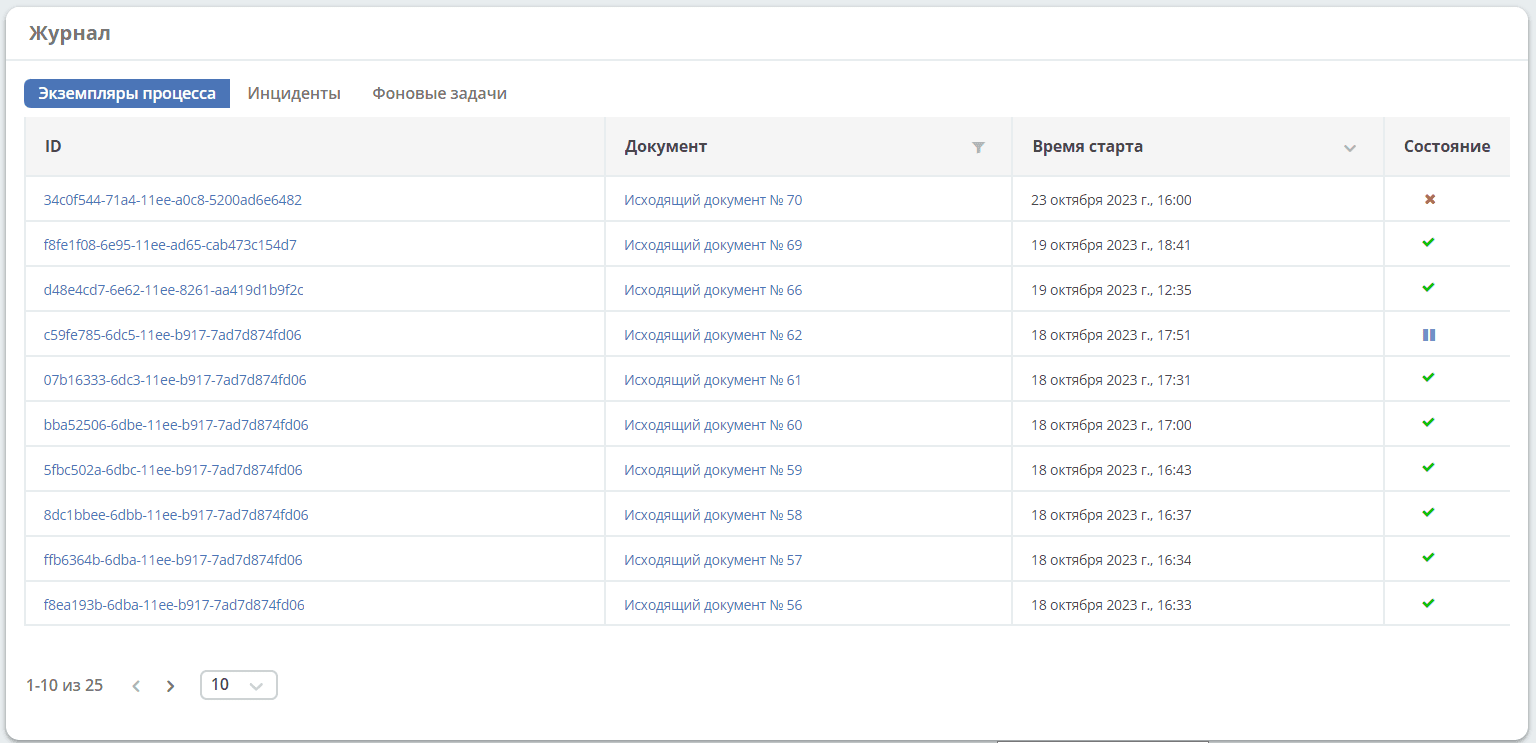
Clicking on the ID opens detailed information about it. See Process Instance for details.
Clicking on Document opens the document card.
Possible process states:

|
Instance is active. |

|
Instance is suspended. |

|
Incidents detected in the instance. |
Incidents
List of incidents in running process instances for the selected process version:
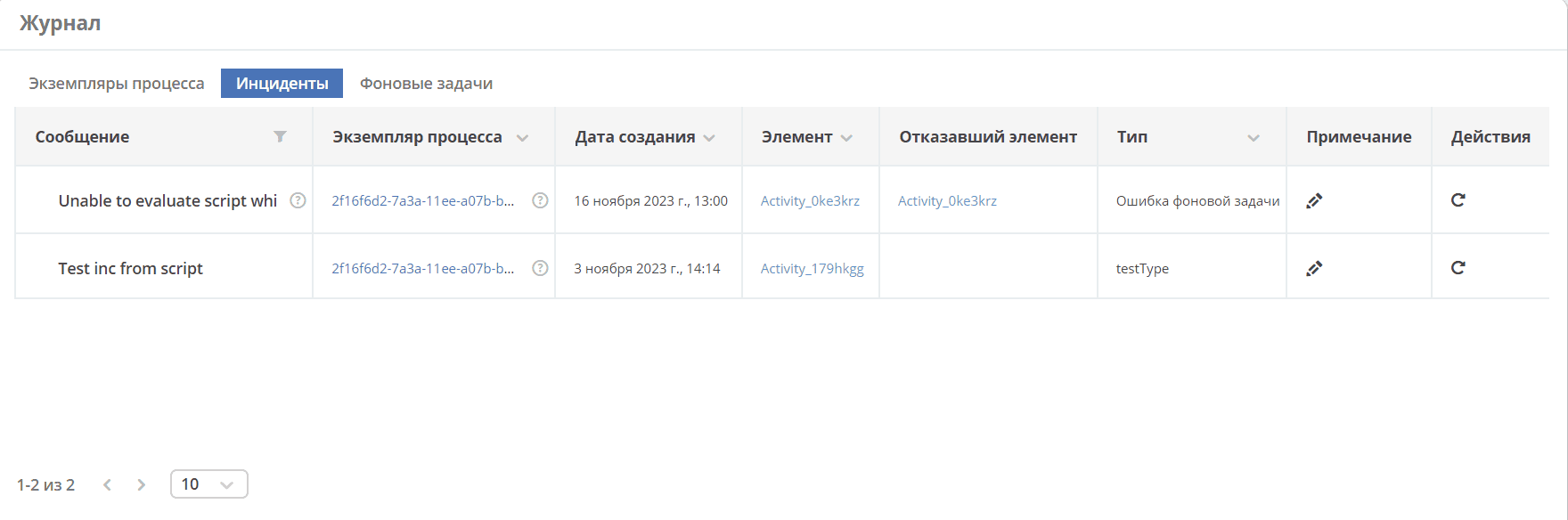
Filtering incidents by message only works for those incidents that occurred in the current scope. That is, if we are in process A, which calls process B via callActivity and an incident occurred inside process B, such a process will be shown in the list, but filtering by its message will not work.
Clicking on Process Instance opens detailed information about it. See Process Instance for details.
Clicking on Element, Failed Element will highlight the element on the diagram:
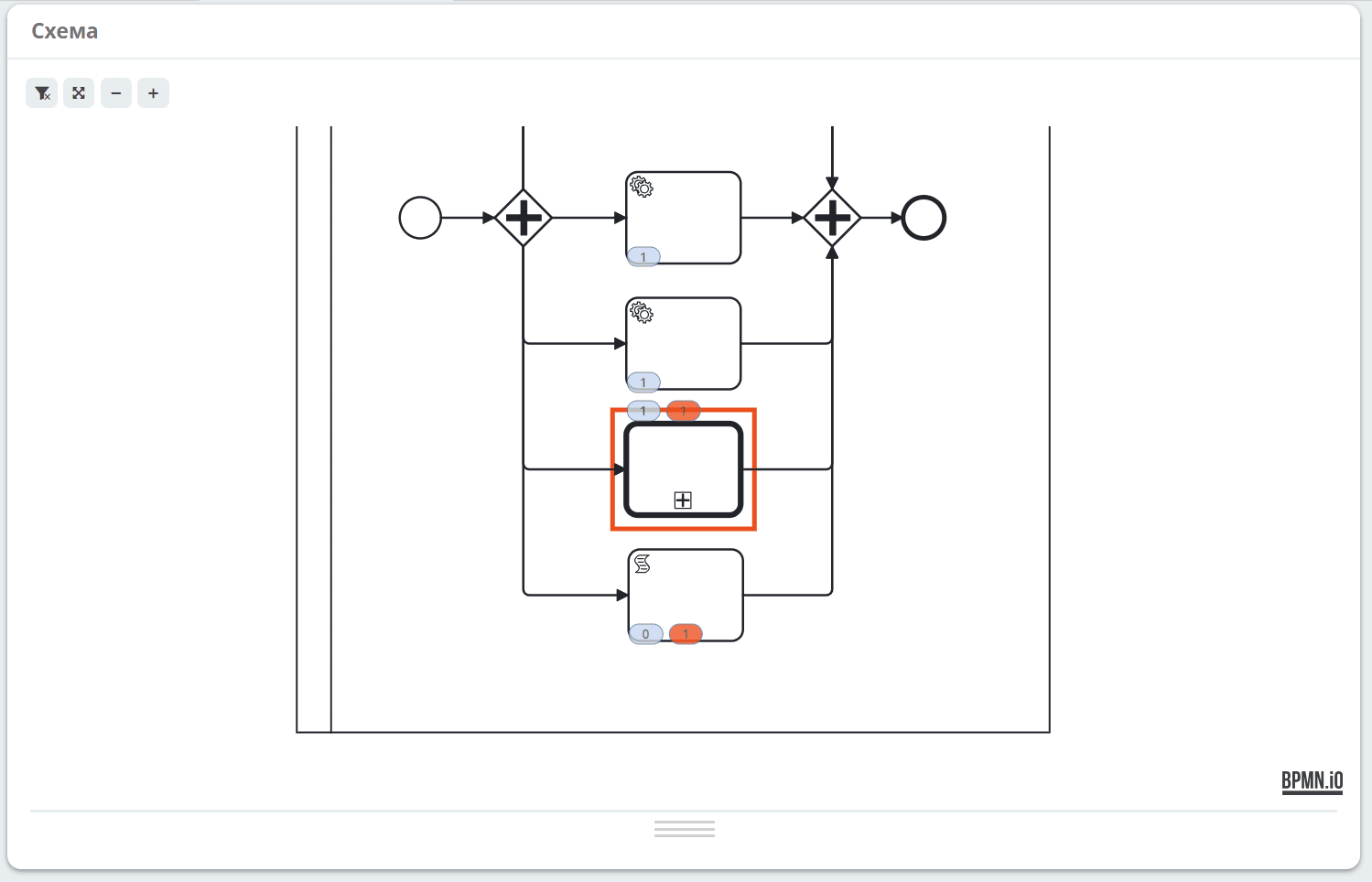

|
Enter a comment for the incident: 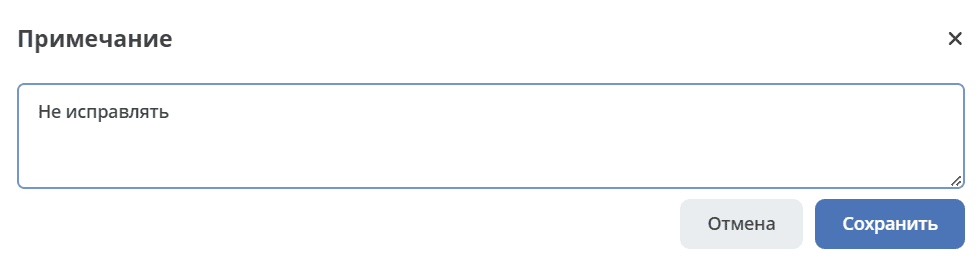
|

|
Change the number of retry attempts for a failed task:
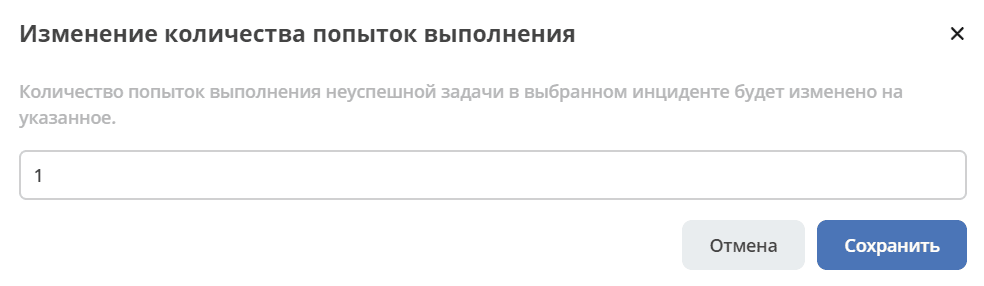
Enter the value and click ‘Save’.
After clicking the ‘Retry’ button, the mechanism will restart the tasks and increase their retry count values in the database so the task performer can receive and execute the tasks again.
|
Background Tasks
List of background tasks in running process instances for the selected process version:
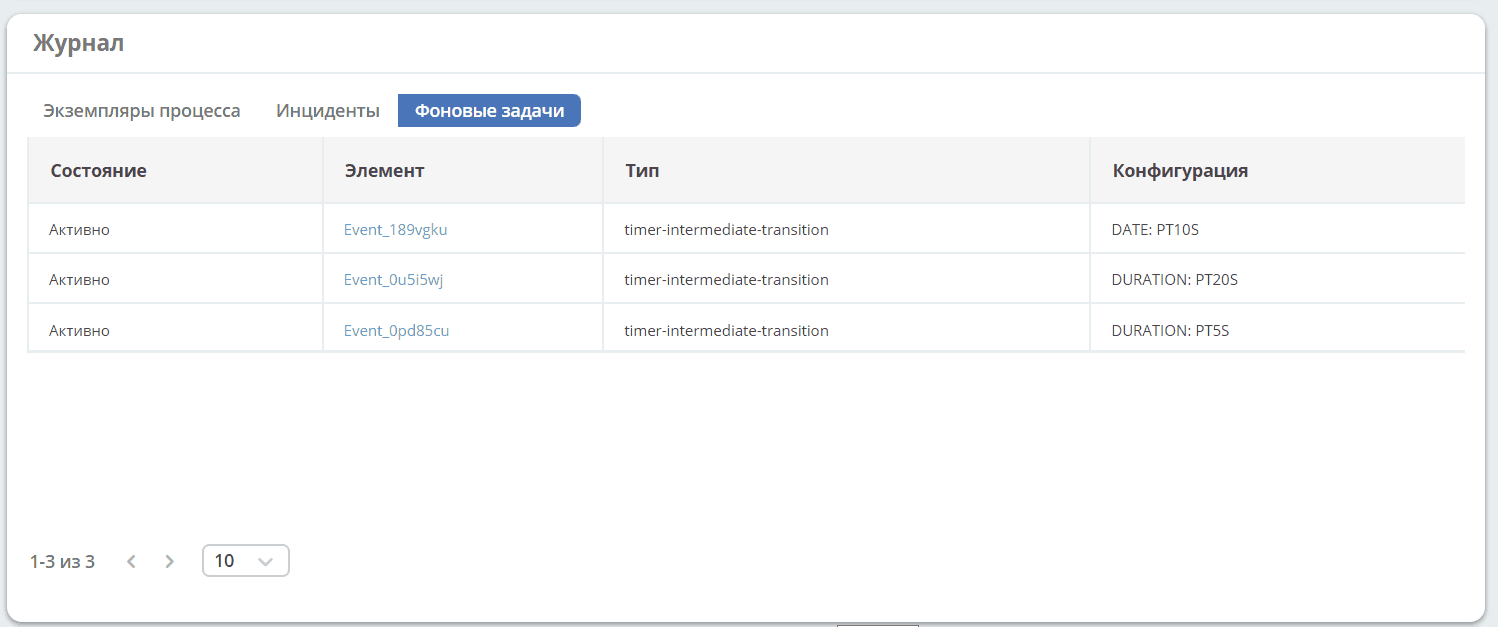
Clicking on Element will highlight the element on the diagram: