Process Instance
The card of the selected process instance is a dashboard with the following widgets.
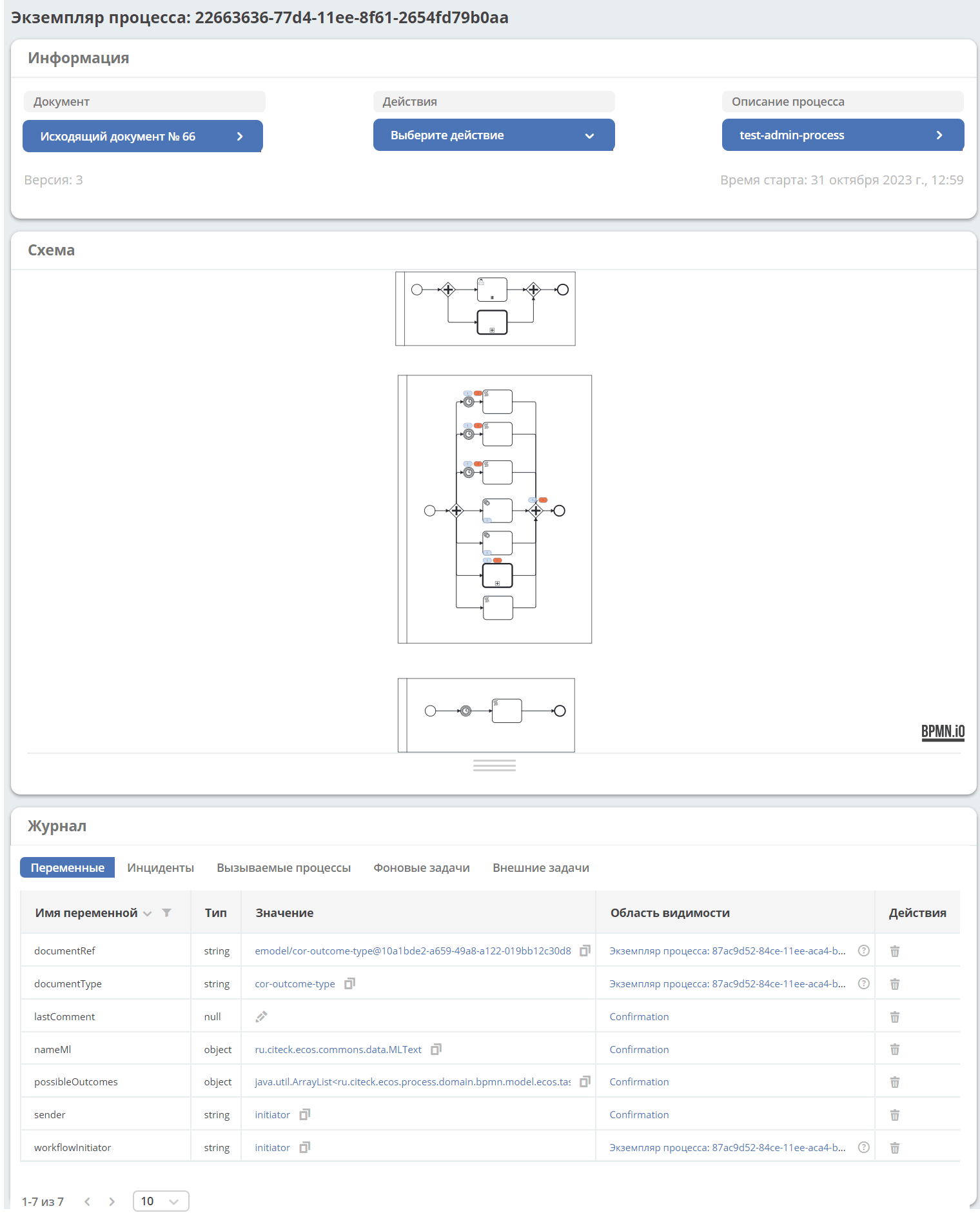
Let’s examine each widget separately.
Information
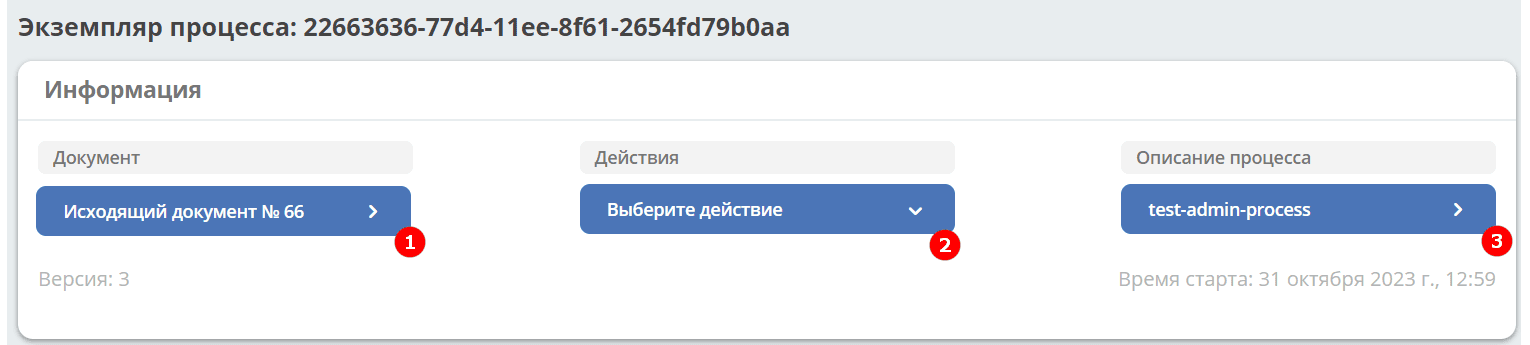
1 — Navigate to the document card.
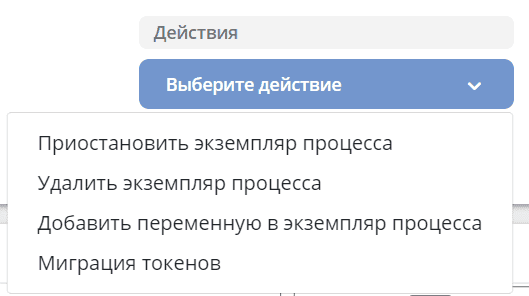
2 — Actions with the process instance:
3 — Navigate to the process card.
Actions Description
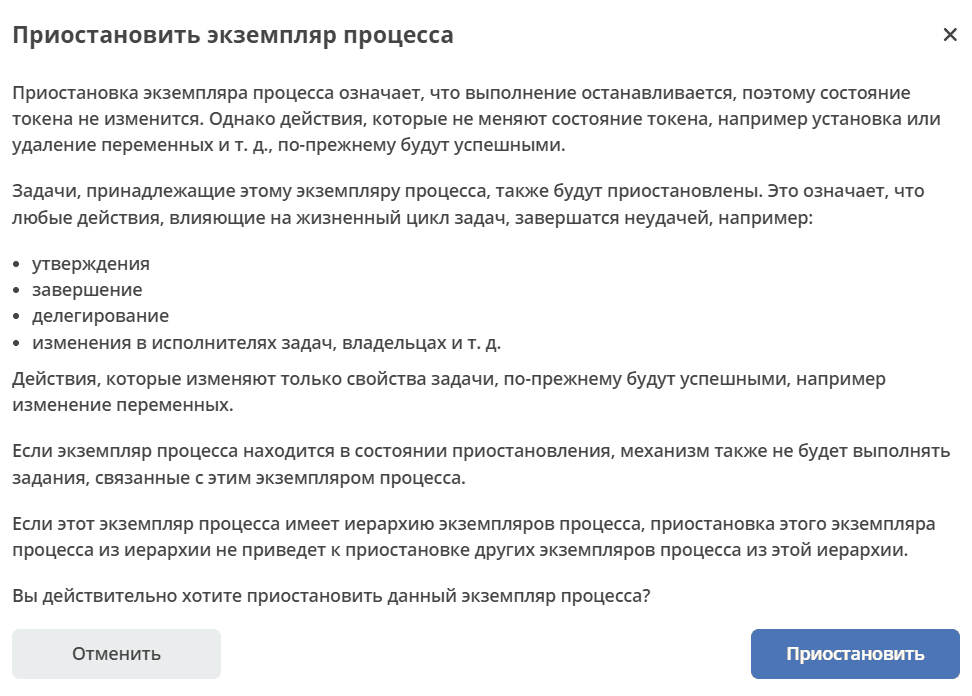
Suspend Process Instance
Suspends the process instance. Read the description carefully and confirm:
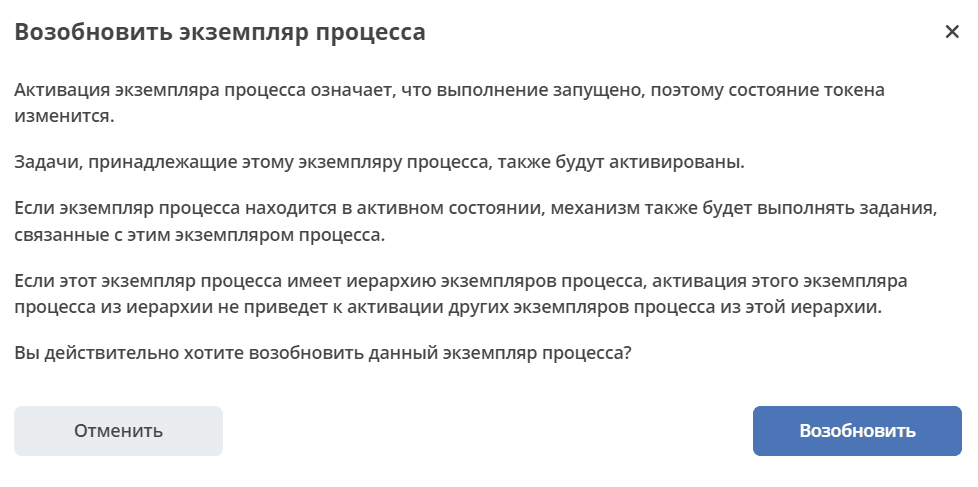
Resume Process Instance
Resumes a suspended process instance. Read the description carefully and confirm:
Delete Process Instance
Deletes the process instance. After successful deletion, the user is informed and redirected to the Process Information page.
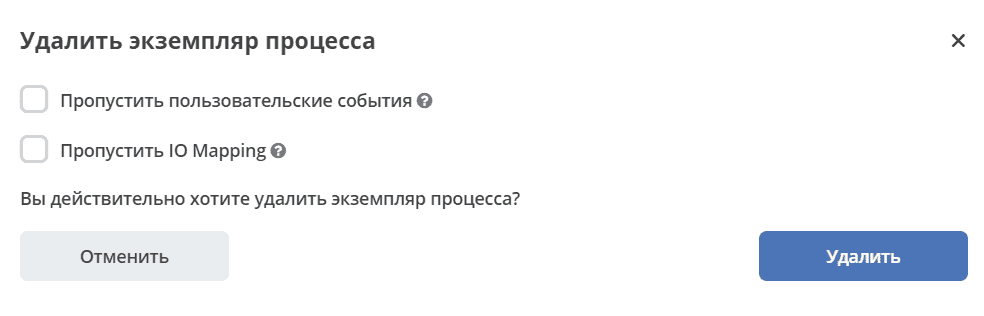
Skip Custom Events — Only built-in event listeners will be notified.
Skip IO Mapping — IO Mapping will be skipped during deletion.
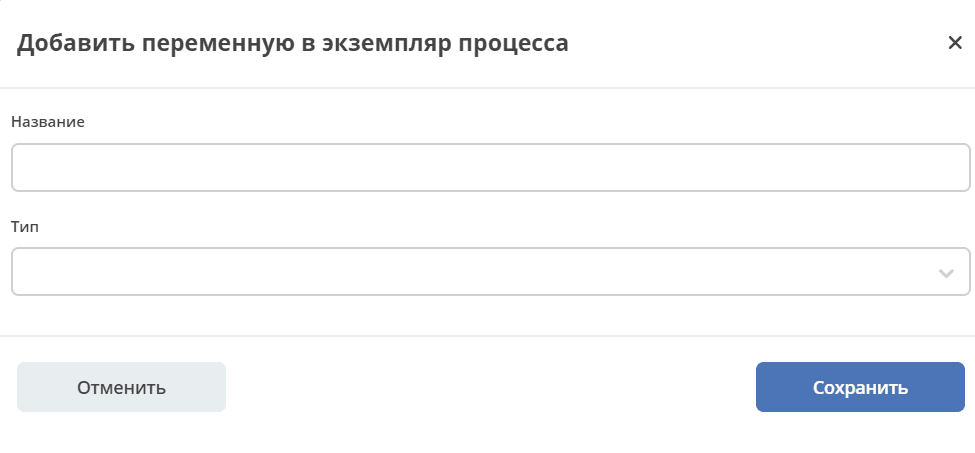
Add Variable to Process Instance
In the form, enter the variable name and select a type from the available options.
Token Migration
Clicking the action opens the diagram of the current process instance, highlighting active elements — instance counters, incidents:
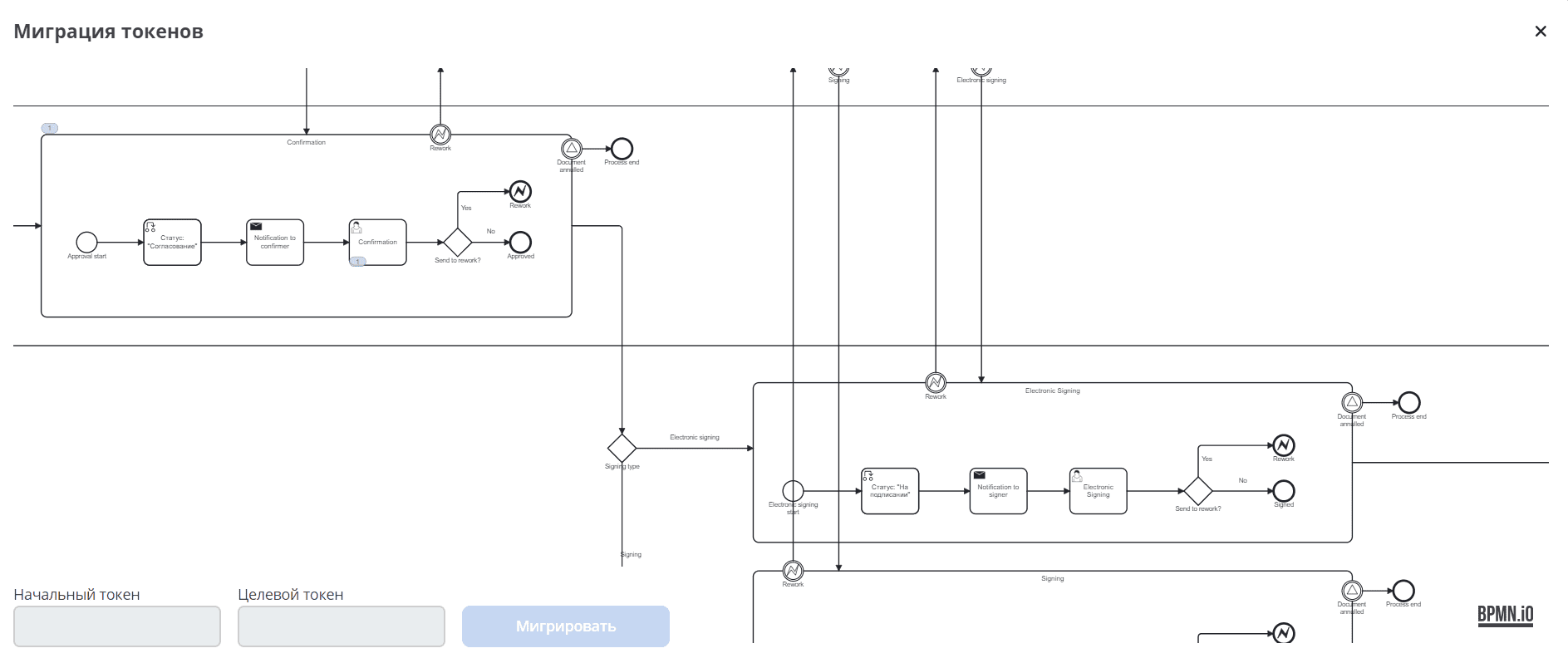
Use ctrl + mouse scroll to zoom the diagram.
Click on an element in the process diagram to select the Initial Token (active task/stage - it will be removed/canceled) and the Target Token (task/stage that will be started).
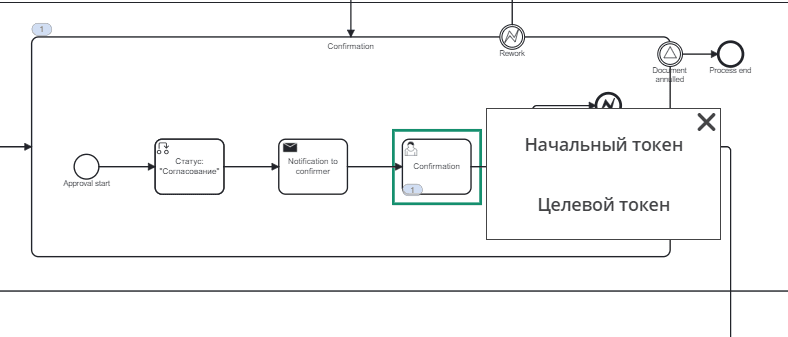
On the diagram, the initial token will be marked with a green border, the target token with a red one. The selected tokens are also reflected at the bottom:
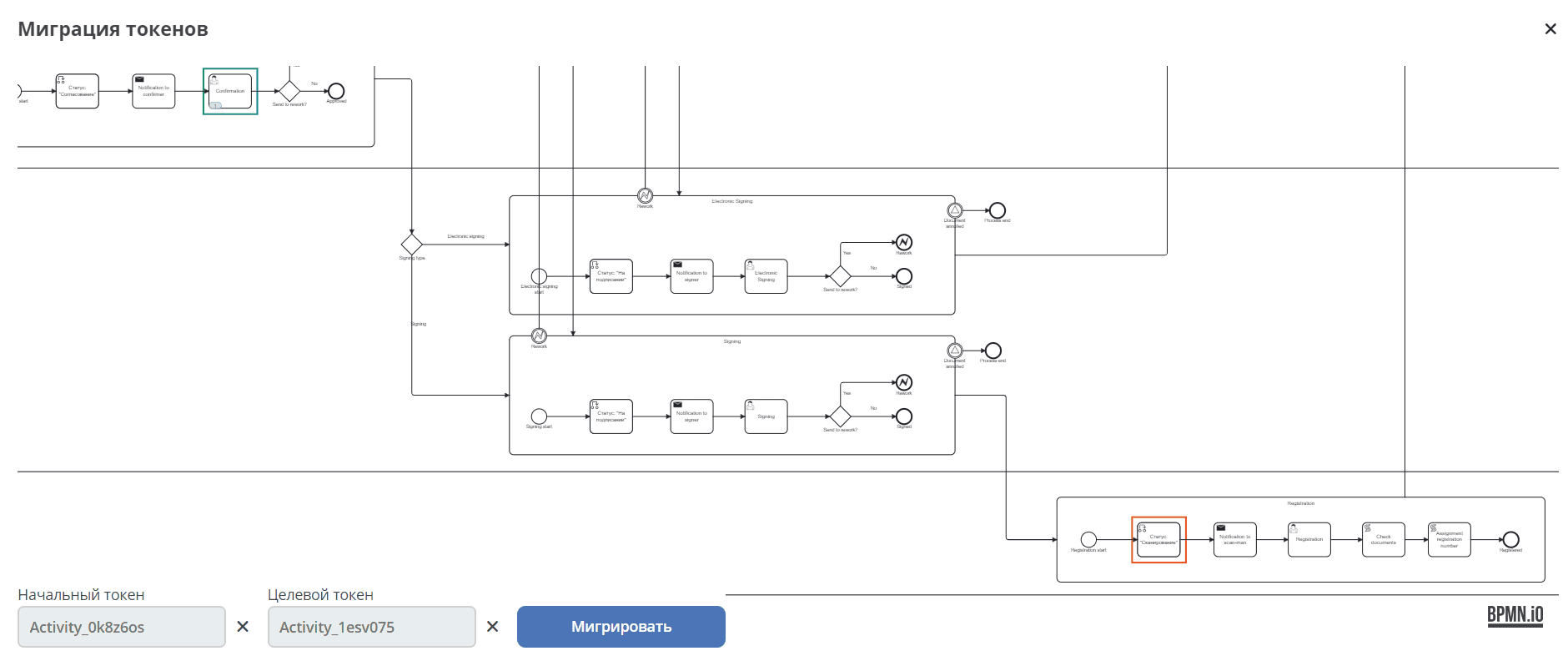
Click ‘Migrate’. Confirm the action:
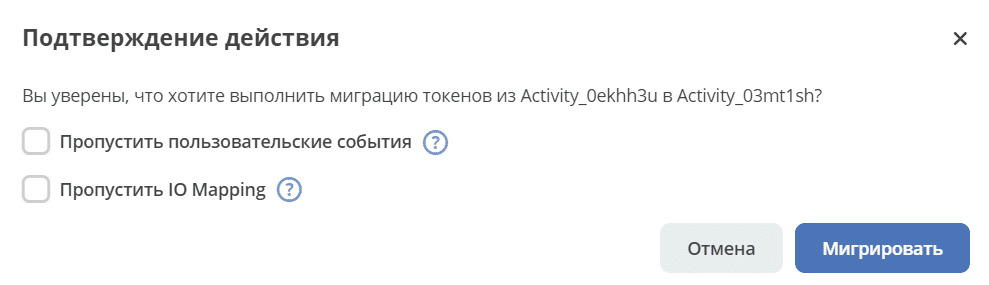
Skip Custom Events — Only built-in event listeners will be notified.
Skip IO Mapping — IO Mapping will be skipped during deletion.
The migration will run in the background. If the migration cannot be started, an error will be shown.
Diagram
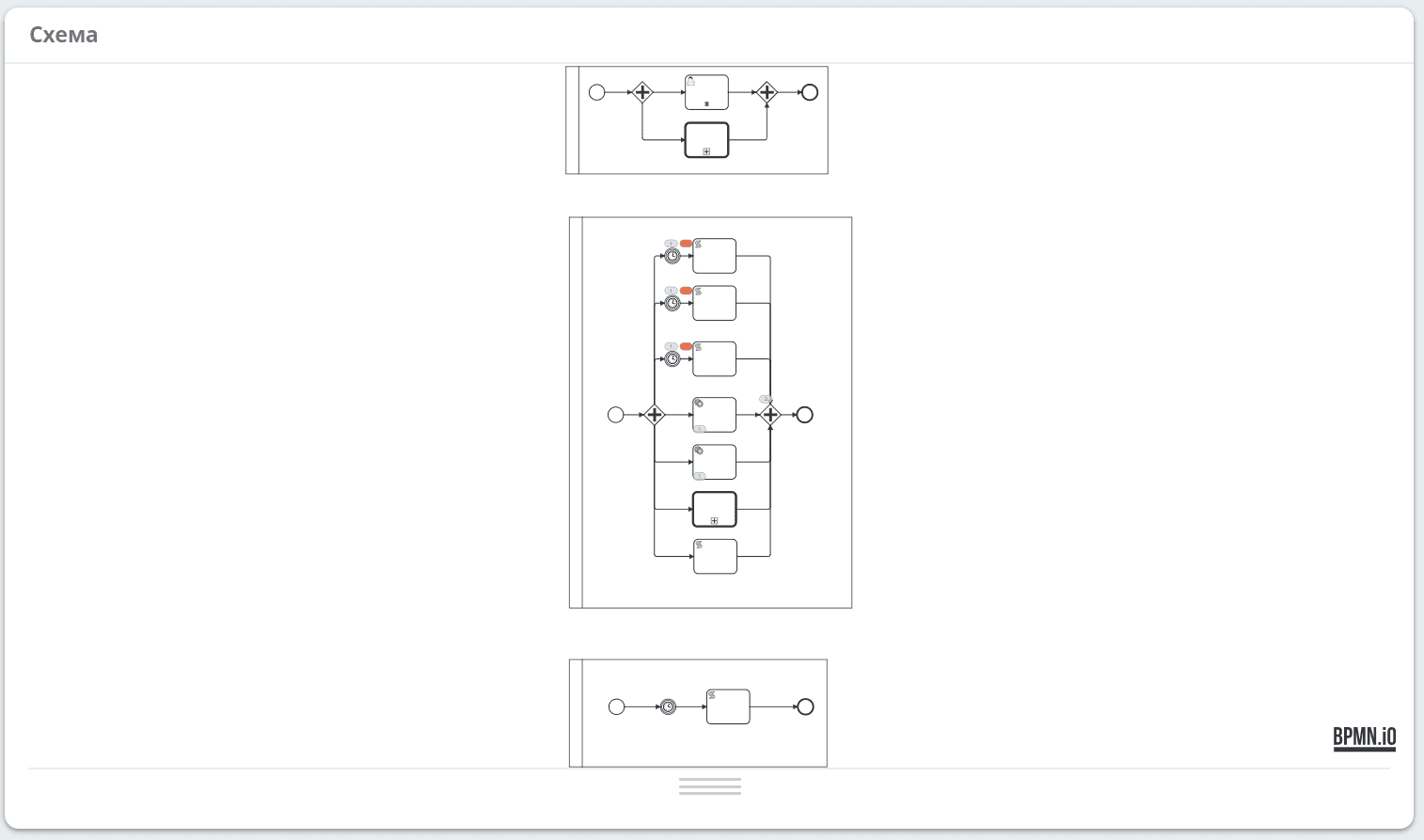
Process diagram showing:

|
Number of running process instances. |

|
Number of incidents. |
Journal
Variables
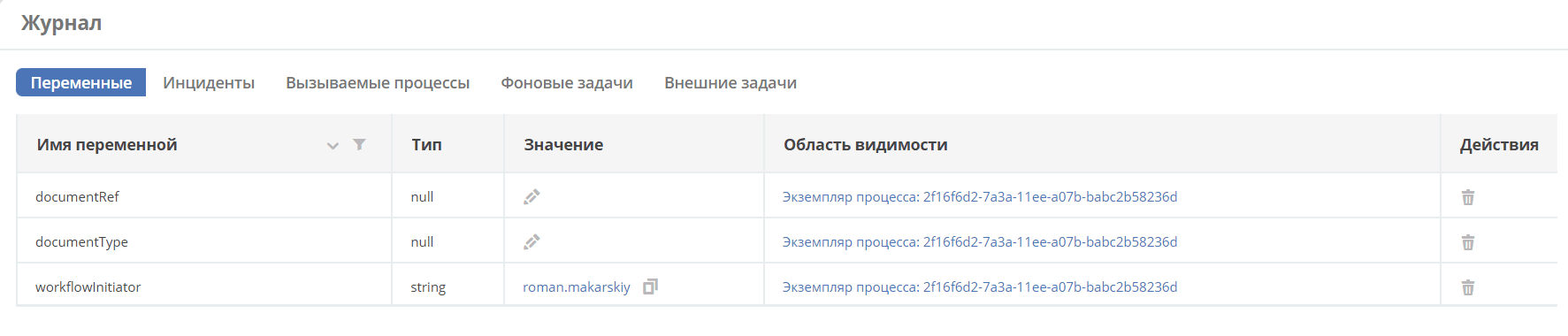
The tab shows a list of variables for this process instance:
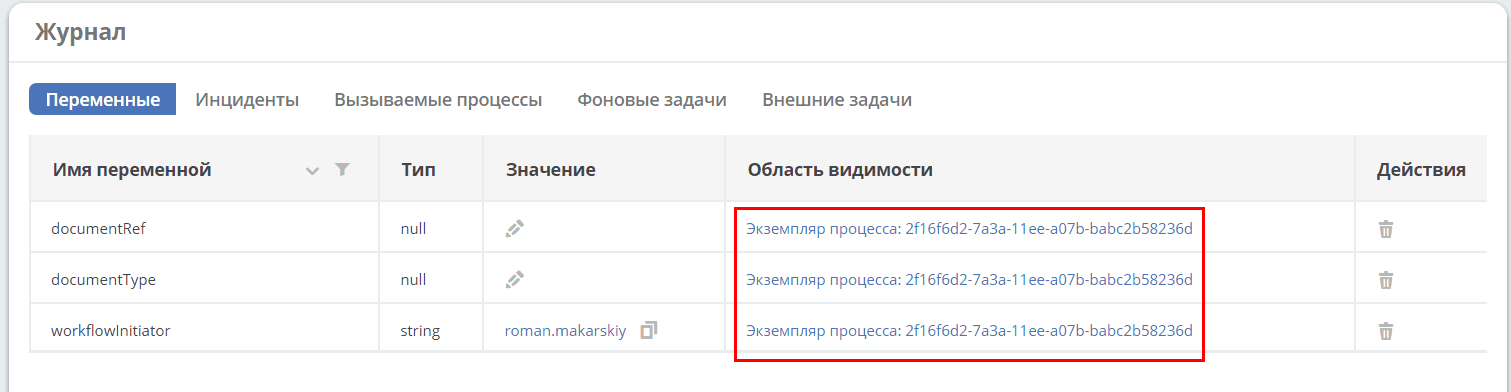
Clicking on Scope enables a filter to sort all variables within that scope.
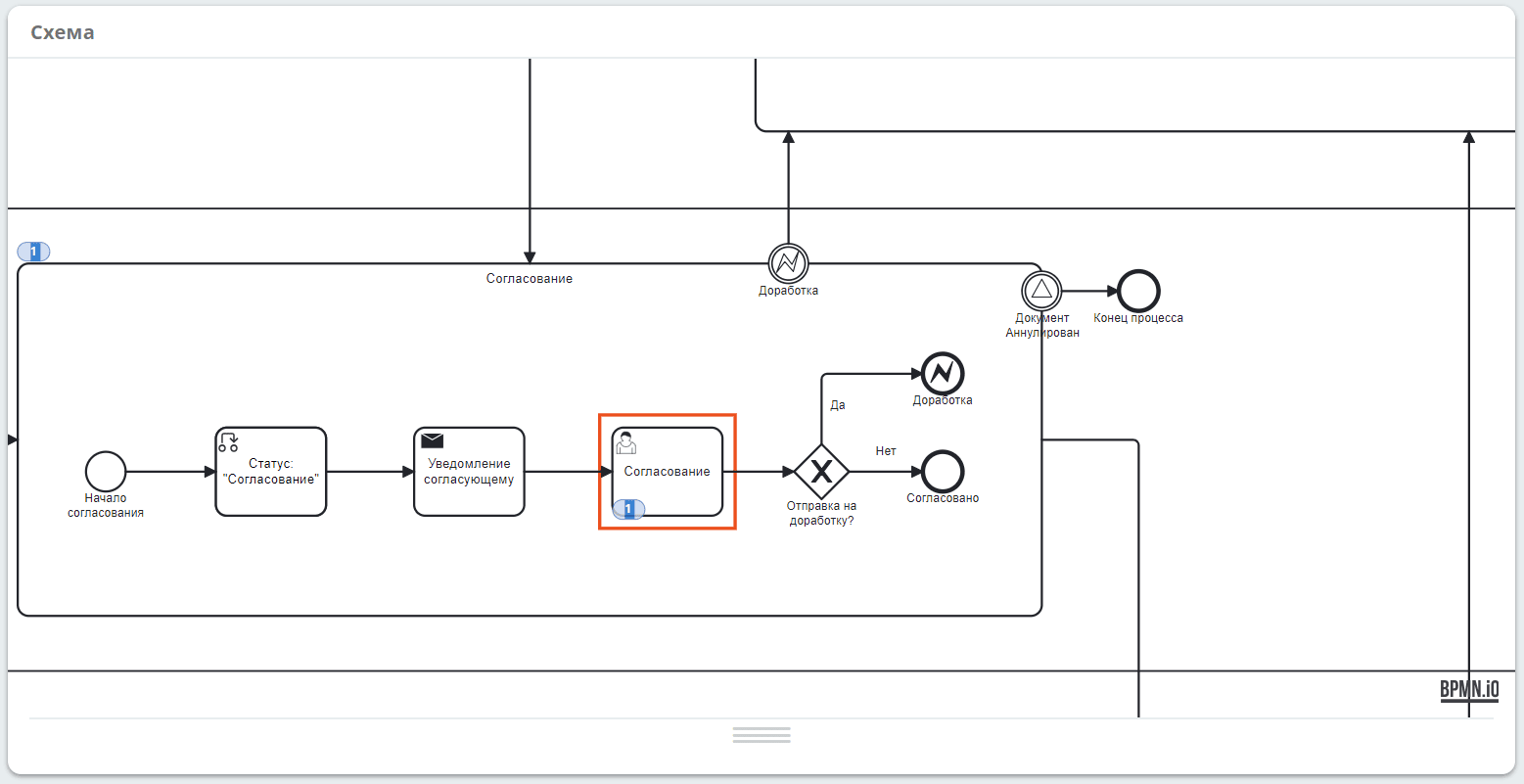
The element is highlighted on the business process diagram:
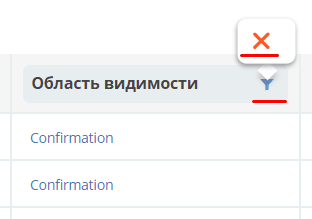
To disable the filter:

|
Edit process instance variable: 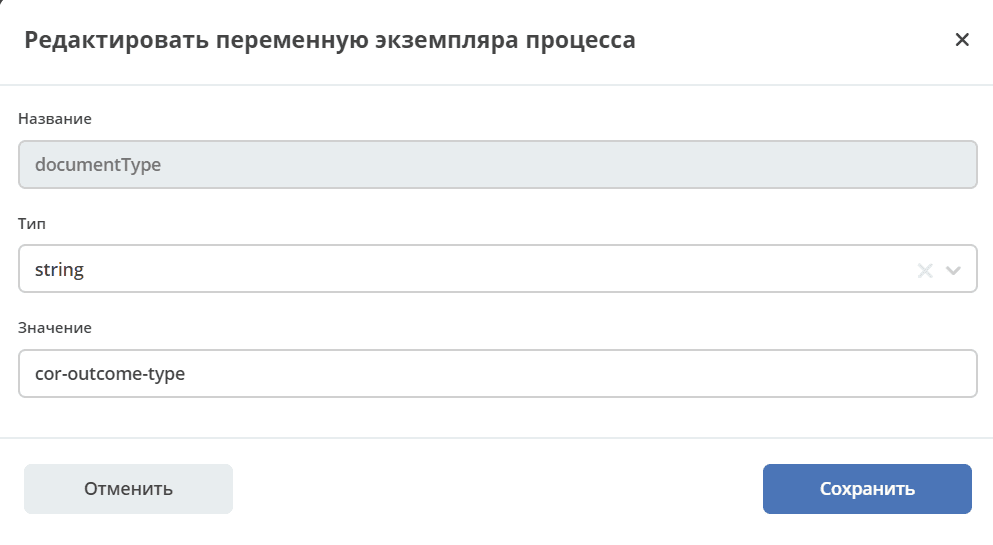
If the variable has a value, click Value to change it.
Make changes and save.
|

|
Copy process instance variable value.
|

|
Delete variable.
|
Incidents
The tab shows a list of unresolved incidents (errors that occurred) for this process instance:
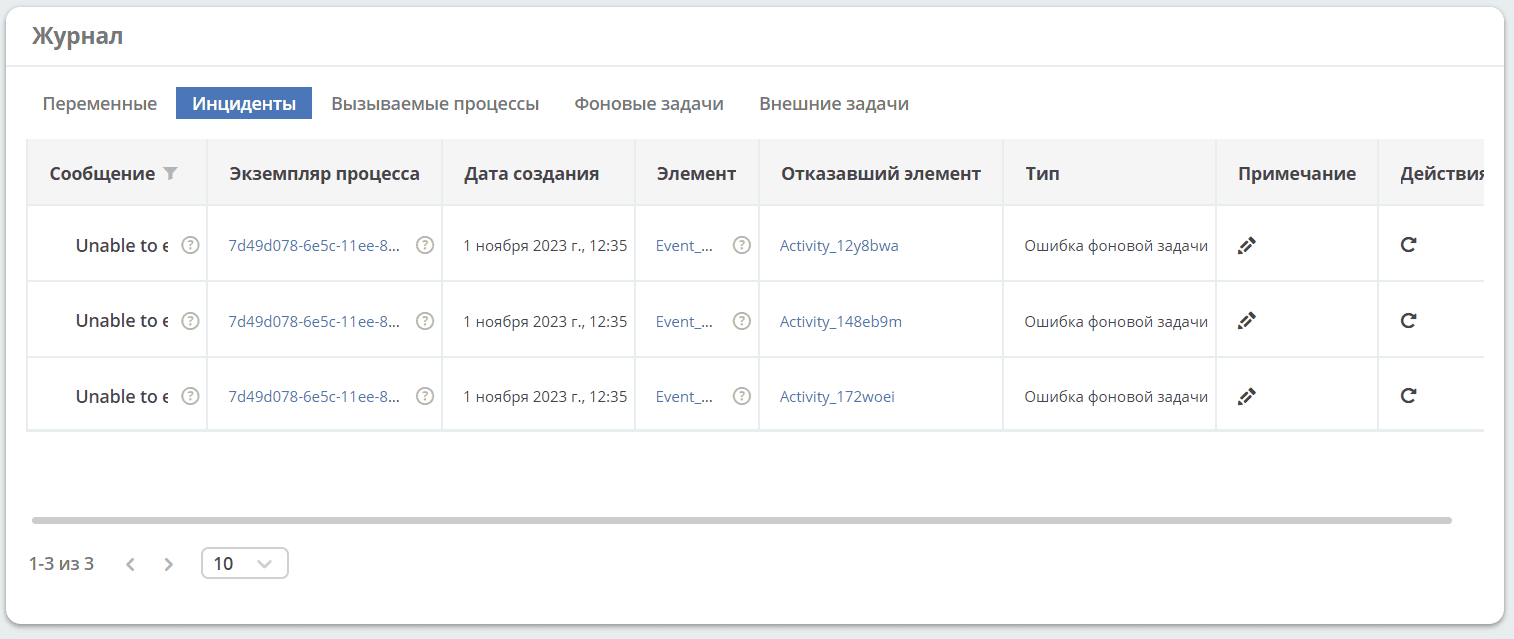
Clicking on Process Instance opens detailed information about it. See Process Instance.
Clicking on Element, Failed Element will highlight the element on the diagram:
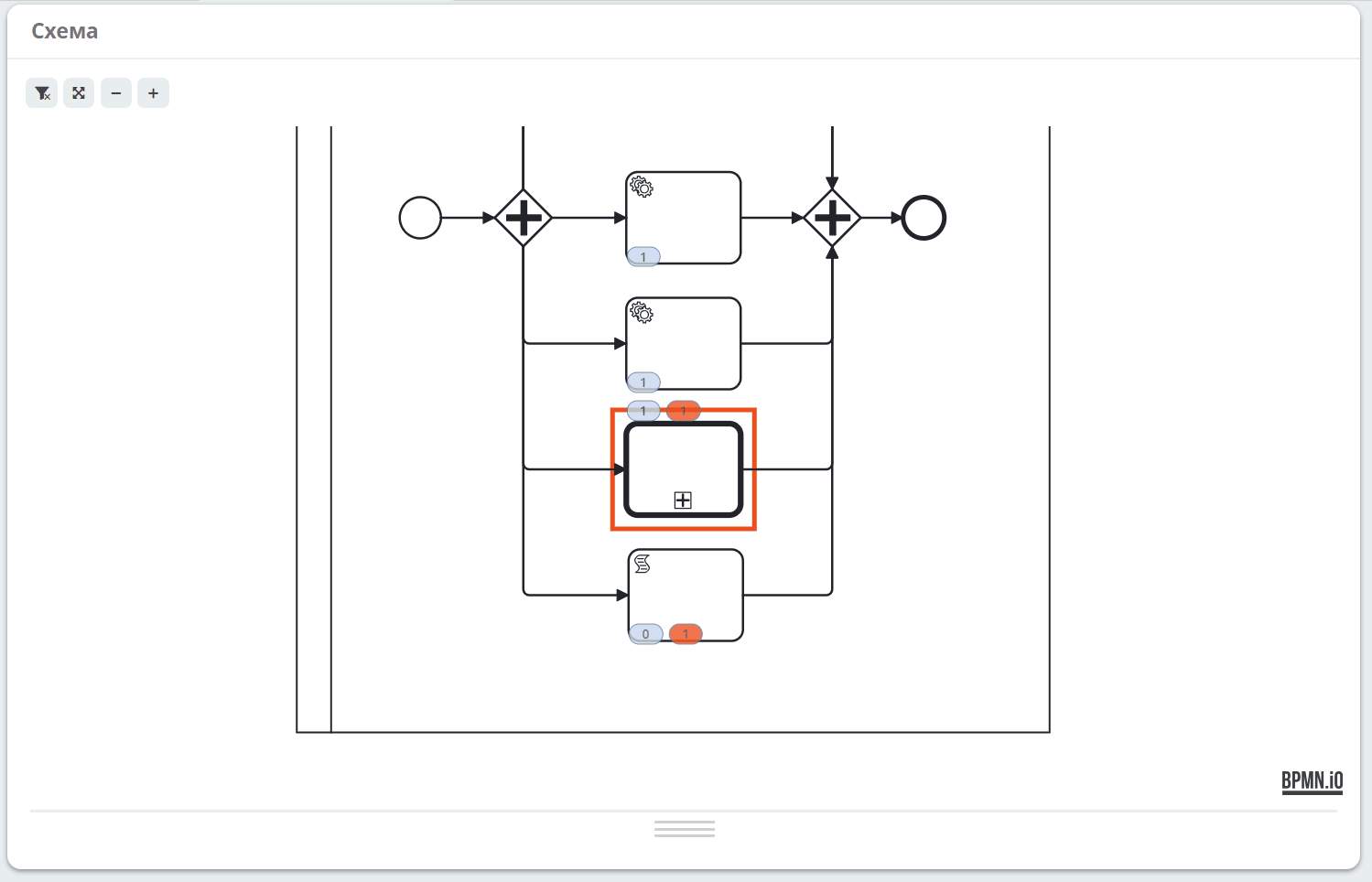

|
Enter a comment for the incident: 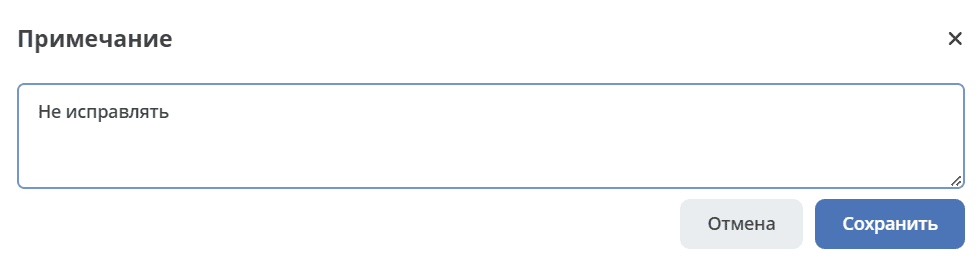
|

|
Change the number of retry attempts for a failed task:
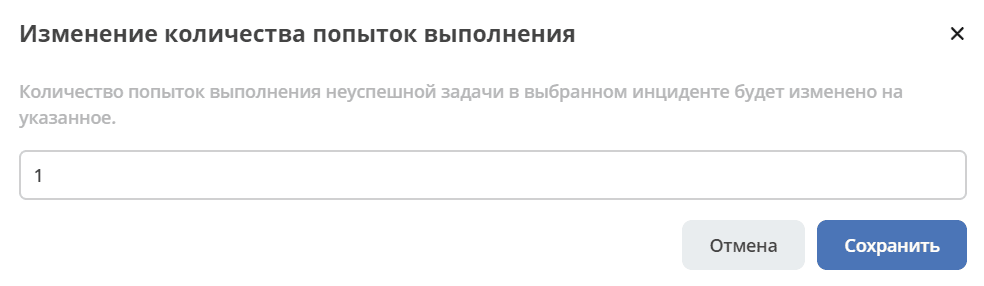
Enter the value and click ‘Save’.
After clicking the ‘Retry’ button, the mechanism will restart the tasks and increase their retry count values in the database so the task performer can receive and execute the tasks again.
|
Called Processes
The tab shows a list of called call activity for this process instance and their statuses:
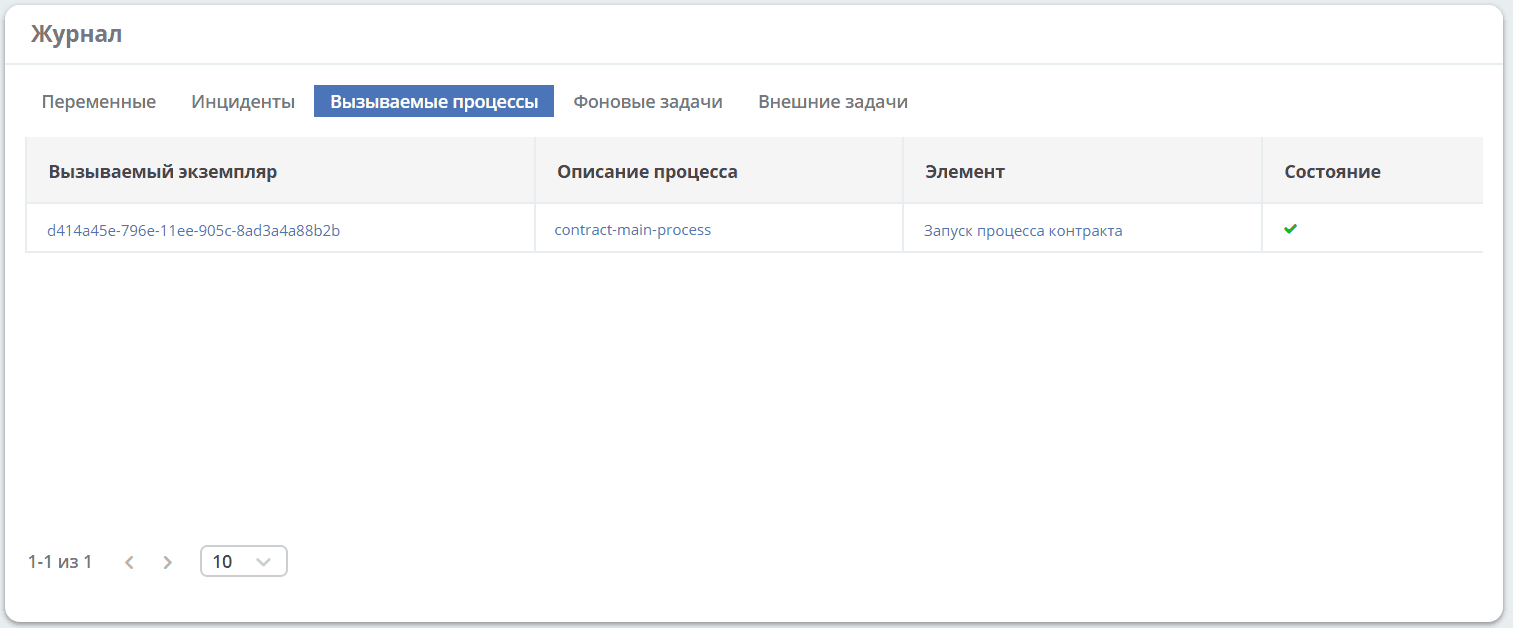
Clicking on Called Instance opens detailed information about it. See Process Instance.
Clicking on Process Description opens information about the main business process.
Clicking on Element will highlight the element on the diagram.
Background Tasks
The tab shows a list of events for this process instance.
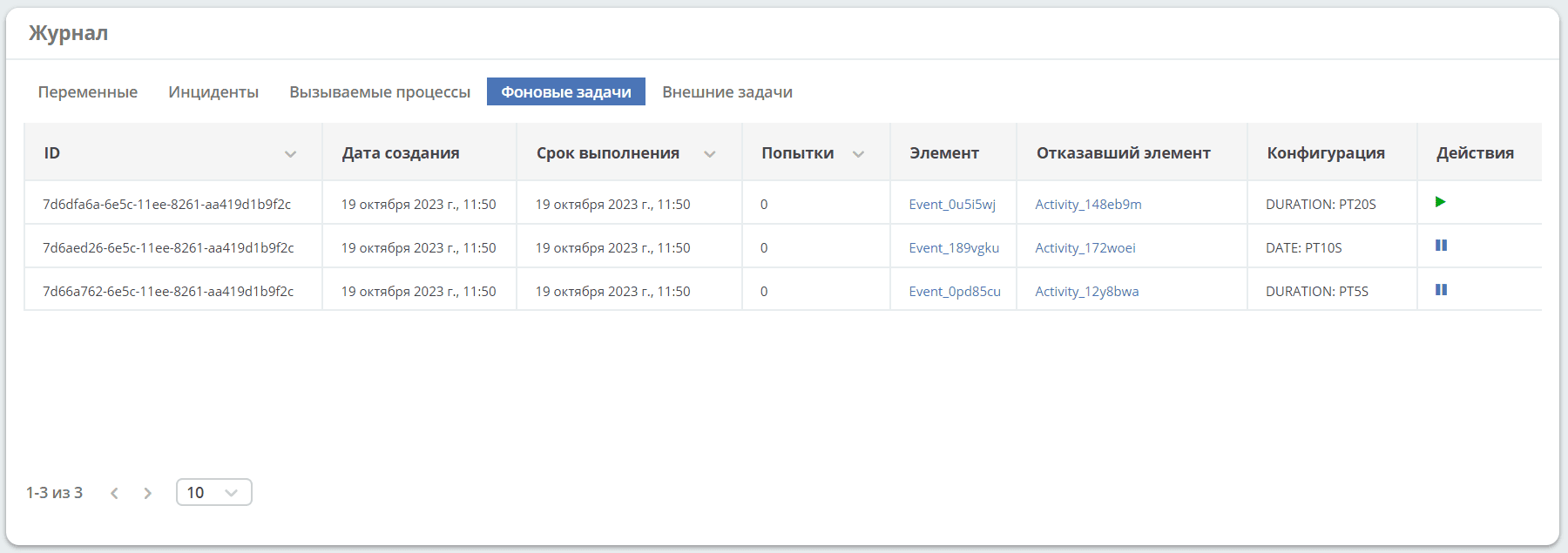
Clicking on Element, Failed Element will highlight the element on the diagram.
A background task can be suspended or started by clicking the corresponding buttons in the Actions column.
External Tasks
The tab shows a list of External Tasks for this process instance:
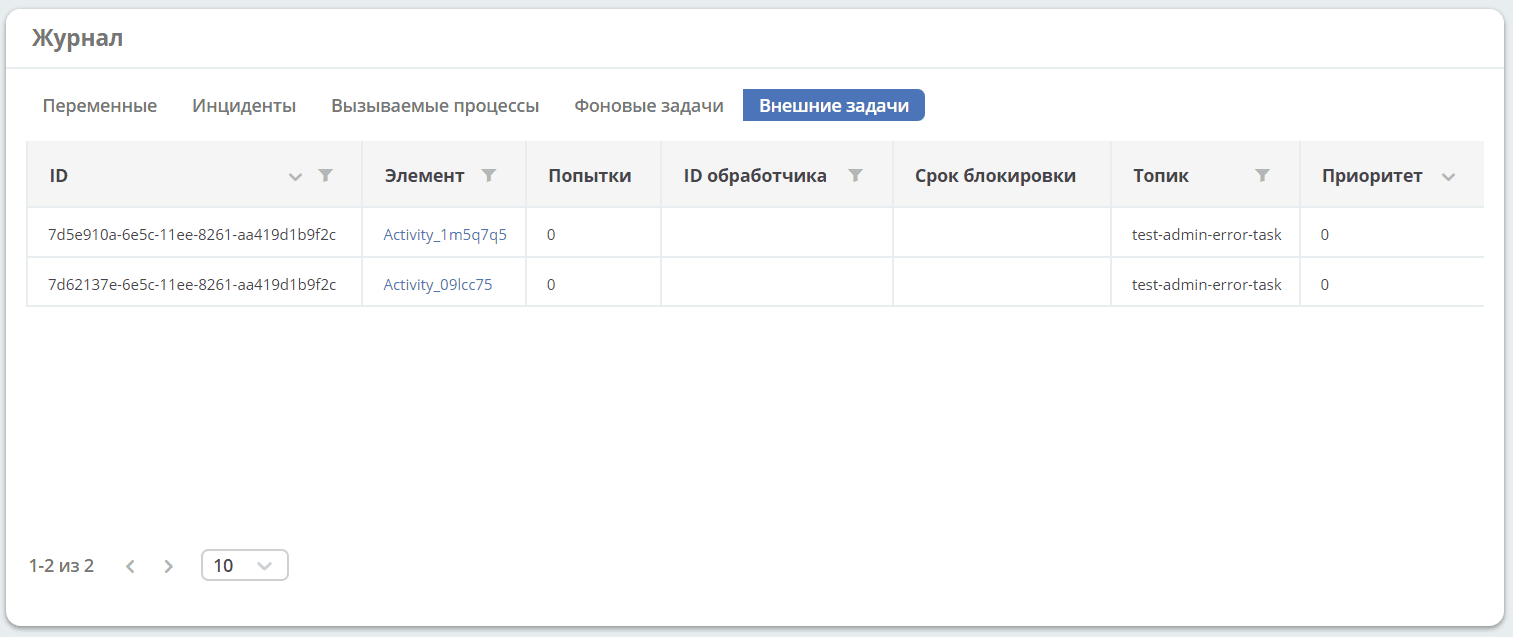
Clicking on Element will highlight the element on the diagram.