Business Process Administration
The “BP Administration” section allows you to monitor the state of published business processes (process definitions), and obtain detailed information about them and their running instances (process instances).
You can migrate running process instances from the current version to another version using the version migration action.
The following actions are available for a selected process instance:
Suspend/resume a process instance;
Delete a process instance;
Add a variable to a process instance;
Token migration.
Go to the “BP Administration” journal (Workspace “Administrator section” – Process management):
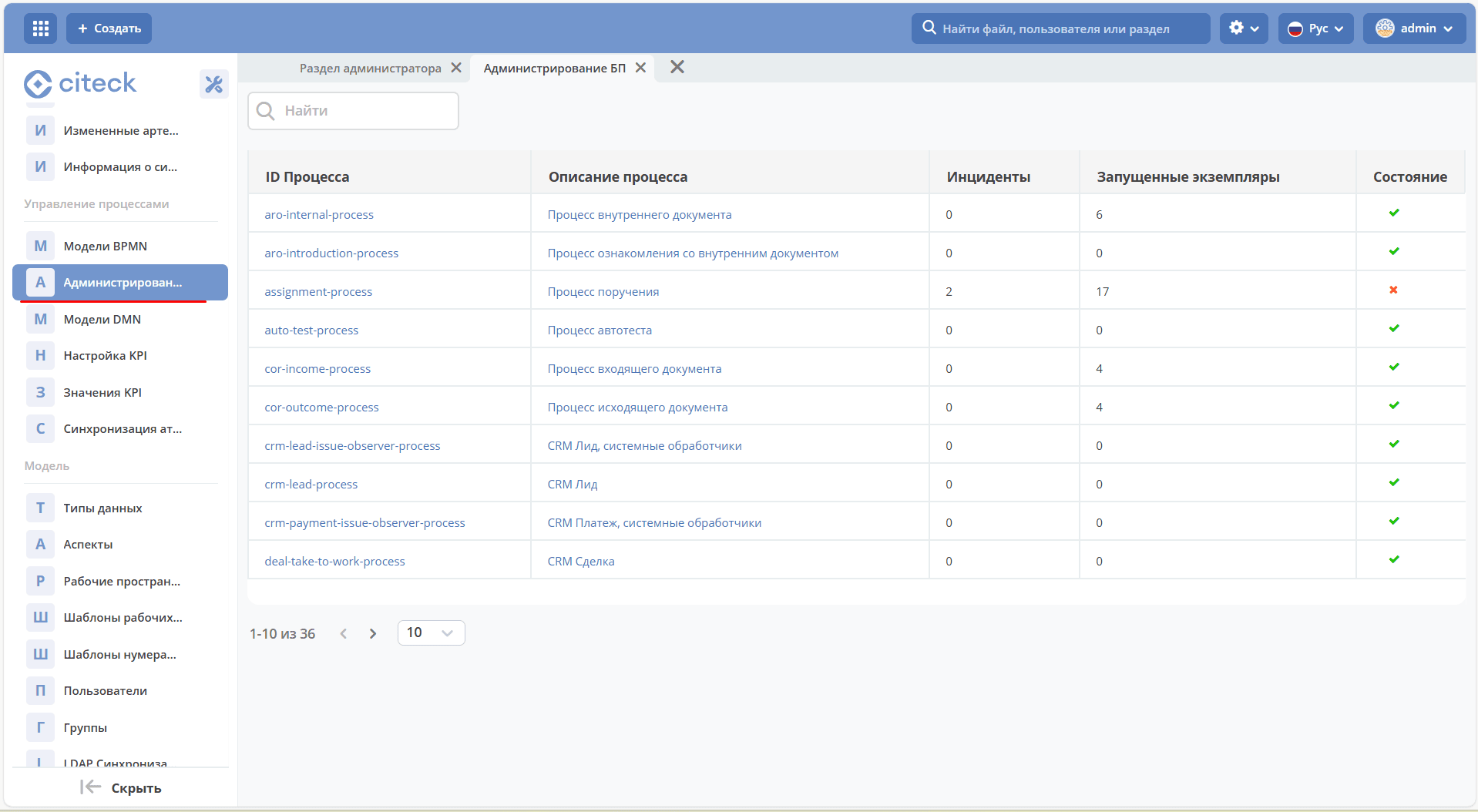
The table lists all published business processes:
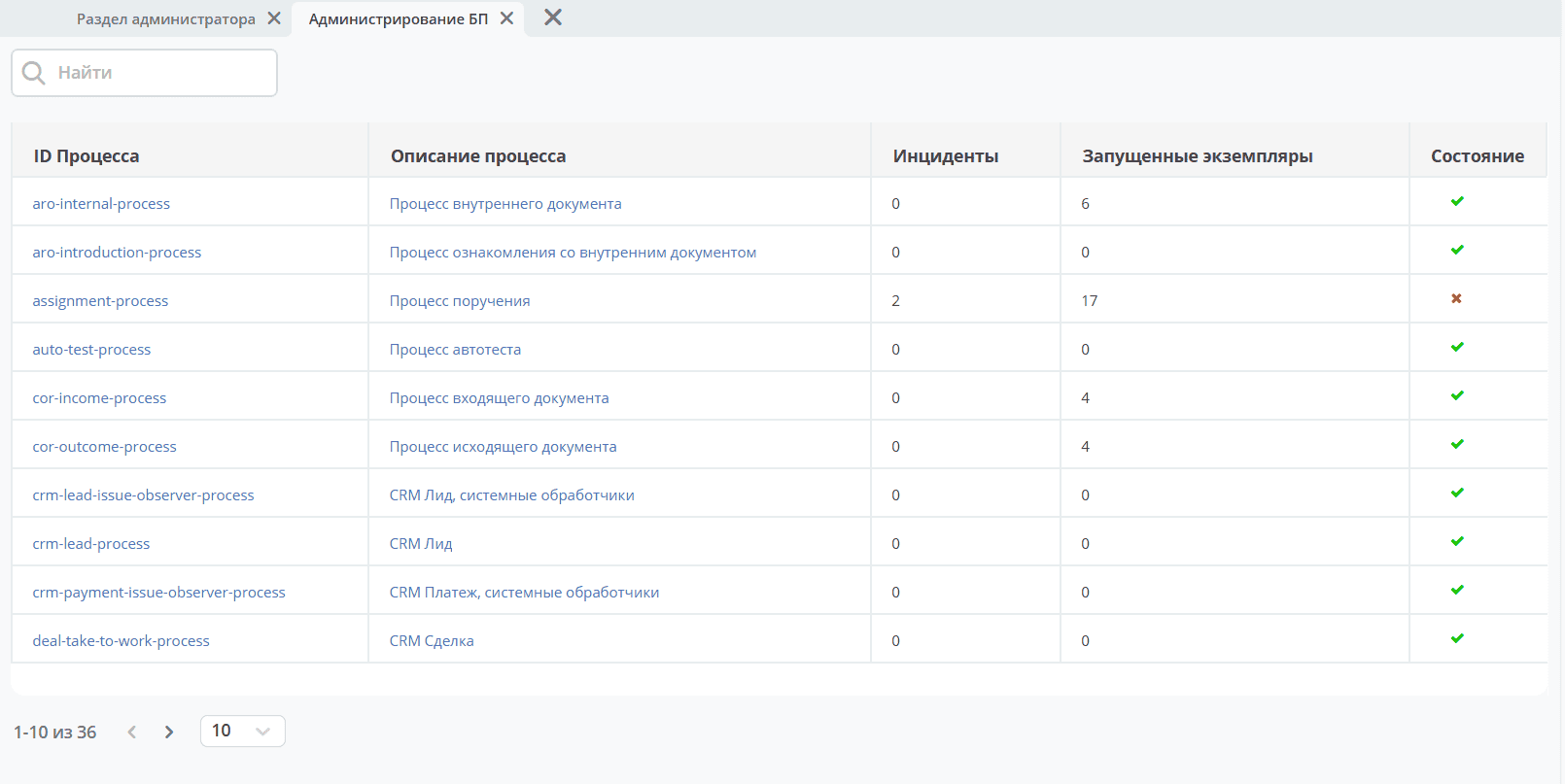

|
Successfully running processes. |

|
There is at least one process instance or subprocess instance with an unresolved incident. |
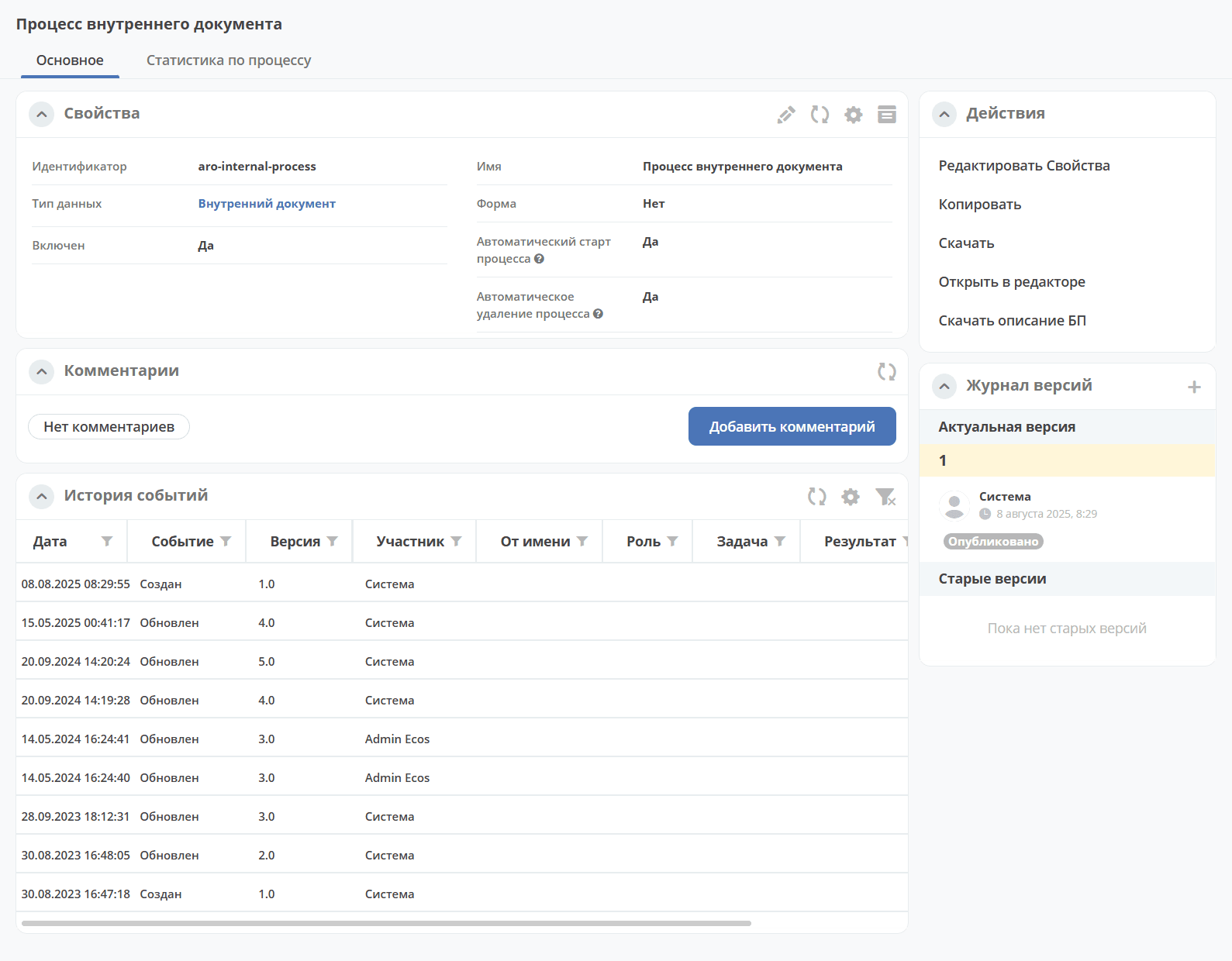
To open the process card with detailed information, click Process description:
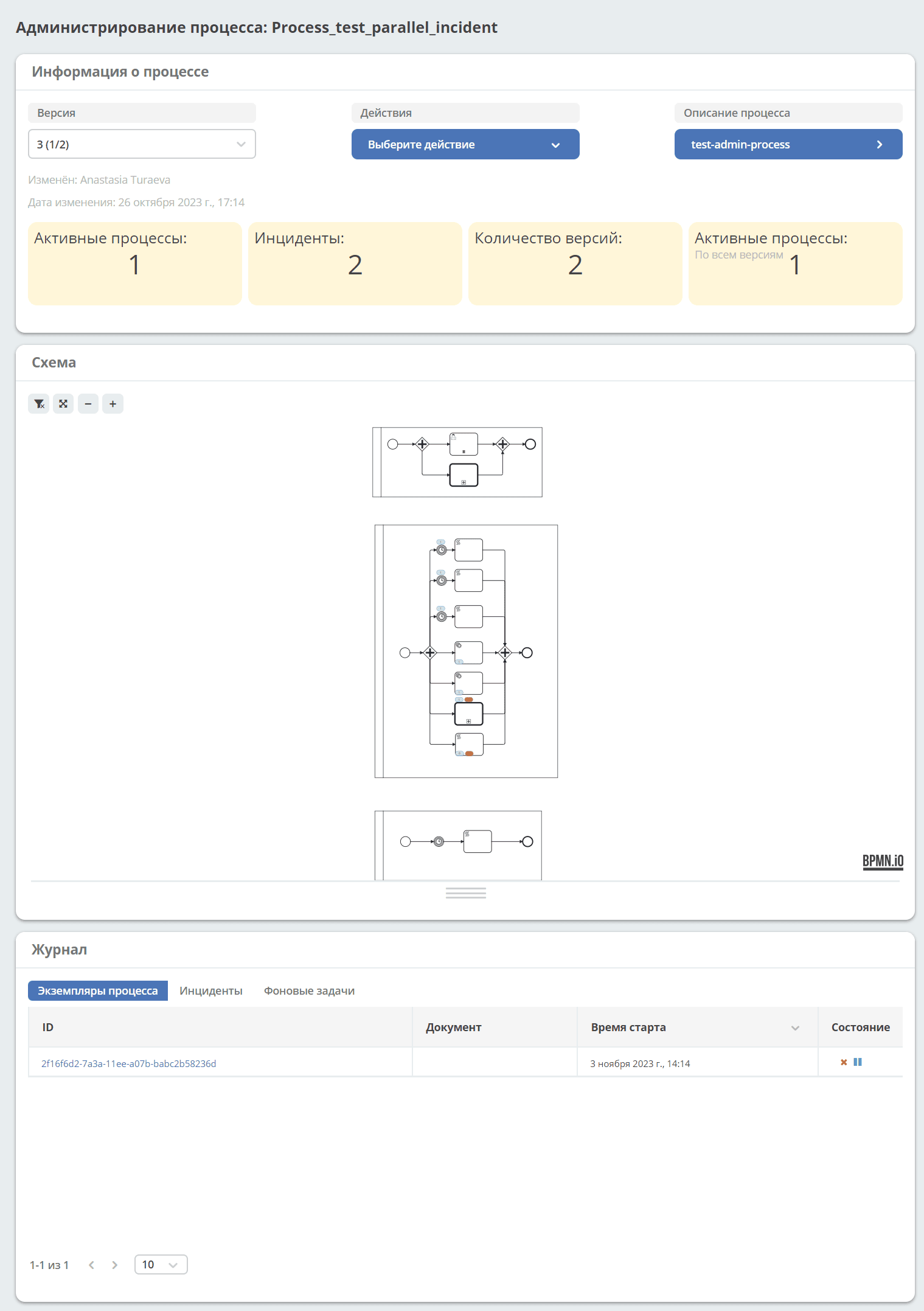
To view information about a specific process and its incidents, click the Process ID — a dashboard with the following widgets will open:
If the process is not yet complete and has active tasks, you can navigate to the administration of a specific process instance from the document card. In the All tasks widget, click:
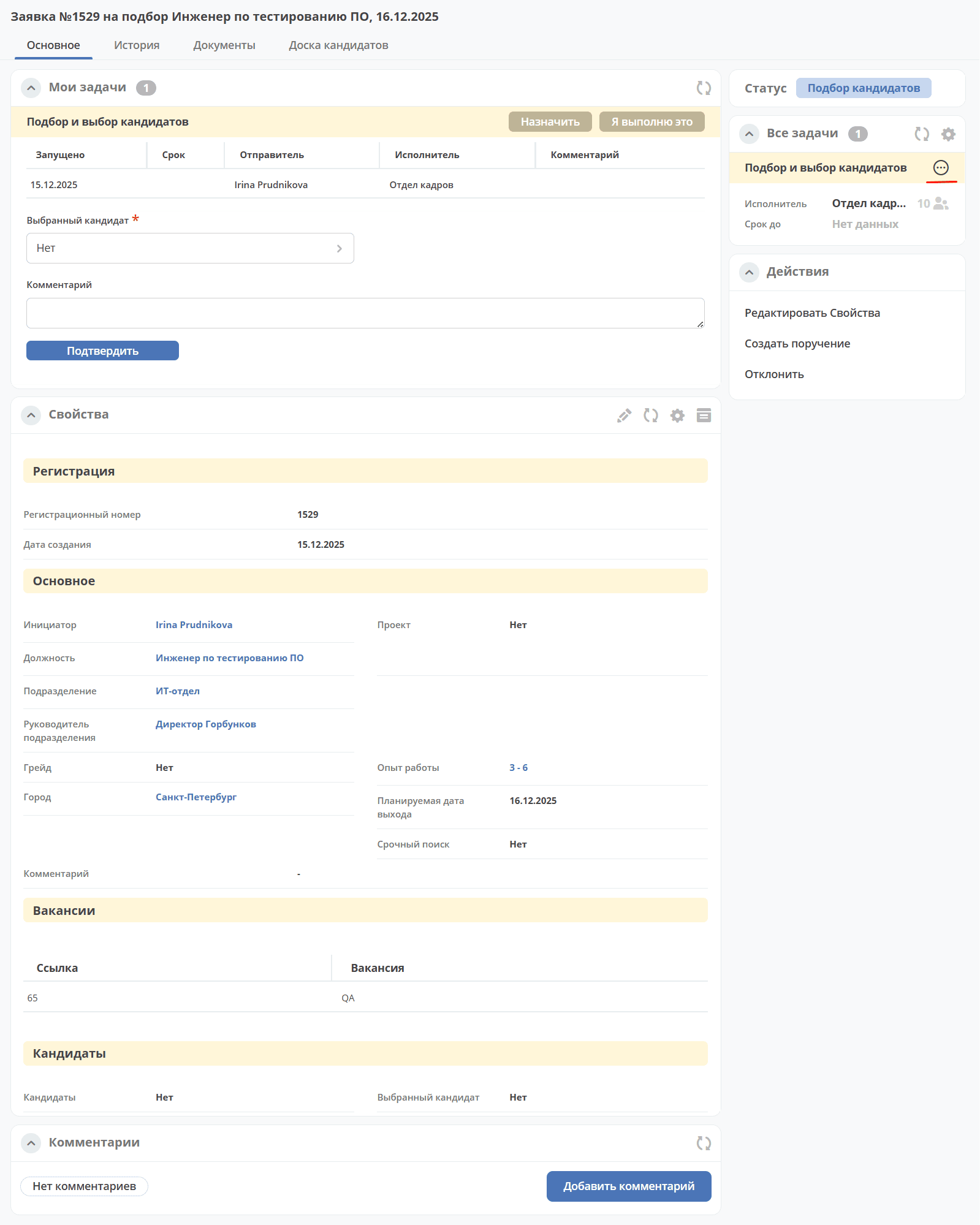
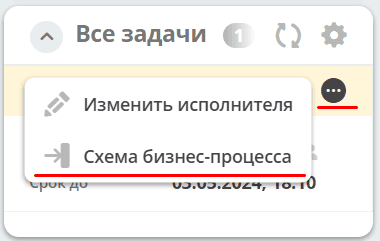
In the menu, select Business process diagram:
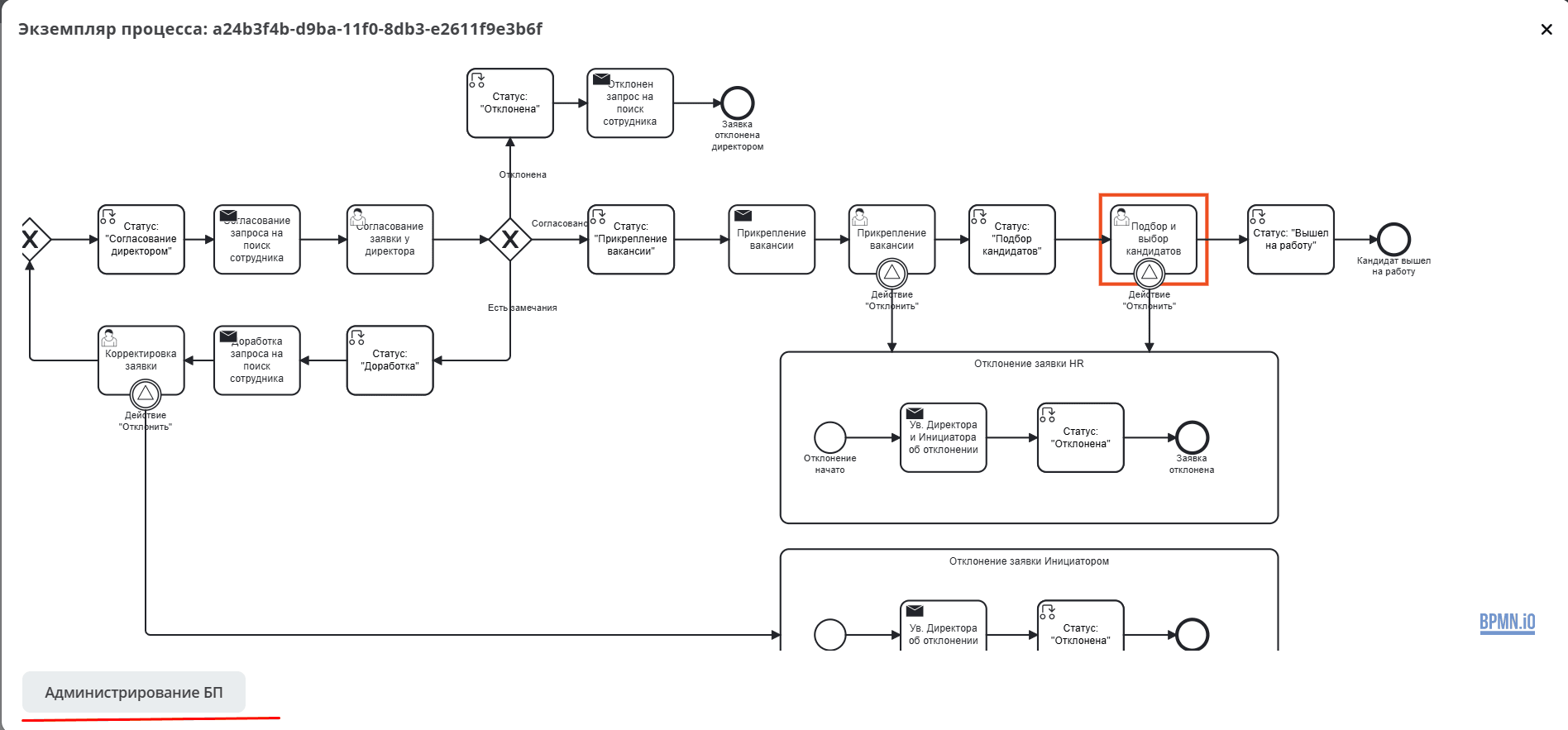
Then click BP Administration:
Let’s look at each widget in detail:
Process information — summary data for the definition: available actions (including version migration), diagram, and journal with instances, incidents, and background jobs;
Process instance — detailed breakdown of a specific instance: state management (suspend, resume, delete), variables, called processes, incidents, and external tasks.