General Information
Form - a graphical representation of an object as a set of interface elements for manipulating the object’s data. Interface elements reference attributes defined in the data type.
Forms are implemented based on the formio.js engine.
Forms are described in json format.
Forms are used for editing records from Records Service see Citeck Records. On the backend, editing a record can be perceived as creating a new one (for example, if the ID of the record being edited is not specified).
Interface navigation description
A journal “Forms” (Workspace “Admin Section” - UI Configuration) has been created to view existing forms and edit them:
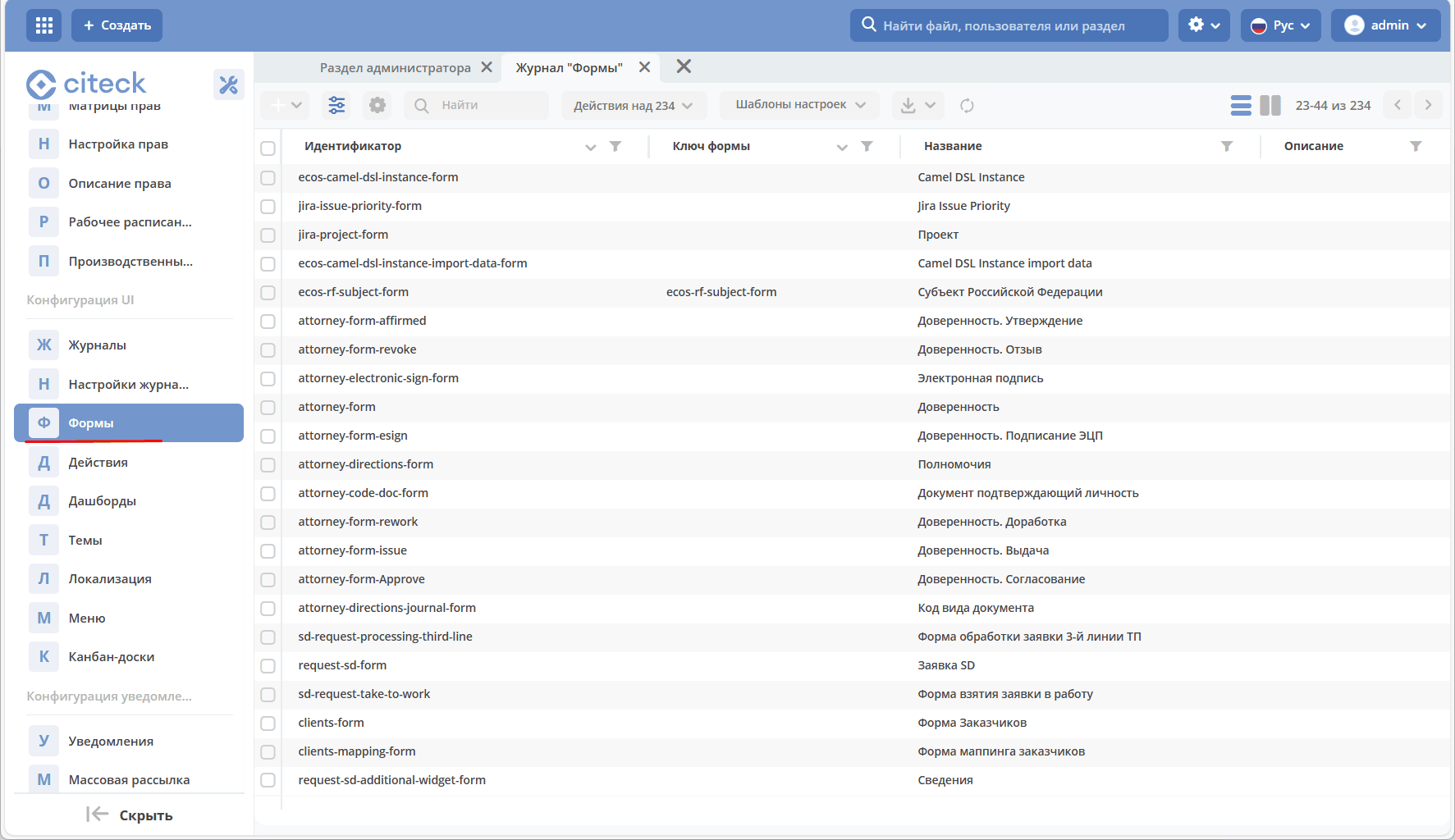
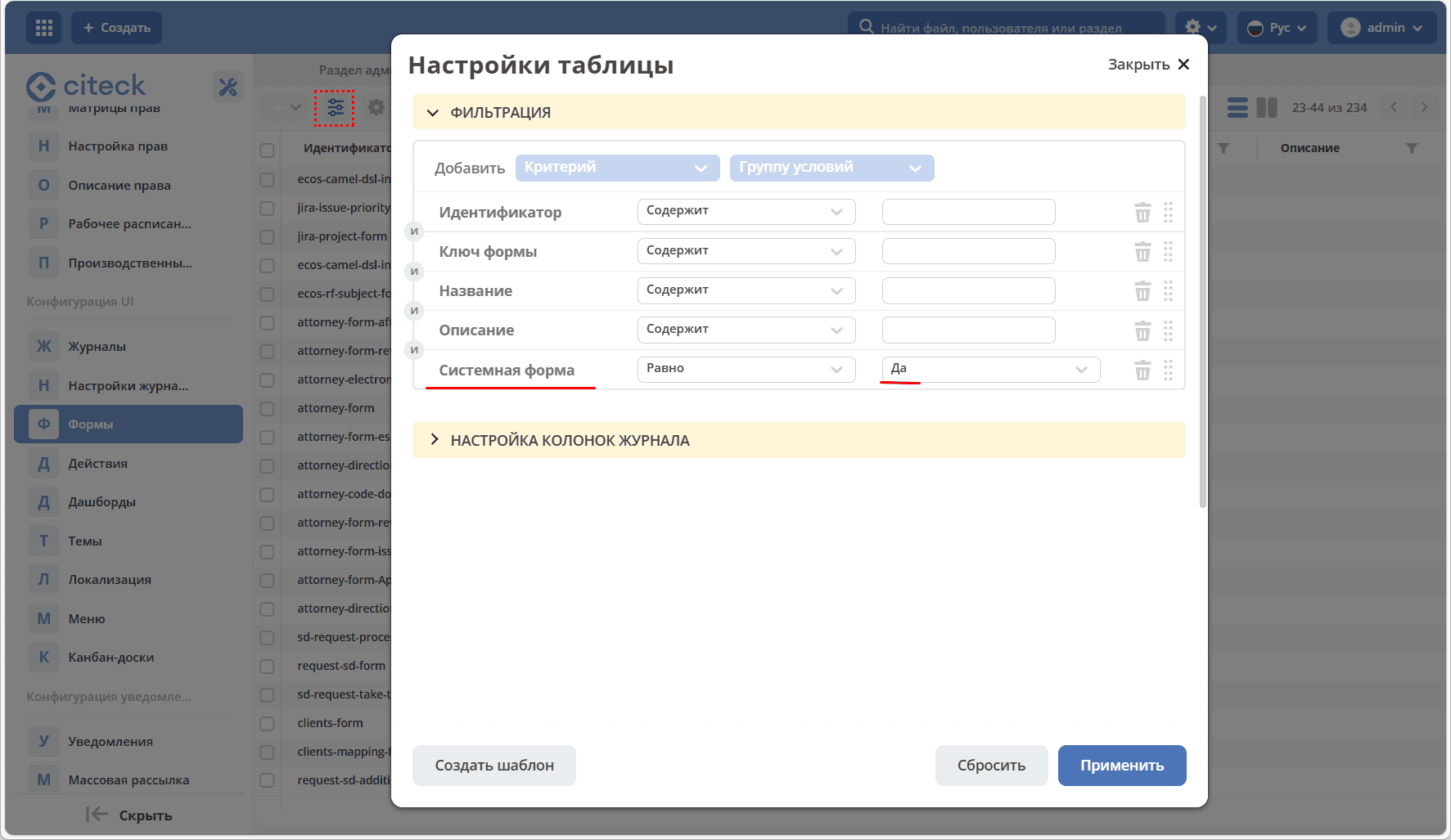
By default, system forms are not displayed in the journal.
To display ONLY system forms, go to the table settings, set System type - Yes:
Ways to obtain a form instance
A form can be created or an already created one can be uploaded to the system.
Creation
To create a form, click + - Create form:
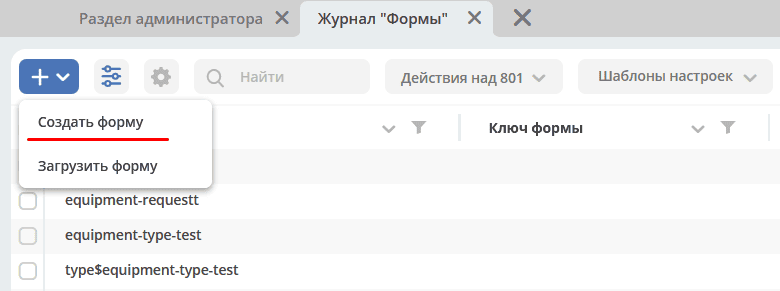
The creation form will open:
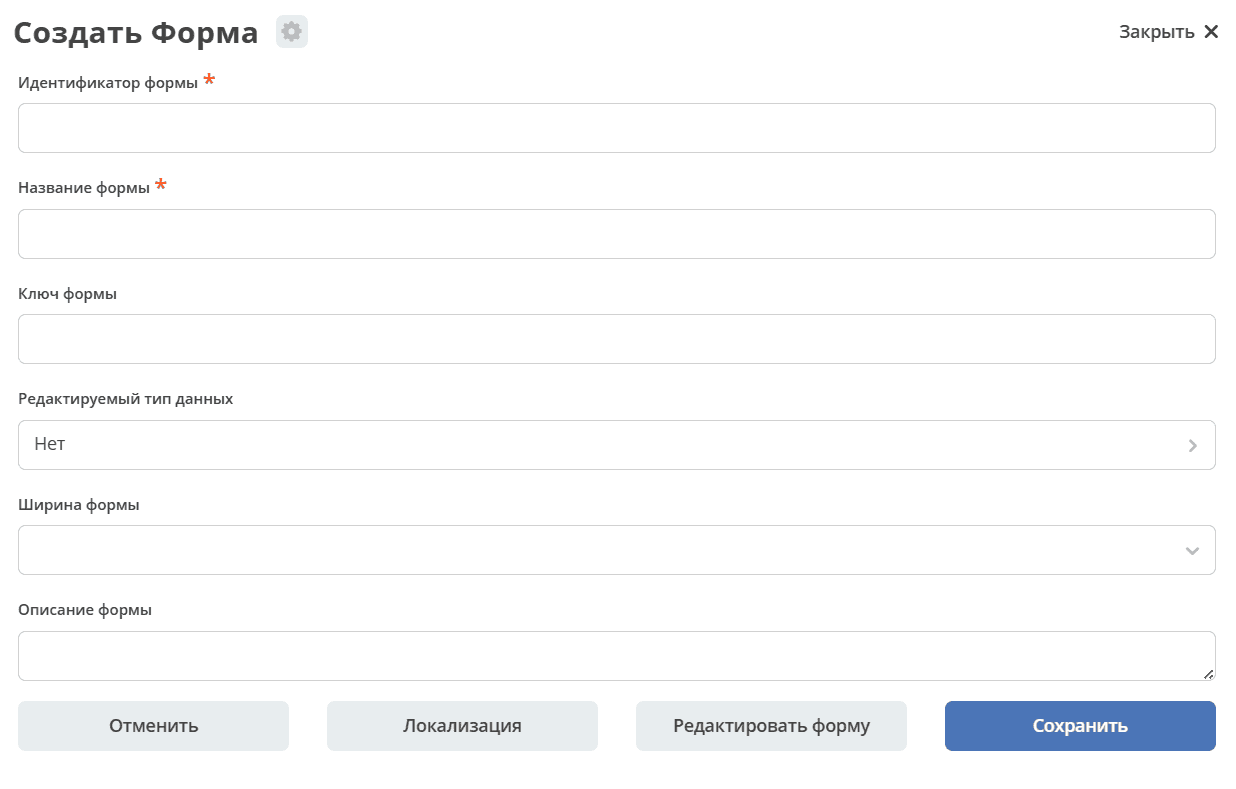
See below for details.
Upload
To upload a created journal, click + - Form:
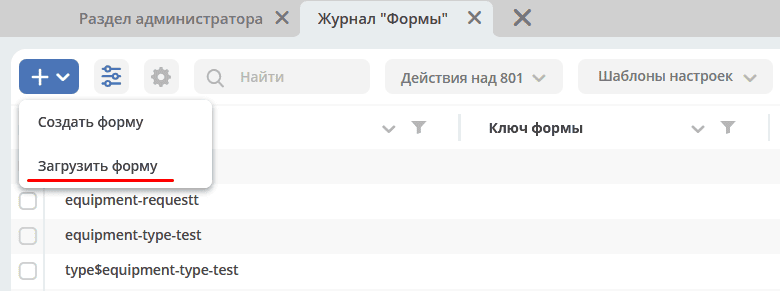
.json format file
Form description example
 {
 "id": "vacation-request",
 "formKey": "",
 "title": {
   "ru": "Заявление на отпуск"
 },
 "description": {},
 "customModule": "",
 "typeRef": "",
 "width": "m",
 "system": false,
 "i18n": {},
 "definition": {
   "components": [
     {
       "type": "datetime",
       "input": true,
       "enableTime": false,
       "key": "from",
       "label": {
         "ru": "Начинается с"
       },
       "suffix": true,
       "format": "yyyy-MM-dd"
     },
     {
       "type": "datetime",
       "input": true,
       "enableTime": false,
       "key": "to",
       "label": {
         "ru": "Заканчивается"
       },
       "suffix": true,
       "format": "yyyy-MM-dd"
     },
     {
       "label": {
         "ru": "Инициатор"
       },
       "key": "initiator",
       "allowedAuthorityType": "USER",
       "currentUserByDefault": true,
       "refreshOn": [],
       "optionalWhenDisabled": false,
       "type": "selectOrgstruct",
       "input": true,
       "defaultValue": ""
     },
     {
       "type": "columns",
       "key": "buttons-columns",
       "columns": [
         {
           "md": 3,
           "type": "column",
           "input": false,
           "index": 0,
           "components": [],
           "key": "column"
         },
         {
           "md": 3,
           "type": "column",
           "input": false,
           "index": 1,
           "key": "column",
           "components": []
         },
         {
           "md": 3,
           "type": "column",
           "input": false,
           "index": 2,
           "components": [
             {
               "type": "button",
               "key": "cancel",
               "label": {
                 "ru": "Отменить",
                 "en": "Cancel"
               },
               "action": "event",
               "event": "cancel",
               "block": true,
               "input": true
             }
           ],
           "key": "column"
         },
         {
           "md": 3,
           "type": "column",
           "input": false,
           "index": 3,
           "components": [
             {
               "type": "button",
               "theme": "primary",
               "key": "submit",
               "label": {
                 "ru": "Сохранить",
                 "en": "Save"
               },
               "block": true,
               "input": true
             }
           ],
           "key": "column"
         }
       ],
       "input": false
     }
   ],
   "formId": "vacation-request"
 },
 "attributes": {}
}
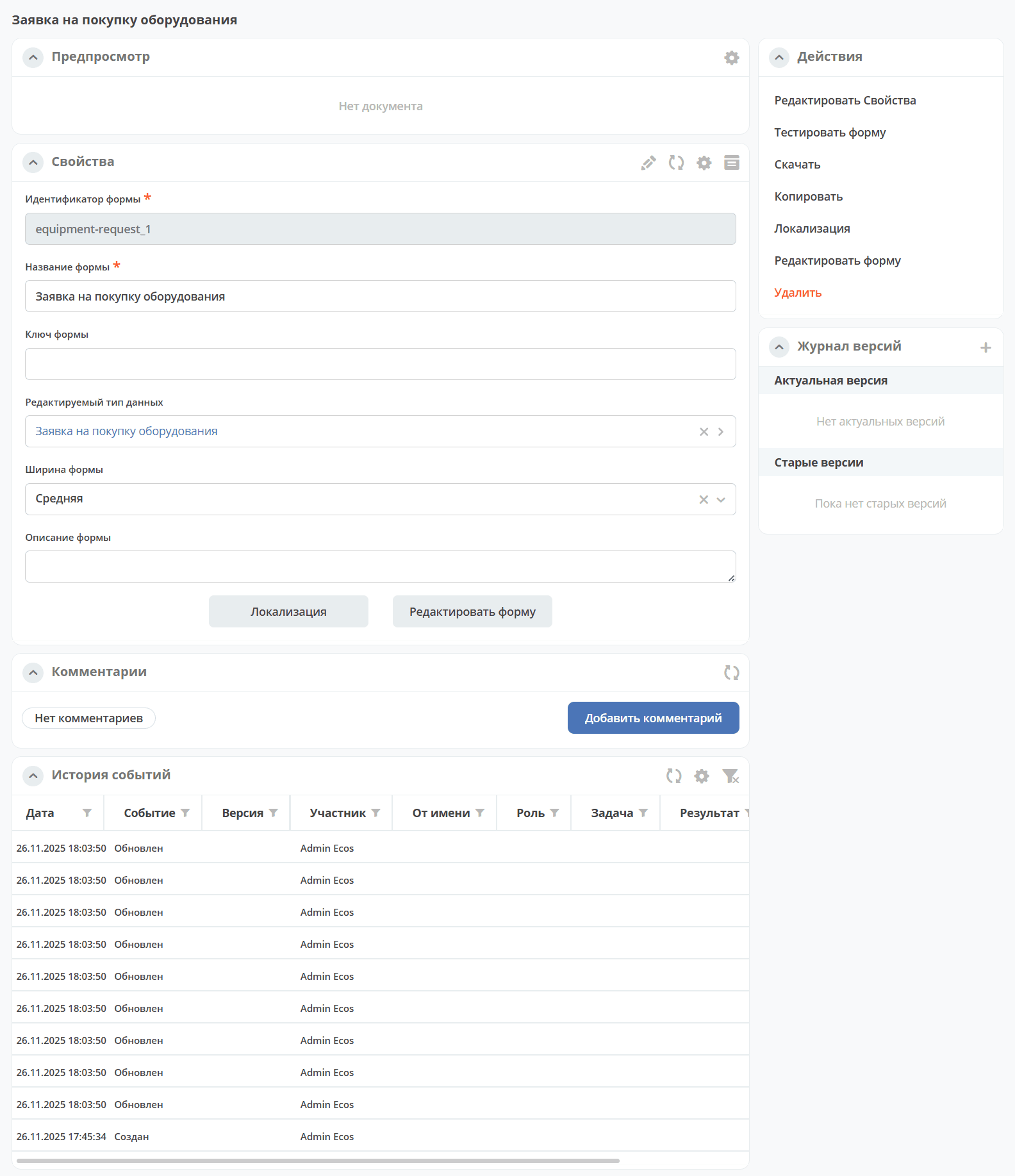
Available actions with a record
In the journal, the administrator has a standard set of actions available for each record:

download as a json file;
delete;
open for editing;
edit json file;
copy;
open the card in a neighboring tab. The card is a dashboard:
Creating a new form
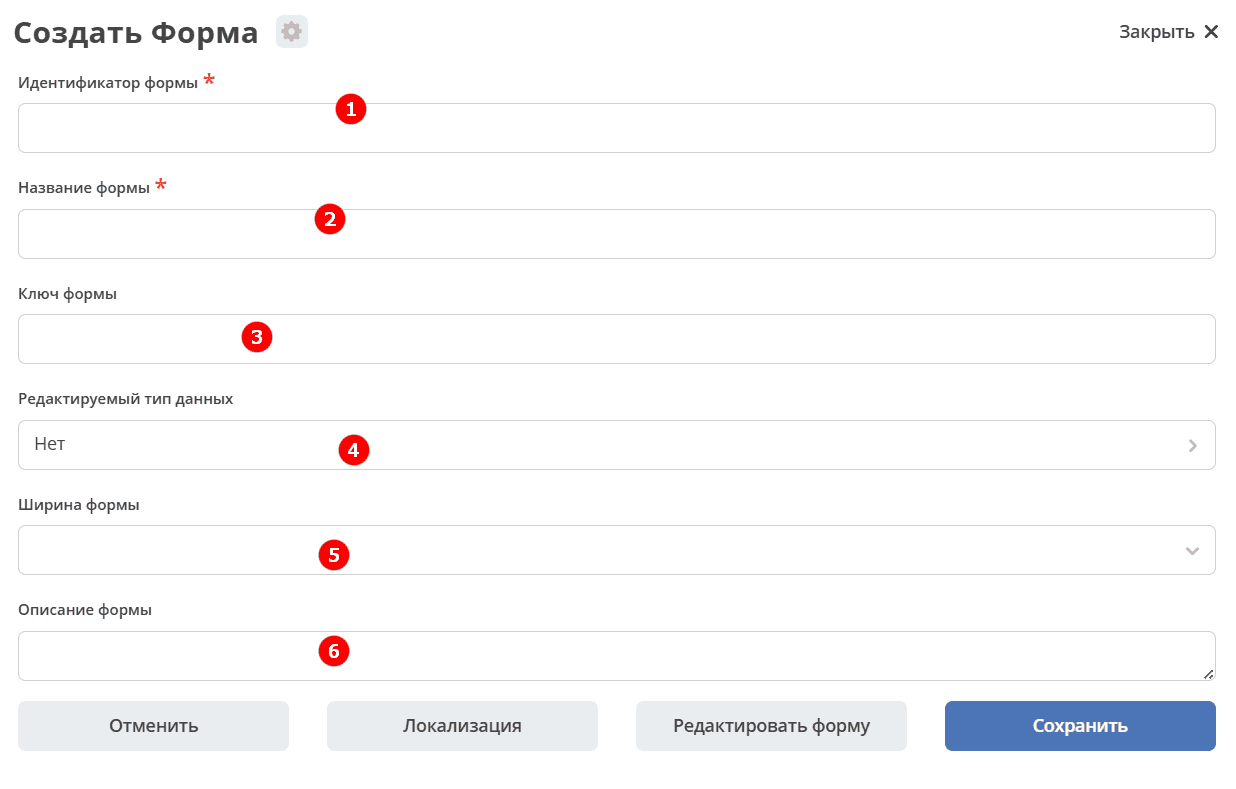
No. |
Name |
Description |
Example |
|---|---|---|---|
1 |
Form Identifier* |
unique form identifier (required) |
test-form (kebab-case) |
2 |
Form Name |
form name (required) |
Test form |
3 |
Form Key |
form key. Used to link between the form and an entity that is difficult to bind to data types or link directly. Usually these are old tasks (flowable/activiti). |
test-form |
4 |
Editable Data Type |
select a data type created earlier from the list |
selected from the list of suggested options |
5 |
Form Width |
select form width option |
selected from the list of suggested options |
6 |
Form Description |
fields for entering form description |
Form created for… |
Click the «Edit form» button. The form builder will open
Connection with data type
The data type has a formRef field that defines the connection between the type and the form. In most cases, this field is sufficient, but if multiple forms are required for one type (for example, for display on a dashboard), then the form configuration has a typeRef field.
Connection without data type
If a record cannot be bound to a specific data type, key binding can be used. The record should return a _formKey attribute and a form search is performed based on the received keys until the first match.
If records belong to one type or the type is absent, but a specific form should be used for some records, a _formRef attribute can be implemented. If this attribute returns a reference to a form, it has the highest priority.
Connection with record attribute
For simple fields, we can set the Property Name in the Basic tab according to the record property:
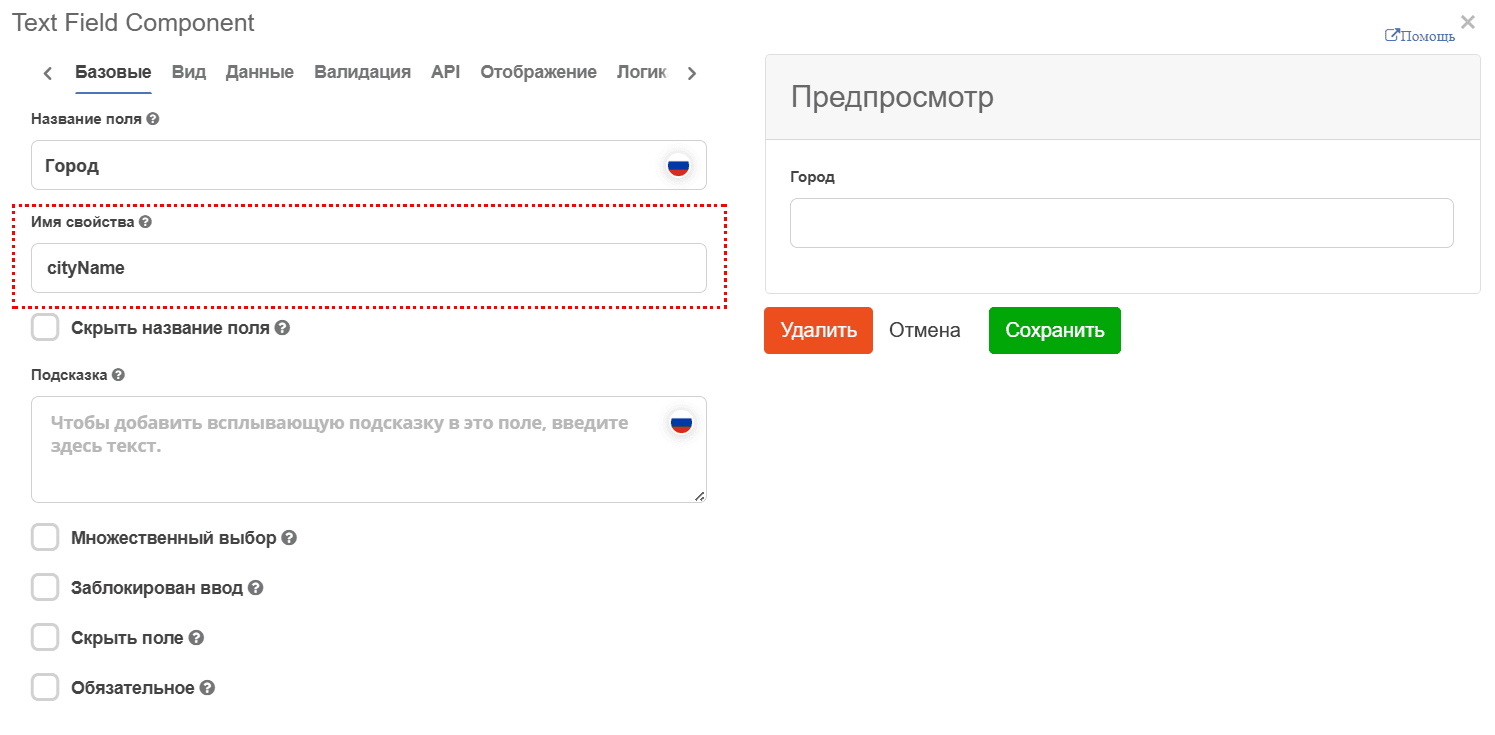
but if you need to link to an attribute that contains special characters (for example, “:”), then in the API tab, you should add a property (2) to Custom Properties with the key attribute and the value - the attribute name.
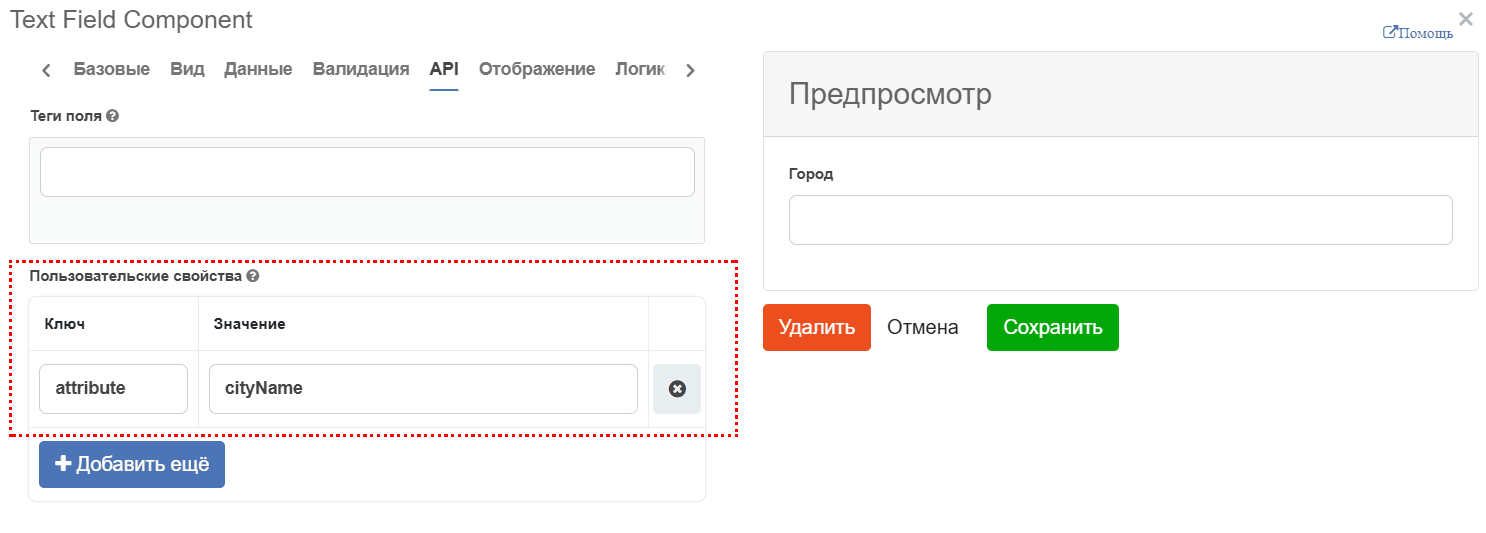
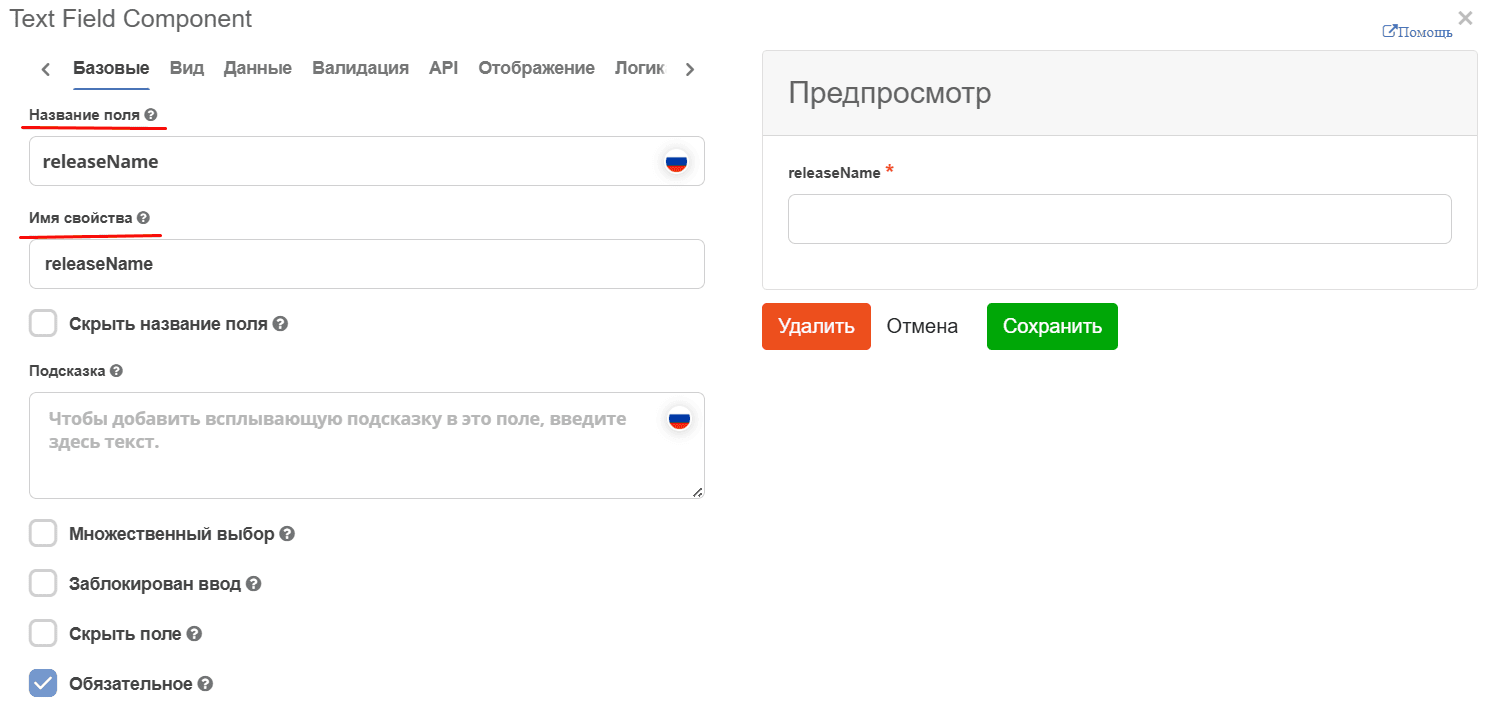
The ability to configure field names in one place - in the data type - has also been added, without duplicating this information in the form and in the journal.
Field Label is loaded from the type. If the Field Label is set equal to the attribute or if the attribute is not set, a check is performed for equality between Property Name and Field Label.
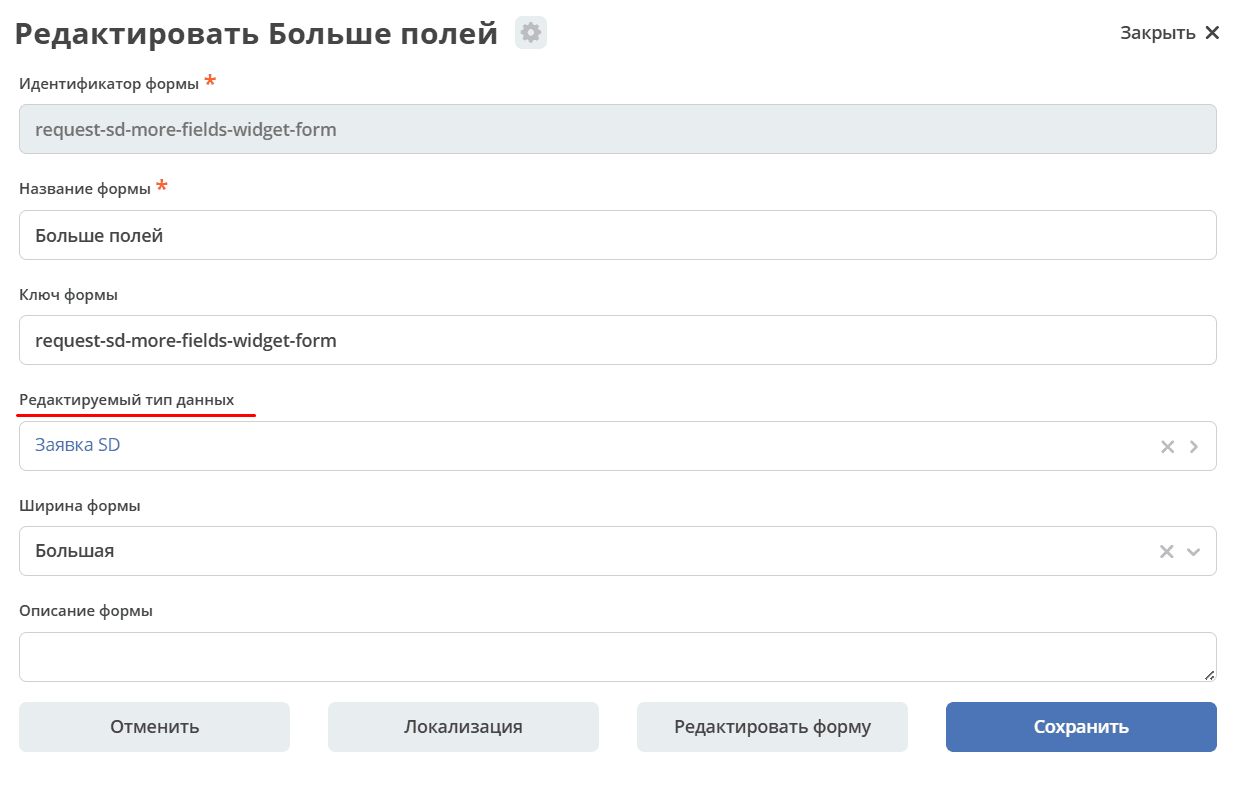
Using multiple forms for one type
Create new forms, bind them to the required type:
Add property widgets.
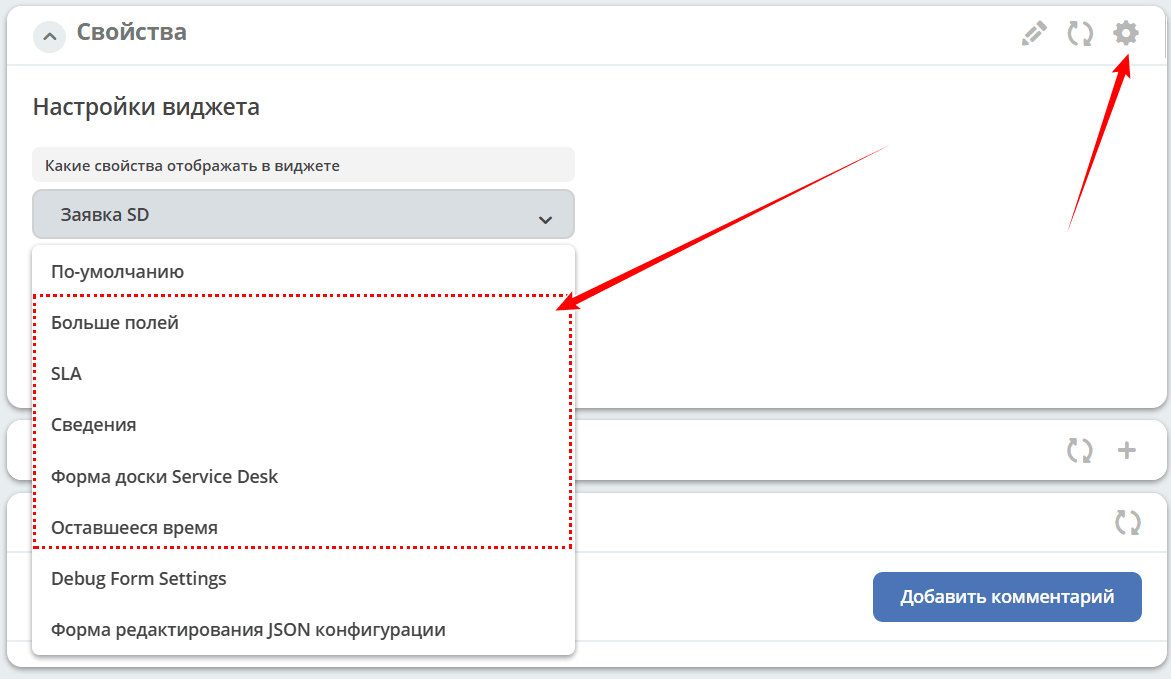
In the widget settings via the gear icon, assign it the required form: