Document Library
Document Library is a hierarchical interface for storing, organizing, and browsing files as a folder tree. It allows uploading documents, creating folders, performing actions on files, and moving them between folders, similar to Windows Explorer.
The library is connected to the menu through a special DocLib element and requires creating a data type based on Document Library File.
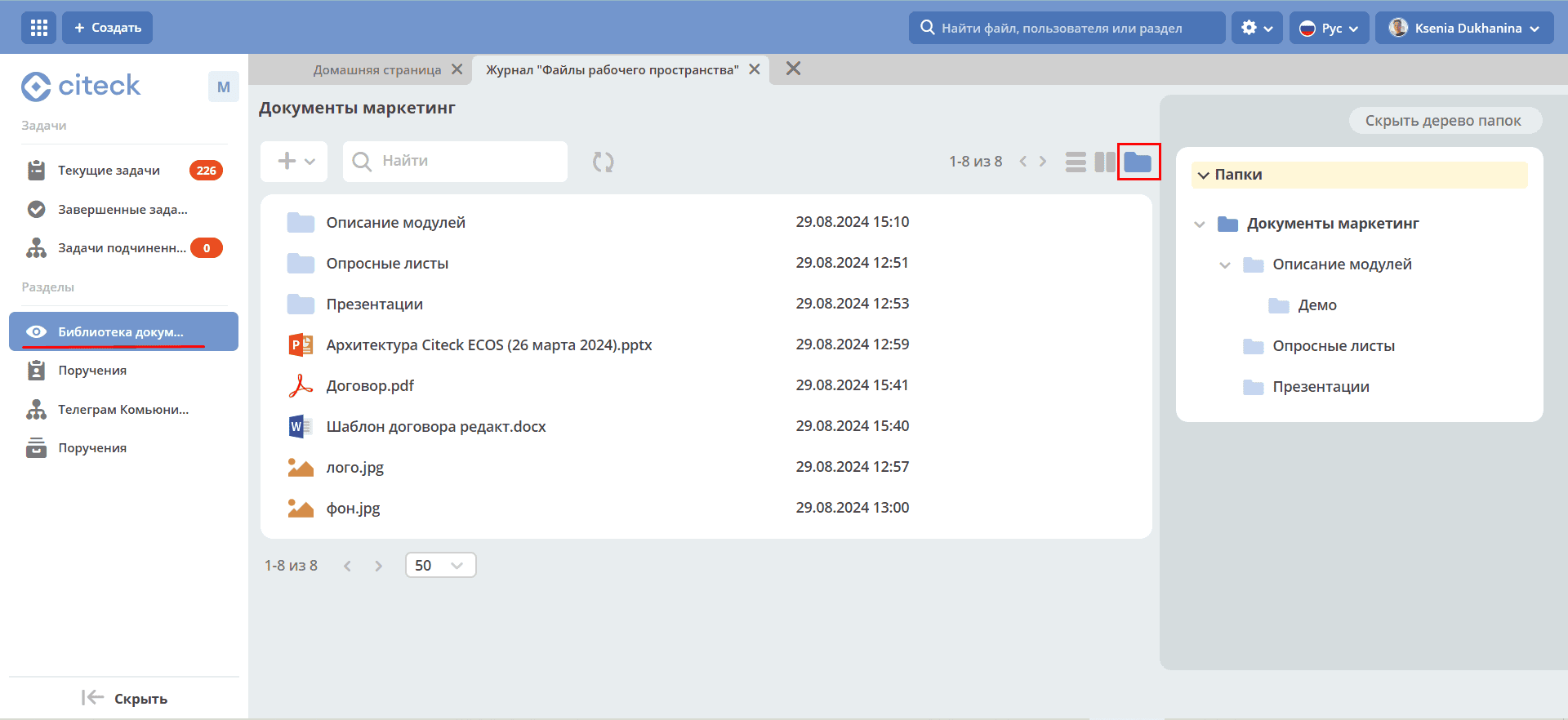
In this mode, you can view the folder and document hierarchy tree, and perform actions on documents and folders similarly to Windows Explorer.
A file is opened in a background tab with a single click. A folder is opened with a double-click in the current tab.
The file explorer is displayed by default and can be hidden by clicking «Hide folder tree» in the right menu.

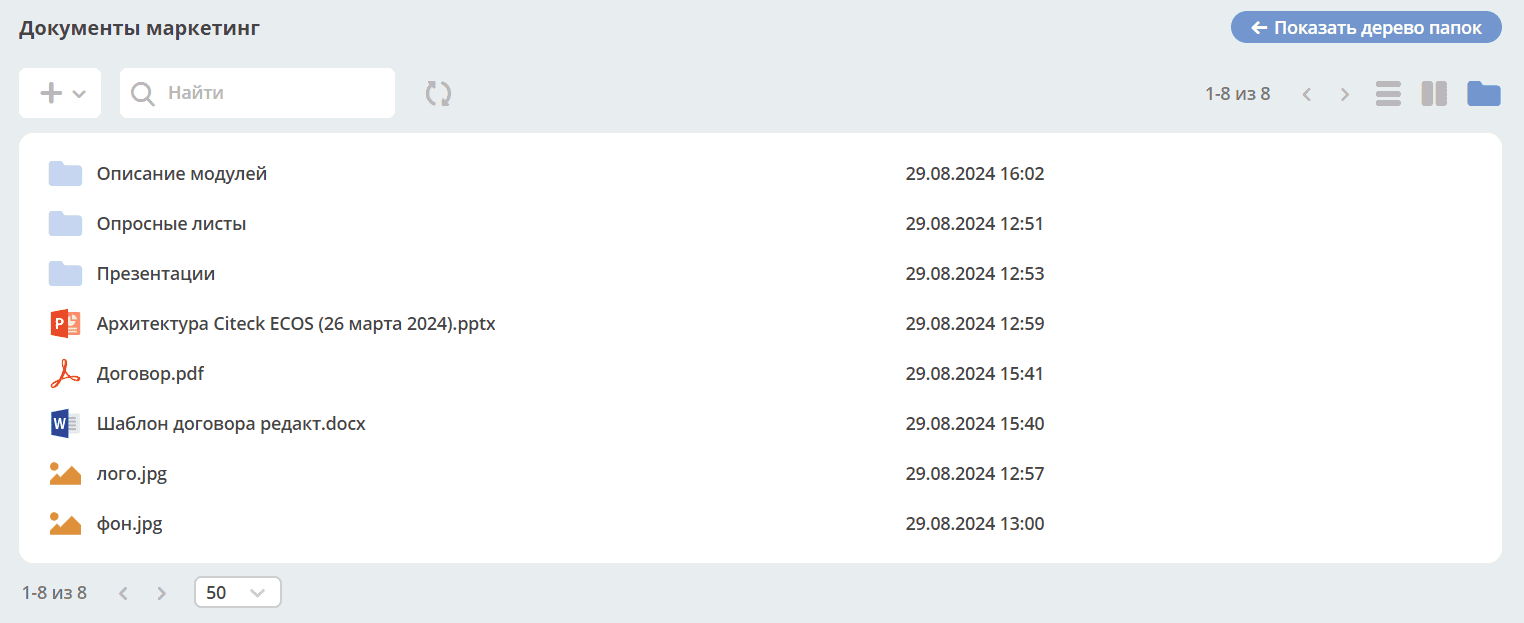
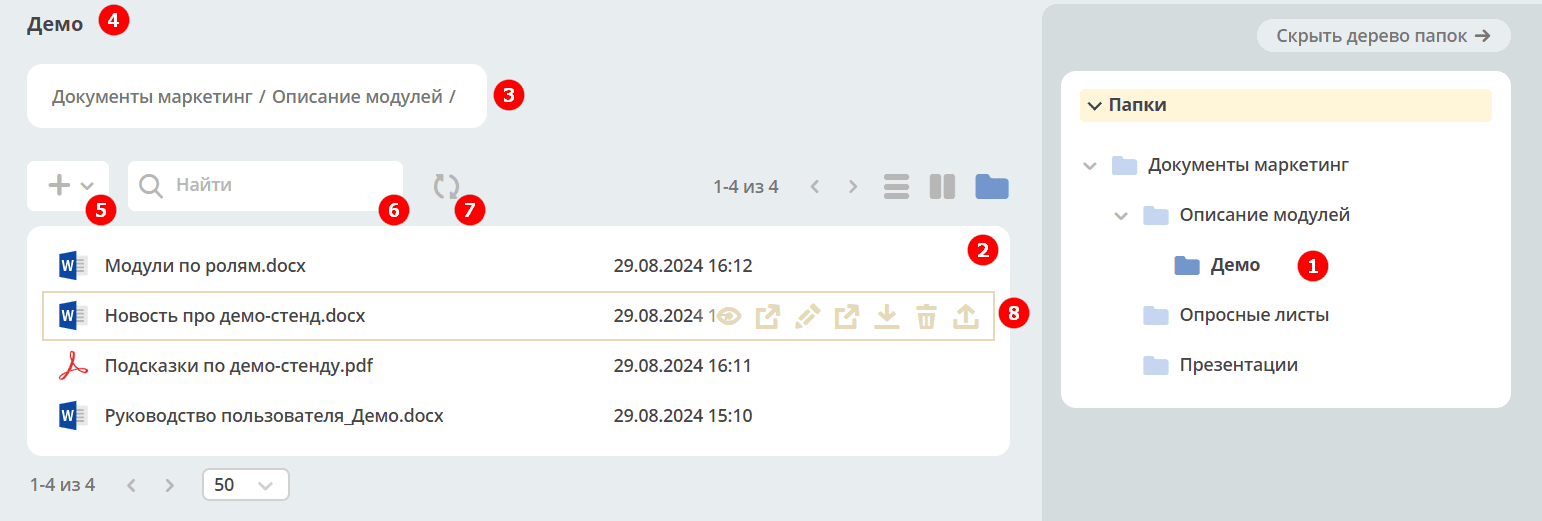
The selected folder is highlighted among other folders (1).
Clicking on the folder icon or name expands it (1), and the files inside the folder are shown on the left (2).
Icons corresponding to file formats are used for displaying documents and folders, similar to Windows Explorer:
Microsoft Word (doc, docx);
Microsoft Excel (xls, xlsx);
Microsoft PowerPoint (ppt, pptx);
Adobe Acrobat (pdf);
Image files (jpg, bmp, png, gif, tif);
OpenOffice / LibreOffice (odf);
Email message file (.msg).
The name of the currently open folder is displayed above the journal (4), and the full path to the open folder is shown below (3).
File uploading and folder creation are done using button (5) and drag-and-drop.
Search for documents within the selected folder (6). Search results are displayed as a list.
Use (7) to refresh the data.
When hovering over a file or folder, actions are displayed (8). See Item Actions below.
Item Actions

|
Open the card in a new tab. |

|
Open in a background tab. |

|
Rename a file or folder: 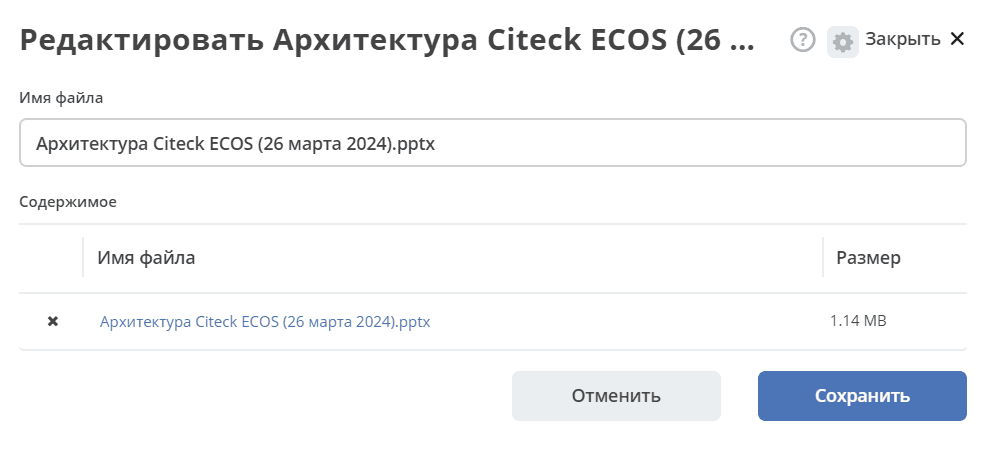
You can change the file name or replace the attached file itself. |
|
|
Edit document in OnlyOffice. Available only for MS Office and OpenDocument format files. |

|
Download the file. |

|
Delete a file or folder: 
|

|
Upload a new version: 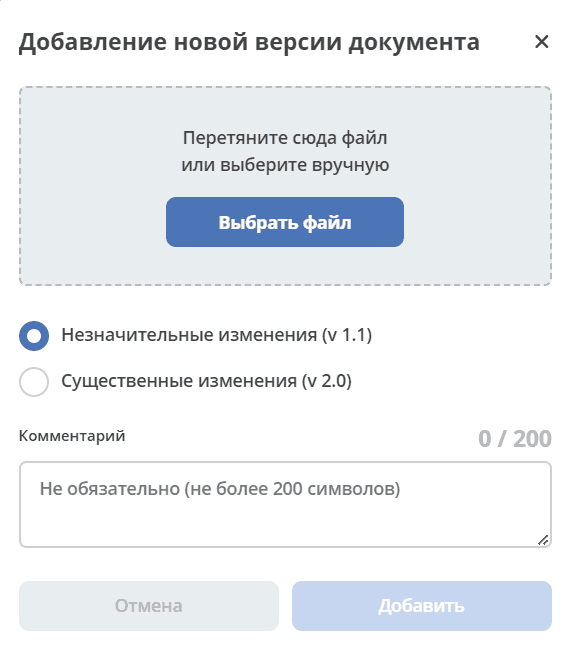
|
Creating a Folder / Uploading a File
1. Using the button:
Creating a folder or uploading a file is done using the + button:
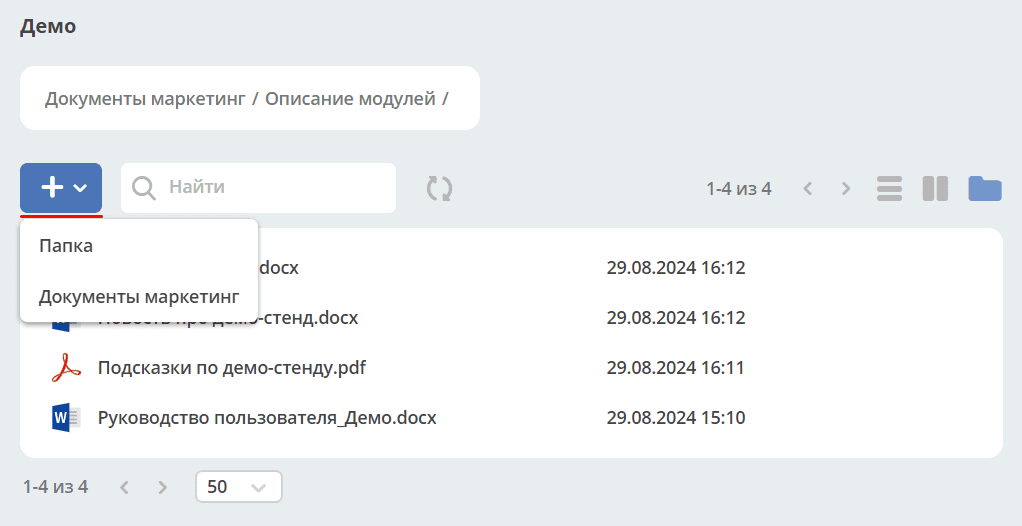
When uploading a file, enter the display name and select or drag the file to attach:
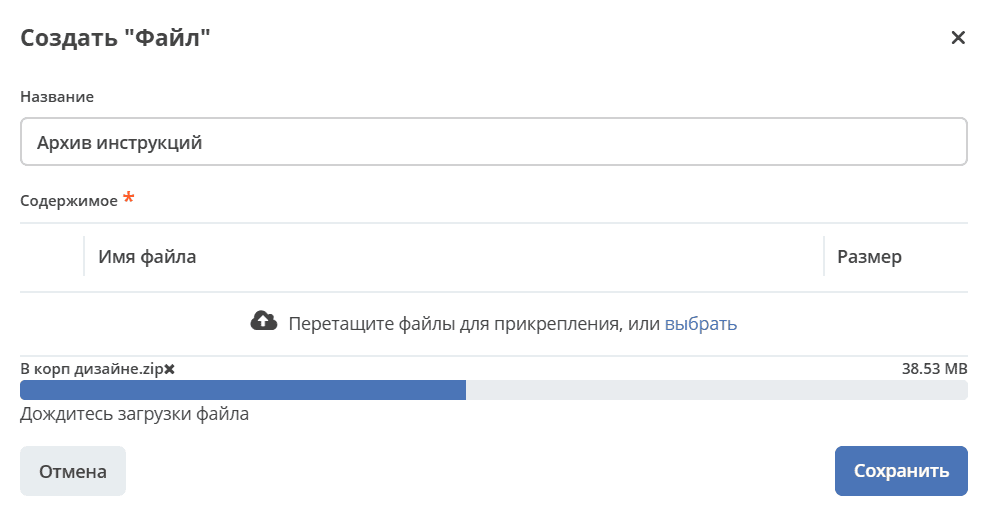
A file upload progress indicator is displayed on the form.
When creating a folder, enter its name:

2. Drag-and-drop
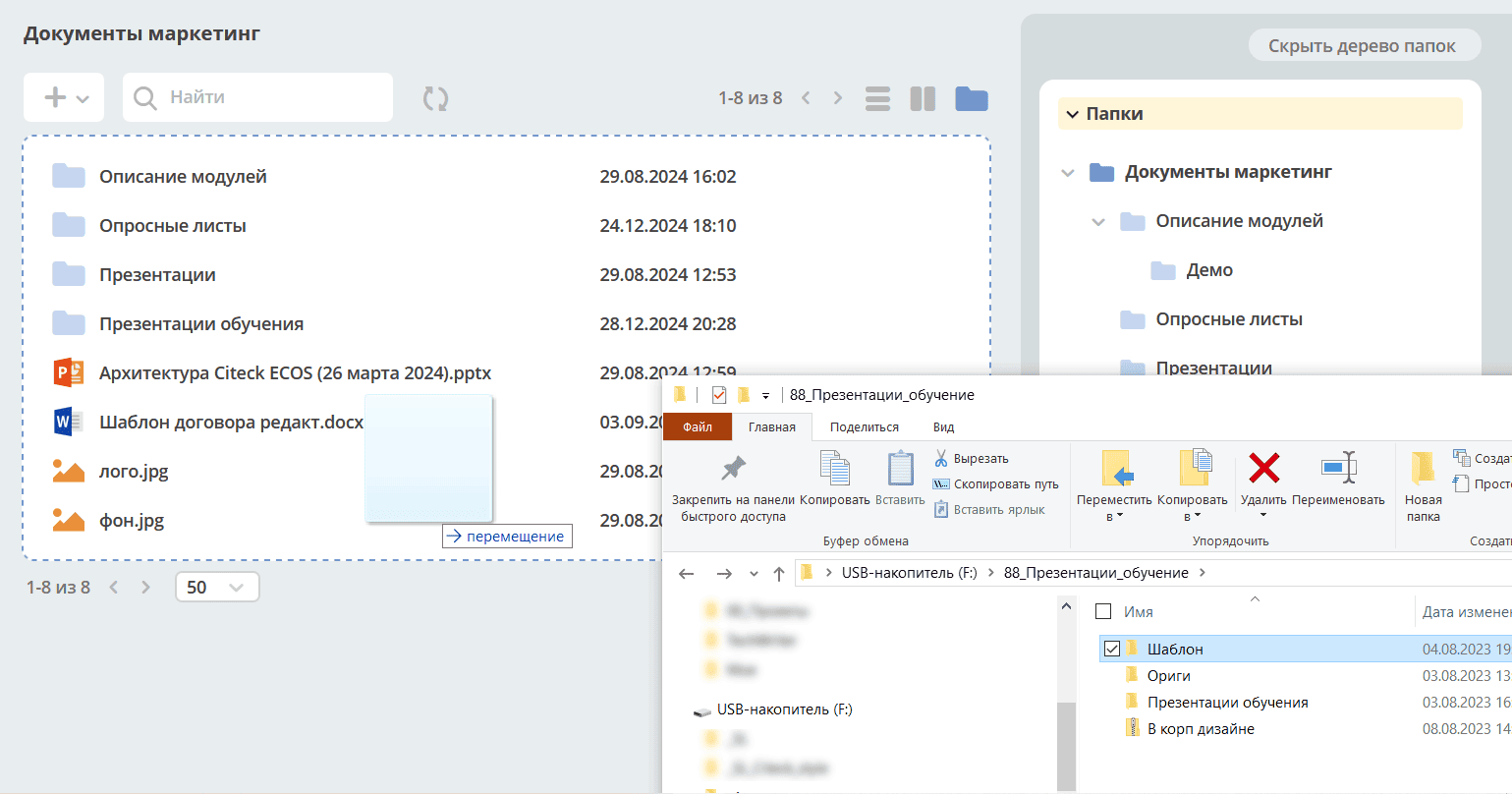
Drag the selected folders and files to the upload area:
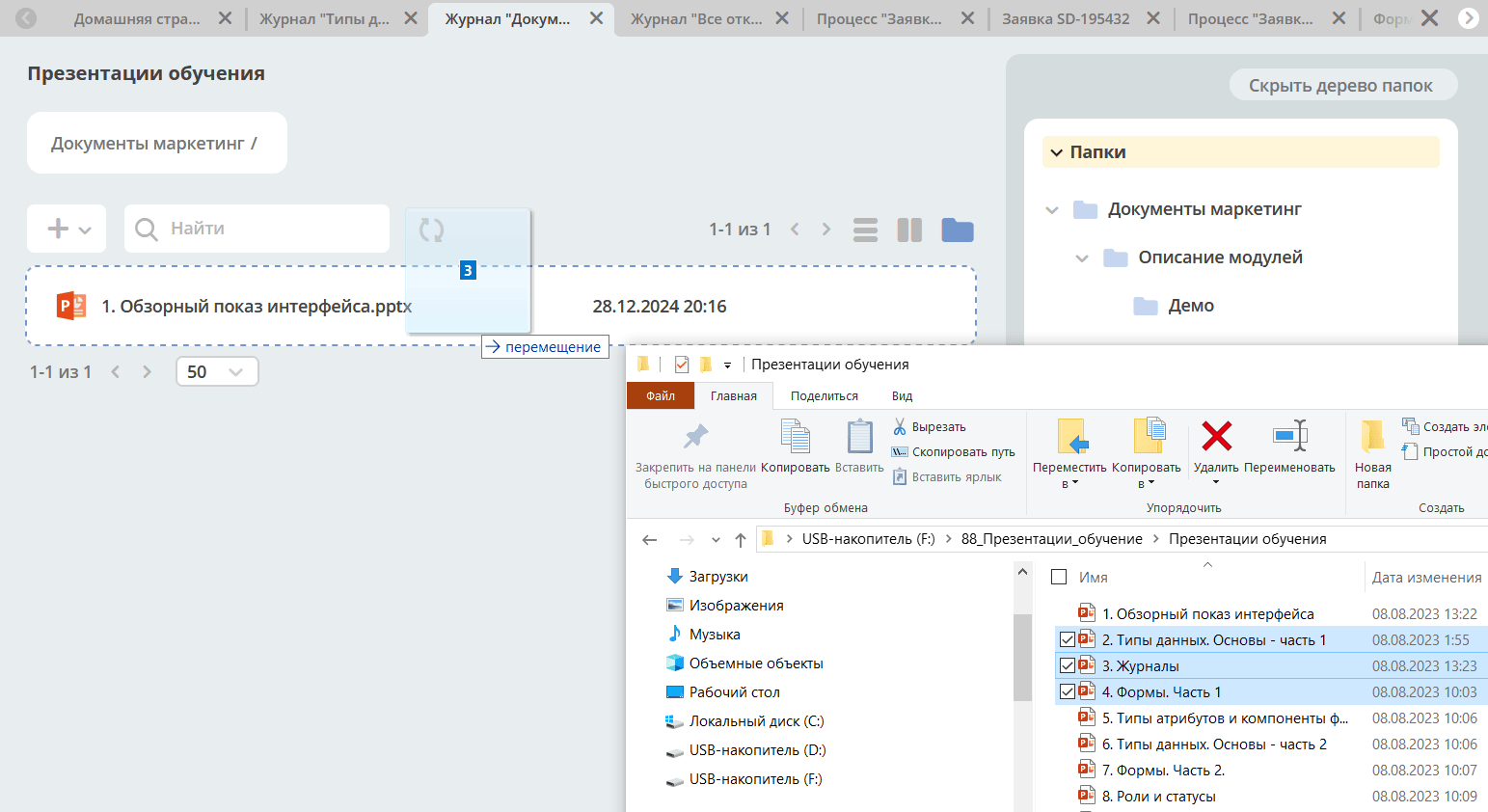
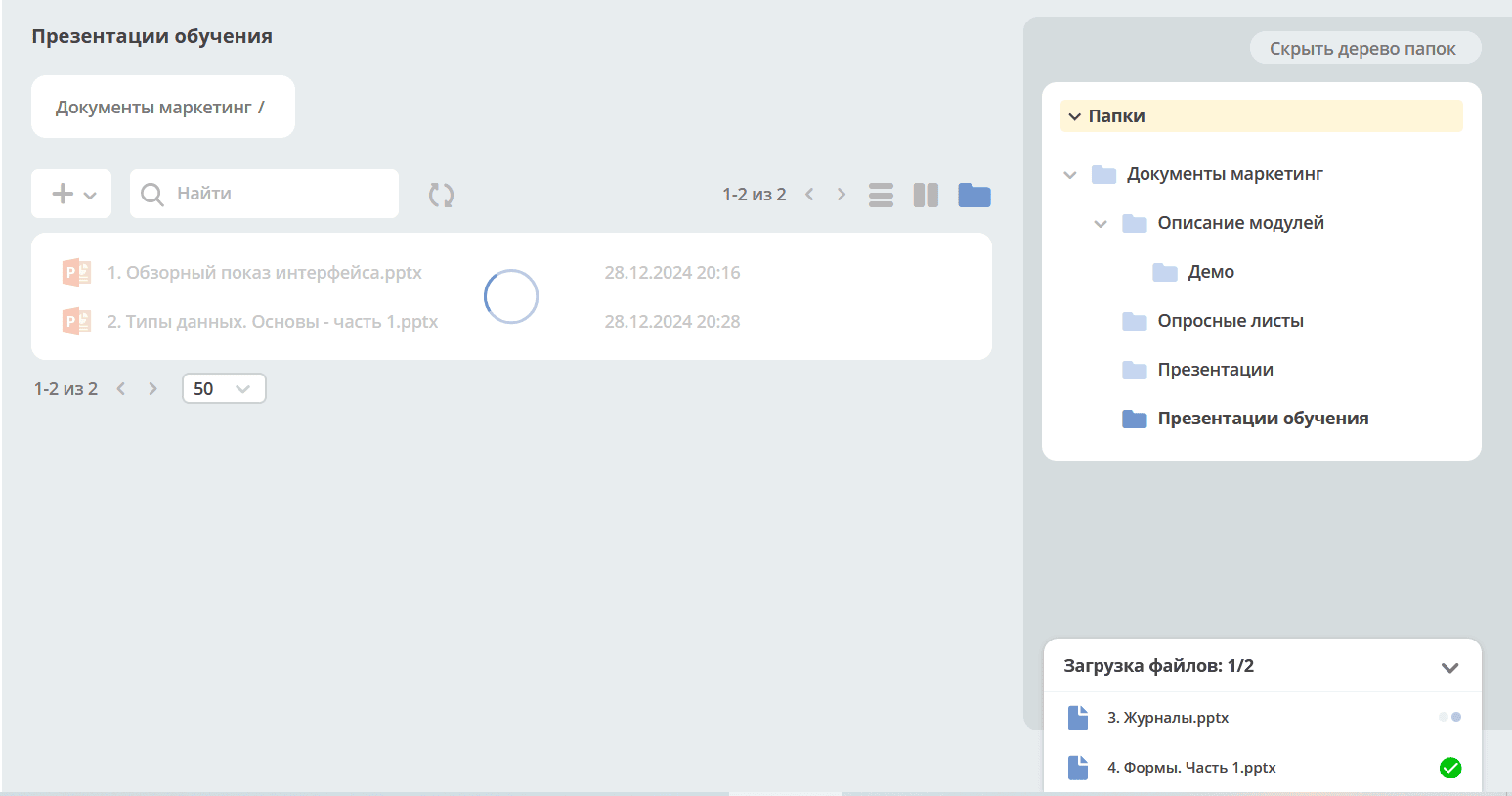
Upload progress is shown in the bottom right corner:

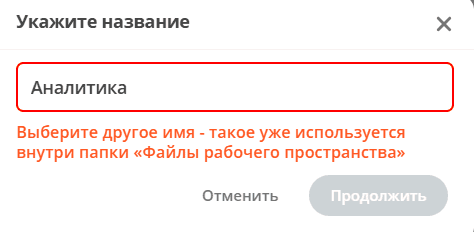
When uploading or creating files and folders, a uniqueness check is performed:
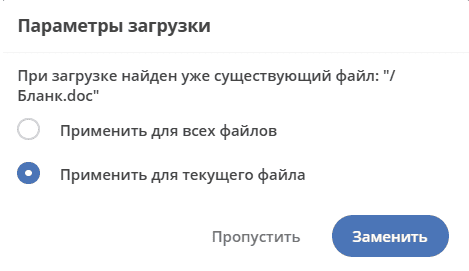
Uploading a folder containing files is also available.
Moving Files and Folders
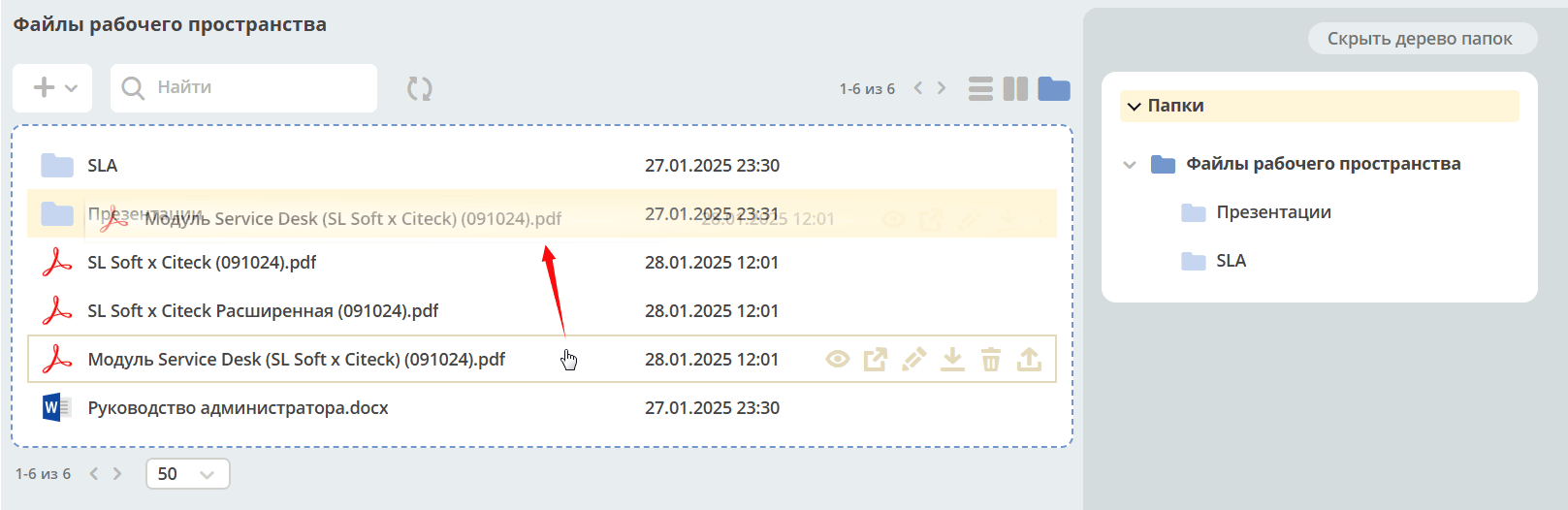
File Card
The card consists of widgets:

The following actions are available for a file:
Edit properties;
Edit document (only for MS Office and OpenDocument format files);
Download;
Delete;
Upload a new version.
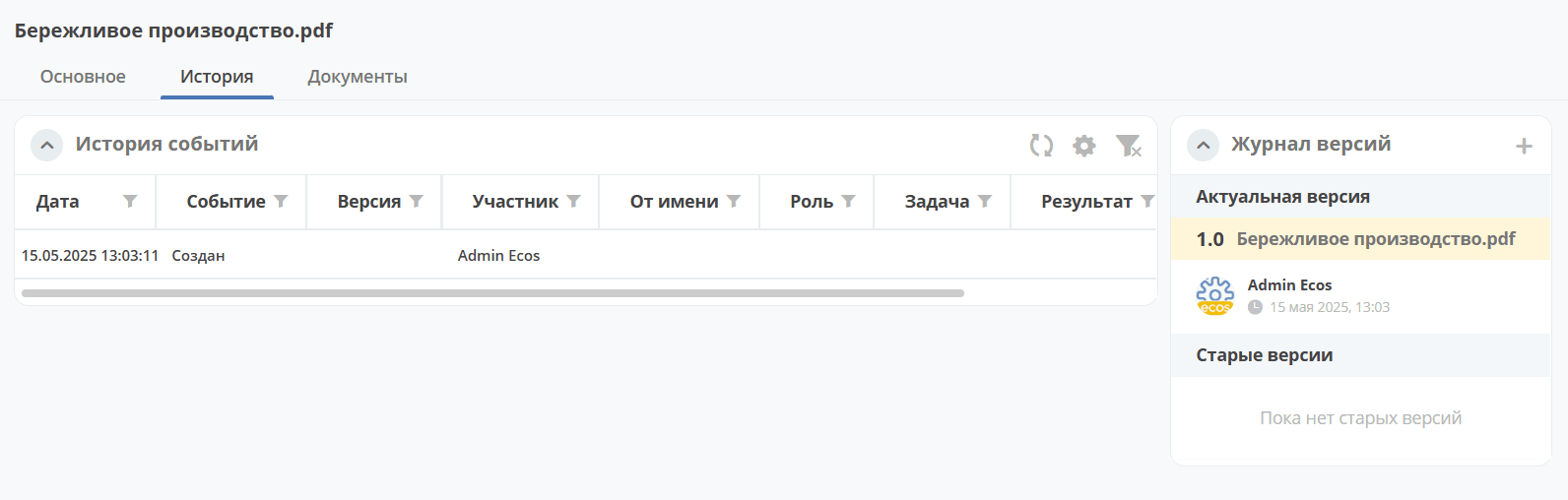
See details on widgets.
Creating a Document Library
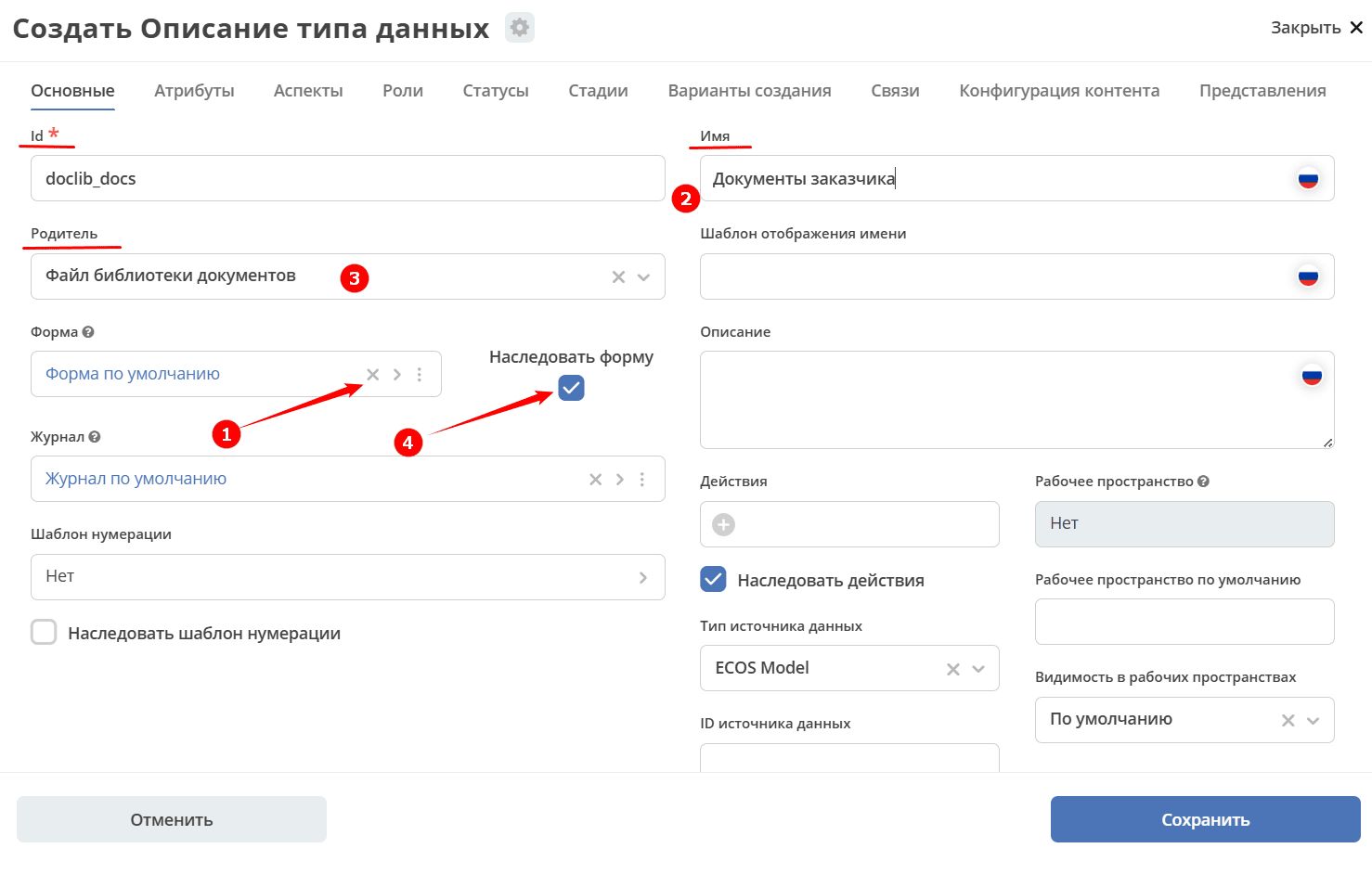
Create a new data type. Delete the Default Form (1), in the «Main» tab specify the id and Name (2), select Document Library File (3) as the parent, and check the Inherit Form checkbox (4).
Actions and a form will be automatically added to the created type.
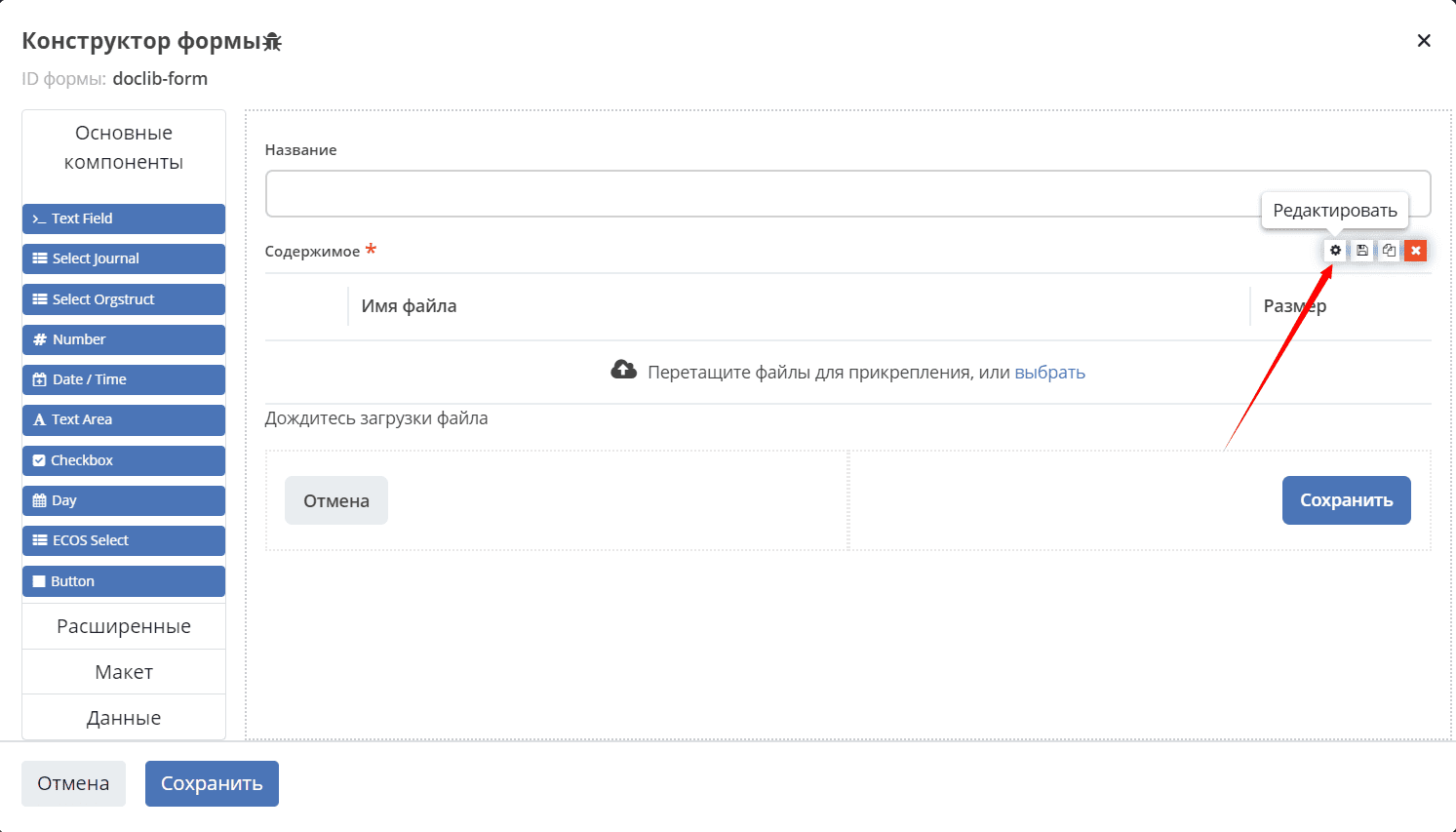
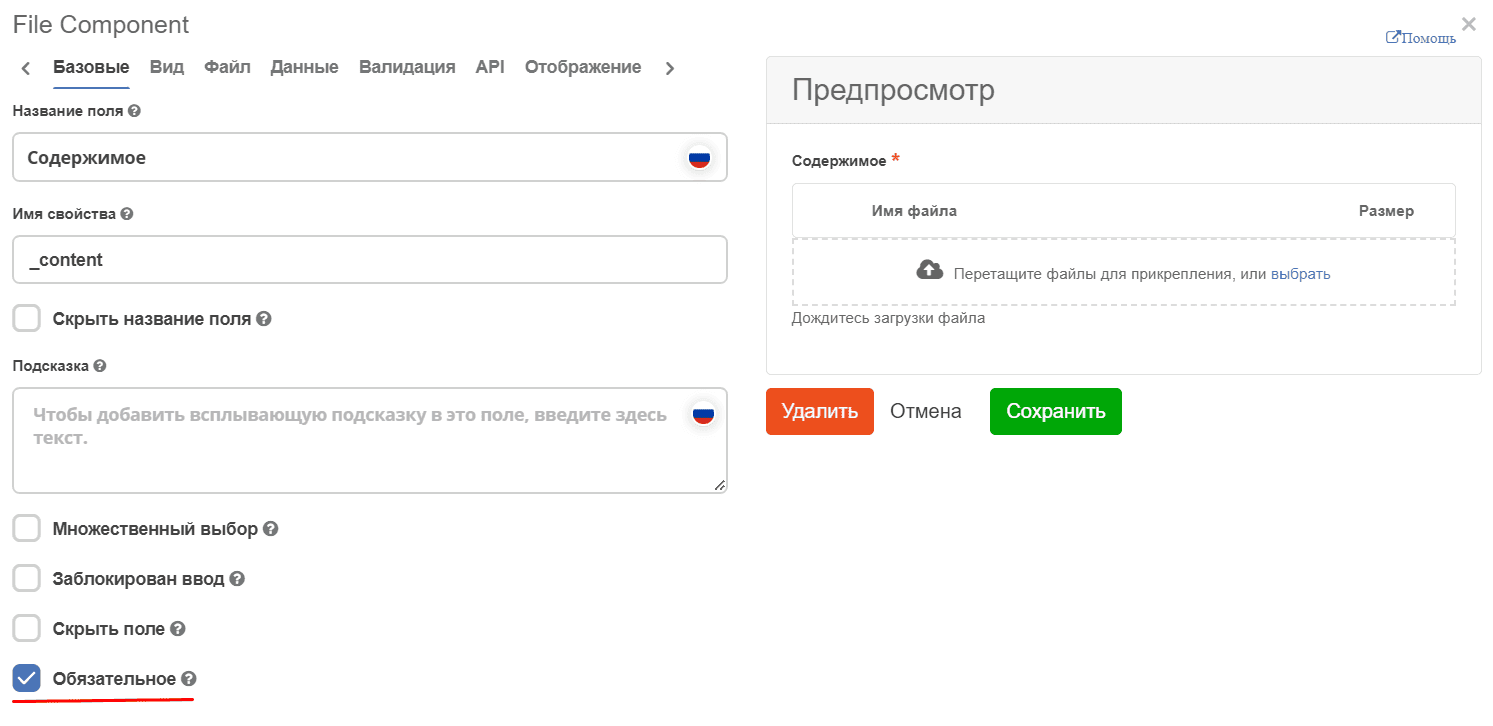
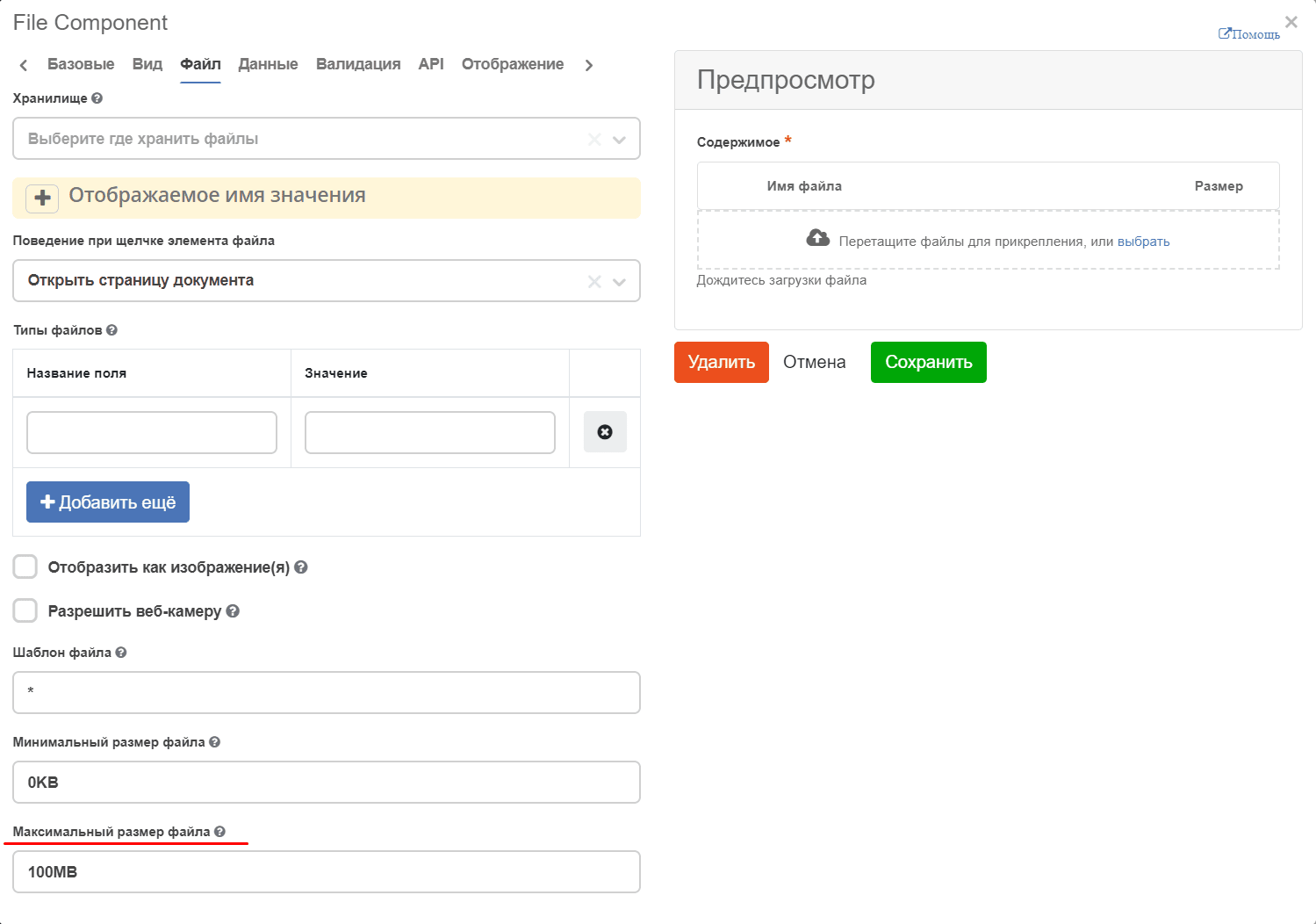
The standard doclib-file form has a number of parameters configured for correct file uploading. If a custom form is used, the settings of that form must be taken into account, in particular the content requirement and the maximum file size configuration on the form.
File component component:
The doclib aspect can also be used to create a document library.
to be updated
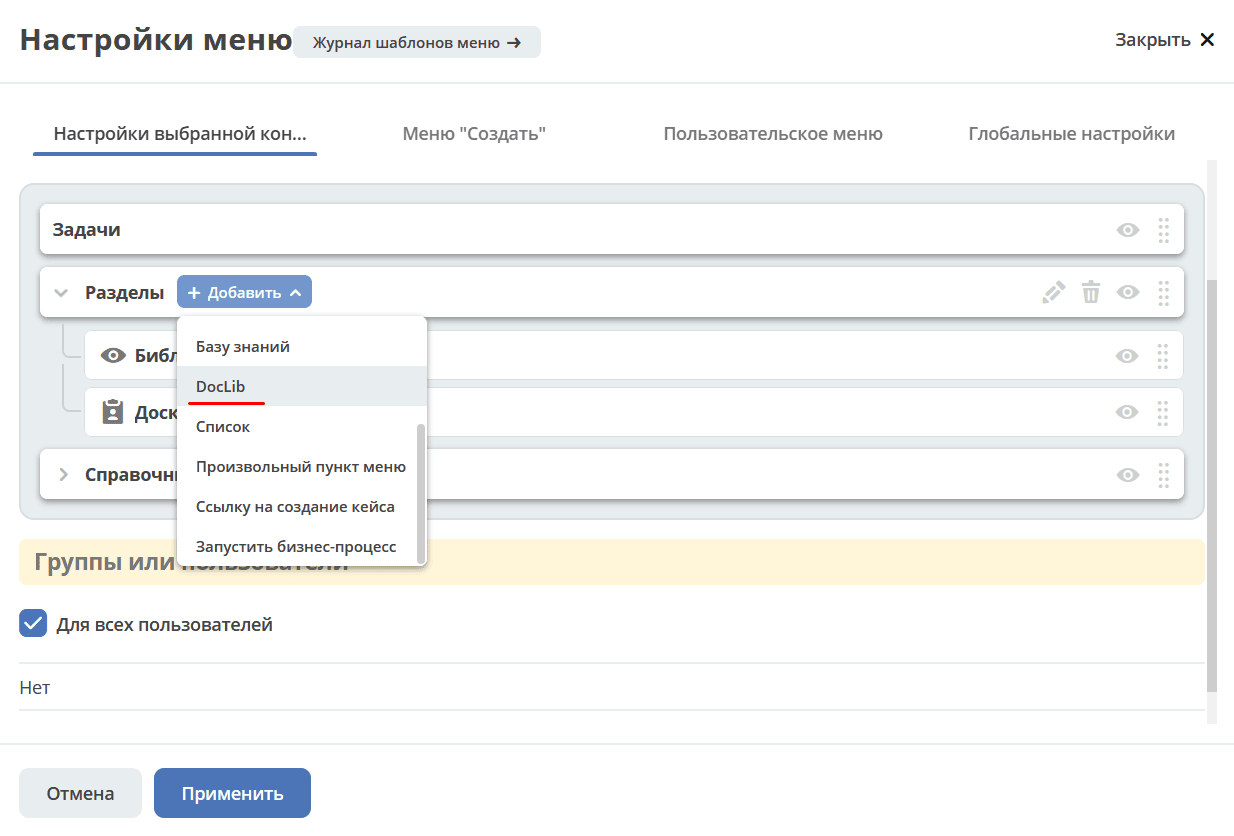
To add the document library to the menu, select the special DocLib element:
API
to be updated