File
A component for uploading files. Allows uploading files to content. For child associations, setting type/kind is supported.
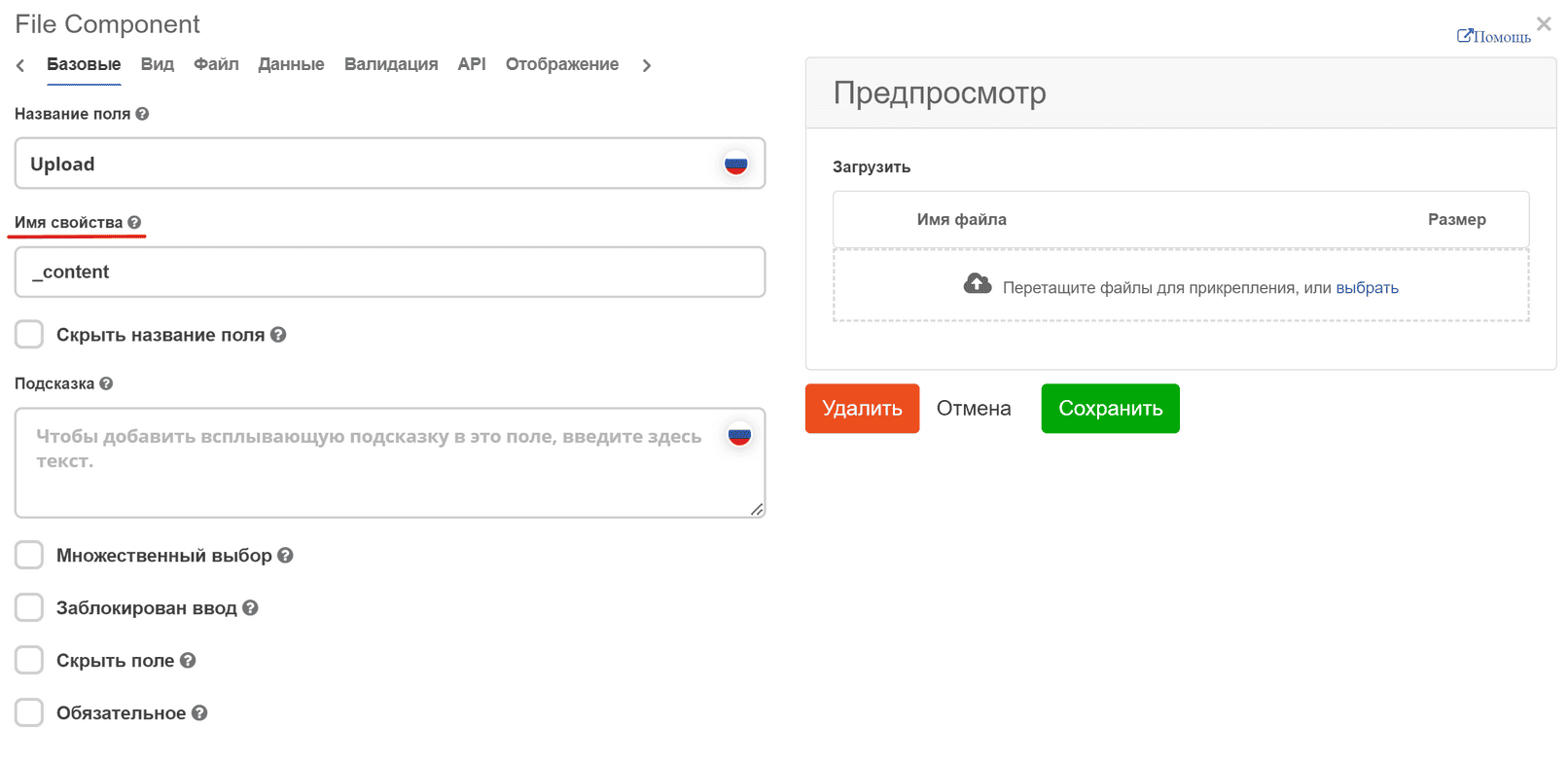
When adding a new File component to the form, it is sufficient to specify the correct Property Name (or leave the default _content if editing the main content of the document is implied). All other settings work “out of the box”.
The choice of file upload method is made in the File tab - the Storage field with values URL or Base64.
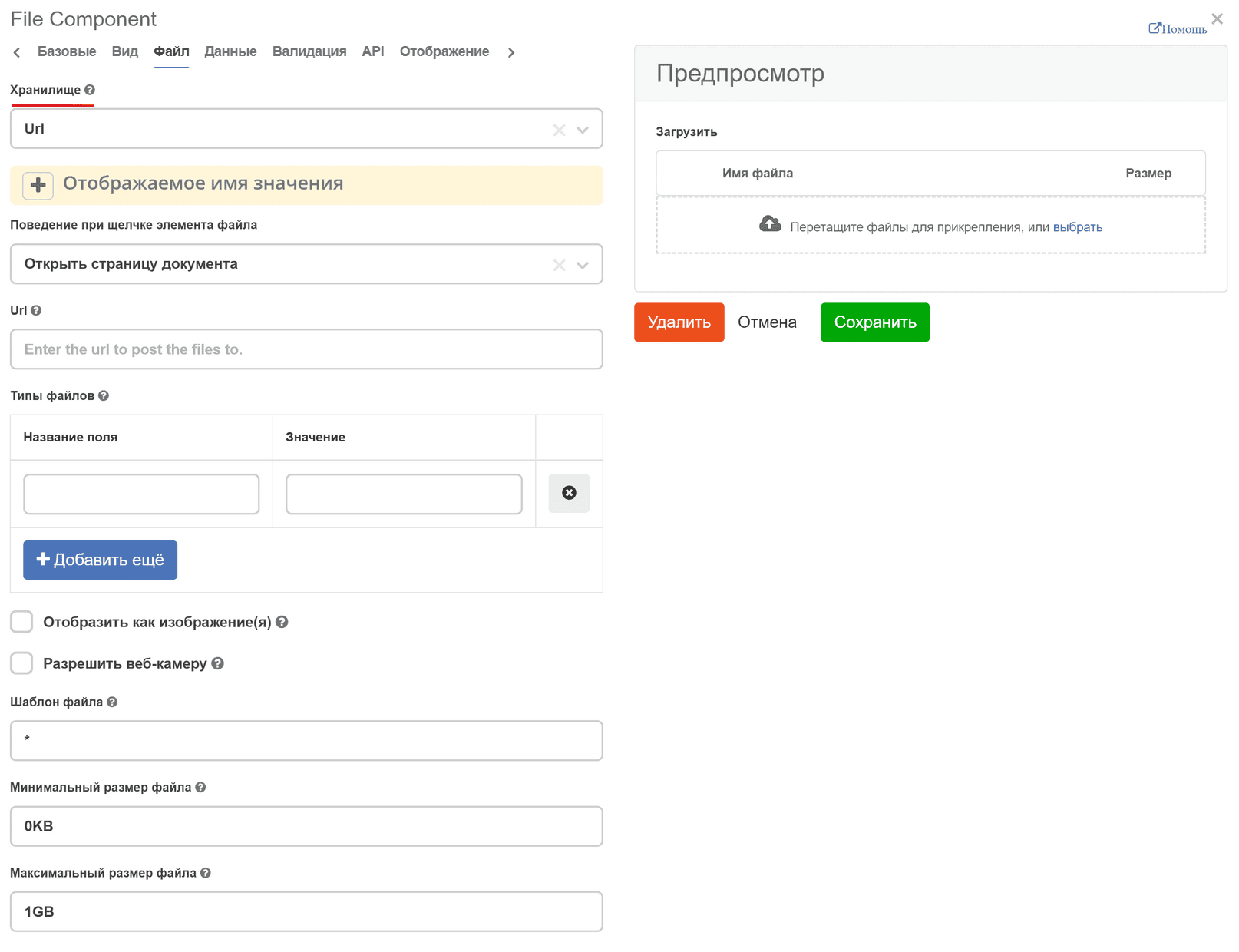
Configuring file name display
In the File tab, the ability to configure the display of file names in the list has been added - the Value display name setting. The field accepts a javascript expression in which you need to assign a string or a Promise to the disp variable.
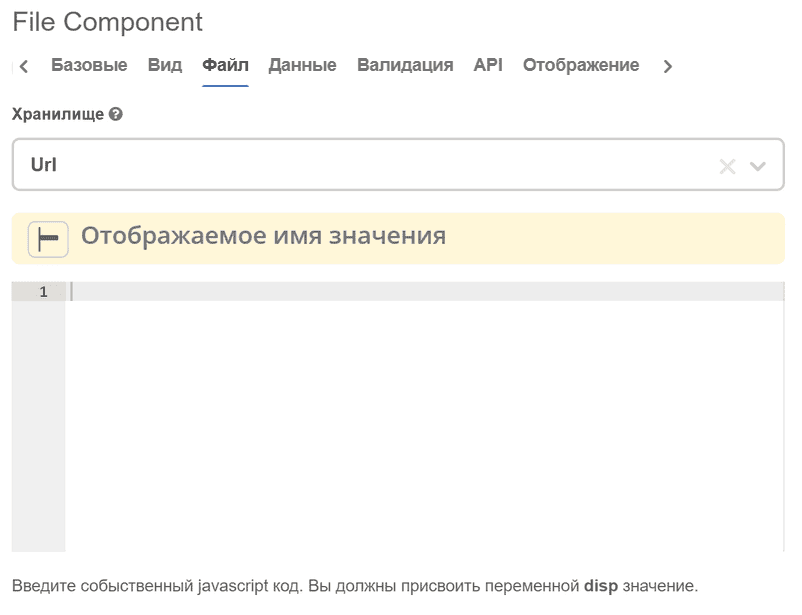
In addition to the standard formio variables available when writing javascript expressions (data, instance, _, etc.), additional ones have been added:
originalFileName - contains the default file name
file - an object containing various information about the file
record - Promise obtained by calling
Records.get(file.data.recordRef). If the file is not associated with any recordRef, the record value will be null.
Examples of using the Value display name setting:
// Пример 1. Статическое название
disp = 'staticName.txt';
// Пример 2. Название, вычисленное асинхронно
disp = new Promise(resolve => {
  // какие-то асинхронные действия
  // ...
  resolve('Асинхронное название файла')
});
// Пример 3. Использование record
disp = record ? record.load('.disp').then(result => `${result}.pdf`) : originalFileName;
Configuring the display of individual component elements
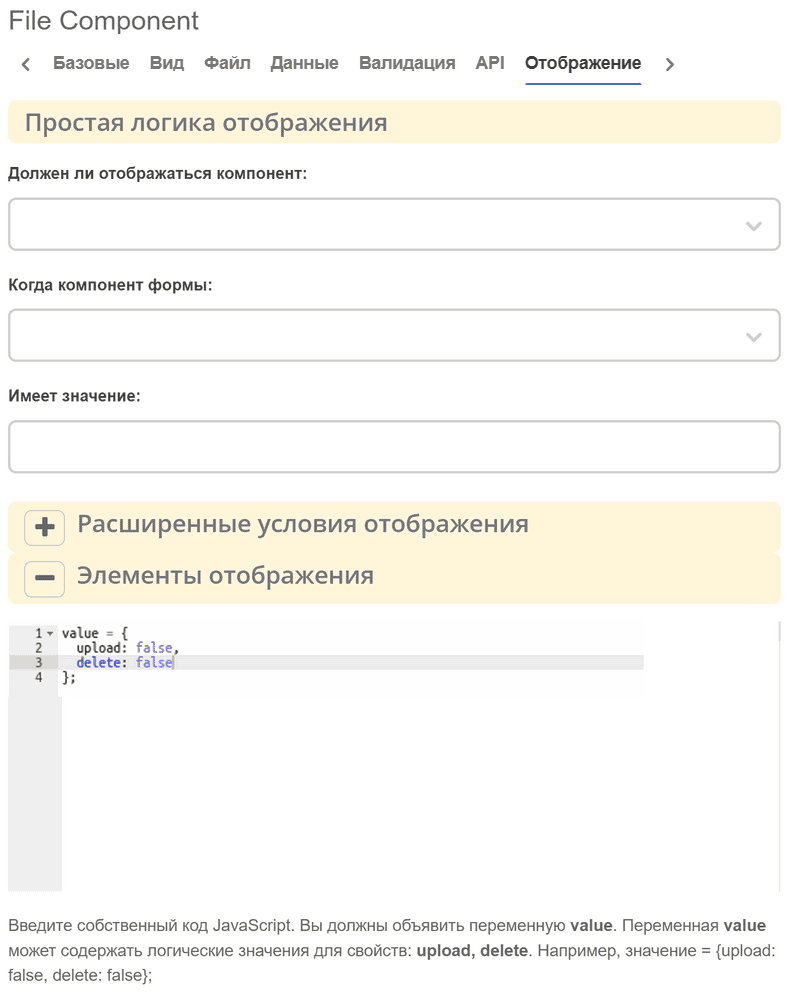
An additional setting Display Elements has been added to the Display tab, which allows setting display conditions for individual elements (for example, the file delete button, the upload zone with a button for adding a new file).
The field accepts a javascript expression in which you need to assign an object with optional properties upload, delete to the value variable. If any of the properties is not specified, the component itself will decide whether to display or hide the element, depending on the situation.
value = {
    upload: false,
    delete: false
}
Backend
For the correct operation of the control in edit mode, the “content” value must have a getAs method implemented with the content-data argument, which will return a structure of the following content:
[
    {
        “url“: “ссылка_которая откроется при клике на файл.“
        “name“: “Имя файла“
        “size“: размер_файла_в_байтах
    }
]
Synchronization with the documents widget
To synchronize with the documents widget, in the file control’s form, you need to specify docs:documents in the Property Name:
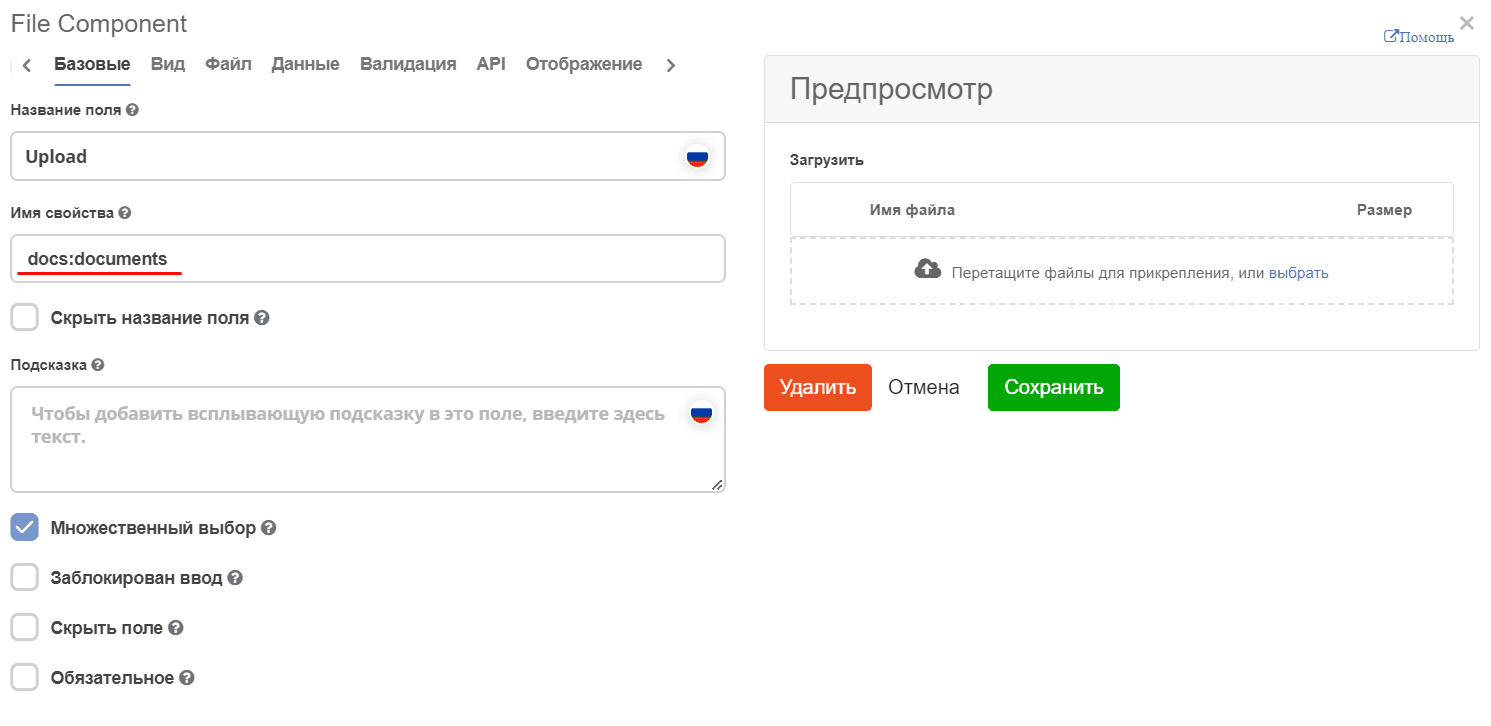
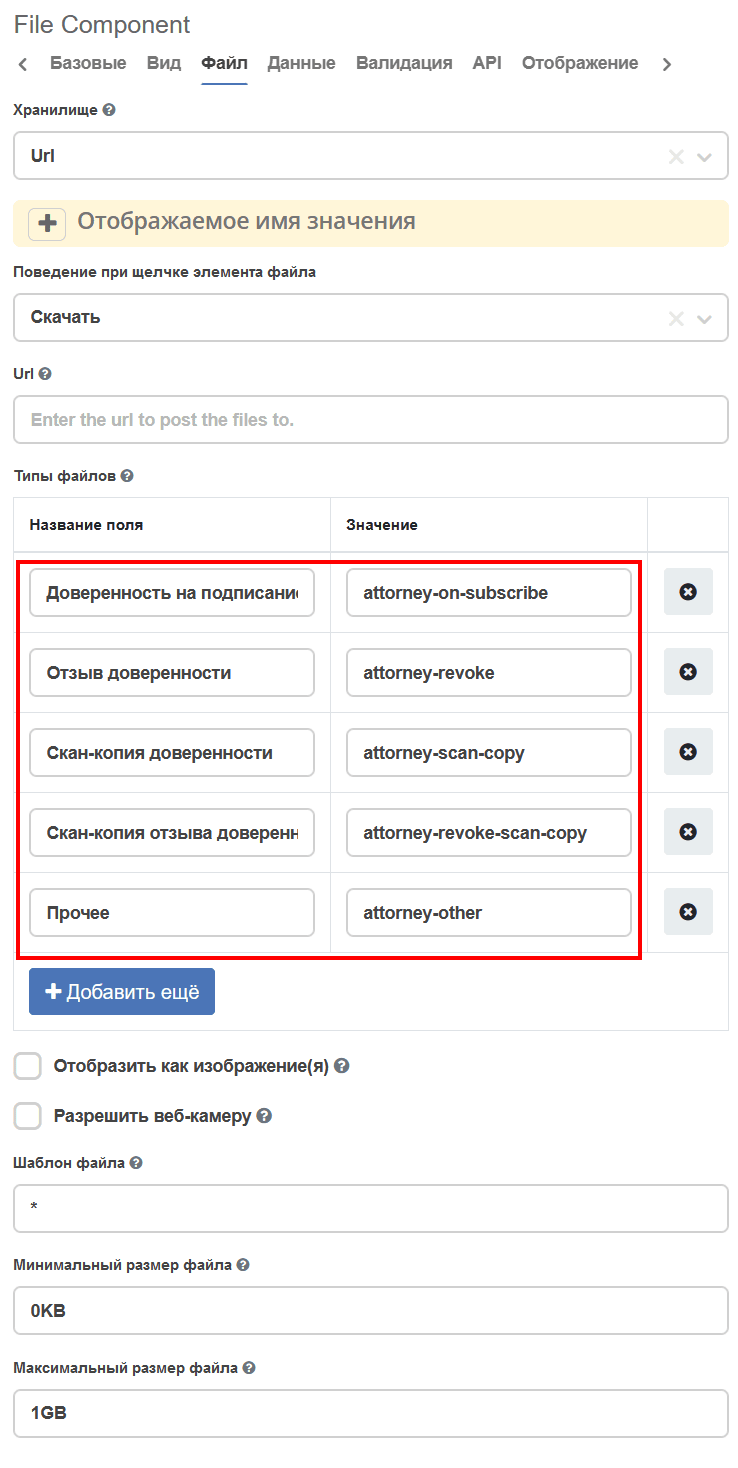
In the File tab, specify the type(s) with which new files should be uploaded (if a file is uploaded without a type, it will not appear in the widget):