Component configuration
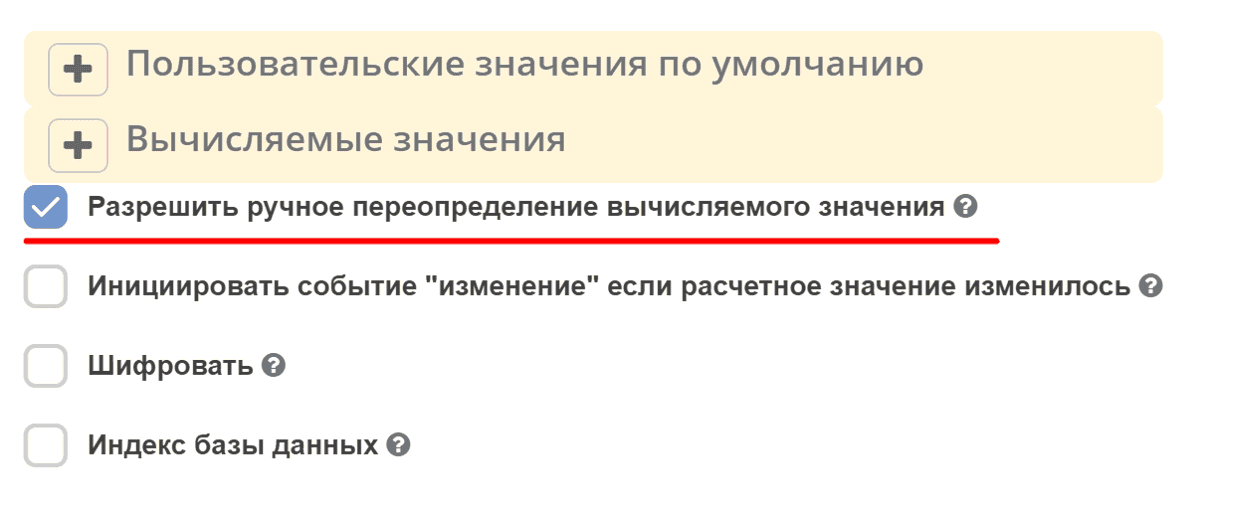
Allow Manual Override of Calculated Value
The setting is located on the “Data” tab.
Using Allow Manual Override of Calculated Value, the field is recalculated until the user changes this value.
Operation description
Creation mode
For calculated value to be set, valueChangedByUser = false is required (provided that Allow Manual Override of Calculated Value is enabled). Then in creation mode, it’s sufficient to simply clear the component, and calculatedValue will fill it again.
Edit mode
In edit mode, if you clear the component, this is also considered a user edit, therefore, there is no way to get the value from calculatedValue again.
Field and logic description
Name |
Default value |
Description |
|---|---|---|
calculatedValue |
null |
calculated value |
dataValue |
value from server |
value in field |
form mode |
set value “CREATE” by default.
Possible values - CREATE, EDIT
|
|
calculatedValueWasCalculated |
Internal flag that determines whether this is the first value calculation or not.
Set to true after first calculation.
|
|
valueChangedByUser |
false |
Internal flag that indicates the current value (dataValue) is detached from the calculated value |
Before setting dataValue for all fields, it is checked that no logic from the form starts calculating.
For each recalculation of calculatedValue:
After the first calculation of calculatedValue (whether it’s the first or not is determined by the calculatedValueWasCalculated flag), the valueChangedByUser flag value is set.
calculatedValueWasCalculated is set to true
If the flag valueChangedByUser = false, then dataValue is changed, otherwise no actions are performed with dataValue
Additional logic:
If the dataValue is changed by the user, the flag valueChangedByUser = true is set
Example of working with TableForm component
Task
data should be calculated based on component 1 and placed in component 2, and after that the user should be able to modify them.
And if the user made a mistake or changed their decision, then delete data from component 2 and again through reselection in component 1 get other data and also modify them:
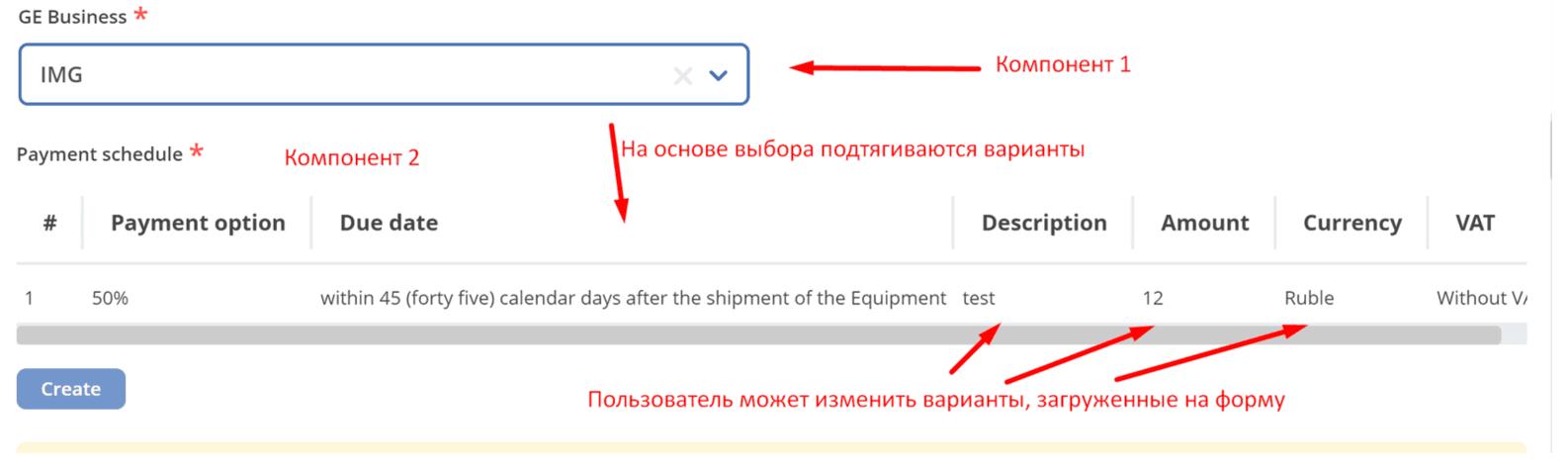
- Implementation:
using the allow Manual Override flag,
but instead of calculated value, the record retrieval logic is moved to the component’s «Logic» section (table form)
The logic is triggered by a button click event (only when the user actually wants to overwrite their values with calculated ones)
Result: overwrite works, manual data calculation launch works (on creation and edit forms). Did not work previously, before using instance.setValue().
Custom Default Value
The setting is located on the “Data” tab.
The customDefaultValue property allows you to set a dynamic default value using a JavaScript expression. The result is assigned to the value variable. The expression is executed when the form is initialized in creation mode.
Note
The static defaultValue property is intended only for fixed values. For dynamic values (current date, current user, etc.) use customDefaultValue.
Examples
Current date for the Date/Time component:
value = new Date();
Fixed string for a text field:
value = "значение по умолчанию";
Example JSON configuration of a Date/Time component with the current date:
{
  "key": "startDate",
  "type": "datetime",
  "input": true,
  "format": "yyyy-MM-dd",
  "enableTime": false,
  "customDefaultValue": "value = new Date();",
  "defaultValue": ""
}
Current User by Default (selectOrgstruct)
The setting is located on the “Custom” tab of the selectOrgstruct component.
The currentUserByDefault property automatically inserts the current user into the field when the form is opened for creation. The setting works only in creation mode (formMode = CREATE) and only for the selectOrgstruct component.
Example JSON configuration:
{
  "key": "responsible",
  "type": "selectOrgstruct",
  "input": true,
  "allowedAuthorityType": "USER",
  "currentUserByDefault": true,
  "defaultValue": ""
}
Note
For dynamic default values in other component types, use customDefaultValue (see Custom Default Value).