Client 360
The Client 360 strategy is an approach to working with counterparties where all client information is consolidated in one place. The counterparty card displays consolidated data from all platform modules: CRM, contracts, documents, support requests, correspondence, and projects.
This consolidation allows you to:
get a complete picture of client interaction without switching between sections;
quickly analyze the history of deals, payments, and requests;
make informed decisions based on up-to-date data.
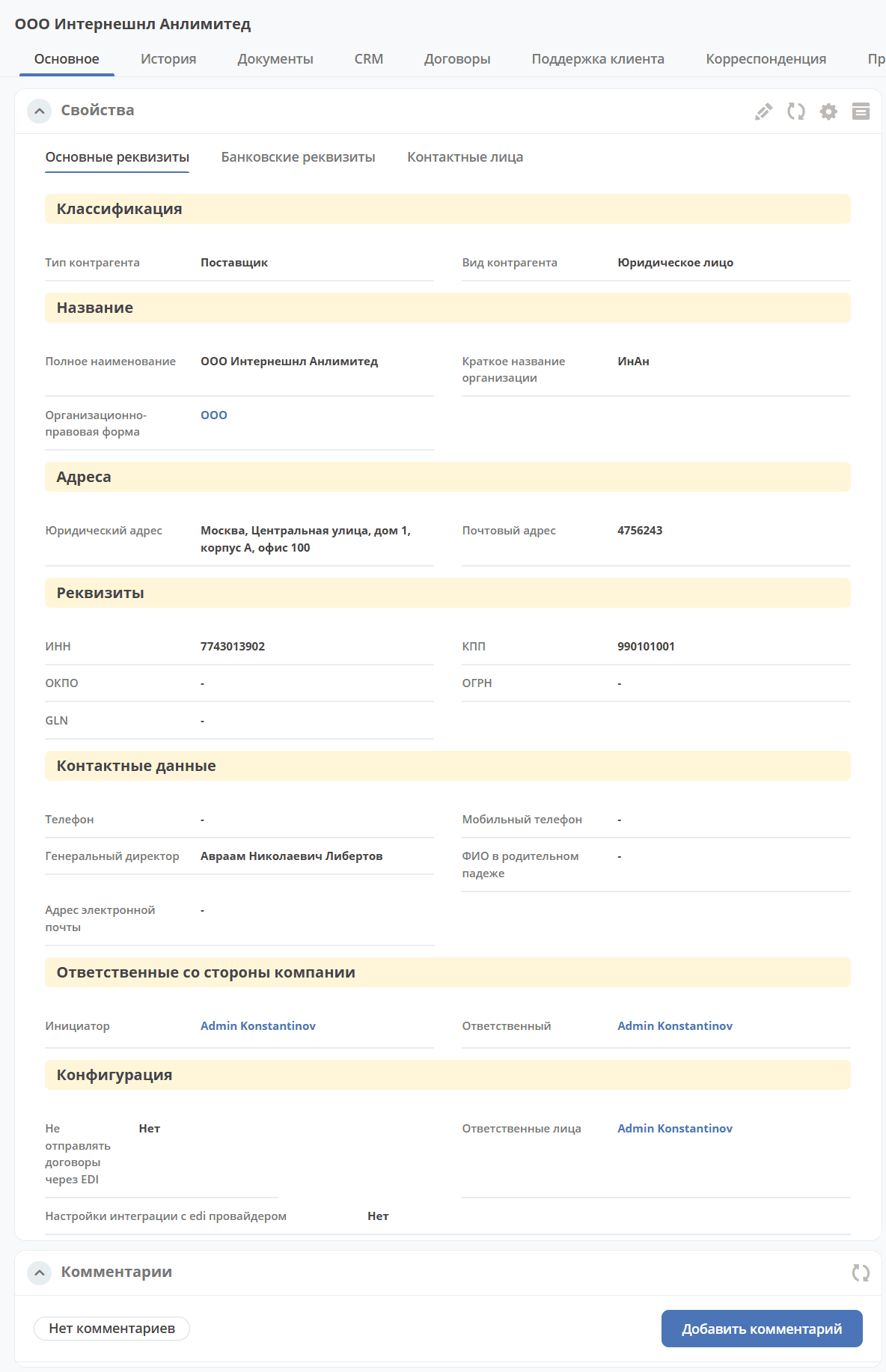
The following tabs are available in the card:
Main – details and information about contact persons are presented:
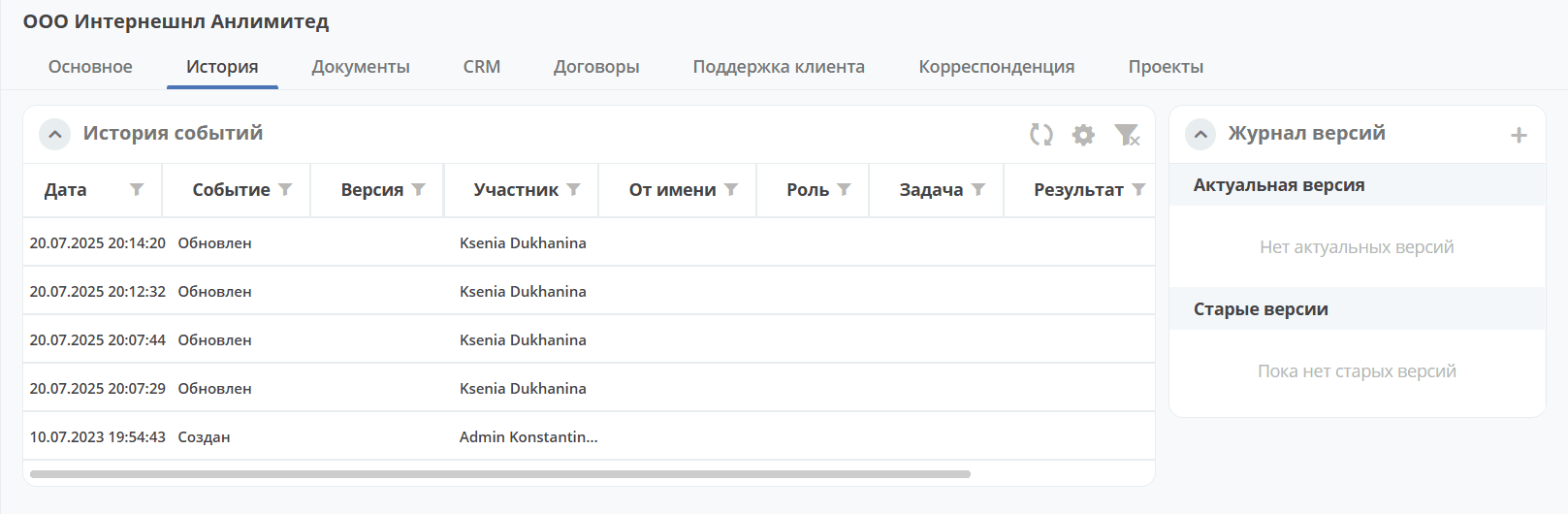
History – information about events in the card such as creation, update:
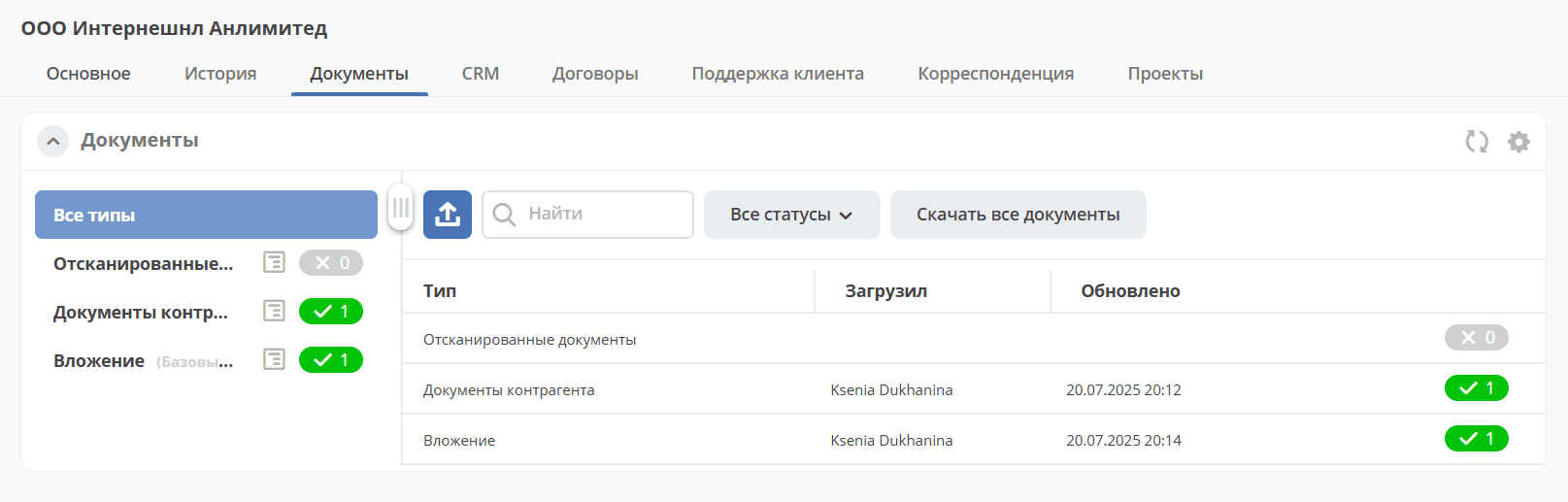
Documents – documents related to the counterparty. New ones can be added, previously uploaded ones can be downloaded:
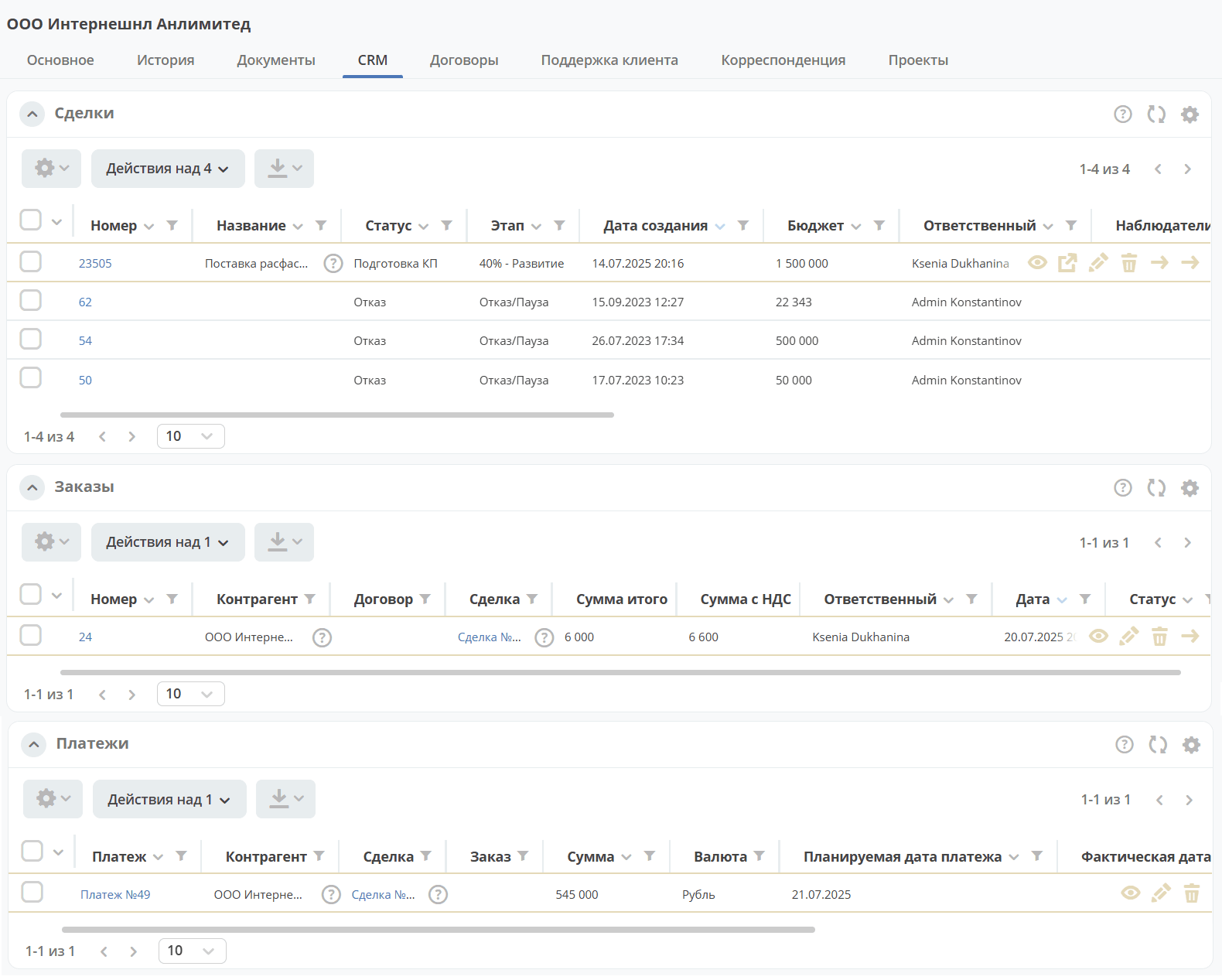
CRM - information from CRM about deals, orders, and payments. Actions are available for each item:
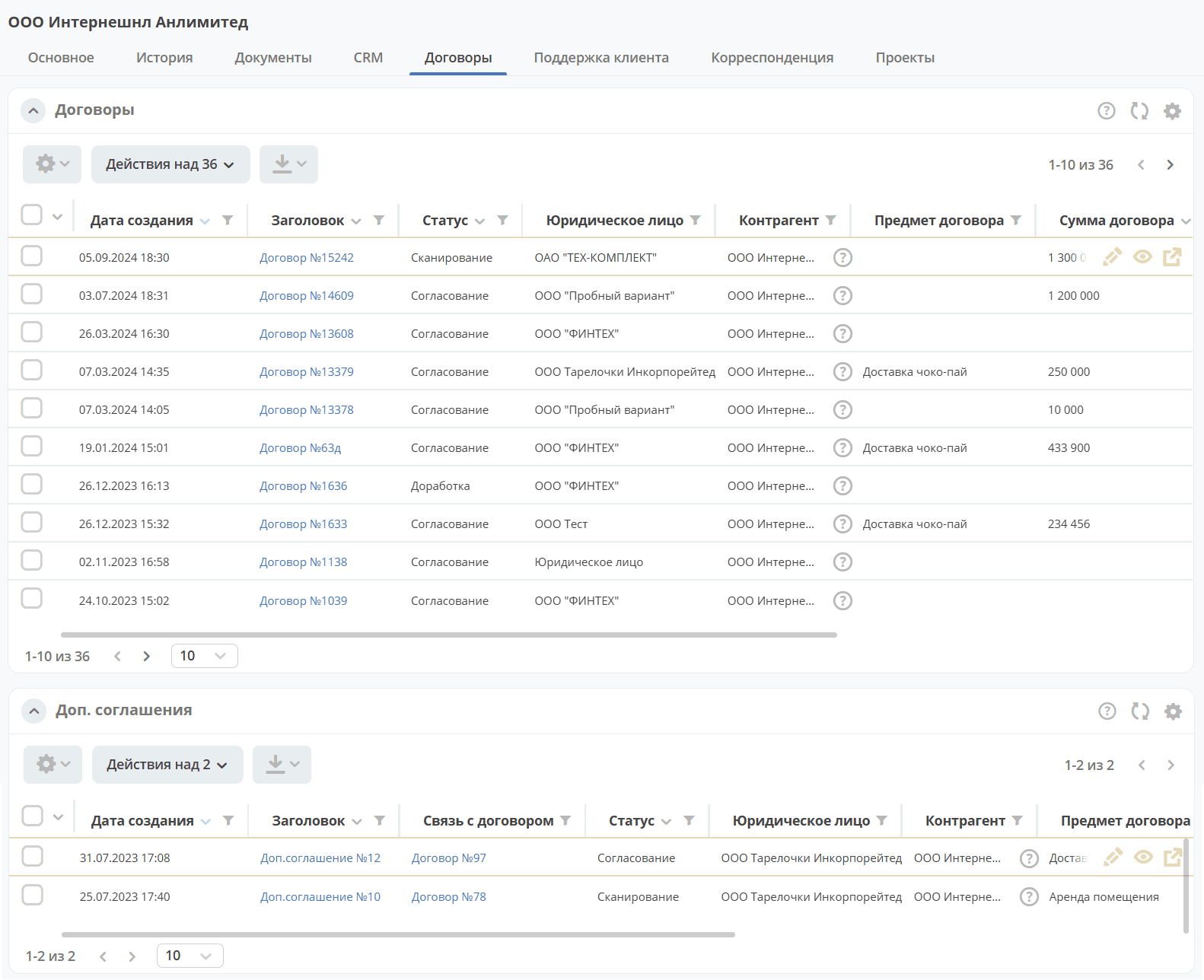
Contracts - information about contracts, additional agreements with the counterparty. Actions are available for each item:
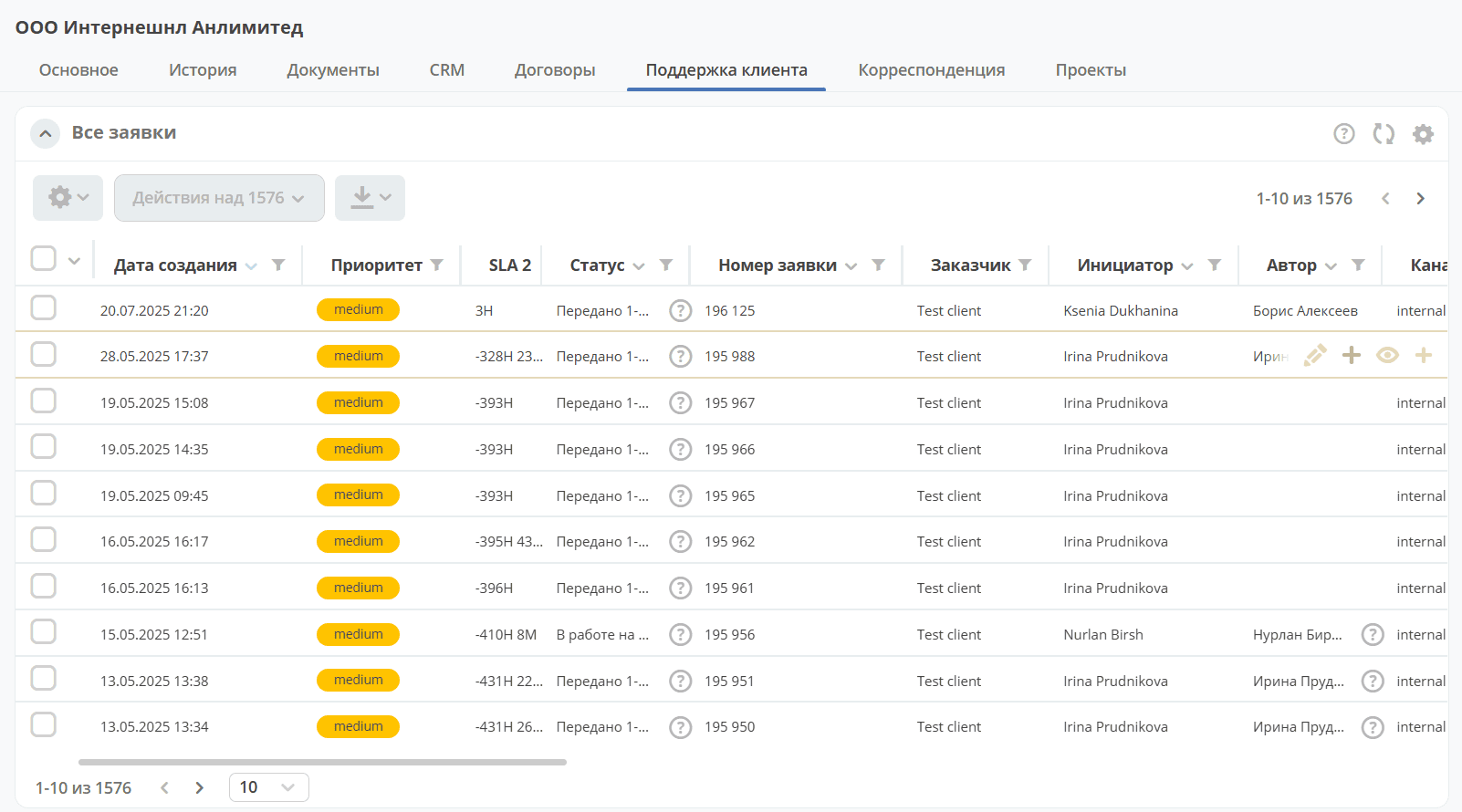
Customer Support – counterparty requests to technical support:
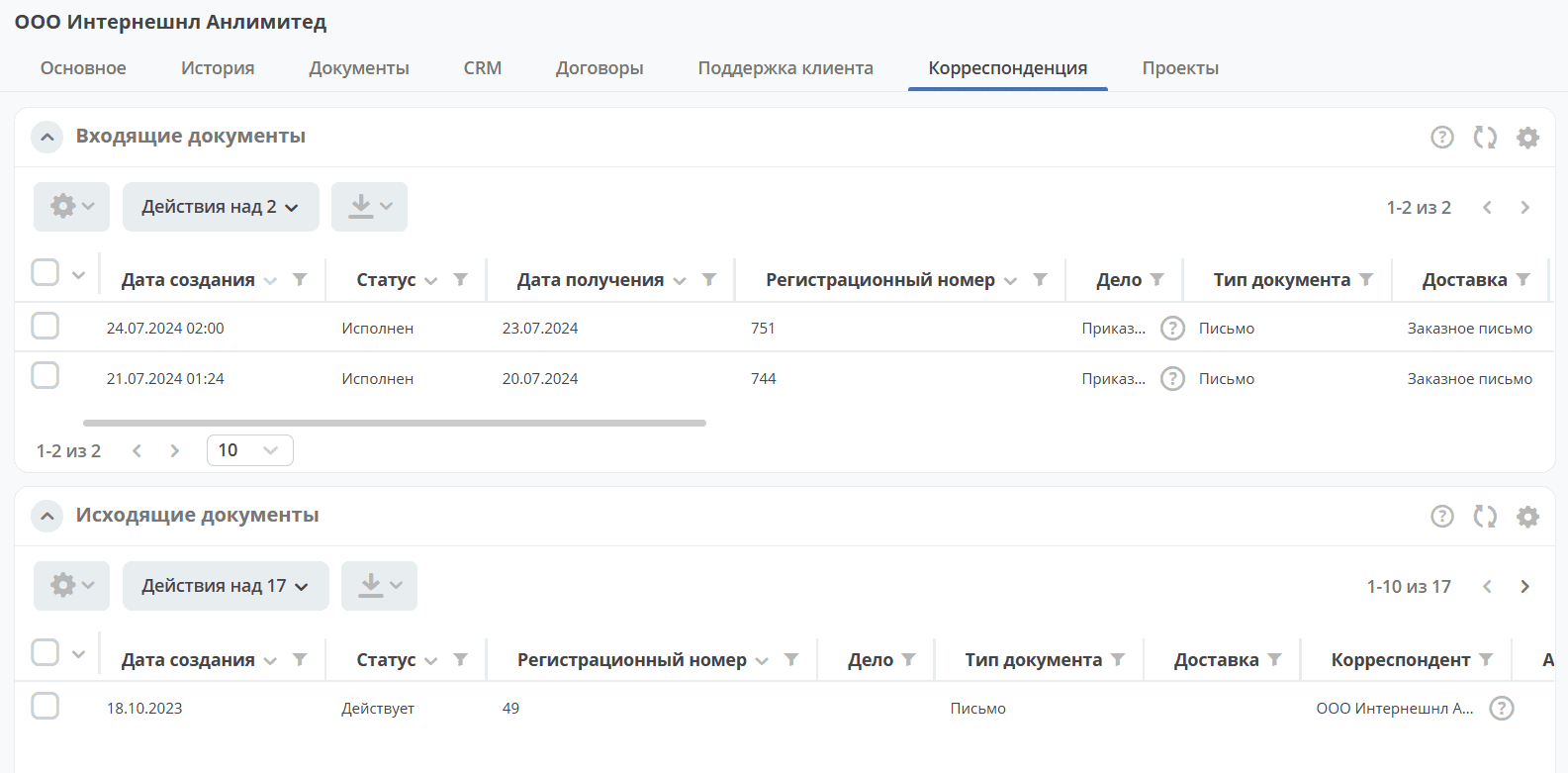
Correspondence - information about incoming and outgoing correspondence of the counterparty:
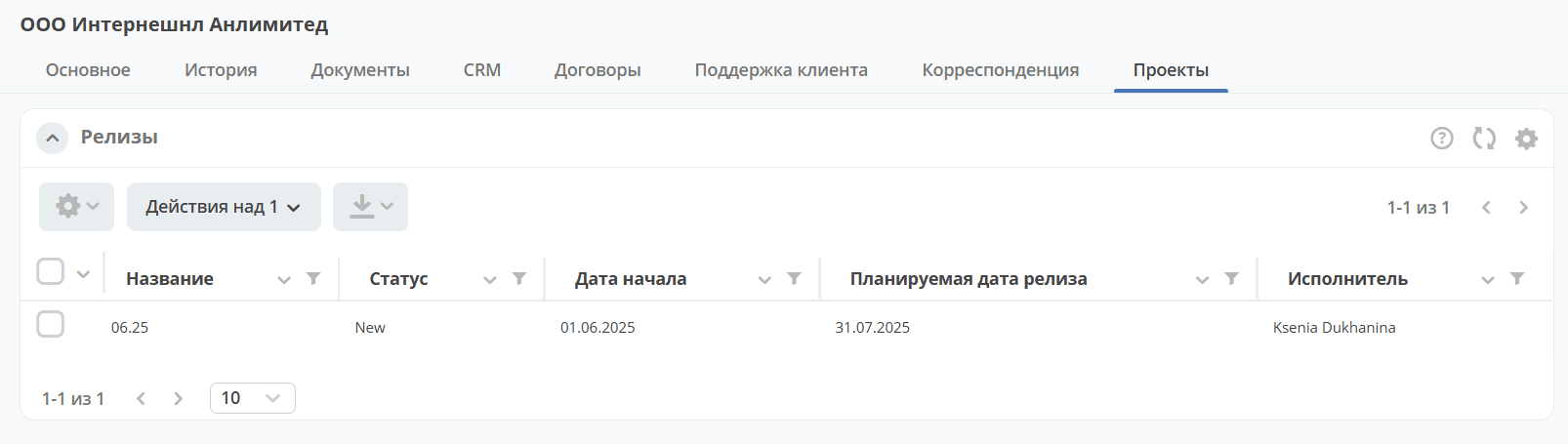
Projects - information about releases for this client:
Autofill
Note
Available only in the Enterprise version.
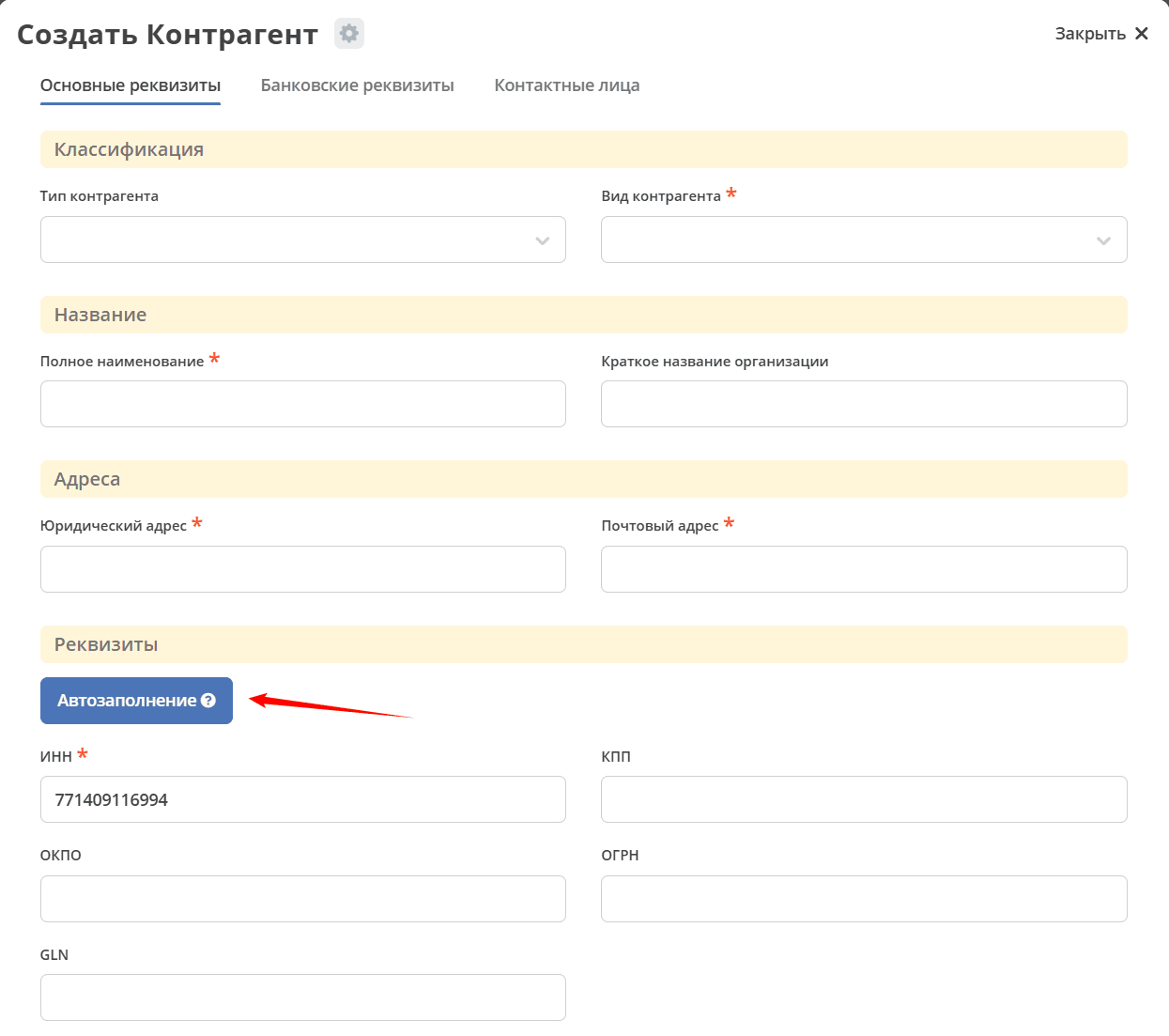
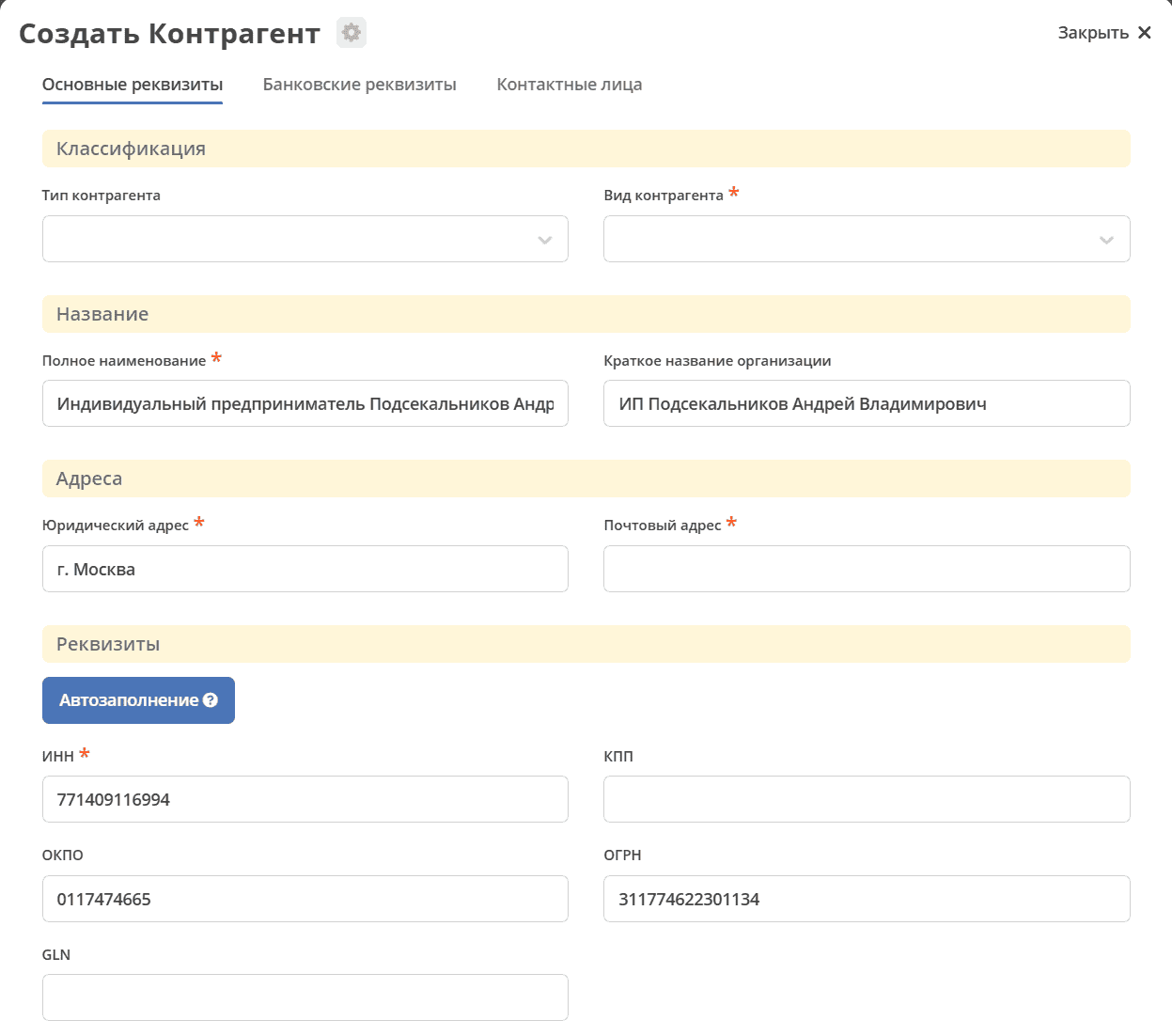
When creating a counterparty card, automatic filling of most details is available using the DaData service <https://dadata.ru/>. Fill in the Taxpayer Identification Number (INN), click Autofill:
Express Report
Note
Available only in the Enterprise version.
In the counterparty card, you can get an Express Report from Kontur-Focus “ “<https://kontur-f.ru/features/ehkspress-otchet-ehlektronnyjj-bezopasnik/>. The Express Report is a document with brief information about cooperation risks and ways to mitigate them.
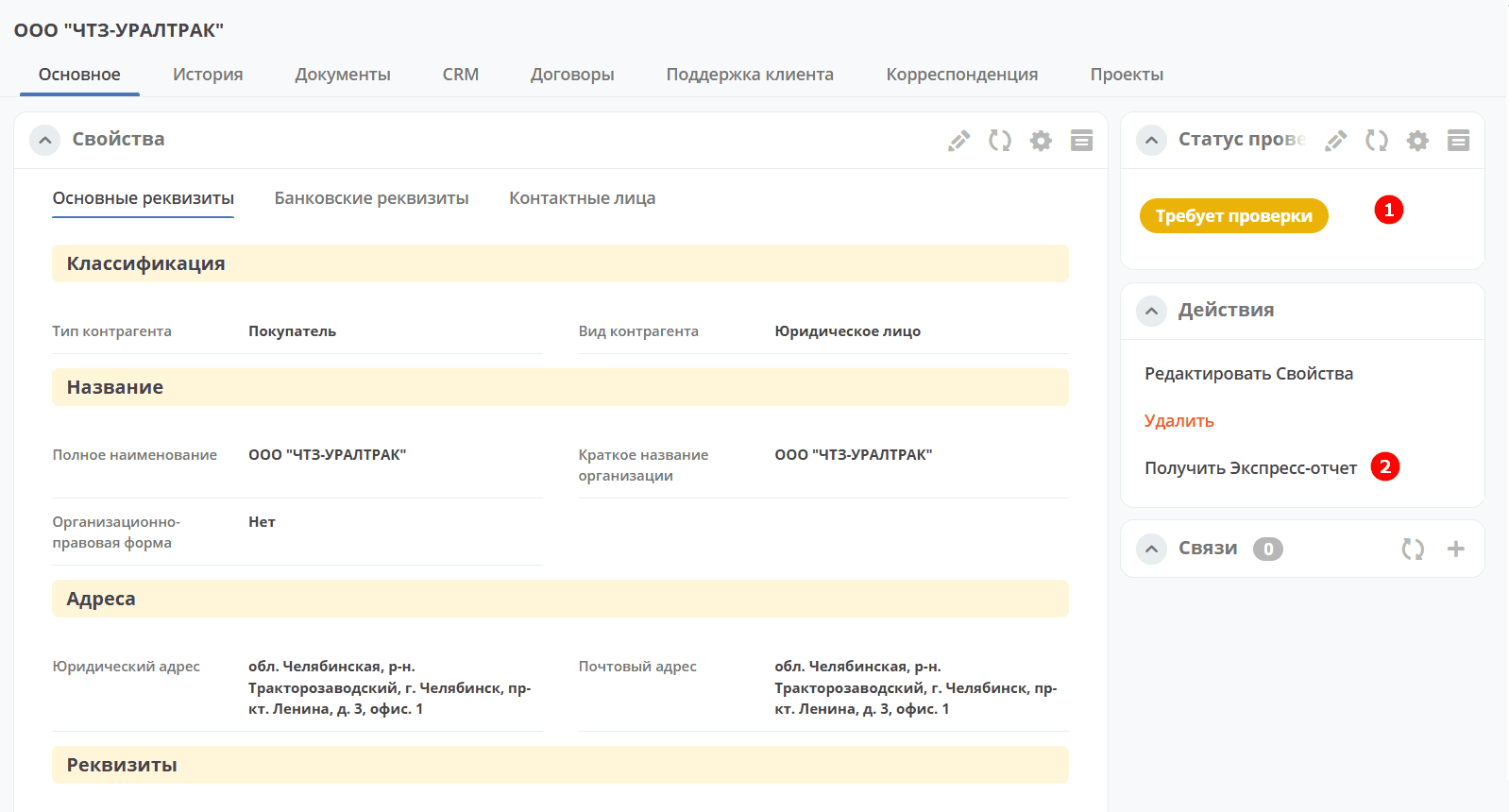
1- widget for displaying the express report status
2- action to get the express report
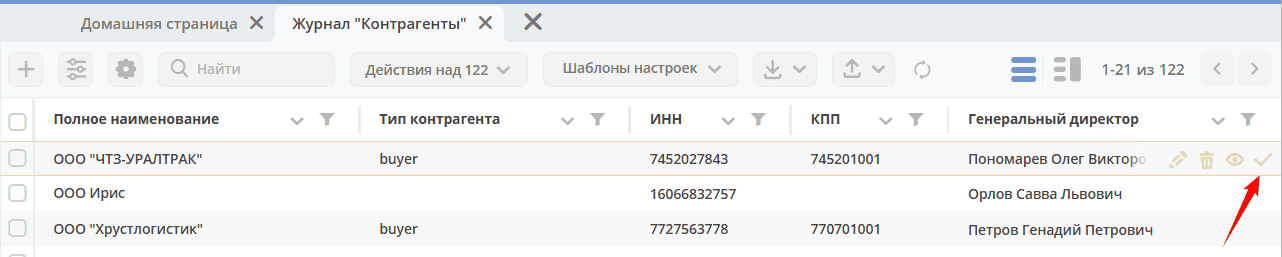
The action is also available in the journal:
Note
After creating a Counterparty card, the action is performed automatically
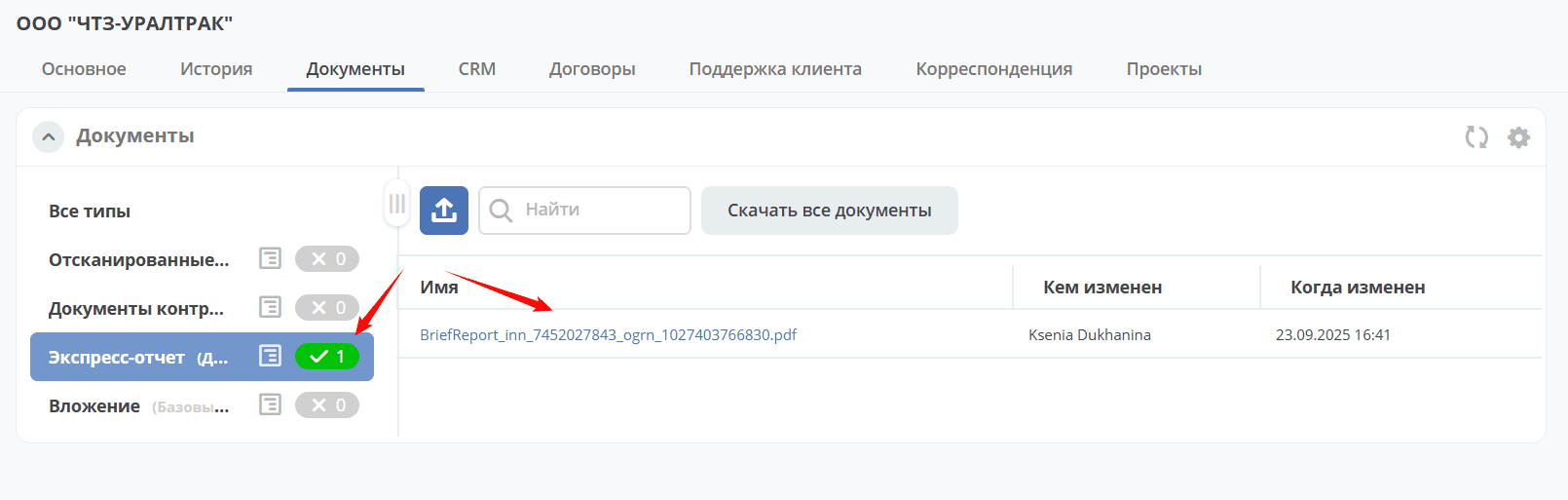
Upon successful execution of the action, a status is set, and a PDF file with the Express Report is attached to the Documents widget:
Settings
Dadata
Getting a Token
Go to https://dadata.ru and click the «Sign In» button in the upper right corner of the screen.
In the window that opens, select «Register». Enter your username, email address, and password, then click the registration button.
Confirm your email. A confirmation link will be sent to the specified mailbox — click it. Without this step, the keys will not be generated.
Get the keys in your personal account. After confirming your email, the API key will be generated automatically. Go to your personal account at https://dadata.ru/profile/ — the API key and secret key of your account will be shown at the bottom of the page.
Copy the required keys. DaData uses two keys:
API key — the main service password, specified in API requests to DaData. Used for suggestions (Suggestions) and most operations.
Secret key — an additional key required for the standardization API (Cleaner).
Copy both keys and paste them into your application settings or use them in your code.
Citeck Configuration
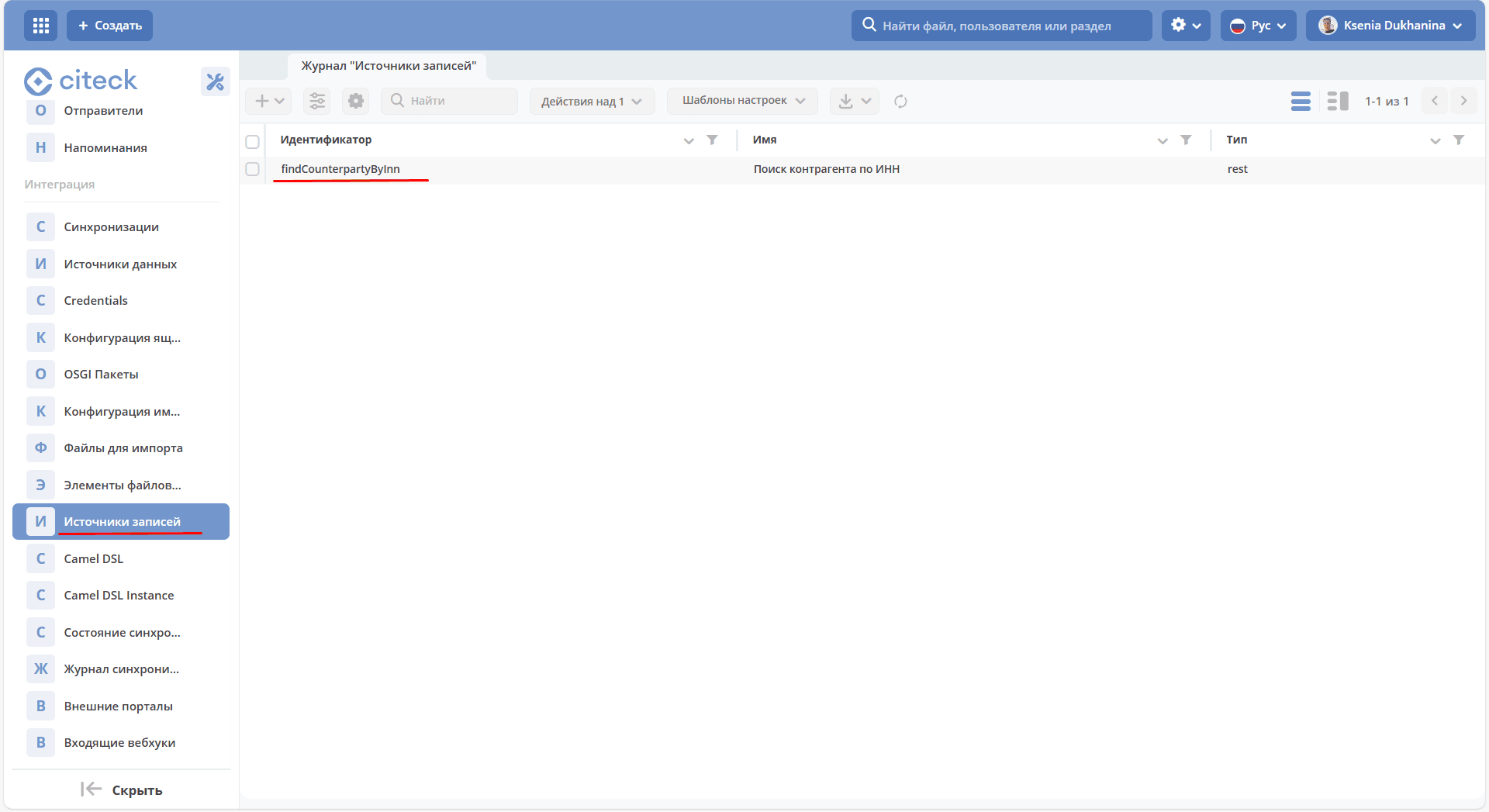
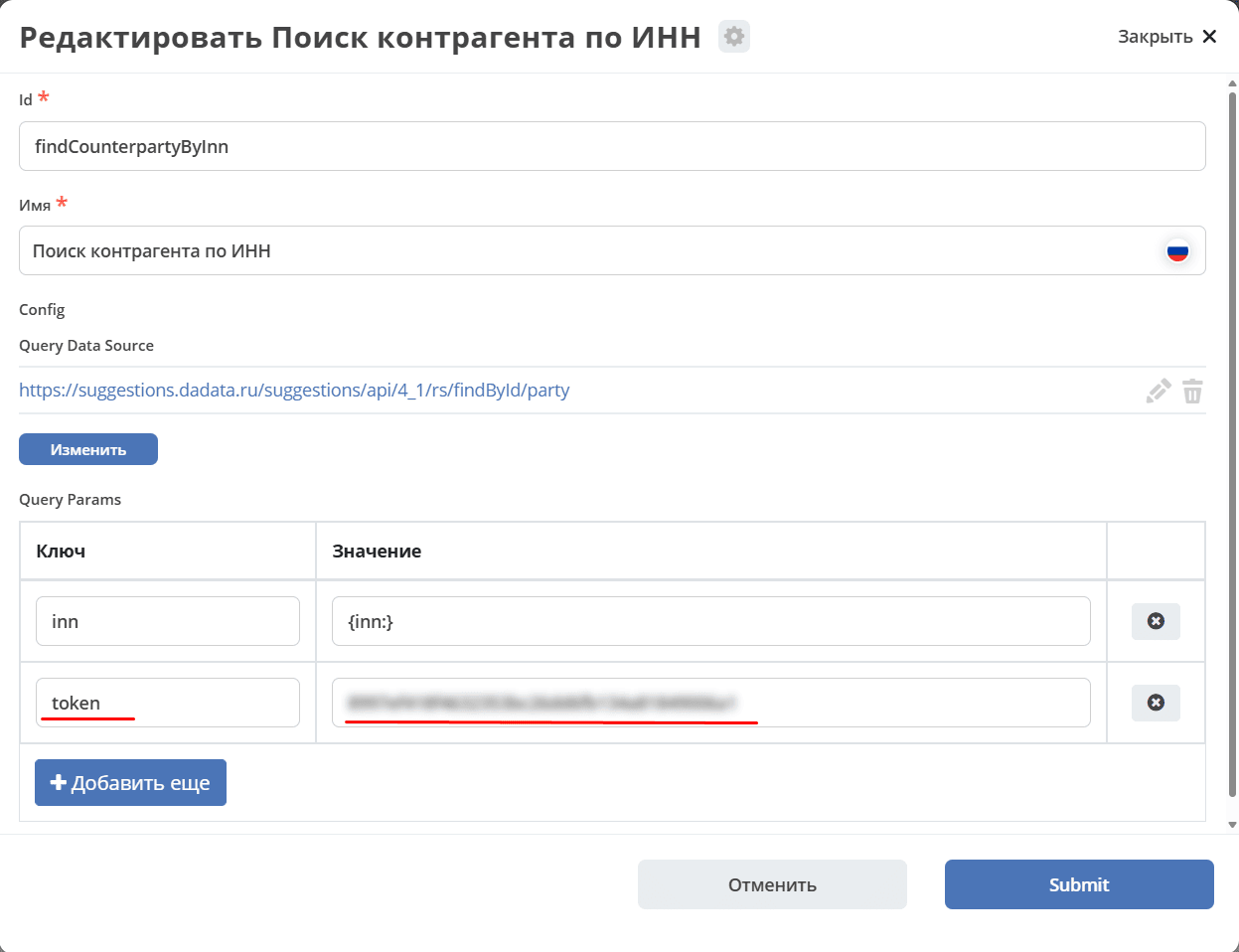
To work with Dadata, go to the “Record Sources” section (Workspace “Administrator Section” - Integration) and set the Dadata token in the findCounterpartyByInn record:
Kontur Focus
Getting a Token
Via Kontur.Focus Personal Account
Go to https://focus.kontur.ru/ and navigate to the «Settings» or «API» section
Find the «Access Key» / «API Key» item
Copy or generate a token
Via Kontur Account (SSO)
Go to https://kontur.ru/ and sign in to your account
In the integrations or developers section, find access to the Focus API
The token is issued as part of a subscription to the corresponding plan
Citeck Configuration
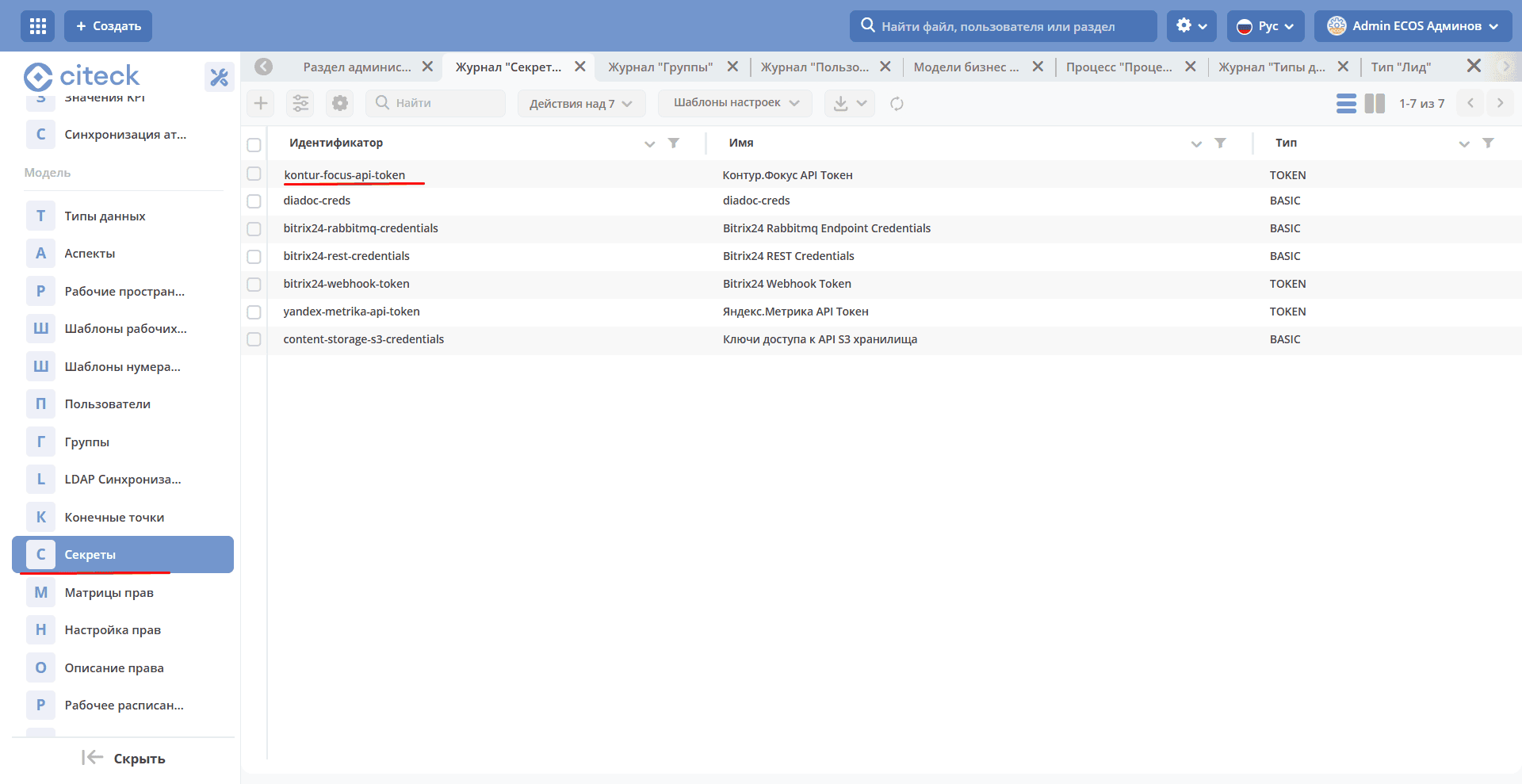
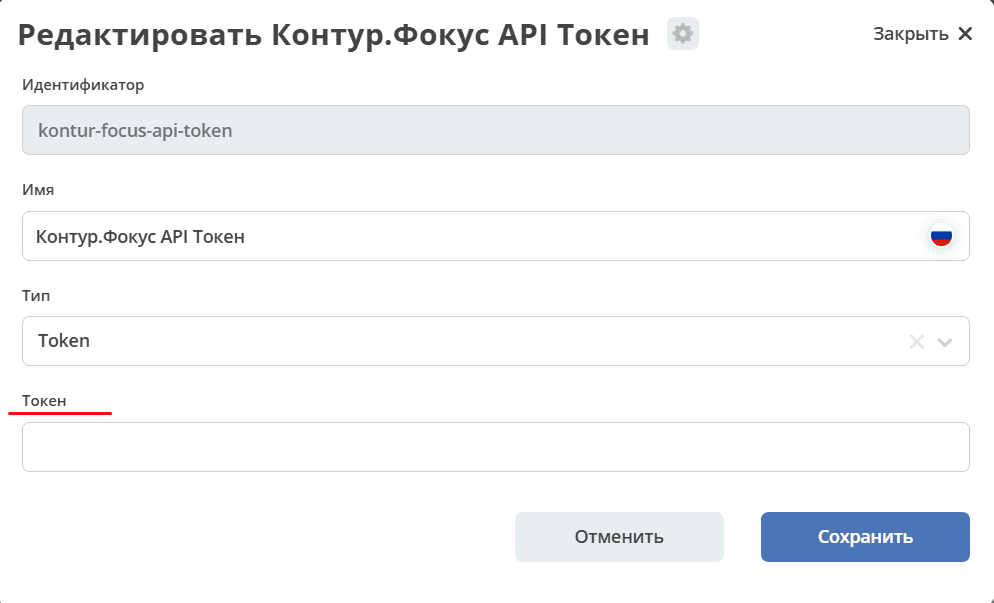
To work with Kontur Focus, go to the “Secrets” section (Workspace “Administrator Section” - Model) and set the Kontur Focus token in the kontur-focus-api-token secret: