Data Import
Added the ability to import files (Excel) into the system using a template. As a result of data processing, cards of the selected type are created in the system.
Data Import into a Journal
There can be multiple import configurations for a single journal.
The default configuration is discussed below.
In the journal, click the Import (1) button, which has available selection options (2):
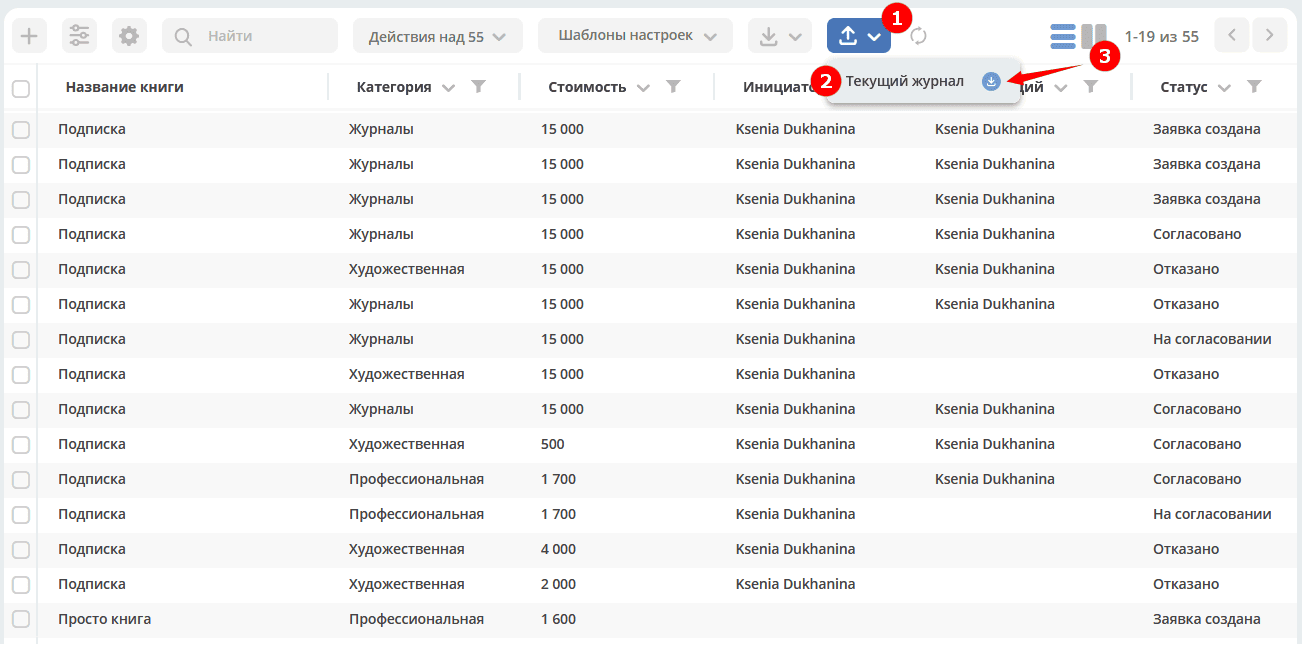
Click (3) to download the Excel template. The template contains all fields defined in the journal.

Fill in the file fields, save:

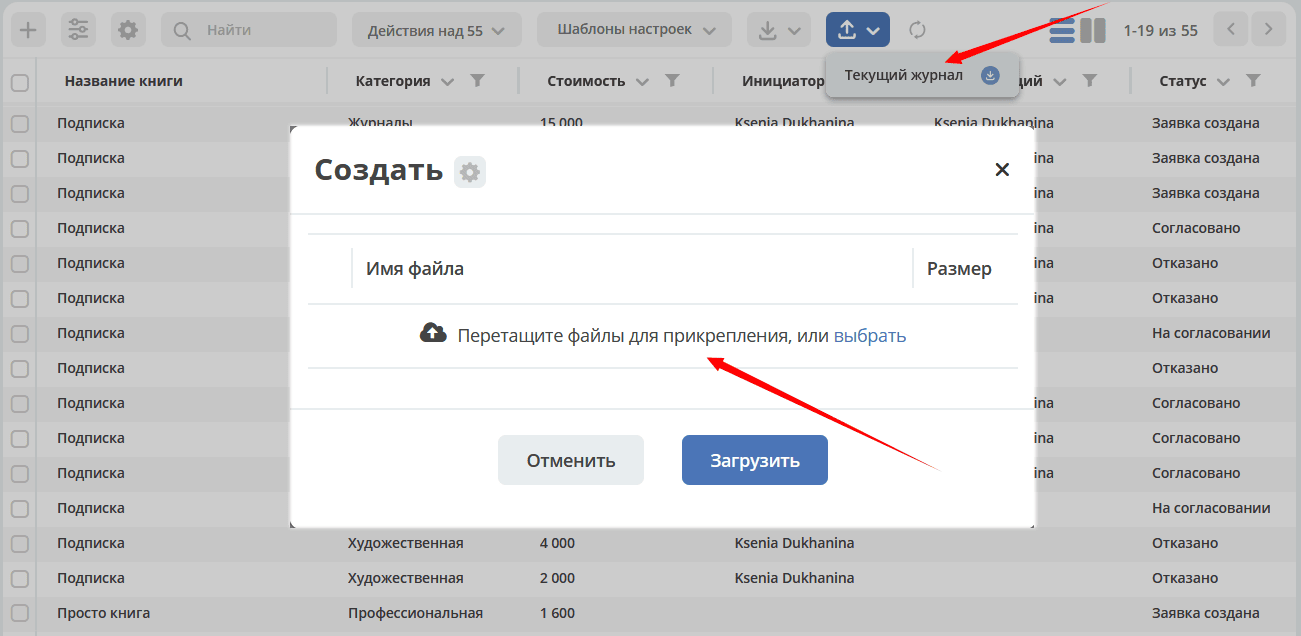
Upload the completed file to the system:
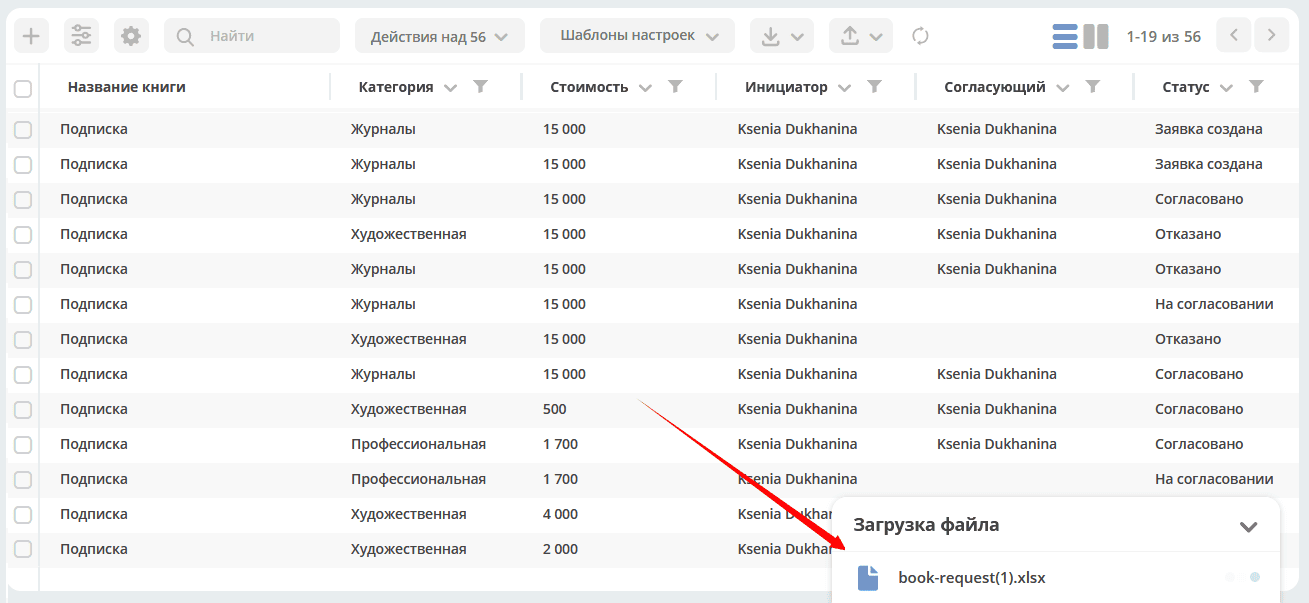
The data processing progress will be shown at the bottom of the journal:
If an error occurs during data upload, a warning will be issued.
After the file processing is complete, the system will display a message about the process completion and status (Success/Error):


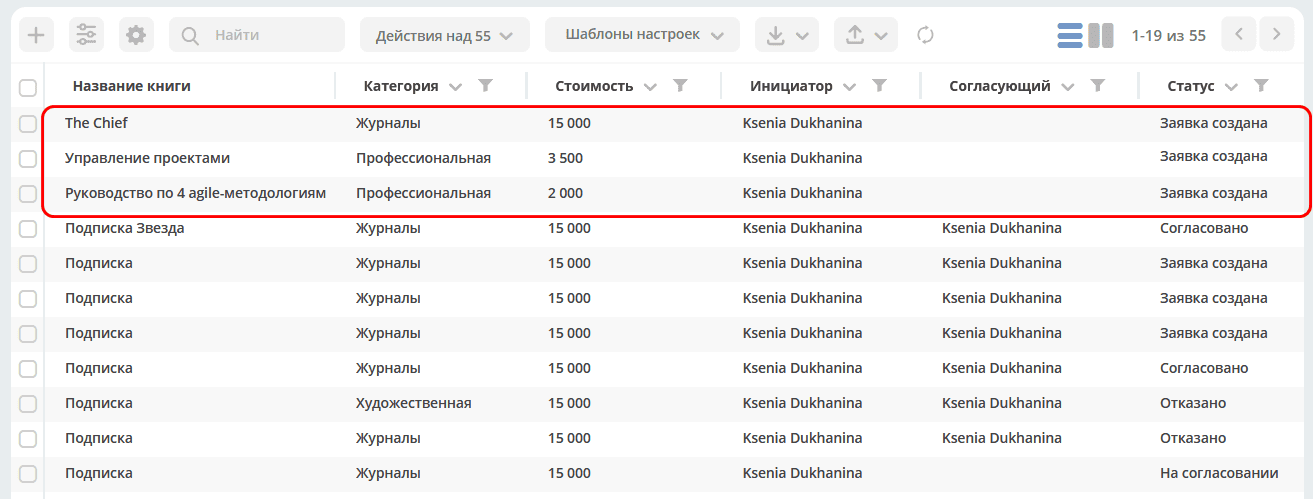
The uploaded data in the journal - created cards that can be opened, modified if necessary, and a business process can be started:
To create your own configuration, see Global Data Import
Importing Users and Groups
Additionally, users and groups can be loaded into the system using a pre-filled template.
Note
The procedure is described for users who are members of the ECOS Administrators (ECOS_ADMINISTRATORS) group.
Users
Go to the administrator workspace (1), in the journal Model - Users click the Import (2) button, which has available selection options (3):
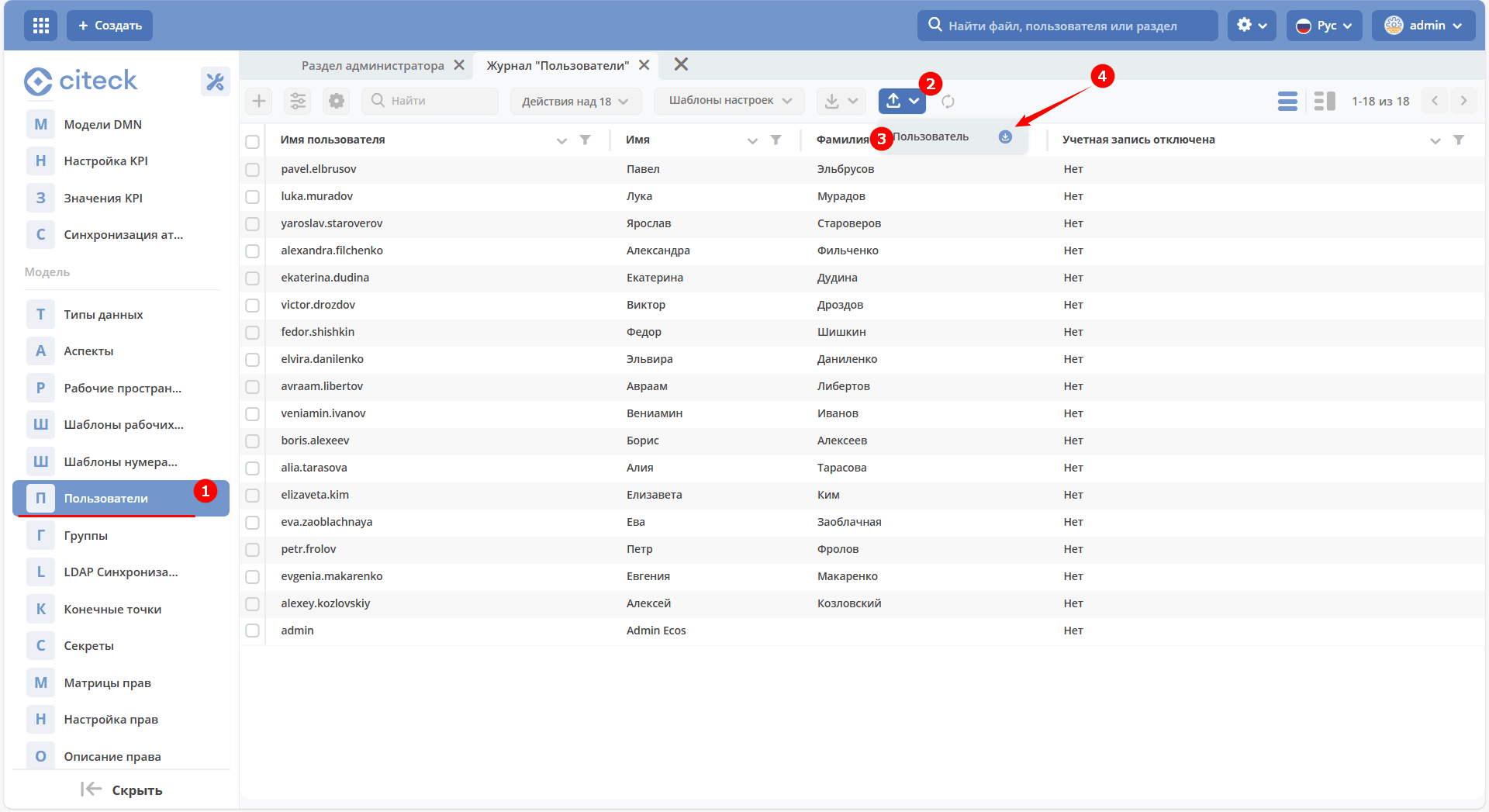
Click (4) to download the Excel template. The template contains all fields, just like on the new user creation card.

Fill in the file fields, save:

Mandatory fields, as on the creation form:
System Name
Name
Upload the completed file to the system:
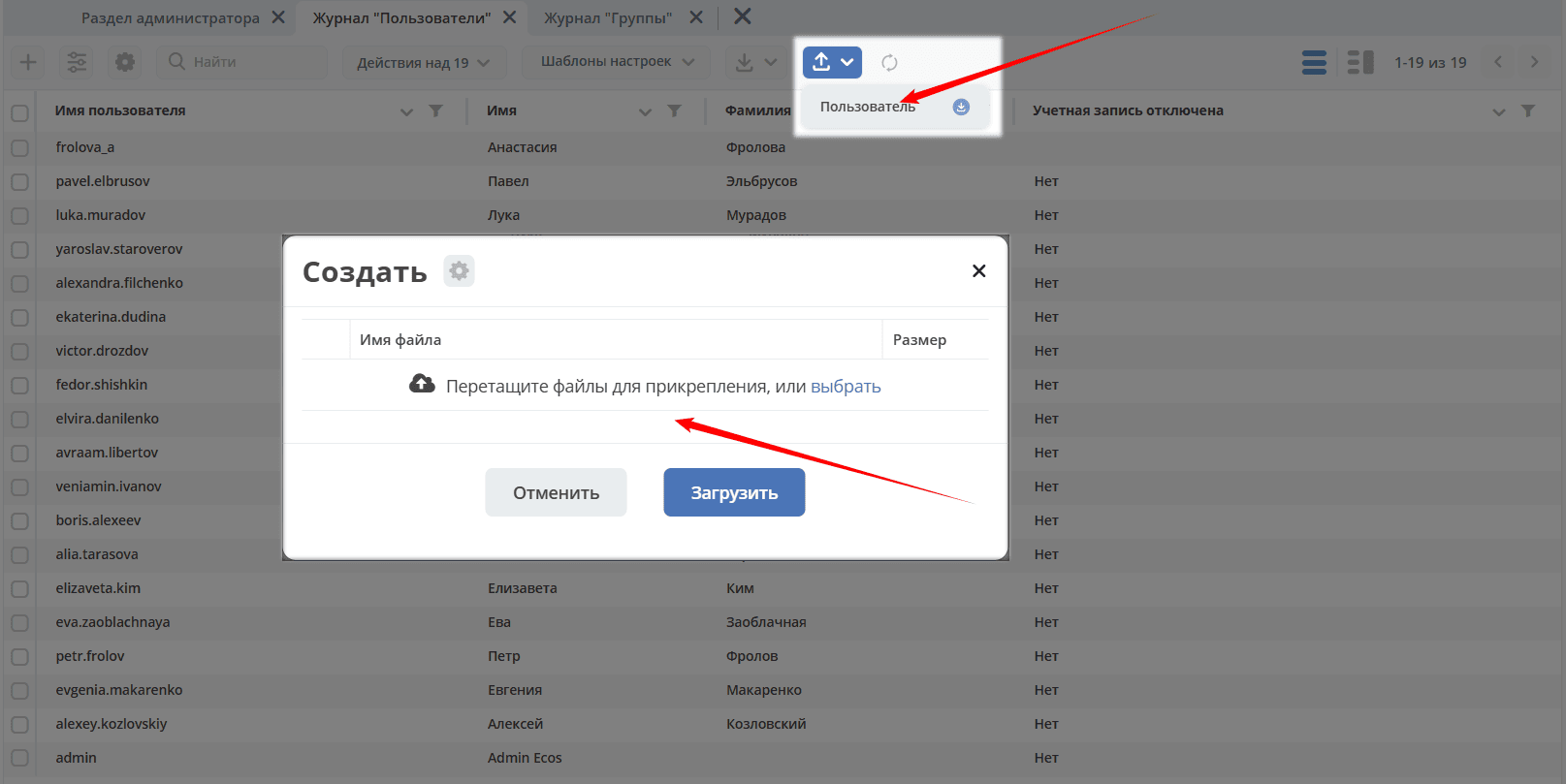
The data processing progress will be shown at the bottom of the journal:
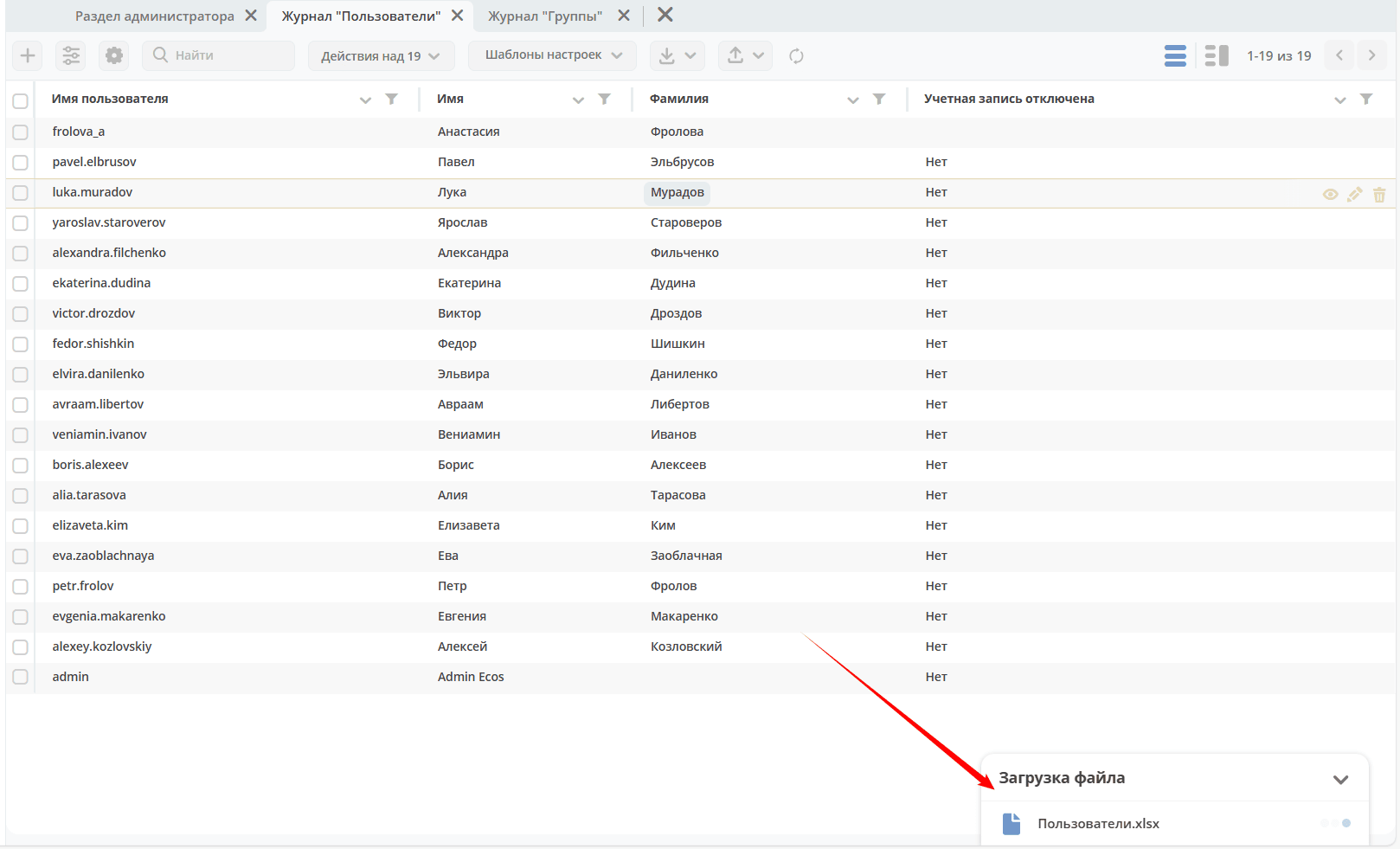
If an error occurs during data upload, a warning will be issued.
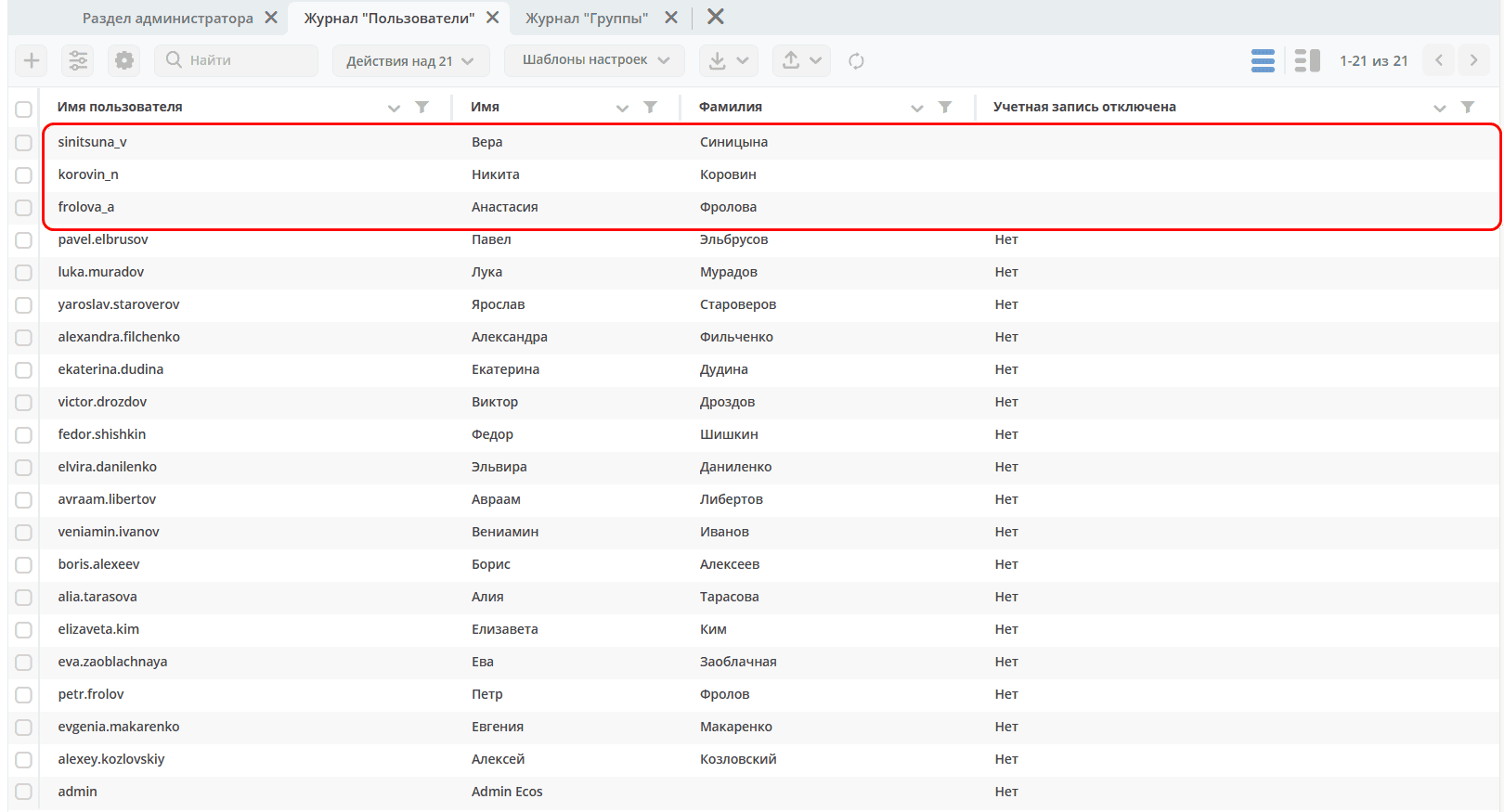
Users will be loaded into the system:
Groups
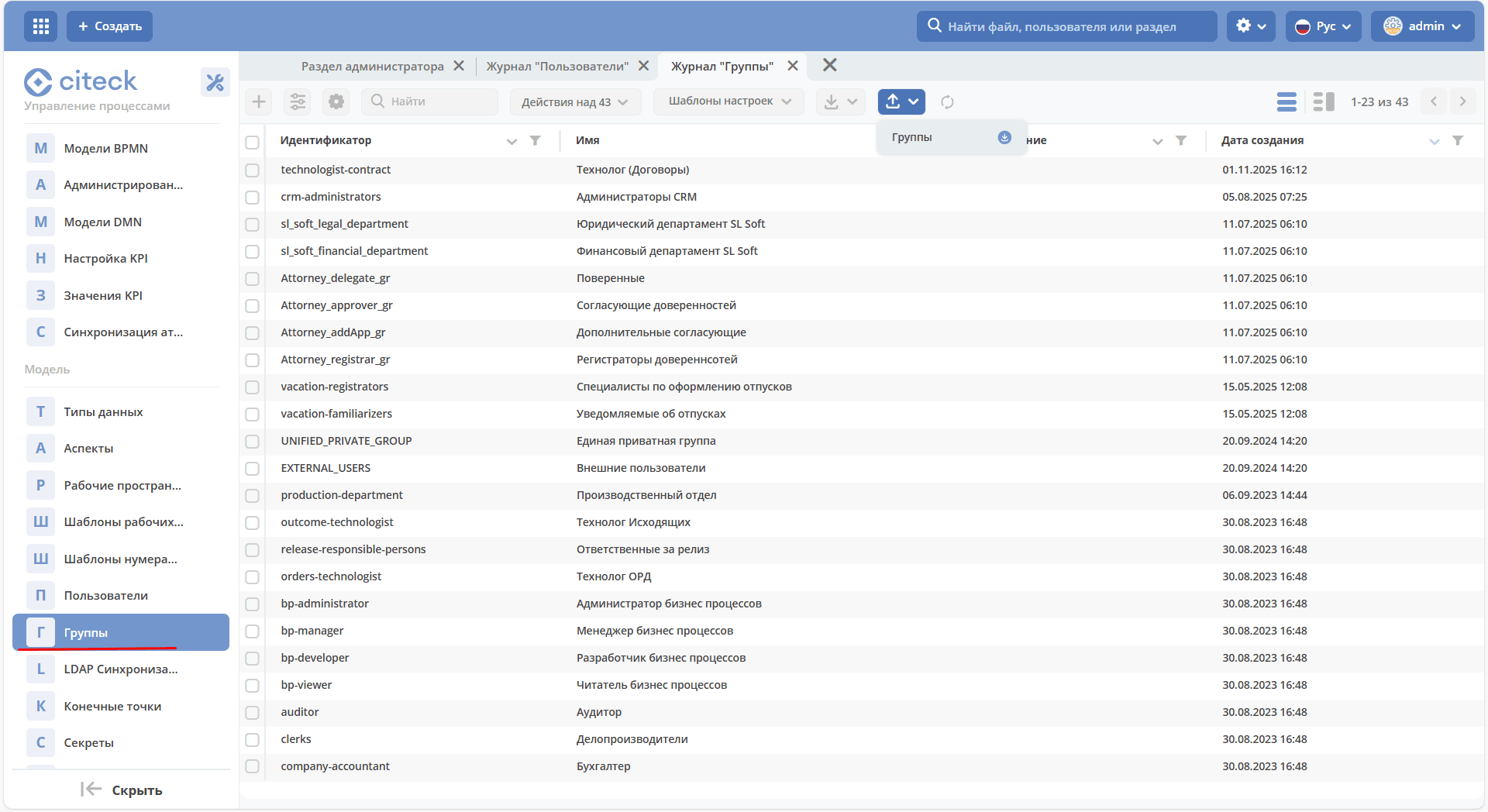
Go to the administrator workspace, in the journal Model - Groups:
File template:
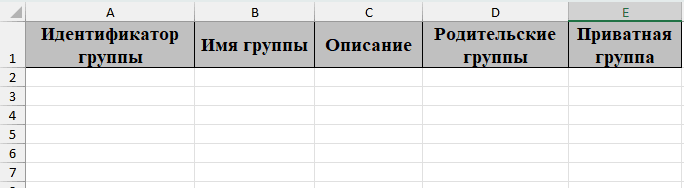
Further actions are similar to those for users.
Mandatory fields, as on the creation form:
Group ID
Group Name