WYSIWYG Editor
WYSIWYG Editor (“What You See Is What You Get”) is a visual editor for creating and formatting content: text, tables, images, and formulas. Content is displayed during editing exactly as it will appear in the final result — without needing to know any markup.
The editor in Citeck is built on the Lexical framework.
Above the editing area is the WYSIWYG editor toolbar, which can be used to format text, insert tables, images, and mathematical formulas
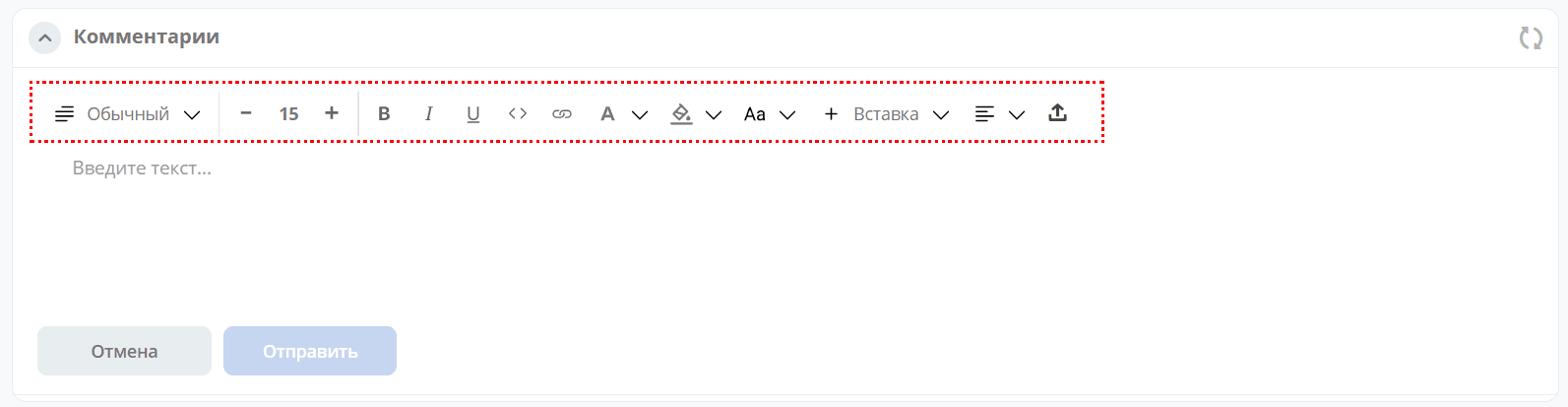
Let’s examine its functionality in more detail:
Select heading levels, list types, etc.
|
|
Change font size, apply text styles - bold, italic, underline, add code blocks, links
|
|
Change text color, background color
|
|
Change alignment and indentation
|
|
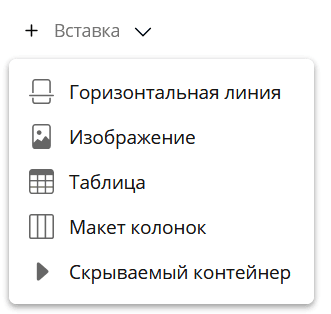
Insert object.
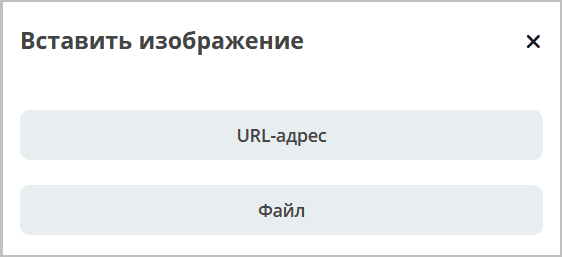
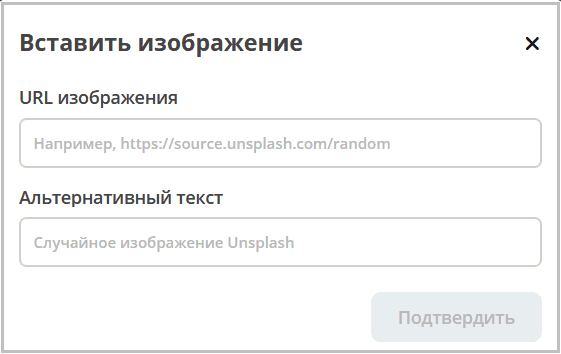
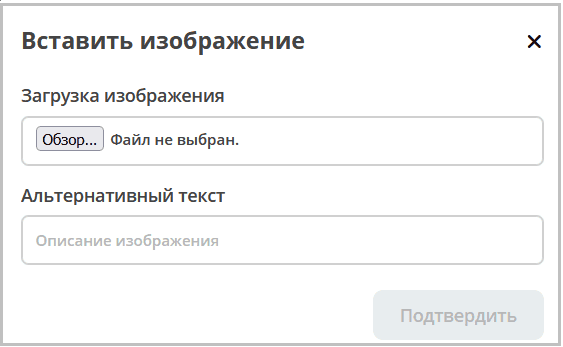
Images can be inserted from either a file or a URL.
|
|
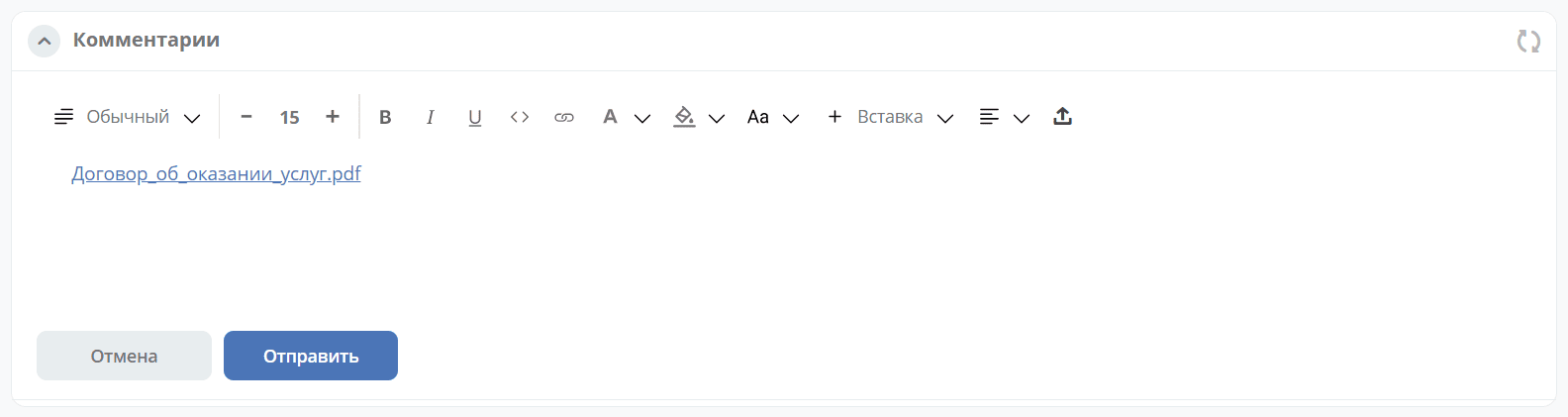
Upload file
The file will be displayed as a link:
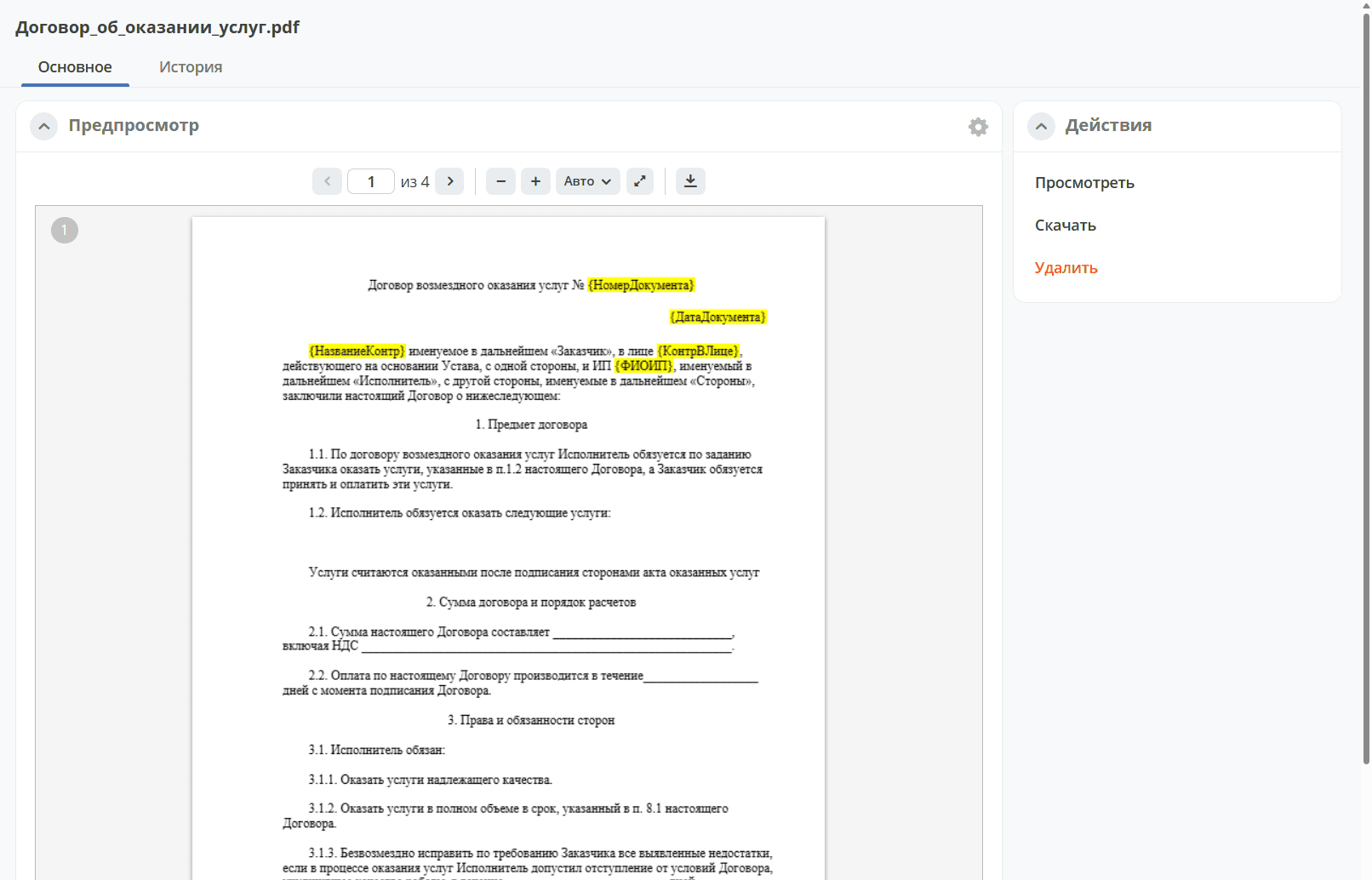
Clicking allows viewing it:
|
|
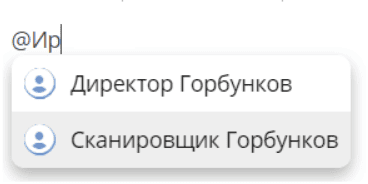
Mention user
|
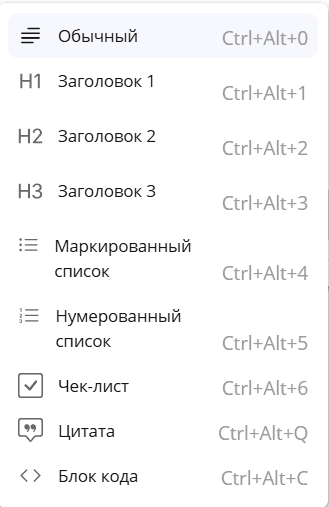

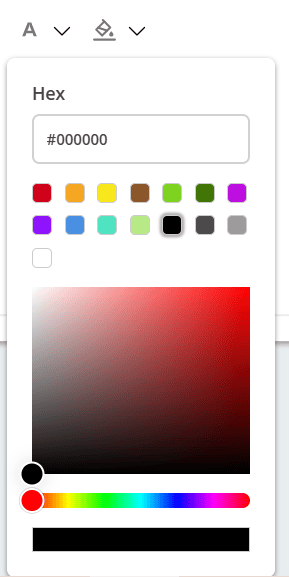
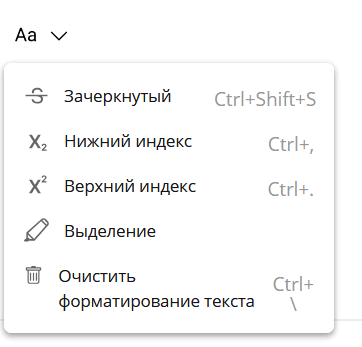


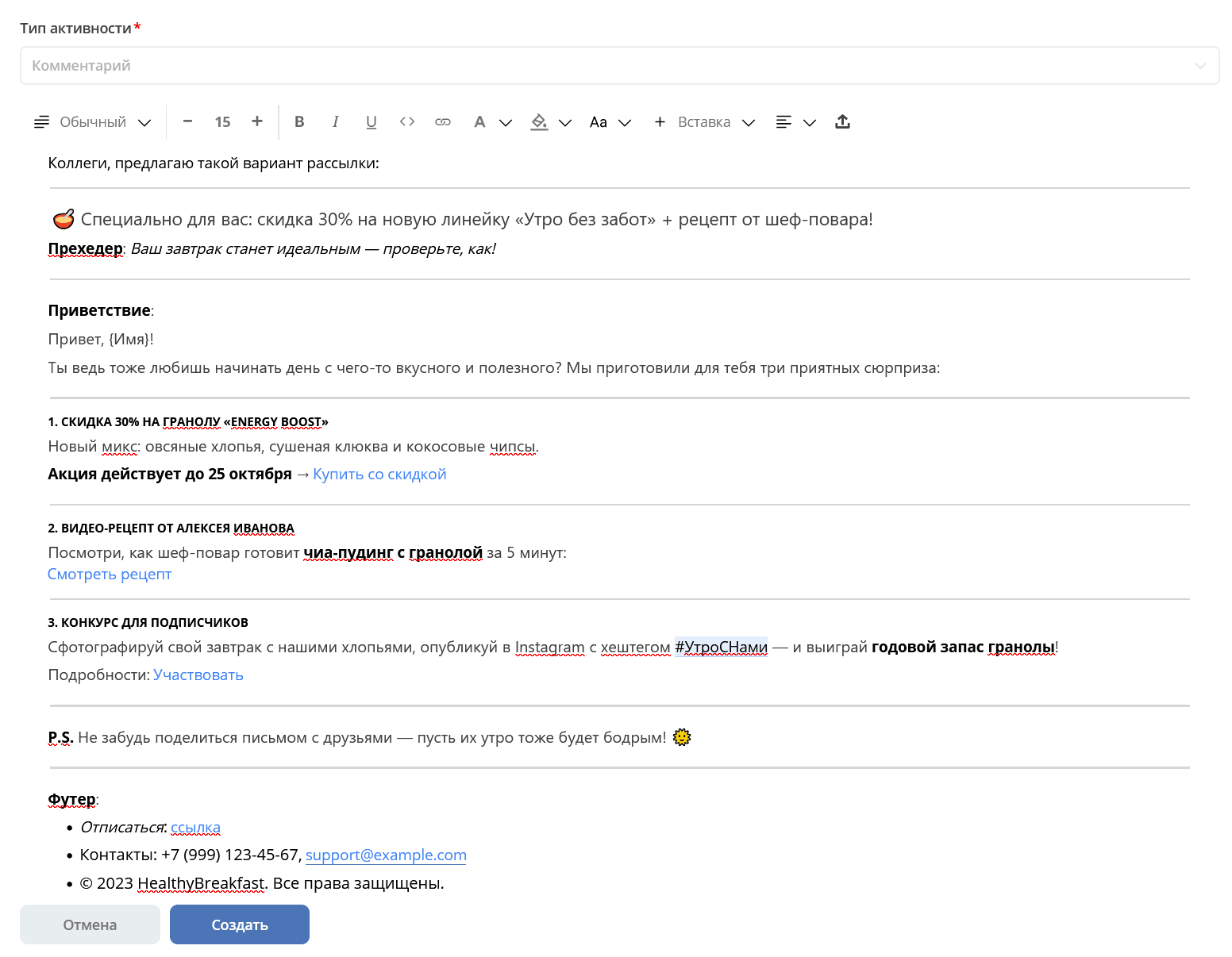
Example of working with the editor:
Quick editing of selected text
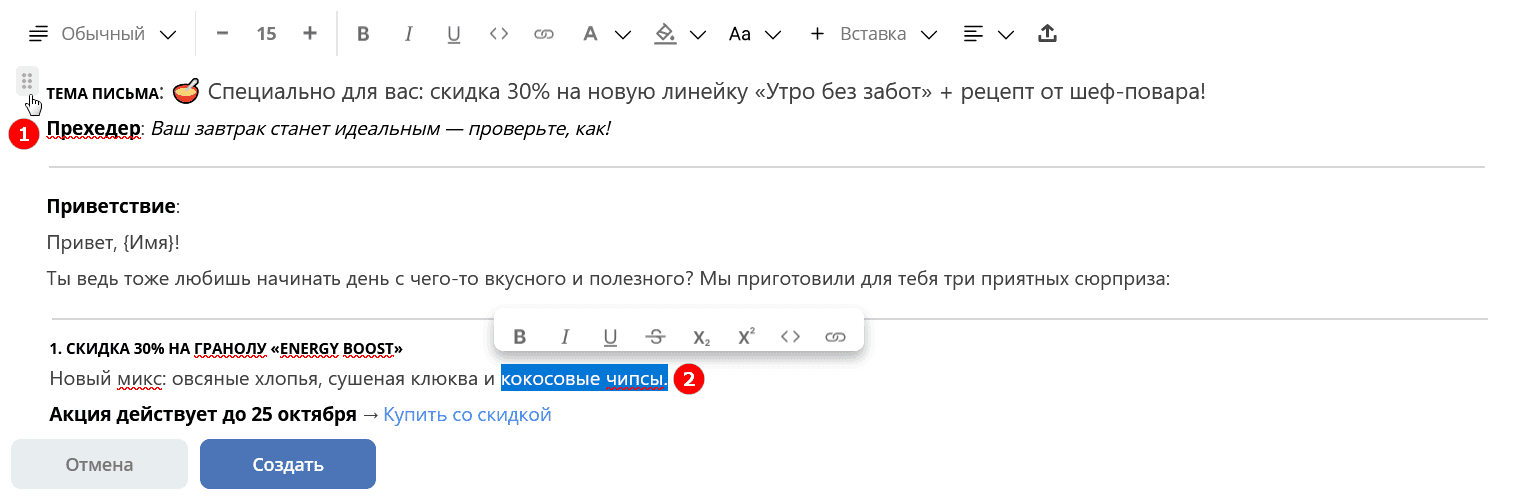
1 - moving a line or selected area
2 - formatting selected text
Adding and editing tables
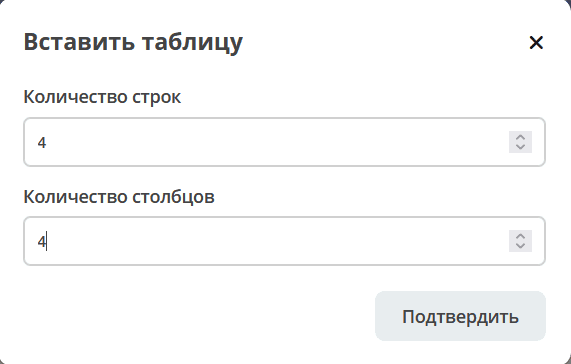
Select Insert - Table from the menu, choose the number of rows and columns:
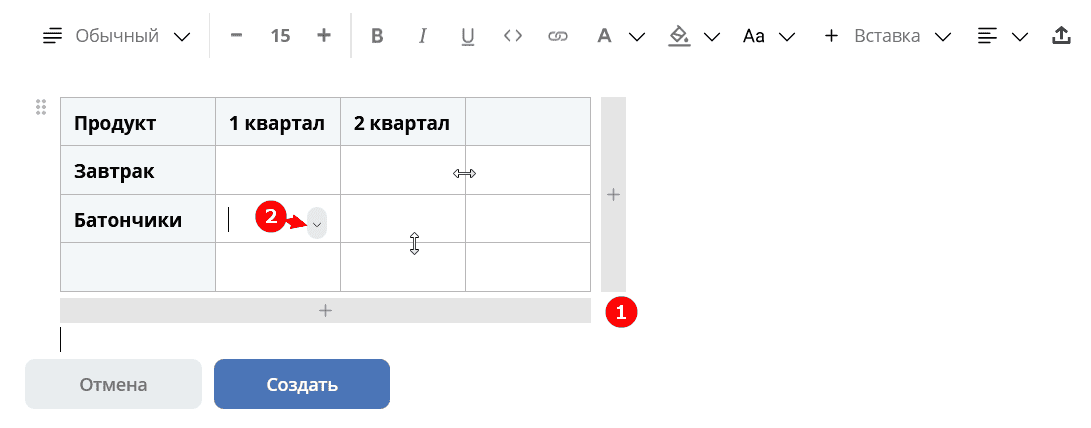
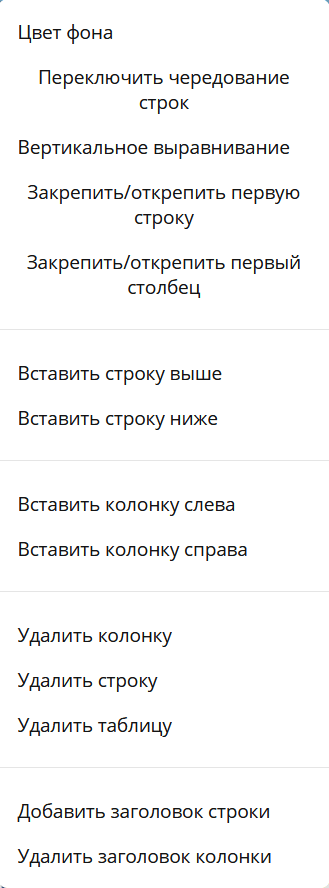
For tables, changing cell width and height is available, as in regular editors, adding columns and rows (1), table actions are available by clicking on (2):
Inserting Text in Markdown Format
When pasting text from the clipboard into an empty editor, Markdown format is automatically detected. If the pasted text contains Markdown markup elements (headings, lists, text formatting, links, code blocks, tables, etc.), it is automatically converted into formatted content.
Conditions for automatic conversion:
the editor is empty (contains no text)
the text contains at least two different Markdown markup elements
the clipboard contains no HTML data (plain text only)
If the conditions are not met, the text is inserted as usual, without conversion.