Document Templates
Note
Available only in the Enterprise version.
Document Templates is a tool for automatic generation of files (docx, etc.) based on pre-prepared templates and data from record cards. The template is described in Freemarker format and contains variables that are substituted from card fields during generation according to the configured mapping model. This allows automatically generating contracts, acts, letters, and other documents without manual data copying.
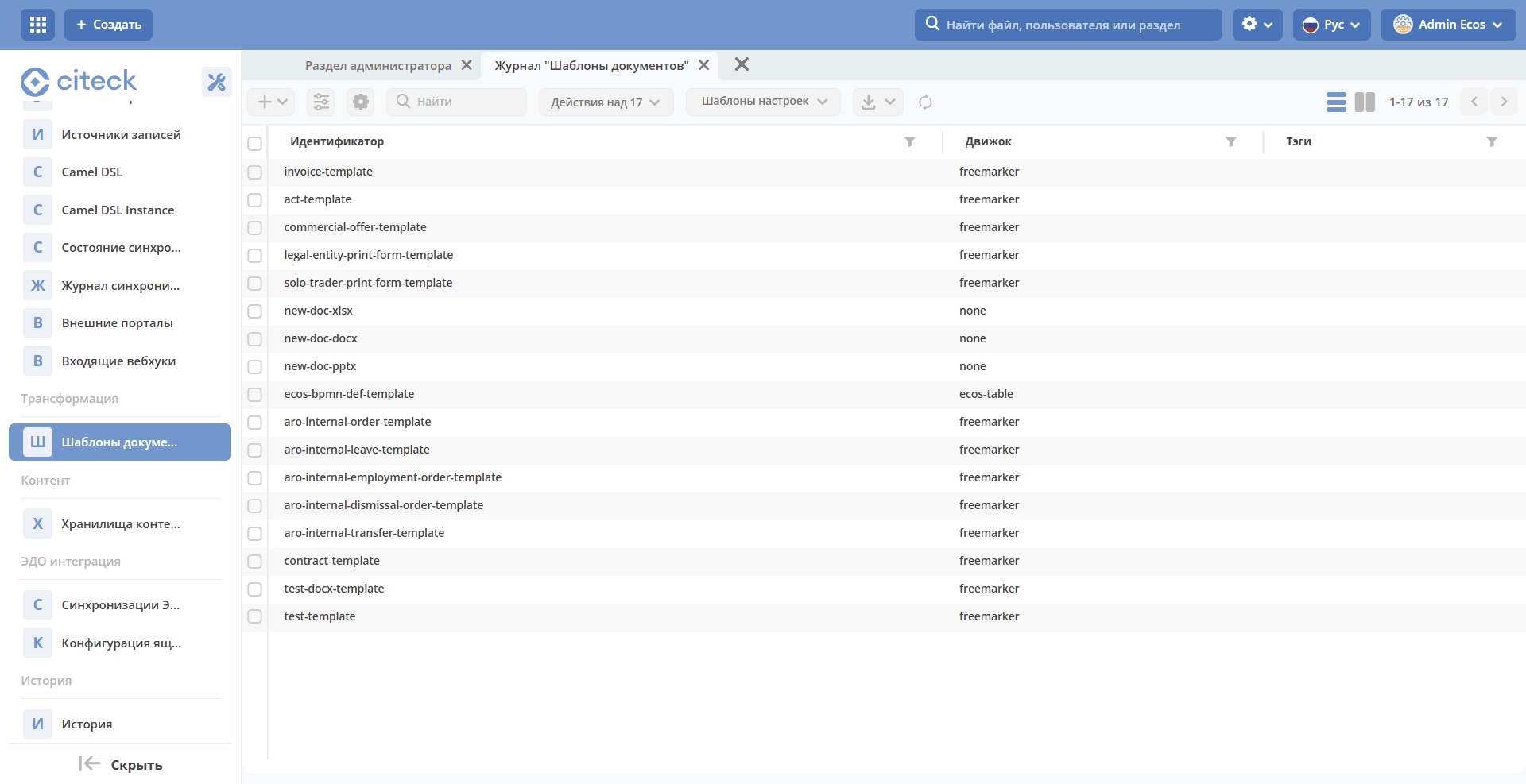
The setting is located in the “Document Templates” journal (Administrator Section - Transformations) v2/journals?journalId=document-templates&viewMode=table&ws=admin$workspace
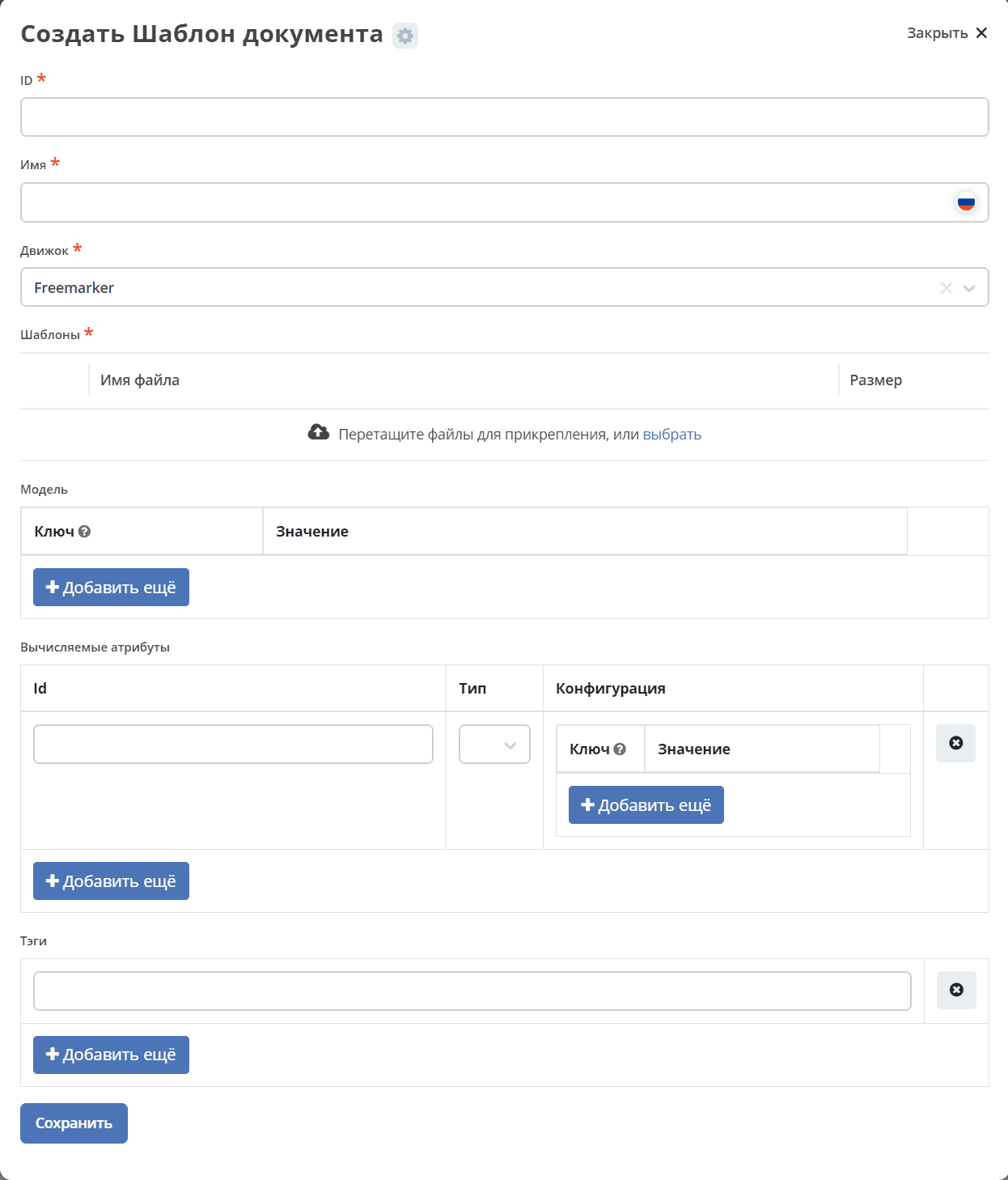
The following fields must be filled in:
Field |
Description |
|---|---|
ID |
Unique template identifier in the system |
Name |
Template name |
Engine |
Name of the engine that will process template filling - Freemarker
|
Templates |
Upload the template file.
The template must be added in a zip archive. (Since this is how templates are stored in the database)
The archive must contain a template file in docx or ftl format. There are no strict naming rules, but it’s advisable to follow the general concept and name the file as the template id.
If there are multiple templates (separated by localization), then when naming files, suffixes _ru, _en, etc., should be added at the end.
|
Model |
Represents a key-value mapping, where the key is an attribute from the template, and the value is an attribute taken from the card.
See below
|
Calculated Attributes |
List of objects with information about calculated attributes.
More details here Calculated attributes for templates
|
Tags |
List of auxiliary labels for convenient search
More details here Calculated attributes for templates
|
Filling the model
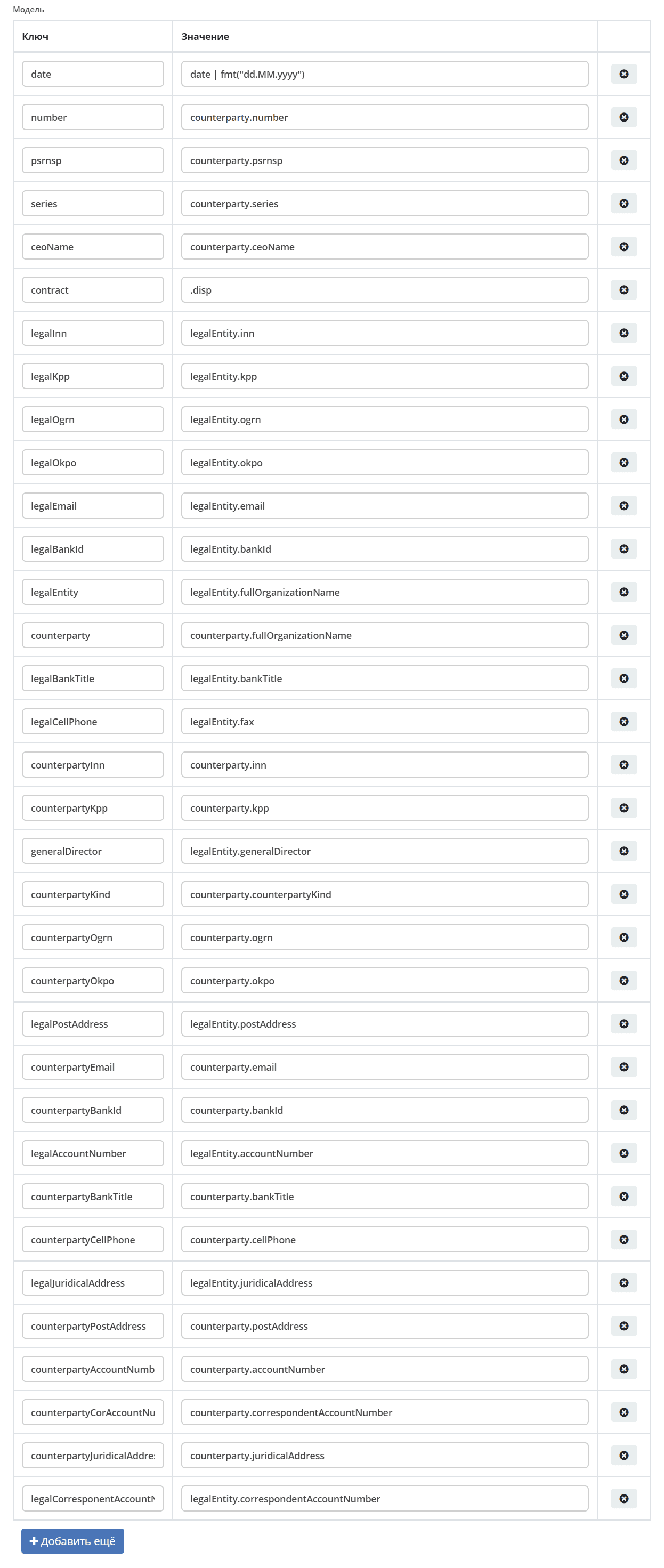
Key - attribute used in the template, value - attribute taken from the filled card.
Both attributes from the data type itself and attributes that are associations are specified. For example:
The Contract data type has the Counterparty (counterparty) attribute. And, for example, to get the counterparty’s TIN, you need to specify counterparty.inn.
The Contract data type has the Legal Entity (legalEntity) attribute. And, for example, to get the full name of the legal entity, you need to specify legalEntity.fullOrganizationName.
Example of a filled model:
Filling the document template
Uses freemarker.
Its syntax is as follows:
${…} in the template will be replaced in the generated output with the actual value of the expression inside the curly braces.
FTL tags are similar to HTML tags (but contain # or @), and FreeMarker interprets them.
comments in FreeMarker start with <#– and end with –>
quotes like
«example»are not recognized. Quotes of the following type must be used:"example".
For example:
variable output:
${contract}
output of variables with null check - if the returned value is “empty” (null) - what is specified between
" "is displayed. In this case, an empty field that can be filled in manually later:
${counterpartyInn!""}
“if, then .., else” construct - if Counterparty Type is Individual Entrepreneur, then OGRNIP is displayed, if Legal Entity - then OGRN:
[#if counterpartyKind == "individualEntrepreneur"]OGRNIP: ${psrnsp}[#else] OGRN: ${counterpartyOgrn!""}[/#if]system attribute date in dd.mm.yyyy format:
date | fmt("dd.MM.yyyy")document title system attribute :
.disp
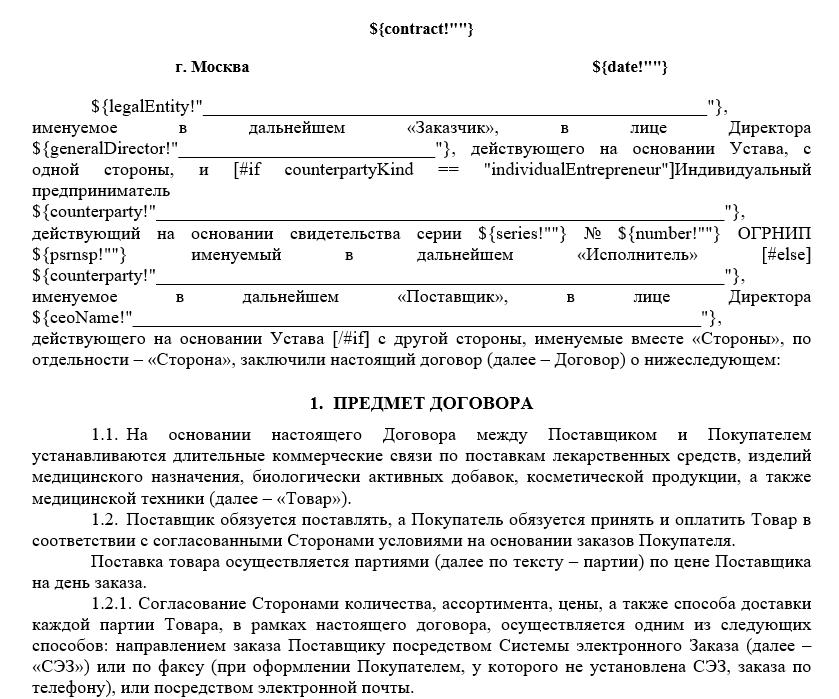
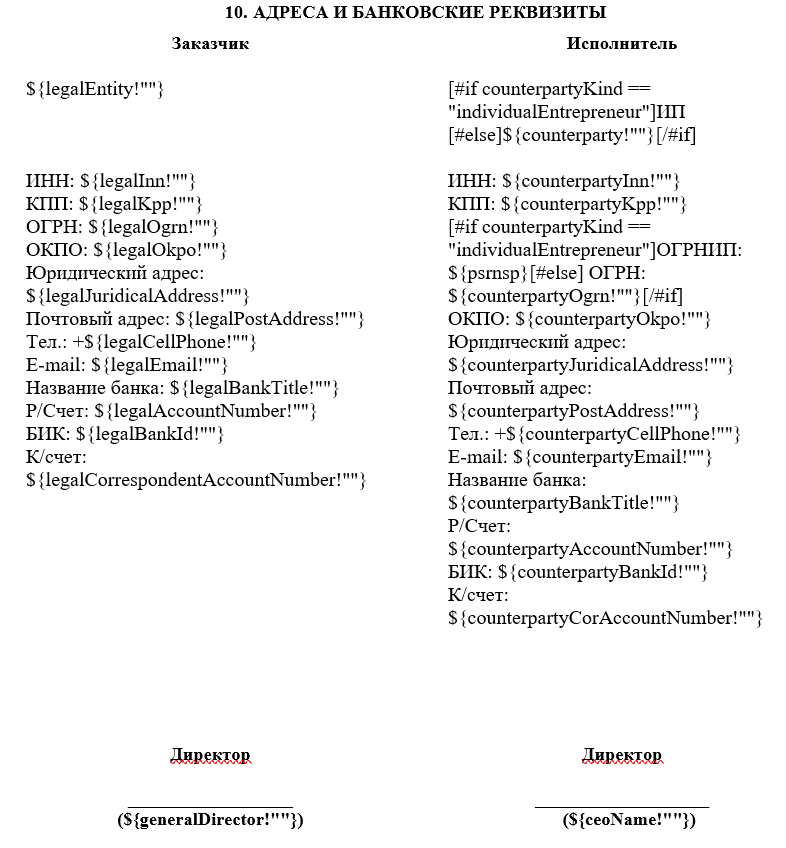
Add the template to a zip archive and attach it in the document template card. See above.
Setting up content generation from template
For automatic content generation from a template in the data type, it is necessary to:
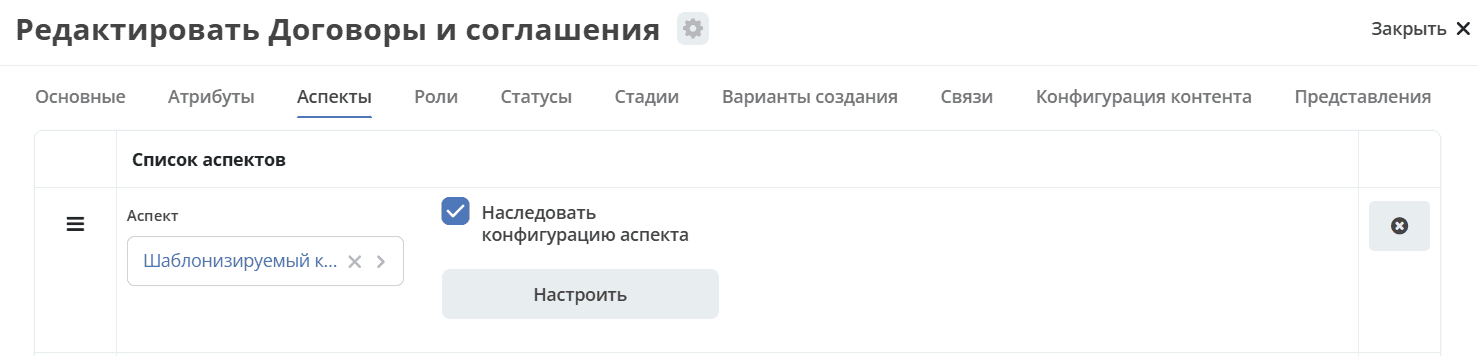
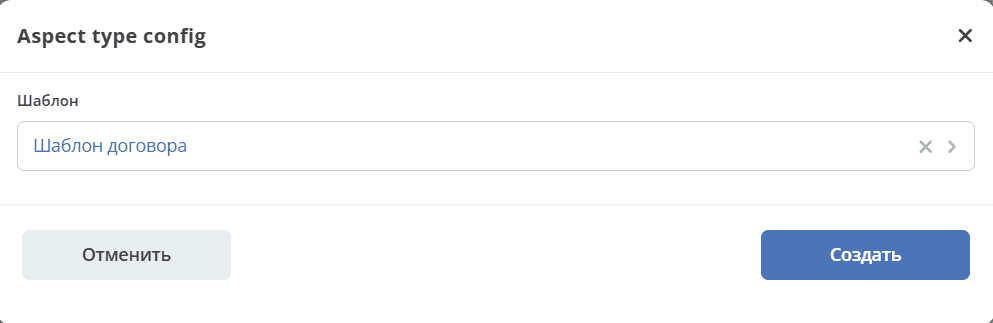
Next, add a checkbox element to the form:
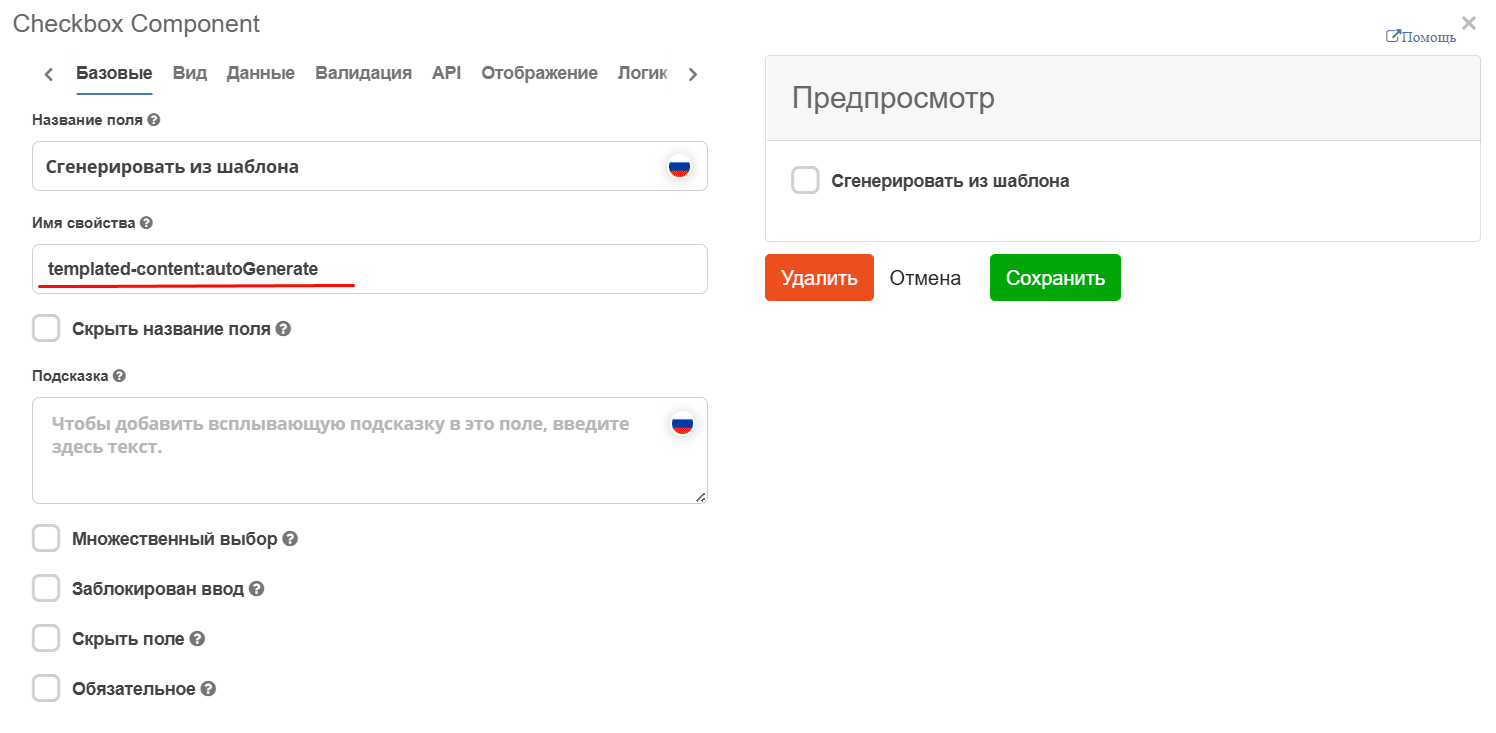
In Property Name, specify templated-content:autoGenerate.
When filling in the card fields with the checkbox checked, the template will be filled based on the form data.
Action to generate and download document
Next, configure the action
Note
Usage example
In the Contracts module with the “Generate from template” checkbox checked:
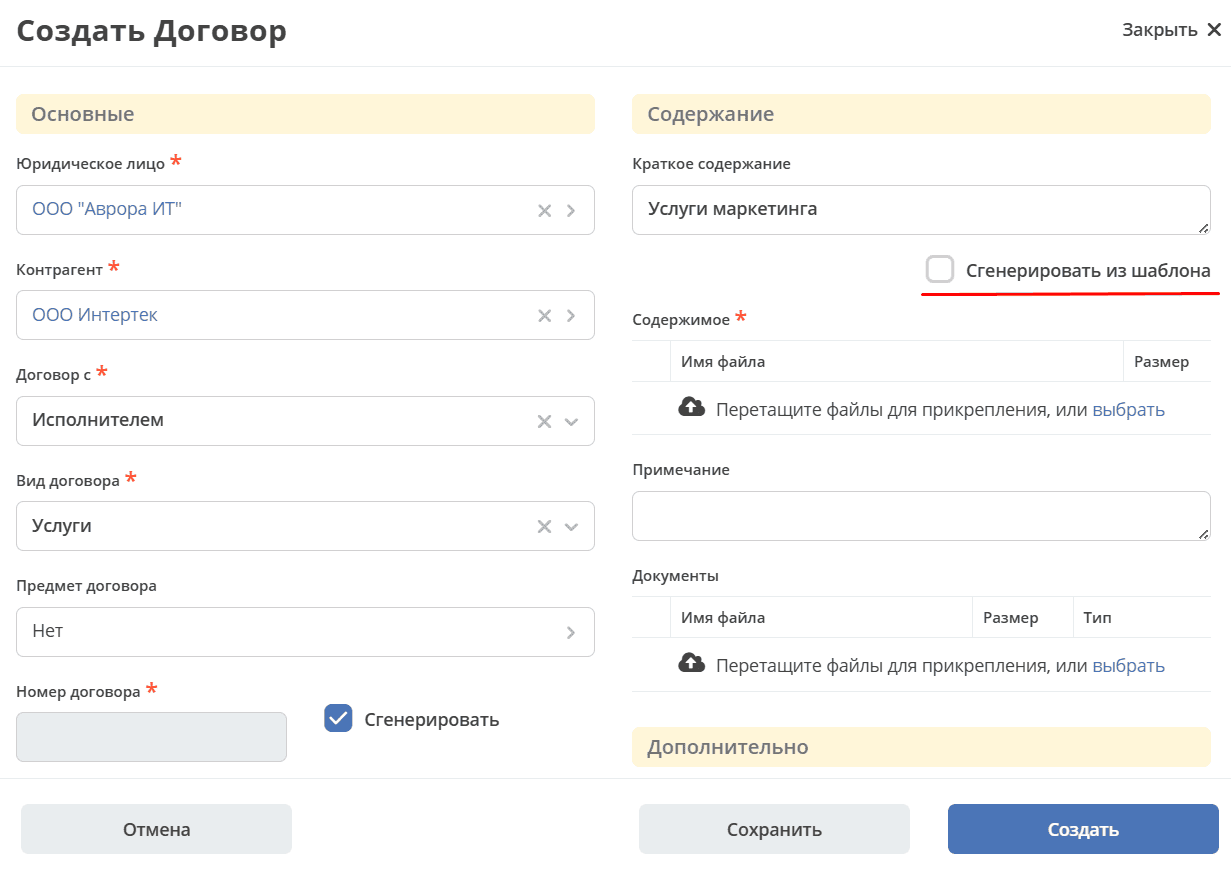
the attachment file will be generated from the template based on the entered data:
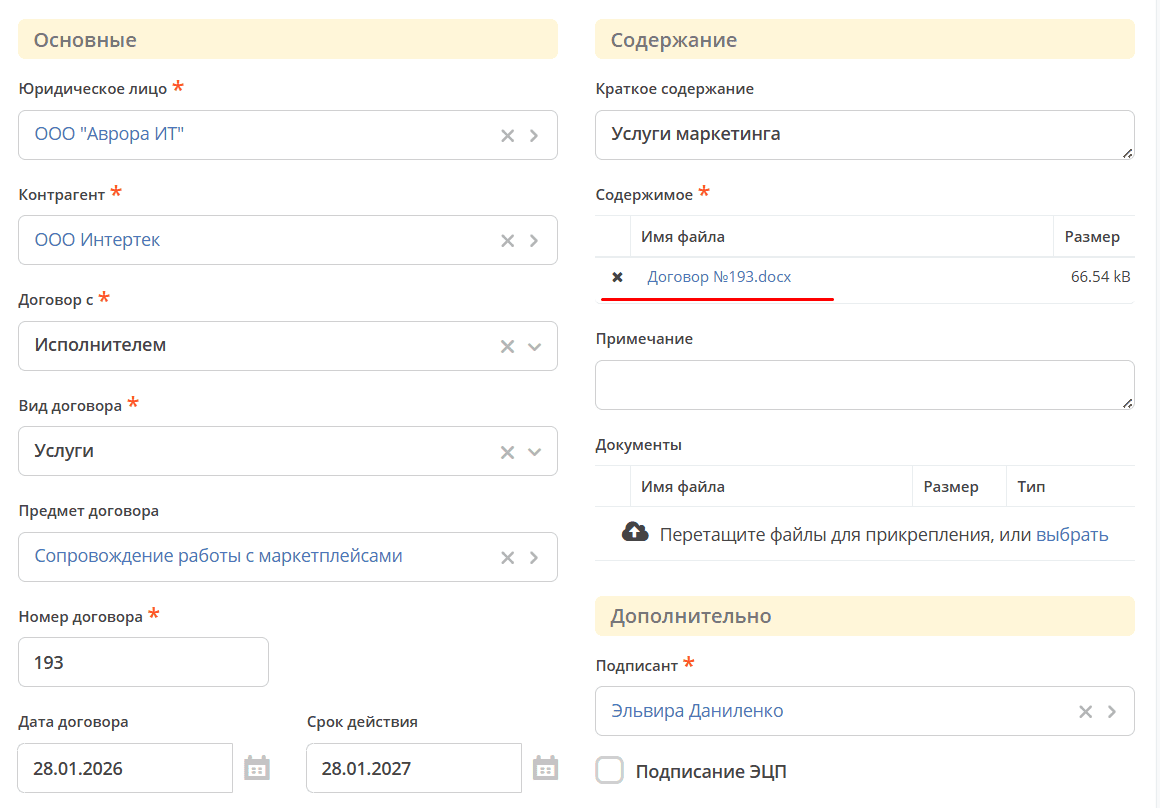
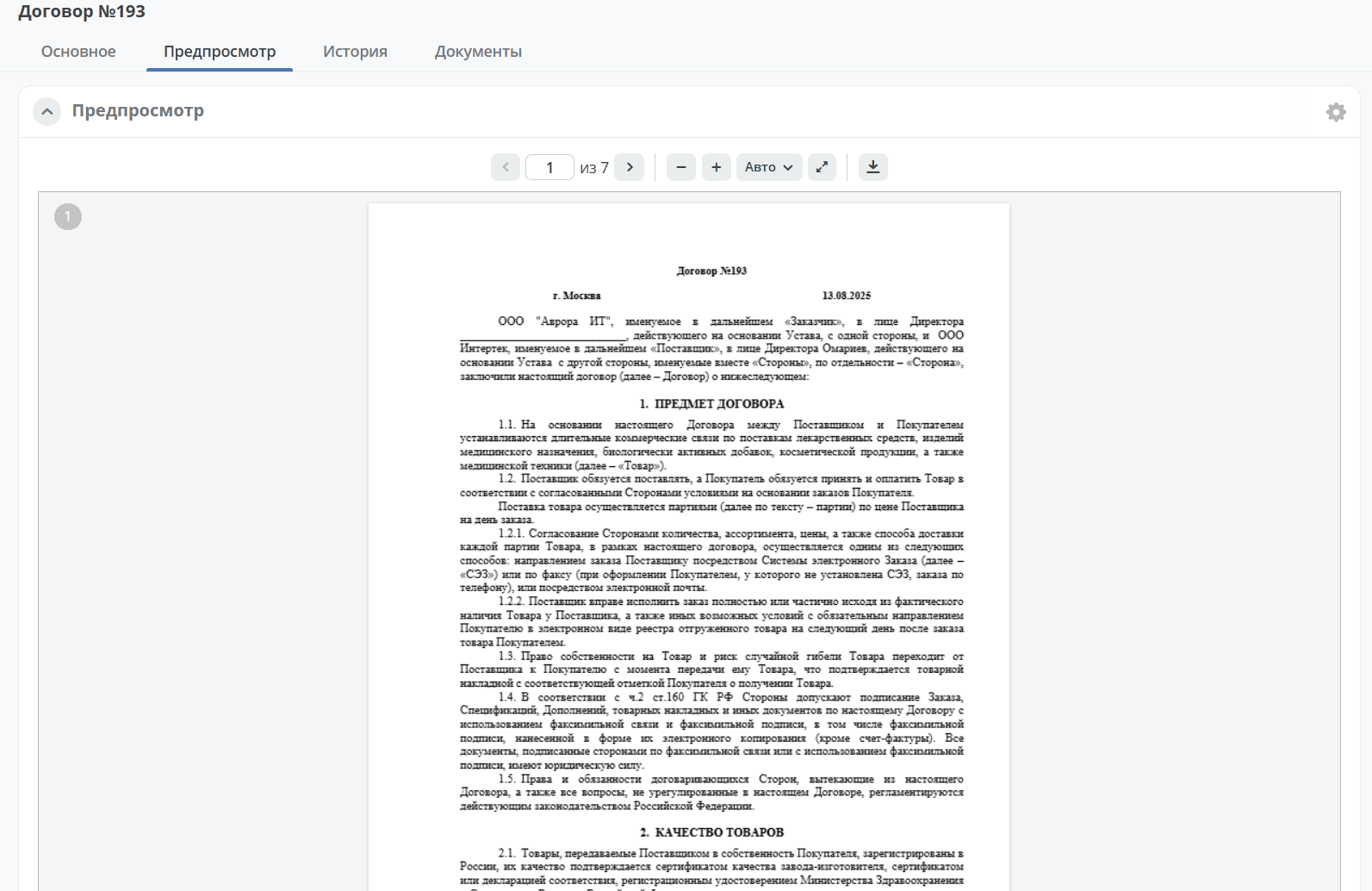
The file will also be available for preview: