Inbound processing tasks
Note
Available only in the Enterprise version.
Note
The «Inbound processing tasks» journal is available in the Contracts and Clerical work workspaces.
The ability to sign contracts and additional agreements with a qualified electronic signature (QES) and exchange them with counterparties through EDI providers.
Attention
Installation of the CryptoPro EDS Browser plug-in is required
Browsers that do not require additional browser extension configuration after installing the plugin:
For Diadoc subscribers, a verification service Auto-diagnostics is available
The service checks and fixes:
CryptoPro CSP operation settings;
installation and settings of private key storage drivers;
installation of certification authority certificates;
installation of Kontur.Plugin and Kontur.Access;
startup of required services;
other workstation settings.
Contracts
Note
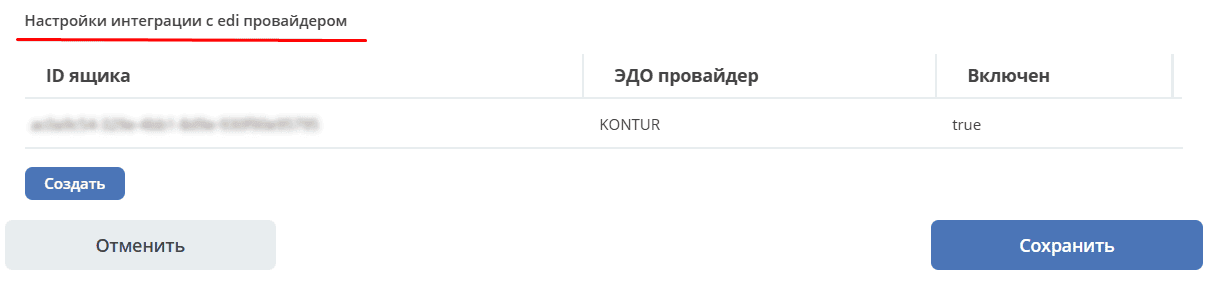
The Legal Entity (Legal Entities directory) and the selected Counterparty (Counterparties directory) must have EDI provider integration settings specified in their card configurations:
Incoming
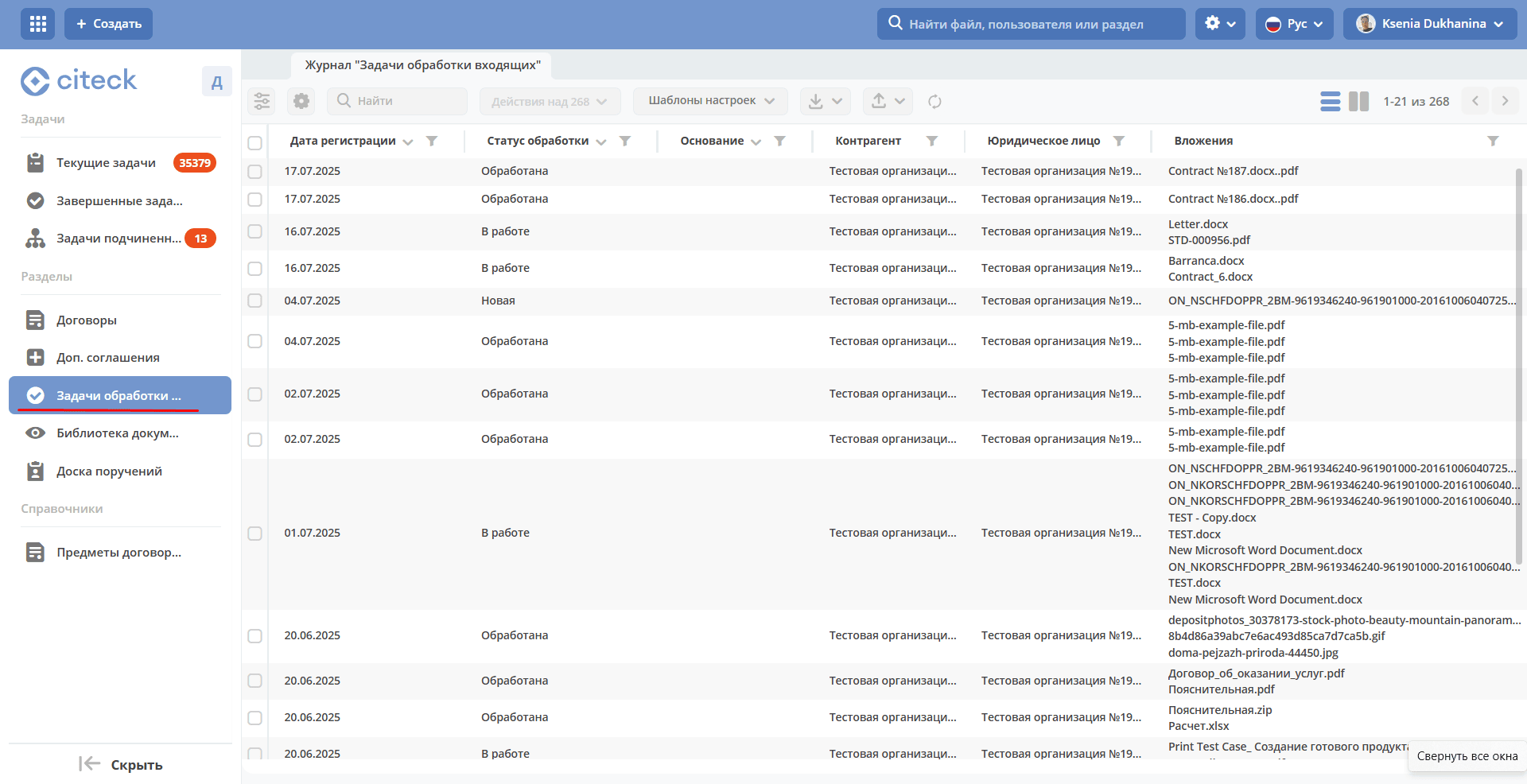
Go to the «Inbound processing tasks» journal. For incoming queues, 3 statuses are available:
New – attachments are not processed;
In Progress – at least one attachment is processed;
Processed – all attachments are processed.
Open the incoming package:
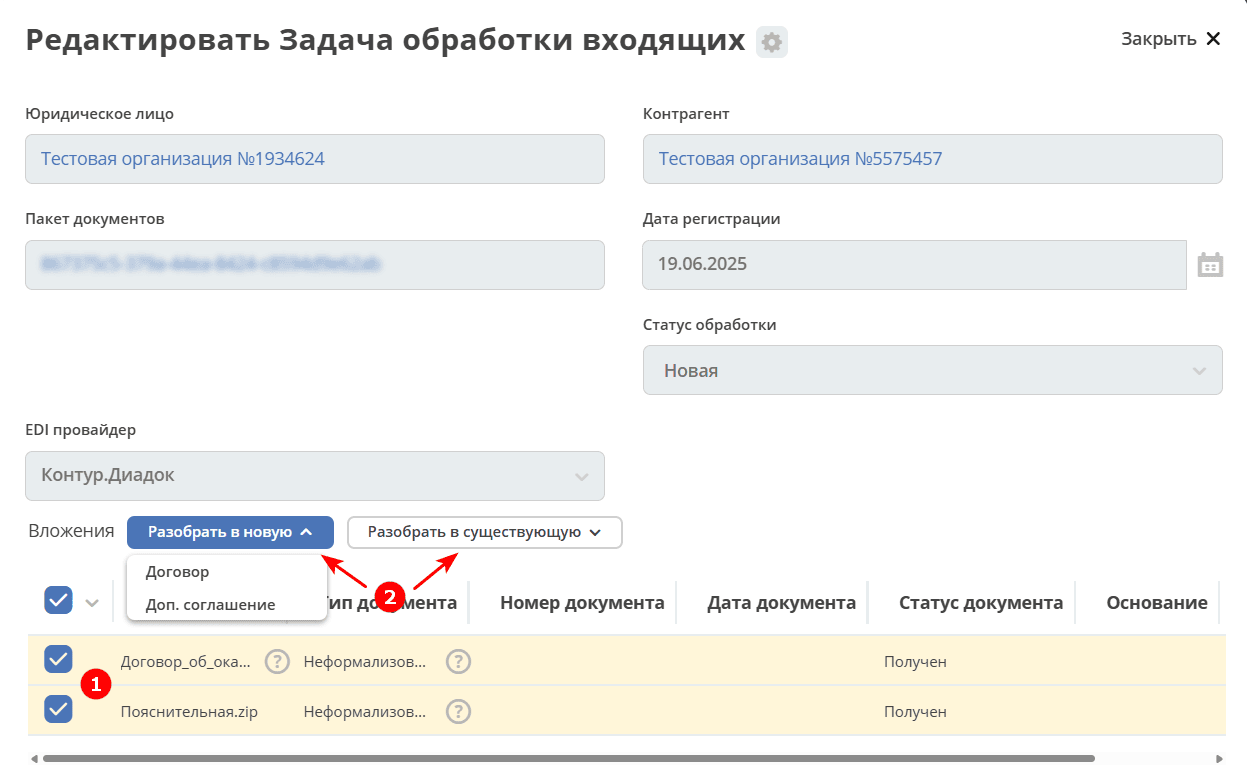
Package attachments can be processed all at once or individually, into a new queue or an existing one – select the attachment (1) and the processing type (2):
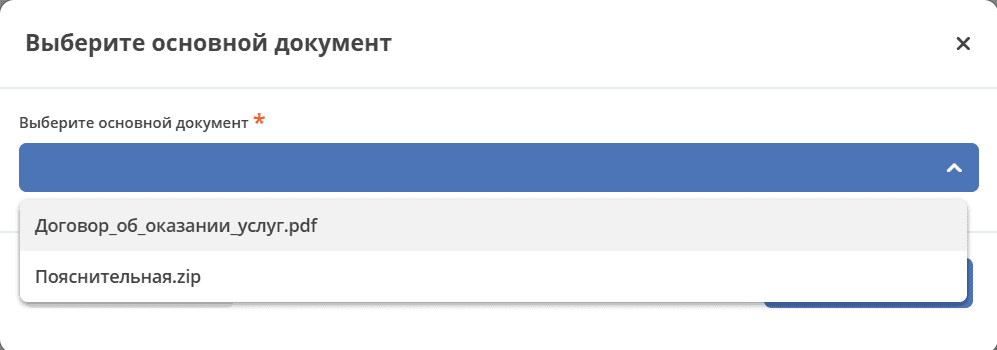
When selecting multiple attachments, choose the main document:
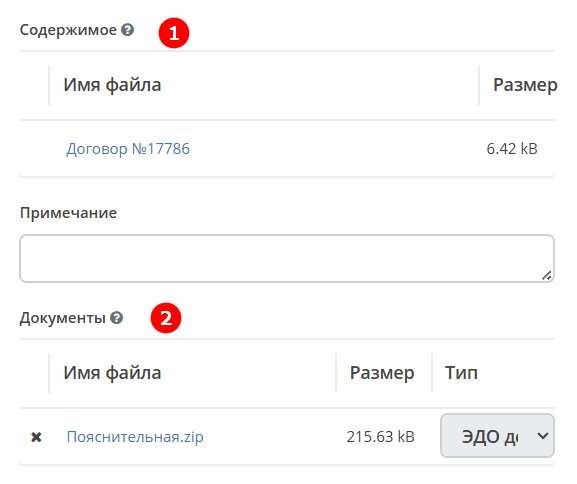
The main document will be added to the card in the «Content» (1) section, the other selected documents from the queue will be added to the «Documents» (2) section after the card is created.
Note
When selecting «Process into existing», the attachments will be added as additional documents to an already created card.
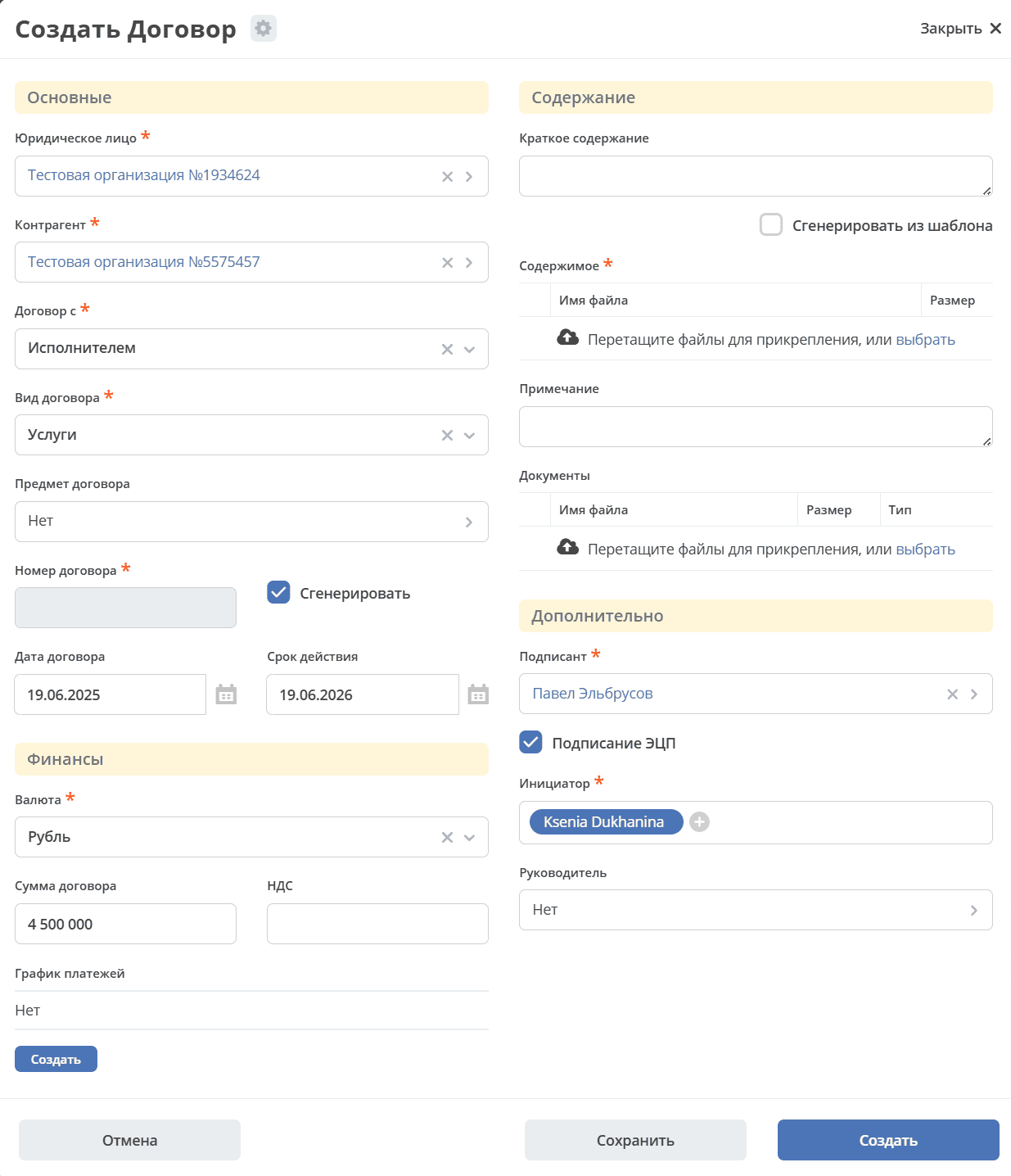
Next, a contract card will open where the Legal Entity and Counterparty are already filled in. Complete the mandatory and necessary fields, and click «Create»:
Note
Documents in the «Content» and «Documents» sections will be attached after the card is created.
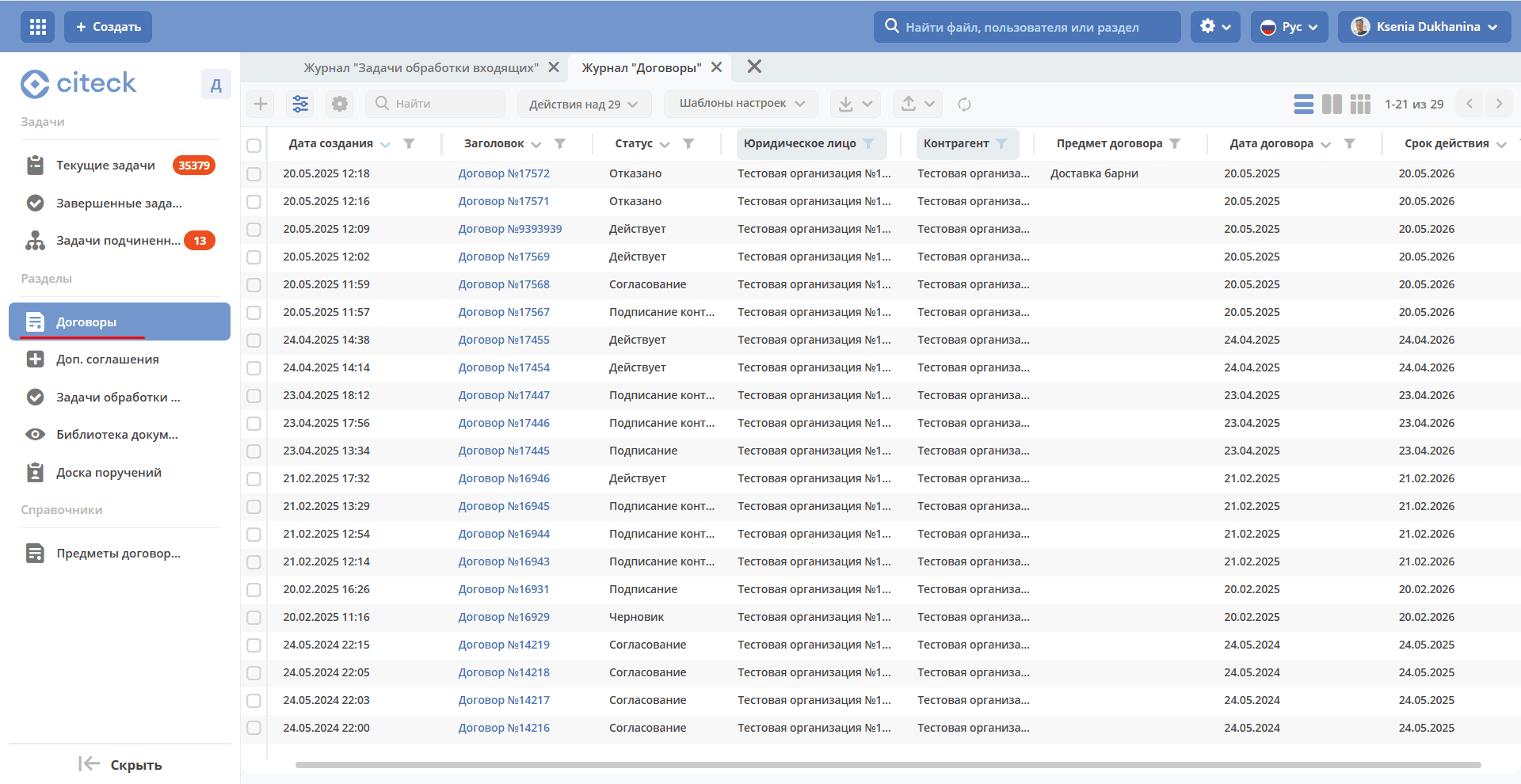
The contract card will be available in the «Contracts» journal:
and sent through the business process - the process is identical to paper. See for more details.
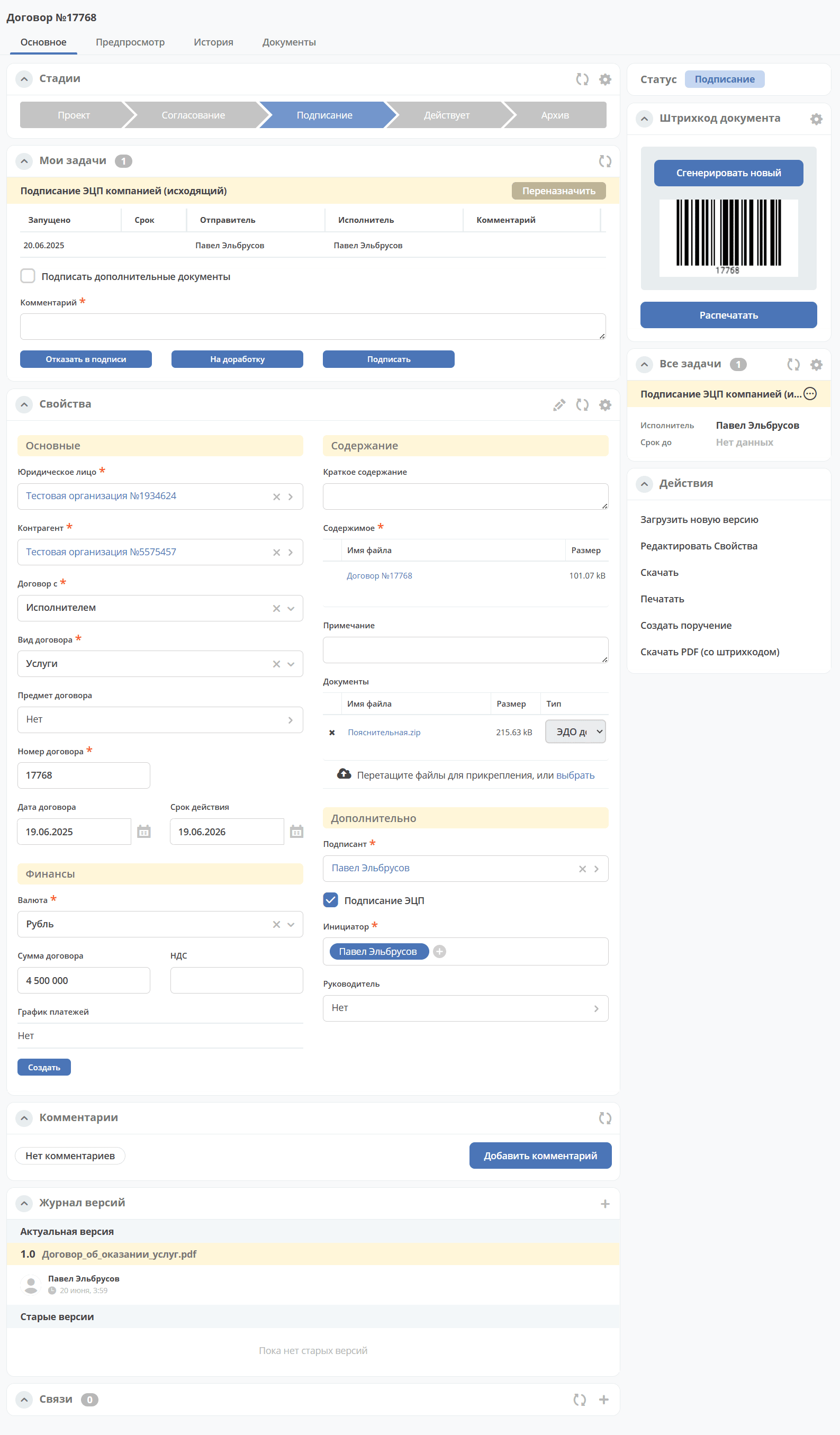
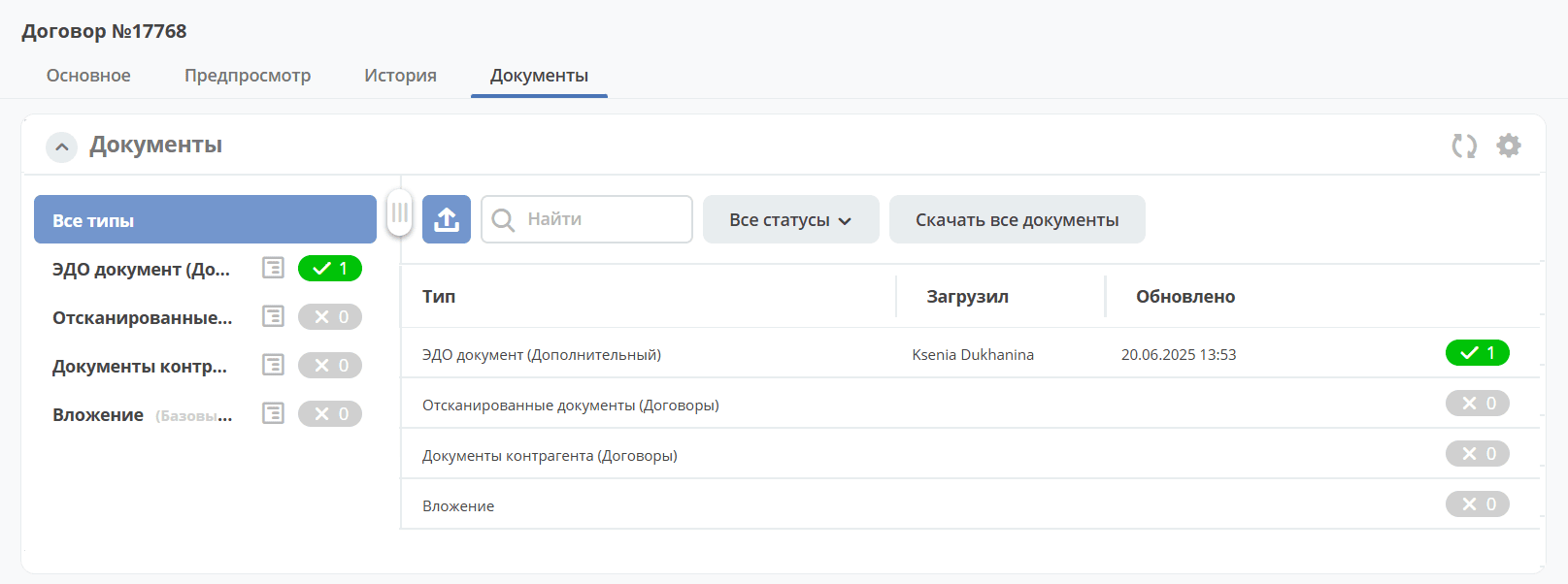
Additional documents will be reflected in the «Documents» widget:
At the «Signing» status, in the task «Signing with Company EDS (Incoming)», specify a comment and sign with EDS:
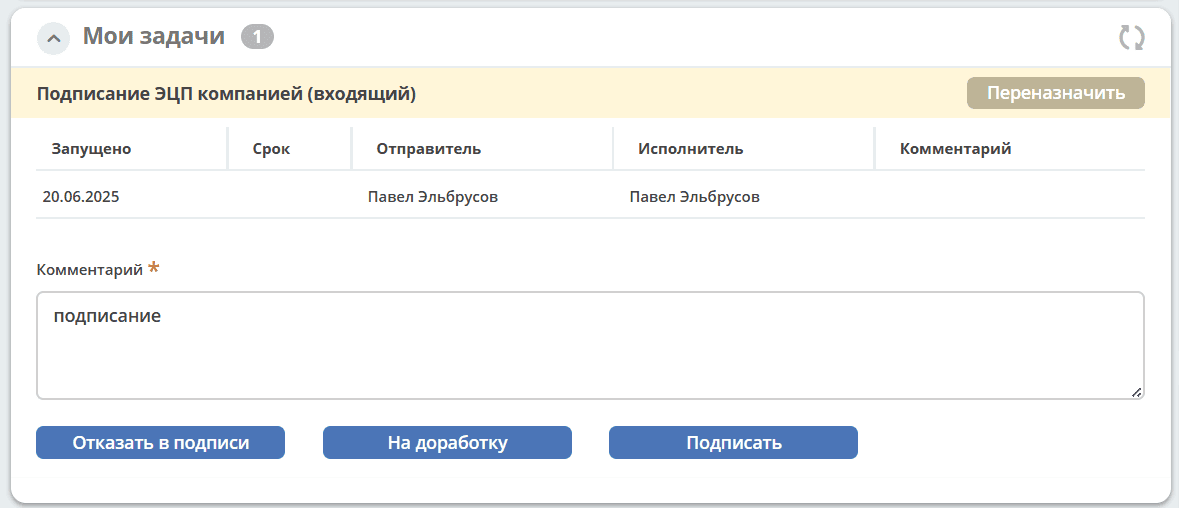
If the user has only one certificate, signing occurs automatically upon clicking «Sign».
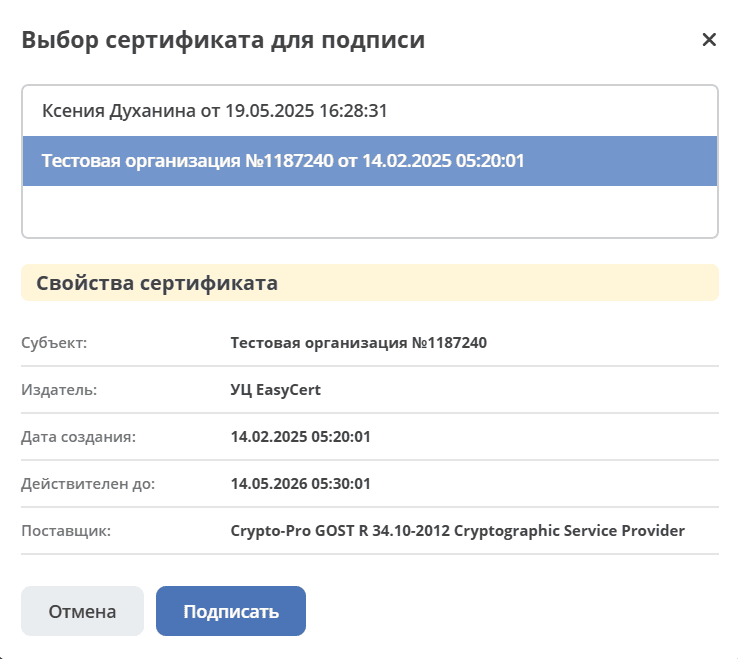
If there are multiple certificates, select the required certificate from the list:
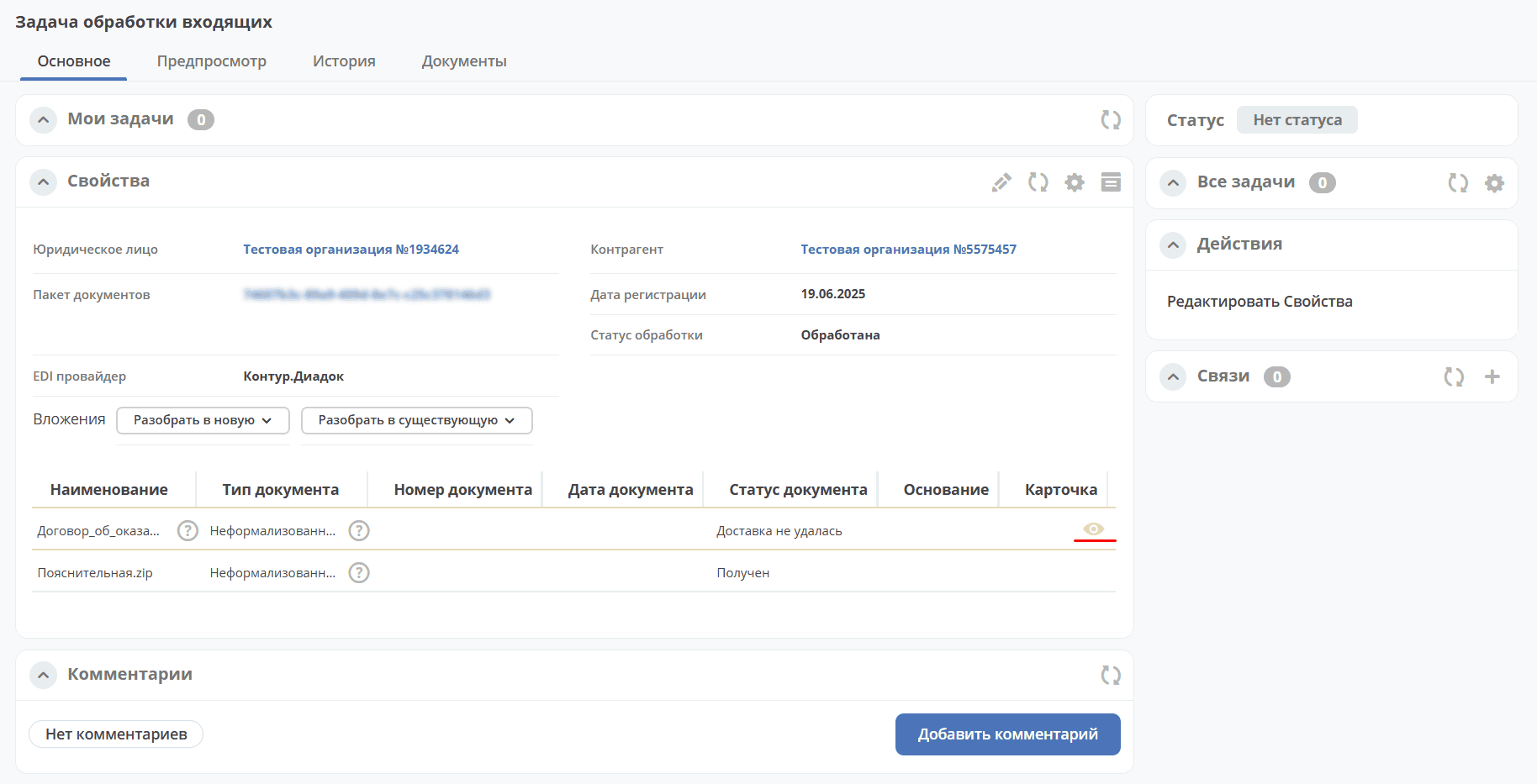
The contract status will change to «Active», and the documents will be sent via EDI.
The queue status will change to «Processed». A link to the contract card will be available in the package card:
Outgoing
When creating a contract, check the «EDS Signing» checkbox, fill in the necessary and mandatory fields, attach the main document in «Content» or generate it, attach additional ones in «Documents», and click «Create»:
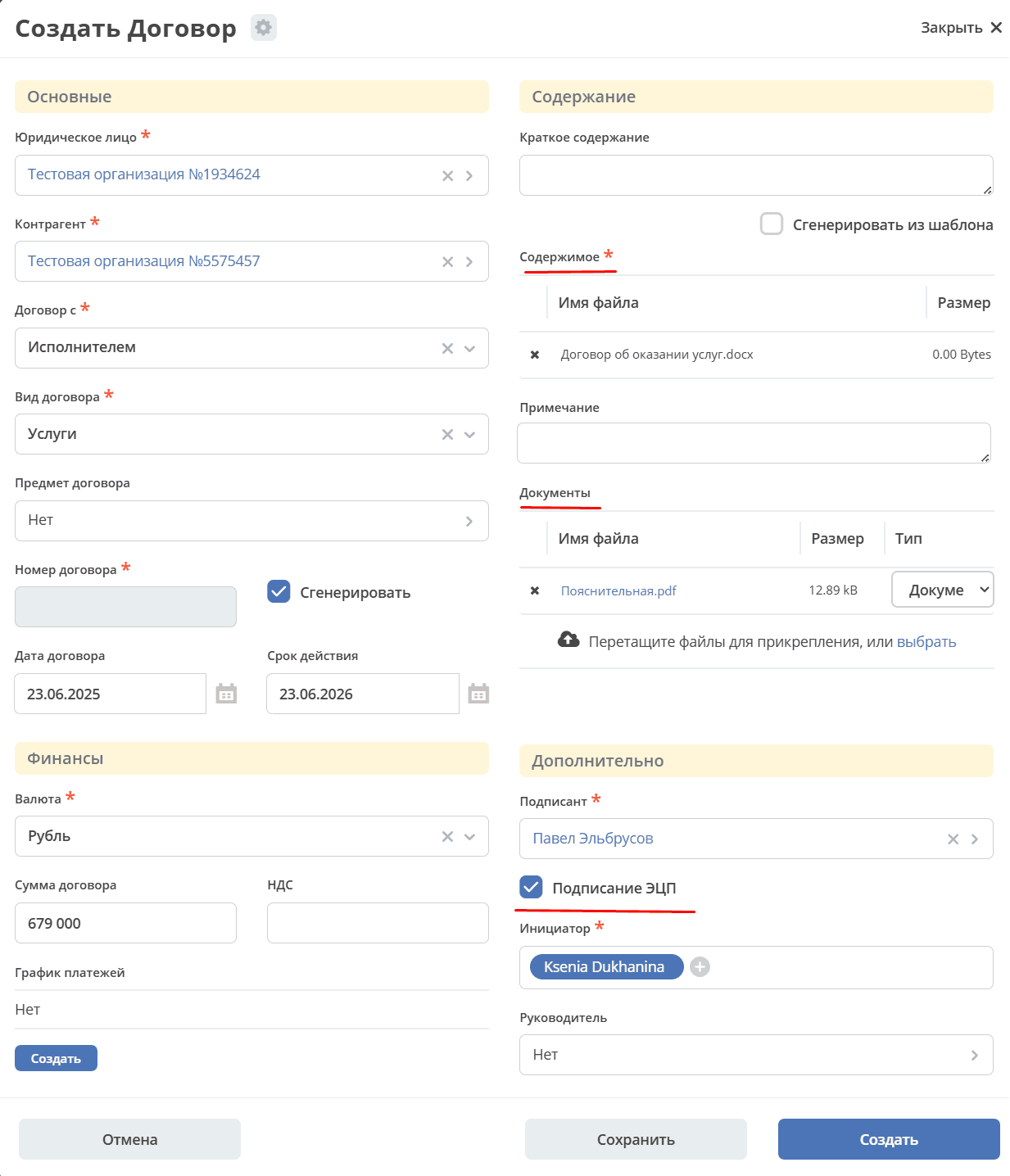
The card will be sent through the business process - the process is identical to paper. See for more details.
At the «Signing» status, in the task «Signing with Company EDS (Outgoing)», specify a comment and sign with EDS:
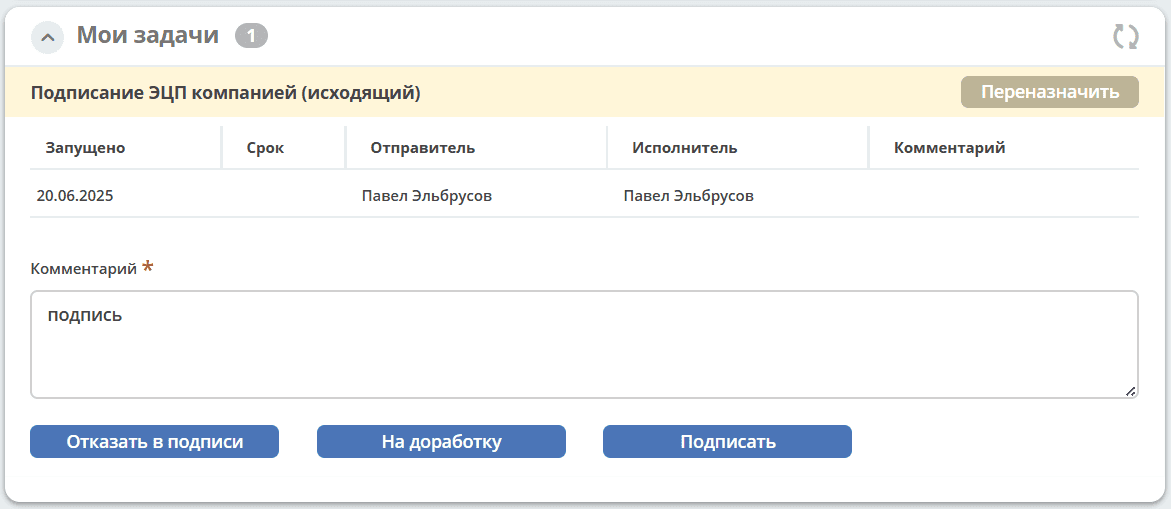
The document will be signed and sent via EDI. The contract status will change to «Signing by Counterparty».
Signing by the counterparty is done in the EDI system; after signing, the contract status will automatically change to «Active».