Module «Powers of Attorney»
The module allows organizing work with both regular paper and machine-readable powers of attorney. The module provides:
creation, approval, and accounting of powers of attorney;
control over the validity periods of powers of attorney;
flexible routing.
Machine-Readable Power of Attorney (MRPA) - an electronic equivalent of a paper power of attorney, issued as an XML file, signed with an electronic signature by an employee selected as the signatory.
The file contains information about the validity period of the power of attorney, the principal (the module offers a choice: Legal Entity, Individual Entrepreneur), the representative - the authorized employee, and the powers they receive. The power of attorney is generated according to the approved format: UNIFIED FORM OF POWER OF ATTORNEY / MRPA version 003 for conducting business transactions between organizations.
Business Process Scheme
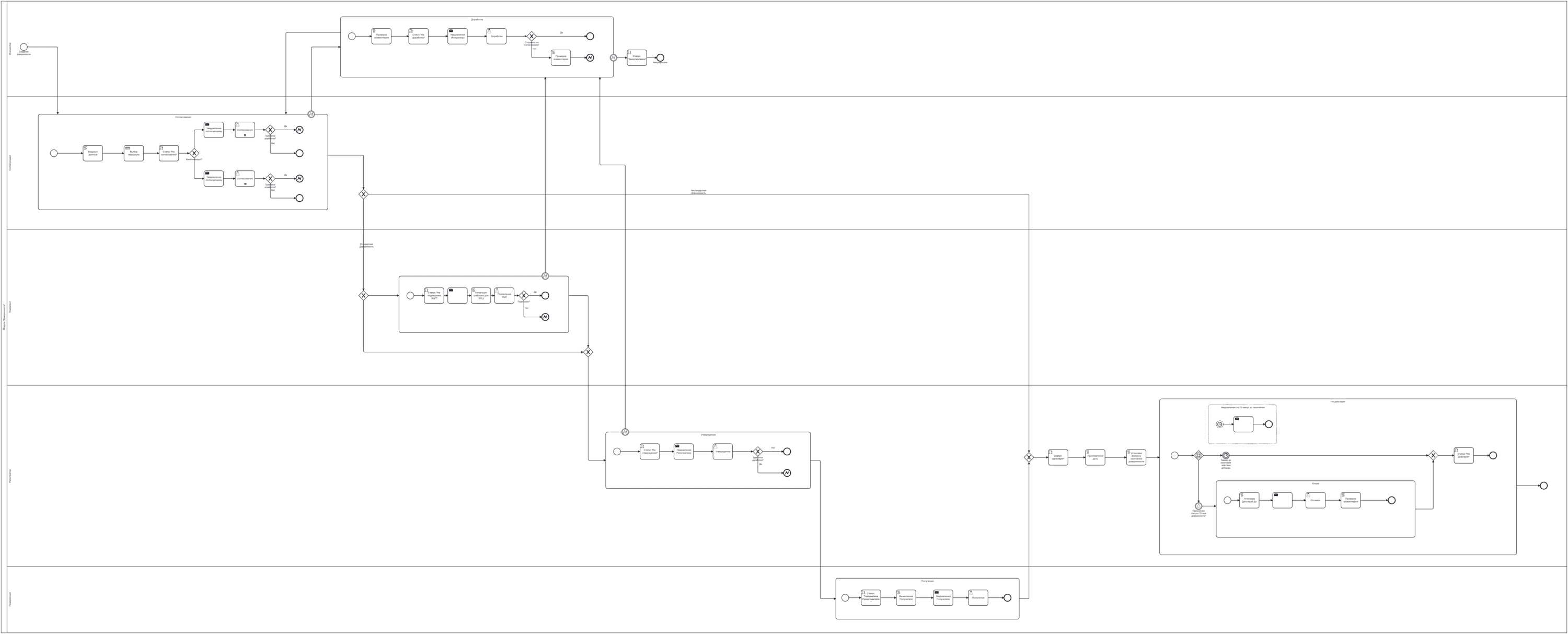
Roles
Initiator |
Company employee creating the power of attorney in the system. Performs the task of Revision. |
Approver |
Power of Attorney Approvers, Additional Approvers - user groups. Performs power of attorney approval. |
Registrar |
A group of users performing the tasks of Approval, Receipt (for a power of attorney for a third party), and Revocation of the Power of Attorney. |
Representative |
A third party or company employee for whom the power of attorney is issued. Performs the task of Receiving the Power of Attorney. |
Signatory |
Company employee performing the task of Signing the Power of Attorney with an Electronic Signature (only for MRPA). |
Organizational structure groups where users should be added
Power of Attorney Approvers (Attorney_approver_gr);
Additional Approvers (Attorney_addApp_gr);
Power of Attorney Registrars (Attorney_registrar_gr).

Statuses
Draft |
Power of attorney created by the Initiator but not sent through the process. |
Sent to Representative |
Power of attorney transferred to the representative. |
Under Revision |
After approval, the power of attorney was sent for revision to the Initiator. |
Canceled |
The Initiator canceled the power of attorney. |
Under Approval |
Power of attorney transferred to the registrar. |
Active |
Power of attorney issued and is in the “Active” status, but its effective date has not yet arrived. |
Under Approval |
Approval of the power of attorney according to the route depending on the selected type of power of attorney and the specified limit. |
Under E-Signature Signing |
The power of attorney is being signed with an electronic signature by the Signatory selected in the card.
Only for machine-readable powers of attorney.
|
Power of Attorney Revocation |
Power of attorney revoked by the registrar. |
Inactive |
The registrar confirmed the revocation of the power of attorney or the power of attorney’s validity period has expired. |
Types of Powers of Attorney
General;
Standard;
Non-standard.
For General and Standard powers of attorney, the generation of a human-readable form of the power of attorney is provided, accessible via the “Download PDF” action. For these types of powers of attorney, the processing process before issuance includes the statuses: “Draft” (optional), “Under Approval”, “Under Revision” (if necessary), “Under E-Signature Signing” (only for Machine-Readable), “Under Approval”, “Sent to Representative”, “Active”.
For a Non-standard power of attorney in paper format, the user needs to upload a file with the ready power of attorney into the “Content” attribute. It is assumed that a non-standard power of attorney is fully prepared outside the system, so only the approval stage is included in its processing process. Thus, after successful approval, the non-standard power of attorney transitions to the “Active” status, bypassing all intermediate ones.
Routes
The module implements dynamic route selection using DMN and depends on the selected type of power of attorney and the specified limit:
No. |
Type of Power of Attorney |
Power of Attorney Limit |
Decision |
Approvers |
|---|---|---|---|---|
1 |
Standard |
0 |
Assign approver
(sequential approval)
|
Additional Approvers
(GROUP_Attorney_addApp_gr)
|
2 |
General |
0 |
Approve
(parallel approval)
|
Power of Attorney Approvers
(GROUP_Attorney_approver_gr)
|
3 |
Standard |
<=100,000 |
Approve
(parallel approval)
|
Additional Approvers
(GROUP_Attorney_addApp_gr),
Power of Attorney Approvers
(GROUP_Attorney_approver_gr)
|
4 |
Standard |
> 100,000 |
Assign approver
(sequential approval)
|
Additional Approvers
(GROUP_Attorney_addApp_gr)
|
5 |
General |
<=200,000 |
Assign approver
(sequential approval)
|
Additional Approvers
(GROUP_Attorney_addApp_gr),
Power of Attorney Approvers
(GROUP_Attorney_approver_gr)
|
6 |
General |
> 200,000 |
Approve
(parallel approval)
|
Additional Approvers
(GROUP_Attorney_addApp_gr)
|
7 |
Non-standard |
none |
Assign approver
(sequential approval)
|
Additional Approvers
(GROUP_Attorney_addApp_gr)
|
Journal
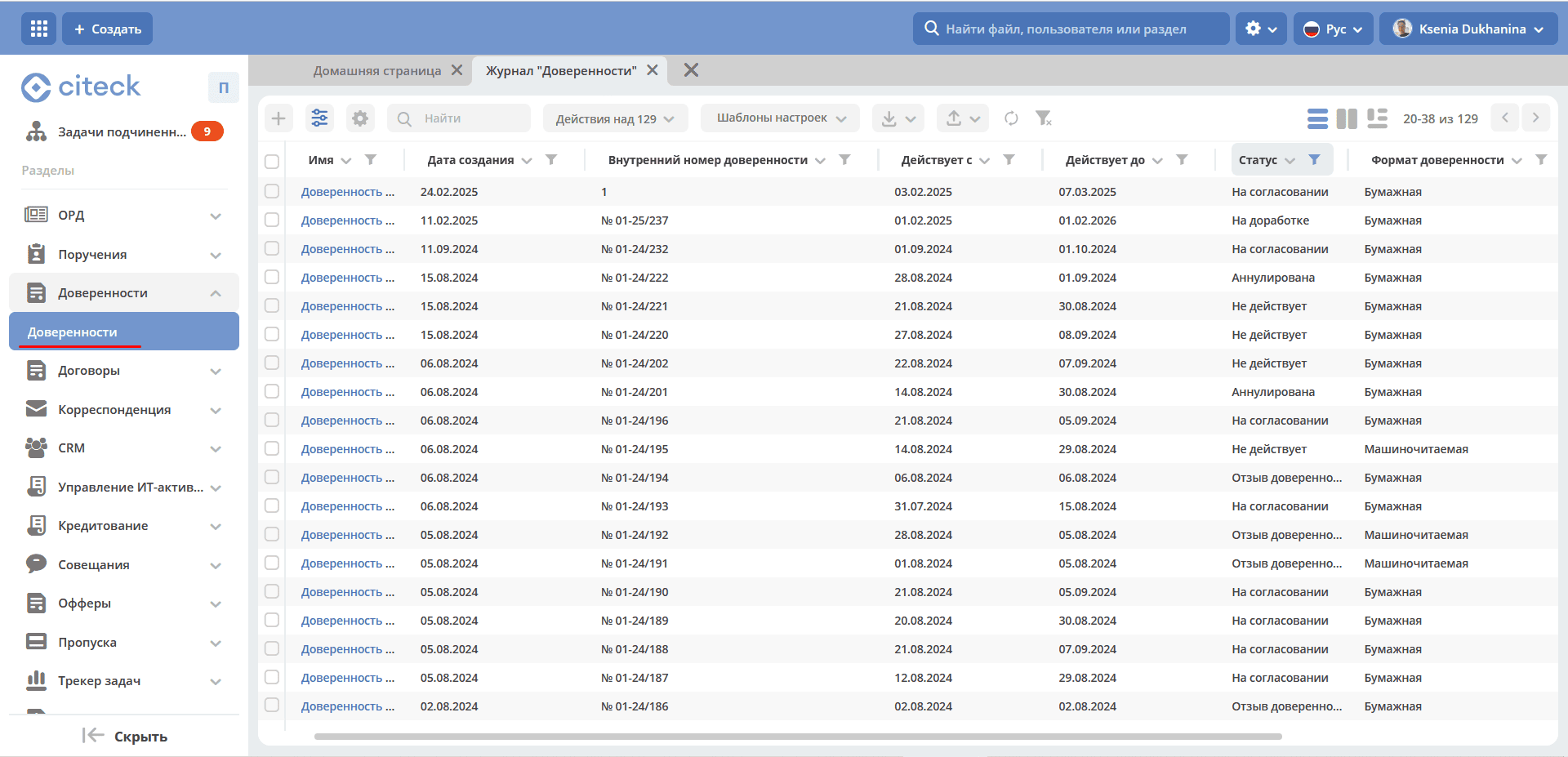
- The standard journal dashboard contains columns:
Name;
Creation Date;
Internal Power of Attorney Number;
Valid From;
Valid Until;
Status;
Power of Attorney Format;
Initiator;
Representative.
Additionally available for inclusion are columns: Issue Date, Power of Attorney Number in the Federal Tax Service (FTS), Type of Power of Attorney, Legal Entity, Individual Entrepreneur, Signatory, Transferred Powers, Power of Attorney Limit.
Creating a Power of Attorney Card
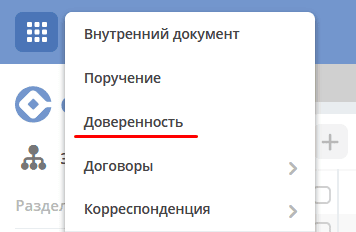
Creating a power of attorney in the System is possible, both using the quick create button:
and from the “Powers of Attorney” journal:
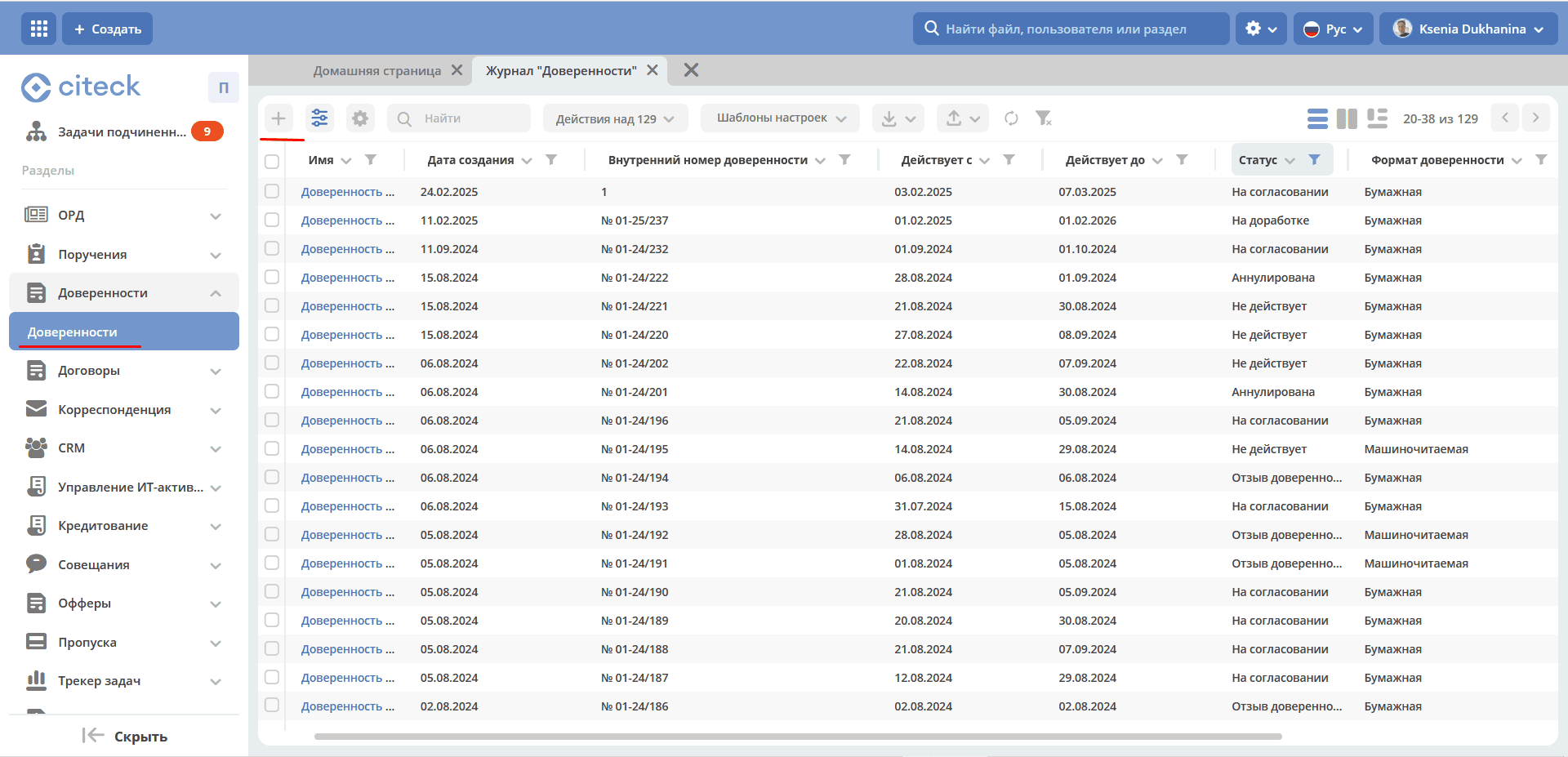
The form for creating a Power of Attorney becomes available on the screen:
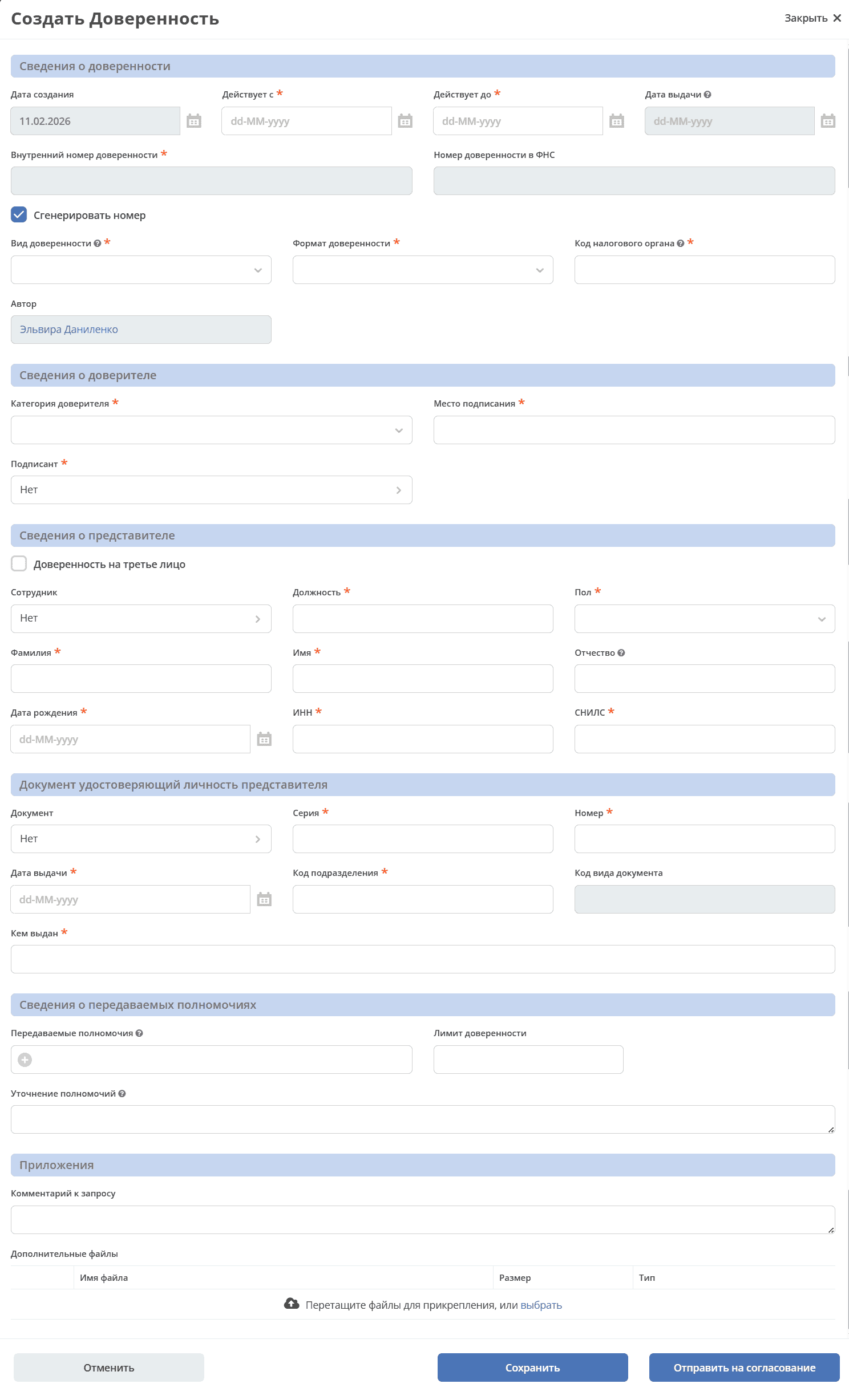
The card consists of sections:
Power of Attorney Details:
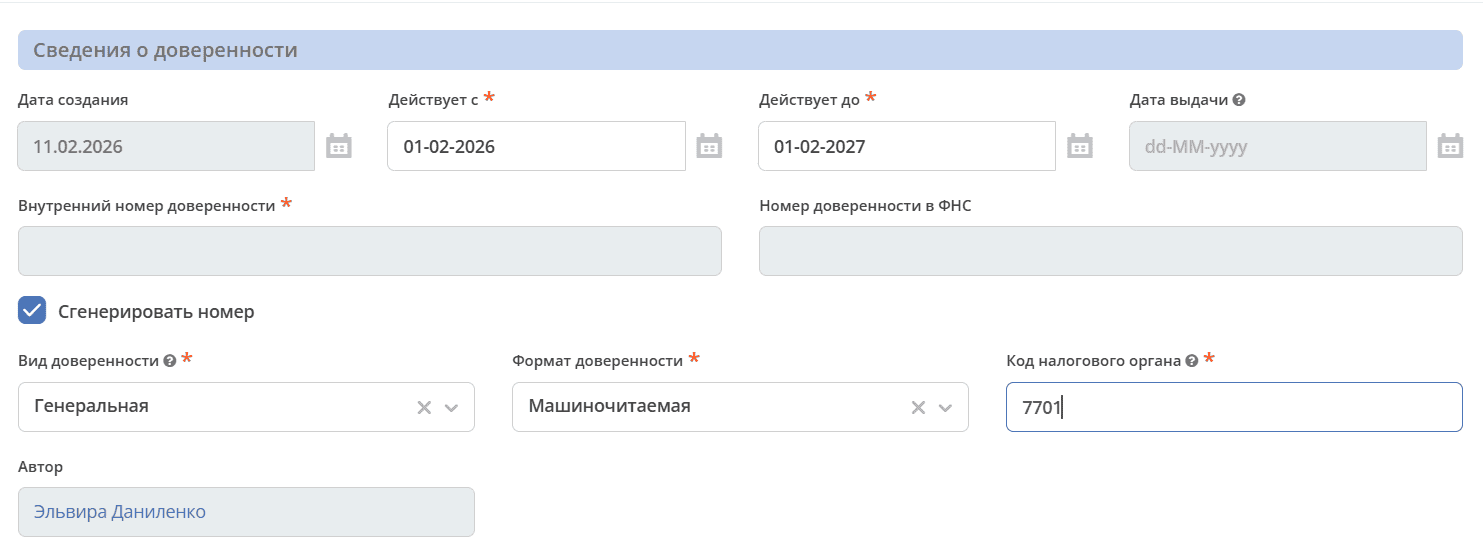
Creation Date |
Date in dd.mm.yyyy format.
Mandatory.
Filled automatically upon RCC creation, non-editable.
|
Valid From |
Date in dd.mm.yyyy format.
Mandatory.
|
Valid Until |
Date in dd.mm.yyyy format.
Mandatory.
When revoking a power of attorney, the field is filled with the current system date.
|
Issue Date |
Date in dd.mm.yyyy format.
Filled automatically when the power of attorney transitions to the “Active” status.
Non-editable.
|
Internal Power of Attorney Number |
Text.
Mandatory.
Depends on the state of the “Generate number” checkbox:
- false. Поле доступно для редактирования вручную.
- true. Поле заблокировано.
After creating the card, the power of attorney number is generated automatically according to the rule:
No. 01-XX/Y, where
- ХХ - последние две цифры текущего года;
- Y - порядковый номер доверенности в системе.
When a power of attorney is deleted, the sequential number is NOT assigned to another power of attorney
|
Power of Attorney Number in the FTS |
Text.
Mandatory.
Filled via integration (for MRPA).
Non-editable.
|
Generate Number |
Checkbox.
Default value true.
Displayed only on the creation form.
|
Type of Power of Attorney |
Selection from the list:
1. Генеральная;
2. Стандартная;
3. Нестандартная.
Mandatory.
|
Power of Attorney Format |
Selection from the list:
1. Бумажная;
2. Машиночитаемая.
Mandatory.
When Type of Power of Attorney = Non-standard, the field “Power of Attorney Format” is automatically set to “Paper” and locked (the selection of the value “Machine-readable” becomes unavailable).
|
Tax Authority Code |
Number. Mandatory.
Depends on the selected value in the “Power of Attorney Format” field:
- Бумажная. Поле пустое и недоступно для редактирования.
- Машиночитаемая. Поле доступно для редактирования вручную.
Validation of the entered value: The code must contain 4 digits.
|
Author |
Filled automatically by the user who created the card.
Mandatory, non-editable.
|
Principal Details:
Hidden from the form if “Type of Power of Attorney” is selected as “Non-standard”.

Principal Category |
Selection from the list:
1. Индивидуальный предприниматель;
2. Юридическое лицо.
Mandatory.
|
Place of Signing |
Text.
Mandatory.
|
Signatory |
Selection from the Organizational Structure.
Mandatory if Power of Attorney Format = “Machine-readable”, otherwise - optional.
|
Organization Data:
Displayed if “Principal Category” is selected as “Legal Entity”. Initially, the section is hidden.

Legal Entity |
Selection from the “Legal Entities” directory.
Mandatory.
|
Address |
Text.
Mandatory.
Filled automatically with the value of the “Legal Address” field from the selected Legal Entity’s card.
|
Region |
Selection from the ‘Subjects of the Russian Federation’ directory.
Mandatory.
|
Tax Identification Number (INN) |
Text.
Mandatory.
Filled in automatically with the value from the ‘INN’ field of the selected Legal Entity’s card.
|
Reason Code for Registration (KPP) |
Text.
Mandatory.
Filled in automatically with the value from the ‘KPP’ field of the selected Legal Entity’s card.
|
Primary State Registration Number (OGRN) |
Text.
Mandatory.
Filled in automatically with the value from the ‘OGRN’ field of the selected Legal Entity’s card.
|
Sole Executive Body:
Displayed if “Principal Category” is selected as “Legal Entity”. Initially, the section is hidden.
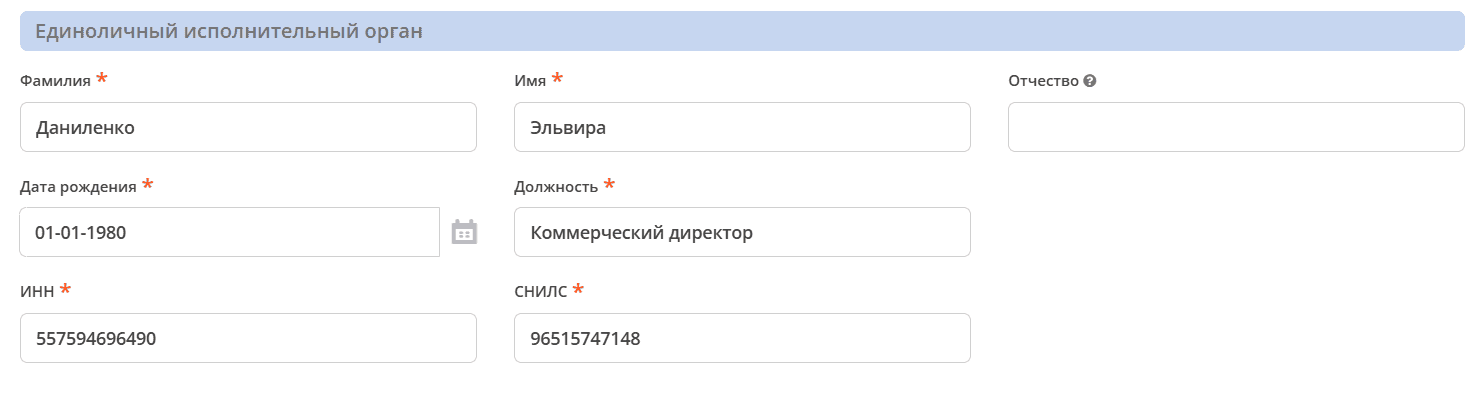
Last Name |
Text
Mandatory.
Filled in automatically with the value from the ‘Last Name’ field of the General Director’s profile in the Legal Entity’s card.
|
First Name |
Text
Mandatory.
|
Patronymic |
Text
Optional.
Filled in automatically with the value from the ‘Patronymic’ field of the General Director’s profile in the Legal Entity’s card.
|
Date of Birth |
Date in dd.MM.yyyy format.
Mandatory.
Filled in automatically with the value from the ‘Date of Birth’ field of the General Director’s profile in the Legal Entity’s card.
|
Position |
Text
Mandatory.
Filled in automatically with the value from the ‘Position’ field of the General Director’s profile in the Legal Entity’s card. Mandatory.
|
Tax Identification Number (INN) |
Text
Mandatory.
Currently filled in manually; in the future, a field is planned to be added to the user profile to retrieve the value from there.
|
Insurance Number of Individual Ledger Account (SNILS) |
Text
Mandatory.
Currently filled in manually; in the future, a field is planned to be added to the user profile to retrieve the value from there.
|
Individual Entrepreneur Data:
Displayed if ‘Principal Category’ is selected as ‘Individual Entrepreneur’. Initially, the section is hidden.
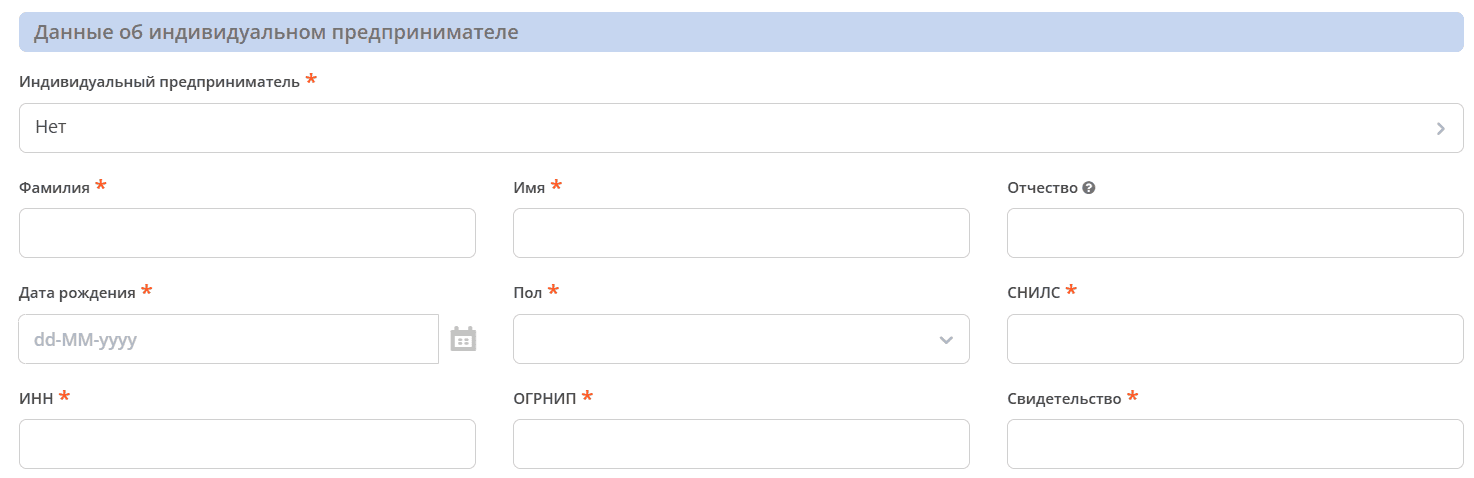
Individual Entrepreneur |
Selection from the “Legal Entities” directory.
Mandatory.
|
Last Name |
Text
Mandatory. Editable.
Filled in automatically with the value from the ‘Last Name’ field of the Individual Entrepreneur’s profile in the Legal Entity’s card.
|
First Name |
Text
Mandatory. Editable.
Filled in automatically with the value from the ‘First Name’ field of the Individual Entrepreneur’s profile in the Legal Entity’s card.
|
Patronymic |
Text
Optional. Editable.
Filled in automatically with the value from the ‘Patronymic’ field of the Individual Entrepreneur’s profile in the Legal Entity’s card.
|
Date of Birth |
Date in dd.mm.yyyy format.
Mandatory. Editable.
Filled in automatically with the value from the ‘Date of Birth’ field of the Individual Entrepreneur’s profile in the Legal Entity’s card.
|
Gender |
Selection from the list:
1. Женский;
2. Мужской.
Mandatory.
|
Insurance Number of Individual Ledger Account (SNILS) |
Number
Mandatory.
Filled in automatically with the value from the field of the same name in the selected Legal Entity’s card.
|
Tax Identification Number (INN) |
Number
Mandatory.
Filled in automatically with the value from the field of the same name in the selected Legal Entity’s card.
|
Primary State Registration Number of Individual Entrepreneur (OGRNIP) |
Number
Mandatory.
Filled in automatically with the value from the field of the same name in the selected Legal Entity’s card.
|
Certificate |
Number
Mandatory. Editable.
Filled in automatically with the value from the field of the same name in the selected Legal Entity’s card.
|
Identity Document of the Individual Entrepreneur:
Displayed if ‘Principal Category’ is selected as ‘Individual Entrepreneur’. Initially, the section is hidden.
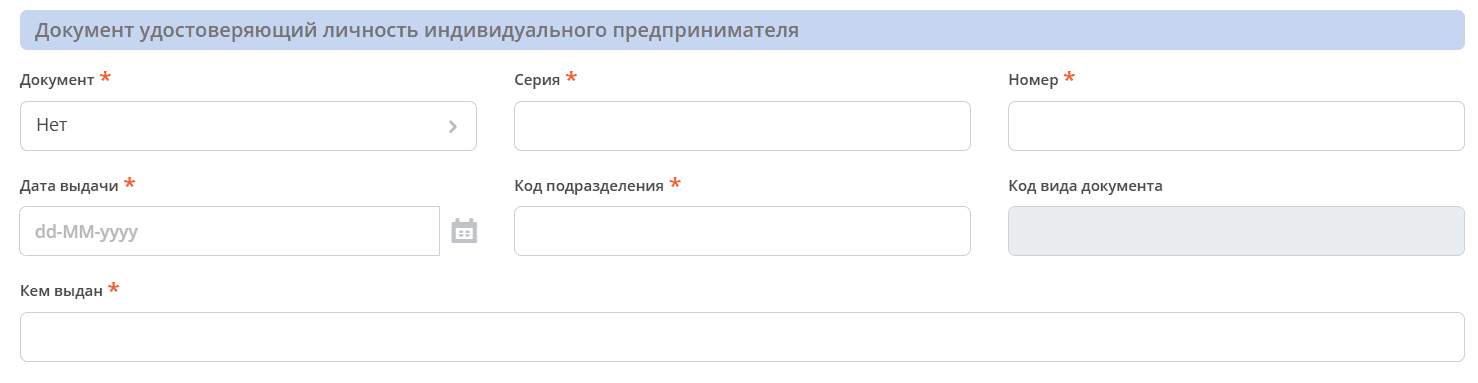
Document |
Selection from the directory ‘Document Type Code’.
Mandatory.
Default value: ‘Passport of a citizen of the Russian Federation’
|
Series |
Number
Mandatory. Editable.
|
Number |
Number
Mandatory. Editable.
|
Issue Date |
Date in dd.mm.yyyy format.
Mandatory. Editable.
|
Issuer Code |
Text.
Mandatory. Editable.
|
Document Type Code |
Text
Mandatory. Non-editable.
Filled in automatically from the ‘Document Type Code’ directory based on the value selected in the ‘Document’ field.
|
Issued By |
Text
Mandatory. Editable.
|
Representative Details:
Hidden from the form if “Type of Power of Attorney” is selected as “Non-standard”.
Employee |
Selection from the Organizational Structure.
Optional.
Hidden from the form when ‘Power of Attorney for a Third Party’ = true.
|
Power of Attorney for a Third Party |
Checkbox.
Default value is false.
|
Position |
Text.
Mandatory.
Depends on the ‘Employee’ field:
- заполнено, автоматическое заполнение из профиля выбранного пользователя;
- не заполнено, ручное заполнение.
|
Gender |
Selection from the list:
1. Женский;
2. Мужской.
Mandatory.
Depends on the ‘Employee’ field:
- заполнено, автоматическое заполнение из профиля выбранного пользователя;
- не заполнено, ручное заполнение.
|
Last Name |
Text.
Mandatory.
Depends on the ‘Employee’ field:
- заполнено, автоматическое заполнение из профиля выбранного пользователя;
- не заполнено, ручное заполнение.
|
First Name |
Text.
Mandatory.
Depends on the ‘Employee’ field:
- заполнено, автоматическое заполнение из профиля выбранного пользователя;
- не заполнено, ручное заполнение.
|
Patronymic |
Text.
Mandatory.
Depends on the ‘Employee’ field:
- заполнено, автоматическое заполнение из профиля выбранного пользователя;
- не заполнено, ручное заполнение.
|
Date of Birth |
Date in dd.mm.yyyy format.
Mandatory.
Depends on the ‘Employee’ field:
- заполнено, автоматическое заполнение из профиля выбранного пользователя;
- не заполнено, ручное заполнение.
|
Tax Identification Number (INN) |
Text.
Mandatory.
Depends on the ‘Employee’ field:
- заполнено, автоматическое заполнение из профиля выбранного пользователя;
- не заполнено, ручное заполнение.
|
Insurance Number of Individual Ledger Account (SNILS) |
Text.
Mandatory.
Depends on the ‘Employee’ field:
- заполнено, автоматическое заполнение из профиля выбранного пользователя;
- не заполнено, ручное заполнение.
|
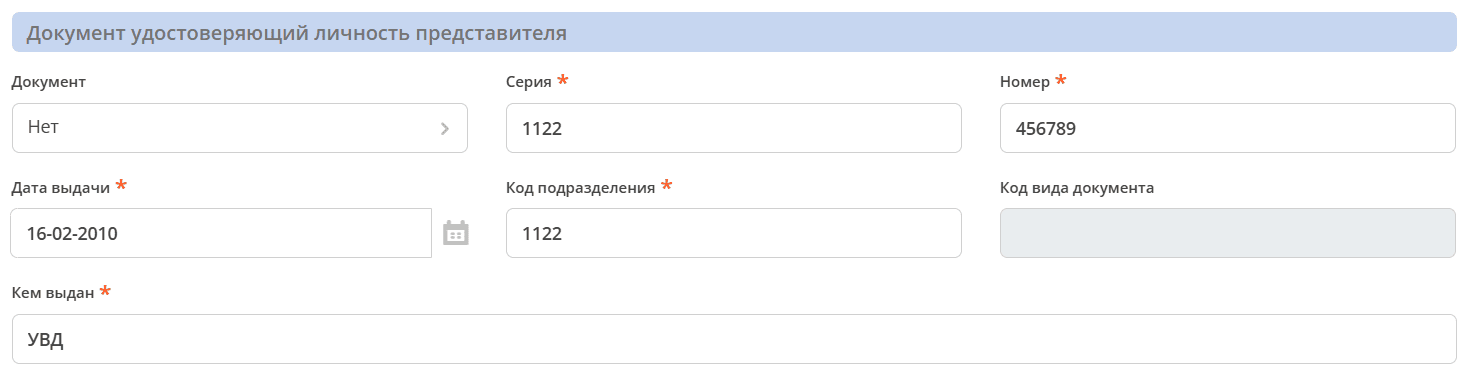
Representative’s Identity Document:
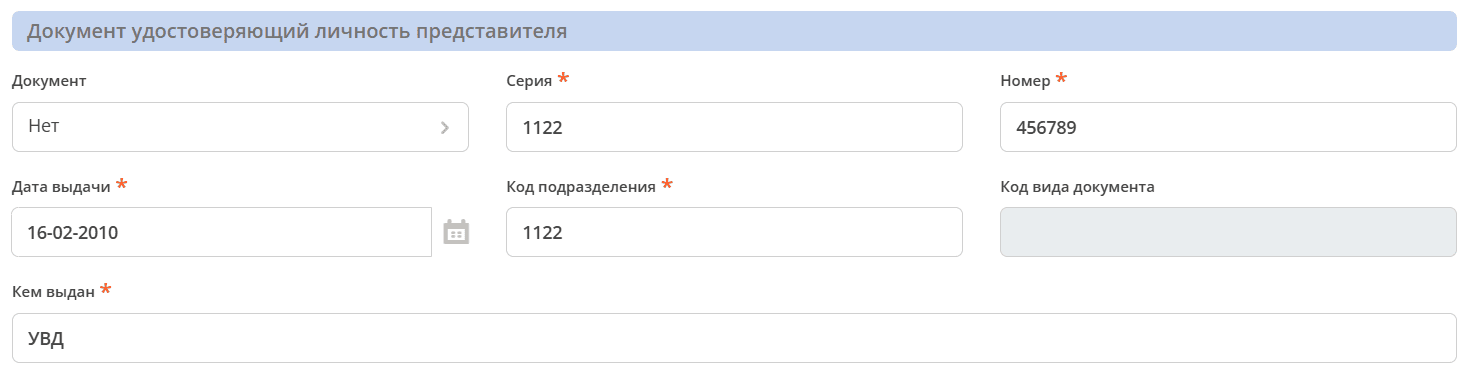
Document |
Selection from the directory ‘Document Type Code’.
Mandatory.
Default value: ‘Passport of a citizen of the Russian Federation’
|
Series |
Number
Mandatory. Editable.
|
Number |
Number
Mandatory. Editable.
|
Issue Date |
Date in dd.mm.yyyy format.
Mandatory. Editable.
|
Issuer Code |
Text.
Mandatory. Editable.
|
Document Type Code |
Text
Mandatory. Non-editable.
Filled in automatically from the ‘Document Type Code’ directory based on the value selected in the ‘Document’ field.
|
Issued By |
Text
Mandatory. Editable.
|
Details on Transferred Powers:
Hidden from the form if ‘Type of Power of Attorney’ is selected as ‘Non-standard’.

Transferred Powers |
Multiple selection from the directory ‘Powers Classifier’.
Mandatory if ‘Power of Attorney Format’ = Machine-readable.
|
Power of Attorney Limit |
Number
Optional.
Format: two decimal places, with digit grouping separator.
If the field was not filled in by the user, it defaults to 0 (important for correct DMN operation).
|
Clarification of Powers |
Multiline text.
Optional.
|
For a paper power of attorney, the fields ‘Transferred Powers’ and ‘Clarification of Powers’ are mandatory. If one is filled, the mandatory requirement for the other is removed.
Attachments:
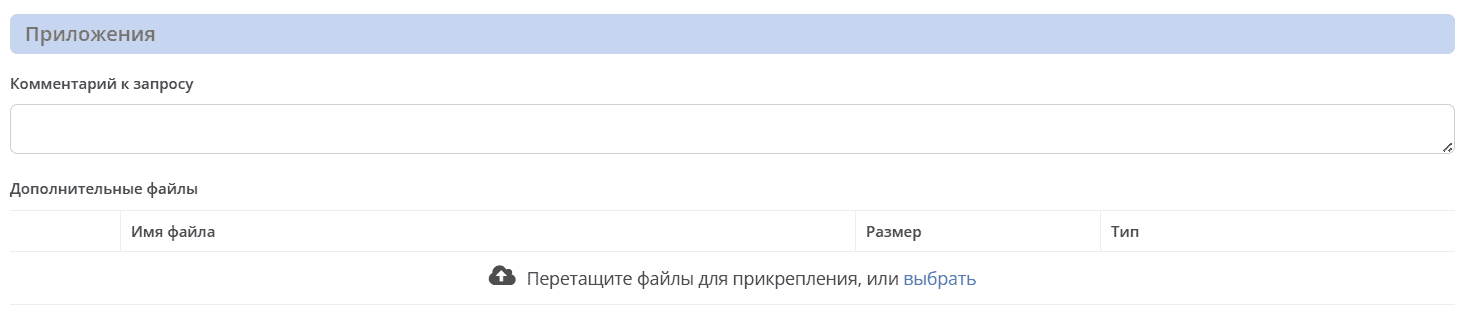
Request Comment |
Multiline text.
Optional.
|
Content |
File uploader.
Displayed and mandatory if ‘Type of Power of Attorney’ = Non-standard and ‘Power of Attorney Format’ = Paper.
|
Additional Files |
File uploader.
Multiple entries. Optional.
Files are displayed in the ‘Documents’ widget.
The following document types are provided:
- Доверенность на подписание (один файл);
- Отзыв доверенности (один файл);
- Скан-копия доверенности (один файл);
- Скан-копия отзыва доверенности (один файл);
- Прочее (множественное заполнение).
|
To send the power of attorney for processing, fill in the mandatory attributes on the creation form and click the ‘Send for Approval’ button. Mandatory attributes are marked with an ‘*’.
For types ‘General’ and ‘Standard’, the power of attorney will be generated from a template based on the entered data and added as a file attachment. The file will be displayed in the ‘Documents’ widget. A human-readable version of the power of attorney is available via the ‘Download PDF’ action.
If the type ‘Non-standard’ is selected, specify the ‘Request Comment’ and upload a file to the ‘Content’ attribute. The added file will be displayed in the ‘Preview’ widget.
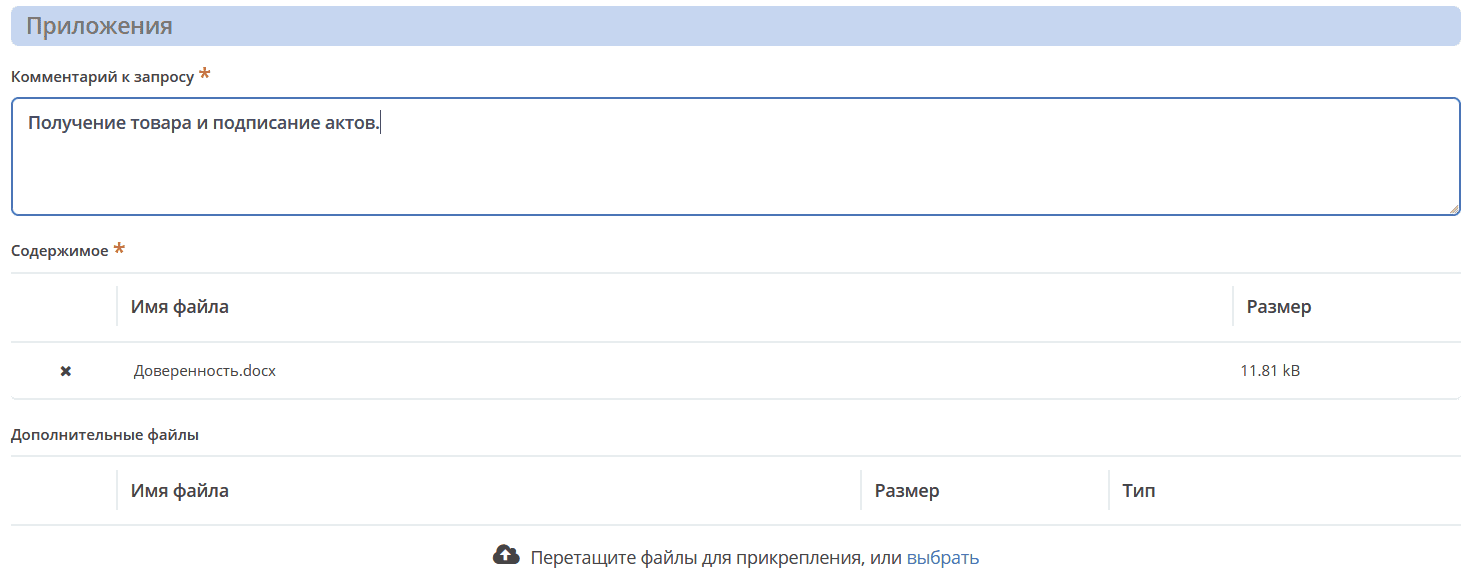
The power of attorney will be assigned a number generated automatically according to the rule No. 01-XX/Y, where
XX - the last two digits of the current year;
Y - the sequential number of the power of attorney in the system.
If it is not possible to fill in all mandatory attributes, the power of attorney can be saved with the status ‘Draft’. To do this, click ‘Save’. The draft can later be edited, saved again, or sent for approval after filling in the mandatory attributes.
All powers of attorney created in the System (including those with status ‘Draft’) are displayed in the ‘Powers of Attorney’ journal.
If the ‘Cancel’ button is clicked, the creation form closes without saving the power of attorney in the System.
Power of Attorney Card with Widgets
After the first save or sending for processing, the card is displayed according to the current page settings for this type.
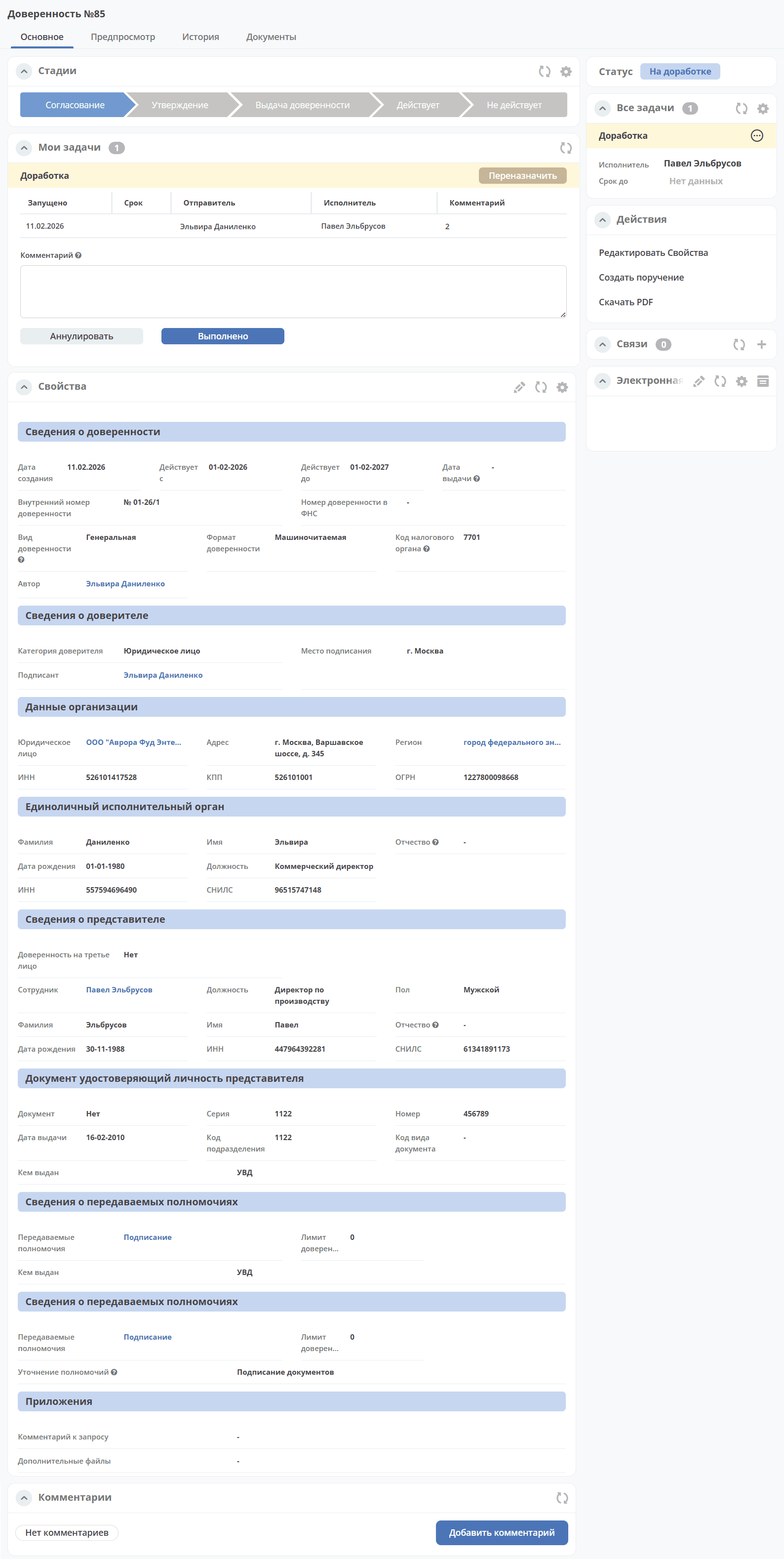
The standard dashboard of the Power of Attorney card has tabs:
‘Main’.
‘Preview’.
‘History’.
‘Documents’. The widget is configured for the following document types:
‘Other’ - allows multiple entries;
‘Power of Attorney for Signing’;
‘Scanned copy of Power of Attorney’;
‘Scanned copy of Revocation’;
‘Revocation of Power of Attorney’.
- Main widgets of the card and their purpose:
‘Stages’ visualizes the passage of document stages. Stages are grouped statuses.
‘My Tasks’ serves to display the current action of the task for this document for the viewing user and the options for their completion.
‘Properties’ is intended for displaying the card’s attributes and their values.
‘Comments’ - general comment. Intended for entering and displaying the history of comments for the task as a whole. Serves as a feedback tool in the cycle of processing identified deviations.
‘Status’ displays the current status of the document (determined automatically by the system, not editable by the user).
‘All Tasks’ serves to display tasks for this document and their performers.
‘Actions’ contains a list of available actions for the document in its current status.
‘Document Links’ is used to establish links between this document and others in the system and to display established links.
‘Electronic Signature’ contains information about the digital signature with which the document was signed, for example:
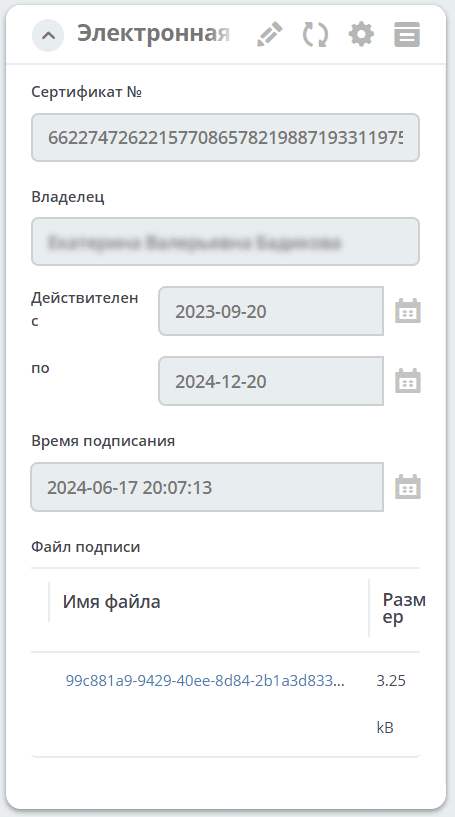
‘History’ serves to display events such as creation, update, status change of the document, recording the date and time of their occurrence, participants, and comments.
‘Documents’ serves for uploading related documents.
Working with the Power of Attorney in Various Statuses
You can access the power of attorney in any status in one of three ways:
by opening a task in the ‘Current Tasks’ journal;
by opening the document in the ‘Powers of Attorney’ journal;
by following the link from the received notification.
Details about tasks.
Approval
Approver groups (Power of Attorney Approvers, Additional Approvers) are assigned dynamically - sequentially or in parallel depending on the selected type of power of attorney and the specified limit. See Routes.
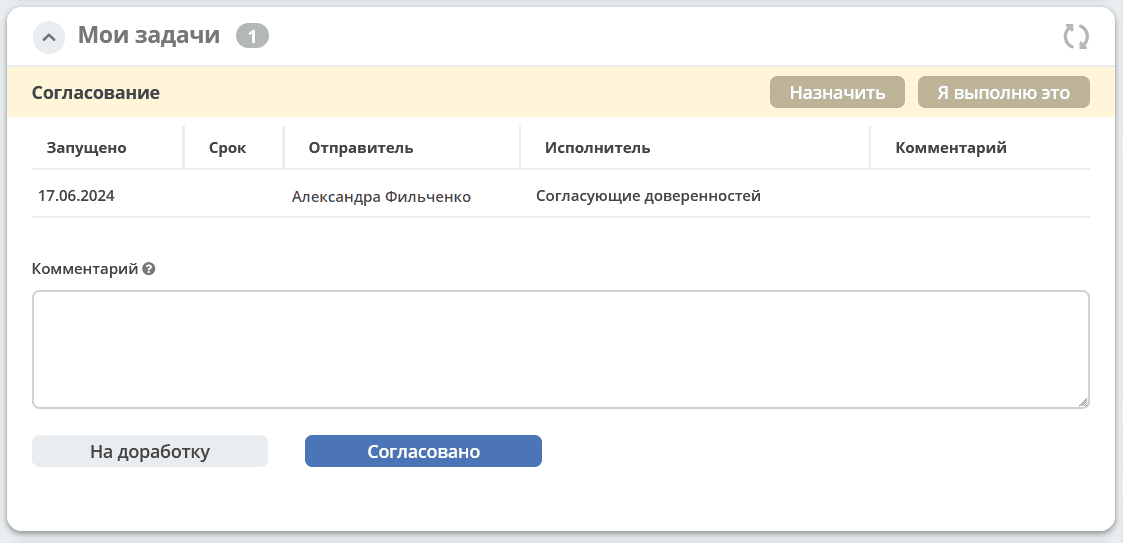
In the ‘For Approval’ status, the following task completion options are available:
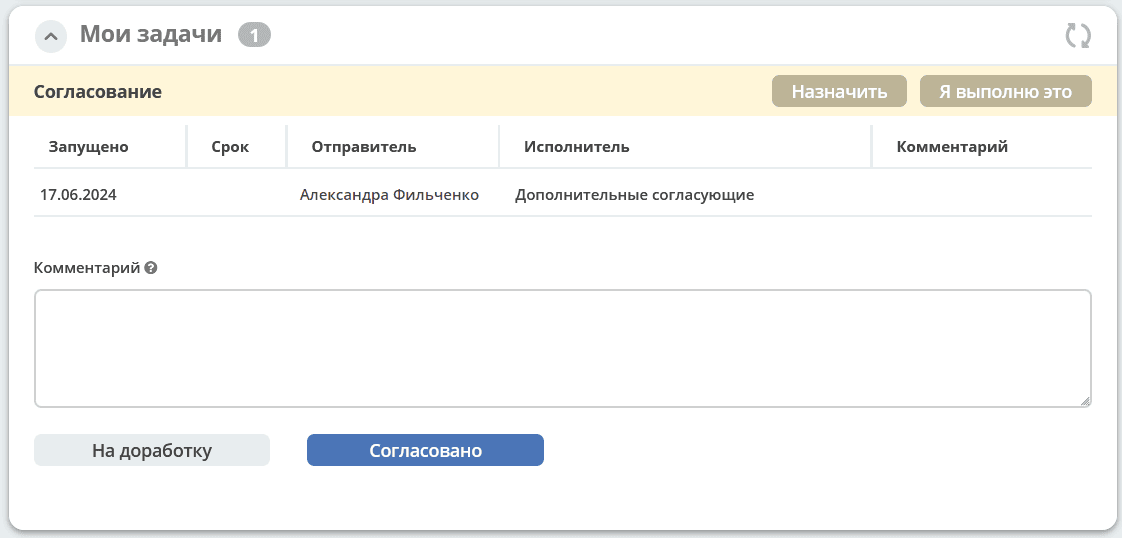
|
|
‘Send for Revision’ - send to the Initiator for revision if there are contentious issues in the power of attorney. Add a comment. The power of attorney moves to the ‘Revision’ status. A notification will be sent to the power of attorney Initiator.
‘Approve’ - for the ‘Machine-readable’ format, the power of attorney moves to the status ‘For Digital Signing’; for the ‘Paper’ format - ‘For Approval’. A notification will be sent to the task performer.
Digital Signing
Only for the ‘Machine-readable’ power of attorney format.
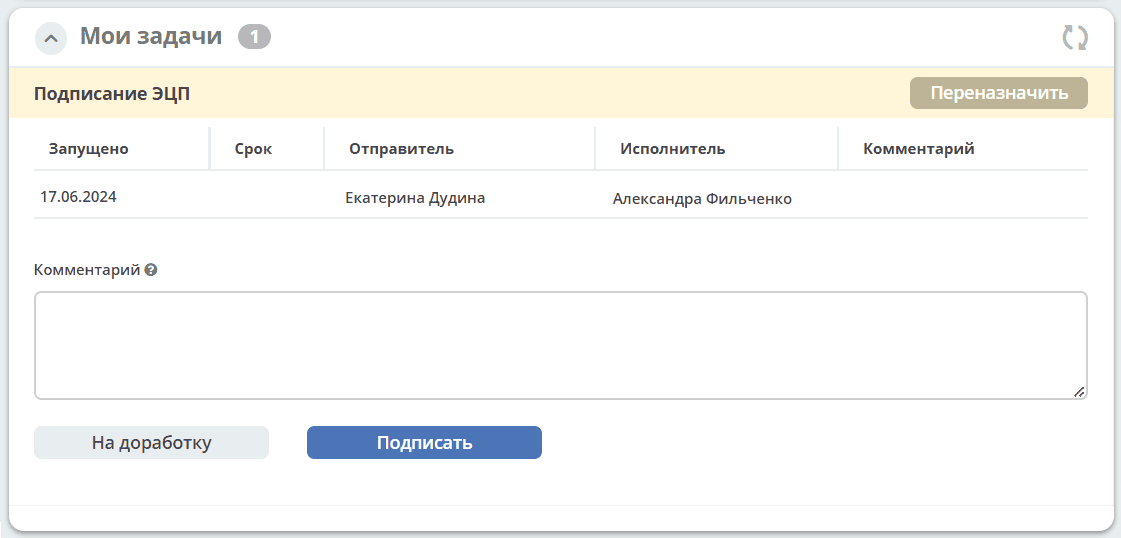
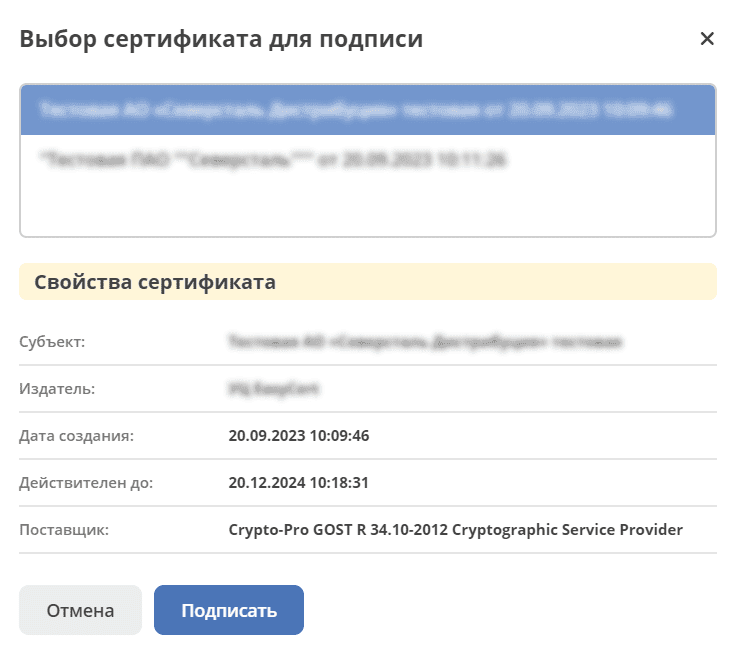
The task ‘Digital Signing’ is assigned to the signatory selected in the ‘Principal Details’ section. In the ‘For Digital Signing’ status, the following task completion options are available:
|
|
‘Send for Revision’ - send to the Initiator for revision if there are contentious issues in the power of attorney. Add a comment. The power of attorney moves to the ‘Revision’ status. A notification will be sent to the power of attorney Initiator.
‘Sign’ - the power of attorney moves to the status ‘For Approval’. A notification will be sent to the task performer.
Information about the digital signature will be reflected in the ‘Electronic Signature’ widget.
Revision
Power of attorney revision is available to the Initiator.
In the ‘Revision’ status, the following task completion options are available to the Initiator:
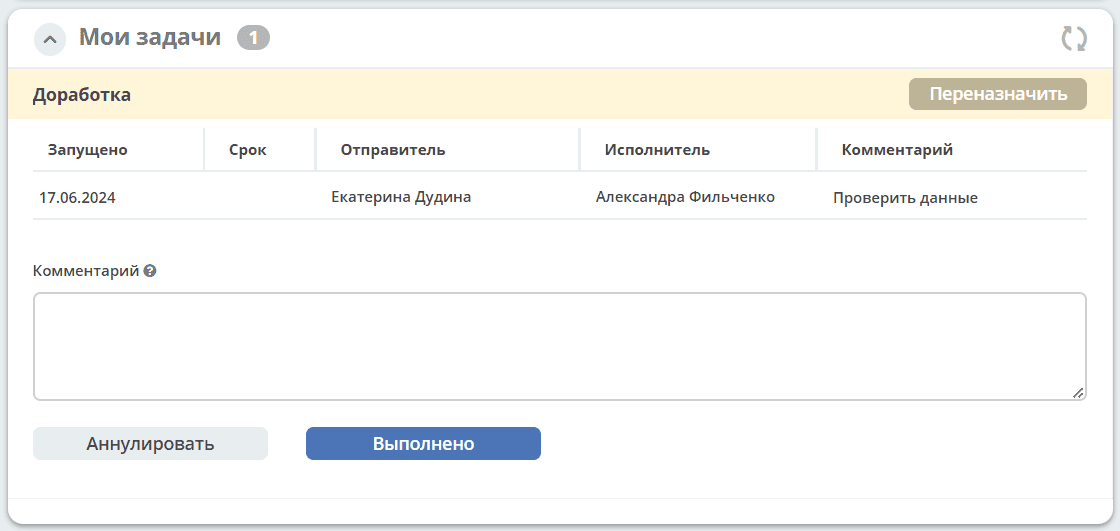
The Initiator reviews the comments left by the Approver in the Comment field, assesses the feasibility of revising the power of attorney. Using the ‘Edit Properties’ action, makes changes and makes a decision:
‘Cancel’ - if revising the power of attorney is deemed impractical. Add a comment. The power of attorney moves to the ‘Cancelled’ status.
‘Complete’ - if the Initiator has completed the revision of the power of attorney. The power of attorney returns to the status from which it was sent for revision. A notification will be sent to the task performer.
Approval
The power of attorney is approved by employees of the ‘Power of Attorney Registrars’ group. In the ‘For Approval’ status, the following task completion options are available:
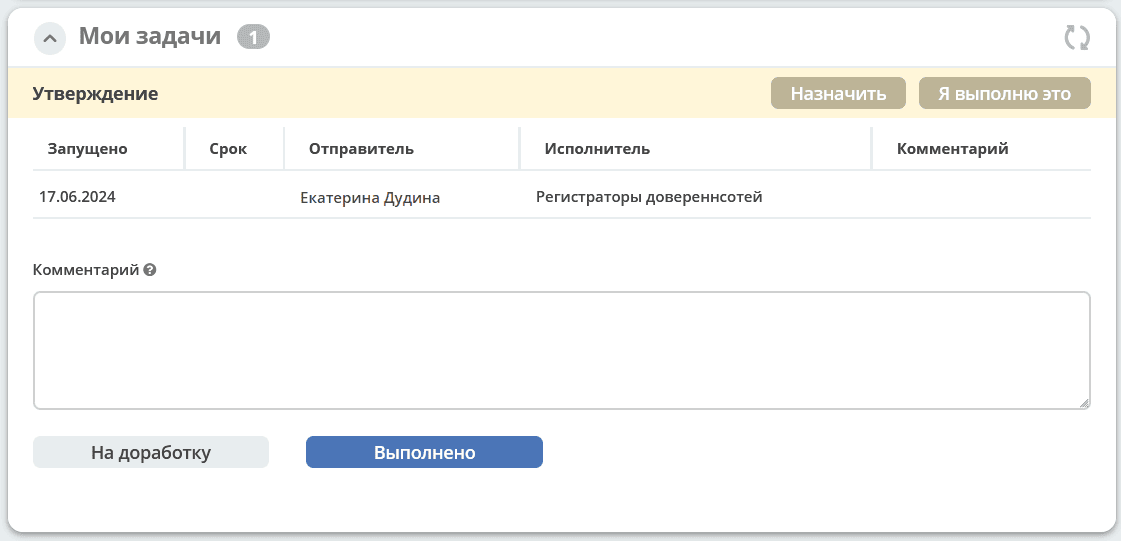
‘Send for Revision’ - send to the Initiator for revision if there are contentious issues in the power of attorney. Add a comment. The power of attorney moves to the ‘Revision’ status. A notification will be sent to the power of attorney Initiator.
‘Complete’ - The power of attorney moves to the status ‘Sent to Representative’. A notification will be sent to the task performer.
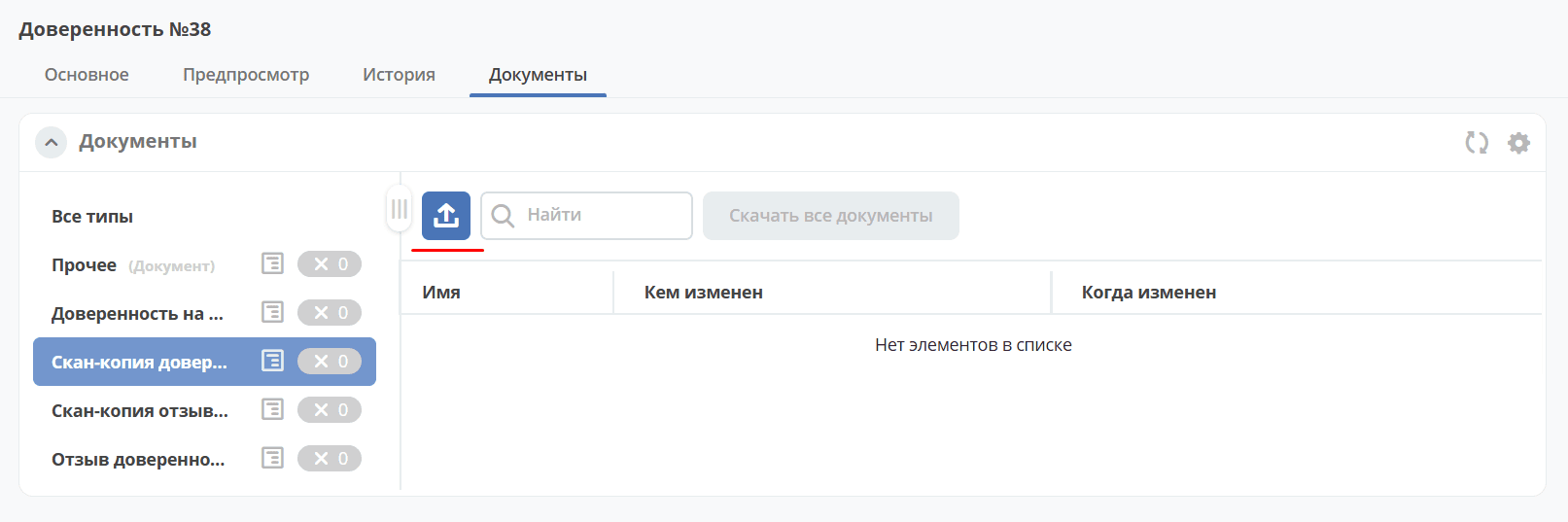
A scanned copy of the power of attorney can be uploaded in the ‘Documents’ widget.
Receipt
The task ‘Receipt’ is assigned to the employee selected in the ‘Representative Details’ section.
In the ‘Sent to Representative’ status, the following task completion options are available:
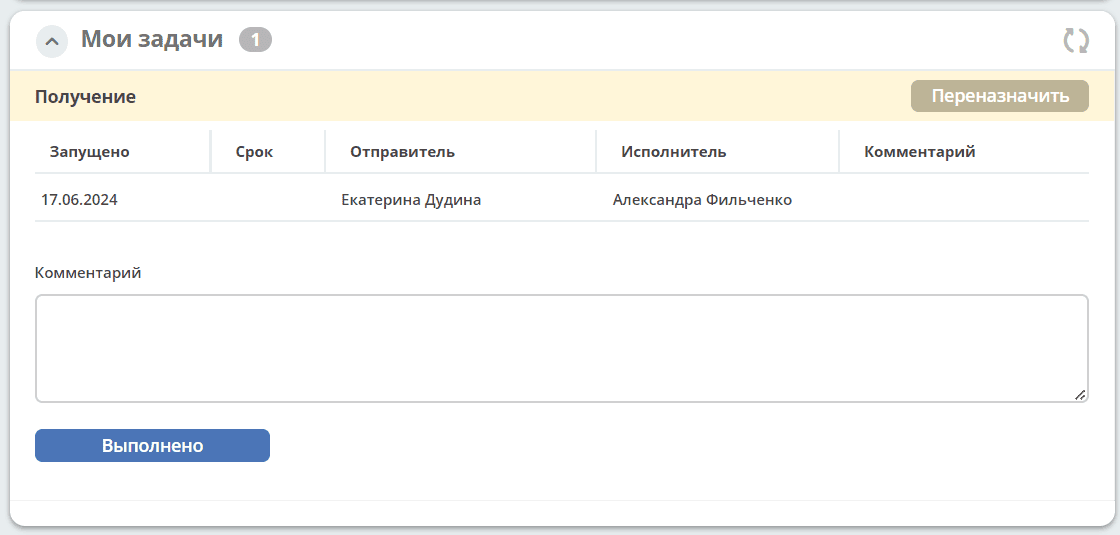
‘Complete’ - The power of attorney has been received. The power of attorney moves to the ‘Active’ status.
Revocation of Power of Attorney
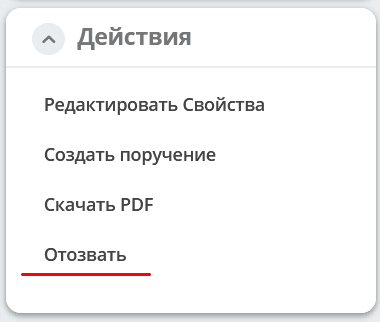
The action is available to users belonging to the ‘Power of Attorney Registrars’ group when the power of attorney status is ‘Active’.
|

|
When the action is activated, the status changes to ‘Revocation of Power of Attorney’, and the attribute ‘Valid Until’ is automatically filled with the current system date:
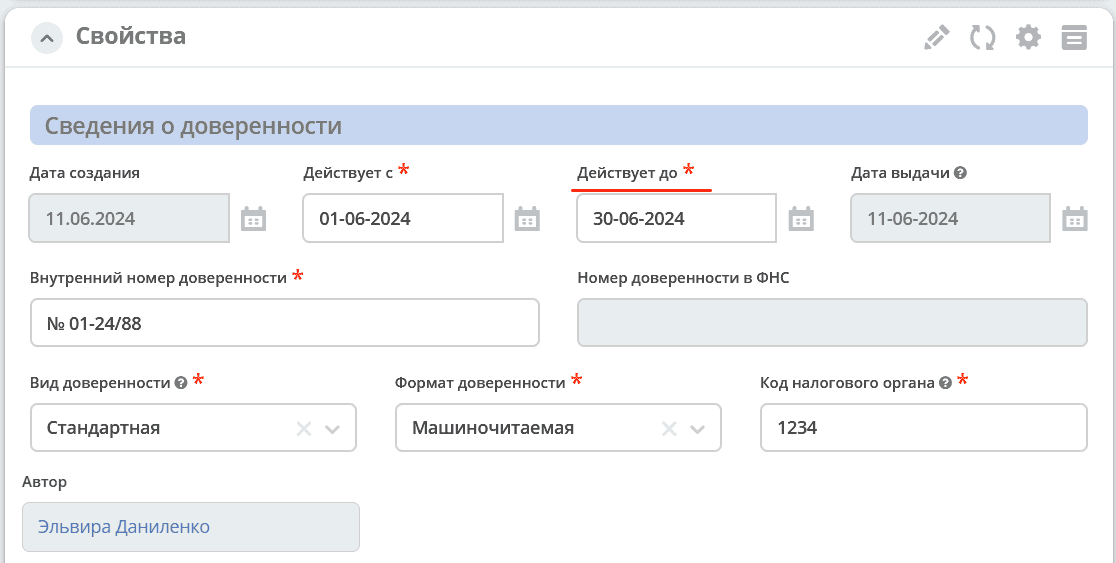
Employees of the ‘Power of Attorney Registrars’ group specify a comment and make the decision ‘Complete’ for the task:
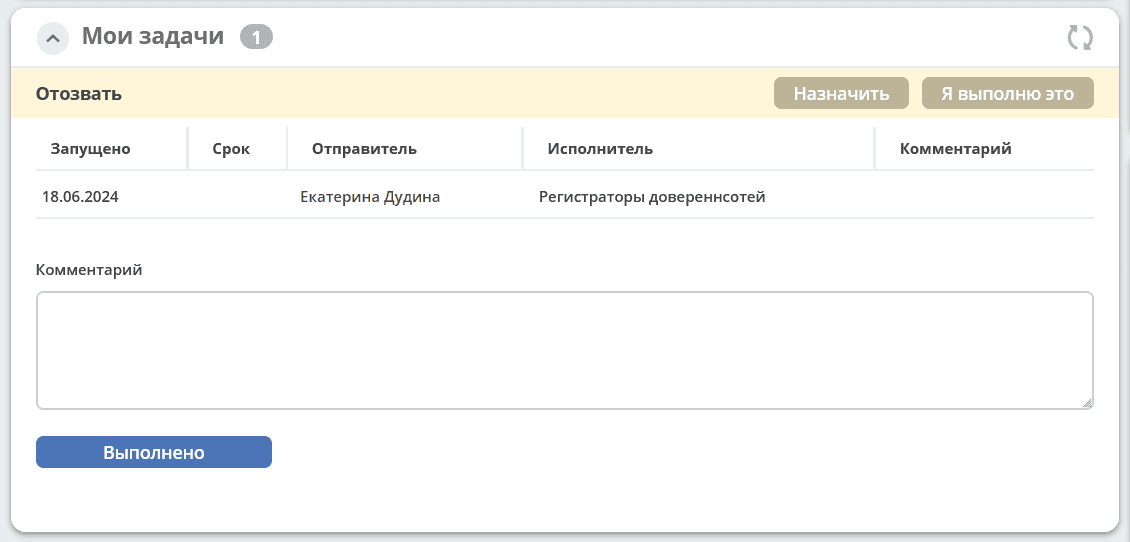
The power of attorney moves to the ‘Inactive’ status.
Automatic Assignment of ‘Inactive’ Status
When the date specified in the ‘Valid Until’ field becomes less than the current date, the power of attorney status automatically changes to ‘Inactive’.
Notifications
Standard notification about task assignment. For example:
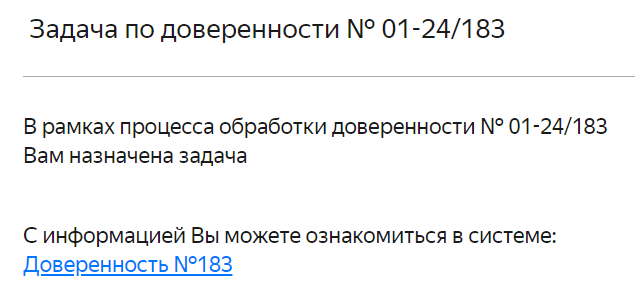
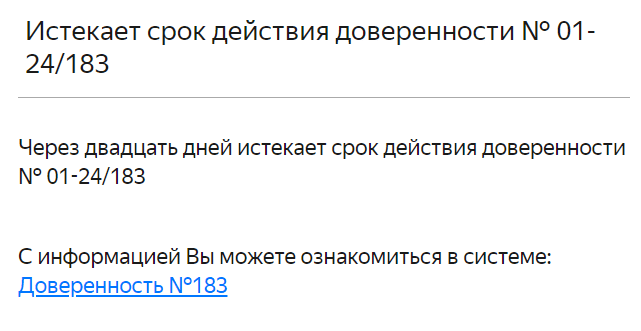
In addition to standard task assignment notifications, there are also notifications sent 20 days before the power of attorney expiration date. If, at the time of issuing the power of attorney, the remaining validity period is less than 20 days, such a notification is also sent.
Actions Available for the Power of Attorney
For paper power of attorney:
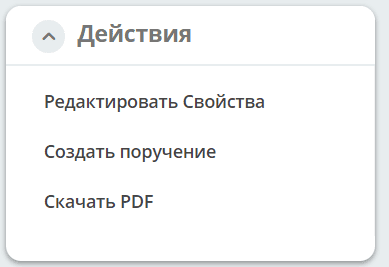
Download PDF - download the generated power of attorney in PDF format
For machine-readable power of attorney:
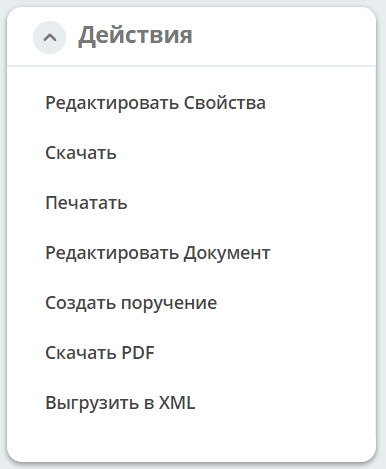
Download - download the power of attorney in DOC format
Download PDF - download the generated power of attorney in PDF format
Export to XML - export the MRPA file in XML format.
Create Assignment
An assignment can be created from the document card by selecting the action ‘Create Assignment’. See details: Creating an assignment from a card