Incoming Documents Module
The module is designed to automate the process of working with incoming documents: registration, sending for review and execution.
Business Process Diagram
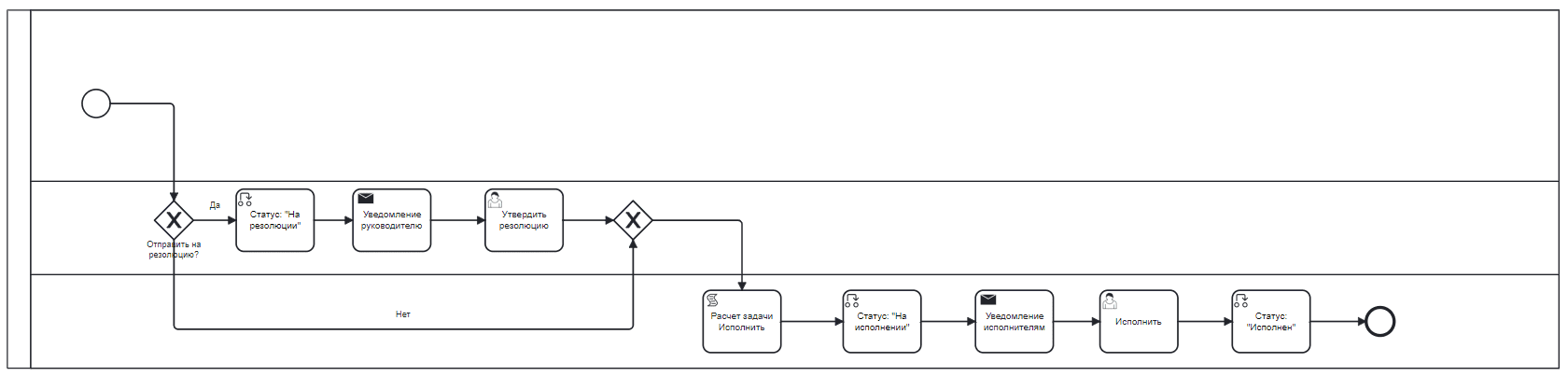
Roles
Manager |
The manager selected during the card creation stage who issues a resolution on the incoming document. |
Assignees |
System users selected during the card creation stage or assigned by the Manager via resolution to process the document. |
Statuses
Pending Resolution |
The document has been sent to the manager for issuing a resolution. |
In Progress |
The document is assigned to assignees directly or through the manager’s resolution. |
Completed |
The document has been processed according to the resolution. |
Available Workspace
The module is available in the workspace Clerical work.
Journal
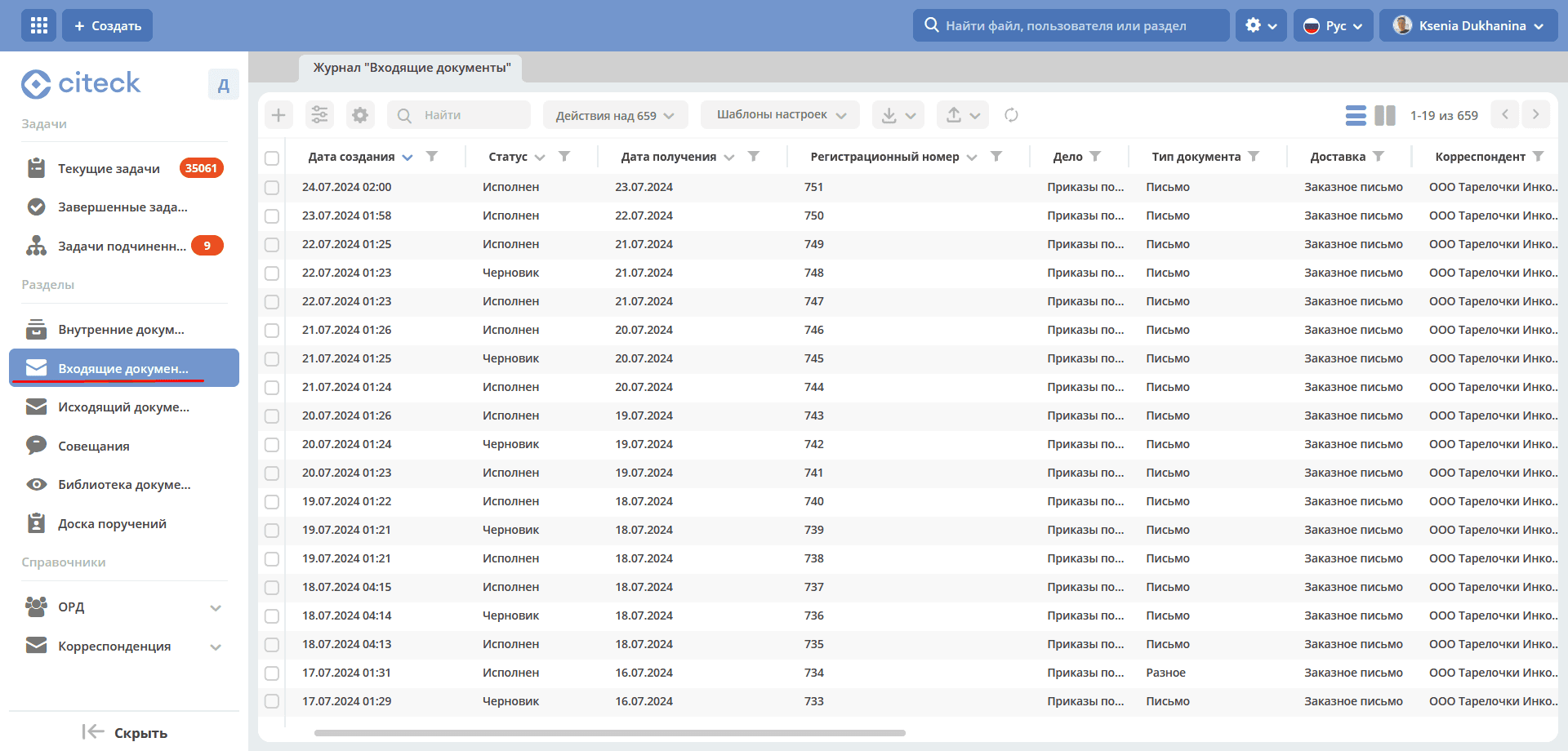
Creating an Incoming Document
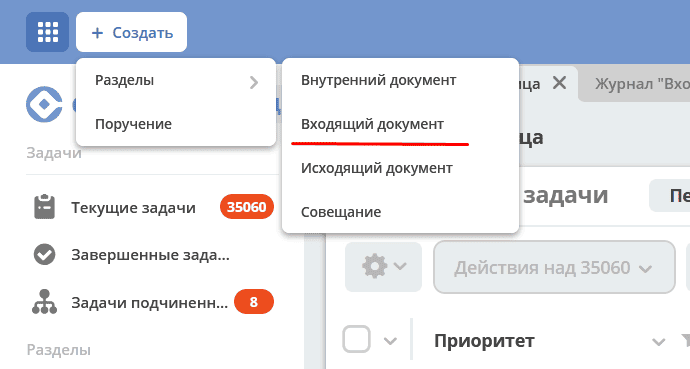
Creating an incoming document is possible either using the quick create button:
or from the «Incoming Documents» journal:
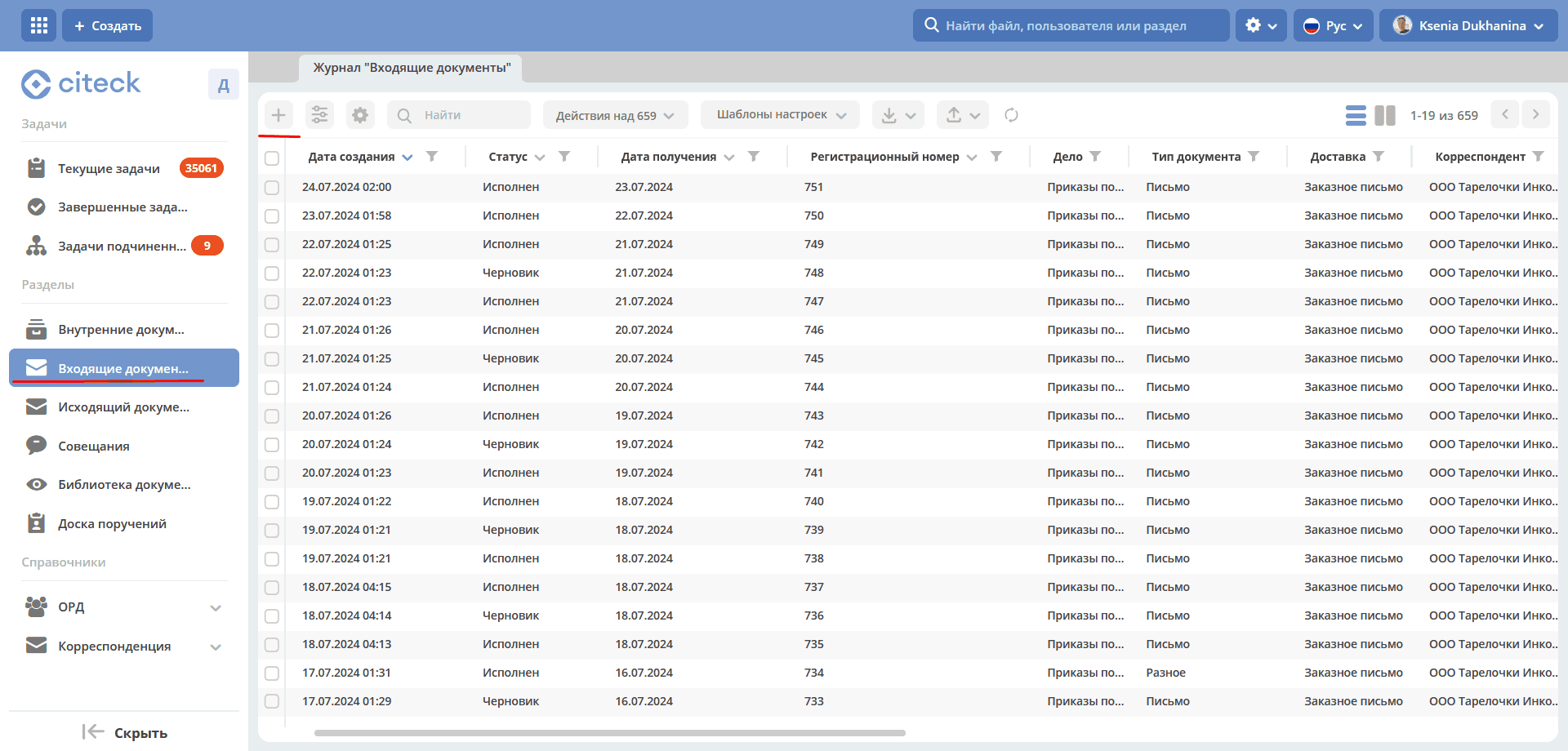
The form for creating an Incoming Document becomes available on the screen:
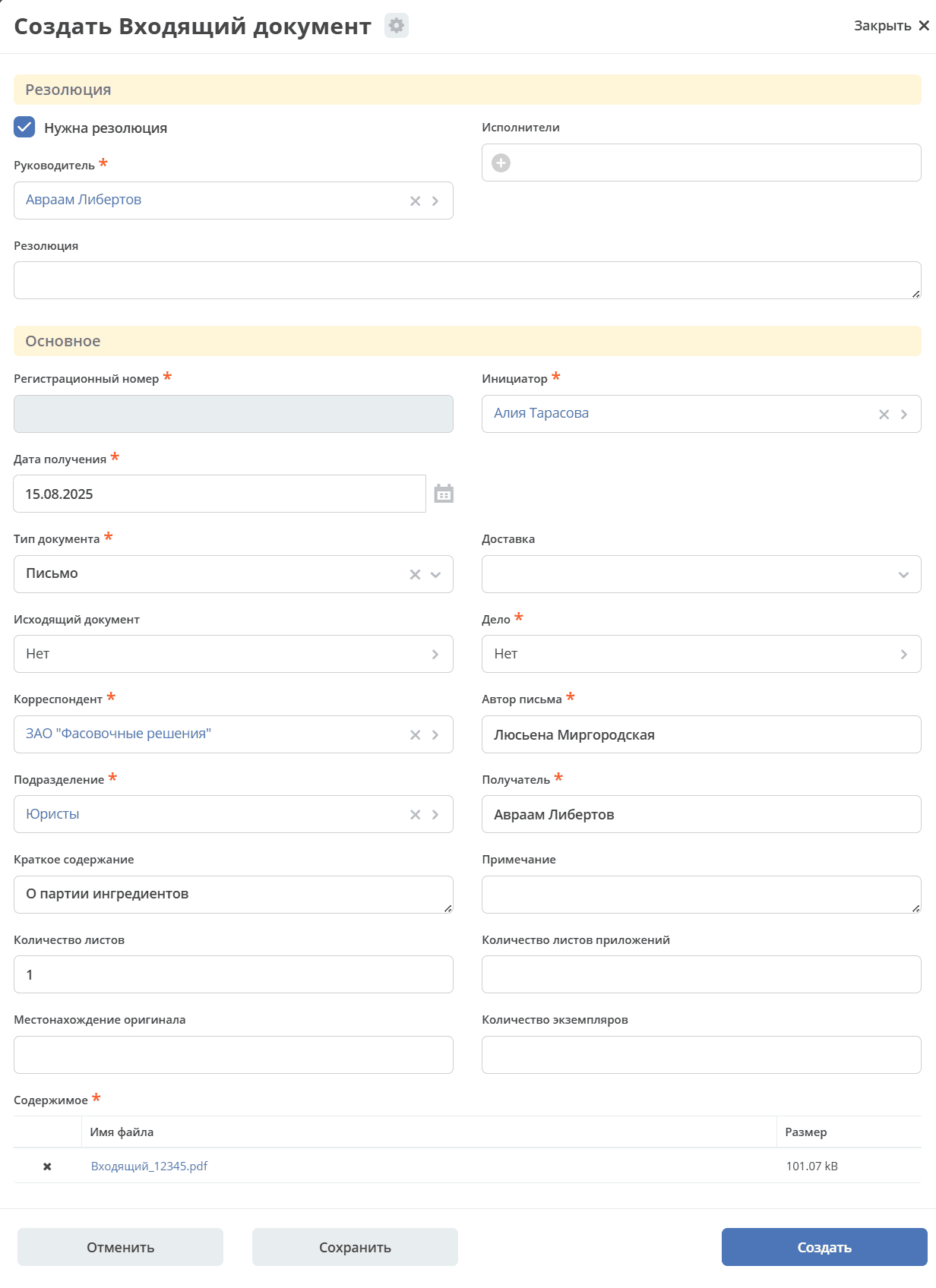
In the «General» section, select the document type from the available options:
Letter from supervisory authorities;
Letter;
Miscellaneous;
Accounting.
Be sure to fill in the following fields:
Date Received is set to the current date by default, can be changed;
Correspondent from the «Counterparties» directory;
File according to the established file nomenclature from the «File Nomenclature» directory;
Department from the Organizational Structure;
Recipient;
Letter Author.
Upload a file to the Content section.
Additionally, specify Summary, Number of Sheets, Number of Attachment Sheets, Original Location, Number of Copies, Note, Delivery, Link to Outgoing Document.
In the «Resolution» section, the document can be sent to the manager for review:
check the box «Resolution Required»;
select a Manager from the Organizational Structure (only one employee can be selected).
Then the task «Pending Resolution» is assigned to the Manager selected in the card. A notification is sent to the manager.
Or the document can be sent directly for execution – select Assignees from the Organizational Structure (multiple employees can be selected) and specify a Resolution.
Then the task «In Progress» is assigned to the Assignees selected in the card. A notification is sent to the assignees.
To send the document for processing, click the «Create» button. The document will be assigned a registration number.
If it is not possible to fill in all mandatory attributes, the document can be saved with the status «Draft». To do this, click «Save». Subsequently, the draft can be edited, saved again, or sent for processing after filling in the mandatory attributes.
All documents created in the System (including those with the «Draft» status) are displayed in the «Correspondence - Incoming» journal.
If the «Cancel» button is clicked, the creation form closes without saving the document in the System.
Incoming Document Card with Widgets
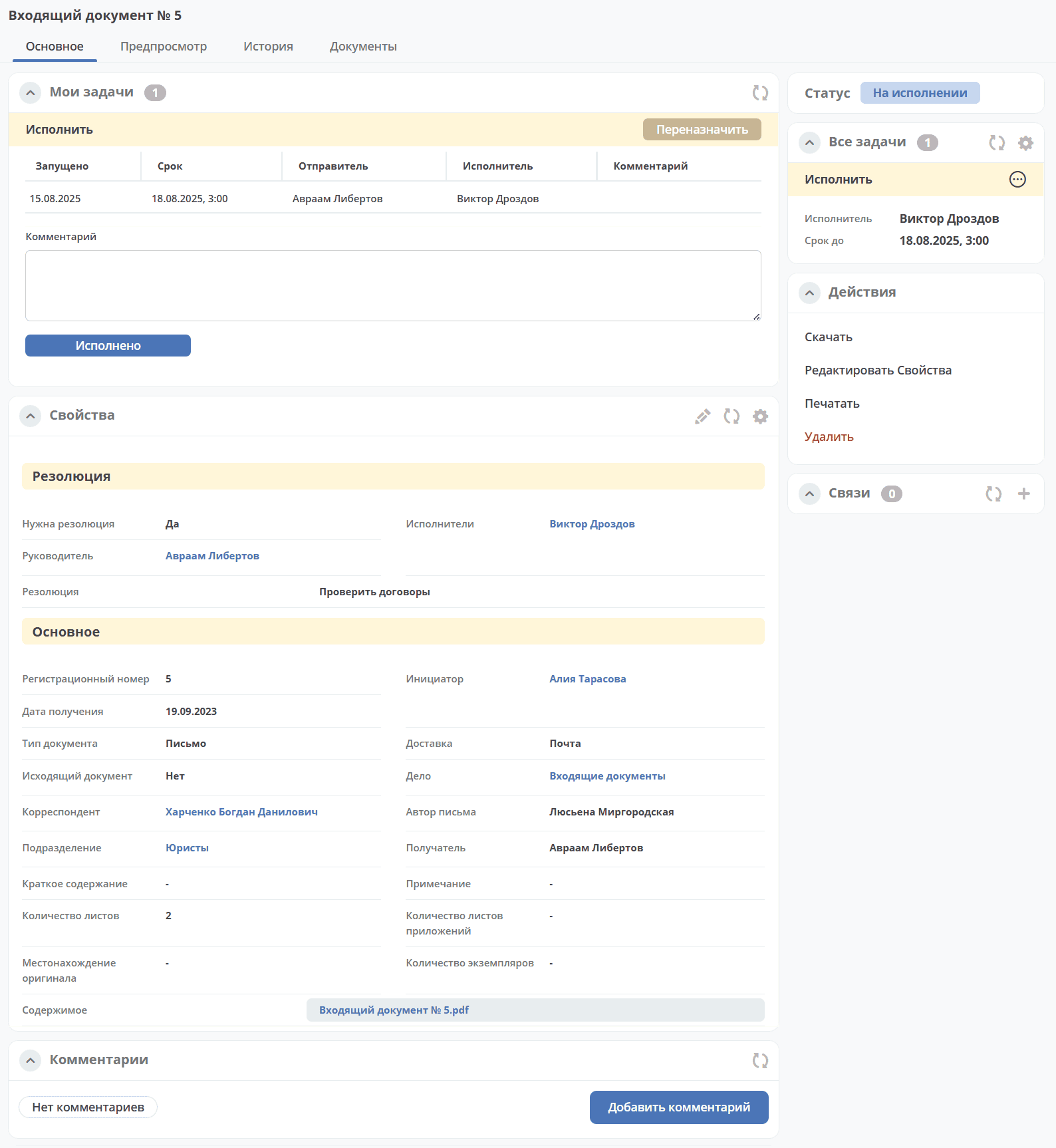
Details about widgets.
Working with an Incoming Document in Various Statuses
You can navigate to an Incoming Document in any status in one of three ways:
by opening a task in the «Current Tasks» Journal;
by opening the document in the «Incoming Documents» Journal;
by following the link from the received notification.
Details about tasks.
Approve Resolution
Resolution - a written instruction from the manager on the procedure for executing or using the document.
The resolution is approved by the Manager selected in the card during the document creation stage.
In the «Pending Resolution» status, it is mandatory to enter the resolution text, select an Assignee, optionally you can set a deadline and execution priority, and click «Approve»:
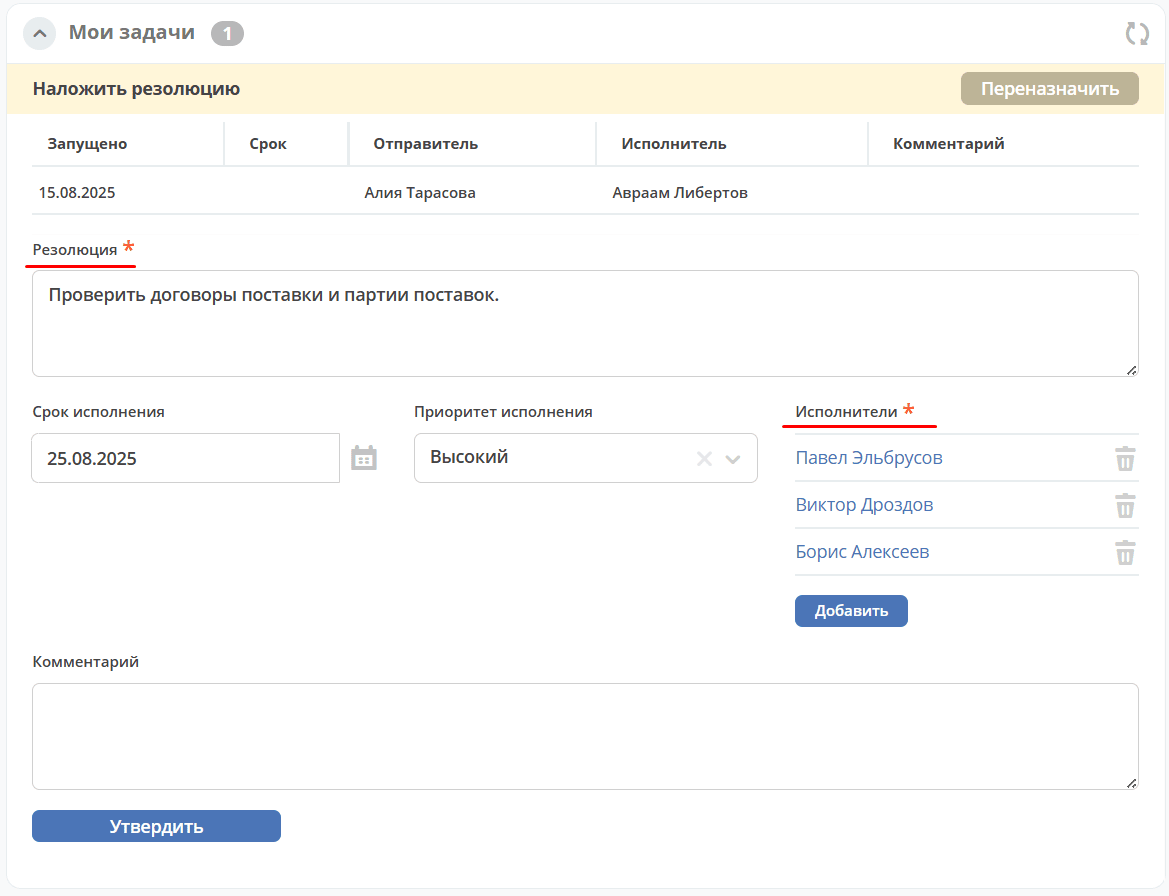
The document will transition to the «In Progress» status. A notification will be sent to the selected assignees of the document.
Execute
The document is executed by employees selected in the card during the document creation stage or employees assigned by the manager in the resolution.
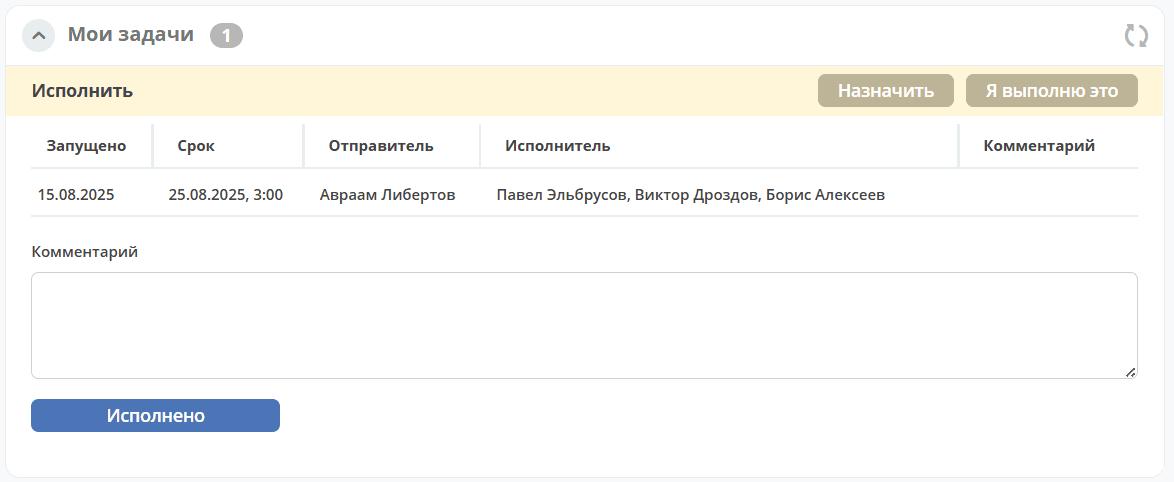
The assignee executes the instructions specified in the resolution, adds a comment if necessary, and clicks «Completed».
The document will transition to the final status «Completed».
Actions with an Incoming Document
Basic Actions
For details on basic actions in the card, see details
Create Assignment
An assignment can be created from the document card by selecting the action «Create Assignment». See details: Creating an assignment from the card