Administrative Documents Module
The module is designed for working with administrative and regulatory documents: orders, directives, regulations, memos, etc.
Business Process Diagram
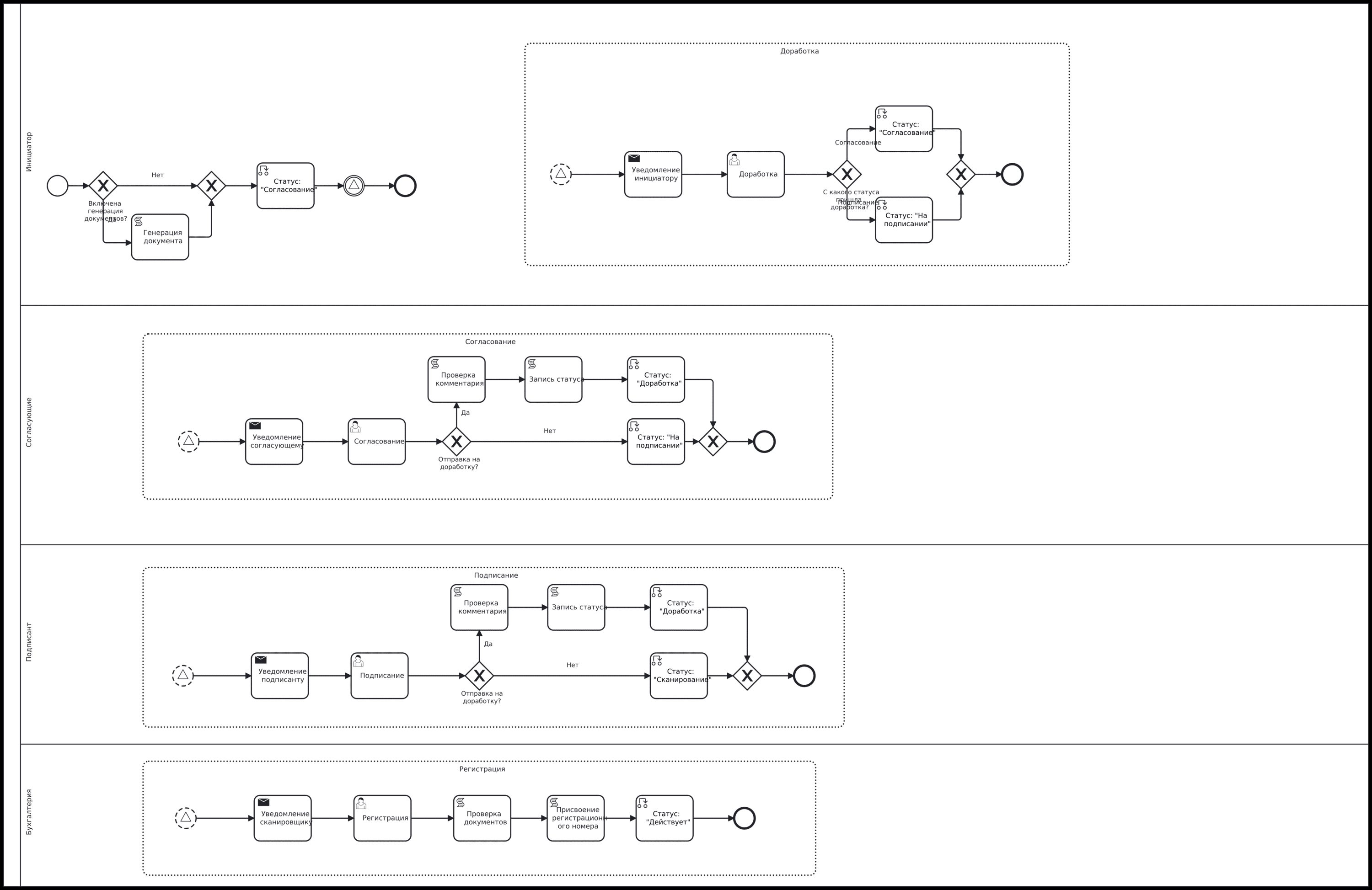
Roles
Initiator |
An employee who creates a document in the system. |
Approvers |
Employees who approve the document. |
Signatory |
An employee who signs the document. |
Accounting Department |
Accounting department employees who scan and register the document. |
Organizational structure groups to which users must be added
Accounting
Administrative Documents Technologist
Statuses
Draft |
The document is created by the Initiator but has not been sent through the process. |
Revision |
After approval or signing, the document is sent back to the Initiator for revision. |
Approval |
Approval of the document by the employee selected in the card during the document creation stage. |
Signing |
Signing of the document by the employee selected in the card during the document creation stage. |
Scanning |
Document registration and attaching the scanned original document. |
Active |
The document is registered. |
Available Workspace
The module is available in the workspace Clerical work.
Journal
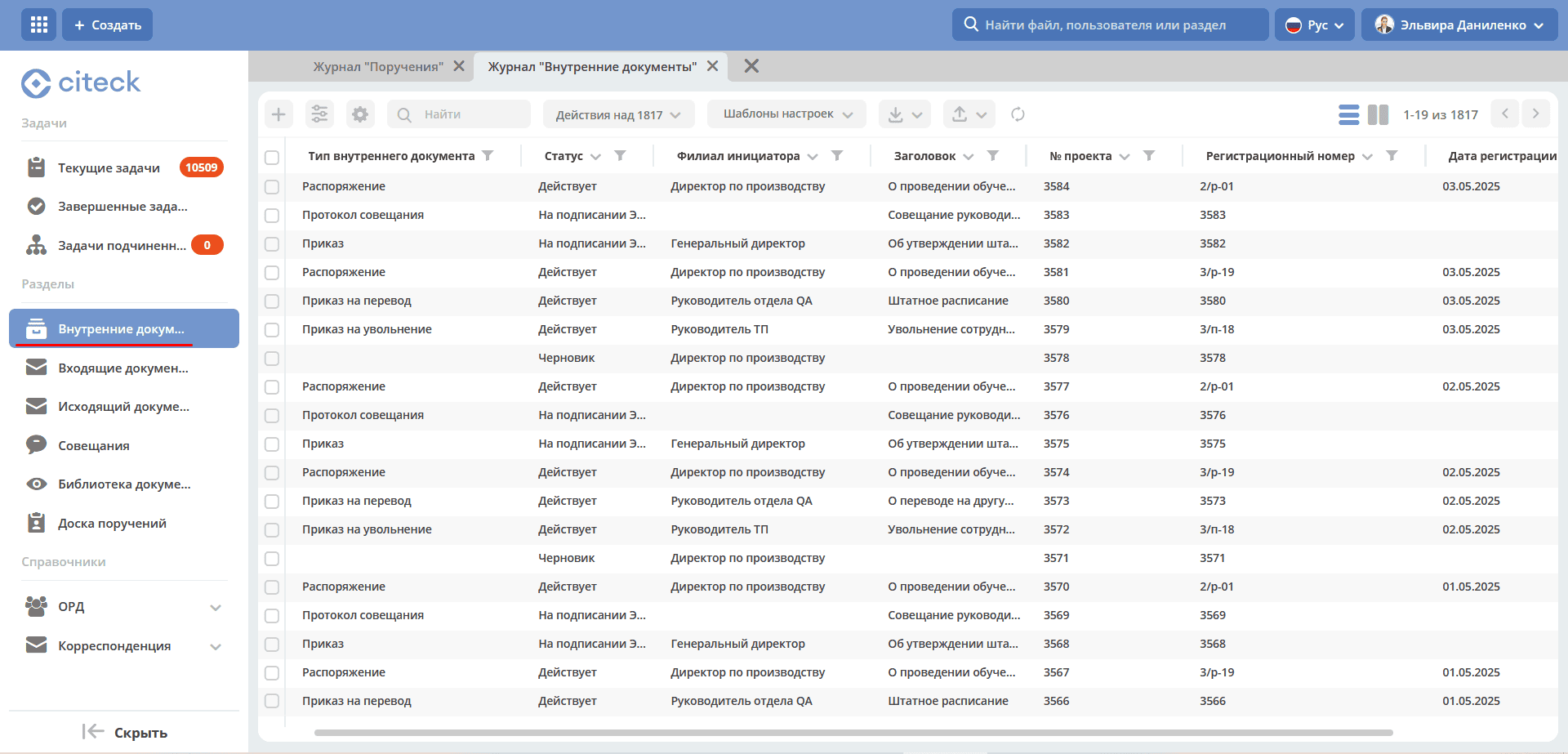
For example, https://host/v2/journals?journalId=aro-internal-journal
Creating an Internal Document
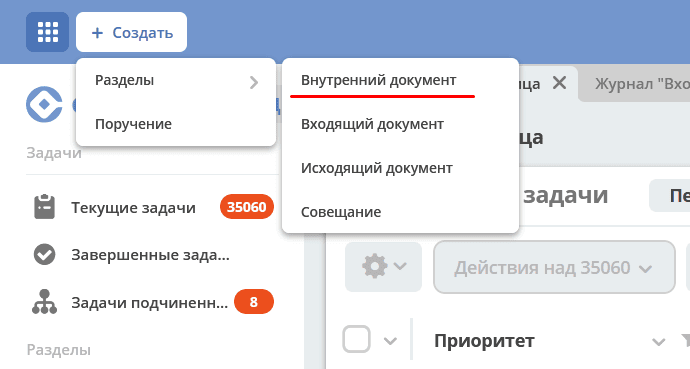
Creating an internal document is possible either using the quick create button:
or from the «Internal Documents» journal:
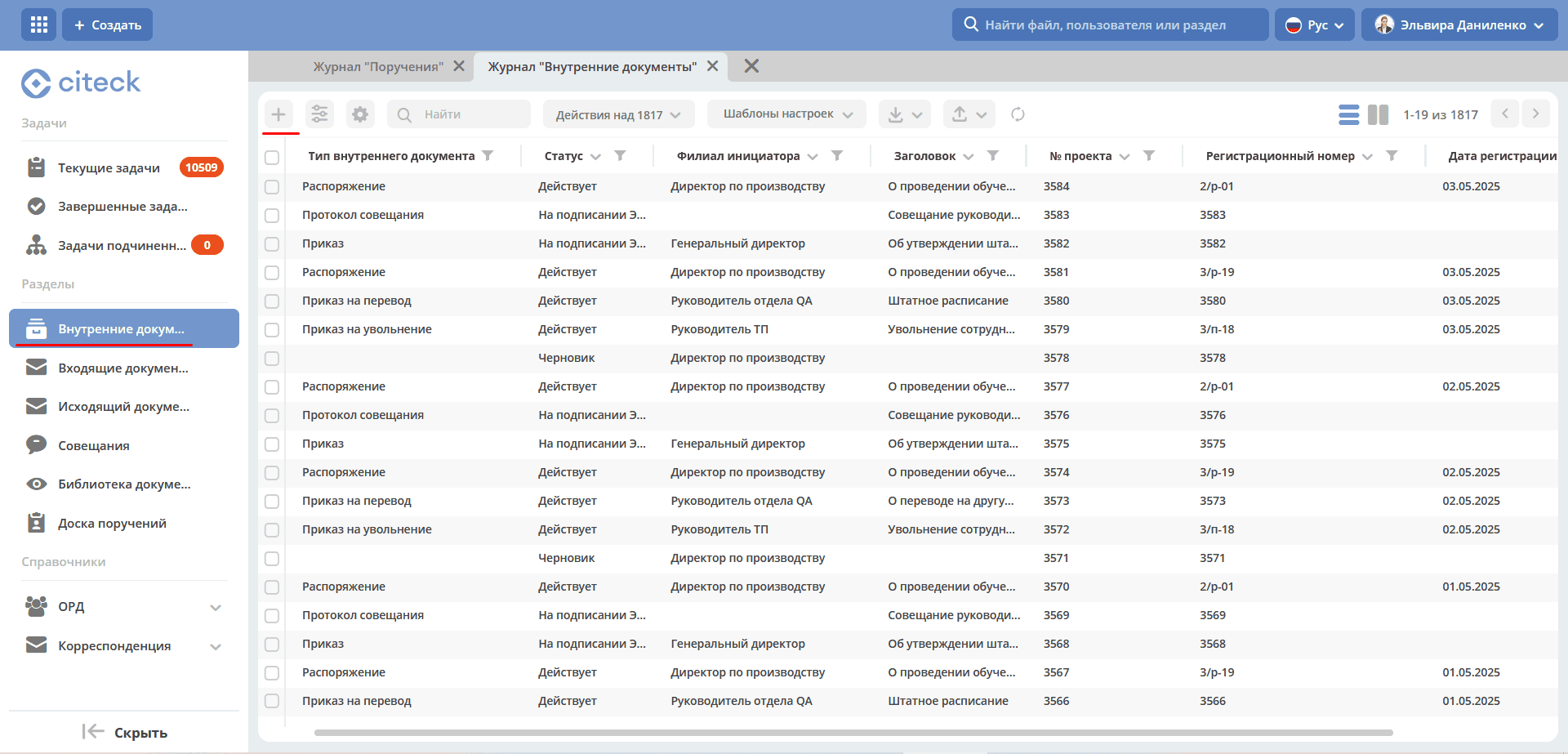
The form for creating an Internal Document becomes available on the screen:
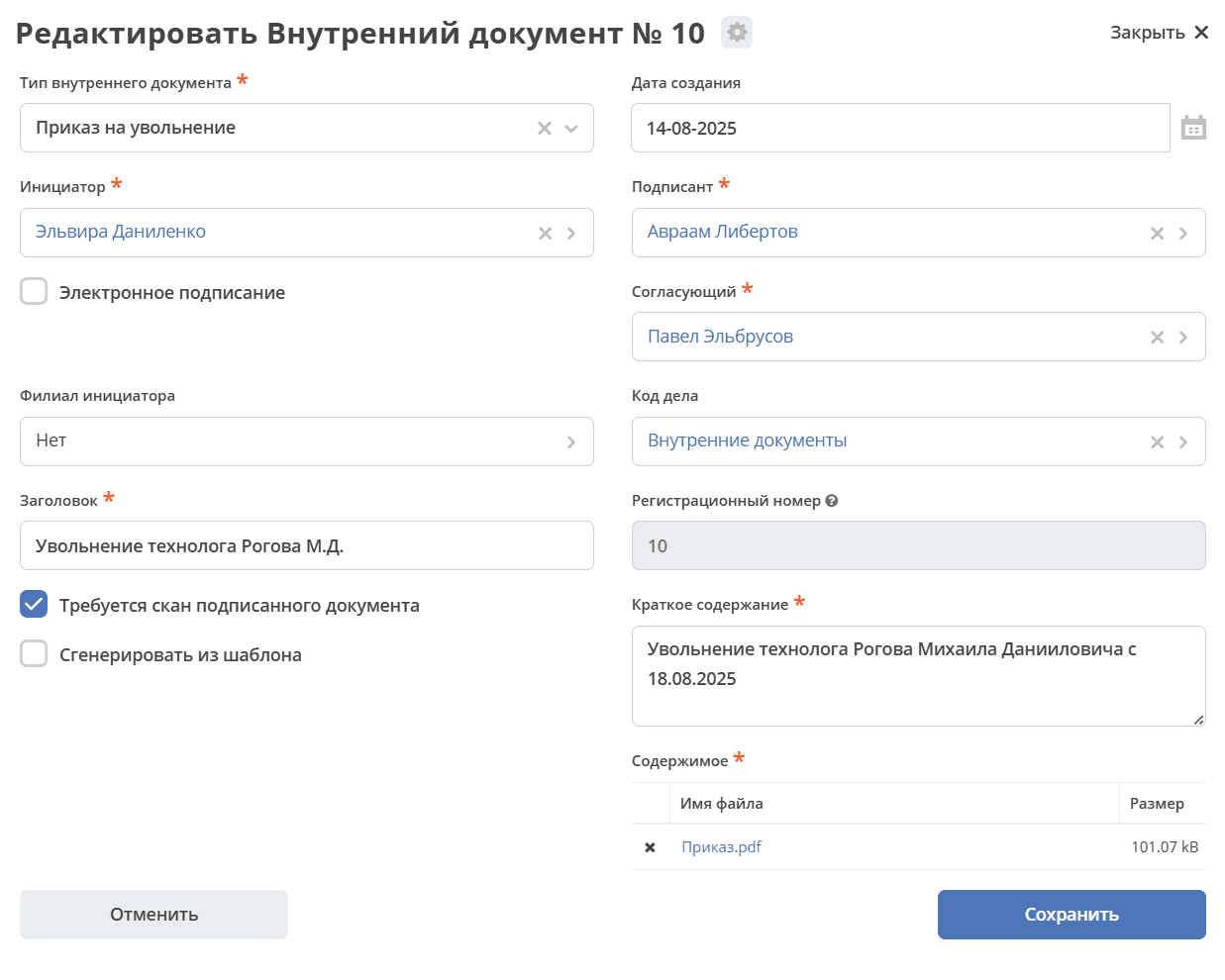
Select the internal document type from the available options:
Transfer Order;
Regulation;
Meeting Minutes;
Other;
Order;
Directive;
Dismissal Order;
Leave Order;
Memo;
Employment Order.
Creation Date is automatically filled with the current date. Initiator is automatically filled by default based on the data of the user creating the document. Can be edited using the ‘Change’ button. Select a Signatory and an Approver from the Organizational Structure (only one employee can be selected). Specify Title and Summary.
Upload a file to the Content section.
Check the box «Scanned signed document required», and then when performing the «Registration» task, a check will be made for the presence of a Scanned document in the «Documents» widget.
For internal document types:
Order;
Dismissal Order;
Transfer Order;
Leave Order;
Employment Order.
the option «Generate from template» is available – when the checkbox is checked, the attached file will be generated from a template based on the entered data.
If necessary, select the Initiator’s Branch from the Organizational Structure, File Code - from the File Nomenclature directory.
Note
The Registration number will be assigned at the Registration stage after signing.
To send the document for processing, click the «Create» button. The task Approval is assigned to the approver selected in the card. A notification is sent to the approver.
If it is not possible to fill in all mandatory attributes, the document can be saved with the status «Draft». To do this, click «Save». Subsequently, the draft can be edited, saved again, or sent for processing after filling in the mandatory attributes.
All documents created in the System (including those with the «Draft» status) are displayed in the «Internal Documents» journal.
If the «Cancel» button is clicked, the creation form closes without saving the document in the System.
Internal Document Card with Widgets
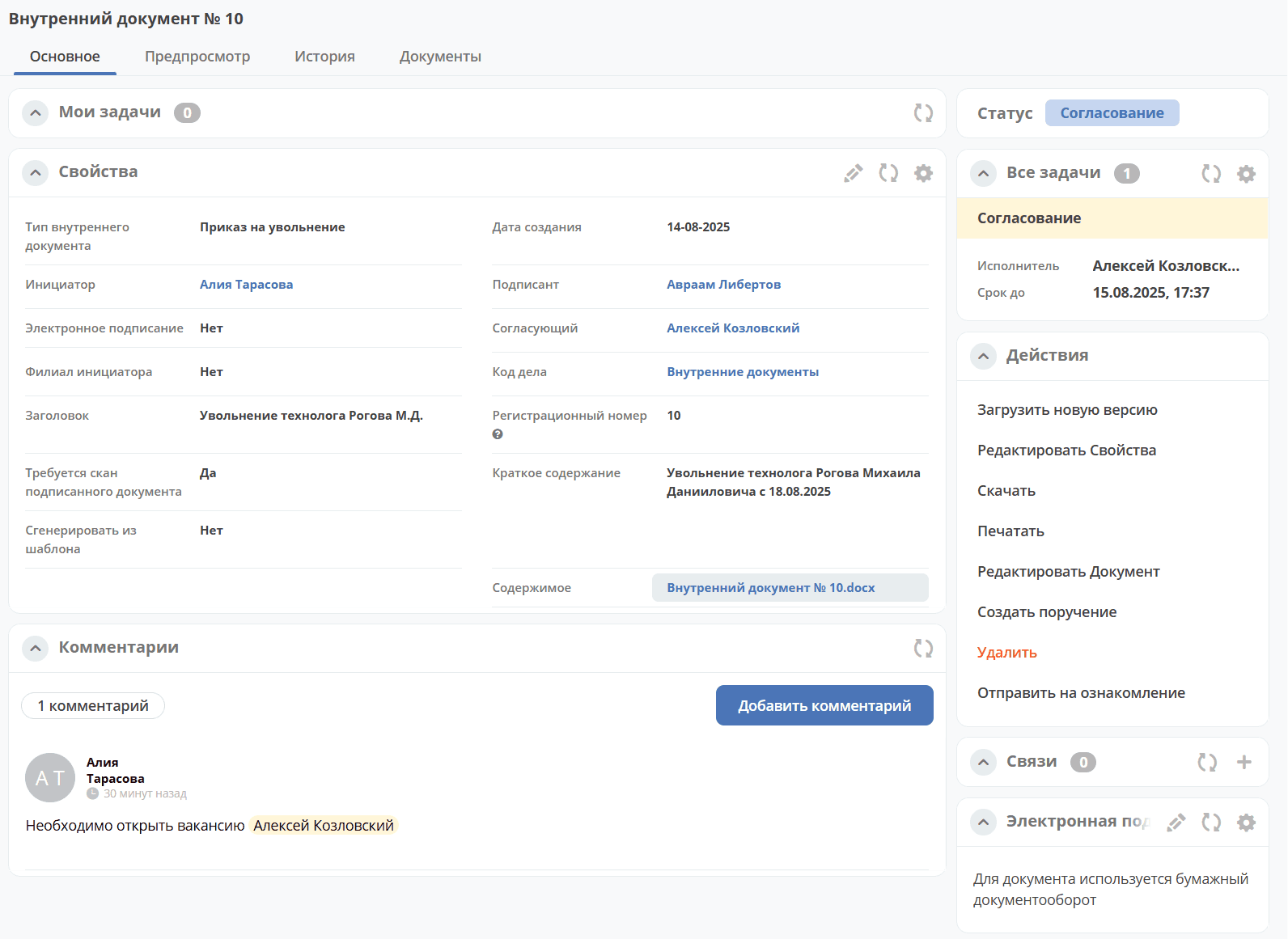
Details about widgets.
Working with an Internal Document in Various Statuses
You can navigate to an Internal Document in any status in one of three ways:
by opening a task in the «Current Tasks» journal;
by opening the document in the «Internal Documents» journal;
by following the link from the received notification.
Details about tasks.
Approval
The document is approved by the employee selected in the card during the document creation stage.
In the «Approval» status, the following task completion options are available:
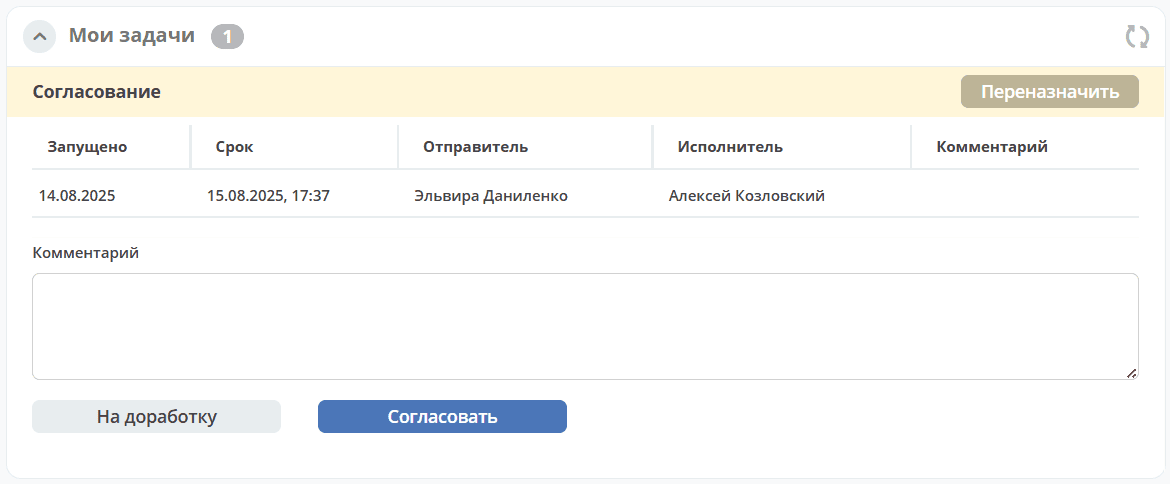
«Send for Revision» - send back to the Initiator for revision. Add a comment. The document will transition to status «Revision». A notification will be sent to the document Initiator.
«Approve» - The document proceeds further in the business process. The task «Signing» is assigned to the signatory selected in the card. A notification is sent to the signatory.
Signing
The document is signed by the employee selected in the card during the document creation stage.
In the «Signing» status, the following task completion options are available:
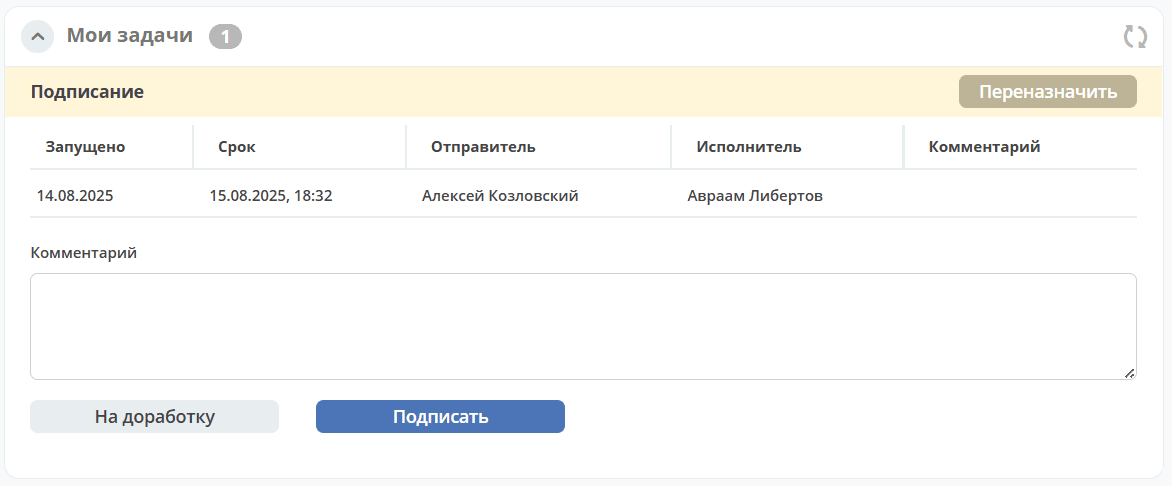
«Send for Revision» - send back to the Initiator for revision. Add a comment. The document will transition to status «Revision». A notification will be sent to the document Initiator.
«Sign» - The document proceeds further in the business process. The task «Scanning» is assigned to the Accounting group. A notification is sent to the signatory.
Revision
Document revision is available to the Initiator.
In the «Revision» status, the Initiator has the following task completion options:
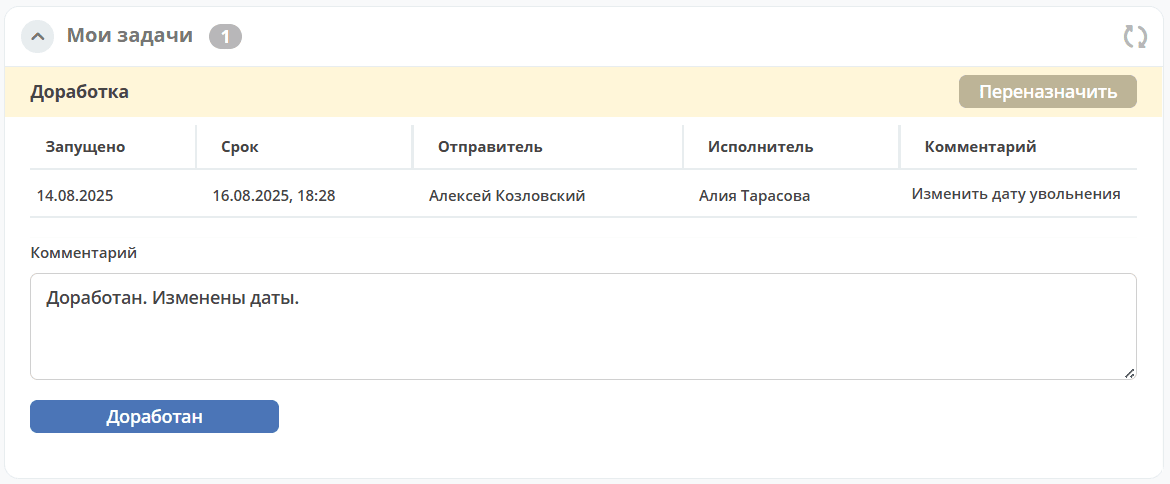
The Initiator makes changes to the document based on comments left by the Approver or Signatory, using the actions «Edit Properties» and «Edit Document», and clicks «Revised». A comment can also be added in the ‘Comment’ field. The document returns to the status from which it was sent for revision - «Approval», «Signing».
Scanning and Registration
The document is registered by an Accounting Department employee.
In the «Scanning» status, it is necessary to enter the document’s registration date and click «Register»:
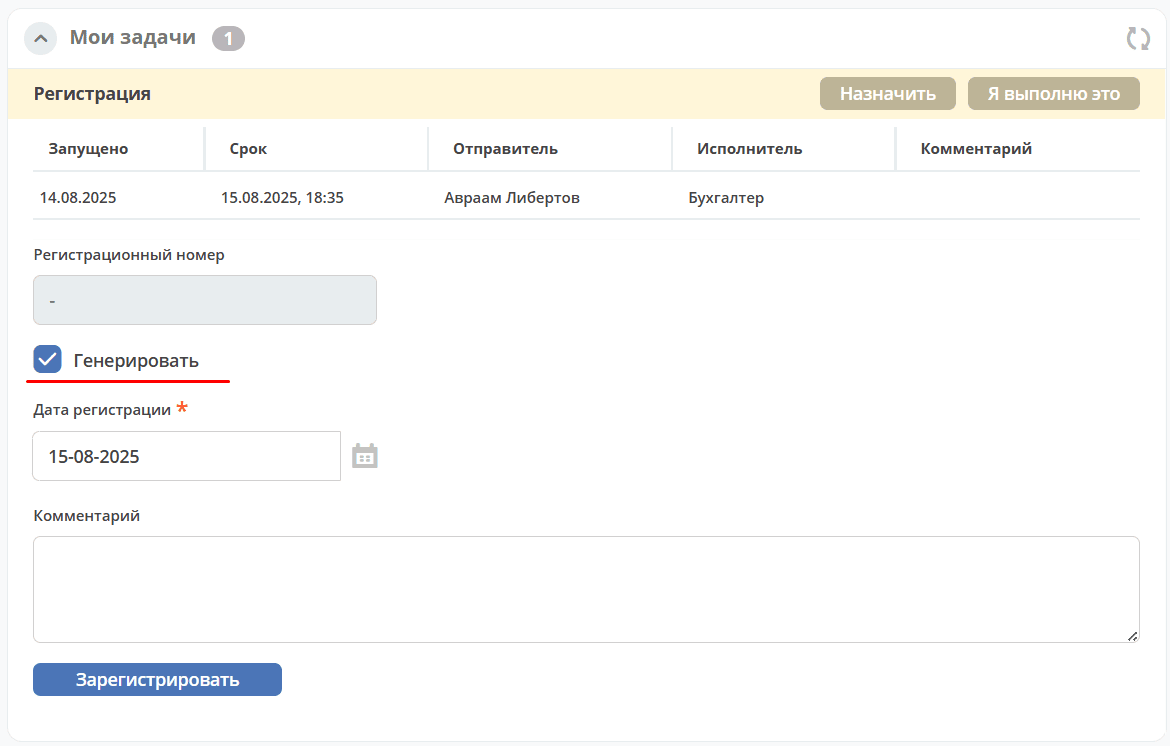
If the «Generate» checkbox is checked, the number will be assigned to the document automatically.
To assign a number manually, uncheck the box and specify the number:
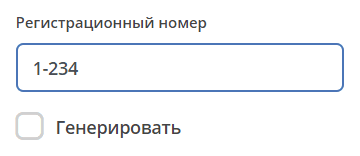
If the checkbox «Scanned signed document required» is checked, then in the «Documents» widget, it is necessary to attach the scanned original document to the card by clicking:
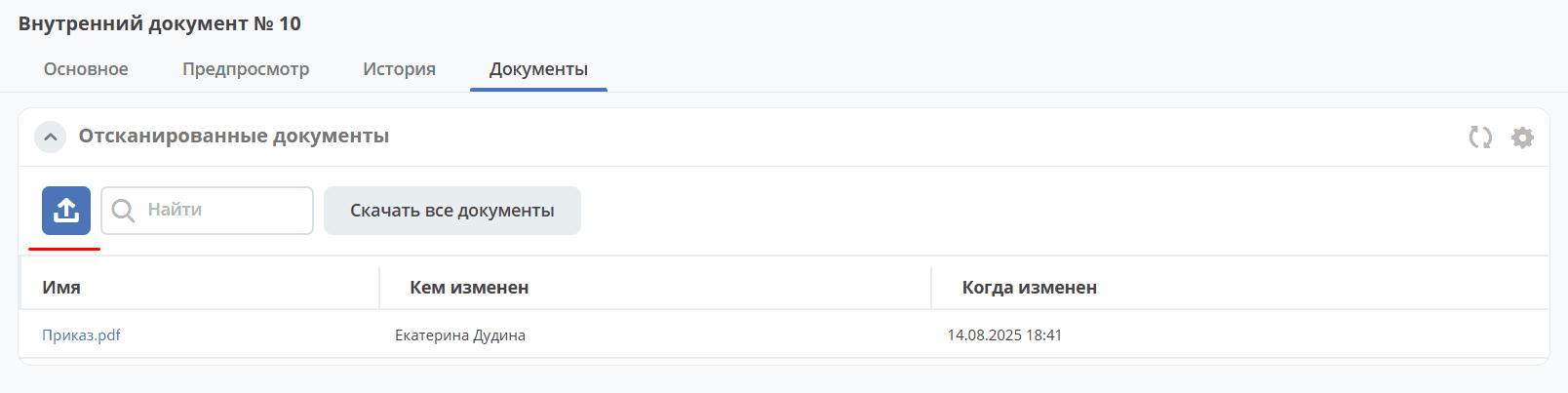
The document will be assigned the final status «Active».
Actions with an Internal Document
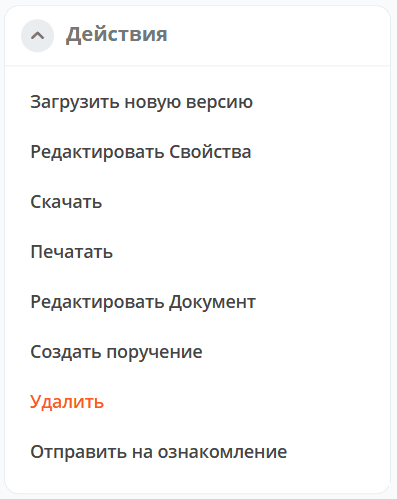
Basic Actions
For details on basic actions in the card, see details
Send for Review
To send a document to an employee for review, use the action «Send for Review». Select an employee from the organizational structure and click «Create»:
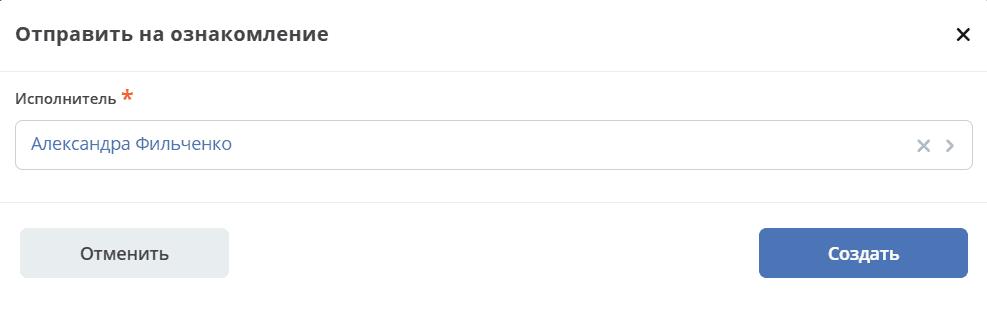
The employee can navigate to the Document in one of three ways:
by finding the task in the «Current Tasks» Journal;
by finding the document in the «Internal Documents» Journal;
by following the link from the received notification.
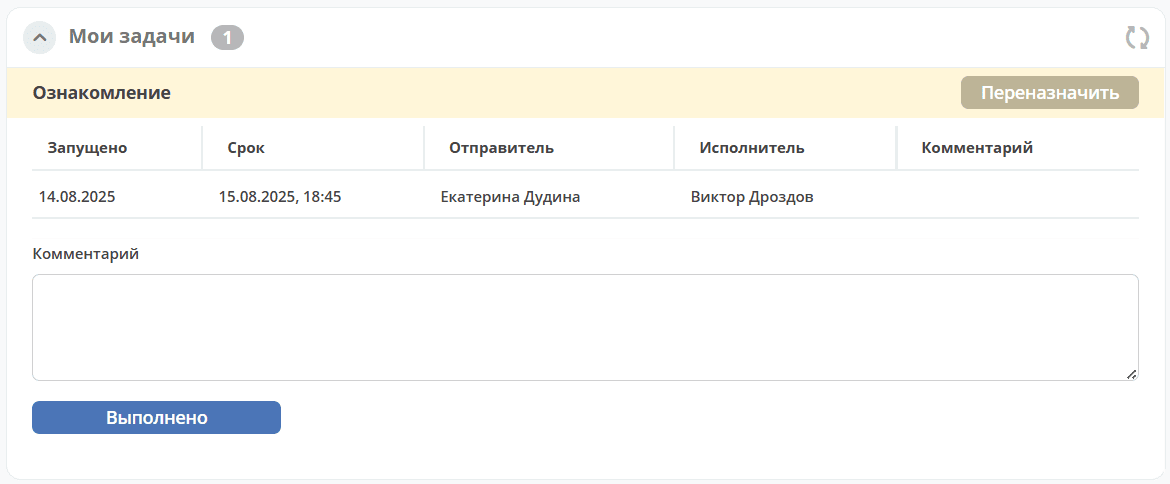
Then review the document – by viewing information in the «Properties», «Preview» widgets.
To complete the task, click «Completed»:
Create Assignment
An assignment can be created from the document card by selecting the action «Create Assignment». See details: Creating an assignment from the card