Assignments Module
The module is designed for assigning tasks for execution and, if necessary, checking the results of their execution. An assignment can be assigned with or without a reviewing employee.
Business Process Diagram
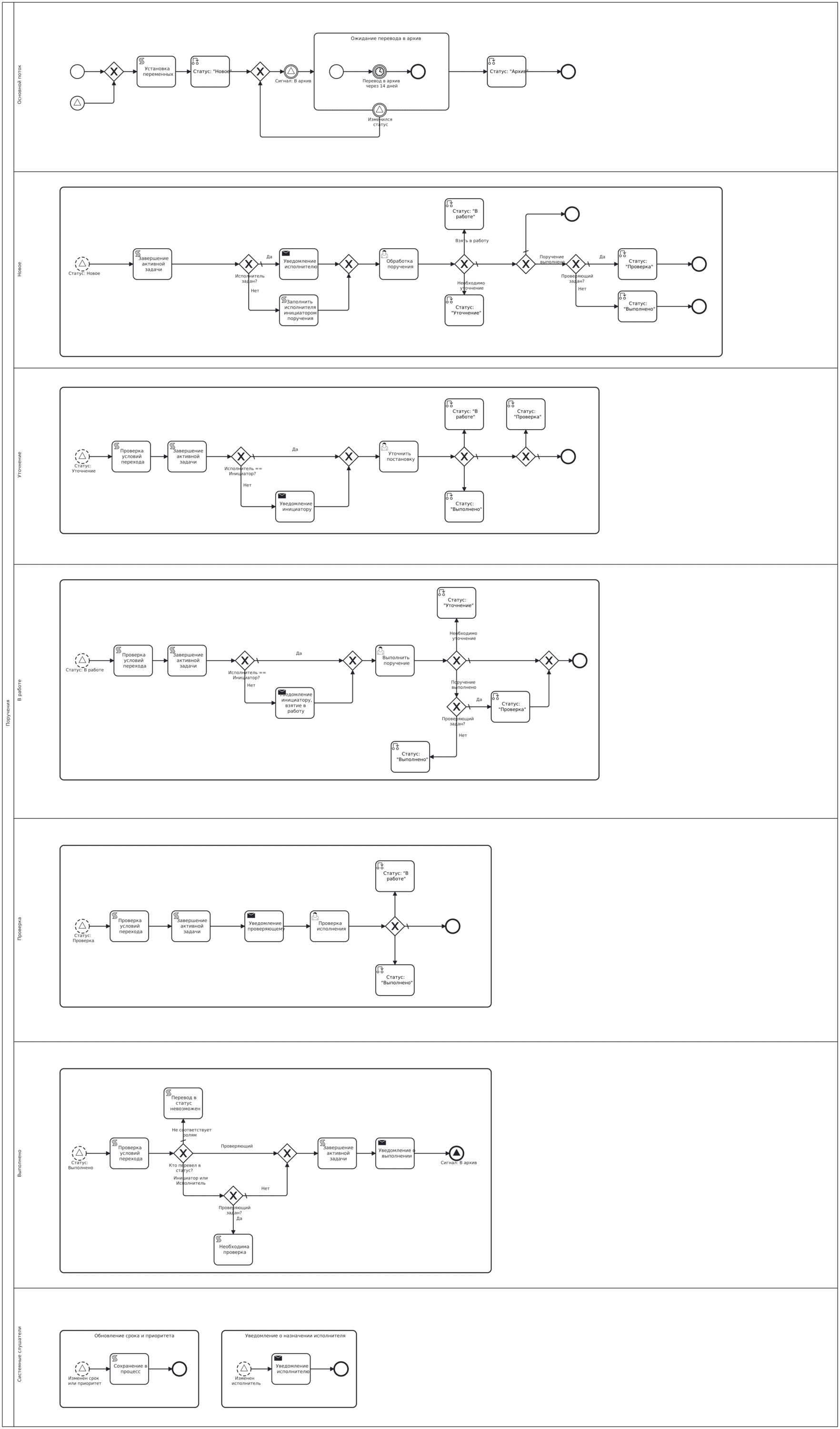
Roles
Initiator |
An employee who creates an assignment |
Assignee |
An employee who executes the assignment given by the Initiator |
Reviewer |
An employee who reviews the execution of the assignment |
Statuses
New |
The Initiator has created an assignment, the System generates a notification for the Assignee.
|
In Progress |
The Assignee takes the assignment into work.
|
Clarification |
The Assignee sends the assignment to the Initiator for clarification.
The reviewing employee sends the assignment to the Assignee for clarification (revision).
|
Review |
A reviewer is selected in the assignment.
Assigned employees receive a notification about the review of the assignment execution.
|
Completed |
A status change indicating the process completion.
The Initiator receives a notification about the assignment completion.
|
Archive |
14 days after the assignment is completed, it automatically receives the ‘Archive’ status.
Before receiving this status, moving cards on the Kanban board is available.
The ‘Archive’ status is not displayed on the Kanban board.
|
Available Workspaces
The module is available in the following workspaces:
Clerical work;
Contracts;
Recruiting;
CRM.
Kanban Board
Assignments are presented as a Kanban board. The columns correspond to assignment statuses.
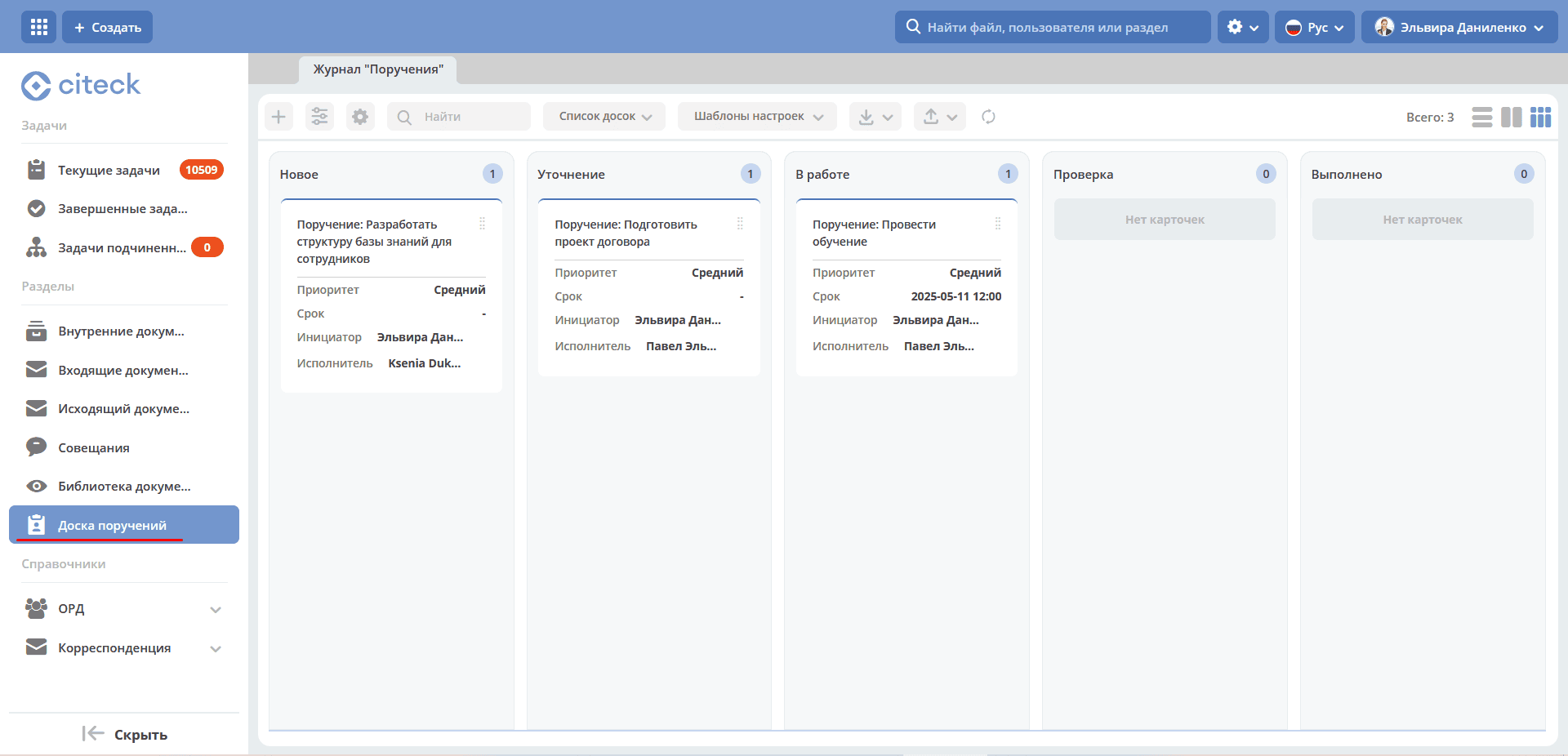
The board columns display assignment statuses, and the assignments themselves are distributed across statuses on the board. Clicking on the assignment name navigates to the card.
Transition between statuses can be done via the Kanban board by moving the card across columns.
If the conditions for status change are not met, a warning is issued.
Note
All workspace participants can see the assignments of all workspace participants.
Creating an Assignment
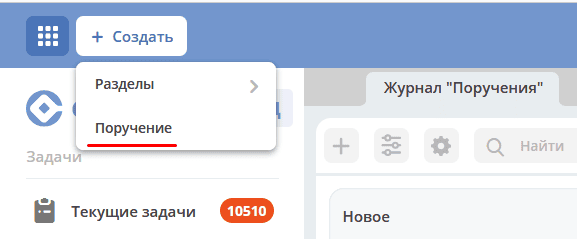
Creating an assignment is possible either using the quick create button:
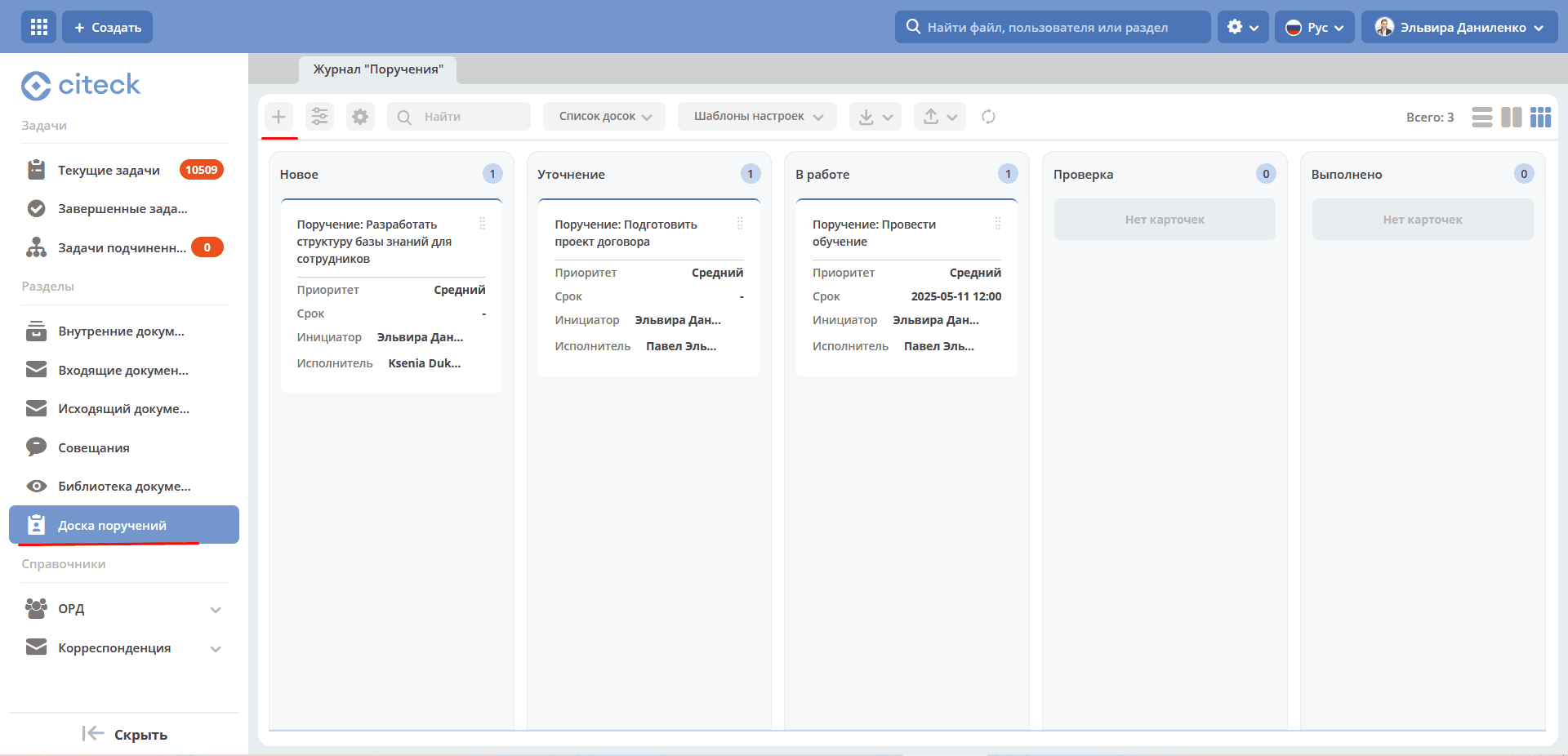
or on the «Assignments» Kanban board:
For a specific document, an assignment can be created from the journal by clicking on:
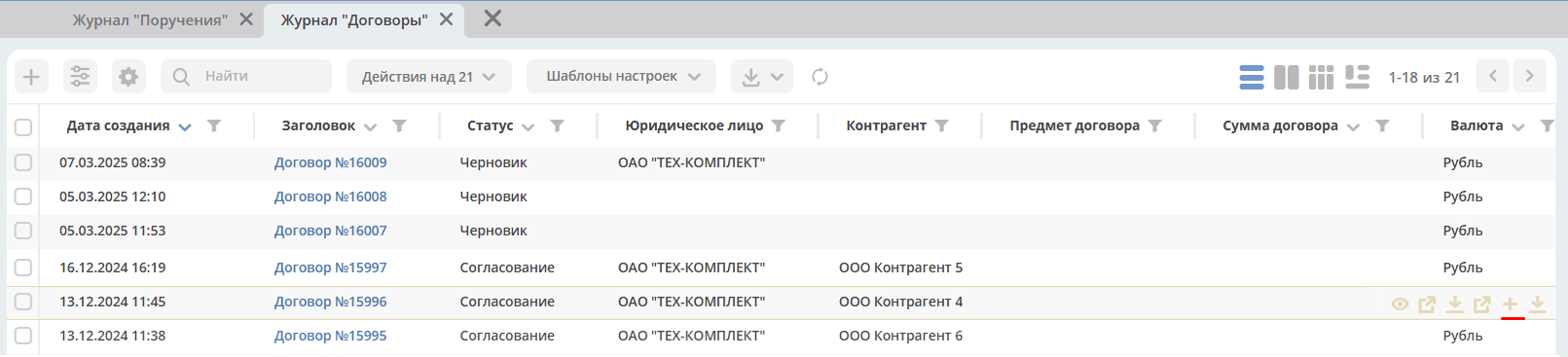
From the document card using the action:
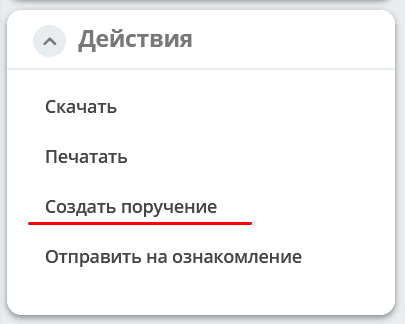
The form for creating an Assignment becomes available on the screen. When creating an assignment from a document, a link is automatically set:

Card
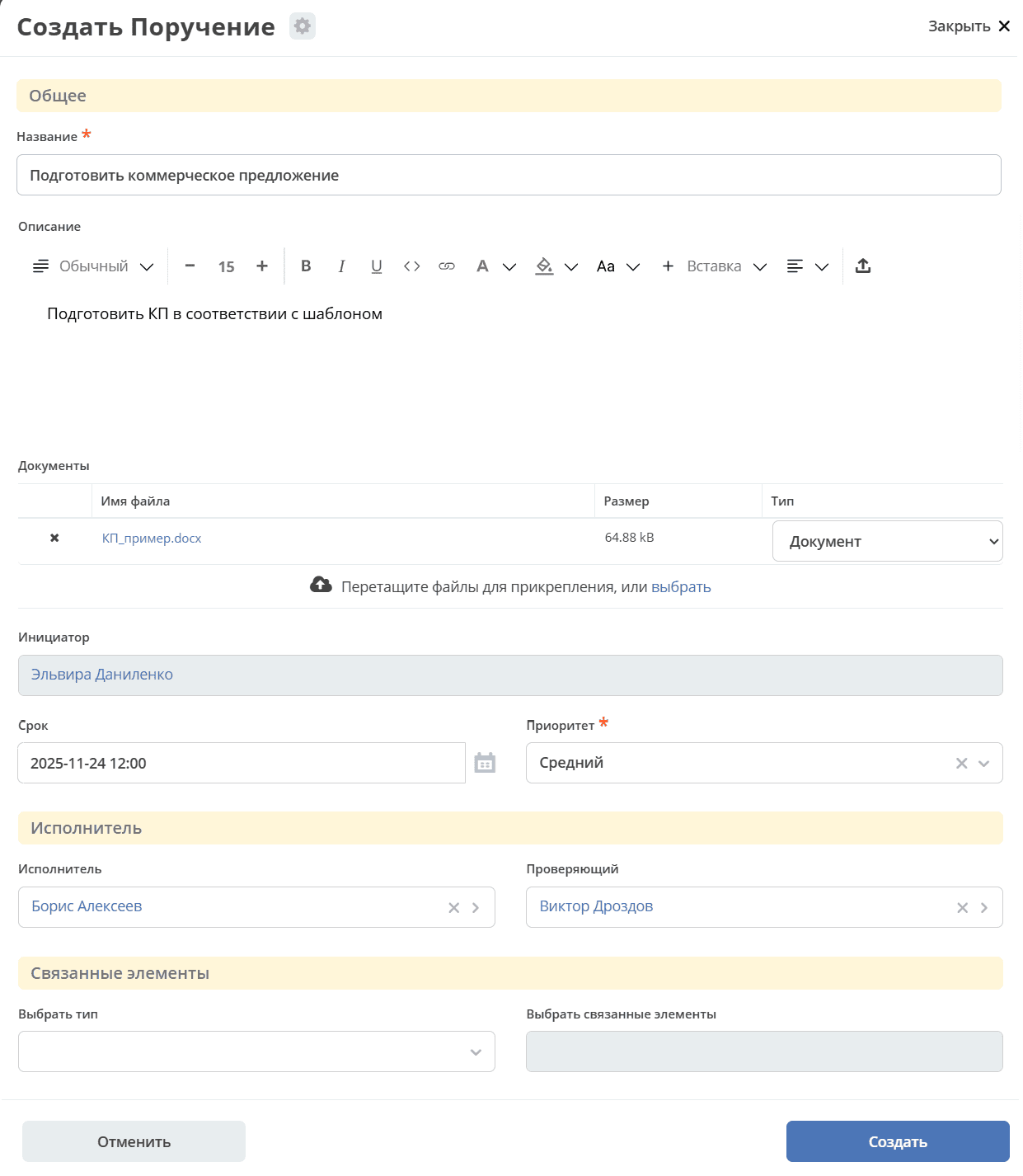
Specify the assignment name and description, add files if necessary. Specify the deadline and priority.
Select an Assignee and, if review of the assignment execution result is needed, select a Reviewer.
The assignment can also be linked to other platform objects (documents, processes, etc.).
Click «Create». The assignment status becomes «New».
Adding a Link
In the «Related Elements» section, you can set a link between the assignment and other Citeck objects – first, you need to «Select type»:
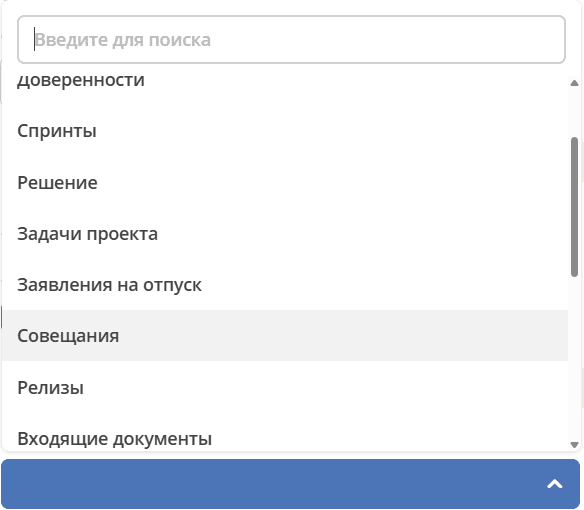
And then select the related objects:
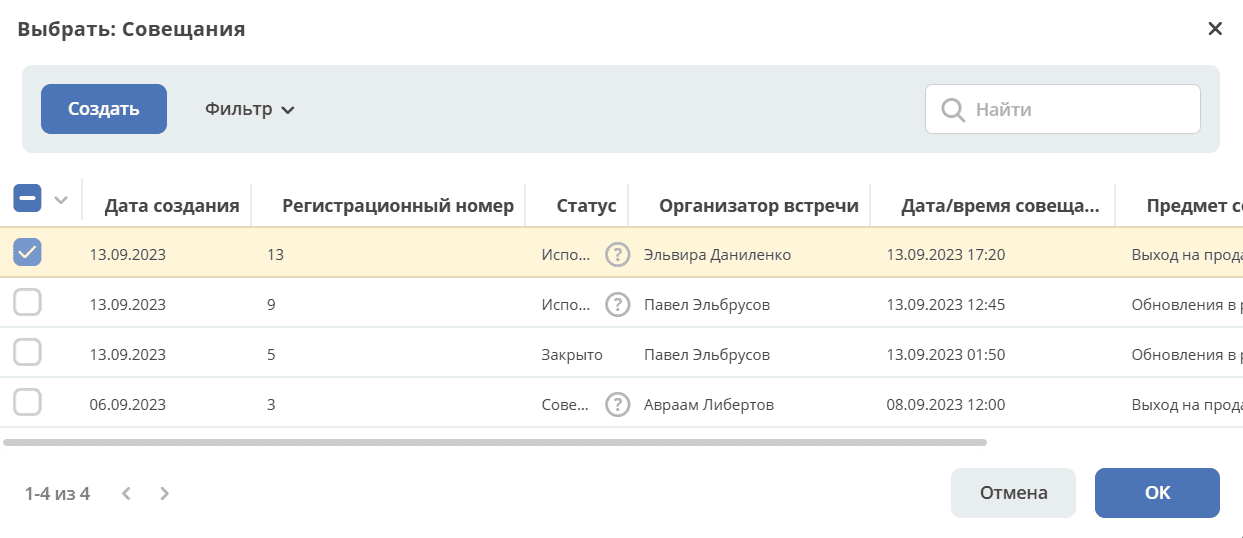
Information will be displayed in the assignment card:

Objects related to the assignment will be presented in the «Document Links» widget:
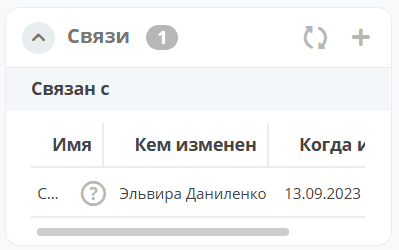
For an assignment, 2 business process development options are available:
without review of the execution result;
with review of the execution result.
Below we consider the options for process participants to work with the assignment.
Assignment Card with Widgets
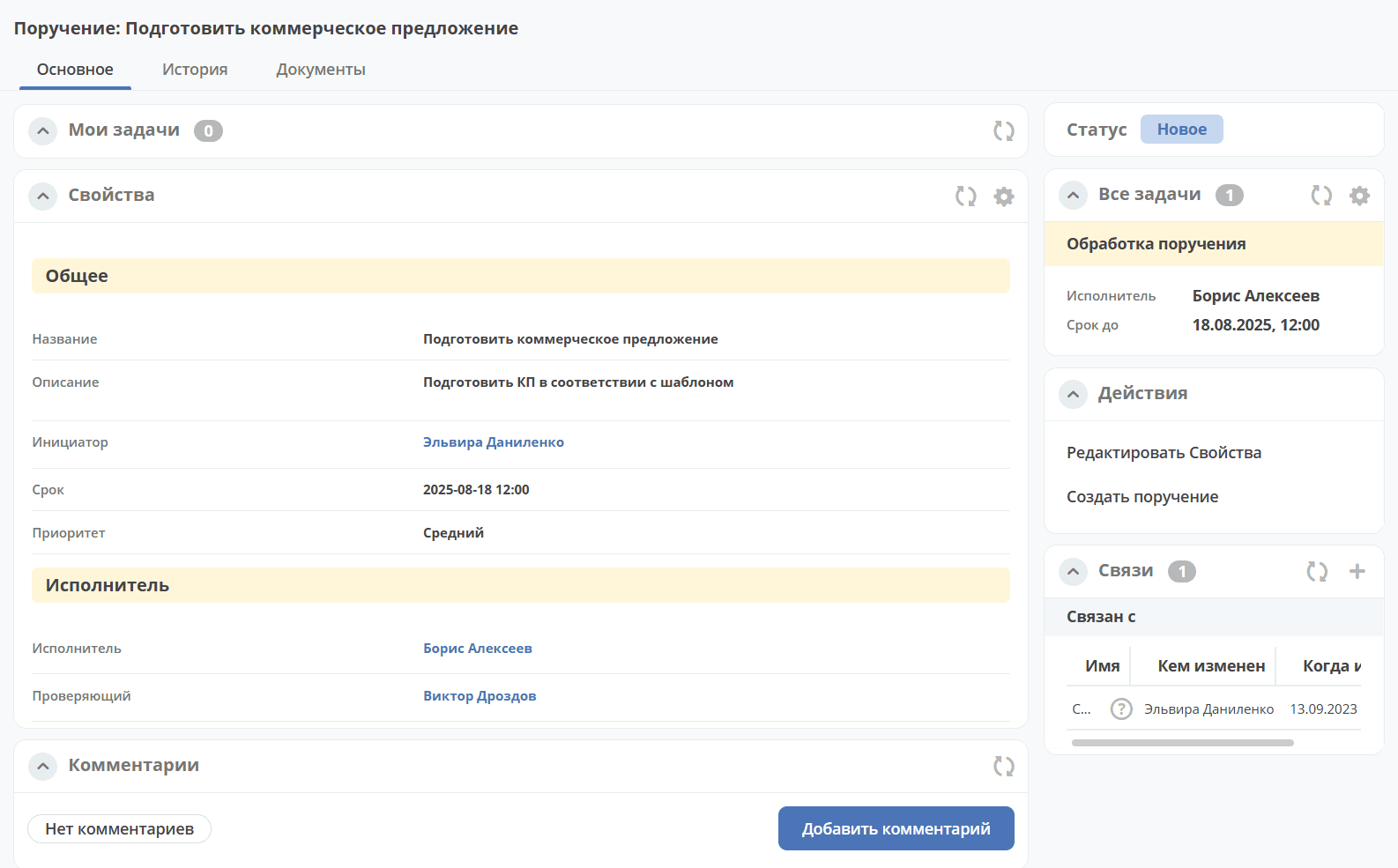
Details about widgets.
Working with an Assignment
The Assignee can navigate to the Assignment in any of the following ways:
from the received notification;
from the ‘Current Tasks’ journal;
by opening the assignment on the Assignments Board.
Details about tasks
Assignee’s actions with the assignment: send for clarification, take into work, complete
The set of verdicts changes depending on the status. Let’s consider all possible ones.
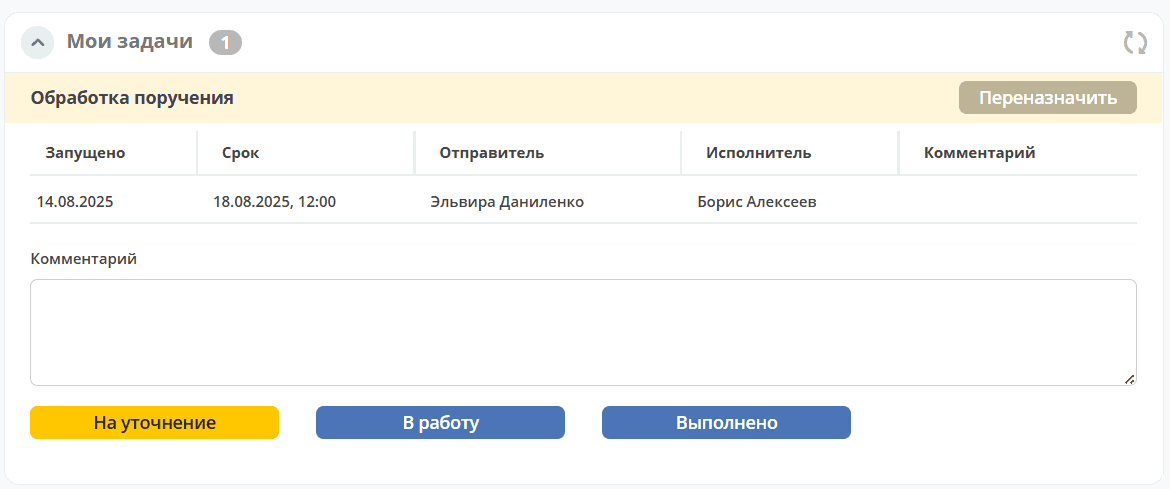
For clarification – return the assignment to the Initiator for task clarification. Status changes to «Clarification».
Into work – take the assignment into work. Status changes to «In Progress».
Completed – select if the assignment is completed. Status changes to «Completed». If a Reviewer is selected in the assignment, the status changes to «Review».
Clarification of the assignment by the Initiator: return to work, close the assignment
The Initiator sends the assignment to the Assignee for clarification of the task statement.
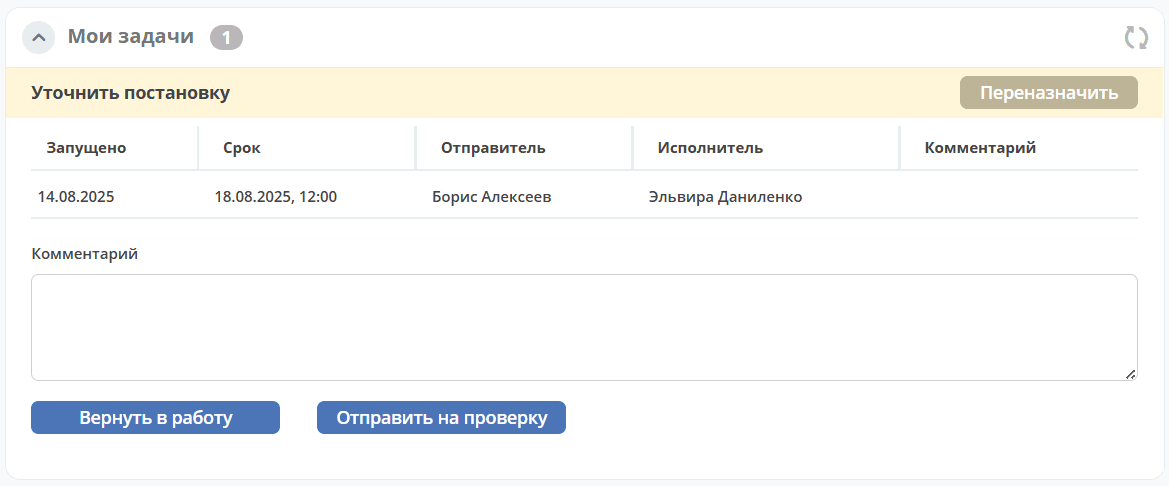
Return to work – specify the missing information in the assignment card or in a comment, return the assignment to the Assignee for work. Status changes to «In Progress».
Close assignment – close the assignment if its execution is not advisable. Status changes to «Completed».
Assignment Review
Assignment review is performed if the Initiator specified a Reviewer in the card during creation. The Assignee selects the verdict «Completed», and then the assignment receives the status «Review». A task is assigned to the reviewer.
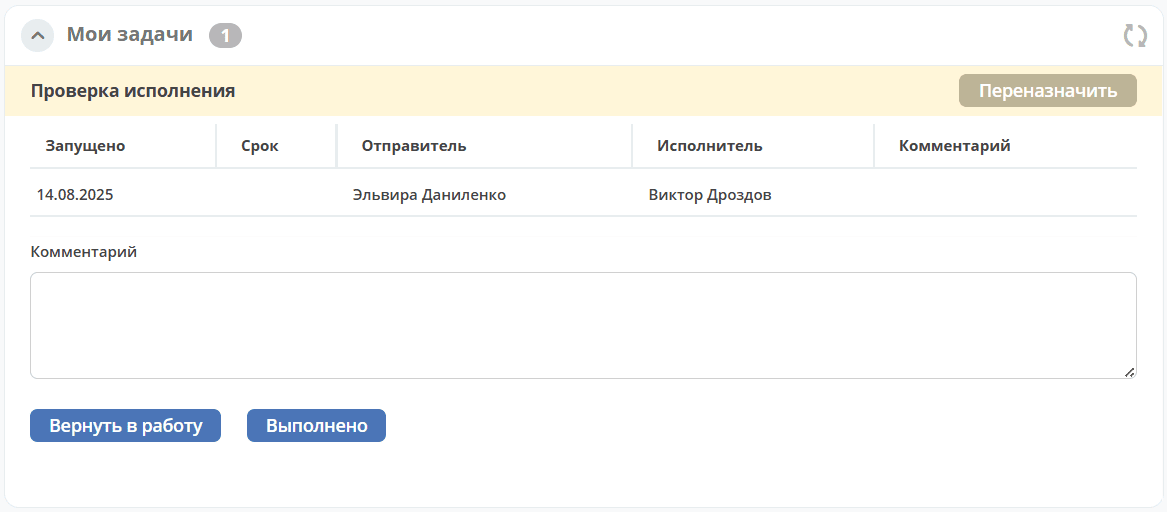
Return to work – the assignment is reviewed but not fully completed, return the assignment to the Assignee for work. Status changes to «In Progress».
Completed – the assignment is reviewed and completed. Status changes to «Completed».