Technical Support Portal
Note
Available only in the enterprise version.
A technical support portal can be configured for external users, providing access to:
creating requests,
tracking the status of current requests,
viewing history, comments, and attachments of closed requests,
communicating via comments and file exchange with technical support specialists.
General Status Transition Scheme
Request status transitions:
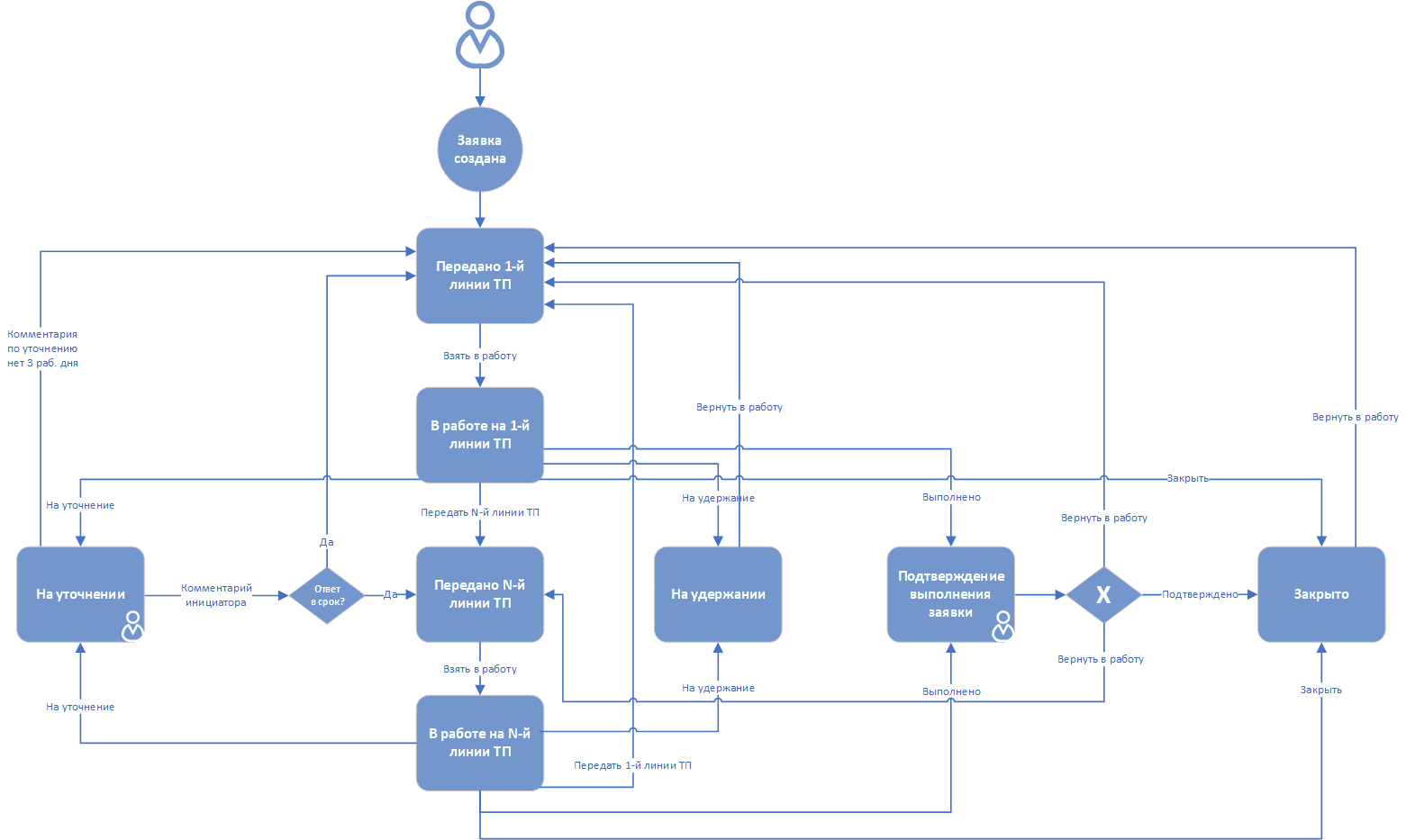
Transferred to 1st Line Support |
The Initiator creates an SD request card in the System or the Initiator sends an email using a template describing the problem.
The system creates an SD request card based on the Initiator’s email using a preconfigured template.
The system initiates the request processing, assigns the request to a group of 1st line support users, or the request is returned by 2nd/3rd line support Assignees or the Initiator.
|
In Progress at 1st Line Support |
A 1st line support Assignee takes on the request.
|
Transferred to 2nd Line Support |
A 1st line support Assignee sends it to 2nd line support, or the request is returned by the Initiator.
|
In Progress at 2nd Line Support |
A 2nd line support Assignee takes on the request.
|
Transferred to 3rd Line Support |
A 1st or 2nd line support Assignee sends it to 3rd line support, or the request is returned by the Initiator.
|
In Progress at 3rd Line Support |
A 3rd line support Assignee takes on the request.
|
Request Completion Confirmation |
An Assignee from any support line completes the request themselves and sends it to the Initiator for completion confirmation.
|
Clarification Needed |
An Assignee from any support line sends the request to the Initiator for clarification.
|
On Hold |
An Assignee from any support line puts the request on hold.
Work is suspended as some action is awaited.
For example, work is suspended at the 1st line because a task has been created for the 3rd line regarding this issue. Since the problem is not resolved, no work is being done at the 1st line, and the request is moved to On Hold status.
|
Closed |
An Assignee from any support line closes the request upon its completion and confirmation by the Initiator.
|
Journal
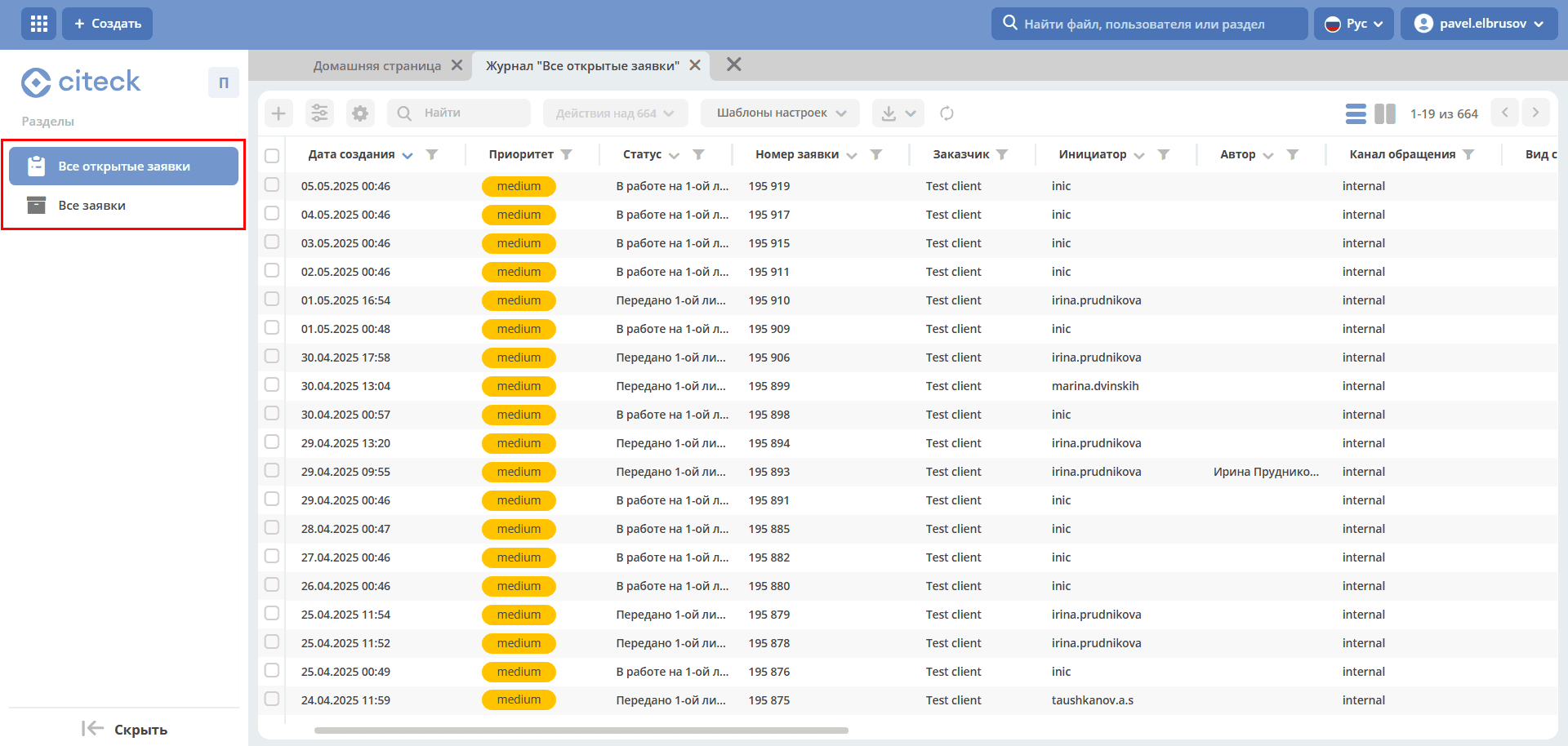
The portal features 2 journals:
All Open Requests – created requests that are in progress and not closed.
All Requests – open requests and requests with status «Closed».
Note
The journals contain requests from both the user themselves and other users in the organization.
Creating a Request
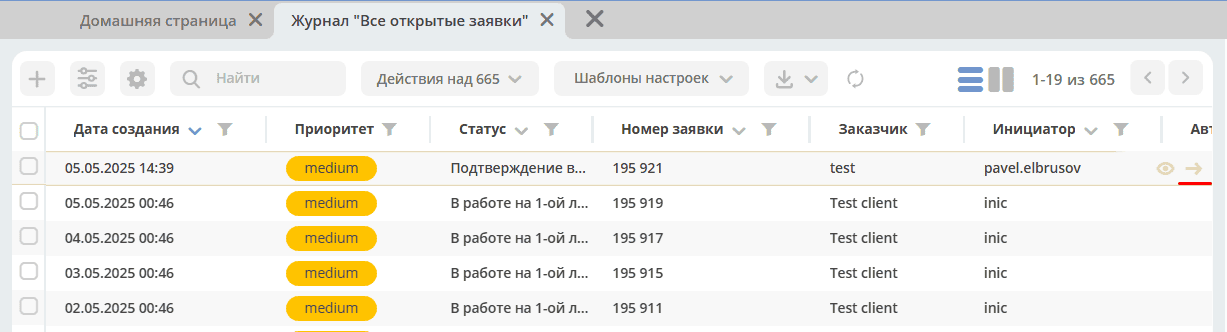
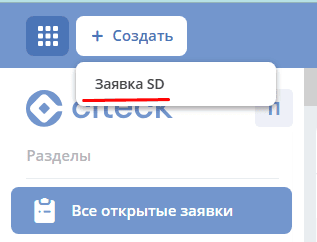
A request can be created from the «All Open Requests» or «All Requests» journal by clicking:
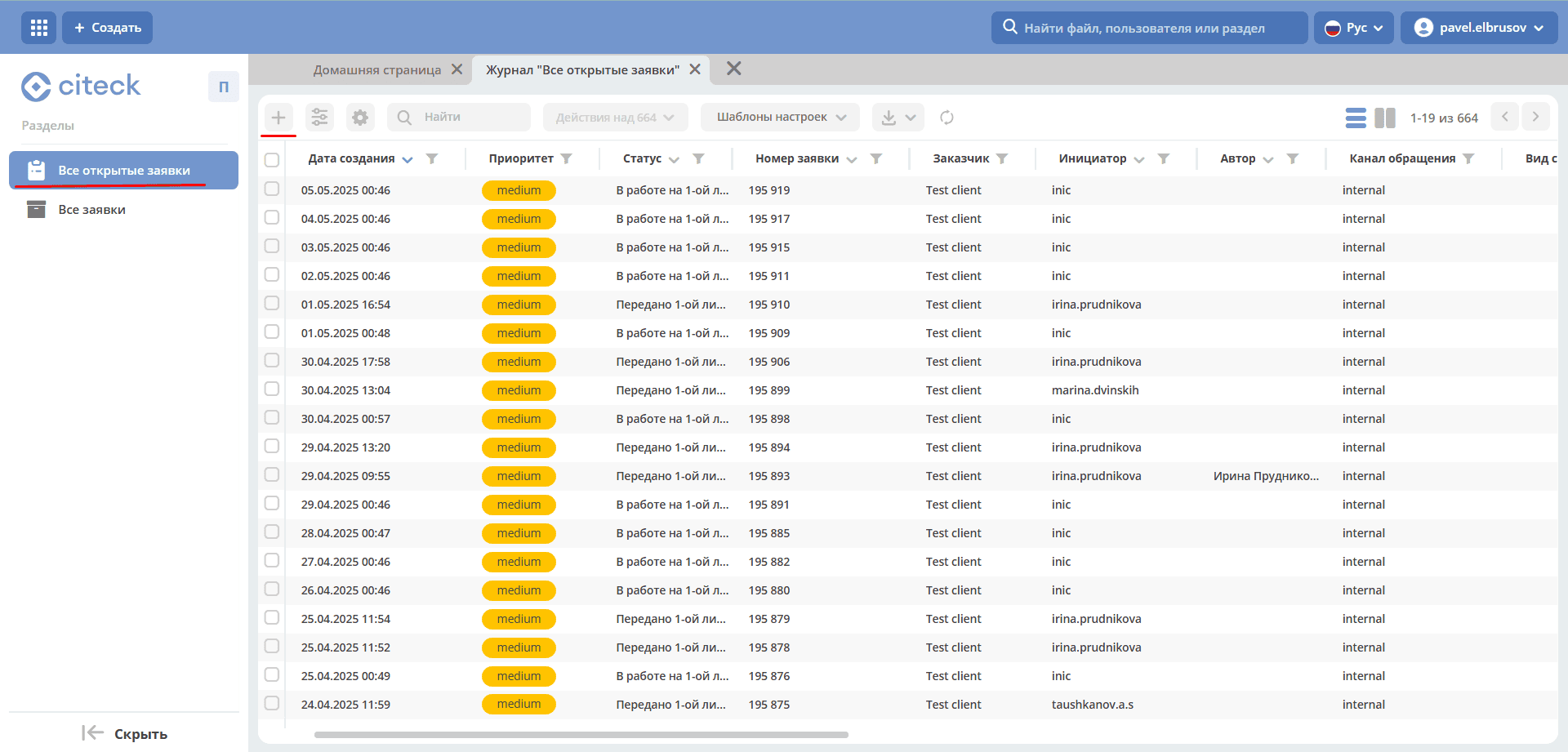
or using the quick create button:
Request card during creation
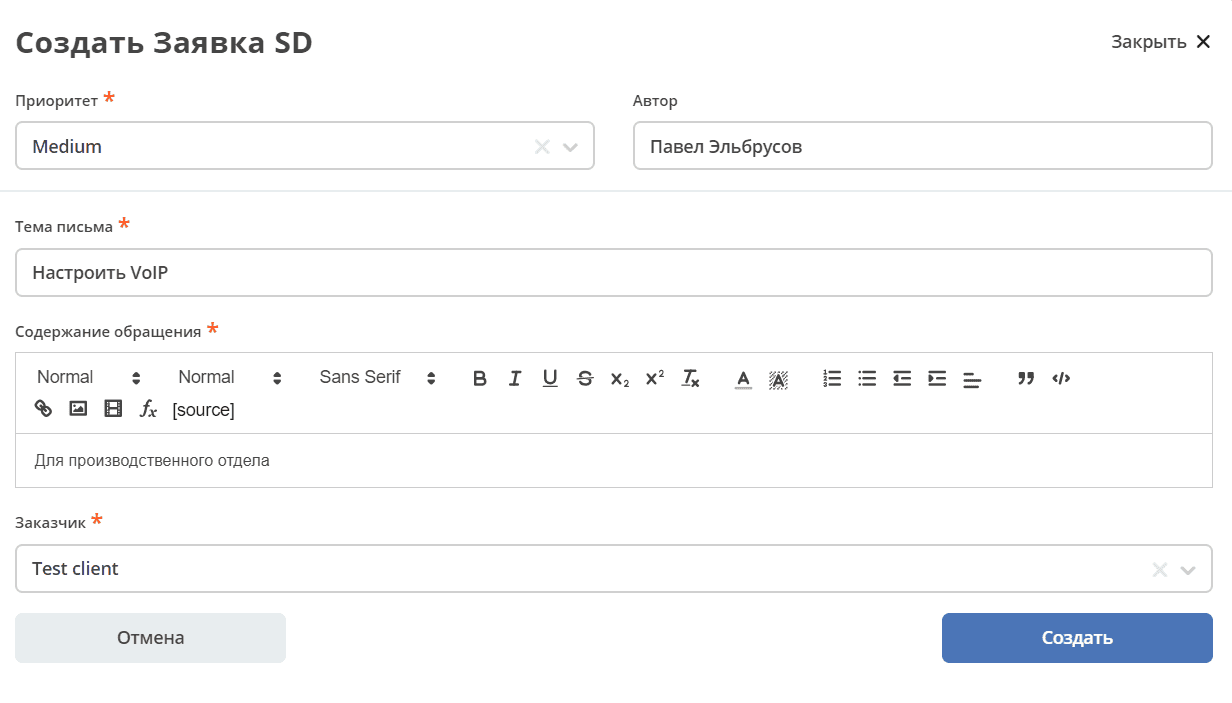
Be sure to fill in Priority, Email Subject, Request Content, Customer.
Use the visual editor for text input, which provides a wide range of options for configuring and changing text appearance, formatting, adding images, links.
Click Create.
Subsequently, files can be added to the request in the «Attachment» section:
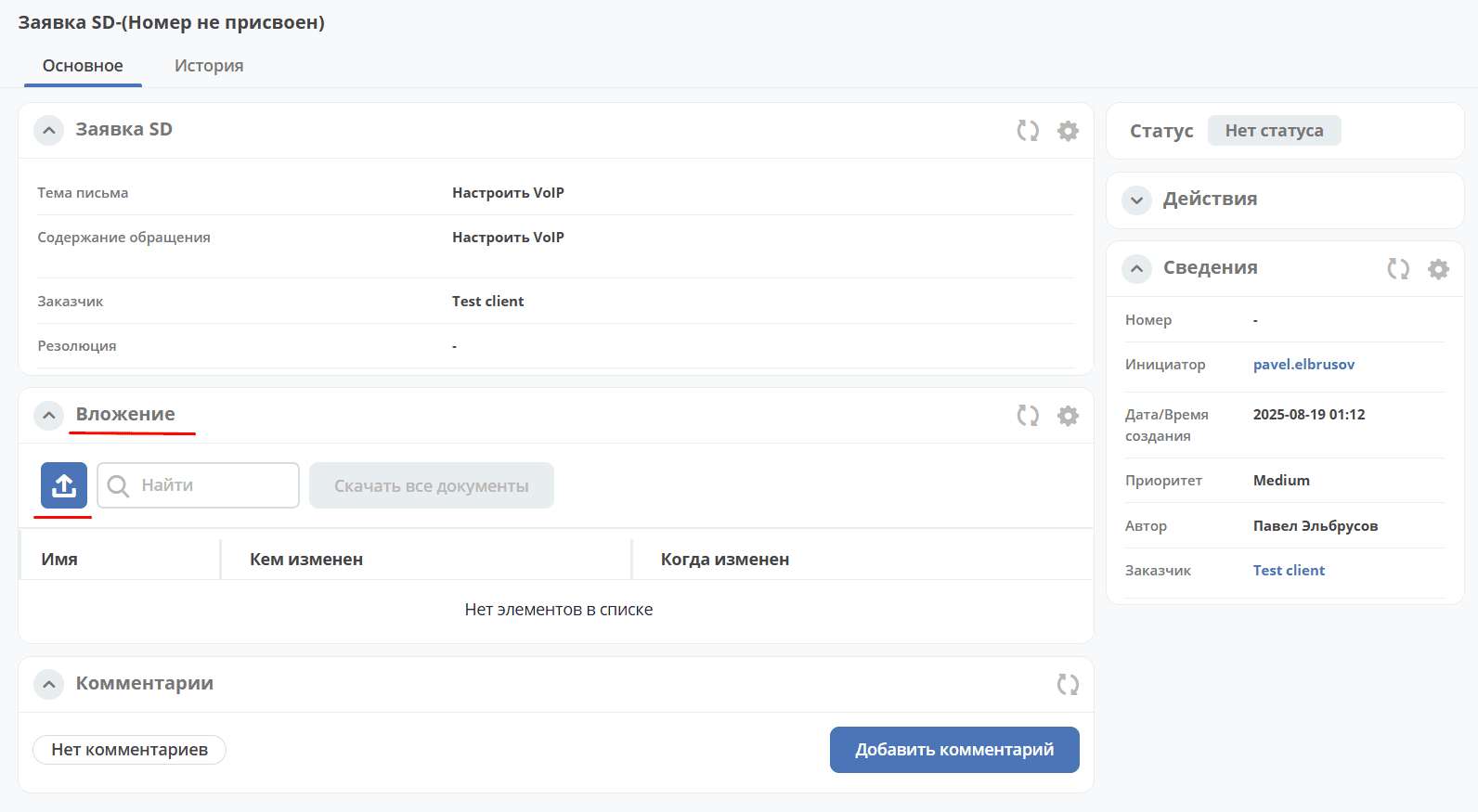
Note
The number and status will not be assigned immediately.
Card Widgets
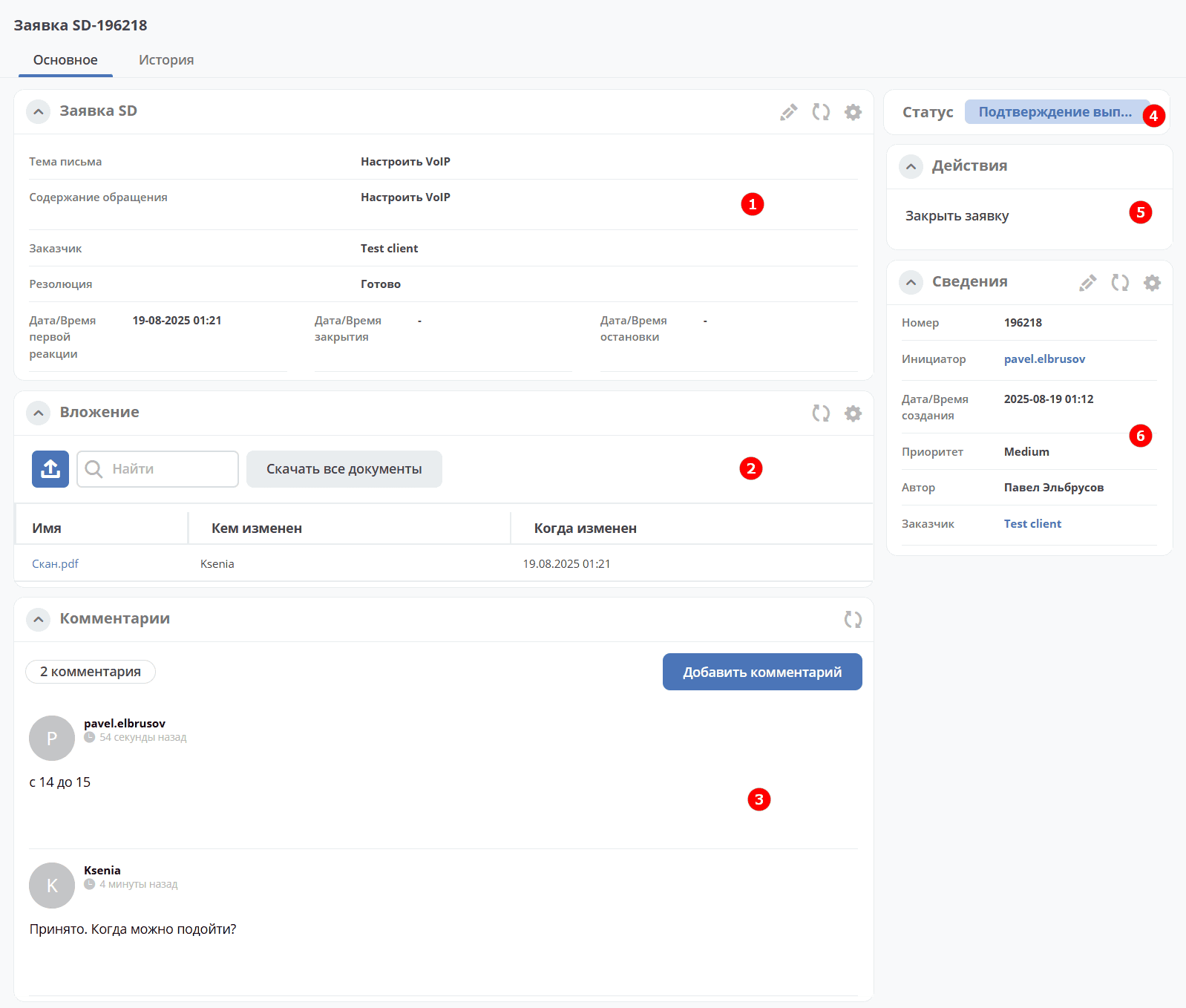
The «SD Request» widget displays information submitted by the Initiator, and fields filled by the system and the Assignee during the request lifecycle.
The «Attachments» widget is for adding files and downloading them.
The «Comments» widget displays comments on the request. Details about the widget.
The «Status» widget displays the current request status (determined automatically by the system, not editable by the user).
The «Actions» widget contains a list of available actions for the request at its current status.
The «Details» widget. Detailed information about the request: number, initiator, creation date/time, priority, author, customer.
«History» Tab
The «Event History» widget displays a chronology of events for the request, recording the date and time they occurred, participants, and comments.
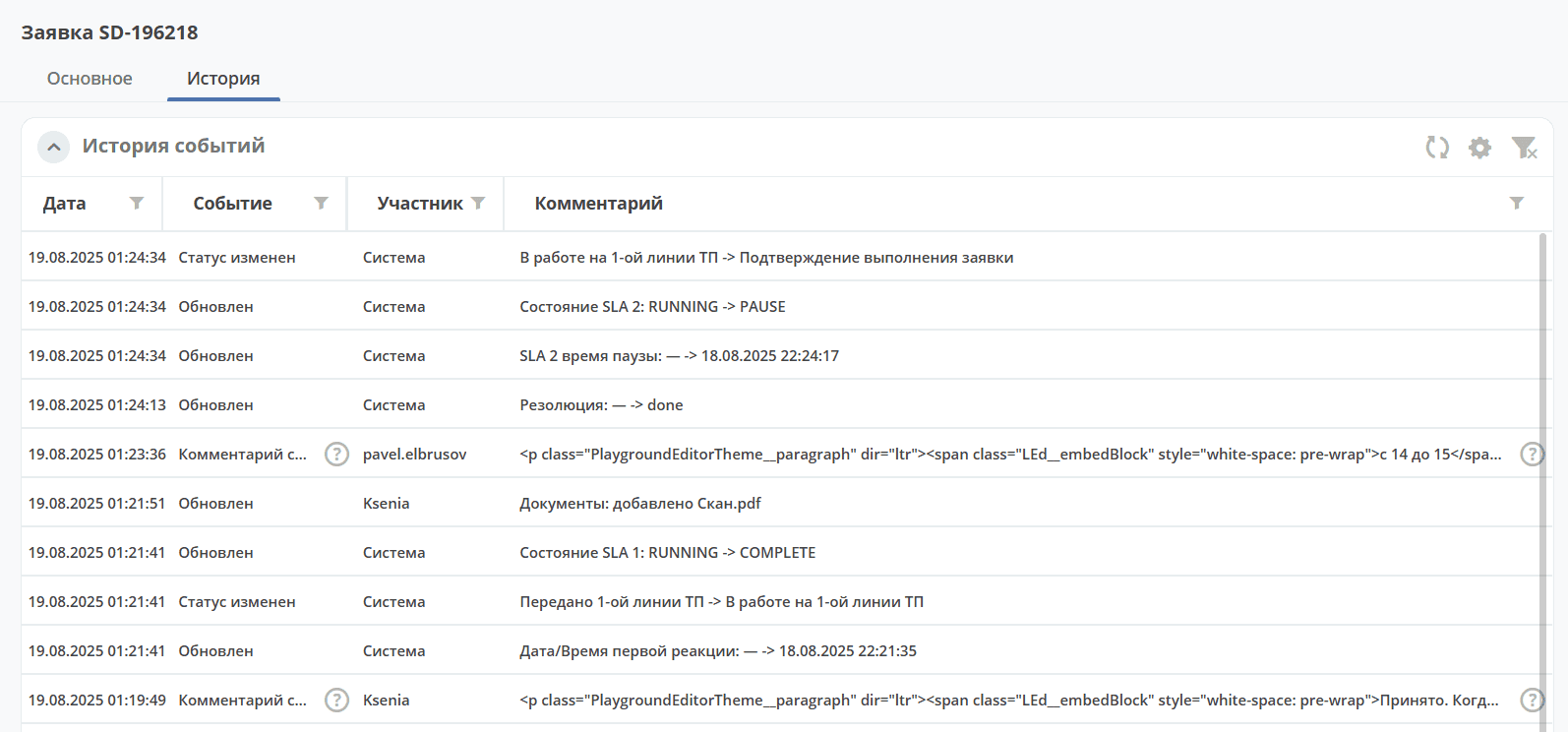
The following information is displayed:
request creation event;
status change;
adding/changing a comment;
field changes;
adding attachments.
Actions
Possible process actions are shown in the «Actions» widget.
At the «Request Completion Confirmation» status, the following action is available:
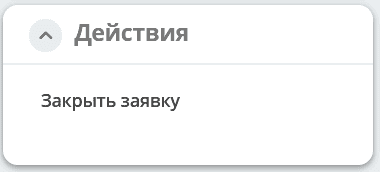
The request status will become «Closed».
Actions are also available in the journal on the request line: