Contracts Module
The module is designed for accounting and approval of paper contracts and contract-related documents.
Business Process Scheme
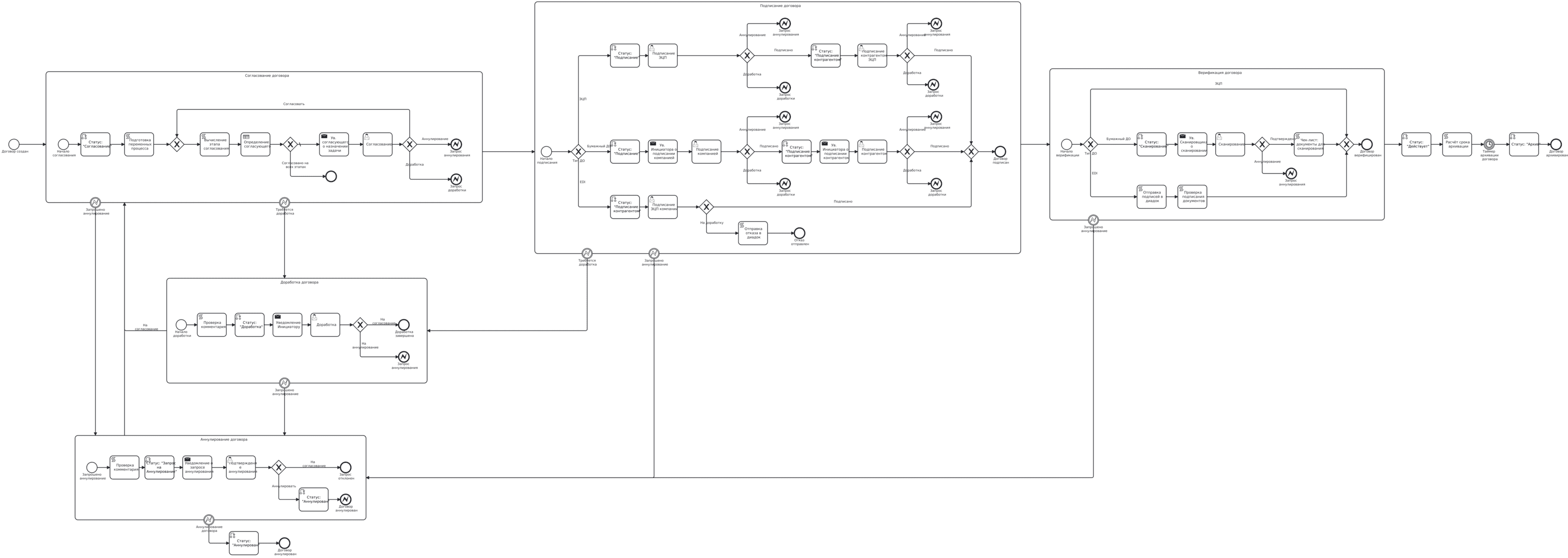
Using DMN to Select Approval Stage and Approvers
A DMN decision table has been added to the BPMN process, which specifies the approval stages and the approver for each stage.
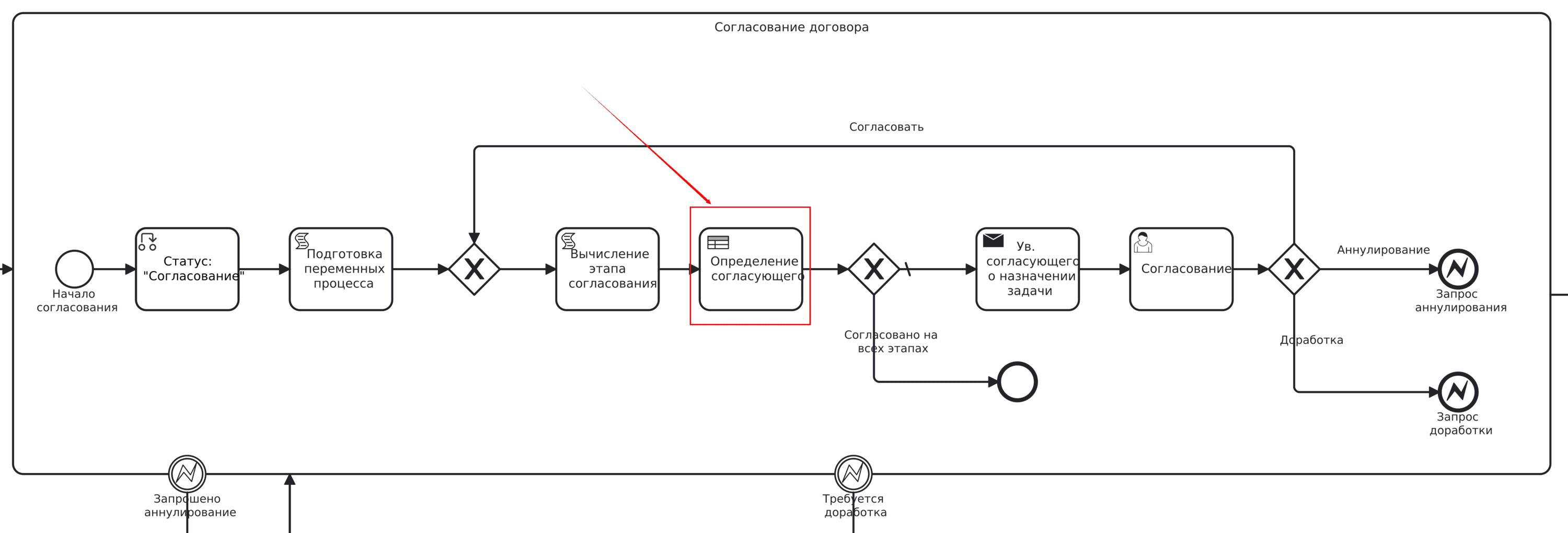
Data of the DMN table ecos-contract-approval-stages:
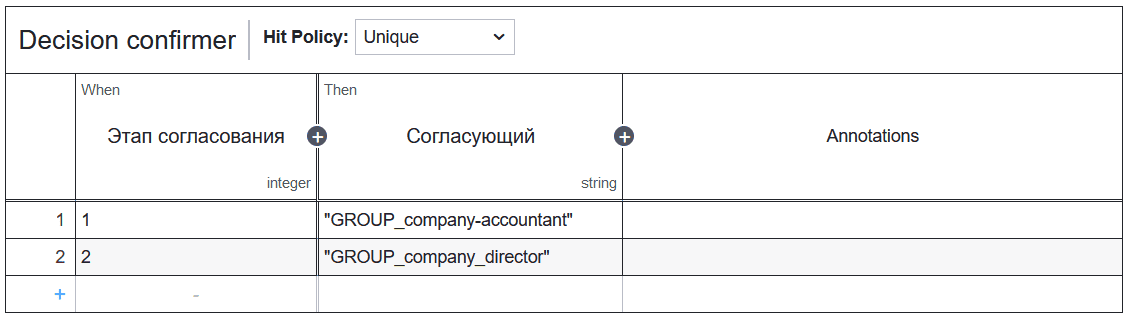
In the business process, each approval stage from the table is taken sequentially and a task is assigned to the approver specified in the DMN.
If necessary, the DMN table can be modified - to specify additional stages and approvers.
See an example of working with groups and users in the DMN decision table
Roles
Initiator |
Company employee who creates the contract in the system |
Accountant |
Company accountant who approves the contract |
Director |
Company General Director who approves and signs the contract |
Records Manager |
Company employee responsible for clerical work, scans the contract signed by the counterparty. |
Technologist |
Company employee who has rights to modify data in the card fields. |
Organizational structure groups where users must be added
Auditor
Technologist (Contracts)
Director
Records Managers
Accountant
Lawyers
Statuses
Draft |
Contract created by the Initiator but not sent through the process |
Deleted |
Contract is deleted. |
Approval |
Contract approval by the Accountant, Director |
Revision |
After approval, the contract is sent for revision to the Initiator |
Signing |
The contract is with the Director for signing. |
Signing by Counterparty |
The contract is signed by the counterparty on paper. The Initiator signs in the system on behalf of the counterparty. |
Scanning |
The Records Manager scans the paper contract signed by both parties and attaches it to the card. |
Active |
The contract has come into force. |
Canceled |
The Initiator canceled the contract. |
Cancellation Request |
A cancellation request for the contract has been sent to the Initiator during the approval, signing, or revision process. |
Archive |
The contract automatically moves to this status when its term, specified in the card, ends. |
Available Workspace
The module is available in the workspace Contracts.
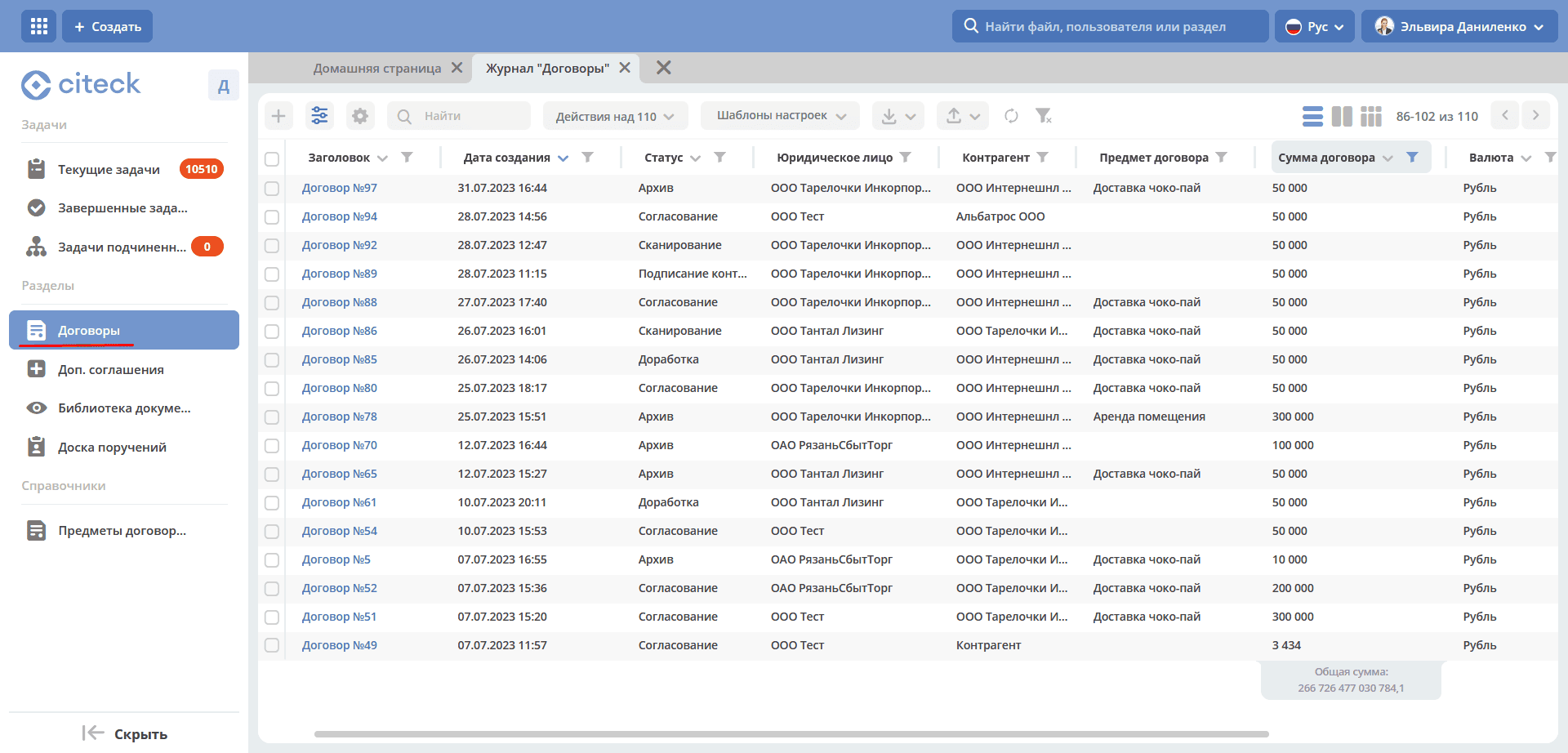
Journal
Creating a Contract
A contract can be created using the quick create button:
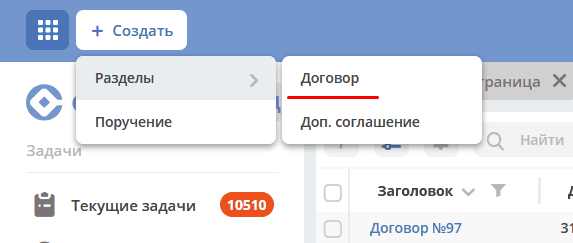
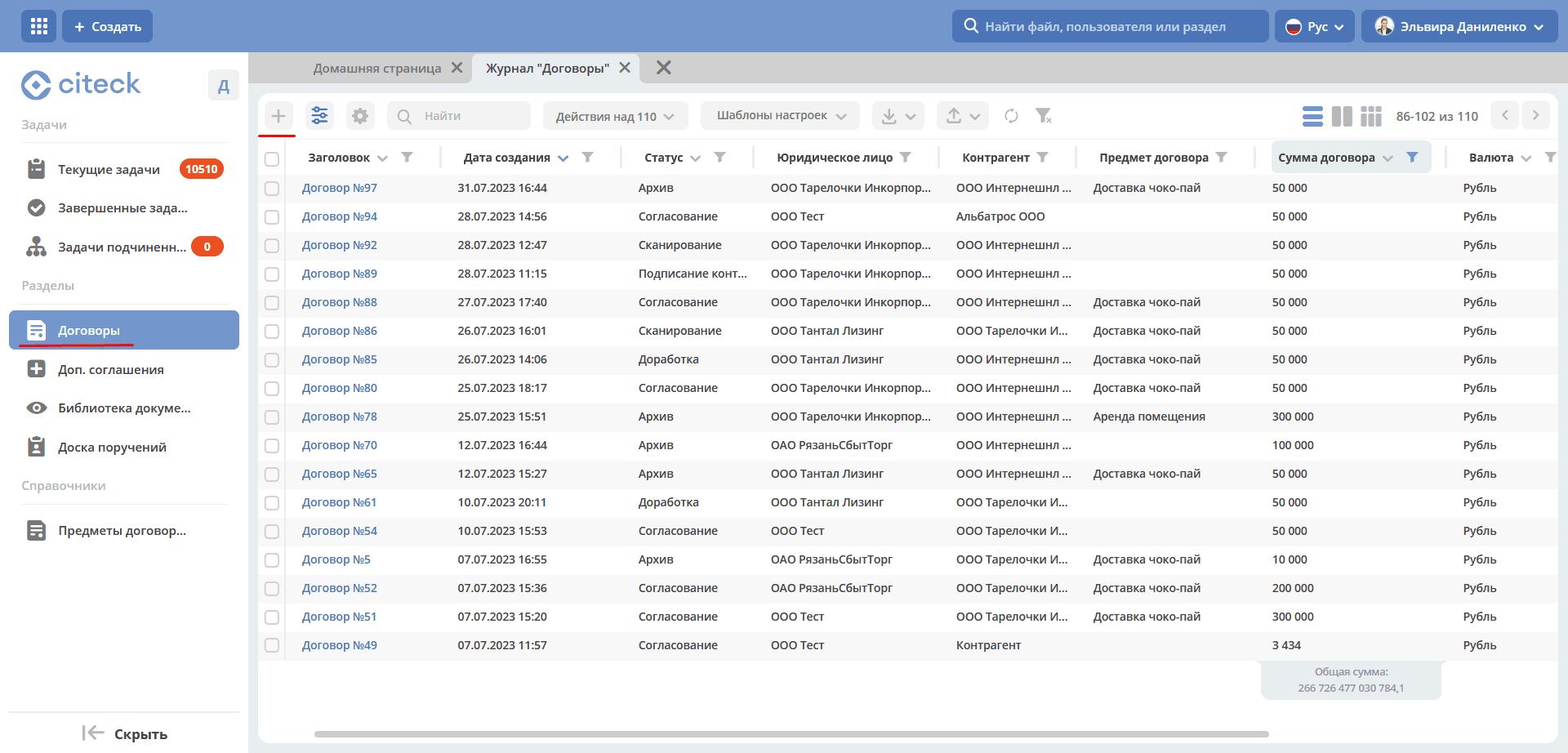
or from the «Contracts» journal:
The contract creation form becomes available on the screen:
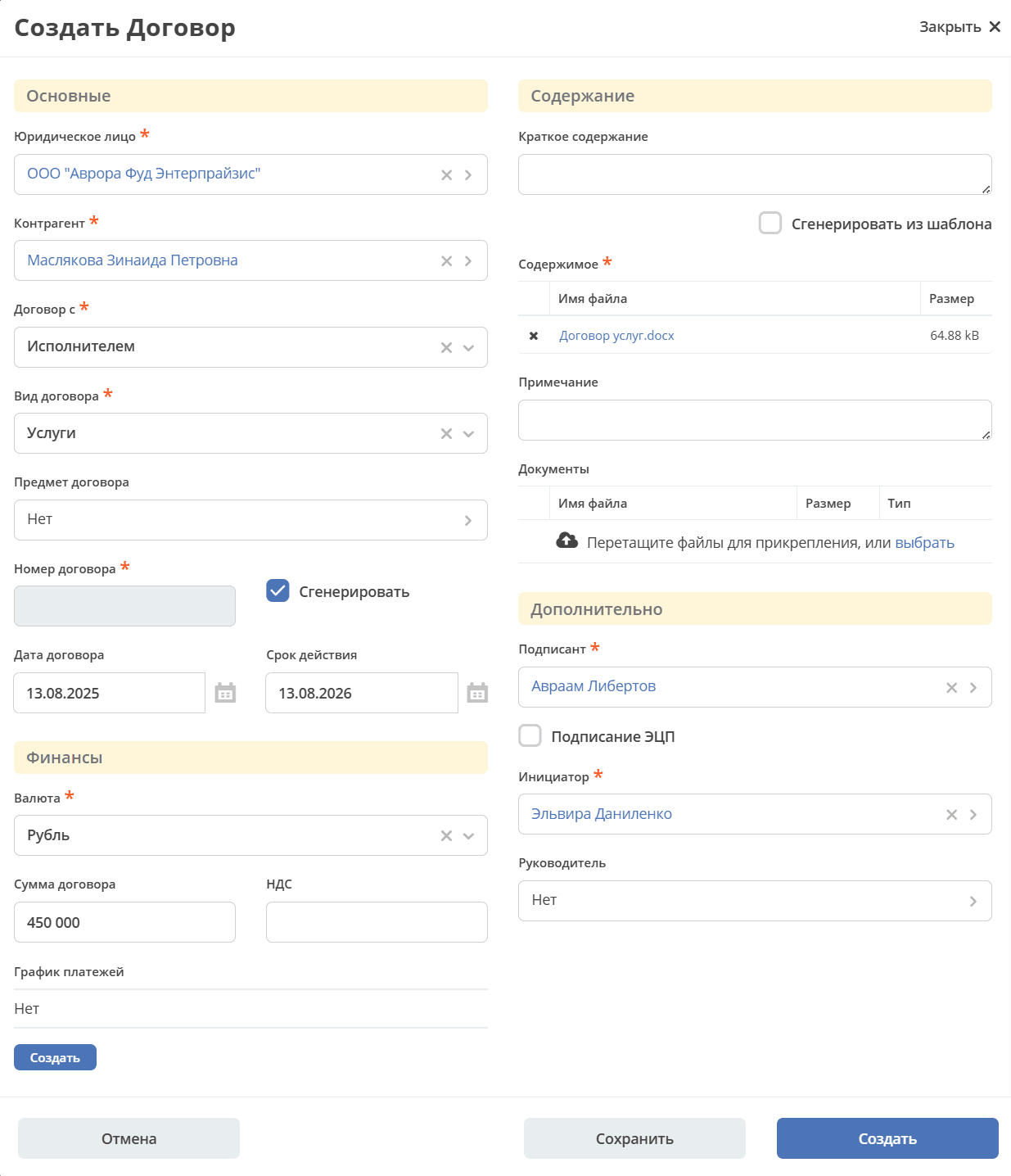
Required card fields:
Legal Entity;
Counterparty;
Contract with;
Contract Type;
Currency;
Content;
Signatory.
Initiator (automatically filled with the user creating the card, can be changed).
To send the Contract for processing, it is necessary to fill in the required attributes on the creation form, add a file, and click the «Create» button. Required attributes are marked with «*».
By default, the Contract Date is equal to the creation date, Validity Period = Contract Date + 1 year. Can be changed.
If the «Generate from template» checkbox is checked, the attached file will be generated from a template based on the entered data.
If it is not possible to fill in all required attributes, the Contract can be saved with the status «Draft». To do this, click «Save». Subsequently, the contract draft can be edited, saved again, or sent for processing after filling in the required attributes.
All contracts created in the System (including contracts with the «Draft» status) are displayed in the «Contracts» journal.
If the «Cancel» button is clicked, the creation form closes without saving the contract in the System.
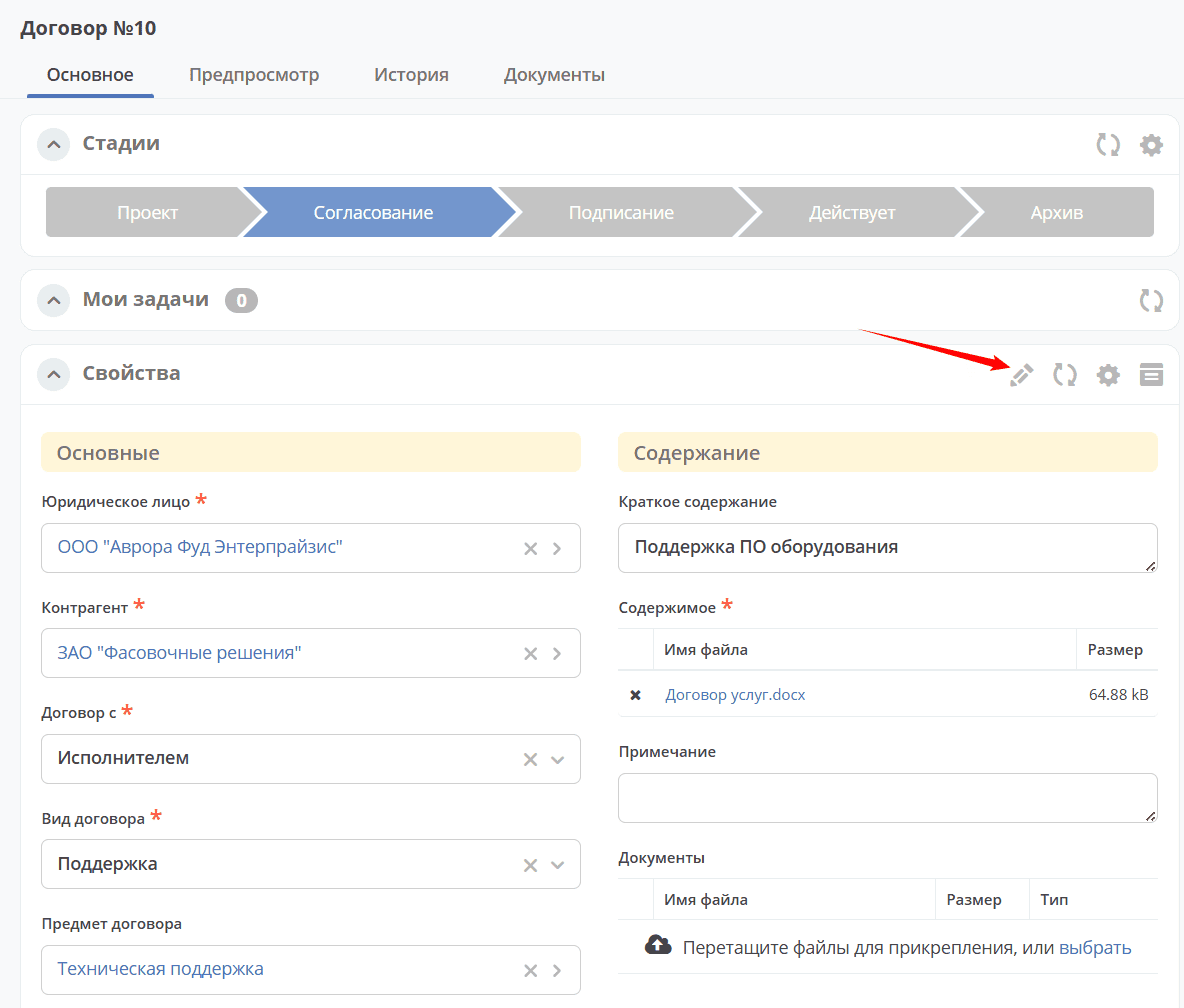
Contract Card with Widgets
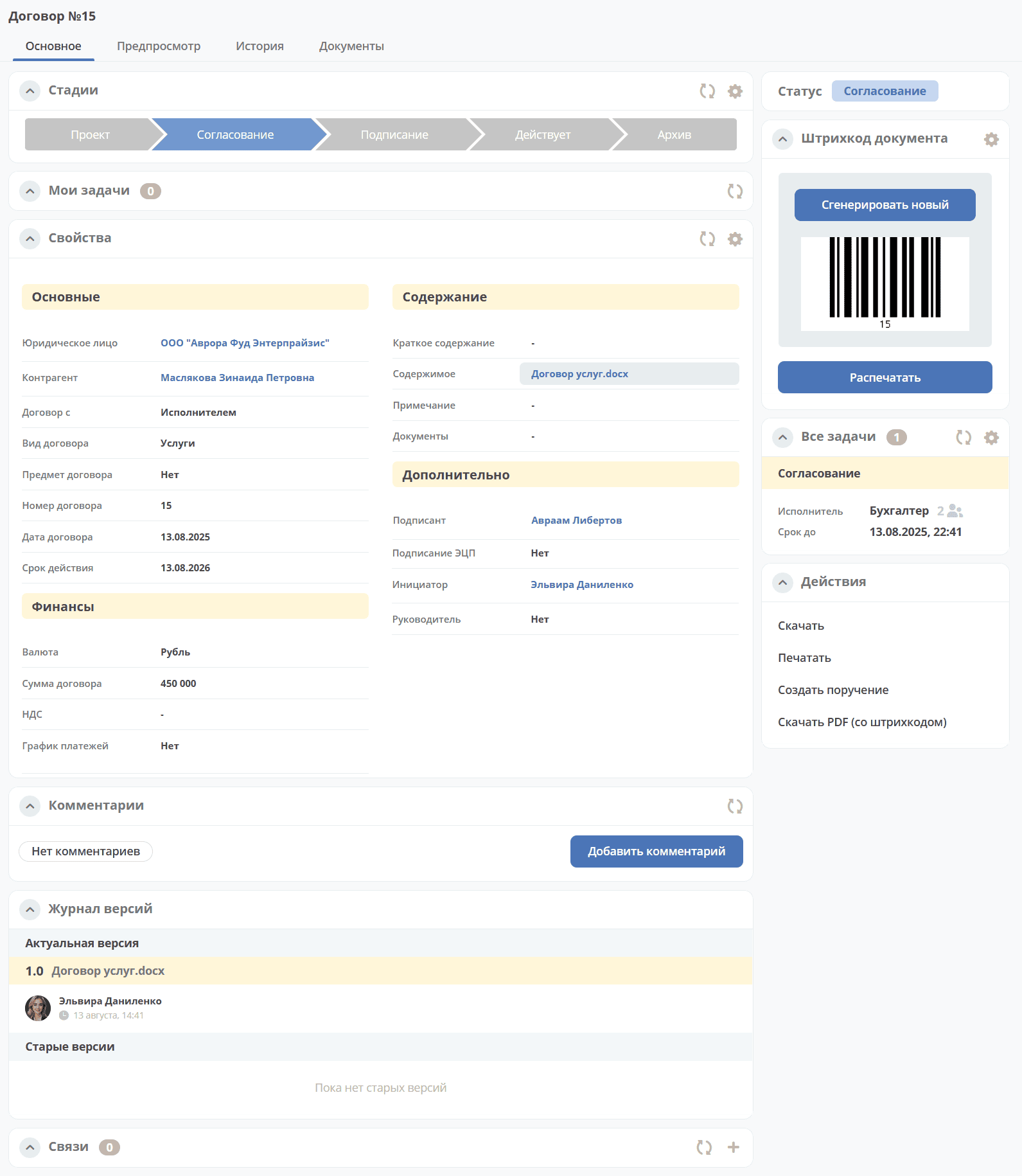
Details about widgets.
Working with a Contract in Various Statuses
You can navigate to the Contract in any status in one of three ways:
by opening a task in the «Current Tasks» Journal;
by opening the Contract in the «Contracts» Journal;
by following the link from the received notification.
After completion, the task will move to Completed Tasks.
Details about tasks.
Approval
The contract is approved sequentially by the Accountant, Director.
In the «Approval» status, the following task completion options are available:
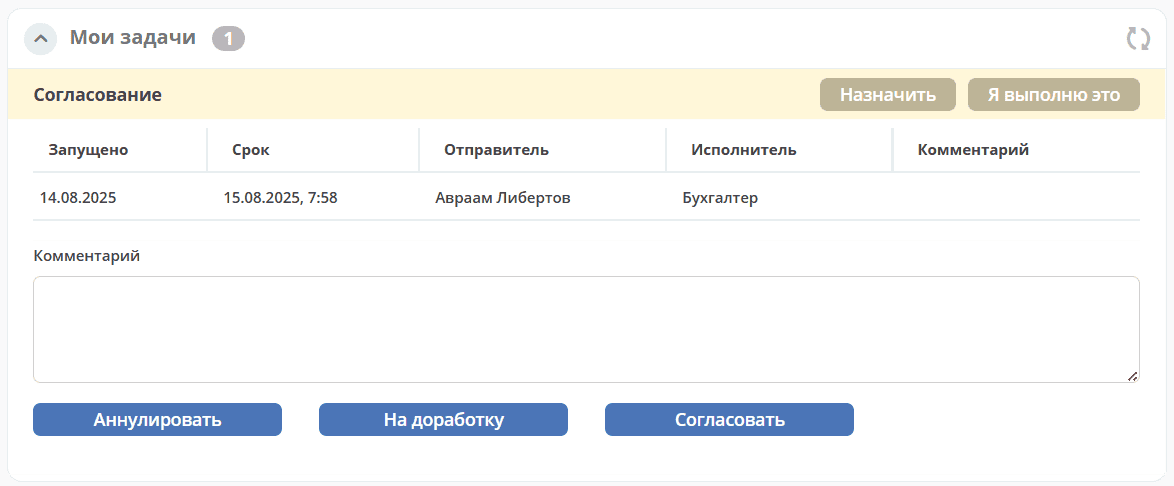
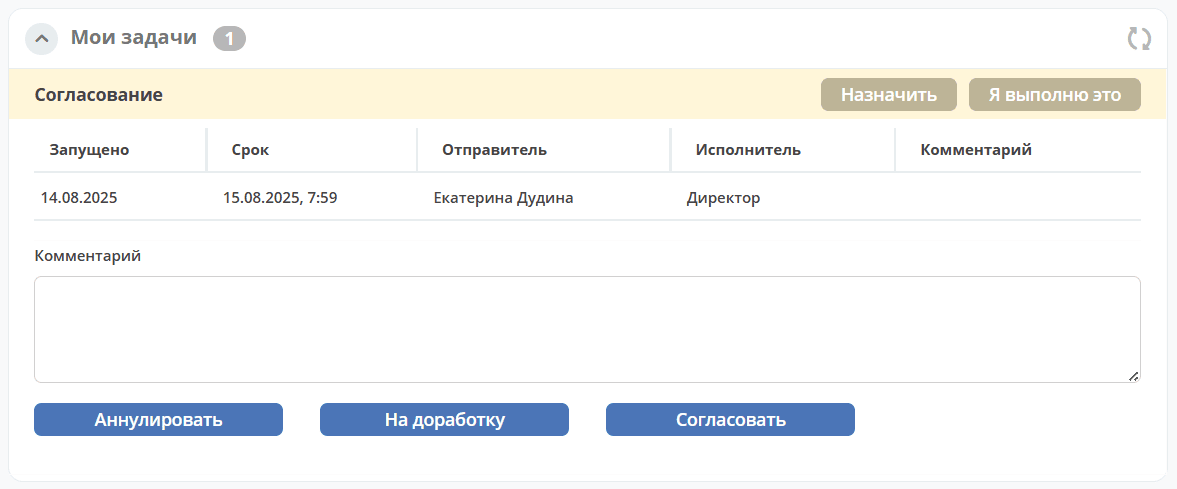
«Cancel» - if approving the Contract is deemed inappropriate. The contract moves to the «Canceled» status.
«Send for revision» - send to the Initiator for revision if there are controversial issues in the Contract. Add a comment. The contract will move to the «Revision» status. A notification will be sent to the Initiator of the contract.
«Approve» - The Contract moves further along the business process. A notification will be sent to the task executor.
Signing
The Contract is signed on behalf of the company by the Director.
In the «Signing» status, the following task completion options are available:
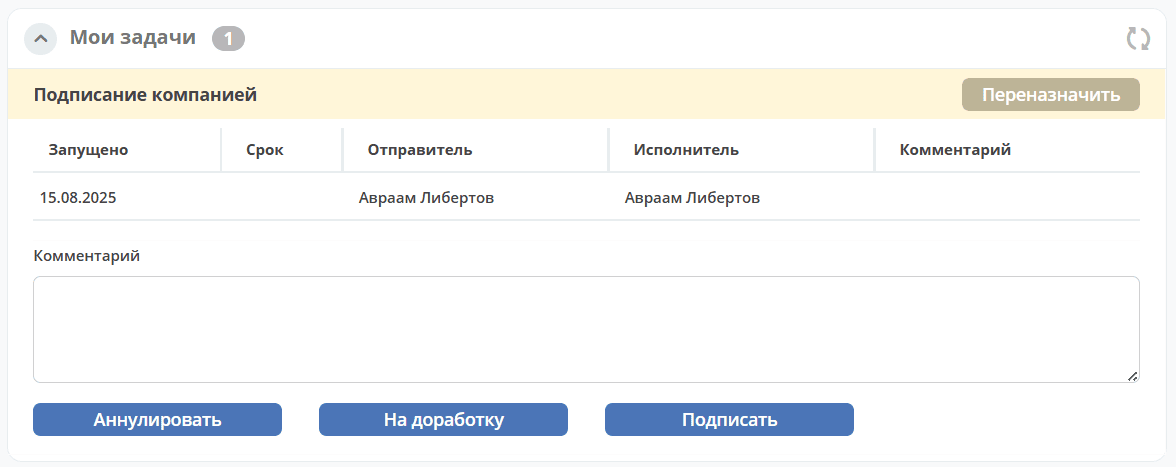
«Cancel»- if approving the Contract is deemed inappropriate. The contract moves to the «Canceled» status.
«Send for revision»- send to the Initiator for revision if there are controversial issues in the Contract. Add a comment. The contract will move to the «Revision» status. A notification will be sent to the Initiator of the contract.
«Sign» - The Contract moves further along the business process. A notification will be sent to the task executor.
Signing by Counterparty
The contract card is signed on behalf of the counterparty by the Initiator.
In the «Signing by Counterparty» status, the following task completion options are available:
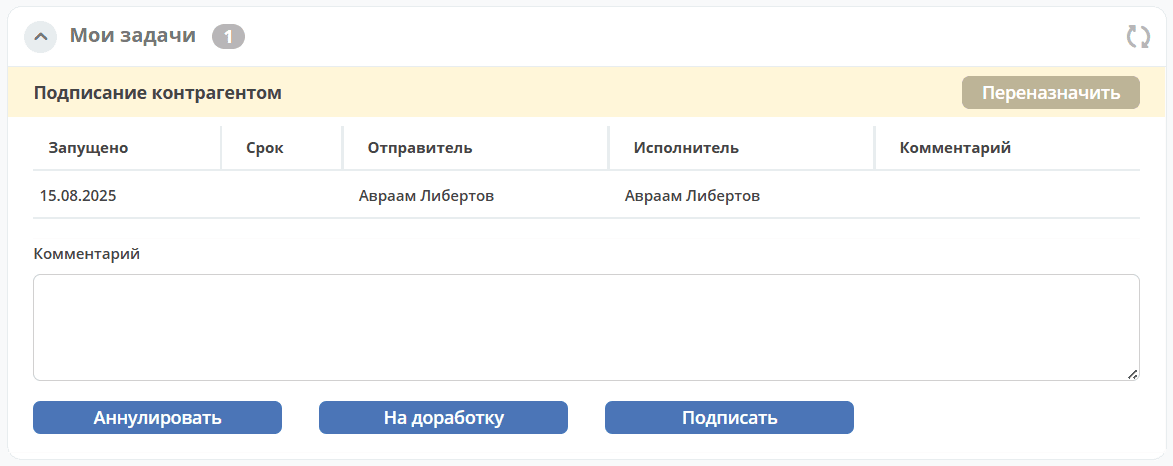
«Cancel» - if approving the Contract is deemed inappropriate. The contract moves to the «Canceled» status.
«Send for revision»- send to the Initiator for revision if there are controversial issues in the Contract. Add a comment. The contract will move to the «Revision» status. A notification will be sent to the Initiator of the contract.
«Sign» - The Contract moves further along the business process. A notification will be sent to the task executor.
Revision
Contract revision is available to the Initiator.
In the «Revision» status, the Initiator has the following task completion options:
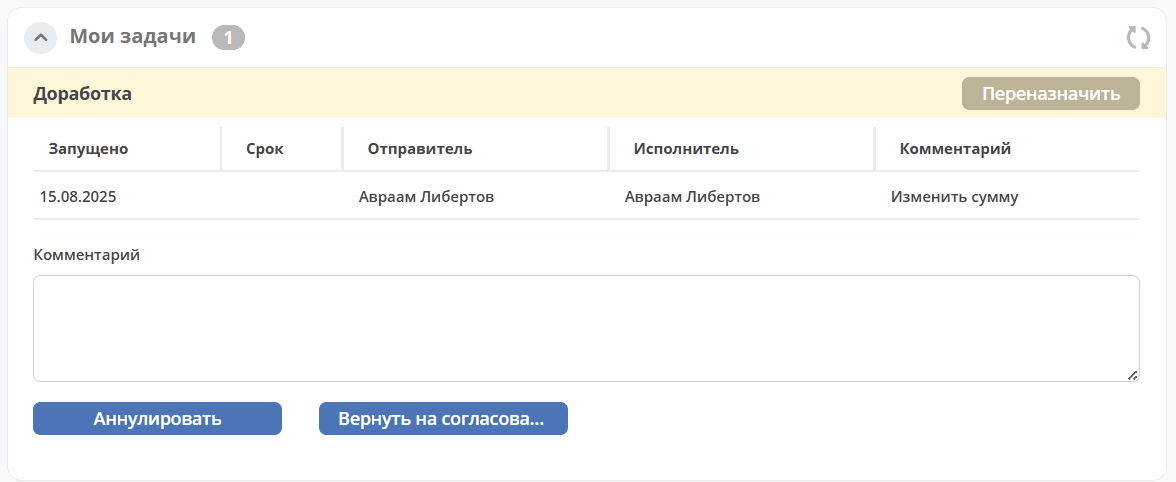
The Initiator studies the comments left by the Approver in the Comment field, assesses the feasibility of revising the Contract. Using the actions «Edit Properties» and «Edit Document», makes changes and makes a decision:
«Cancel» - if revising the Contract is deemed inappropriate. The contract moves to the «Canceled» status.
«Return for approval» - if the Initiator has completed the revision of the Contract. The contract returns to the status from which it was sent for revision. A notification will be sent to the task executor.
Scanning
The contract signed by both parties is scanned by the Records Manager.
In the «Scanning» status, the following task completion options are available:
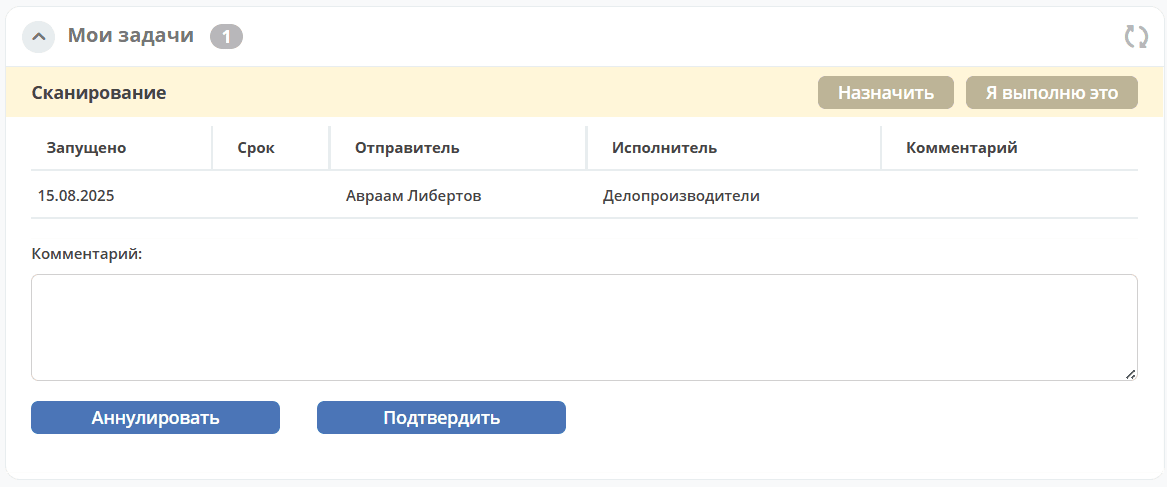
In the «Documents» widget, under the Scanned Documents type:
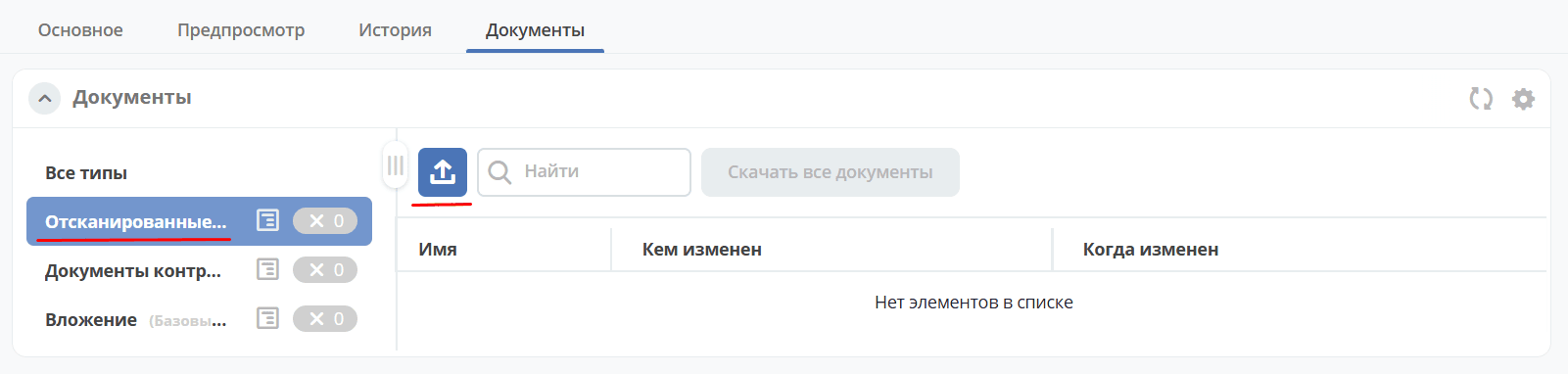
The Records Manager adds a scanned copy of the signed Contract:
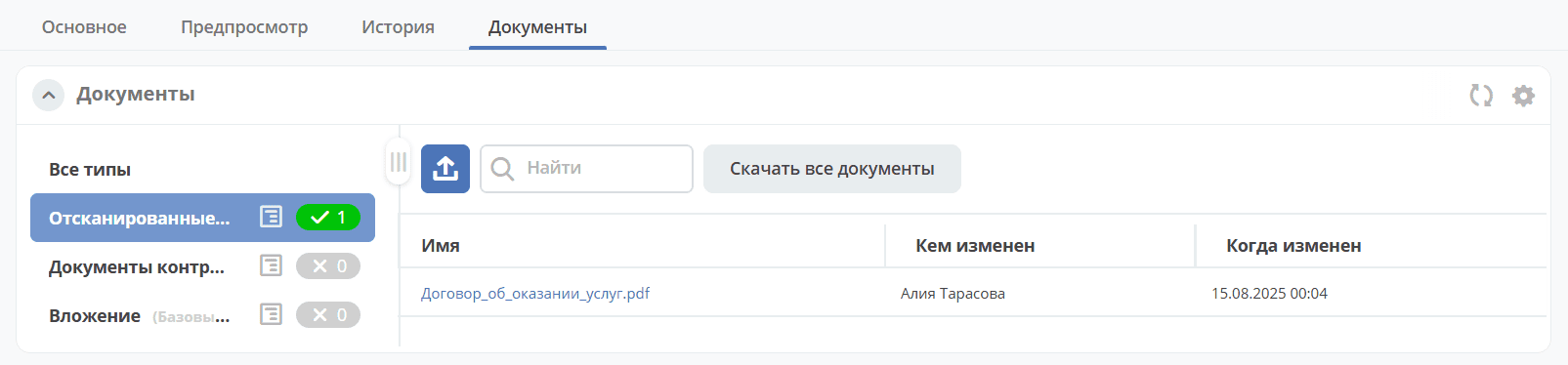
and completes the task by selecting an option:
«Cancel» - the contract moves to the «Cancellation Request» status, a task «Confirm Cancellation» will be assigned to the Initiator.
«Confirm» - The Contract moves to the final status «Active».
Cancellation Request
The «Cancellation Request» for the contract is processed by the Initiator.
In the «Cancellation Request» status, the Initiator has the following completion options for the task «Confirm Cancellation»:
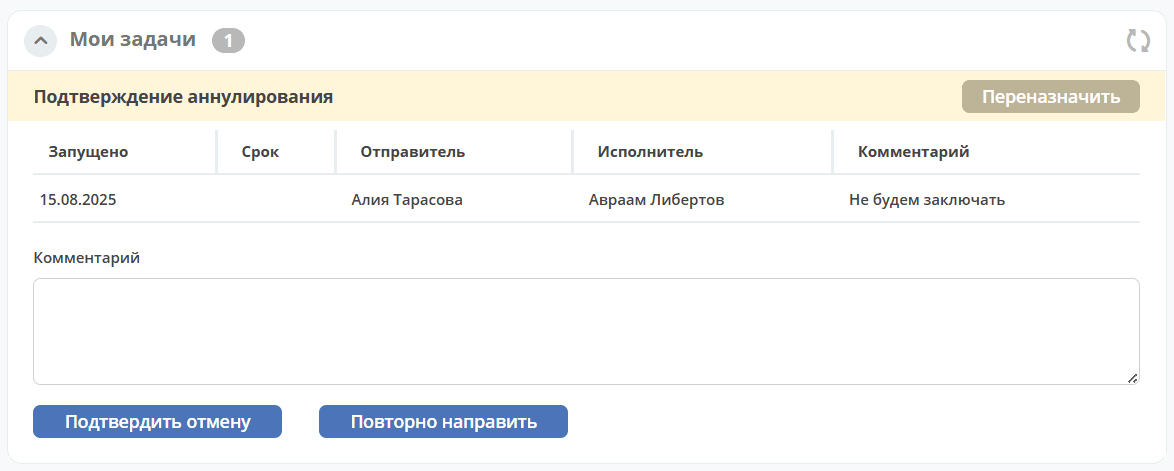
«Confirm Cancellation» - The Contract moves to the status «Canceled».
«Resubmit» - the contract moves to the status «Approval». A notification will be sent to the task executor.
Adding Documents to the Contract
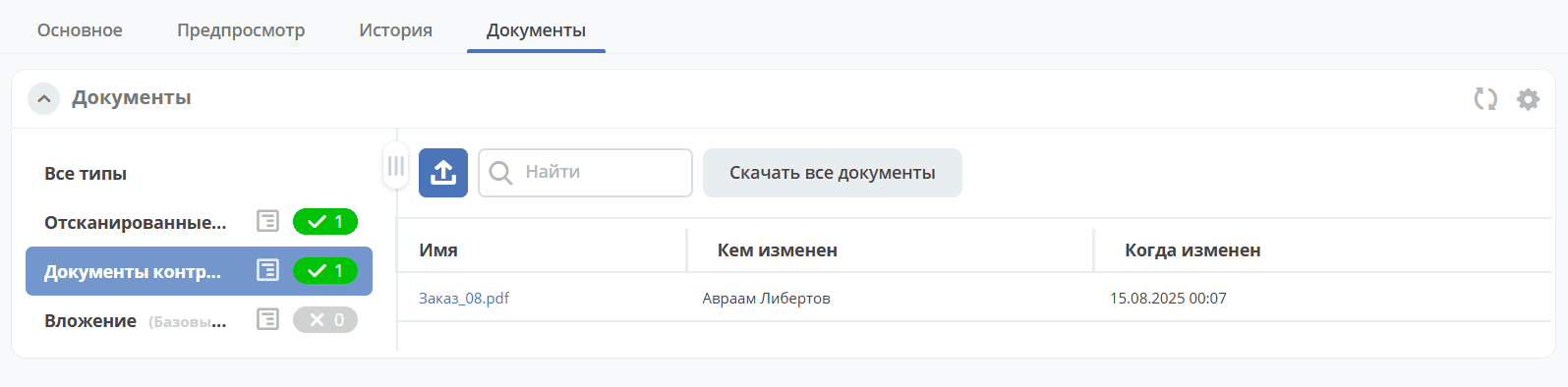
Two types of documents can be added to the contract card: scanned documents and counterparty documents.
To add documents, go to the «Documents» widget, select the type, and click to upload
Contract Actions
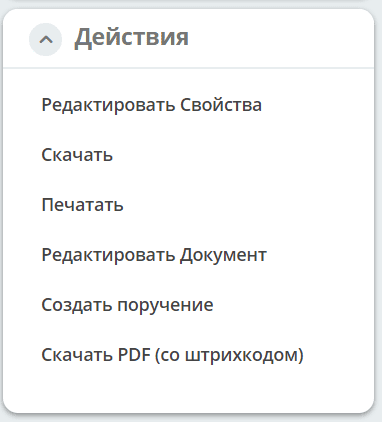
Main Actions
For details on basic actions in the card, see details
Create Assignment
An assignment can be created from the document card by selecting the action «Create Assignment». See details: Creating an assignment from the card
Changing the Initiator
The Contracts Technologist can make changes to any contract card.
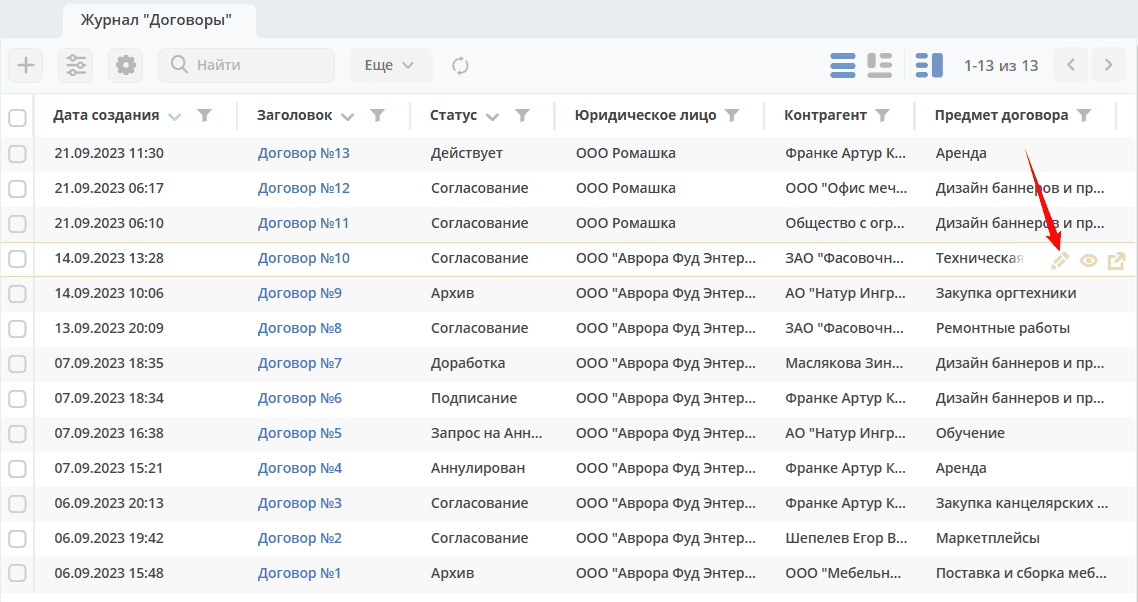
As a result of changing the value in the Initiator field, the new Initiator is granted rights according to the initiator rights matrix. The attribute value change is reflected in the event history in the card.