Meetings Module
The module is designed for planning, managing, and conducting meetings: maintaining the agenda and minutes.
The process includes the following documents:
Meeting |
A document that accumulates all information related to the process. |
Agenda |
A document containing information about the meeting agenda. |
Meeting Question |
Represents a question included in the agenda that requires a resolution. |
Meeting Minutes |
A document containing information about the meeting minutes, includes a list of decisions. |
Decision |
Represents the resolution for questions outlined in the agenda. |
Business Process Diagram
Meeting

Decision
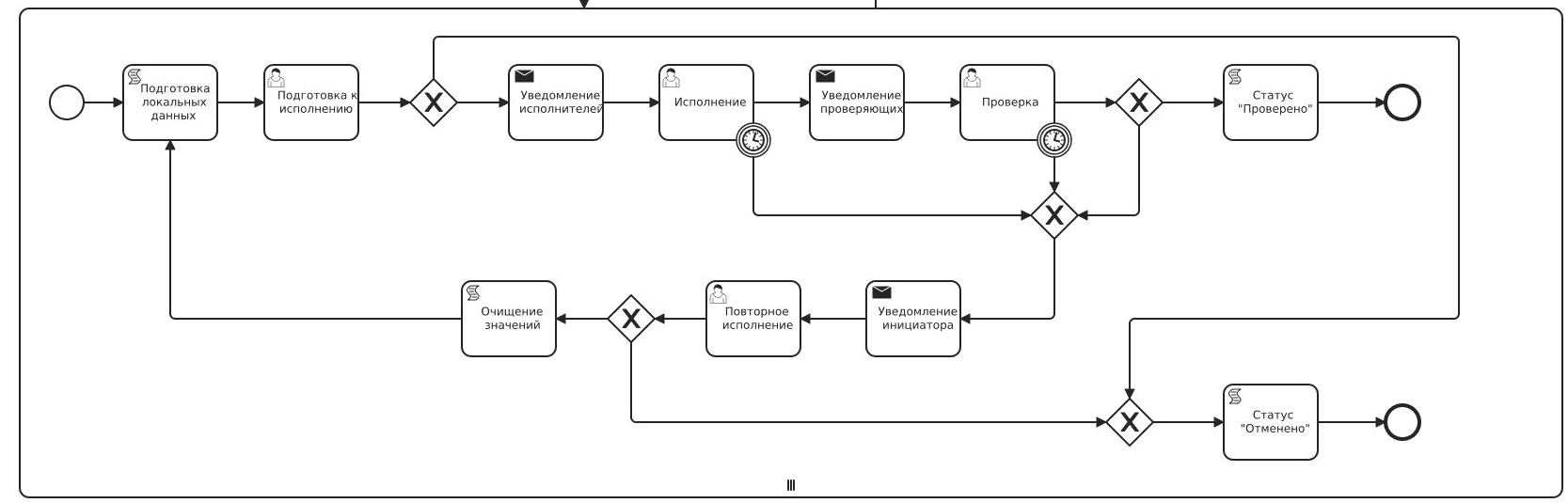
Roles
Initiator |
The employee organizing the meeting. |
Recipients |
Employees who review the meeting agenda. |
Approvers |
Employees who approve the minutes. |
Assignees |
Employees who execute the meeting decision. |
Reviewers |
Employees who review the execution of the meeting decision. |
Statuses
New |
The Initiator has created the meeting and the ‘Agenda’ document, and filled it with questions for discussion. |
Preparation for Review |
The Initiator assigns individuals for review. Based on this information, review tasks are created. |
Under Review |
Assigned individuals receive a review task, during which they review the agenda items and confirm their review. |
Review Completed |
An automatic status when all individuals assigned for review have confirmed awareness, but the meeting time has not yet arrived. |
Meeting Held |
Upon the meeting time (regardless of whether everyone has reviewed), a task to create meeting minutes is automatically assigned to the Initiator. The minutes outline resolutions for the discussed questions. |
Preparation for Approval |
The Initiator assigns individuals who will approve the minutes. Between 1 and 3 approvers are assigned. |
Under Approval |
Assigned individuals receive tasks sequentially, aimed at reviewing the minutes for correctness and expressing agreement. |
Minutes Revision |
The minutes have been sent back to the Initiator for revision. |
Minutes Approved |
The task is assigned to the Initiator, but the main part of its execution is delegated to the Decisions outlined in the minutes.
The Initiator must navigate to each decision’s document and initiate their execution process, and then monitor the achievement of decision execution from the main document (Meeting). When all decisions are in statuses of successful execution or cancellation, the task can be closed.
|
Decision Execution |
The Assignee executes their task according to the Decision and confirms readiness. |
Execution Review |
All decisions are in statuses ‘Reviewed’ or ‘Cancelled’. |
Closed |
The final status of working with the meeting. |
Available Workspace
The module is available in the workspace Clerical work.
Journal
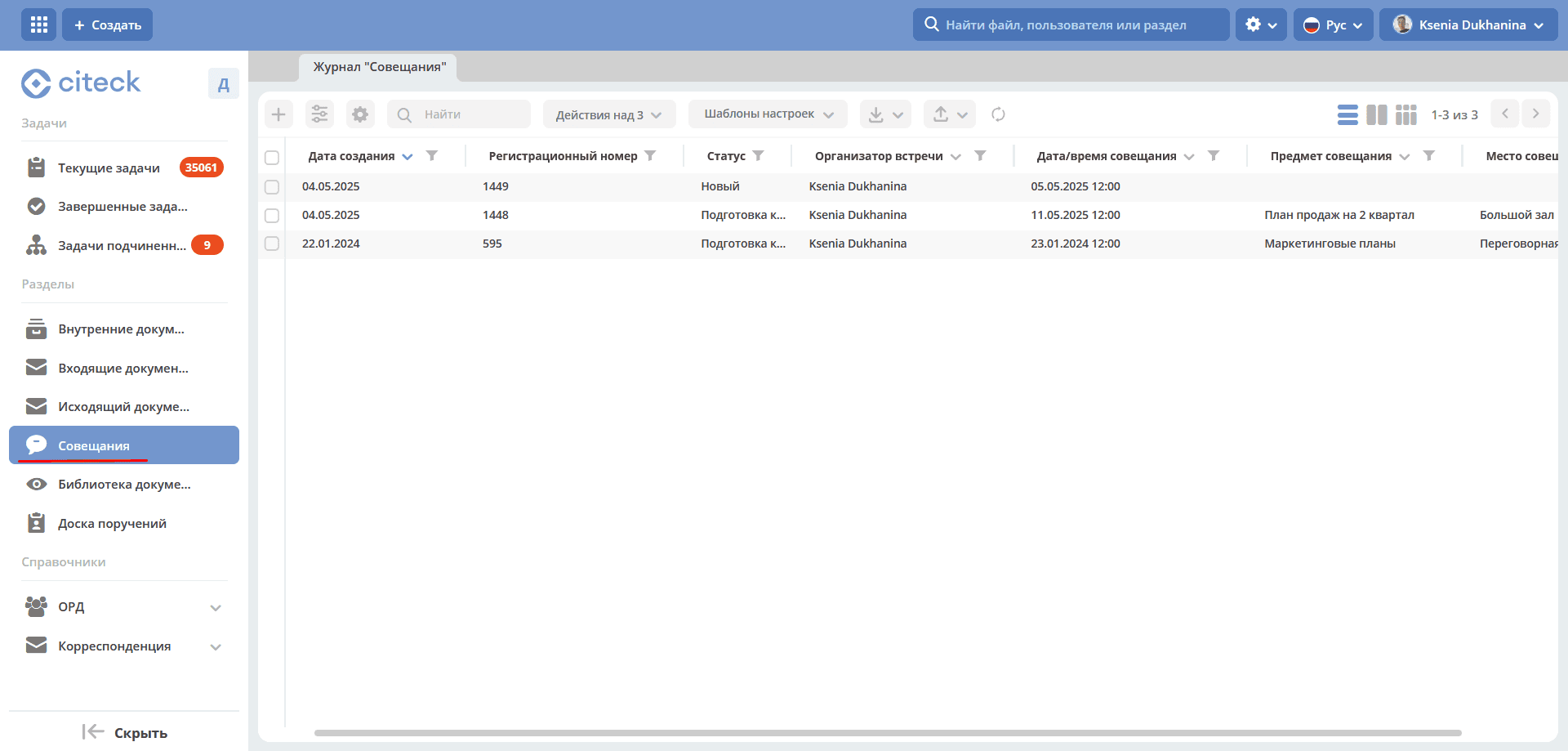
Meeting Card with Widgets
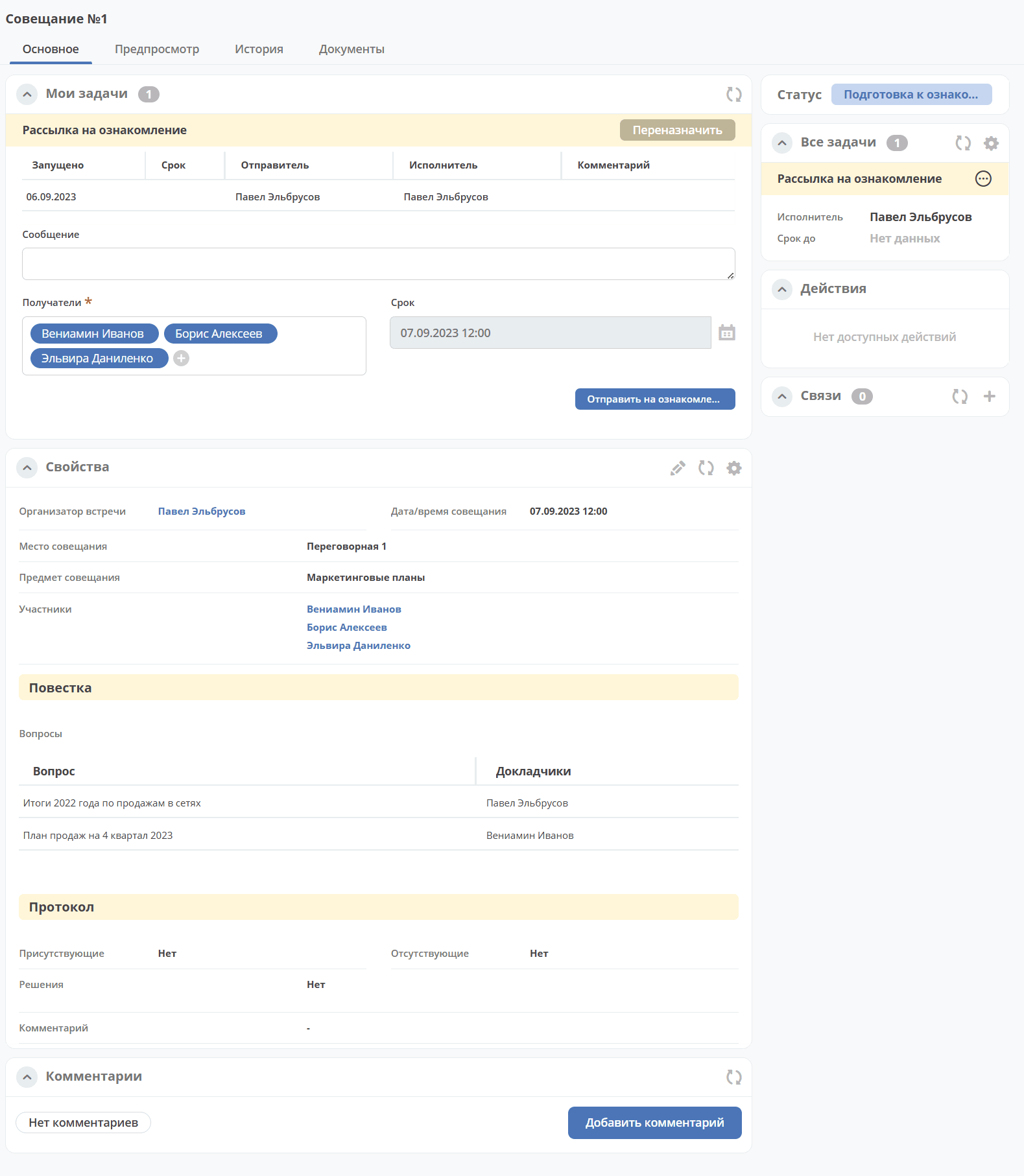
Details about widgets.
Meeting Work Process
Step 1. Creating a Meeting, Meeting Agenda
Creation is possible either using the quick create button:
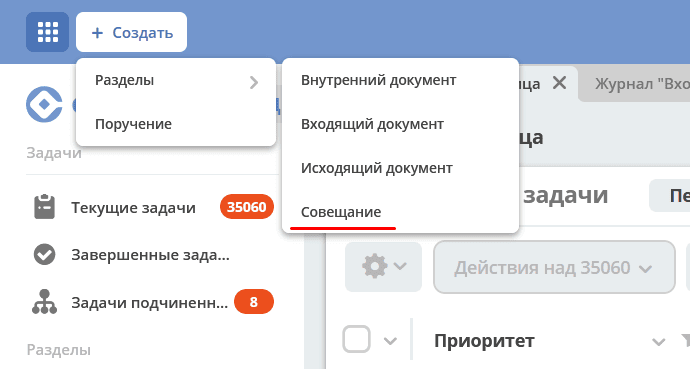
or from the «Meetings» journal:
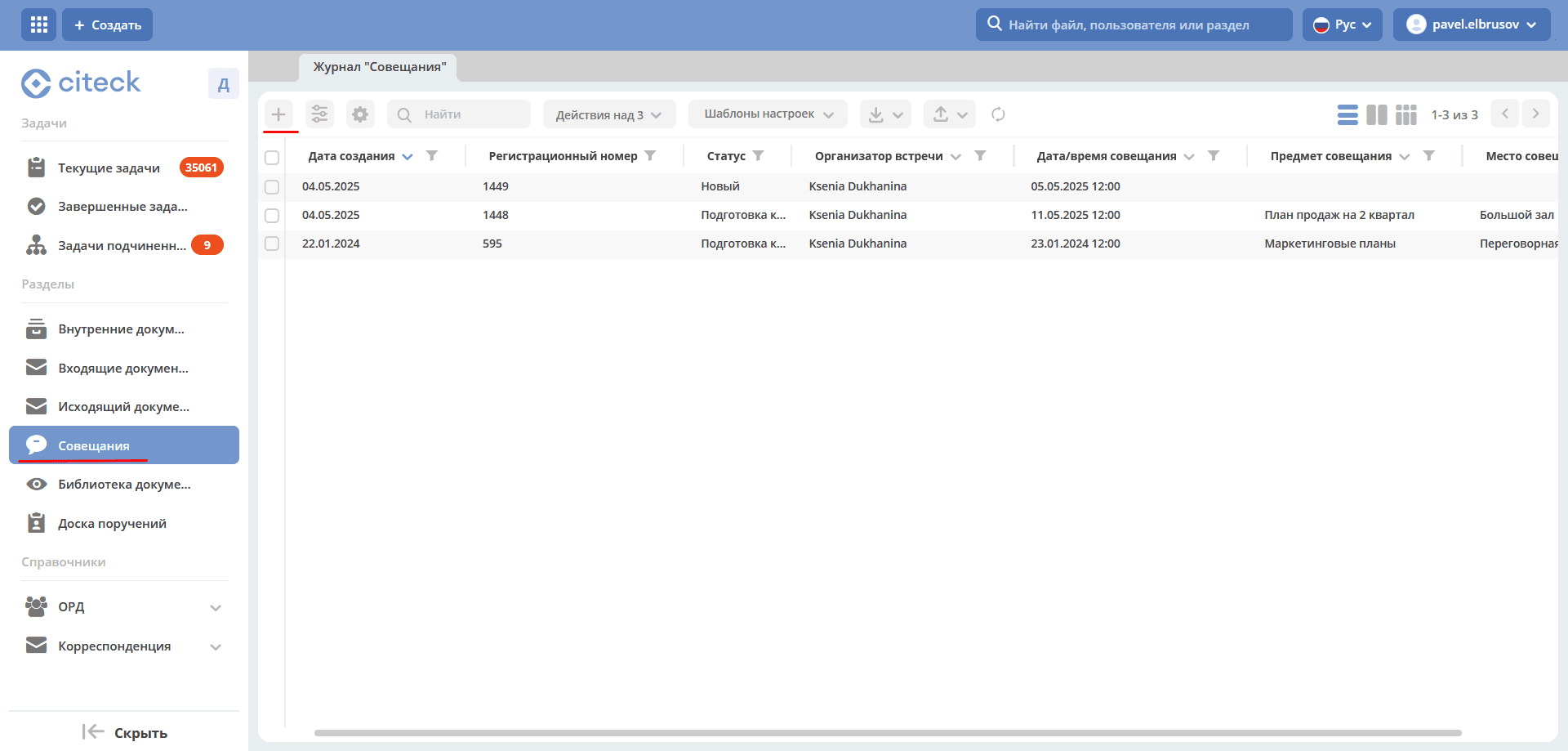
The form for creating a Meeting becomes available on the screen:
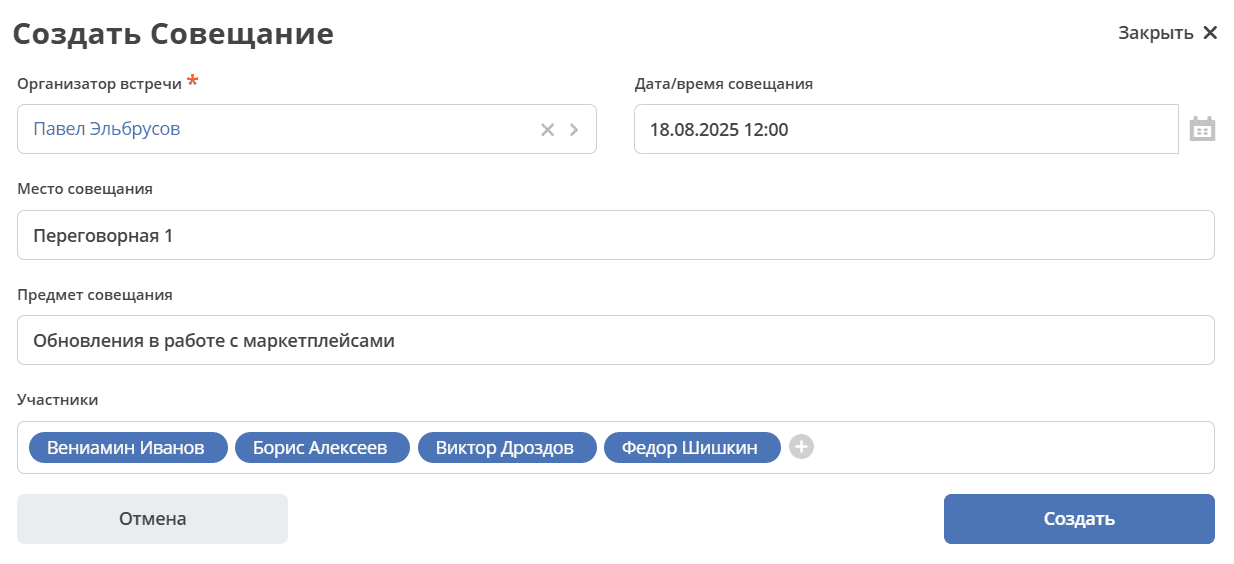
Fill in the mandatory fields marked * and click «Create». The meeting status becomes «New».
The system creates a task «Create Agenda», which is assigned to the Initiator.
You can navigate to a meeting in any status in one of three ways:
by opening a task in the «Current Tasks» Journal;
by opening the meeting in the «Meetings» Journal;
by following the link from the received notification.
Details about tasks.
Step 2. Creating the Meeting Agenda
The Meeting card opens in a separate tab:
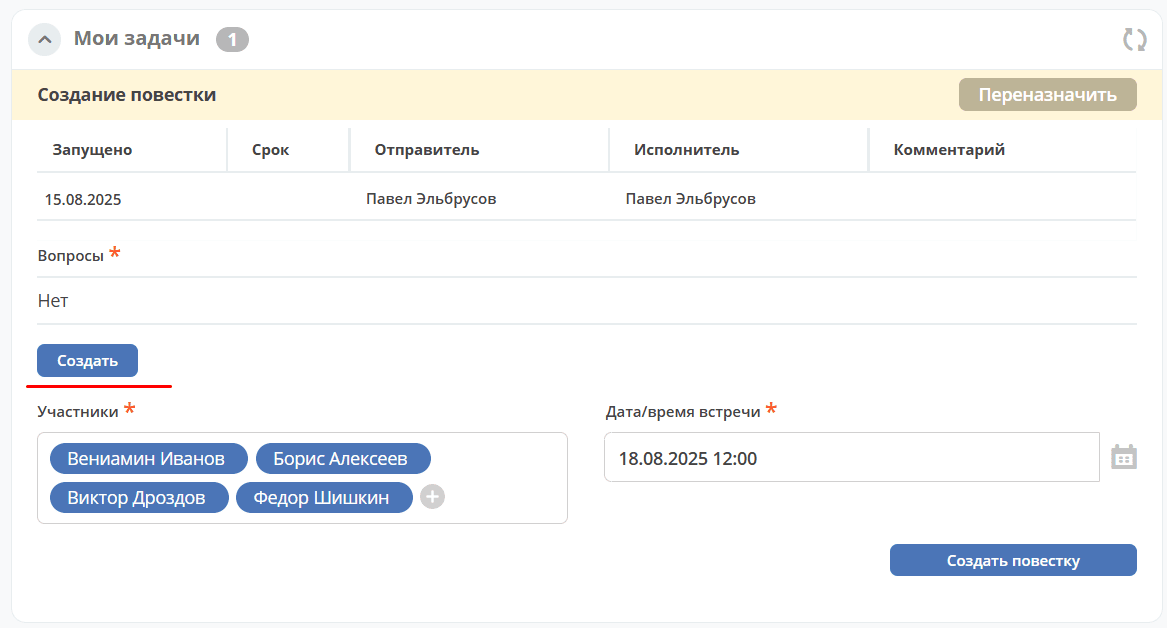
Click «Create». In the form, add presenters, specify the question for discussion, click «Accept» to save.
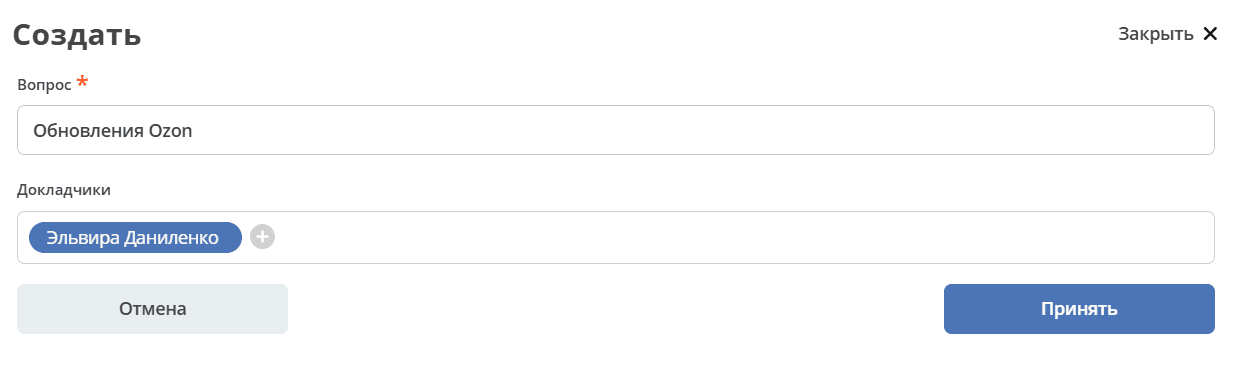
Multiple questions can be added to the agenda.

You can also change the meeting date/time, list of participants.
To save the agenda, click «Accept».
To complete the task in the «My Tasks» widget, click «Create Agenda».
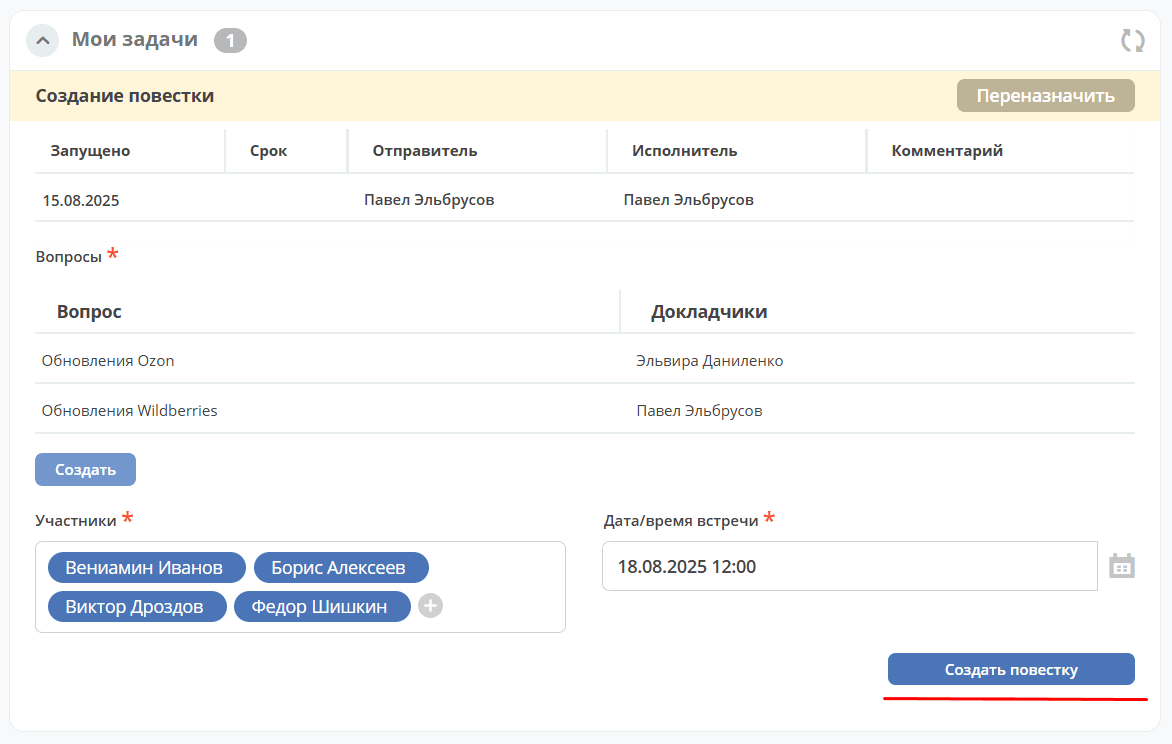
The meeting status becomes «Preparation for Review».
Step 3. Sending for Review
The system creates a task «Preparation for Review», which is assigned to the Initiator.
The Meeting card opens in a separate tab:
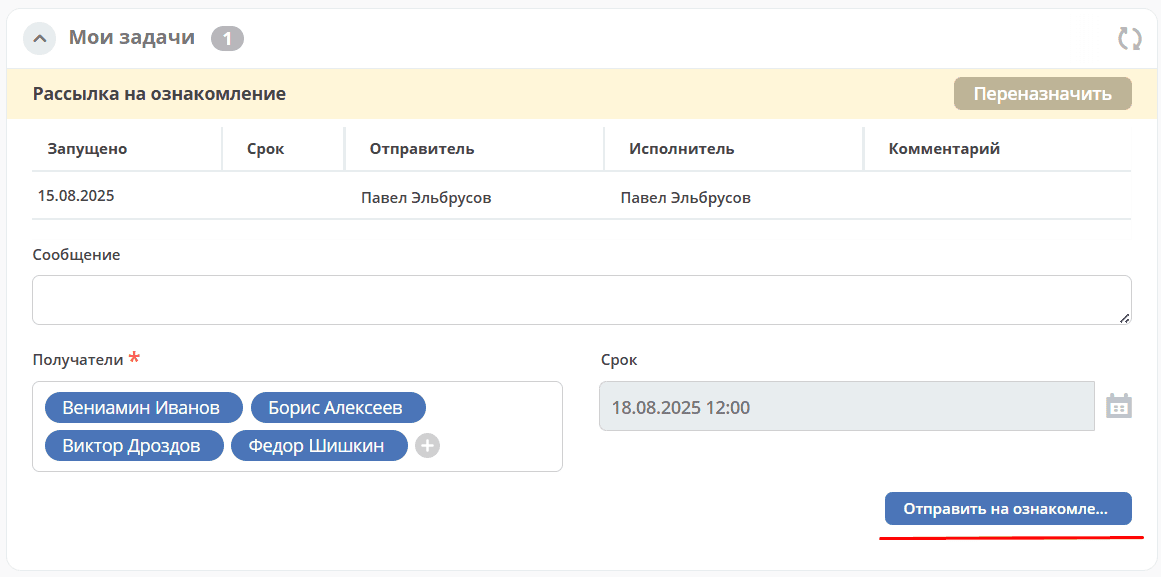
You can add Recipients (those who should review the meeting agenda) using the «Add» button, specify a message if necessary, to complete the task click «Send for Review».
The meeting status becomes «Under Review».
Step 4. Review
The Recipients selected in steps 1, 3 receive a review task, during which they review the agenda items created in step 1 and confirm their review.
The Meeting card opens in a separate tab:
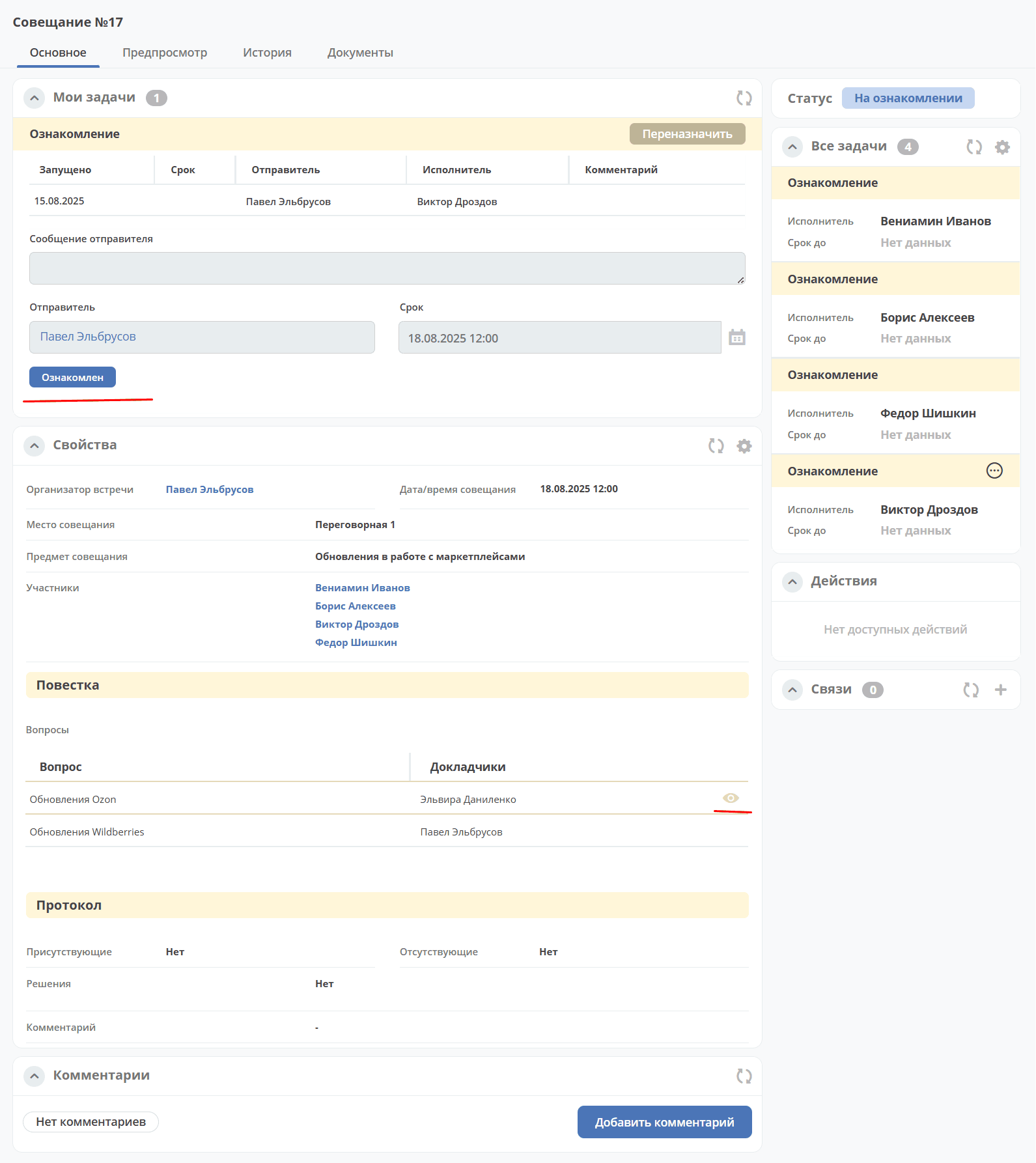
To view the meeting agenda questions in detail, click the eye icon.

To complete the task, click «Reviewed».
When all Recipients confirm their review, and the meeting time has not yet arrived, the meeting status will automatically change to «Review Completed».
Step 5. Creating Minutes
Upon the meeting time (regardless of whether all participants have reviewed), a task to create meeting minutes is assigned to the Initiator, similar to the agenda from step 1.
The minutes outline resolutions for the discussed questions. The meeting status becomes «Meeting Held».
The Meeting card opens in a separate tab:
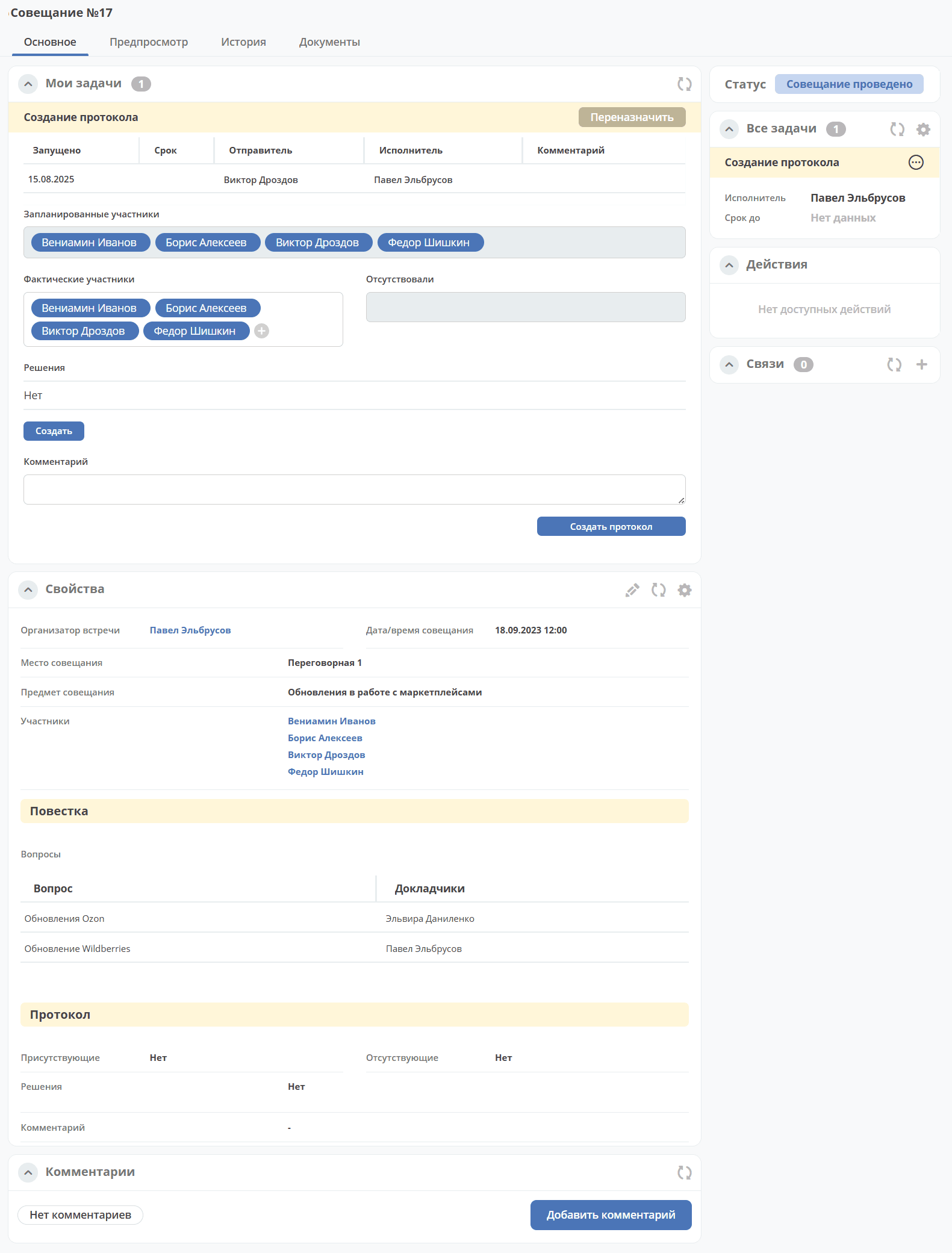
Recipients selected in steps 1, 3 are automatically listed in Actual Participants, additional participants can be added to the list. To mark participants as Absent, click:

Click «Create» to add decisions on questions discussed at the meeting. Select a question from the list, and specify its resolution:
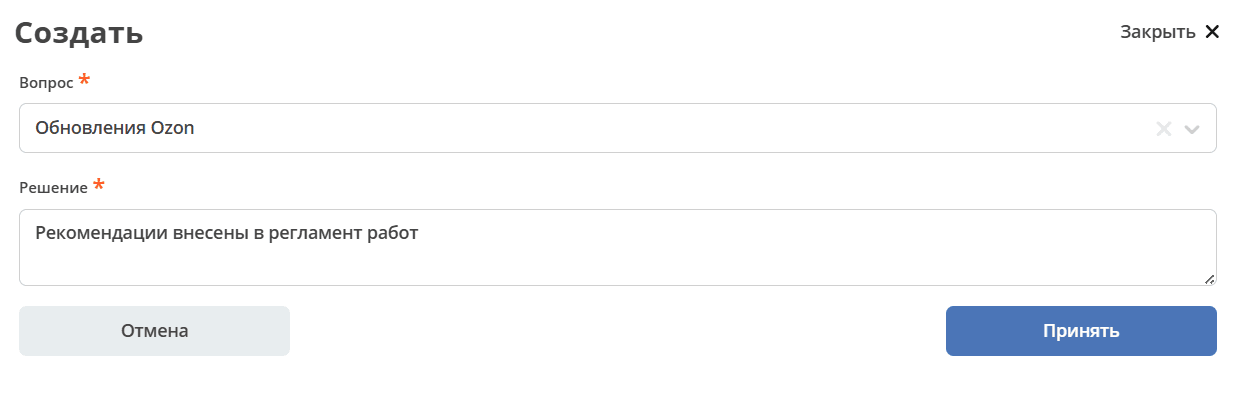
To save the decision on the question, click «Accept».
To complete the task in the «My Tasks» widget, click «Create Minutes».
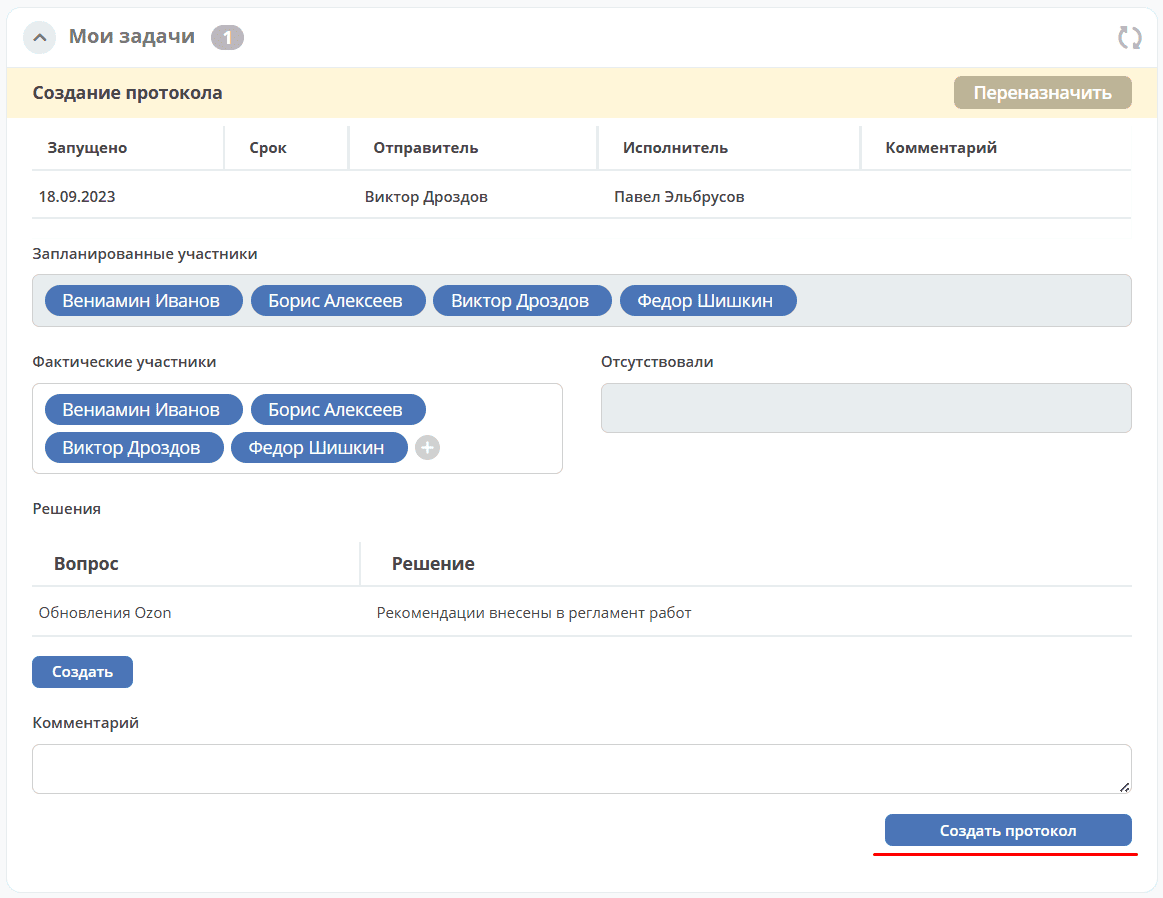
The meeting status becomes «Preparation for Approval».
Step 6. Assigning for Approval
The system creates a task «Assign for Approval», which is assigned to the Initiator.
The Meeting card opens in a separate tab:
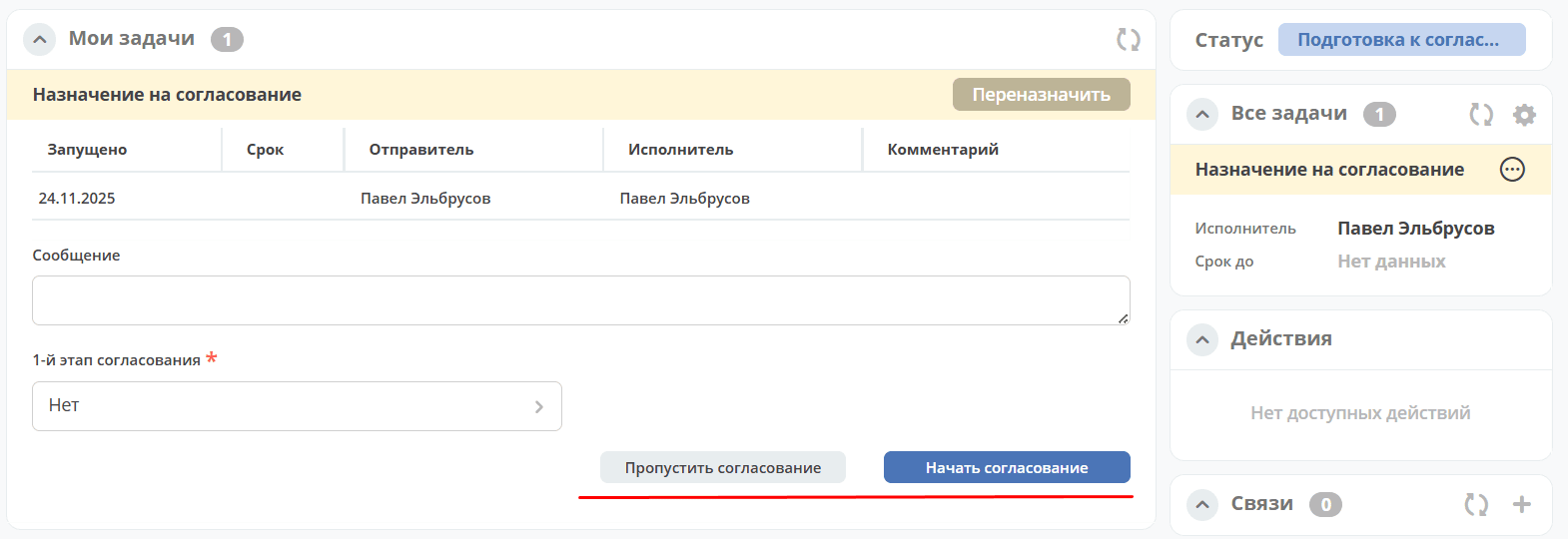
Approval can be skipped by clicking «Skip Approval». The meeting status becomes «Minutes Approved».
Or select Approvers for the minutes (a maximum of 3 stages can be assigned) using the «Select» button, specify a message if necessary, and to complete the task click «Start Approval».
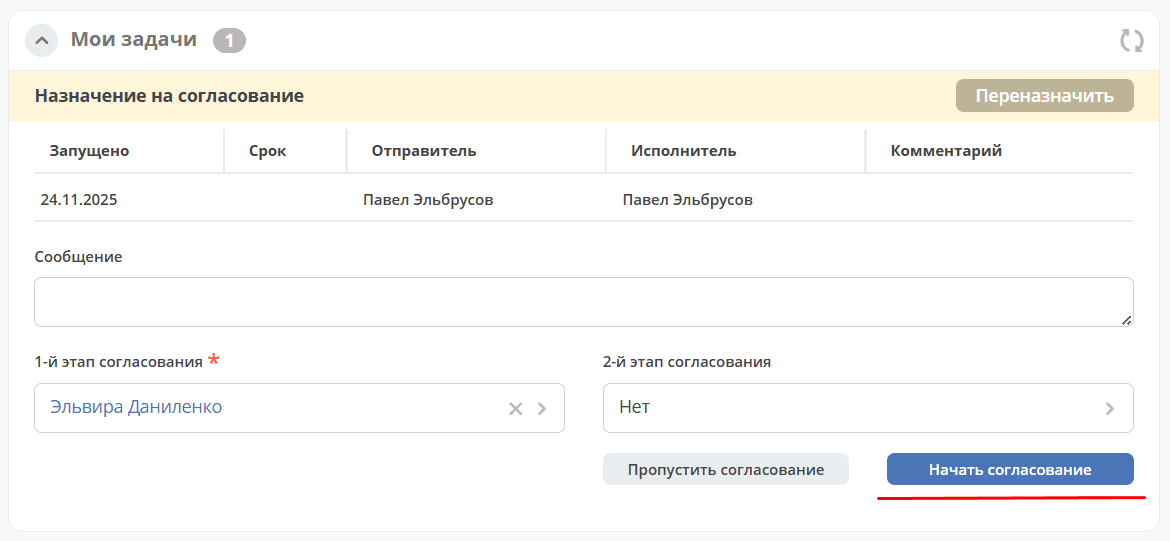
The meeting status becomes «Under Approval».
Approval
The Approvers selected in the previous step are sequentially assigned a task aimed at reviewing the minutes for correctness and expressing agreement.
The following options are available to complete the task:
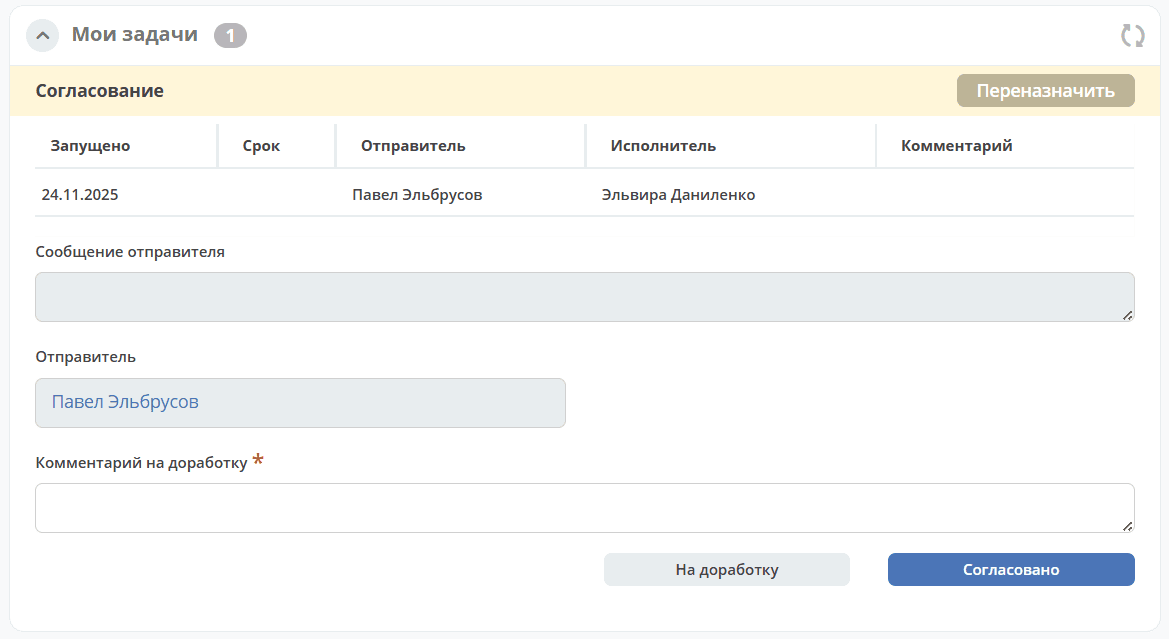
«Send for Revision» - send back to the Initiator for revision. Add a comment. The minutes will transition to status «Minutes Revision». A task «Revision» is assigned to the Initiator. The Initiator will receive a notification.
«Approved» - the minutes proceed further in the business process with status «Minutes Approved». A task «Execution Decision» is assigned to the Initiator. The Initiator will receive a notification.
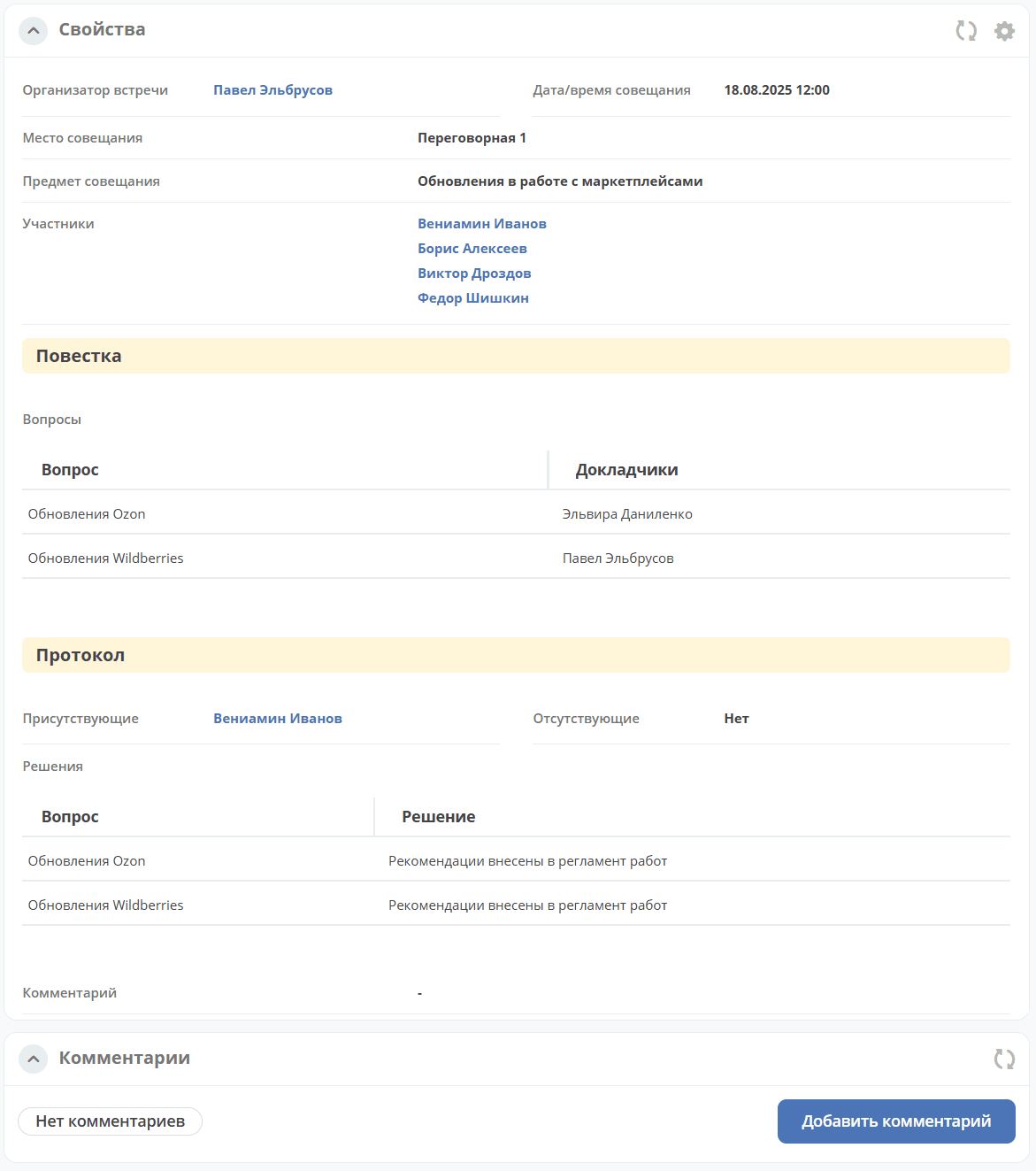
To view the agenda and meeting agenda resolution in detail, go to the «Properties» widget:
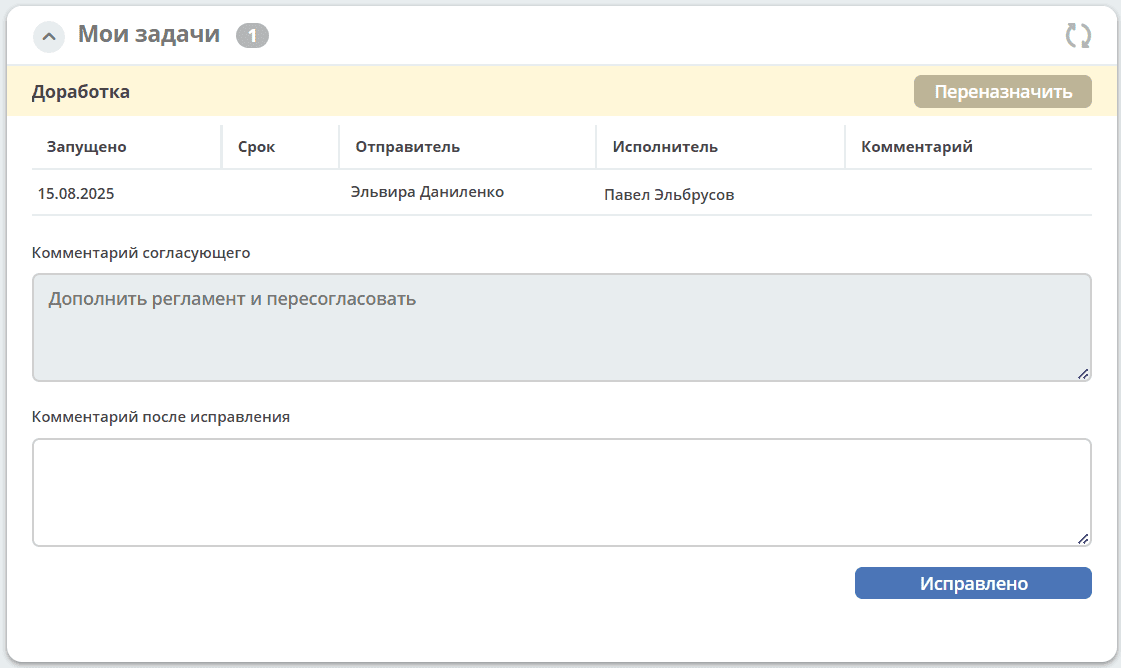
Minutes Revision
Minutes revision is available to the Initiator.
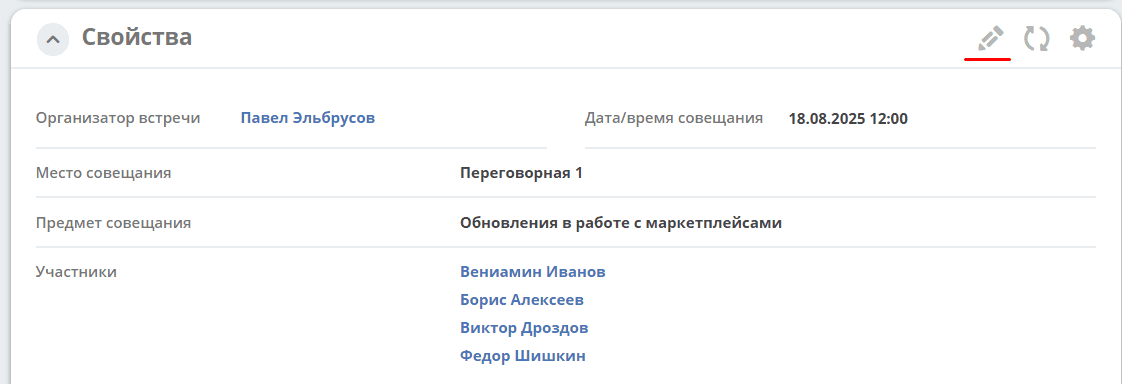
The Initiator navigates to the «Properties» widget and edits the necessary fields.
And to complete the task, clicks «Fixed». A comment can also be added in the «Comment after correction» field. The minutes are sent back for approval.
Step 7. Execution Decision
The task «Execution Decision» is assigned to the Initiator, but the main part of its execution is delegated to the Decisions outlined in the minutes.
Each Decision made as a result of the meeting can follow a separate execution and review route. The Initiator monitors the execution of decisions and closes the task upon achieving all execution results.
The Meeting card opens in a separate tab:
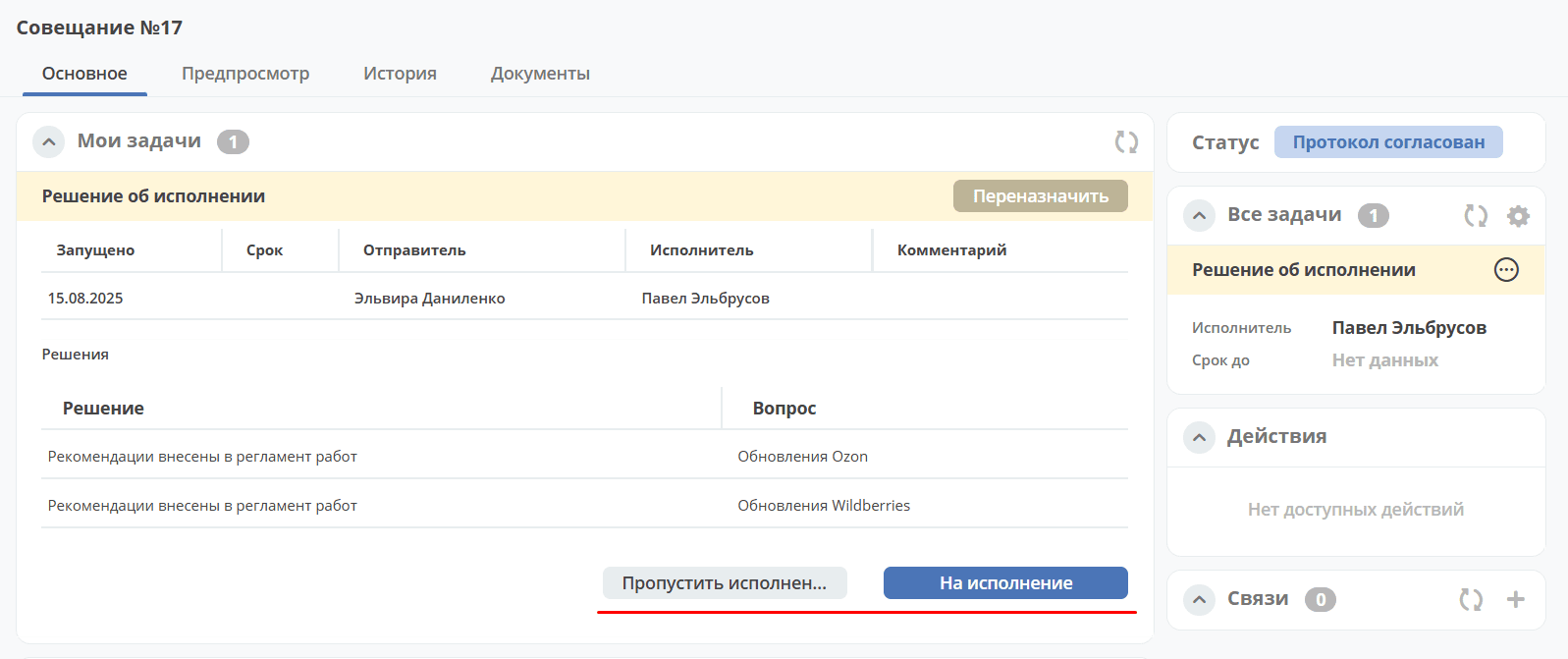
Decision execution can be skipped by clicking «Skip Execution». The meeting status becomes «Execution Review». And a task «Closing» is assigned to the Initiator.
Or click «To Execution»:
If execution is not necessary for the decision, click «Do Not Execute».
If decision execution is necessary, then select Assignees who will perform the corresponding task for this Decision, Execution Deadline and Review Deadline, specify a message if necessary and to complete the task click «Start Approval».
The Reviewer is set to the Initiator by default, can be changed.
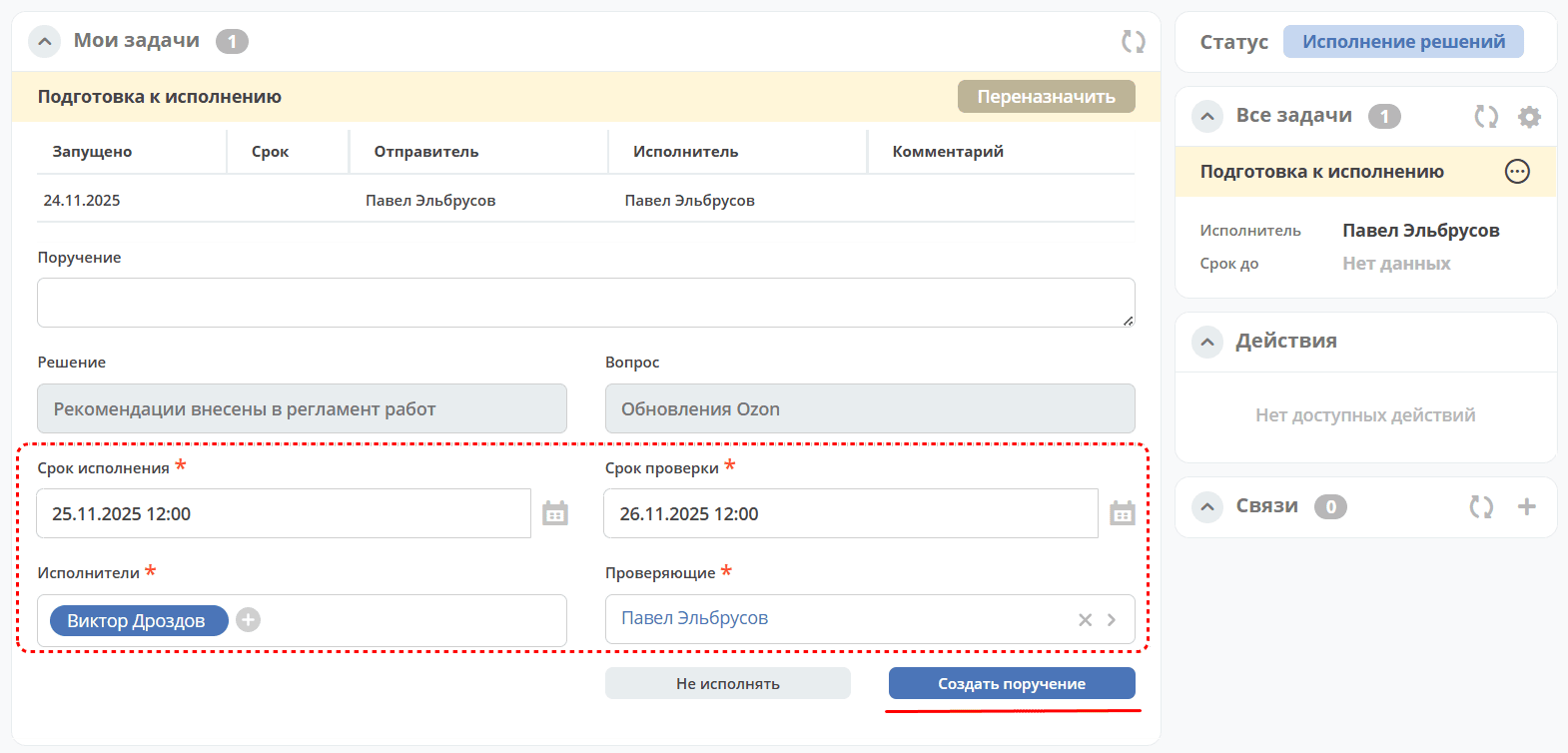
To send the decision, click «Create Assignment». The meeting status becomes «Decision Execution».
The task «Execution» is assigned to the selected Assignee.
Execution
The Assignee reviews the question and its resolution, executes their task by the set deadline and confirms readiness (leaves a comment if necessary):
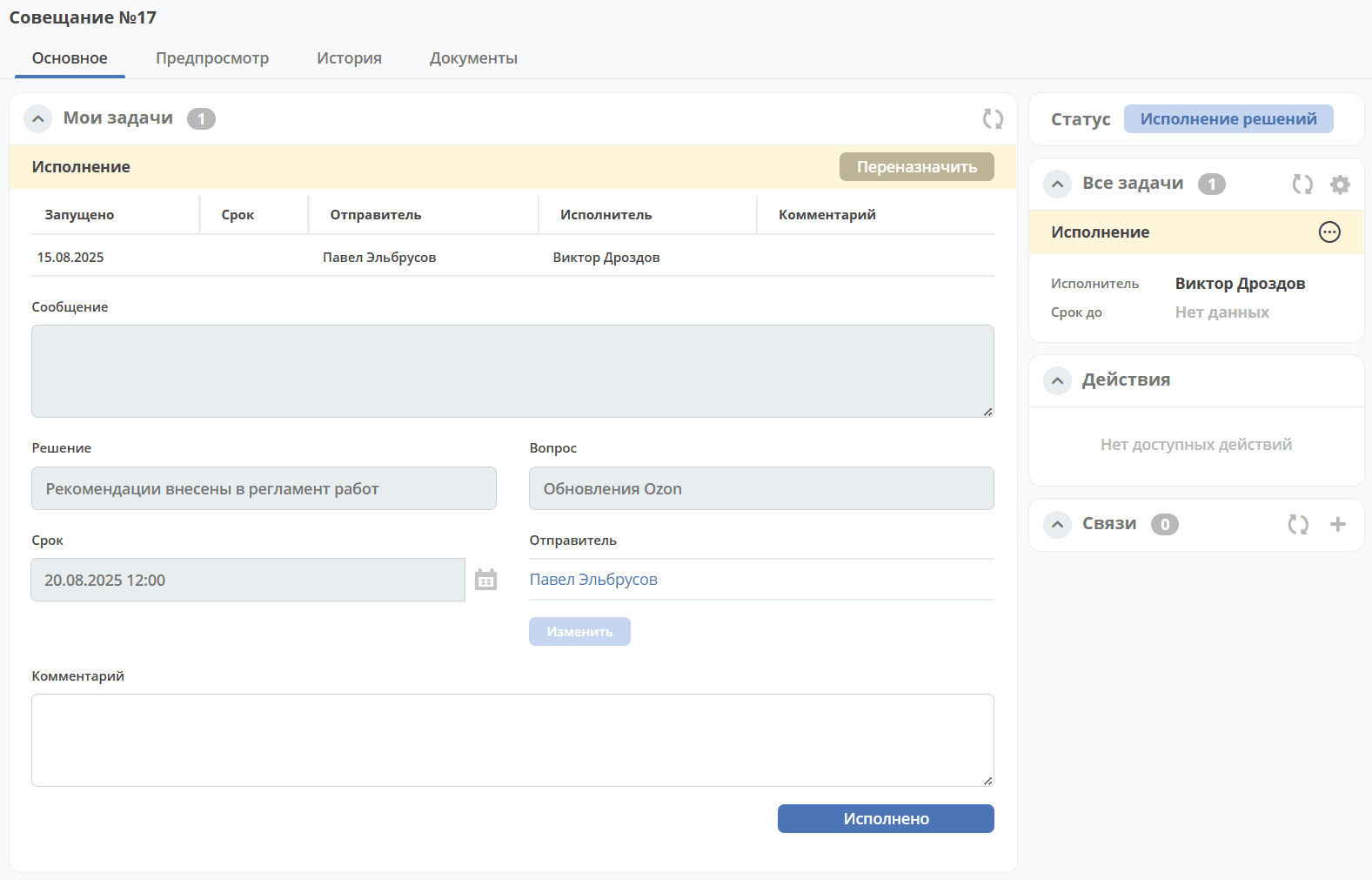
To complete the task, clicks «Completed».
If the deadline is exceeded, the task is closed and considered unfulfilled.
Review
If the task is completed by the Assignee, then it is assigned to the Reviewer for review:
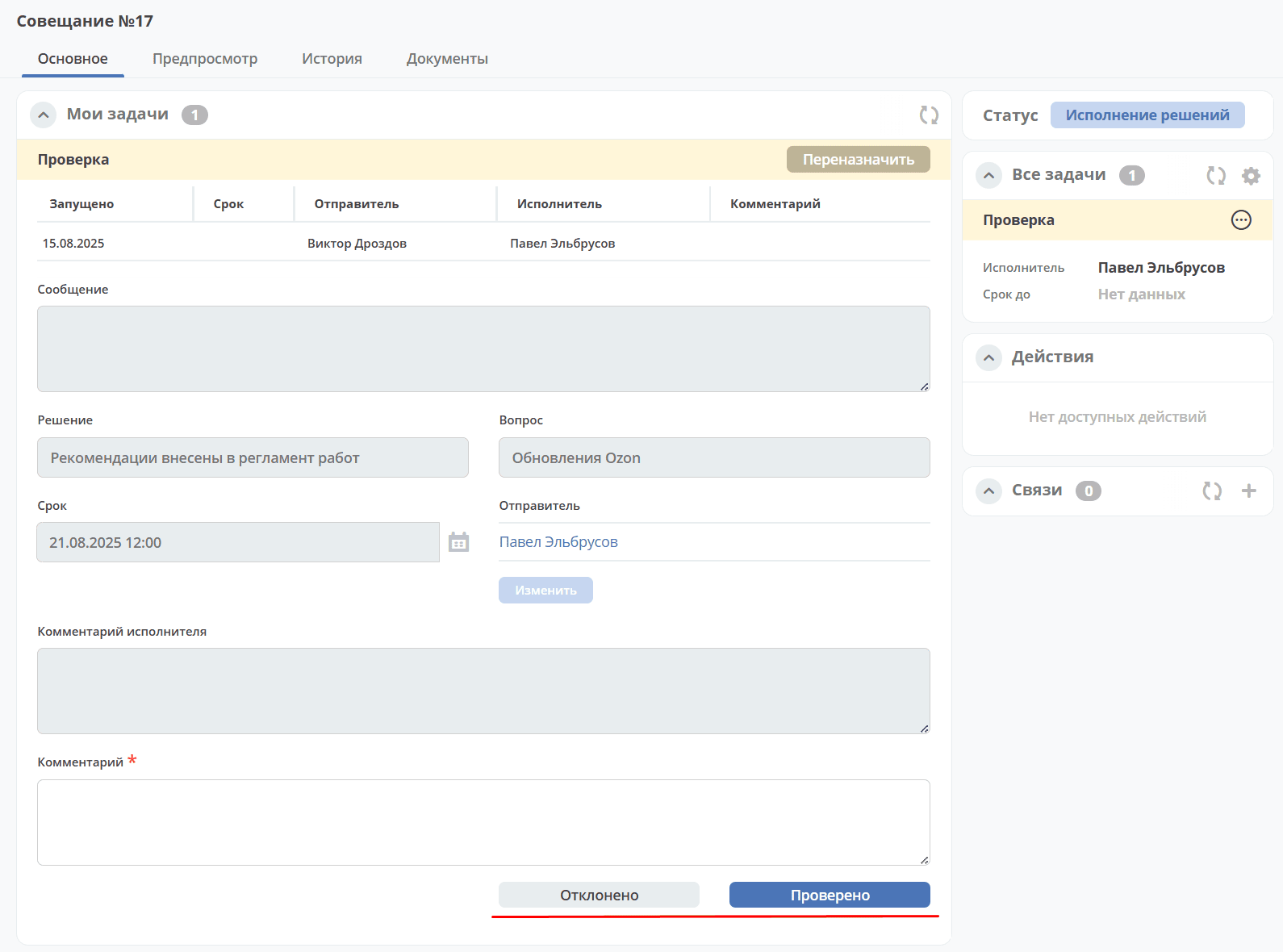
After reviewing the execution, the Reviewer issues a verdict:
approval by clicking «Reviewed», the Decision status becomes «Reviewed».
rejection by clicking «Rejected» with mandatory comment input. A task «Re-execution» will be assigned to the Reviewer.
Re-execution
The task is assigned to the Initiator:
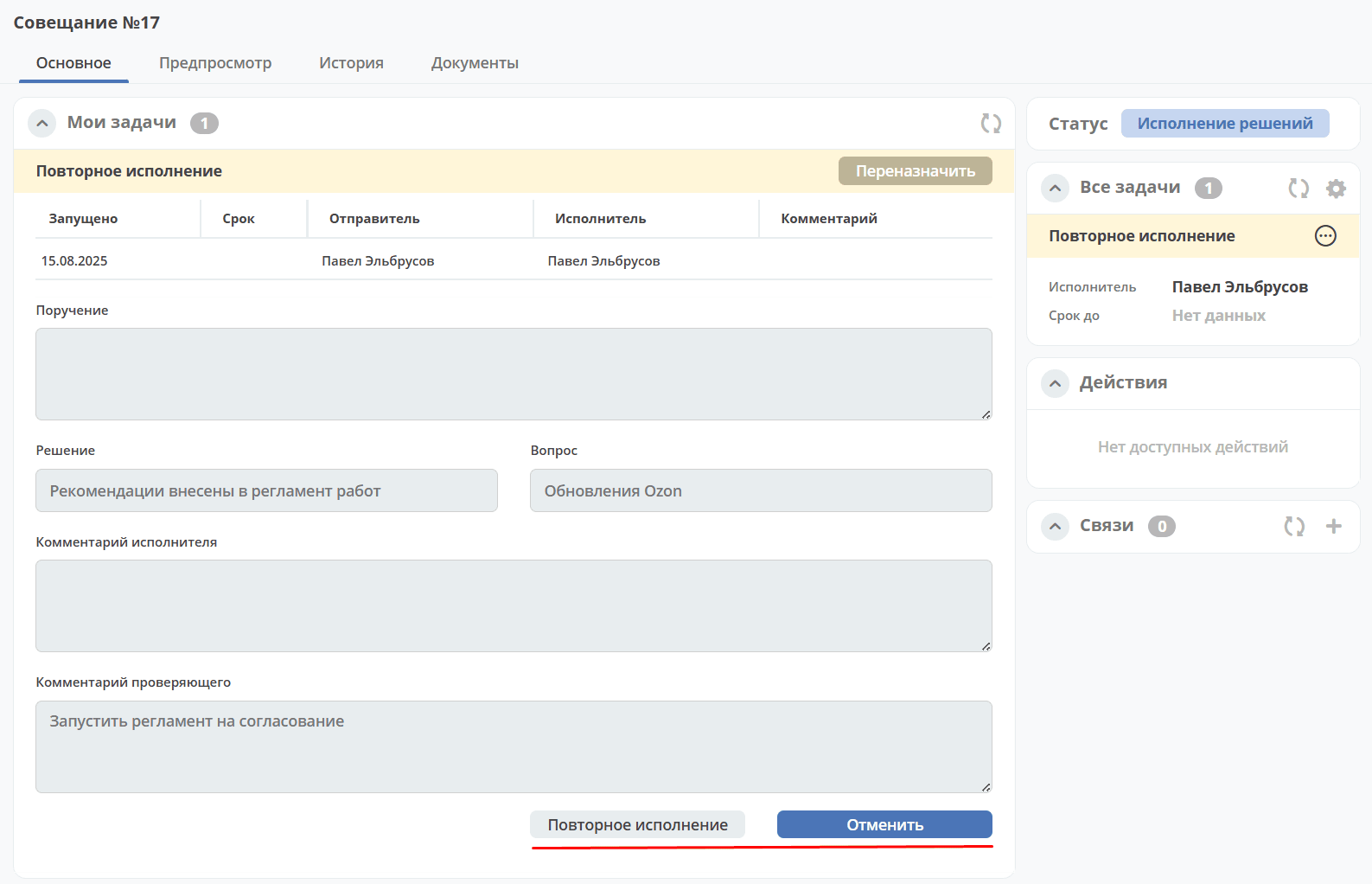
The Initiator decides based on the received comments:
send the decision for re-execution by clicking «Re-execution» with possible assignment of different persons and deadlines. The procedure is similar to step Execution Decision.
abandon execution completely by clicking «Cancel». The Decision status becomes «Cancelled».
Step 8. Closing
When all decisions are in statuses «Reviewed» or «Cancelled», the task can be closed.
The task is assigned to the Initiator:
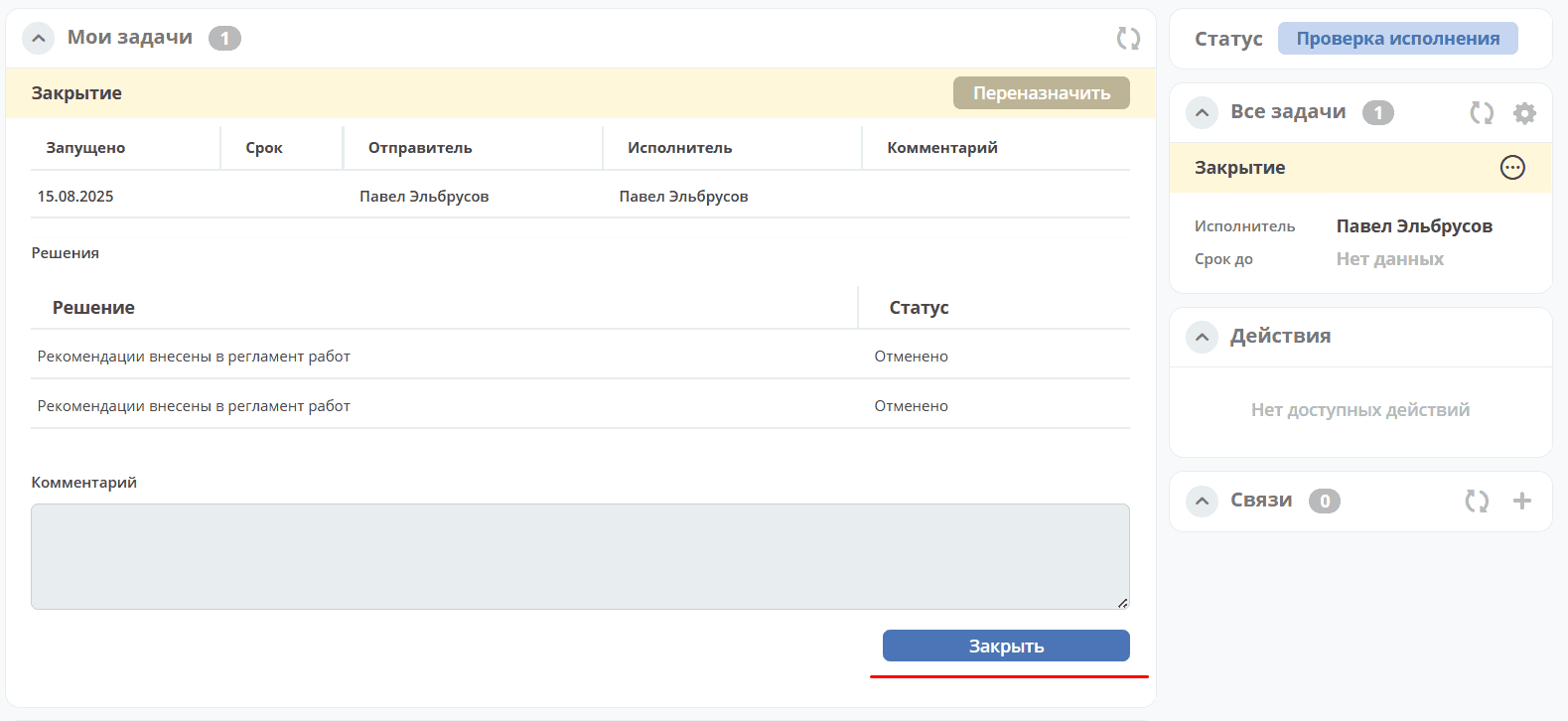
To complete the task, clicks «Close». The meeting status becomes «Closed».