‘Activities’ Widget
Note
Available in the enterprise version only.
‘Activities’ Widget helps plan and organize work on a case. Tasks such as a phone call, meeting, letter, or assignment can be scheduled from the case card and viewed in the calendar.
The widget is universal and can be added to any dashboard for any case and workspace.
For example, in the CRM module, the widget can be used to track the stages of work on a deal and view all scheduled and completed tasks (activities).
Scheduled activities are used to remind the manager about the need to make contact. Completed activities, as an important part of the deal history, can be used to calculate the manager’s KPI.
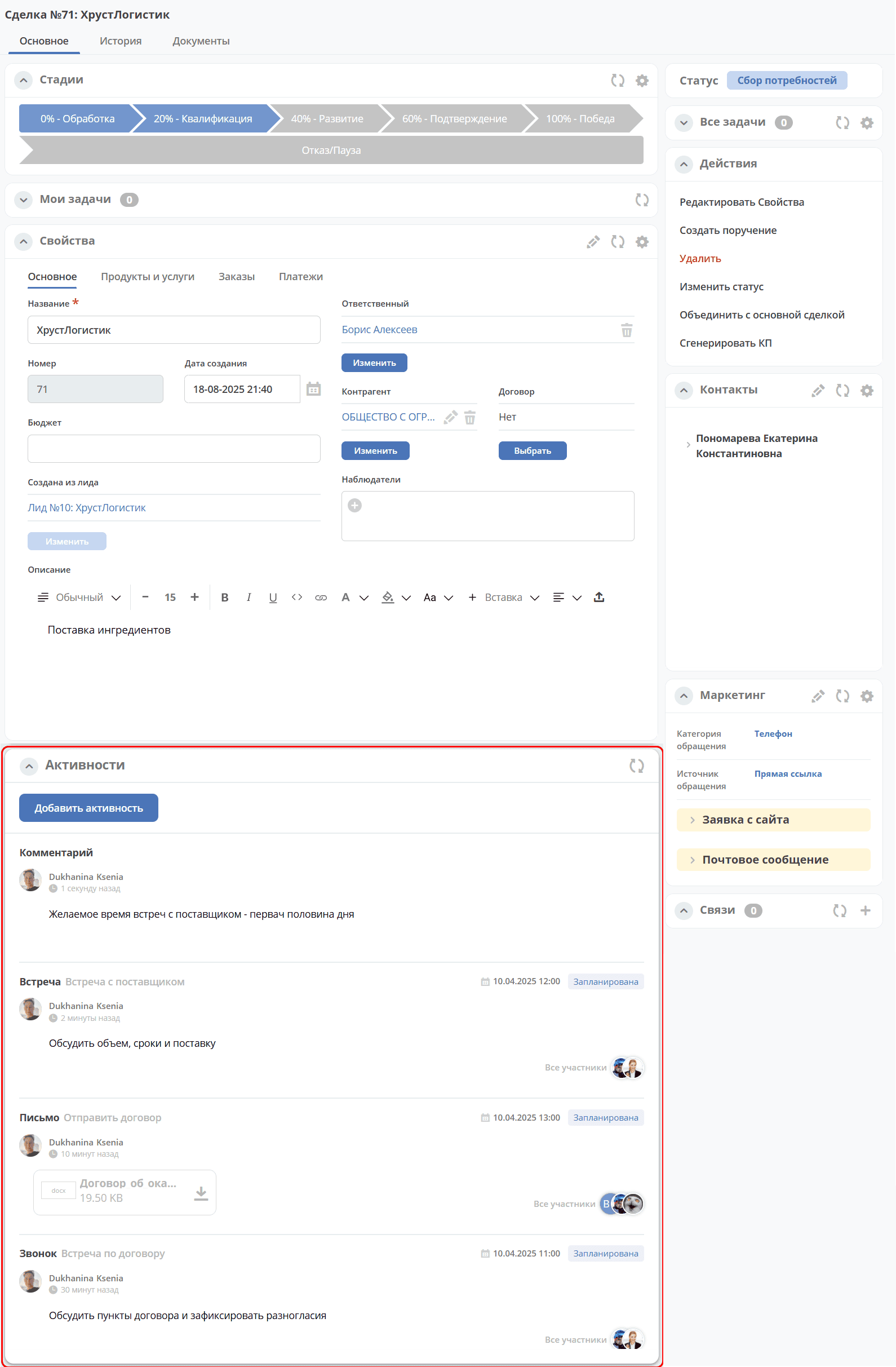
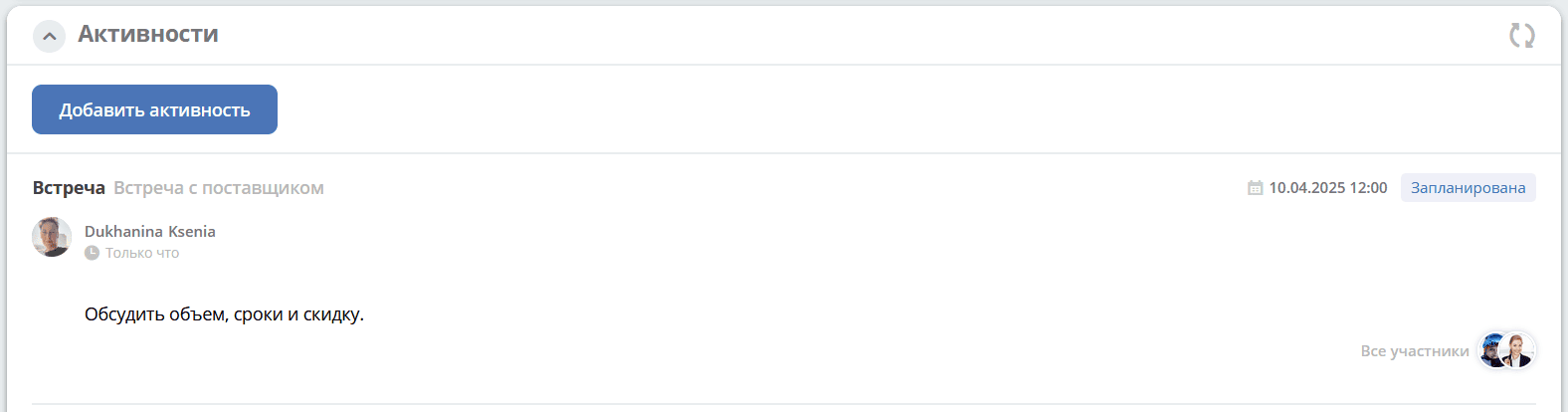
Created activities are displayed in the deal card to which they are assigned:
In addition, they can be viewed:
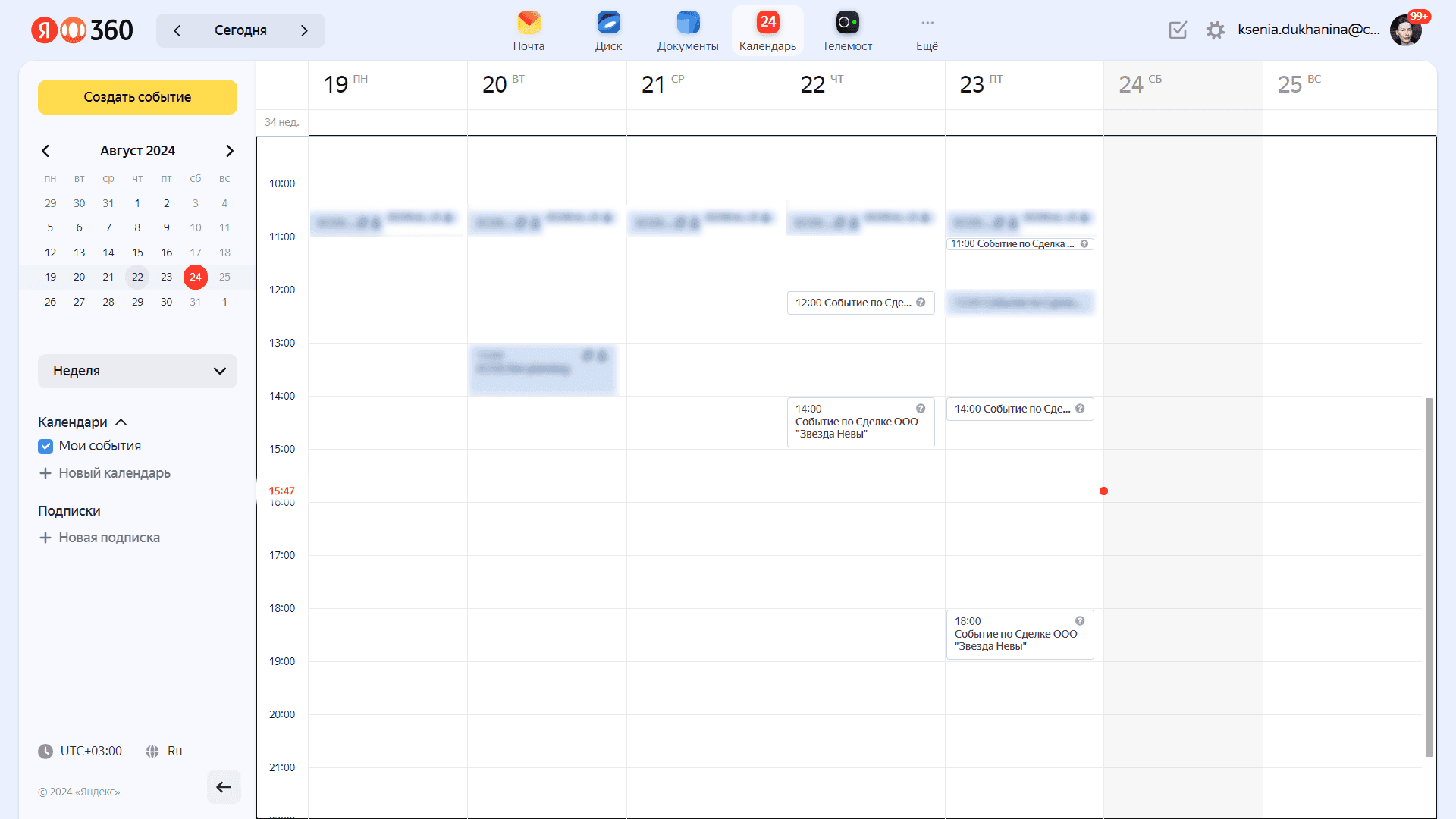
in the calendar (scheduled tasks only):
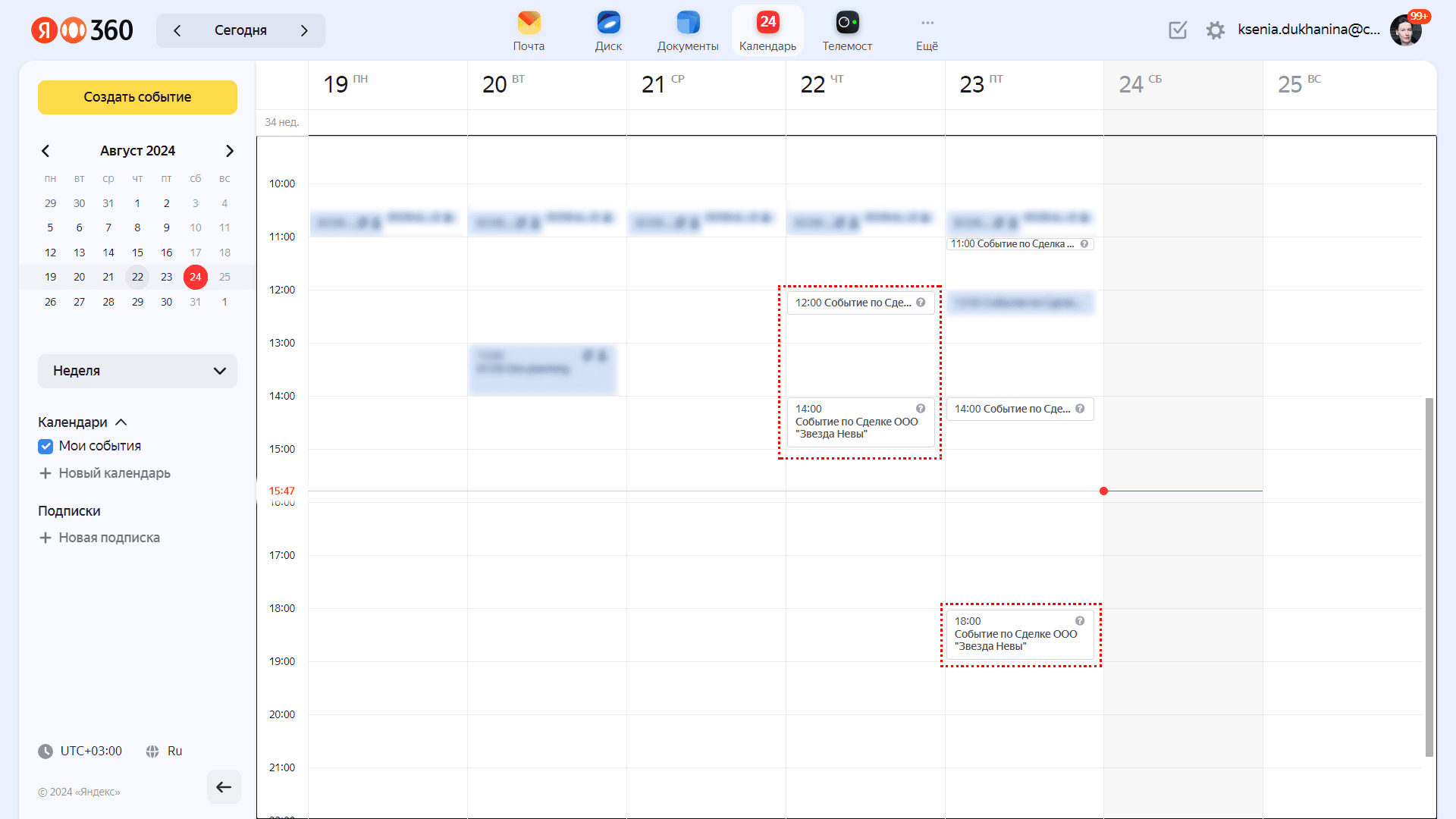
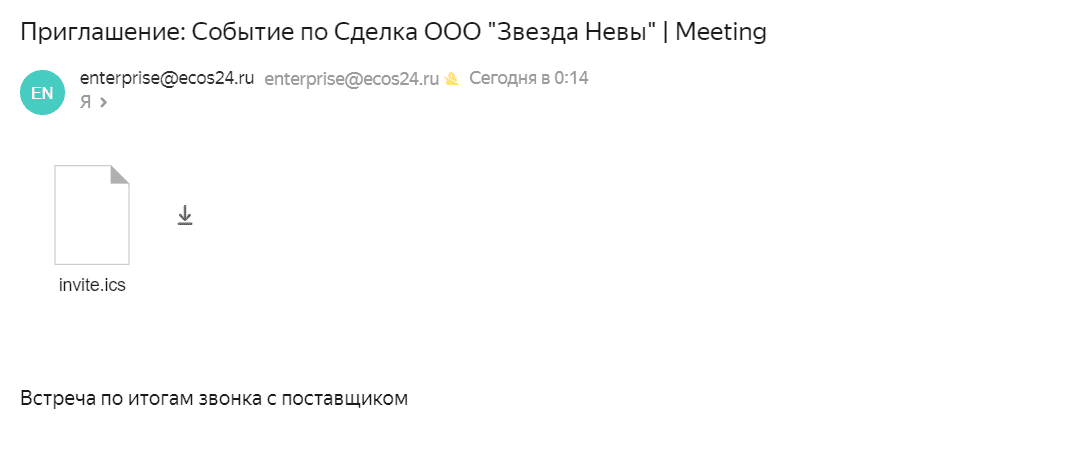
See details Invitation Email below.
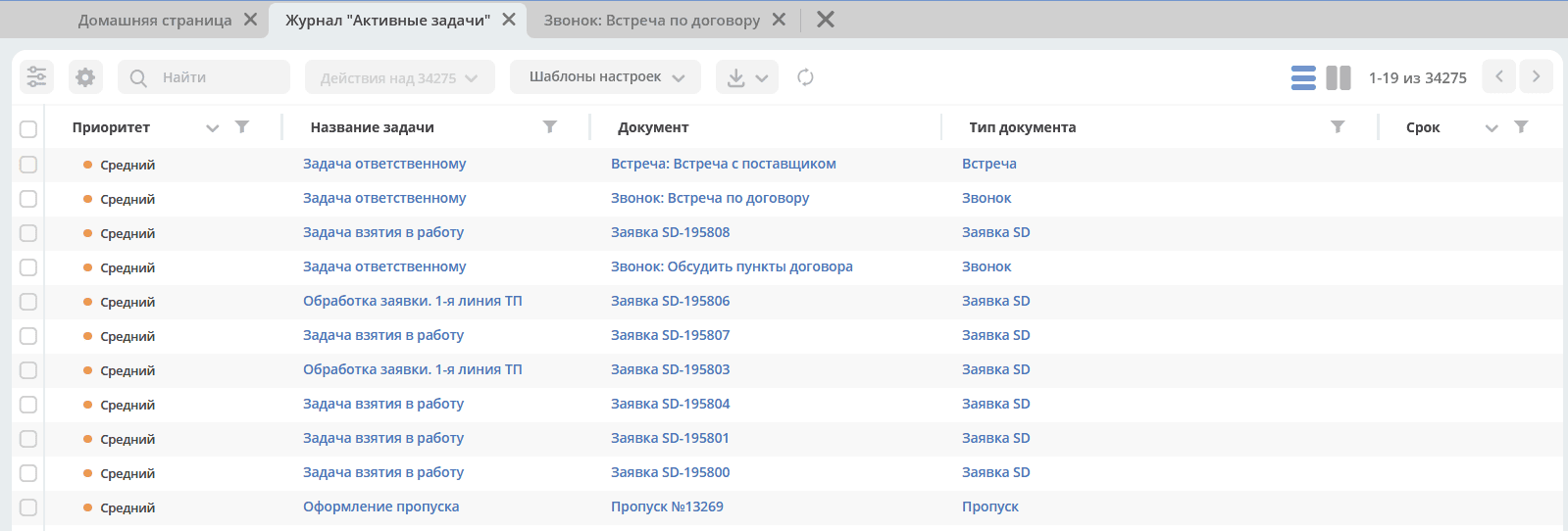
and in the Tasks → Current Tasks section:
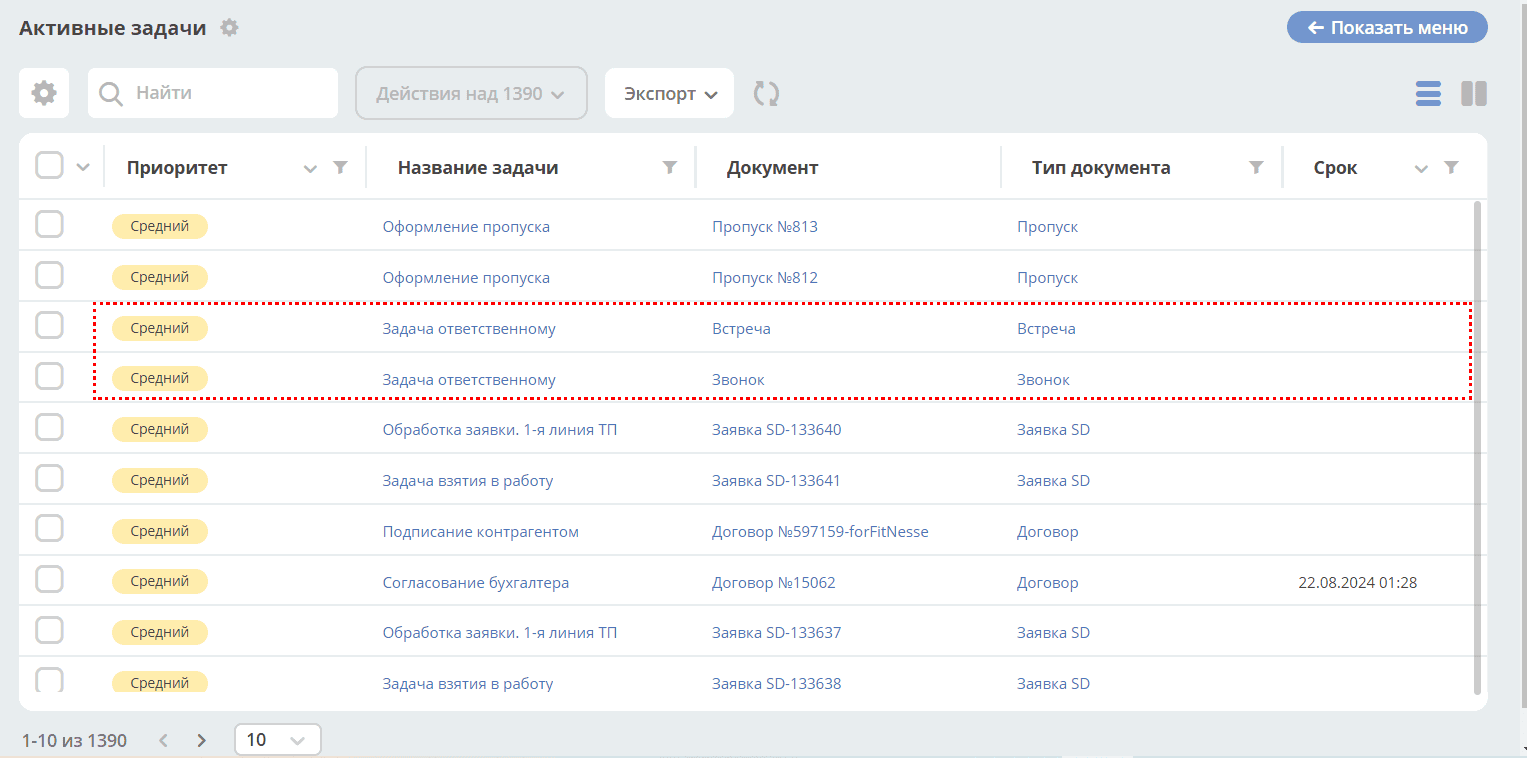
See details Tasks below.
Activities can be:
Scheduled: call, meeting, letter;
Unscheduled: assignment, comment.
How to Add
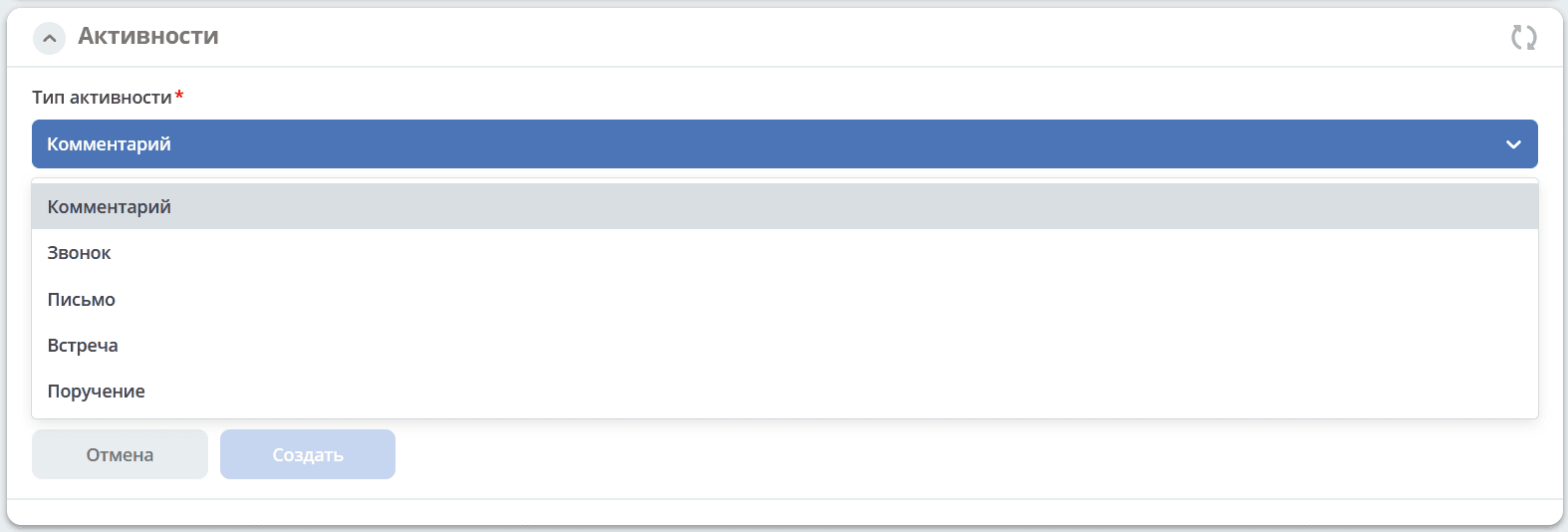
Click ‘Add Activity’, then select the activity type from the list:

Enter the activity details. Depending on the type, the list of fields and available statuses may vary.
Note
Adding a comment is always required for all activities.
Scheduled Activities
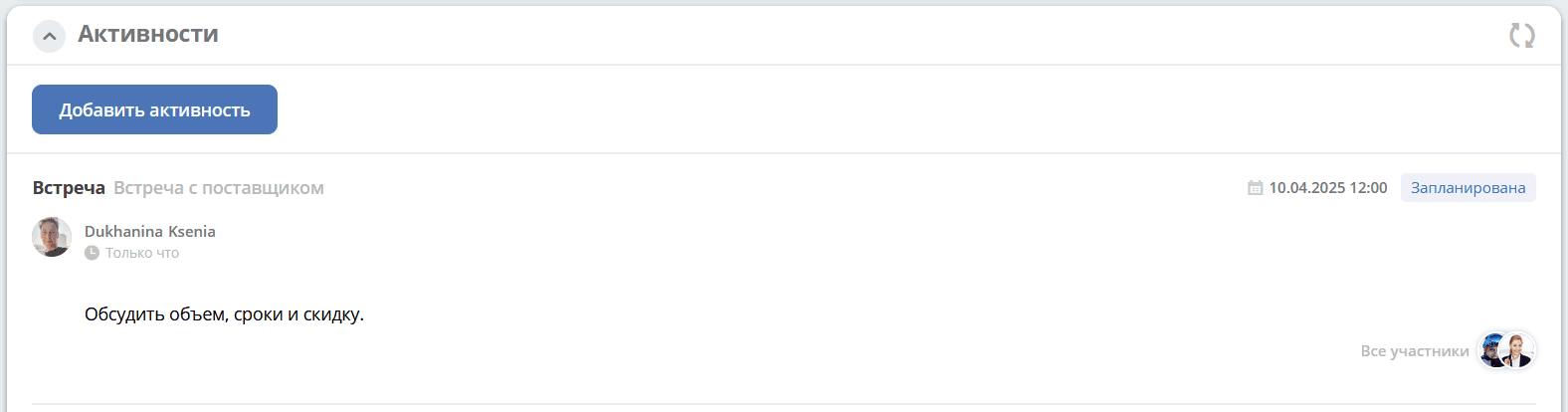
Scheduled activities:
Call;
Letter;
Meeting.
For scheduled activities, an invitation email containing an ICS file is sent to the email address specified in the profile of the responsible person and selected participants. See Invitation Email.
A task is also assigned for such activities, in which the date and time of the activity can be rescheduled or marked as completed. See Tasks.
The status model for such activities is as follows:
Default status.
A scheduled activity has been created, the date is in the future, and the task has not yet been created.
In the assigned task, the responsible person selected the verdict ‘Reschedule Activity’.
An activity in this status can be edited and deleted. See details on actions.
|
|
The date and time of the activity has arrived.
A task is assigned to the responsible person. Two actions are available in the task: complete and reschedule the activity. See details on the task.
|
|
In the assigned task, the responsible person selected the verdict ‘Done’.
|
Note
When using the widget in workspaces, workspace members are automatically added to Participants in scheduled activities. Participants can be removed and added.
Types
Call
The responsible person is specified by default:
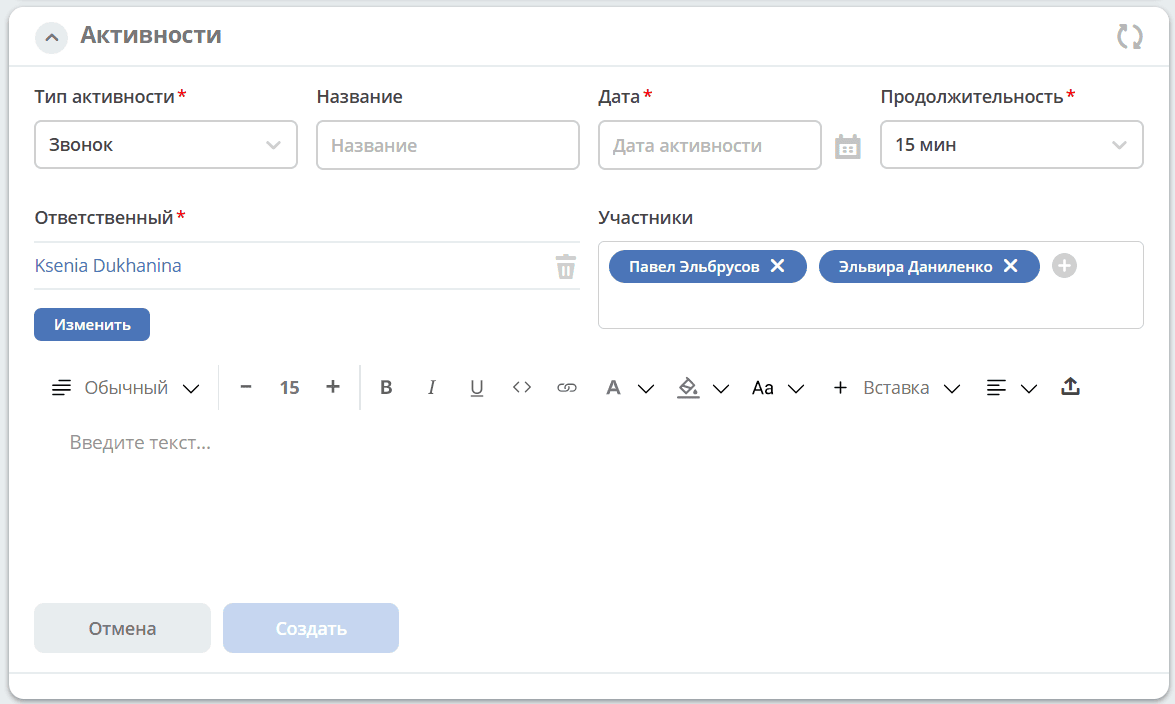
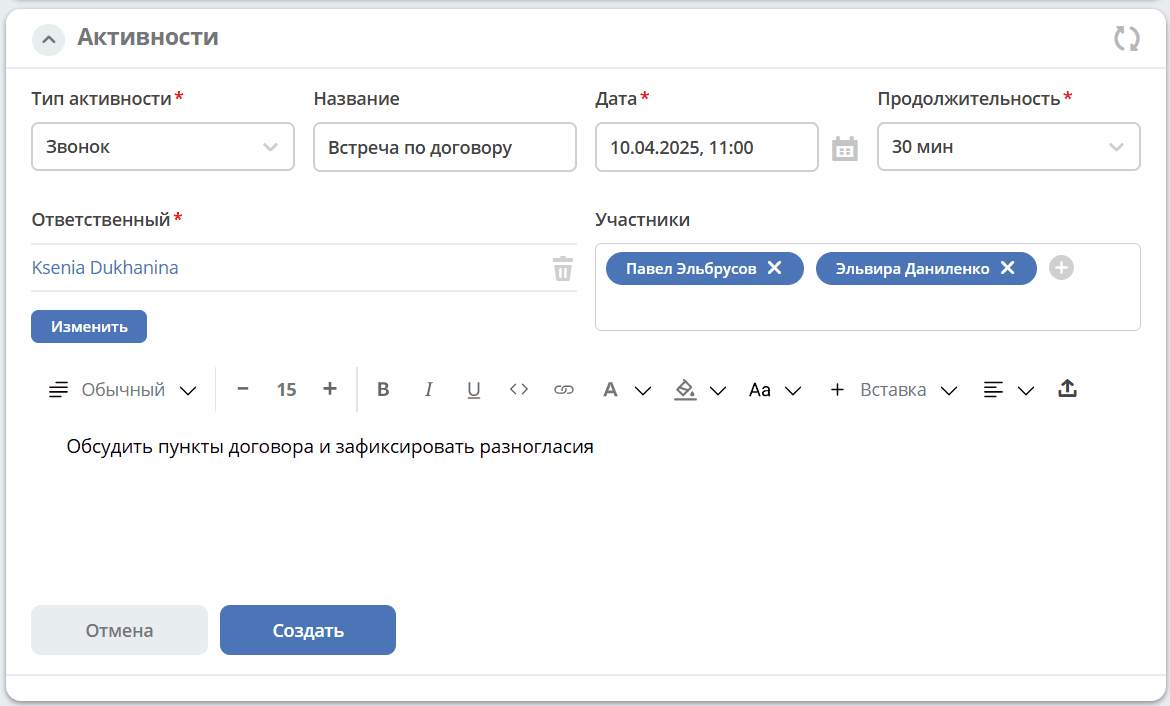
Select the date and time from the calendar, specify the name, duration, and responsible person, and add participants if needed. Enter a comment. Click ‘Create’.
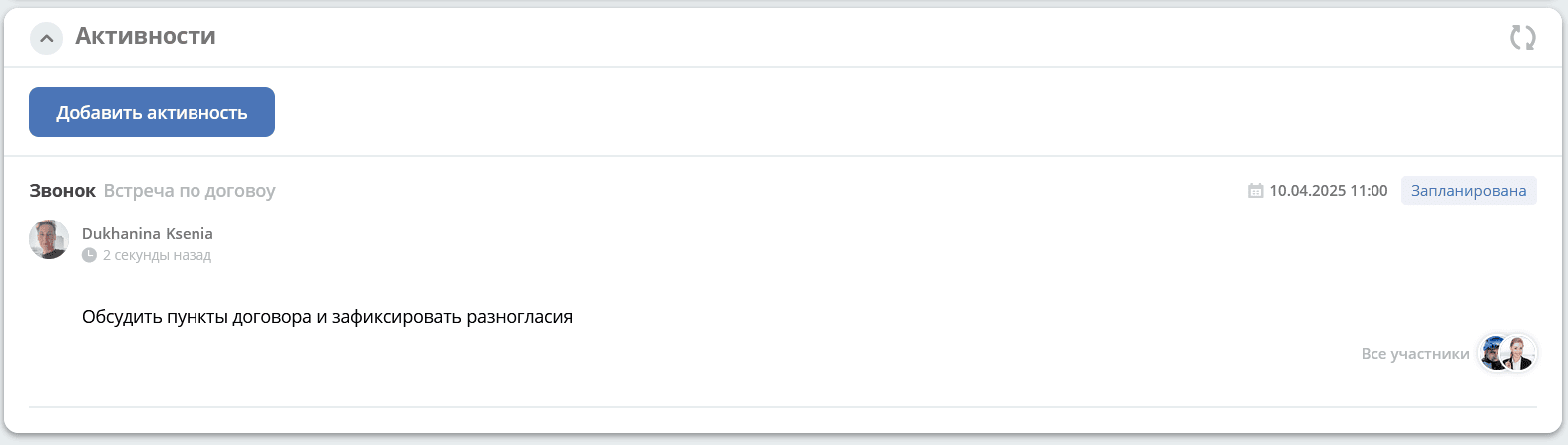
The created activity in the card:
Letter
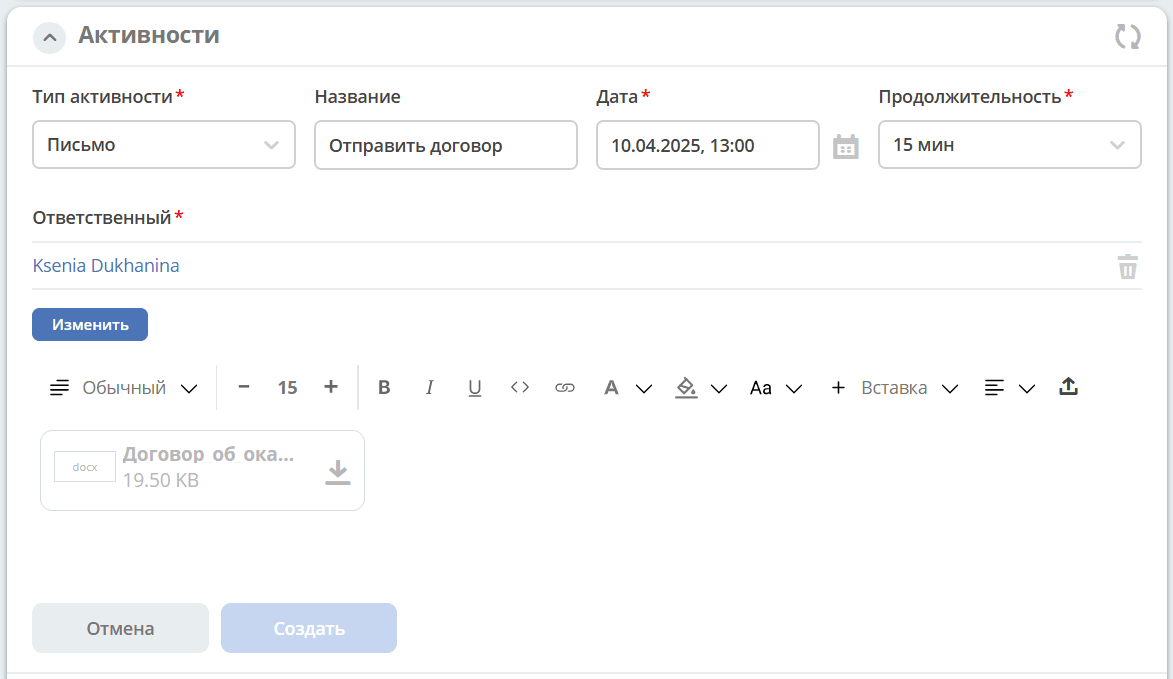
The responsible person is specified by default:
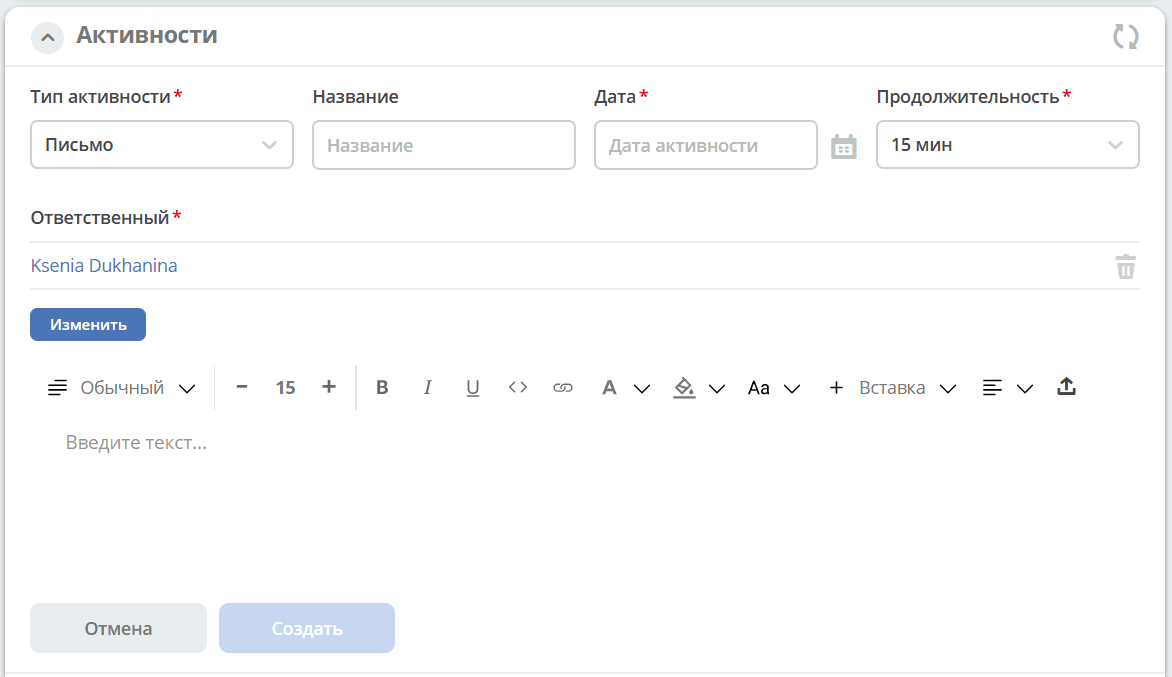
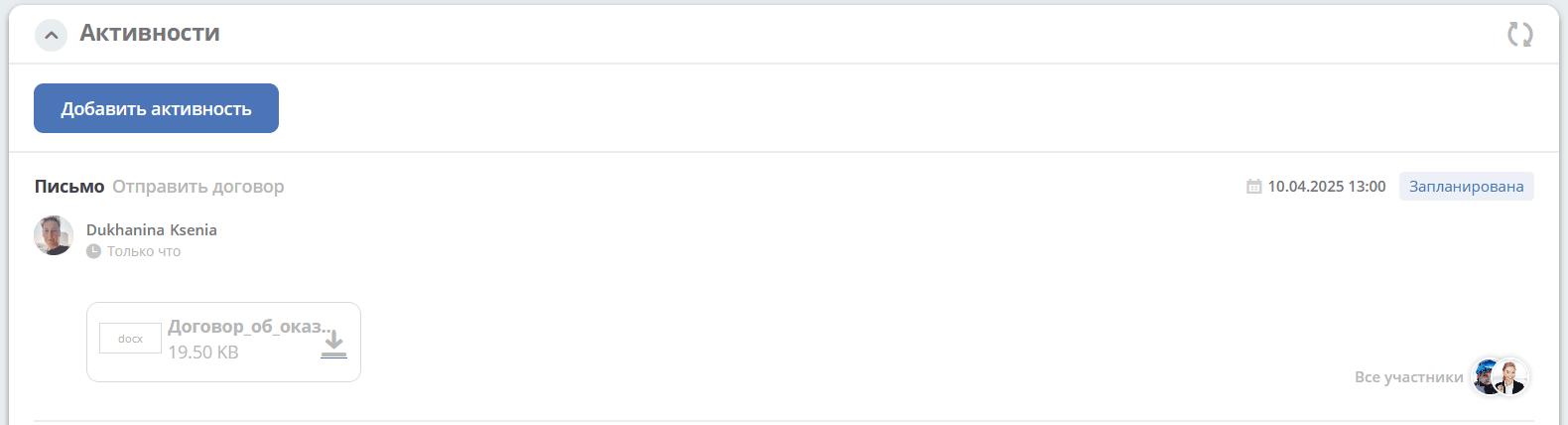
Select the date and time from the calendar, specify the name and duration, and change the responsible person if needed. Enter a comment and attach a file. Click ‘Create’.
The created activity in the card:
Meeting
The responsible person is specified by default:
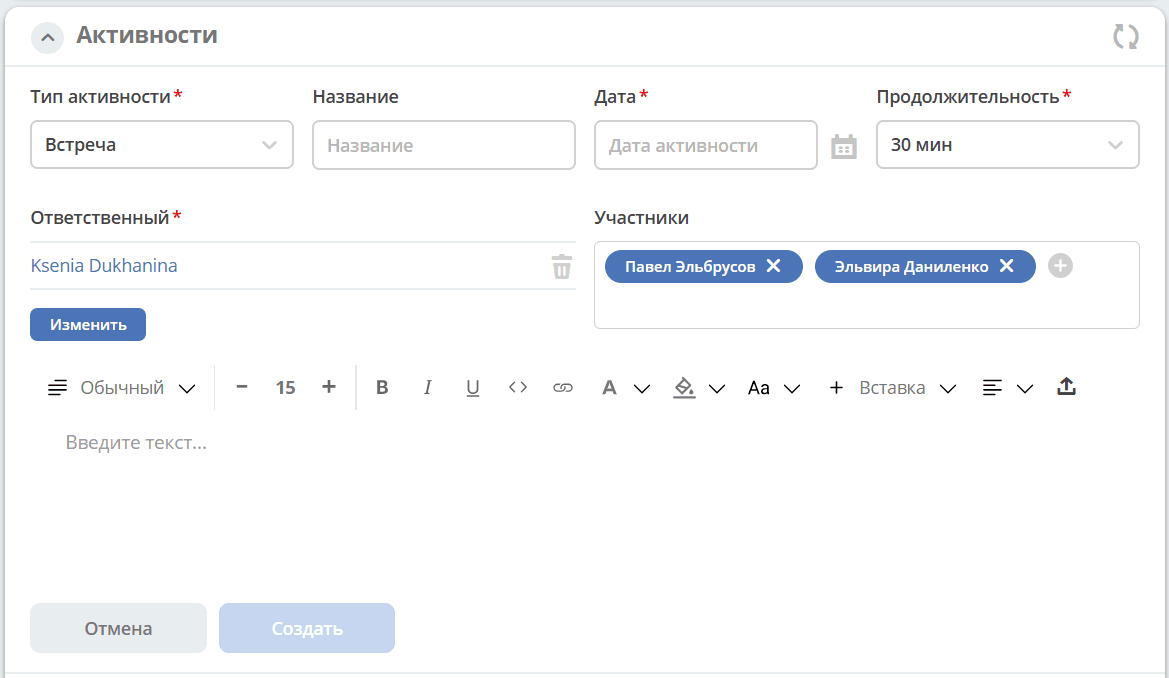
Select the date and time from the calendar, specify the name, duration, and responsible person, and add participants if needed. Enter a comment. Click ‘Create’.
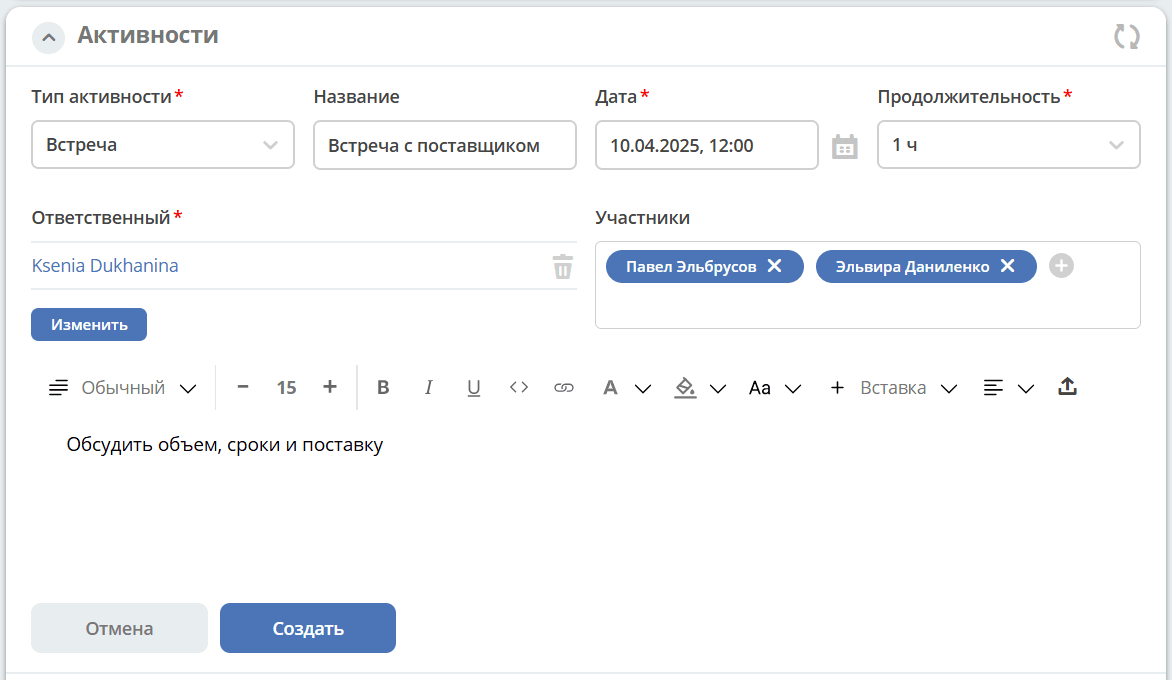
The created activity in the card:
Invitation Email
For the Call, Letter, and Meeting types, an invitation email containing an ICS file is sent to the email address specified in the profile of the responsible person and selected participants.
The ICS file contains a list of scheduled events and meetings in a universal calendar format that can be used in various online and offline organizer applications, such as Microsoft Outlook, Google Calendar, and Apple iCal. The file has a simple text format that includes the event title, start and end time, and a brief description.
Task
When the date and time of the activity arrive, the system assigns a task to the responsible person. The task will be available:
in the Journal under Current Tasks;
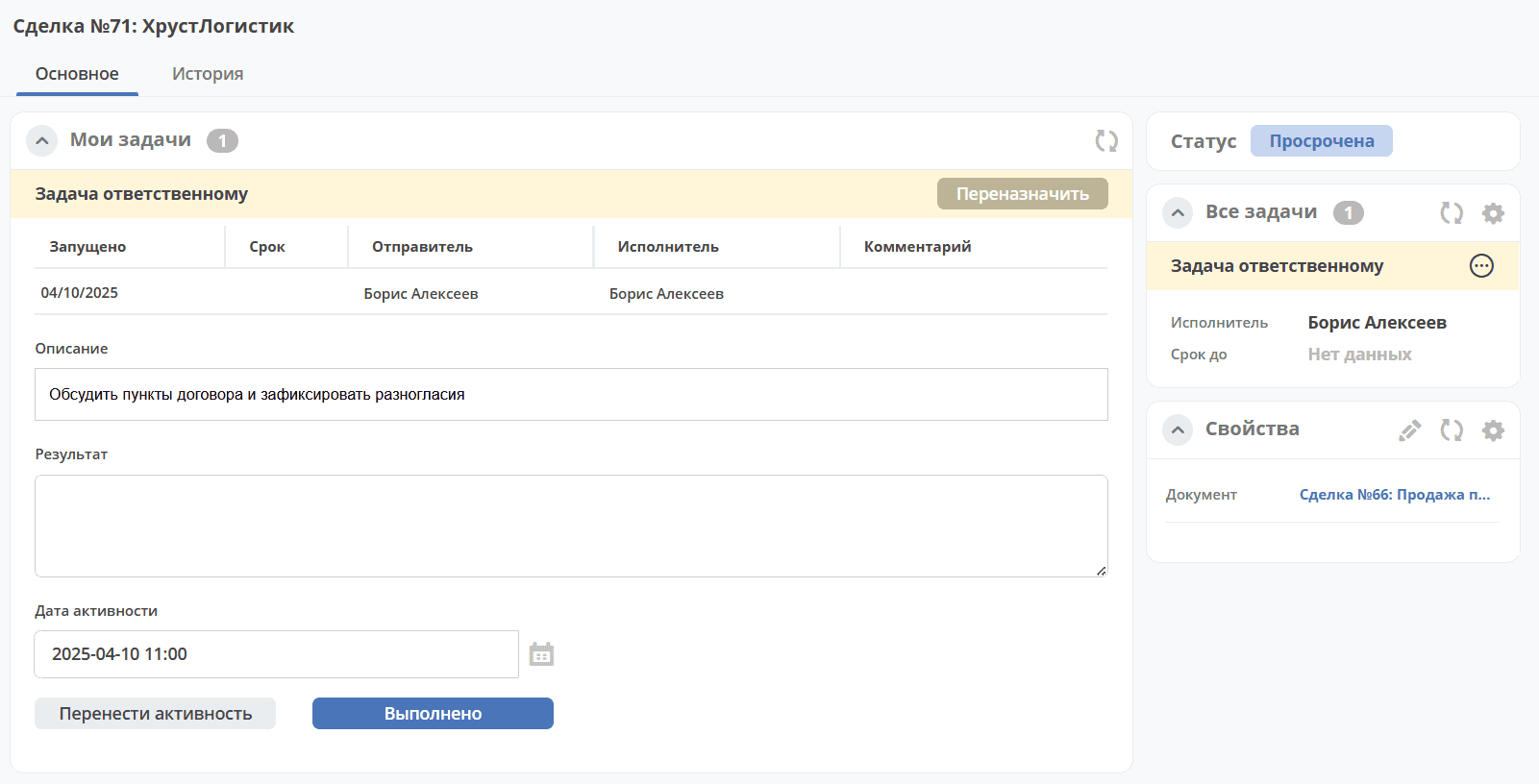
in the deal card in the ‘My Tasks’ widget:
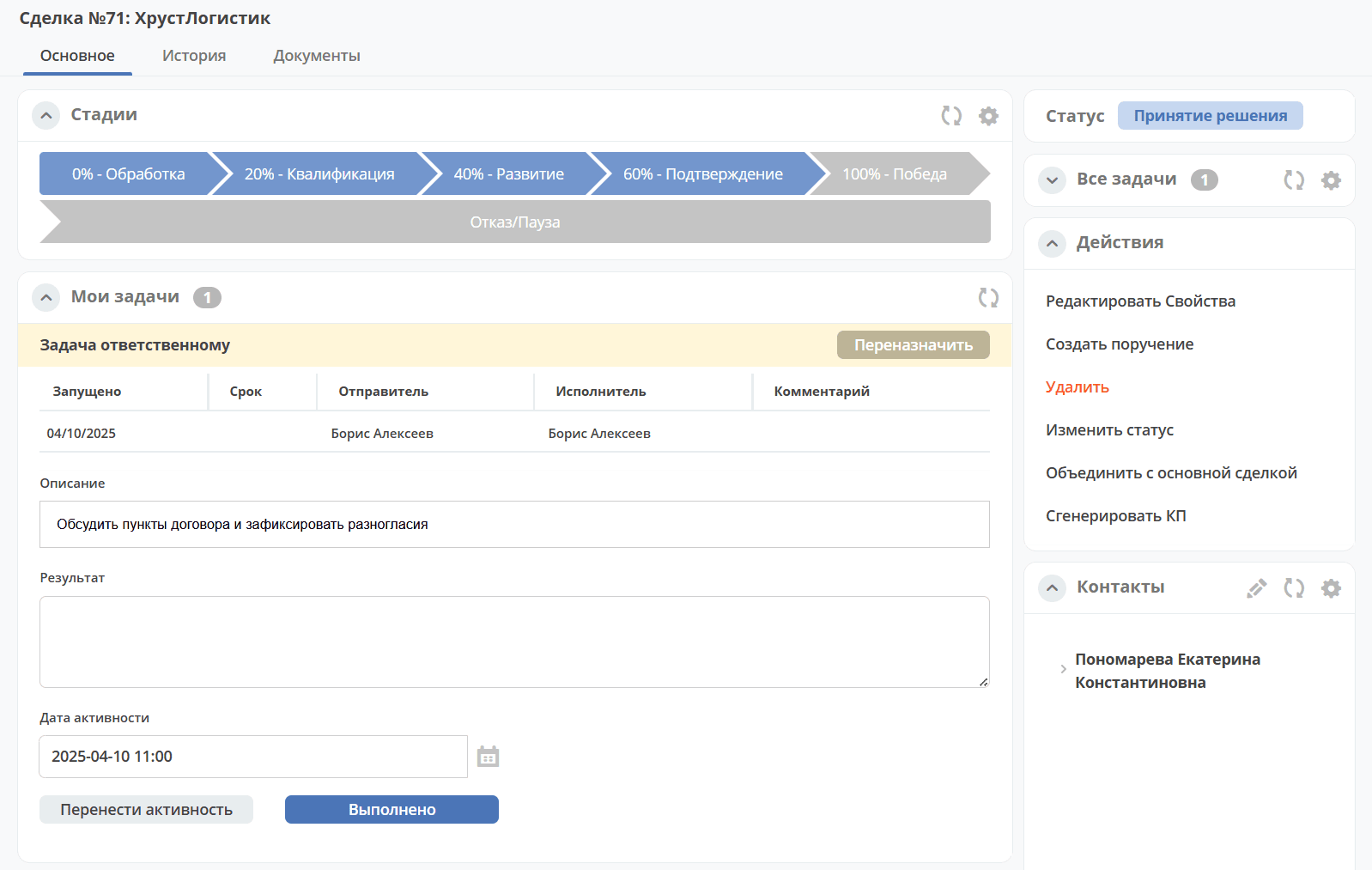
The following task completion options are available:
‘Done’;
‘Reschedule Activity’
Completing an Activity
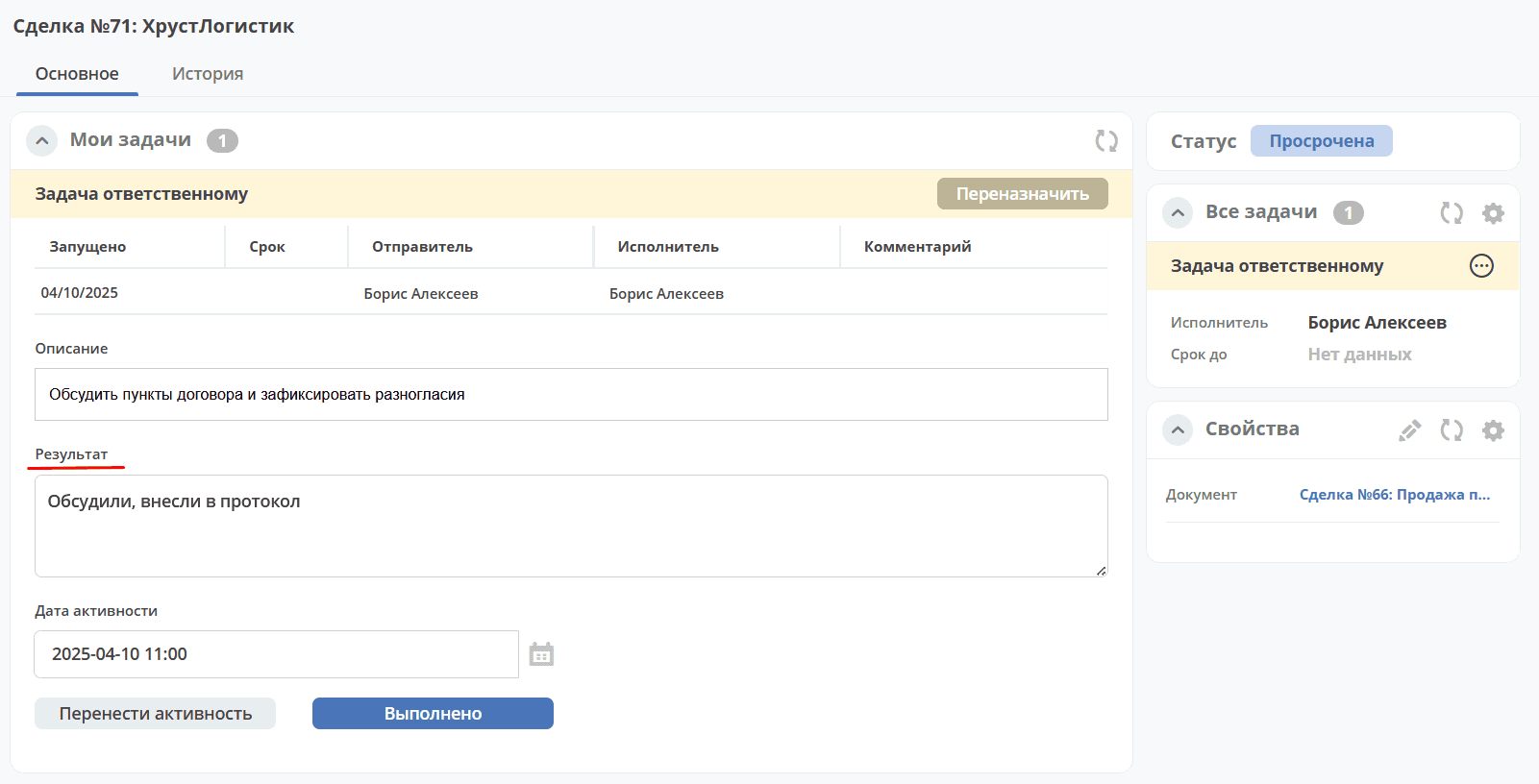
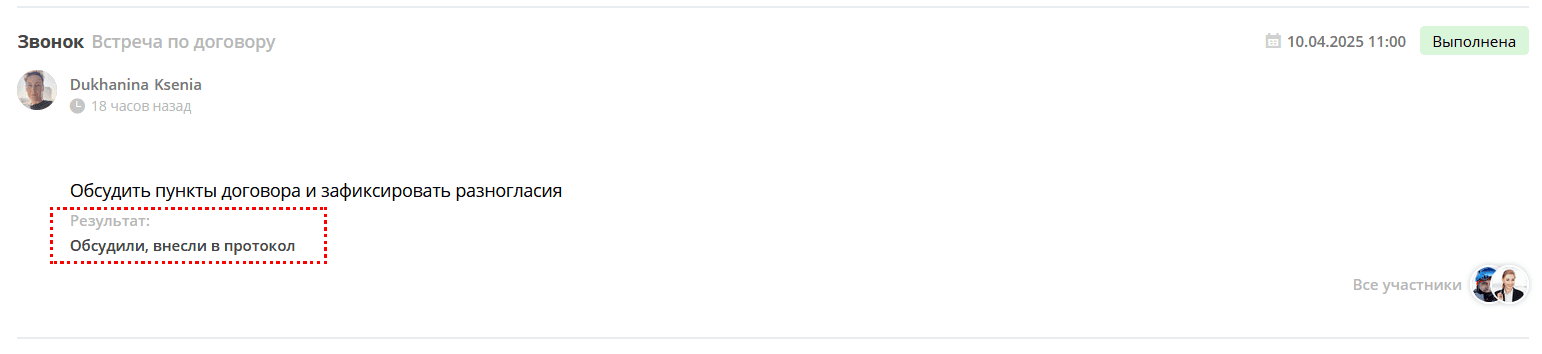
If the work on the activity is complete, fill in the result in the task and click ‘Done’. The activity status will change from ‘Overdue’ to ‘Completed’.
The result will be added to the corresponding activity:
Rescheduling an Activity
If the work on the activity is not complete, select a new date and time for the activity in the calendar and click ‘Reschedule Activity’. The activity status will change from ‘Overdue’ to ‘Scheduled’.
Unscheduled Activities
Unscheduled activities:
Comment;
Assignment.
The status model for such activities is as follows:
Assignment, Comment created.
|
Comment
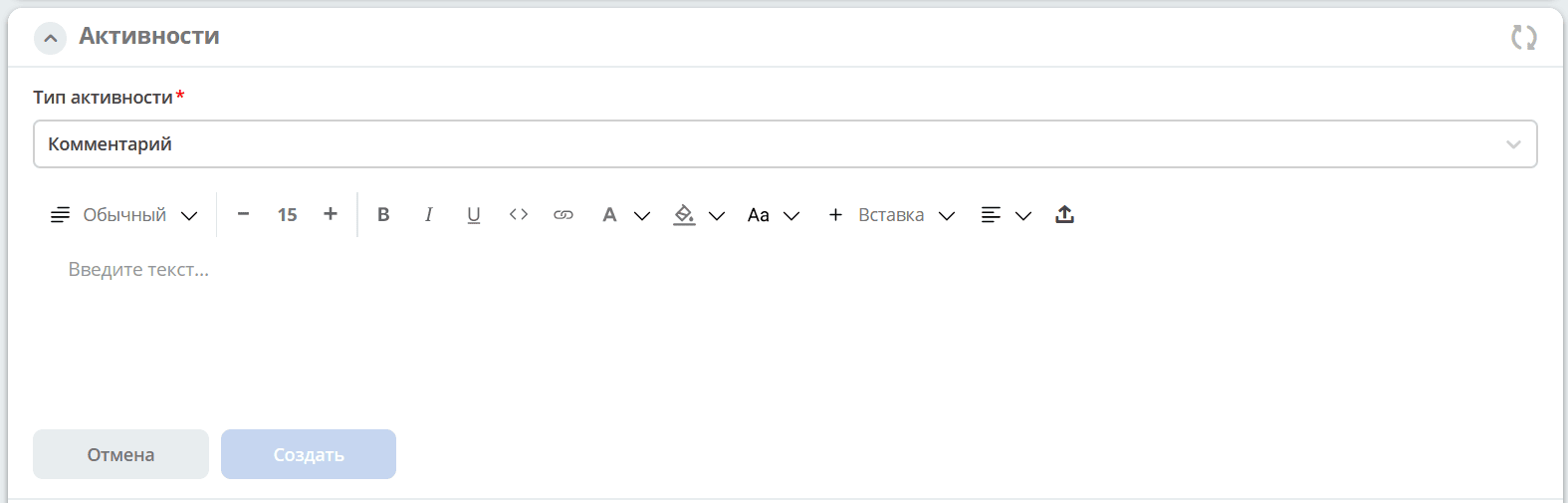
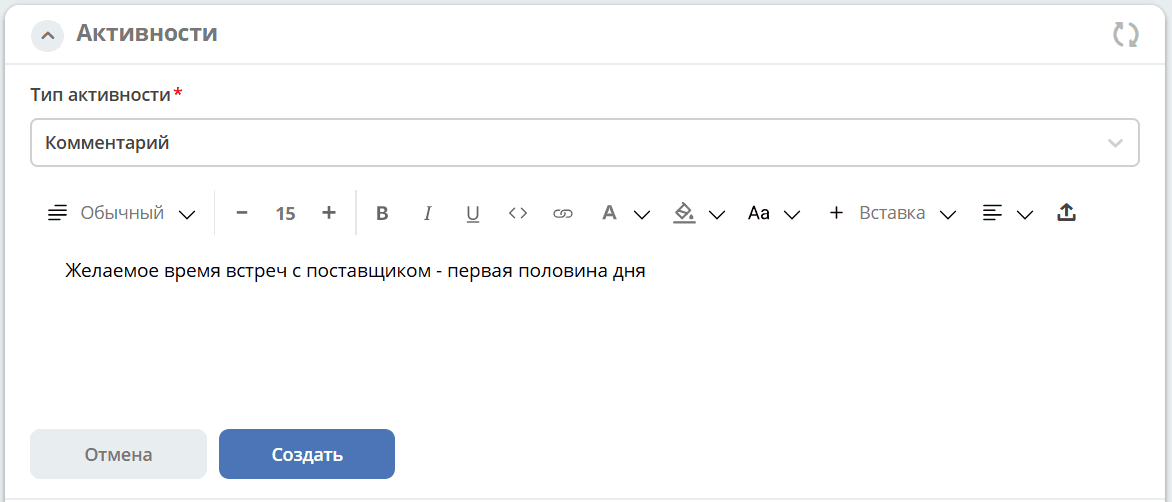
Enter a comment. Click ‘Create’.
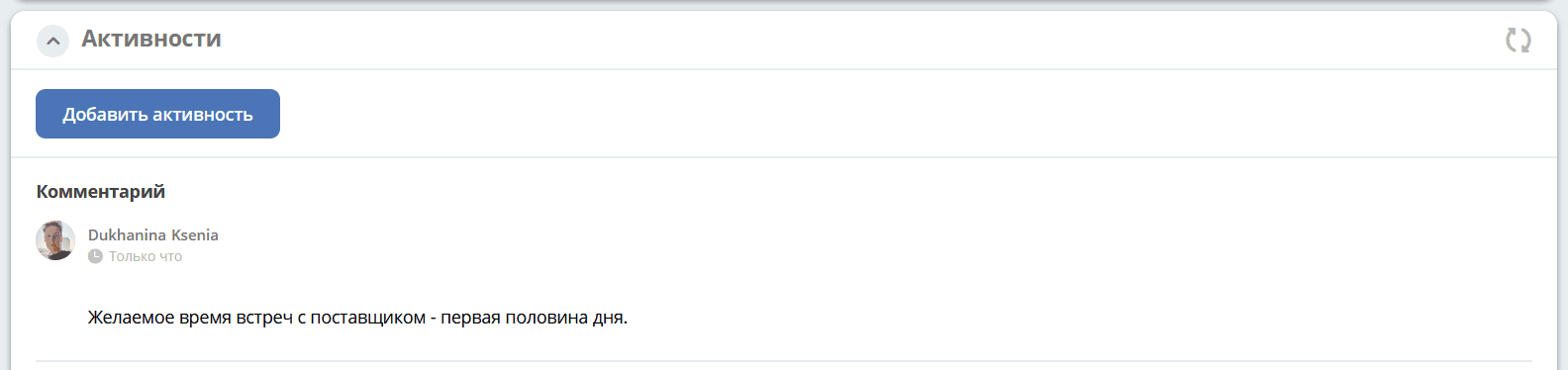
The created activity in the card:
Comments from the ‘Comments’ widget are transferred to activities:
a regular comment;
if broadcasting of a comment from a task to the comments widget is configured, it appears in activities as a comment;
in CRM, comments on deal merges appear in activities.
Assignment
The activity triggers the assignment functionality. The priority is set to medium by default:
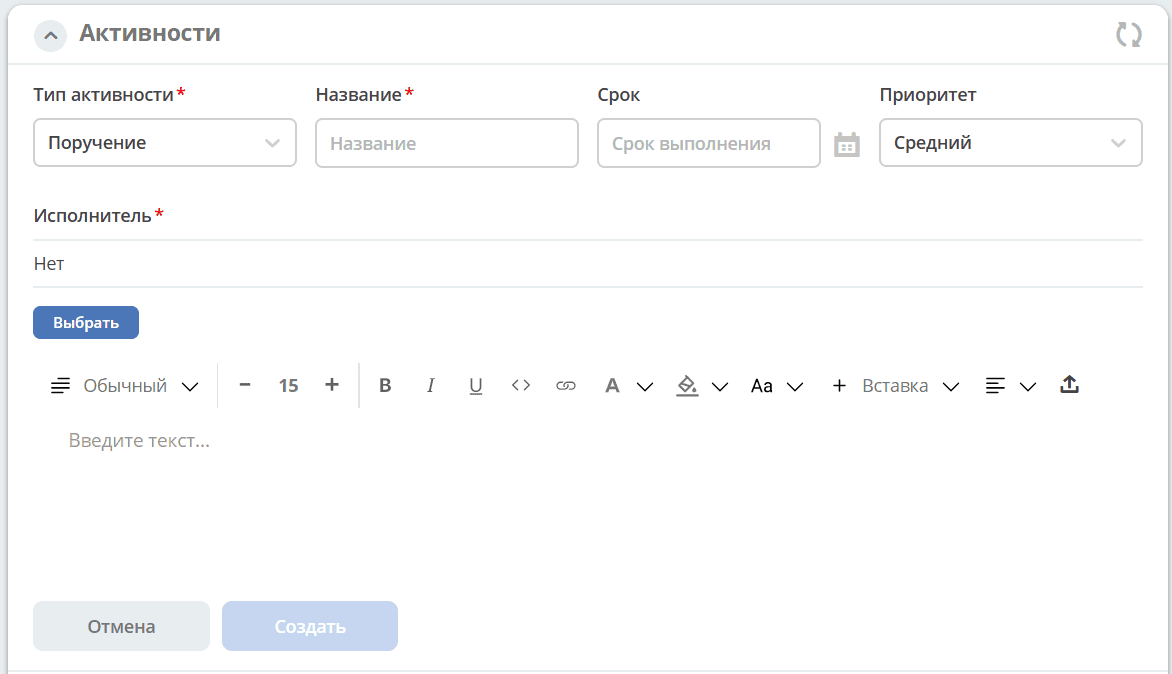
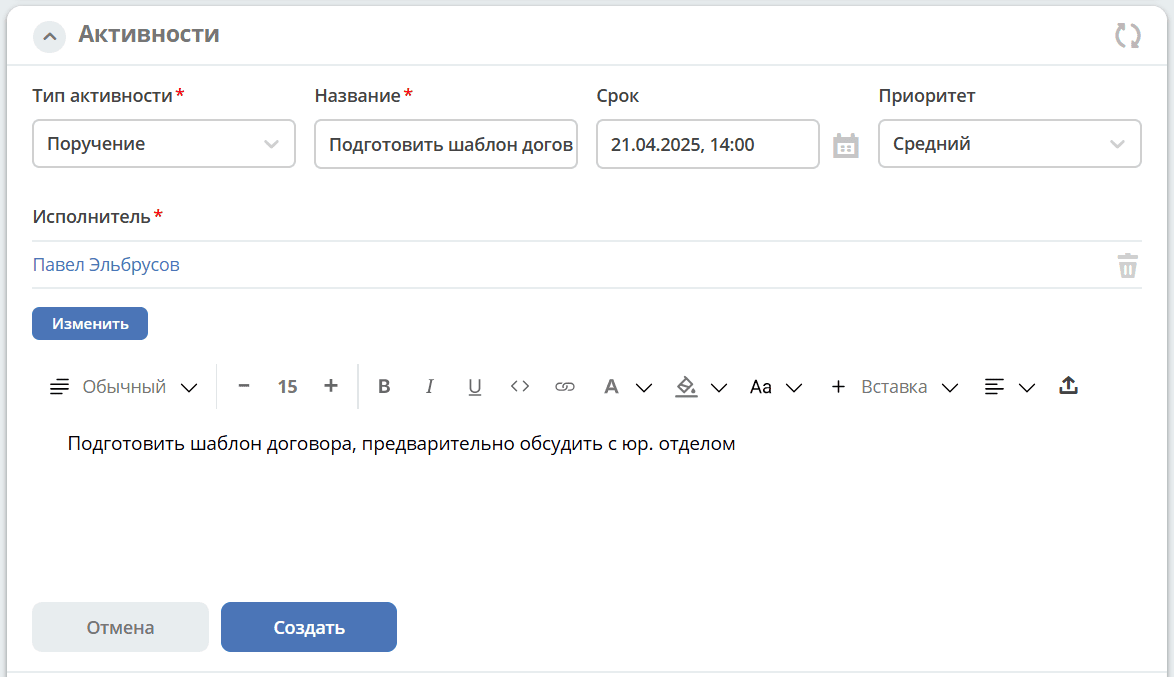
Specify the name, select the deadline and assignee, and change the priority if needed:
The created activity in the card:
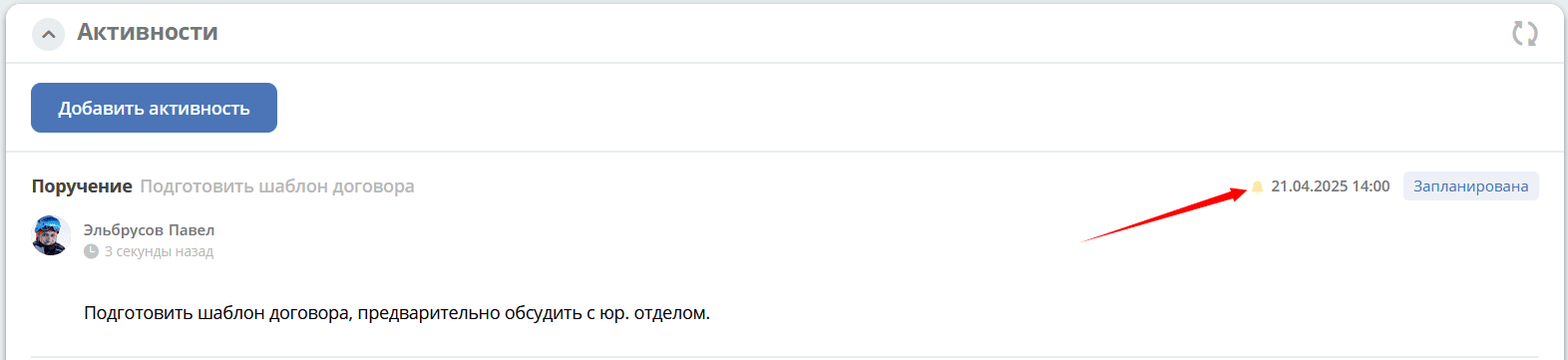
Priority is indicated by different colors:
green — low;
yellow — medium;
red — high.
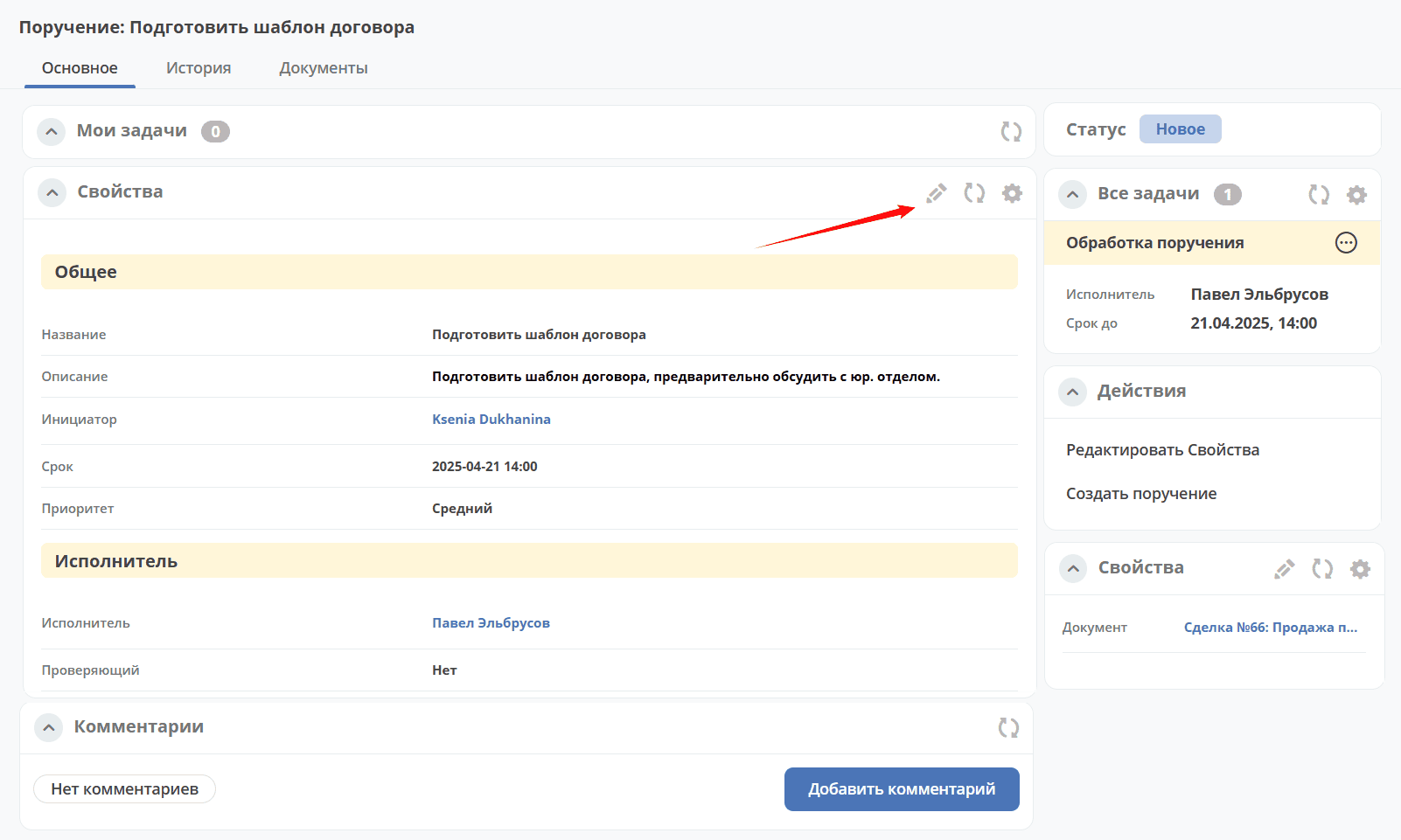
Upon clicking:

you can navigate to the assignment card to edit it:
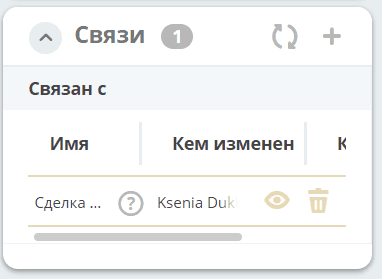
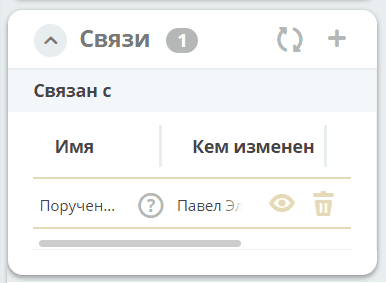
In the ‘Relations’ widget, mutual links are added both in the assignment card and in the deal card:
In the assignment:
|
|
In the deal:
|
|
Actions with the Created Activity
Actions are available to the author/initiator and the responsible person (if the author created the activity but assigned someone else as responsible).
Activities with the status ‘Scheduled’ can be edited and deleted:

and the type ‘Comment’:

For the ‘Assignment’ type, navigation to the assignment card is available:
